

Next-Gen App & Browser Testing Cloud
Trusted by 2 Mn+ QAs & Devs to accelerate their release cycles


Katalon Automation Capabilities Generator
Accelerate your testing with our AI Katalon test case generator. It is maintained by the team at TestMu AI (formerly LambdaTest).
Categories



What is the Katalon Automation Capabilities Generator?
The Katalon Automation Capabilities Generator is a browser tool that builds the desired capabilities JSON needed to run Katalon Studio tests on the TestMu AI cloud. You pick a browser, version, and operating system, add your hub details, and the tool writes the configuration block for you.
Capabilities tell a remote grid which environment to start for a test session. Getting a single key wrong is a common cause of failed runs, so generating the block removes the guesswork of writing it by hand.
What can you use the generated capabilities for?
The generated JSON drops straight into your Katalon project settings. These are the situations where teams reach for it.
- Cross browser coverage: generate one capability block per browser and version so the same suite runs everywhere.
- Moving off a local grid: switch an existing Katalon project from a local machine to the cloud without rewriting the tests.
- Debugging failed sessions: confirm the browser, version, and platform values are exactly what the grid expects.
- Onboarding teammates: hand a new engineer a working configuration instead of a page of setup notes.
- CI pipeline setup: paste the block into a build job so automated runs target the same environment every time.
What do you need before you start?
- Katalon Studio v10 or above installed
- Your TestMu AI username and access key
How do you configure Katalon with TestMu AI?
1. Open Katalon Studio
Launch Katalon Studio v10 on your system.
2. Create a New Project (Optional)
If you’re starting a new project, follow these steps:
- Open Katalon Studio.
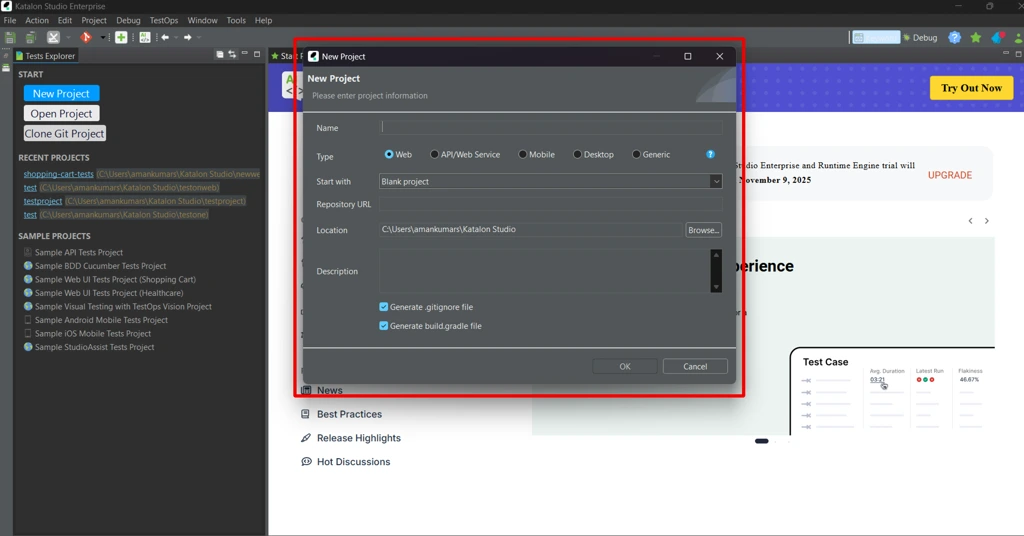
- In the New Project dialog:
- Add a name for your project.
- Choose the project type (e.g., Web or Mobile)
- Optionally, you can select a pre-built project provided by Katalon, such as the "Shopping Cart" project, by clicking on Start with Shopping Cart (or another pre-built example).
- Click OK. Your project will be cloned and opened for configuration.
3. Choose Your Project
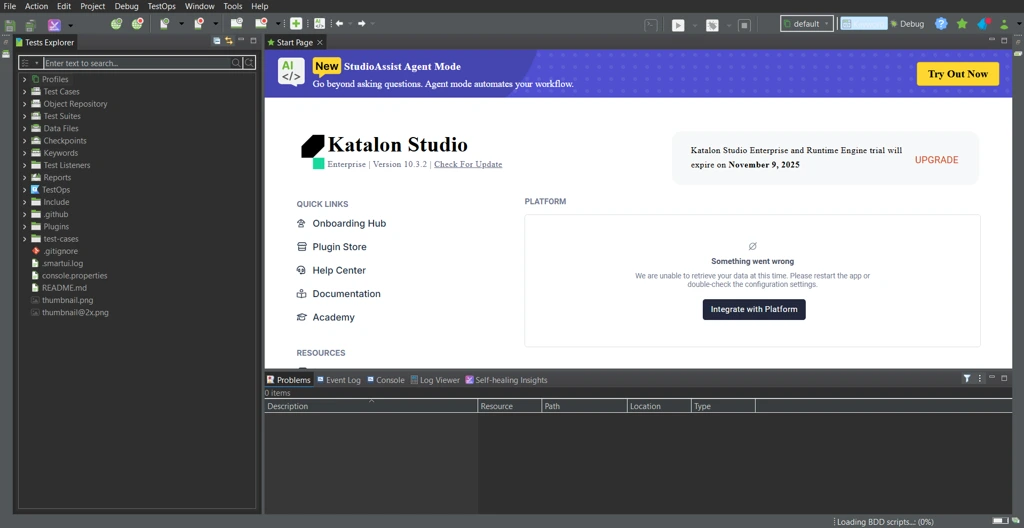
Open the project in Katalon Studio v10 you want to configure with TestMu AI.
4. Open Project Settings
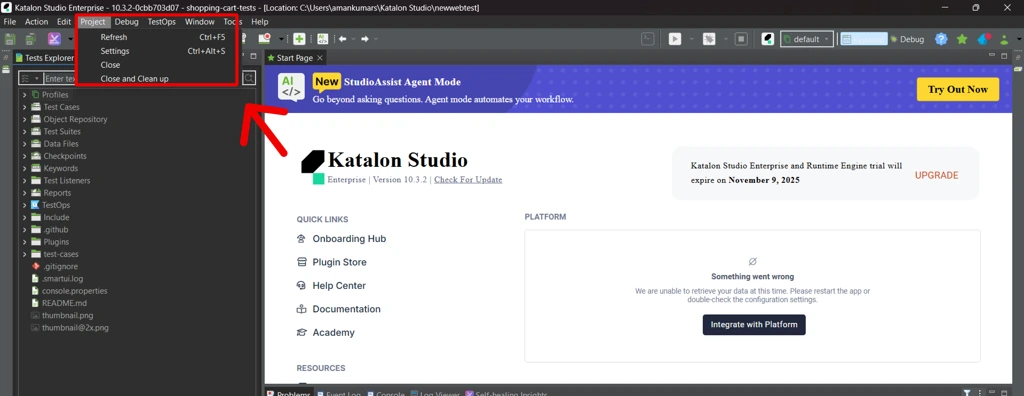
Navigate to:
Project → Settings
or use the shortcut Ctrl + Alt + S
5. Go to Desired Capabilities
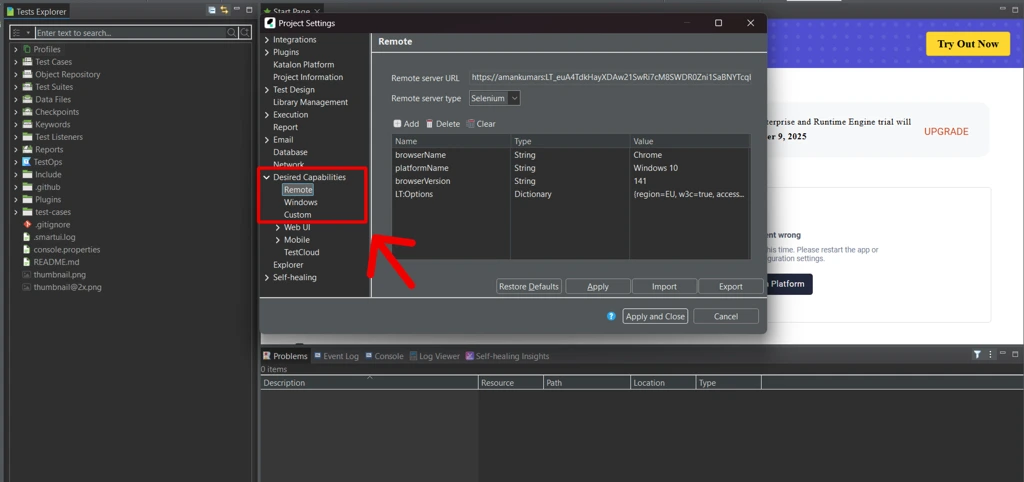
In the left panel, click on:
Desired Capabilities
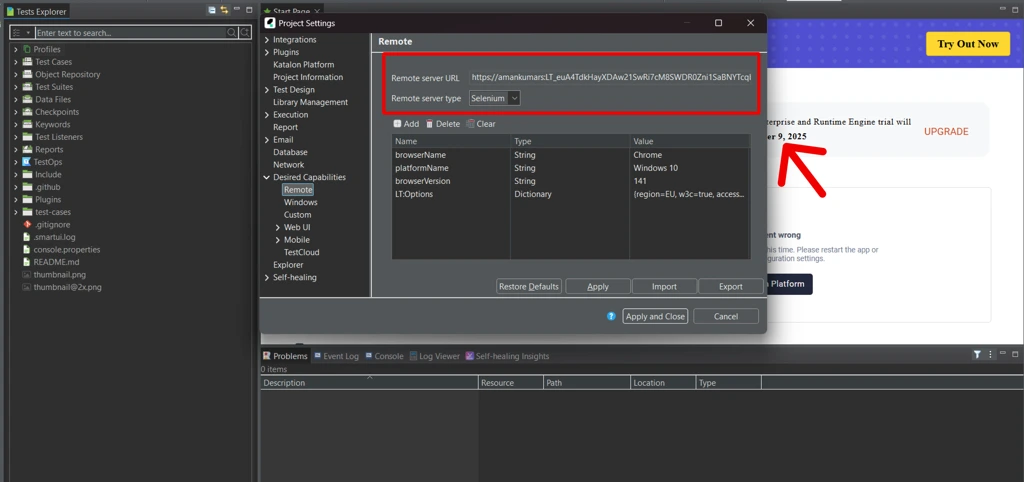
6. Configure Remote Server Settings
- Click on the Remote section under Desired Capabilities.
- Set the following fields:
- Remote Server URL: https://{username}:{accessKey}@hub.lambdatest.com/wd/hub
- (Replace {username} and {accessKey} with your TestMu AI credentials.)
- Remote Server Type:
- Select Selenium for Web Testing
- Select Appium for Mobile Testing
7. Define Desired Capabilities
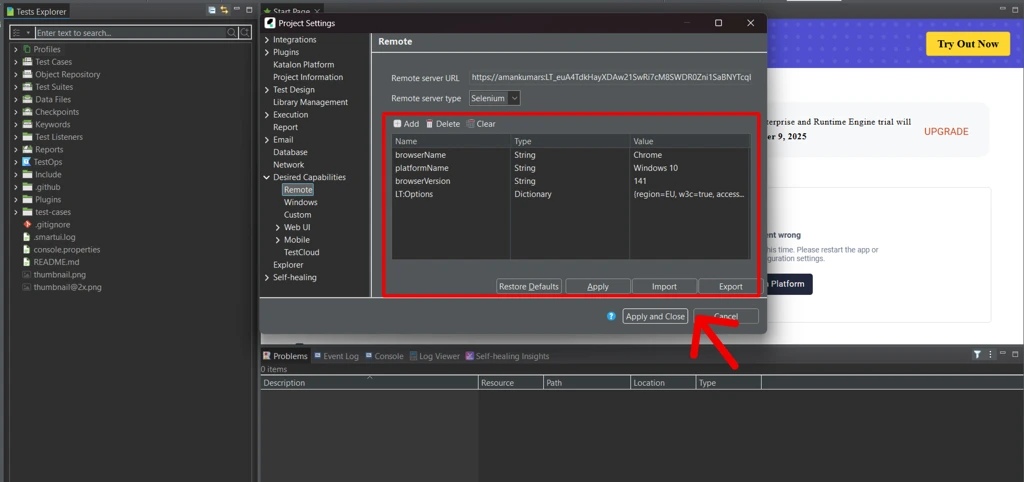
You can generate capabilities using the Katalon Automation Capabilities Generator and import it directly or manually use the following JSON example:
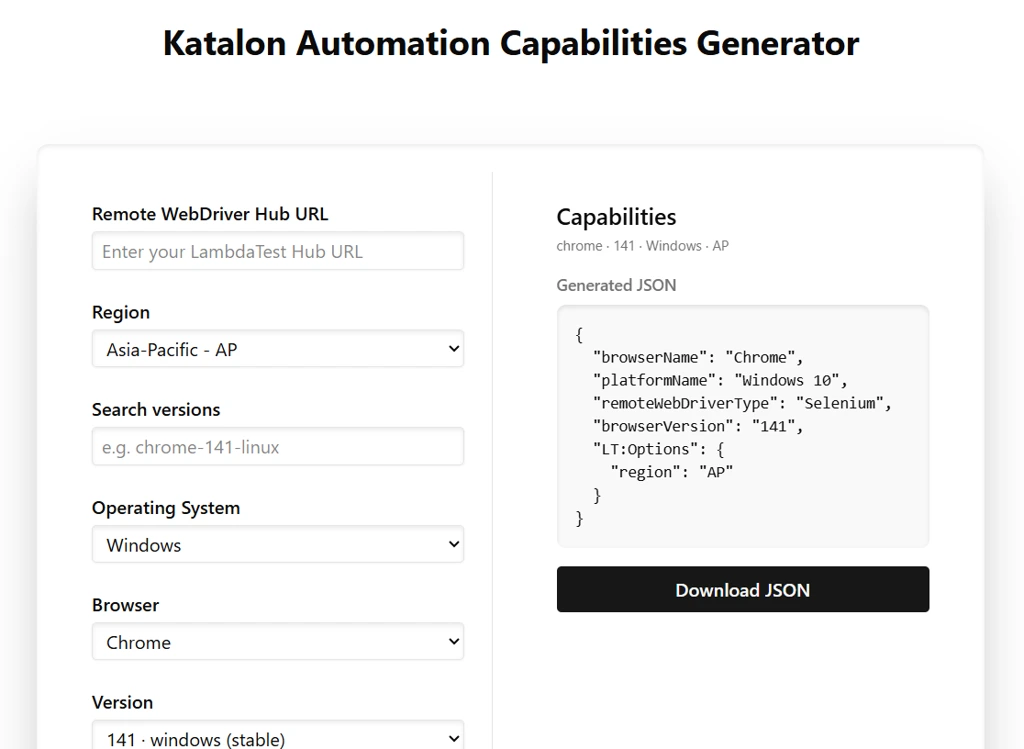
JSON Example
{
"browserName": "Chrome",
"platformName": "Windows 10",
"remoteWebDriverType": "Selenium",
"browserVersion": "141",
"LT:Options": }
"region": "AP"
}
}
After entering your desired capabilities, click on Apply and Close.
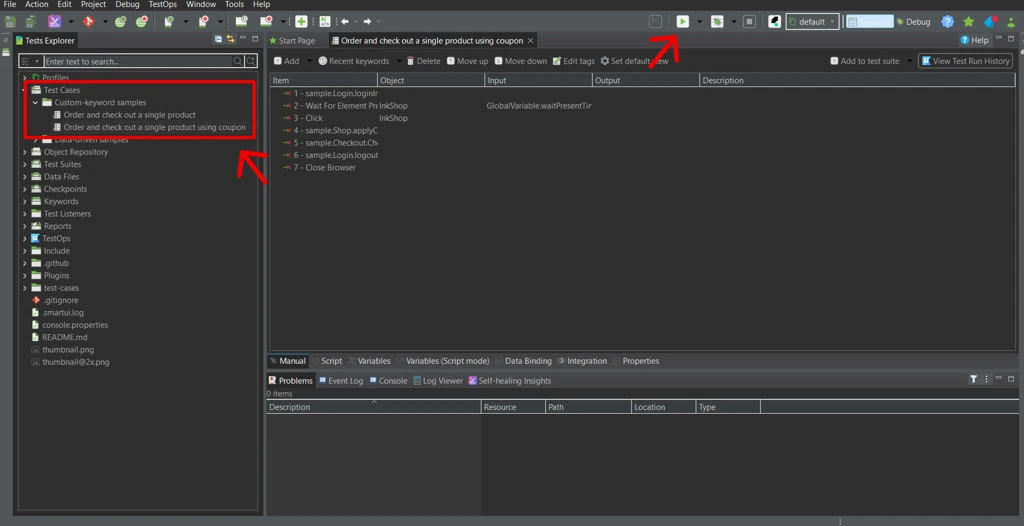
8. Run Your Test Case
- Select your test case from the Test Explorer.
- Click on the Run button dropdown and choose Remote as the execution environment.
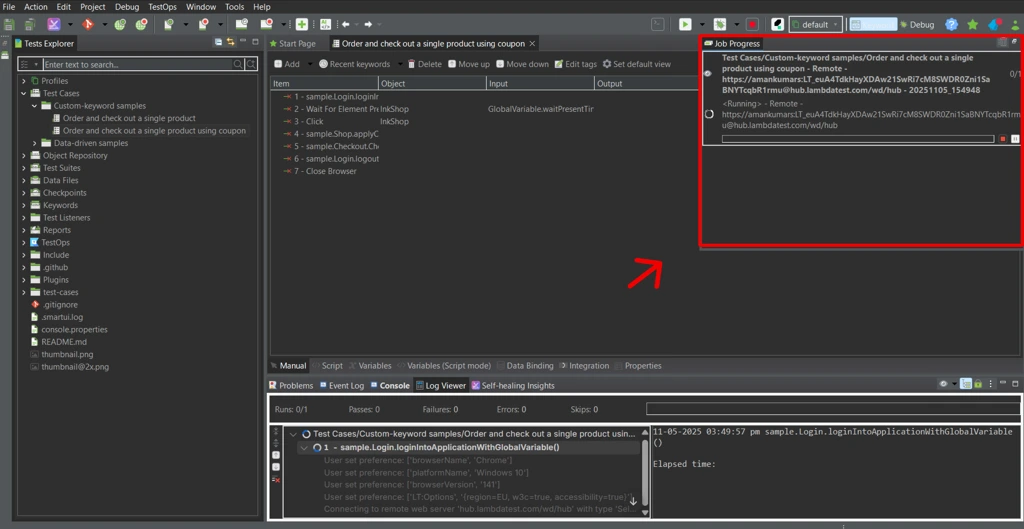
- You will now see your test execution in progress on right-hand side in Job progress panel.
How do you verify the run worked?
Once the execution starts, navigate to your TestMu AI Automation Dashboard to view live test execution, logs, and reports.
The same payload usually needs more than one pass, so Automation Checklist Generator, Competitor Automation Analyzer, and AI Automation Idea Generator handle the adjacent jobs. Use the generated data to seed suites orchestrated by TestMu AI HyperExecute.
Frequently Asked Questions (FAQs)
What is the Katalon Automation Capabilities Generator?
It is a free online tool by TestMu AI that helps you instantly generate Katalon-compatible automation capabilities for running tests on the TestMu AI cloud.
Why are automation capabilities important in Katalon?
Automation capabilities define the browser, operating system, device, and execution settings required for Katalon tests to run correctly on a cloud grid.
Does this tool support cross-browser testing?
Absolutely. You can generate capabilities for multiple browsers and operating systems supported by TestMu AI.
Can I use these capabilities in CI/CD pipelines?
Yes, the generated configurations work seamlessly with CI/CD tools like Jenkins, GitHub Actions, GitLab, and Azure DevOps.
Does this tool support both web and mobile automation?
Yes, the generator supports capability creation for both web and mobile test execution environments.
Did you find this page helpful?
More Tools
TestMu AI forEnterprise
Get access to solutions built on Enterprise
grade security, privacy, & compliance
- Advanced access controls
- Advanced data retention rules
- Advanced Local Testing
- Premium Support options
- Early access to beta features
- Private Slack Channel
- Unlimited Manual Accessibility DevTools Tests