

Next-Gen App & Browser Testing Cloud
Trusted by 2 Mn+ QAs & Devs to accelerate their release cycles


How to Handle Actions Class in Selenium
Learn to handle the Actions Class in Selenium with Java and C# to automate complex user interactions, including various mouse and keyboard actions.
March 2, 2026
Handling keyboard and mouse actions is essential for creating robust and comprehensive automated tests that mimic real user interactions. The Actions class in Selenium provides a suite of methods for simulating complex user interactions with web elements, such as clicking, double-clicking, right-clicking, dragging and dropping, and sending keyboard commands.
This functionality is crucial for web interactions beyond simple button clicks, such as filling out forms, navigating through menus, performing drag-and-drop operations, and more.
By leveraging the Actions class in Selenium, testers can automate a wide range of user behaviors, ensuring that the application responds correctly to various input scenarios, thus providing a thorough validation of the user interface.
What Is Actions Class in Selenium?
Actions in Selenium refer to a pivotal feature that empowers developers and testers to simulate complex user interactions within web applications. These interactions encompass a range of actions, such as mouse movements, keyboard inputs, drag-and-drop operations, and more.
Selenium’s Actions API plays a fundamental role in ensuring accurate and realistic automation of user behaviors, thereby enhancing the precision and effectiveness of testing processes.
In Selenium, the Actions class lets you create a sequence of actions, like mouse clicks or keyboard inputs, which can be executed using the perform() method. This means you can combine and execute different actions as a single unit.
For example, in the below scenario, you can see that to reach the Login button, you must first hover over the My account link, which expands the menu. Hovering over an element cannot be done using regular Selenium methods, so we need to use the Actions class to perform this action.
Addtionally Selenium also provides Robot class which is a complement the Actions class by providing lower-level control over input devices, which is especially useful for scenarios beyond typical web interactions.
While the Actions class is great for simulating user actions within the browser, the Robot class can perform system-level interactions, such as handling OS-level dialogs, simulating keyboard shortcuts, or capturing screenshots outside of the browser context.
To learn more about Robot class , watch the follow video given below
Methods of Actions Class in Selenium
It is quite easy to understand what the Actions class in Selenium is, the tricky part is implementing it. The actions that can be performed in a browser are broadly classified into two categories.
- Mouse Actions
- Keyboard Actions
Mouse Actions
Mouse actions in Selenium refer to the various interactions that can be simulated using a mouse, such as clicking, double-clicking, right-clicking, and dragging and dropping. These actions emulate a user’s interactions with a website, allowing for comprehensive testing of web applications.
Some of the commonly used mouse actions in Selenium are mentioned below:
- click(): clicks at the current location.
- doubleClick(): performs a double-click at the current mouse location.
- contextClick(): performs a right-click at the current mouse location.
- dragAndDrop(WebElement source, WebElement target): drags an element from the source location and drops in the target location.
- moveToElement(WebElement target): moves to the target element.
Keyboard Actions
Keyboard actions in Selenium encompass the various interactions that can be performed using a keyboard, such as pressing, holding, and releasing keys. These actions mimic a user’s interactions with a website through the keyboard.
Some of the commonly used keyword actions in Selenium are mentioned below:
- keyUp(WebElement target, java.lang.CharSequence key): performs a key release after focusing on the target element
- keyDown(WebElement target, java.lang.CharSequence key): performs a key press after focusing on the target element
- sendKeys(WebElement target, java.lang.CharSequence… keys): types the value.
Apart from the above methods, many other methods can be used based on your testing requirements. The extensibility of actions that can be performed is one of the best features of the Actions class in Selenium. These action methods are used similarly with various programming languages, such as C#, Python, Java, and more.

Note: Run your Selenium test script over 3000+ browsers and OS combinations. Try TestMu AI Today!
How To Handle Actions Class in Selenium Java?
Now that you understand the Actions class in Selenium, it is time to implement it in your test scripts.
Using Selenium with Java to handle the Actions Class is highly effective for testing complex user interactions in web applications. The Actions Class in Selenium allows for the simulation of advanced user actions such as drag-and-drop, hover, and keyboard events. Java’s powerful and versatile programming capabilities complement Selenium’s flexibility, enabling testers to create sophisticated and precise automated test scripts.
This combination ensures a thorough and accurate testing process, enhancing the reliability and robustness of your web application tests.
To implement the Actions class in Selenium with Java, follow the steps given below-
- First, import the package
org.openqa.selenium.interactions.Actions. - To use the methods provided by the Actions class, we need to create an object of this class and pass the WebDriver as an argument.
// instantiate the WebDriver
        WebDriver driver = new ChromeDriver();
        // create an object of the Actions class
        Actions act = new Actions(driver);

Based on each method of the Actions class in Selenium, we will learn to implement each mouse and keyword action method below.
Mouse Actions
Let’s learn how to implement some mouse action methods, such as click(), contextClick(), and more, with detailed code examples.
click()
Actions class in Selenium can also perform a mouse click on a specific element or at the current mouse location.
Below is a simple code that is used to search for a product on a shopping website and click the search icon:
import static org.testng.Assert.assertEquals;
        import org.openqa.selenium.By;
        import org.openqa.selenium.Keys;
        import org.openqa.selenium.WebDriver;
        import org.openqa.selenium.WebElement;
        import org.openqa.selenium.chrome.ChromeDriver;
        import org.openqa.selenium.interactions.Actions;


        public class click {
            public static void main(String[] args) {

                //instantiate the driver
                WebDriver driver = new ChromeDriver();
                //specify the URL of the webpage
                driver.get("https://www.amazon.in/");
                //maximise the window
                driver.manage().window().maximize();
                //create an object for the Actions class and pass the driver argument
                Actions action = new Actions(driver);
                //specify the locator of the search box in which the product has to be typed
                WebElement elementToType = driver.findElement(By.id("twotabsearchtextbox"));
                //pass the value of the product
                action.sendKeys(elementToType, "iphone").build().perform();
                //specify the locator of the search button
                WebElement elementToClick = driver.findElement(By.className("nav-search-submit-button"));
                //perform a mouse click on the search button
                action.click(elementToClick).build().perform();
                //verify the title of the website after searching for the product
                assertEquals(driver.getTitle(), "Amazon.in : iphone");
                driver.quit();
            }
        }

contextClick() & doubleClick()
If there is a requirement to click a button twice or right-click, the Actions class in Selenium can also do that. We can use the doubleClick() and contextClick() methods respectively.
Below is a simple code which can be used to perform both these actions:
import static org.testng.Assert.assertEquals;


        import java.util.concurrent.TimeUnit;


        import org.openqa.selenium.By;
        import org.openqa.selenium.WebDriver;
        import org.openqa.selenium.WebElement;
        import org.openqa.selenium.chrome.ChromeDriver;
        import org.openqa.selenium.interactions.Actions;


        public class clickDemo {
            public static void main(String[] args) {
              // instantiate the driver
            WebDriver driver = new ChromeDriver();
            //specify the URL of the website
            driver.get("https://www.amazon.in/");
               //maximise the window
            driver.manage().window().maximize();
            WebElement element = driver.findElement(By.xpath("//*[@id="nav-xshop"]/a[1]"));
            Actions action = new Actions(driver);
            action.doubleClick(element).build().perform();
            assertEquals(driver.getTitle(), "Amazon.in: : Start Selling on Amazon.in");            driver.manage().timeouts().pageLoadTimeout(10, TimeUnit.SECONDS);
            action.contextClick().build().perform();
            driver.quit();
            }
        }
moveToElement()
This method is used to move to a specific target element on the web page. Sometimes, some sub-options or sub-menus may be visible only when the mouse cursor is moved or hovered over the main menu.
In such cases, the Actions class in Selenium provides the moveToElement() method. We can also provide the x coordinate and the y coordinate as parameters in this method in addition to the target element.
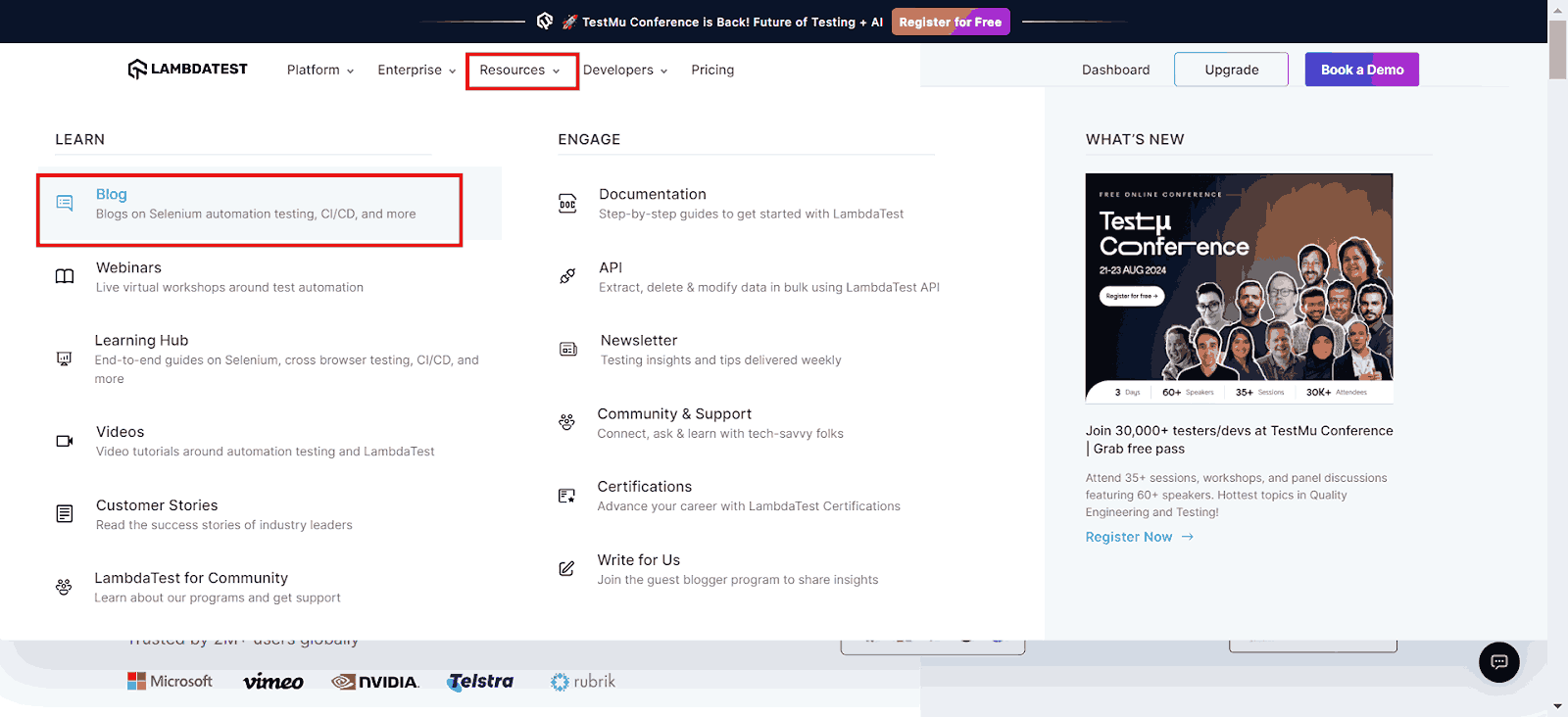
Let us try to automate the scenario below.
Test Scenario:
- Navigate to the TestMu AI website.
- Hover over the Resources tab with your mouse.
- Click the Blog sub-menu.
- Read the articles posted in the blog.
import static org.testng.Assert.assertEquals;
        import java.util.concurrent.TimeUnit;
        import org.openqa.selenium.By;
        import org.openqa.selenium.WebDriver;
        import org.openqa.selenium.WebElement;
        import org.openqa.selenium.chrome.ChromeDriver;
        import org.openqa.selenium.interactions.Actions;
        public class MoveTest {


            public static void main(String[] args) {
                WebDriver driver = new ChromeDriver();
        //specify the LambdaTest URL
                driver.get("https://www.lambdatest.com/");
                assertEquals(driver.getTitle(), "Next-Generation Mobile Apps and Cross Browser Testing Cloud");
                driver.manage().window().maximize();
                driver.manage().timeouts().pageLoadTimeout(10, TimeUnit.SECONDS);
           // Locate the element to perform the hover action on
               element_to_hover = driver.find_element(By.XPATH, '//*[@id="header"]/nav/div/div/div[2]/div/div/div[1]/div[3]/button’)
           //Create an instance of the ActionChains class
               Actions act = new Actions(driver);
            //Perform the hover action
             actions.move_to_element(element_to_hover).build().perform();
             time.sleep(5);
        //specify the locator for the element Blog and click
                driver.findElement(By.linkText("Blog")).click();
                assertEquals(driver.getCurrentUrl(), "https://www.lambdatest.com/blog/");
        //verify the page title after navigating to the Blog section
                assertEquals(driver.getTitle(), "LAMBDATEST BLOG");
                driver.close();
            }
        }
dragAndDrop()
The dragAndDrop(WebElement source, WebElement target) method is used to drag an element from the source and drop it into the target location. There are two ways to perform this with the help of the Actions class in Selenium.
- Use the dragAndDrop(WebElement source, WebElement target) method.
- Use the given series of actions (clickAndHold(WebElement source) -> moveToElement(WebElement target) -> release)
import java.util.concurrent.TimeUnit;
        import org.openqa.selenium.By;
        import org.openqa.selenium.WebDriver;
        import org.openqa.selenium.WebElement;
        import org.openqa.selenium.chrome.ChromeDriver;
        import org.openqa.selenium.interactions.Actions;
        public class ActionsTest {
            public static void main(String[] args) {
                WebDriver driver = new ChromeDriver();
                driver.get("https://www.w3schools.com/html/html5_draganddrop.asp");
                driver.manage().timeouts().pageLoadTimeout(10, TimeUnit.SECONDS);
                driver.manage().window().maximize();
                Actions action = new Actions(driver);
                WebElement source = driver.findElement(By.xpath("//div[@id="div1"]//img[@id="drag1"]"));
                WebElement destination = driver.findElement(By.xpath("//*[@id="div2"]"));
                action.clickAndHold(source).moveToElement(destination).release().build().perform();
                driver.quit();
            }
        }
Keyword Actions
Let’s learn how to implement some keyword action methods, such as sendKeys(), keyUp()/keyDown(), and more, with detailed code examples.
sendKeys()
We will use the sendKeys() method to send other keys like CTRL, ALT, SHIFT, etc.
While searching for some products on a shopping website, we would type the ‘Product name’ and press Enter from the keyboard. This action would be the same as that performed by clicking the Search button.
Below is the code for performing a search operation only using the keyboard Actions class in Selenium.
import static org.testng.Assert.assertEquals;
        import org.openqa.selenium.By;
        import org.openqa.selenium.Keys;
        import org.openqa.selenium.WebDriver;
        import org.openqa.selenium.WebElement;
        import org.openqa.selenium.chrome.ChromeDriver;
        import org.openqa.selenium.interactions.Actions;


        public class enterDemo {
            public static void main(String[] args) {
                WebDriver driver = new ChromeDriver();
                driver.get("https://www.amazon.in/");
                driver.manage().window().maximize();
                Actions action = new Actions(driver);
        //specify the locator of the search box
                WebElement elementToType = driver.findElement(By.id("twotabsearchtextbox"));
        //pass the name of the product
                action.sendKeys(elementToType, "iphone").build().perform();
        //pass the Enter value through sendKeys
                action.sendKeys(Keys.ENTER).build().perform();
        assertEquals(driver.getTitle(), "Amazon.in : iphone");
                driver.close();
            }
        }
That is how you use the Actions class in Selenium with the sendKeys() method. You must be wondering- why we added build() and perform() at the end.
The build() method generates a composite action containing all actions ready to be performed. The perform() method performs the defined series of actions.
keyUp()/keyDown()
The keyUp() and keyDown() methods imitate the keyboard actions of pressing and releasing the keys. These methods include converting the texts into uppercase or lowercase, copying text from the source and paste in a destination location, scrolling up and down the web page, multiple value selections etc. This is one of the most repeatedly used Actions classes in Selenium test automation.
Let us see the sample code for each case-
- Converting Texts to UppercaseWhen we want to enter the text manually, we press down the SHIFT key and enter the text simultaneously without releasing the SHIFT key.
We can apply the same logic to our code like below:
import org.openqa.selenium.By;
            import org.openqa.selenium.Keys;
            import org.openqa.selenium.WebDriver;
            import org.openqa.selenium.WebElement;
            import org.openqa.selenium.chrome.ChromeDriver;
            import org.openqa.selenium.interactions.Actions;


            public class keysDemo {
                public static void main(String[] args) {
                    WebDriver driver = new ChromeDriver();
                    driver.get("https://www.google.com/");
                    driver.manage().window().maximize();
                    WebElement element = driver.findElement(By.xpath("//*[@id="tsf"]/div[2]/div[1]/div[1]/div/div[2]/input"));
                    Actions action = new Actions(driver);
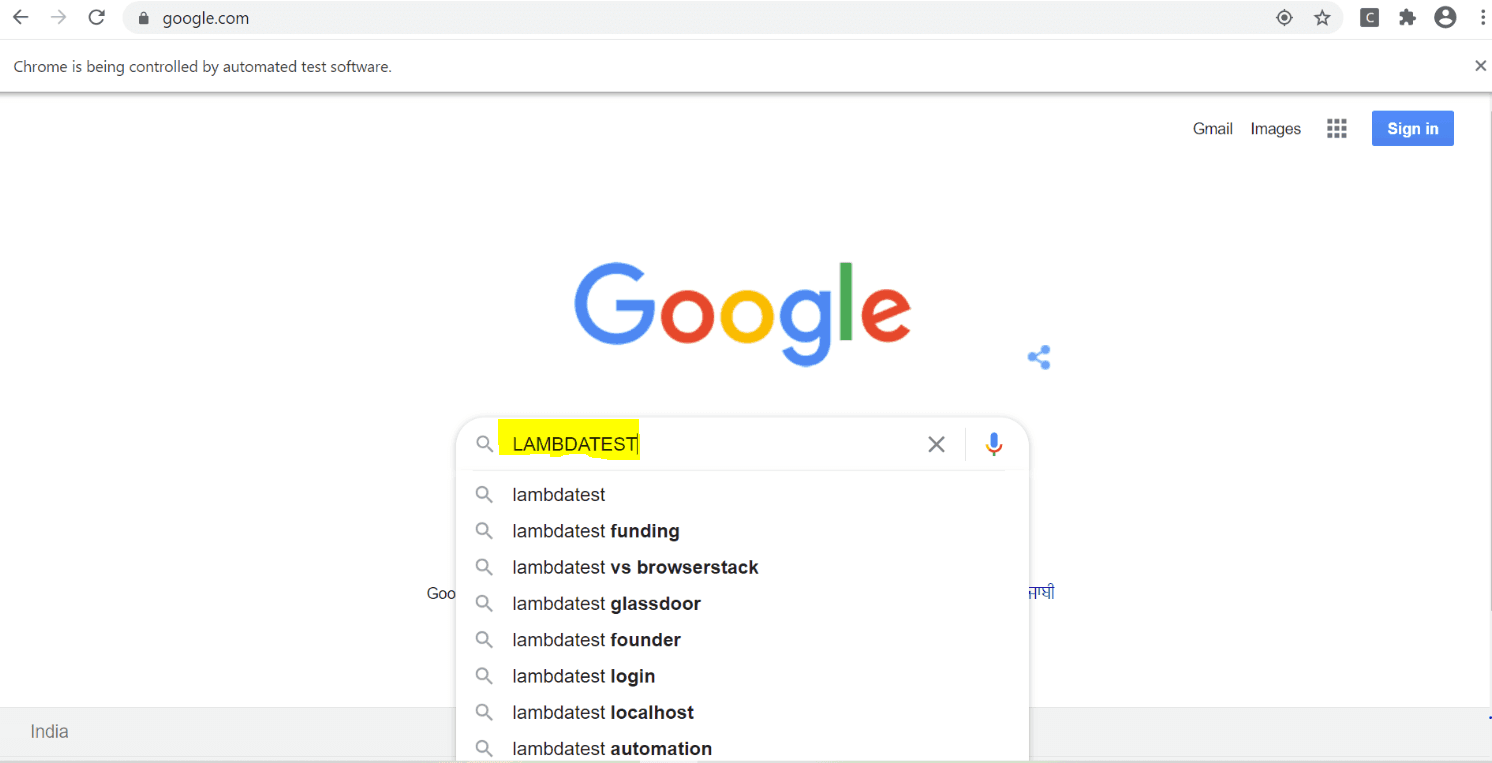
                    //holds the SHIFT key and converts the text to uppercase
                    action.keyDown(element,Keys.SHIFT).sendKeys("lambdatest").build().perform();
                driver.quit();

                }


            }
Result:
- Scrolling Up & Down the pageYou can also scroll to the top or the bottom of a page using the Actions class in Selenium test automation.
import static org.testng.Assert.assertEquals;


            import java.util.concurrent.TimeUnit;


            import org.openqa.selenium.Keys;
            import org.openqa.selenium.WebDriver;
            import org.openqa.selenium.chrome.ChromeDriver;
            import org.openqa.selenium.interactions.Actions;
            public class Scroll {
                public static void main(String[] args) {
                    WebDriver driver = new ChromeDriver();
                    driver.get("https://www.lambdatest.com/");
                    assertEquals(driver.getTitle(), "Most Powerful Cross Browser Testing Tool Online | LambdaTest");
                    driver.manage().window().maximize();
                    driver.manage().timeouts().pageLoadTimeout(10, TimeUnit.SECONDS);

                    Actions act = new Actions(driver);
                    // Scroll Down using Actions class
                    act.keyDown(Keys.CONTROL).sendKeys(Keys.END).perform();
                    try {
                        Thread.sleep(1000);
                    } catch (InterruptedException e) {
                        e.printStackTrace();
                    }
                      // Scroll Up using Actions class
                    act.keyDown(Keys.CONTROL).sendKeys(Keys.HOME).perform();
                    driver.close();
                }
            }
Note: I have intentionally added some wait time in the above code so that you can see how the page scrolls down and again to the top of the page.
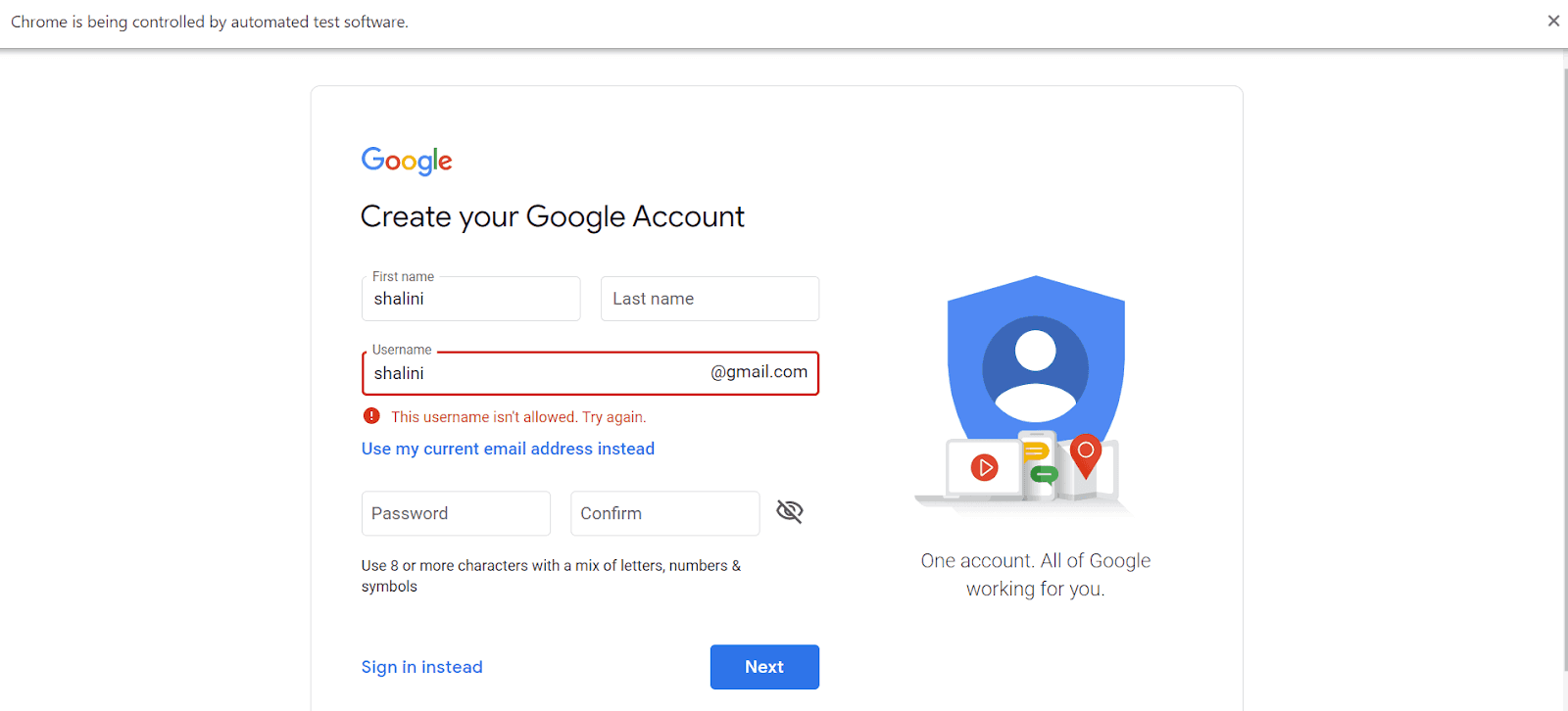
- Copying & PastingCopying some text from the source and pasting it into a target location can also be done with the help of the actions class in Selenium test automation. The logic is the same as how we copy and paste texts manually.
Below is the sample code for copying the text and pasting it in another location:
import static org.testng.Assert.assertEquals;


            import java.util.concurrent.TimeUnit;


            import org.openqa.selenium.By;
            import org.openqa.selenium.Keys;
            import org.openqa.selenium.WebDriver;
            import org.openqa.selenium.WebElement;
            import org.openqa.selenium.chrome.ChromeDriver;
            import org.openqa.selenium.interactions.Actions;


            public class copyPaste {
                public static void main(String[] args) {
                WebDriver driver = new ChromeDriver();
                driver.get("https://www.google.com/account/about/");
                driver.manage().window().maximize();
                WebElement element = driver.findElement(By.xpath("//*[text() = 'Create an account']"));
                element.click();
                driver.manage().timeouts().pageLoadTimeout(15, TimeUnit.SECONDS);
                WebElement firstName = driver.findElement(By.id("firstName"));
                WebElement userName = driver.findElement(By.id("username"));
                firstName.sendKeys("shalini");
                Actions action = new Actions(driver);
                action.keyDown( Keys.CONTROL ).sendKeys( "a" ).keyUp( Keys.CONTROL ).build().perform();
                action.keyDown( Keys.CONTROL ).sendKeys( "c" ).keyUp( Keys.CONTROL ).build().perform();
                userName.click();
                action.keyDown( Keys.CONTROL ).sendKeys( "v" ).keyUp( Keys.CONTROL ).build().perform();
            driver.close();
                }
            }
Result:
- Refreshing the pageActions class in Selenium test automation can also perform basic refreshing operations. This might not seem as useful, but it does have its perks when a browser cannot read the contents of a page on the first try.
Below is a sample code that can be used to refresh a web page:
import java.util.concurrent.TimeUnit;


            import org.openqa.selenium.By;
            import org.openqa.selenium.Keys;
            import org.openqa.selenium.WebDriver;
            import org.openqa.selenium.WebElement;
            import org.openqa.selenium.chrome.ChromeDriver;
            import org.openqa.selenium.interactions.Actions;


            public class refresh {
                public static void main(String[] args) {
                    WebDriver driver = new ChromeDriver();
                    driver.get("https://www.amazon.in");
                    driver.manage().timeouts().pageLoadTimeout(10, TimeUnit.SECONDS);
                    driver.manage().window().maximize();
                    try {
                        Thread.sleep(3000);
                    } catch (InterruptedException e) {
                        // TODO Auto-generated catch block
                        e.printStackTrace();
                    }
                    Actions action = new Actions(driver);
                    action.keyDown(Keys.CONTROL).sendKeys(Keys.F5).build().perform();
                    driver.quit();
                }
            }
Watch the following video below to learn the Actions Class in Selenium and how to use it.
Subscribe to the TestMu AI YouTube Channel for more video tutorials on automation testing, Selenium testing, Playwright testing, Cypress testing, and more.
How To Handle Actions Class in Selenium C#?
Using Selenium with C# to handle the Actions Class is an excellent choice for automating complex user interactions in web applications. The Actions Class in Selenium simulates advanced actions like drag-and-drop, hover, and multiple keyboard events. C#’s robust programming features and seamless integration with Selenium empower testers to craft precise and sophisticated test scripts.
This combination enhances the accuracy and reliability of your automated tests, ensuring comprehensive validation of your web application’s interactive functionalities.
To handle the Actions Class in Selenium using C# for mouse and keyboard actions, the following methods are commonly used:
Some of the commonly used mouse actions in Selenium C# are:
- Click(): simulates a left mouse button click in the specified location.
- ContextClick(): performs a right-click on the designated element.
- DoubleClick(): simulates a left mouse button double-click in the specified location.
- ClickAndHold(): simulates clicking and holding the left mouse button.
- DragAndDrop(): drags and drops an element to a specified location.
- MoveToElement(): moves the mouse cursor to a specified location.
Some of the commonly used keyword actions in Selenium C# are:
- SendKeys(): simulates typing from the keyboard a given key
- KeyUp(): releases a pressed key.
- KeyDown(): presses and holds a key.
To implement these Action classes in Selenium using C#, you must first gather the necessary details to run your tests successfully. This includes identifying the elements you want to perform the actions, such as clicking, double-clicking, right-clicking, or dragging and dropping.
You also need to ensure that your WebDriver is properly configured and that the necessary drivers are installed for the browsers you intend to test against. Once you have gathered these details, you can start writing your tests using the Actions classes provided by Selenium.
Prerequisites
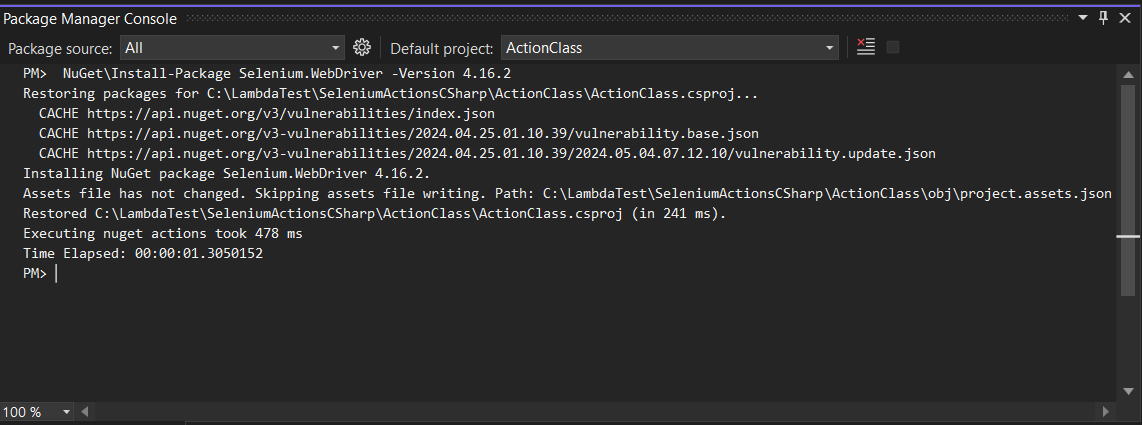
For demonstration purposes, we will use NUnit as the automation testing framework to run the tests. We will use the latest Selenium 4 version, 4.16.2, to write the test scripts. Additionally, we will add the Selenium WebDriver NuGet package to get started.
You can add the package by running the following package manager command:
PM> NuGetInstall-Package Selenium.WebDriver -Version 4.16.2
The tests can run locally, on your local machine where the code resides, and remotely in the cloud. However, leveraging cloud cloud grid solutions offers distinct advantages.
Running tests in the cloud provides flexibility in choosing browsers and platforms and the ability to run tests in parallel, allowing you to scale the testing process. This can significantly reduce overall test execution time. This approach allows for efficient resource utilization and scalability, making managing and scaling test automation efforts easier.
One such cloud grid solution is TestMu AI, an AI-powered test orchestration and execution platform that lets you run manual, automation, and cross-browser testing at scale with over 3000+ real devices, browsers, and OS combinations.

Let’s execute mouse and keyboard action methods on the cloud platform. You’ll need your username and access key from the TestMu AI Profile > Accounts Settings > Password & Security tab.
Once you have copied and stored the username and access key, the next thing to do is to determine the capabilities to use in the test from the TestMu AI Capabilities Generator.
After adding the details and the test script in the ActionClass, this is what the test class looks like.
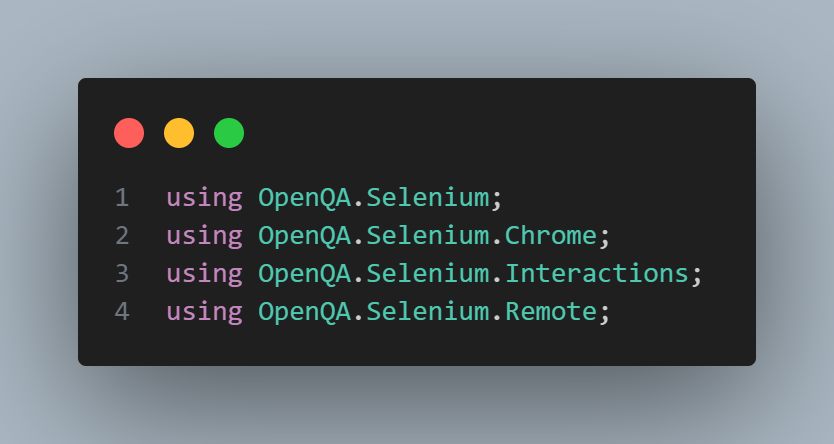
using OpenQA.Selenium;
        using OpenQA.Selenium.Chrome;
        using OpenQA.Selenium.Interactions;
        using OpenQA.Selenium.Remote;


        namespace ActionClass;


        public class ActionClassSelenium
        {
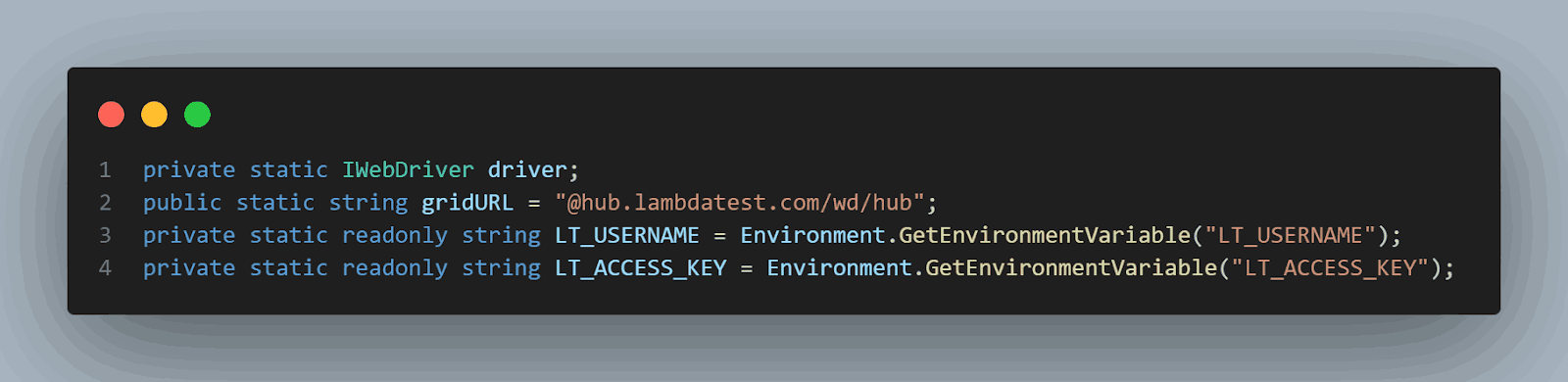
            private static IWebDriver driver;
            public static string gridURL = "@hub.lambdatest.com/wd/hub";
            private static readonly string LT_USERNAME = Environment.GetEnvironmentVariable("LT_USERNAME")!;
            private static readonly string LT_ACCESS_KEY = Environment.GetEnvironmentVariable("LT_ACCESS_KEY")!;

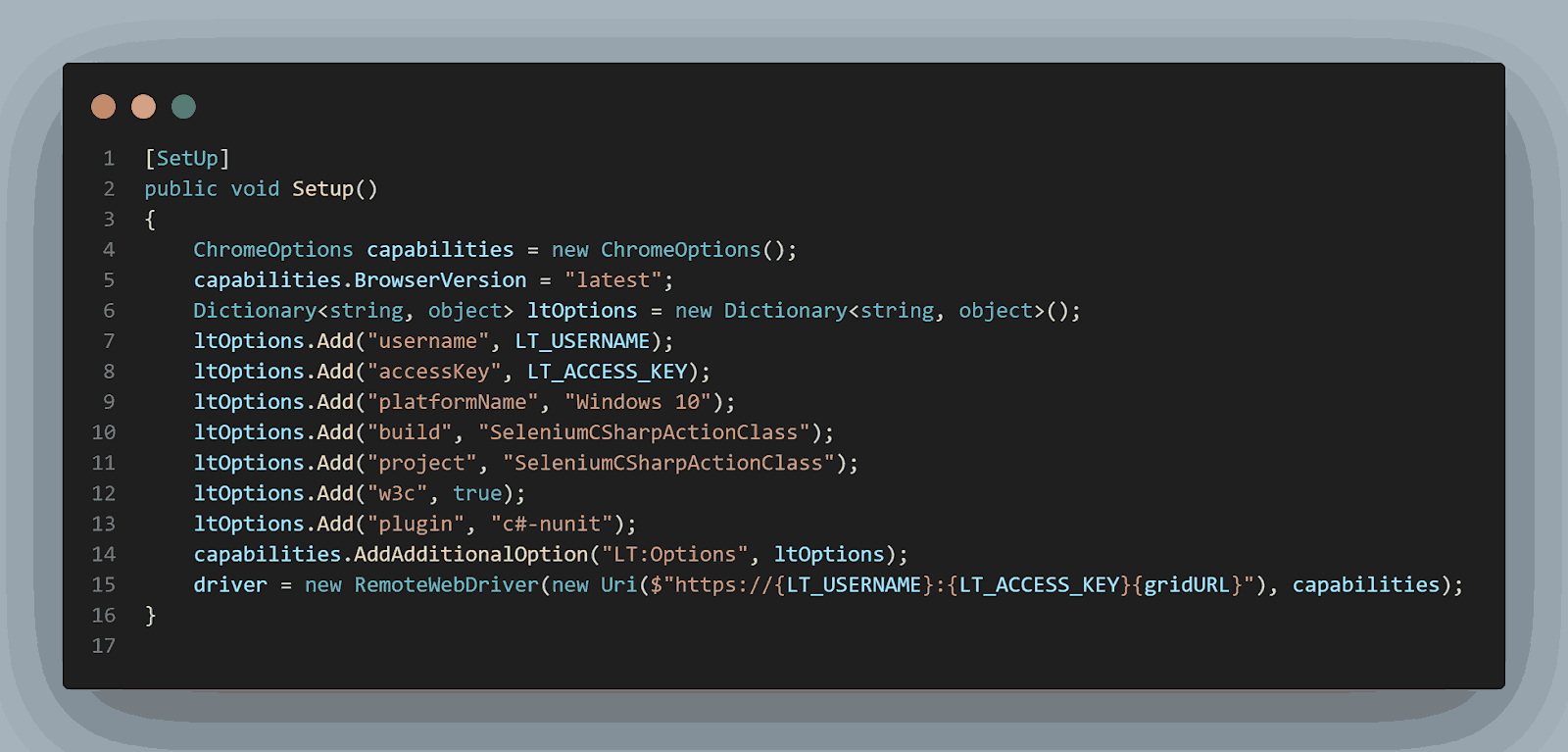
            [SetUp]
            public void Setup()
            {
                ChromeOptions capabilities = new ChromeOptions();
                capabilities.BrowserVersion = "latest";
                Dictionary<string, object> ltOptions = new Dictionary<string, object>();
                ltOptions.Add("username", LT_USERNAME);
                ltOptions.Add("accessKey", LT_ACCESS_KEY);
                ltOptions.Add("platformName", "Windows 10");
                ltOptions.Add("build", "SeleniumCSharpActionClass");
                ltOptions.Add("project", "SeleniumCSharpActionClass");
                ltOptions.Add("w3c", true);
                ltOptions.Add("plugin", "c#-nunit");
                capabilities.AddAdditionalOption("LT:Options", ltOptions);
                driver = new RemoteWebDriver(new Uri($"https://{LT_USERNAME}:{LT_ACCESS_KEY}{gridURL}"), capabilities);
            }
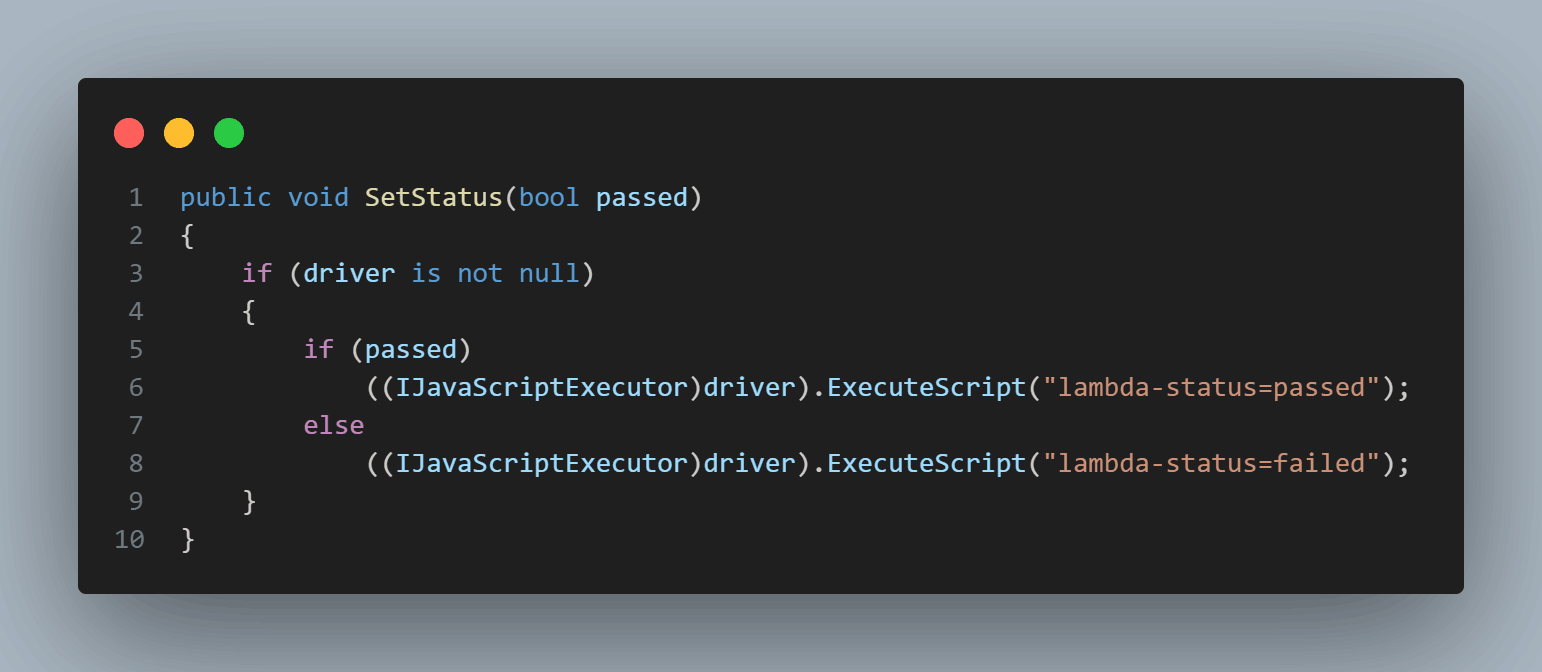
            public void SetStatus(bool passed)
            {
                if (driver is not null)
                {
                    if (passed)
                        ((IJavaScriptExecutor)driver).ExecuteScript("lambda-status=passed");
                    else
                        ((IJavaScriptExecutor)driver).ExecuteScript("lambda-status=failed");
                }
            }
            [TearDown]
            public void TearDown()
            {
                driver.Quit();
            }
        }
Code Walkthrough:
- Import the necessary Selenium libraries to help you interact with the web page.
- OpenQA.Selenium, OpenQA.Selenium.Chrome (or the browser we want to use in our tests).
- OpenQA.Selenium.Interactions, which gives us access to the Actions class.
- OpenQA.Selenium.Remote for access to the Selenium Grid.
- Within the class, you need to declare the variables. And if we’re using Selenium Grid, you will also need to declare the URL, username, and access key:
- The username and access key you collected earlier from the TestMu AI platform can be stored as environment variables because this is more secure than keeping them in the code as hard-coded values.
- For Windows:
- For macOS:
- For Linux:
- Within the Setup(), we need to create a new instance of the WebDriver and add the driver capabilities.
- The SetStatus() method is used in each test to set its status. It publishes the pass/fail status on the TestMu AI platform.
Note: You can skip the last one to execute the tests locally.
To set environment variables, you need to use the following commands:
set LT_USERNAME=LT_USERNAME
        set LT_ACCESS_KEY=LT_ACCESS_KEY
export LT_USERNAME=LT_USERNAME
            export LT_ACCESS_KEY=LT_ACCESS_KEY
export LT_USERNAME=LT_USERNAME
        export LT_ACCESS_KEY=LT_ACCESS_KEY
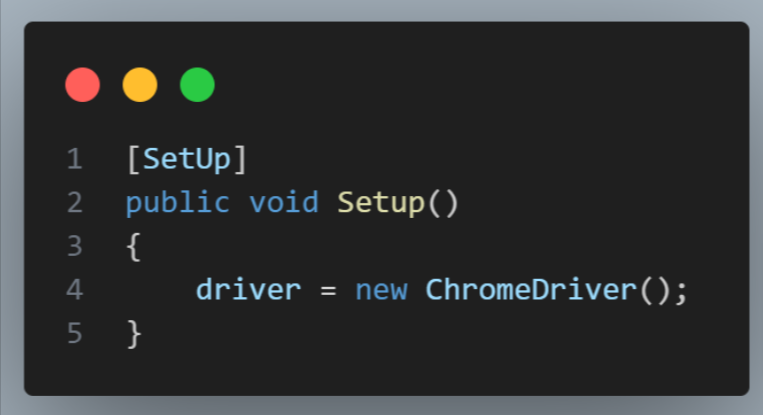
The [SetUp] is a NUnit attribute, which defines a method executed before each test. So, this part of the code will run before each test.
If you want to keep your test local, it’s enough to create a new driver instance in the setup like this:
With the base file set up, including all the required instructions, we can now learn how to write the Actions class in Selenium C#, along with its syntax and code demonstration.
Mouse Actions
Below, we will learn how to implement mouse actions such as Click(), DoubleClick(), and more, in detail, with code demonstrations using the Actions Class in Selenium.
Click()
This action moves to the center of an element and presses and releases the left mouse button. This is a normal “clicking” action.
Syntax:
new Actions(driver)
        .Click(element)
        .Perform();
Let us understand the working of click() Action class in Selenium with a test scenario.
Test Scenario:
- Navigate to the URL: Selenium Playground.
- Locate the first checkbox element by its ID (found by right-clicking on it on the web page and selecting Inspect).
- Click the first checkbox.
To verify the checkbox status, you can use the SetStatus() method to capture and display the test status of the checkbox.
Below is the code for the above test scenario.
[Test]
        public void Click()
        {
            try
            {
                driver.Navigate().GoToUrl("https://www.lambdatest.com/selenium-playground/checkbox-demo");
                var element = driver.FindElement(By.Id("isAgeSelected"));
                new Actions(driver)
                    .Click(element)
                    .Perform();
                SetStatus(true);
            }
            catch (Exception)
            {
                SetStatus(false);
                throw;
            }
        }
DoubleClick()
This action moves the mouse to the center of an element and performs a left mouse button double-click.
Syntax:
new Actions(driver)
        .DoubleClick(element)
        .Perform();
Let us understand the working of DoubleClick() Action class in Selenium with a test scenario.
Test Scenario:
- Navigate to the URL: Selenium Playground.
- Locate the first checkbox element.
- Double-click on the first checkbox.
Below is the code for the above test scenario.
[Test]
        public void DoubleClick()
        {
            try
            {
                driver.Navigate().GoToUrl("https://www.lambdatest.com/selenium-playground/checkbox-demo");
                var element = driver.FindElement(By.Id("isAgeSelected"));
                new Actions(driver)
                    .DoubleClick(element)
                    .Perform();
                SetStatus(true);
            }
            catch (Exception)
            {
                SetStatus(false);
                throw;
            }
        }
To learn more about the DoubleClick() Action class in Selenium, follow this dedicated blog on double click in Selenium.
ContextClick()
An action that moves the cursor to the center of an element and then presses the right mouse button. This can trigger various actions, such as opening new menus.
Syntax:
new Actions(driver)
        .ContextClick(element)
        .Perform();
Let us understand the working of ContentClick() Action class in Selenium with a test scenario.
Test Scenario:
- Navigate to the URL: Selenium Playground.
- Locate the div element on the page.
- Right-click on the div element.
Below is the code for the above test scenario.
[Test]
        public void ContextClick()
        {
            try
            {
                driver.Navigate().GoToUrl("https://www.lambdatest.com/selenium-playground/context-menu");
                var element = driver.FindElement(By.Id("hot-spot"));
                new Actions(driver)
                    .ContextClick(element)
                    .Perform();
                SetStatus(true);
            }
            catch (Exception)
            {
                SetStatus(false);
                throw;
            }
        }
ClickAndHold() & MoveByOffset()
ClickAndHold() and MoveByOffset() are essential methods in the Actions class using Selenium C#, enabling precise control over mouse interactions such as click-and-hold operations and moving the mouse to specific offsets.
- MoveToElement(): This action moves the mouse cursor to the specified source element and then moves it by the number of pixels in the provided offset.
Syntax for MoveToElement():
We must provide the pixels to move on the X and Y axes.
new Actions(driver)
            .MoveToElement(element, 100, 100)
            .Perform();
Syntax for ClickAndHold():
new Actions(driver)
            .ClickAndHold(element)
            .Perform();
Let us understand the workings of MoveToElement() and ClickAndHold() Action class in SeleniumC# with a test scenario.
Test Scenario:
- Navigate to the URL: Selenium Playground.
- Locate the first slider on the page.
- Move the first slider by one-third.
The code below first identifies the web element and moves the slider to the desired location. It clicks and holds the mouse on the slider (using ClickAndHold()), moves it to the start (MoveByOffset()), then moves it to the desired location and releases the mouse button.
The ClickAndHold() action clicks the mouse at the element’s center. To move to the start of the slider, get the slider’s width, divide it by 2, and drag the mouse there using a negative offset to move left.
To move it by one-third of the total length, get the slider’s width and divide it by 3 or multiply it by 0.34 to move the mouse horizontally to the right using a positive offset.
[Test]
        public void ClickAndHold()
        {
            try
            {
                driver.Navigate().GoToUrl("https://www.lambdatest.com/selenium-playground/drag-drop-range-sliders-demo");
                var slider = driver.FindElement(By.XPath("//*[@id='slider1']/div/input"));
                Actions action = new Actions(driver);
                action.ClickAndHold(slider).
                    MoveByOffset((-(int)slider.Size.Width / 2), 0).
                    MoveByOffset((int)(slider.Size.Width * 0.34), 0).
                    Release().
                    Perform();
                SetStatus(true);
            }
            catch (Exception)
            {
                SetStatus(false);
                throw;
            }
        }
DragAndDrop()
Using this action, you can drag and drop a web element from one point to another – either to another element or by offset.
Syntax:
The DragAndDrop() receives two parameters: the source element (which is to be dragged) and the target element (where the element will be dropped).
new Actions(driver)
        .DragAndDrop(sourceElement, targetElement)
        .Perform();
You can perform DragAndDropToOffset by providing 3 parameters: the element to be dragged and the number of pixels where the element needs to be moved on the X and Y axes (int values provide these).
Syntax:
new Actions(driver)
        .DragAndDropToOffset(sourceElement, 100, 100)
        .Perform();
Let us understand the working of the DragAndDrop() Action class in Selenium with a test scenario.
Test Scenario:
- Navigate to the URL: Selenium Playground.
- Locate the first draggable element.
- Locate the target element.
- Drag the first draggable element and drop it onto the target element.
Below is the code for the given test scenario.
[Test]
        public void DragAndDrop()
        {
            try
            {
                driver.Navigate().GoToUrl("https://www.lambdatest.com/selenium-playground/drag-and-drop-demo");
                var draggable = driver.FindElement(By.XPath("//*[@id='todrag']/span[1]"));
                var target = driver.FindElement(By.Id("mydropzone"));
                Actions action = new Actions(driver);
                action.DragAndDrop(draggable, target);
                action.Perform();
                SetStatus(true);
            }
            catch (Exception)
            {
                SetStatus(false);
                throw;
            }
        }
MoveToElement()
This action moves the mouse pointer to the center of the given element without clicking on it. It’s useful when you need to hover an element.
Syntax:
new Actions(driver)
        .MoveToElement(element)
        .Perform();
Let us understand the working of the MoveToElement() Action Class in Selenium with a test scenario.
Test Scenario:
- Navigate to the URL: Selenium Playground.
- Locate the first element on the page.
- Hover over the first element.
Below is the code for the given test scenario.
[Test]
        public void Hover()
        {
            try
            {
                driver.Navigate().GoToUrl("https://www.lambdatest.com/selenium-playground/hover-demo");
                var element = driver.FindElement(By.XPath("//div[contains(text(),'Hover Me')]"));
                new Actions(driver)
                    .MoveToElement(element)
                    .Perform();
                SetStatus(true);
            }
            catch (Exception)
            {
                SetStatus(false);
                throw;
            }
        }
Keyboard Actions
Below, we will learn how to implement keyboard actions such as SendKeys(), KeyUp(), and KeyDown() in detail, with code demonstrations using the Action Class in Selenium.
KeyUp()/KeyDown()
KeyUp() and KeyDown() are methods in the Selenium Action class that help simulate pressing and releasing keyboard keys, respectively. These methods are useful for handling keyboard interactions in automated tests.
- KeyUp(): This action sends a modifier key-up message to the browser, which will release the pressed key. It should be used together with the key-down action.
Let’s say you want to type something in all uppercase letters by simulating the usage of the SHIFT key. This means you must press the SHIFT key, type the required text, and then release the pressed key.
Below is code so you can understand the example given above.
actions = new Actions(driver);
        actions.KeyDown(Keys.Shift);
        actions.SendKeys("this will be typed in upper case");
        actions.KeyUp(Keys.Shift);
        actions.Perform();
The same sequence can also be written as a single line of code:
actions.KeyDown(Keys.Shift).SendKeys("this will be typed in upper case").KeyUp(Keys.Shift).Perform();
Syntax:
new Actions(driver)
            .KeyDown(Keys.F5)
            .Perform();
SendKeys()
The Actions API offers a useful method that integrates the key down and key up instructions into a single action. This command can be utilized when typing many characters while performing other tasks or using certain keyboard shortcuts, such as refreshing a page (F5).
For example, to perform a select-all action, you need to press down the Control key, type “a”, then release the Control key. This is done like this:
Syntax:
new Actions(driver)
        .SendKeys(Keys.F5)
        .Perform();
Let us understand the working of the SendKeys() Action Class in Selenium with a test scenario.
Test Scenario:
- Navigate to the URL: Selenium Playground.
- Enter some text in the input box using the sendKeys() method.
- Press Shift+A to select the entire text.
Below is the code for the given test scenario.
[Test]
        public void KeyboardActions()
        {
            try
            {
            driver.Navigate().GoToUrl("https://www.lambdatest.com/selenium-playground/simple-form-demo");
                var input = driver.FindElement(By.Id("user-message"));
                input.SendKeys("my text");
                new Actions(driver)
                    .Click(input)
                    .KeyDown(Keys.Control)
                    .SendKeys("A")
                    .KeyUp(Keys.Control)
                    .Perform();
                SetStatus(true);
            }
            catch (Exception)
            {
                SetStatus(false);
                throw;
            }
        }
Output:
To execute the tests, you can run them from Test Explorer or your pipeline if you have one set up. This demonstration uses Visual Studio.
The tests will be available in the Test Explorer panel.
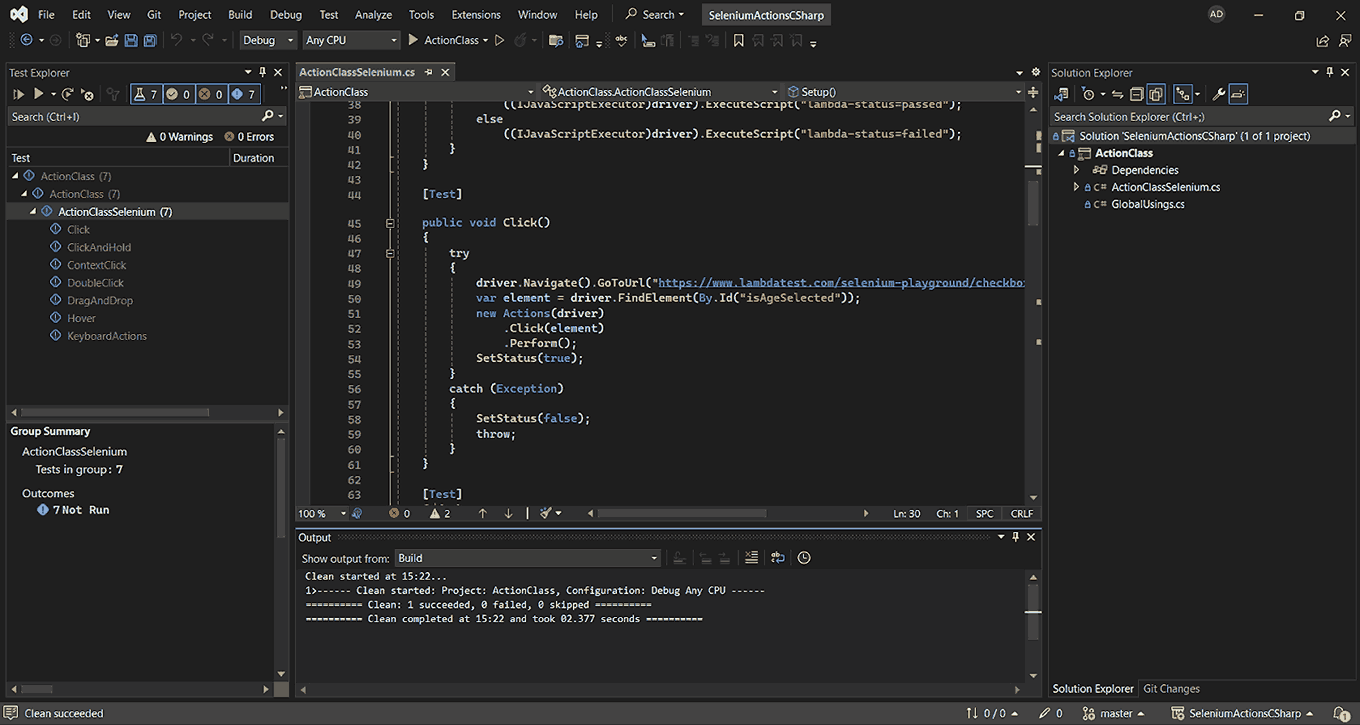
They currently have no status because they have not been executed. From the top buttons, you can run the current selection or press Run All. Tests can also be run from the command line.
When running on the grid, the test in progress is visible.
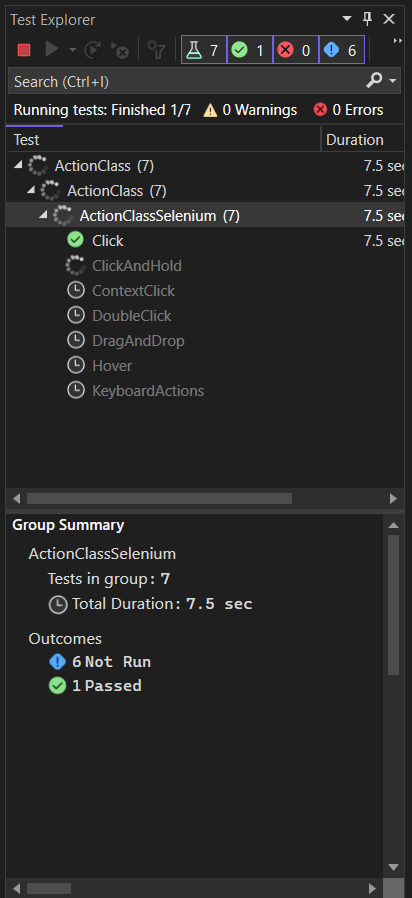
When running tests locally, a browser window will open for each test and close during the TearDown() process. After the tests finish executing, their status will be updated. If all tests pass, they will be marked as green.
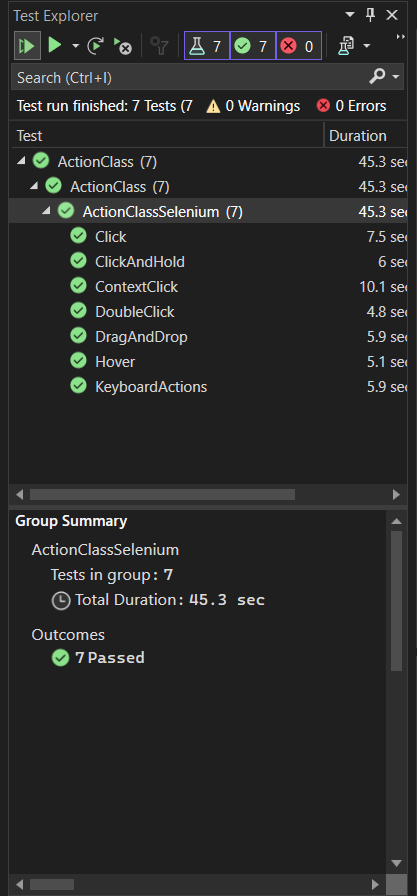
Result:
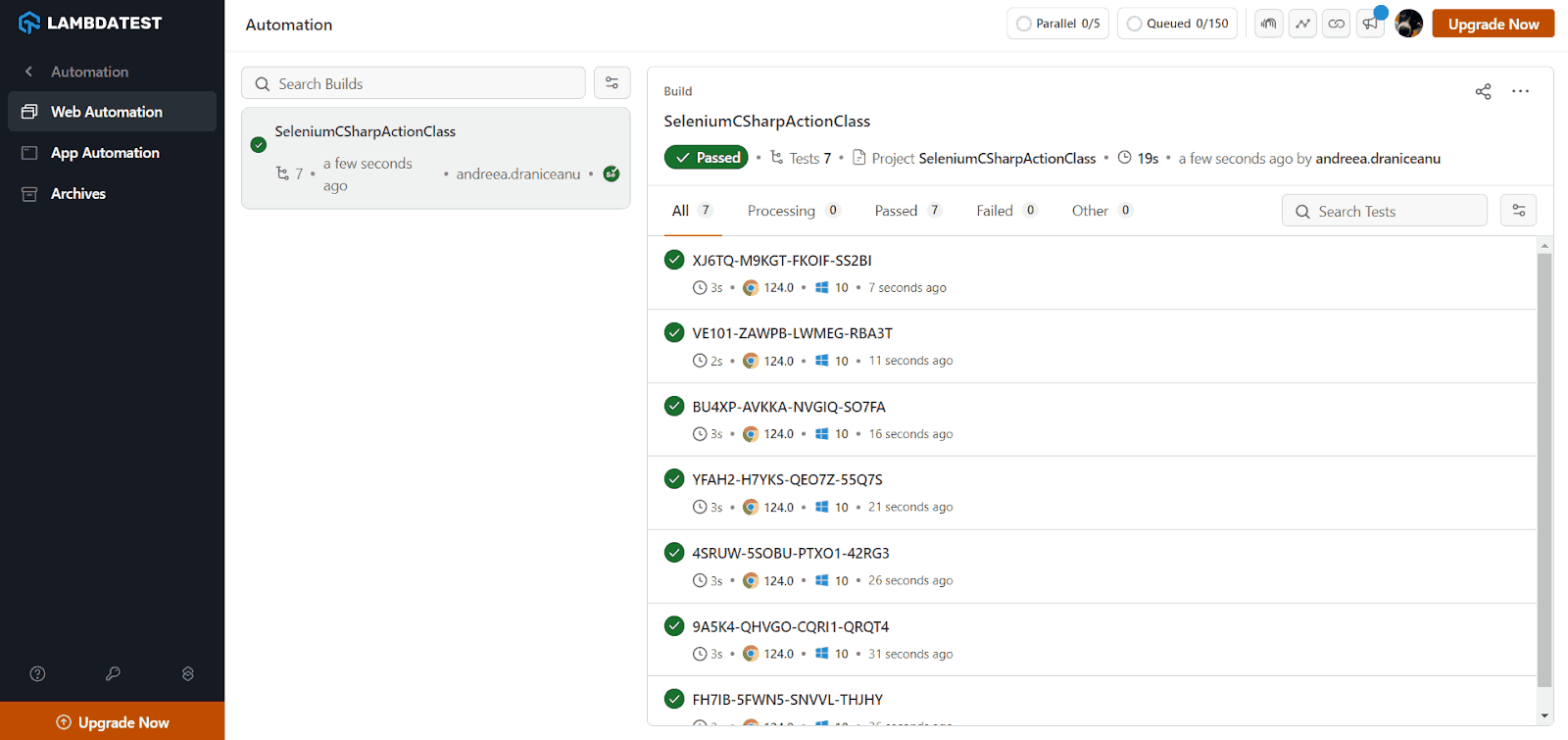
The results are also visible in the TestMu AI account under the Automation > Web Automation:
You can see a video playback of the test as well:
To learn more about automation with the TestMu AI platform and its functionality, watch the video tutorial given below and get your automation testing process started.
Wrapping Up!!!
In summary, we’ve learned about the Actions class in Selenium and its methods for interacting with a browser. We’ve seen examples of actions like clicking the mouse, typing text, dragging and dropping, moving to an element, double-clicking, right-clicking, copying and pasting content, refreshing a page, and converting text cases.
To enhance your Selenium test automation, consider using a cloud Selenium Grid like TestMu AI to speed up your release cycles. TestMu AI offers a cloud-based Selenium Grid for cross-browser testing on over 3000+ OS and browsers. Implement these scripts effectively on TestMu AI and share your feedback. Also, share your experiences using the Actions class in Selenium with your friends and colleagues to expand our knowledge in this area.
Stay tuned for more interesting blogs on Selenium test automation. Happy Testing!
Author


Frequently asked questions
Did you find this page helpful?
More Related Hubs
TestMu AI forEnterprise
Get access to solutions built on Enterprise
grade security, privacy, & compliance
- Advanced access controls
- Advanced data retention rules
- Advanced Local Testing
- Premium Support options
- Early access to beta features
- Private Slack Channel
- Unlimited Manual Accessibility DevTools Tests