

Next-Gen App & Browser Testing Cloud
Trusted by 2 Mn+ QAs & Devs to accelerate their release cycles


Now Take Screenshots of Pages Behind Login
Generate full-page automated screenshots, even behind user login of your web-application, in different browsers using TestMu AI’s Automated Screenshot Testing.

Harshit Paul
January 30, 2026
Cross browser testing can be quite repetitive in this world of Agile. You need to evaluate your website on a weekly, bi-weekly, or even daily basis to ensure its cross browser compatibility for both mobile, and desktop browsers. However, doing a thorough round of over hundreds of Browser + OS combination can take a toll in terms of money and resource utilization. Which is why sometimes we prefer to capture screenshots of our website in different browsers for quick assessment of our website’s user interface.
Being a cross browser testing tool, TestMu AI, offers a feature of Automated Screenshot Testing ever since its inception. With Screenshot testing at TestMu AI, you could capture full-page screenshots of your website in bulk, for both mobile and desktop browsers. You can capture up to 25 screenshots in a single test session, annotate them to highlight a bug, download all the screenshots in a zip folder, and more.
10 Must-Try Features Of Automated Screenshot Testing On TestMu AI
Ever since we went live with Automated Screenshot testing on our platform, we were often questioned if there was a way to generate screenshots of a web-application that requires a login authentication? Well, there is now!
Today, we have added one of the most requested features in our automated Screenshot testing. This feature would allow you to bypass your website’s login form and capture a different web page after logging into your web application.
The best part is that all of this can be done with the help of point and click, without having to write an automation test script.
You can also refer to the below video tutorial on How To Take Screenshots In Selenium testing.
Understanding The Process Of Screenshot Behind Login
In a normal screenshot test session, you feed a Test URL into the Screenshot driver, select a number of browsers you wish to test for that URL, and other details. Now, if you wish to generate screenshots behind a login page then the process is a little different.
First, you will provide a Login URL into the screenshot driver. Keep in mind, that Login URL is different from Test URL. Login URL will point the screenshot driver to your website’s login page whereas Test URL will represent the final URL you wish to test after you login into your web-application.
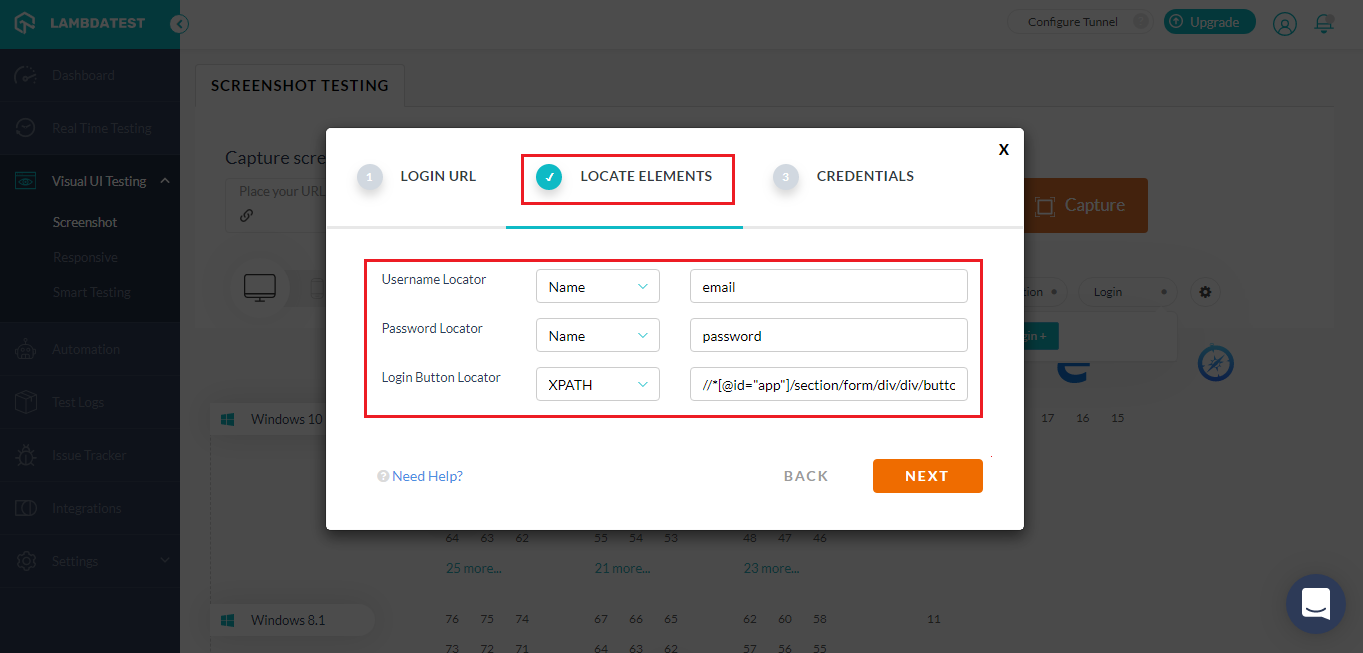
Next, you offer the details of Locators to the Screenshot Driver to help locate the HTML elements on your login page. After that, you provide your login credentials to allow Screenshot driver to perform a successful login to the application.
At last, your Test URL is fed into the Screenshot driver for generating full page automated screenshots on the desired URL.
Introducing Login Profiles
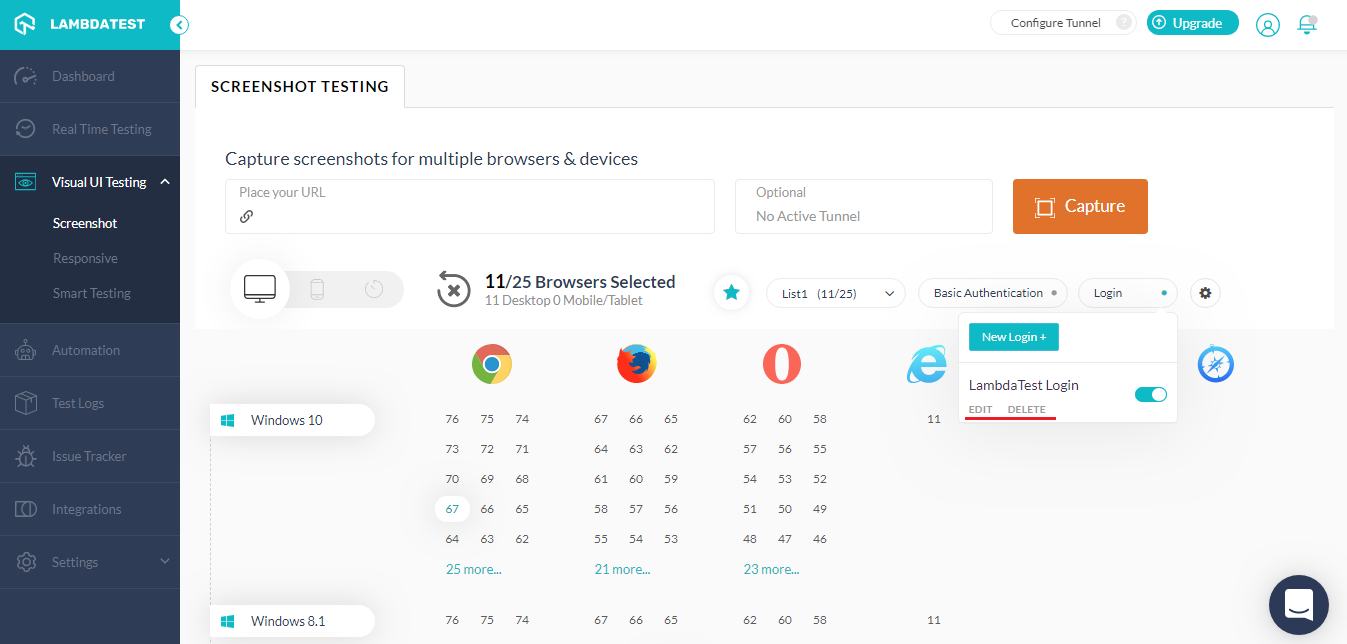
You can now find a button under Screenshot testing which says ‘Login’. This button will help you create a Login profile which would store necessary information required to automatically log in to a web application on your behalf. You can store up to 5 Login profiles in your account.
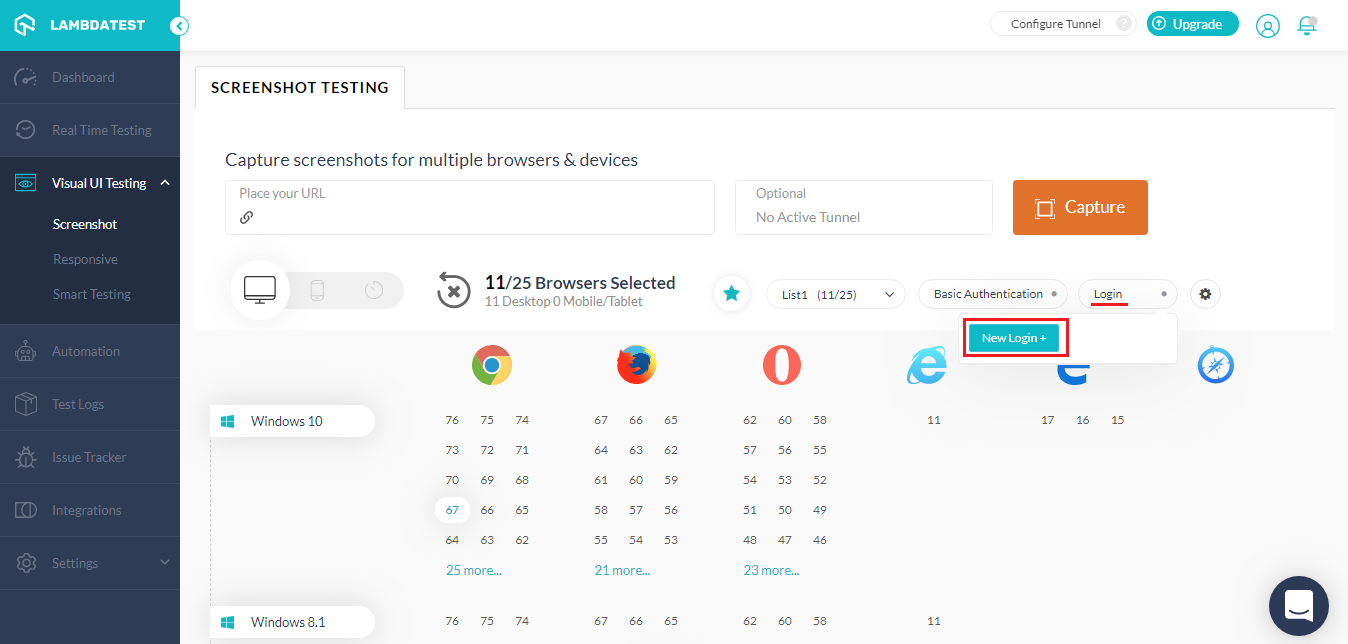
What Would A Login Profile Contain?
Your login profile will contain information that would help the screenshot driver to bypass your website’s login form. This information would primarily consist of 3 areas:
- Login URL
- Locators
- Credentials
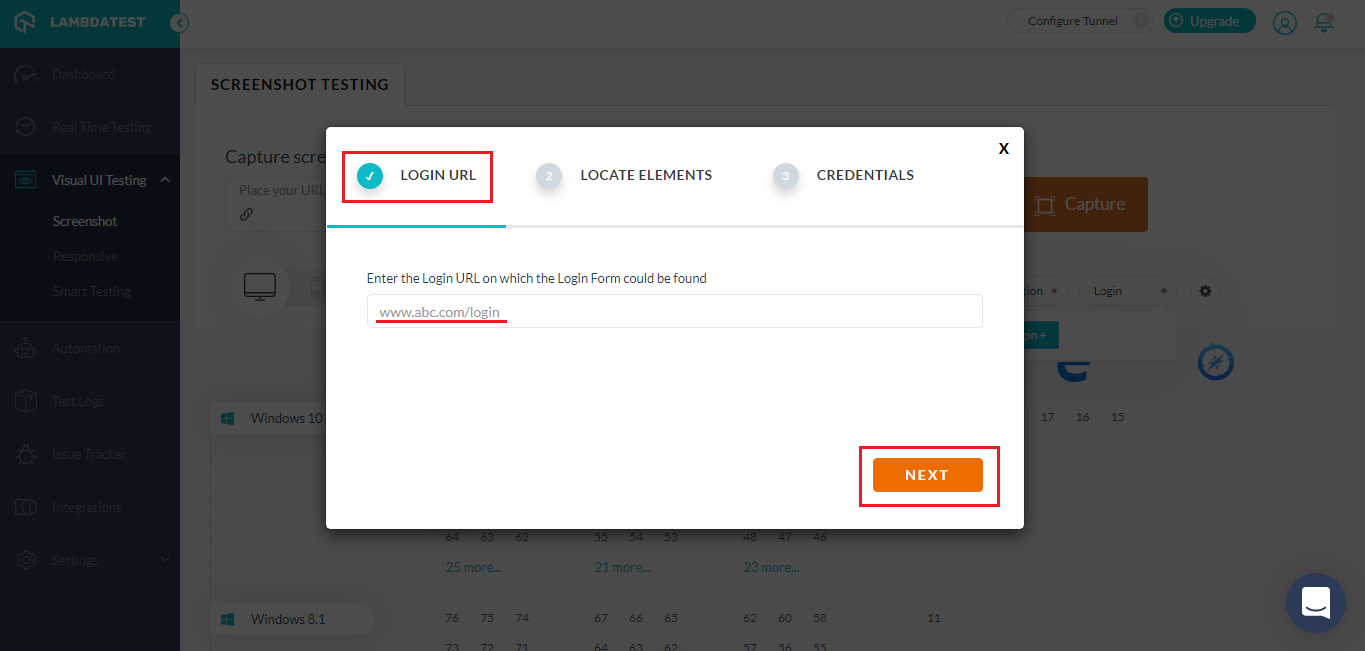
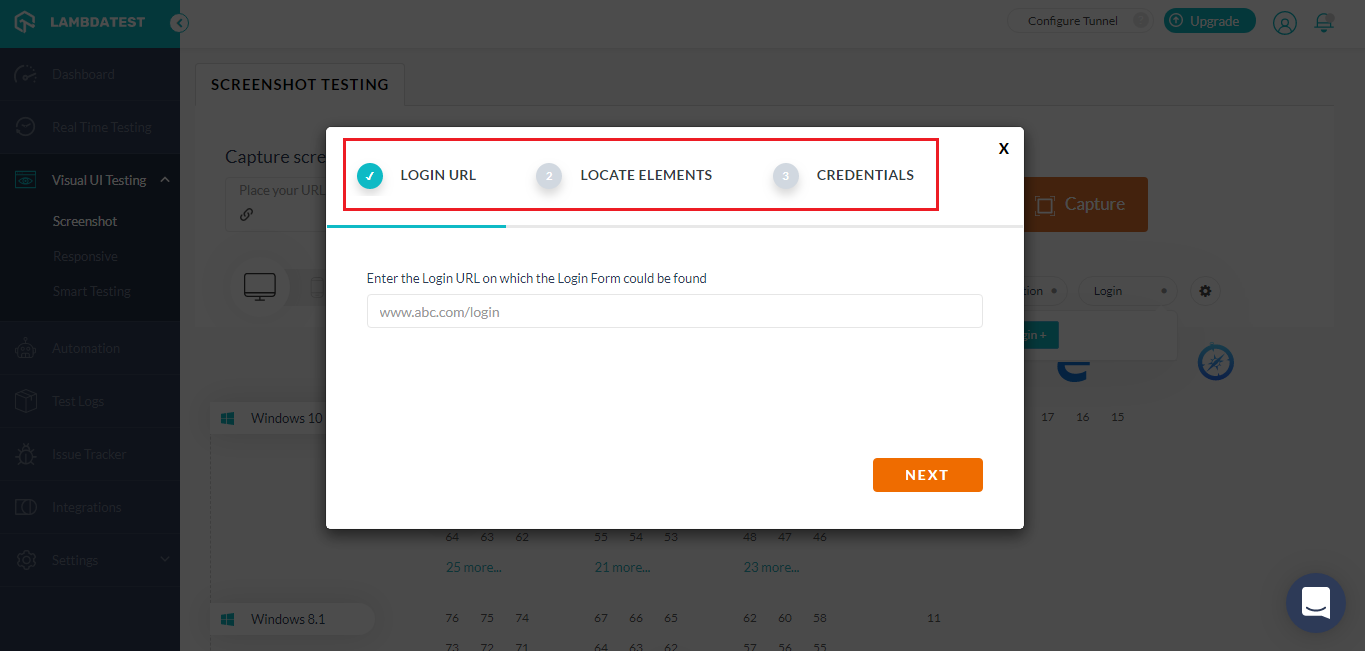 Login URL – You need to provide the URL of your web application’s login form. Screenshot driver of TestMu AI will then understand the particular page that needs visiting in order to login to your web application.
 Locators – Locators are used for identifying a specific HTML element over a web page. Selenium is one of the most renowned open-source test automation framework used to automate desktop web applications. We have embedded Selenium scripts in our Screenshot driver to help you make use of locators to perform actions around different HTML elements on your web page. Selenium offers 8 different types of locators.
You can use browser inspection tools to identify the particular value of a locator placed on different fields and buttons of your login form. If you have never inspected web elements using your browser’s inspection tool then I recommend you to read our detailed document for screenshot behind login.
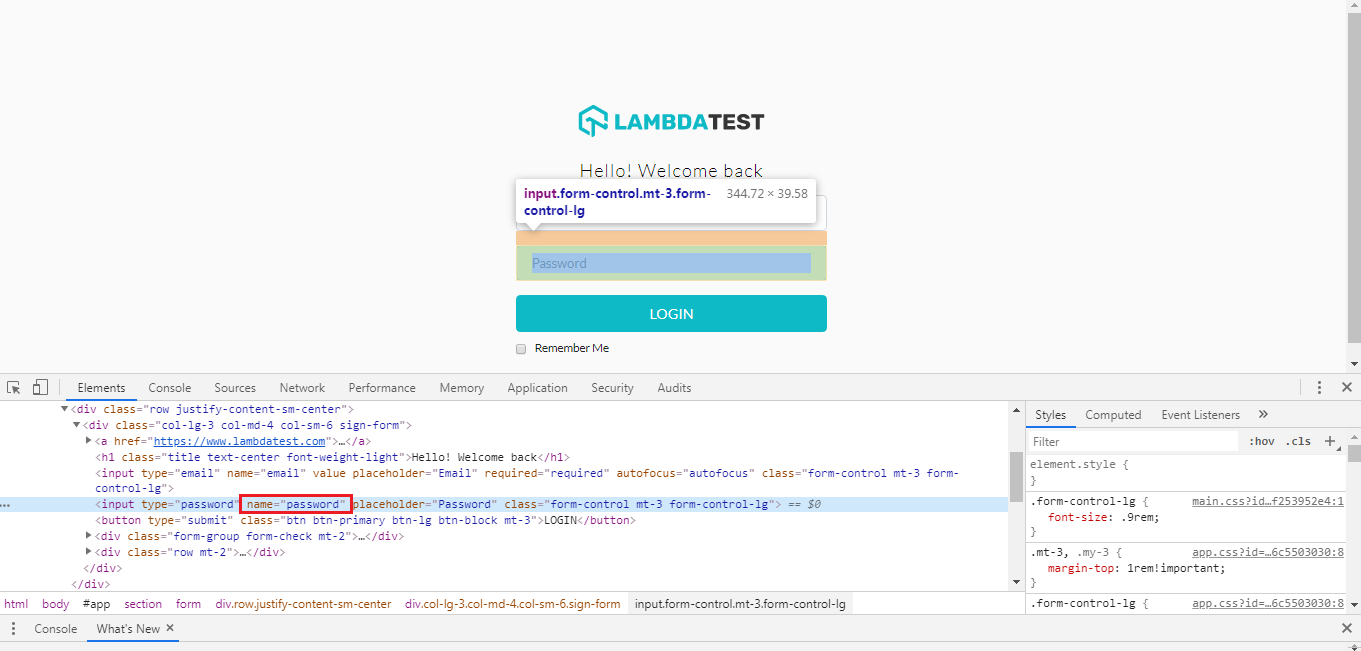
Once you have the appropriate locators and their values with respect to your login form, you need to feed them into your Login Profile to allow our Screenshot driver to locate the right fields in the login form of your website.
Don’t Forget To Name Your Login Profiles!
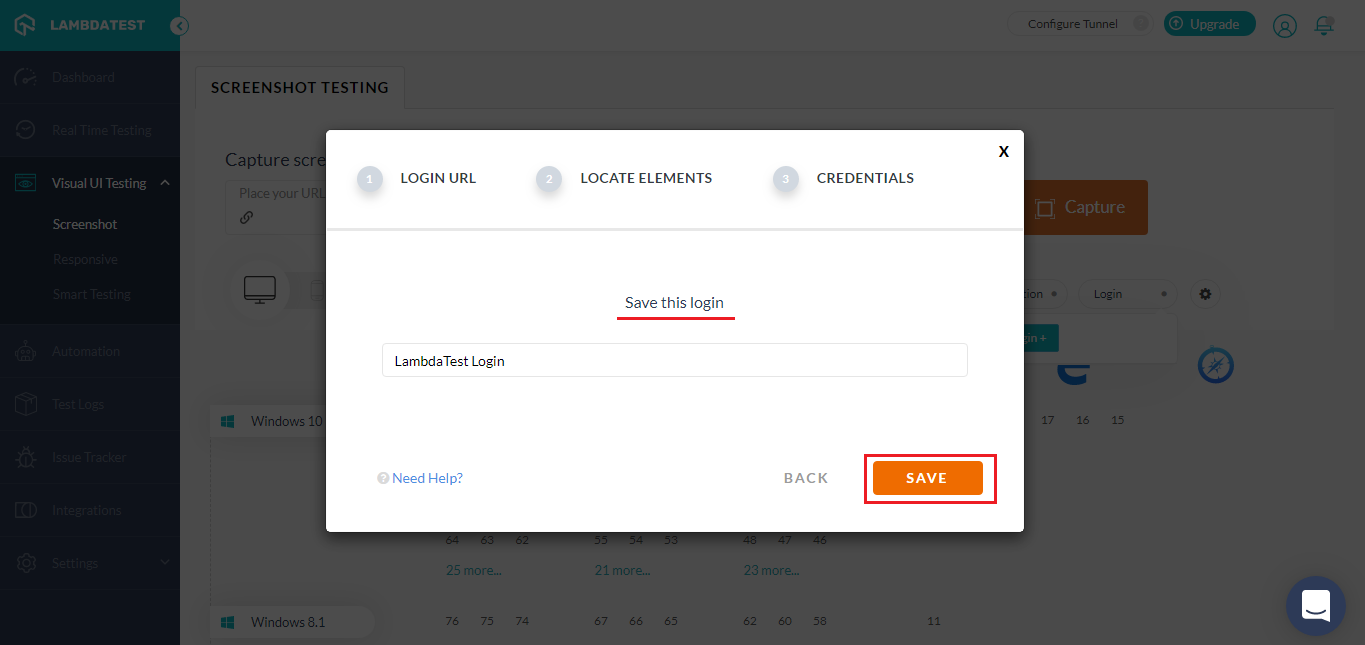
After you are done feeding the relevant information of a Login Profile for our Screenshot driver, we will ask you to provide a name to your Login Profile. Remember, you can keep up to 5 Login Profile active in your TestMu AI account. Make sure to name them properly so you don’t end up being confused about which Login Profile is used for a particular web page?

What Can I Do If I Need To Add More Than 5 Login Profiles In Future?
For cases where you have already added 5 Login profiles and wish to work on a new Login profile, we have provided the option to edit or delete an existing Login profile. That way you can manipulate these Login profiles to test as per your requirement.
How Exhilarating Was That?
Note: This feature is not supported among Mountain Lion, Lion, Windows 7, and Windows XP. Being a beta release, the feature is only available for Desktop browsers, as of now. However, we are eagerly working to bring this functionality for mobile devices & browsers too, along with your valuable feedback.
We delivered screenshot behind login feature with the vision to speed up your testing workflows and expand your cross browser testing coverage. We hope it works like a charm, so try it out now and let us know if it was helpful. If you feel it could do better, then please don’t hesitate in sharing your opinion with us in the comment section below. You can also drop a message to our 24/7 customer chat support or write to us at [email protected] for any issues around TestMu AI. We would be more than happy to help.
We are working to bring more exciting product updates in the near future so stay tuned and happy testing! 🙂



Did you find this page helpful?
More Related Hubs
TestMu AI forEnterprise
Get access to solutions built on Enterprise
grade security, privacy, & compliance
- Advanced access controls
- Advanced data retention rules
- Advanced Local Testing
- Premium Support options
- Early access to beta features
- Private Slack Channel
- Unlimited Manual Accessibility DevTools Tests