

Next-Gen App & Browser Testing Cloud
Trusted by 2 Mn+ QAs & Devs to accelerate their release cycles


How to Automate Filling In Web Forms With Python
In this tutorial, learn how to automate filling in web forms with Python and Selenium.

Paulo Oliveira
March 2, 2026
Web forms are key components for data entry and interaction across various business processes. So, it’s important to ensure the functionality of these forms across the website. However, testing forms manually is both time-consuming and prone to error. This is where automated form filling in your test process can significantly enhance productivity and accuracy, especially in data-driven tasks.
Programming languages such as Python, with its simple and readable syntax, offer a highly effective solution for such automation. This tutorial will look at how to automate filling in web forms with Python.
Why Use Automated Form Filling?
Automated form filling in automation testing is crucial for various use cases, including login, registration, eCommerce checkout, and dynamic forms. It ensures accurate data entry, proper validation, and smooth submissions, speeding up the testing process and providing consistent, reliable results.
Automation allows extensive test coverage, simulates multiple users for functional testing, and ensures new changes don’t break existing functionality. For this, different automation testing tools like Selenium can help implement automated form fillings with Python.
If you want to learn more about Selenium, check out this tutorial: what is Selenium.
Types of Web Forms and Input Fields
Automated form filling involves managing different kinds of forms and input fields.
Types of Web Forms:
- Dynamic Forms: Forms that change based on prior inputs require scripts capable of handling conditional logic. Automation tools can adjust to these changes, ensuring the form is filled out correctly based on its current state.
- Multi-Step Forms: These forms extend over several pages or steps. Automation scripts need to navigate through each step, ensuring data is entered accurately and transitions between steps are managed smoothly.
Subscribe to the TestMu AI YouTube Channel and stay updated with the latest video tutorials on Selenium testing and more!
Types of Input Fields:
- Input Texts and Text Areas: These are the most known and frequent input types, used for short and long text entries. Automation scripts can address these by sending the required text directly into the fields.
- Dropdown Lists: Dropdowns require scripts to choose options from a given list. This is done by targeting the dropdown element and selecting the appropriate choice based on its value or displayed text. You can learn more about dropdowns from this blog on handling dynamic dropdowns in Selenium.
- Radio Buttons and Checkboxes: These elements allow users to make single or multiple selections. When handling radio buttons in Selenium, automation scripts can interact with these by clicking on the necessary options, ensuring the correct selections are made.
- Date Pickers: Date pickers often include specialized widgets for picking dates. When handling date pickers in Selenium, automating these fields may involve interacting with the date picker interface or directly inputting the date in the required format.
- File Upload Fields: Some forms require file uploads. When uploading files in Selenium, automated test scripts simulate the file selection dialog and provide the file path, ensuring the correct file is uploaded.
- CAPTCHA and reCAPTCHA: Although it was designed to block automatic submissions, there are solutions for handling these in testing environments, such as using test keys provided by CAPTCHA services. Refer to this blog to learn how to handle CAPTCHA in Selenium.

Note: Test Your Forms and Input Fields Across 3000+ Environments. Try TestMu AI Today!
Demo: How to Automate Filling In Web Forms With Python?
Before demonstrating how to automate filling in web forms with Python, we need to proceed with the following steps:
- Install Python according to your operating system.
- Install Selenium using the pip install selenium.
- Install VS Code or free to use your preferred IDE.
Test Scenario:
- Open the Register Account form in the TestMu AI eCommerce Playground.
- Fill in the details.
- Fill in the password.
- Subscribe to the Newsletter.
- Accept the terms and conditions.
- Click the Continue button.
- Check that a success message is shown to the user.
Implementation:
Here is our test script to automate web form filling using Python with Selenium:
import random
import time
from selenium.webdriver.common.by import By
from selenium import webdriver


browser = webdriver.Chrome()
browser.maximize_window()
browser.get("https://ecommerce-playground.lambdatest.io/index.php?route=account/register")
time.sleep(5)


#filling in the form
first_name = browser.find_element(By.ID, "input-firstname")
first_name.send_keys("FirstName")
last_name = browser.find_element(By.ID, "input-lastname")
last_name.send_keys("LastName")
random_email = str(random.randint(0,99999)) + "@example.com"
email = browser.find_element(By.ID, "input-email")
email.send_keys("[email protected]")


telephone = browser.find_element(By.ID, "input-telephone")
telephone.send_keys("+351999888777")
password = browser.find_element(By.ID, "input-password")
password.send_keys("123456")
password_confirm = browser.find_element(By.ID, "input-confirm")
password_confirm.send_keys("123456")
newsletter = browser.find_element(By.XPATH, value="//label[@for='input-newsletter-yes']")
newsletter.click()
terms = browser.find_element(By.XPATH, value="//label[@for='input-agree']")
terms.click()
continue_button = browser.find_element(By.XPATH, value="//input[@value='Continue']")
continue_button.click()
time.sleep(5)
#asserting that the browser title is correct
assert browser.title == "Your Account Has Been Created!"
time.sleep(5)
#closing the browser
browser.quit()

Code Walkthrough:
Here is the snippet from the main.py file that automates the web form-filling process on the Register Account form of the TestMu AI eCommerce Playground website.

Import the Selenium WebDriver, which is required to interact with the browser. Then, you have to instantiate the driver in a variable called browser. In this case, we are instantiating the ChromeDriver, given that we will use it in the Chrome browser.
Finally, you need to use the browser instance to access the desired web page, using the get() function and inform the website URL that it should open. If you want a better view, you can maximize your browser window using the browser.maximize_window() method.
Use element locators like ID to find and fill the First Name, Last Name, Email, and Telephone fields:

Locate Password fields by ID and input values. You can use XPath when IDs are unavailable, such as subscribing to a Newsletter:
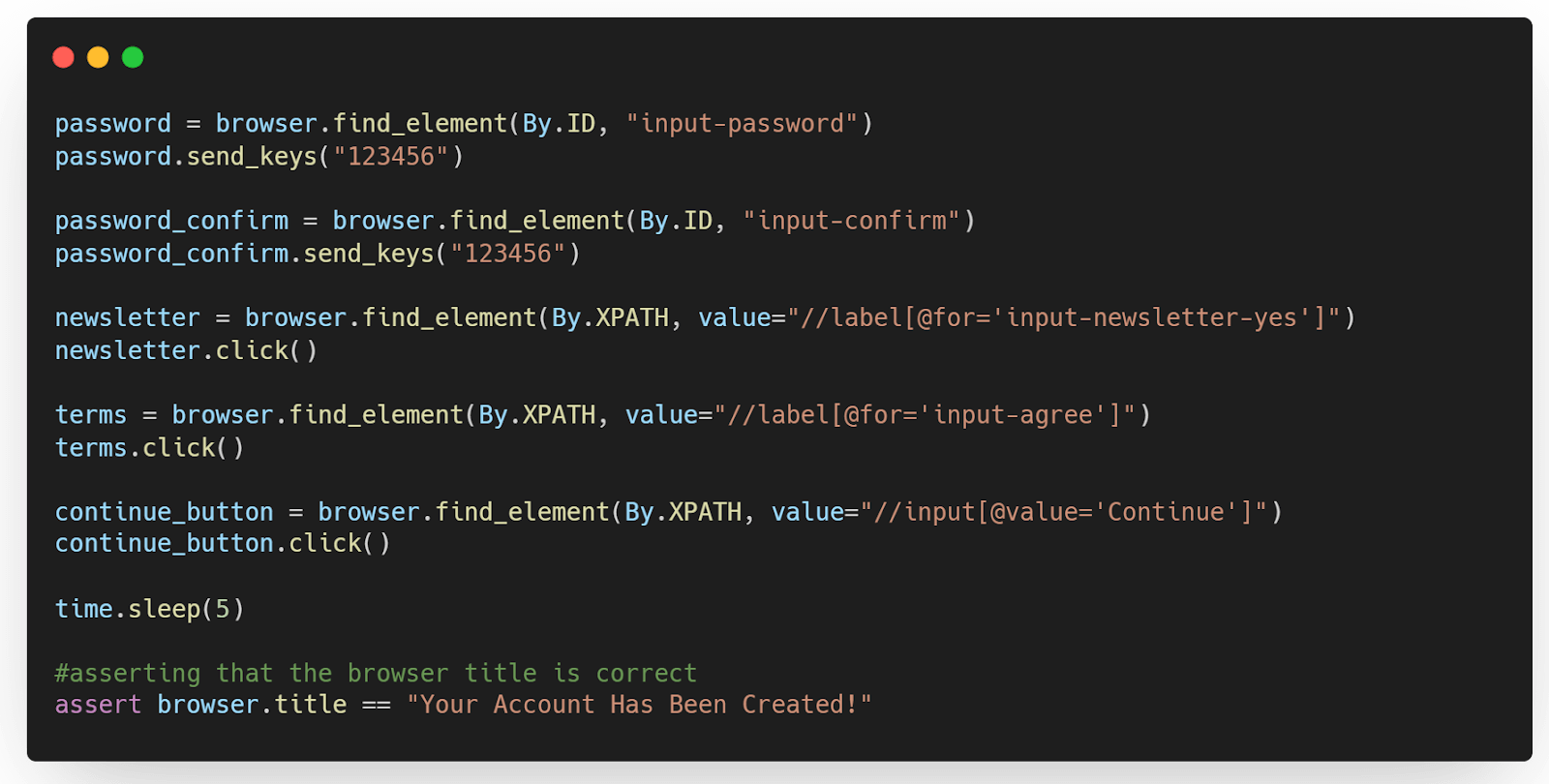
Locate and click the Submit button using the click() method. We have the assert keyword that compares two values. The first value will be the browser title value. We can get the browser title value using the property title of the browser instance. The second value will be the expected value, which should be Your Account Has Been Created!
Use the browser.quit() method to close the browser window.
Now, you know how to automate filling in web forms with Python. In this section, we have run the test on the Chrome browser. However, to test your web form fillings across various web browsers and their browser versions, you can use cloud-based testing platforms like TestMu AI.

How to Automate Filling In Web Forms on the Cloud?
In this section, we will look at how to test the web form fillings using online Selenium Grid like TestMu AI. Here, we will use the same test scenario of the Register Account form.
TestMu AI is an AI-native test execution platform that helps developers and testers ship code faster. It provides 3000+ browsers and operating systems to perform Selenium Python testing at scale.
Looking to ace your next tech interview? Check out our comprehensive guide on Operating System Interview Questions.
Implementation:
Following are some changes you need to make in your test scripts to implement automated form filling on the TestMu AI platform. Here is our final test script:
import time
from selenium.webdriver.common.by import By
from selenium import webdriver


username = "LT_USERNAME"
accessToken = "LT_ACCESS_KEY"
gridUrl = "hub.lambdatest.com/wd/hub"


lt_options = {
    "user" : username,
    "accessKey" : accessToken,
    "build" : "your build name",
    "name" : "your test name",
    "platformName" : "Windows 11",
    "browserName" : "Chrome",
    "browserVersion" : "latest",
    "selenium_version": "latest"
}


web_driver = webdriver.ChromeOptions()
options = web_driver
options.set_capability('LT:Options', lt_options)


url = "https://"+username+":"+accessToken+"@"+gridUrl
browser = webdriver.Remote(
    command_executor=url,
    options=options
)


browser.maximize_window()
browser.get("https://ecommerce-playground.lambdatest.io/index.php?route=account/register")


time.sleep(5)


#filling in the form
first_name = browser.find_element(By.ID, "input-firstname")
first_name.send_keys("FirstName")


last_name = browser.find_element(By.ID, "input-lastname")
last_name.send_keys("LastName")


email = browser.find_element(By.ID, "input-email")
email.send_keys("[email protected]")


telephone = browser.find_element(By.ID, "input-telephone")
telephone.send_keys("+351999888777")


password = browser.find_element(By.ID, "input-password")
password.send_keys("123456")


password_confirm = browser.find_element(By.ID, "input-confirm")
password_confirm.send_keys("123456")


newsletter = browser.find_element(By.XPATH, value="//label[@for='input-newsletter-yes']")
newsletter.click()


terms = browser.find_element(By.XPATH, value="//label[@for='input-agree']")
terms.click()


continue_button = browser.find_element(By.XPATH, value="//input[@value='Continue']")
continue_button.click()


time.sleep(5)


#asserting that the browser title is correct
assert browser.title == "Your Account Has Been Created!"


time.sleep(5)


#closing the browser
browser.quit()
Code Walkthrough:
Remove or comment out the line that instantiates the WebDriver:
#browser = webdriver.Chrome()
Configure your username, accessToken, and gridUrl. You can get them from the TestMu AI Dashboard by navigating to Settings > Account Settings > Password & Security.
username = "Your LambdaTest Username"
accessToken = "Your LambdaTest Access Token"
gridUrl = "hub.lambdatest.com/wd/hub"
The main difference between running the tests locally or on TestMu AI is to use the capabilities to configure the environment where the test will run. You can automatically generate these from the Automation Capabilities Generator.
lt_options = {
"user" : username,
"accessKey" : accessToken,
"build" : "your build name",
"name" : "your test name",
"platformName" : "Windows 11",
"browserName" : "Chrome",
"browserVersion" : "latest",
"selenium_version": "latest"
}
Instantiate a ChromeOption object and set its capabilities with the above-configured lt_options variable:
web_driver = webdriver.ChromeOptions()
options = web_driver
options.set_capability('LT:Options', lt_options)
Set the URL where the test will run, with a default format, and the test script that will instantiate the driver in a variable called browser.
url = "https://"+username+":"+accessToken+"@"+gridUrl
browser = webdriver.Remote(
command_executor=url,
desired_capabilities=lt_options
)
Run your test in TestMu AI by just passing the below command:
python main-cloudgrid.py
Test Execution:
Visit the TestMu AI Web Automation Dashboard, and you can see the test execution results:
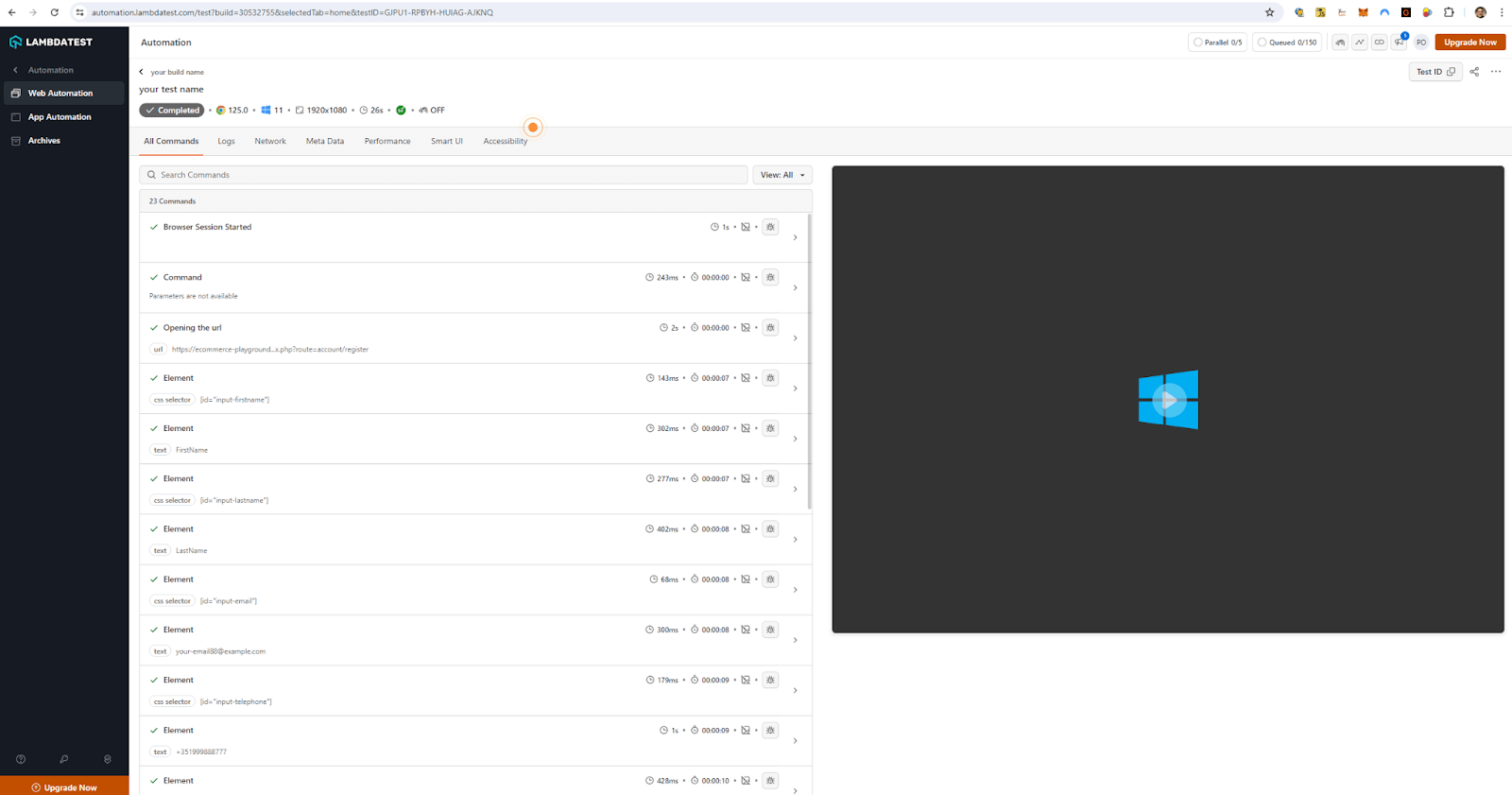
On a side note, you can further enhance your Selenium automation testing by leveraging AI testing agents like KaneAI.
KaneAI is a GenAI native smart test assistant for high-speed quality engineering teams. With its unique AI-native features for test authoring, management, and debugging, KaneAI allows teams to create and evolve complex test cases using natural language.

Best Practices for Effective Web Form Automation
To achieve successful web form automation, it’s essential to follow certain best practices. These recommendations ensure your automation scripts are robust, reliable, and efficient:
- Use Unique Selectors: Interact with elements using unique selectors, such as IDs or unique class names. This reduces the chances of your script failing due to changes in the web page structure.
- Strategic Use of Waits: Implement implicit and explicit waits to manage the asynchronous loading of web elements. This prevents your script from interacting with elements that need to be fully loaded. For Python web automation, TestMu AI offers a SmartWait that eliminates the use of multiple waits in test scripts, thereby reducing the test execution time.
- Implement Design Patterns: Organize your automated test scripts by implementing design patterns like the Page Object Model (POM) in Selenium Python. These patterns enhance maintainability by separating the page representation from the test scripts, making your code more modular and easier to manage.
- Perform Cross Browser Testing: Ensure your automation scripts test forms across different browsers and devices to ensure functionality for a broader audience.
- Leverage Data-Driven Testing: Use data-driven testing to handle multiple test cases with input data sets. This approach increases test coverage and simplifies the management of extensive test data.
Discover the top Python frameworks to watch out for in 2025. Stay updated on the tools shaping the future of development.
Conclusion
In this blog on how to automate filling in web forms with Python, we explored setting up Selenium Python for automating web form filling. We started with the basics: loading a web page in Chrome using Python. Next, we delved into automating web form filling, covering various fields and locator strategies. Finally, we discussed testing web forms using the TestMu AI platform.


Frequently asked questions
Did you find this page helpful?
More Related Hubs
TestMu AI forEnterprise
Get access to solutions built on Enterprise
grade security, privacy, & compliance
- Advanced access controls
- Advanced data retention rules
- Advanced Local Testing
- Premium Support options
- Early access to beta features
- Private Slack Channel
- Unlimited Manual Accessibility DevTools Tests