

Next-Gen App & Browser Testing Cloud
Trusted by 2 Mn+ QAs & Devs to accelerate their release cycles


How to Capture Firefox Screenshots for Web Testing
Learn 5 quick ways to capture Firefox screenshots for web testing. Boost accuracy, speed up QA, and simplify browser checks with these easy methods.

Salman Khan
December 27, 2025
Firefox screenshot capture is something you often need when testing on the Firefox browser. You might take screenshots to verify web layouts, document your results, or highlight bugs. Depending on your use case, you may want a full-page screenshot, a snapshot of a specific element, or an automated capture during regression runs.
Overview
Capturing screenshots in Firefox is an essential step in browser testing. It helps you document UI behavior, debug issues, and verify that your web application looks and functions correctly across different environments.
Ways to Capture Firefox Screenshots
- Use Firefox Built-in Screenshot Tool: Right-click on a page or use shortcuts (Ctrl/Cmd + Shift + S) to capture full-page, visible area, or custom sections.
- Use Developer Tools: Open Firefox Developer Tools and utilize screenshot commands like Screenshot Node or Screenshot Full Page for more precise captures.
- Automate Screenshots with Selenium: Integrate FirefoxDriver in your automated test scripts to capture screenshots programmatically at key steps.
- Capture in Headless Mode: Run Firefox in headless mode on CI/CD servers to take screenshots without a GUI.
- Use Cloud Platforms like TestMu AI: Capture screenshots across multiple browser versions and operating systems in real-time, including full-page or responsive views.
Why Screenshots Matter in Testing?
When you test on Firefox, a screenshot is more than a snapshot. It’s a piece of evidence that fits into your workflow in different ways:
- Bug Reporting With Context: A screenshot shows not just the error, but also the surrounding state of the UI. For example, a broken button is clearer when you also see the page layout around it.
- Cross-Environment Checks: Screenshots highlight differences between Firefox on Windows vs macOS vs the latest release, which can be missed in functional testing alone.
- Regression Testing: By keeping “before” and “after” screenshots, you can ensure that a fix resolved the existing bug without introducing new visual issues.
- Debugging: In CI/CD, screenshots act as artifacts that help you reproduce test failures quickly, especially when a test passes locally but fails in headless mode.
Different Methods to Capture Firefox Screenshot
Here are different methods to capture screenshots in Firefox using the built-in tool, developer tools, testing tools/frameworks, headless mode for CI/CD, and using cloud-based testing platforms such as TestMu AI.
Method 1: Use Firefox Built-in Screenshot Tool
If you’re testing manually, the simplest way to capture a Firefox screenshot is with its native tool. You don’t need an extension for this.
Here’s how you do it:
- Open the web page you want to capture.
- Right-click anywhere on the web page and go to More tools > Screenshot.
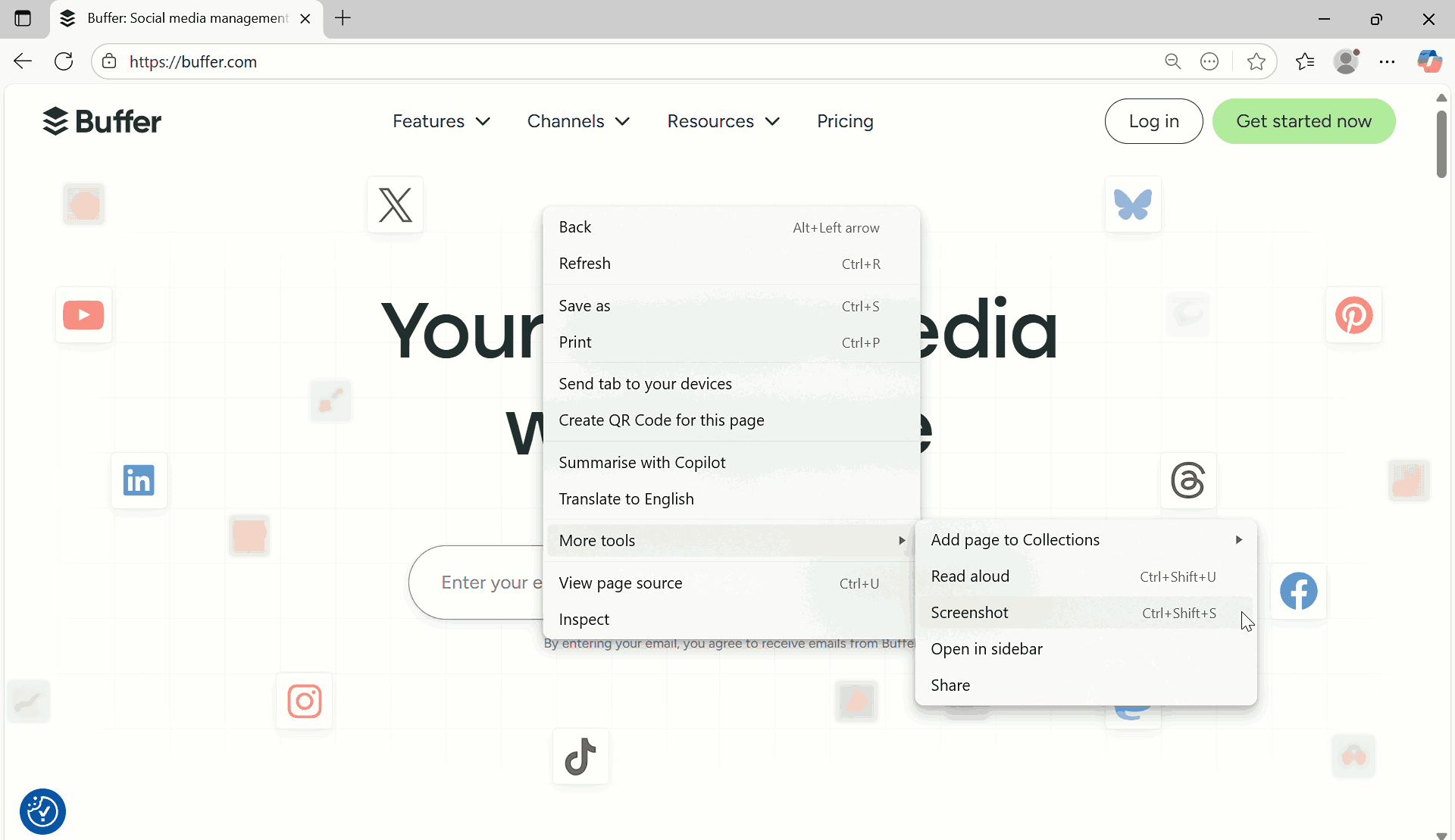
If you don’t see the option? Open about:config in a new tab, search for extensions.screenshots.disabled, and make sure it’s set to false.
You can also use these Firefox screenshot shortcuts:
- Windows/Linux: Ctrl + Shift + S
- macOS: Cmd + Shift + S
- Once the tool is active, choose one of the following:
- Capture area
- Capture screen area
- Capture full page
- Capture live area
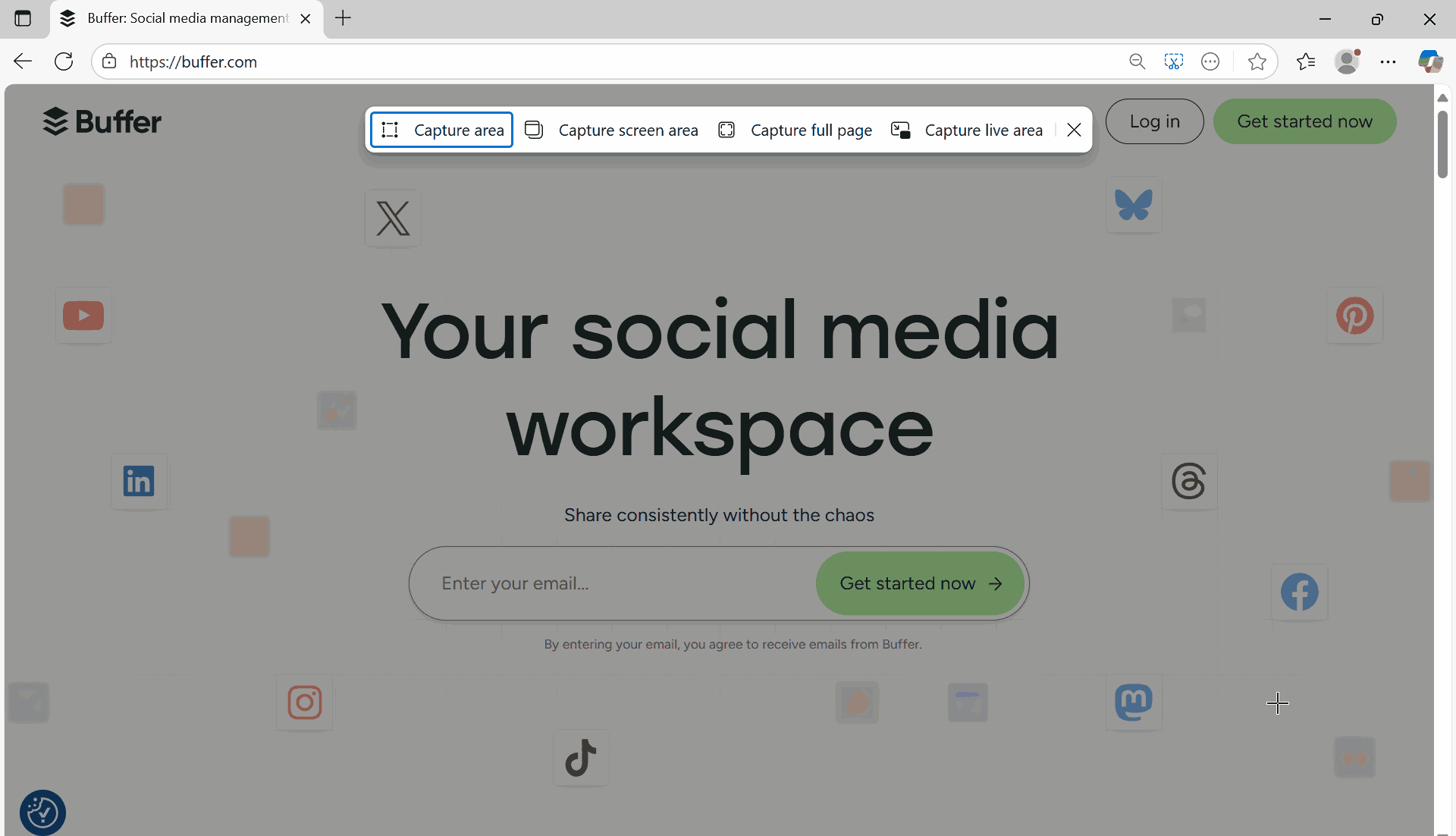
- Save the file locally or copy it to your clipboard.

Note: Capture automated Firefox screenshots across 3000+ real browsers and OS. Try TestMu AI Today!
Method 2: Capture Screenshots With Firefox Developer Tools
Sometimes you want more control than the built-in tool gives you. That’s where Developer Tools come in.
Here’s what you do:
- Open Developer Tools using the Firefox screenshot shortcut.
- F12 or Ctrl + Shift + I (Windows/Linux)
- Cmd + Option + I (macOS)
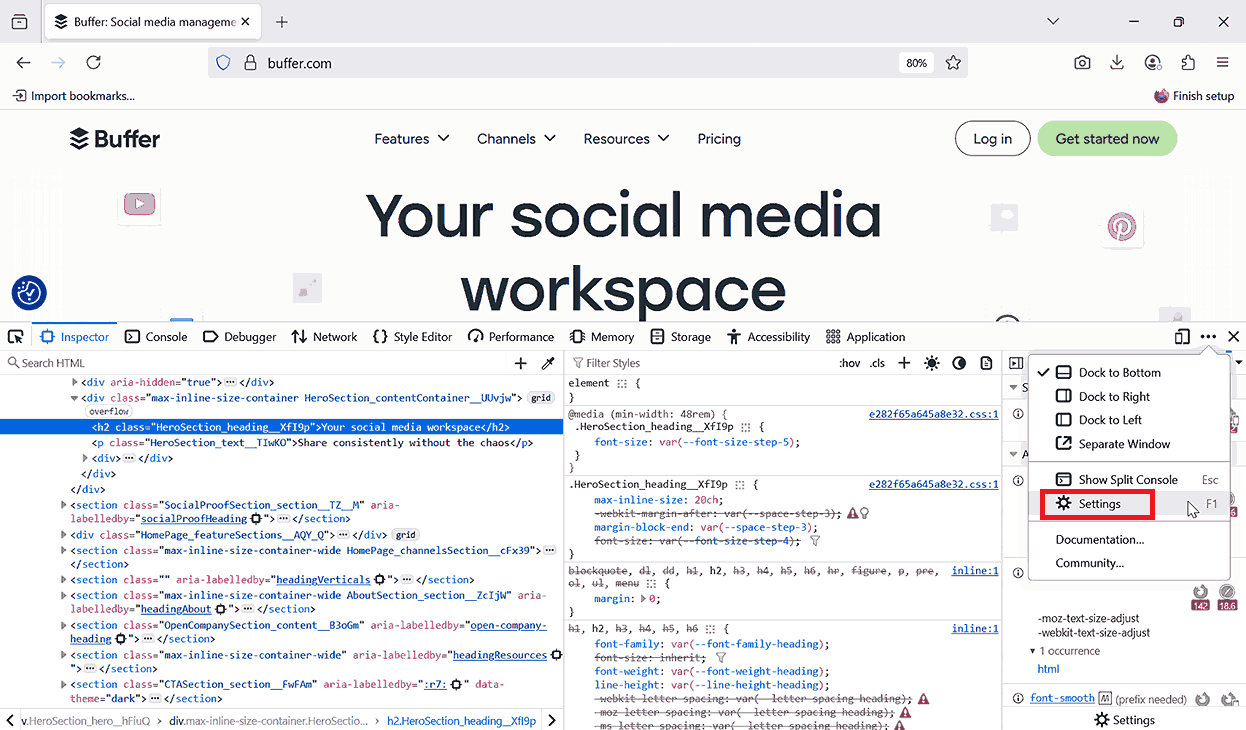
- In the Developer Tools panel, click the three-dot menu (top-right corner of the DevTools bar) and select Settings from the dropdown.
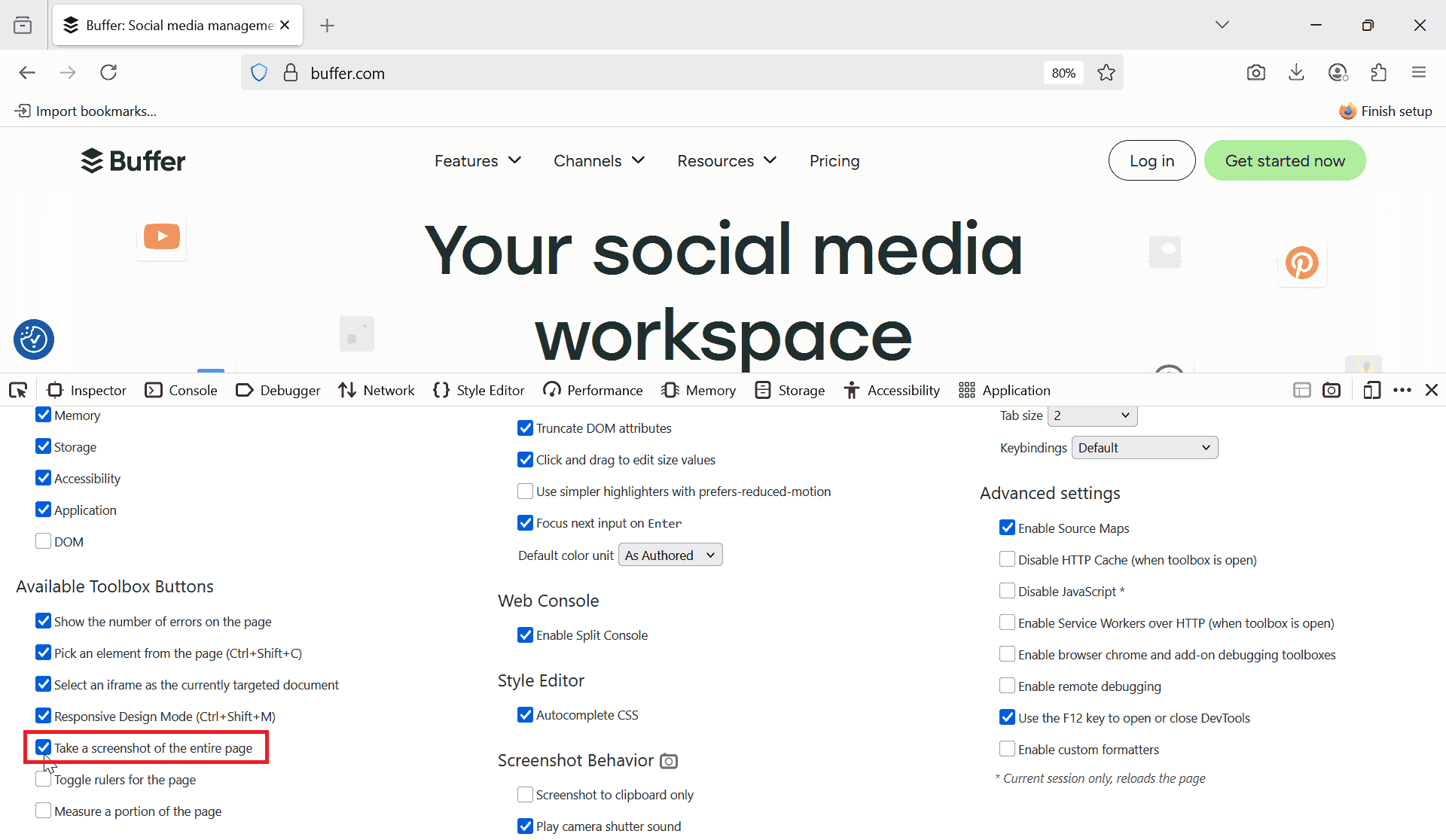
- In the Settings page, scroll to Available Toolbox Buttons and check the option Take a screenshot of the entire page.
- After enabling, you’ll see a camera icon appear in the DevTools toolbar and click the camera icon to capture a screenshot of the entire page.
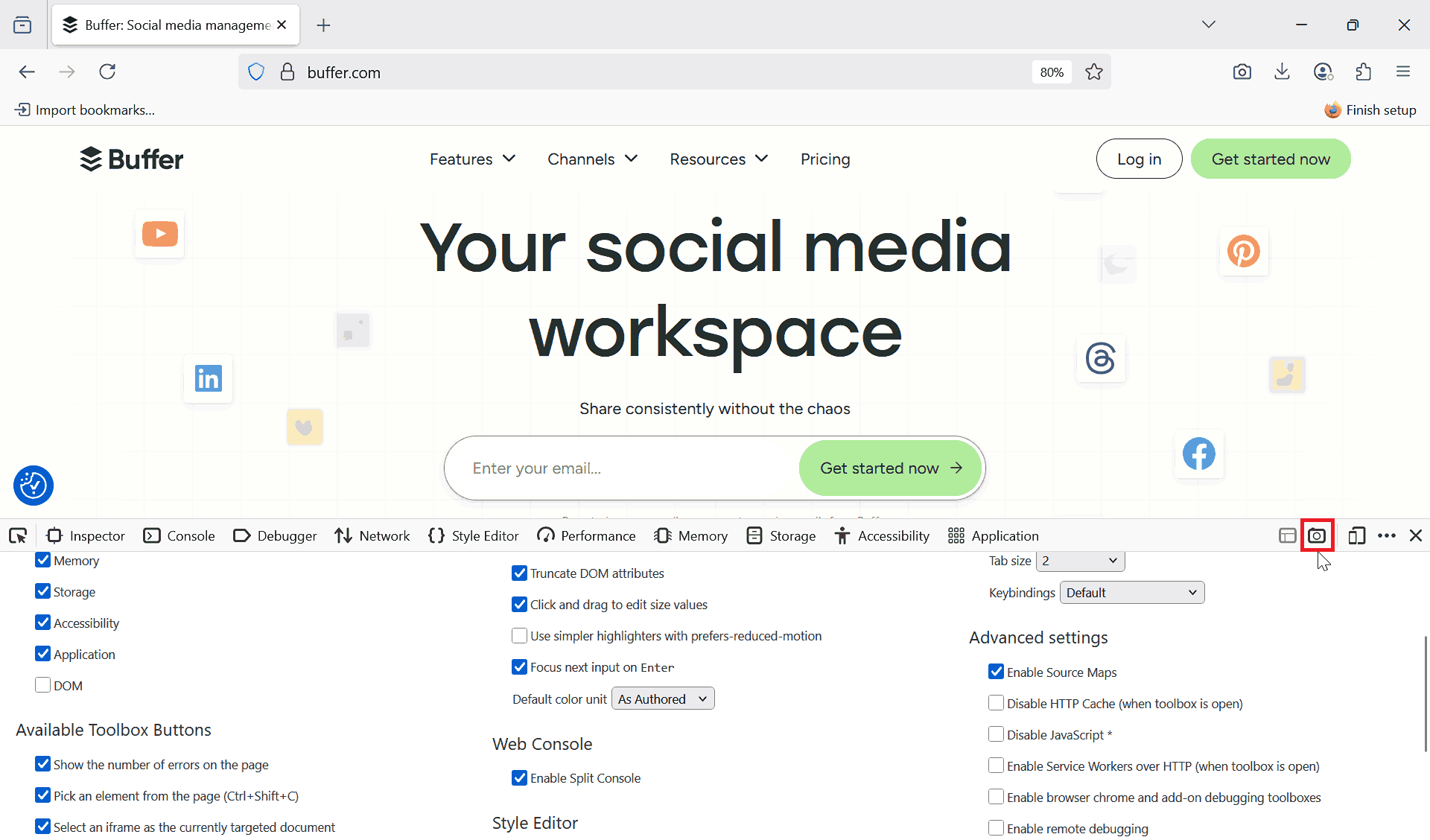
Pro-tip: If you’re debugging CSS or verifying layout alignment, you can use Screenshot Node to grab just one component. This keeps your screenshots focused and avoids extra noise.
Method 3: Automate Screenshots With Selenium and FirefoxDriver
Manual screenshots are fine when you’re exploring. But once you’re running regression tests, you need automation.
With automation testing tools like Selenium, you can tell Firefox to take screenshots at any step. Check out this blog to get started with capturing screenshots in Selenium.
Here’s an example:
from selenium import webdriver

driver = webdriver.Firefox()
driver.get("https://example.com")

# Capture screenshot
driver.save_screenshot("homepage.png")

driver.quit()
How this helps you:
- You can capture screenshots after key actions in your test flow (like after logging in or submitting a form).
- You can save a screenshot whenever a test fails, so debugging is easier.
- You can create baseline images for visual regression testing.
Method 4: Capture Firefox Screenshots in Headless Mode
When your tests run on a server or inside a pipeline, there’s usually no GUI. Firefox can run in headless mode and still capture screenshots.
Here’s how you set it up:
from selenium import webdriver
from selenium.webdriver.firefox.options import Options

options = Options()
options.headless = True  # Run Firefox without UI
driver = webdriver.Firefox(options=options)

driver.get("https://example.com")
driver.save_screenshot("ci_result.png")

driver.quit()
You can attach screenshots to your CI test reports. If a test fails on the server, you can download the screenshot and see exactly what Firefox rendered at that moment.
Method 5: Capture Firefox Screenshot With TestMu AI
If you need more than basic screenshots, cloud-based testing platforms like TestMu AI give you a powerful way to scale. Instead of taking screenshots only on your local machine, you can instantly capture on an online browser farm of multiple Firefox versions and different operating systems, such as Windows and macOS.
Features:
- Cross Browser Testing: Ensure your website looks and works consistently across different browsers, versions, real devices, and operating systems.
- Automated Screenshot Testing: Capture full-page screenshots in Firefox at once across various environments without manual effort.
- Automation Testing: Run automated tests on the cloud using tools like Selenium, Cypress, Playwright, Appium, and more.
- Screenshot Comparison Tool: Compare new screenshots with baselines to detect unintended UI changes.
- Responsive Testing: Check with LT Browser how your web app adapts to different screen sizes and resolutions.
To capture screenshots of a desktop website in real-time with TestMu AI, here are the steps:
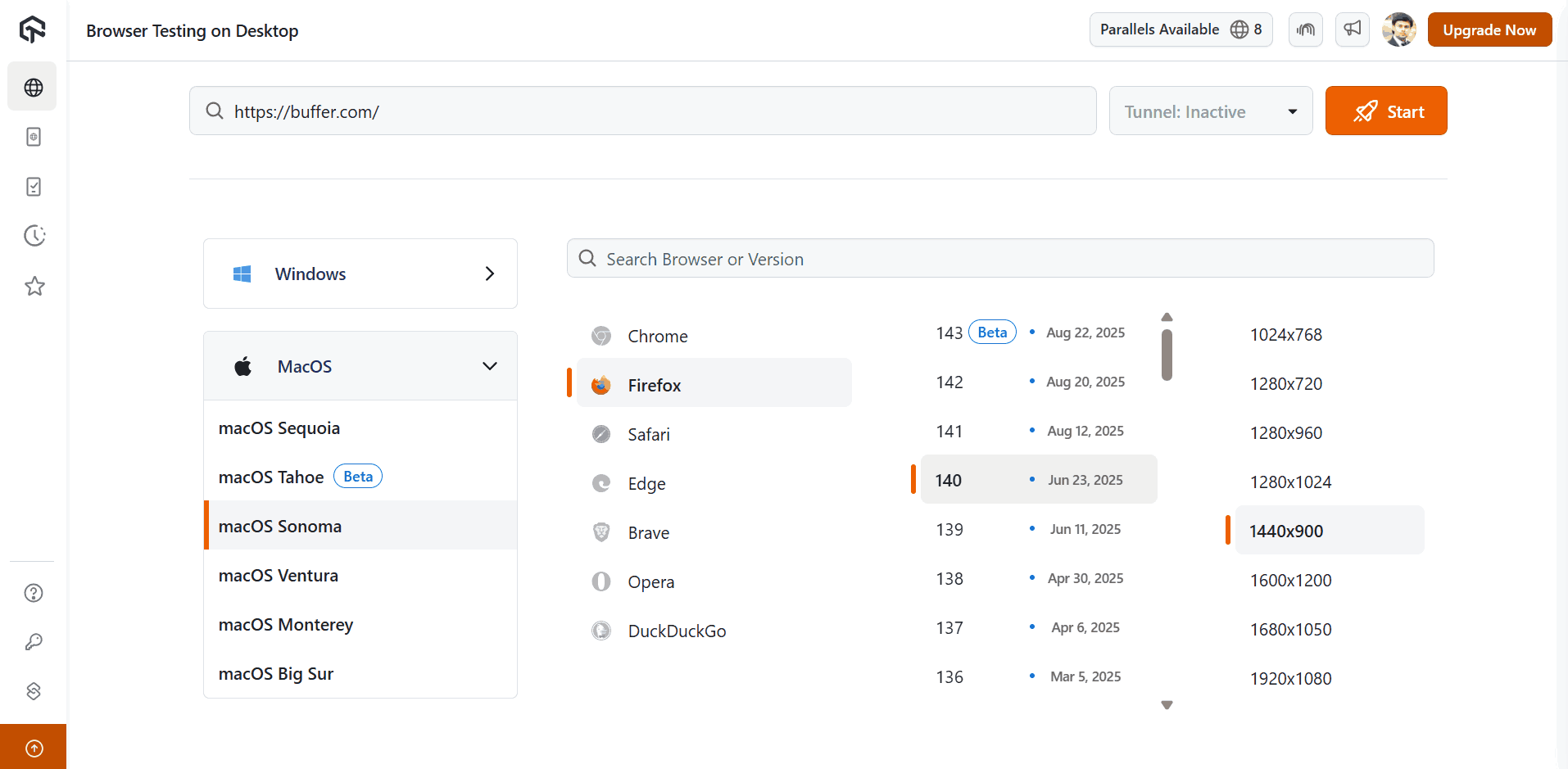
- Go to Real Time > Browser Testing.
- Enter your website URL, pick the OS (Windows or macOS), then select Firefox along with the version and screen resolution you want. Finally, hit Start.
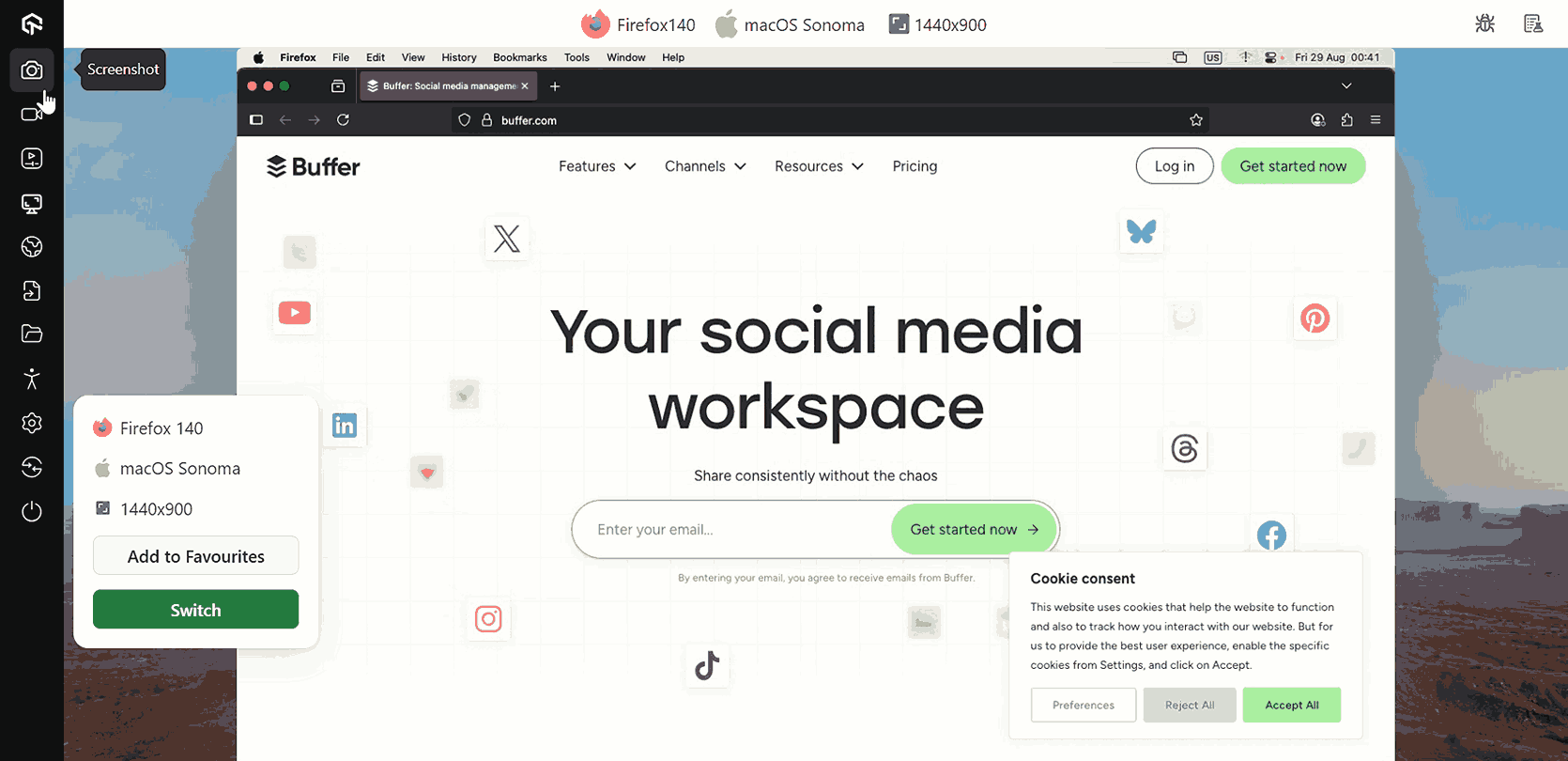
- Once the Firefox session loads on your chosen OS and resolution, you’ll see the website running in real time. From here, you can interact with the page exactly as you would on a local machine.
After launching the browser session, simply hit the Screenshot icon from the left panel to capture and store the Firefox view on your local machine.
For more information, you can check out this guide on desktop browser testing with TestMu AI.

Best Practices for Capturing Firefox Screenshots
To make screenshots truly useful in your testing workflow, follow these practices:
- Be Consistent With Naming: Use descriptive names like checkout_page_firefox.png instead of random names.
- Organize By Test Case: Save screenshots in folders that match your test suite.
- Don’t Overload Your Pipeline: Capture screenshots at important checkpoints, not after every single action.
- Attach to Bug Reports: Always include relevant screenshots when filing bugs. It reduces back-and-forth with developers.
- Keep Baselines Under Version Control: If you’re doing visual regression, only commit baseline screenshots, not every run.
Conclusion
Capturing screenshots in Firefox is an essential part of modern browser testing. Whether you rely on the built-in tool for quick manual checks, use Developer Tools for targeted captures, or automate the process with Selenium and headless mode, each method has its place in a tester’s toolkit.
For teams that need scalability and cross-environment coverage, cloud platforms like TestMu AI provide even more flexibility. The key is to integrate screenshots strategically; you can use them to document bugs, validate fixes, compare environments, and strengthen your regression testing workflow.
Citations
- Take Screenshots in Firefox: https://support.mozilla.org/en-US/kb/take-screenshots-firefox


Frequently asked questions
Did you find this page helpful?
More Related Hubs
TestMu AI forEnterprise
Get access to solutions built on Enterprise
grade security, privacy, & compliance
- Advanced access controls
- Advanced data retention rules
- Advanced Local Testing
- Premium Support options
- Early access to beta features
- Private Slack Channel
- Unlimited Manual Accessibility DevTools Tests