

Next-Gen App & Browser Testing Cloud
Trusted by 2 Mn+ QAs & Devs to accelerate their release cycles


How To Implement Data Tables In Cucumber Using Selenium Ruby
In this Selenium Ruby tutorial, we'll take a look at how we can implement data tables in Cucumber using Selenium Ruby.

Roselyne Makena
December 19, 2025
Data tables can be used when you have data in a range of cells and want to iterate over the cells in order. Data tables generally have a header row that includes column headers and then rows of data.
There are many reasons to use a data table when testing.
- Data tables make it easier to see how the calculation is structured for each cell.
- Data tables significantly reduce repetition by storing the data that will be used repeatedly in only one place.
This Cucumber Selenium tutorial is about implementing data tables in Cucumber using Ruby as the scripting language. The Ruby language encourages the use of Behavior Driven Development (BDD), a form of Test Driven Development (TDD) that encourages collaboration between developers and non-developers, such as product owners.
Using Selenium Ruby, you can write tests before the code is tested, and then you write the code from the point at which the tests fail. Using a simple example, I’ll show you how to create data tables in Cucumber while performing Ruby automation testing and run the tests to ensure that our tests pass as expected. If you’re looking to improve your Cucumber interview skills, check out our curated list of Cucumber interview questions and answers.
So, let’s get started!
Overview
You can implement data tables in Cucumber using Selenium Ruby, making your automated tests more efficient, readable, and reusable. This approach simplifies test maintenance, promotes collaboration, and accelerates feedback loops, making it a powerful addition to your BDD workflow.
Why It Matters
- Simplified Data Management: Data tables reduce repetition by storing test data in one place, making test cases easier to manage and modify.
- Enhanced Collaboration: BDD encourages collaboration between developers and non-developers, facilitating a shared understanding of the application’s behavior.
- Efficiency in Testing: Data tables streamline test execution by allowing the reuse of test scenarios across multiple datasets, saving time and reducing errors.
- Real-world Application: This approach is valuable for projects that involve complex, repetitive data inputs across multiple scenarios, such as testing user logins with varying credentials.
How To Implement Data Tables in Cucumber Using Ruby
- Set Up Ruby and Cucumber Ensure that Ruby and Cucumber are installed on your system. You will also need the Cucumber and Watir gems to begin working with Selenium.
- Create the Project Structure Use the command cucumber –init to set up the necessary folder structure for your project. You will create multiple directories, such as features_files, page_object, and step_definitions, to organize your tests and page objects.
- Define Features and Scenarios In the features_files directory, create a feature file (e.g., login_tests.feature) and define your scenario using the Given, When, Then syntax. Utilize data tables to input multiple sets of data for a single scenario, such as different usernames and passwords.
- Write Step Definitions In the step_definitions folder, write Ruby code for the steps in your Cucumber scenarios. Each step (e.g., navigating to the login page or verifying the account) will correspond to a method that interacts with the web page using Selenium WebDriver.
- Use Page Objects In the page_object folder, create Ruby classes for your pages. Each class will contain methods to interact with page elements (e.g., username textbox, login button). This separation ensures a clean, maintainable test suite.
- Run Your Tests Once everything is set up, run your Cucumber tests to ensure they pass with the provided data tables. The tests will automatically execute across the datasets, checking different username and password combinations.
- Debugging and Optimization If a test fails, review the error messages in the console log for helpful debugging insights. Data tables in Cucumber allow tests to continue running even if one fails, ensuring you can analyze results without interruption.
Implementing Data Tables in the Cloud
To scale your tests across multiple browsers, use TestMu AI’s Selenium Grid to run your Cucumber tests on real browsers in the cloud, providing cross-browser support and access to a wide range of OS configurations.
Advantages of Behavior Driven Development
Before we deep dive into the essentials of Cucumber, let us recap the major advantages of Behavior Driven Development. The learnings from it will set the context for data tables in Cucumber Ruby – this blog’s primary focal point.
Major advantages of BDD are:
- Behaviour Driven Development (BDD) makes it easy to write acceptance tests. These tests will be more readable and look more like a natural language document, making them easier to share with business stakeholders.
- The BDD approach forces you to consider how your application might be used before you start writing any code. This gives you a better understanding of your domain and leads to better-designed software.
- It reduces the need for lots of integration testing because many of the requirements have already been tested during the development process by writing automated acceptance tests using Cucumber.
- Writing your scenarios using a standard format means you can run them across different development tools, and they’ll all work the same way.
- Agile teams can benefit from Cucumber because running your scenarios will give you early feedback on whether you’re building the right software or need to change track and deliver something different. This can be invaluable in an iterative development process where small changes are made frequently.
- Maintaining and expanding your system is easier because other team members can understand how it works by reading acceptance tests written at the start of the project.
- Failure to write your Cucumber tests correctly is a common problem, but it’s easy to spot because they look like natural language. You’ll always know what needs to be changed or added to improve the quality of your tests.
What is Cucumber?
Cucumber is used in many languages, including Java, Python, and Ruby. It is very popular with frameworks because it is easy to test methods with assertions covering most use cases.
It is a popular tool for running automated acceptance tests. In short, you create a plain text file (Feature file) that contains descriptions of the scenarios (i.e., different ways a user might interact with your application). You could run Cucumber using Ruby to execute the scenarios and generate a concise report of whether each scenario passes or fails.
Cucumber embraces Behavior Driven Development, which means you write your scenarios in a natural language, speaking to the application as a user would. Cucumber utilizes Gherkin – a lightweight programming language that looks like English.
Gherkin is a Domain Specific Language (DSL), meaning that you have different keywords for different steps in your scenarios compared to standard programming languages such as Ruby, Python, and Java.

Cucumber support for other frameworks and tools
Most Cucumber users use it with Ruby, but it can also be used to test applications written in other languages. For example, you could write your scenarios using JavaScript as a scripting language, and your steps could interact with a web browser rather than a web application.
Cucumber provides support for Capybara in the form of a Capybara driver. Once installed in your test suite, Capybara will launch a browser window before each scenario and navigate to the specified URL and the text in the title bar.
Cucumber also supports Ruby on Rails (ROR), Watir, and Spring framework, among others.
Cucumber syntax
- Features – A feature in the software world is generally a small section of functionality you would like to test. In Cucumber terminology, a feature is an expectation that must be true to pass any scenario. For instance, imagine you want to test if a user can log in with a username and password combination. I will refer to this as the scenario “User can log in”.
- Scenarios – A scenario is how the features are connected. A scenario generally describes what the user should do next, or in other words, what behavior your application should have during that particular flow step. This way, users can see if they have done everything they need and if they still need to proceed forward.
- Description – The description is a narrative description of the behavior that the user should have. It should be written in a natural language and not repeat any information contained in the feature or step definitions. Let’s say a scenario is “User can login”. The description for this scenario will be “The user should see a screen where he can enter his username, and then see another screen where he can enter his password.”
- Given – This is a statement that states what the system should be like at the time of running this scenario (pre-requisites). This allows us to describe the state of reality we need to have for our application to work as expected and pass any subsequent test scenarios. In other words, if no errors are occurring, then we should be able to proceed to the next steps indicating that everything is working as expected.
- When – this is an “if” statement stating what you want the application to do when you run your scenario. Let’s say if a scenario is “User can log in”, then we would write, “When one or more users try to log in they should see a page outlining what they need to do next.
- And – the “and” is the “and then” statement which connects the steps together. It’s like an “if-then” statement, but with two conditions instead of just one. In Cucumber, you write one at the end of every step as it marks the beginning of a new scenario.
- Then – this part is where we check whether our application did what we expected it to do when running our scenario. The Cucumber framework will automatically check that all your “then” steps are true before continuing to the next step in your scenario
- Steps definitions – these are the steps where you specify what should happen in each scenario. They are written in Ruby, and you must specify what the application should do when you run a specific step.
- Cucumber hooks – hooks are a particular type of Cucumber annotation that allows you to use specific code in your steps that you may have written elsewhere. This helps to avoid repetition and errors in your code.
Some examples of Cucumber hooks are :
- Before hook: runs before every scenario.
- After hook: runs after every scenario.
- Setup hook: runs before any scenario.
- Teardown hook: runs after any scenario.
- Step definition hook: runs when the step is about to be executed or has just been executed.
It’s important to note that we can have tagged hooks – Which are used for step definition hooks.
The Cucumber Ruby gem comes with a few additional pieces of functionality that are not related to the Cucumber framework itself. Pieces of functionality such as report generation, database-driven steps, and database-driven reporting are all built into the cucumber gem.
While I’m not going to be covering any of these as it is outside of the scope of this blog on data tables in Cucumber, it is something that you may want to look into if your system has a lot of complicated interactions and requirements for every scenario you have defined.
How to run Cucumber?
Here are some ways to run Cucumber:
- The first is using a DSL (Domain Specific Language). A DSL is a programming language that you write yourself to create the equivalent of English descriptions.
- The second way is using the built-in Rails features, which might be easier for certain programmers to implement if they’re unfamiliar with writing DSLs.
- Thirdly, we can also use actual Ruby code (which is probably more common) – and this is how we will use it to run our tests.
Having gone through the basic functionality of Cucumber syntax, let’s look at data tables in Cucumber.
For developers or testers looking to elevate their skills, you need to look no further. This Selenium Ruby 101 certification can get you in the door at any organization and ready to climb your way to the top.

2M+ Devs and QAs rely on TestMu AI
Deliver immersive digital experiences with Next-Generation Mobile Apps and Cross Browser Testing Cloud
 Sign up with google
Here’s a short glimpse of the Selenium Ruby 101 certification from TestMu AI:
What are data tables in Cucumber?
A data table (or data matrix) is a special type of table that allows us to compare a set of numerical values simultaneously easily. It’s great for displaying data that you would like people to understand at a glance.
Data tables are most useful when working with data that is numerical. Data tables can be found in almost every business, from insurance to airlines.
They are used for displaying numbers and statistics. Still, they can also be used as a simple way of providing information about a range of choices and doing multiple tests for a particular scenario, as we will use today.
Implementing data tables in Cucumber
To implement a data table in Cucumber, you need to create one or more files named after your feature. Let’s look at the breakdown below to understand this.
To create a data table, you first need to create a file named after your feature containing your scenario. Then you add some text starting with “Given” to describe the data that the system should have before your schemas (in this case, a table) is displayed.
Note: Automate Selenium and Appium tests with Capybara framework on TestMu AI cloud platform
Let’s look at a coding example to help us understand data tables in Cucumber better.
How to implement data tables in Cucumber using Ruby?
We will be testing that different users can log in successfully to our test website and use data tables in Cucumber to make it easy to track our results. The data table structure will help us write the test case once and then re-use it with sample data.
Prerequisites for implementing data tables in Cucumber
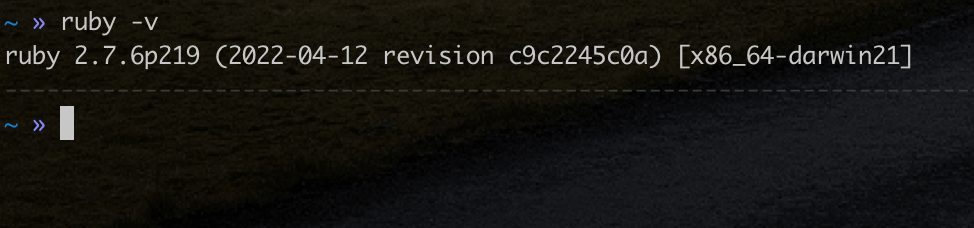
- RubyMake sure you have Ruby installed on your system. To confirm the version of Ruby you are running, type the below command in your terminal.
ruby -v
To learn more about installing Ruby, you can go through my earlier blog on Selenium automation testing with Ruby. You should see results below, based on the version of Ruby you have on your system.
- Cucumber and Watir gemTo run Cucumber tests, we must install the gem cucumber, and we do this by running the below commands on your terminal:
gem install cucumber gem install watir
You would expect a successful installation, which you can confirm by using the list command below.
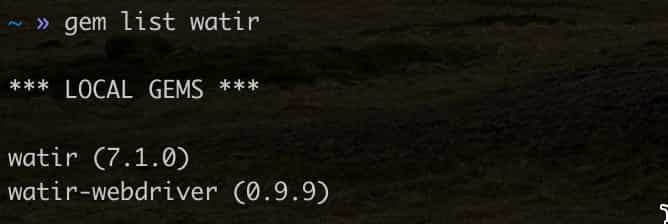
Note: For watir – you need watir, and you do not need to have watir-webdriver listed.
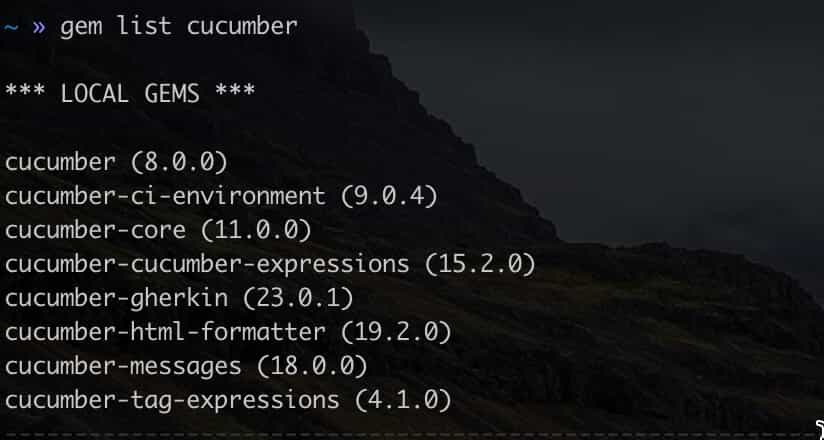
When writing this blog, the latest version of Cucumber was 8.0.0. This version might vary based on the latest version of Cucumber available then.
Implementing Cucumber data tables
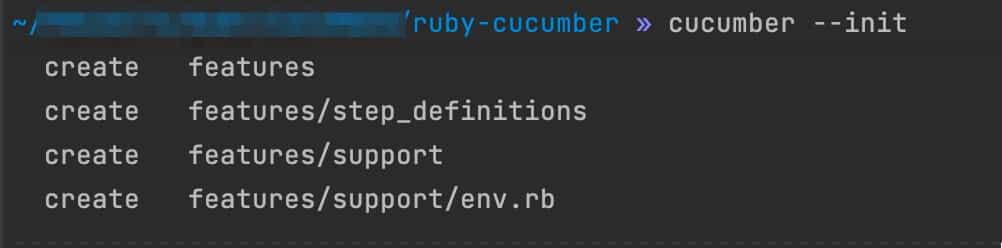
- Let’s start by creating the Cucumber folders necessary for this project. Navigate to the folder where you will run your tests and run the following in your terminal.
cucumber --init
We expect to see a couple of folders created that are similar to the ones below.
- To successfully run our tests, we will create four files. We shall go through each one in detail afterward.
- First, let’s create a features_files directory. To do this, type the following into your terminal.
mkdir features_files
#/features_files/login_tests.rb
Feature: Ecommerce login Feature
 Scenario: Verify ecommerce webpage loads and user can sign in
   Given Ecommerce webpage Login Page loads
   And Ecommerce Login Link is present loaded
   Then Correct Username and Password Should Login Successfully <username> <password>
   And My Account page should display after login
 Examples:
   | username                       | password      |
   | [email protected]          | LambdaTest123 |
   | [email protected]     | LambdaTest123 |
   | [email protected]  | LambdaTest123 |
   | [email protected]       | LambdaTest123 |
Then create another directory inside features called page_object, create a file called login_page.rb. This will be where we shall write our page object functions and use them in our tests. To learn more about Page Object Model, go through our earlier blog on Page Object Model in Selenium.
#/page_object/login_page.rb
class LoginPage
 def username_link
   $browser.link(text: "Forgotten Password")
 end

 def username_textbox
   $browser.input(id: "input-email")
 end

 def password_textbox
   $browser.input(id: "input-password")
 end

 def login_button
   $browser.button(value: "Login")
 end

 def account_header
   $browser.link(text: "Edit Account")
 end
end

Note: Run your Cucumber test scripts across 3000+ real browsers and OS. Try TestMu AI Now!
What are Page Objects in Cucumber?
Page objects are a way of creating test objects specific to your application. In Cucumber, they are used to create and manage page objects so that we can interact with third-party code and databases.
They come in handy when the object you’re writing must not be directly dependent on Rails’ usual classes, models, or collection structures.
Think of page objects as ‘functions’ for creating object instances – except they don’t just create objects based on classes or named collections – they instead create instances based on whatever values you input them in the text you supply them with.
When do you use page objects?
The page object is the simplest way to separate locators from the rest of the application. A new class can easily be added to a page object that concentrates all locators used on that page. Therefore, it is best to separate these locators so they do not interfere with testing. To learn more about locators, go through our earlier article on locators in Selenium.
In the next section of this article on implementing data tables in Cucumber, we will look at some of the benefits of using page objects.
What are the benefits of using page objects?
Using page objects helps us separate locators from functional code by defining them as properties on a ‘page object’ class definition.
- Ability to define locators on multiple user interface pages without duplicating locator definitions or coding.
- Immediate integration with existing test automation frameworks with minimum code changes required by the automation team.
- Elimination of the need for test automation frameworks to support session-level locators when viewing multiple pages.
- The ability to specify a relative path for each page object.
When creating a page object, it is generally required to define properties that describe the page containing the page object.
It’s important to note that we do not have to link each locator’s definition of a test automation framework with each page object. During testing, the recommended approach for an automation team is to reference a single class definition file rather than hundreds of locator definitions in each test script or have separate locator definitions grouped in a specific order and valid naming conventions. This makes it easier to find a page object.
For the third file, we shall create a file under step_definitions(a folder that already exists) and create a file called ecommerce_steps.rb.
Here, we will have all our step definitions for our Cucumber test. For example, we will have a function for navigating to the login page that we will use in the login scenario.
When creating a page object, it is generally required to define properties that describe the page containing the page object.
It’s important to note that we do not have to link each locator’s definition of a test automation framework with each page object. During testing, the recommended approach for an automation team is to reference a single class definition file rather than hundreds of locator definitions in each test script or have separate locator definitions grouped in a specific order and valid naming conventions. This makes it easier to find a page object.
For the third file, we shall create a file under step_definitions(a folder that already exists) and create a file called ecommerce_steps.rb.
Here, we will have all our step definitions for our Cucumber test. For example, we will have a function for navigating to the login page that we will use in the login scenario.
#/step_definistions/ecommerce_steps.rb
Given(/^Ecommerce webpage Login Page loads$/) do
 $browser.goto "https://ecommerce-playground.lambdatest.io/index.php?route=account/login"
 $user_session = LoginPage.new
end

Then(/^Ecommerce Login Link is present loaded$/) do
 assert($user_session.username_textbox.name, "email")
 assert($user_session.password_textbox.name, "password")
end

Then(/^Correct Username and Password Should Login Successfully (.*) (.*)$/) do |username, password|
 puts "------"
 puts username
 $user_session.username_textbox.send_keys(username)
 sleep(3)
 $user_session.password_textbox.send_keys(password)
 sleep(3)
 $user_session.login_button.click
end

And(/^My Account page should display after login$/) do
 assert($user_session.account_header.name, "My Account")
end
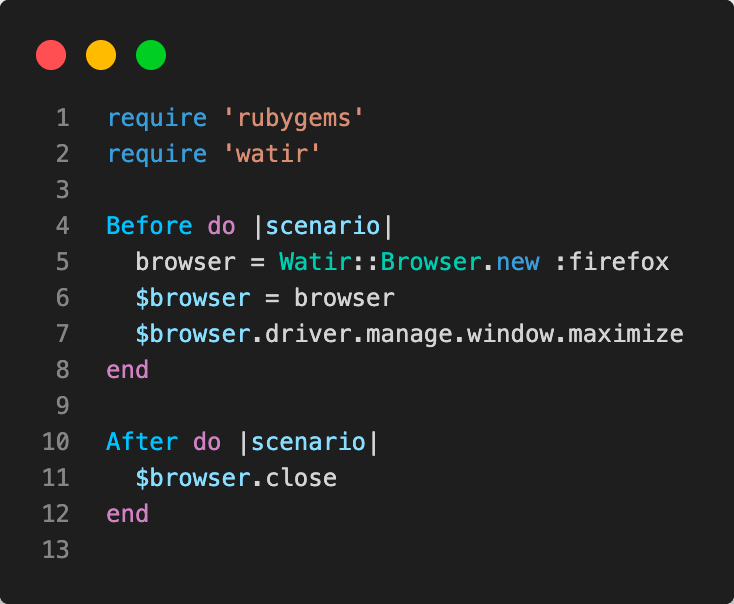
Lastly, we will edit our env.rb file, which is under the support to have the following details.
#/support/env.rb
require 'rubygems'
require 'watir'

Before do |scenario|
 $browser = Watir::Browser.new :firefox
 $browser.driver.manage.window.maximize
end

After do |scenario|
 $browser.close
end
What is Watir?
Watir is an abbreviation that stands for Web Application Testing In Ruby. It is a much-improved descendant of WebInspector. It’s written in Ruby and provides the same functionality for testing web applications. It has a test runner called Watir-webdriver and a page object for the browser interface.
Watir is packaged in a Ruby gem. It comprises a set of Ruby scripts that relate to the Browser Object Model (BOM). The BOM is the JavaScript API used by the web browser to interact with a web application.
After copying the files we discussed above, you should have an output similar to the one below – and you can confirm by using the ls command to list the content of a given directory (in this case, the tables directory). From our IDE, we should see the following.
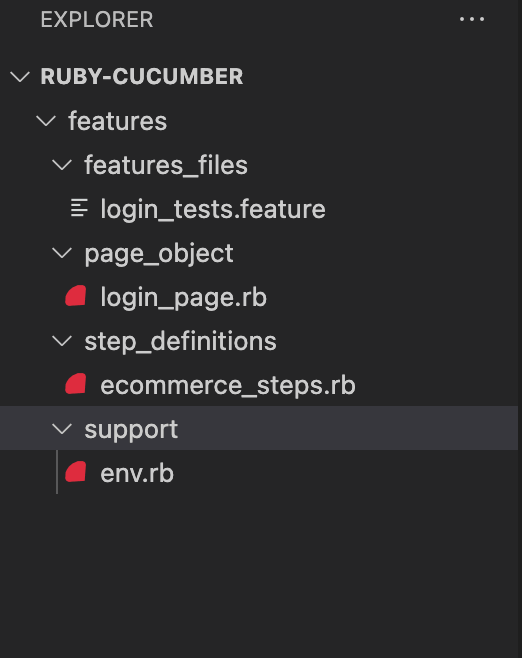
Code Walkthrough:
Let’s take a deeper look at the different files.
Filename: features_files/login_tests.rb
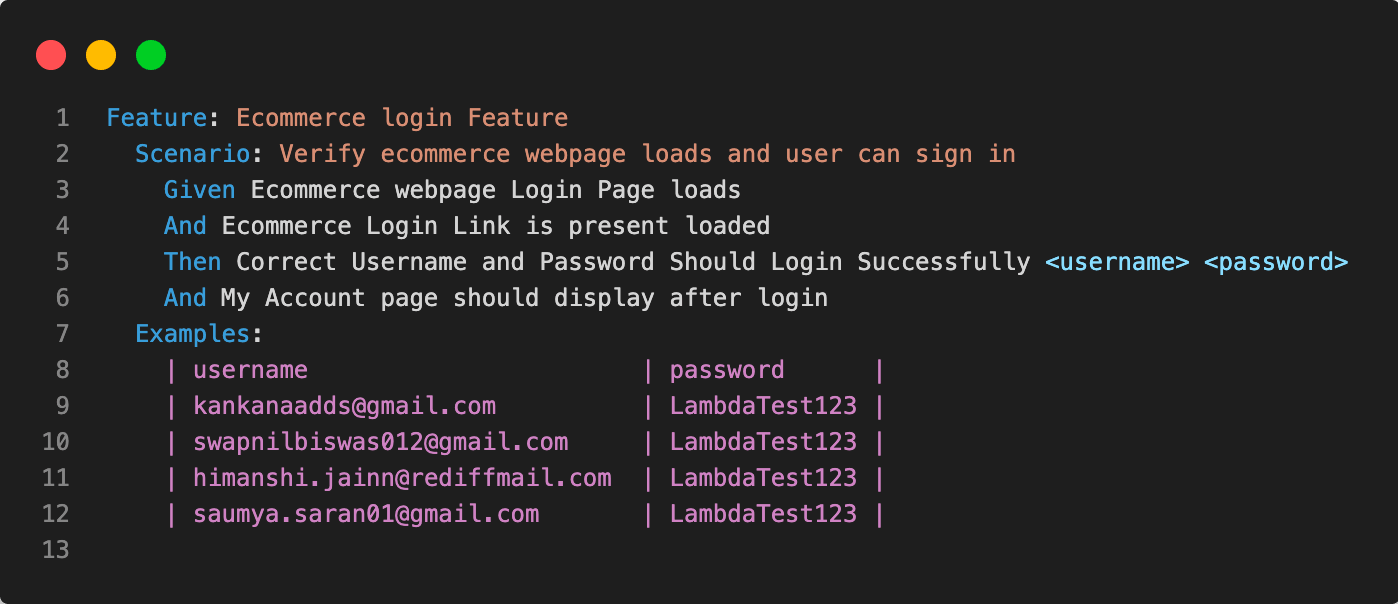
This file defines a Scenario and has a name in the format of Given, When, and Then. Given is where we define our scenario, when is where we specify the step definitions for the scenario, and then is where we can write the assertions for that step.
Every feature has at least one scenario. A scenario describes a specific event that should happen to fulfil one or more business requirements in your application.
A scenario follows a pattern of steps and context described in user interaction with the system, e.g., verifying a user can log in to a particular web page.
Note that the example at the end gives access to a data table that provides different usernames and passwords for the test. Data tables in Cucumber are kept around so that the same scenario can be repeated with different data.
Filename: page_object/login_page.rb
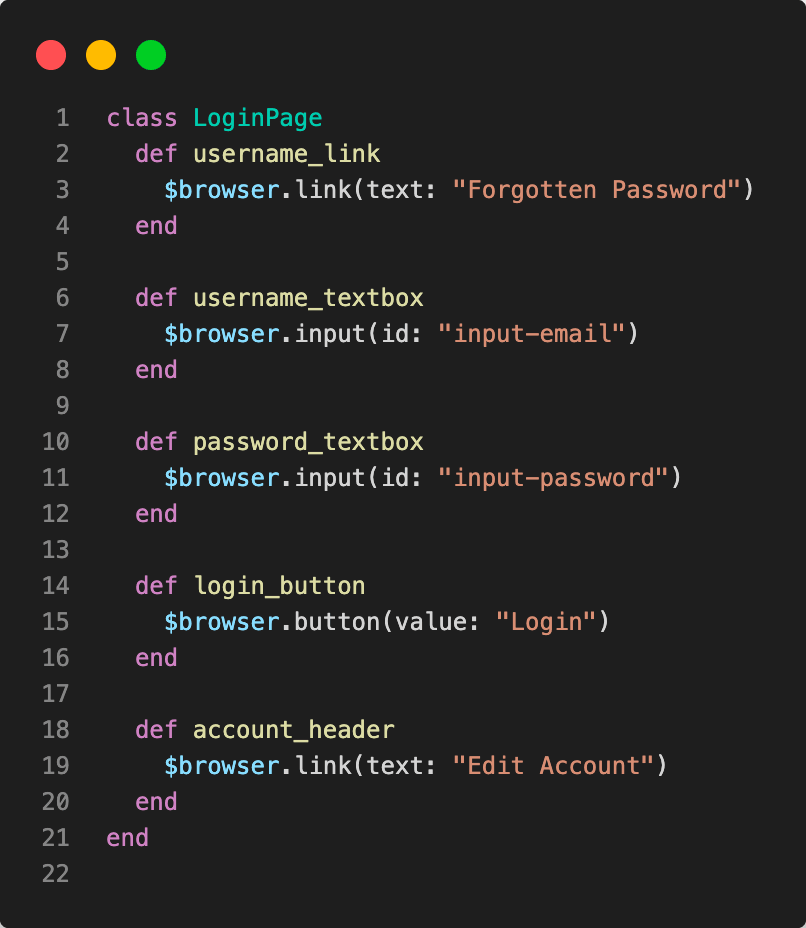
The page object is responsible for creating the objects that your scenario needs to interact with. The object that the page object creates is instantiated when you run the scenario. This is an instance of a page object, which provides a given page. In this case, it’s our login page.
The page object is usually defined for you as part of Cucumber, but there are some cases where you need to customize the object or create your own. You can define just about any CRUD, static or dynamic web page in Ruby as your real-world implementation by working with the methods in your Page object.
For example, if we want to specify the user’s name when we log in and then check that data, we can add those variables to our env.rb file and pass them into our step definitions as needed.
Filename: step_definistions/ecommerce_steps.rb

These are the step definitions that show the real meat of your scenario! This is where we define our step definitions, which are executed one after the other and at the end. We have an assertion that verifies whether the expected outcome happened or not.
We can then add variables to our step definition file in Ruby and pass those variables from our data table to our scenario. This is how we can check for particular values when a page loads or clicks a button.
Filename: support/env.rb
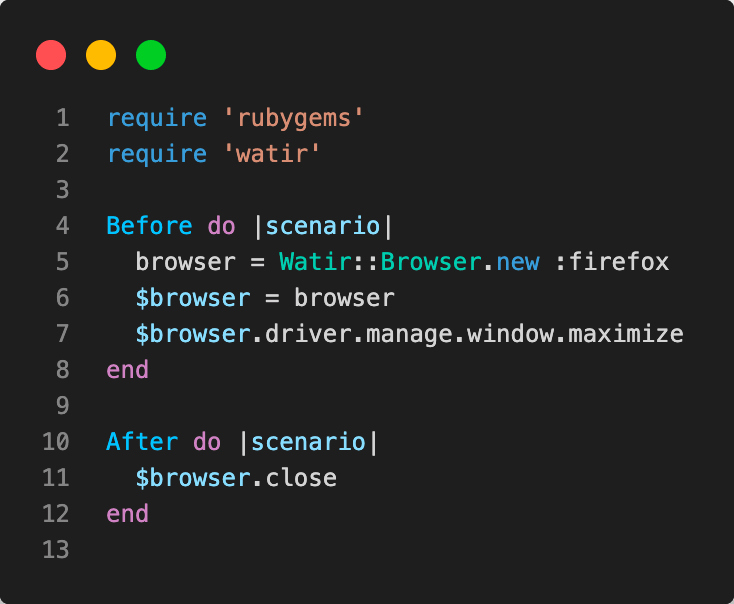
As we mentioned earlier, the env.rb file usually contains general information that can be reused across the different steps of your test or used across multiple features in the same project. In our case, we have included Cucumber hooks such as Before and After.
The Before method here will run once before each scenario and will simply create a browser session and maximize the browser.
The After method will quit the browser after each scenario has run.
Execution:
To run the test, we need to open our terminal at the root of the folder where we created the Cucumber file and run the following command.
cucumber
This just runs all the feature files, but if you need to specify which one you want to test, you can run the following from your terminal.
cucumber features/features_files/login_tests.feature
That’s it! We have successfully written and run a feature using cucumber. Let’s take a closer look at some of the files we created in our Cucumber project.

What happens if the test fails?
You must open your terminal and change some values in your login_tests.feature file if an error occurs. You could do this by changing the username or password.
We will see error messages on the console log when running the tests.
The error messages displayed are very helpful for debugging or understanding what the test is getting wrong. As you can see, they display a specific line number that failed and then gives you a message about what exactly failed.
The great thing with data tables in Cucumber is that other tests continue to run even if there is a failing test. This means that it will not give you false results when there is an error, and you can always debug the problem by changing some values in an invalid way and see the test result.
You’ll notice that when there are multiple tests, Cucumber will display all of them and give a summary of failed or passed tests along with the steps taken.
By now, you should better understand how Cucumber works and how it helps you write your tests for your application’s business logic code.
Now let’s run our feature files and ensure everything works as expected.
In the folders created, it’s important to note that the env.rb file under the support folder runs first when the test begins, and then the files in the step_definitions follow.
env.rb contains configurations for your system, e.g., database connections, etc. This is where we define all our data tables in Cucumber, and we’ll create one for every feature. In more complex testing where you would need to add database connection parameters, you would add them in this file.
Every time you run Cucumber, it will check if the env.rb file is present; if not, it will generate one for you with all the necessary values required to execute your test.
After running the tests, we should get the following information in our terminal. As you can see, all the four scenarios from the data tables in Cucumber ran subsequently.
You should expect to see something similar to the below.
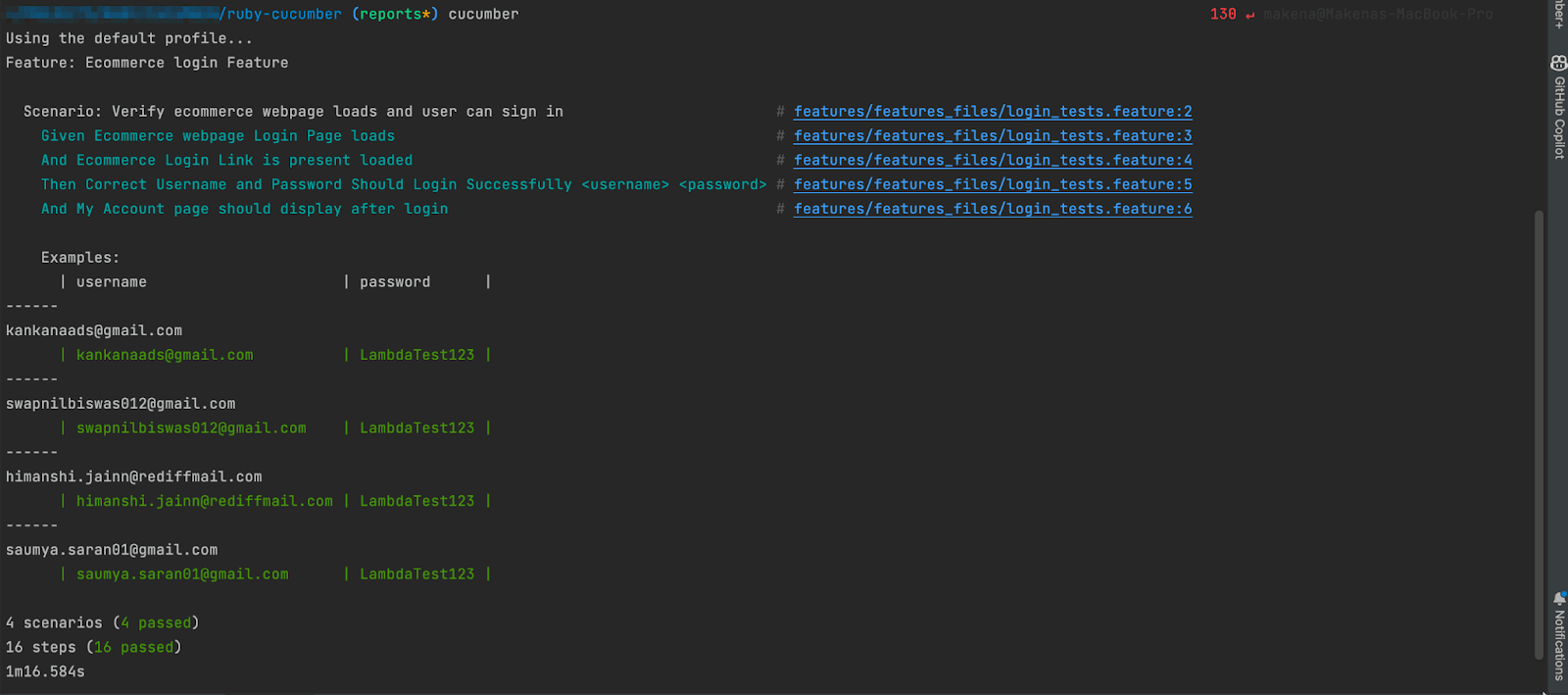
When we run the tests, it does a pre-pass first, executes the test, and finally prints out the results.
How to implement data tables in Cucumber on cloud grid?
Selenium Grid is a tool for distributing the load across multiple browsers. Selenium Grid can be used to run tests on different operating systems and browser configurations simultaneously. The grid configuration will control which browsers run the tests and how many of them at a time.
To run this on the cloud grid like TestMu AI, you would need to replace the local webdriver with the remote webdriver. Cloud-based platforms like TestMu AI provide you with an online browser farm of 3000+ browsers and operating systems to perform Selenium Ruby testing at scale. Here’s a glimpse of TestMu AI online Selenium Grid:
You can also subscribe to the TestMu AI YouTube Channel and stay updated with the latest tutorials around Selenium testing, Cypress E2E testing, CI/CD, and more.
Replace the following code on the file
/support/env.rb
On local Selenium Grid:
#/support/env.rb
require 'rubygems'
require 'watir'

Before do |scenario|
 browser = Watir::Browser.new :firefox
 $browser = browser
 $browser.driver.manage.window.maximize
end
After do |scenario|
 $browser.close
end
On cloud Selenium Grid:
#/support/env.rb
require 'rubygems'
require 'watir'

Before do |scenario|
 username= "#{LAMBDATEST_USERNAME}"
 accessToken= "#{LAMBDATEST_ACCESS_KEY}"
 gridUrl = "hub.lambdatest.com/wd/hub"

 capabilities = Selenium::WebDriver::Remote::Capabilities.new

 capabilities['platform'] = 'Windows 11'
 capabilities['name'] = 'Cucumber Login Tests'
 capabilities['build'] = 'Cucumber Test v.1'
 capabilities['browserName'] = 'Firefox'
 capabilities['browserVersion'] = '100.0'

 $browser = Watir::Browser.new(
   :remote,
   :url => "https://"+username+":"+accessToken+"@"+gridUrl, :desired_capabilities=>capabilities)

 $browser.driver.manage.window.maximize
end

After do |scenario|
 $browser.close
Remember to export your Username and Access Key in environment variables via your terminal with the commands below.
For Linux/macOS: export LAMDATEST_USERNAME="YOUR_USERNAME" export LAMDATEST_ACCESS_KEY="YOUR ACCESS KEY"
For Windows:set LT_USERNAME="YOUR_USERNAME" set LT_ACCESS_KEY="YOUR ACCESS KEY"
Checking results on TestMu AI:
You should see the tests fire up on the Automation Dashboard and the results displayed on the right as shown.
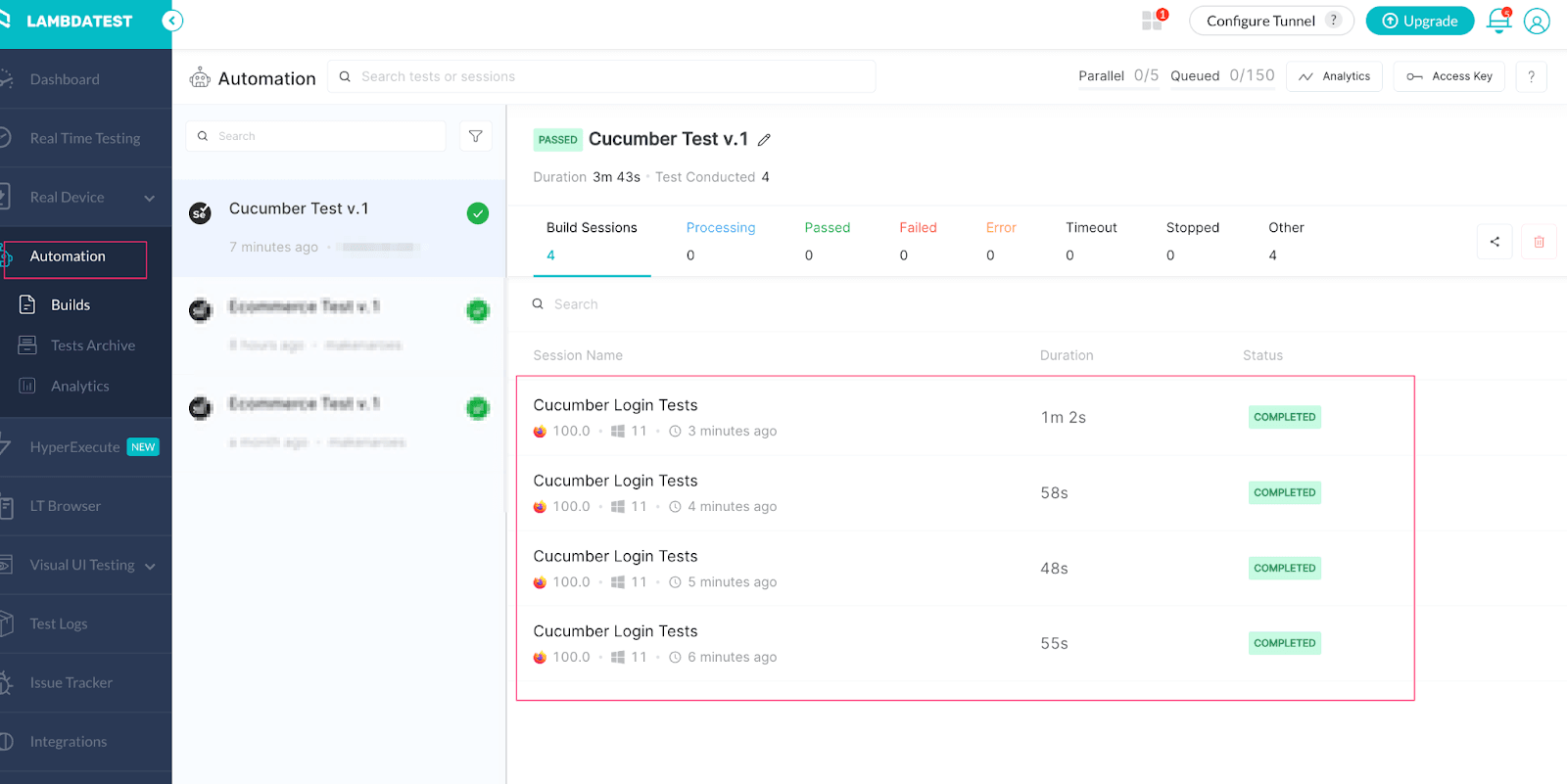
You will notice that the number of rows on the data tables is equivalent to the number of tests that are run, which is precisely what we expect, and this also highlights why data tables in Cucumber are essential.
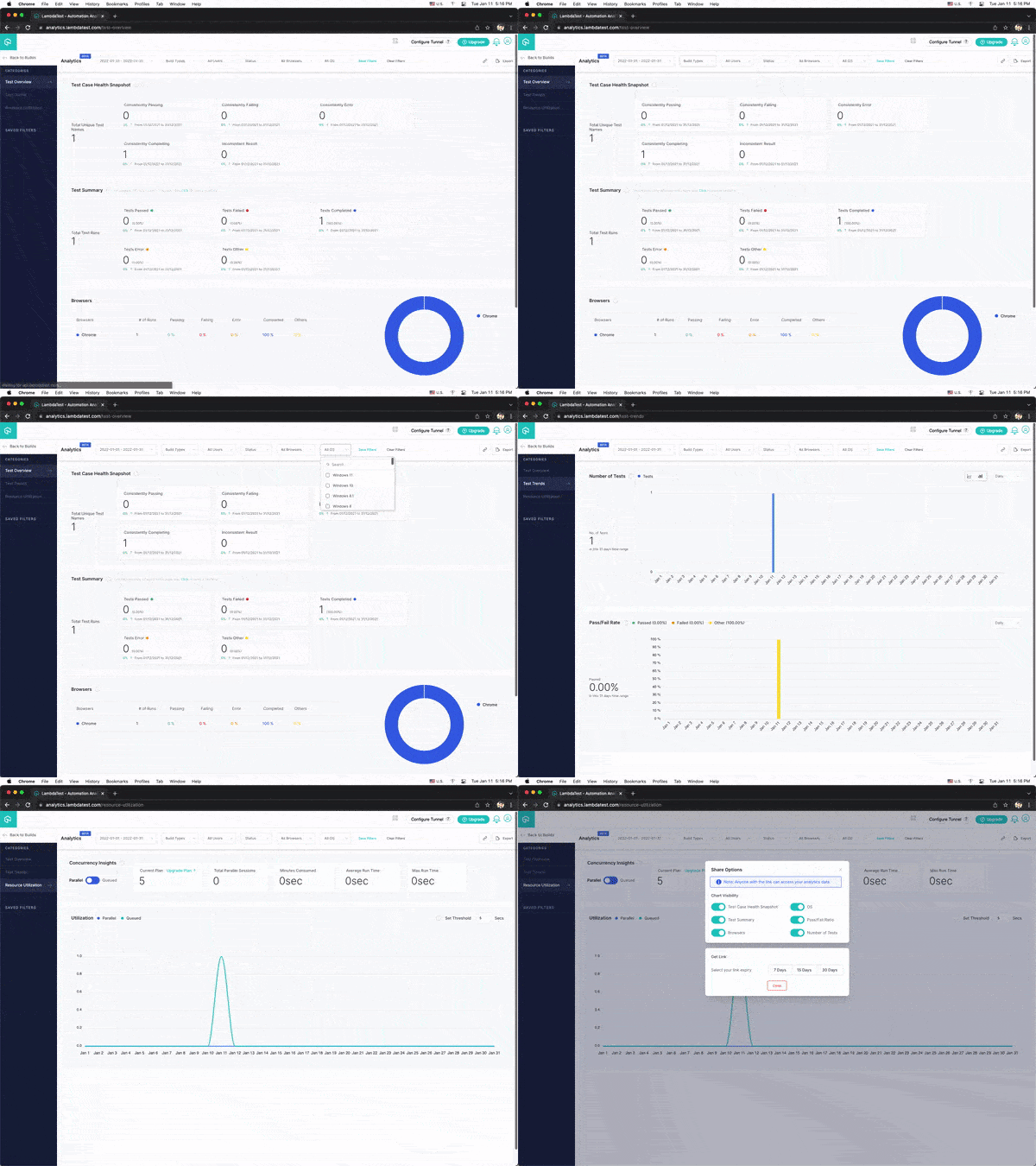
You can view your test results and overall performance on the TestMu AI Analytics Dashboard. From the Test Summary section, you can easily see which tests failed and which passed, as well as how many. You can also navigate to the Test Overview page, where you can see a breakdown of all test runs, including individual test performance.

More debugging tips while implementing data tables in Cucumber
If you are getting errors on Cucumber and want to know where the error exactly is happening, then we need to take one step back. Even though Cucumber tries to create a test for all your features, it doesn’t always do so due to duplicate scenarios or missing data tables in Cucumber.
To fix this, you need to navigate the tests and change the test itself. If you still have issues, you can dive deeper into your code using a debugger.
A debugger is a tool that allows you to step into your code, change things like variables and rerun the same scenario. The debugger enables you to see what’s happening as you run your tests step by step.
Once we have what is causing the error, we can look at the failing scenarios and fix them. Remember that some features might not work in a certain environment or browser. So what works for me might not work for you. So don’t be afraid to change these scenarios and add more complex ones.
We can use a gem called Ruby-debugger that gives us the lines in our code that are failing by following these steps.
Note: Try LT Debug Chrome Extension for debugging websites!
Conclusion
Ruby and Cucumber provide a powerful toolset for creating automated tests, which can be used to drive the development of complex applications. It lets you focus on the code that matters and let Cucumber do the heavy lifting of automation.
Cucumber is structured for reusability. This means we can easily use the same step definitions in future scenarios by following Cucumber’s best practices. They can be used to enable the system to run tests multiple times without changing any of the logic implemented in the steps and thus is a good tool of choice when it comes to repetitive testing.
More advanced automation testing scenarios such as automated browser testing are possible with Cucumber and Watir but would require more complex step definitions and a significant amount of setup time.
This goes a long way in keeping your codebase bug-free while allowing you to write more complex tests requiring lots of manual interaction. It’s not uncommon for developers to write lots of tests, often manually, but it still costs them time and effort when they’re not particularly complicated.


Frequently asked questions
Did you find this page helpful?
More Related Hubs
TestMu AI forEnterprise
Get access to solutions built on Enterprise
grade security, privacy, & compliance
- Advanced access controls
- Advanced data retention rules
- Advanced Local Testing
- Premium Support options
- Early access to beta features
- Private Slack Channel
- Unlimited Manual Accessibility DevTools Tests