

Next-Gen App & Browser Testing Cloud
Trusted by 2 Mn+ QAs & Devs to accelerate their release cycles


How to Use Cypress in Headless Mode
In this Cypress tutorial, you will learn how to perform headless browser testing using Cypress on popular browsers like Chrome, Firefox, and WebKit.

Kailash Pathak
December 24, 2025
This article is a part of our Content Hub. For more in-depth resources, check out our content hub on Cypress Tutorial.
Tests are often carried out on real browsers to test the actual user experience. This approach ensures that the web application or site is examined in the real-world environment it is intended for, enabling testers to identify and address any issues that may impact user satisfaction and functionality. Testing on real browsers helps detect discrepancies that might not be apparent in simulated or emulated environments, ultimately leading to a more accurate assessment of the user experience.
However, running tests on a real browser can be slow because the browser needs to start up and load each web page before the tests can run, which can take a significant amount of time.
Additionally, running tests on a real browser can consume a lot of memory and other system resources, slowing down other processes and making the test environment less stable. This is why many developers opt to use headless browsers, which can simulate the behavior of a real browser without actually running the full application.
Some common issues when performing UI testing with a web browser include:
- Flakiness: Tests may randomly fail or pass due to elements not loading correctly or other unpredictable behavior.
- Slow performance: Running tests on browser instances can be slow and time-consuming, especially if there are many tests or if the tests are running on multiple browsers.
- False negatives/positives: Sometimes, the tests may fail or pass incorrectly due to timing, network connectivity, or race conditions.
- Test environment setup: Setting up the test environment, including installing the necessary browsers and drivers, can be challenging and time-consuming.
- Page load time: Page load time is the time that passes between the browser sending the request to the server and the page fully loading. Sometimes, even if we have a good infrastructure, the page takes too long to load, and it can cause UI tests to fail or produce unreliable results.
This is where headless browsers come into the picture. In web browsers, headless mode refers to running a browser instance without opening a visual window. This can be useful for automated testing or running a browser programmatically as part of a larger system.
Most modern web browsers, including Chrome, Firefox, and WebKit, support headless mode. Headless testing can be faster and less resource-intensive than UI testing, as it does not require a real device or a simulation of the real environment.
You can perform headless browser testing using Cypress on a cloud-based Grid that supports using Cypress in headless mode. This means that you can perform Cypress testing in a browser environment without the need to have a GUI visible.
In this tutorial, you will learn how to run tests using Cypress in headless mode on popular browsers like Chrome, Firefox, and WebKit.
Overview
Cypress is a popular testing framework used to run automated end-to-end tests. When combined with headless browsers, it can significantly improve the speed and efficiency of tests by running them without rendering a graphical user interface (GUI). This allows teams to run tests faster and with fewer resources, making it ideal for continuous integration (CI) environments. To make the most out of Cypress, it’s essential to understand how to configure and run tests in headless mode, especially in a cloud-based grid environment like TestMu AI.
Why Use Headless Testing in Cypress?
Headless testing in Cypress offers numerous benefits:
- Faster Execution: Since there is no need to render a GUI, headless tests run significantly faster, reducing the overall time spent on testing.
- Resource Efficiency: Headless browsers consume fewer resources (e.g., CPU, memory), making them perfect for cloud environments or low-resource systems.
- CI/CD Integration: Headless testing integrates seamlessly into CI/CD pipelines, enabling automated tests to run continuously and ensuring faster release cycles.
How to SetUp Cypress for Headless Testing?
To set up Cypress for headless testing, you need to ensure that your environment supports headless mode, including cloud grids like TestMu AI. Here’s how you can get started:
- Run Tests Locally: Use commands like cypress run or yarn cypress run to execute tests without opening a browser window.
- Configure TestMu AI Grid: With TestMu AI’s cloud grid, you can run tests on real browsers in headless mode, simulating real user behavior while reducing costs associated with local browser setups.
What are the Best Practices for Headless Testing?
Following best practices ensures stable, fast, and reliable test execution in headless mode:
- Target Specific Browsers: Use the cy.get() selector to pinpoint elements in the DOM, ensuring tests are accurate and consistent. For headless testing, using clear CSS selectors is essential.
- Cross-Browser Testing: Headless browsers like Chrome, Firefox, and WebKit can be used in parallel across multiple versions, ensuring compatibility with a wide range of devices and browsers.
- Minimize Flakiness: Use reliable locators and Cypress’s built-in commands to handle dynamic content effectively, reducing flaky test failures.
Why use Headless Browser Testing?
When conducting end-to-end tests with a headless browser, the application’s user interface won’t be loaded by the browser. As a result, everything operates more quickly, and there is less risk of instability because the tests immediately interact with the website. Your tests become quicker, more accurate, and more effective.
There are several reasons why you might want to run Cypress in headless mode:
- Speed: Headless browsers are often faster and use fewer resources than traditional browsers because they do not have to render the GUI. This can be useful for tasks requiring a lot of processing power or running tests on a server with limited resources.
- Flexibility: Headless browsers can be run on various platforms, including Linux, Windows, and Mac. This makes running tests on different environments easy, which can help ensure that your website (or web app) works as expected on various devices and operating systems.
- Cost-effectiveness: Headless browser testing is cost-effective as it eliminates the need for expensive hardware and software to run tests.
- Automation: Headless browsers allow you to perform automated or repeatable tasks without interacting manually with the GUI. This can be particularly useful for tasks such as testing web applications or automating interactions on elements in any website.
- Server-side rendering: Headless browsers can render web pages on the server side. This helps optimize web application performance and improve the end-user experience.
- Simulating real user behavior: Headless browsers let developers simulate real user behavior on the website, which can help identify issues other methods may not catch.
- Compatibility: Headless browsers can test the website’s compatibility with different browser versions.
- Testing: Headless browsers can be used for web application testing, as they let you simulate a browser environment and make assertions about the behavior of your application.
- Realistic testing: During headless testing, the browser operates in a manner akin to a genuine browser, actively loading all resources such as images, CSS, JavaScript, and more. This approach enables a more authentic testing experience, facilitating the detection of potential issues that might remain undetected when employing alternative testing methods.
- CI/CD Integration: Headless tests reap more benefits when run with CI/CD tools because they consume fewer resources (i.e., CPU, RAM, etc.). Even in scenarios where the pipeline is executed in a remote environment, you can expect quicker results due to the inherently faster nature of headless testing.
- Resource efficiency: Running tests without a GUI requires fewer resources, making headless browser testing more efficient.

Note: Run Cypress tests in headless mode on the cloud. Try TestMu AI Today!
Criteria for Choosing Headless Browsers
You should always choose a headless browser that is lightweight and uses very few resources so that you can run it in the background without hindering development work.
Many headless options are available, including tools to simulate multiple browsers and headless versions of well-known browsers like Chrome and Firefox. We have some factors to utilize in deciding which browsers are optimal for web development and testing.
Here are some factors to consider when selecting a headless browser for web testing:
- Compatibility: Ensure the headless browser is compatible with your operating system and the programming language you plan to use for web testing.
- Features: Consider the features important for your web testing, such as support for JavaScript, cookies, and web standards. Some headless browsers offer advanced features such as automatic form-filling, screenshot capture, and network emulation.
- Performance: Consider the performance of the headless browser, including its speed and resource usage, as web testing can be resource-intensive when we have to test our application in multiple headless browsers.
- Ease of use: Consider how easy it is to use the headless browser and whether it has good documentation and a supportive community.
- Support: It’s important to choose a headless browser that is actively maintained and has a large community of users for support and troubleshooting.
Popular Headless Browsers
The choice of using Cypress in headless mode depends entirely on the specific application requirements you are testing. Headless browser allows you to run the test cases in a headless (i.e., GUI-less) environment, which can be useful for running tests in a Continuous Integration (CI) environment or scripts that don’t require a visible UI.
Here are some commonly used headless browsers (irrespective of whether the framework is being used for automated testing)
- Firefox Headless
- Chrome Headless
- WebKit Headless
- PhantomJS
- HtmlUnit Browsers
Though I have listed all major headless browsers, it is important to note that Cypress supports Firefox, Chrome, and WebKit headless browsers.
Firefox headless mode
Firefox headless mode is a web browser that allows you to test the application without the head. You cannot see anything while accessing any website using a headless browser. The application, however, operates in the background, and you can monitor the execution result once the test cases have finished running.
Firefox headless mode can be an effective option for automating web browsing tasks using Cypress. By running Firefox using Cypress in headless mode, you can interact with the browser as a regular user.
Chrome headless mode
Google’s Chrome team included headless Chrome mode in their browser, making running a Chrome headless browser from the command line easier.
Running tests using Cypress in headless mode makes fast test case execution and eliminates the need for manual interaction with the browser during testing.
WebKit headless mode
WebKit is an open-source web browser engine developed by Apple and used in the Safari browser. The headless mode of WebKit is a feature that allows the engine to run without a browser.
You can run tests on WebKit using Cypress in headless mode. To run Cypress test cases in WebKit, we must do some config settings and add the dependency. Add experimentalWebKitSupport: true in the cypress.config.js file to enable the experiment. Add dependency using the command to install the playwright-webkit NPM package in your repo to acquire WebKit: npm install –save-dev playwright-webkit.
PhantomJS headless mode
PhantomJS is a popular solution for running browser-based unit tests in a headless system like a continuous integration environment since it provides a JavaScript API that enables automated navigation, screenshots, user behavior, and assertions.
Additionally, PhantomJS can be used to automate tasks such as filling out forms, clicking buttons, and navigating pages, which can be useful for functional and regression testing.
Some common use cases include:
- PhantomJS can interact with web pages similarly to a web browser, allowing developers to automate tasks such as filling out forms, clicking buttons, and navigating between pages.
- It can extract data from web pages, such as scraping product prices from an eCommerce site or extracting data from a table on a web page.
- PhantomJS can generate screenshots or PDFs of web pages, which can help create reports or test a website’s appearance on different devices and screen resolutions.

HtmlUnit headless mode
HtmlUnit is a Java-based headless browser that allows developers to automate web page interactions. It can be controlled programmatically, allowing developers to simulate a user navigating a website and interacting with its elements, such as clicking buttons and filling out forms. HtmlUnit supports JavaScript and can work with various web standards, making it a versatile tool for web development and testing.
It can be integrated with popular testing frameworks such as JUnit and TestNG, allowing developers to write tests in Java and run them in HtmlUnit.
Additionally, HtmlUnit can be useful for testing web applications by simulating interactions with the web page and checking the resulting page source or DOM.
Use case in software testing using HtmlUnit headless browser:
- Developers could use HtmlUnit to simulate a user logging into a web application by navigating to the login page, filling out the login form, and submitting it.
- You can use HtmlUnit to navigate to various web application pages, interacting with elements such as buttons and links and asserting that the expected results occur.
As mentioned, Cypress supports Firefox, Chrome, and WebKit headless browsers. Hence, I would be demonstrating Cypress headless testing on the said browsers.
Testing with Cypress in Headless Mode
Before explaining how to run the test cases in headless mode in Cypress, let’s set up a Cypress project first.
To explain how we can run test cases in headless mode in Cypress, I will test a typical eCommerce site: TestMu AI eCommerce Playground.
Implementation Test Scenario
In this Cypress tutorial, we are using the below example to run the Cypress test case in a headless browser in Local Grid and TestMu AI Grid.
Test Scenario:
- Open the Site https://ecommerce-playground.lambdatest.io/index.php?route=account/login.
- Enter the email address.
- Enter the password.
- Click on the Login button.
- Click on the ‘All Categories’ drop-down.
- Enter the product to search.
- Search the product.
- Verify the correct product is searched.
Setting up Cypress
You can establish a new Cypress project by following the instructions below:
Step 1: Create a folder and generate package.json.
- Create a project by Cypress_Headless.
- Create a package.json file using the npm init command.
Step 2: Install Cypress
Run this command in the newly created folder to install Cypress.
npm install cypress —save-dev
Or
yarn add cypress --dev
Cypress will be installed locally as a dev dependency for your project.
Note: Cypress version 12.3.0 is installed, as shown below. At the time of writing this blog, the most recent version of Cypress is 12.3.0
{
 "name": "cypress_headless",
 "version": "1.0.0",
 "description": "",
 "main": "index.js",
 "scripts": {
   "test": "echo "Error: no test specified" && exit 1"
 },
 "author": "Kailash Pathak",
 "license": "ISC",
 "dependencies": {
   "cypress": "^12.3.0"
 }
}
Different ways to run Cypress tests in a headless browser
There are various ways of executing the Cypress test cases in headless browser mode.
- To run all the test cases of the e2e folder in headless mode, use the yarn cypress run command. This command will run all the test cases under the e2e folder.
- To run the particular .spec file in the headless mode, you can run the command yarn cypress run –spec cypress/e2e/example.cy.js.
- Another way of running the test cases in headless mode is by adding scripts to the package.json. To run all test cases, we must run the command yarn run cy:run in the terminal. This command will execute all the test cases in headless mode.
{
 "name": "cypress_headless",
 "version": "1.0.0",
 "description": "",
 "main": "index.js",
 "scripts": {
   "cy:run": "yarn cypress run"
 },
 "author": "<>",
 "license": "ISC",
 "dependencies": {
   "cypress": "^12.3.0"
 }
}
"name": "cypress_headless",
 "version": "1.0.0",
 "description": "",
 "main": "index.js",
 "scripts": {
  "cy:run:chrome": “yarn cypress run --browser  chrome --headless"
  "cy:run:firefox": “yarn cypress run --browser firefox --headless"
  "cy:run:electron": “yarn cypress run --browser electron --headless"
 },
 "author": "<>",
 "license": "ISC",
 "dependencies": {
   "cypress": "^12.3.0"
 }
}
name: Cypress Tests
on: [push]
jobs:
 cypress-run:
   runs-on: ubuntu-latest
   container: cypress/browsers:node12.18.3-chrome87-ff82
   steps:
     - name: Checkout
       uses: actions/checkout@v2


     # Install NPM
     # and run all Cypress tests
     - name: Cypress run
       uses: cypress-io/github-action@v4
       with:
         # Specify the Browser
         browser: chrome
Folder Structure
The default folder structure for Cypress is displayed below. Under the “e2e” subdirectory, test cases can be created.
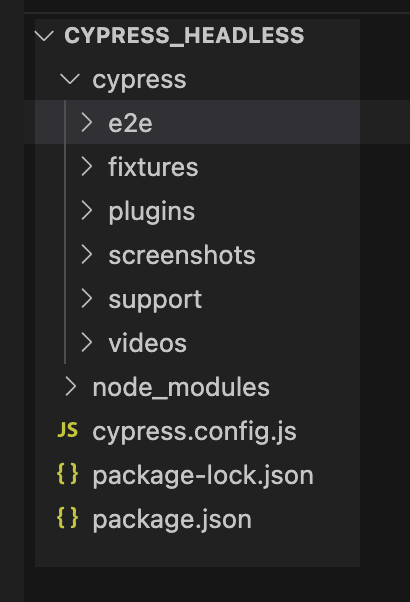
Let’s create test cases under the folder Cypress_Headless -> e2e. Create a .spec file with the name login_searchproduct.cy.js.
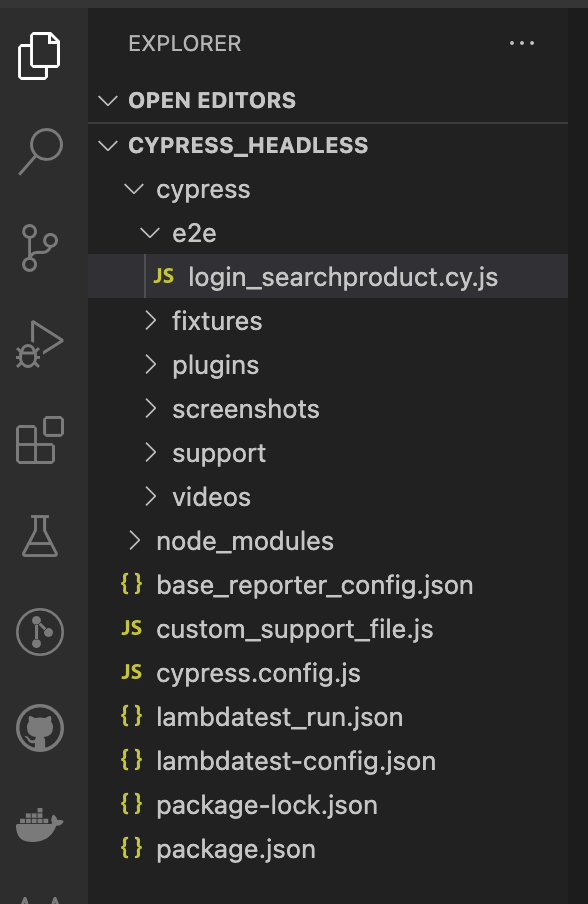
Create a login_searchproduct.spec.js file with the script below. This includes logging into the application and conducting a product search. Verify the right product should be displayed after the search.
/// <reference types="cypress" />
context("GIVEN Browser is already open  ", { testIsolation: false }, () => {
 it("WHEN User Open the Url", () => {
   cy.visit(
     "https://ecommerce-playground.lambdatest.io/index.php?route=account/login"
   );
 });
 it("AND Login into the application", () => {
   cy.get('[id="input-email"]').type("[email protected]");
   cy.get('[id="input-password"]').type("lambdatest");
   cy.get('[type="submit"]').eq(0).click();
 });
 it("AND Click On All Categories drop down and Search the Product", () => {
   cy.get('[data-toggle="dropdown"]').eq(0).click();
   cy.contains("Laptops").click({ force: true });
   cy.get('[name="search"]').eq(0).type("Apple").should("have.value", "Apple");
   cy.get('[type="submit"]').eq(0).click();
 });
 it("THEN Verify Correct Product with name'iPod Shuffle' should display after Search ", () => {
   cy.contains("iPod Shuffle");
 });
});
 Code WalkthroughIn the above code snippet, we have opened the target URL using cy.visit(), and second, it() block is used to log in to the application by entering email and password.
In the third, it() block clicks on the ‘All Categories’ drop down and searches for the product., Finally, the last it() block is used to verify the searched product.
In the below screenshot, you can see how we can inspect the element. We have located the element by id for the email field.
cy.get('[id="input-email"]').type("[email protected]");
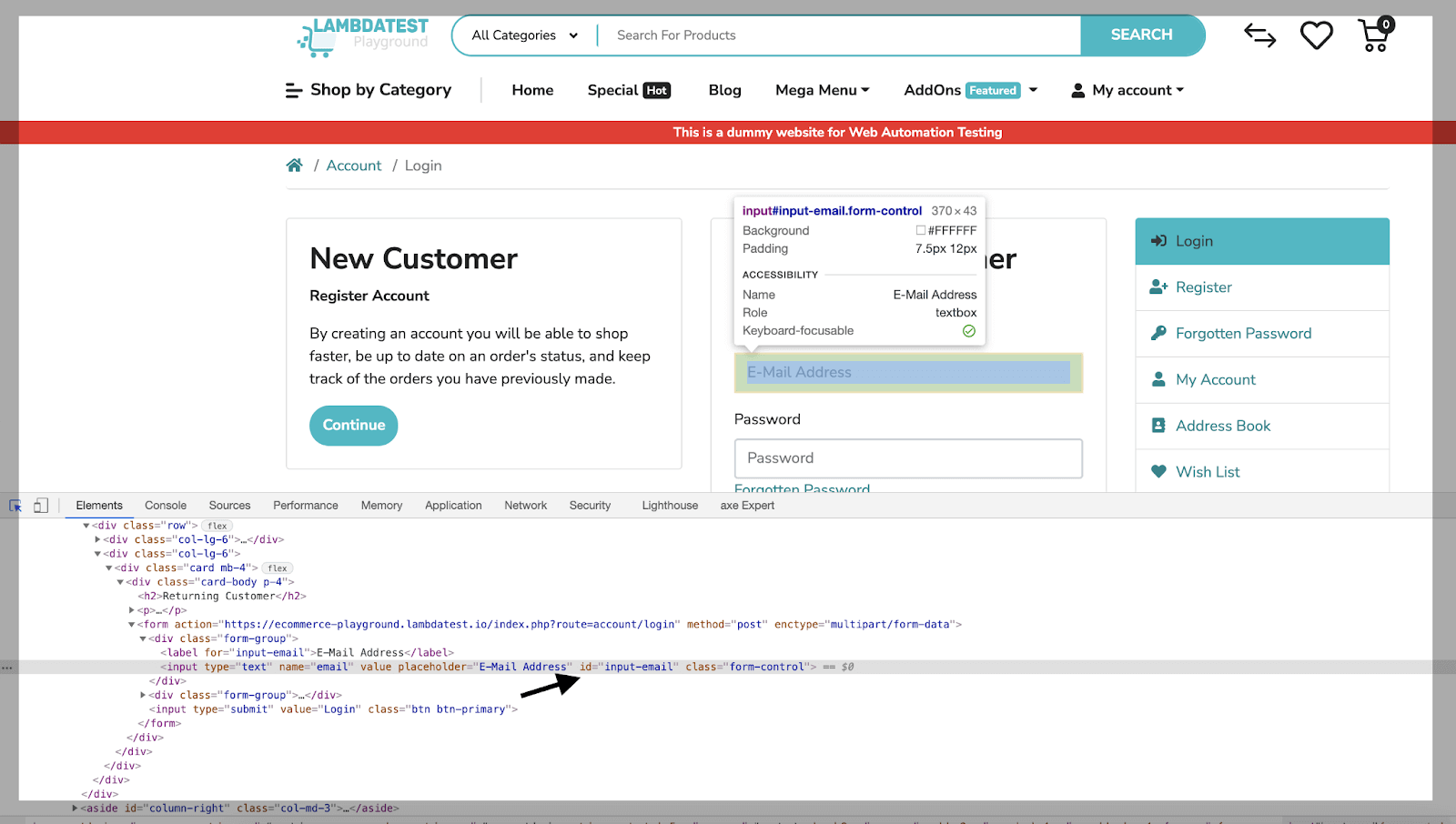
Now, let’s run the above test scenario in headless browsers. We will run the test cases first locally, then we will run the same scenario on the TestMu AI Cypress cloud.
Cypress Headless Testing on Local Grid
Running tests on Chrome using Cypress in Headless Mode
Headless Chrome is a web browser that can run automated tests without opening a Chrome window. This empowers you to create tests capable of mimicking user interactions with your web application and verifying that the application functions as intended.
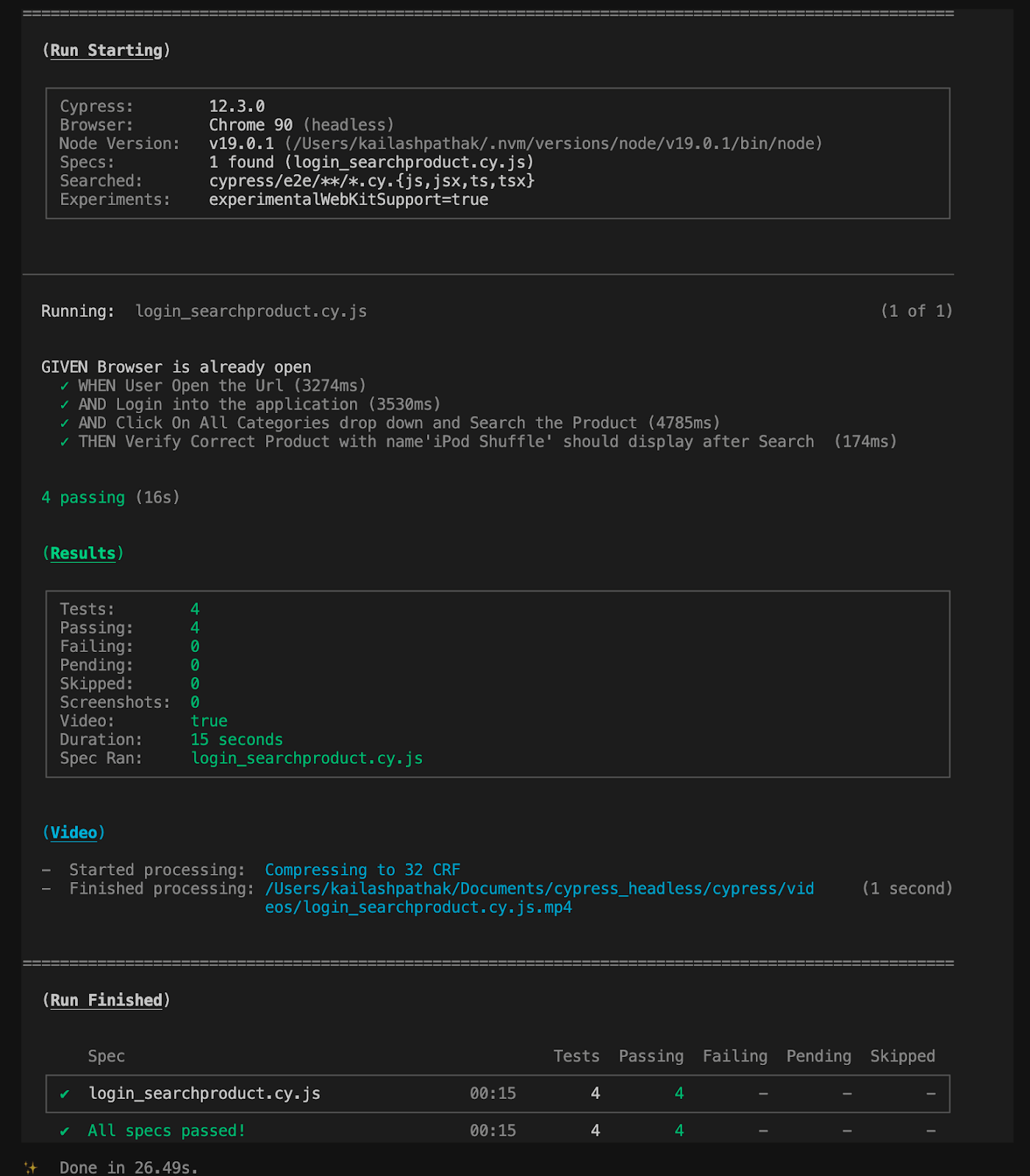
Run the above scenario locally in headless mode using Chrome using the below command.
yarn cypress run --browser chrome --headless
As we run the above command, test cases start executing locally in the Chrome headless mode.
Running tests on Firefox using Cypress in Headless Mode
To run the Cypress test cases in Firefox’s headless browser, you have to run the below command, which will run in the background, and finally, you will get the Pass/Fail result in the form of a report.
Run the above scenario locally in headless mode using Firefox using the below command.
yarn cypress run --browser firefox --headless
As we run the above command, test cases start executing locally in the Firefox headless mode.

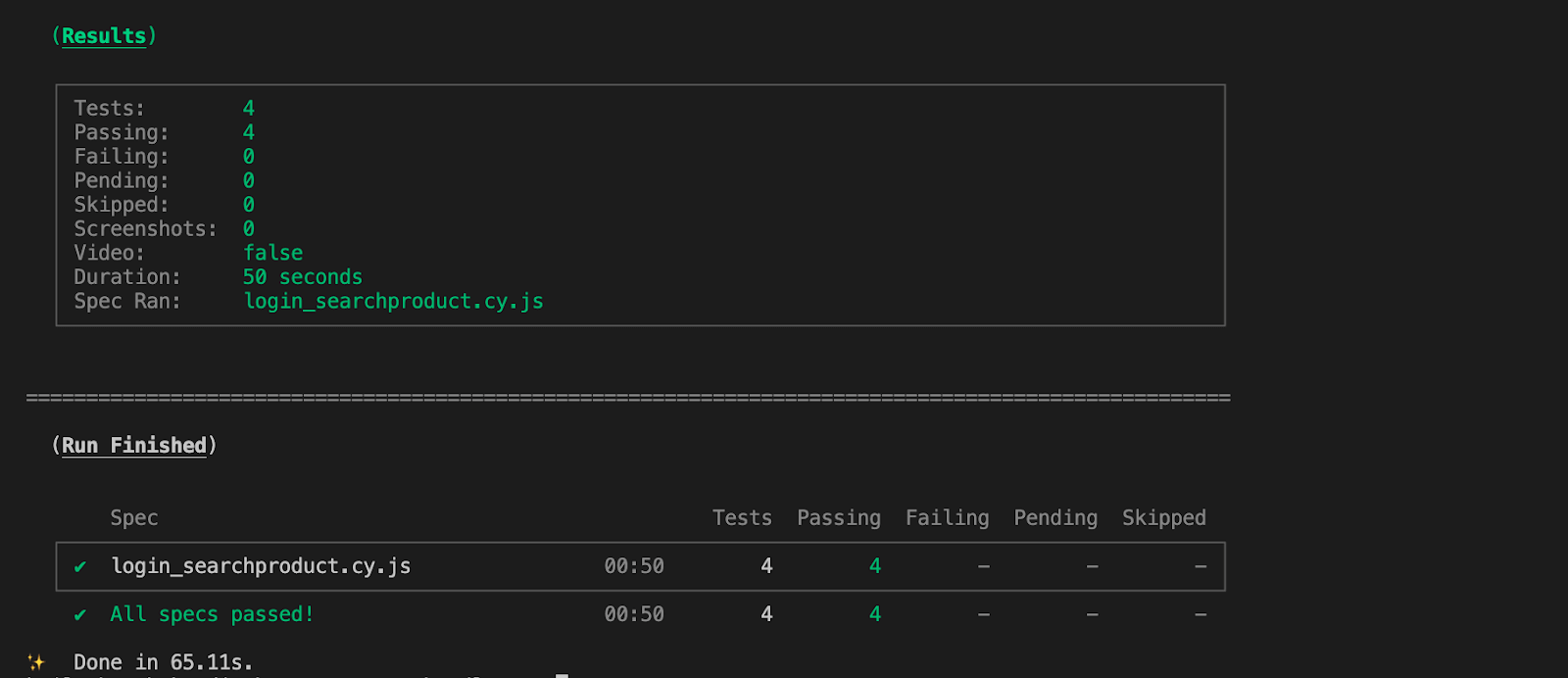
Running tests on WebKit using Cypress in Headless Mode
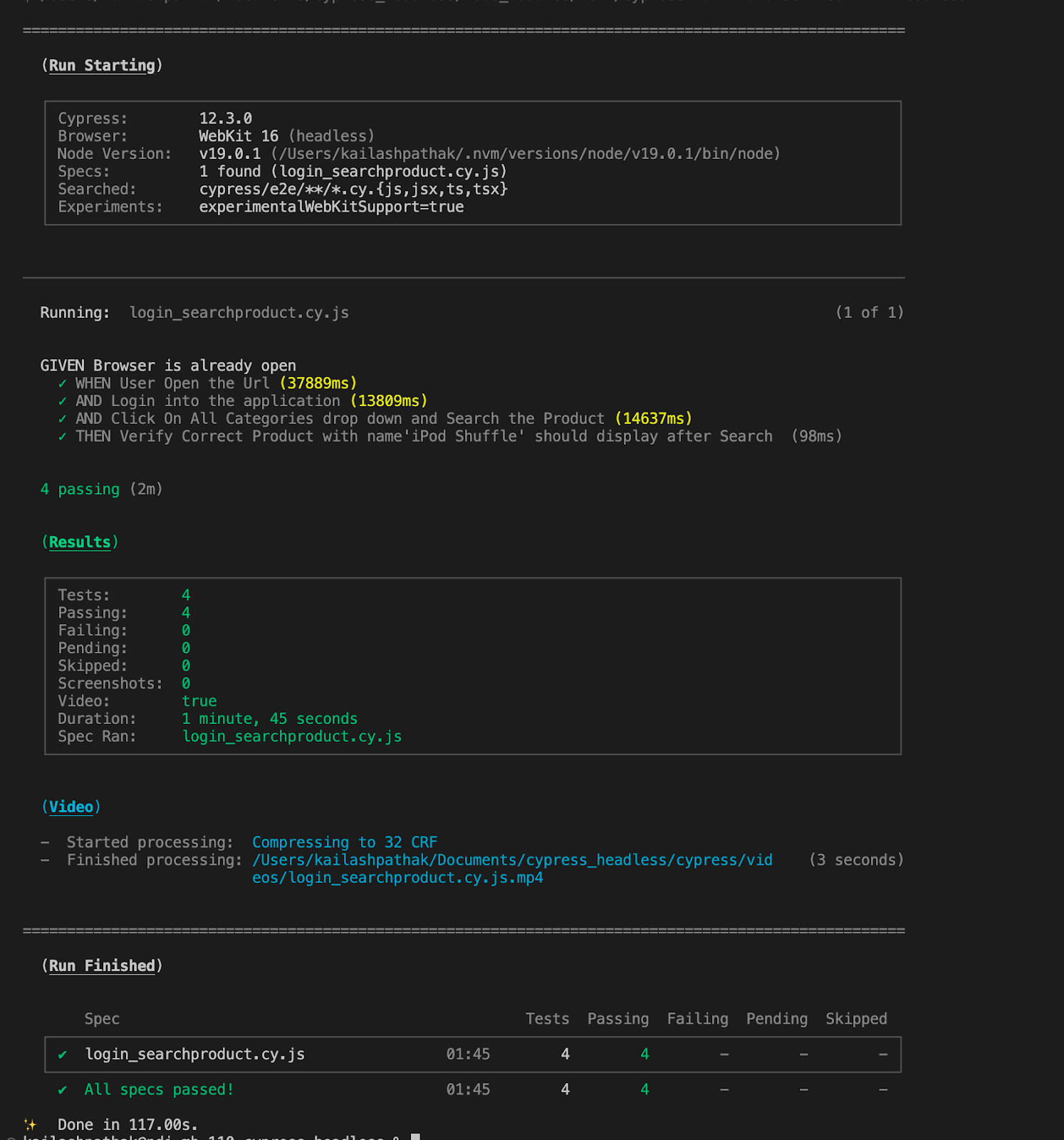
Run the above scenario locally in headless mode using WebKit using the below command
yarn cypress run --browser webkit --headless
As we run the above command, test cases start executing locally in WebKit headless mode.
Note: Expedite release cycles with Cypress parallel testing. Try TestMu AI Today!
Cypress Headless Testing on Cloud Grid
In this section, you will find how to perform Cypress parallel testing on a cloud grid like TestMu AI.
TestMu AI is an AI-powered test orchestration and execution platform that lets you perform Cypress automation using headless mode across 40+ browser versions on the cloud. You can also run the Cypress test on the cloud parallel to the browser (Chrome, Firefox, and WebKit).
Subscribe to the TestMu AI YouTube Channel for the latest updates on tutorials around Selenium testing, Cypress e2e testing, Appium, and more.
Before running the test case in TestMu AI Grid, we have to do the set-up for TestMu AI. Below are some steps for setup.
Prerequisite to setup TestMu AI for test cases execution
- You already signed up for TestMu AI
- You have an access token to run test cases on TestMu AI.
Setup TestMu AI for Cypress test case execution
Step 1: Install the CLI
Install the TestMu AI using Cypress CLI command via npm. The command-line interface of TestMu AI enables us to execute your Cypress tests on TestMu AI.
npm install -g lambdatest-cypress-cli
Step 2: Generate lambdatest-config.json
Under the root folder, configure the browsers we want to run the tests. Use the init command to generate a sample lambdatest-config.json file or create one from scratch. Use the below command.
lambdatest-cypress init
In the generated lambdatest-config.json file, pass the below information. Fill in the required values in the section lambdatest_auth, browsers, and run_settings to run your tests.
In the below file, you can see we are passing three browsers (Chrome, Firefox, and Electron) and running the test case in two browsers simultaneously.
{
 "lambdatest_auth": {
   "username": "<>",
   "access_key": "<>"
 },
 "browsers": [
   {
     "browser": "Chrome",
     "platform": "Windows 10",
     "versions": ["latest-1"]
   },
   {
     "browser": "Firefox",
     "platform": "Windows 10",
     "versions": ["latest"]
   },
   {
     "browser": "Electron",
     "platform": "Windows 10",
     "versions": ["latest"]
   }
 ],
 "run_settings": {
   "build_name": "Headless Browser Testing build-name",
   "parallels": 2,
   "specs": "./cypress/e2e/*.cy.js",
   "ignore_files": "",
   "network": true,
   "headless": true,
   "npm_dependencies": {
     "cypress": "12.3.0"
   }
 },
 "tunnel_settings": {
   "tunnel": false,
   "tunnel_name": null
 }
}
Run the below command to execute the test case on TestMu AI.
lambdatest-cypress run --sync=true
As we run the above command, test case execution starts locally and parallelly on the TestMu AI platform.

TestMu AI Dashboard
The TestMu AI Dashboard provides a user-friendly interface for users to manage their test sessions, view test results, and access other platform features. It also allows users to perform live interactive testing by providing a live view of the website or web application being tested on a particular browser and operating system combination.
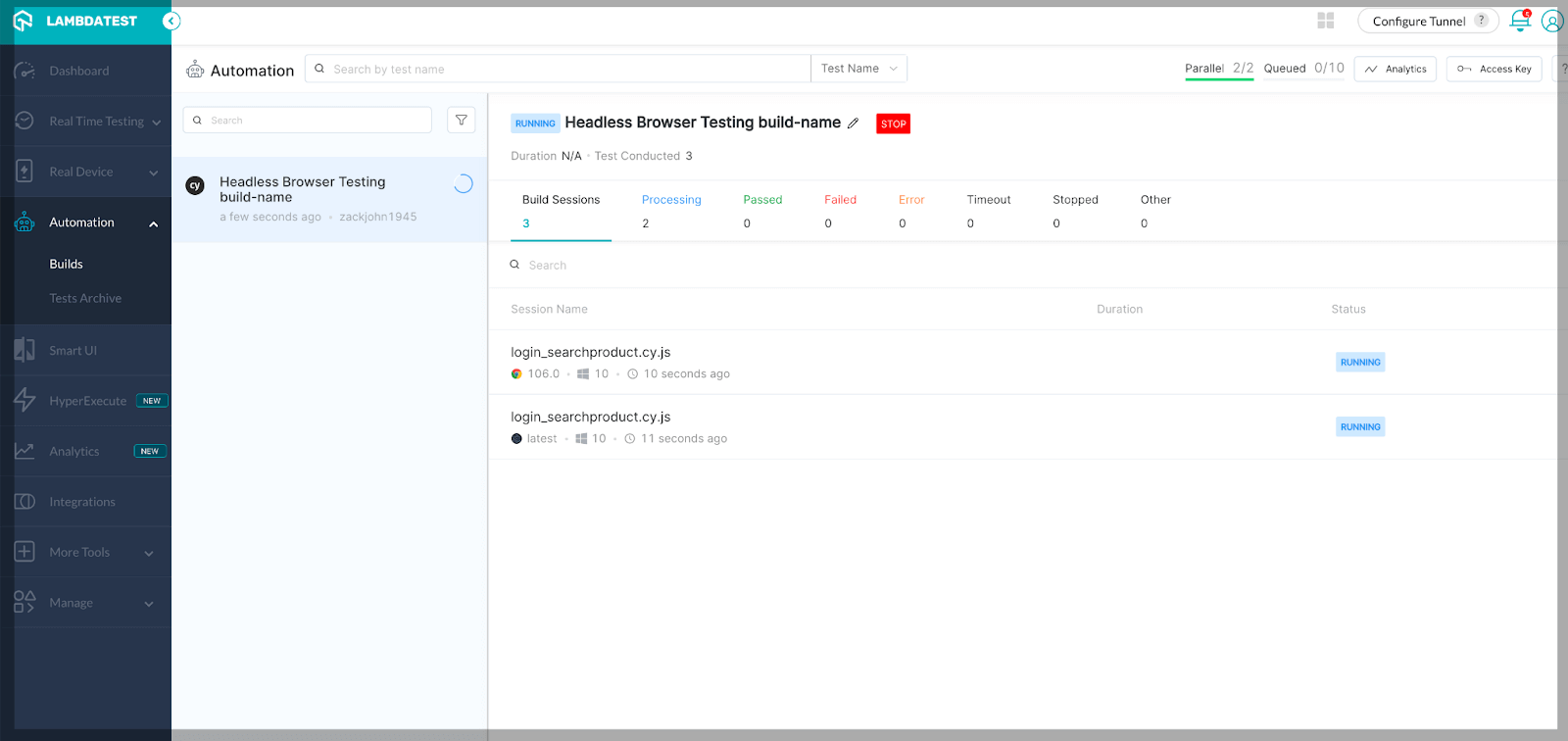
In the below screen, test cases start running in two browsers (Chrome, Electron), and in one other browser (Firefox), test case execution is in queue.
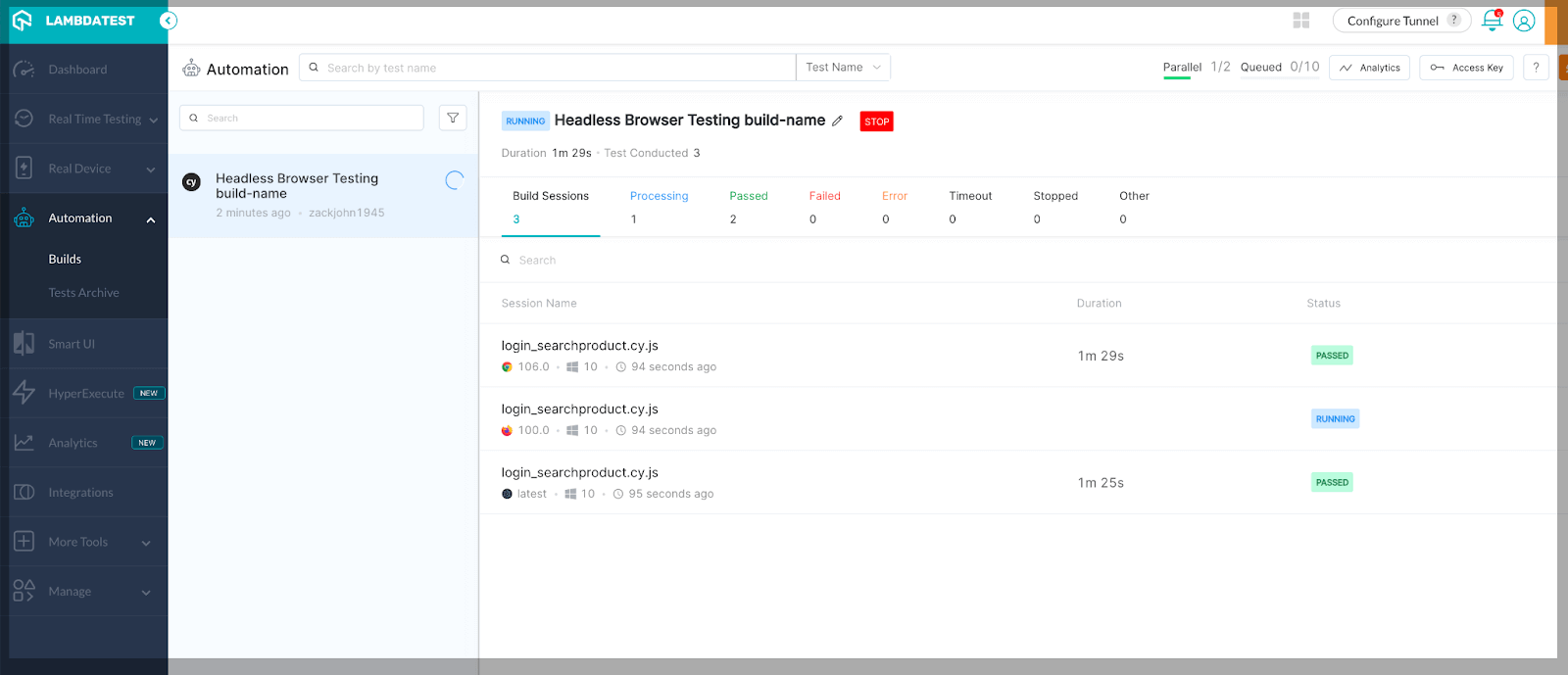
Once the execution of the two test cases mentioned above is completed in either the Chrome or Electron browser, the subsequent test case enters a queue. It initiates its execution in the Firefox browser. This transition is visually represented in the screenshot below.
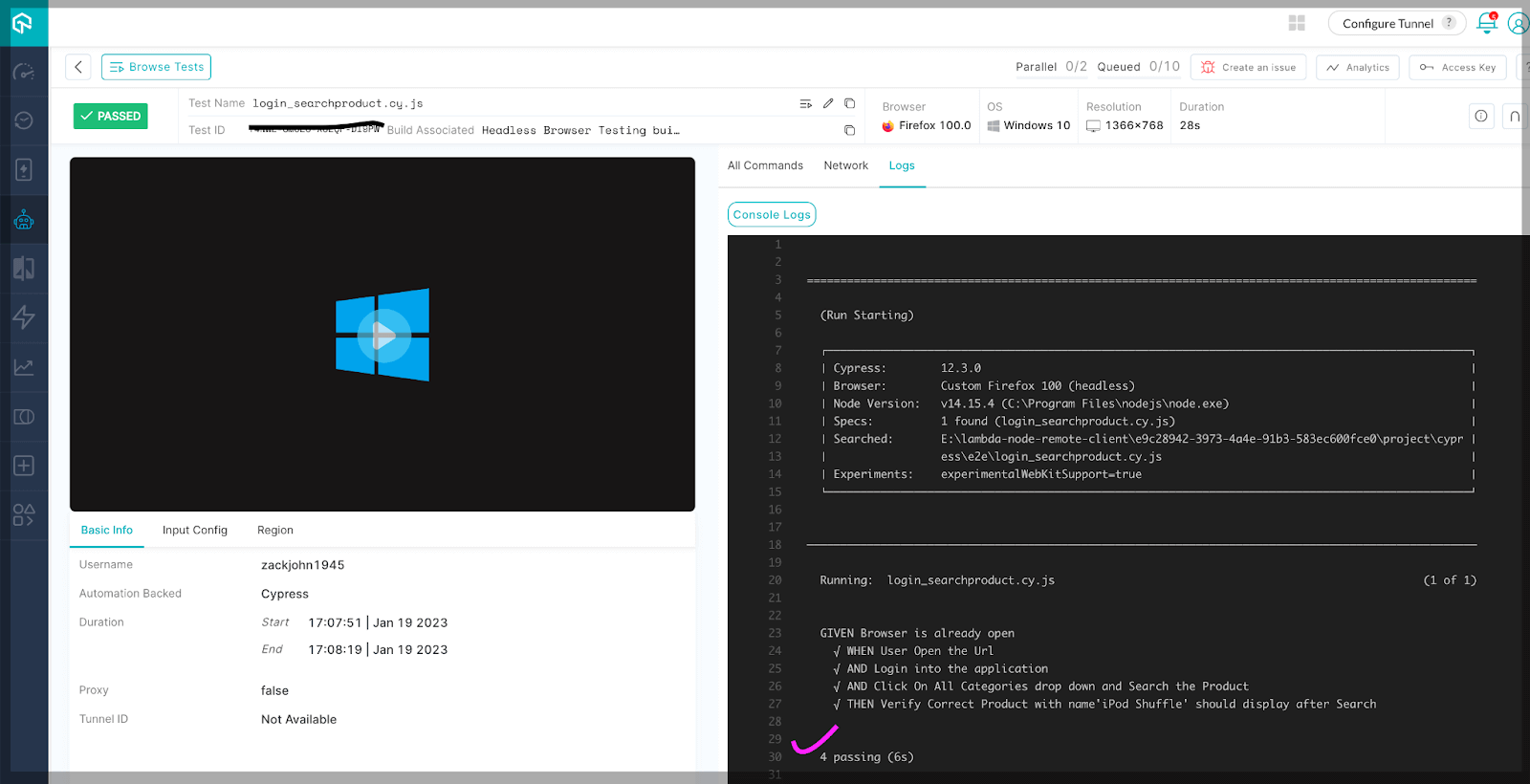
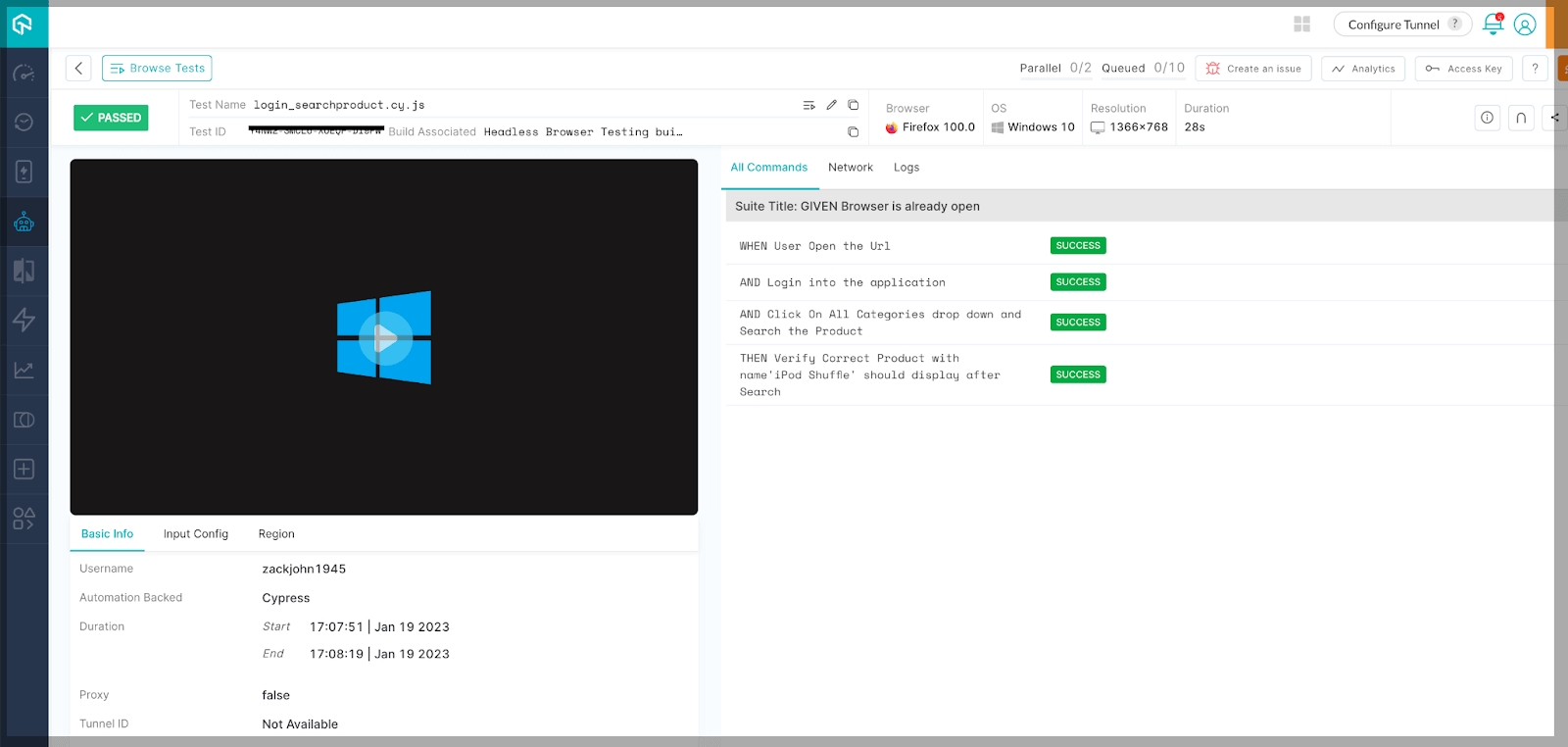
Here is the console log of executed test cases in the Firefox browser. You can see all test cases are passing in TestMu AI Grid.
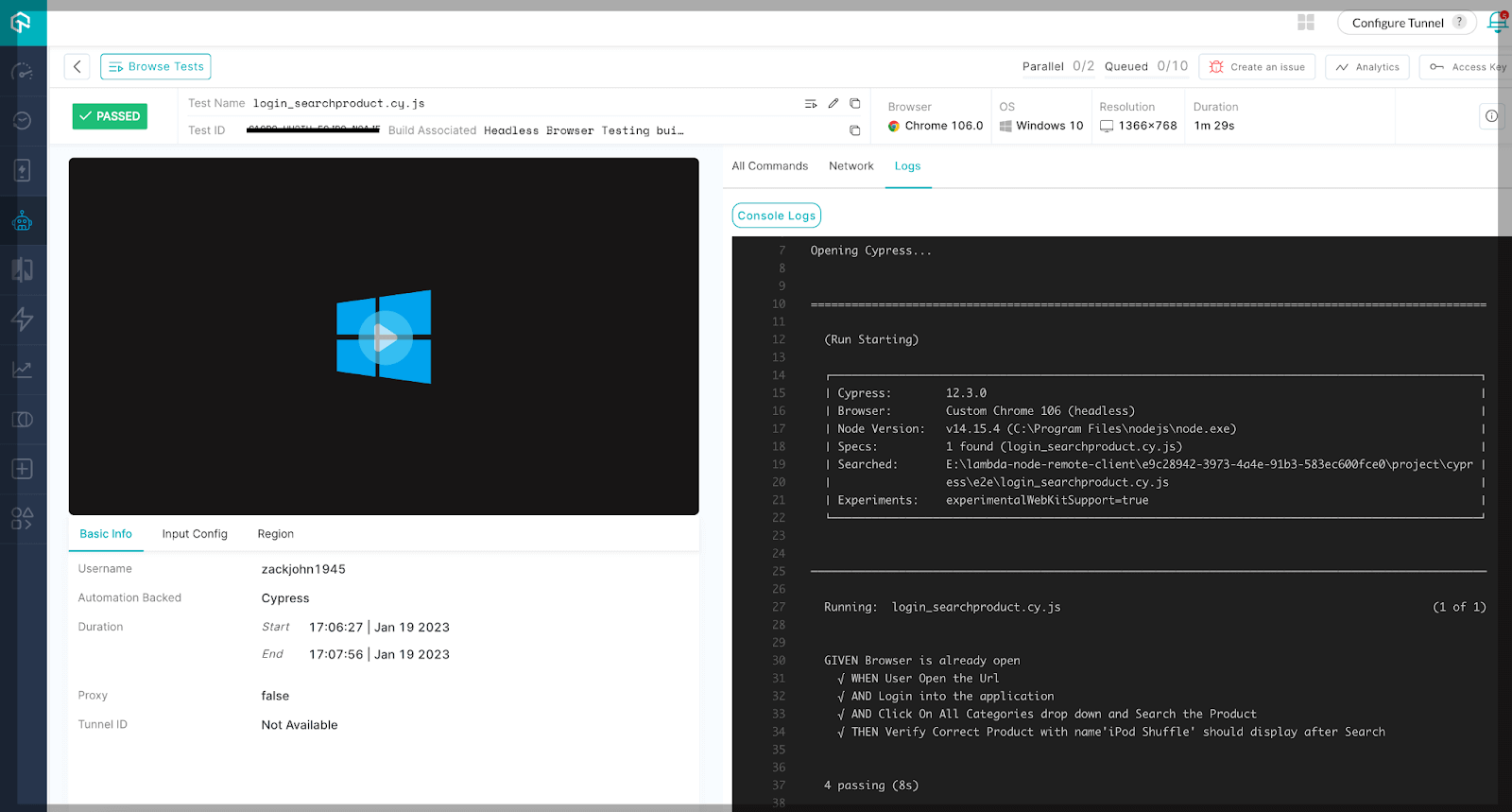
Here is the console log of executed test cases in the Chrome browser. You can see all test cases are passing in TestMu AI Grid.
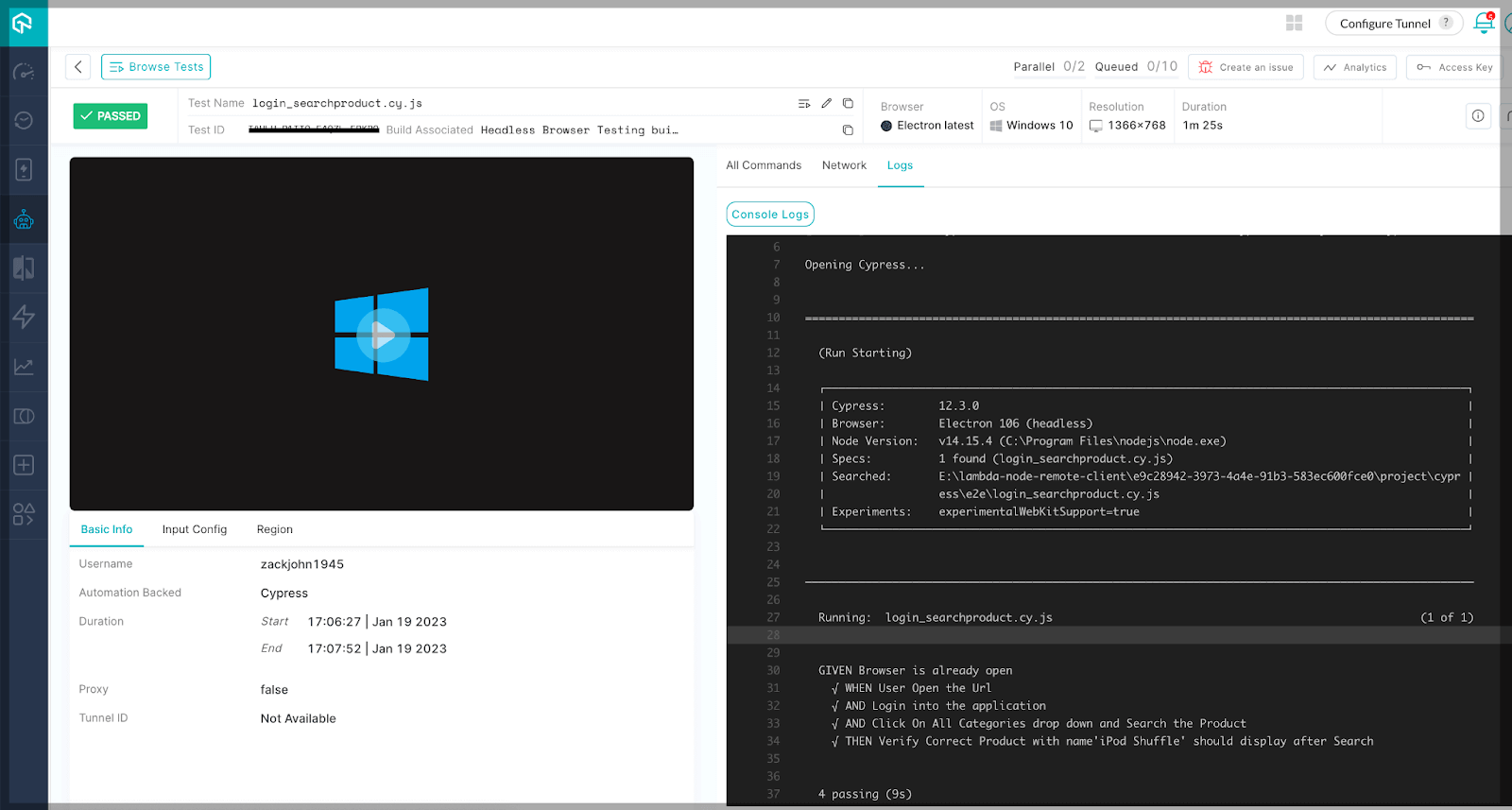
As indicated in the console log displayed below, the test cases have successfully passed when executed in the Electron browser. Furthermore, it’s worth noting that all test cases exhibit successful outcomes within the TestMu AI Grid.
Are you ready to elevate your Cypress automation proficiency? Join the Cypress 101 certification program, crafted for developers and testers seeking to deepen their expertise in Cypress test automation. Gain advanced insights, polish your skills, and unlock many opportunities along your test automation journey.
Wrapping up
Using a headless browser, you can run the test cases without a graphical user interface (GUI) that allows developers to run automated tests, web scraping, and other tasks without visual browser representation. TestMu AI is an AI-powered test orchestration and execution platform enabling developers to perform Cypress UI automation across a diverse spectrum of browsers and operating systems using a headless browser. This empowers developers to thoroughly assess their websites and web applications across many configurations, all while eliminating the requirement for costly hardware and software investments.

Austin Siewert
CEO, Vercel
Discovered @TestMu AI yesterday. Best browser testing tool I've found for my use case. Great pricing model for the limited testing I do 👏
2M+ Devs and QAs rely on TestMu AI
Deliver immersive digital experiences with Next-Generation Mobile Apps and Cross Browser Testing Cloud



Frequently asked questions
Did you find this page helpful?
More Related Hubs
TestMu AI forEnterprise
Get access to solutions built on Enterprise
grade security, privacy, & compliance
- Advanced access controls
- Advanced data retention rules
- Advanced Local Testing
- Premium Support options
- Early access to beta features
- Private Slack Channel
- Unlimited Manual Accessibility DevTools Tests