

Next-Gen App & Browser Testing Cloud
Trusted by 2 Mn+ QAs & Devs to accelerate their release cycles


Running Cypress Cucumber Preprocessor with HyperExecute
Learn to run Cypress tests with Cucumber Preprocessor in HyperExecute. Boost test speed, scalability, and streamline your workflow for efficient BDD testing.

Aman Chopra
December 28, 2025
The Cypress plugin cypress-cucumber-preprocessor helps you write your end-to-end tests using Cucumber syntax, bridging the gap between behavior-driven development (BDD) and modern web testing frameworks. This approach allows you to write tests in the human-readable Gherkin format, enhancing communication between stakeholders, developers, and testers.
How does Cypress Cucumber Preprocessor Work?
The Cucumber preprocessor acts as an interpreter between Cucumber’s feature files and Cypress. It translates human-readable Gherkin syntax (Given-When-Then scenarios) into executable JavaScript code for Cypress. This behind-the-scenes process maintains Cucumber’s clarity while leveraging Cypress’s powerful browser automation capabilities. As developers and testers, we know that writing expressive tests is crucial, but optimizing test execution is equally important.
This is where HyperExecute comes in. It’s an AI-powered test orchestration cloud platform designed for speed and scalability. HyperExecute enables parallel execution of Cypress Cucumber tests across multiple environments, significantly reducing overall execution time.
In this blog post, we’ll guide you on how you can execute these tests efficiently on HyperExecute at unprecedented speeds and with a streamlined workflow setup.
Steps to execute your Cypress tests on HyperExecute
Prerequisites
- Node.js and npm
- Basic knowledge of Cypress and Cucumber
- Cypress version >= 10
- Create your free TestMu AI account
- Your TestMu AI Username and Access Key

Austin Siewert
CEO, Vercel
Discovered @TestMu AI yesterday. Best browser testing tool I've found for my use case. Great pricing model for the limited testing I do 👏
2M+ Devs and QAs rely on TestMu AI
Deliver immersive digital experiences with Next-Generation Mobile Apps and Cross Browser Testing Cloud

Setting up the Project
Below are the steps to set your cypress project for execution in the HyperExecute platform
- Step 1: Create a folder and generate package.json.
- Create a project, naming it cypress-cucumber-preprocessor.
- Use the npm init command to create a package.json file
- Step 2: Write your testing scenarios in Gherkin syntax
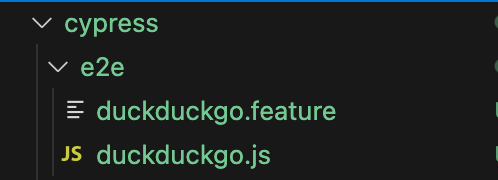
- Create a folder named cypress > e2e
- Define your feature files
- Write the corresponding step definition
- Step 3: Download the HyperExeute CLI
- HyperExecute CLI is a command line interface that lets you trigger your tests on the HyperExecute platform.
- Download the CLI as per your respective operating system in the root folder of your project.
- Step 4: Create your HyperExecute YAML file.The YAML file allows you to define the configurations required for executing your tests on HyperExecute.
| Operating System | HyperExecute CLI Download URL |
|---|---|
| Linux | https://downloads.lambdatest.com/hyperexecute/linux/hyperexecute |
| Windows | https://downloads.lambdatest.com/hyperexecute/windows/hyperexecute.exe |
| macOS | https://downloads.lambdatest.com/hyperexecute/darwin/hyperexecute |
A sample YAML file is shown below for your reference:
---
version: 0.1

runson: win
cypress: true

autosplit: true
concurrency: 1

cacheKey: '{{ checksum "package.json" }}'
cacheDirectories:
  - node_modules

pre:
  - npm install
  - npm install cypress --save-dev
  - npm install @badeball/cypress-cucumber-preprocessor

testDiscovery:
  mode: static
  type: raw
  command: ls cypress/e2e/*.js

testRunnerCommand: npx cypress run --spec cypress/e2e/duckduckgo.feature --browser=chrome-95.0 --headed --config video=false

cypressOps:
  Build: "HyperExecute-Cypress-Badeball-Build"
  Tags: ["HyperExecute","Cypress", "Badeball"]
  BuildTags: ["Hyperexecute-Cypress"]
  Network: true

jobLabel: [cypress, hyperexecute, badeball-plugin]
chmod u+x ./hyperexecute to allow permission. If you get a security popup, allow it from your System Preferences → Security & Privacy → General tab.Run the below command in your terminal at the root folder of the project:
./hyperexecute --user YOUR_USERNAME --key YOUR_ACCESS_KEY --config RELATIVE_PATH_OF_YOUR_YAML_FILE

Conclusion
Integrating Cypress Cucumber Preprocessor with HyperExecute provides an efficient and scalable BDD testing solution. This setup offers you:
- Enhanced readability through Gherkin syntax
- Improved team collaboration
- Robust automation with Cypress
- Scalability and speed via HyperExecute’s parallel execution
- A streamlined workflow for test setup and execution
This approach maintains BDD clarity while leveraging modern testing tools and cloud infrastructure. As your project grows, this flexible setup can adapt to your needs, whether you’re working on a small application or a large-scale project.
You can further explore this setup by integrating it into your CI/CD pipeline or expanding your test coverage. This foundation equips you to enhance your automated testing efforts and build more reliable software.
Additional Resources
- Sample Repository – https://github.com/TestMu AI/HYP-Cypress-badeball-cucumber-preprocessor-plugin
- HyperExecute Documentation – https://www.lambdatest.com/support/docs/getting-started-with-hyperexecute/
- How to trigger Cypress tests on HyperExecute – https://www.lambdatest.com/support/docs/cypressv10-on-hyperexecute/
- Why should you consider triggering your Cypress tests on HyperExecute? https://www.lambdatest.com/blog/cypress-testing-with-hyperexecute/


Did you find this page helpful?
More Related Hubs
TestMu AI forEnterprise
Get access to solutions built on Enterprise
grade security, privacy, & compliance
- Advanced access controls
- Advanced data retention rules
- Advanced Local Testing
- Premium Support options
- Early access to beta features
- Private Slack Channel
- Unlimited Manual Accessibility DevTools Tests