

Next-Gen App & Browser Testing Cloud
Trusted by 2 Mn+ QAs & Devs to accelerate their release cycles


All You Need To Know For Selenium Testing On The Cloud
Selenium testing on the cloud is the most efficient way to scale up automated browser testing. This blog will help you get started with cross browser testing in Selenium.

Himanshu Sheth
February 19, 2026
Building large-scale web applications take a monumental effort. Testing the quality of these applications requires a whole other level of dedication. From a developer’s vantage point, the focus is on improving the feature set, speeding up the overall performance, and building a scalable product. As far as QA is concerned, a lot of focus is on usability testing and compatibility testing while testing a website or web application.
If you are building a consumer-facing website or web application, your product is likely to be accessed by users from across the globe. Your product must be tested on various combinations of web browsers, devices, and platforms (operating systems) to ensure top-notch performance. Hence, browser compatibility testing becomes even more critical. No one wants to lose potential customers because of unpleasant user experience on select few browsers, devices, or platforms.
The most economical & productive way to get this done is by implementing cloud-based automated browser testing or Selenium testing to be more precise. Wondering why it is the most efficient way? Allow me to dive deep into the importance of cross browser testing in Selenium. If you are preparing for an interview you can learn more through Selenium interview questions.
Overview
What Is Selenium Testing on the Cloud?
Cloud Selenium testing automates browser testing at scale, covering multiple browsers, devices, and platforms for faster, reliable results.
What Are the Limitations of Local Testing?
Local testing is costly, slow, and cannot cover all OS-browser-device combinations, limiting scalability and test coverage.
How Is Selenium Testing Implemented on the Cloud?
Use Remote WebDriver with generated browser capabilities, locate web elements via XPath, and automate tests with frameworks like Python unittest, enabling scalable and efficient cross-browser testing.
Now execute test scripts faster than any other automation testing grid on TestMu AI’s automated cloud test platform.

Limitations Of Local Testing
Responsive testing of a locally hosted website is the crux of successful online business. Developers prefer to test a website or web application locally before it goes live. It ensures that the website’s content is rendered according to the device used to access it. But the plethora of devices, viewports, or operating systems availed by users poses a significant challenge for coherent responsiveness.
It would require a significant investment to set up a local infrastructure on which testing can be performed. As you’ll need powerful machines with different combinations of operating systems and versions of web browsers (e.g., Chrome, Firefox, Safari, etc.) installed on them. There is a fairly slim chance that you can cover all the corner test-cases with automation testing on local machines. Thus, test coverage would likely take a huge hit.
On the other hand, the Selenium test framework provides a means to perform widespread automated browser testing. Rather than investing in non-scalable test infrastructure, Selenium testing tool on the cloud could be leveraged for long-term gains.
Selenium: A Popular Alternative
Selenium is a very popular test framework using which you can create scalable test cases for automated browser testing or cross browser testing. It is an open-source framework that automates a browser to behave like a user is expected to interact with your website. You can write test scripts in many languages, including but not limited to Java, Python, PHP, Ruby, C#, etc.
A Detailed Study on What is Selenium Grid?
There are innumerable factors that can be attributed to the popularity of the Selenium framework; the major ones are mentioned below:
- Selenium is open-source, and its usage does not involve any overhead costs.
- Popular programming languages like C#, Python, JavaScript, Ruby on Rails, etc. can be used seamlessly with the Selenium framework.
- Selenium has a vast support community to help you out of a sticky situation. This community is growing every single day.
- WebDrivers for popular web browsers like Chrome, Firefox, Microsoft Edge, etc. can be downloaded to automate GUI tests.
- Popular frameworks like Hypothesis, Robot Framework, etc. (for Python) can perform testing using a wide range of input values.
Merits Of Selenium Testing On The Cloud
Automated browser testing on local infrastructure is neither economical nor scalable. Even if you are willing to invest heavily in the overall infrastructure, you will not achieve the same quality of throughput, test performance, parallelism, test coverage, etc. that you are likely to accomplish with cross browser testing in Selenium.
By Sathwik Prabhu
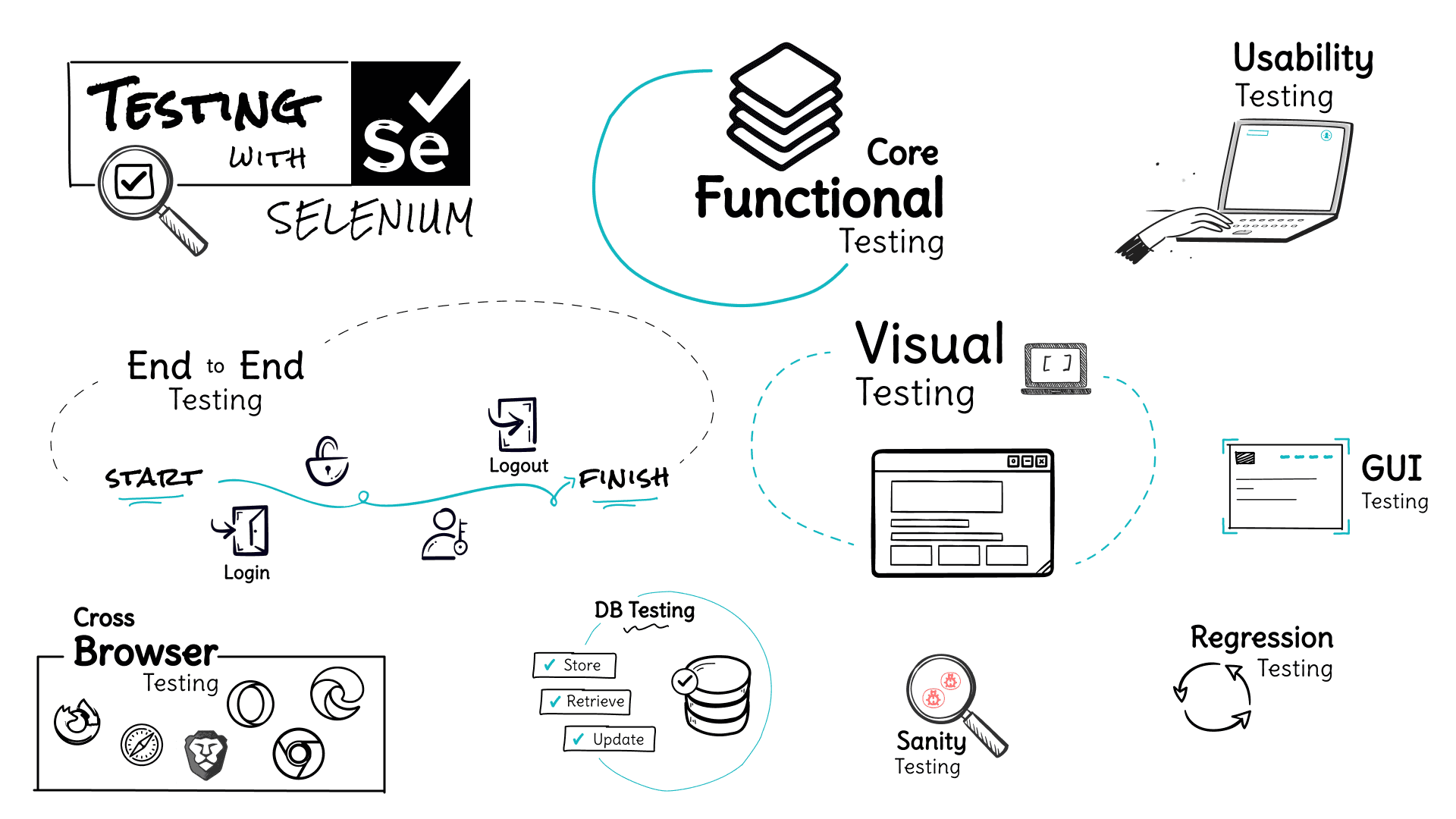
Below are some of the most important benefits of switching to Selenium testing on the cloud:
- Achieve better browser coverage, platform coverage, and test coverage by executing automation tests on cloud-based cross browser testing platforms.
- Scalable and cost-effective as you pay for the resources that you use. It works on a SAAS (Software as a service) model.
- Execute automation tests at a faster pace by leveraging the power of parallel testing.
- Use browser capabilities to test on new as well as outdated/old web browsers, operating systems, and devices.
- Use popular programming languages like C#, JavaScript, Ruby on Rails, Python, etc. along with the Selenium test framework, i.e. remote Selenium WebDriver for scalable development test cases/test suites.
- Keep track of the testing process’s evolution and take advantage of bug-tracking, communication, and project management tools for tracking & timely communication with other team members.
- Leverage the advantage of CI/CD (Continuous Integration/Continuous Delivery) tools like Jenkins, TeamCity, Travis, Bamboo, etc. to achieve automation of the build, package, and testing processes.
| Category | Supported Tools/Languages |
|---|---|
| Languages | Java, C#, JavaScript, Ruby on Rails, Python, PHP, etc. |
| Bug Trackers | Jira, Airtable, Redmine, Mantis, BugHerd, etc. |
| Communication | Slack, Microsoft Teams, etc. |
| Project Management | Asana, Trello, Teamwork, Redmine, Favro, GitLab, etc. |
| CI/CD | Jenkins, TeamCity, Travis, Bamboo, GitLab CI, Circle CI, etc. |
Getting Started With Selenium Testing On The Cloud
Now that you have decided to use Selenium testing on the cloud for automated browser testing, the next task is to choose a cross-browser testing platform. You need a reliable, scalable platform; one that supports automated browser testing with popular test frameworks like Selenium.
TestMu AI is a cloud-based cross browser testing platform on which you can perform the following tasks:
- Perform Automated & Live Interactive Cross Browser Testing in Selenium for 3000+ real browsers and operating systems online.
- Port existing test implementation to the TestMu AI platform with minimal code changes.
- Achieve faster test results by taking advantage of concurrent sessions/parallel execution.
- Keep track of your automation tests and analyze the failed ones by looking at the debug logs (for the corresponding tests) available on the TestMu AI server.
- Use Remote Selenium WebDriver implementation and generate cross browser capabilities for powerful programming languages like C#, Python, Ruby on Rails, etc.
- Analyze the performance of the tests with detailed reporting mechanisms.
Now execute test scripts faster than any other automation testing grid on TestMu AI’s automated cloud test platform.
For Selenium testing on the cloud using TestMu AI, you should perform the following steps:
Step 1: Account Creation
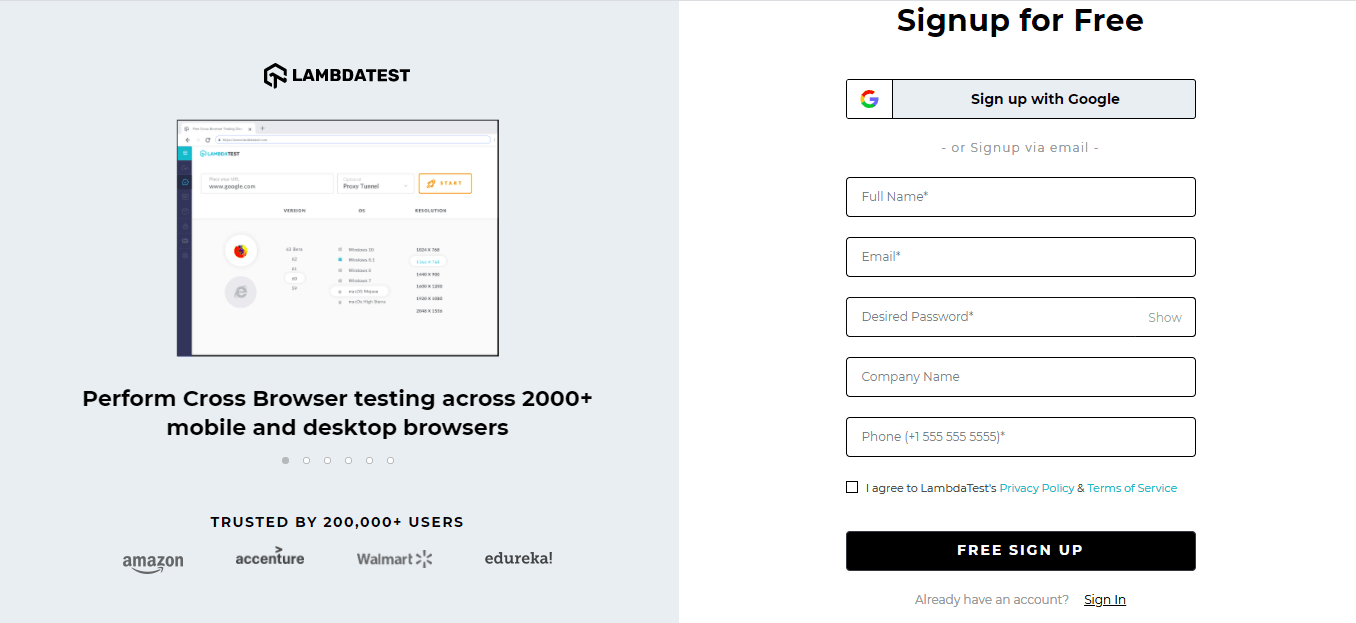
First, you need to get yourself registered on TestMu AI. You can visit the registration page for creating a new account. Once you are registered, keep the user-name & access token handy since that combination is required for logging on to the TestMu AI dashboard.
Step 2: Choose Plan
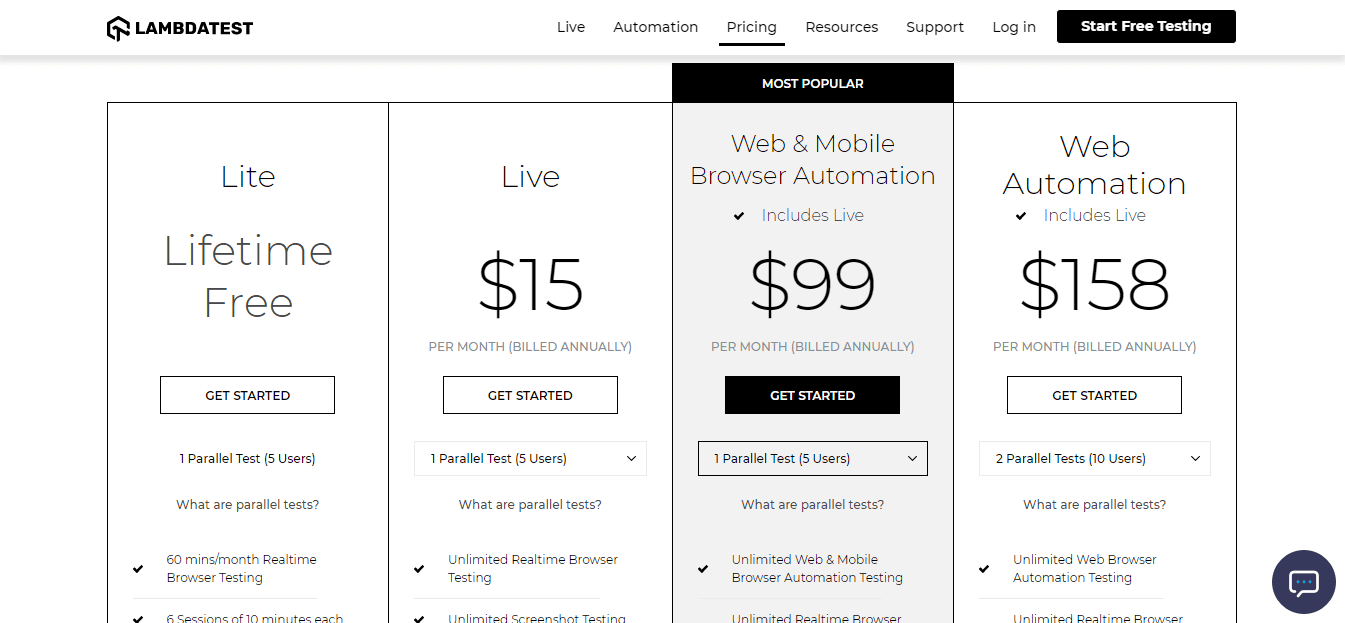
Depending on the testing requirements, you should choose the appropriate pricing plan. Lite, Live, Web & Mobile Browser Automation, Web Automation are the available plans on TestMu AI. You can upgrade/downgrade the plan anytime, and the changes will be reflected in the next billing cycle. For detailed information on these plans, you can check out the pricing page.
Step 3: Browser Capabilities Generator
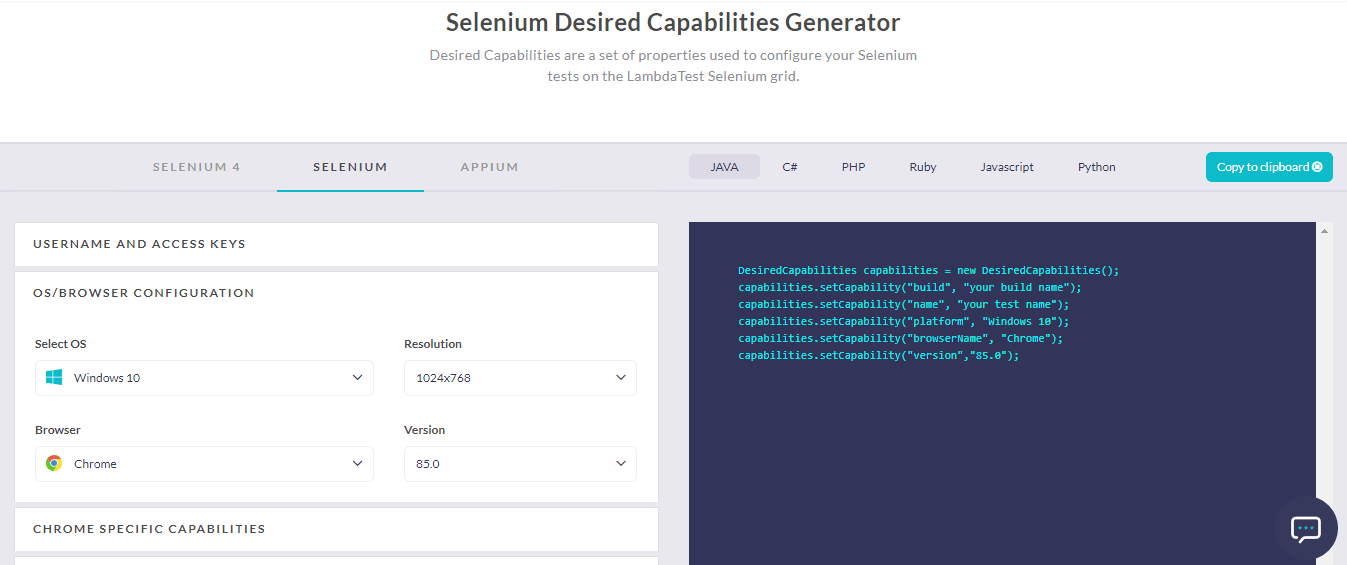
Since we would be performing Selenium testing on the cloud, you will need to generate desired capabilities, i.e. a set of properties used for the configuration of Selenium tests on the Selenium grid cloud. You need to select the programming language, specify the OS, browser, resolution, and browser version that you would use for Selenium testing while generating browser capabilities.
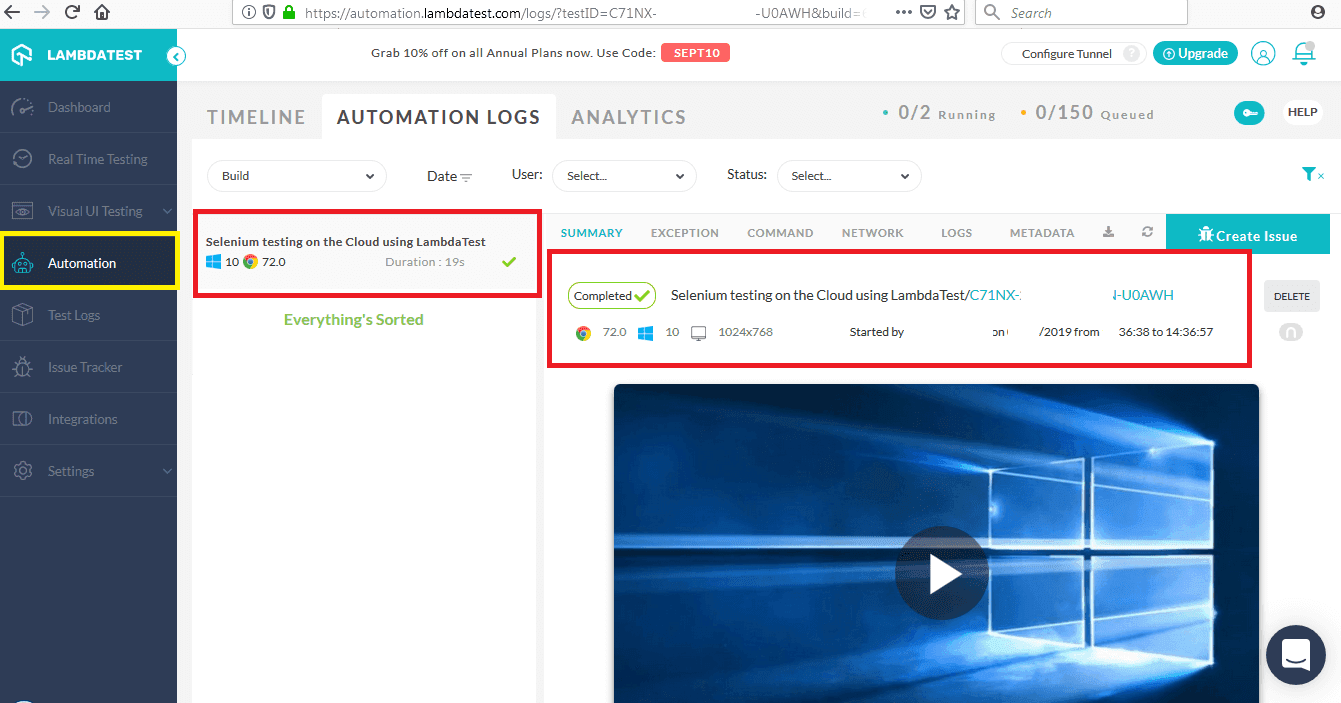
Once you have logged in to the platform, generated capabilities using the capabilities generator, and executed a cross browser test, you need to go to the Automation tab to monitor the automation browser testing status. Each test will have a Test ID and Build ID associated with it; the format is https://automation.lambdatest.com/logs/?testID=< test-id >&build=< build-id >.

Selenium Testing On The Cloud In Action
Now that you are all set with a TestMu AI account, it is time to execute cross browser testing in Selenium. For now, let us look into a Python example that demonstrates Selenium testing on the cloud using remote Selenium Grid on TestMu AI.
Serial Testing
Serial testing is a practice of executing tests serially, i.e. tests are executed one after another. Once the first test is completed, the next test will be executed. The downside of using serial testing is that it increases the test execution time since the Selenium testing framework and cloud infrastructure capabilities are not used to the fullest.
Problem Statement: Below is the breakdown of the things that we plan to achieve with this test:
- Open DuckDuckGo in the Firefox browser.
- Locate the Search Box.
- Enter a search query, i.e. TestMu AI.
- Execute the search operation.
- Free up the resources.
Implementation:
# Python example demonstrates Selenium testing on the Cloud using LambdaTest platform
import time
import unittest
import selenium
import urllib3
import time
import warnings
from time import sleep
from selenium import webdriver

test_url = "https://www.duckduckgo.com"

# Desired browser capabilities generated using LambdaTest Capabilities Generator
# https://www.lambdatest.com/capabilities-generator/

desired_capabilities = {
        "build" : "Selenium testing on the Cloud using LambdaTest",
        "name" : "Selenium testing on the Cloud using LambdaTest",
        "platform" : "Windows 10",
        "browserName" : "Chrome",
        "version" : "72.0"
    }

class SeachTest(unittest.TestCase):
    def setUp(self):
        print("Start - SetUp")

        # Ignore ResourceWarning related warnings
        warnings.filterwarnings(action="ignore", message="unclosed", category=ResourceWarning)

        urllib3.disable_warnings(urllib3.exceptions.InsecureRequestWarning)
        user_name = "user-name"
        app_key = "app_key"

        # Username and Access Token to use the LambdaTest platform
        remote_url = "https://" + user_name + ":" + app_key + "@hub.lambdatest.com/wd/hub"
        self.driver = webdriver.Remote(command_executor=remote_url, desired_capabilities=desired_capabilities)

        print("End - SetUp")

    def test_selenium_on_cloud(self):
        print("Start - test_selenium_on_cloud")
        self.driver.maximize_window()
        self.driver.get(test_url)

        # time.sleep(5)
        sleep(5)

        # Locate the element using the Inspect tool of the browser
        elem = self.driver.find_element_by_xpath("//*[@id='search_form_input_homepage']")
        elem.send_keys("Lambdatest")

        # Execute the search
        elem.submit()

        # Sleep for 10 seconds in order to see the results
        sleep(5)

        print("End - test_selenium_on_cloud")

    def tearDown(self):
        print("Start - tearDown")
        # Close the browser.
        self.driver.quit()

        print("End - tearDown")

if __name__ == '__main__':
    unittest.main()
A combination of the user-name and the access-token is used for logging on to the platform.
user_name = "user-name"
app_key = "app_key"

# Username and Access Token to use the LambdaTest platform
remote_url = "https://" + user_name + ":" + app_key + "@hub.lambdatest.com/wd/hub"
The browser and platform capabilities are generated using the TestMu AI Capabilities Generator. You should select the programming language used for implementation and then the browser specifications. In our case, it is Python.
desired_capabilities = {
        "build" : "Selenium testing on the Cloud",
        "name" : "Selenium testing on the Cloud using LambdaTest",
        "platform" : "Windows 10",
        "browserName" : "Chrome",
        "version" : "72.0"
}

………………………………………………………………………
………………………………………………………………………
self.driver = webdriver.Remote(command_executor=remote_url, desired_capabilities=desired_capabilities)
Using the Inspect Tool of the browser, we find the details of the Web Element. In our case, it is the Search Box on the DuckDuckGo homepage.
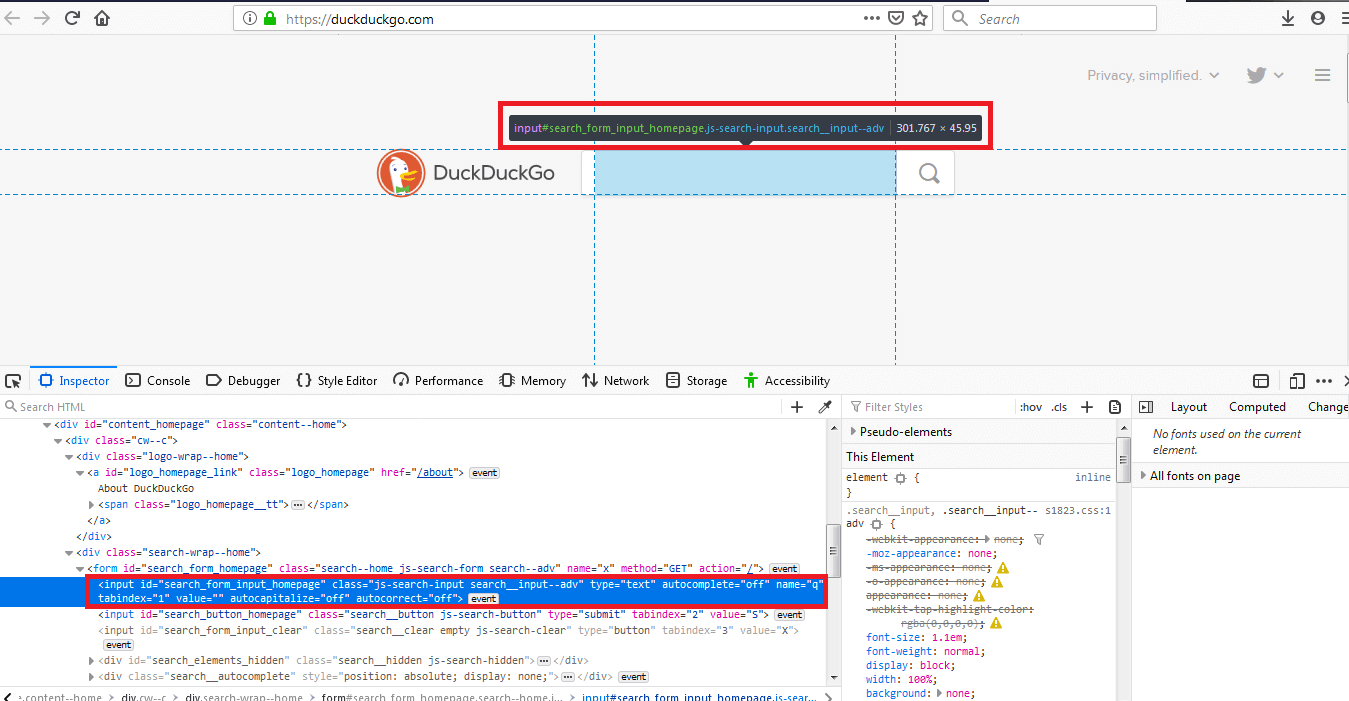
We use the element’s property of XPath in Selenium, and the same would be used in the code.
# Locate the element using the Inspect tool of the browser
elem = self.driver.find_element_by_xpath("//*[@id='search_form_input_homepage']")
elem.send_keys("Lambdatest")
For the demonstration of Selenium testing on the cloud, we have made use of the unittest framework (in Python) along with the Selenium test suite. The execution is done by invoking the python command from the terminal.
python <file-name.py>
You can check this automation test’s status on this page by navigating to the corresponding Test ID & Build ID.
Parallel Testing
Parallel testing in Selenium involves running a test automation suite or test cases in parallel. The test cases are not executed in a serialized manner, which leads to a reduction of test execution time. A combination of test suites is executed in parallel on multiple servers, with each server running one test at a time.
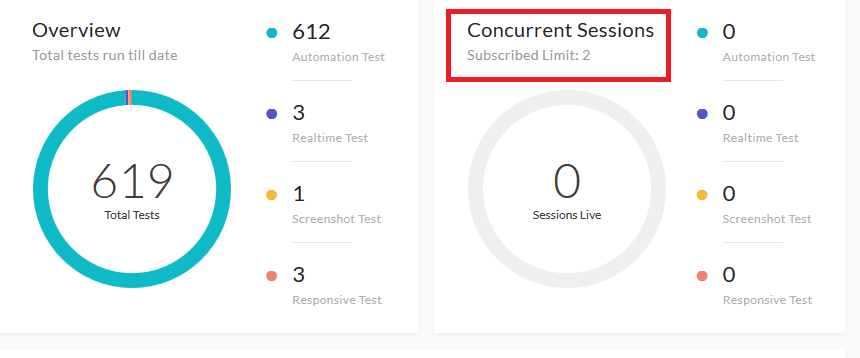
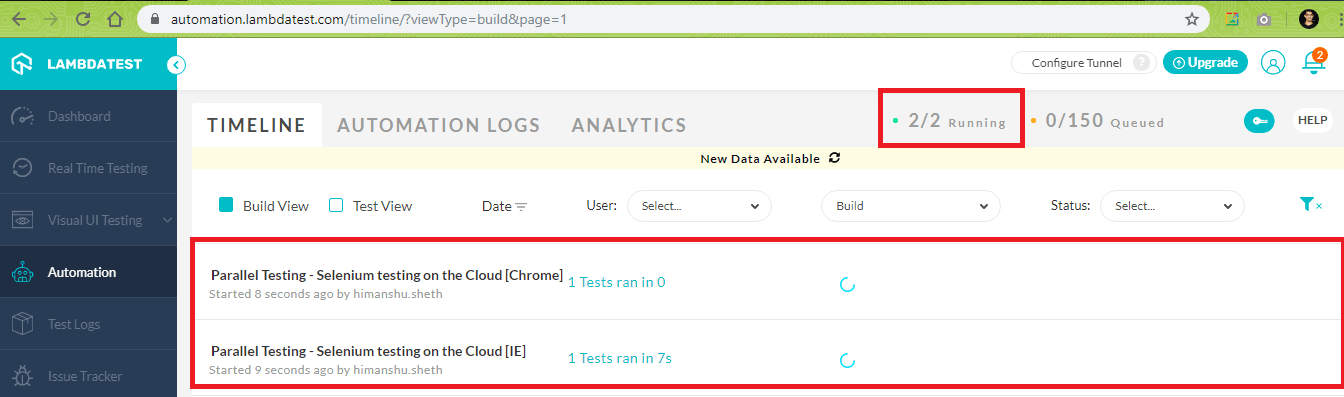
For speedy execution on TestMu AI, you can use parallel testing where concurrent sessions are triggered on different servers. As shown in the snapshot below, we can invoke two concurrent sessions. The Pricing Plans have more information about the availability of parallel execution for your test cases.
Problem Statement: Below is the breakdown of the things that we plan to achieve in the two tests:
| Test 1 | Test 2 |
|---|---|
| 1. Open DuckDuckGo in the Chrome browser. | 1. Open DuckDuckGo in the IE browser. |
| 2. Locate the Search Box. | 2. Locate the Search Box. |
| 3. Enter a search query, i.e. LambdaTest. | 3. Enter a search query, i.e. LambdaTest. |
| 4. Execute the search operation. | 4. Execute the search operation. |
| 5. Free up the resources. | 5. Free up the resources. |
Both the tests should execute in parallel, i.e. the number of concurrent sessions on the TestMu AI server should be 2/2 in this case.
Implementation:
As the only difference between the two tests is the browser on which the tests are executed, we generate the corresponding browser capabilities for Chrome & IE browser using the TestMu AI Capabilities Generator.
Test 1: Browser Capabilities [Chrome]
desired_capabilities = {
"build" : "Parallel Testing - Selenium testing on the Cloud [Chrome]",
"name" : "Parallel Testing - Selenium testing on the Cloud [Chrome]",
"platform" : "Windows 10",
"browserName" : "Chrome",
"version" : "72.0"
}
Test 2: Browser Capabilities [IE]
desired_capabilities = {
"build" : "Parallel Testing - Selenium testing on the Cloud [IE]",
"name" : "Parallel Testing - Selenium testing on the Cloud [IE]",
"platform" : "Windows 7",
"browserName" : "Internet Explorer",
"version" : "11.0",
"ie.compatibility" : 11001
}
The rest of the implementation remains the same as in the case of serial testing. Shown below is the implementation for the IE browser.
# Python example demonstrates Selenium testing on the Cloud using LambdaTest platform
import time
import unittest
import selenium
import urllib3
import time
import warnings
from time import sleep
from selenium import webdriver

test_url = "https://www.duckduckgo.com"

# Desired browser capabilities generated using LambdaTest Capabilities Generator
# https://www.lambdatest.com/capabilities-generator/

desired_capabilities = {
    "build" : "Parallel Testing - Selenium testing on the Cloud [IE]",
    "name" : "Parallel Testing - Selenium testing on the Cloud [ChromeIE]",
    "platform" : "Windows 7",
    "browserName" : "Internet Explorer",
    "version" : "11.0",
    "ie.compatibility" : 11001
}

class SeachTest(unittest.TestCase):
    def setUp(self):
        print("Start - SetUp")

        # Ignore ResourceWarning related warnings
        warnings.filterwarnings(action="ignore", message="unclosed", category=ResourceWarning)

        urllib3.disable_warnings(urllib3.exceptions.InsecureRequestWarning)
        # user_name = "user-name"
        # app_key = "app_key"
        user_name = "[email protected]"
        app_key = "fbI6kxucn5iRzwt5GWYiNvaPb4Olu9R8lwBsXWTSaIOebXn4x9"

        # Username and Access Token to use the LambdaTest platform
        remote_url = "https://" + user_name + ":" + app_key + "@hub.lambdatest.com/wd/hub"
        self.driver = webdriver.Remote(command_executor=remote_url, desired_capabilities=desired_capabilities)

        print("End - SetUp")

    def test_selenium_on_cloud(self):
        print("Start - test_selenium_on_cloud")
        self.driver.maximize_window()
        self.driver.get(test_url)

        # time.sleep(5)
        sleep(5)

        # Locate the element using the Inspect tool of the browser
        elem = self.driver.find_element_by_xpath("//*[@id='search_form_input_homepage']")
        elem.send_keys("Lambdatest")

        # Execute the search
        elem.submit()

        # Sleep for 10 seconds in order to see the results
        sleep(5)

        print("End - test_selenium_on_cloud")

    def tearDown(self):
        print("Start - tearDown")
        # Close the browser.
        self.driver.quit()

        print("End - tearDown")

if __name__ == '__main__':
    unittest.main()
For Parallel execution, both the files [one for testing on Chrome and other for testing on IE] are invoked from the terminal at the same point.
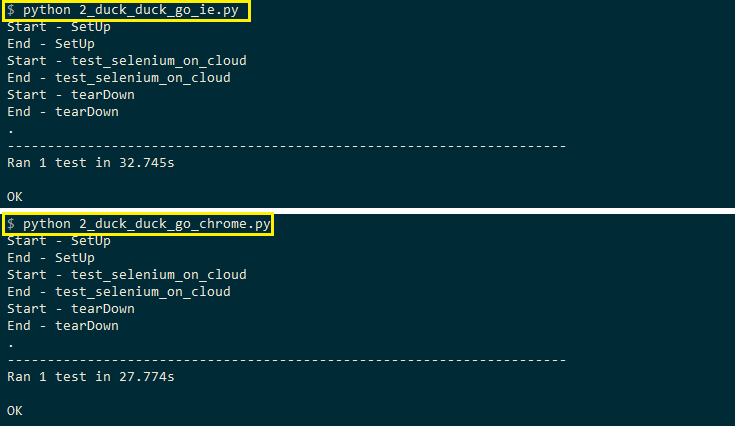
As seen from the execution snapshot on TestMu AI, tests are executed in parallel due to which the overall execution time is reduced. The more the number of concurrent sessions, the lesser will be the execution time.
Wrapping Up!
Selenium is a robust framework for automated web browser testing. However, its usage and throughput will be limited if used to test local infrastructure, which is neither economical nor scalable. Enterprises always prefer Selenium testing on the cloud for web applications, websites, and mobile applications. It accelerates the entire test execution process using parallel test execution. To achieve better scalability and faster performance, go for cross browser testing in Selenium with a cloud-based platform like TestMu AI and enjoy the fantastic outcomes.
Happy Testing!

Austin Siewert
CEO, Vercel
Discovered @TestMu AI yesterday. Best browser testing tool I've found for my use case. Great pricing model for the limited testing I do 👏
2M+ Devs and QAs rely on TestMu AI
Deliver immersive digital experiences with Next-Generation Mobile Apps and Cross Browser Testing Cloud



Did you find this page helpful?
More Related Hubs
TestMu AI forEnterprise
Get access to solutions built on Enterprise
grade security, privacy, & compliance
- Advanced access controls
- Advanced data retention rules
- Advanced Local Testing
- Premium Support options
- Early access to beta features
- Private Slack Channel
- Unlimited Manual Accessibility DevTools Tests