

Power Your Software Testing with AI Agents and Cloud
The Native AI-Agentic Cloud Platform to Supercharge Quality Engineering. Test Intelligently and Ship Faster.


- TestMu AI (Formerly LambdaTest)
- /
- Blog
- /
- How to Clear History in Firefox
How to Clear History in Firefox
Learn how to clear history in Firefox on desktop, Android, and iPhone to boost privacy and performance for a more secure browsing experience.
Last Updated on:
Clearing history in Firefox removes the locally stored log of every URL you visit, along with any cached assets and session cookies tied to those pages. That browsing history builds up automatically: it speeds up navigation, but also lets anyone with device access see your activity and allows sites to track sessions across visits.
Firefox gives you several ways to clear that data, from targeted time-range deletions to a full wipe of history, cache, and cookies in one pass.
This guide covers four approaches: the desktop menu, mobile devices (Android and iPhone), keyboard shortcuts for power users, and clearing cache and cookies alongside history for a complete privacy reset. Steps are verified on Firefox 150 (Windows 11 and macOS, May 2026), cross-referenced against Mozilla's official Firefox history guide.
Overview
To clear history in Firefox, press Ctrl + Shift + Delete on Windows and Linux or Command + Shift + Delete on macOS for the fastest cleanup, or use the desktop menu to manually select and clear your browsing data visually.
Which method should you use?
- Keyboard shortcut: Pressing Ctrl + Shift + Delete on Windows and Linux or Command + Shift + Delete on macOS opens the Clear Recent History dialog directly to bypass all menus.
- Desktop menu: First-time users can click the three-line menu icon, select History, and click Clear recent history to step through the deletion process visually.
- Android and iPhone apps: Mobile users can access the in-app History menu to tap Clear Browsing Data and select their preferred time range to delete local records.
- Auto-clear on close: Firefox can be configured in Privacy and Security settings to automatically wipe selected data types, such as cookies and cache, every time the browser closes.
- TestMu AI: QA teams can use this real device cloud to run automated tests on fresh Firefox profiles across 10,000+ real devices, eliminating cached-state issues.
What data can Firefox clear?
- Supported data types: Firefox can clear browsing and download history, cookies, cache, active logins, site preferences, and offline website data either individually or all at once.
Steps to Clear Firefox History on Desktop
- Launch the Firefox browser and click the menu icon in the top-right corner (three horizontal lines).
- From the drop-down menu, select History to view your browsing records.
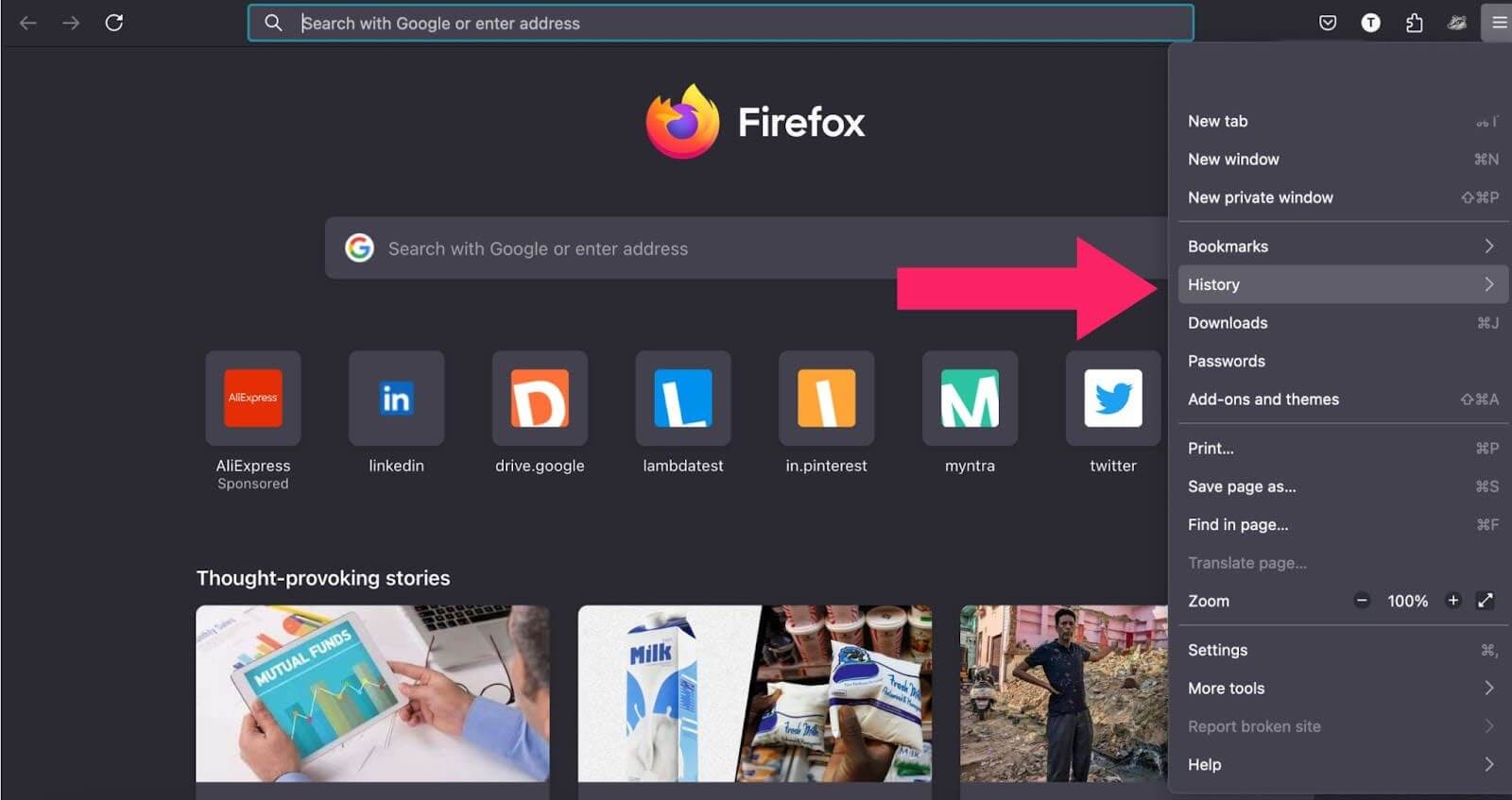
- Click Clear recent history from the options available.
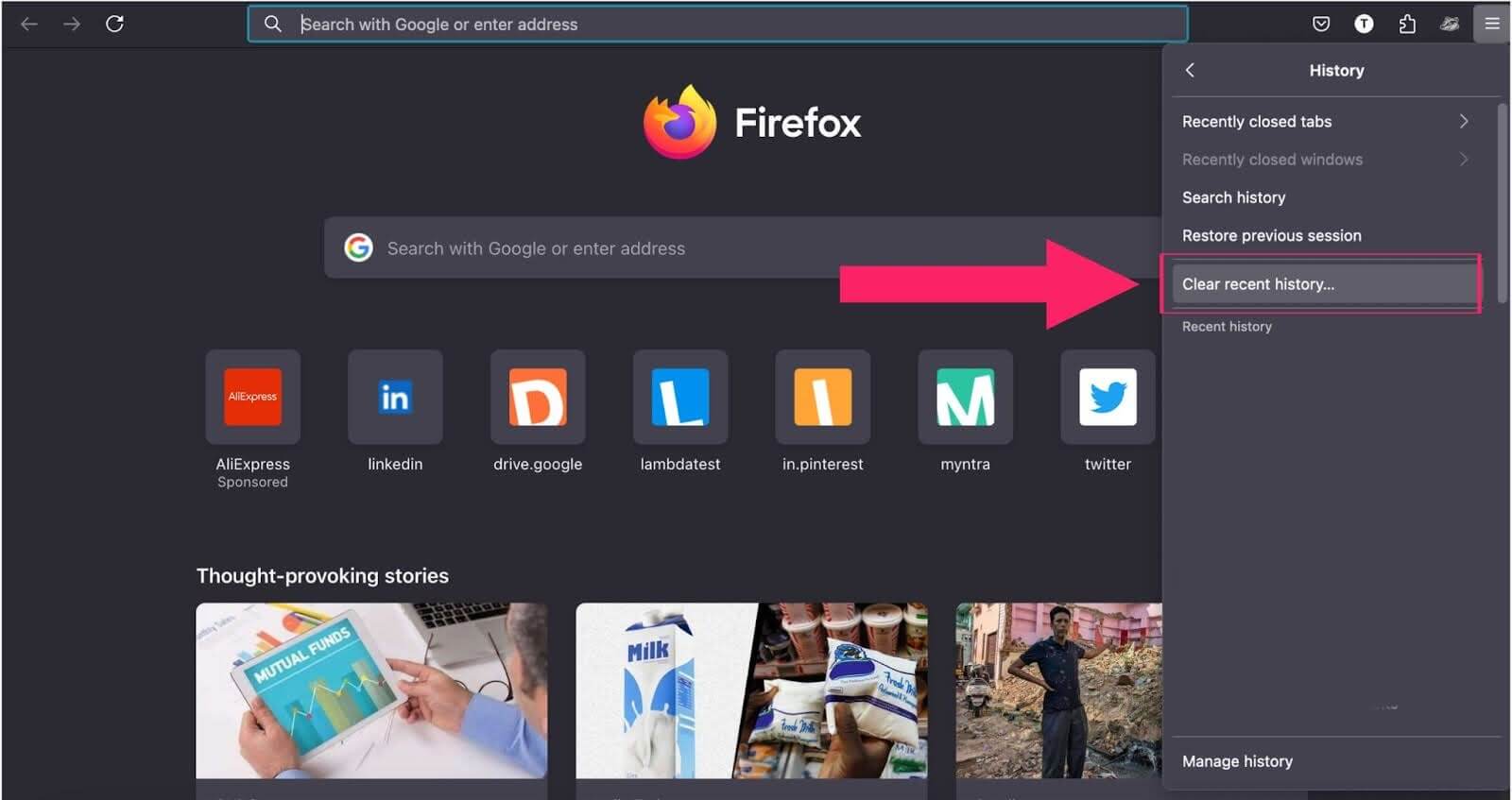
- Ensure the History checkbox is selected. Choose additional data types if needed.
- Click Clear to remove your browsing history and any other selected data.
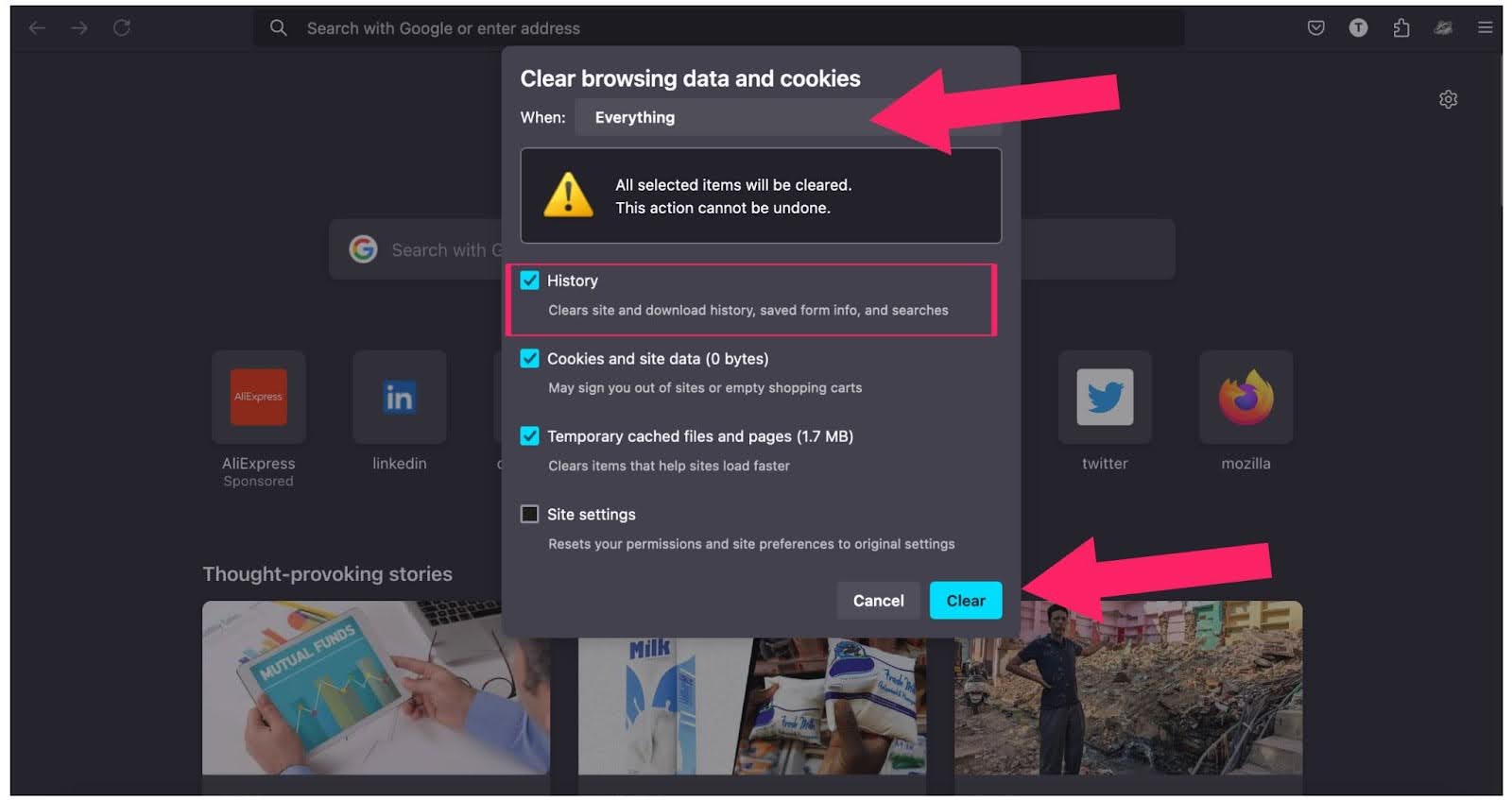
Watch the When dropdown: it defaults to Last Hour, not Everything. Change it to Everything before clicking Clear, or you will only wipe the past hour of data.
To erase all data for a single website instead of your entire history, right-click any entry in the History list and choose Forget About This Site. Firefox removes all browsing records, cookies, cache, and saved forms for that domain in one action.

Steps to Clear Firefox History on Android and iPhone
Android Devices
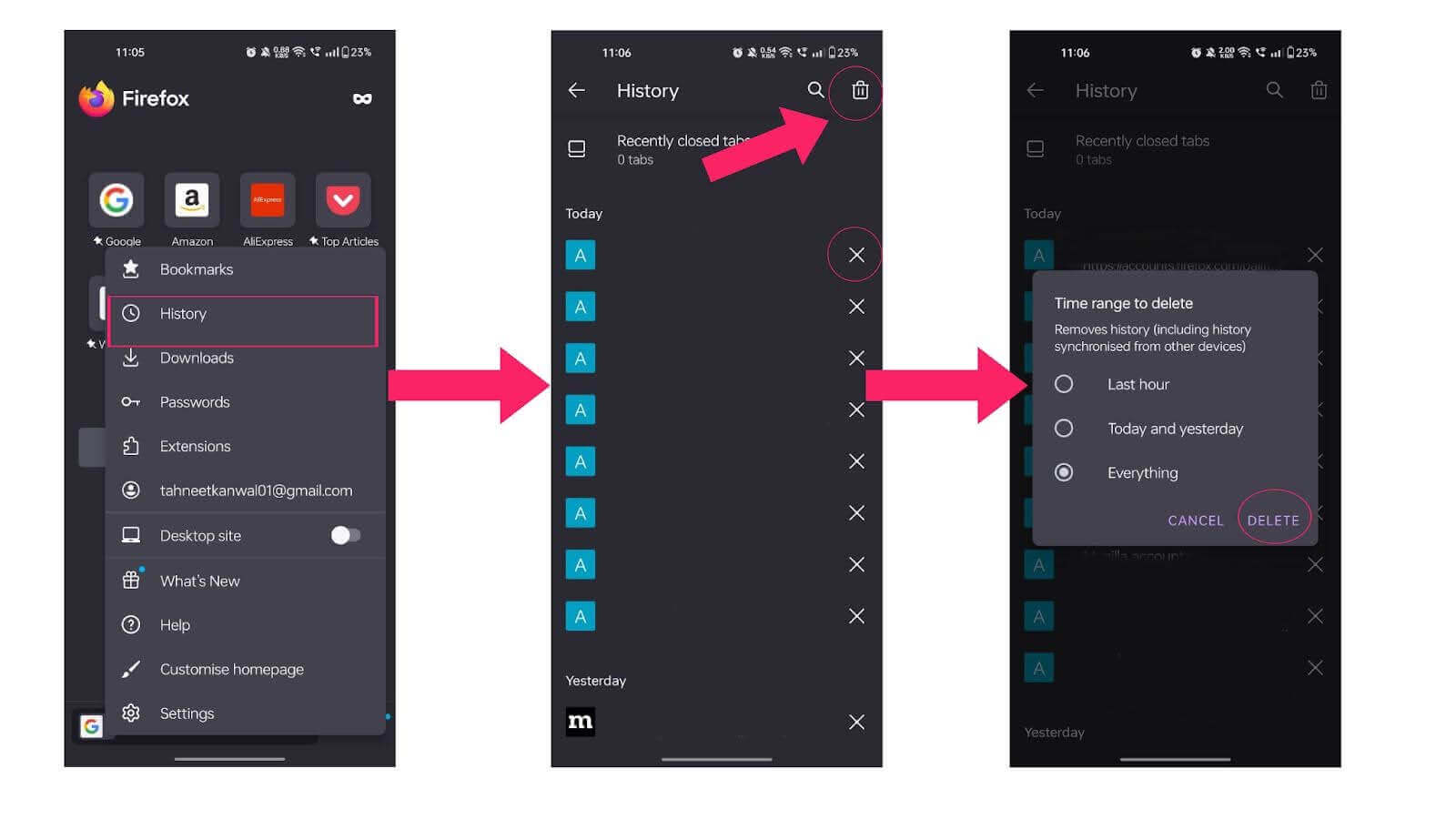
- Launch Firefox and tap the menu (three dots icon) in the top-right corner.
- Select History from the dropdown menu.
- Tap Clear Browsing Data at the top of the screen.
- Choose the types of data you wish to clear, including history, cache, and cookies.
- Select a time range, then tap DELETE to finalize.
iPhone Devices
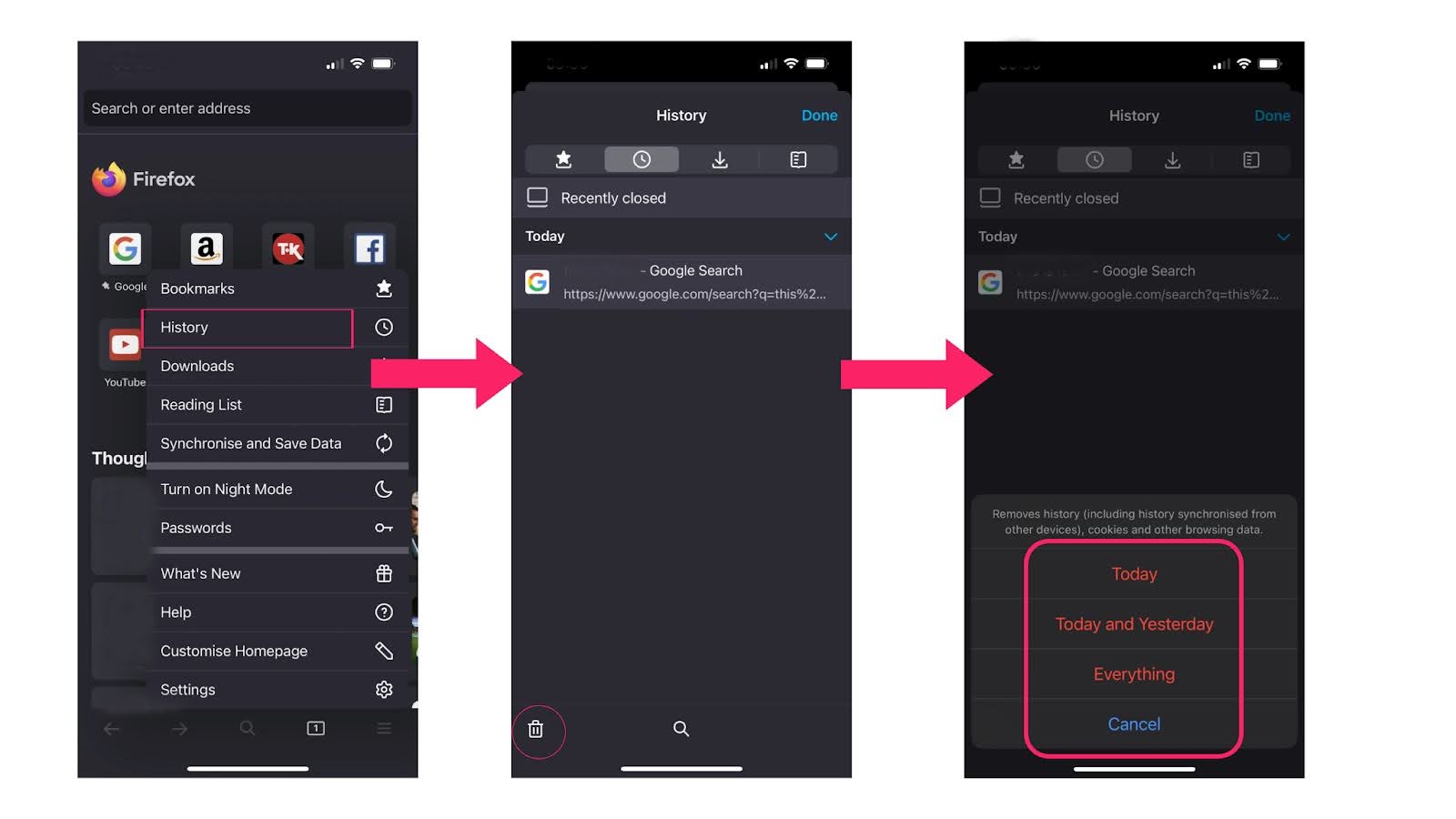
- Open Firefox and tap the menu (three lines icon) in the bottom-right corner.
- Tap History from the bottom menu bar.
- Tap Clear recent history and select a time range from the options available.
- Confirm the action to clear your browsing history for the selected period.

Note: When running cross-browser tests in Firefox, a clean history prevents stale cookies and cached redirects from affecting results. TestMu AI runs each test session on a fresh browser profile across 10,000+ real devices, so session state never bleeds between runs. Start testing free
Steps to Clear Firefox History With Keyboard Shortcuts
The keyboard shortcut method opens the same Clear Recent History dialog but skips the menu navigation entirely. It is the fastest option for routine cleanups. To refresh Firefox to a clean state quickly, combine this shortcut with a browser restart.
- Press Ctrl + Shift + Delete (Windows/Linux) or Command + Shift + Delete (macOS) to open the Clear Recent History dialog.
- Press the Tab key to navigate to the When dropdown and select the desired time range.
- Press Tab again to reach the data-type checkboxes, use the arrow keys to reach History, and press Space to select it.
- Press Enter to clear the selected data.
The shortcut clears history across your entire Firefox profile - if you have multiple windows open, they all share the same history store, so one shortcut clears them all simultaneously.

How to Auto-Clear Firefox History on Close
Instead of clearing history manually, Firefox can wipe selected data automatically each time you close the browser. This is useful on shared devices or in high-privacy workflows where you need a clean slate every session.
- Open the menu (three lines) and select Settings.
- Click Privacy & Security in the left sidebar.
- Under History, open the dropdown and choose Use custom settings for history.
- Check the box for Clear history when Firefox closes.
- Click the Settings button next to that checkbox to choose which data types get cleared on close (history, cookies, cache, active logins, etc.).
- Click OK to save your preferences.
Firefox will now automatically clear the selected data types every time the browser closes.
Two caveats: Auto-clear only runs on a normal browser exit - a crash or force-quit will not trigger it. If Firefox is configured to use automatic private browsing mode, the auto-clear on close setting will be unavailable in Privacy & Security settings.
Conclusion
To clear Firefox history, press Ctrl + Shift + Delete, select your time range, check History, and click Clear Now. For a full privacy reset, add Cookies and Cache to the same selection. For shared or high-privacy devices, enable auto-clear on close so it happens automatically every session.
For QA teams testing in Firefox, browser state management goes beyond manual cleanup. TestMu AI's real device cloud runs each test session on a fresh Firefox profile across 10,000+ real devices and OS combinations, eliminating cached-state issues without any manual clearing.
To configure Firefox WebDriver for TestMu AI's cloud grid, see the Selenium WebDriver testing docs. For broader cross-browser automation strategies, explore our cross-browser testing guide or our roundup of cross-browser testing tools.
Note: This article was researched and drafted with AI assistance, then reviewed, fact-checked, and published by Tahneet Kanwal, Community Contributor at TestMu AI, whose listed expertise includes Web Technologies and Frontend Development. Every statistic, link, and product claim was verified against primary sources. Read our editorial process and AI use policy for details.
Author

Tahneet Kanwal
Blogs: 29


Tahneet Kanwal is a freelance technical content writer with over 2 years of hands-on experience in frontend development and technical writing. She holds a B.Tech in Information Technology from University College of Engineering and Technology (UCET). Tahneet creates clear, SEO-optimized content on web technologies, software testing, and automation tools, leveraging her skills in HTML, CSS, JavaScript, React, Tailwind CSS, and various tools like VS Code, GitHub, Figma, and Canva. She is the author of 30+ technical blogs and an open-source contributor through Hacktoberfest. She has also participated in the Google Cloud Arcade Facilitator Program and holds certifications as a Meta Android Developer (Coursera) and in Web Development (Internshala). Over time, she has evolved her writing to prioritize structure, readability, and SEO while maintaining technical depth.
Reviewer

Isha Vyas
Reviewer
Isha Vyas is a Lead Member of Technical Staff at TestMu AI (formerly LambdaTest), building the frontend of the quality engineering platform. She works across React.js, responsive web design, and jQuery to ship and maintain the platform's user-facing web interfaces. She brings nearly seven years of frontend engineering experience at the company, with earlier work as a Software Developer at Mantra Labs. Isha holds a B.Tech in Computer Science from Swami Keshwanand Institute of Technology, Management and Gramothan, Jaipur.


Clear History in Firefox FAQs
Did you find this page helpful?
More Related Blogs
TestMu AI forEnterprise
Get access to solutions built on Enterprise
grade security, privacy, & compliance
- Advanced access controls
- Advanced data retention rules
- Advanced Local Testing
- Premium Support options
- Early access to beta features
- Private Slack Channel
- Unlimited Manual Accessibility DevTools Tests