

Next-Gen App & Browser Testing Cloud
Trusted by 2 Mn+ QAs & Devs to accelerate their release cycles


On This Page
- What Is Espresso in Android?
- What Are the API Components of Espresso?
- How to Setup Espresso in an Android Project?
- How to Run Espresso Tests on Real Device Cloud?
- Advanced Techniques for Espresso Test Automation
- Troubleshooting Espresso Issues and Solutions
- Best Practices for Writing Maintainable Espresso Tests
- Espresso vs Appium: What Are the Differences?
- Conclusion
- Citations

- Home
- /
- Learning Hub
- /
- Espresso Android UI Automation: A Complete Tutorial [2026]
Espresso Android UI Automation: A Complete Tutorial [2026]
Learn Espresso for Android testing, including basics, API components, setup, running tests on real devices, advanced techniques, and best practices.

Yogendra Porwal
February 11, 2026
If you’re building Android apps and want your user interface to work exactly as expected every time, Espresso for Android automation testing is the go-to framework for developers. With Espresso, you can simulate user actions like tapping buttons or entering text and then verify that the app shows the expected UI state.
Overview
What Is Espresso Framework?
Espresso is a UI testing framework developed by Google for Android applications. It is used to write automated tests that interact with app views and verify UI behavior directly within the app process.
What Are the Espresso API Components?
Espresso provides a structured set of APIs to interact with UI elements, perform actions, and validate results during test execution.
- Espresso: Acts as the entry point for UI interactions, offering methods such as onView(), onData(), and global actions like pressBack().
- ViewMatchers: Used to locate UI elements in the view hierarchy based on properties like ID, text, or visibility.
- ViewActions: Define user interactions such as click(), typeText(), and scrollTo() that are performed on matched views.
- ViewAssertions: Verify the state of UI elements after actions using assertions like matches() with specific matchers.
How to Use Espresso for Android UI Testing?
Setting up Espresso involves configuring your Android project with the required tools, dependencies, and test runner before writing and executing UI tests.
- Install Prerequisites: Ensure Android Studio is installed, JDK 8 or higher is available, and an emulator or physical device is ready for test execution.
- Add Espresso Dependencies: Include espresso-core and androidx.test.ext:junit dependencies in the app’s build.gradle file.
- Configure Test Runner: Set AndroidJUnitRunner as the test instrumentation runner inside the defaultConfig block.
- Sync Gradle: Sync the project to download dependencies and apply configuration changes successfully.
- Create Test Class: Add a test class under src/androidTest/java to define Espresso test cases.
- Write Test Scenarios: Use onView(), perform(), and check() methods to interact with UI elements and assert expected behavior.
- Run the Tests: Execute tests from Android Studio or use the connectedAndroidTest Gradle command to run tests on a connected emulator or device.
What Is Espresso in Android?
Espresso is a UI testing framework, developed by Google, used in Android development to write automated tests that interact with views and verify screen behavior.
It is part of the AndroidX testing libraries and is typically used within Android Studio alongside Java or Kotlin test script.
Core Features:
- Direct Access to Android UI Components: You can run Espresso tests inside the app process, which lets you interact with Buttons, TextViews, RecyclerViews, and other Android views without adding custom synchronization code.
- Built-In UI Synchronization: Espresso waits for the main thread and background tasks to become idle before performing actions or checks, so you do not need to add manual delays in most cases.
- Works Within Android Studio: You can write, run, and debug UI tests using the same environment you already use for Android development, including Gradle and standard test runners.
- Action-and-Assertion Structure: Espresso separates user actions from UI checks, which helps you keep test cases readable and easier to maintain.
- Supports Java and Kotlin: You can write Espresso tests in either language, matching the language used in your Android app.
For more details, check out this Espresso tutorial.
What Are the API Components of Espresso?
Component APIs of Espresso include onView() and onData() for starting UI interactions and global actions. ViewMatchers find UI elements, ViewActions perform user actions, and ViewAssertions verify view states after interactions.
- Espresso: You can use this as the entry point for interacting with the UI. It provides methods such as onView() and onData() to begin view interactions, along with APIs that are not tied to a specific view, such as pressBack().
- ViewMatchers: You can use these to locate views within the current view hierarchy. ViewMatchers implement the Matcher<? super View> interface and are passed to onView() to identify UI elements based on properties like ID, text, or visibility.
- ViewActions: You can use these to define actions performed on a matched view. ViewAction objects are passed to ViewInteraction.perform() and include operations such as click(), typeText(), and scrollTo().
- ViewAssertions: You can use these to verify the state of a view after an action. ViewAssertion objects are passed to ViewInteraction.check(). In most cases, you can use the matches() assertion with a ViewMatcher to confirm that the selected view meets the expected condition.

Note: Run Espresso tests on real Android devices. Try TestMu AI Now!
How to Setup Espresso in an Android Project?
You can set up Espresso by installing Android Studio, JDK, and an emulator or device. Add Espresso and JUnit dependencies, configure AndroidJUnitRunner, sync Gradle, then write and run UI tests.
Prerequisites
Before starting with Espresso for Android automation testing, make sure the following prerequisites are in place:
- Android Studio is installed and configured with all required Android SDK tools.
- JDK version 8 or higher is installed. JDK 17 or a newer version is recommended.
- A working Android project exists with at least one Activity that will be used for UI testing.
- An Android emulator or a physical device is available and properly connected to run tests.
In this Espresso Android tutorial, we are using the TestMu AI Android Proverbial app.
Step 1: Add Dependencies
Before writing your first Espresso test, you need to add the required dependencies to your project.
In your app’s build.gradle file, add the following:
dependencies {
    androidTestImplementation 'androidx.test.espresso:espresso-core:3.6.1'
    androidTestImplementation 'androidx.test.ext:junit:1.1.5'
}
Step 2: Configure Test Runner
Let’s add the test runner for instrumented tests in app/build.gradle file.
In defaultConfig, add the following:
android {
    defaultConfig {
        testInstrumentationRunner "androidx.test.runner.AndroidJUnitRunner"
    }
}
Step 3: Sync Project
Sync the Gradle project to ensure that all the configuration and new dependencies are downloaded. This can be done with a one click on the sync button at the top right of Android Studio. You can also use the Ctrl+Shift+O shortcut.
Writing Espresso Test
Now that we are done with all the configuration and prerequisites, let’s go ahead and write our first test with Espresso.
Test Scenario:
- Launch the TestMu AI Android Proverbial app
- Verify that the Home screen opens and the title text matches the expected value.
- Tap the Text button and confirm that the title text changes to “Proverbial”.
Implementation:
Create a MainActivityTest class at src/androidTest/java/<package-path>/.
@RunWith(AndroidJUnit4.class)
public class MainActivityTest {

    @Rule
    public ActivityScenarioRule<MainActivity> activityScenarioRule =
            new ActivityScenarioRule<>(MainActivity.class);

    @Test
    public void checkTitleText() {
        // validate title is displayed and has expected content
        onView(withId(R.id.Textbox)).check(matches(isDisplayed()));
        onView(withId(R.id.Textbox))
            .check(matches(withText("Hello! Welcome to lambdatest Sample App called Proverbial")));

        // click on Text button
        onView(withId(R.id.Text)).perform(click());
        onView(withId(R.id.Textbox)).check(matches(withText("Proverbial")));
    }
}
Code Walkthrough:
- @RunWith(AndroidJUnit4.class): Specifies the Android test runner used to execute instrumentation tests.
- ActivityScenarioRule<MainActivity>: Manages the lifecycle of the activity under test by launching it before execution and closing it after the test completes.
- onView(withId(...)): Locates UI elements within the current view hierarchy using resource IDs or other view properties.
- perform(): Executes user interaction actions such as clicking a button.
- check(matches(...)): Asserts UI conditions, including visibility and expected text content.
Test Execution:
Ensure that an emulator or Android device is running and connected. You can check that by running the command below.
adb devicesIt should show the connected device or emulator.
Now, run the test via Android Studio or with the following command:
./gradlew connectedAndroidTestThis will launch the test on the default emulator connected to your project.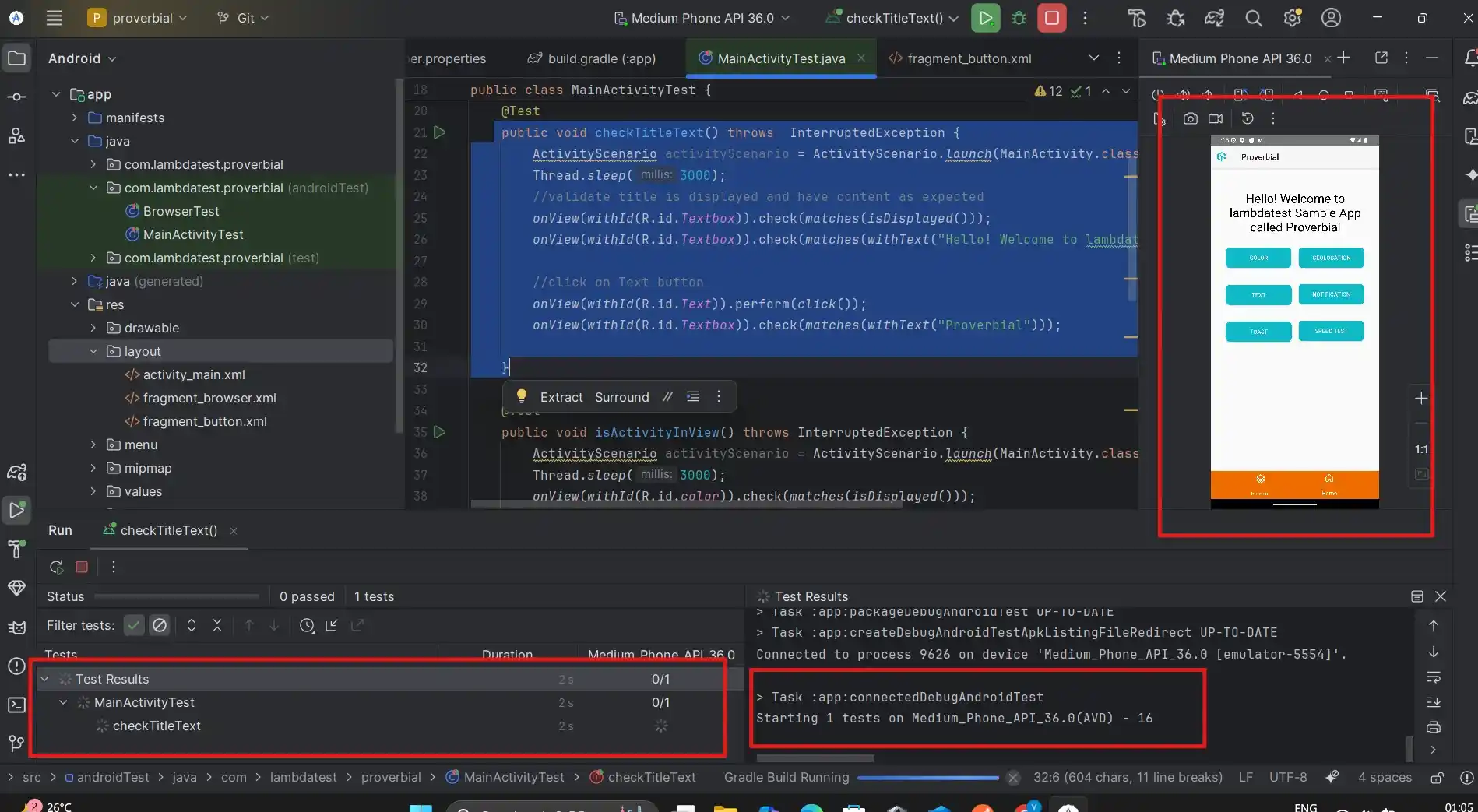
For Android UI testing, emulators are good for quick feedback during development, but real devices are needed to uncover issues tied to hardware, OS versions, and device-specific behavior.
Since Android runs across a wide range of devices with different screen sizes, system configurations, and manufacturers, testing on real devices helps catch issues that emulators may not expose.
How to Run Espresso Tests on Real Device Cloud?
Mobile app testing platforms such as TestMu AI provide access to a real device cloud of Android and iOS devices across multiple OS versions and device configurations. It supports automation testing frameworks such as Appium, Espresso, and XCUITest. You can perform Espresso automation testing online across a wide device range without maintaining local Android device labs.
To test Android apps online with Espresso on TestMu AI, start by signing up for a TestMu AI account or logging in to an existing one. Then follow the steps below:
Step 1: Generate the Authentication Token
TestMu AI APIs are used to upload and execute Espresso test suites, so an authentication token is required. You can generate the BASIC_AUTH_TOKEN using the TestMu AI Basic Authentication Header Generator. This token will be used in API requests for uploading APKs and triggering test execution.
Step 2: Build the App and Test APKs
Use Gradle to generate the required APK files:
./gradlew assembleDebug assembleAndroidTest
The above command will generate two APK files:
- app-debug.apk: Your actual app APK.
- app-debug-androidTest.apk: The APK containing your test cases.
These files are typically located in the app/build/outputs/apk/ directory.
Step 3: Upload the APKs to TestMu AI
To run the test, we need to upload APKs to the real devices available on TestMu AI. This can be done using the upload framework API.
curl -u "YOUR_LAMBDATEST_USERNAME:YOUR_LAMBDATEST_ACCESS_KEY" --location --request POST "https://manual-api.lambdatest.com/app/uploadFramework" --form "appFile=@<PATH_OF_YOUR_ANDROID_APP>" --form "type=espresso-android"A successful upload returns the following response:
{
    "app_id": "lt://APP123456789123456789",
    "name": "apk_name.apk",
    "type": "espresso-android",
    "url": "url_to_uploaded_apk",
    "custom_id": null,
    "ios_keychain_enabled": "false"
}
Use the same command to upload both the APKs generated in the previous step. Note down the app_id for both the Proverbial APK and the test APK. These app IDs will be used in the next step.
You can refer to all the available APIs at the TestMu AI App Automation API documentation.
Step 4: Run Espresso Tests
With both APKs uploaded, trigger the test execution using the following API request:
curl --location --request POST "https://mobile-api.lambdatest.com/framework/v1/espresso/build" \
--header "Authorization: Basic BASIC_AUTH_TOKEN" \
--header "Content-Type: application/json" \
--data-raw '{
  "app": "APP_ID",
  "testSuite": "TEST_SUITE_ID",
  "device": ["Pixel 6-12"],
  "queueTimeout": 360,
  "IdleTimeout": 150,
  "deviceLog": true,
  "network": false,
  "build": "Proverbial-Espresso",
  "geoLocation": "FR"
}'
Ensure the correct app IDs are used:
- app refers to app-debug.apk
- testSuite refers to app-debug-androidTest.apk
Once the request is submitted, a successful response includes a buildId, which can be used to track execution.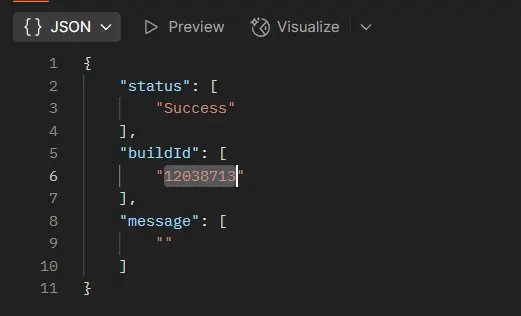
Step 5: View Test Results
To view the execution, go to the TestMu AI App Automation Dashboard. You will find the execution details, such as logs, screenshots, and video recordings, in the App Automation Dashboard.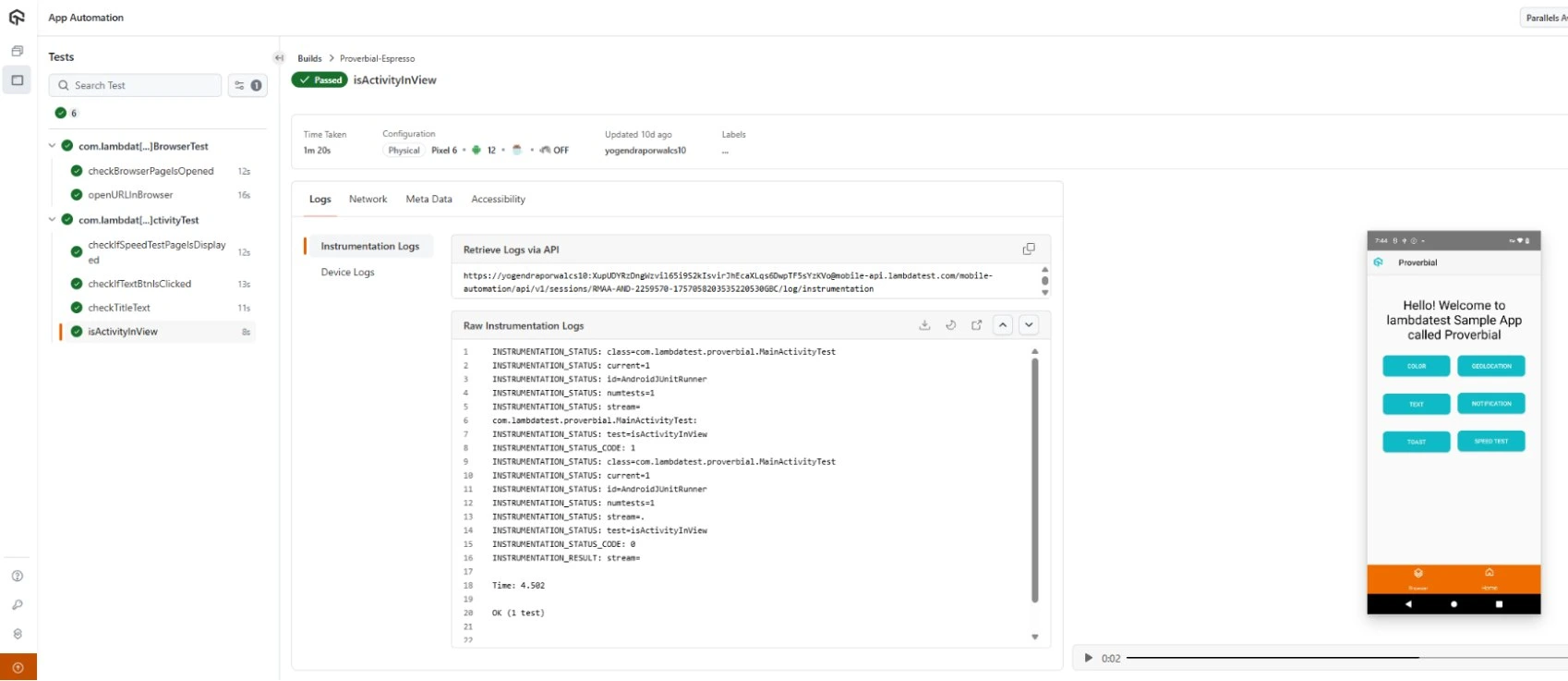
Advanced Techniques for Espresso Test Automation
Other than the core API components, Espresso also supports various advanced features to make your Android testing more reliable and maintainable.
Let’s have a look at a few of them.
- Idling Resources: Espresso runs test actions synchronously by default, but this behavior applies only to operations tracked by Espresso itself.
For asynchronous work such as network requests or background data loading, Espresso needs to be informed when the app is busy and when it can safely continue executing test steps. Idling Resources act as a signaling mechanism that tells Espresso when an asynchronous operation starts and finishes.
Example:
IdlingResource idlingResource = new CountingIdlingResource("resource_name");

// register the idling resource before the test
@Before
public void registerIdlingResource() {
    IdlingRegistry.getInstance().register(idlingResource);
}

@After
public void unregisterIdlingResource() {
    if (idlingResource != null) {
        IdlingRegistry.getInstance().unregister(idlingResource);
    }
}- Espresso Intents: Intents are used to intercept, mock, and validate outgoing Android intents during test execution. It allows verification that the correct intent is triggered or enables stubbing a response instead of launching the actual external activity or system component.
This approach is useful when the app interacts with other apps or software services, allowing tests to focus on internal app behavior.
Example:
Intents.init();
intended(hasComponent(NewActivity.class.getName()));
Intents.release();- Multiprocess Mechanism in Espresso: Multiprocess supports testing applications that run across multiple processes. This is relevant for apps that rely on services or content providers outside the main process.
With multiprocess support enabled, Espresso can coordinate interactions across processes while maintaining synchronization and test stability.
Example:
Log.d(TAG, "Checking main process name...");
onView(withId(R.id.textNamedProcess)).check(matches(withText("com.example.android.testing.espresso.multiprocesssample")));
Log.d(TAG, "Starting activity in a secondary process...");
onView(withId(R.id.startActivityBtn)).perform(click());- Espresso-Web: Many Android apps include WebViews, especially in hybrid app scenarios. Espresso-Web provides APIs to interact with web elements rendered inside a WebView.
It allows actions such as locating elements and performing user interactions. Espresso-Web relies on WebDriver Atoms to interact with WebView content.
Espresso-Web enables basic interaction and validation but is not a replacement for full browser automation. For testing web applications in depth, WebDriver-based frameworks are more suitable.
Example:
onWebView()
// find element with id specified
.withElement(findElement(Locator.ID, "text_input"))
// Clear previous input
.perform(clearElement())
Troubleshooting Espresso Issues and Solutions
When working with Espresso, you may run into setup, sync, or test execution issues, so understanding common issues and their solutions helps keep Android UI tests stable and reliable.
WebView Not Detected by Espresso
- Issue: Espresso fails with NoMatchingViewException or NoActivityResumedException when a WebView is opened, especially via SDKs or external intents.
- Solution: Ensure the WebView is part of the current activity’s view hierarchy. If the WebView is launched via an external SDK or browser intent, Espresso-Web cannot interact with it. In such cases, UI Automator or mocking the SDK flow is typically required.
Espresso Does Not Wait for the WebView to Load
- Issue: Tests fail because Espresso attempts to interact with web elements before the WebView finishes loading content.
- Solution: Enable JavaScript in the WebView and use onWebView() only after the page load completes. For complex cases, register a custom Idling Resource tied to WebView loading state.
Cannot Interact With WebView Elements Due to JavaScript Restrictions
- Issue: Errors occur when Espresso-Web attempts to evaluate JavaScript, often caused by Content Security Policy or restricted JS execution.
- Solution: Verify that JavaScript is enabled in the WebView and that the page allows script execution. If the content blocks script evaluation, Espresso-Web cannot interact with it.
No Way to Assert That a Web Element Does Not Exist
- Issue: Espresso-Web lacks a direct equivalent to doesNotExist() for web elements.
- Solution: Wrap element lookups in try/catch blocks or use conditional logic to infer absence. Some teams combine Espresso-Web with UIAutomator for negative checks.
Dependency or Version Conflicts Break Espresso-Web
- Issue: Runtime errors such as NoSuchMethodError appear when using Espresso-Web alongside mismatched AndroidX or test libraries.
- Solution: Align all AndroidX Test, Espresso Core, and Espresso Web versions in build.gradle. Mixing legacy support libraries with AndroidX often causes failures.
Best Practices for Writing Maintainable Espresso Tests
When working with Espresso, test failures or inconsistent behavior can occur for several reasons. The following tips help isolate and resolve common issues:
- Verify Element IDs: Use Android Studio’s Layout Inspector or UI Automator Viewer to confirm resource IDs and view properties before writing matchers.
- Handle Asynchronous Operations: Avoid Thread.sleep(). Use Idling Resources to signal when background tasks such as network calls or database operations are complete.
- Register and Unregister Idling Resources: Always unregister Idling Resources after each test to prevent interference between test runs and shared idle states.
- Check Gradle Dependencies: Inconsistent or conflicting AndroidX and testing library versions often cause runtime failures. Keep dependency versions aligned in build.gradle.
- Run Tests in Isolation: Shared state across tests can lead to flaky behavior. Use ActivityScenarioRule or setup and teardown hooks to reset app state for every test.
- Use Logs and Screenshots for Debugging: Logcat output and failure screenshots provide context that helps identify why a test failed.
- Test Across Devices and API Levels: Some issues only appear on specific devices or Android versions. Running tests in multiple environments helps uncover these cases.
Espresso vs Appium: What Are the Differences?
Espresso is built for Android apps and runs inside the app for fast, reliable UI tests. Appium supports Android and iOS, works externally, and is better for cross-platform and end-to-end testing.
| Aspect | Espresso | Appium |
|---|---|---|
| Platform support | Android only | Android, iOS, and mobile web |
| Execution model | Runs inside the app process | Runs outside the app using platform automation frameworks |
| Language support | Java, Kotlin | Java, Python, JavaScript, C#, and others |
| Setup complexity | Lower for Android projects | Higher due to cross-platform configuration |
| Test speed | Generally faster due to in-app execution | Slower compared to Espresso |
| Synchronization | Built-in synchronization with the UI thread | Requires explicit waits in many cases |
| Access to app internals | Direct access to Android UI components | No direct access to app internals |
| Best suited for | Android-only UI testing | Cross-platform and multi-language testing |
| WebView testing | Limited, basic WebView support | Strong support for mobile web and WebViews |

Conclusion
Espresso is a commonly used framework for automating UI tests in Android applications. Its tight integration with the Android toolchain and built-in synchronization make it suitable for validating UI behavior during development.
While emulators are useful for faster feedback, running tests on real devices is important for covering variations in hardware, OS versions, and system behavior. Real device platforms, such as TestMu AI, help run the same tests across multiple devices without maintaining physical infrastructure.
By following best practices and using Espresso’s advanced features where appropriate, teams can build UI tests that are easier to maintain and more consistent over time.
Citations
- Official Espresso Documentation: https://developer.android.com/training/testing/espresso


Frequently asked questions
Did you find this page helpful?
More Related Hubs
TestMu AI forEnterprise
Get access to solutions built on Enterprise
grade security, privacy, & compliance
- Advanced access controls
- Advanced data retention rules
- Advanced Local Testing
- Premium Support options
- Early access to beta features
- Private Slack Channel
- Unlimited Manual Accessibility DevTools Tests