

Next-Gen App & Browser Testing Cloud
Trusted by 2 Mn+ QAs & Devs to accelerate their release cycles


How to Use Playwright Fixtures for Cleaner and Reusable Tests
Learn how to use Playwright fixtures for scalable automation. Explore built-in and custom fixtures, and more.

Faisal Khatri
March 2, 2026
Fixtures are one of the powerful features provided by the Playwright framework, enabling testers to write optimized and cleaner code. They provide a consistent, reliable, and well-defined context for test execution by managing setup, shared dependencies, and reusable configurations.
By organizing common logic into reusable components, Playwright fixtures help reduce duplication, improve maintainability, and support scalable Playwright testing across local and cloud environments.
If you are getting started with the framework, it's important to first understand how to install Playwright and set up the basic project structure before working with fixtures.
Overview
What Are Playwright Fixtures in Automation Testing?
Playwright fixtures manage setup, teardown, and dependencies, providing reusable, isolated environments that enable clean, scalable, and parallel test execution.
What Are the Most Common Built-in Fixtures in Playwright?
Playwright provides built-in fixtures like page, context, and browser to automatically manage test environment setup and isolation.
- Page Fixture in Playwright: Creates an isolated browser tab per test, enabling navigation, interactions, and UI validations without manual setup.
- Context Fixture in Playwright: Provides a separate browser context per test, allowing multiple pages, shared sessions, and controlled browser-level configurations.
- Browser Fixture in Playwright: Supplies a shared browser instance at the worker level, optimizing resources while maintaining isolation through separate contexts.
How to Create and Use Custom Playwright Fixtures?
Custom Playwright fixtures extend the base test to encapsulate reusable setup logic, environment configuration, and shared dependencies.
- Define Custom Fixture: Extend the base test object and configure reusable setup logic before injecting it into test files.
- Configure Environment Data: Store credentials, baseURL, or capabilities inside fixtures to centralize configuration and simplify multi-environment execution.
- Inject into Tests: Import the custom test fixture and access configured resources directly as parameters in test functions.
Why Combine Fixtures with Playwright Page Object Model?
Combining fixtures with the Playwright Page Object Model improves test structure, separation of concerns, scalability, and long-term maintainability.
- Separation of Concerns: Fixtures manage setup and configuration, while Page Object Model classes handle locators and reusable page actions.
- Cleaner Test Files: Tests remain short and readable since setup logic and page interactions stay organized separately.
- Better Scalability: This combination supports parallel execution and framework growth without increasing code duplication or maintenance complexity.
What Are Playwright Fixtures?
Playwright fixtures are a powerful mechanism that enables managing test setup, teardown, and shared test context. Playwright test is built around the concept of test fixtures, which are used to define and prepare the required environment for each test.
Fixtures ensure that every test receives exactly what it needs while remaining isolated from other tests. The level of isolation depends on the fixture scope; for example, test-scoped fixtures provide full isolation per test, while worker-scoped fixtures are shared across tests within the same worker.
By encapsulating common setup logic and parameters into reusable, self-contained fixtures, Playwright allows tests to be organized around their purpose and behavior rather than repetitive setup code. This approach reduces duplication and keeps test cases cleaner, easier to read, and simpler to maintain.
There are two categories of Playwright fixtures:
- Built-in Fixtures
- Custom Fixtures

Note: Run Playwright tests at scale across 3000+ browsers and OS combinations. Try TestMu AI Now!
What Are the Common Built-in Playwright Fixtures?
If you are new to the framework, going through a complete Playwright tutorial can help you better understand the test runner, configuration setup, and core concepts before exploring fixtures in depth.
Playwright provides several built-in fixtures, such as page, context, and browser. These fixtures automatically configure the required test environment before each test runs. You can access them by declaring them as parameters in the test function, and Playwright will automatically inject the corresponding instance.
Page
The built-in page fixture represents a browser page and gives each test its own isolated tab. Playwright automatically creates this page within a browser context, so users don't need to manage the context themselves. The page fixture provides an instance of Playwright's Page class to every test where it is used.
It's the main interface used for interacting with the UI, such as navigating to pages or performing user actions like clicks and form submissions, such as page.goto(), page.click().
import { test, expect } from '@playwright/test';

test('page fixture sample test', async ({ page }) => {
  await page.goto('https://ecommerce-playground.lambdatest.io/');
  await expect(page).toHaveTitle("Your Store");
});
In the above example, the built-in page Playwright fixture injects the page object into the test function, so we don't need to manually create or manage a browser or page instance.
Context
Another built-in Playwright fixture is context, which provides an isolated browser context. The context fixture provides each test with its own instance of the BrowserContext class in Playwright.
It is useful for opening multiple pages or tabs within the same test, sharing authentication state between them, or managing browser-level settings, while still keeping tests isolated from one another.
test('context fixture sample test', async ({ context }) => {
  const page = await context.newPage();

  await page.goto('https://ecommerce-playground.lambdatest.io/');
  await expect(page).toHaveTitle("Your Store");
});
In the above example, the built-in context Playwright fixture creates a new page within an isolated browser context. It allows full control over pages and shared state during the test.
Unlike the page fixture, Playwright does not automatically provide a Page instance when using the Context fixture. This is why calling context.newPage() is required.
Browser
The browser fixture provides a shared browser instance across tests to optimize resources. It gives access to a Playwright Browser instance such as Chromium, Firefox, or WebKit, that is shared at the worker level by default.
As the same browser instance is reused across tests within a worker, it should be handled carefully to avoid unintended side effects.
test("browser fixture sample test", async ({ browser }) => {
  const context = await browser.newContext();
  const page = await context.newPage();

  await page.goto("https://ecommerce-playground.lambdatest.io/");
  await expect(page).toHaveTitle("Your Store");
});
The above example creates a new browser context and page, giving full control over browser-level behavior.
Apart from the above, the following are also built-in fixtures provided by Playwright:
- browserName: It is a built-in fixture that returns the name of the browser used to run the tests (for example, 'chromium', 'firefox', or 'webkit').
- request: The request fixture in Playwright provides a preconfigured API request context for making backend calls during test execution. It is particularly useful for Playwright API testing, where tests require direct interaction with backend services alongside UI validation.
How to Create Custom Fixtures in Playwright?
In Playwright automation, custom fixtures help encapsulate reusable logic and dependencies so they can be shared across multiple test cases. This helps reduce the duplication, improves maintainability, and keeps your test suite clean and scalable.
Custom fixtures can be created in the following situations:
- Repetitive Setup: If the test suite requires performing the same actions before each test, such as logging in a user, it can be simplified by using a custom fixture.
- Resource Sharing: A custom fixture can be created to provide a shared URL or configuration value for all tests, so it doesn't have to be repeated in every test case.
- Helper Utilities: Custom fixtures can also be used for tests that share a common Page Object Model, making it easy to reuse the same instance across multiple tests.
- Test Data Management: Custom fixtures can be used for generating unique test data for each test on every run.
Creating a Custom Fixture
In one implementation, we initially hardcoded environment URLs inside test files. As the number of environments grew, maintaining those values became error-prone. Moving that configuration into a typed custom fixture eliminated duplication and prevented staging/production mix-ups during parallel runs.
Let's create a custom fixture for managing application configuration, i.e., baseURL, in different environments.
The steps given below should be followed:
1. Create a Fixture File
The following fixture file is created within the 'fixtures' folder in the project:
import { test as base, expect } from "@playwright/test";

type AppConfig = {
  baseUrl: string;
};

export const test = base.extend<{ appConfig: AppConfig }>({
  appConfig: async ({ baseURL }, use) => {
    if (!baseURL) {
      throw new Error("baseURL is not defined in the Playwright config!");
    }
    await use({
      baseUrl: baseURL,
    });
  },
});

export { expect }
This custom fixture extends the base test object and makes the baseURL configuration available to all tests. It first checks whether the baseURL is defined in the Playwright configuration file before the tests run. If it is missing, the fixture throws an error to prevent unexpected failures during execution.
The custom fixture also re-exports expect, allowing tests to import both test and expect from a single place.
2. Update the Playwright Config
The baseURL should be updated in the playwright.config.ts within the projects array. The values for baseURL are the same in this file; however, it can be updated to the required value as required.
export default defineConfig({
  projects: [
    {
      name: "chromium-staging",
      use: {
        ...devices["Desktop Chrome"],
        baseURL: "https://ecommerce-playground.lambdatest.io/",
      },
    },
    {
      name: "chromium-production",
      use: {
        ...devices["Desktop Chrome"],
        baseURL: "https://ecommerce-playground.lambdatest.io/",
      },
    },
  ],
});
This way, multiple projects can be defined, each with its own configuration. It allows running tests easily on the required environment with the respective configuration.
3. Write the Test
The last step is to write the test and use the baseURL from the configuration.
import { test, expect } from "../fixtures/appConfigFixture";

test("test custom playwright fixture using app config", async ({
  page,
  appConfig,
}) => {
  await page.goto(appConfig.baseUrl);
  await expect(page).toHaveTitle("Your Store");
});
Test Execution:
The Playwright tests can be executed by running the following command from the terminal:
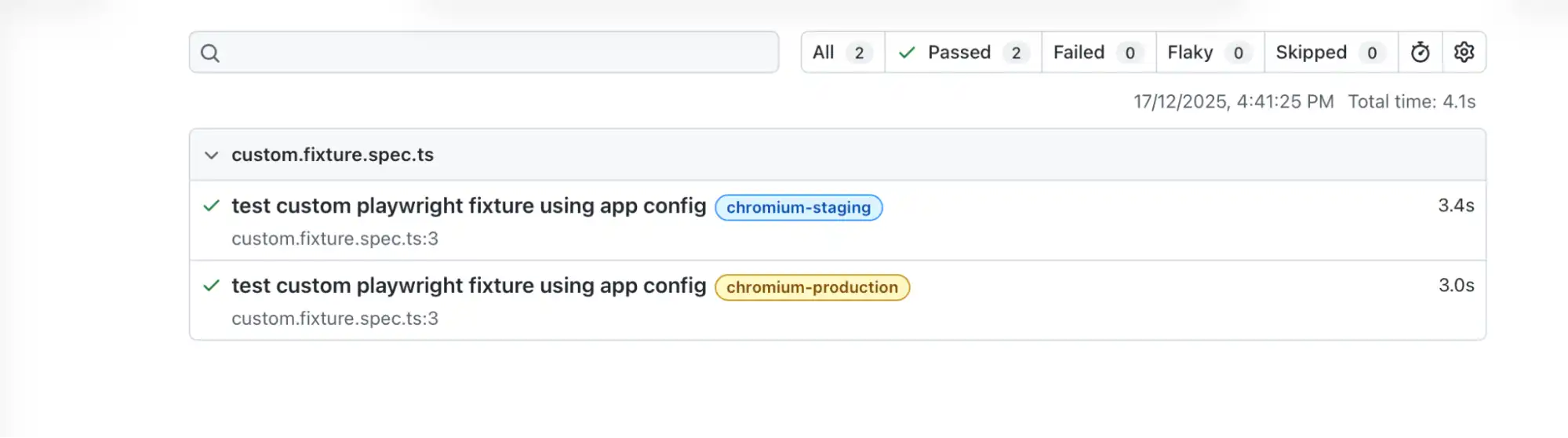
npx playwright test tests/custom.fixture.spec.tsIt will execute the tests on both configurations as defined in the playwright.config.ts
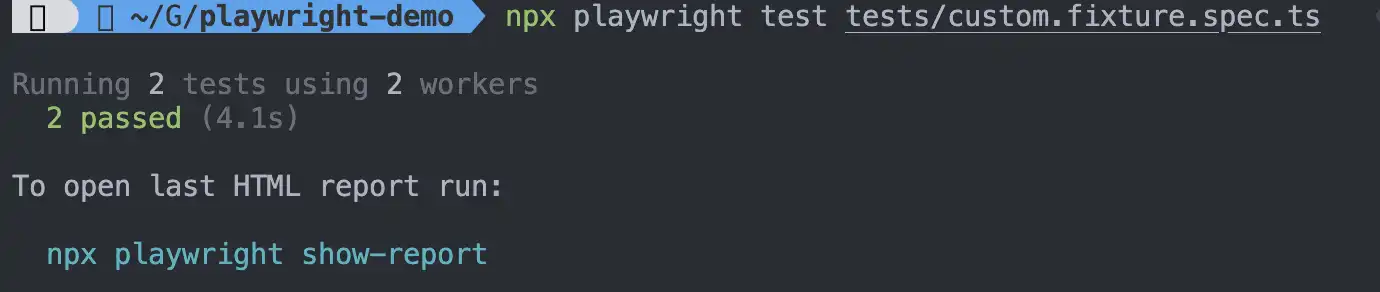
The following screenshot of the Playwright report generated by running the command "npx playwright show-report" provides better insights into the test execution.
Running Playwright tests with custom fixtures on your local machine can sometimes be challenging. While fixtures help organize shared setup and reusable configurations, managing environment-based capabilities, cross-browser execution, secure credentials, and debugging session failures can become complex for testers and developers.
Even small misconfigurations in project names or capability mappings can lead to unexpected issues that are difficult to trace.
In such cases, relying on cloud platforms can be highly beneficial, and one such platform is TestMu AI, which provides access to 3,000+ real devices, real browsers, and custom environments in the cloud.
Tests run consistently across OS and browser versions without managing local infrastructure.
To see this in action, let's run the same test scenario and explore how to perform Playwright testing using fixtures at scale with TestMu AI.
How to Perform Playwright Tests Using Fixtures on TestMu AI?
Running fixture-based Playwright tests on a cloud environment allows you to execute across multiple OS and browser combinations without managing local infrastructure.
By abstracting remote session setup into a custom fixture, you can scale your Playwright testing while keeping test logic unchanged.
Let's implement the same test scenario using remote browser sessions.
Test Scenario:
- Navigate to the E-Commerce Playground demo website.
- Search for "Camera" on the home page.
- Assert that the message text "There is no product that matches the search criteria." is displayed on the results page.
To execute your test scenario on the TestMu AI platform, you need to configure a few additional settings in your existing Playwright framework:
1. Environment Variables: Store credentials securely outside the test code:
export LT_USERNAME="your_username"
export LT_ACCESS_KEY="your_access_key"
2. Capabilities Object: Define browser, platform, build metadata, and authentication details inside a structured capabilities object for remote session configuration.
To add these capabilties create a new file called lambdatest-setup under folder fixtures , this file will store all you need for remote session configuration.
// capabilities.ts
export const capabilities = {
  browserName: "Chrome",
  browserVersion: "latest",
  "LT:Options": {
    platform: "Windows 11",
    build: "Playwright Fixture Build",
    name: "Fixture Execution",
    user: process.env.LT_USERNAME,
    accessKey: process.env.LT_ACCESS_KEY,
  },
}
You can also generate the necessary Playwright capabilities easily using the TestMu AI Automation Capabilities Generator.
3. CDP Connection (Remote Browser Session): Establish a remote browser session using Playwright's chromium.connect method through a secure CDP WebSocket endpoint.
// remoteBrowser.ts
import { chromium } from "@playwright/test";
import { capabilities } from "./capabilities";

export async function connectRemoteBrowser() {
  return chromium.connect(
    `wss://cdp.lambdatest.com/playwright?capabilities=${encodeURIComponent(
      JSON.stringify(capabilities)
    )}`
  );
}
4. Fixture Override: Override the default page fixture to inject a remotely connected browser instance without modifying individual test files.
/// fixtures.ts
import { test as base } from "@playwright/test";
import { connectRemoteBrowser } from "./remoteBrowser";

export const test = base.extend({
  page: async ({}, use) => {
    const browser = await connectRemoteBrowser();
    const page = await browser.newPage();
    await use(page);
    await page.close();
    await browser.close();
  },
});

export const expect = test.expect;
5. Create the Test Spec: Let's create a new test spec, "ecommerce-playground.spec.ts", to implement the test scenario.
import test from '../fixtures/lambdatest-setup'
import { expect } from '@playwright/test'

test("Custom fixture test on TestMu AI cloud", async ({ page }) => {
  await page.goto("https://ecommerce-playground.lambdatest.io/");
  await page.getByRole('textbox', { name: 'Search For Products' }).fill('Camera');
  await page.getByRole('button', { name: 'Search' }).click();
  await expect(
    page.getByText('There is no product that matches the search criteria.')
  ).toBeVisible();
});
The test imports the custom test fixture from the '../fixtures/lambdatest-setup', which sets up the configurations for running the test. It uses Playwright assertion to verify that the message "There is no product that matches the search criteria." is visible on the search results page.
Test Execution:
To execute the test remotely, update the project configuration as follows:
export default defineConfig({
  projects: [
    {
      name: "chrome:latest:MacOS Ventura@lambdatest",
      use: {
        viewport: { width: 1920, height: 1080 },
      },
    },
    {
      name: "chrome:latest:Windows 11@lambdatest",
      use: {
        viewport: { width: 1280, height: 720 },
      },
    },
  ],
});
Run Terminal Command:
Let's execute the test on the latest version of Chrome browser using macOS Ventura by running the following command from the terminal:
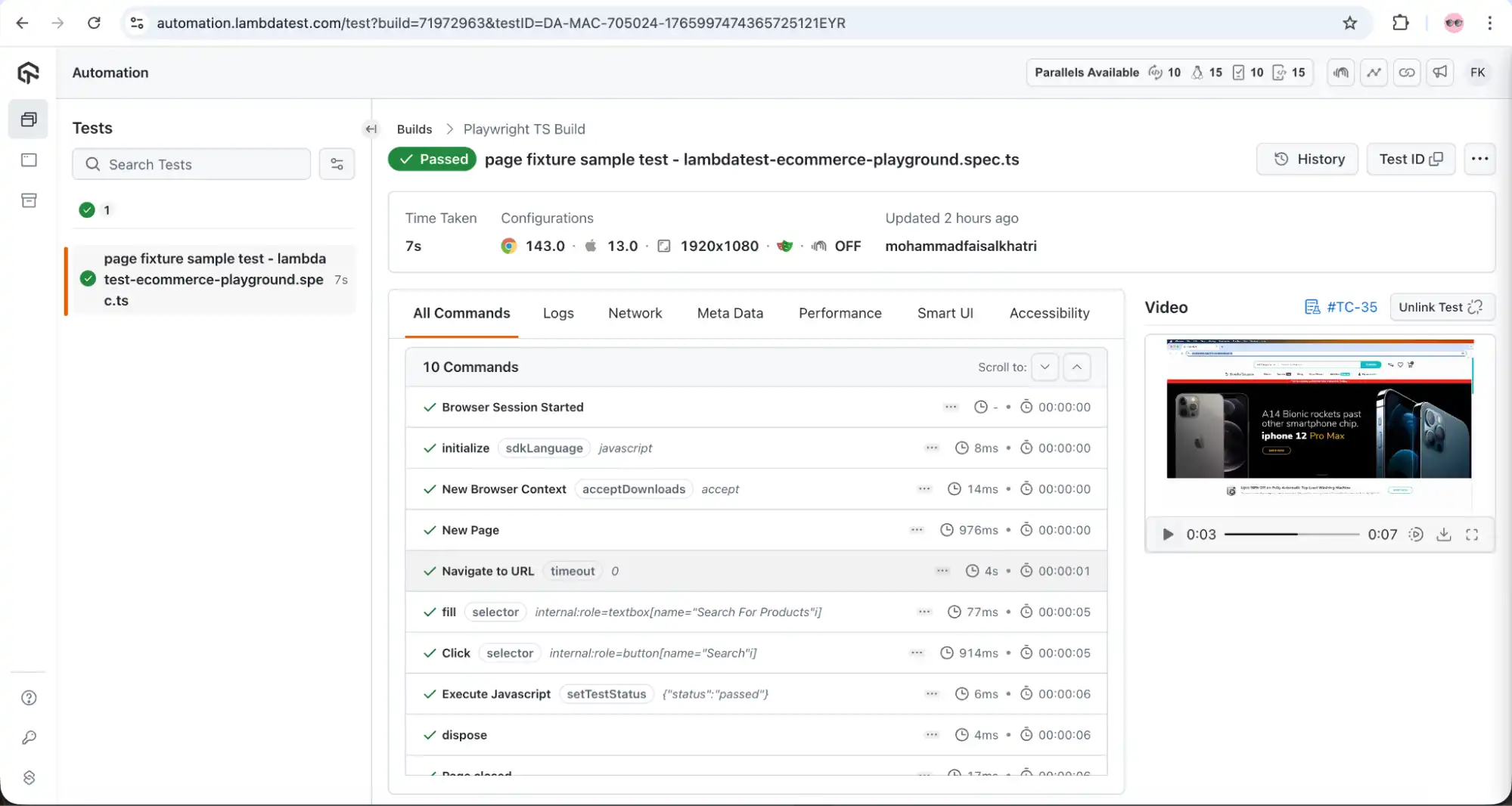
npx playwright test tests/lambdatest-ecommerce-playground.spec.ts --project="chrome:latest:MacOS Ventura@lambdatest"The following screenshot from the terminal shows that the test ran successfully:

The TestMu AI Dashboard offers detailed visibility into test execution, including step-by-step results, video recordings, logs, and complete information about the browser, browser version, and operating system used.
When migrating a 150+ test regression suite from local-only execution to cloud browsers, we noticed that flaky failures were often environment-specific. Moving execution into a fixture-controlled abstraction layer allowed us to debug failures consistently across CI pipelines without modifying test logic.
To get started, refer to the documentation on Playwright testing with TestMu AI.

Playwright Fixtures or POM: Which One to Choose?
Fixtures and the Page Object Model (POM) are both valuable in test automation, but they address different needs. Fixtures focus on setting up and managing the test environment, while POM helps structure and encapsulate page interactions.
When used together, fixtures can provide and manage POM instances, resulting in cleaner and maintainable tests.
The following table provides detailed insights into the differences between fixtures and POM.
| Criteria | Fixtures | Page Object Model (POM) |
|---|---|---|
| Purpose | Enables the management of test setup, teardown, and shared test context. | It organizes and encapsulates Page Objects and their interactions. |
| Scope | Environment management at the Test/Suite level. | Page-level abstraction for UI interactions. |
| Code Duplication | Eliminates code duplication by automatically providing shared instances (such as test, context, Page Objects) without requiring manual creation in each test. | Can lead to code duplication as tests need to create new instances of Page Object classes. |
| Focus | It provides ready-to-use fixtures such as "page", "context", "browsers", etc., for easy test management. | It allows defining reusable locators and interaction methods for a web page. |
| Relationship | It can create and manage POM instances. | POM is often consumed by fixtures or tests. |
| Test Readability | It helps by reducing boilerplate code by injecting dependencies, and makes tests cleaner and shorter. | It improves readability by abstracting UI interactions into meaningful methods. |
| Best Use Case | Configuring browsers, contexts, test data, helpers, and custom configuration. | Creating separate page object classes as an abstraction between tests and pages. It helps in keeping the interactions separate from the test, making the test cleaner and easier to maintain. |
By using fixtures together with the POM, you can build test suites that are both clean and easy to maintain. Page-specific actions stay neatly organized in their own classes, while fixtures manage setup and cleanup, allowing tests to remain simple and scale smoothly as the project grows.
When POM is combined with Playwright fixtures, the Playwright Page Object Model becomes even more powerful. Fixtures handle shared setup, such as login, browser configuration, or test data, while Page Object classes focus only on page behavior.
Best Practices for Using Playwright Fixtures
The following best practices will allow for the efficient use of fixtures in the project:
- Provide Meaningful Names to Fixtures: Use meaningful names like login-fixture, cloud-setup, etc., so that anyone reading the code understands their purpose.
- Keep it Focused and Precise: Each fixture should perform a specific task, such as handling login, providing test data, or managing configuration. Keeping fixtures focused makes them easier to understand, reuse, and maintain across different tests.
- Keep Tests Simple: Heavy logic, such as login, authentication, navigation, and configurations, should be moved to the fixtures, keeping tests simple and readable. This becomes even more important when implementing Playwright with AI, where clarity and modular design improve maintainability.
- Reuse Fixtures: When several tests share the same setup, define it once as a fixture and reuse it across tests. Duplication drops significantly, and test cases remain easier to maintain.
- Cleanup After Use: To avoid memory leakages and flaky tests, always close the pages, contexts, and test data files used within the fixture. Proper cleanup ensures resources are released correctly and keeps your test runs stable and reliable.
- Avoid Assertions in Fixtures: Assertions should be performed in the test, since fixtures provide the state but do not verify it. These fixtures are reusable and focused on setup, while tests clearly express the expected behavior and outcomes.


Frequently asked questions
Did you find this page helpful?
More Related Hubs
TestMu AI forEnterprise
Get access to solutions built on Enterprise
grade security, privacy, & compliance
- Advanced access controls
- Advanced data retention rules
- Advanced Local Testing
- Premium Support options
- Early access to beta features
- Private Slack Channel
- Unlimited Manual Accessibility DevTools Tests