

Next-Gen App & Browser Testing Cloud
Trusted by 2 Mn+ QAs & Devs to accelerate their release cycles


How to Write JUnit Test Cases: Step-by-Step Guide
Learn how to write JUnit test cases with this step-by-step guide. Master test annotations, assertions, and best practices to ensure robust and reliable testing.

Faisal Khatri
March 4, 2026
Writing test cases is a crucial step in building reliable and maintainable software applications. JUnit, a popular Java testing framework, streamlines this process by offering features to create and execute tests efficiently.
By writing JUnit test cases, you can catch bugs early, improve code quality, and reduce the time spent debugging later. Also, another advantage you get with JUnit is the ability to create precise tests that further provide a safety net for making changes or adding new features to your codebase.
In this guide, we learn how to write effective JUnit test cases that can make your code more reliable and easier to maintain.
Why Use JUnit to Automate Unit Tests?
JUnit is a widely used framework for automating unit tests in Java due to the following key reasons:
- Simplifies Testing: Makes it easy to write, run, and manage tests for individual components.
- Annotations for Structure: Offers annotations like @Test and @BeforeEach to help organize tests and handle setup or teardown tasks.
- Integration-Friendly: Works seamlessly with build tools like Maven, Gradle, and CI/CD pipelines, ensuring tests are automated and consistent.

Note: Automate JUnit tests with Selenium on the cloud. Try TestMu AI Now!
How to Write JUnit Test Cases?
In this section, we will learn how to write the JUnit test cases using IntelliJ IDE (since it already comes bundled with JUnit, we don’t have to additionally install it). To perform JUnit testing, now, we need to create a new Maven project, add the JUnit dependencies, and start writing the tests immediately.
Following JUnit 5 dependency needs to be added in the pom.xml file:
- JUnit Jupiter Engine
- JUnit Jupiter API
- JUnit Platform Suite(Aggregator)
- JUnit Jupiter Params
<!-- https://mvnrepository.com/artifact/org.junit.jupiter/junit-jupiter-engine -->
<dependency>
    <groupId>org.junit.jupiter</groupId>
    <artifactId>junit-jupiter-engine</artifactId>
    <version>5.11.1</version>
    <scope>test</scope>
</dependency>


<!-- https://mvnrepository.com/artifact/org.junit.jupiter/junit-jupiter-api -->
<dependency>
    <groupId>org.junit.jupiter</groupId>
    <artifactId>junit-jupiter-api</artifactId>
    <version>5.11.1</version>
    <scope>test</scope>
</dependency>
<!-- https://mvnrepository.com/artifact/org.junit.platform/junit-platform-suite -->
<dependency>
    <groupId>org.junit.platform</groupId>
    <artifactId>junit-platform-suite</artifactId>
    <version>1.11.1</version>
    <scope>test</scope>
</dependency>


<!-- https://mvnrepository.com/artifact/org.junit.jupiter/junit-jupiter-params -->
<dependency>
    <groupId>org.junit.jupiter</groupId>
    <artifactId>junit-jupiter-params</artifactId>
    <version>5.11.1</version>
    <scope>test</scope>
</dependency>
After adding the dependency, we are all set to write the test.
It’s now time to get into the code and get our hands dirty with JUnit 5. We will be creating a new BasicTest class.
Writing JUnit Test Cases With Annotations
In this section, we will use JUnit annotations to write test cases. Now, let’s add methods to demonstrate the usage of @BeforeAll, @BeforeEach, @AfterAll, @AfterEach, @Test, @DisplayName and @Disabled annotations.
@DisplayName("Demo Test class")
public class BasicTest {

   @BeforeAll
   public static void beforeAllTest() {

       System.out.println("Before All method called!!");
   }

   @BeforeEach
   public void beforeEachTest() {
       System.out.println("Before Each method called!!");
   }

   @DisplayName("This is a demo test")
   @Test
   public void testMethodOne() {
       System.out.println("Test Method One Called!!");
   }

   @Test
   @Disabled("This test is disabled to demo disable annotation")
   public void disabledTest() {
       System.out.println("This is a disabled test!!");
   }

   @Test
   public void testMethodTwo() {
       System.out.println("Test Method Two Called!!");

   }

   @AfterEach
   public void afterEachMethod() {
       System.out.println("After Each method called!!");
   }

   @AfterAll
   public static void afterAllMethod() {
       System.out.println("After All method called!!");
   }

}

Code Walkthrough:
The @DisplayName annotation over the test class will display the test name as Demo test class in the results when the test is executed. The beforeAllTest() method will get executed before any of the test runs and will print the text Before All method called!!. Next, the beforeEachTest() method will get executed before every test and print the text Before Each Method called!!.
There are three test methods in this class, namely, testMethodOne(), testMethodTwo() and disabledTest(). All three test methods have the @Test annotation over it that indicates that these are test methods.
The disabledTest() method will not be executed as it has the @Disabled annotation over it.
After every test execution is complete, the afterEachTestMethod() method will be executed as it has the @AfterEach annotation above it. Finally, after all the tests are run, the afterAllMethod() method will be executed as it has the @AfterAll annotation over it.
Test Execution:
These tests can be directly run using either of the following steps:
- Using Maven commands.
- By right-clicking on the test file > select Run.
- Click on the Green Play icon shown beside the test method to run the respective test method.
- Click on the Green Play icon shown beside the test class name to run all the tests in the test class.
The following screenshot from IntelliJ IDE shows that the tests were executed successfully.
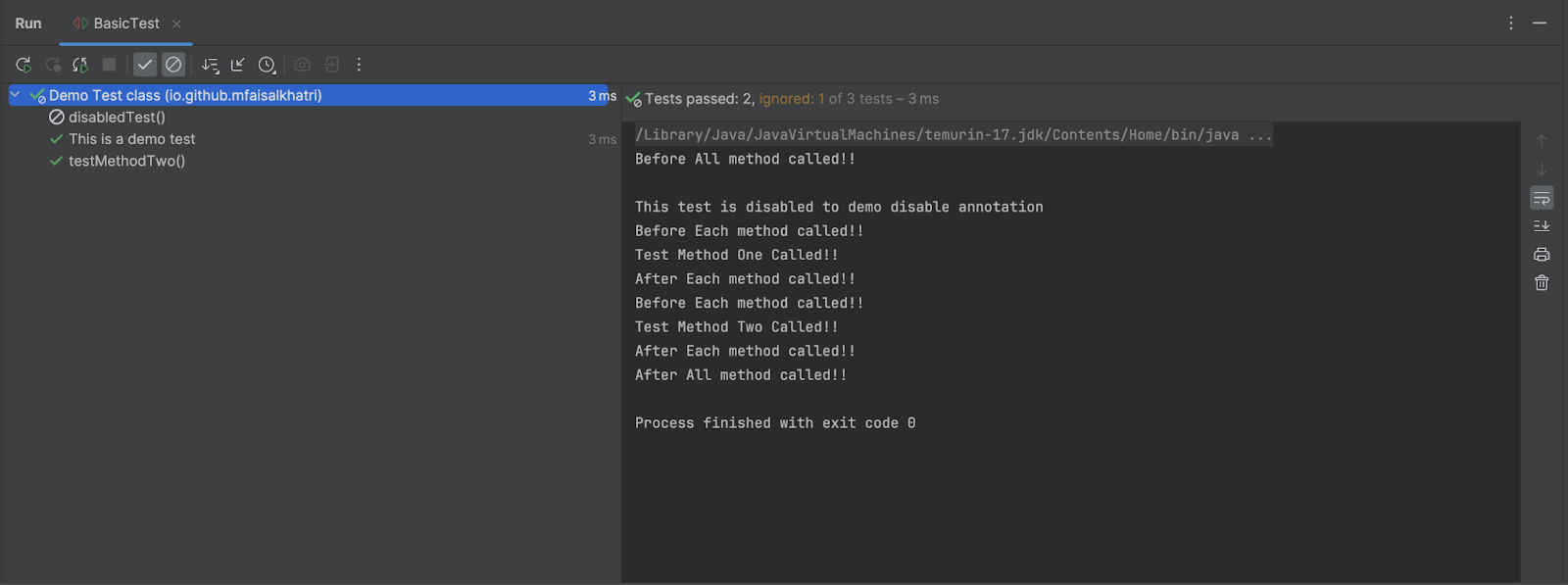
As shown in the screenshot above, the display name of the test class is printed. You can also see the disabled test along with the reason for its disabling, which is displayed in the console. All other test methods, including the setup (before) and teardown (after) ones, were executed as expected.
Writing JUnit Test Cases With Assertions
Let’s look at how to use JUnit assertions to write test cases. For this, we will use JUnit 5.
Test Scenario 1:
- Perform assertion using the assertEquals() method to check two values.
Test Implementation:
Let’s create a new AssertionsDemoTest class to demonstrate the test scenario.
Test Scenario 1 will be implemented by adding a new testStringAssertions() method.
@Test
public void testStringAssertions() {
   String expectedString = "LambdaTest";

   Assertions.assertEquals(expectedString, "LambdaTest");
}
The expectedString variable has been defined as a String and assigned the value TestMu AI to it. The assertEquals() method from the Assertions class in JUnit 5 is used to perform assertion and check that the expectedString’s value equals TestMu AI.
Test Execution:
The following test execution screenshot from IntelliJ shows that the assertion was performed successfully, with the test passing confirming that the expected and the actual string values match.
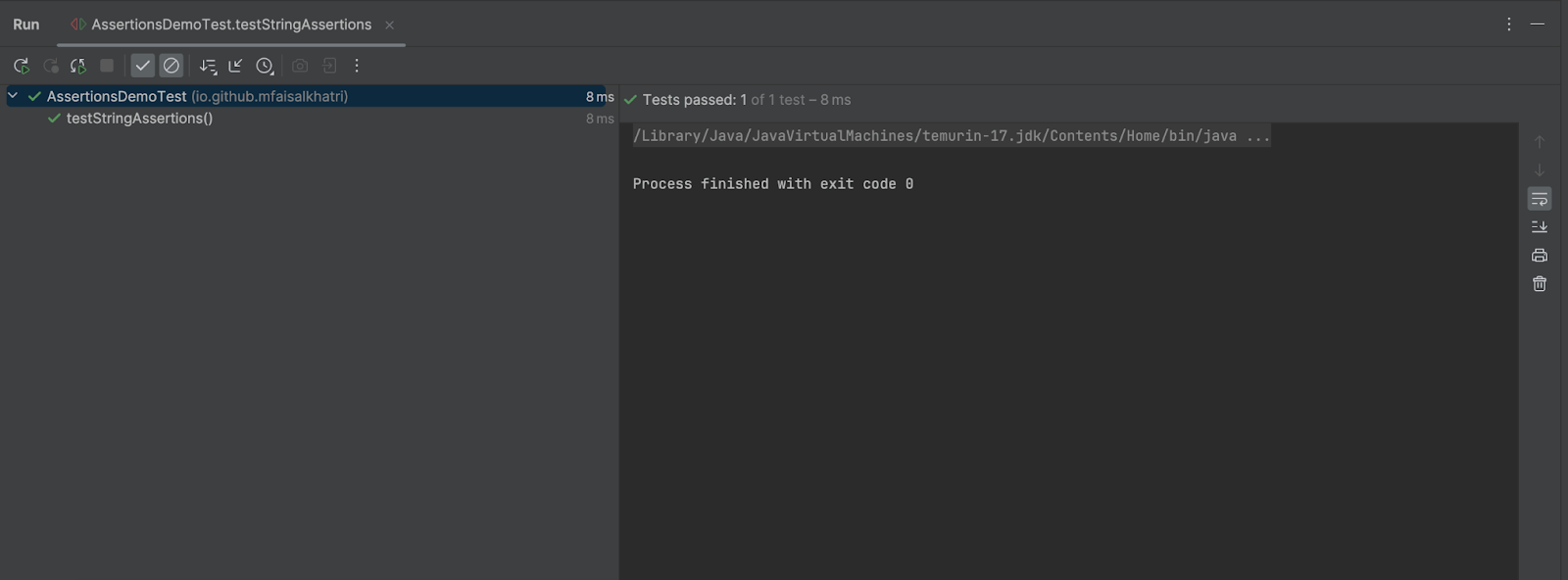
Now, let’s change the expectedString value to lambdatest and re-run the same test again:
@Test
public void testStringAssertions() {
   String expectedString = "lambdatest";

   Assertions.assertEquals(expectedString, "LambdaTest");
}
It can be seen in the screenshot that JUnit provides a detailed output in the console with the assertion failure and shows the expected and actual results.
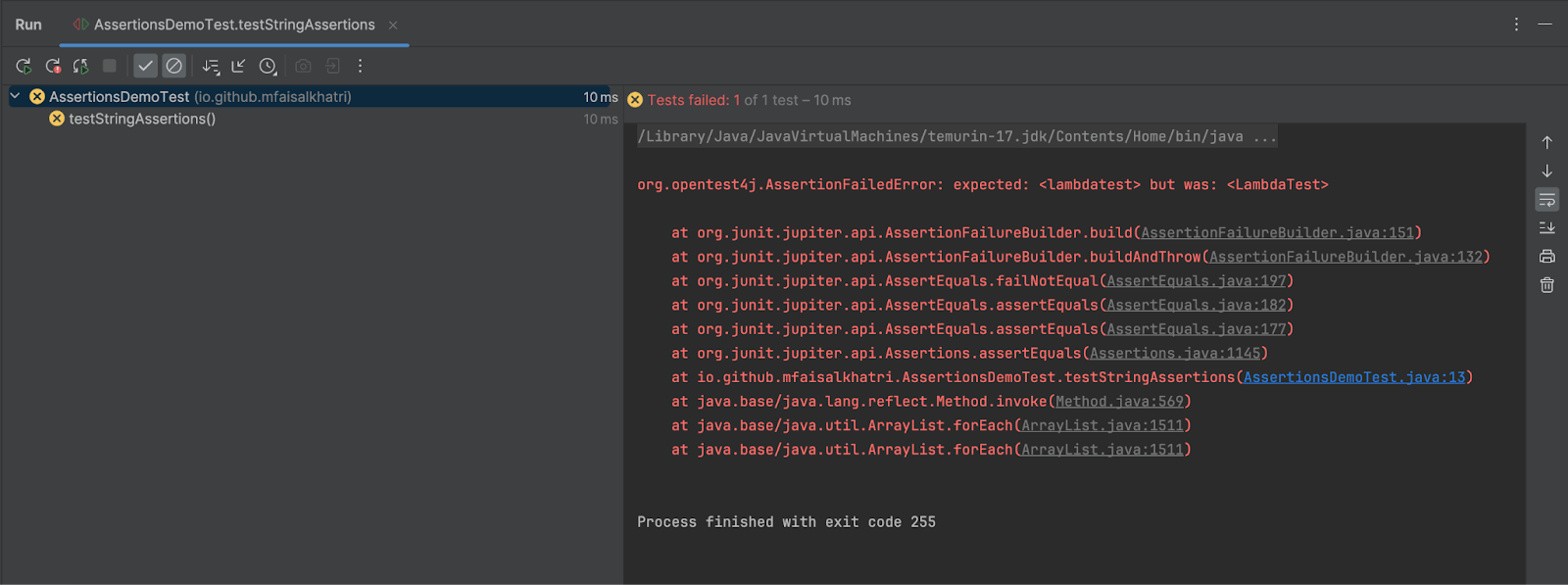
Similarly, we can also perform assertions related to numbers, arrays and other data types.
Test Scenario 2:
- Perform assertion using the assertTrue() method to check the boolean values.
Test Implementation:
A testBooleanAssertion() method is added to the existing AssertionsDemoTest class that will implement this test scenario.
@Test
public void testBooleanAssertion() {

   boolean isValid = false;
   Assertions.assertTrue(isValid);
}
In this test method, the isValid boolean variable has been assigned the value false. The assertTrue() method will check that the boolean variable has the value true to perform the assertion.
This test should fail as the assertTrue() method checks that the boolean is true; however, we have set the value of the variable to false.
Test Execution:
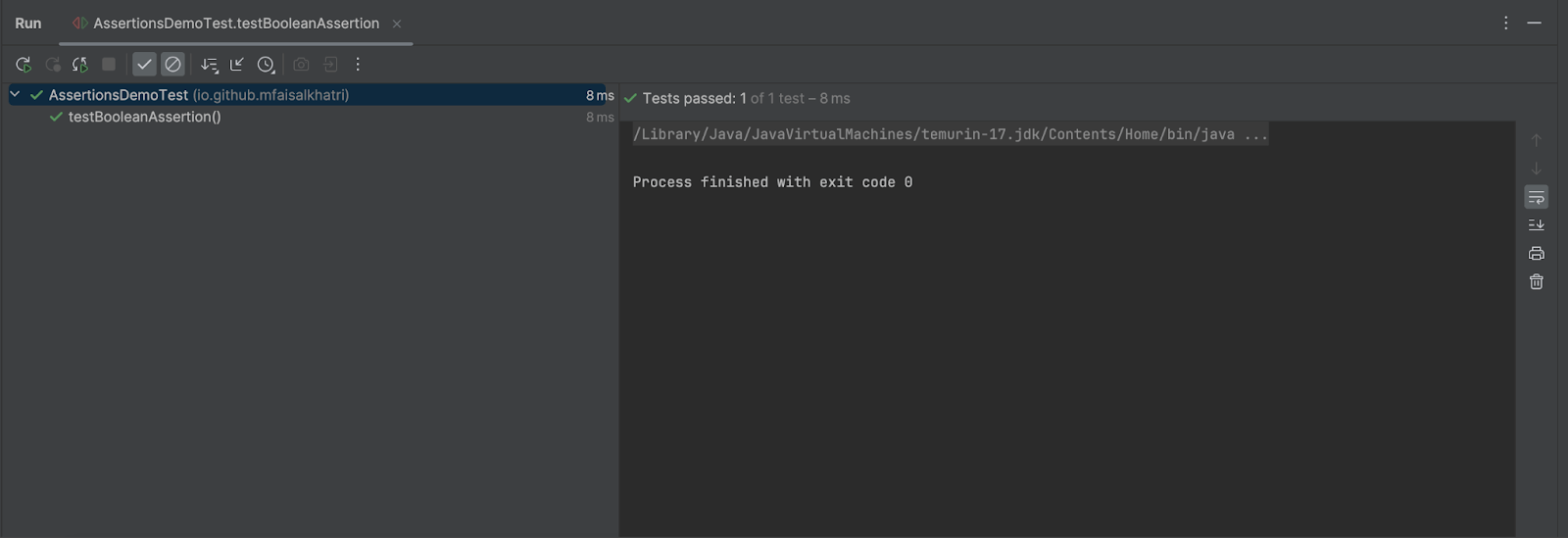
The following screenshot of the test execution shows the test failure and accordingly prints the failure log in the console with the stack trace.
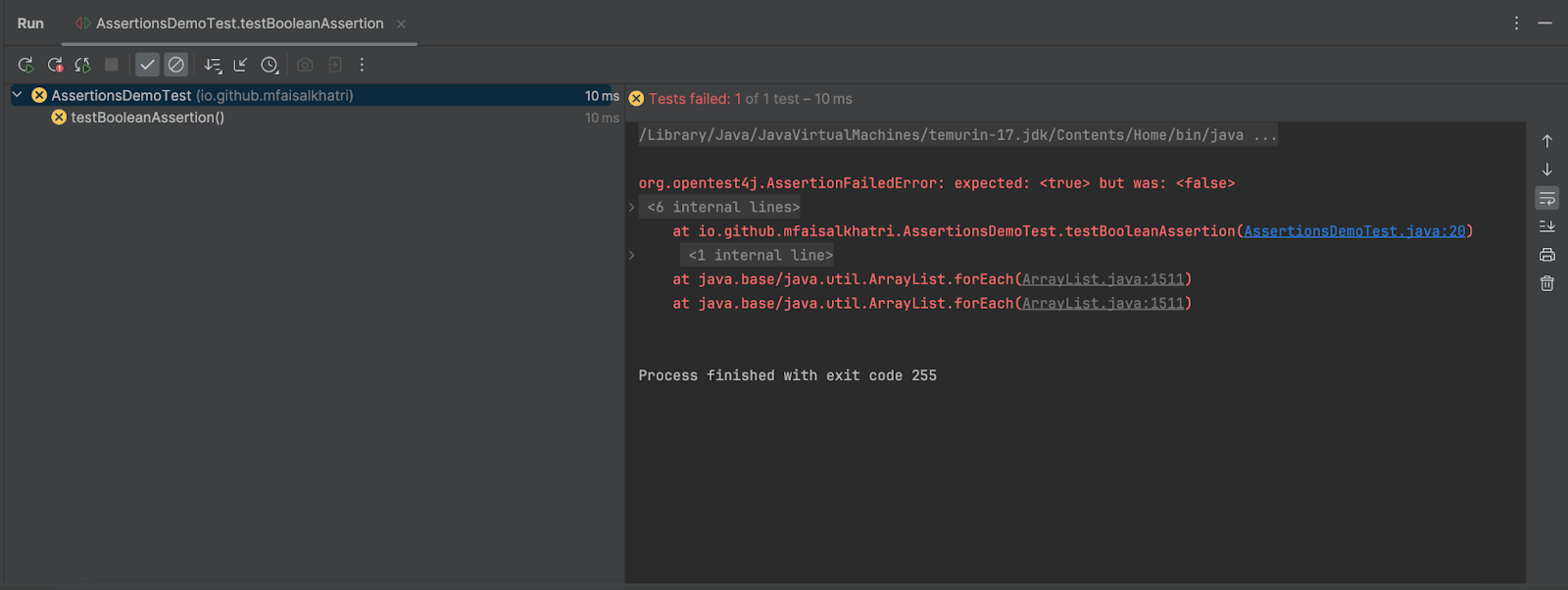
Now, let’s change the assertion to the assertFalse() method and re-run the same test again.
@Test
public void testBooleanAssertion() {

   boolean isValid = false;
   //Assertions.assertTrue(isValid);
   Assertions.assertFalse(isValid);
}
The assertFalse() method checks whether the boolean variable provided in the parameter has the value false in it. And since the variable is already assigned the value false, this test will pass.
How to Write JUnit Test Cases on the Cloud?
To achieve maximum browser and OS coverage, running JUnit test cases over the cloud ensures access to a wide range of environments and also speeds up execution with parallel testing and eliminates infrastructure setup overhead.
For example, running JUnit test cases over the cloud, like on TestMu AI, provides effortless access to multiple web browsers online for comprehensive cross-browser and platform testing.
TestMu AI is an AI-powered test execution that offers automation testing with JUnit. It also boosts efficiency with parallel execution, reducing time and effort.

We will be performing the basic level unit test of the login page by logging in with valid credentials on the TestMu AI eCommerce Playground website.
Test Scenario:
- Navigate to the Login page of the TestMu AI eCommerce Playground website.
- Enter a valid username and password in the respective fields.
- Click on the Login button.
- Check that the page header “My Account” is displayed after successful login.
Test Implementation:
A new LoginTest class is created in the existing project to validate this test scenario. The setup() method will run before any of the tests execute and will help in setting up the RemoteWebDriver session on the TestMu AI cloud grid.
@BeforeAll
public static void setup () {
   final String userName = System.getenv ("LT_USERNAME") == null ? "LT_USERNAME" : System.getenv ("LT_USERNAME");
   final String accessKey = System.getenv ("LT_ACCESS_KEY") == null
                            ? "LT_ACCESS_KEY"
                            : System.getenv ("LT_ACCESS_KEY");
   final String gridUrl = "@hub.lambdatest.com/wd/hub";
   try {
       driver = new RemoteWebDriver (new URL ("http://" + userName + ":" + accessKey + gridUrl),
           getChromeOptions ());
   } catch (final MalformedURLException e) {
       System.out.println ("Could not start the remote session on LambdaTest cloud grid");
   }
   driver.manage ()
       .timeouts ()
       .pageLoadTimeout (Duration.ofSeconds (10));
}
The TestMu AI Username and Access Key are mandatorily required to run the tests on the TestMu AI cloud grid. Similarly, the gridURL allows connecting to the remote session on the cloud.
The getChromeOptions() method provides the necessary capabilities like browser name, browser version, and other capabilities like selenium version, build name, test name, plugin, etc.
public static ChromeOptions getChromeOptions () {
   final ChromeOptions browserOptions = new ChromeOptions ();
   browserOptions.setPlatformName ("Windows 10");
   browserOptions.setBrowserVersion ("130.0");
   final HashMap<String, Object> ltOptions = new HashMap<String, Object> ();
   ltOptions.put ("project", "LambdaTest E-Commerce Playground");
   ltOptions.put ("build", "LambdaTest E-Commerce Login page");
   ltOptions.put ("name", "Unit Test for Login Page");
   ltOptions.put ("selenium_version", "4.0.0")
   ltOptions.put ("w3c", true);
   ltOptions.put ("plugin", "java-testNG");

   browserOptions.setCapability ("LT:Options", ltOptions);

   return browserOptions;
}
These capabilities can be set using the Automation Capabilities Generator which allows users to set the capabilities using UI and generates the required code that could be used directly in the test scripts.
The tearDown() method that has the @AfterAll annotation, will be called after all the tests are executed. It will gracefully close the RemoteWebDriver session on the TestMu AI cloud.
The testLoginFunction() method will implement the test scenario. It will first navigate to the TestMu AI eCommerce Playground website, locate the WebElement for the Email-Address field and enter the valid email ID – [email protected] in the respective field.
@Test
public void testLoginFunction () {
   driver.get ("https://ecommerce-playground.lambdatest.io/index.php?route=account/login");

   WebElement emailAddressField = driver.findElement (By.id ("input-email"));
   emailAddressField.sendKeys ("[email protected]");

   WebElement passwordField = driver.findElement (By.id ("input-password"));
   passwordField.sendKeys ("Password123");

   WebElement loginBtn = driver.findElement (By.cssSelector ("input.btn"));
   loginBtn.click ();

   String myAccountHeader = driver.findElement (By.cssSelector ("#content h2"))
       .getText ();
   assertEquals (myAccountHeader, "My Account");

}
Next, it will locate the Password field and enter the valid password – Password123 in the respective field. It will locate the Login button and then click on it to perform the login operation.
After logging in, it will locate the page header and assert that its text equals “My Account”.
Test Execution:
The following screenshot of the test execution shows the test execution was successful on the TestMu AI cloud grid. The TestMu AI Web Automation dashboard shows insightful test execution details, including screenshots and video recordings of the test.
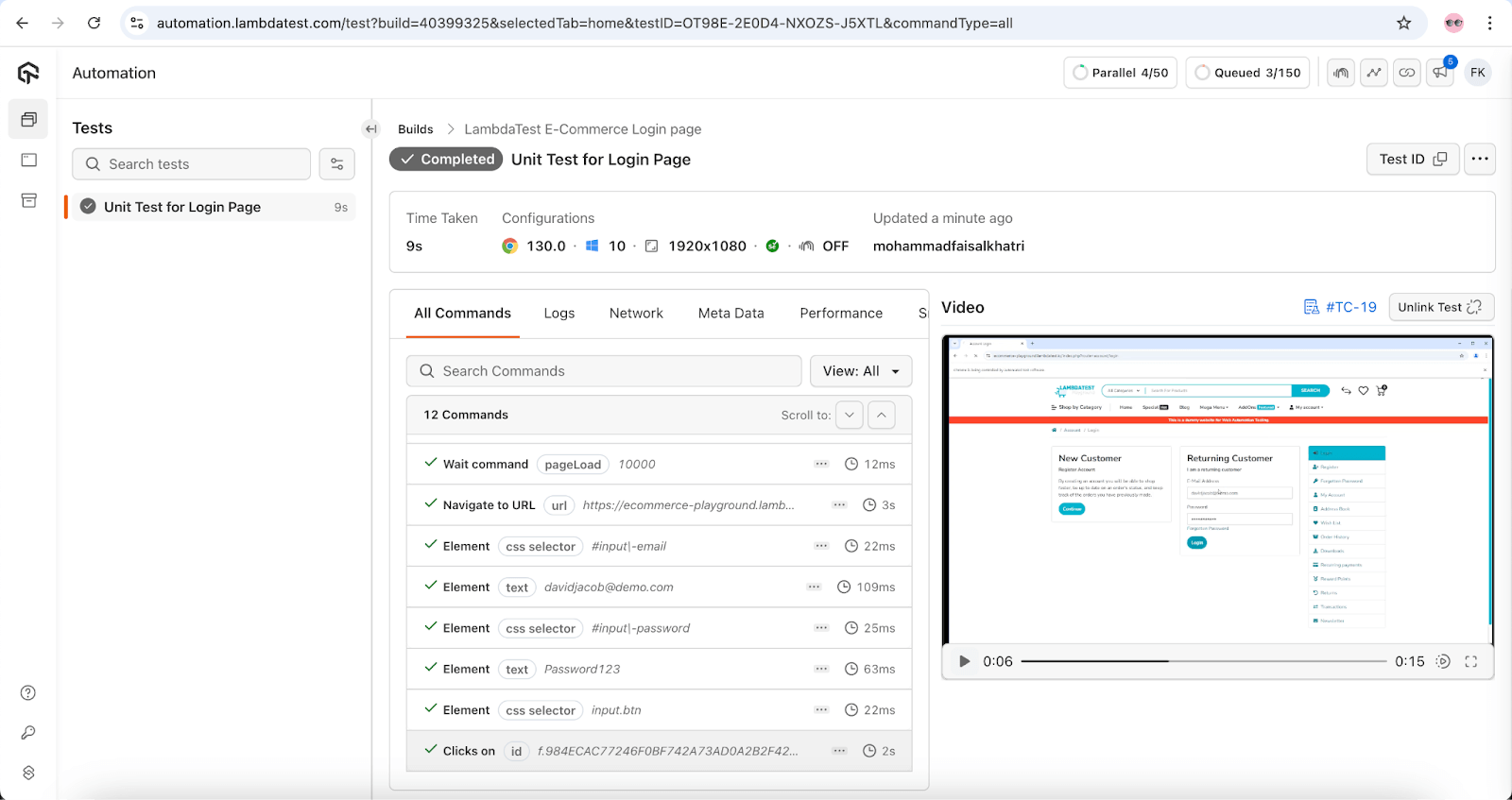
It also displays the step by step test execution details that can help the testing team analyze the test execution briefly.
Once you understand how to write JUnit test cases on the cloud, leveraging cloud platforms for scalability and parallel execution, it’s important to know how cloud testing integrates with different versions of JUnit.
Before we compare JUnit 4 and JUnit 5, here’s a quick video tutorial that walks you through executing JUnit 5 test scripts step-by-step.
JUnit 4 vs JUnit 5 – A Comparison
With the release of the latest version of JUnit, i.e. JUnit 5, there are multiple changes and new features added to the framework. Understanding these changes is also key for teams planning JUnit 6 migration in the future. The differences between the two versions JUnit 4 and JUnit 5 are listed below:
| Criteria | JUnit 4 | JUnit 5 |
|---|---|---|
| Architecture | In JUnit 4, everything was packaged together in a single JAR file. | JUnit 5 has been divided into 3 sub-projects: JUnit Platform, JUnit Jupiter, JUnit Vintage. |
| JDK Version Requirement | Requires Java 5 or higher. | Requires Java 8 or higher. |
| 3rd Party Integration | No 3rd party integration support for plugins and IDEs. | Has a dedicated sub-project, i.e. JUnit platform that could be used for 3rd party integrations. |
| Support for Nested Tests | No annotation provided for writing nested tests. | Provides @Nested annotation to write nested tests. |
| Support for Registering Custom Extensions | No support for custom extensions. | Provides @ExtendsWith annotation that could be used to register custom extensions. |
| Annotation Changes | JUnit 4 annotations: @BeforeClass @AfterClass @Before @After @Ignore | JUnit 5 updated annotation: @BeforeAll @AfterAll @BeforeEach @AfterEach @Disabled |
| Annotation Changes for Tagging and Filtering | @Category annotation is used. | @Tag annotation is used. |
| Test Suites | @RunWith and @Suite annotation are used. | @Suite, @SelectPackages, @SelectClasses annotations are used. |
JUnit 5 improves upon JUnit 4 by introducing a more flexible and modular structure, making it easier to manage and execute tests. One key enhancement is the introduction of more specific annotations for test lifecycle management. Let’s look at some of these annotations in JUnit 5.
Basic Annotations Used in JUnit 5
Following are some basic annotations that you can use while writing JUnit 5 tests:
- @BeforeAll: The @BeforeAll annotation indicates that the annotated method should be executed before any @Test, @RepeatedTest, @ParameterizedTest, or @TestFactory methods in the current class. It must be a static method in the test class. @BeforeAll serves as the replacement for the @BeforeClass annotation used in JUnit 4.
Syntax:
public class BasicTest {

   @BeforeAll
   public static void beforeAllTest() {

       System.out.println("Before All method called!!");
   }

//..
}
Syntax:
public class BasicTest {

   @BeforeEach
   public void beforeEachTest() {
       System.out.println("Before Each method called!!");
   }

}
Syntax:
public class BasicTest {

@AfterAll
public static void afterAllMethod() {
   System.out.println("After All method called!!");
   }
}
Syntax:
public class BasicTest {

@AfterEach
public void afterEachMethod() {
   System.out.println("After Each method called!!");
   }
}
Syntax:
public class BasicTest {

@Test
public void testMethod() {
   System.out.println("Test Method Called!!");
  }
}
Syntax:
@DisplayName("Demo Test class")
public class BasicTest {

@DisplayName("This is a demo test")
@Test
public void testMethod() {
   System.out.println("Test Method Called!!");
   }
}
Syntax:
public class BasicTest {

@Disabled("Test method disabled")
public void testMethod() {
   System.out.println("Test Method Called!!");
 }
}
Best Practices to Write JUnit Test Cases
Here are five best practices to follow when writing JUnit test cases:
- Write Clear and Descriptive Test Names: Use meaningful names that explain what the test is checking. For example, use the shouldReturnTrueWhenInputIsValid() method instead of something generic like the testValidation() method. It makes it easier to understand the purpose of the test at a glance.
- Follow the Arrange-Act-Assert (AAA) Pattern: Structure your tests into three clear sections:
- Test One Thing at a Time: Ensure each test case focuses on a single behavior or scenario. It simplifies debugging when a test fails and helps maintain clarity.
- Use Assertions: Use appropriate assertion methods (assertEquals, assertThrows, etc.) to validate outcomes effectively. Avoid excessive assertions in a single test, as it can make identifying issues harder.
- Keep Tests Independent: Avoid dependencies between tests. Each test should run in isolation and not rely on the results or state of another test. Use setup (@BeforeEach) and teardown (@AfterEach) methods to initialize or clean up as needed.
Conclusion
JUnit simplifies writing and executing unit test cases, making it a favorite among developers and testers for unit testing. It provides powerful features to validate code functionality and ensure reliability. With its rich set of annotations and methods for assertions and verifications, JUnit allows you to create precise and well-structured test cases with ease.
Beyond just running tests, JUnit offers detailed test reports that help demonstrate execution results and showcase test coverage to stakeholders.
Citations
Best Practices to Write JUnit Test Cases
Conclusion
Citations
- JUnit 5 User Guide: https://junit.org/junit5/docs/current/user-guide/
- Writing Tests with JUnit 5: https://blog.jetbrains.com/idea/2020/09/writing-tests-with-junit-5/


Frequently asked questions
Did you find this page helpful?
More Related Hubs
TestMu AI forEnterprise
Get access to solutions built on Enterprise
grade security, privacy, & compliance
- Advanced access controls
- Advanced data retention rules
- Advanced Local Testing
- Premium Support options
- Early access to beta features
- Private Slack Channel
- Unlimited Manual Accessibility DevTools Tests