

Next-Gen App & Browser Testing Cloud
Trusted by 2 Mn+ QAs & Devs to accelerate their release cycles


How To Run Selenium Tests Using IE Driver?
Check this complete tutorial on how to automate web app testing on IE using Selenium IE driver on Python, Java, C#, and PHP. Read more.

Himanshu Sheth
December 26, 2025
When anyone refers to automated browser testing, it somehow means that the testing will be performed on the latest browsers like Chrome, Firefox, etc. It would come as a surprise if someone from your team meant that the testing should be done on IE (or Internet Explorer) using Selenium IE Driver or Selenium Internet Explorer Driver.

Internet Explorer was once a dominant player in the browser market but lost its dominance to other players like Chrome, Firefox, and few others. Its current market share is steadily declining, and it currently holds 1.19 percent of browser market share. But even 1 percent contributes to a significant internet user base; hence testing on Internet Explorer definitely still makes sense.
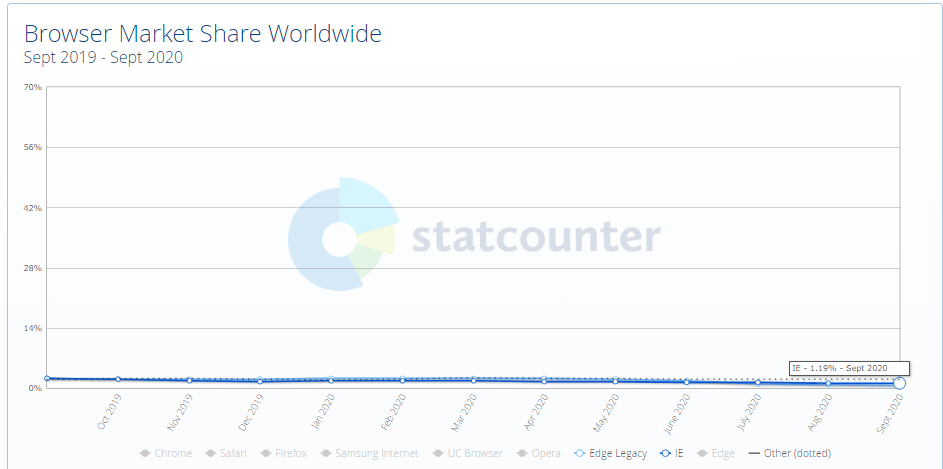
In this blog, we look at how you can automate the testing of web applications on IE using Selenium IE driver. We would be showcasing the usage of Selenium Internet Explorer driver using Python, Java, C#, and PHP. If you’re looking to improve your Selenium interview skills, check out our curated list of Selenium interview questions and answers.
What is Selenium IE Driver?
The Selenium IE Driver is a pivotal tool for web automation testers. Specifically designed for the Internet Explorer browser, this WebDriver enables seamless interaction and execution of Selenium tests. Dive into its features, benefits, and usage below.
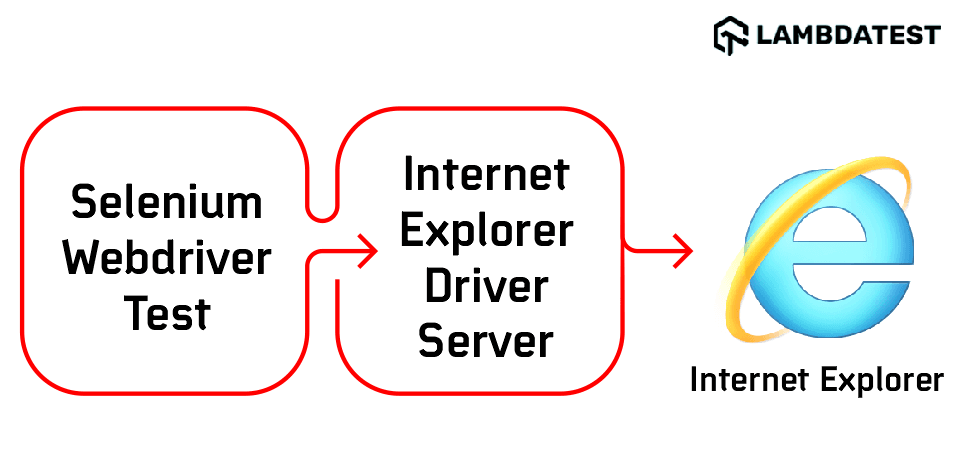
To get started with cross browser testing with IE, you first need to download and set up the Selenium Internet Explorer Driver. So download the Selenium IE driver – one that is inline with the machine architecture (i.e., 32-bit or 64-bit).
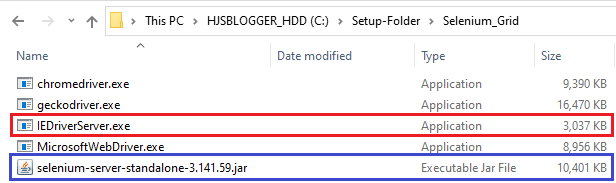
Append the location where the IEDriverServer.exe is present to the environment variable PATH. For testing with Selenium IE driver on a local Selenium Grid, i.e., to run our Selenium tests, we recommend using the latest available stable Selenium Grid Server (i.e., 3.141.59). You can download the Selenium Grid Server from the official Selenium Dev website.
As shown below, it is recommended to keep the Selenium Grid Server and Selenium IE driver in the same location.

How to setup Internet Explorer for automation testing?
Since IE is an outdated browser, you need to perform a set of prerequisite steps to be ready for cross browser testing. Here are essential configurations necessary to setup IE for cross browser testing:
1. Configuration of Protection Mode
The Protection Mode in IE has to be set up properly; else, the test would result in a NoSuchWindowException. The protection for every zone in IE should be the same. Small, Medium-High, and High are the three protection modes in IE.
For example, if the protection mode for one zone (e.g., the Internet) is set to Small, the same should also be set for all other zones.
So go to Tools ? Internet Options ? Security in IE to set the protection mode.
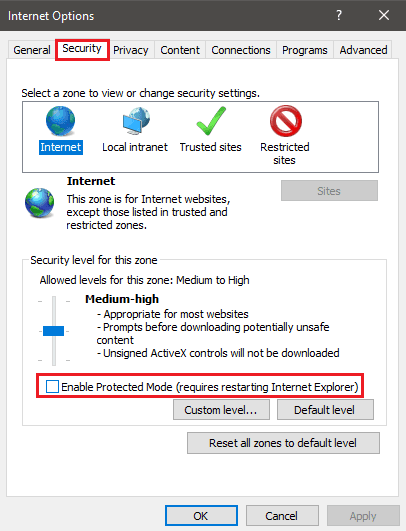
For automation testing using Selenium IE driver, we disable protection mode for all the zones – Internet, Local Intranet, Trusted Sites, and Restricted Sites. You should restart IE for the changes to take effect.
2. Setting Browser Zoom Level to 100 percent
Improper browser zoom level could result in improper handling of native mouse events. It is recommended to set the zoom level to 100 percent. For setting the zoom level, go to the View menu item and point to Zoom. Choose the Zoom level as 100 percent and restart IE for the changes to take effect.
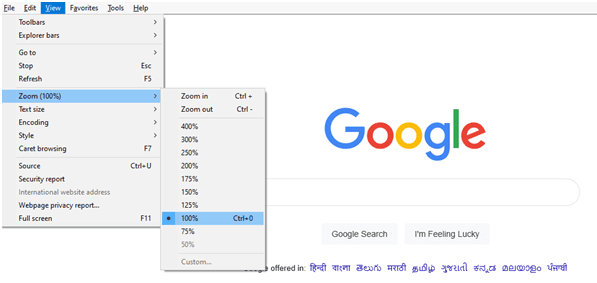
3. iexplore.exe entry in Windows Registry
You might encounter issues when performing automation testing on a web page that has dynamic content. You would witness significant lag during the handling of web elements loaded using AJAX (Asynchronous JavaScript and XML).
Create an entry iexplore.exe in the Windows registry for ensuring a better experience with the automation testing.
Create a sub-key FEATURE_BFCACHE, if it is not present. Post that, you should create an entry iexplore.exe of type DWORD. Assign ‘0’ to the iexplore.exe entry.

4. Using 32-bit Selenium IE driver
If you still continue to face issues with automation testing on IE, replace the 64-bit Selenium IE driver with a 32-bit Selenium IE driver. Append the location where 32-bit IEDriverServer is present to the environment variable PATH.
With this, all the configurations for IE and Selenium IE Driver are complete. We are all set to demonstrate how to run Selenium tests on IE using Selenium Internet Explorer Driver for Python, Java, C#, and PHP.
How to configure Selenium IE driver?
We take a sample scenario that explains how to perform automated browser testing on IE. We initially demonstrate the test on the local Selenium Grid, and later we port the same code to make it work on cloud-based Selenium Grid on TestMu AI.
In case you require a quick recap on web locators, refer to our earlier blog that demonstrates locators in Selenium WebDriver (with comprehensive examples).
How to configure Selenium IE driver in Selenium Python?
For invoking the IE browser in Selenium with Python, you have to select the Ie class and create an object of the class. The path where the Selenium IE driver (i.e., IEDriverServer.exe) is located has to be added to webdriver.Ie method which invokes the IE browser.
web_driver = webdriver.Ie("Path to IEDriverServer.exe")
In our case, the Selenium IE driver is located at C:\Setup-Folder\Selenium_Grid, and this is how we invoked the IE browser on our machine using Selenium Python.
web_driver = webdriver.Ie("C:\Setup-Folder\Selenium_Grid\IEDriverServer.exe")
How to configure Selenium IE driver in Selenium Java?
For invoking the IE browser in Selenium with Java, we use the System.setProperty method for setting webdriver.ie.driver (which is the key) to the path where IEDriverServer.exe (which acts as the key) is present. After setting the path to Selenium IE driver, we instantiate the IE driver class.
/* Defining the property webdriver.ie.driver */
System.setProperty("webdriver.ie.driver", "Path to IEDriverServer.exe ");

/* Instantiate the IE Driver Class */
driver = new InternetExplorerDriver();
In our case, the Selenium IE driver is located at C:\Setup-Folder\Selenium_Grid, and this is how we invoked the IE browser on our machine using Selenium Java.
System.setProperty("webdriver.ie.driver", "C:\Setup-Folder\Selenium_Grid\IEDriverServer.exe");

driver = new InternetExplorerDriver();
How to configure Selenium IE driver in Selenium C#?
For invoking the IE browser in Selenium with C#, first use (or import) the OpenQA.Selenium.IE namespace. This namespace contains the InternetExplorerDriver class that provides a mechanism to access IE for running tests by creating a InternetExplorerDriver instance.
The next step is adding the Selenium IE Driver to execute scripts on IE. For this, create a new instance of the InternetExplorerOptions class and set the IntroduceInstabilityByIgnoringProtectedModeSettings to True. With this option, we ignore the Protected Mode settings in IE so that incorrect settings do not cause any issues in our test. You can also set the InitialBrowserUrl property to set the initial URL when IE is launched.
var options = new InternetExplorerOptions()
{
    InitialBrowserUrl = URL,
    IntroduceInstabilityByIgnoringProtectedModeSettings = true
};
Create an instance of the InternetExplorerDriver with the following arguments:
- Path to Selenium IE Driver (i.e., IEDriverServer.exe)
- Options which were earlier created using InternetExplorerOptions
In languages like Java and Python, the name of the Selenium Internet Explorer Driver executable is passed in the path. In Selenium C#, only the path to the folder that contains IEDriverServer.exe has to be sent to the instance of InternetExplorerDriver.
driver = new InternetExplorerDriver(@"<Path to the folder that contains IEDriverServer.exe", options);
In our machine, the Selenium IE driver is located at C:\Setup-Folder\Selenium_Grid. This is how we invoked the IE browser on our machine using Selenium C#.
private const string URL = "Test_URL";
private const string IE_DRIVER_PATH = @"C:Setup-FolderSelenium_Grid";

var options = new InternetExplorerOptions()
{
     InitialBrowserUrl = URL,
     IntroduceInstabilityByIgnoringProtectedModeSettings = true
};

driver = new InternetExplorerDriver(IE_DRIVER_PATH , options);
How to configure Selenium IE driver in Selenium PHP?
For invoking IE in Selenium PHP when a local Selenium Grid is used, the URL of the running Selenium Grid Server has to be passed during the process of session creation.
/* selenium-server-standalone-#.jar (version 3.x) */
$host = 'http://localhost:4444/wd/hub';

/* selenium-server-standalone-#.jar (version 4.x) */
$host = 'http://localhost:4444';
Import the required classes required for invocation of IE browser in Selenium PHP.
use PHPUnitFrameworkTestCase;
use FacebookWebDriverRemoteDesiredCapabilities;
use FacebookWebDriverRemoteRemoteWebDriver;
use FacebookWebDriverWebDriverBy;
For starting the InternetExplorerDriver in PHPUnit tests (i.e., the default test framework in PHP), set the Desired Capabilities for defining the properties of IE browser. Use the create method of RemoteWebDriver class for invoking an instance of IE browser.
protected $webDriver;

$capabilities = DesiredCapabilities:: InternetExplorer();
$this->webDriver = RemoteWebDriver::create($host, $capabilities);
How to run tests using Selenium IE driver?
Now that we have detailed insights into configuring the Selenium IE driver with popular programming languages, let’s look at a test scenario that demonstrates the IE browser launching in Selenium.
Test Scenario
- Navigate to the URL https://lambdatest.github.io/sample-todo-app/ in Internet Explorer
- Select the first two checkboxes
- Send ‘Happy Testing at TestMu AI’ to the textbox with id = sampletodotext
- Click the Add Button and verify whether the text has been added or not
- Assert if the title does not match with the expected window title
Now let’s see how to write and run the Selenium tests for the above scenario in Python, Java, C#, and PHP, using Selenium Internet Explorer Driver.
How to run tests using Selenium IE driver in Selenium Python?
For demonstrating the use of Selenium IE driver in Python, we use the PyTest framework for implementing the scenario.
import pytest
from selenium import webdriver
import sys
from selenium.webdriver.common.keys import Keys
from time import sleep

def test_lambdatest_todo_app():

    web_driver = webdriver.Ie("C:\Setup-Folder\Selenium_Grid\IEDriverServer.exe")

    web_driver.get('https://lambdatest.github.io/sample-todo-app/')
    web_driver.maximize_window()

    web_driver.find_element_by_name("li1").click()
    web_driver.find_element_by_name("li2").click()

    title = "Sample page - lambdatest.com"
    assert title == web_driver.title

    sample_text = "Happy Testing at LambdaTest"
    email_text_field = web_driver.find_element_by_id("sampletodotext")
    email_text_field.send_keys(sample_text)
    sleep(5)

    web_driver.find_element_by_id("addbutton").click()
    sleep(5)

    output_str = web_driver.find_element_by_name("li6").text
    sys.stderr.write(output_str)

    sleep(2)
    web_driver.close()
Code WalkThrough
Lines (2-6): Import the Pytest, Selenium, and other packages required for the test.
import pytest
from selenium import webdriver
Lines (8-9): In the test case test_lambdatest_todo_app(), use the webdriver.Ie method to invoke the IE browser. The absolute path to Selenium IE driver (i.e. IEDriverServer.exe) is passed to the webdriver.Ie method.
def test_lambdatest_todo_app():
    web_driver = webdriver.Ie("C:\Setup-Folder\Selenium_Grid\IEDriverServer.exe")
Lines (14-15): Perform a click on the web elements li1, li2 that are located using the ‘name’ property.
web_driver.find_element_by_name("li1").click()
web_driver.find_element_by_name("li2").click()
Lines (20-22): Locate the element with ID ‘sampletodotext’ and pass the text ‘Happy Testing at TestMu AI’ using the send_keys Selenium API.
sample_text = "Happy Testing at LambdaTest"
email_text_field = web_driver.find_element_by_id("sampletodotext")
email_text_field.send_keys(sample_text)
Lines (25): The click method is performed on the web element with ID ‘addbuton’. The Selenium driver method find_element_by_id is used for locating that element by its ID.
web_driver.find_element_by_id("addbutton").click()
Execution
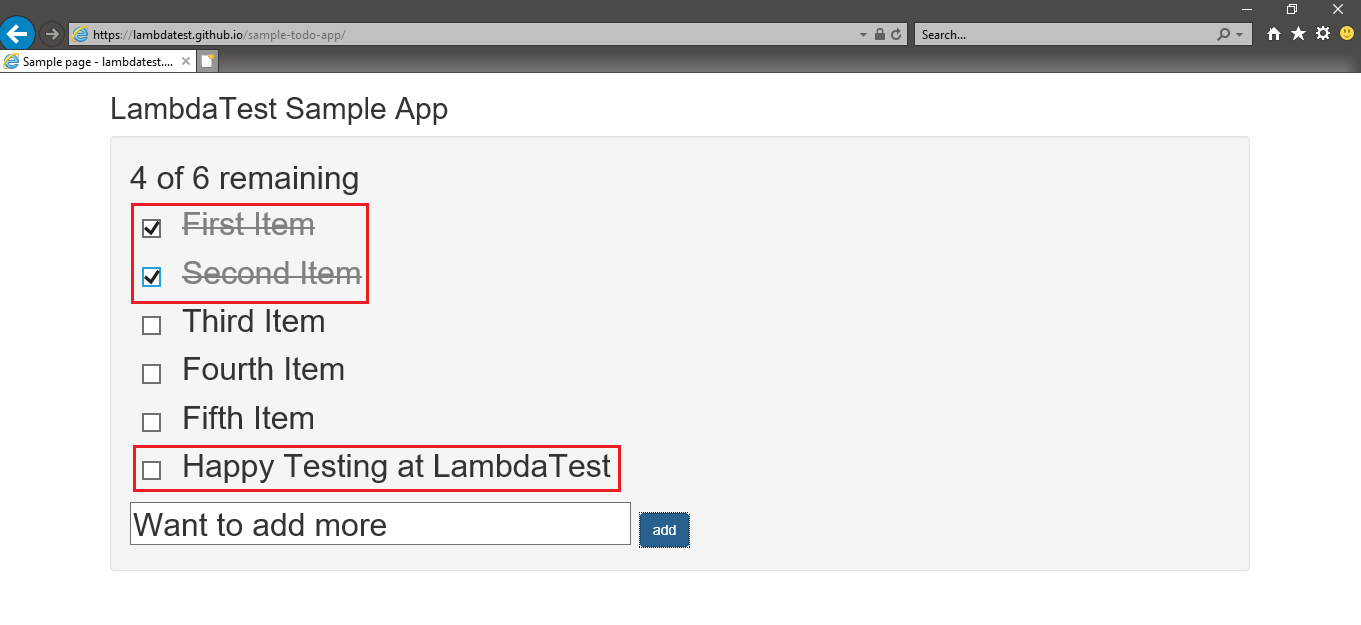
Run the command pytest < filename.py > --verbose –capture=no to run the above Selenium test. The execution snapshot below shows that the IE browser was invoked, and required operations were successfully performed on the web elements.

How to run tests using Selenium IE driver in Selenium Java?
For demonstrating the use of Selenium IE driver in Java, we use the TestNG framework for implementing the scenario.
<?xml version="1.0" encoding="UTF-8"?>
<project xmlns="http://maven.apache.org/POM/4.0.0"
         xmlns:xsi="http://www.w3.org/2001/XMLSchema-instance"
         xsi:schemaLocation="http://maven.apache.org/POM/4.0.0 http://maven.apache.org/xsd/maven-4.0.0.xsd">
    <modelVersion>4.0.0</modelVersion>

    <groupId>org.example</groupId>
    <artifactId>org.selenium4.CrossBrowserTest</artifactId>
    <version>1.0-SNAPSHOT</version>

    <properties>
        <project.build.sourceEncoding>UTF-8</project.build.sourceEncoding>
    </properties>

    <dependencies>
        <!-- https://mvnrepository.com/artifact/com.github.lambdatest/lambdatest-tunnel-binary -->
        <dependency>
            <groupId>org.testng</groupId>
            <artifactId>testng</artifactId>
            <version>6.9.10</version>
            <scope>test</scope>
        </dependency>
        <dependency>
            <groupId>org.seleniumhq.selenium</groupId>
            <artifactId>selenium-java</artifactId>
            <version>4.0.0-alpha-6</version>
        </dependency>
        <dependency>
            <groupId>org.seleniumhq.selenium</groupId>
            <artifactId>selenium-chrome-driver</artifactId>
            <version>4.0.0-alpha-6</version>
        </dependency>
        <dependency>
            <groupId>io.github.bonigarcia</groupId>
            <artifactId>webdrivermanager</artifactId>
            <version>4.1.0</version>
        </dependency>
        <!-- https://mvnrepository.com/artifact/org.slf4j/slf4j-nop -->
        <dependency>
            <groupId>org.slf4j</groupId>
            <artifactId>slf4j-nop</artifactId>
            <version>1.7.28</version>
            <scope>test</scope>
        </dependency>
        <!-- https://mvnrepository.com/artifact/junit/junit -->
        <dependency>
            <groupId>junit</groupId>
            <artifactId>junit</artifactId>
            <version>4.13</version>
            <scope>test</scope>
        </dependency>
        <dependency>
            <groupId>com.github.lambdatest</groupId>
            <artifactId>lambdatest-tunnel-binary</artifactId>
            <version>1.0.4</version>
        </dependency>
    </dependencies>

    <build>
        <defaultGoal>install</defaultGoal>
        <plugins>
            <plugin>
                <artifactId>maven-compiler-plugin</artifactId>
                <version>3.0</version>
                <configuration>
                    <source>1.8</source>
                    <target>1.8</target>
                </configuration>
            </plugin>
            <plugin>
                <groupId>org.apache.maven.plugins</groupId>
                <artifactId>maven-surefire-plugin</artifactId>
                <version>2.12.4</version>
                <configuration>
                    <suiteXmlFiles>
                        <!-- TestNG suite XML files -->
                        <suiteXmlFile>testng.xml</suiteXmlFile>
                    </suiteXmlFiles>
                </configuration>
            </plugin>
            <plugin>
                <groupId>org.apache.maven.plugins</groupId>
                <artifactId>maven-surefire-report-plugin</artifactId>
                <version>3.0.0-M5</version>
            </plugin>
        </plugins>
    </build>
</project>
package org.selenium4;

import org.openqa.selenium.By;
import org.openqa.selenium.JavascriptExecutor;
import org.openqa.selenium.WebDriver;
import org.openqa.selenium.remote.DesiredCapabilities;
import org.openqa.selenium.remote.RemoteWebDriver;
import org.testng.annotations.AfterClass;
import org.testng.annotations.BeforeClass;
import org.testng.annotations.Test;
import org.openqa.selenium.ie.InternetExplorerDriver;
import java.net.MalformedURLException;
import java.net.URL;

public class CrossBrowserTest {
    WebDriver driver = null;
    String URL = "https://lambdatest.github.io/sample-todo-app/";
    public static String status = "passed";

    @BeforeClass
    public void testSetUp() throws MalformedURLException {
        System.setProperty("webdriver.ie.driver", "C:\Setup-Folder\Selenium_Grid\IEDriverServer.exe");
        driver = new InternetExplorerDriver();
        System.out.println("Started session");
    }

    @Test
    public void test_Selenium4_ToDoApp() throws InterruptedException {
        driver.navigate().to(URL);
        driver.manage().window().maximize();

        try {
            driver.findElement(By.name("li1")).click();
            driver.findElement(By.name("li2")).click();

            driver.findElement(By.id("sampletodotext")).sendKeys("Happy Testing at LambdaTest");
            driver.findElement(By.id("addbutton")).click();

            String enteredText = driver.findElement(By.xpath("/html/body/div/div/div/ul/li[6]/span")).getText();
            if (enteredText.equals("Happy Testing at LambdaTest")) {
                System.out.println("Demonstration of Selenium IE is complete");
            }
        } catch (Exception e) {
            System.out.println(e.getMessage());
        }
    }

    @AfterClass
    public void tearDown() {
        if (driver != null) {
            driver.quit();
        }
    }
}
Code WalkThrough
Lines (23-25): The string webdriver.ie.driver is set to the location which contains the Selenium IE driver. The InternetExplorerDriver method is used for instantiating the IE driver class.
public void testSetUp() throws MalformedURLException {
        System.setProperty("webdriver.ie.driver", "C:\Setup-Folder\Selenium_Grid\IEDriverServer.exe");
        driver = new InternetExplorerDriver();
Lines (29-30): The test method is implemented under the @Test annotation. The operations and APIs being used for performing the test are almost the same as the one used in Selenium Python.
@Test
    public void test_Selenium4_ToDoApp() throws InterruptedException

    [..]
Lines (53-58): In the tearDown method, the resources held by IE driver are freed using the quit() method in Selenium.
@AfterClass
    public void tearDown() {
        if (driver != null) {
            driver.quit();
        }
    }
The packages that have been downloaded on the machine are defined in pom.xml. Since we are using the TestNG automation framework, the class that contains the test method is included in testng.xml for execution.
<?xml version="1.0" encoding="UTF-8"?>
<!DOCTYPE suite SYSTEM "http://testng.org/testng-1.0.dtd">
<suite name="Selenium IE Driver Tests" thread-count="5" parallel="tests">
    <!-- Add the location where the project is stored in your machine -->
    <test verbose="2" preserve-order="true" name="To Do App Test">
        <classes>
            <class name="org.selenium4.CrossBrowserTest"/>
        </classes>
    </test>
</suite>
Execution
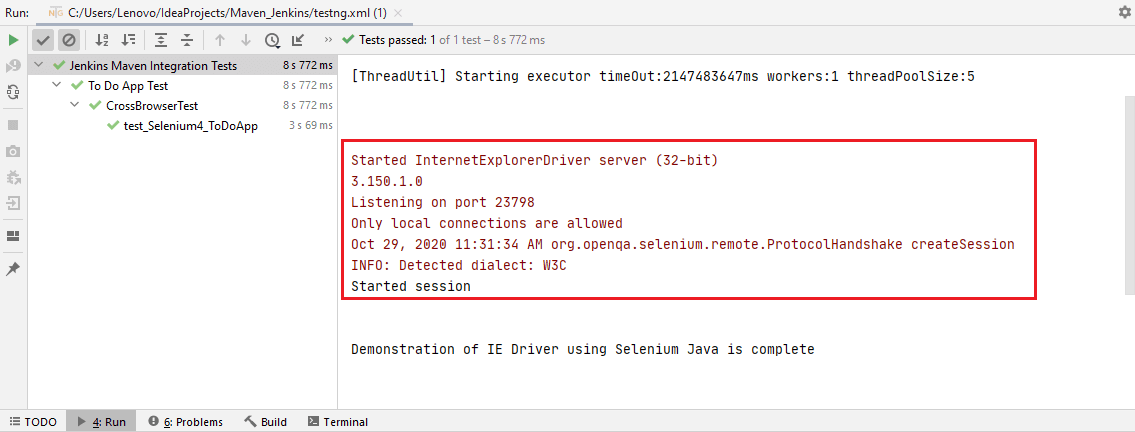
We created a TestNG project in IntelliJ IDEA that used the above test code, pom.xml, and testng.xml. As seen in the execution snapshot, the test was executed successfully.
How to run tests using Selenium IE driver in Selenium C#?
For demonstrating the use of Selenium IE driver in C#, we use the NUnit framework for implementing the scenario. We created a new NUnit project in Visual Studio 2019 for implementing and running the test.
using OpenQA.Selenium;
using OpenQA.Selenium.Remote;
using OpenQA.Selenium.IE;
using NUnit.Framework;
using System.Threading;
using System.Collections.Generic;
using System.Linq;
using System.Net;
using System;
using OpenQA.Selenium.Support;
using System.Configuration;

namespace ParallelLTSelenium
{
    public class ParallelLTTests
    {
        IWebDriver driver;
        private const string URL = "https://lambdatest.github.io/sample-todo-app/";
        private const string IE_DRIVER_PATH = @"C:Setup-FolderSelenium_Grid";

        [SetUp]
        public void Init()
        {
            var options = new InternetExplorerOptions()
            {
                InitialBrowserUrl = URL,
                IntroduceInstabilityByIgnoringProtectedModeSettings = true
            };
            driver = new InternetExplorerDriver(IE_DRIVER_PATH, options);
            System.Threading.Thread.Sleep(2000);
        }

        [Test]
        public void LT_ToDoApp_Test()
        {
            Assert.AreEqual("Sample page - lambdatest.com", driver.Title);
            String itemName = "Happy Testing at LambdaTest";

            IWebElement firstCheckBox = driver.FindElement(By.Name("li1"));
            firstCheckBox.Click();

            IWebElement secondCheckBox = driver.FindElement(By.Name("li2"));
            secondCheckBox.Click();

            IWebElement textfield = driver.FindElement(By.Id("sampletodotext"));
            textfield.SendKeys(itemName);

            IWebElement addButton = driver.FindElement(By.Id("addbutton"));
            addButton.Click();

            IWebElement itemtext = driver.FindElement(By.XPath("/html/body/div/div/div/ul/li[6]/span"));
            String getText = itemtext.Text;
            Assert.IsTrue(itemName.Contains(getText));
        }

        [TearDown]
        public void Cleanup()
        {
            if (driver != null)
            {
                driver.Quit();
            }
        }
    }
}
Code WalkThrough
Lines (18-30): In the Init method, which is implemented under the SetUp annotation of NUnit, a new instance of InternetExplorerOptions class is created that initiates the InitialBrowserUrl to LamdbaTest ToDo App page and sets IntroduceInstabilityByIgnoringProtectedModeSettings for ignoring Protected Mode settings in IE.
An instance of InternetExplorerDriver class is created, which takes the arguments – path to the folder that contains IEDriverServer.exe and IE Options that we set earlier.
private const string URL = "https://lambdatest.github.io/sample-todo-app/";
private const string IE_DRIVER_PATH = @"C:Setup-FolderSelenium_Grid";

[..]

[SetUp]
public void Init()
{
   var options = new InternetExplorerOptions()
   {
     InitialBrowserUrl = URL,
     IntroduceInstabilityByIgnoringProtectedModeSettings = true
   };
   driver = new InternetExplorerDriver(IE_DRIVER_PATH, options);
   [..]
The rest of the implementation is self-explanatory as the same Selenium methods are used to find elements and perform relevant operations on the same.
Execution
As seen in the execution snapshot, the test was executed successfully, and it took 8.3 seconds to complete the execution.

How to run tests using Selenium IE driver in Selenium PHP?
For demonstrating the use of Selenium IE driver in PHP, we use the PHPUnit framework for implementing the scenario.
The php-webdriver package in Selenium PHP has to be installed using the composer. You can refer to our detailed Selenium PHP tutorial for getting more information on Composer, PHPUnit framework, and more. Place the file composer.json in the parent folder that contains the test file (i.e., ToDoTest.php)
{
   "require":{
      "php":">=7.1",
      "phpunit/phpunit":"^9",
      "phpunit/phpunit-selenium": "*",
      "php-webdriver/webdriver":"1.8.0",
      "symfony/symfony":"4.4",
      "brianium/paratest": "dev-master"
   }
}
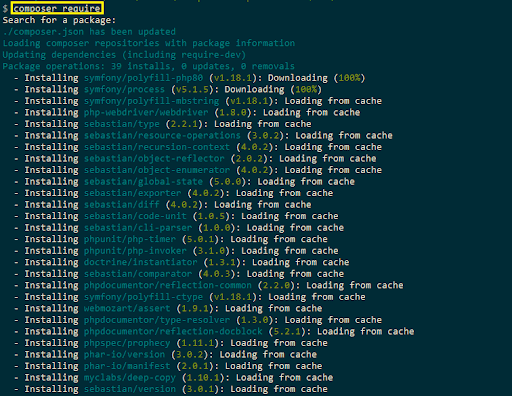
Run the command composer require on the terminal to install the packages mentioned in composer.json. Hit ‘Enter twice’ to proceed with the installation.
Since the test will be executed on a local Selenium Grid, we start the Selenium Grid Server (3.141.59), which we downloaded from the official Selenium Dev website.
Start the Selenium Grid by invoking the command java –jar < Selenium-Grid.jar > on the terminal. By default, the server listens to the incoming requests on port number 4444.
<?php
require 'vendor/autoload.php';

use PHPUnitFrameworkTestCase;
use FacebookWebDriverRemoteDesiredCapabilities;
use FacebookWebDriverRemoteRemoteWebDriver;
use FacebookWebDriverWebDriverBy;

class ToDoTest extends TestCase
{

  protected $webDriver;

  public function build_ie_capabilities(){
    $capabilities = DesiredCapabilities::InternetExplorer();
    return $capabilities;
  }

  public function setUp(): void
  {
    $capabilities = $this->build_ie_capabilities();
    $this->webDriver = RemoteWebDriver::create('http://localhost:4444/wd/hub', $capabilities);
  }

  public function tearDown(): void
  {
    $this->webDriver->quit();
  }
  /*
  * @test
  */

  public function test_LT_ToDoApp()
  {
      $itemName = 'Happy Testing at LambdaTest';
      $this->webDriver->get("https://lambdatest.github.io/sample-todo-app/");
      $this->webDriver->manage()->window()->maximize();
      sleep(5);
      $element1 = $this->webDriver->findElement(WebDriverBy::name("li1"));
      $element1->click();
      $element2 = $this->webDriver->findElement(WebDriverBy::name("li2"));
      $element2->click();
      $element3 = $this->webDriver->findElement(WebDriverBy::id("sampletodotext"));
      $element3->sendKeys($itemName);
      $element4 = $this->webDriver->findElement(WebDriverBy::id("addbutton"));
      $element4->click();
      $this->webDriver->wait(10, 500)->until(function($driver) {
          $elements = $this->webDriver->findElements(WebDriverBy::cssSelector("[class='list-unstyled'] li:nth-child(6) span"));
          return count($elements) > 0;
      });
      sleep(5);
      $this->assertEquals('Sample page - lambdatest.com', $this->webDriver->getTitle());
  }
}
?>
Code WalkThrough
Line (2): The file autoload.php, located in the vendor folder, is imported so that classes in the downloaded libraries can be used in the implementation.
require 'vendor/autoload.php';
Line (15): The DesiredCapabilities of the browser under test (i.e., IE) is set.
$capabilities = DesiredCapabilities::InternetExplorer();
Line (25): We invoke an instance of IE using the create method that takes two input arguments – URI of the Selenium Hub and browser capabilities.
$this->webDriver = RemoteWebDriver::create('http://localhost:4444/wd/hub', $capabilities);
Execution
You should start the Selenium Grid Server before the test is run; it listens on port 4444 for any incoming requests.

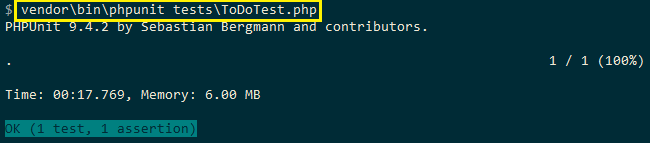
For executing the test, run the command vendor\bin\phpunit < php-file.php > on the terminal. As seen in the execution snapshot, the test that demonstrated the usage of the Selenium IE driver in PHP was executed successfully.
2M+ Devs and QAs rely on TestMu AI
Deliver immersive digital experiences with Next-Generation Mobile Apps and Cross Browser Testing Cloud
 Sign up with google
How to run tests using Selenium IE driver on a cloud-based Selenium Grid?
We can observe from the demonstrations performed using the local Selenium Grid that we need to ensure that the IEDriverServer.exe is downloaded on the local machine. In the case of Selenium C#, the name of the Selenium IE driver should be IEDriverServer.exe. In contrast, for languages like Java, Python, and PHP, we have the flexibility of changing the name of the Selenium Internet Explorer Driver executable.
The major reason is the methods and arguments used by those methods for invoking IE browsers differ from one language to another. In Selenium C#, the folder containing the Selenium IE driver is used in the implementation, which is not the case with other languages.
Selenium C#
private const string IE_DRIVER_PATH = @"C:Setup-FolderSelenium_Grid";

driver = new InternetExplorerDriver(IE_DRIVER_PATH, options);
Selenium Java
System.setProperty("webdriver.ie.driver", "C:\Setup-Folder\Selenium_Grid\IEDriverServer.exe");
driver = new InternetExplorerDriver();
Selenium PHP
For Selenium PHP, the local Selenium Grid Server has to be started before executing the tests.
To avoid the issues posed by the local Selenium Grid, we run the tests on a cloud based Selenium Grid like TestMu AI. Porting the existing code that uses the local Selenium Grid to the cloud-based Selenium Grid requires basic infrastructural-level changes.
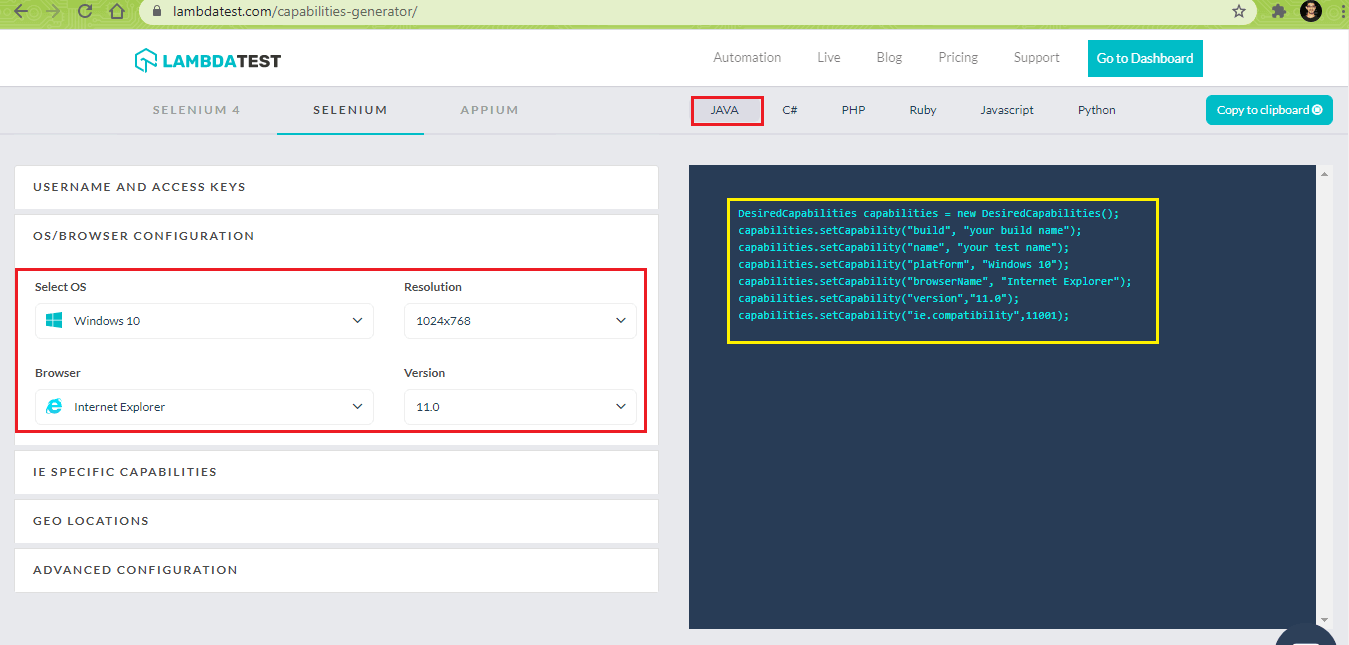
After creating an account on TestMu AI, make a note of the user-name & access key available in the profile section. The TestMu AI Capabilities Generator is used for generating the desired browser capabilities for running the test. Shown below are the sample browser capabilities with OS set to Windows 10 and Web browser set to Internet Explorer 11.0
DesiredCapabilities capabilities = new DesiredCapabilities();
capabilities.setCapability("build", "your build name");
capabilities.setCapability("name", "your test name");
capabilities.setCapability("platform", "Windows 10");
capabilities.setCapability("browserName", "Internet Explorer");
capabilities.setCapability("version","11.0");
capabilities.setCapability("ie.compatibility",11001);
We port the existing implementation that demonstrated the usage of Selenium IE driver so that the execution is carried out on cloud-based Selenium Grid provided by TestMu AI.
Run Tests on cloud-based Selenium Grid Using IE Driver in Python
The corresponding browser capabilities for Selenium Python are generated using TestMu AI capabilities generator.
capabilities = {
        "build" : "[Python] - Using Selenium IE Driver",
        "name" : "[Python] - Using Selenium IE Driver",
        "platform" : "Windows 10",
        "browserName" : "Internet Explorer",
        "version" : "11.0",
        "ie.compatibility" : 11001
}
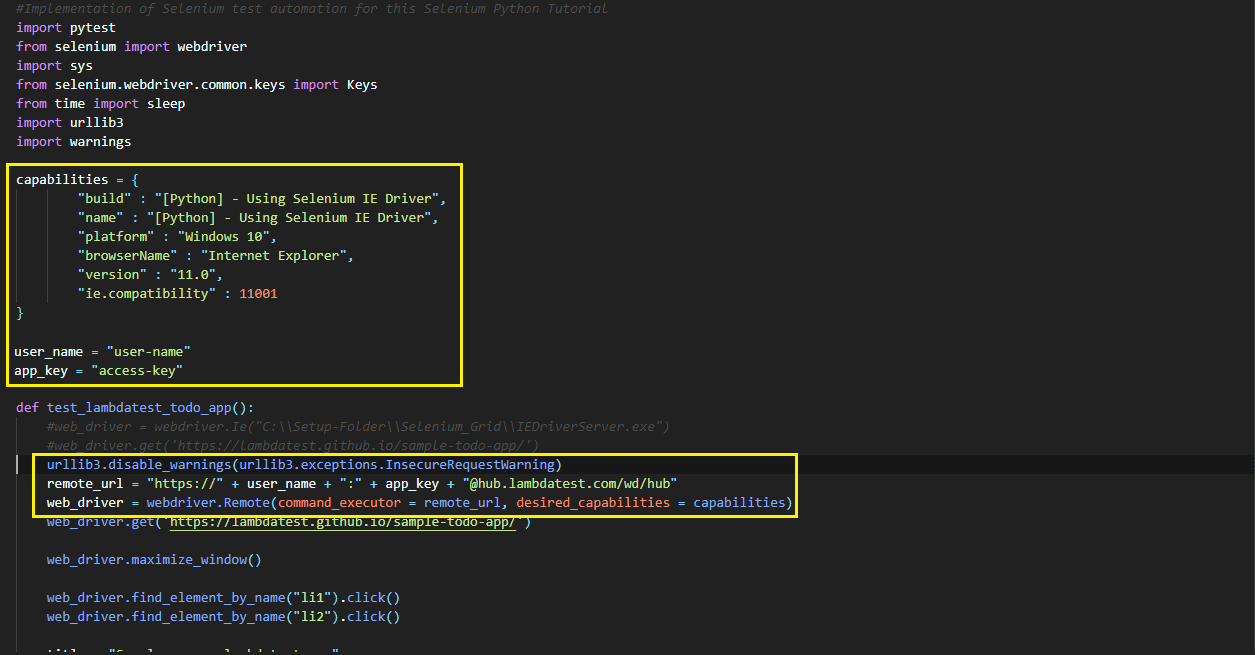
The webdriver.Remote Selenium API in Python is used for sending commands to the remote server. In our case, the server is TestMu AI Grid [@hub.lambdatest.com/wd/hub] that is accessed using a valid user-name and access-key combination. The Desired Capabilities (i.e., capabilities) generated using TestMu AI capabilities generator are also passed to the method.
urllib3.disable_warnings(urllib3.exceptions.InsecureRequestWarning)
remote_url = "https://" + user_name + ":" + app_key + "@hub.lambdatest.com/wd/hub"
web_driver = webdriver.Remote(command_executor = remote_url, desired_capabilities = capabilities)
Apart from these minimal changes, the rest of the implementation remains unchanged. Here is the complete implementation that uses Selenium IE driver on a cloud-based Selenium Grid:
#Implementation of Selenium test automation for this Selenium Python Tutorial
import pytest
from selenium import webdriver
import sys
from selenium.webdriver.common.keys import Keys
from time import sleep
import urllib3
import warnings

capabilities = {
        "build" : "[Python] - Using Selenium IE Driver",
        "name" : "[Python] - Using Selenium IE Driver",
        "platform" : "Windows 10",
        "browserName" : "Internet Explorer",
        "version" : "11.0",
        "ie.compatibility" : 11001
}
#replace the text inside double quotes with your username and access key
user_name = "user-name"
app_key = "access-key"

def test_lambdatest_todo_app():
    #web_driver = webdriver.Ie("C:\Setup-Folder\Selenium_Grid\IEDriverServer.exe")
    #web_driver.get('https://lambdatest.github.io/sample-todo-app/')

    urllib3.disable_warnings(urllib3.exceptions.InsecureRequestWarning)
    remote_url = "https://" + user_name + ":" + app_key + "@hub.lambdatest.com/wd/hub"
    web_driver = webdriver.Remote(command_executor = remote_url, desired_capabilities = capabilities)
    web_driver.get('https://lambdatest.github.io/sample-todo-app/')

    web_driver.maximize_window()

    web_driver.find_element_by_name("li1").click()
    web_driver.find_element_by_name("li2").click()

    title = "Sample page - lambdatest.com"
    assert title == web_driver.title

    sample_text = "Happy Testing at LambdaTest"
    email_text_field = web_driver.find_element_by_id("sampletodotext")
    email_text_field.send_keys(sample_text)
    sleep(5)

    web_driver.find_element_by_id("addbutton").click()
    sleep(5)

    output_str = web_driver.find_element_by_name("li6").text
    sys.stderr.write(output_str)

    sleep(2)
    web_driver.quit()
For clarity, we are highlighting the changes that were made in the existing implementation.
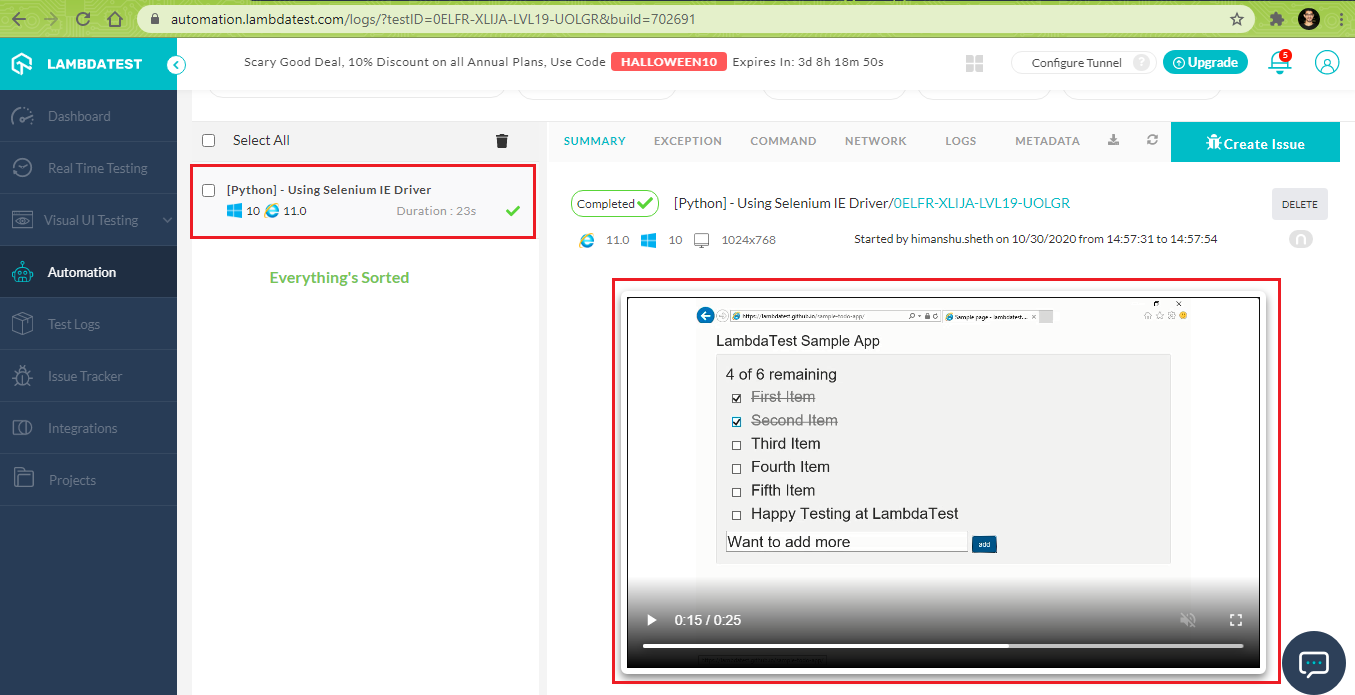
Run the test, as discussed above. You can view the test running in your Automation dashboard on TestMu AI. Here is the execution snapshot, which indicates that the test was successfully executed on TestMu AI:
Run Tests on cloud-based Selenium Grid Using IE Driver in Java
The desired capabilities (for Java) are generated using the TestMu AI capabilities generator.
DesiredCapabilities capabilities = new DesiredCapabilities();
capabilities.setCapability("build", "[Java] - Using Selenium IE Driver");
capabilities.setCapability("name", "[Java] - Using Selenium IE Driver");
capabilities.setCapability("platform", "Windows 10");
capabilities.setCapability("browserName", "Internet Explorer");
capabilities.setCapability("version","11.0");
capabilities.setCapability("ie.compatibility",11001);
The RemoteWebDriver method of remote.RemoteWebDriver class is used for executing the test script on the remote machine. In this case, the remote machine is the Selenium Grid on TestMu AI.
The RemoteWebDriver method takes two input arguments – details of TestMu AI Grid [@hub.lambdatest.com/wd/hub] and generated browser capabilities.
String username = "user-name";
String access_key = "access-key";

driver = new RemoteWebDriver(new URL("http://" + username + ":" + access_key + "@hub.lambdatest.com/wd/hub"), capabilities);
The rest of the implementation is the same as the one demonstrated with the local Selenium Grid. Here is the complete implementation:
package org.selenium4;

import org.openqa.selenium.By;
import org.openqa.selenium.JavascriptExecutor;
import org.openqa.selenium.WebDriver;
import org.openqa.selenium.remote.DesiredCapabilities;
import org.openqa.selenium.remote.RemoteWebDriver;
import org.testng.annotations.AfterClass;
import org.testng.annotations.BeforeClass;
import org.testng.annotations.Test;
import org.openqa.selenium.ie.InternetExplorerDriver;
import java.net.MalformedURLException;
import java.net.URL;

public class CrossBrowserTest {
    WebDriver driver = null;
    String URL = "https://lambdatest.github.io/sample-todo-app/";
    public static String status = "passed";
    String username = "user-name";
    String access_key = "access-key";

    @BeforeClass
    public void testSetUp() throws MalformedURLException {
        /*
        System.setProperty("webdriver.ie.driver", "C:\Setup-Folder\Selenium_Grid\IEDriverServer.exe");
        driver = new InternetExplorerDriver();
        */
        DesiredCapabilities capabilities = new DesiredCapabilities();
        capabilities.setCapability("build", "[Java] - Using Selenium IE Driver");
        capabilities.setCapability("name", "[Java] - Using Selenium IE Driver");
        capabilities.setCapability("platform", "Windows 10");
        capabilities.setCapability("browserName", "Internet Explorer");
        capabilities.setCapability("version","11.0");
        capabilities.setCapability("ie.compatibility",11001);

        driver = new RemoteWebDriver(new URL("http://" + username + ":" + access_key + "@hub.lambdatest.com/wd/hub"), capabilities);
        System.out.println("Started session");
    }

    @Test
    public void test_Selenium4_ToDoApp() throws InterruptedException {
        driver.navigate().to(URL);
        driver.manage().window().maximize();

        try {
            /* Let's mark done first two items in the list. */
            driver.findElement(By.name("li1")).click();
            driver.findElement(By.name("li2")).click();

            /* Let's add an item in the list. */
            driver.findElement(By.id("sampletodotext")).sendKeys("Happy Testing at LambdaTest");
            driver.findElement(By.id("addbutton")).click();

            /* Let's check that the item we added is added in the list. */
            String enteredText = driver.findElement(By.xpath("/html/body/div/div/div/ul/li[6]/span")).getText();
            if (enteredText.equals("Happy Testing at LambdaTest")) {
                System.out.println("Demonstration of Selenium IE is complete");
            }
        } catch (Exception e) {
            System.out.println(e.getMessage());
        }
    }

    @AfterClass
    public void tearDown() {
        if (driver != null) {
            driver.quit();
        }
    }
}
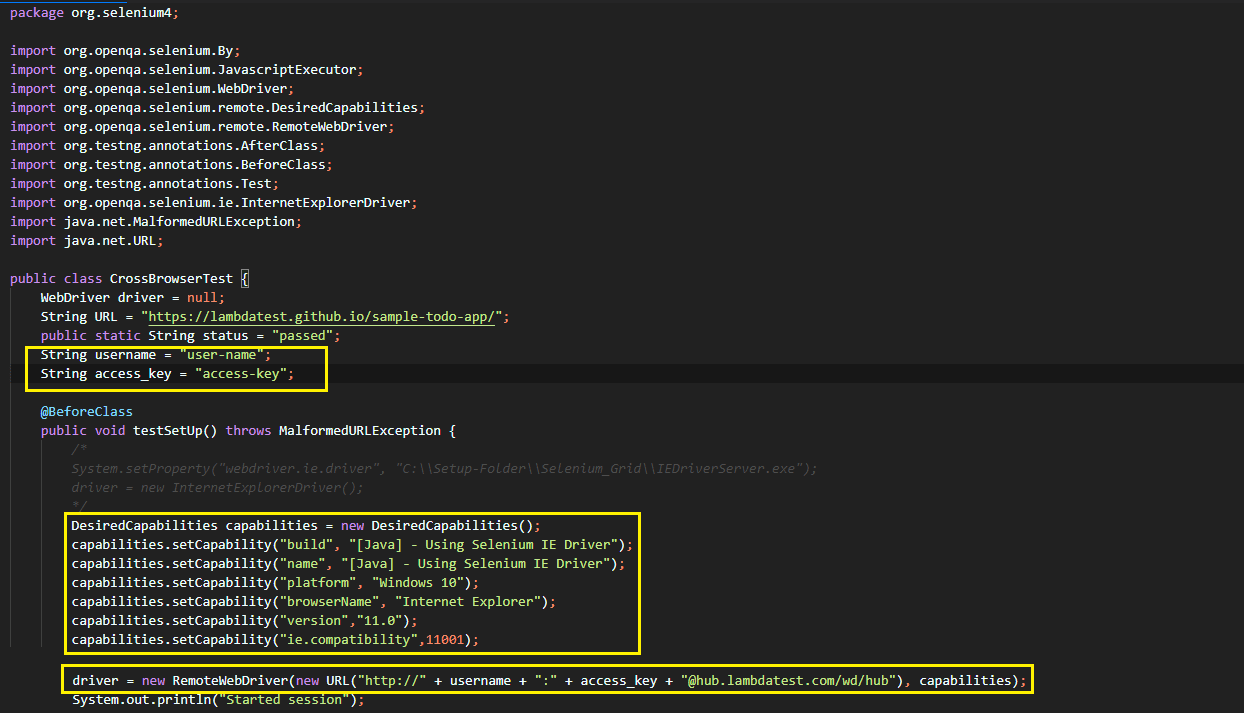
For clarity, we have marked the code that we have changed so that the test executes on cloud-based Selenium Grid:
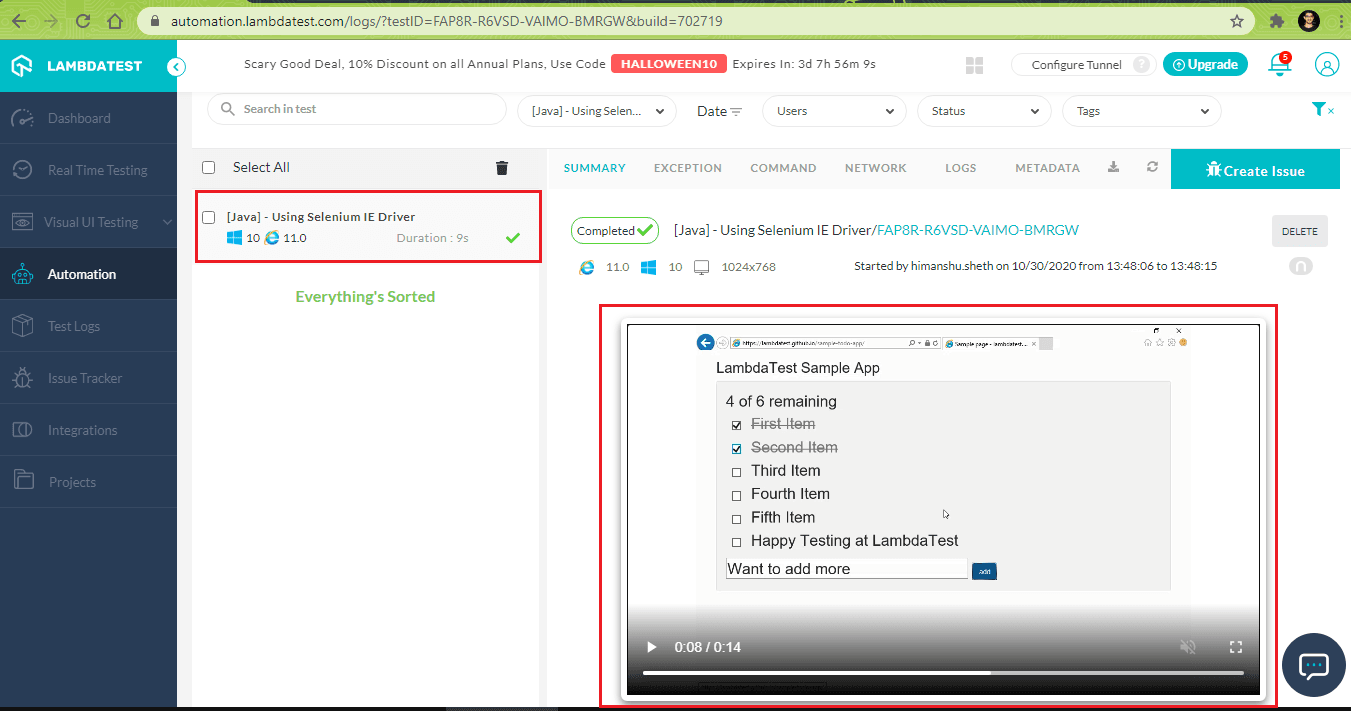
Here is the execution snapshot which shows that the test was executed successfully on TestMu AI:
Run Tests on cloud-based Selenium Grid Using IE Driver in C#
As we have done changes for accommodating RemoteWebDriver in Python and Java, similar changes are done in the C# implementation as well. The desired browser capabilities for C# are generated using the TestMu AI capabilities generator.
capabilities.SetCapability("user", username);
capabilities.SetCapability("accessKey", accesskey);
capabilities.SetCapability("build", "[C#] - Using Selenium IE Driver");
capabilities.SetCapability("name", "[C#] - Using Selenium IE Driver");
capabilities.SetCapability("platform", "Windows 10");
capabilities.SetCapability("browserName", "Internet Explorer");
capabilities.SetCapability("version", "11.0");
capabilities.SetCapability("ie.compatibility", 11001);
The RemoteWebDriver method of OpenQA.Selenium.Remote class takes 3 input arguments – TestMu AI Grid URL and generated browser capabilities, and command timeout in seconds (i.e., 600 sec in our case).
driver = new RemoteWebDriver(new Uri("https://" + username + ":" + accesskey + gridURL), capabilities, TimeSpan.FromSeconds(600));
Here is the complete implementation:
using OpenQA.Selenium;
using OpenQA.Selenium.Remote;
using OpenQA.Selenium.IE;
using NUnit.Framework;
using System.Threading;
using System.Collections.Generic;
using System.Linq;
using System.Net;
using System;
using OpenQA.Selenium.Support;
using System.Configuration;

namespace ParallelLTSelenium
{
    public class ParallelLTTests
    {
        IWebDriver driver;
        private const string URL = "https://lambdatest.github.io/sample-todo-app/";

        [SetUp]
        public void Init()
        {
            String username = "user-name";
            String accesskey = "access-key";
            String gridURL = "@hub.lambdatest.com/wd/hub";

            DesiredCapabilities capabilities = new DesiredCapabilities();

            capabilities.SetCapability("user", username);
            capabilities.SetCapability("accessKey", accesskey);
            capabilities.SetCapability("build", "[C#] - Using Selenium IE Driver");
            capabilities.SetCapability("name", "[C#] - Using Selenium IE Driver");
            capabilities.SetCapability("platform", "Windows 10");
            capabilities.SetCapability("browserName", "Internet Explorer");
            capabilities.SetCapability("version", "11.0");
            capabilities.SetCapability("ie.compatibility", 11001);

            driver = new RemoteWebDriver(new Uri("https://" + username + ":" + accesskey + gridURL), capabilities, TimeSpan.FromSeconds(600));
            driver.Url = URL;
            System.Threading.Thread.Sleep(2000);
        }

        [Test]
        public void LT_ToDoApp_Test()
        {
            Assert.AreEqual("Sample page - lambdatest.com", driver.Title);
            String itemName = "Happy Testing at LambdaTest";

            IWebElement firstCheckBox = driver.FindElement(By.Name("li1"));
            firstCheckBox.Click();

            IWebElement secondCheckBox = driver.FindElement(By.Name("li2"));
            secondCheckBox.Click();

            IWebElement textfield = driver.FindElement(By.Id("sampletodotext"));
            textfield.SendKeys(itemName);

            IWebElement addButton = driver.FindElement(By.Id("addbutton"));
            addButton.Click();

            IWebElement itemtext = driver.FindElement(By.XPath("/html/body/div/div/div/ul/li[6]/span"));
            String getText = itemtext.Text;
            Assert.IsTrue(itemName.Contains(getText));
        }

        [TearDown]
        public void Cleanup()
        {
            if (driver != null)
            {
                driver.Quit();
            }
        }
    }
}
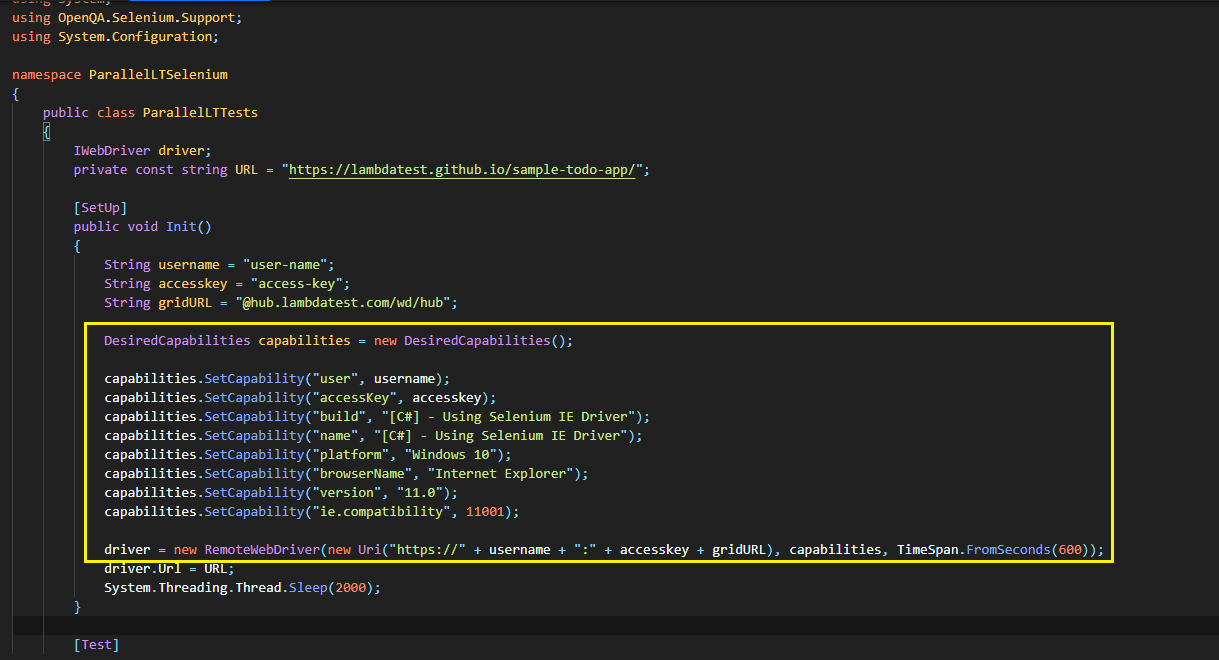
Shown below are the changes that were done for executing the test on TestMu AI:
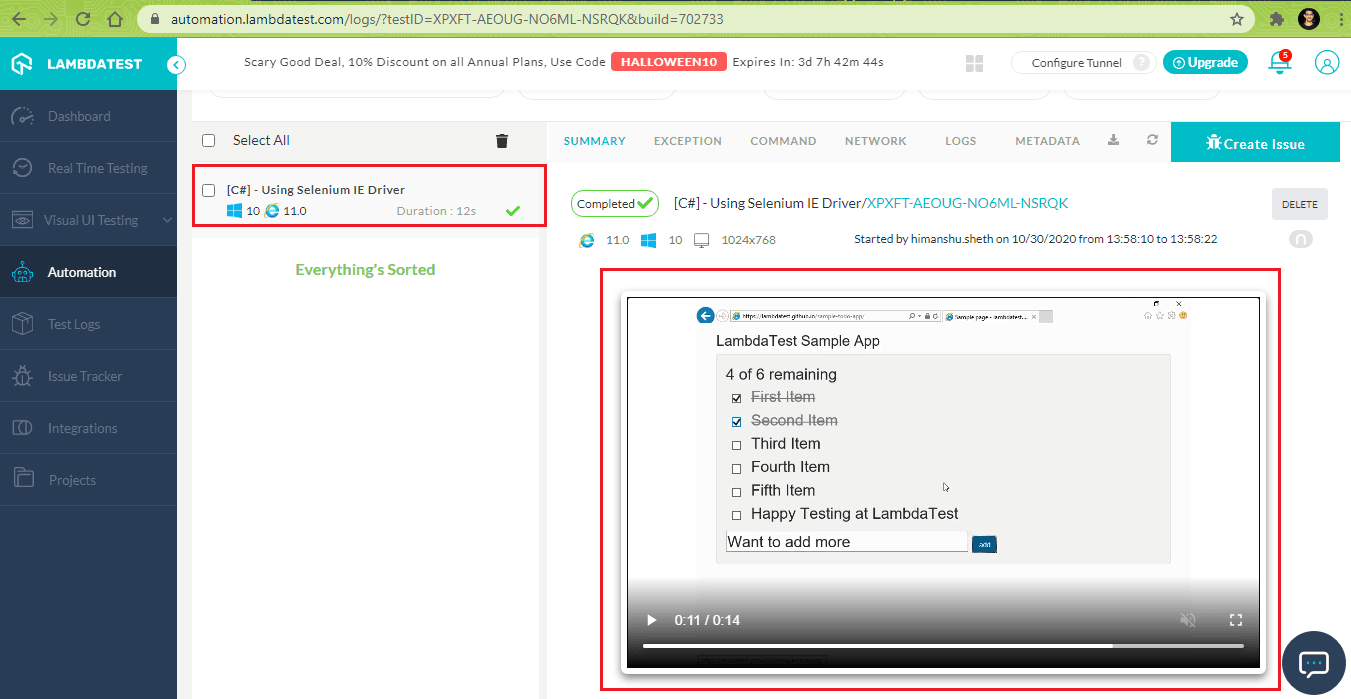
Here is the execution snapshot from TestMu AI:
Run Tests on cloud based Selenium Grid Using IE Driver in PHP
For using Selenium IE driver on a cloud-based Selenium Grid, we first generate the browser capabilities (for PHP) using the TestMu AI capabilities generator.
$capabilities = array(
      "build" => "[PHP] - Using Selenium IE Driver",
      "name" => "[PHP] - Using Selenium IE Driver",
      "platform" => "Windows 10",
      "browserName" => "Internet Explorer",
      "version" => "11.0",
      "ie.compatibility" => 11001
    );
Two global variables that store the user-name and access-key of TestMu AI are declared in the code.
$GLOBALS['LT_USERNAME'] = "user-name";
$GLOBALS['LT_APPKEY'] = "access-key";
The create method in RemoteWebDriver class uses the Grid URL and browser capabilities to create a browser session.
$url = "https://". $GLOBALS['LT_USERNAME'] .":" . $GLOBALS['LT_APPKEY'] ."@hub.lambdatest.com/wd/hub";
$this->webDriver = RemoteWebDriver::create($url, $capabilities);
The complete implementation is below:
<?php
require 'vendor/autoload.php';

use PHPUnitFrameworkTestCase;
use FacebookWebDriverRemoteDesiredCapabilities;
use FacebookWebDriverRemoteRemoteWebDriver;
use FacebookWebDriverWebDriverBy;

$GLOBALS['LT_USERNAME'] = "user-name";
$GLOBALS['LT_APPKEY'] = "access-key";

class ToDoTest extends TestCase
{

  protected $webDriver;

  public function build_ie_capabilities(){
    /* $capabilities = DesiredCapabilities::InternetExplorer(); */
    $capabilities = array(
      "build" => "[PHP] - Using Selenium IE Driver",
      "name" => "[PHP] - Using Selenium IE Driver",
      "platform" => "Windows 10",
      "browserName" => "Internet Explorer",
      "version" => "11.0",
      "ie.compatibility" => 11001
    );
    return $capabilities;
  }

  public function setUp(): void
  {
    /* $this->webDriver = RemoteWebDriver::create('http://localhost:4444/wd/hub', $capabilities); */
    $url = "https://". $GLOBALS['LT_USERNAME'] .":" . $GLOBALS['LT_APPKEY'] ."@hub.lambdatest.com/wd/hub";
    $capabilities = $this->build_ie_capabilities();
  /* Local Selenium Grid */
    /* $this->webDriver = RemoteWebDriver::create('http://localhost:4444/wd/hub', $capabilities); */
    $this->webDriver = RemoteWebDriver::create($url, $capabilities);
  }

  public function tearDown(): void
  {
    $this->webDriver->quit();
  }
  /*
  * @test
  */

  public function test_LT_ToDoApp()
  {
      $itemName = 'Happy Testing at LambdaTest';
      $this->webDriver->get("https://lambdatest.github.io/sample-todo-app/");
      $this->webDriver->manage()->window()->maximize();
      sleep(5);
      $element1 = $this->webDriver->findElement(WebDriverBy::name("li1"));
      $element1->click();
      $element2 = $this->webDriver->findElement(WebDriverBy::name("li2"));
      $element2->click();
      $element3 = $this->webDriver->findElement(WebDriverBy::id("sampletodotext"));
      $element3->sendKeys($itemName);
      $element4 = $this->webDriver->findElement(WebDriverBy::id("addbutton"));
      $element4->click();
      $this->webDriver->wait(10, 500)->until(function($driver) {
          $elements = $this->webDriver->findElements(WebDriverBy::cssSelector("[class='list-unstyled'] li:nth-child(6) span"));
          return count($elements) > 0;
      });
      sleep(5);
      $this->assertEquals('Sample page - lambdatest.com', $this->webDriver->getTitle());
  }
}
?>
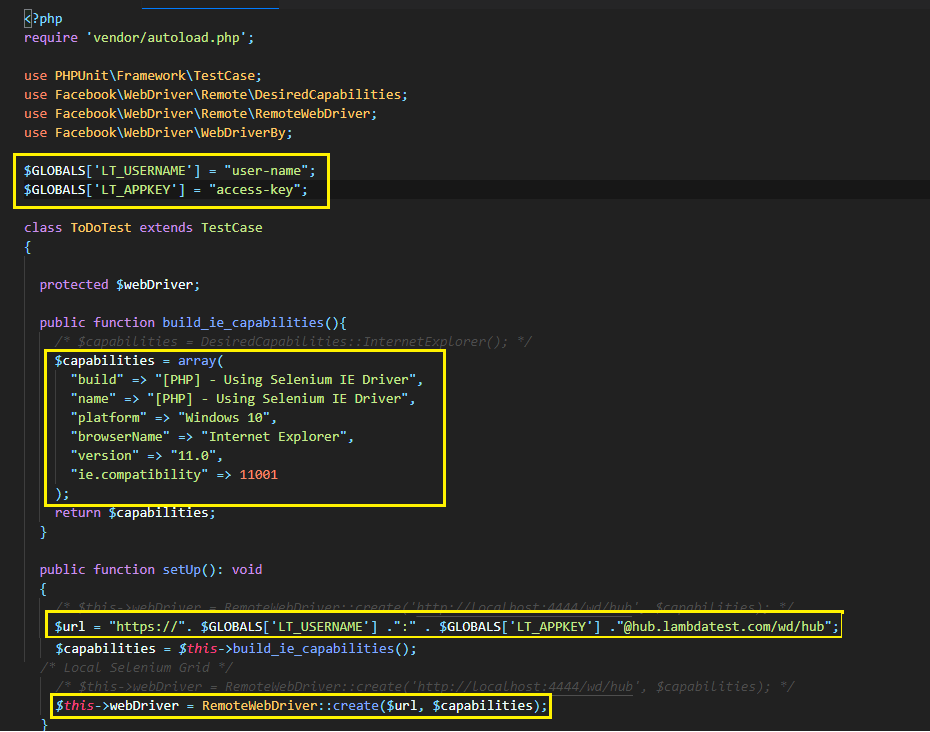
Here are code changes made to the existing code so that the test executes on TestMu AI Grid.
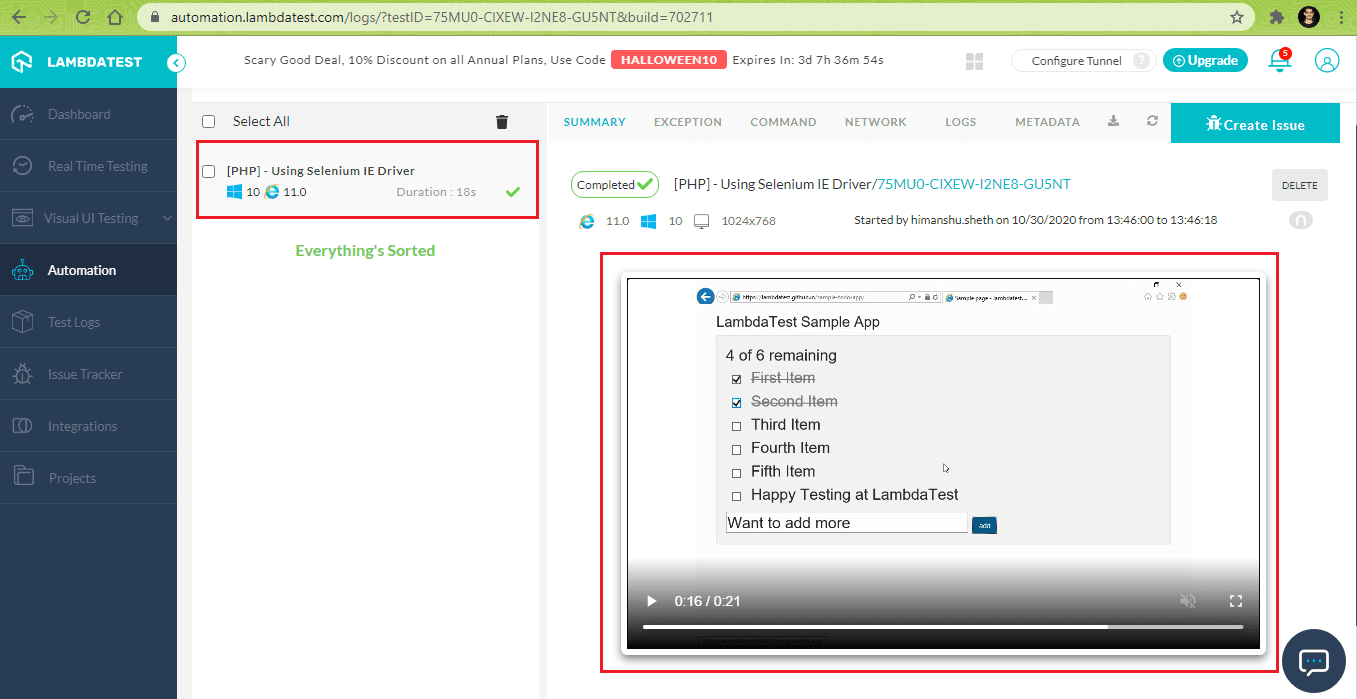
Here is the execution that indicates that the test passed without any issues.

Wrapping up
In this guide, we looked at the Selenium IE driver, which is the Selenium Internet Explorer Driver (WebDriver)—also referred to as IEDriverServer. As of December 2020, Internet Explorer still has a 1.19 percent market share in the browser market. And considering the world internet user population, 1 percent is still a vast number. So, when planning for cross browser testing, you should definitely account for testing on IE as well, as it is still relevant in the browser market!
2M+ Devs and QAs rely on TestMu AI
Deliver immersive digital experiences with Next-Generation Mobile Apps and Cross Browser Testing Cloud


Frequently asked questions
Did you find this page helpful?
More Related Hubs
TestMu AI forEnterprise
Get access to solutions built on Enterprise
grade security, privacy, & compliance
- Advanced access controls
- Advanced data retention rules
- Advanced Local Testing
- Premium Support options
- Early access to beta features
- Private Slack Channel
- Unlimited Manual Accessibility DevTools Tests