

Next-Gen App & Browser Testing Cloud
Trusted by 2 Mn+ QAs & Devs to accelerate their release cycles


How To Perform Cypress Testing At Scale With TestMu AI
Cypress test automation on the TestMu AI grid comes with detailed test logs, screencast (or video grabs of performed tests), and more. These are valuable

Himanshu Sheth
March 29, 2026
This article is a part of our Content Hub. For more in-depth resources, check out our content hub on Cypress Tutorial.
Web products of top-notch quality can only be realized when the emphasis is laid on every aspect of the product. This is where web automation testing plays a major role in testing the features of the product inside-out. A majority of the web testing community (including myself) have been using the Selenium test automation framework for realizing different forms of web testing (e.g., cross browser testing, functional testing, etc.).
Selenium now has a worthy competition from Cypress, an open-source JavaScript-based test automation framework that can be used for E2E (End-To-End) testing of web applications. Though Cypress has a powerful feature set, the true potential of Cypress testing can only be exploited by running tests on a scalable and reliable cloud grid. Are you planning to perform cross browser testing with Cypress at scale by avoiding endless investments in building an ageing in-house testing infrastructure?
In this blog, we cover essential aspects of Cypress testing from scalability, reliability, and maintainability points of view. We will deep dive into the usage of the Cypress UI testing framework with the TestMu AI Cypress CLI [i.e., lambdatest-cypress-cli ] for running Cypress tests at scale on the TestMu AI Grid.
What is Cypress Automated Testing?
Cypress is a fast-evolving front-end testing framework that is primarily built for testing modern web applications. Cypress lets you create unit tests, integration tests, and unit tests that can be further run inside the web browser.
The major upside of Cypress is that it is built using JavaScript – the most popular language used for front-end web development. This is the primary reason it is touted as the ‘go-to’ framework for testing modern web applications. It supports the Mocha JS framework and uses the Chai library for writing friendly and readable assertion messages.
Implementation of a unique DOM manipulation technique and tests that run inside the web browser are the two advantages of Cypress compared to other test automation frameworks like Selenium. Do check out our detailed blog on Selenium vs. Cypress comparison – a comparison guide that touches upon the nitty-gritty of both the test automation frameworks.
The Cypress project is hosted on GitHub; here are some of the key essentials of this open-source project:
- Forks – 1.8K
- Pull Requests – 50
- Stars – 31.8K
- Branches – 1,730
As of writing this blog, the latest version of Cypress is 7.6.0. The statistics that demonstrate the six-month download rate of Cypress show a lot about its growing popularity.
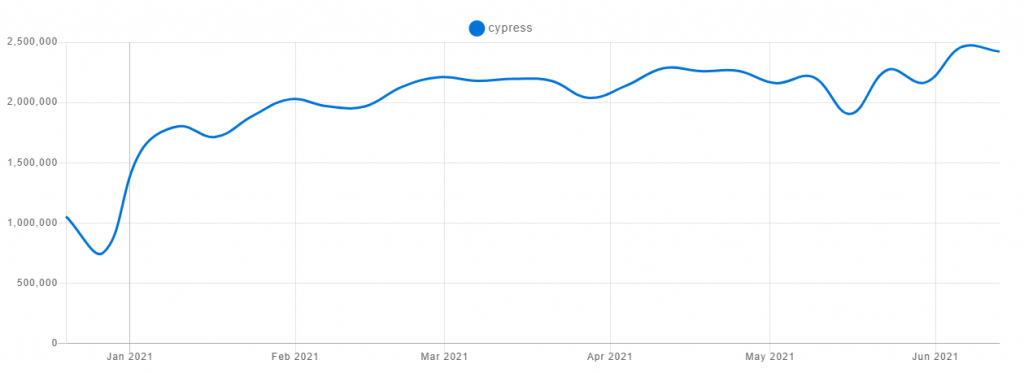
By default, support for cross browser testing is not available with the Cypress testing framework. This is where TestMu AI Cypress CLI is instrumental in running cross browser tests with Cypress E2E testing framework at scale!
It combines the best of both worlds – capabilities of Cypress testing framework and reliability & scalability of the TestMu AI Grid.
Key Advantages Of Cypress Testing Framework
Before we deep dive into the essential aspects of the CLI (Command-Line Interface) of TestMu AI Cypress, let’s do a quick recap of the major advantages of the Cypress framework:
- Since Cypress is built on the JavaScript framework, it is widely preferred for E2E testing of modern web applications.
- It can deliver more consistent test automation results since there is a tighter grip over the overall automation process.
- Cypress testing is fast and reliable in comparison to testing with other popular test automation frameworks.
- You can do away with dependencies or libraries with the Cypress testing framework.
- Cypress tests are extremely fast as there are no protocols (e.g., JSON Wire) involved in the test process. Tests written for Cypress test automation directly run within the web browser, due to which the tests have access to all objects on the page.
- Network flakiness is a thing of the passé with Cypress testing.
- Cypress tests automatically wait for the WebElements to be present in the DOM. The Cypress testing framework never yields the stale elements of the DOM.
Also, the Cypress testing framework has a powerful dashboard that gives detailed insights into the test execution. The capabilities offered by Cypress testing can be exploited further by running tests on the TestMu AI platform using the TestMu AI Cypress CLI.
Learn how to supercharge your Cypress testing with ‘Cypress-docker,’ a powerful tool that enhances scalability and efficiency. Explore the advantages of Cypress testing framework and discover how TestMu AI Cypress CLI seamlessly integrates with it.
Watch this video to learn how Cypress can be used to automate accessibility testing.
Why Use TestMu AI Cypress CLI?
Here are some of the major reasons to choose TestMu AI Cypress CLI over the Cypress test automation framework:
Improved Browser Coverage
The Cypress testing framework does let you run tests in parallel by grouping tests by browsers, test labels, and more. However, achieving optimal browser coverage is impossible with a local Grid infrastructure since you need to upgrade the test infrastructure continually.
Optimal browser coverage, super-fast test execution, and parallel execution at scale with Cypress testing can be achieved by running tests on a reliable & scalable cloud grid.
Accelerated Parallel Test Execution
TestMu AI Cypress CLI makes it easy for the users to perform Cypress parallel testing on a range of browser and OS combinations on the TestMu AI Grid. At the time of writing this blog, you have the flexibility to perform Cypress testing on 40+ browser versions on the TestMu AI cloud grid.

Detailed Logging and Video Grabs
Cypress test automation on the TestMu AI grid comes with detailed test logs, screencast (or video grabs of performed tests), and more. These are valuable resources for debugging issues in the existing tests.
To summarize, cross browser testing with Cypress testing framework can be performed at scale with the secure, scalable, and reliable TestMu AI cloud grid.

How To Setup TestMu AI Cypress CLI For Cross Browser Testing With Cypress
Now that we have touched upon the basics of Cypress on TestMu AI, it’s time to see the TestMu AI Cypress CLI in action! TestMu AI Cypress CLI is the command-line interface that helps you run Cypress tests on the TestMu AI Grid.
At the time of writing this blog, the latest version of TestMu AI Cypress CLI (or lambdatest-cypress-cli) is 2.0.5.
To run the Cypress test suite on the TestMu AI cloud grid is super easy and only requires the installation of the CLI. Perform the following steps to install and run TestMu AI Cypress CLI on your machine:
1. Installing the TestMu AI Cypress CLI
The CLI can be installed by triggering the npm install command on the terminal
npm install -g lambdatest-cypress-cli
On successful execution of the above command, lambdatest-cypress-cli will be installed on your machine.

In my case, TestMu AI Cypress CLI was installed in the directory C:\Users\Lenovo\AppData\Roaming\npm\lambdatest-cypress. We created an alias that pointed to the location where the Cypress CLI was installed, and this is all that it took for us to install TestMu AI Cypress CLI.
2. Setup configurations to run Cypress tests
Now that lambdatest-cypress-cli is installed on the machine. It’s time to set up the configuration for Cypress testing. Since the Cypress tests are run on the TestMu AI Grid, we save the TestMu AI username and access key to the environment variables – LT_USERNAME and LT_ACCESS_KEY.

If you do not have the package.json file in the project folder, run the command npm init on the terminal. You can press ‘Enter’ for all the entries mentioned for the JSON file.
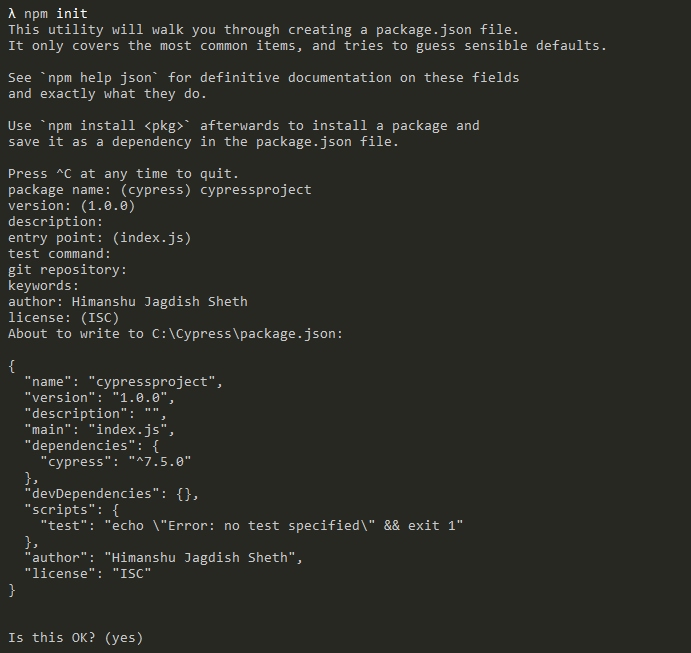
Upon successful execution, you should have package.json in the project folder.
3. Create TestMu AI Cypress configuration file
The next step is setting up the TestMu AI Cypress configuration. Run the command lambdatest-cypress init to set up the configuration.
lambdatest-cypress init
Upon successful execution, you should have lambdatest-config.json in the project folder.

The TestMu AI Cypress configuration file contains the following:
lambdatest_auth
TestMu AI credentials to perform Cypress testing on the TestMu AI Grid. You can leave the fields as default if you have already declared the environment variables for LT_USERNAME and LT_ACCESS_KEY.
"lambdatest_auth": {
      "username": "LT_USERNAME",
      "access_key": "LT_ACCESS_KEY"
   },
browsers
This section contains the details of the browser, platform, and version on which Cypress test automation has to be performed. You can have umpteen browser & OS combinations in an array.
"browsers": [
      {
         "browser": "Chrome",
         "platform": "Windows 10",
         "versions": [
            "latest"
         ]
      },

run_settings
This section contains the desired capabilities of the Cypress test suite. cypress_config_file points to the cypress JSON file ( e.g., cypress.json ), which was created in the earlier step.
"run_settings": {
      "cypress_config_file": "cypress.json",
      "build_name": "[Cypress] Execution of ToDo App on LambdaTest",
      "parallels": 5,
      "specs": "./*.spec.js",
      "ignore_files": "",
      "feature_file_suppport": false
},
build_name indicates the build name which will be used when performing Cypress testing on TestMu AI. parallels indicate the number of Cypress tests that will be run in parallel on the TestMu AI Grid. You should set this value based on the number of parallel sessions supported under your TestMu AI plan. For example – my plan supports a maximum of five parallel sessions.
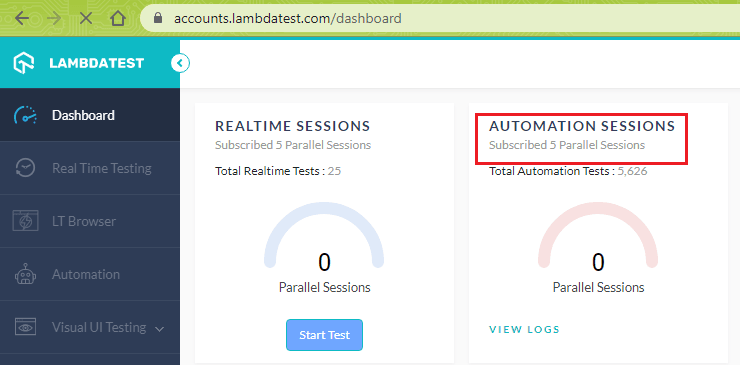
Specs include the list of Cypress test files whose tests have to be executed. The field “specs”: “./*.spec.js” indicates that files with the name [*.spec.js] files have to be considered for Cypress test automation. If you want to ignore (or exclude) any Cypress test file from execution, include the same in “ignore_files.”
tunnel_settings
The settings under tunnel_settings include the settings of TestMu AI tunnel [i.e., true if the tunnel has to be used; else, it is set to false]. tunnelName indicates the TestMu AI tunnel that connects the local system with TestMu AI servers via an SSH integration tunnel.
Read – How To Use UnderPass For Testing Locally Hosted Pages
There is no need to manually start the TestMu AI tunnel since the tunnel with the specified name will automatically start once the Cypress test is triggered. By default, the TestMu AI tunnel is disabled as its value is set to false.
"tunnel_settings": {
      "tunnel": false,
      "tunnelName": null
   }
The below video will help you with the ways through which you can perform localhost testing using the TestMu AI Tunnel:
How To Perform Cypress Testing With TestMu AI Cypress CLI
Now that we have the requisite configuration for performing Cypress testing on the TestMu AI Grid, it’s time to get our hands dirty with some code. We will use the TestMu AI ToDo app instead of the TestMu AI’s sample Cypress Kitchen Sink example for simplicity.
Here is the overall test scenario which will run on Chrome and Firefox browsers on Windows 10:
- Navigate to the URL https://lambdatest.github.io/sample-todo-app/.
- Select the first two checkboxes.
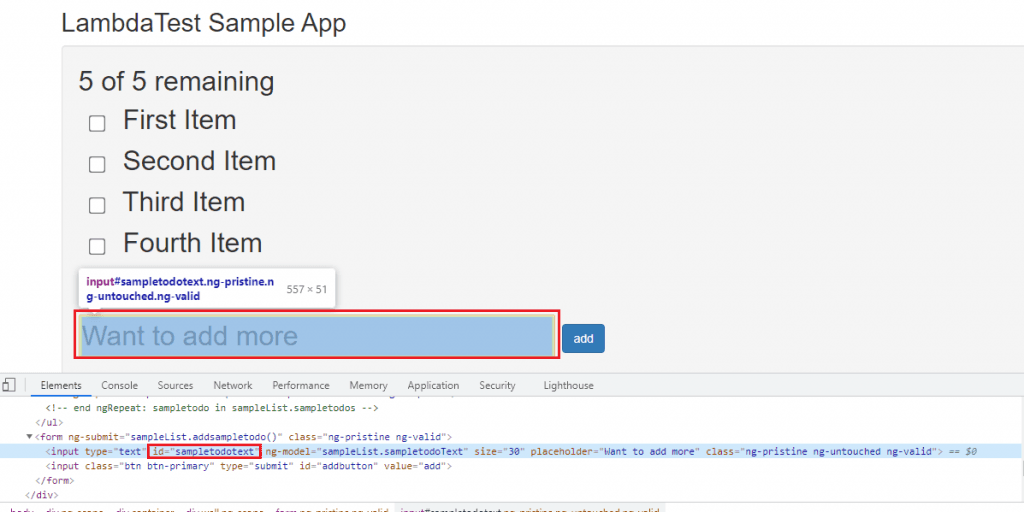
- Send ‘Happy Testing at TestMu AI’ to the textbox with id = sampletodotext.
- Click the Add Button and verify whether the text has been added or not.
- Assert if the title does not match the expected window title.
Implementation
describe('LambdaTest ToDo App',() => {
    it('LambdaTest ToDo App',() => {
    // Go to LambdaTest ToDo App Page
    cy.visit('https://lambdatest.github.io/sample-todo-app/');

    // Wait for 5000 ms (i.e. 5 seconds)
    cy.wait(5000)

    // Click on web element li1
    cy.get(':nth-child(1) > .ng-pristine').click()

    // Click on web element li2
    cy.get('.list-unstyled > :nth-child(2) > .ng-pristine').click()

    // Wait for 2000 ms (i.e. 2 seconds)
    cy.wait(2000)

    // Add a new item to be added in the text box
    cy.get('#sampletodotext').type('Happy Testing at LambdaTest')

    // Add a delay so that the focus can be shifted to the Add Button
    cy.wait(2000)

    // Click the Add Button to add the item
    cy.get('#addbutton').click()

    // Wait for 2000 ms (i.e. 2 seconds)
    cy.wait(2000)

    if (cy.contains('Happy Testing at LambdaTest'))
    {
      // If the new element is added, it would be a part of the DOM
      cy.log('Cypress LambdaTest ToDo App passed')
    }
    else
    {
      cy.log('Cypress LambdaTest ToDo App failed')
    }
  })
})
Code Walkthrough
Step 1: Cypress API cy.visit() is used for opening the target URL (or URL under test).
cy.visit('https://lambdatest.github.io/sample-todo-app/');
Step 2: A wait of 5000 ms (or 5 seconds) is added to ensure that all the WebElements are present in the DOM.
cy.wait(5000)
Step 3: The cy.get() API is used for locating the first item in the ToDo list. A click operation is performed on the recently located WebElement (i.e., li1).
cy.get(':nth-child(1) > .ng-pristine').click()
Step 4: Locate the second item (i.e., li2) in the ToDo list and perform a click operation on the same.
cy.get('.list-unstyled > :nth-child(2) > .ng-pristine').click()
Step 5: Locate the WebElement (sampletodotext) and enter the text ‘Happy Testing At TestMu AI’ using the type command.
cy.get('#sampletodotext').type('Happy Testing at LambdaTest')
Step 6: Locate the ‘Add Button’ using the cy.get() API and perform a click operation to add the newly added item to the ToDo list.
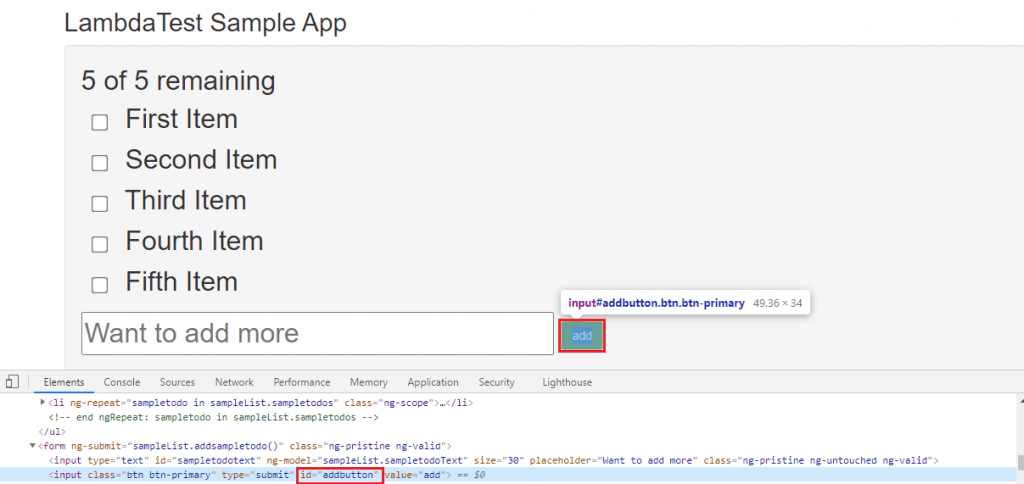
cy.get('#addbutton').click()
Step 7: The cy.contains() API used to get the DOM element containing the text ‘Happy Testing at TestMu AI.’ You should get the log stating ‘ToDo App passed’ if a new item is added to the ToDo list.
if (cy.contains('Happy Testing at LambdaTest'))
{
   // If the new element is added, it would be a part of the DOM
   cy.log('Cypress LambdaTest ToDo App passed')
}
else
{
   cy.log('Cypress LambdaTest ToDo App failed')
}
TestMu AI Cypress Configuration (JSON) – Cypress testing has to be performed in parallel across Chrome and Firefox browsers (on Windows 10). Hence, we set the relevant browser & platform details in the browsers entry.
Here is the complete TestMu AI Cypress configuration file where we have used TestMu AI username and access key from the environment variables.
{
   "lambdatest_auth": {
      "username": "LT_USERNAME",
      "access_key": "LT_ACCESS_KEY"
   },
   "browsers": [
      {
         "browser": "Chrome",
         "platform": "Windows 10",
         "versions": [
            "latest"
         ]
      },
      {
         "browser": "Firefox",
         "platform": "Windows 10",
         "versions": [
            "latest"
         ]
      }
   ],
   "run_settings": {
      "cypress_config_file": "cypress.json",
      "build_name": "[Cypress] Execution of ToDo App on LambdaTest",
      "parallels": 5,
      "specs": "./*.spec.js",
      "ignore_files": "",
      "feature_file_suppport": false
   },
   "tunnel_settings": {
      "tunnel": false,
      "tunnelName": null
   }
}
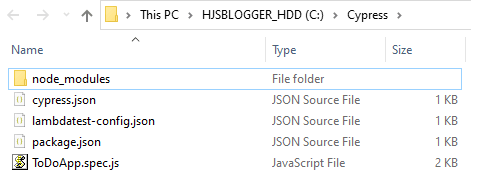
Here is the overall folder structure, which contains the following entries:
- cypress.json
- lambdatest-config.json
- package.json
- Cypress Test code (i.e., ToDoApp.spec.js)
Execution
Now that the tests and configuration file demonstrating cross browser testing with Cypress are ready, it’s time to run the tests on the TestMu AI grid. Trigger the following command on the terminal to perform Cypress testing with the requisite tests on the TestMu AI Grid:
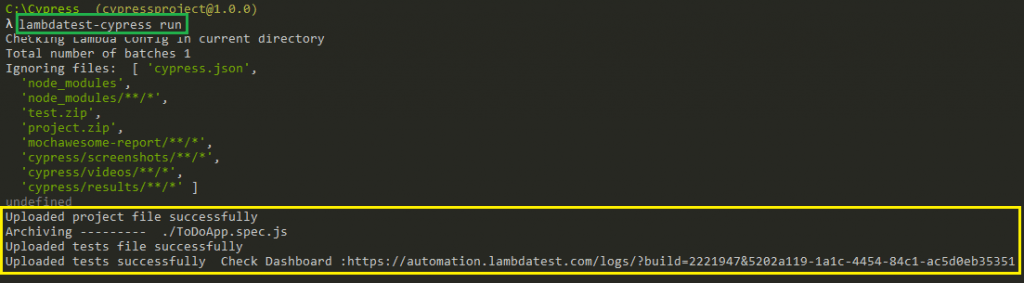
lambdatest-cypress run
Once the command is triggered on the terminal, you will see the corresponding tests uploaded to the TestMu AI Grid.
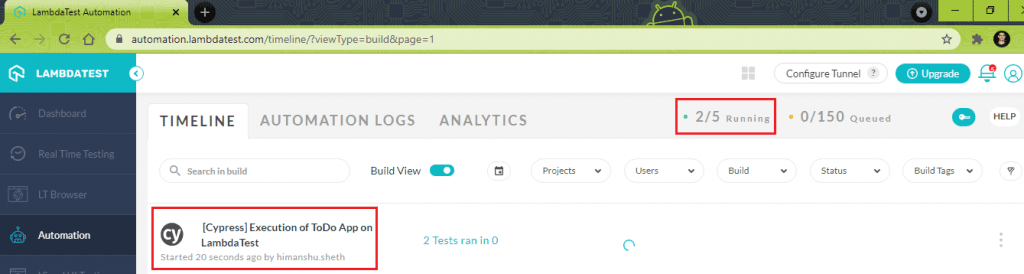
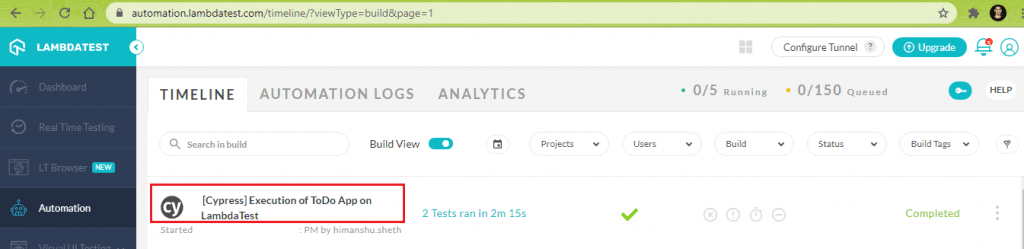
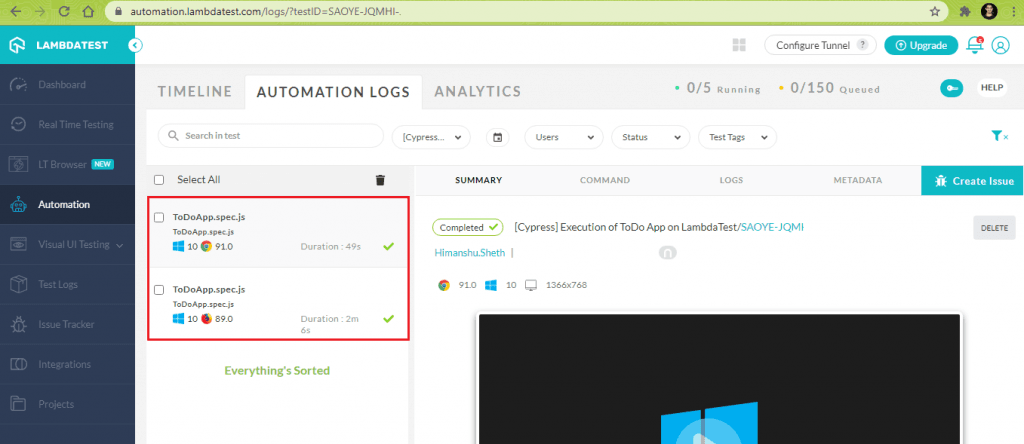
To check the status of the tests, navigate the TestMu AI automation dashboard. Automation tests run using the Cypress testing framework are indicated using the Cypress logo on the dashboard. As we have to run the ToDo test on Chrome and Firefox browsers (in parallel), we see that both the tests were run parallely.
The Logs section on the dashboard gives detailed insights into the execution of the Cypress tests. On similar lines, the Command section on the dashboard gives insights into how the Cypress testing commands were executed on the TestMu AI Grid.
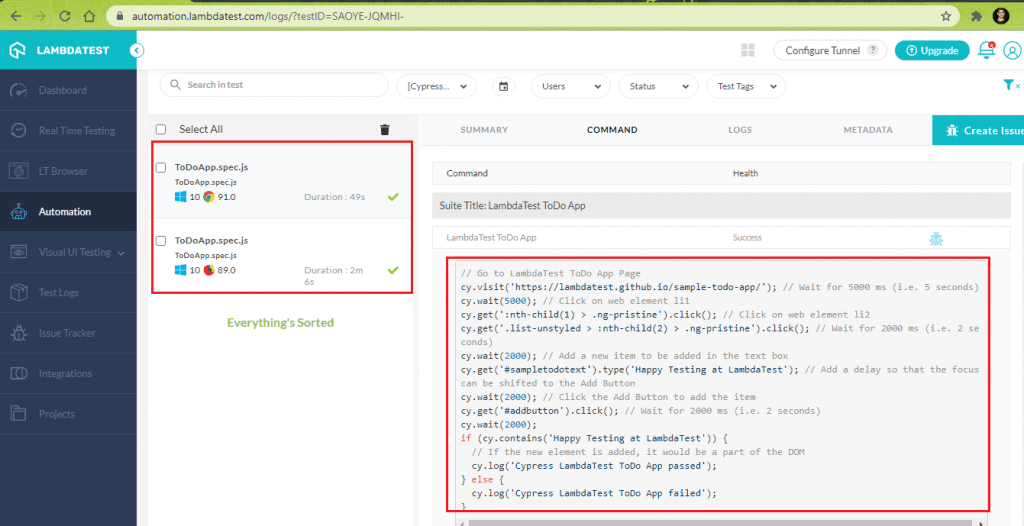
The execution snapshot from the TestMu AI Automation dashboard shows that both the tests were executed successfully.

Austin Siewert
CEO, Vercel
Discovered @TestMu AI yesterday. Best browser testing tool I've found for my use case. Great pricing model for the limited testing I do 👏
2M+ Devs and QAs rely on TestMu AI
Deliver immersive digital experiences with Next-Generation Mobile Apps and Cross Browser Testing Cloud

Take this certification to showcase your expertise with end-to-end testing using Cypress automation framework and stay one step ahead.
Here’s a short glimpse of the Cypress 101 certification from TestMu AI:
Overview of TestMu AI Cypress CLI Commands
TestMu AI Cypress CLI provides commands through which you can override the essential entries mentioned in the TestMu AI Cypress configuration file [ i.e., lambdatest-config.json ].
To explore the options offered by the run command in TestMu AI Cypress CLI, run the following command on the terminal:
lambdatest-cypress run --help
Here is the gist of the various options provided by the run command:
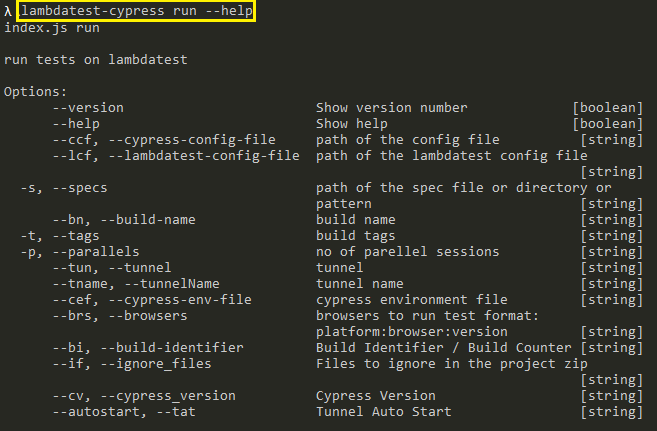
Here the major options through which you can override the settings mentioned in the TestMu AI Cypress configuration file:
Option | Usage |
|---|---|
–cypress-config-file (or –ccf) | Override the current Cypress config file. |
–lambdatest-config-file (or –lcf) | Override the current LambdaTest config file. |
–build-name (or –bn) | Modify the existing build name of the test to be executed on the LambdaTest Grid. |
–parallels (or –p) | Number of parallel sessions. |
–tunnel (or –tun) | String value which signifies enabling/disabling of the LambdaTest Tunnel. |
–tunnelName (or –tname) | String value which indicates the Tunnel name. |
–autostart (or –tat) | String value that indicates whether LambdaTest tunnel has to be auto-started or not. |
–browsers (or –brs) | Browsers on which the tests have to be executed. The format is platform:browser:version |
–ignore_files (or –if) | Files to ignore in the project zip. |
We performed Cypress test automation on the TestMu AI grid against two browser and platform combinations in the previous example. Let’s override those options and perform cross browser testing with Cypress against the following combinations:
- Test Combination 1: Microsoft Edge 92.0 on Windows 10
- Test Combination 2: Mozilla Firefox 86.0 on macOS Catalina
- Build Name: [Cypress] ToDoApp Testing using CLI Options
- Parallels: 2
To get details of the platform name, browser, and browser version, we used the TestMu AI Capabilities Generator. This task is only performed to ensure that the platform and browser names are in line with what is expected on the TestMu AI Grid. Entries for browser and platform combinations are comma-separated so that the Cypress test considers all the required test combinations.
Run the following command on the terminal to run Cypress tests on the desired combinations:
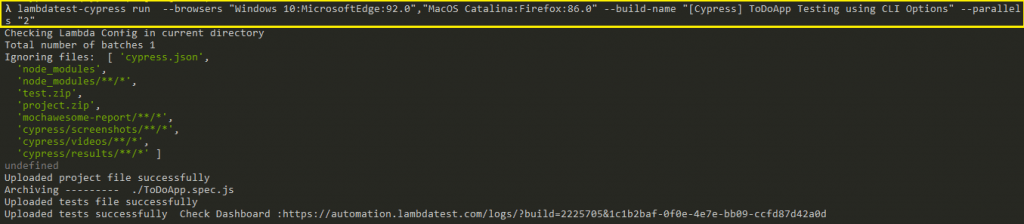
lambdatest-cypress run --browsers "Windows 10:MicrosoftEdge:92.0","MacOS Catalina:Firefox:86.0" --build-name "[Cypress] ToDoApp Testing using CLI Options" --parallels "2"
Here is the execution snapshot, which indicates that the test was uploaded successfully:
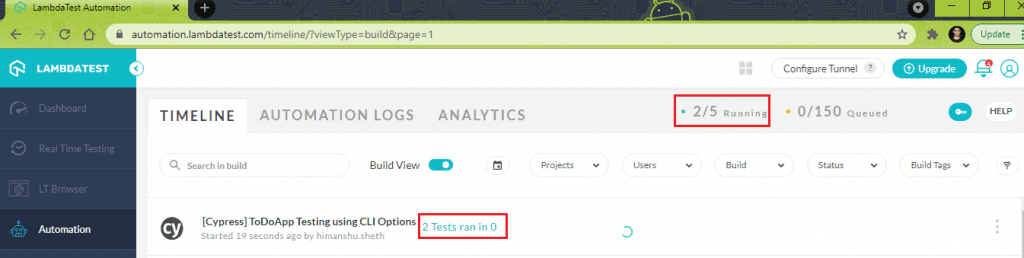
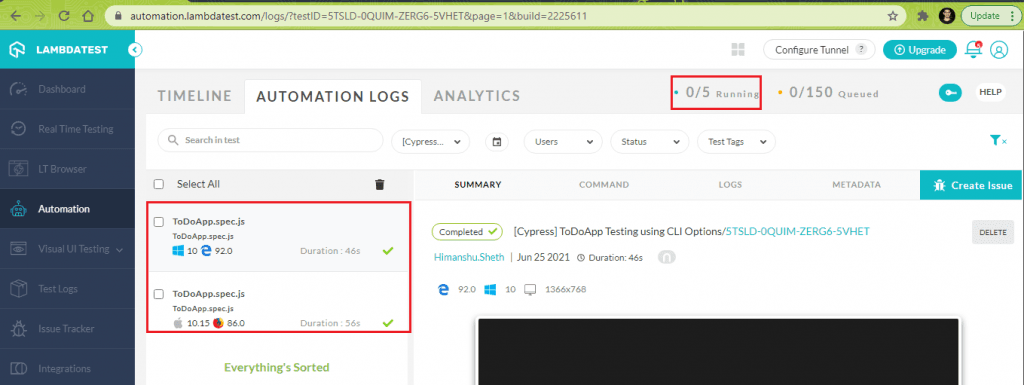
The snapshot below from TestMu AI Automation Dashboard indicates that the two tests were triggered in parallel. The Build name is also overridden by the details specified in the CLI options.
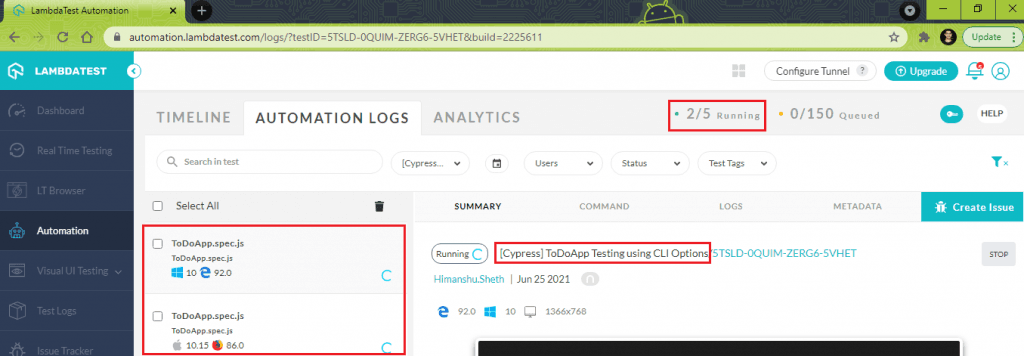
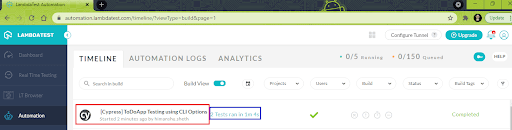
As seen below, Cypress testing on the desired browser and platform combinations passed on the terminal was completed successfully.
Apart from this, you can also use TestMu AI Cypress CLI for running Cypress tests on locally hosted pages. You have to configure and activate the TestMu AI tunnel capability in the TestMu AI Cypress configuration file [lambdatest-config.json] in the connection settings. You can refer to Testing Locally Hosted Pages with Cypress on TestMu AI on the support documentation.
This Cypress testing tutorial for beginners and professionals will help you learn everything you need to know to work with Cypress for automation testing
It’s a Wrap
Cypress testing is giving stiff competition to test automation since Cypress is a well-designed framework best suited for testing modern web applications. However, the potential of the Cypress testing framework can be further enhanced by using it against a reliable and scalable cloud-based automation grid.
This is where TestMu AI Cypress CLI fits in perfectly as it lets you perform Cypress testing across a range of browsers and platform combinations. You can do all of these by running the tests in parallel. TestMu AI Cypress CLI is not only easy to set up, but it also lets you run Cypress tests on TestMu AI Grid without changing even a single line of code logic.
Cypress test automation is on the rise, and it’s best for developers and enterprises to leverage the potential of the Cypress testing framework with the TestMu AI cloud grid. In further editions of the Cypress tutorial, we would deep into the essential aspects of cross browser testing with Cypress at scale!
To deepen your Cypress automation expertise, don’t miss our comprehensive guide on the top Cypress interview questions packed with insights to help you shine in your next interview.
Happy Cypress Testing!



Did you find this page helpful?
More Related Hubs
TestMu AI forEnterprise
Get access to solutions built on Enterprise
grade security, privacy, & compliance
- Advanced access controls
- Advanced data retention rules
- Advanced Local Testing
- Premium Support options
- Early access to beta features
- Private Slack Channel
- Unlimited Manual Accessibility DevTools Tests