

Next-Gen App & Browser Testing Cloud
Trusted by 2 Mn+ QAs & Devs to accelerate their release cycles


On This Page
- Different Methods to Inspect Elements on iPhones
- Inspect Elements on iPhone With Safari Developer Tools
- Inspect Elements on iPhone With Responsive Testing Tools
- Inspect Elements on iPhone With Cross Browser Testing Platforms
- Inspect Elements on iPhone With Adobe Edge Inspect
- Additional Options to Inspect Elements on iPhone

How To Inspect Elements On iPhone?
Every modern web browser has a robust set of developer tools for testing element alignment and functionality. This article will show how to inspect elements on iPhone and iPad.

Harish Rajora
December 24, 2025
Every modern web browser contains a robust set of developer tools for testing element alignment and functionality. But if we turn the table to a mobile device, then there is no way you can inspect the same elements. As per Statcounter, iOS captures approx 29% of the global market share, it’s crucial to know how to inspect element on iPhone.
In this post, we discuss different methods on how to inspect elements on iPhone.
By the end of this post, you will not only be able to inspect elements on iPhone and iPad but will have various options to choose from as per your choice.
Let’s begin!
Different Methods to Inspect Elements on iPhone
There are various advantages to inspecting elements. Listed below are four methods to inspect elements on iPad or iPhone.
- Using Safari Developer Tools
- Using Responsive Testing Tools
- Using Cross Browser Testing Platforms
- Using Adobe Edge Inspect
Inspect Elements on iPhone With Safari Developer Tools
The most convenient way to inspect elements on iOS devices is to utilize the inspect elements feature in the Safari browser on the desktop. As you may have predicted, Apple developed this method, and since Apple developed it for their browser, they do not provide options for using Android or any other OS.
To inspect elements on iPhone using Safari developer tools, you need three things – an iPhone/iPad, a Mac, and a USB cable.
Below are the steps on how to inspect elements on iPhone using Safari Developer tools.
- Once you have all three, connect them through the USB cable. Open Safari browser on Mac and go to Preferences option
- Next, go to the Advanced tab and check the “Show Develop menu in menu bar” option. Both of these are highlighted in the image below.
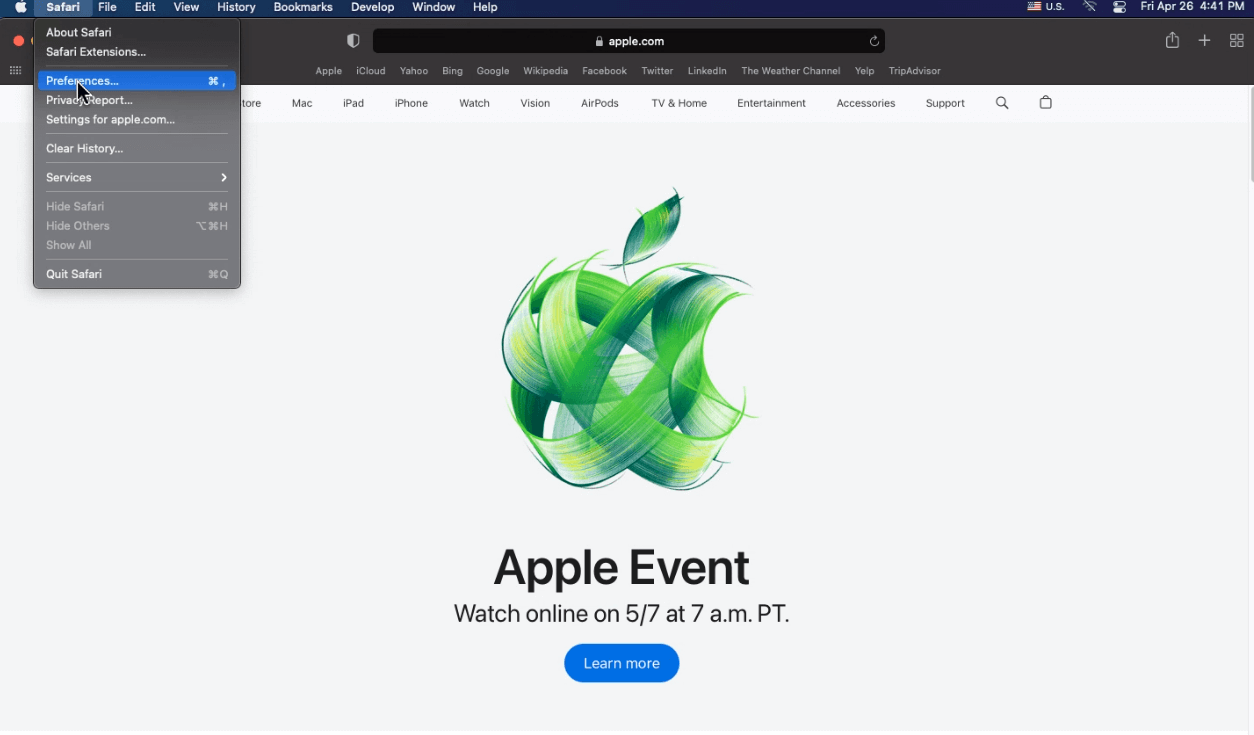
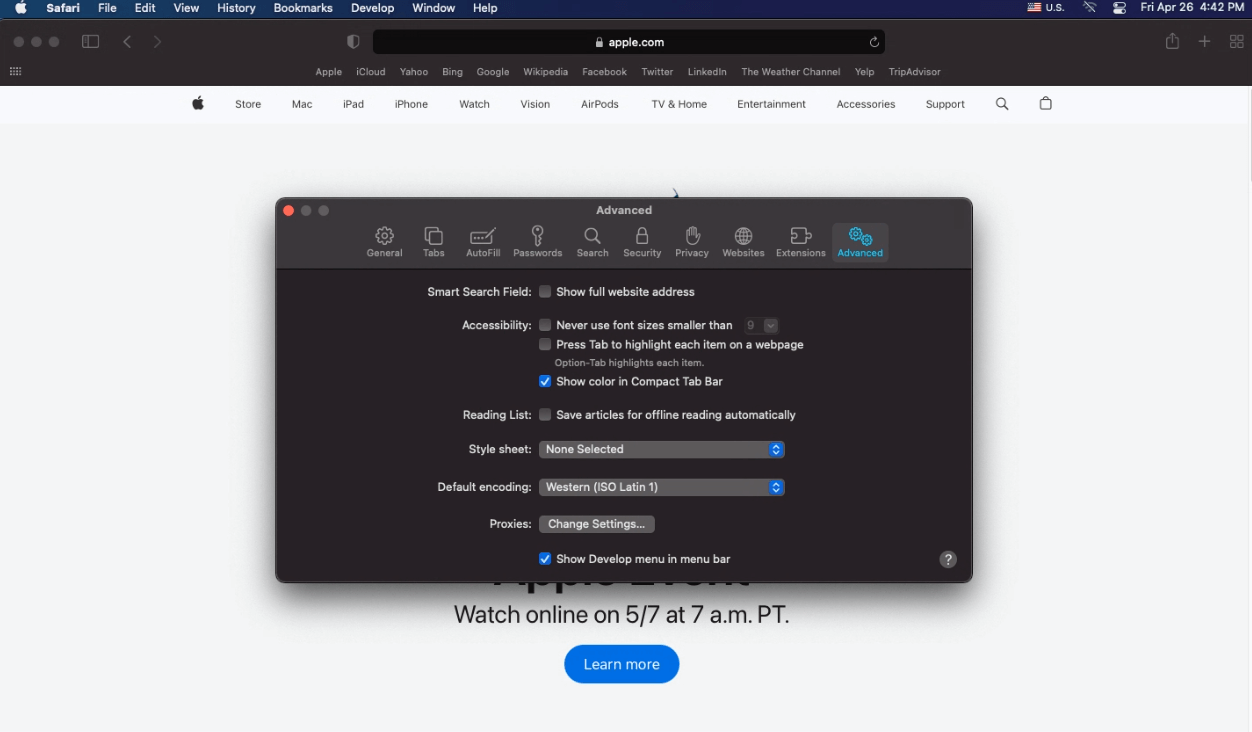
Now, we are all set to inspect elements on iPhone with Mac. Enabling the “Show Develop menu in menu bar” option will make the “Develop” option visible on the options bar of the browser. Click it, and your device name will be visible in the list.
Here you can inspect it like a browser on your system.
Notice above how I have mentioned “Mac” repeatedly instead of the generic term “system” or “PC,” etc. Because this option is only available to those who work in the Apple ecosystem, if you do not own a Mac, this option won’t work on any other OS such as Windows, even if Safari is installed on it.
This is the sole reason I believe this option is in between decent and mediocre. The following image shows the market share of macOS globally.

As per the above data, macOS covers just 18.5% of the market. It means out of 100 people, only 18 – 19 will be able to use this option and inspect elements on iPad/iPhone. If you have all the iPhone devices you are targeting for your application and fall in the above 18.5% category; you are lucky enough. But if you are one of 100 people, we have more flexible options ahead.
Wondering how to inspect elements on iPhone Safari? Try cloud-based platforms like TestMu AI and inspect elements on iPhone real devices and iPhone simulators. Also, you can test on Safari browsers online and check the browser compatibility of your websites and web apps on real Safari browser versions.

Note: Run your tests across 3000+ browsers and operating systems. Try TestMu AI Today!
Inspect Elements on iPhone With Responsive Testing Tools
Cloud-based testing platforms like TestMu AI equips developers and testers to inspect elements while performing cross browser testing. However, while that can quickly establish our inspect elements task, developers still might need a little bit more to test for responsiveness and other issues specific to mobile. Hence, the LT Browser – a mobile site tester by TestMu AI works like a charm here.
LT Browser is a mobile-specific browser developed to provide a complete mobile testing environment. With LT Browser, you can quickly inspect elements on 53+ pre-installed device viewports like mobiles, tablets, desktops, and laptops of your web app.
Here is a quick overview of LT Browser!
You can also follow the TestMu AI YouTube Channel and stay updated with the latest tutorials on cross device testing, mobile website testing, and more.
The following steps will guide you on how to inspect element on iPhone or iPad using LT Browser.
- Download and install LT Browser on your system.
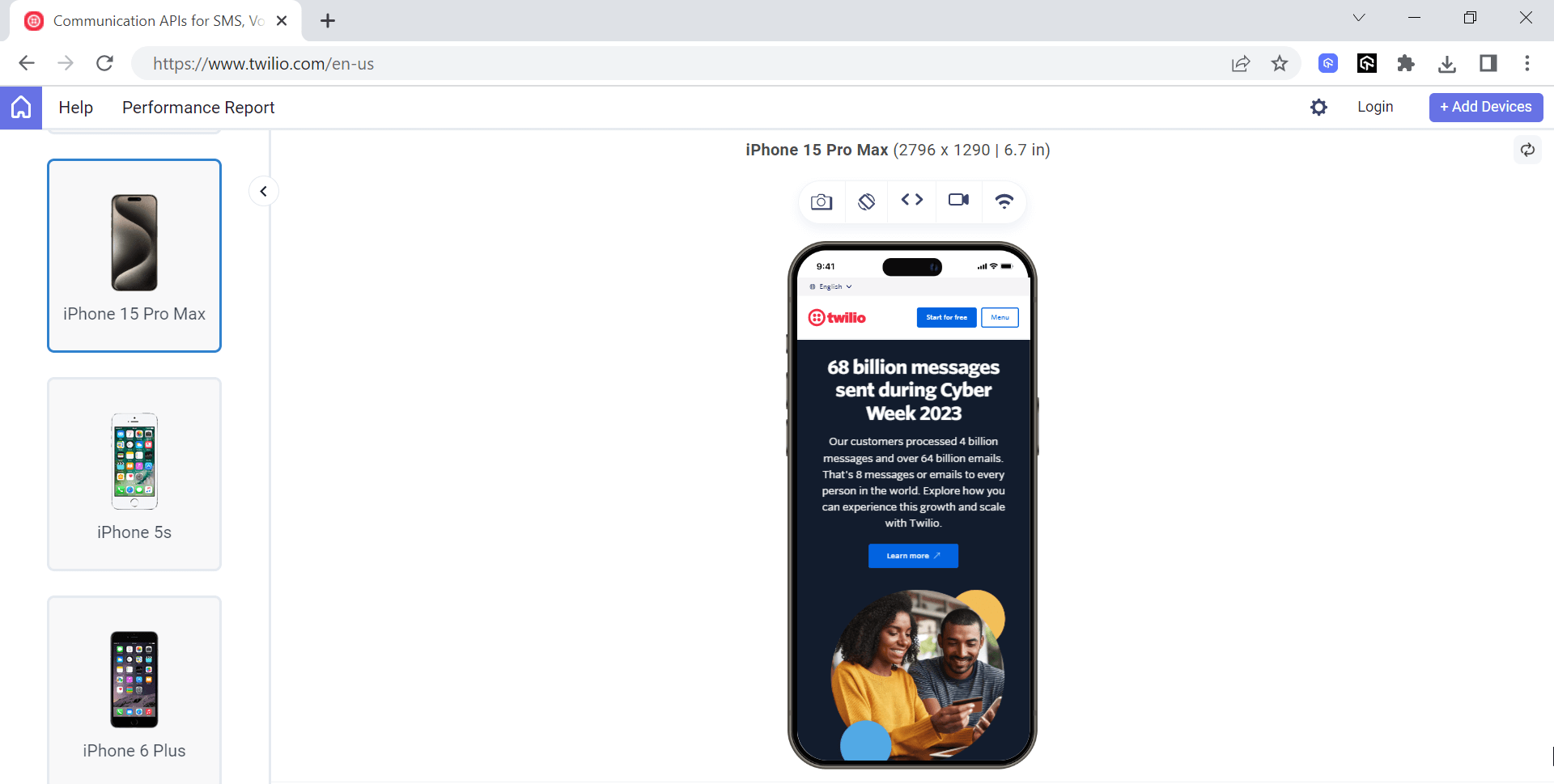
- Open the browser, select the iPhone device viewport from the left device panel, and enter the website URL you want to inspect.
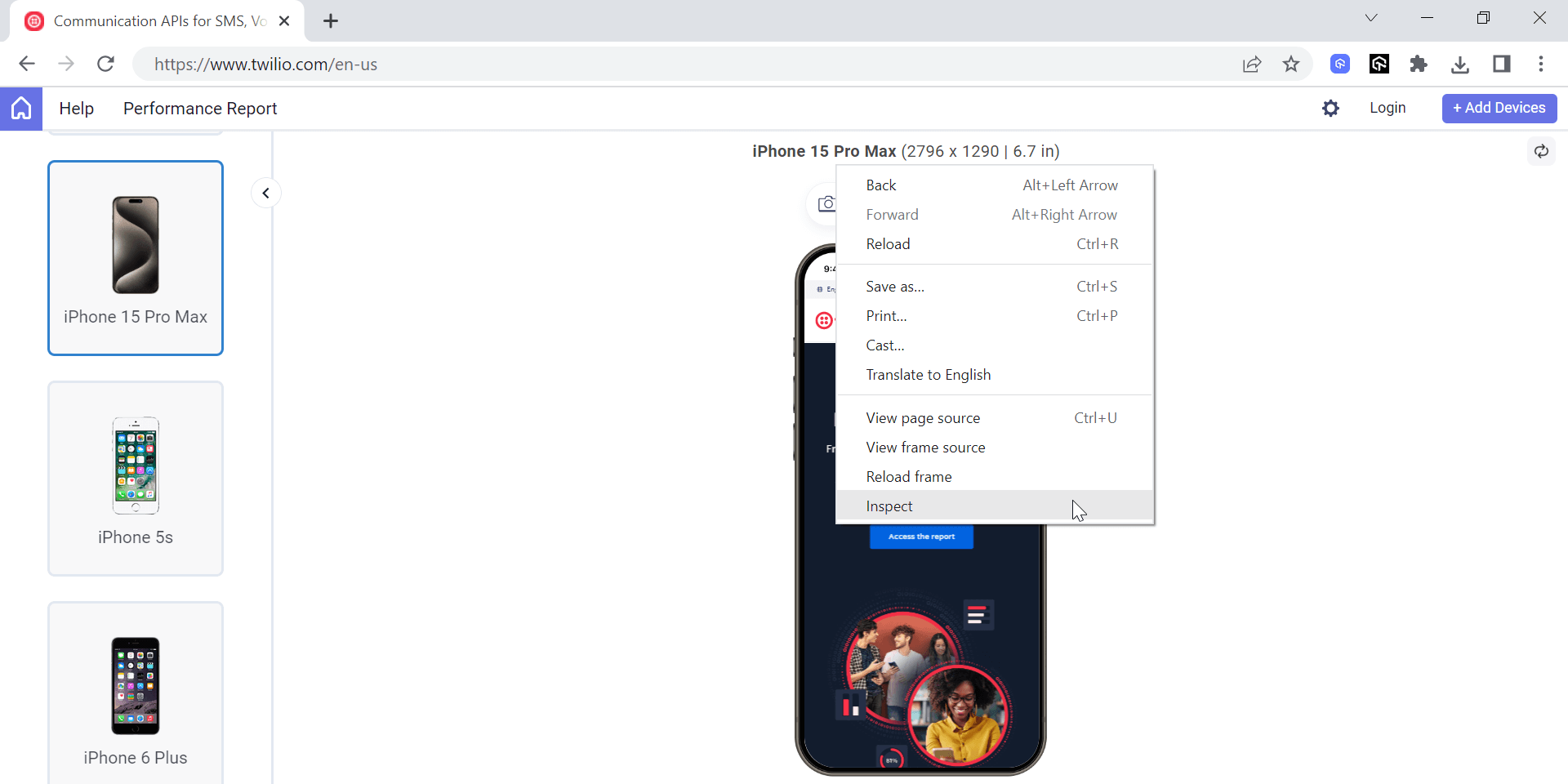
- Press the debugger button to open the web inspector and start inspecting elements on an iPhone or an iPad.
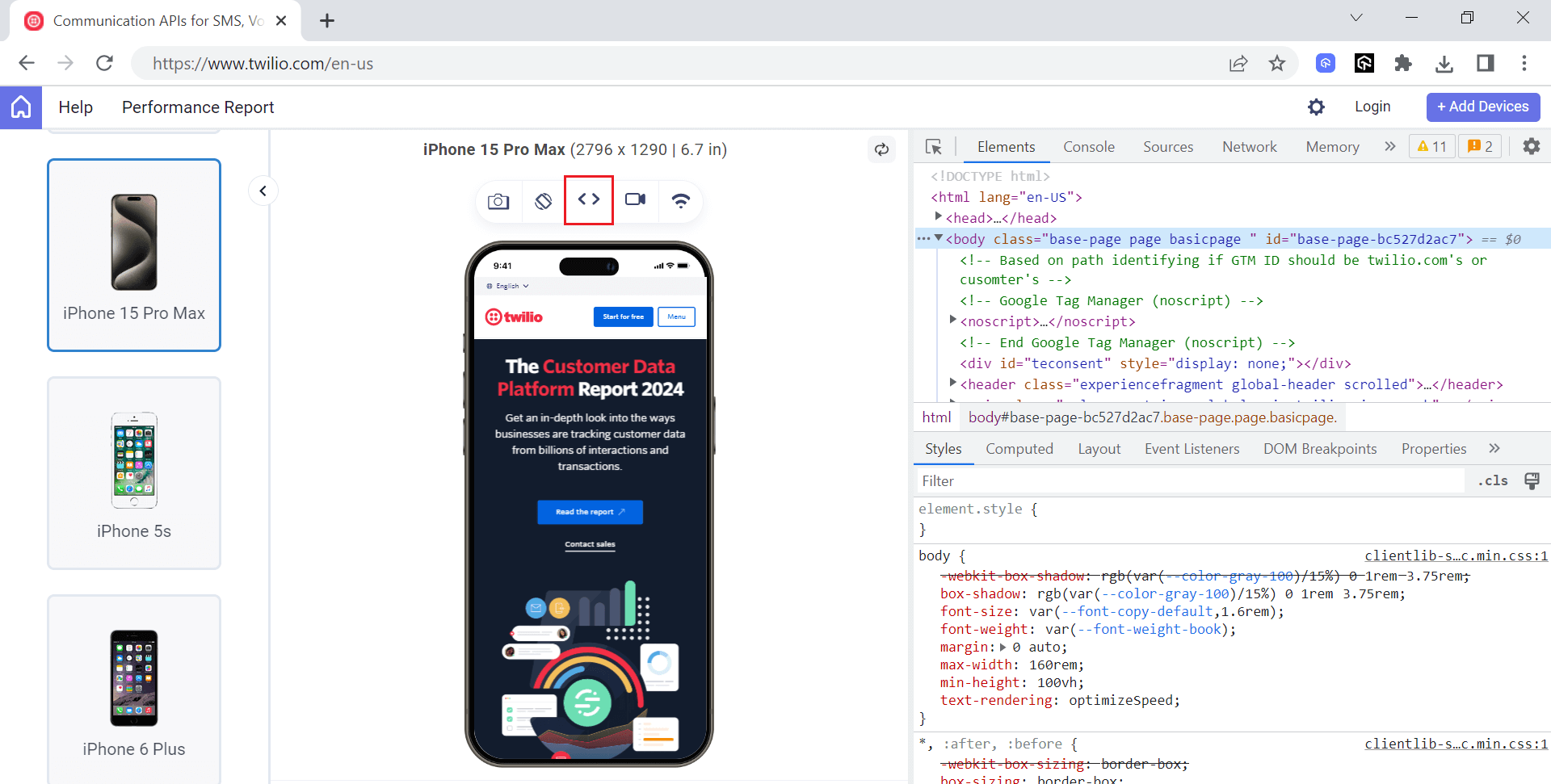
You can also right-click anywhere on the screen and select Inspect to open the same developer tools panel.
When it comes to testing iOS apps, AI-powered test assistants like KaneAI takes the complexity out of the testing process. With its AI-driven capabilities, KaneAI lets you create, manage, and debug iOS app tests using simple natural language commands.
KaneAI is a GenAI native end-to-end software testing assistant designed to streamline test automation. It allows users to create, manage, and debug test cases using natural language, making the testing process more intuitive. It is built for high-speed quality engineering teams and integrates seamlessly with TestMu AI’s suite of tools for test execution, orchestration, and analysis.

How to Inspect Elements on iPhone With Cross Browser Testing Platforms
iPhones and iPads use different versions of the iOS operating system. Based on the frequency and availability of OS upgrades, you can find a certain level of iOS version fragmentation. Given this, a business must ensure that its apps operate correctly across different iOS versions and provide a seamless user experience. This is where comes into play. People generally aim for tools that could run without any in-house device installations. Using TestMu AI platform for inspecting elements on iPhone or iPad addresses the shortcomings of Safari Developer Tools and Adobe Edge Inspect.
TestMu AI is an AI-powered test orchestration and execution platform allows you to perform live-interactive testing at scale on a remote test lab of 3000 desktop and mobile browsers. You’ll get instant access to your preferred web browser, browser version, operating system, and screen resolution. In addition, every browser on the TestMu AI cloud includes pre-installed native developer tools to enable you effortlessly debug your websites and web apps. You can also debug elements on iPhone or iPad using TestMu AI real device cloud to test various scenarios in real-world environments and get accurate results.
Now you must have already guessed that you don’t even need a real iPhone or iPad device to inspect elements on it. This way, you don’t have to worry about buying an in-house physical device, be it iPhone or any other, and just focus on development and testing.
Below are the steps on how to inspect elements on iPhone or iPad using TestMu AI.
- Make sure you have a TestMu AI account. In case you’re not registered, visit the TestMu AI registration page.
- Login in your TestMu AI account, and it will redirect you to the dashboard page.
- From the left panel, go to Real Device > Browser Testing.
- Choose the iOS operating system, then select your preferred browser. Next, pick either iPhone or iPad and specify the device model. Finally, click the Start button.
- From the top-right corner, click on Safari Web Inspector icon.
TestMu AI also provides a feature – local page testing to run them locally or privately hosted projects. This feature, called local tunnel testing, creates a secure tunnel between your local server and TestMu AI cloud infrastructure.
Inspect Elements With Adobe Edge Inspect
Adobe Shadow is a tool developed by Adobe in 2011 and was later renamed Adobe Edge Inspect. Adobe Edge Inspect was a part of the Adobe Edge suite with capabilities of inspecting elements on multiple devices. Adobe Edge Inspect overcomes the challenges of our previous solution as it does not require macOS running devices. In addition, it is available for both Windows and macOS.
Adobe Edge Inspect also supports synchronized browsing. You open the website on one device, and it will be synced to all the connected devices, i.e., it will open automatically on all of them. The connection between the devices is established through Wi-Fi.
Below are the methods on how to inspect elements on iPhone using Adobe Edge Inspect.
- To use Adobe Edge Inspect and inspect elements on iPad/iPhone, download the software on your system and connect all the devices with the same Wi-Fi connection.
- When you open a website (coenraets.org here), you will notice that it will open on all connected devices. These connected devices will show the debugger sign (<>) in front of them.
- Select the debugger sign in front of the device you would like to inspect the element on.
This will open up the developer tools, and you can inspect elements on iPhone or iPad, just like debugging a website on PC. It is an easy, quick, and very effective solution.
With that being said, it does have a lot of holes that cannot be ignored. This has been discontinued by Adobe now. Although, its executable files are available all over the internet for all the operating systems.
Secondly, Adobe Edge Inspect lacks one significant part of web app development – local web testing. Web developers spend hours inspecting elements on different devices because they don’t want their issues to reach the customer. If you incorporate a new feature on an already published website, it’s another story. But if you are developing the website for the first time, you probably have no URL to open it on the Adobe Edge Inspect and inspect an iPhone with it.
In the other section of this tutorial on how to inspect elements on iPhone, the rest of the options will cover all the anomalies of our previous options.
Additional Options to Inspect Elements on iPhone
These methods on how to inspect elements on iPhone conclude our limited options through which we can inspect elements. This concludes with options that are practical when we have more than one iOS device (which we have almost all the time). There are also other options on how to inspect elements on iPhone in the pool!
Some methods can help you host the website through a temporary URL service and use that link to open the web application on your iPhone or iPad. This way, you cannot inspect elements directly on the iOS device but can understand the elements creating the issues. Then you can correct them on your system and repeat the process.
Chrome plugins are also available that come in varying sizes and let you see how your website will look on different devices. However, this method gives inaccurate results and is therefore not recommended. Wondering how to inspect elements on iPad Chrome? Test on the TestMu AI online device farm and quickly inspect and test web elements across 3000+ real iOS and Android devices.
One other option takes support from native applications. For example, iOS applications available on Apple’s App store, such as Shortcuts and VT view source. These applications require extensive hard work from the tester, though. So instead, once you open the website on the iPhone/iPad (published or through a temporary URL service), you can link it to these applications after installation. These applications then allow you to look at the source code, elements, and inspector and directly edit these elements on the mobile.
You need to perform testing, including editing and correcting the device only. You cannot use your system here unless you use an app like the MIH tool that allows remote inspection through weinre.
Wrapping Up!
In this tutorial on how to inspect elements on iPhone, we discussed different methods for inspecting elements on iPhone and iPads. If you have a method that you use and want to share with the community, we welcome your comments and will be happy to include them in this post. Also, if this is your first time or you have used one of the methods described in this post, let us know your feedback and suggestions.
Till then, happy testing!
How to Inspect Elements on iPhone With Cross Browser Testing Platforms
Inspect Elements With Adobe Edge Inspect
Additional Options to Inspect Elements on iPhone
Wrapping Up!


Frequently asked questions
Did you find this page helpful?
More Related Hubs
TestMu AI forEnterprise
Get access to solutions built on Enterprise
grade security, privacy, & compliance
- Advanced access controls
- Advanced data retention rules
- Advanced Local Testing
- Premium Support options
- Early access to beta features
- Private Slack Channel
- Unlimited Manual Accessibility DevTools Tests