

Next-Gen App & Browser Testing Cloud
Trusted by 2 Mn+ QAs & Devs to accelerate their release cycles


On This Page
- What is a Window in Selenium?
- How to identify parent and child windows in Selenium?
- What is Window Handle in Selenium?
- What are the different methods used for window handling in Selenium?
- How to handle a single child window in Selenium?
- How to handle multiple child windows in Selenium?
- How to switch back from child window to parent window in Selenium?
- How to close all windows while handling multiple windows in Selenium?

How To Handle Multiple Windows In Selenium WebDriver Using Java?
In this article, we will understand what are Windows in Selenium and how to handle multiple windows in Selenium WebDriver using Java.

Ria Dayal
February 20, 2026
When automating any website or a web application in Selenium, you might have come across a scenario where multiple windows open within an application when a button is clicked, and appropriate action needs to be performed on the opened windows. Alas, you might not be in a position to work on all windows at the same time. Hence there is a need for some mechanism through which you can gain control over the parent and child windows.
In this Selenium Java tutorial, we will understand what Windows are and how to handle multiple windows in Selenium WebDriver using Java. What is a Window in Selenium?
Starting your journey with Selenium WebDriver? Check out this step-by-step guide to perform Automation testing using Selenium WebDriver.
Overview
What Is Multiple Windows Handling in Selenium?
When automating web applications, multiple windows may open, requiring actions on each. Selenium provides mechanisms to switch between parent and child windows efficiently.
What Is a Window in Selenium?
A window is the main web page where the user lands after opening a URL. The first window is called the Parent Window, and any new windows opened are Child Windows.
What Are Window Handles in Selenium?
Window handles are unique alphanumeric IDs assigned to each browser window. They allow Selenium to switch focus and perform operations on specific windows.
Which Methods Help Handle Windows in Selenium?
- getWindowHandle(): Returns the ID of the current window.
- getWindowHandles(): Returns IDs of all opened windows.
- switchTo(): Switches control to a specific window using its handle.
How Do You Handle Multiple Child Windows?
- Iterate over all child window handles.
- Identify windows by titles or conditions (e.g., Facebook vs. Twitter).
- Perform specific actions in each child window.
- Close each child window after completing operations.
Which Tools Support Selenium Multiple Windows Testing?
Cloud-based platforms like TestMu AI provide scalable Selenium Grid environments for running parallel tests on multiple browsers and OS combinations.
Watch this video to learn how to handle multiple windows in Selenium WebDriver using Java.
Let’s get started!!
What is a Window in Selenium?
A window in any browser is the main web page on which the user lands after hitting a URL. Such a window in Selenium is referred to as the Parent Window or Main Window. It opens when the Selenium WebDriver session is created and has all the focus of the WebDriver.
Check out this video to learn about Windows in Selenium:
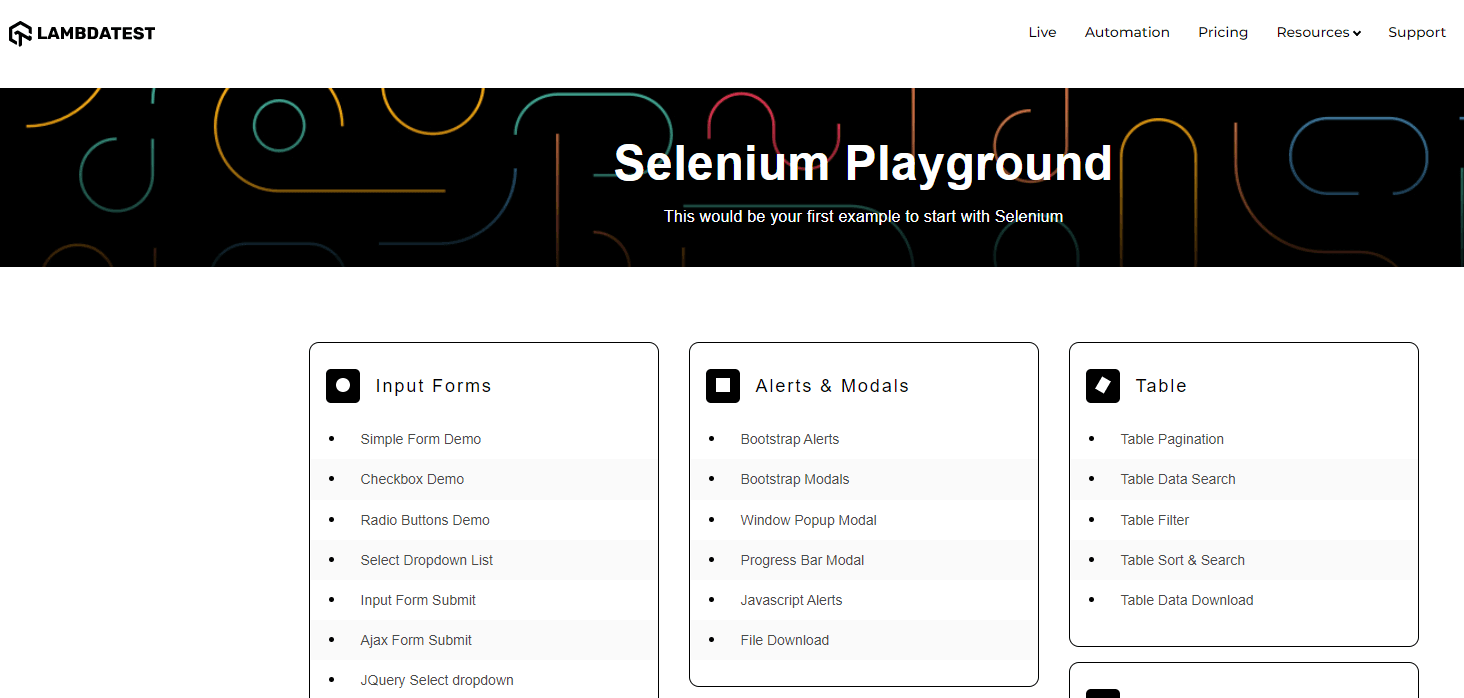
For example, when you open any website or link, the page you land in is the Main Window. Here, I am logging into the Selenium Playground offered by TestMu AI, and the below-shown window is the Main Window.
TestMu AI is a cloud-based cross browser testing platform that supports Selenium Grid, providing a solution to every obstacle you face while performing automation testing on your local machine. Automation testing tools like TestMu AI offer a cloud-based Selenium Grid consisting of an online device farm of 3000+ real browsers and operating systems for you to perform Selenium automation testing at scale.
How to identify parent and child windows in Selenium?
As discussed in the above section of this blog on how to handle multiple windows in Selenium WebDriver using Java, when you open any website, the main page where you will perform any operation is the Parent Window. This is the same webpage that will open when the Selenium automation script is executed.
Now, all the other windows that open inside your main window are termed as Child Windows. In order to understand this better, let’s log in to the Selenium Playground and use the Window Popup Model option.
Once you click on the Window Popup Model option, the page you land in is the Parent Window, and the window which opens by clicking on Follow On Twitter option is the Child Window.
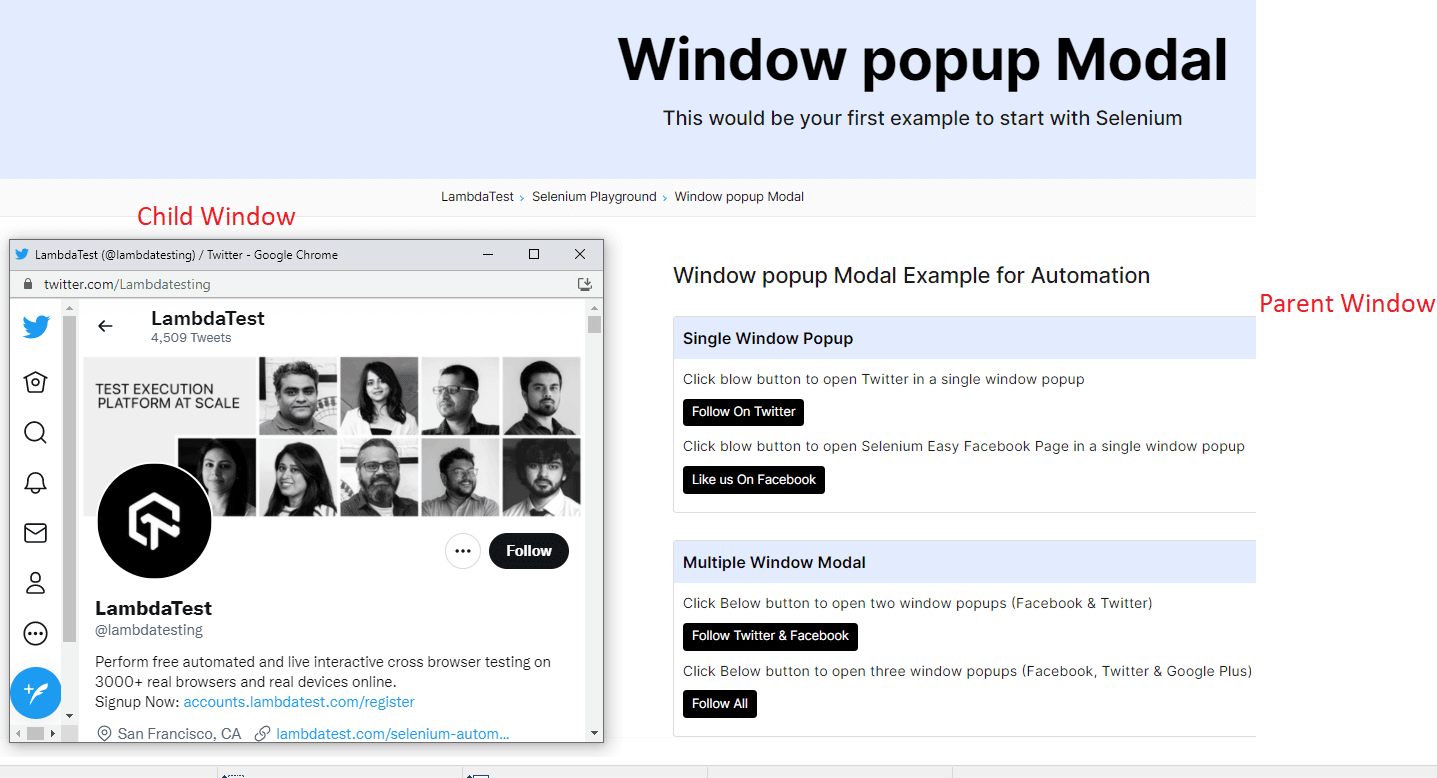
It is important to note that there can be single or multiple child windows inside your parent window.

What is Window Handle in Selenium?
Now that you have understood the concept of Windows in Selenium let’s look at how to control these different browser windows. This is where the Window Handle comes into the picture.
A window handle stores the unique address of the browser windows. It is just a pointer to a window whose return type is alphanumeric. The window handle in Selenium helps in handling multiple windows and child windows. Each browser window has a unique window handle value through which it can be identified.
In the previous section of this article on how to handle multiple windows in Selenium WebDriver using Java, when a new window was opened by clicking on the Follow On Twitter option, it had its Window Handle (or ID). This helps to switch the Selenium WebDriver context to the corresponding window and perform any operation.
Note: Selenium WebDriver 4 is a major architectural update in Selenium 4. WebDriver is the de facto standard for automating web browsers, enabling you to run automated tests on a variety of browsers. Follow along with this video to learn what’s new in Selenium 4.
You can follow the TestMu AI YouTube Channel and stay updated with the latest tutorials around Selenium testing, Cypress E2E testing, CI/CD, and more.
What are the different methods used for window handling in Selenium?
Let’s see what are the different methods through which we can handle these windows in Selenium. Selenium WebDriver provides us with various methods for handling windows. Below are a few of them:
- getWindowHandle(): With this method, we get a unique ID of the current window which will identify it within this driver instance. This method will return the value of the String type.
- getWindowHandles( ): With this method, we get the IDs of all the windows opened by the web driver. Its return type is Set
. - switchTo(): Using this method, we can perform switch operations within windows.
Also read – How To Switch Between iFrames In Selenium Java [Tutorial]
How to handle a single child window in Selenium?
Let us now implement a code snippet for handling the single-child window in Selenium.
Use Case
- Log in to the Window Popup Modal Demo page of Selenium Playground.
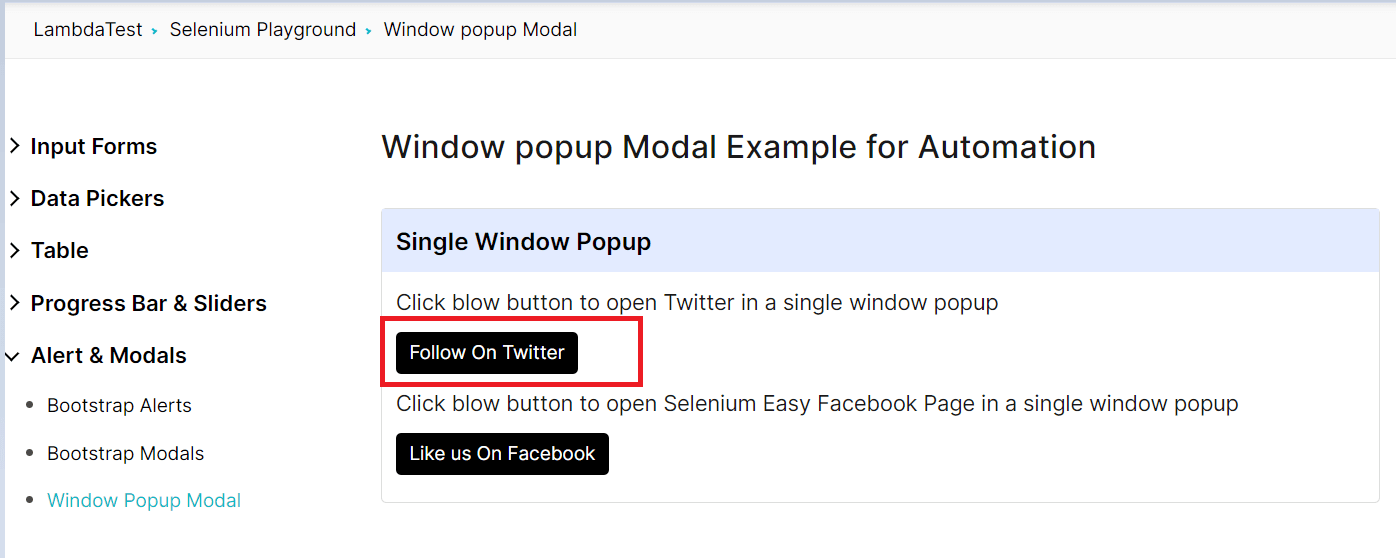
- Click on Follow On Twitter option in the Single Window Popup section
- Switch to the child window opened
- Print the header of the web page.
Implementation
We will implement the case using Selenium with Java and use the cloud Selenium grid offered by TestMu AI for executing our test case.
Selenium Grid refers to a software testing setup that enables QAs to perform parallel tests across multiple browsers and devices with unique operating systems. When the entire setup of Selenium Grid is accessible using cloud-based servers, it is called Selenium Grid on Cloud. An online Selenium Grid helps you focus on writing better Selenium test scripts rather than worrying about infrastructure maintenance.

package LambdaTest;

import org.openqa.selenium.By;
import org.openqa.selenium.WebElement;
import org.openqa.selenium.remote.DesiredCapabilities;
import org.openqa.selenium.remote.RemoteWebDriver;
import org.testng.Assert;
import org.testng.Reporter;
import org.testng.annotations.AfterTest;
import org.testng.annotations.BeforeTest;
import org.testng.annotations.Listeners;
import org.testng.annotations.Test;

import java.net.MalformedURLException;
import java.net.URL;
import java.util.Iterator;
import java.util.Set;

@Listeners({util.Listener.class})
class MultipleWindowsInSelenium {


    public String username = "YOUR USERNAME";
    public String accesskey = "YOUR ACCESSKEY";
    public static RemoteWebDriver driver = null;
    public String gridURL = "@hub.lambdatest.com/wd/hub";

    @BeforeTest
    public void setUp() throws Exception {
        DesiredCapabilities capabilities = new DesiredCapabilities();
        capabilities.setCapability("browserName", "chrome");
        capabilities.setCapability("version", "96.0");
        capabilities.setCapability("platform", "win10"); // If this cap isn't specified, it will just get the any available one
        capabilities.setCapability("build", "MultipleWindowsInSelenium");
        capabilities.setCapability("name", "MultipleWindowsInSeleniumTest");
        try {
            driver = new RemoteWebDriver(new URL("https://" + username + ":" + accesskey + gridURL), capabilities);
        } catch (MalformedURLException e) {
            System.out.println("Invalid grid URL");
        } catch (Exception e) {
            System.out.println(e.getMessage());
        }
        driver.get("https://www.lambdatest.com/selenium-playground/window-popup-modal-demo");

    }


    @Test
    public void singleWindowPopUp() {
        try {
            //Clicks on the follow on twitter option
            WebElement followOnTwitter = driver.findElement(By.xpath("//a[text()='  Follow On Twitter ']"));
            followOnTwitter.click();

            // To handle parent window
            String MainWindow = driver.getWindowHandle();
            System.out.println("Main window handle is " + MainWindow);

            // To handle child window
            Set<String> s1 = driver.getWindowHandles();
            System.out.println("Child window handle is" + s1);
            Iterator<String> i1 = s1.iterator();
            while (i1.hasNext()) {
                String ChildWindow = i1.next();
                if (!MainWindow.equalsIgnoreCase(ChildWindow)) {
                    driver.switchTo().window(ChildWindow);
                    String pageTitle=driver.getTitle();
                    System.out.println("The web page title of child window is:"+pageTitle);
                    driver.close();
                    System.out.println("Child window closed");
                }
            }

        } catch (Exception e) {

        }

    }

    @AfterTest
    public void closeBrowser() {
        driver.quit();
        Reporter.log("The driver has been closed.", false);

    }

}
You can use the below testng.xml file for running the above testcase.
<?xml version="1.0" encoding="UTF-8"?>
<!DOCTYPE suite SYSTEM "http://testng.org/testng-1.0.dtd">
<suite  name="MultipleWindowsInSeleniumSuite">

    <test name="MultipleWindowsInSeleniumTest" >
        <classes>
            <class name="LambdaTest.MultipleWindowsInSelenium" >
            </class>
        </classes>
    </test>
</suite>
And the below pom.xml file for installing all the necessary dependencies.
<?xml version="1.0" encoding="UTF-8"?>
<project xmlns="http://maven.apache.org/POM/4.0.0"
         xmlns:xsi="http://www.w3.org/2001/XMLSchema-instance"
         xsi:schemaLocation="http://maven.apache.org/POM/4.0.0 http://maven.apache.org/xsd/maven-4.0.0.xsd">
    <modelVersion>4.0.0</modelVersion>

    <groupId>org.example</groupId>
    <artifactId>LambdaTest</artifactId>
    <version>1.0-SNAPSHOT</version>
    <dependencies>
        <dependency>
            <groupId>org.seleniumhq.selenium</groupId>
            <artifactId>selenium-api</artifactId>
            <version>4.0.0-alpha-7</version>
        </dependency>
        <dependency>
            <groupId>org.seleniumhq.selenium</groupId>
            <artifactId>selenium-remote-driver</artifactId>
            <version>4.0.0-alpha-7</version>
        </dependency>
        <dependency>
            <groupId>org.seleniumhq.selenium</groupId>
            <artifactId>selenium-chrome-driver</artifactId>
            <version>4.0.0-alpha-7</version>
        </dependency>
        <dependency>
            <groupId>org.testng</groupId>
            <artifactId>testng</artifactId>
            <version>6.14.3</version>
        </dependency>
        <dependency>
            <groupId>io.github.bonigarcia</groupId>
            <artifactId>webdrivermanager</artifactId>
            <version>4.4.3</version>
        </dependency>
    </dependencies>

    <properties>
        <maven.compiler.source>8</maven.compiler.source>
        <maven.compiler.target>8</maven.compiler.target>
    </properties>

</project>
Code Walkthrough
Let us now see the different areas of code in detail.
- Imported Dependencies: Here, we have imported all the necessary classes of Selenium WebDriver, WebDriverWait, Desired Capabilities, and RemoteWebDriver to set the respective browser capabilities and run Selenium IDE tests on cloud grid.
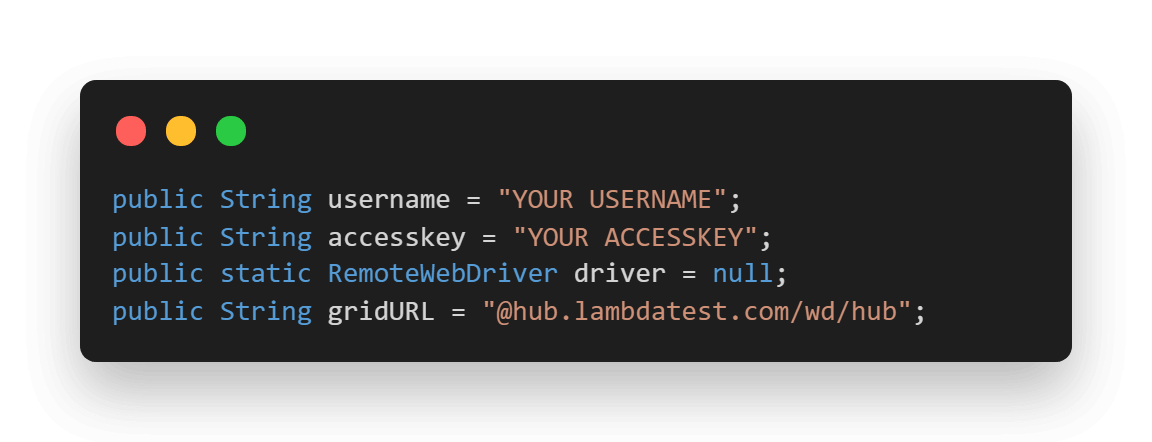
- Global Variables: As we have used a Selenium Grid Cloud like TestMu AI to perform our test execution, we are using the below-shown variables.

Here, you can populate the values for your corresponding username and access key, which can be collected by logging into your TestMu AI Profile Section. You can copy the Username and the Access Token to be used in the code. However, the grid URL will remain the same, as shown below.
@Listeners(PackageName.ClassName.class)
- @BeforeTest(Setup Method): Here, we have used the TestMu AI Desired Capabilities Generator and have set the necessary capabilities of browser name, version, platform, etc., for our Selenium Remote WebDriver. After that, we are opening the Window Popup Demo Page in the launched browser.
- @Test(singleWindowPopup): Here, we are first locating the Web Element for Follow On Twitter option and clicking on it.

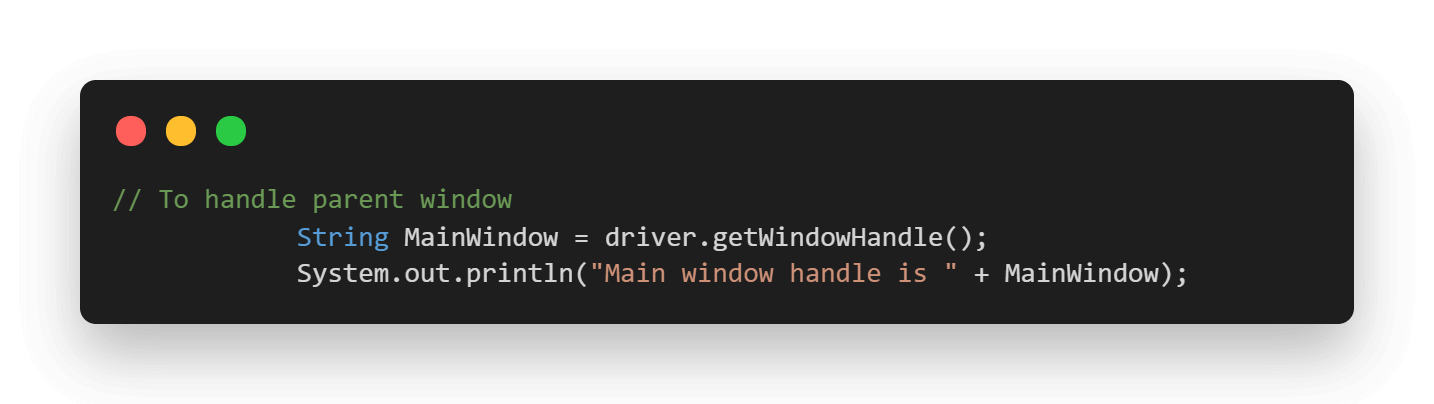
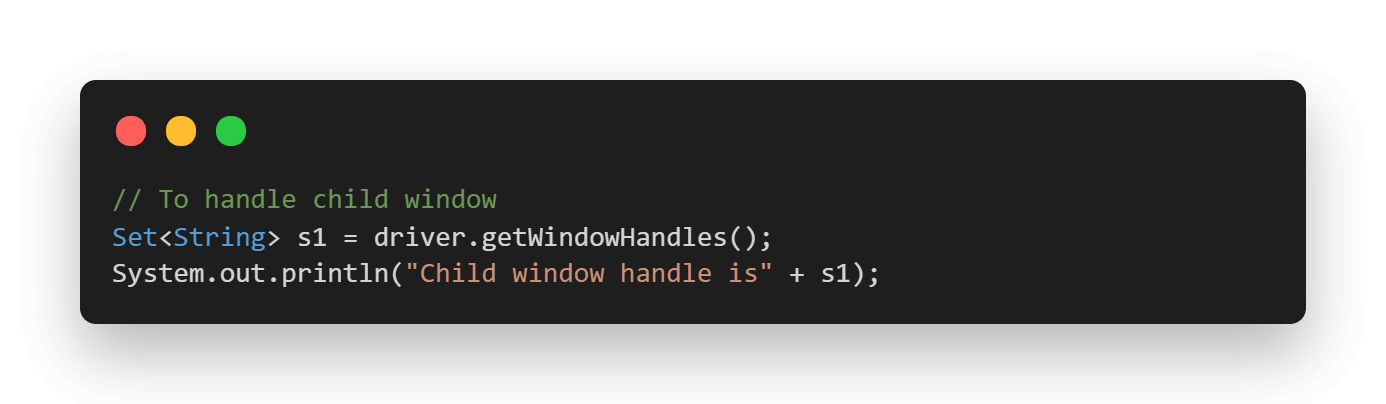
After this, the driver.getWindowHandle() helps in getting the unique identifier of the main window and storing it in a string.
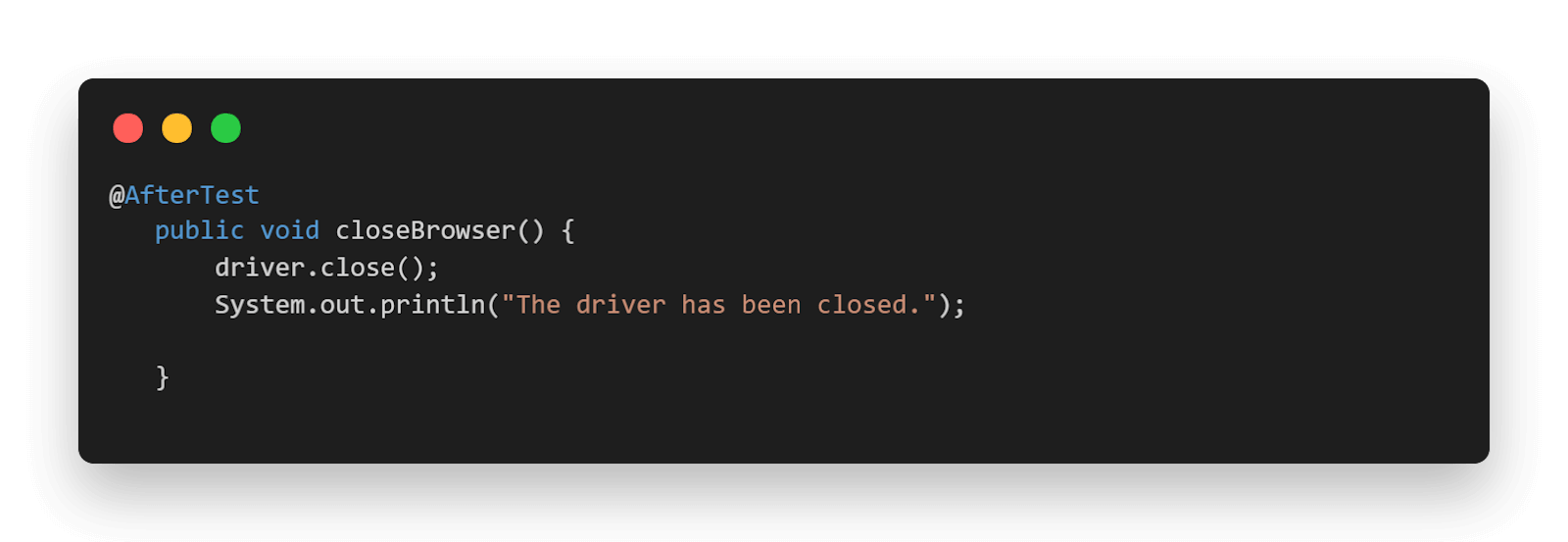
- @AfterTest(closeBrowser): Here, we are just closing the launched browser.

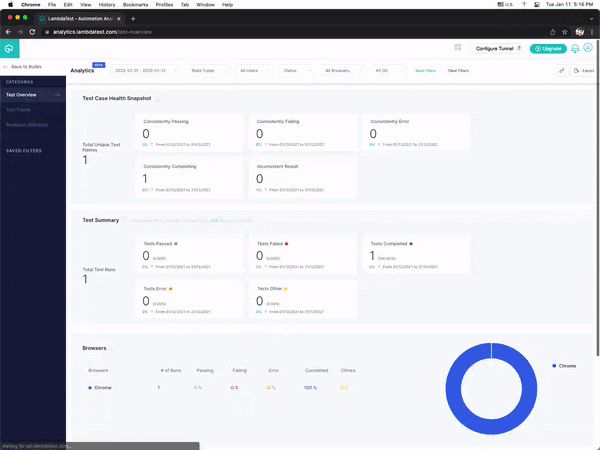
Once the tests are completed, you can also view your test results, logs, and the test recording as well in your TestMu AI Automation Dashboard.
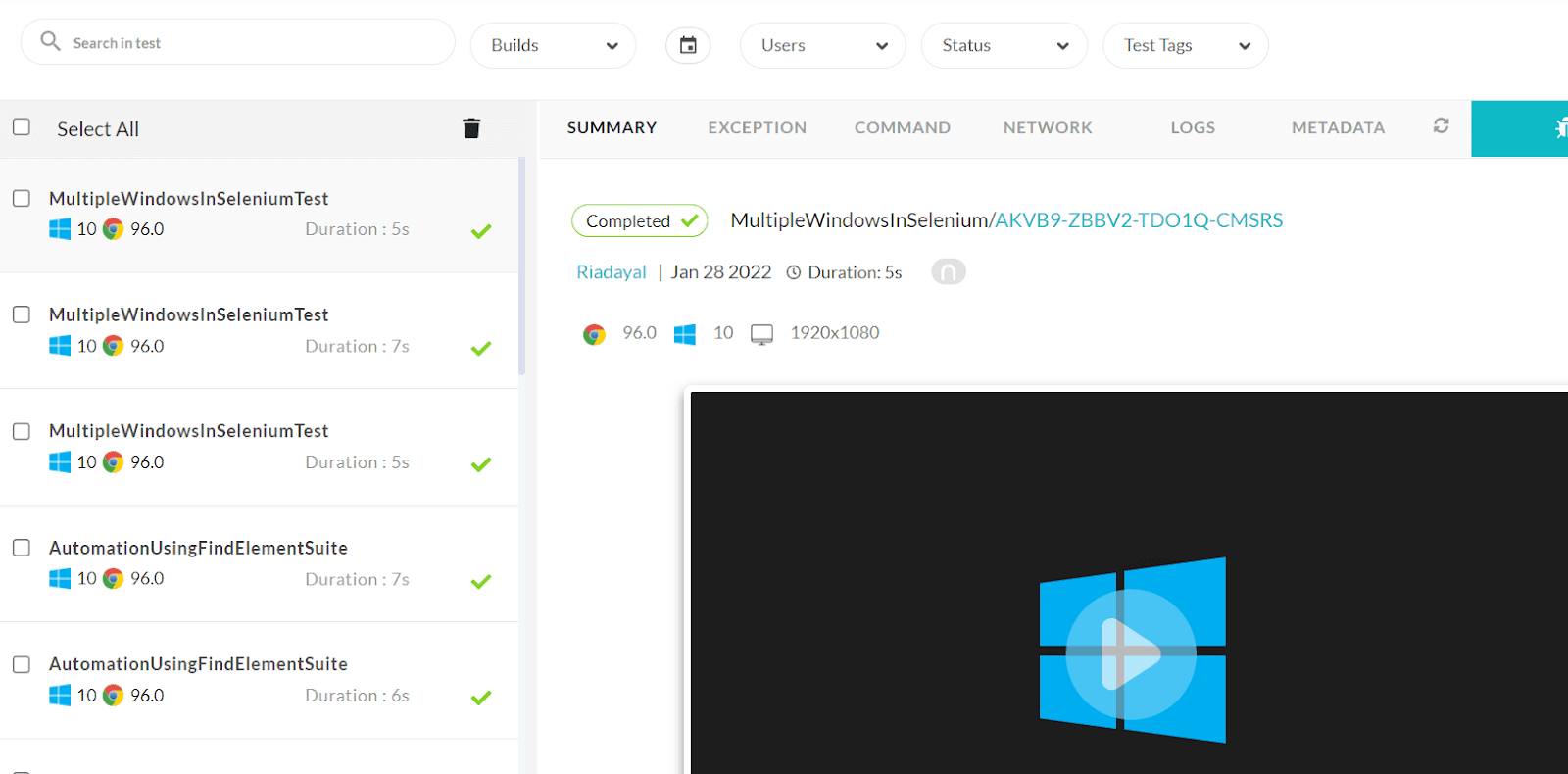
With TestMu AI, you can see how your automated browser testing efforts are going. You’ll get real-time reports on the performance of your test suites and an automated system to track change impact across all your automation efforts. You can use TestMu AI Analytics to get insight into this information and drive better testing practices.
Console Output
Once you run the test case, the console output will look something like below:

Also read – How To Handle Login Pop-up In Selenium WebDriver Using Java?
How to handle multiple child windows in Selenium?
When it comes to handling multiple child windows in Selenium, the overall process remains the same as we do for a single child window. However, in the case of multiple child windows, you can use any of the available conditional operators like if-else, switch etc. and do the operations, which are particular to each child window.
Let us write our script for handling one of such scenarios.
Use Case
- Log in to the Window Popup Modal Demo page of Selenium Playground.
- Click on Follow On Twitter and Facebook in the Multiple Window Popup section.
- Switch to each of the child windows opened.
- Click on the Sign Up button for Facebook Window.
- Click on the Sign Up button for Twitter Window.
Implementation
package LambdaTest;

import io.github.bonigarcia.wdm.WebDriverManager;
import org.openqa.selenium.By;
import org.openqa.selenium.WebElement;
import org.openqa.selenium.chrome.ChromeDriver;
import org.openqa.selenium.remote.DesiredCapabilities;
import org.openqa.selenium.remote.RemoteWebDriver;
import org.testng.Assert;
import org.testng.Reporter;
import org.testng.annotations.AfterTest;
import org.testng.annotations.BeforeTest;
import org.testng.annotations.Listeners;
import org.testng.annotations.Test;
import org.testng.reporters.jq.Main;

import java.net.MalformedURLException;
import java.net.URL;
import java.util.Iterator;
import java.util.Set;

@Listeners({util.Listener.class})
class MultipleWindowsInSelenium {


    public String username = "YOUR USERNAME";
    public String accesskey = "YOUR ACCESSKEY";
    public static RemoteWebDriver driver = null;
    public String gridURL = "@hub.lambdatest.com/wd/hub";

    @BeforeTest
    public void setUp() throws Exception {
        DesiredCapabilities capabilities = new DesiredCapabilities();
        capabilities.setCapability("browserName", "chrome");
        capabilities.setCapability("version", "97.0");
        capabilities.setCapability("platform", "win10"); // If this cap isn't specified, it will just get the any available one
        capabilities.setCapability("build", "MultipleWindowsInSelenium");
        capabilities.setCapability("name", "MultipleWindowsInSeleniumTest");
        try {
            driver = new RemoteWebDriver(new URL("https://" + username + ":" + accesskey + gridURL), capabilities);
        } catch (MalformedURLException e) {
            System.out.println("Invalid grid URL");
        } catch (Exception e) {
            System.out.println(e.getMessage());
        }
        driver.get("https://www.lambdatest.com/selenium-playground/window-popup-modal-demo");

    }


    @Test
    public void multipleWindowPopUp() {
        try {
            //Clicks on the follow on twitter and facebook option
            WebElement followOnTwitterAndFacebook = driver.findElement(By.xpath("//a[text()='Follow Twitter & Facebook']"));
            followOnTwitterAndFacebook.click();

            // To handle parent window
            String MainWindow = driver.getWindowHandle();
            System.out.println("Main window handle is " + MainWindow);

            // To handle child window
            Set<String> s1 = driver.getWindowHandles();
            System.out.println("Child window handle is" + s1);
            Iterator<String> i1 = s1.iterator();
            while (i1.hasNext()) {
                String ChildWindow = i1.next();
                if (!MainWindow.equalsIgnoreCase(ChildWindow)) {
                    driver.switchTo().window(ChildWindow);
                    String pageTitle=driver.getTitle();
                    System.out.println("The web page title of child window is:"+pageTitle);
                    if(pageTitle.contains("Facebook")){
                        WebElement signUpForFB= driver.findElement(By.xpath("//span[text()='Create New Account']"));
                        signUpForFB.click();
                        System.out.println("Clicked on Login Option For Facebook");
                    }else if(pageTitle.contains("Twitter")){
                        WebElement signUpForTwitter= driver.findElement(By.xpath("//span[text()='Sign up for Twitter']"));
                        signUpForTwitter.click();
                        System.out.println("Clicked on Follow Option For Twitter");
                    }
                }
            }

        } catch (Exception e) {
               e.printStackTrace();
        }

    }

    @AfterClass
    public void closeBrowser() {
        driver.quit();
        System.out.println("Closing the browser");
    }
}
Code Walkthrough
In this case, the process of iterating the child windows is exactly the same as how we did it in the case of a single child window. However, here we are distinguishing the windows respective to Facebook and Twitter by making use of their corresponding titles and by making use of if-else statements, we are clicking on their respective Sign Up buttons.

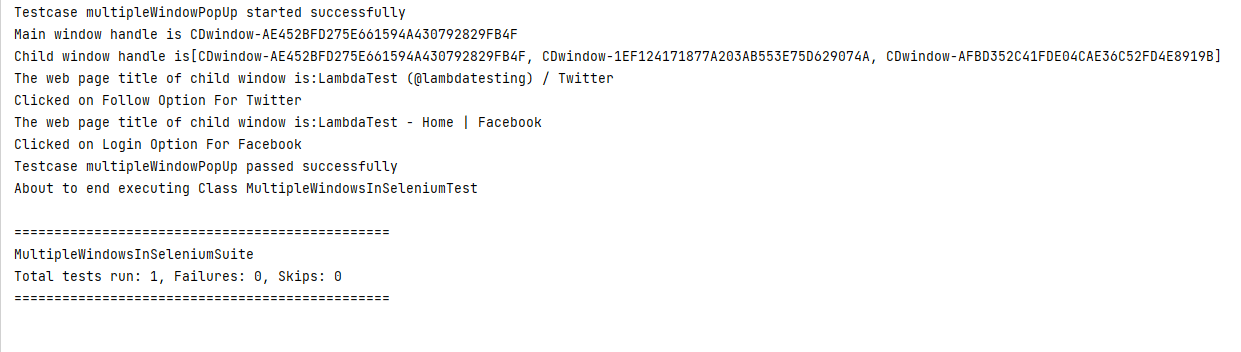
Console Output
Once you run the test case, the console output will look something like below:
You can also refer to the below video tutorial on how to handle Windows and Frames in selenium.
How to switch back from child window to parent window in Selenium?
You saw how we switch to a child window from the parent window. Now, once the WebDriver has control of the child window, it has control only on that and you can no longer perform any operation in the parent window. So how do we switch back to the parent window in case we need to?
This can be simply done by using the switchTo() function. This function helps in shifting the focus back to the parent window.
Use Case
Let us see how to implement the switchTo() function. We will implement the same use case as discussed in the last section of this article on how to handle multiple windows in Selenium WebDriver using Java.
Implementation
package LambdaTest;

import io.github.bonigarcia.wdm.WebDriverManager;
import org.openqa.selenium.By;
import org.openqa.selenium.WebElement;
import org.openqa.selenium.chrome.ChromeDriver;
import org.openqa.selenium.remote.DesiredCapabilities;
import org.openqa.selenium.remote.RemoteWebDriver;
import org.testng.Assert;
import org.testng.Reporter;
import org.testng.annotations.AfterTest;
import org.testng.annotations.BeforeTest;
import org.testng.annotations.Listeners;
import org.testng.annotations.Test;
import org.testng.reporters.jq.Main;

import java.net.MalformedURLException;
import java.net.URL;
import java.util.Iterator;
import java.util.Set;

@Listeners({util.Listener.class})
class MultipleWindowsInSelenium {


    public String username = "YOUR USERNAME";
    public String accesskey = "YOUR ACCESSKEY";
    public static RemoteWebDriver driver = null;
    public String gridURL = "@hub.lambdatest.com/wd/hub";

    @BeforeTest
    public void setUp() throws Exception {
        DesiredCapabilities capabilities = new DesiredCapabilities();
        capabilities.setCapability("browserName", "chrome");
        capabilities.setCapability("version", "97.0");
        capabilities.setCapability("platform", "win10"); // If this cap isn't specified, it will just get the any available one
        capabilities.setCapability("build", "MultipleWindowsInSelenium");
        capabilities.setCapability("name", "MultipleWindowsInSeleniumTest");
        try {
            driver = new RemoteWebDriver(new URL("https://" + username + ":" + accesskey + gridURL), capabilities);
        } catch (MalformedURLException e) {
            System.out.println("Invalid grid URL");
        } catch (Exception e) {
            System.out.println(e.getMessage());
        }

    }


    @Test
    public void switchToParentWindow() {
        try {
            //Clicks on the follow on twitter option
            WebElement followOnTwitter = driver.findElement(By.xpath("//a[text()='  Follow On Twitter ']"));
            followOnTwitter.click();

            // To handle parent window
            String MainWindow = driver.getWindowHandle();
            System.out.println("Main window handle is " + MainWindow);

            // To handle child window
            Set<String> s1 = driver.getWindowHandles();
            System.out.println("Child window handle is" + s1);
            Iterator<String> i1 = s1.iterator();
            while (i1.hasNext()) {
                String ChildWindow = i1.next();
                if (!MainWindow.equalsIgnoreCase(ChildWindow)) {
                    driver.switchTo().window(ChildWindow);
                    String pageTitle=driver.getTitle();
                    System.out.println("The web page title of child window is:"+pageTitle);
                    driver.close();
                    System.out.println("Child window closed");
                }
            }
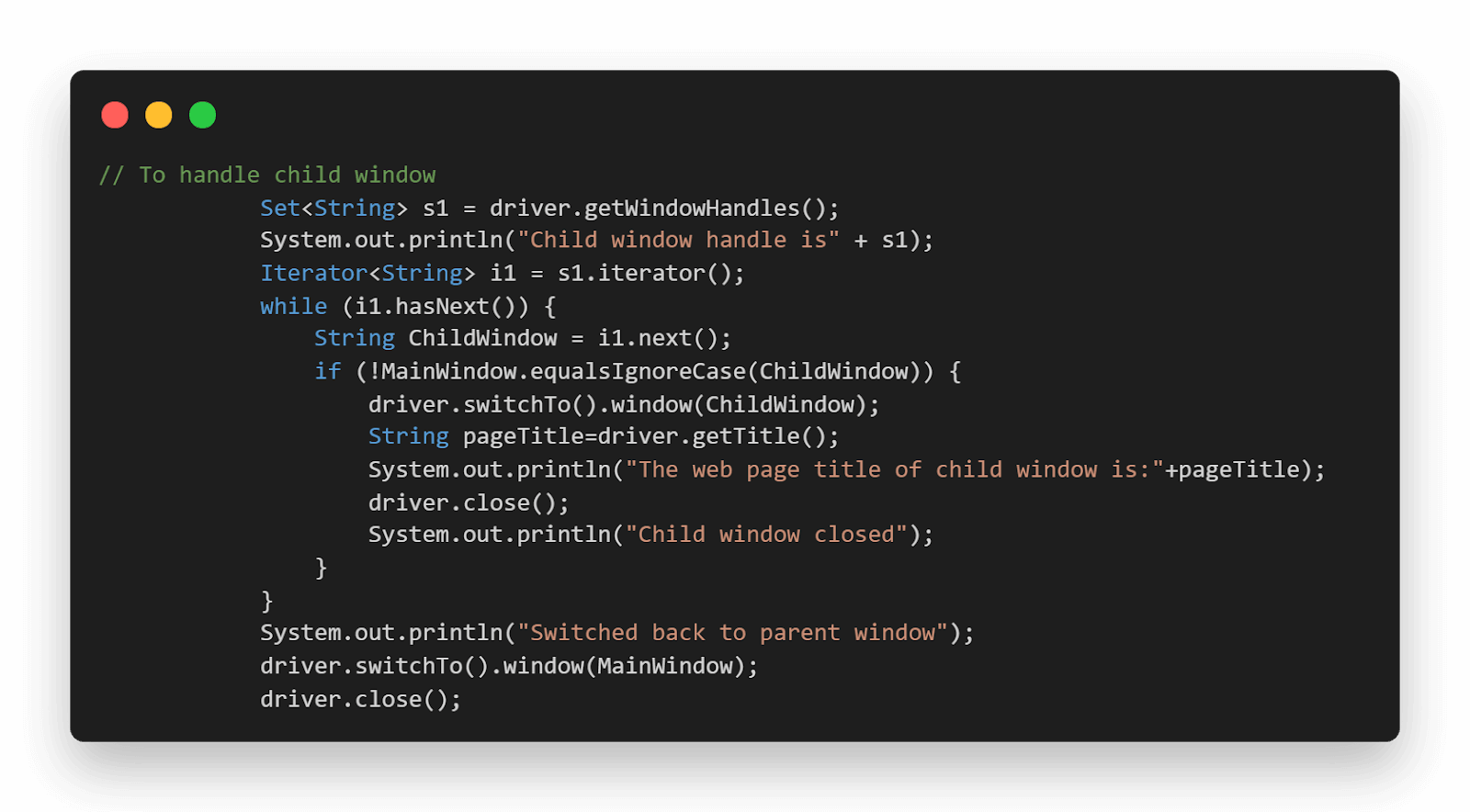
            System.out.println("Switched back to parent window");
            driver.switchTo().window(MainWindow);
            driver.close();

        } catch (Exception e) {

        }

    }

}
Also read: FindElement And FindElements In Selenium [Differences]
Code Walkthrough
In this test case, after navigating to the child window and closing it. We specifically switch back to the parent window and close that too, and as a result, we don’t need to close the browser again after the test.
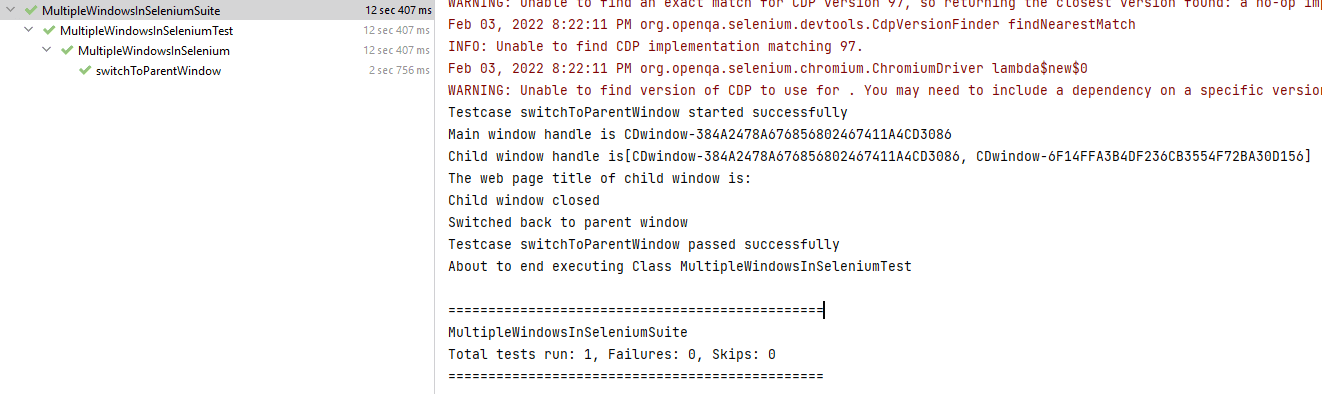
Console Output
Once you run the test case, the console output will look something like below:
Also read – How To Minimize Browsers In Selenium WebDriver Using JUnit
How to close all windows while handling multiple windows in Selenium?
While we are handling multiple windows in Selenium, it is very important to understand how you can actually close the windows.
As you saw in the above example, in order to close the parent window, we had to explicitly switch to the parent window and then close it using the driver.close() method. The driver.close() method helps us to close the driver, which is being controlled at the moment. But what if we want to close all the opened windows at once?
In such cases, the method which can come in handy is the driver.quit(). The driver.quit() method closes all the open windows regardless of where the control is lying.
So now you know what to use when you want to tackle all the open windows at once! 🙂

Austin Siewert
CEO, Vercel
Discovered @TestMu AI yesterday. Best browser testing tool I've found for my use case. Great pricing model for the limited testing I do 👏
2M+ Devs and QAs rely on TestMu AI
Deliver immersive digital experiences with Next-Generation Mobile Apps and Cross Browser Testing Cloud

This certification demonstrates your knowledge of Selenium and Java, and your expertise at automating tests for any project.
Here’s a short glimpse of the Selenium Java 101 certification from TestMu AI:
Conclusion
In this article on how to handle multiple windows in Selenium WebDriver using Java, we read about Windows in Selenium. We saw what are Parent and Child Windows and how we can handle them using their corresponding Window Handles. We also implemented the automation script for handling both single and multiple child windows. Additionally, we learned about switching back to the parent window, and the trick of closing all the opened windows at once.
I hope you enjoyed reading this article on how to handle multiple windows in Selenium WebDriver using Java, and it helps you in handling multiple windows for your Selenium automation 🙂

Happy Testing !!


Frequently asked questions
Did you find this page helpful?
More Related Hubs
TestMu AI forEnterprise
Get access to solutions built on Enterprise
grade security, privacy, & compliance
- Advanced access controls
- Advanced data retention rules
- Advanced Local Testing
- Premium Support options
- Early access to beta features
- Private Slack Channel
- Unlimited Manual Accessibility DevTools Tests