

Next-Gen App & Browser Testing Cloud
Trusted by 2 Mn+ QAs & Devs to accelerate their release cycles


How To Handle Frames & iFrames In Selenium JavaScript [Tutorial]
Learn how to handle frames and iframes in Selenium WebDriver using JavaScript and perform automated browser testing of websites (or web apps) that use pop-up windows, nested frames (or iFrames), and browser windows.

Ryan Howard
December 19, 2025
This article is a part of our Content Hub. For more in-depth resources, check out our content hub on Selenium JavaScript Tutorial.
While performing Selenium test automation, you’ll frequently run into situations where you need to handle frames or iframes. Frames are used to split the content into horizontal and vertical splits, while iframes are used to embed content on a web page. And it’s not just that. Modern web apps are complex, with many tangible parts.
One significant challenge when working with such applications is creating robust locators in Selenium so that you’re able to interact with the elements on the page. This becomes increasingly difficult when you are working with frames and iframes, as you cannot interact with frames in the same way you do with other elements.
In the meantime, if you’d like to run your JavaScript test scripts over a Selenium Grid online then leverage TestMu AI for your test automation.👇

In this Selenium JavaScript tutorial, I will deep dive into how you can overcome this challenge and demonstrate how to handle frames & iframes in JavaScript with Selenium WebDriver using the switch method. But, before that, we should take a quick moment to understand what we’re dealing with here.
If you’re looking to improve your Selenium interview skills, check out our curated list of Selenium interview questions and answers.
What are frames in Selenium?
To be precise, frames are a way of dividing up sections of a web page using HTML. Take this webpage, for example.
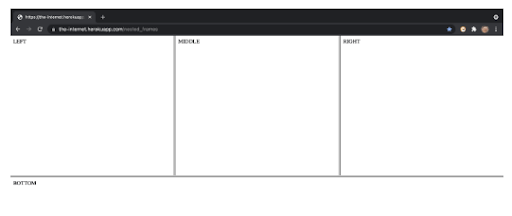
Each section is a different frame, independent of the other frames on the page. Multiple frames can be grouped together inside a single frameset. This is a way of splitting out information on a page into different areas.
What are iframes in Selenium?
iFrames are a way of embedding additional HTML documents inside a webpage. They’re used to display information from a different data source on the page. For example, some websites may use them to display adverts or videos from another source.
iFrames are independent of other parts of the page, and the content inside it can be reloaded without the need to load the content of the complete page. You can see an example of an iFrame by visiting the Selenium documentation.
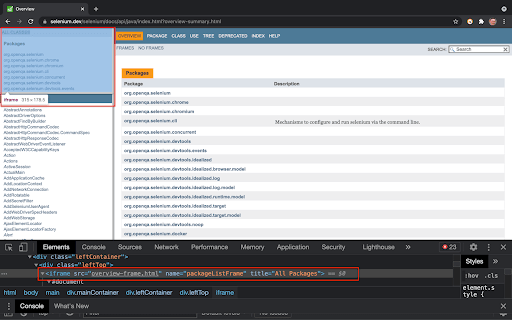
How to find a Frame or iFrame in Selenium WebDriver using JavaScript
The process of identifying a frame or iFrame is similar to the approach in which you locate any other WebElement on the page. Here is a list of the HTML tags used for locating frames and iFrames:
1. Frames have the html tag (frame)
2. iFrames have the html tag (iframe)
3. You may also see the html tag (frameset)
As I mentioned earlier, framesets are a way of grouping frames together. For navigating to a frame inside a frameset, you first need to access the frameset. The frameset can be thought of like the house in our previous example, where each room in a house represents a frame.
The following sections of this blog will see handling frames and iframes in Selenium WebDriver using JavaScript language. However, if you are working with C#, you can go through our blog on handling frames and iframes in Selenium C#.
This ,Selenium JavaScript testing tutorial for beginners and professionals will help you learn everything you need to know to work with JavaScript for Selenium automation testing
How to handle Frames in Selenium WebDriver with JavaScript
To start interacting with frames using Selenium WebDriver with JavaScript, you need to use the switchTo method. In this Selenium JavaScript tutorial, I will be explaining the two key switchTo commands ‘frame’ and ‘defaultContent’. Let’s go
Using switchTo().frame()
The switchTo.frame() method allows us to navigate to a frame or iFrame in Selenium. Once you have switched to the frame, you can access the elements located inside that particular frame (or iFrame). To locate the frame with the switchTo method, you can specify either the frame id, frame name, or web element locator. Details of the same are mentioned below:
//switch to frame using id
await driver.switchTo().frame('frame-id');

//switch to frame using name
await driver.switchTo().frame('frame-name');

//switch to frame using web element
await driver.switchTo().frame(driver.findElement(By.webLocator('frame-web-locator-property')));
Using switchTo().defaultContent()
The switchTo().defaultContent() method will switch focus to the first frame on the page. In the case of iFrames, the context is switched back to the main (or Parent) document.
//switching back to first frame or main document
await driver.switchTo().defaultContent()
You can also refer to the below video tutorial on how to handle Windows and Frames in selenium.
Handling Nested Frames in Selenium WebDriver using JavaScript
A Frame that contains another frame or frame inside a frameset is termed a Nested Frame. To access a frame inside another frame, you first need to access the parent frame. The parent can be thought of like the house in our previous example, where each room in a house represents a frame. You must first be able to enter the house before you can go into any of the rooms 🙂
Let’s look once again at the webpage we saw earlier. You can access it here: https://the-internet.herokuapp.com/nested_frames.
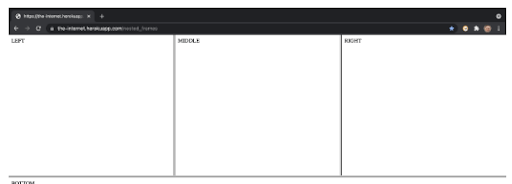
We’ve identified that each of these sections (Left, Middle, Right & Bottom) are all frames, but we can see from the web page alone that the top row of frames all sit inside an additional frame.
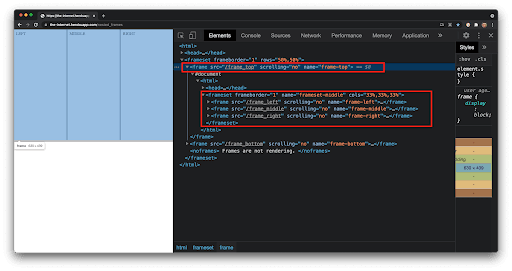
When we look at the DOM, we can see that the three visible frames – frame-left, frame-middle, and frame-right sit inside a frame with the name frame-top. Hence, we need to switch to the frame-top before we can access the frames inside it. So let’s do that now:
We are running the tests on TestMu AI, a cloud-based platform. Once you sign-up on the platform, you need to make a note of the username and access key that is available in the TestMu AI Profile Section. There are umpteen benefits of Selenium testing on the cloud; the major ones are reducing investment related to in-house infrastructure and maximizing the benefits of parallel testing in Selenium.

The test is run on Chrome 92.0 + Windows 10 combination:
onst { Builder, By, Key, JavascriptExecutor } = require("selenium-webdriver");

async function frames() {
  // username: Username can be found at automation dashboard
  const USERNAME = "xxxxxxxxxxx";

  // Accesskey:  Accesskey can be generated from automation dashboard or profile section
  const KEY = "xxxxxxxxxxxxxxxxxxxxxxxxxxxxxxxxxxxxx";

  // gridUrl: gridUrl can be found at automation dashboard
  const GRID_HOST = "hub.lambdatest.com/wd/hub";

    // Setup Input capabilities - this is used to run our test on chrome browser via LambdaTest
    const capabilities = {
      platform: "Windows 10",
      browserName: "Chrome",
      version: "92.0",
      resolution: "1024x768",
      network: true,
      visual: true,
      console: true,
      video: true,
      name: "Test 1", // name of the test
      build: "NodeJS build", // name of the build
    };

    //creating the grid url to point to LambdaTest
    const gridUrl = "https://" + USERNAME + ":" + KEY + "@" + GRID_HOST;

    //build the driver instance
    const driver = new Builder()
      .usingServer(gridUrl)
      .withCapabilities(capabilities)
      .build();

    //navigate to our application
    await driver.get("https://the-internet.herokuapp.com/nested_frames");

    //navigate to top frame
    await driver.switchTo().frame(driver.findElement(By.name("frame-top")));

    //Navigate to left Frame
    await driver.switchTo().frame(driver.findElement(By.name("frame-left")));

    //return name of current frame
    let currentFrame = await driver.executeScript("return self.name");

    //output name of current frame
    console.log("This is the name of the frame we've accessed " + currentFrame);

    //close the browser
    await driver.quit();
  };

frames();
The SeleniumWebDriver test gets the name of the frame we are currently accessing. We extract the frame’s name (i.e., frame-name) once we switch to the frame frame-left.
Firstly we’re setting up our capabilities and building our grid URL to run our test on the TestMu AI platform.
// username: Username can be found at automation dashboard
  const USERNAME = "xxxxxxxxxxx";

  // Accesskey:  Accesskey can be generated from automation dashboard or profile section
  const KEY = "xxxxxxxxxxxxxxxxxxxxxxxxxxxxxxxxxxxxx";

  // gridUrl: gridUrl can be found at automation dashboard
  const GRID_HOST = "hub.lambdatest.com/wd/hub";

    // Setup Input capabilities - this is used to run our test on chrome browser via LambdaTest
    const capabilities = {
      platform: "Windows 10",
      browserName: "Chrome",
      version: "92.0",
      resolution: "1024x768",
      network: true,
      visual: true,
      console: true,
      video: true,
      name: "Test 1", // name of the test
      build: "NodeJS build", // name of the build
    };

    //creating the grid url to point to LambdaTest
    const gridUrl = "https://" + USERNAME + ":" + KEY + "@" + GRID_HOST;
Next, in this Selenium JavaScript tutorial, I have built the driver instance using the capabilities specified in the last steps.
//build the driver instance
    const driver = new Builder()
      .usingServer(gridUrl)
      .withCapabilities(capabilities)
      .build();
Once you’ve built the driver, we can navigate to our application.
//navigate to our application
await driver.get("https://the-internet.herokuapp.com/nested_frames");
From here, you can first navigate to the top frame on the page using switchTo() method. We use By.name to locate the element. You can also check out our detailed blog on how to use the Name locator in Selenium Scripts.
//navigate to top frame
    await driver.switchTo().frame(driver.findElement(By.name("frame-top")));
Once you have accessed this frame, you can access frame-left using the same method.
//Navigate to left Frame
    await driver.switchTo().frame(driver.findElement(By.name("frame-left")));
To verify that you have accessed frame-left, use the executeScript method to return the frame’s name and log in to the console.
//return name of current frame
    let currentFrame = await driver.executeScript("return self.name");

    //output name of current frame
    console.log("This is the name of the frame we've accessed " + currentFrame);
Shown below is the execution output:

Read – How To Use JavaScriptExecutor in Selenium WebDriver
If you had tried to access the left-frame before navigating to the top-frame first, then you would have got this error.
NoSuchElementError: Unable to locate element: *[name="frame-left"]
We can use the same approach to find frame-middle and frame-right frames. Once you are in a nested frame, you can’t just navigate back to the tree structure. Instead, you can go straight from frame-left to frame-top.
To do this, you have first to use switchTo().defaultContent() method to move to the top of the tree. From there, you can again navigate to the frame-top. This is how you can switch to frame-top frame on the page:
const { Builder, By, Key, JavascriptExecutor } = require("selenium-webdriver");

async function defaultContent(){

// username: Username can be found at automation dashboard
  const USERNAME = "xxxxxxxxxxx";

  // Accesskey:  Accesskey can be generated from automation dashboard or profile section
  const KEY = "xxxxxxxxxxxxxxxxxxxxxxxxxxxxxxxxxxxxx";

  // gridUrl: gridUrl can be found at automation dashboard
  const GRID_HOST = "hub.lambdatest.com/wd/hub";

    // Setup Input capabilities - this is used to run our test on chrome browser via LambdaTest
    const capabilities = {
      platform: "Windows 10",
      browserName: "Chrome",
      version: "92.0",
      resolution: "1024x768",
      network: true,
      visual: true,
      console: true,
      video: true,
      name: "Test 1", // name of the test
      build: "NodeJS build", // name of the build
    };

    //creating the grid url to point to LambdaTest
    const gridUrl = "https://" + USERNAME + ":" + KEY + "@" + GRID_HOST;

    const driver = new Builder()
      .usingServer(gridUrl)
      .withCapabilities(capabilities)
      .build();

    //navigate to our application
    await driver.get("https://the-internet.herokuapp.com/nested_frames");

    //Navigate to top frame
    await driver.switchTo().frame(driver.findElement(By.name('frame-top')))

    //Navigate to left Frame
    await driver.switchTo().frame(driver.findElement(By.name('frame-left')))

    //Use default content to navigate to top of tree structure
    await driver.switchTo().defaultContent()

    //Navigate to top frame
    await driver.switchTo().frame(driver.findElement(By.name('frame-top')))

    //return name of current frame
    let currentFrame = await driver.executeScript("return self.name");

    //output name of current frame
    console.log("This is the name of the frame we've accessed: " + currentFrame);

    //close the browser
    await driver.quit();
}
defaultContent()
In this script, we once again navigate to frame-left
//navigate to our application
    await driver.get("https://the-internet.herokuapp.com/nested_frames");

    //Navigate to top frame
    await driver.switchTo().frame(driver.findElement(By.name('frame-top')))

    //Navigate to left Frame
    await driver.switchTo().frame(driver.findElement(By.name('frame-left')))
To switch back to the top of the document, you can use the defaultContent() method.
await driver.switchTo().defaultContent()
Once you have switched to default content, you can navigate back to the frame named ‘frame-top.’
//Navigate to top frame
    await driver.switchTo().frame(driver.findElement(By.name('frame-top')))

    //return name of current frame
    let currentFrame = await driver.executeScript("return self.name");

    //output name of current frame
    console.log("This is the name of the frame we've accessed: " + currentFrame);
Like the last example, you could then use the executeScript method to return the frame’s name that we are trying to access.
//return name of current frame
    let currentFrame = await driver.executeScript("return self.name");

    //output name of current frame
    console.log("This is the name of the frame we've accessed: " + currentFrame);
Shown below is the execution snapshot, which indicates that we can read the frame name:

Frame-bottom is separate from the other frames and does not sit inside frame-top, so we can access it without first navigating to frame-top, like so
//navigate to our application
    await driver.get("https://the-internet.herokuapp.com/nested_frames");

    //Navigate to left Frame
    await driver.switchTo().frame(driver.findElement(By.name('frame-bottom')))

    //return name of current frame
    let currentFrame = await driver.executeScript("return self.name");

    //output name of current frame
    console.log("This is the name of the frame we've accessed: " + currentFrame);

So we have now looked at handling frames in Selenium with JavaScript, now let’s take a quick look at iFrames in Selenium.

If you’re a developer who’s looking to take your JavaScript development and test engineering skills to the next level, then a Selenium JavaScript 101 certification from TestMu AI is perfect for you at no cost. Here’s a short glimpse of the Selenium JavaScript 101 certification from TestMu AI:
How to handle iFrames in Selenium WebDriver with JavaScript
To look at iFrames, I am going to use another page of the same website, located here: https://the-internet.herokuapp.com/iframe.
This page contains an iFrame which we’re going to access now. So let’s navigate to the iFrame, access the body, and write the paragraph text to the console.
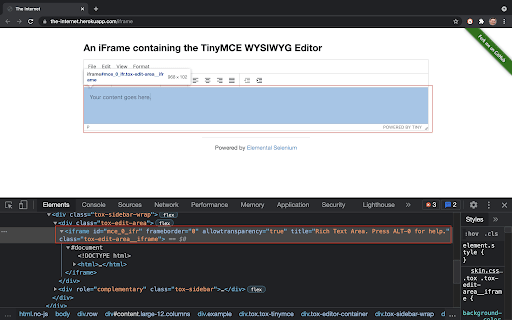
From within the iFrame, you are going to access this paragraph text.
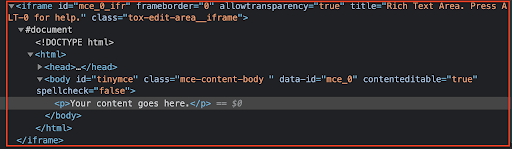
We do that using the switchTo().frame() method as we demonstrated earlier. Instead of using frame-name, we locate the iFrame using the Frame ID. As this page contains only a single iFrame, we can use the id ‘0’.
Here is the implementation that demonstrates switching to an iFrame using the frame-id:
const { Builder, By, Key, JavascriptExecutor } = require("selenium-webdriver");

async function iframes(){

    // username: Username can be found at automation dashboard
  const USERNAME = "xxxxxxxxxxx";

  // Accesskey:  Accesskey can be generated from automation dashboard or profile section
  const KEY = "xxxxxxxxxxxxxxxxxxxxxxxxxxxxxxxxxxxxx";

  // gridUrl: gridUrl can be found at automation dashboard
  const GRID_HOST = "hub.lambdatest.com/wd/hub";

    // Setup Input capabilities - this is used to run our test on chrome browser via LambdaTest
    const capabilities = {
      platform: "Windows 10",
      browserName: "Chrome",
      version: "92.0",
      resolution: "1024x768",
      network: true,
      visual: true,
      console: true,
      video: true,
      name: "Test 1", // name of the test
      build: "NodeJS build", // name of the build
    };

    //creating the grid url to point to LambdaTest
    const gridUrl = "https://" + USERNAME + ":" + KEY + "@" + GRID_HOST;

   //Building driver instance using specified capabilities
    const driver = new Builder()
      .usingServer(gridUrl)
      .withCapabilities(capabilities)
      .build();

    //navigate to our application
    await driver.get("https://the-internet.herokuapp.com/iframe");

    //Navigate to iframe
    await driver.switchTo().frame(0)

    //retrieve text from iframe using find by xpath
    let text = await driver.findElement(By.xpath("//p")).getText()
    .then((text) => { return text; });

    //log returned text Your content goes here.
    console.log("The Paragraph text is: " + text);

    //close the browser
    await driver.quit();

}
iframes()
In this case, we have used the switchTo() method to switch to the desired iFrame.
//Navigate to iframe
    await driver.switchTo().frame(0)
Once we’ve navigated to the iFrame, we can access the WebElements located inside that frame. Here we’ve used the XPath selector to locate the desired WebElement. The getText() method in Selenium is used to get the text of the located WebElement.
//retrieve text from iframe using find by xpath
    let text = await driver.findElement(By.xpath("//p")).getText()
    .then((text) => { return text; });
Shown below is the content output, which indicates that the read operation on the located WebElement was successful:

You can also visit the TestMu AI YouTube channel for videos that will guide you through the Selenium JavaScript journey with JavaScript Selenium Testing Tutorial.

Conclusion
I hope you enjoyed this deep dive into handling frames and iFrames in Selenium JavaScript. By now, you should be able to switch between nested frames or iFrames in Selenium JavaScript. In Selenium test automation, by using the SwitchTo() command, you can perform automated browser testing of websites (or web apps) that use pop-up windows, nested frames (or iFrames), and browser windows.



Frequently asked questions
Did you find this page helpful?
More Related Hubs
TestMu AI forEnterprise
Get access to solutions built on Enterprise
grade security, privacy, & compliance
- Advanced access controls
- Advanced data retention rules
- Advanced Local Testing
- Premium Support options
- Early access to beta features
- Private Slack Channel
- Unlimited Manual Accessibility DevTools Tests