

Next-Gen App & Browser Testing Cloud
Trusted by 2 Mn+ QAs & Devs to accelerate their release cycles


How To Handle Cookies in Selenium WebDriver
In this blog, you will learn to handle cookies in Selenium WebDriver, clearing session cookies using Selenium, and more.

Shalini Baskaran
February 20, 2026
Most of us use online platforms for doing things like online shopping, bill payments, ticket booking, and more. These online platforms (or websites) use cookies to identify whenever there is a new visit. On a lighter note, these are not cookies that you would normally see on your dessert menu 🙂 These are computer cookies (or HTTP cookies or web cookies).
In simple terms, a cookie is a packet of data received by your machine and sent back to the server without being altered or changed. For example, when you visit any website, cookies are sent to your machine by the website. Since these cookies contain information, it helps the website keep track of your visits or activity (without indulging in your privacy zone).
Overview
Why Handle Cookies in Selenium WebDriver?
Cookies in Selenium WebDriver help simulate real-world browsing conditions by allowing you to store and reuse data like session information, authentication tokens, or user preferences. Handling cookies in Selenium ensures efficient test execution by reducing repetitive login or session setup.
- Reduce Test Execution Time: Reuse cookies for login, speeding up tests that require authentication.
- Simulate Real-World Behavior: Automates cookie-related actions, making tests more realistic and stable.
What Are Cookies in Selenium?
Cookies are small pieces of data sent from a server and stored in the browser. They store user-specific information, such as session details or preferences. Selenium WebDriver provides APIs to interact with these cookies during test automation:
- Cookie Structure: Cookies consist of fields like name, value, domain, expiration date, and more, which can be accessed and manipulated using Selenium WebDriver's cookies API.
Key Selenium Cookies API Methods
Selenium WebDriver provides various methods to interact with cookies, including adding, retrieving, and deleting them. These methods make it easy to simulate different browsing states during automation:
- getCookies(): Retrieves all cookies stored in the current session.
- getCookieNamed("cookie_name"): Retrieves a specific cookie by name.
- addCookie(cookie): Adds a new cookie to the browser session.
- deleteCookie(cookie): Deletes a specific cookie.
- deleteAllCookies(): Deletes all cookies in the session.
How to Get Cookies in Selenium WebDriver
To retrieve all cookies from a website, use the getCookies() method. This returns a set of cookies, which can be printed or saved for later use:
- Example:
Set<Cookie> cookiesList = driver.manage().getCookies();
for (Cookie cookie : cookiesList)
   System.out.println(cookie);
How to Add a New Cookie
You can create and add a new cookie using the addCookie() method, which takes a Cookie object as an argument. This is useful for session management or simulating a logged-in user:
- Example:
Cookie cookie = new Cookie("myCookie", "123456789");
driver.manage().addCookie(cookie);
How to Delete Cookies
You can delete specific cookies or all cookies from the browser session. Deleting cookies is helpful for cleaning up between tests or ensuring that each test starts with a fresh session:
- Example (Delete All Cookies):
driver.manage().deleteAllCookies();
Benefits of Using Cookies in Selenium Testing
Handling cookies in Selenium helps in optimizing tests by preserving session states, preventing re-logins, and ensuring that your tests mimic real user behavior. By utilizing cookies, you can focus on testing functionality without the overhead of repeatedly setting up each session.
Website owners (e.g., online shopping portals) use cookies to keep a tab on your shopping cart while browsing the site. Without the presence of cookies, your shopping cart might become empty (or the item count would reset to zero) each time you open up a new link on the site.
Selenium cookies can be extensively used for test automation projects for performing cookie-related operations during the process of Selenium automation testing. To realize this requirement, Selenium WebDriver API provides built-in methods for interacting with the cookies.
By the end of this blog, you would be better positioned to work with Selenium cookies API. We also cover common operations like how to get cookies in Selenium WebDriver, clearing session cookies using Selenium, and more.
Starting your journey with Selenium WebDriver? Check out this step-by-step guide to perform Automation testing using Selenium WebDriver.
So, let’s get started biting the cookies 🙂
Introduction to Cookies
Cookies are usually used to recognize the identity of a user on a website. In simple terms, a cookie is a portion of data that has been sent from a web application and stored in a browser. Whenever a user browses a website, the information about the user and their favorites is stored as a cookie in the form of key-value pairs.
When the user visits the website again, the information which was stored would be used for identification.
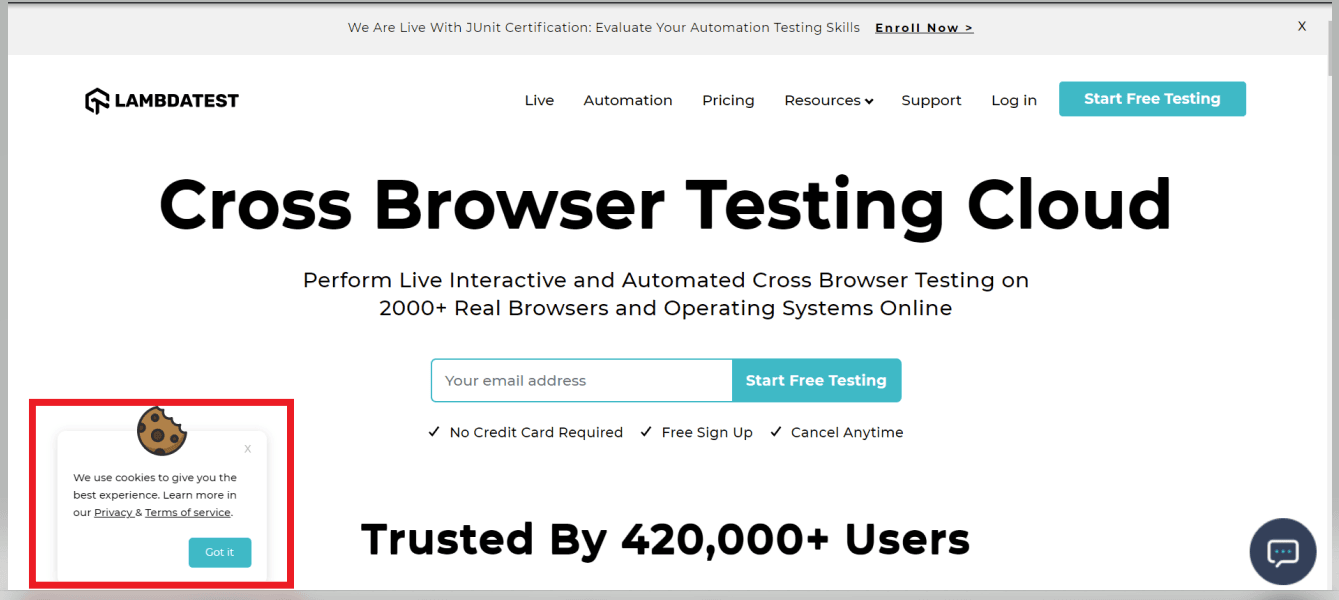
Below is an example of the TestMu AI website that uses cookies for recognizing the user. In the below screenshot, you can see a small popup that shows the usage of cookies.
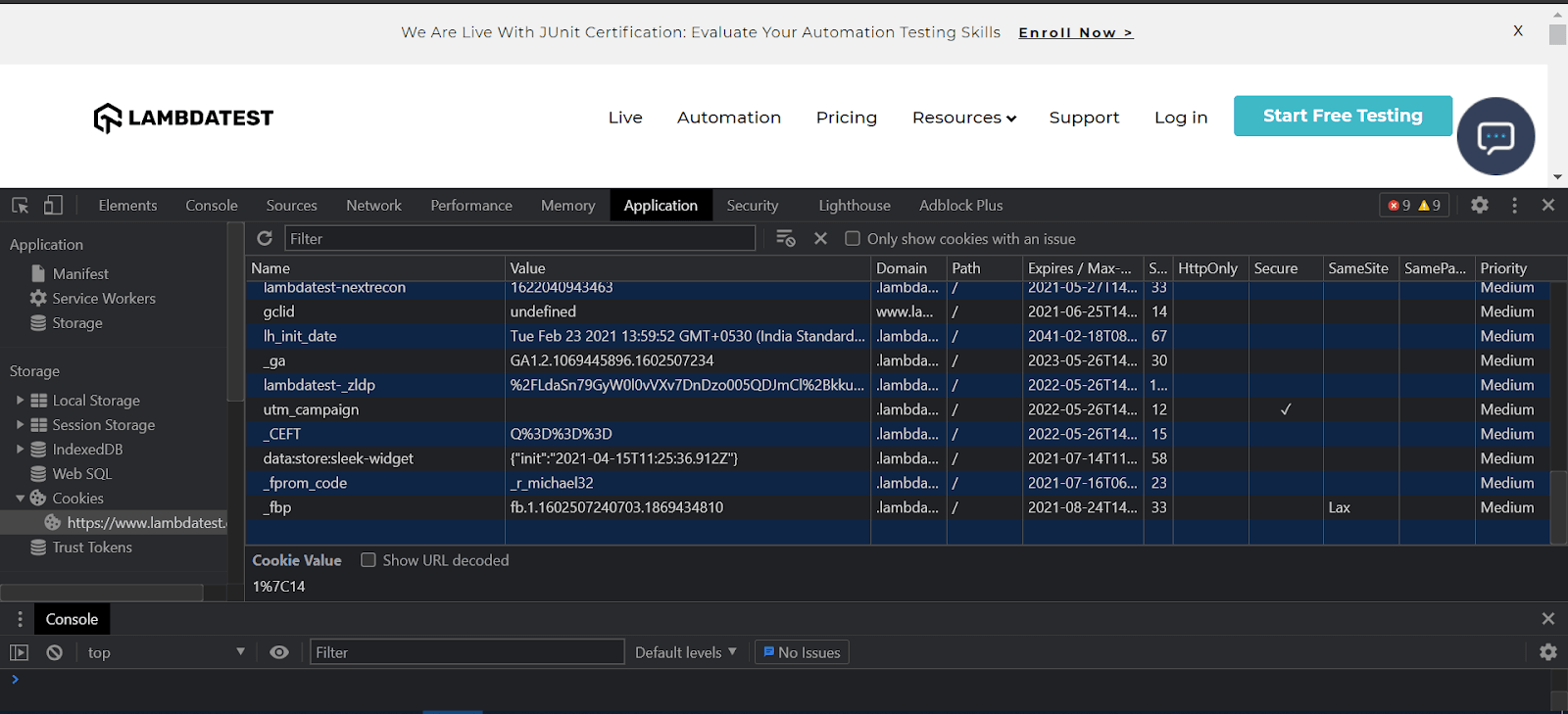
- Name – This field contains the cookie’s name.
- Value – This field contains the cookie’s value.
- Domain – This field contains the hosts that are allowed to receive the cookie.
- Path – This field contains the URL required in the requested URL to send the Cookie header.
- Expires / Max-Age – This field contains the expiration date or the maximum age of the cookie.
- Size – This field contains the size of the cookie.
- HttpOnly – This field indicates whether the cookie has to be used only over HTTP or not.
- Secure – This field indicates that the cookie can only be sent to the server over a secure HTTPS connection (set as true).
- SameSite – This field contains the values (strict or lax) if the cookie is using the experimental SameSite attribute.
- Priority – This field Contains low, medium (default), or high values if the depreciated cookie Priority attribute is enabled.
Here are the major functions of website cookies:
- Tracking the browsing activity of the user
- Remembering the login details of the user
- Tracking the visitor count in a website further helps the website owners identify their unique visitors every day.

Introduction to Selenium Cookies API
Selenium WebDriver provides multiple commands for handling the cookies in a website. These Selenium cookies APIs provide you the required mechanism for interacting and querying the cookies. In Selenium Java, these methods are a part of the org.openqa.selenium.Cookie package.
Here are the various methods to handle cookies in Selenium that can be accessed using driver.manage() method:
Method | Purpose |
|---|---|
getCookies() | It returns the list of all the cookies |
getCookieNamed(“Name of Cookie”) | It returns the cookie that matches the name specified as the argument |
addCookie(“Cookie”) | It creates and adds a new cookie |
deleteCookie(“Cookie”) | It deletes a particular cookie |
deleteCookieName(“Name of Cookie”) | It deletes the cookie that matches the name specified as the argument |
deleteAllCookies | It deletes all the cookies |
Selenium Cookies API in Action
Now that we have covered the basic aspects of handling cookies in Selenium WebDriver let’s get our hands dirty with some implementation. For demonstrating handling cookies in Selenium, we first use the corresponding Selenium APIs on a local Selenium Grid. If you want to quickly brush up on your Selenium skills, check out our detailed Selenium WebDriver tutorial.
Let us use the TestMu AI home page in our script to understand the commands used for handling cookies using Selenium WebDriver.
1. How to Get Cookies in Selenium WebDriver
As mentioned earlier, if you want to get all the stored cookies, you can use the below Selenium WebDriver command.
driver.manage().getCookies()
This will retrieve details of all the stored cookies. Below is a simple script to get cookies in Selenium WebDriver:
import java.util.Set;
import java.util.concurrent.TimeUnit;

import org.openqa.selenium.Cookie;
import org.openqa.selenium.WebDriver;
import org.openqa.selenium.chrome.ChromeDriver;

public class HandleCookies {

    public static void main(String args[]) {
 System.setProperty("webdriver.chrome.driver", "ChromeDriver Path");
        WebDriver driver = new ChromeDriver();
        String url ="https://www.lambdatest.com/";
        driver.get(url);
        driver.manage().window().maximize();
        driver.manage().timeouts().pageLoadTimeout(10, TimeUnit.SECONDS);
        Set<Cookie> cookiesList =  driver.manage().getCookies();
        for(Cookie getcookies :cookiesList) {
            System.out.println(getcookies);
        }
        driver.close();
    }
}
The cookie information can be stored in a file that can be used for logging into the website without the credentials.
To get information about a specific cookie, use the below command:
driver.manage().getCookieNamed(arg0);
Below is a simple script for getting information about a specific cookie:
import java.util.Set;
import java.util.concurrent.TimeUnit;

import org.openqa.selenium.Cookie;
import org.openqa.selenium.WebDriver;
import org.openqa.selenium.chrome.ChromeDriver;

public class HandleCookies {

    public static void main(String args[]) {
        System.setProperty("webdriver.chrome.driver", "ChromeDriver Path");
        WebDriver driver = new ChromeDriver();
        String url ="https://www.lambdatest.com/";
        driver.get(url);
        driver.manage().window().maximize();
        driver.manage().timeouts().pageLoadTimeout(10, TimeUnit.SECONDS);

        Cookie cookieValue = driver.manage().getCookieNamed("JSESSIONID");
        System.out.println(cookieValue.getValue());

        driver.close();
    }
}
The implementation is self-explanatory; hence, we are not doing a code walkthrough of the same.
2. How to Add a new Cookie in Selenium WebDriver
To add a new cookie, you can use the below command
driver.manage().addCookie(cookieName); //specify the name of the cookie to be added
Before adding a cookie, we have to create it and add the values. Post that, we should pass the name of the newly created cookie.
Here is a simple script that demonstrates Selenium cookies API for adding a new cookie.
import java.util.Set;
import java.util.concurrent.TimeUnit;

import org.openqa.selenium.Cookie;
import org.openqa.selenium.WebDriver;
import org.openqa.selenium.chrome.ChromeDriver;

public class HandleCookies {

    public static void main(String args[]) {
        System.setProperty("webdriver.chrome.driver", "ChromeDriver Path");
        WebDriver driver = new ChromeDriver();
        String url ="https://www.lambdatest.com/";
        driver.get(url);
        driver.manage().window().maximize();
        driver.manage().timeouts().pageLoadTimeout(10, TimeUnit.SECONDS);

        //For creating a new cookie we should pass the name of the cookie and its value
        Cookie cname = new Cookie("myCookie", "12345678999");
        driver.manage().addCookie(cname);

//retrieve the cookies to view the newly added cookie
        Set<Cookie> cookiesList =  driver.manage().getCookies();
        for(Cookie getcookies :cookiesList) {
            System.out.println(getcookies );
        }
        driver.close();
    }
}
Once you run the test script, you would be able to see the newly added cookie in the output console:

3. How to Delete a Cookie in Selenium WebDriver
With the help of the Selenium WebDriver commands, you can delete a specific cookie or delete all the cookies.
This command is used for deleting a specific cookie:
driver.manage().deleteCookie(arg0); // Deletes the specific cookie
This command is used for deleting a specific cookie that is matched using its name:
driver.manage().deleteCookieNamed(arg0); // Deletes the specific cookie by its name
This command is used for deleting all the cookies:
driver.manage().deleteAllCookies(); // Deletes all the cookies
Here is the same script that demonstrates how to delete a specific cookie:
import java.util.Set;
import java.util.concurrent.TimeUnit;

import org.openqa.selenium.Cookie;
import org.openqa.selenium.WebDriver;
import org.openqa.selenium.chrome.ChromeDriver;

public class HandleCookies {

    public static void main(String args[]) {
        System.setProperty("webdriver.chrome.driver", "ChromeDriver Path");
        WebDriver driver = new ChromeDriver();
        String url ="https://www.lambdatest.com/";
        driver.get(url);
        driver.manage().window().maximize();
        driver.manage().timeouts().pageLoadTimeout(10, TimeUnit.SECONDS);

        //For creating a new cookie we should pass the name of the cookie and its value
        Cookie cname = new Cookie("myCookie", "12345678999");
        driver.manage().addCookie(cname);

        Set<Cookie> cookiesList =  driver.manage().getCookies();
        for(Cookie getcookies :cookiesList) {
            System.out.println(getcookies );
        }

        //delete the newly created cookie
        driver.manage().deleteCookie(cname);
        Set<Cookie> cookiesListNew =  driver.manage().getCookies();
        for(Cookie getcookies :cookiesListNew) {
            System.out.println(getcookies );
        }
        driver.close();
    }
}
The below script demonstrates how to use Selenium cookies API for deleting all the cookies:
import java.util.Set;
import java.util.concurrent.TimeUnit;

import org.openqa.selenium.Cookie;
import org.openqa.selenium.WebDriver;
import org.openqa.selenium.chrome.ChromeDriver;

public class HandleCookies {

    public static void main(String args[]) {
        System.setProperty("webdriver.chrome.driver", "ChromeDriver Path");
        WebDriver driver = new ChromeDriver();
        String url ="https://www.lambdatest.com/";
        driver.get(url);
        driver.manage().window().maximize();
        driver.manage().timeouts().pageLoadTimeout(10, TimeUnit.SECONDS);


        driver.manage().deleteAllCookies();
        Set<Cookie> cookiesListNew =  driver.manage().getCookies();
        cookiesListNew.size();
        System.out.println("The size is "+cookiesListNew);

        driver.close();
    }
}
Watch this video to understand how you can handle Cookies and perform different operations like deleting, getting the parameter values, and adding them to Selenium WebDriver using Java.
How to use Selenium Cookies API on Cloud Selenium Grid
Rather than running Selenium tests on a local Selenium Grid, it is recommended to execute the same on a cloud-based Selenium Grid like TestMu AI. There are numerous benefits of website testing on cloud since it helps achieve much-needed scalability, reliability, and performance.
TestMu AI provides an online cloud platform to run all your Selenium tests with ease. In addition, it is easy to port the code that uses the local Selenium Grid to TestMu AI’s cloud-based Selenium Grid. Thus, you can make the most out of parallel testing in Selenium by moving the Selenium test automation to a cloud-based Grid.

Once you have created an account on TestMu AI, note the username & access key available in the profile section of TestMu AI. The combination of username & access key is used for accessing the Remote Selenium Grid of TestMu AI. The capabilities are generated using the TestMu AI capabilities generator.
Shown below is the demonstration of Selenium cookies API with the execution being performed on the TestMu AI Selenium Grid:
package Pages;

import java.net.MalformedURLException;
import java.net.URL;
import java.util.Set;
import java.util.concurrent.TimeUnit;

import org.openqa.selenium.By;
import org.openqa.selenium.Cookie;
import org.openqa.selenium.remote.DesiredCapabilities;
import org.openqa.selenium.remote.RemoteWebDriver;
import org.testng.Assert;
import org.testng.annotations.AfterTest;
import org.testng.annotations.BeforeTest;
import org.testng.annotations.Parameters;
import org.testng.annotations.Test;
public class HandleCookies
{
    String username = "Your_username"; //Enter your username
    String accesskey = "Your_accessKey"; //Enter your accesskey

    static RemoteWebDriver driver = null;
    String gridURL = "@hub.lambdatest.com/wd/hub";
    String URL = "https://www.lambdatest.com/";


    @BeforeTest
    @Parameters("browser")
    public void setUp(String browser)throws MalformedURLException
    {
        if(browser.equalsIgnoreCase("chrome"))
        {
            DesiredCapabilities capabilities = new DesiredCapabilities();
            capabilities.setCapability("browserName", "chrome");    //To specify the browser
            capabilities.setCapability("version", "70.0");      //To specify the browser version
            capabilities.setCapability("platform", "win10");        // To specify the OS
            capabilities.setCapability("build", "HandlingCookie");               //To identify the test
            capabilities.setCapability("name", "CookieTest");
            capabilities.setCapability("network", true);        // To enable network logs
            capabilities.setCapability("visual", true);             // To enable step by step screenshot
            capabilities.setCapability("video", true);          // To enable video recording
            capabilities.setCapability("console", true);            // To capture console logs
            try {
                driver = new RemoteWebDriver(new URL("https://" + username + ":" + accesskey + gridURL), capabilities);
            } catch (MalformedURLException e) {
                System.out.println("Invalid grid URL");
            } catch (Exception e) {
                System.out.println(e.getMessage());
            }
        }
        else if(browser.equalsIgnoreCase("Firefox"))
        {
            DesiredCapabilities capabilities = new DesiredCapabilities();
            capabilities.setCapability("browserName", "Firefox");   //To specify the browser
            capabilities.setCapability("version", "76.0");      //To specify the browser version
            capabilities.setCapability("platform", "win10");        // To specify the OS
            capabilities.setCapability("build", " HandlingCookie"); //To identify the test
            capabilities.setCapability("name", " CookieTest");
            capabilities.setCapability("network", true);        // To enable network logs
            capabilities.setCapability("visual", true);             // To enable step by step screenshot
            capabilities.setCapability("video", true);                        // To enable video recording
            capabilities.setCapability("console", true);            // To capture console logs
            try {
                driver = new RemoteWebDriver(new URL("https://" + username + ":" + accesskey + gridURL), capabilities);
            } catch (MalformedURLException e) {
                System.out.println("Invalid grid URL");
            } catch (Exception e) {
                System.out.println(e.getMessage());
            }
        }
    }

    @Test
    public void getCookieInformation()
    {
        System.out.println("=====Getting cookie information Test started======");
        driver.get(URL);
        driver.manage().window().maximize();
        driver.manage().timeouts().pageLoadTimeout(10, TimeUnit.SECONDS);
        Set<Cookie> cookiesList =  driver.manage().getCookies();
        for(Cookie getcookies :cookiesList)
        {
            System.out.println(getcookies);
        }
        System.out.println("=====Getting cookie information Test has ended======");

    }

    @Test
    public void addCookie() {
        boolean status = false;

        System.out.println("=====Adding a cookie Test started======");
        driver.get(URL);
        driver.manage().window().maximize();
        driver.manage().timeouts().pageLoadTimeout(10, TimeUnit.SECONDS);
        Cookie cname = new Cookie("myCookie", "12345678999");
        driver.manage().addCookie(cname);

        //retrieve the cookies to view the newly added cookie
        Set<Cookie> cookiesList =  driver.manage().getCookies();
        for(Cookie getcookies :cookiesList) {
            System.out.println(getcookies);
            if(getcookies.getName().equals("myCookie")) {
                status = true;
                System.out.println("The cookie has been added");
            }
            else
                Assert.assertFalse(false, "The cookie hasnt been added");
        }
        System.out.println("=====Adding a new cookie Test has ended======");
    }

    @Test
    public void deleteSpecificCookie()
    {
        System.out.println("=====Deleting a specific cookie Test started======");
        driver.get(URL);
        driver.manage().window().maximize();
        driver.manage().timeouts().pageLoadTimeout(10, TimeUnit.SECONDS);

        Cookie cname = new Cookie("myCookie1", "abcdefj");
        driver.manage().addCookie(cname);

        driver.manage().deleteCookie(cname);
        Set<Cookie> cookiesListNew =  driver.manage().getCookies();
        for(Cookie getcookies :cookiesListNew)
        {
            System.out.println(getcookies );
        }
        System.out.println("=====Deleting a specific cookie Test has ended======");
    }

    @Test
    public void deleteAllCookies()
    {
        System.out.println("=====Deleting all cookies Test started======");
        driver.get(URL);
        driver.manage().window().maximize();
        driver.manage().timeouts().pageLoadTimeout(10, TimeUnit.SECONDS);
        driver.manage().deleteAllCookies();
        Set<Cookie> cookiesListNew =  driver.manage().getCookies();
        cookiesListNew.size();
        System.out.println("The size is "+cookiesListNew);
        System.out.println("=====Deleting all cookies Test has ended======");

    }
    @AfterTest
    public void tearDown()
    {
        driver.quit();
    }
}
As seen above, there are no logic changes, and most of the implementation remains unchanged. However, instead of the local Selenium WebDriver, the Remote WebDriver is used for accessing the cloud-based Selenium Grid.
Since we have four tests in the test suite, we leverage parallel testing in TestNG Selenium to realize parallelism at the Thread level. Shown below is the testng.xml file that runs tests under the @Test annotation in parallel. In addition, you can check out more TestNG Learning Hub on TestMu AI to gain insights into the TestNG framework.
<?xml version="1.0" encoding="UTF-8"?>
<!DOCTYPE suite SYSTEM "http://testng.org/testng-1.0.dtd">
<suite name="TestSuite" parallel="tests">
<test name="ChromeBrowserTest">
<parameter name="browser" value="chrome"/>
<classes>
<class name="Pages.HandleCookies">
</class>
</classes>
</test>
</suite>
Below is the test execution status of our tests in Eclipse:

To run this test in the TestMu AI platform, right-click on the testng.xml that you have created in the IDE. Click Run As –> TestNG Suite. With this, the test would be triggered on the TestMu AI platform.
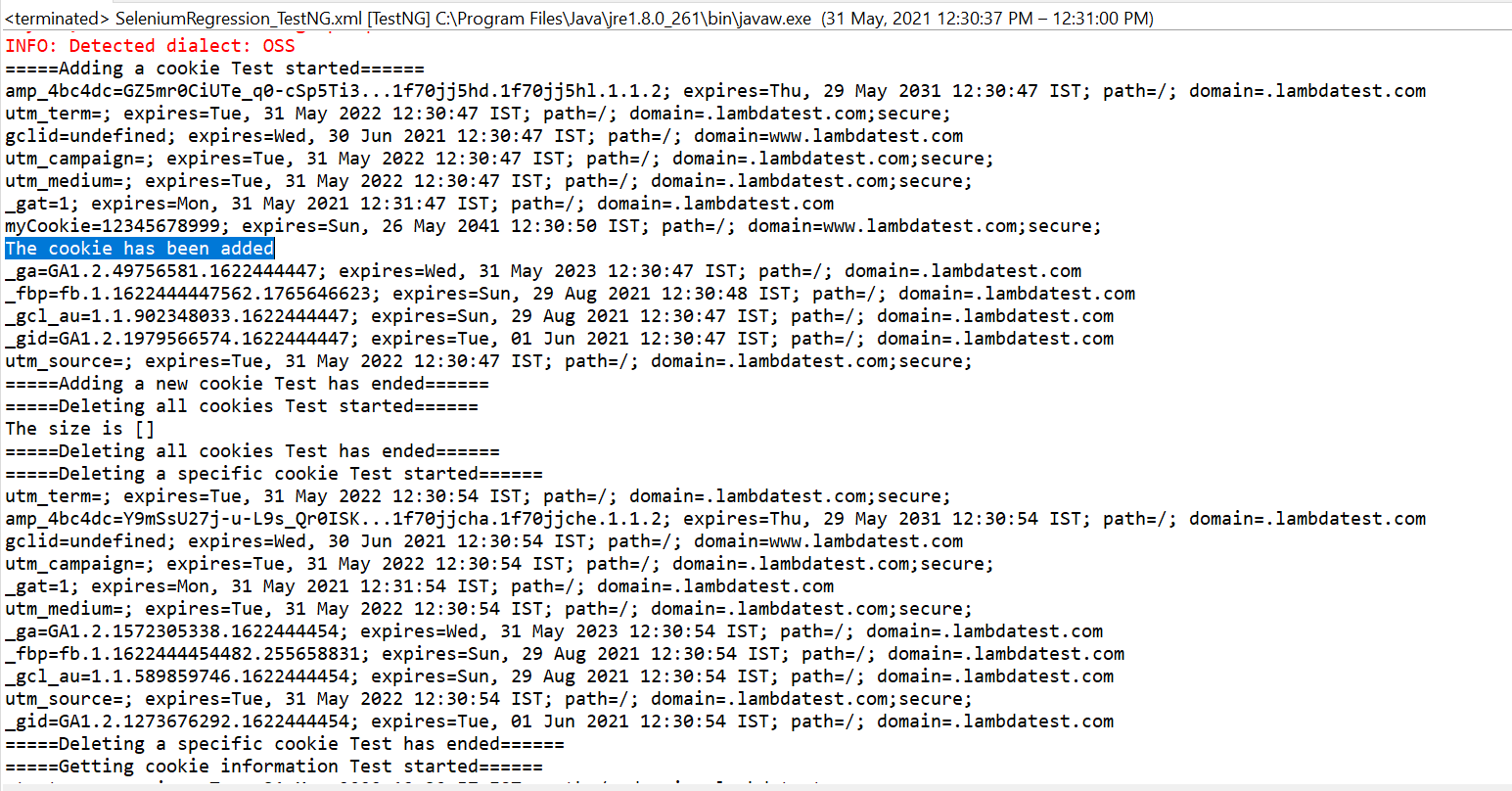
Shown below is the console output, which indicates that the test execution was successful:
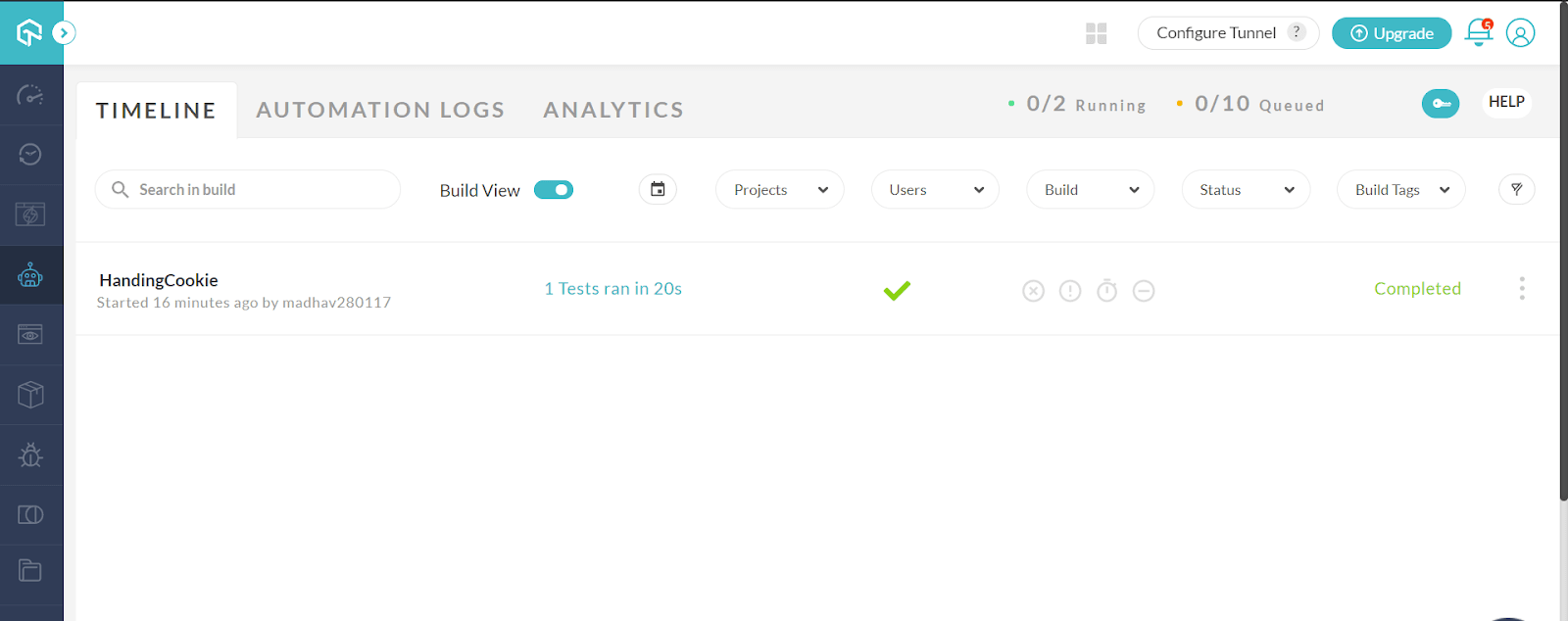
Hop on to the Automation Dashboard on TestMu AI for checking the status of the test execution:
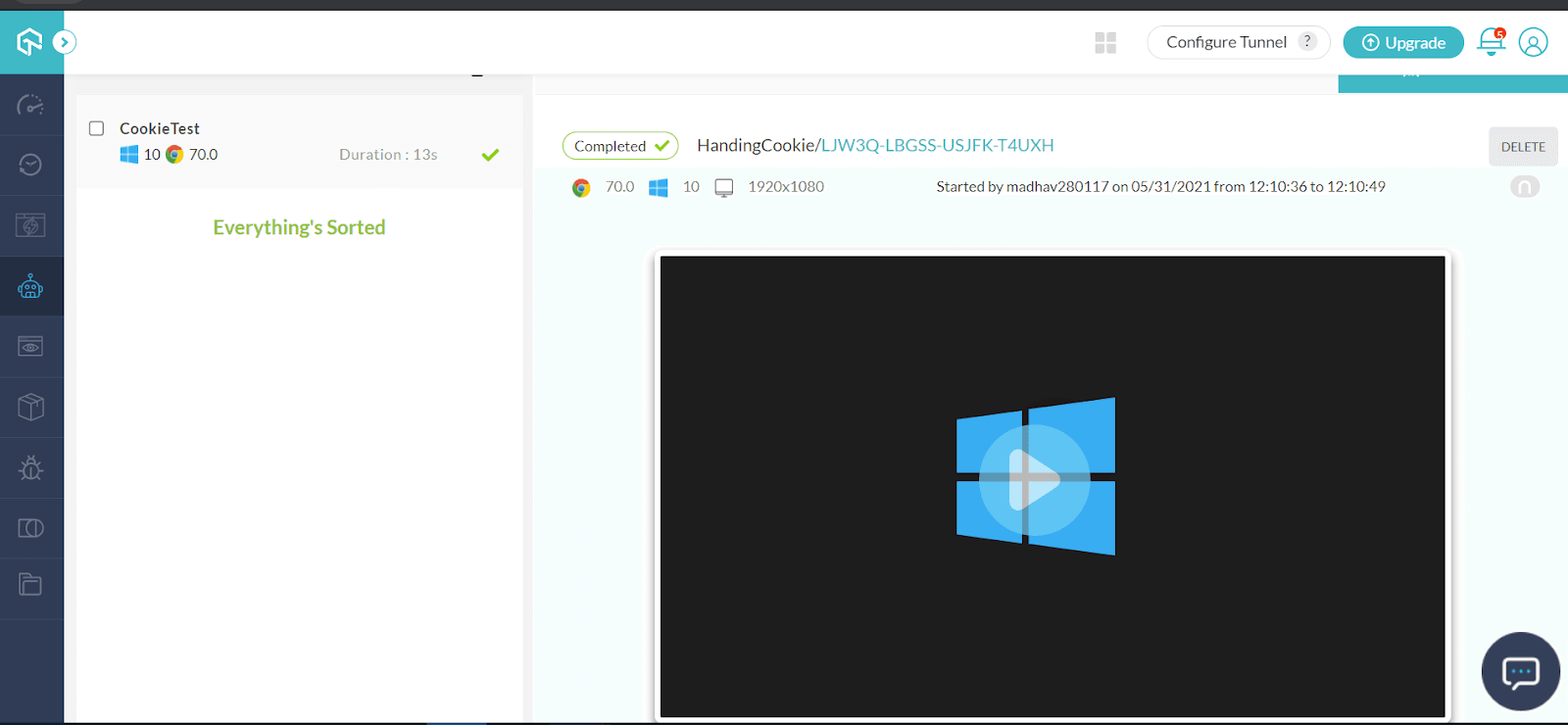
With this we have demonstrated the major Selenium cookies APIs that can be used for performing operations on the cookies.

Austin Siewert
CEO, Vercel
Discovered @TestMu AI yesterday. Best browser testing tool I've found for my use case. Great pricing model for the limited testing I do 👏
2M+ Devs and QAs rely on TestMu AI
Deliver immersive digital experiences with Next-Generation Mobile Apps and Cross Browser Testing Cloud

This certification demonstrates your knowledge of Selenium and Java, and your expertise at automating tests for any project.
Here’s a short glimpse of the Selenium Java 101 certification from TestMu AI:
It’s a Wrap
To summarize, we deep-dived into the various aspects of cookies primarily used for website owners to track the user’s visits or activity. Selenium provides methods (or APIs) using which you can perform various actions on the cookies. We demonstrated how to get cookies in Selenium, how to delete all the cookies in Selenium, how to delete a certain cookie, and more.
Rather than performing Selenium automation testing on a local Selenium Grid, it is recommended to expedite the test execution using a cloud-based Selenium grid like TestMu AI. It lets you run Selenium tests at scale on 3000+ browsers and operating systems.

I hope you find this article very useful and informative. I would love to hear how you use Selenium cookies API for large-scale websites (or web apps). Please feel free to share this blog with your friends and colleagues.
Happy Testing…!


Frequently asked questions
Did you find this page helpful?
More Related Hubs
TestMu AI forEnterprise
Get access to solutions built on Enterprise
grade security, privacy, & compliance
- Advanced access controls
- Advanced data retention rules
- Advanced Local Testing
- Premium Support options
- Early access to beta features
- Private Slack Channel
- Unlimited Manual Accessibility DevTools Tests