

Next-Gen App & Browser Testing Cloud
Trusted by 2 Mn+ QAs & Devs to accelerate their release cycles


On This Page
- What Is Selenium Python?
- Why Use Selenium Python?
- Installing and Configuring Selenium Python
- Setting Up a Selenium Python Project
- Writing First Selenium Script in Selenium Python
- Selenium Python Bindings and WebDriver Basics
- Interacting with Web Elements in Selenium Python
- Selenium Python Advanced Use Cases
- Troubleshooting Selenium Python Errors
- Best Practices in Selenium Python

Selenium Python Tutorial: Guide With Examples
In this Selenium Python tutorial, we deep dive into the essential aspects of Selenium and Python, the learnings of which will be instrumental in your web automation journey.

Himanshu Sheth
December 30, 2025
Selenium Python is a widely used combination for automating browser testing of websites and web applications. Leveraging Python’s simplicity and Selenium’s robust automation capabilities, you can create test scripts that handle actions like clicking buttons, performing mouse operations, filling out forms, and navigating across pages.
Selenium Python is ideal for building reliable, maintainable, and scalable web automation frameworks, making it a preferred choice for QA teams and developers.
Overview
Selenium Python combines Python’s ease of use with Selenium’s powerful browser automation to streamline web testing. It supports multiple browsers and environments, enabling efficient, cross-platform test automation.
Steps to Install and Configure Selenium Python
- Install Python and check Python version.
- Install pip for package management.
- Run pip install selenium to install Selenium.
- Upgrade Selenium with pip install –upgrade selenium if needed.
- Install pytest using pip install pytest.
How to Set Up and Run a Selenium Python Project
- Create and activate a virtual environment using virtualenv venv and source venv/bin/activate.
- Install dependencies with pip3 install -r requirements.txt.
- Organize locators and helpers in separate files for maintainability.
- Configure fixtures and test settings in conftest.py.
- Set EXEC_PLATFORM to cloud or local for test execution.
- Use TestMu AI Capabilities Generator to define browser options.
- Connect to remote WebDriver with TestMu AI URL and capabilities.
- Write tests to navigate pages, fill forms, submit, and verify results.
- Use explicit waits to handle dynamic elements and assert success messages.
- Run tests via make simple_selenium_test and check results.
Selenium Python Advanced Use Cases
- Automate keyboard events with ActionChains and send_keys().
- Perform mouse actions like clicks, hovers, and drag-drop.
- Manage multiple windows and tabs during tests.
- Handle dropdowns using the Select class.
- Interact with radio buttons and checkboxes safely.
- Handle alerts by accepting, dismissing, or sending input.
- Switch into iFrames to access embedded content.
What Is Selenium Python?
Selenium Python refers to the use of the Selenium automation framework with the Python programming language to automate interactions with web browsers. Selenium provides the WebDriver interface, which allows scripts to control browsers by sending commands such as opening URLs, clicking buttons, filling forms, and verifying page content.
When combined with Python, Selenium becomes a powerful and easy-to-use tool for creating automated tests for websites and web applications. Python’s clear syntax and extensive library support make it possible to write, maintain, and scale automation scripts efficiently.
Selenium Python works across major browsers like Chrome, Firefox, Edge, and Safari, and can be executed both locally and on remote environments such as Selenium Grid or cloud-based testing services.
This combination is widely used in quality assurance, regression testing, functional testing, and even in scenarios like automated data extraction or repetitive task automation.
Why Use Selenium Python?
Selenium Python combines the robust browser automation features of Selenium with Python’s simplicity and versatility. This makes it an effective choice for creating, maintaining, and scaling automated tests for websites and web applications.
Key reasons to use Selenium Python:
- Simple and readable syntax: Write automation scripts quickly without unnecessary complexity.
- Large ecosystem: Leverage Python libraries for reporting, data handling, and parallel execution.
- Cross-platform support: Run the same tests on Windows, macOS, and Linux without major changes.
- Strong community: Access solutions, tutorials, and tools from a vast open-source network.
- Easy integration: Connect with CI/CD pipelines and cloud-based Selenium Grids effortlessly.
- Rapid development: Suitable for quick test prototypes as well as enterprise-scale frameworks.

Note: Run Selenium Python tests across 3000+ real browsers. Try TestMu AI Today!
Installing and Configuring Selenium Python
Before you can use Selenium with Python, you’ll need to have Python installed. Once Python is ready, you can proceed with installing the required tools and libraries.
Prerequisites
- Install Python: Check if Python is already installed by using the command below:
python --versionpython3 --versionIf not then download and install the latest stable version of Python from the official Python website.
python get-pip.pypip install seleniumCheck installed version:
pip show seleniumUpgrade Selenium (if needed):
pip install --upgrade seleniumpip install pytestSetting Up a Selenium Python Project
Using a virtual environment (venv) is highly recommended, it ensures clean dependency management and prevents conflicts between different projects.
- Create Virtual Environment: Use a virtual environment (venv) to isolate dependencies.
virtualenv venv
source venv/bin/activate
pip3 install -r requirements.txt
Selenium v4.6.0+ is included in the setup.
- Cloud: Set EXEC_PLATFORM=cloud to run tests on the TestMu AI Selenium Grid.
- Local: Set EXEC_PLATFORM=local to run tests on a local Chrome browser.
- TestMu AI Grid URL (with username and access key).
- Browser options (formerly Desired Capabilities).
Writing First Selenium Script in Selenium Python
You first need to set up the infrastructure, either a local Selenium Grid or a online Selenium Grid on TestMu AI. Once that’s done, identify the appropriate web locators based on your tests and use them with the most suitable Selenium Python methods.
Test Scenario:
- Navigate to TestMu AI Selenium Playground.
- Locate the Input Form Submit Link on the page.
- Input the required information on the page.
- Submit details, assert if the information is not submitted successfully.
Implementation: The test script for the above mentioned test scenario is shown below:
# Import the locators file
import sys
import os
sys.path.append(sys.path[0] + "/../..")
from pageobject.locators import locators
from pageobject.locators import *

from pageobject.helpers import helpers
from pageobject.helpers import *

exec_platform = os.getenv('EXEC_PLATFORM')

@pytest.mark.usefixtures('driver')
class TestSimpleSelenium:
    def test_simple_selenium(self, driver):
        resultant_str = "Thanks for contacting us, we will get back to you shortly."

        driver.get(locators.test_sel_playground_url)

        # Commented once the tests are executed in non-headless mode
        driver.maximize_window()

        action = ActionChains(driver)
        wait = WebDriverWait(driver, 5)

        try:
            element = driver.find_element(By.XPATH, locators.xSubmitForm)
            element.click()

            enter_details(driver, By.XPATH, locators.xInpName, "Testing", 2)

            enter_details(driver, By.XPATH, locators.xInpEmail, "[email protected]", 2)

            enter_details(driver, By.XPATH, locators.xInpPassword, "password", 2)

            enter_details(driver, By.CSS_SELECTOR, locators.cssCompany, "LambdaTest", 2)

            enter_details(driver, By.CSS_SELECTOR, locators.cWebName, "https://wwww.lambdatest.com", 2)

            country_dropdown = Select(driver.find_element(By.XPATH, locators.xInpCountry))
            country_dropdown.select_by_visible_text("United States")
            time.sleep(2)

            enter_details(driver, By.XPATH, locators.xInpCity, "San Jose", 2)

            enter_details(driver, By.CSS_SELECTOR, locators.cssAddress1, "Googleplex, 1600 Amphitheatre Pkwy", 2)

            enter_details(driver, By.CSS_SELECTOR, locators.cssAddress2, "Mountain View, CA 94043", 2)

            enter_details(driver, By.CSS_SELECTOR, locators.cssInpState, "California", 2)

            enter_details(driver, By.CSS_SELECTOR, locators.cssInpZip, "94088", 2)

            # Click on the Submit button
            submit_button = driver.find_element(By.CSS_SELECTOR, locators.cssInpButton)
            submit_button.click()
            time.sleep(2)
            # Assert if the page contains a certain text
            # try:
            #     assert "Thanks for contacting us, we will get back to you shortly" in driver.page_source
            #     driver.execute_script("lambda-status=passed")
            #     print("Passed: Input Form Demo")
            # except AssertionError:
            #     driver.execute_script("lambda-status=failed")
            #     print("Failed: Input Form Demo")

            # Option 2: Check if the text is within a specific element
            try:
                element = wait.until(
                    EC.presence_of_element_located((By.CSS_SELECTOR, ".success-msg"))
                )
                assert resultant_str in element.text, f"'{resultant_str}' not found in the specified element."
            except Exception as e:
                if exec_platform == 'cloud':
                    driver.execute_script("lambda-status=failed")
                pytest.fail(f"Text '{resultant_str}' not found: {str(e)}")

            time.sleep(5)
        except Exception as e:
            # Catch other exceptions
            print(f"Failed: Input Form Demo, generic exception - {e}")
            if exec_platform == 'cloud':
                driver.execute_script("lambda-status=failed")
Code Walkthrough:
- Read Environment Variable: Fetch the value of EXEC_PLATFORM to determine execution mode (cloud or local).
- Fixture Setup: Use @pytest.mark.usefixtures to set up the driver before test execution and tear it down afterward.
- Navigate to URL: Use driver.get() to open the target application.
- Explicit Wait: Create a 5-second wait using WebDriverWait(driver, timeout) to handle dynamic elements.
- Locate Input Form: Find the form submit element using XPath (via POM Builder add-on) and click with .click().
- Locate Other Fields:
- Password field: located via XPath.
- Company field: located via CSS Selector
- Since each locator identifies only a single element, this is a case where the findElement() method in Selenium is most appropriate.
- Enter values using .send_keys().
- Handle Dropdown:
- Locate dropdown using XPath.
- Create Select object.
- Use .select_by_visible_text(“United States”) to choose an option.
- Submit Form: Locate the Submit button (CSS Selector) and click it.
- Wait for Success Message: Use explicit wait with ExpectedConditions in Selenium to wait until the success message becomes visible. In this case, the explicit wait ensures the test proceeds only after the previously hidden message is displayed on the page.
- Assertion: Use an assertion to check if the expected success message appears on the page. If the string isn’t found, the assertion will raise an error, and the lambda-status variable will be marked as failed, indicating the test didn’t pass.
Test Execution:
Run the below-given command in the terminal to trigger the execution of the first Selenium test.
make simple_selenium_test
Shown below is the execution status on the TestMu AI Web Automation dashboard. The status is marked as Passed, which means that the execution was successful.
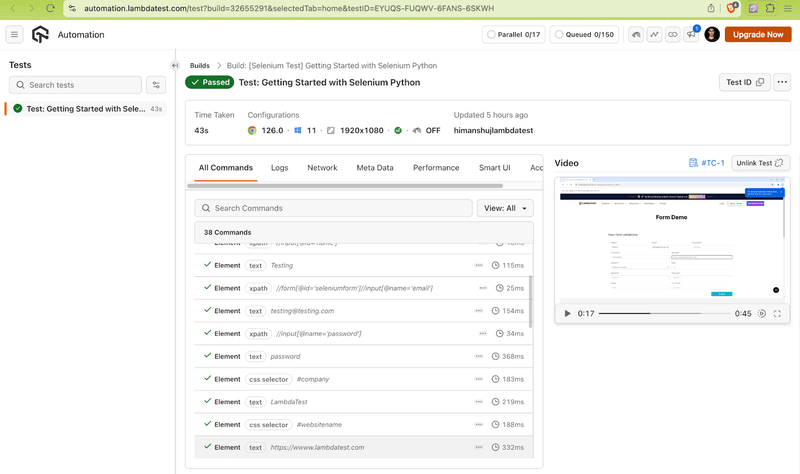
Looking to get started? Check out this documentation on Selenium testing with Python on TestMu AI.
Selenium Python Bindings and WebDriver Basics
Selenium Python bindings are the official APIs that allow you to control web browsers through Python code using Selenium WebDriver. These bindings act as a bridge between your Python scripts and the browser, enabling you to write tests that interact with web elements on the application under test (AUT).
Like other Selenium language bindings (Java, JavaScript, C#, etc.), the Python bindings follow the same core WebDriver API, which means skills and concepts can be transferred between languages. The bindings support:
- Local browser drivers such as ChromeDriver, GeckoDriver (Firefox), and EdgeDriver.
- Remote WebDriver for executing tests on a Selenium Grid or cloud-based testing services.
While syntax differs from other languages, essential features remain consistent, including browser compatibility, WebElement locators, and wait mechanisms.
The WebDriver architecture works as follows:
- Your Python Selenium script sends commands via the Selenium client library (bindings).
- These commands are passed to the browser-specific driver.
- The driver communicates with the actual browser instance and returns results to your script.
This structure ensures a consistent automation experience across different browsers and platforms while allowing Python developers to fully leverage Selenium’s capabilities.
Interacting with Web Elements in Selenium Python
Interacting with web elements is a core part of Selenium Python automation. This section covers how to locate, click, input text, and manipulate elements using various Selenium locators and methods to simulate real user actions effectively.
Locating WebElements in Selenium Python
When performing front-end testing in Selenium Python, the first step is to locate the required WebElement using the right locator strategy. Common locators include:
- XPath and CSS Selector (used earlier).
- ID, Name, Link Text, Partial Link Text, Class Name, and Tag Name .
You can locate elements using the find_element() method, which finds a single matching element, or the find_elements() method, which returns a list of multiple matching elements. It’s a good practice to prefer ID and Name locators over XPath for faster execution. Follow this guide on how and when you can use find_element() and find_elements() in Selenium effectively.
Let’s get our hands dirty with web locators by locating elements with appropriate locators on TestMu AI Selenium Playground and TestMu AI eCommerce Playground.
Implementation: The test script for the above-mentioned test scenario is named as 4_locating_web_elements.py.
- Locating WebElement Using XPath: Locate element (e.g., “Input Form Submit”) using XPath (via POM Builder) and click it using .click().
- Locating WebElement Using CSS Selector: Locate element (e.g., Name text box) using CSS Selector and send text using .send_keys().
- Locating WebElement Using ID Selector: Locate element by id attribute (e.g., inputEmail4) or use document.getElementById(“inputEmail4”) in browser console.
- Locating WebElement Using Name Selector: Locate element by name attribute (e.g., company) or use document.getElementsByName(“company”) in browser console.
- Locating WebElement Using Class Name Selector: Locate elements by class attribute (e.g., module-mz_product_listing) using find_elements(By.CLASS_NAME, “module-mz_product_listing”).
- Locating WebElement Using Tag Name Selector: Locate elements by tag name (e.g., <h4>) using find_elements(By.TAG_NAME, “h4”).
- Locating WebElement Using Link Text Selector: Locate hyperlink (<a> tag) by exact link text using find_element(By.LINK_TEXT, “Full Link Text”).
- Locating WebElement Using Partial Link Text Selector: Locate hyperlink by partial link text match using find_elements(By.PARTIAL_LINK_TEXT, “Download”).
Selenium Python Advanced Use Cases
Selenium Python advanced use cases explore powerful techniques to handle complex web interactions and enhance your test automation. This section covers advanced actions like keyboard and mouse events, managing windows and tabs, handling dropdowns, alerts, iframes, and more to build robust, real-world test scripts.
- Handling Keyboard Events in Selenium Python: Automate keyboard interactions like typing, pressing special keys (ENTER, DELETE, TAB), and complex commands using the send_keys() method, Keys class, and ActionChainsfor advanced keyboard automation.
- Handling Mouse Actions in Selenium Python: Simulate mouse interactions like hover, clicks, context clicks, drag and drop, and element movements using methods from the ActionChains class, including new and improved actions introduced in Selenium 4.
- Handling Windows and Tabs in Selenium Python: Manage multiple browser windows and tabs by opening, switching, and closing them during tests. This is essential for verifying content across windows, handling pop-ups, and running tests that require multiple URLs simultaneously.
- Handling Dropdowns in Selenium Python: Automate interactions with dropdown menus using the Select class from selenium.webdriver.support.ui. You can select options by visible text, index, or value attribute using methods like select_by_visible_text(), select_by_index(), and select_by_value() to efficiently handle dropdown elements.
- Handling Radio Buttons in Selenium Python: Locate and interact with radio buttons by simulating click actions. Before selecting, use the is_enabled() method to ensure the button is clickable and is_selected() to verify if an option is already chosen.
- Handling Checkboxes in Selenium Python: You can locate checkboxes on a web page and toggle their state using the click() method. Before interacting, use the is_selected() method to check whether a checkbox is currently checked or unchecked, ensuring your test logic handles the correct state. This helps in validating checkbox behavior accurately during automation.
- Handling Alerts in Selenium Python: Alerts commonly appear during form submissions, validations, and session timeouts. Use switch_to.alert to switch context to the alert window. Key operations include accept() to accept alerts, dismiss() to cancel them, and send_keys() to input text into prompt alerts.
- Handling iFrames in Selenium Python: Automate interactions by switching to the desired iFrame using switch_to.frame(), which accepts Name, ID, index, or WebElement. After completing actions inside the iFrame, switch back to the main page using switch_to.default_content() to continue with other elements.
Troubleshooting Selenium Python Errors
When working with Selenium Python, encountering errors is common, especially during setup and test execution. Understanding these issues and their solutions can save you significant debugging time.
- WebDriverNotFoundError: This happens when the browser driver (e.g., ChromeDriver, GeckoDriver) is missing or incompatible. Ensure you download the correct driver version matching your browser and place it in your system PATH or specify its location explicitly.
- ElementNotFoundException: Often caused by incorrect locators or timing issues. Double-check your element locators (XPath, CSS selectors) and consider using explicit waits (WebDriverWait) to allow elements to load before interacting.
- TimeoutException: Triggered when an explicit wait exceeds the allotted time without the condition being met. Adjust your wait times based on your application’s response time, or improve your locator strategies for more reliable element detection.
- SessionNotCreatedException: This can occur if the WebDriver version doesn’t match the browser version or due to driver incompatibility. Keep both the browser and driver up to date and compatible.
- StaleElementReferenceException: Happens when the WebElement you’re interacting with is no longer attached to the DOM. This often requires re-locating the element before performing actions.
- Handling Browser Pop-Ups and Alerts: Alerts can interrupt test flow. Use driver.switch_to.alert to manage alerts properly, avoiding unexpected exceptions.
By anticipating these issues and applying the right fixes, your Selenium Python tests will be more stable and easier to maintain. To further strengthen your test reliability, it’s important to understand how to handle common Selenium exceptions effectively. Selenium raises various exceptions during automation, each indicating specific issues like element not found, stale elements, timeouts, and more.
Best Practices in Selenium Python
Below are some of the best practices in Selenium Python that help you write reliable, maintainable, and efficient test scripts. By following proven techniques like using explicit waits, stable locators, and the Page Object Model, you can reduce flaky tests and improve automation scalability. These practices ensure your Selenium tests stay robust as your application evolves.
- Use Page Object Model (POM): Separate page locators and actions from test logic to improve code maintainability.
- Prefer Explicit Waits: Avoid fixed delays; use explicit waits (WebDriverWait) to handle dynamic elements reliably.
- Choose Stable Locators: Use IDs or unique CSS selectors instead of fragile XPath expressions to reduce test breakage.
- Keep Tests Independent: Design tests that don’t depend on each other to avoid cascading failures.
- Run Tests in Parallel: Speed up execution and catch issues faster by running tests concurrently.
- Regularly Refactor: Clean up your code to improve readability and remove duplicates.
- Integrate with CI/CD: Automate test runs in your pipeline to ensure continuous quality and early bug detection.
It’s a Wrap!
Thanks for making it this far! Python is one of the widely used languages, and it is growing up the ranks with each passing year. Though PyUnit is the default test automation framework, pytest is more widely used in comparison to the PyUnit framework.
Also, it is relatively easy to run Selenium Python tests in parallel using the pytest-xdist plugin. In this Python tutorial, we deep-dived into the integral aspects of Selenium and Python for automating interactions with varied elements on a page.
The potential of Python and Selenium can be harnessed by performing Python automation testing on a cloud Selenium Grid (like TestMu AI). Also, do drop in your comments about the common challenges that you normally encounter when it comes to Selenium automation testing!
Happy Testing 🙂
Citations
- Selenium: https://www.selenium.dev/
- pytest: https://docs.pytest.org/en/stable/


Frequently asked questions
Did you find this page helpful?
More Related Hubs
TestMu AI forEnterprise
Get access to solutions built on Enterprise
grade security, privacy, & compliance
- Advanced access controls
- Advanced data retention rules
- Advanced Local Testing
- Premium Support options
- Early access to beta features
- Private Slack Channel
- Unlimited Manual Accessibility DevTools Tests