 Decode AI-Powered Quality Engineering from AI & QA Leaders,Register for Free!

Next-Gen App & Browser Testing Cloud
Trusted by 2 Mn+ QAs & Devs to accelerate their release cycles

How To Perform a Double Click in Selenium - Quick Guide
Learn how to perform double click in Selenium, handle errors, and automate reliable cross-browser tests using Actions and TestMu AI.

Alex Anie
February 20, 2026
The standard .click() method in Selenium is often insufficient for advanced web interactions. To perform a double click in Selenium, the ActionChains API is required. Double click in Selenium is commonly used to enable inline editing of text fields, trigger hidden UI controls or context menus, and select text across elements, making it essential for automating modern web applications.
Overview
Why Is Double Click Essential for Web Automation Testing?
Double click is crucial in web automation because some elements respond only to two consecutive clicks, requiring precise simulation to test hidden features, modals, or interactive components reliably.
How Can You Perform a Double Click Action in Selenium?
Double clicking in Selenium requires careful element identification, initializing ActionChains, and performing the double_click() method for accurate user simulation.
- Locate the Target Element: Identify the web element you want to double-click using reliable locators like id, name, class, or XPath.
- Initialize the Actions Class: Create an Actions (Java) or ActionChains (Python) object and pass the WebDriver instance to handle complex interactions.
- Perform the Double Click: Call the double_click() method on the located element, then execute perform() to trigger the double-click action on the page.
How to Perform Double-Click Action in Selenium on TestMu AI Cloud?
Performing double-click actions at scale requires connecting Selenium tests to TestMu AI’s cloud, configuring credentials, grid, and capabilities properly.
- Get Your Credentials: Log in to TestMu AI, copy your username and access key, then set them as environment variables locally.
- Load Credentials in Your Script: Use environment variables in your Selenium script to authenticate with TestMu AI for secure and reliable test execution.
- Configure TestMu AI Grid URL: Set the Selenium Grid URL in your script to connect to TestMu AI, enabling cloud execution on real browsers.
- Define TestMu AI Capabilities: Specify browser, OS, Selenium version, visual logs, and video recording options for accurate cloud-based double-click test execution.
- Use Automation Capabilities Generator: Leverage TestMu AI’s Capabilities Generator to generate correct capabilities quickly, ensuring your Selenium double-click tests run without errors.
- Connect Script via Remote WebDriver: Initialize webdriver.Remote with Selenium 4 options and TestMu AI capabilities to execute double-click actions on cloud browsers.
- Run the Test Case: Execute your Python Selenium script, verify that double-click actions perform correctly, and review results on TestMu AI’s dashboard.
How to Resolve Double-Click Issues in Selenium?
Double-click failures in Selenium occur due to timing issues, stale elements, driver mismatches, or CI/CD constraints, but practical solutions ensure reliable execution across environments.
Below are the challenges and their respective solutions:
- Element Not Interactable: Use explicit waits, scroll the element into view, and ensure it is visible and interactable before double-clicking.
- StaleElementReferenceException After First Click: Re-locate the element after DOM updates, apply waits, and retry double-click actions to ensure proper interaction.
- Browser/Driver Version Mismatch: Match browser and driver versions, use driver managers, and update both to maintain compatibility for reliable double-click actions.
- Timeout or Flakiness in CI/CD Pipeline: Increase waits, capture screenshots, log element states, use non-headless mode for debugging, and apply JavaScript fallback if necessary.
Why Double Click Is Important in Web Automation?
Some web elements are designed to respond only to a double click, which makes automating these interactions more complex than standard clicks.
Common examples include activating inline editing in input fields, opening modal dialogs, accessing hidden menus, or working with components that mimic desktop-like behavior. Failing to simulate a double click correctly can result in tests missing critical functionality.
To perform a double click in Selenium, testers should leverage the ActionChains API. This allows precise simulation of user interactions, ensuring that features triggered by double-clicks behave as expected. Understanding how to perform double click in Selenium is essential for automating these scenarios reliably.
Before working with double-click actions, you should be familiar with locating web elements using Selenium locators and using the Actions class in Selenium to handle complex interactions effectively.

Note: Run your Selenium tests at scale across 3000+ real browsers and OS combinations. Try TestMu AI Now!
How to Perform a Double Click in Selenium?
By using the Actions class API to perform a double click in Selenium, the workflow involves three main steps: identifying the target element, creating an Actions object, and applying the double_click() method.
While double-clicks are a key interaction, it's also important to understand various Selenium click commands, which cover single clicks, context clicks, and other pointer-based actions you can automate.
- Locating the Web Element: Identify the element you want to interact with using Selenium locators such as id, name, class, or XPath. Accurate element selection is critical, as the double-click action will fail if the element is not interactable.
- Initializing the Actions Class: Create an instance of the Actions class by passing the WebDriver instance. This object allows chaining multiple user interactions, including double-click, right-click, drag-and-drop, and more.
- Performing the Double Click: Use the double_click() method on the located element, then call perform() to execute the action. This ensures that the double-click event is triggered correctly on the element.
Keeping these steps in mind, let's walk through a practical test scenario to understand how to perform a double click in Selenium using the Actions class API.
Test Scenario:
- Navigate to the e-commerce site (TestMu AI Selenium Playground).
- Wait for the search bar to appear.
- Type "Apple iPhone" into the search bar.
- Double-click the search input to select the typed text.
- Select all text using CTRL + A.
- Copy the selected text using CTRL + C.
- Clear the search bar.
- Paste the copied text back using CTRL + V.
- Press Enter to execute the search.
- Verify that the page title contains "Apple iPhone."
- Close the browser.
Code Implementation:
The following code demonstrates the implementation of the above test scenario and shows how to perform a double click in Selenium using the Actions class.
from selenium import webdriver
from selenium.webdriver.common.by import By
from selenium.webdriver.common.action_chains import ActionChains
from selenium.webdriver.support.ui import WebDriverWait
from selenium.webdriver.support import expected_conditions as EC
from selenium.webdriver.common.keys import Keys
import time

# ===== Local Chrome WebDriver =====
driver = webdriver.Chrome()

try:
    # Go to the main site
    driver.get("https://ecommerce-playground.lambdatest.io/")
    wait = WebDriverWait(driver, 10)

    # Locate the search bar and type "Apple iPhone."
    search_bar = wait.until(EC.presence_of_element_located((By.NAME, "search")))
    search_text = "Apple iPhone"
    search_bar.send_keys(search_text)
    time.sleep(1)  # Small pause to show typing

    # Double-click the text to select it
    actions = ActionChains(driver)
    actions.double_click(search_bar).perform()
    time.sleep(1)

    # Select all text in the input field (CTRL + A)
    search_bar.send_keys(Keys.CONTROL, 'a')
    time.sleep(0.5)

    # Copy the selected text (CTRL + C)
    search_bar.send_keys(Keys.CONTROL, 'c')
    time.sleep(0.5)

    # Clear the input and paste copied text
    search_bar.clear()
    time.sleep(0.5)
    search_bar.send_keys(Keys.CONTROL, 'v')
    time.sleep(1)

    # Press Enter to search
    search_bar.send_keys(Keys.ENTER)

    # Verify search result (title should contain "Apple iPhone")
    wait.until(EC.title_contains("Apple iPhone"))
    page_title = driver.title
    if "Apple iPhone" in page_title:
        print("Search verification successful!")
    else:
        print("Search verification failed!")

finally:
    driver.quit()

Code Walkthrough:
- Launch Browser: The script starts by launching a Chrome browser instance using webdriver.Chrome().
- Navigate to Site: Opens the TestMu AI E-commerce Playground homepage.
- Set Up Waits: A WebDriverWait object is created to synchronize interactions with elements as they load.
- Type in Search Field: Waits until the search input becomes available, then types "Apple iPhone".
- Perform Double Click: Uses ActionChains with .double_click(search_bar).perform() to select the typed text, simulating a real user double-click.
- Manipulate Text Using Keyboard Shortcuts:
- CTRL + A: Selects all text in the input field.
- CTRL + C: Copies the selected text.
- .clear(): Clears the input field.
- CTRL + V: Pastes the previously copied text back into the field.
- Execute Search: Presses Enter to perform the search.
- Verify Results: Waits for the page title to update and confirms it contains "Apple iPhone". Prints a success or failure message accordingly.
- Close Browser: The finally block ensures the browser closes gracefully using driver.quit(), even if errors occur during execution.
Test Execution:
To run the code, type the command below.
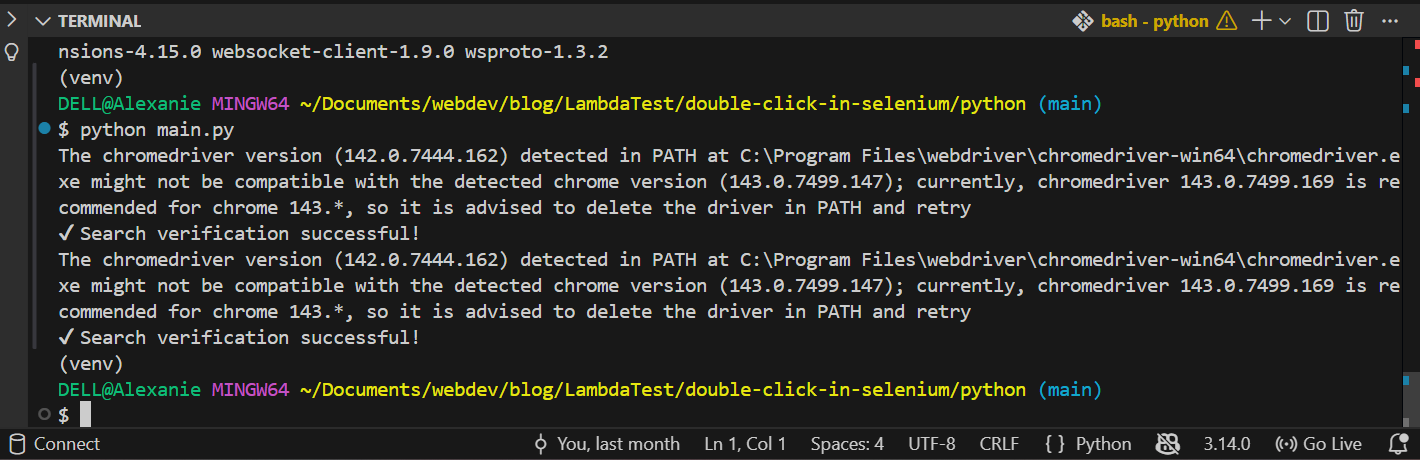
python main.pyThe code should execute successfully on the terminal as follows.
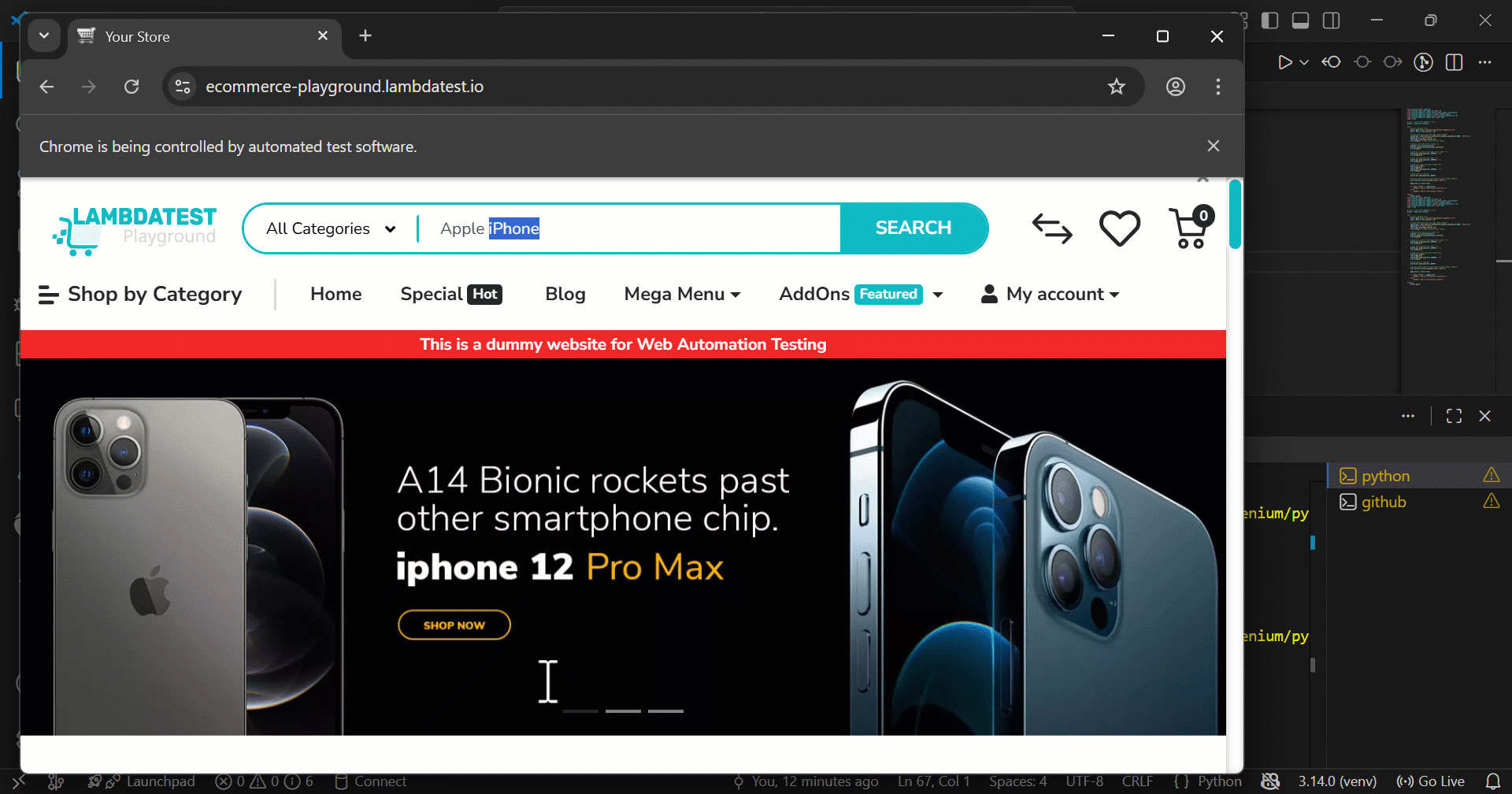
When executed, your automated test will perform a realistic double click in Selenium on the specified element, as shown in the demonstration image below.
Running double click actions in Selenium on your local machine can be tricky. You might face issues like elements not being visible or interactable, timing delays, browser differences, or failures when combining double-clicks with keyboard shortcuts (CTRL + A/C/V). Debugging can also be frustrating because errors aren't always obvious, making it hard to know why your Selenium automation didn't work.
In such cases, relying on cloud platforms can be highly beneficial, and one such platform is TestMu AI (Formerly LambdaTest), which provides access to 3,000+ real devices, real browsers, and custom environments in the cloud, ensuring your double-click actions work consistently.
To see this in action, let's run the same test scenario and explore how to perform a double-click action in Selenium at scale using TestMu AI.
How to Perform Double-Click Action in Selenium at Scale?
The TestMu AI platform offers end-to-end AI agents to plan, author, execute, and analyze your tests, ensuring your double-click actions in Selenium testing behave reliably.
You can test web, mobile, and enterprise applications at any scale across real-world environments, helping you automate complex interactions like double clicks combined with keyboard shortcuts or chained actions without flakiness.
To learn how to perform a double click in Selenium on a cloud platform, you need to add a few steps to your existing code:
1. Get Your Credentials: Log in or sign up for TestMu AI. From the dashboard, navigate to Profile > Account Settings > Password & Security. Copy your username and access key, and set them as environment variables.
2. Load Credentials in Your Code: After setting the environment variables, you can load them in your script:
# Load .env credentials
from dotenv import load_dotenv
import os

load_dotenv()
username = os.getenv("LT_USERNAME")
access_key = os.getenv("LT_ACCESS_KEY")
This allows your scripts to authenticate with the TestMu AI platform and reliably perform double click in Selenium.
3. Set the TestMu AI Grid URL: After loading your credentials, configure the Selenium Grid URL to connect to TestMu AI:
# Grid URL
grid_url = f"https://{username}:{access_key}@hub.lambdatest.com/wd/hub"
This URL allows your Selenium scripts to communicate with the TestMu AI platform, enabling you to run your double click in Selenium tests on real browsers.
4. Set TestMu AI Capabilities for Selenium: After setting the Grid URL, you need to define the TestMu AI capabilities to configure your Selenium session. This tells the platform which browser, platform, and features to use for your test:
# ===== Capabilities =====
lt_options = {
    "username": username,
    "accessKey": access_key,
    "build": "Search and Double Click Action",
    "project": "Search, Double Click and Verify Test",
    "name": "Double Click on an Input Field",
    "selenium_version": "4.0.0",
    "w3c": True,
    "visual": True,
    "video": True,
}

browser_caps = {
    "platformName": "Windows 11",
    "browserName": "Chrome",
    "browserVersion": "latest",
    "seCdp": True,
    "LT:Options": lt_options
}
These capabilities let you configure the OS, browser, and version, enable visual logs and video recording, and track your project on the TestMu AI dashboard.
You can also generate the necessary Selenium capabilities easily using the TestMu AI Automation Capabilities Generator to run double click in Selenium reliably across cloud browsers and devices.
5. Connect Your Test Script: Finally, in Selenium 4, you use the Options() object and webdriver.Remote to connect to the cloud:
# Convert capabilities properly for Selenium 4
options = Options()
for key, value in browser_caps.items():
    if key != "LT:Options":
        options.set_capability(key, value)
options.set_capability("LT:Options", lt_options)

# ===== Remote WebDriver =====
driver = webdriver.Remote(
    command_executor=grid_url,
    options=options
)
This setup ensures that standard Selenium 4 capabilities are configured correctly, TestMu AI-specific options like username, access key, and build/project names are included, and your double click in Selenium test runs reliably on real browsers and devices in the cloud.
Test Execution:
To run the code, type the command below.
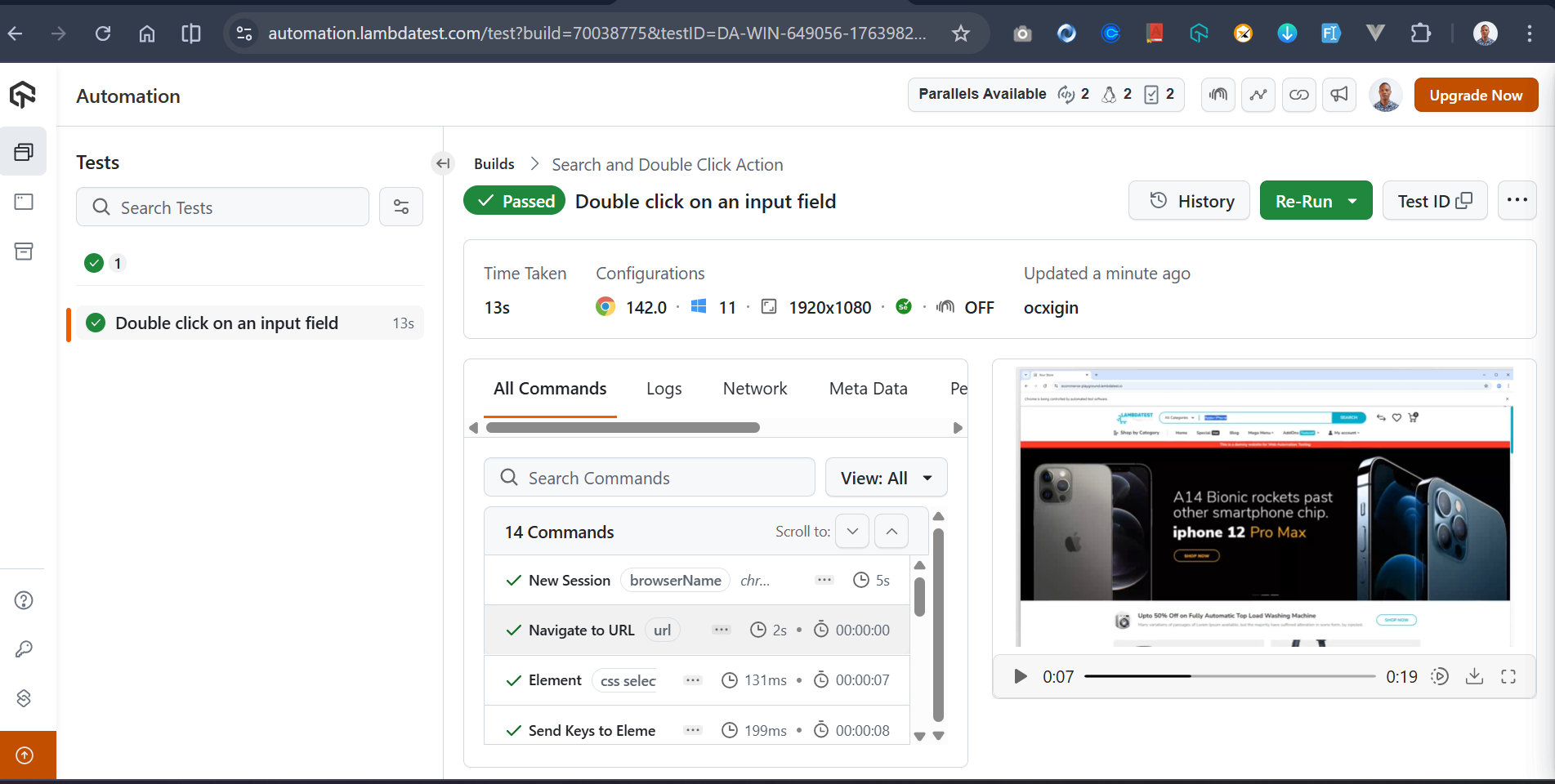
python main_it.pyThe code should execute successfully on the terminal as follows.

Your test case should now work seamlessly on the TestMu AI cloud environment.

What Are the Advanced Use-Cases of Double Click in Selenium?
There are numerous use cases and techniques for implementing double click actions on a specific element.
Double Click on Dynamically Loaded Elements or Nested Frames/Iframes
Iframes allow external content, like maps, videos, or interactive widgets, to be embedded within a webpage. Interacting with these elements can be tricky, especially when they load dynamically or require precise user actions such as double-clicks.
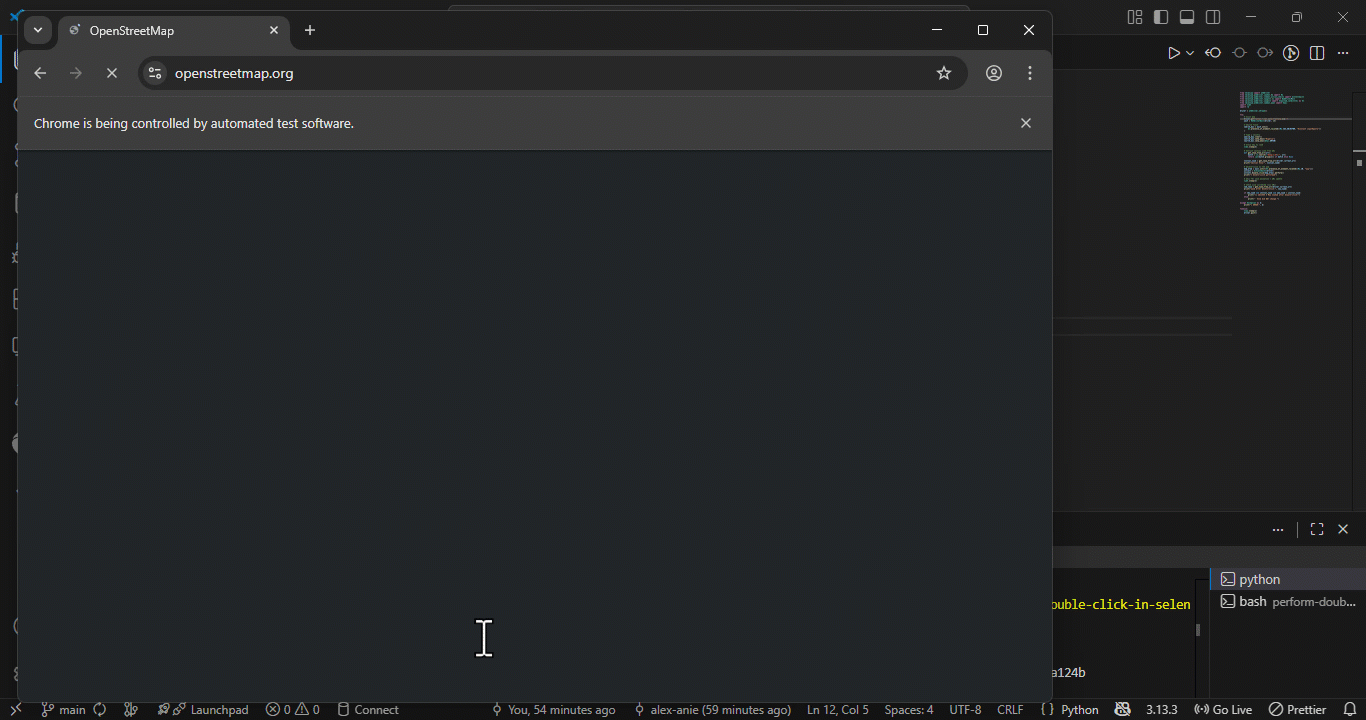
For example, OpenStreetMap supports zooming through double click interactions, making it a practical demonstration of how Selenium can handle embedded and dynamically loaded content reliably.
GitHub: double_click_map.py
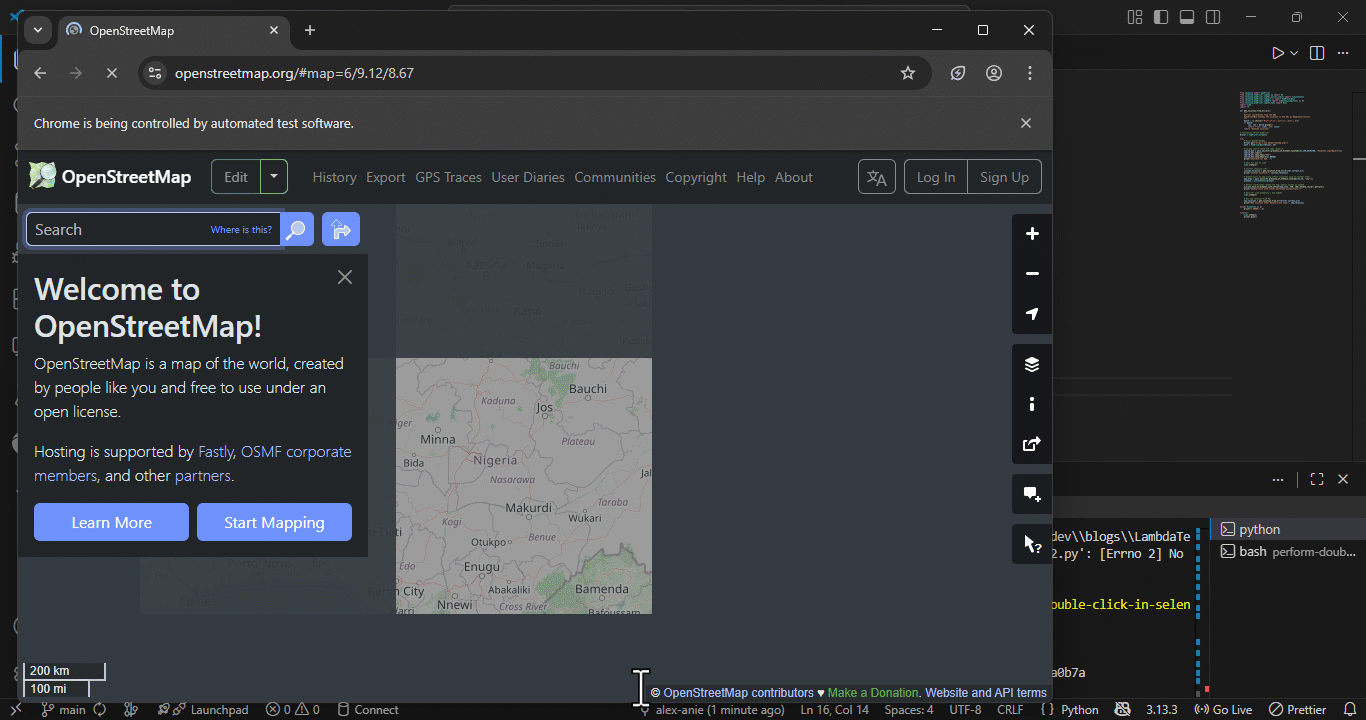
Using move_to_element_with_offset() for Precise Interactions
Selenium's move_to_element_with_offset() method allows you to perform mouse interactions at a precise location within an element by specifying X and Y offsets from its top-left corner.
This approach is especially useful when the interaction must occur at specific coordinates rather than at the element's center. In this example, we apply an offset-based double click in Selenium on OpenStreetMap to trigger a zoom action on a targeted map region.
GitHub: double_click_offset.py
Combining Double Click With Other Actions
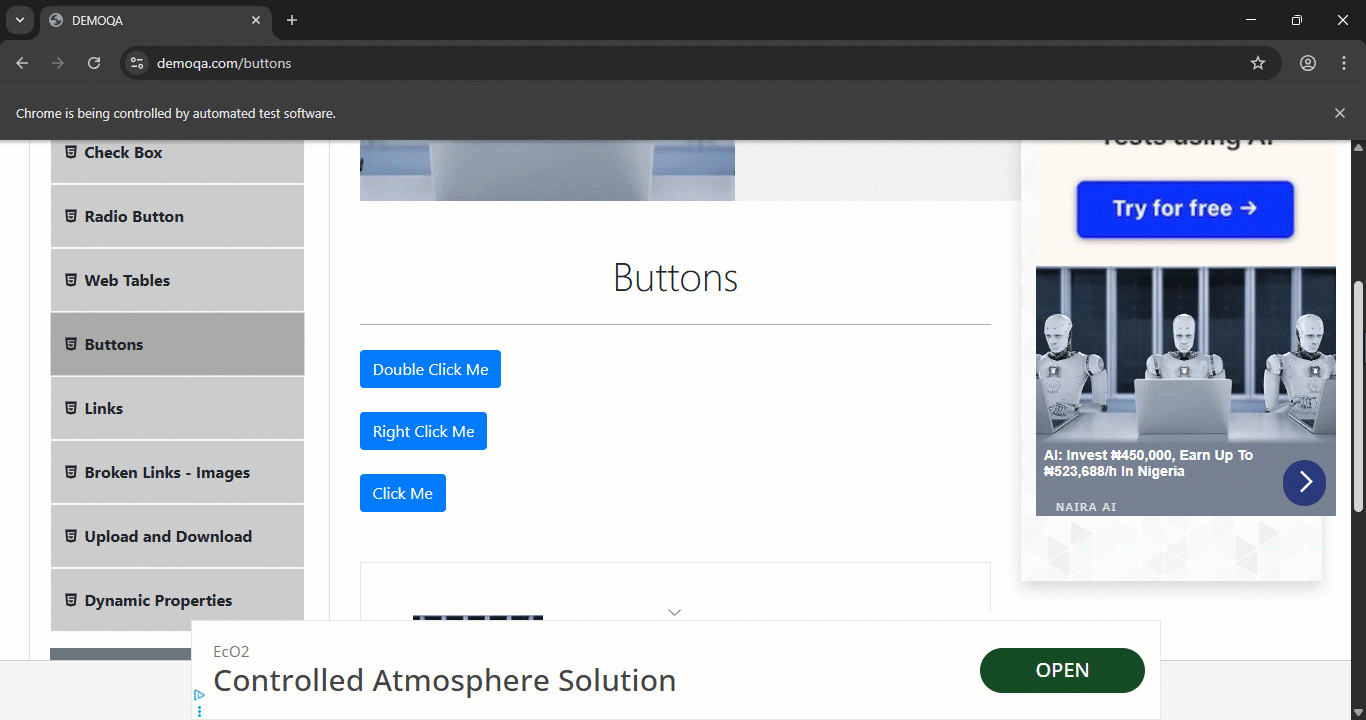
Combining multiple user interactions in a single Selenium test helps simulate real-world behavior more accurately while keeping your test suite clean and maintainable.
Instead of splitting actions across multiple scripts, grouping them improves readability and execution efficiency. For example, you can combine double click in Selenium with hover, drag-and-drop, and tab navigation within one cohesive test flow.
GitHub: combining_doudle_click.py
Using JavaScript Fallback When Actions Double Click Fails
Selenium's native double-click relies on real browser events, which can fail when elements are hidden, animated, overlapped, or not immediately interactable. This can make your tests flaky or cause them to break unexpectedly.
In such situations, using a JavaScript fallback to handle double click in Selenium provides a reliable backup. By directly dispatching a dblclick event at the DOM level, the intended interaction still occurs even when native Actions fail, ensuring your automation remains robust.
GitHub: using_js_fallback_double_click.py
Cross Browser Quirks and How to Work Around Them
Different browsers handle rendering, timing, and DOM updates in slightly different ways, which can cause Selenium tests to behave inconsistently. Cross-browser quirks often appear as timing issues, stale elements, or failed interactions.
To handle these challenges, you can use Selenium waits, retry logic, and safe element relocation. Applying these techniques ensures your double click in Selenium tests runs more reliably and consistently across Chrome, Firefox, Edge, and Safari.
GitHub: cross_browser_stability_test.py
How Can You Fix Double Click Issues in Selenium?
Even though double click actions in Selenium usually work as expected, you may occasionally encounter issues such as elements not responding, timing mismatches, or unexpected browser behavior.
Understanding common causes and applying practical solutions can help you fix these issues and ensure your double click in Selenium tests run reliably across different browsers and environments.
Element Not Interactable
An element not interactable is among the most common failures encountered when attempting to perform double click in Selenium. These issues usually occur because Selenium tries to interact with an element before the browser is fully ready, or because another component in the UI temporarily blocks the intended target.
Causes:
- Element not Fully Loaded or Visible: The element exists in the DOM but is not yet visible, fully rendered, or still transitioning into view.
- Hidden or Disabled Element: The element is set to hidden or disabled by default, making it non-interactable.
- Double Click Attempted Too Early: Selenium attempts a double click in Selenium before the browser allows interaction.
Solutions:
- Use Selenium Waits: Ensure the element is both visible and clickable before interacting with it.
- Scroll into View: Guarantee the element sits within the viewport, and nothing overlaps it.
- Retry and Fallback Logic: Attempt a JavaScript-based double click if Selenium's native ActionChains method fails.
- Handle Overlays Gracefully: Wait for loaders, close popups, or check for transient UI elements that shift the DOM until loading is complete.
StaleElementReferenceException After First Click
A StaleElementReferenceException is a common synchronization issue in Selenium, often occurring immediately after performing the first click on an element. Modern websites frequently update parts of the DOM after user interactions, which can make previously referenced elements "stale." Selenium is then pointing to an outdated copy of the element that no longer exists in the current DOM.
Causes:
- Dynamic DOM Updates: This is common on sites built with React, Vue, Angular, or Alpine.js, where a single click can trigger a full component re-render.
- Element Visually Unchanged But Replaced: Even if the element looks the same, the browser has replaced it with a new instance.
- Selenium Reference Not Refreshed: Any further interactions, like clicking again, sending keys, or retrieving text, will raise a StaleElementReferenceException.
Solutions:
- Use Selenium Waits: Wait for the updated element to appear after the first click.
- Re-Locate the Element: Don't reuse the old variable; find the element again.
- Retry Loops: Attempt the interaction again if a stale reference is detected.
- Wait for DOM Stabilization: Especially useful if animations or asynchronous updates are triggered by the page.
Browser/Driver Version Mismatches Causing Actions to Misbehave
Selenium's advanced user interactions, such as double clicks, hover actions, drag-and-drop, and click-and-hold, depend on the browser driver implementing the W3C WebDriver Actions API correctly.
If your browser version and driver version are not aligned, the Actions API is often the first feature to fail. This can cause confusing behavior:
- Double-click triggers only a single click.
- Hover actions are ignored.
- Drag-and-drop drops in the wrong place.
- Click-and-hold behaves inconsistently across browsers.
- ActionChains executes but produces no visible effect.
Causes:
- Driver/Browser Version Mismatch: Every browser driver (ChromeDriver, GeckoDriver, EdgeDriver, SafariDriver) must match its corresponding browser engine. Even slight misalignment can prevent low-level pointer actions from firing correctly.
- Cross-Browser Inconsistencies: Different browsers implement the Actions spec differently. Chrome may support the full pointer API, Firefox may require additional timing, and Safari may not fully support certain gestures.
Solutions:
- Match Driver and Browser Versions: Ensure, for example, Chrome 131 uses ChromeDriver 131.
- Use Automated Driver Managers: Tools like webdriver-manager or Selenium Manager reduce version inconsistencies.
- Update Drivers with Browsers: Always update drivers whenever the browser is updated.
- Check Compatibility Notes: Verify driver support in release documentation, especially after major browser updates.
Timeout or Flakiness in CI/CD Pipeline: Diagnosing Double-Click Failures
A double click that works perfectly on your local machine may fail inside a CI/CD pipeline. This is a common source of Selenium test flakiness, especially when running tests in headless mode or inside containerized environments like GitHub Actions, GitLab CI, Azure DevOps, or Jenkins.
Causes:
- CI/CD Environment Constraints: Tests run on virtualized hardware with slower rendering than local machines.
- Headless Browser Timing Differences: Headless browsers handle animations and event timing differently.
- CPU Throttling: Delays animations or JavaScript event listeners.
- Network Latency: Elements may appear later than expected.
- Small Default Window Size: Target elements may be hidden or partially off-screen.
- Premature Double-Clicks: Actions fire before the element is fully interactable, causing failures.
Solutions:
- Enable Verbose Selenium/WebDriver Logging: Shows pointer events, element states, and failed interactions.
- Capture Screenshots or HTML Snapshots on Failure: Helps verify element visibility and overlap at runtime.
- Add Timestamped Logging Before and After Interactions: Makes timing issues obvious (e.g., DOM takes longer to load in CI than locally).
- Increase Selenium Waits in CI Only: Use environment-based configuration (e.g., CI=true) to inject longer WebDriverWait durations.
- Switch to Non-Headless Mode for Debugging: Recording or viewing a live CI browser session reveals rendering or animation delays.
- Verify Element Coordinates: Ensure the element is inside the viewport in headless environments.
- Use JavaScript Fallback for Double Click in Selenium: Guarantees the test does not fail when native Actions events are not delivered reliably.
Conclusion
Mastering double click in Selenium requires more than simply calling Actions.doubleClick(). When you work with real-world web applications, you'll encounter dynamic DOM updates, JavaScript event listeners, animations, overlays, and browser-specific behaviors that can cause your double-click tests to fail unexpectedly.
Throughout this guide, you learned how to build stable, cross-browser double-click interactions, from handling element not interactable errors to mitigating stale element references, version mismatches, and CI/CD timing issues.
You also discovered reliable fallback techniques, such as using JavaScript-dispatched events when native Actions fail, and how Selenium waits, retry logic, and enhanced logging can help you diagnose flakiness across Chrome, Firefox, Edge, and headless CI environments.
By combining native Actions, structured error handling, JavaScript fallbacks, and cross-browser resilience strategies, you can create Selenium tests that remain consistent, predictable, and production-ready, even when testing highly dynamic and complex web applications.
Citations
- Selenium Official WebDriver Documentation
- Selenium Actions API (Mouse & Keyboard Interactions)
- W3C WebDriver Specification
- ChromeDriver Official Documentation
- GeckoDriver (Firefox WebDriver) Official Documentation
- Microsoft Edge WebDriver Documentation
- JavaScript MouseEvent Reference (MDN Web Docs)
- Selenium Waits: Explicit, Implicit, Fluent (Official Docs)
- Handling StaleElementReferenceException (Selenium Knowledge Base)


Frequently asked questions
Did you find this page helpful?
More Related Hubs
TestMu AI forEnterprise
Get access to solutions built on Enterprise
grade security, privacy, & compliance
- Advanced access controls
- Advanced data retention rules
- Advanced Local Testing
- Premium Support options
- Early access to beta features
- Private Slack Channel
- Unlimited Manual Accessibility DevTools Tests