
Power Your Software Testing with AI Agents and Cloud
The Native AI-Agentic Cloud Platform to Supercharge Quality Engineering. Test Intelligently and Ship Faster.


- TestMu AI (Formerly LambdaTest)
- /
- Blog
- /
- Unix Shell Scripting Tutorial: Commands and Examples
Unix Shell Scripting Tutorial: Commands and Examples
Learn Unix shell scripting from scratch: the commands worth knowing, variables, loops and functions, plus runnable example scripts you can adapt today.
Last Updated on:
Imagine spending hours on repetitive tasks on your operating system, like copying files, backing up data, compiling the same code, or testing any software. What if you could automate these processes with a few lines of command?
This is where shell scripting can be powerful. Users can communicate with the operating system through the command line interface (C.L.I.), known as the shell.
A shell script is a text file with a sequence of instructions run line by line to automate tasks that would otherwise be time-consuming or error-prone.
The fundamentals of shell scripting are covered in this article, along with a tour of various Unix shells and significant concepts, including variables, commands, inputs and outputs, and debugging. You can create your own Unix shell scripts to automate tasks by the end of this blog.
TL;DR
- A shell script is a text file of commands the shell runs line by line, with no compilation step.
- Bash is the default shell on most Linux systems, and the same syntax runs unchanged on macOS.
- The shebang line, such as #!/bin/bash, tells the system which interpreter should execute the script.
- A new script needs execute permission from chmod +x before it will run as ./script.sh.
- Adding set -euo pipefail stops a script at the first failure instead of continuing with bad state.
- Shell scripting suits sequences of commands, while parsing structured data is usually better handled in Python.
What is Shell Scripting?
A shell script is a plain text file holding a sequence of commands that the shell reads and runs line by line. The shell is the command line interpreter, so anything you can type at a prompt can go into a script and run the same way, without you typing it again. If you are wondering how to learn shell scripting, this is the concept everything else builds on.
Shell scripts mostly handle files, run other programs, and produce text output. Because the same syntax works on Linux and macOS, a script written on one usually runs unchanged on the other.
Unix shell scripting refers to shell scripting done specifically within Unix-based operating systems. It is a subset of shell scripting explicitly done in a Unix environment. To deepen your understanding of Unix shell scripting, exploring common operating system interview questions can provide valuable insights into the fundamental concepts and practical applications.
The basic steps involved with shell scripting are
- writing the script
- making the script accessible to the shell
- giving the shell execute permission
What is Shell?
Shell is a user program that provides a Command Line Interpreter (C.L.I.) that carries the user-typed, human-readable input commands from the terminal and converts them into instructions the kernel can understand. The shell examines the commands and communicates the actions for each user logged in to the kernel.
What is a Unix shell?
The shell used in Unix-based operating systems such as Linux, macOS, and others is called Unix Shell. However, the term "shell" can describe any command line interface type, and "Unix shell" refers exclusively to the shells used in Unix-based operating systems.
These Unix shells include several implementations with syntax and features such as command execution, file manipulation, process management, and input/output redirection.
There are several Unix shells available with unique features for different user needs, with the most common ones being:
- Bourne Shell (sh): It is the first Unix shell that was introduced in 1970. It offers basic functionality and scripting capabilities like list files, read inputs, variables, and control flow statements.
- Bash (Bourne Again Shell): It is the advanced version of Bourne Shell that offers additional features like command line editing and improved scripting capabilities.
- C Shell (csh): It is known for its C-like syntax and interactive features such as history substitution.
- Korn Shell (ksh): It was developed by David Korn as an extension of the Bourne Shell, which provides advanced scripting capabilities and is backward compatible with Bourne Shell(sh).
- Z Shell (zsh): It is highly customizable with advanced features like tab completion, spelling correction, and extensive configuration options.
- Fish (Friendly Interactive Shell): fish (stylized in lowercase) is a Unix shell focusing more on interactivity and usability with features like syntax highlighting, auto suggestions, and an intuitive scripting language.
What is Kernel?
Kernel is the core component of the operating system that connects and manages the hardware resources required by the operating system. In broad terms, the Unix kernel performs three primary tasks:
- It provides a platform for applications and allows users to interact with computer resources.
- It is responsible for launching and managing applications.
- It controls and regulates the underlying system hardware devices.
Unix shell uses this kernel as the primary component to automate tasks and run programs on a Unix system. When we interact with the Unix shell, it, in turn, communicates with the kernel to complete specific tasks.

Note: Run your test suites on a Selenium based cloud grid of 3,000+ browser and OS combinations. Try TestMu AI Now!
Shell Scripting Terminologies
A handful of terms come up constantly in shell scripting, and the rest of this guide assumes them. Here is what each one means.
- Terminal: An interface to access the shell. It lets users submit commands and see the results.
- Shell Shebang Line: The first line of a shell script (usually starting with #!) specifies the interpreter for executing the script. For example, #!/bin/bash indicates the Bash interpreter should run the script.
- Shell Comments: Comments are lines that the shell interpreter ignores. They are used to explain the script's purpose or specific sections. Lines starting with (#) are comments.
- Shell Variables: Variables are named storage locations with values used within the script. We can assign values to variables using the = operator and then reference them later in the script using the variable name preceded by a dollar sign (e.g., $name).
- Shell Sourcing a File: Sourcing a file in a shell means executing the commands in the file in the current shell environment. When you source a file, the commands are executed the same way they had been typed directly into the shell. A file is sourced by writing source <fileName> or ./ <fileName> in the command line. For example, if we want to execute the commands written in helloworld.sh, We can source it into the terminal with ./helloworld.sh.
- Commands: Shell scripts are essentially lists of commands, the building blocks. These are built-in keywords (like cd to change directory, echo to print text) or commands for external programs.
- Arguments: Arguments are additional information passed to commands within a script. They can be used to provide specific details for the command's operation. They start with - for the short form or -- for the long form (for example, git --version prints the installed Git version).
- Redirection: This allows us to control the input and output of commands within the script. Operators like > (redirect output), >> (append to output), < (redirect input) are used for this purpose.
- Control Flow Statements: These statements dictate the script’s execution order. Common control flow statements include:
- if/else: Used for conditional execution based on a specific factual or false condition.
- for/while loops: Used to repeat a block of commands a particular number of times (for loop) or until a condition is met (while loop).
Note: Besides these core terminologies in shell scripting, you must be familiar with common text editors available to create a Unix shell script like Nano and Vim. Both Nano and Vim are command-line text editors used to edit any file using the shell.
Common Shell Scripting Commands
The Unix shell lets us control our computer through text commands. Here is a quick guide to some essential commands:
- Navigate:
- cd: To navigate through directories directory (e.g., cd Desktop).
- ls: To list all the contents inside the selected directory.
- Files & Folders:
- mkdir: To create a new directory (folder).
- touch: To create an empty file.
- rm: To remove or delete files/folders.
- cp: To copy files/folders using the terminal.
- mv: To move or rename files/folders.
- Viewing & Text:
- printf: To print text on the screen.
- cat: To display file contents on the terminal.
- grep: To search for text within files.
- Permissions & Management:
- chmod: To change or add file/folder permissions.
- sudo: To run commands with administrator access.
- System Info:
- df: To view disk space usage.
- history: To check past commands.
- ps: To see running processes.
Note: To learn more about shell scripting concepts in the light of UNIX based operating systems, you should consider checking out the Top 13 Shell Scripting and Unix Books.
Variables and Control Flow Statements in Shell Scripting
We have seen the basic shell scripting commands; let's unlock the power of automation. Bash scripts can handle repetitive tasks, saving time and effort. Here is a breakdown of key features that make this possible:
Variables and User Input
In shell scripting, variables are the named containers for storing information in the form of string, boolean, or numerical values. We can write the variable name and assign a value to it to define a variable in Unix shell scripting. We can use the read command to take variable values from the user input. To access the value of any variable in a Unix shell we can use the "$" symbol with the variable name.
Here is an example:
#!/bin/bash
printf "What is your name? \n"
read name
printf "\n Hello, $name! \n"
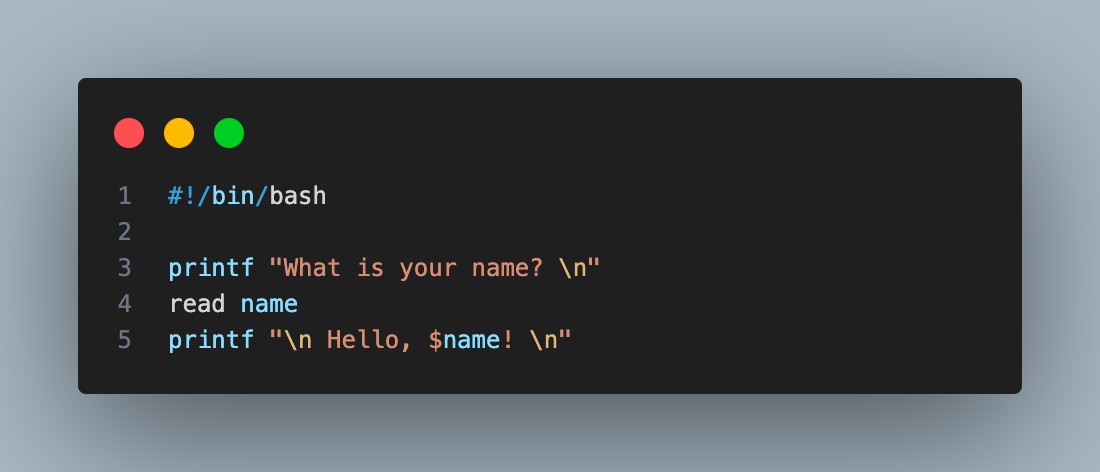
In this script, the user's name is stored in the name variable and then used in the greeting message.
Conditionals (if/else)
In shell scripting, conditional statements provide decision-making control. The 'if/else' statements evaluate conditions and execute commands accordingly.
Below is the syntax for constructing an 'if-else' condition in Unix shell script:
#!/bin/bash
printf "Enter a number: "
read number
if [[ "$number" -gt 10 ]]
then
 printf "The number is greater than 10.\n"
else
 printf "The number is not greater than 10.\n"
fi

This script checks if the entered number is greater than 10, displaying different messages accordingly.
Loops (for/while)
Loops handle the repetitive part of a task. The for loop runs once per item in a list, which suits a known set of files or servers. The while loop keeps going until its condition turns false, which suits work whose length you cannot predict, such as reading a file until it ends.
Here is a Unix shell script for-loop example:
#!/bin/bash


for i in {1..5}
do
 echo "Number: $i"
done
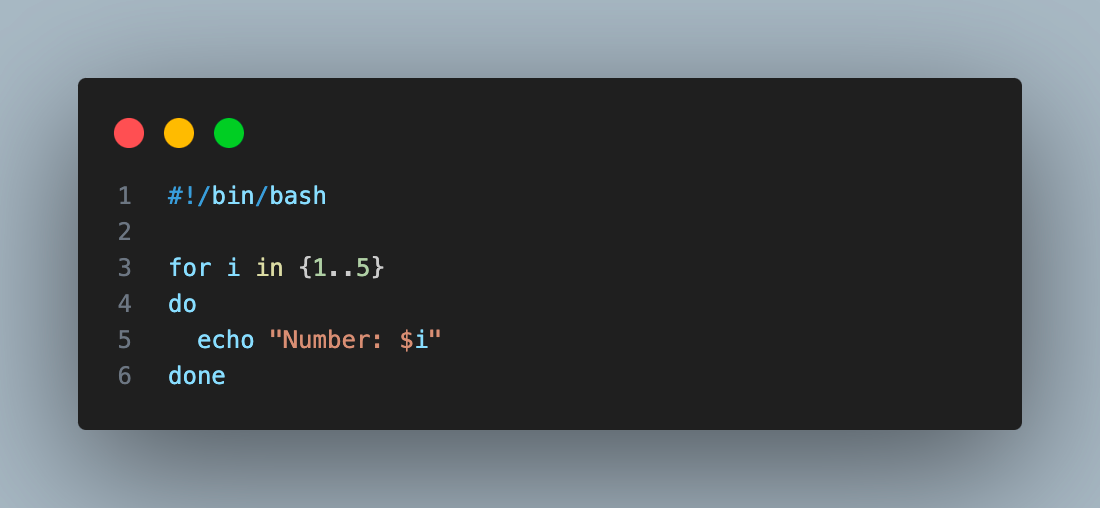
This script prints the numbers 1 to 5 using a for loop that iterates 5 times.
Functions
Functions in shell scripting are the reusable blocks of code that can be defined once and used multiple times by calling them. The syntax for defining and calling a function in Unix shell scripts is as follows:
#!/bin/bash


# Define a function to greet someone
welcome() {
 echo "Hello, $1!"
}


# Call the greet function with an argument
welcome "World"
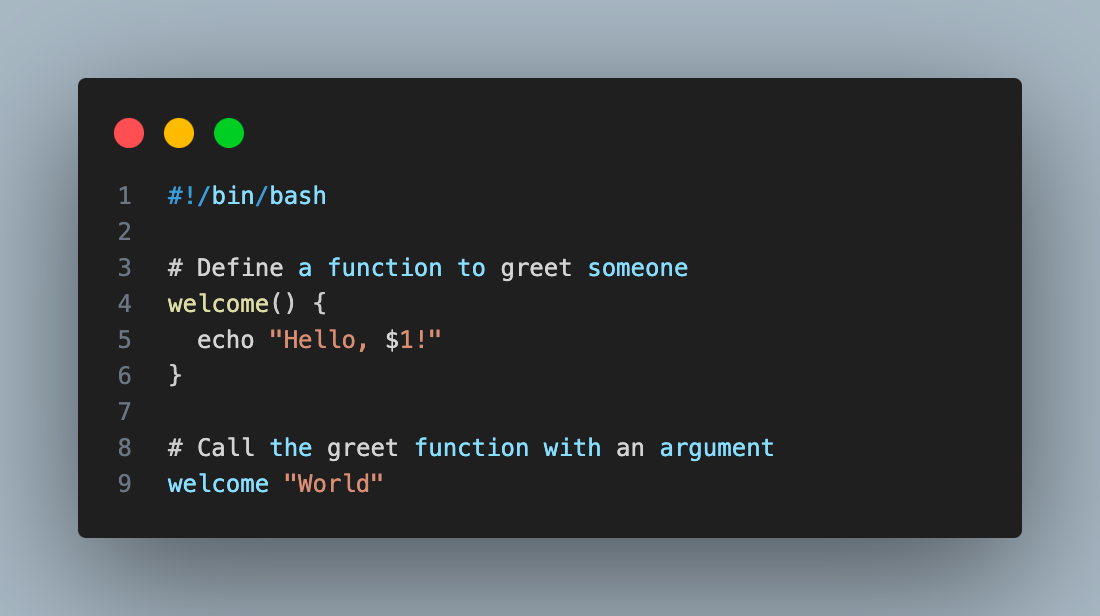
This script defines a welcome function that takes a name and displays a greeting. The function is then called with the argument "World".
How to Run Your First Unix Shell Script
Let's proceed to execute our first Unix shell script. We will start by creating a basic script to print "Hello World!". We can run this Unix shell script in two ways, as stated below.
Run scripts directly from the shell:
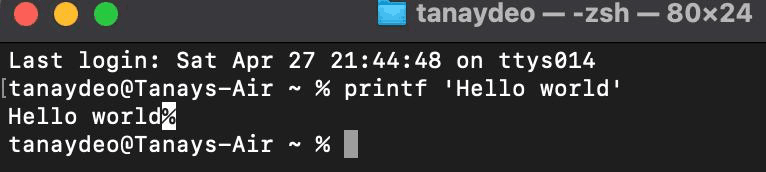
To run the Unix shell script directly, let's open the terminal/shell on a Unix based operating system like MacOS or Linux and write the command in it as shown in the image below:
printf 'Hello World'
Output:
Run the script using a script file:
In this method, we can create a Unix shell script file that usually ends with .sh for Bourne shell scripts, .bash for Bash scripts, .zsh for Z Shell, .ksh for Korn Shell, and .csh for C Shell.
In our example, we will create a Bash shell script file. The detailed instructions below are provided on creating and running an executable bash script.
Step 1: Create a new empty file named "helloworld.sh" using the below command in your terminal.
touch helloworld.sh
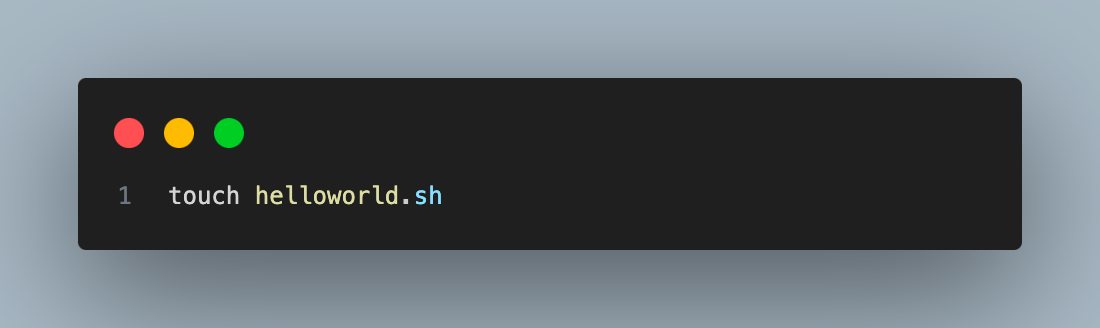
touch command followed by file name creates a new empty file in the terminal's working directory.
Step 2: Open the created file in a text editor and write the Unix shell script to print "Hello World!". In this example, we will use the nano text editor. We can write the command below in the terminal to open the file in the nano editor.
nano helloworld.sh
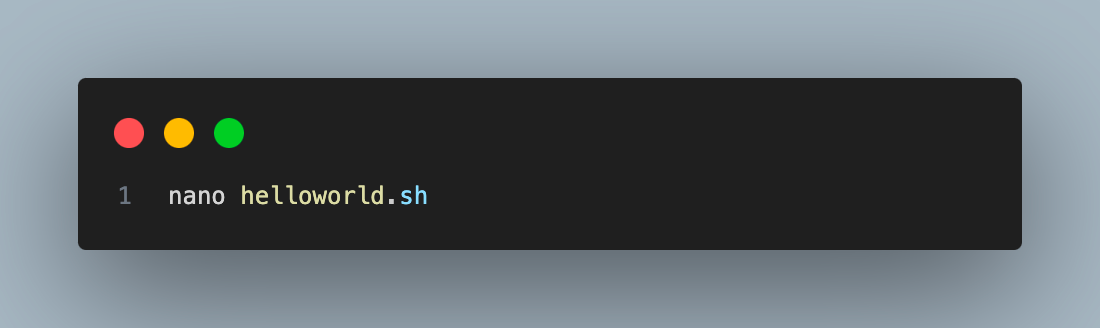
Executing this command will open a text editor in your terminal. Now, write the below command in the text editor as shown below:
#!/bin/bash

# Print a greeting and end the line cleanly
printf "Hello World\n"
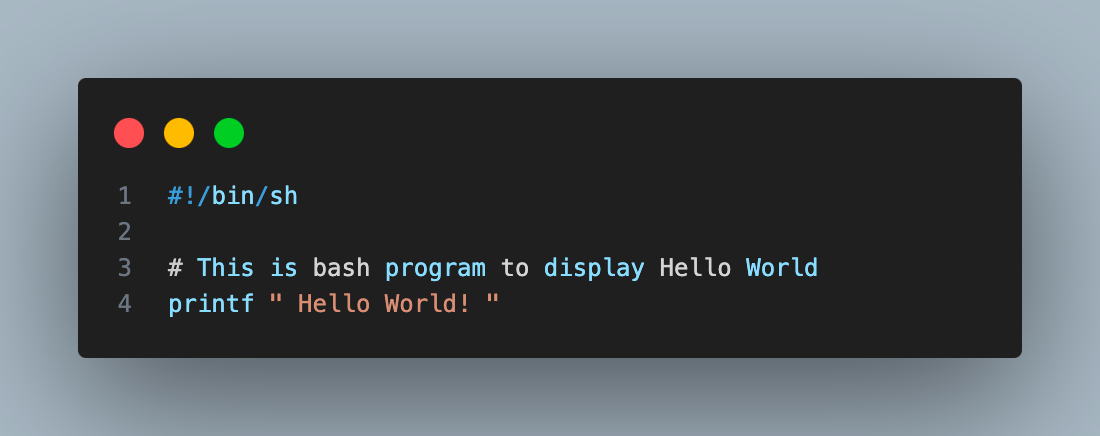
Next, press "(ctrl + X)" to exit the editor. While exiting you will be prompted with an option whether to save the file or not. Click on 'Yes' to save the file.
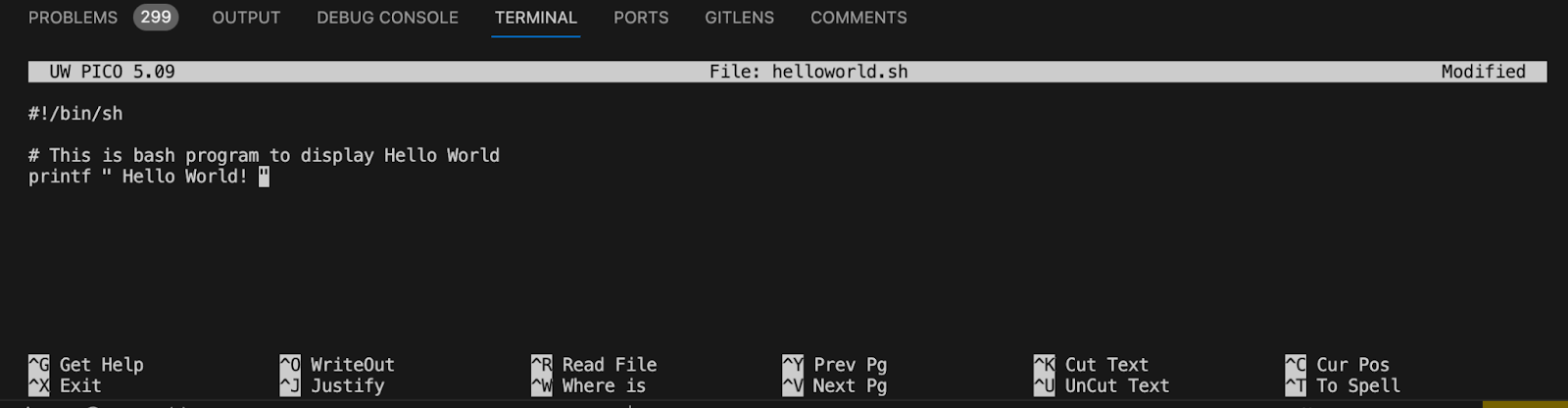
Step 3: The next step is to make the Unix shell script file executable. By default, the created file does not have permission to execute as a program; hence we need to modify the permission for the file. To do so, we need to use the command "chmod +x <filename>" which adds permission to execute the specific file, enabling it to be run as a Unix script. To execute the command below in your terminal, go to the directory where the file is located and run "chmod +x <filename>"".
chmod +x helloworld.sh
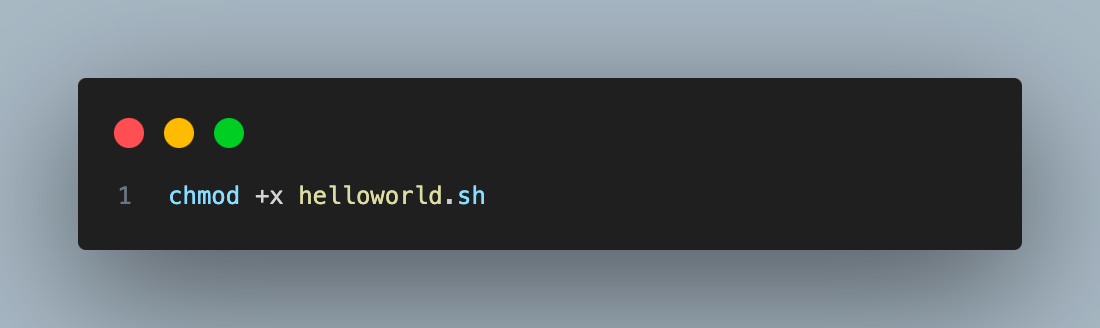
Step 4: The final step is to run the created script using the below command in the terminal.
./helloworld.sh
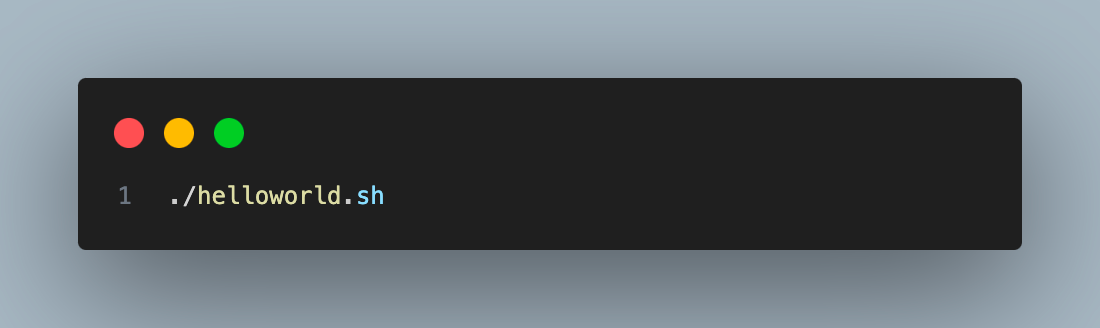
Output:
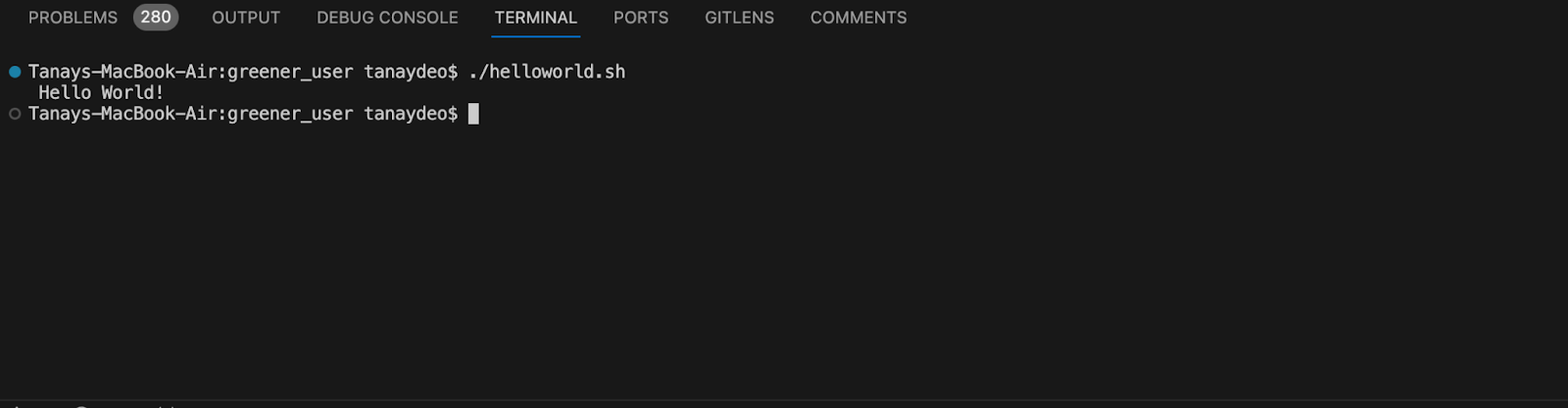
Those four steps, create the file, write the script, make it executable, run it, are the same for every script you write from here on. Only the contents of the file change.
Shell Scripting Examples You Can Reuse
The syntax so far is easier to hold on to once you see it doing real work. Each script below runs as written on Linux or macOS. Save it, make it executable with chmod +x, and adapt the paths.
1. Back Up a Directory With a Dated Filename
This is the classic first useful script. It compresses a directory into an archive stamped with today's date, so repeated runs never overwrite each other.
#!/bin/bash
# Create a timestamped tar.gz archive of a project directory
set -euo pipefail

SRC="$HOME/projects/myapp"
DEST="$HOME/backups"
STAMP=$(date +%Y-%m-%d)

mkdir -p "$DEST"
tar -czf "$DEST/myapp-$STAMP.tar.gz" -C "$(dirname "$SRC")" "$(basename "$SRC")"
printf "Backup written to %s/myapp-%s.tar.gz\n" "$DEST" "$STAMP"
Two lines carry most of the safety here. set -euo pipefail aborts the moment any command fails, so the script cannot print a success message after a failed archive, and mkdir -p creates the destination only if it is missing.

2. Count Errors in a Log File
Reading a log by eye stops working the moment the file passes a few thousand lines. This script takes a log path as an argument and reports how many errors landed in each hour, busiest first.
#!/bin/bash
# Count ERROR lines per hour, busiest hour first
LOG="${1:-/var/log/app.log}"

if [[ ! -f "$LOG" ]]; then
  printf "No log file at %s\n" "$LOG" >&2
  exit 1
fi

grep "ERROR" "$LOG" | awk '{print $1, substr($2, 1, 2)}' | sort | uniq -c | sort -rn
Two habits here are worth copying. The :- syntax supplies a default when no argument is passed, and the guard clause exits early with a message on stderr rather than failing further down with something cryptic.
3. Check That a List of URLs Still Responds
A health check is where shell scripting starts overlapping with testing. This one walks a list of endpoints and exits non-zero if any of them stops returning 200, which is exactly what a CI job needs in order to fail a build.
#!/bin/bash
# Exit non-zero if any endpoint stops returning HTTP 200
URLS=("https://www.testmuai.com/" "https://www.testmuai.com/blog/")
status=0

for url in "${URLS[@]}"; do
  code=$(curl -s -o /dev/null -w "%{http_code}" "$url")
  if [[ "$code" == "200" ]]; then
    printf "OK   %s\n" "$url"
  else
    printf "FAIL %s (%s)\n" "$url" "$code"
    status=1
  fi
done

exit $status
The status variable is the important part. The loop keeps going so you see every failure in one run, but the script still exits non-zero at the end, and that exit code is what a pipeline reads to decide whether to stop.
A script like this confirms a page responds. It cannot tell you whether the page rendered correctly in Safari or on an older Android build, which is where a shell check hands off to cross browser testing across real browsers and devices.
When Should You Use Python Instead of a Shell Script?
Shell scripts are unbeatable for gluing commands together, and they age badly once they grow past a few hundred lines. Complex data structures, real error handling and anything that needs its own tests are usually better served by Python or Go.
The rule most teams settle on: if the script is a sequence of commands you would otherwise type by hand, keep it in the shell. Once it starts parsing structured data or branching heavily, move it.
Conclusion
Shell scripting pays off fastest on the tasks you already do by hand. Pick the one you repeated most this week, whether that is archiving a directory, grepping a log, or checking that a handful of endpoints still answer, and write it as a script before you write anything more ambitious.
Author

Supriya Singh
Blogs: 3


Supriya Singh is a freelance technical content writer with a background in Chemical Engineering. She writes about software testing, automation, and shell scripting. On TestMu AI, she has authored guides on software testing tools, Unix shell scripting, and software engineering roles.
Reviewer

Aman Chopra
Reviewer
Aman Chopra is a DevOps Engineer and Community Contributor with over 7 years of experience in cloud technologies, software development, and software testing. Currently working at TestMu AI, Aman specializes in optimizing Azure cloud infrastructure, enhancing API accessibility, and integrating cloud platforms like AWS and GCP. With expertise in Git, Docker, Kubernetes, and CI/CD practices, Aman has contributed to various open-source projects and authored guides on cloud computing, containers, and CI/CD. He holds a B.Tech in Computer Science.


Unix Shell Scripting FAQs
Did you find this page helpful?
More Related Blogs

TestMu AI forEnterprise
Get access to solutions built on Enterprise
grade security, privacy, & compliance
- Advanced access controls
- Advanced data retention rules
- Advanced Local Testing
- Premium Support options
- Early access to beta features
- Private Slack Channel
- Unlimited Manual Accessibility DevTools Tests