

Next-Gen App & Browser Testing Cloud
Trusted by 2 Mn+ QAs & Devs to accelerate their release cycles


- Home
- /
- Learning Hub
- /
- Playwright Tutorial: Futuristic Features
Playwright Tutorial: Futuristic Features
Read this tutorial to learn more about Playwright futuristic features that describe how Playwright can be a reliable testing framework.

Mythili Raju
March 2, 2026
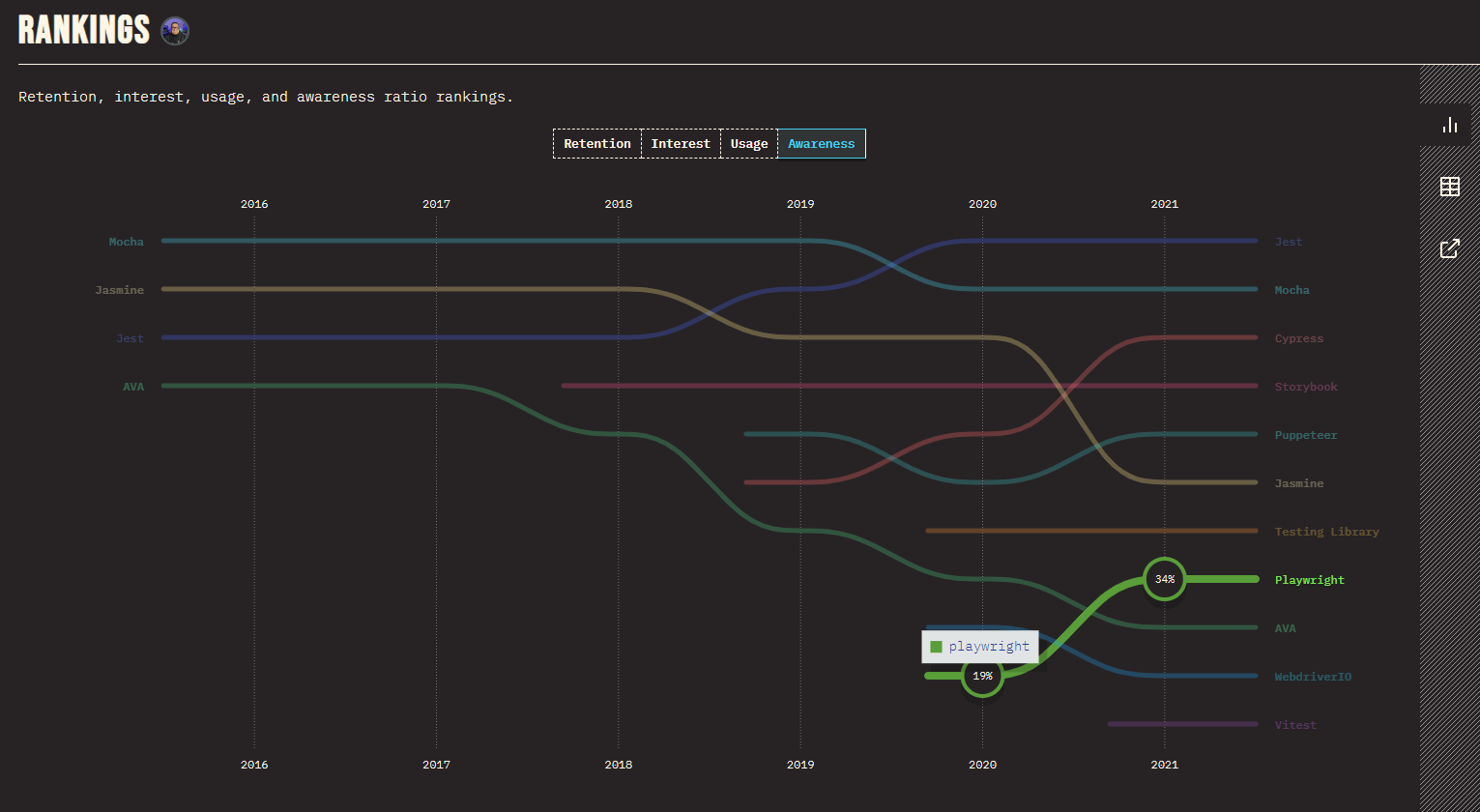
Playwright is an open-source automation testing framework by Microsoft for web testing. Playwright features help you test across all modern browsers in a reliable, effective and fast manner. Be it codeless or code-based, Playwright features help you test anything from unit testing to automation end-to-end testing It is becoming increasingly popular amongst many developers. For instance a survey conducted by StateofJS, showcases that Playwright has gained an increase in awareness from 19% to 34% amongst many developers.
In our previous Playwright tutorial series, we discussed the basics of Playwright, outlining its capabilities and how to install Playwright using the VS Code plugin. Let’s discuss Playwright features in this tutorial.
Overview
Why Is Playwright a Popular Choice for Web Testing?
Playwright is an open-source testing framework by Microsoft that enables fast, reliable cross-browser automation, supporting everything from component testing to full end-to-end web application testing.
What Are the Most Prominent Playwright Features?
Playwright provides modern capabilities that simplify test creation, execution, and debugging across browsers. These features help teams build faster, more stable, and scalable automation workflows.
- Playwright Test Generator and Test Inspector: Automatically records user interactions and provides an inspector to step through tests, analyze selectors, and debug failures efficiently.
- Playwright Fixtures: Reusable fixtures manage test setup and teardown, enabling consistent environments, shared resources, and cleaner test architecture across projects.
- Screenshots And Videos On Test Failures: Captures screenshots and video recordings during failures, helping teams understand issues and accelerate troubleshooting without rerunning scenarios repeatedly.
- Playwright Retries: Built-in retry logic reruns flaky tests automatically, reducing false failures and improving confidence in continuous integration pipelines overall.
- Playwright Auto-Waiting Mechanism: Smart auto-waiting ensures elements are ready before actions execute, minimizing timing issues and improving overall reliability consistently significantly.
How Can You Scale Playwright Testing with the TestMu AI Cloud?
TestMu AI offers a cloud-based orchestration platform designed to run Playwright tests across thousands of browser and OS combinations efficiently.
- Seamless CI/CD Integration: Connect Playwright tests with CI/CD tools to trigger automated test execution during every build, deployment, and release cycle effortlessly.
- Advanced Debugging Capabilities: Analyze failures using network logs, command logs, and video recordings to identify root causes and improve test reliability faster.
- Faster Test Execution: Use HyperExecute orchestration to accelerate Playwright test runs, shortening feedback loops and enabling quicker delivery of stable releases.
- Parallel Testing Support: Run tests across multiple browser and operating system configurations simultaneously to reduce overall execution time and increase productivity.
- Custom Test Analytics: Build personalized dashboards and widgets to track automation performance, visualize trends, and make data-driven testing decisions easily.
- Multi-Framework Support: Execute tests for Selenium, Cypress, Puppeteer, and mobile frameworks like Appium, Espresso, and XCUITest on the same cloud platform.
Most Prominent Playwright Features For Automation Testing
As per StateofJS survey, Playwright was able to consistently retain 100% of its users from 2020 to 2021. No wonder, Playwright has been the talk of the town in the testing community as one of the best options to consider automation testing. What makes Playwright special? Let's have a look at some of the most notable Playwright features for test automation.
- Playwright Test Generator and Test Inspector
- Playwright Fixtures
- Screenshots And Videos On Test Failures
- Playwright Retries
- Playwright Auto-Waiting Mechanism
You can also go through the following video from the TestMu AI YouTube channel to learn more about futuristic Playwright features.
Let’s look at the above Playwright features one by one!
Playwright Test Generator and Test Inspector
Playwright comes with the ability to generate tests out of the box and is a great way to quickly get started with testing. It will open two windows, a browser window where you interact with the website to test. The Playwright Inspector window records your tests, copy the tests, clear your tests as well as change the language of your tests.This enables us to easily create tests by recording our actions. Also known as Playwright Test Script Recorder.
In the previous tutorial, we read about a test script showcasing the browser followed by context and page, which eventually led us to a particular site. Since we considered the TestMu AI eCommerce Playground (a demo account), it will get redirected to its home page.
We also learned about the exact use of new context and new pages. The next step was login.
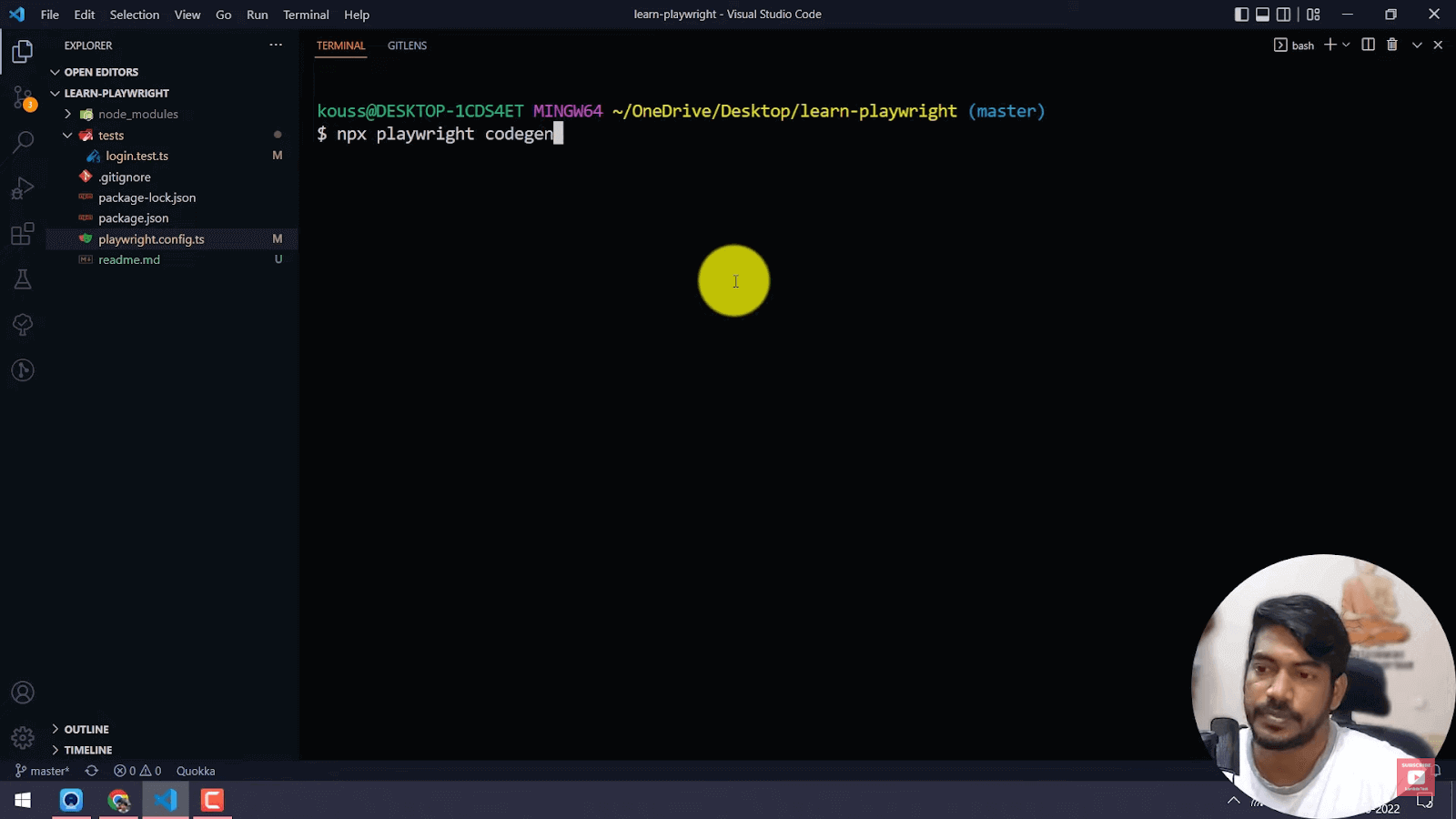
This time, we will use a Playwright feature instead of writing code. To use this feature, we need to follow a few steps:
- Open up the terminal with the help of - Ctrl + J. Type this command:
- Now, you can see a browser page and the Playwright Inspector.
- Login to your TestMu AI eCommerce Playground account.
- Go to Edit your account information (make necessary changes) and press Continue.
- Click on the Logout option.
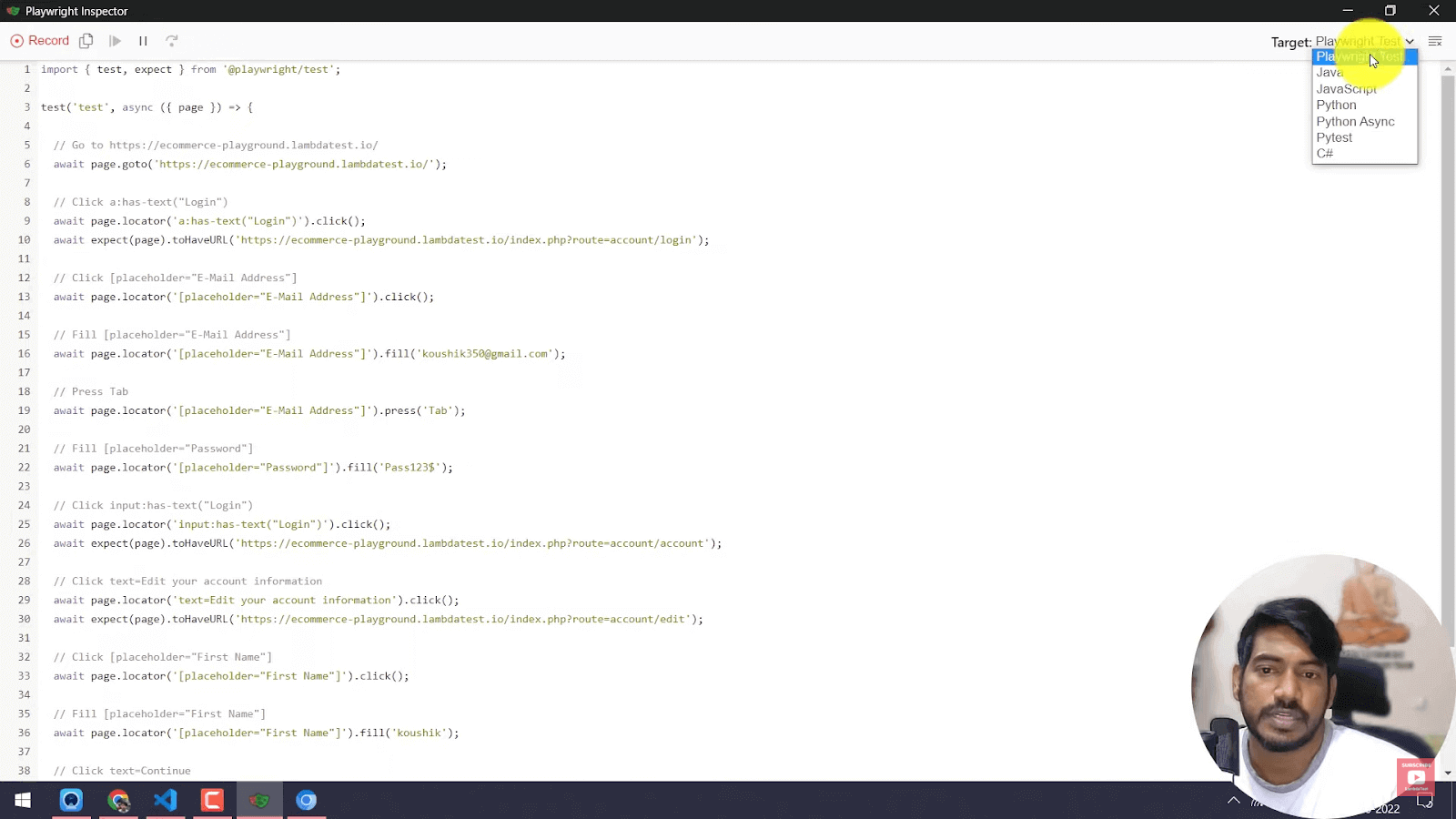
- Now check the code on the Playwright Inspector.
–npx playwright codegen
This command is used for recording tests or generating test scripts.
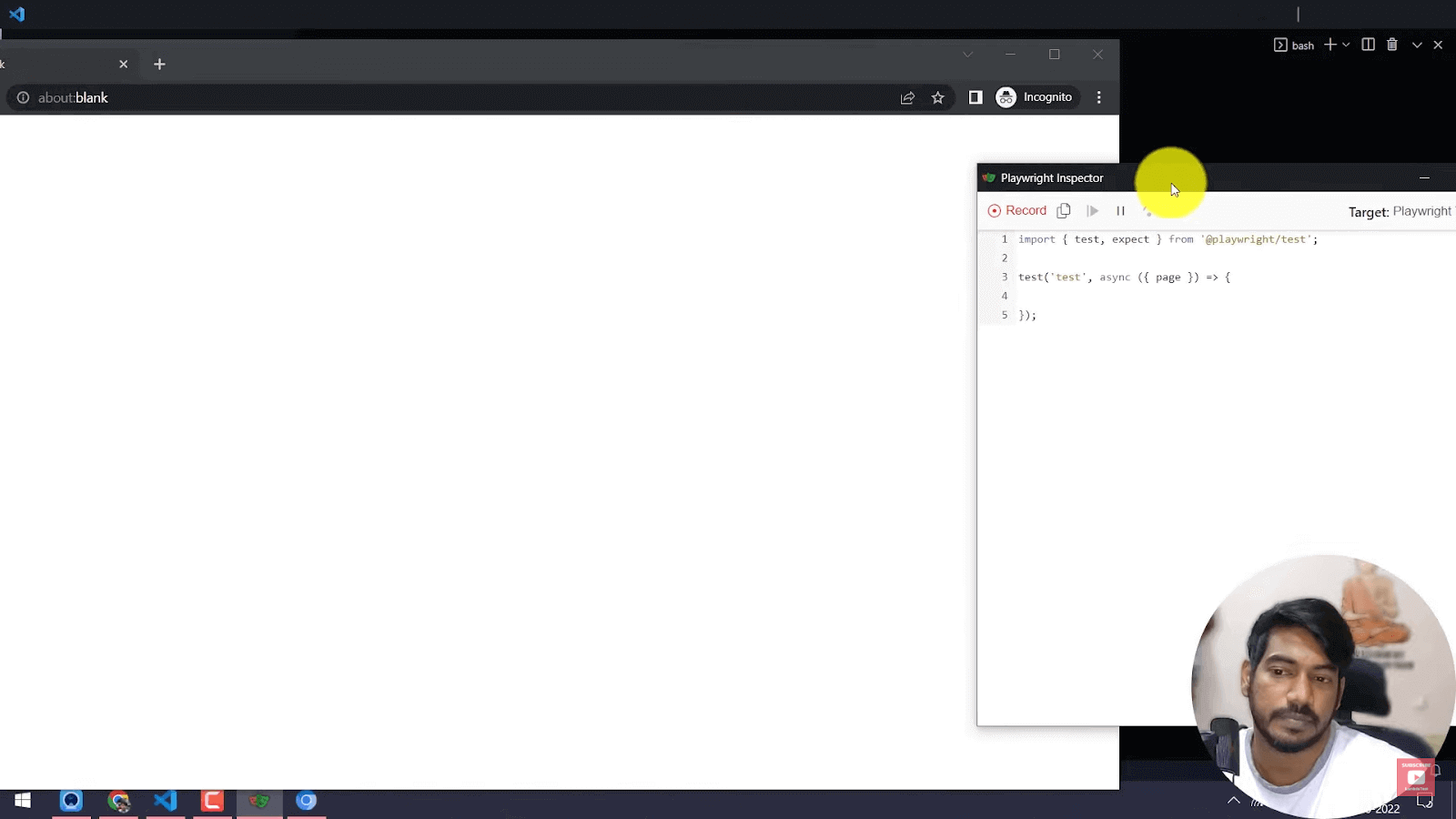
Eventually, the Playwright Inspector records whatever actions that occur on the browser. (By default, it will be in record mode)
For example – copy the URL of a particular site and paste it into the browser (which is in incognito mode). Now when you look at the Inspector page, you get the exact URL you searched for in the browser.
One of the major highlights around Playwright is its Language Compatibility. Playwright tests by default are generated in JavaScript. However, you can change the Playwright test to other programming languages such as Java, .NET or C#, Python.

A small example of how the Playwright Inspector works is when you make a few changes:
Test Scenario:
Playwright Inspector
Playwright inspector is a great tool that helps in authoring and debugging Playwright scripts. This is a default recommended tool for script troubleshooting. It opens up a browser window highlighting the selectors as you step through each line of the test. You can also use the explore button to find other available selectors which you can then copy into your test file and rerun your tests to see if it passes.
test("Login test demo", async () => {const browser = await chromium.connect("wss://cdp.lambdatest.com/playwright?capabilities=
${encodeURIComponent(JSON.stringify(capabilities))}");
    const context = await browser.newContext();
    const page = await context.newPage();
await page.goto("https://ecommerce-playground.lambdatest.io/")
await page.hover("//a[@data-toggle='dropdown']//span[contains(.,'My account')]")
    // await page.click("text=Login")
    await page.click("'Login'")
    await page.fill("input[name='email']", "[email protected]")
    await page.fill("input[name='password']", "Pass123$")
    await page.click("input[value='Login']");
    await page.close();
    await context.close();
await browser.close();Playwright Fixtures
Playwright test comes from the concept of test fixtures. Fixtures establish an environment for each test. After we complete the steps under Playwright test script recording, we need to;-
Test Scenario:
- Create a new test file in the VS Code with the name “recorded.test.ts’’ and save it.
- Close the codegen browser as well as the Playwright Inspector.
- The difference that the Playwright test runner creates is that - we don’t need to launch a Chromium browser; instead, we place a code that indicates ‘’page. goto along with the URL.’’ In short, we can say that there is the usage of only parameters under the Playwright test runner, and this concept is known as the Playwright fixtures.
- To execute this, go to the file named “playwright.config.ts’’; you will see a code that says testMatch (specify the folder, followed by file name).
- Enter your new test file - testMatch: [tests/recorded.test.ts”]
- Next, bring up the terminal with - Ctrl + J, and type npx playwright test.
- Playwright, by default, runs in the headless mode. Hence when we execute a test, we cannot see the graphical user interface/taskbar. We will use a new method to fix this issue.
- Go to the configuration file and add code for the headless mode. Eventually, the code will look like this -
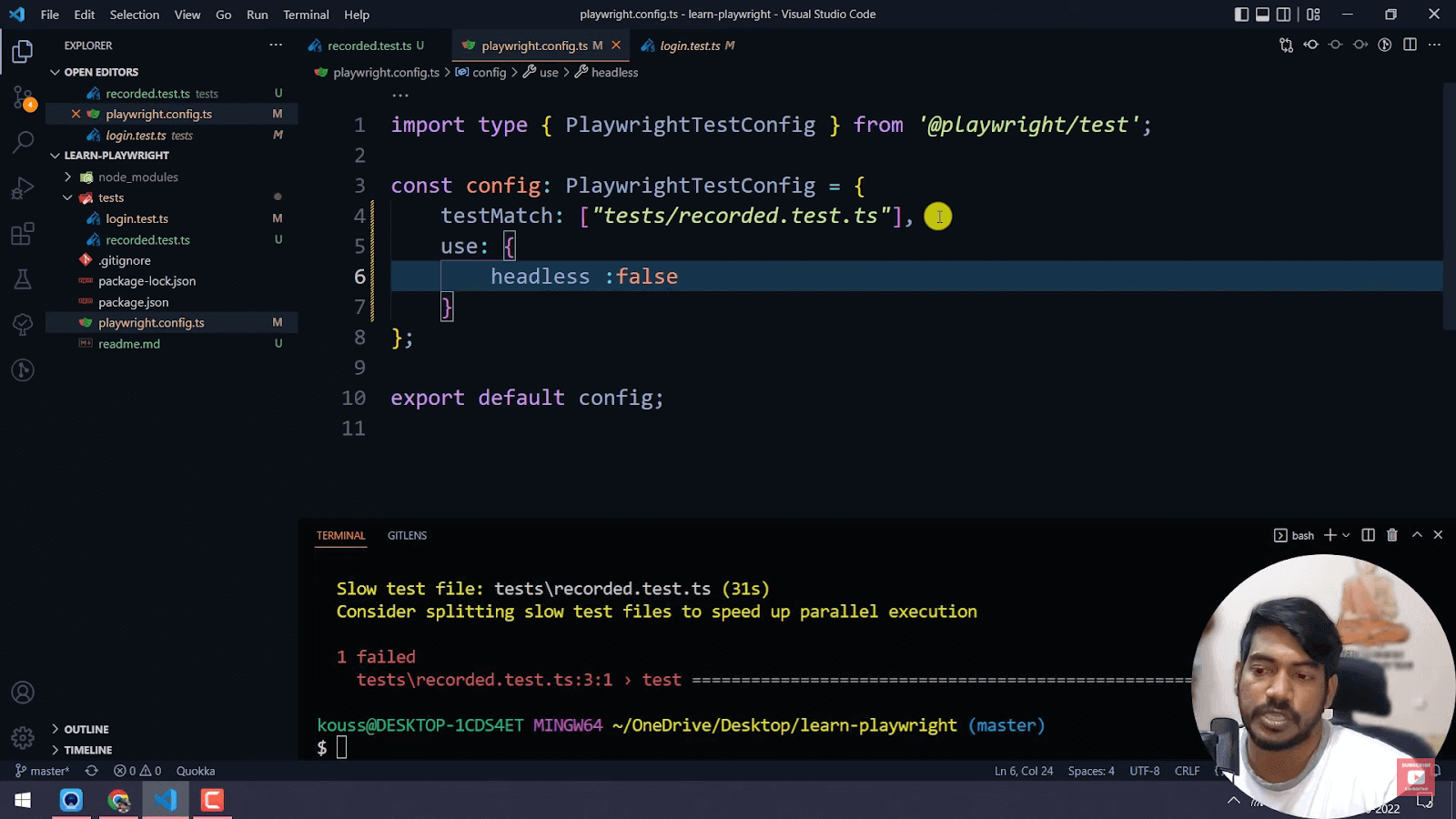
Also, this configuration test applies to all the tests we perform.
Playwright Reporters
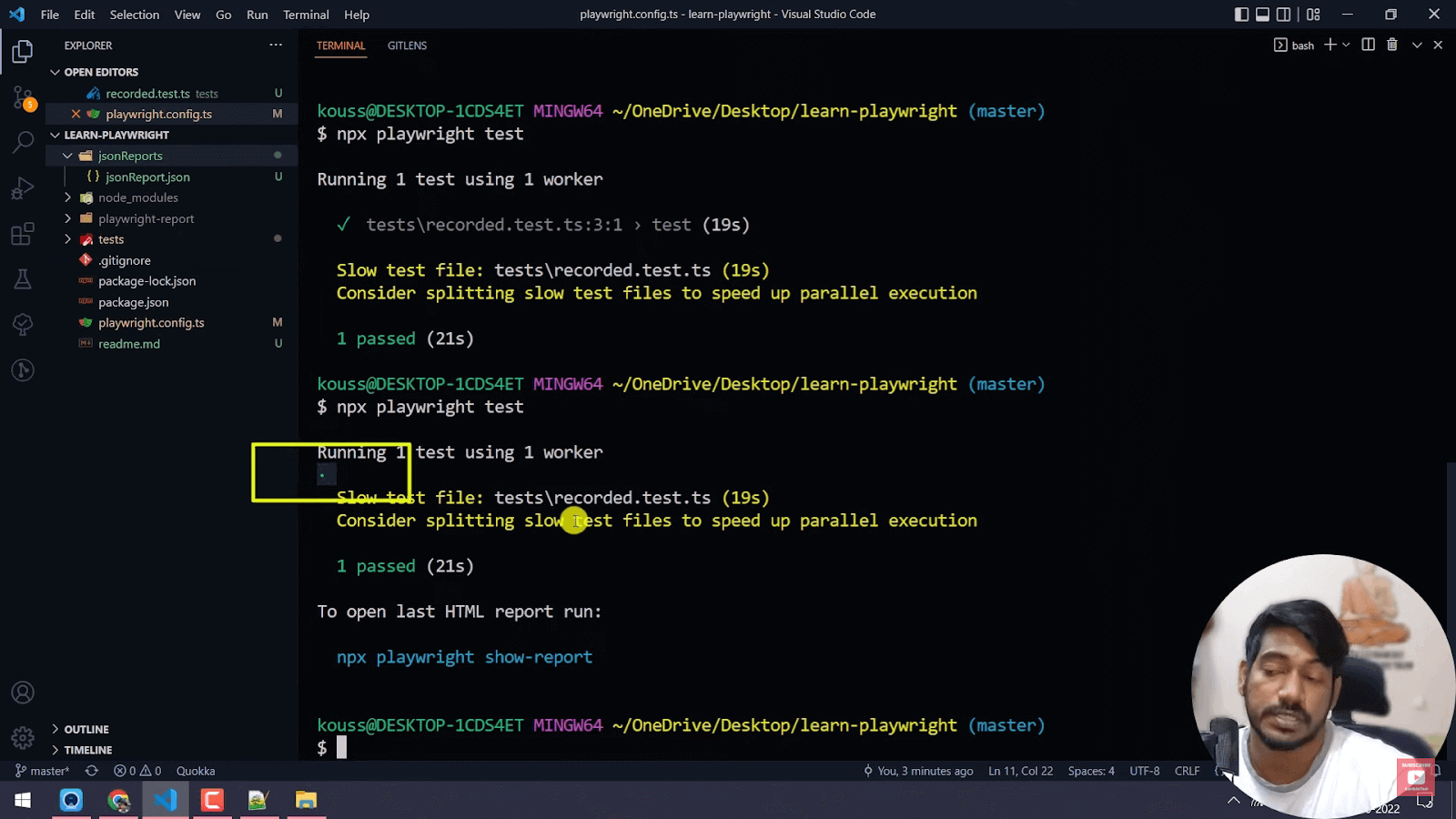
In-built reporters is another Playwright feature for different needs to provide custom reporters. There are a wide variety of reporters. You can also use multiple reporters at the same time. The reporter command-line option is the simplest way to try out built-in reporters.
Examples of a few reporters are - DOT, LINE, GitHub, JSON, JUnit, and HTML. We will focus more on DOT, HTML, and JSON.
Test Scenario:
- Go to the ‘’playwright.config.ts’’ file once we add the reporter code, and it will look like this.
{testmatch: [‘’tests/recorded.test.ts’’], use: {headless: false}, reporter: [ [‘’dot’’], [‘’json’’, {output file: ‘’jsonReports/jsonReport.json’’}], [‘’html’’, {open: ‘’never’’}]]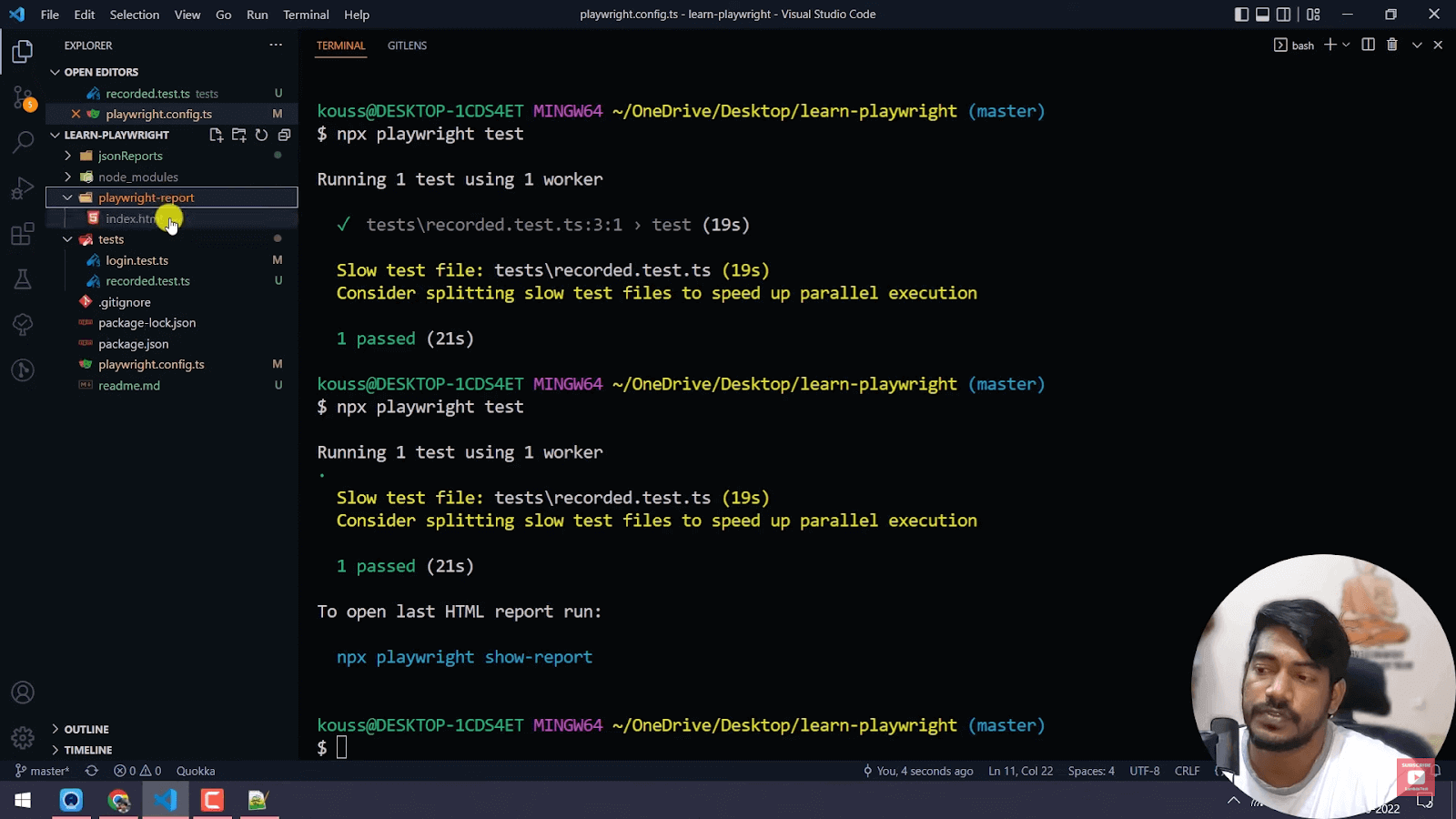
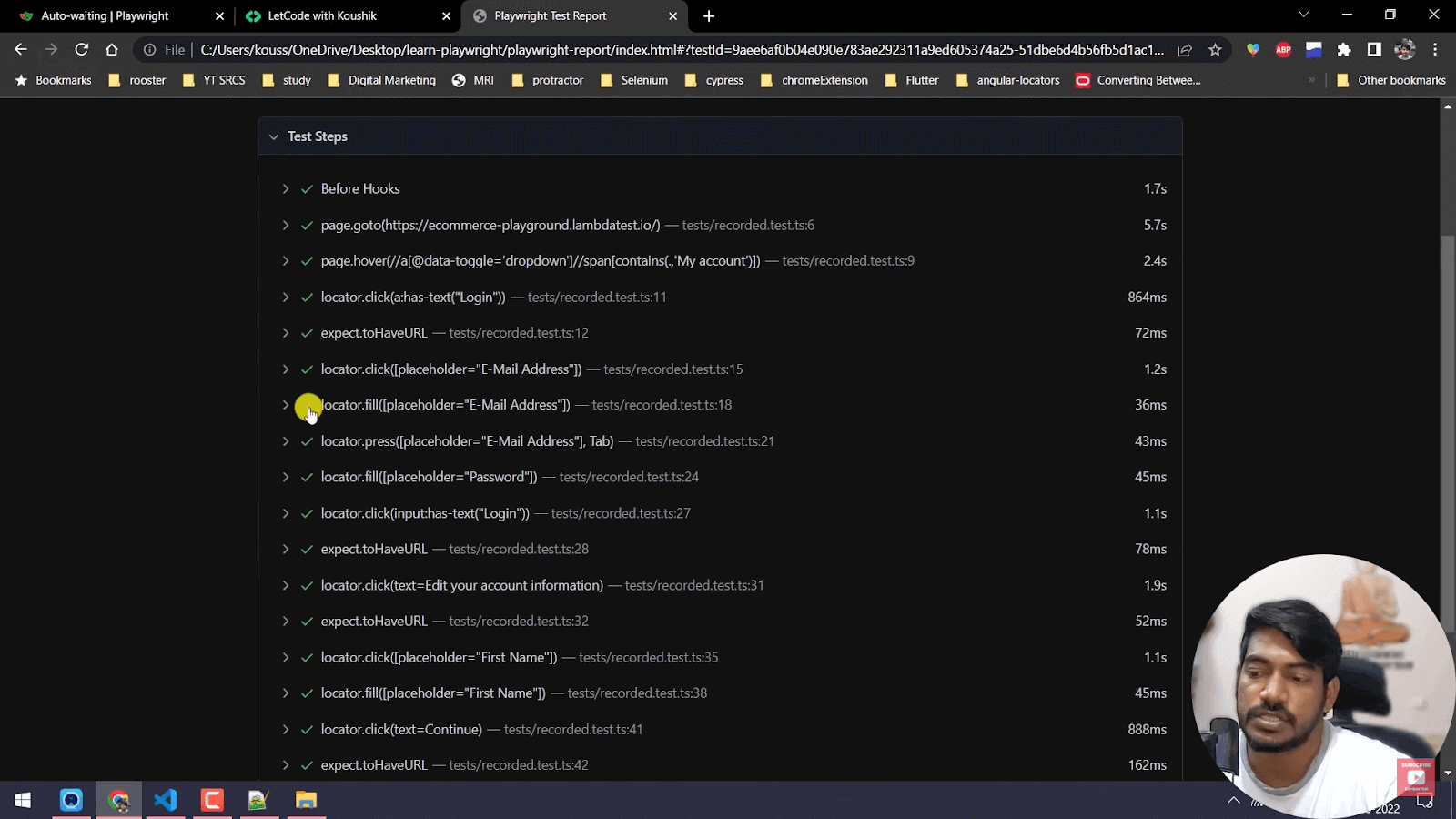
You will be able to see the multiple steps in the test. Example ‘’navigating to a particular site, hover action, login, accession’’.
Also, if you are familiar with Selenium Cucumber, you might know about hooks (before and after hooks).
The function of hooks - ‘before hooks’ runs before the test begins, and ‘after hooks’ runs after the test ends.
Screenshots and Videos on Test Failures
Screenshots/Videos can benefit a testing server when a test fails. It can show what exists on the screen when a test fails. This Playwright feature is beneficial when we want to know where we could have gone wrong at one glance.
Suppose you want to view a screenshot or video of a particular test. You will have to add two additions to your script - screenshots and video.
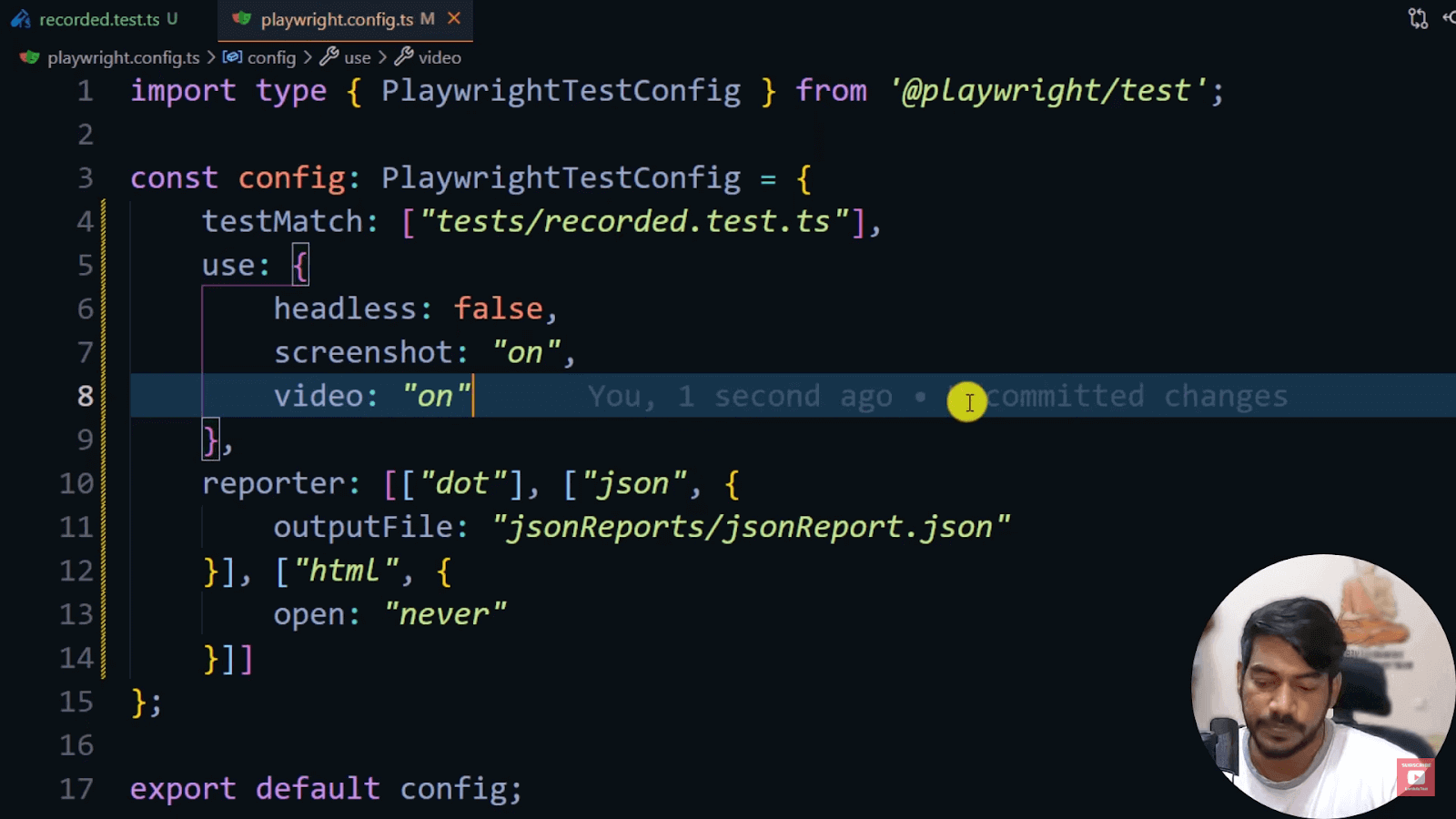
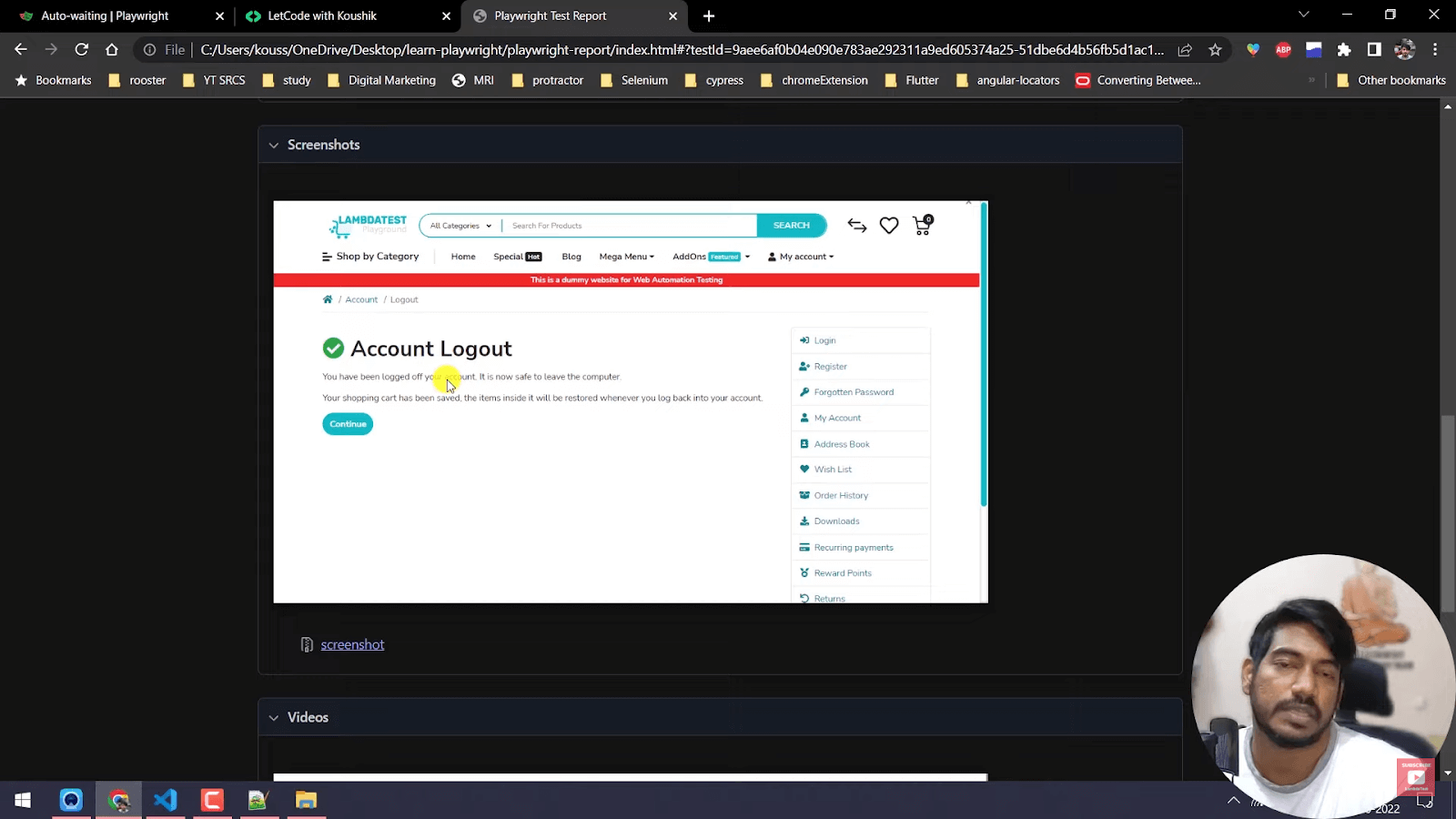
After your test ends, you can view screenshots and videos.
Screenshot:
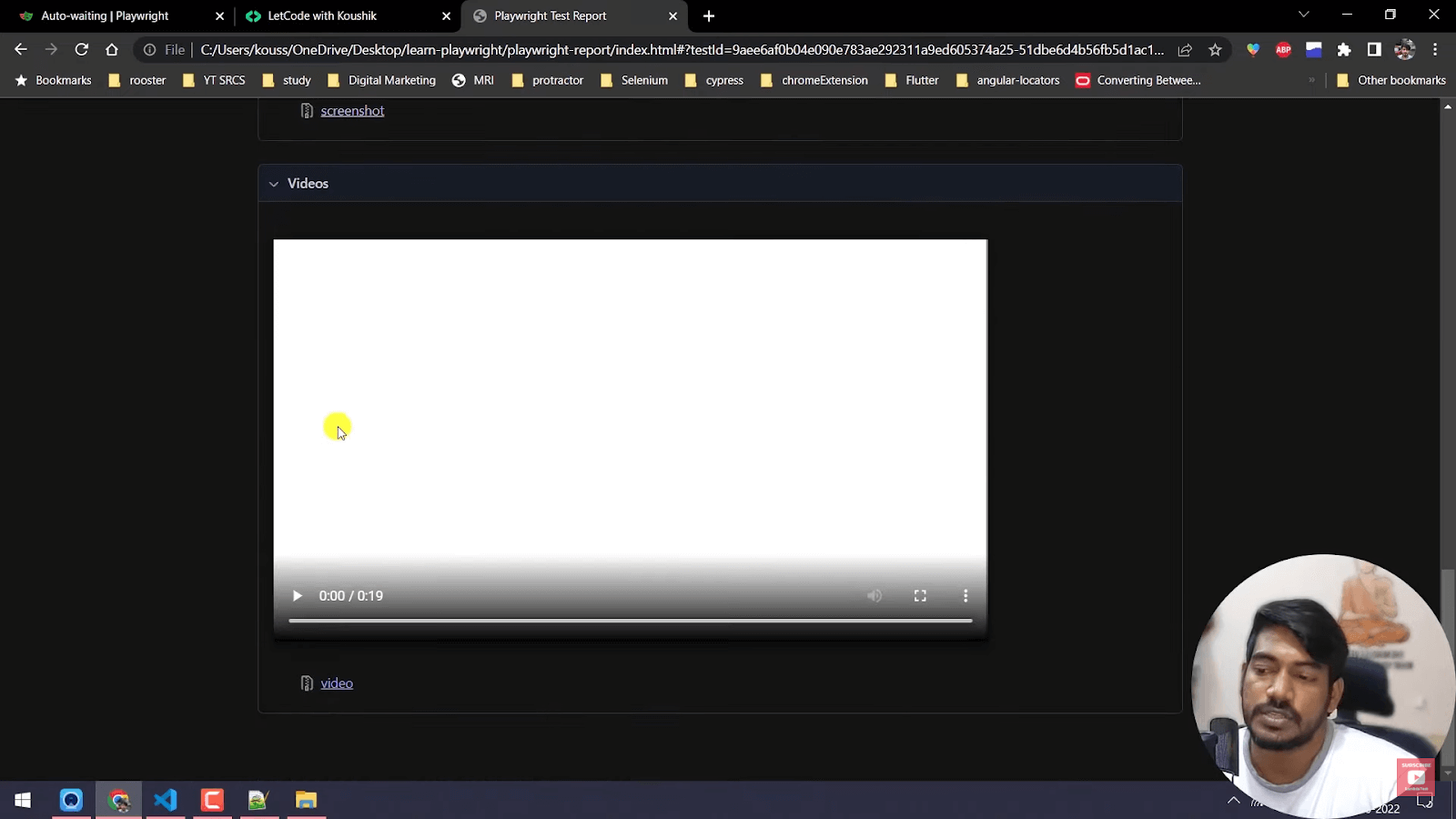
Video:
You will get three options when you add a “screenshot” in the script.
- Off
- On (captures screenshot when chosen)
- Only-on-failure (if there’s a failure in the test, the Playwright will capture a screenshot)
Next, we need to add “video” in the script, which will also show a few options.
- Off
- On
- On-first-entry
- Retain-on-failure
- Reentry-with-video
We need to understand that taking screenshots or videos of multiple tests may increase reporters' size. Hence we can choose a particular part of the test rather than the entire process. To enable this feature, select “retain-on-failure” in the test script.
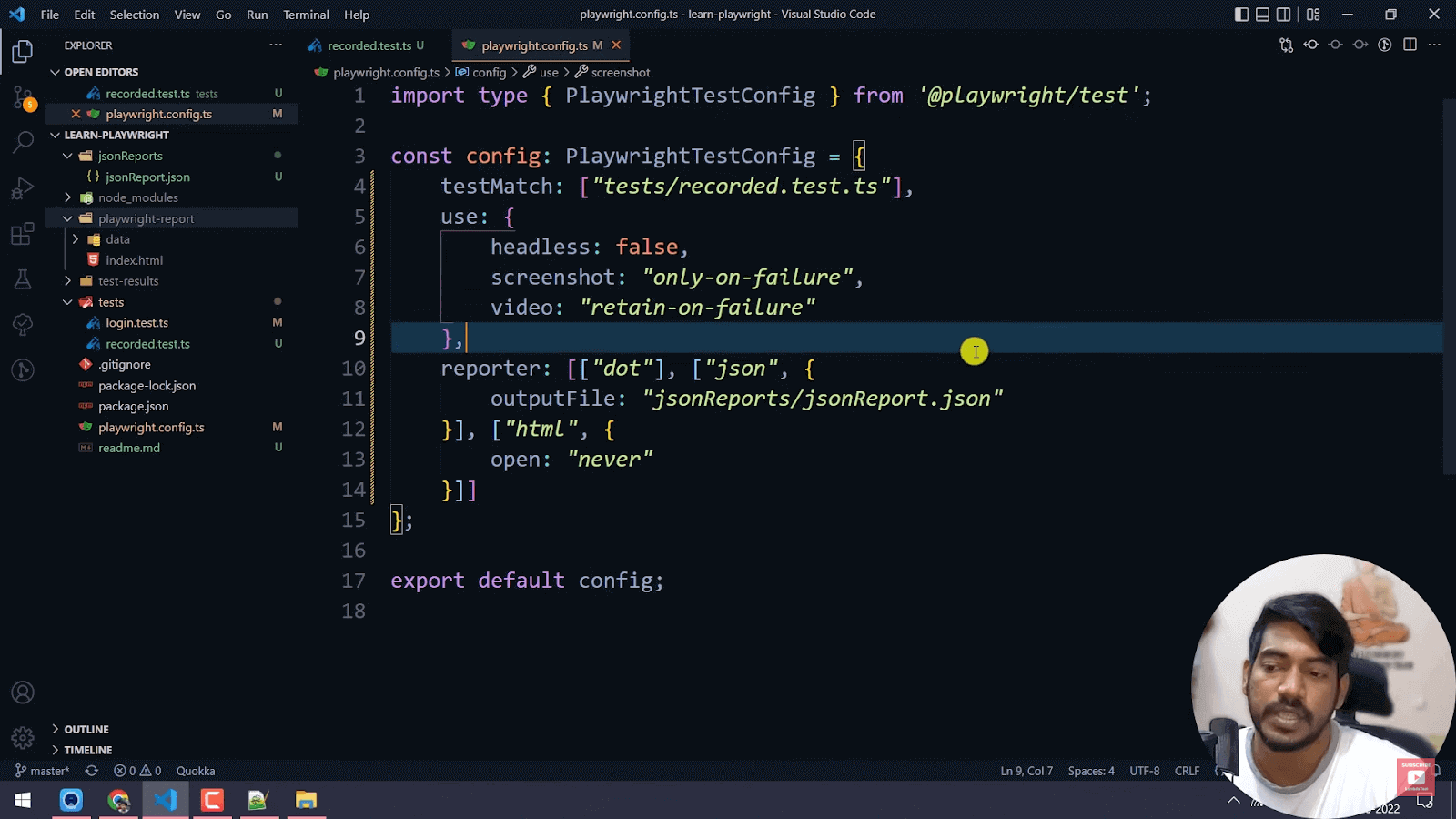
Under this feature, we capture a screenshot only when there’s a failure in the test.
Playwright Retries
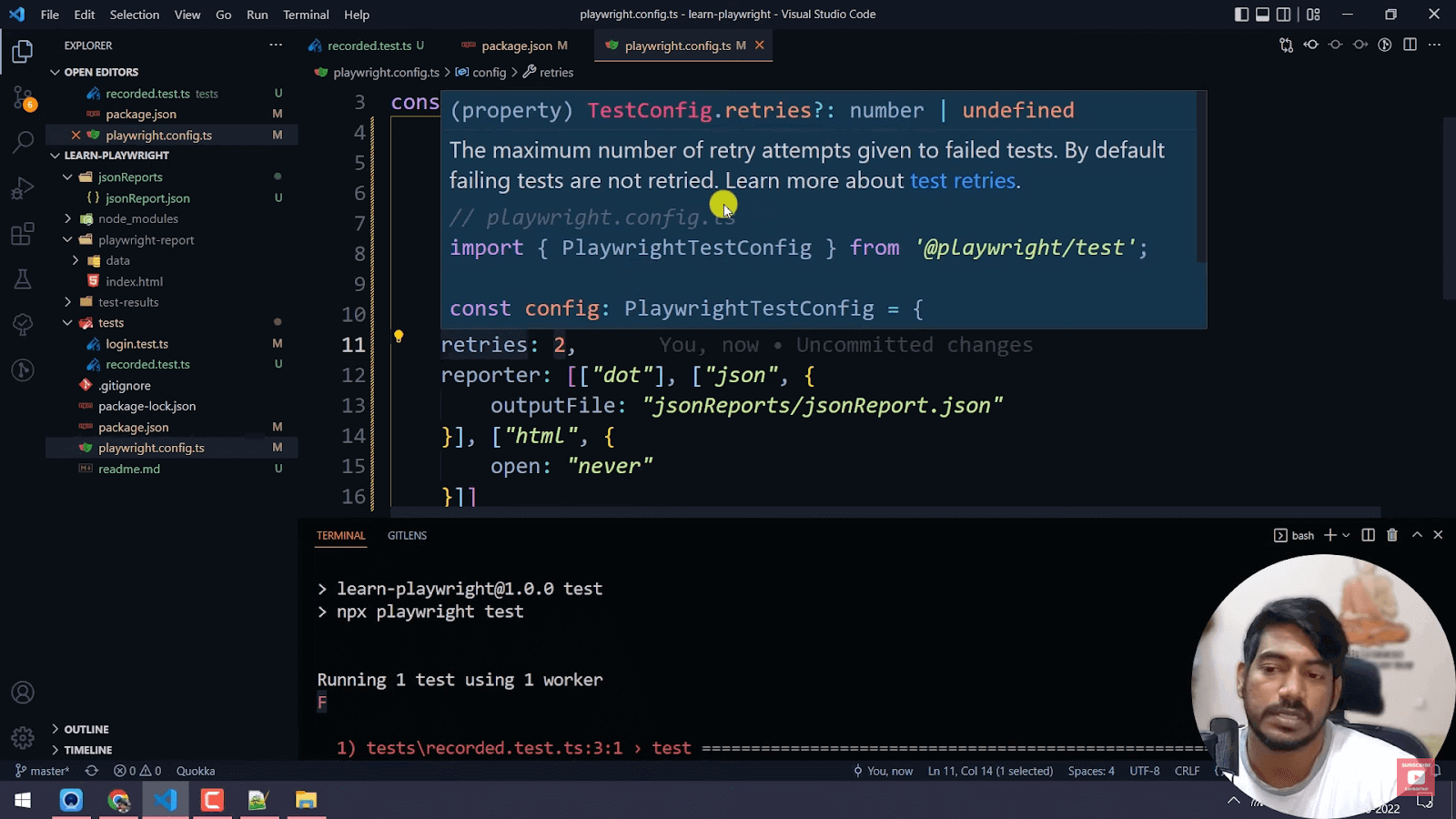
If you want to retry any particular test, you can add “retries'' to the script. Playwright retries are reliable as we can acquire screenshots and videos regardless of how many times you repeat a test. We can use it to run a test multiple times.
The image below shows the code we enter to enable the Playwright Retry option. To view a failed test, we have the option to enter the maximum number of retries we would want.
After the test ends, we can view the failed script we chose to retry.
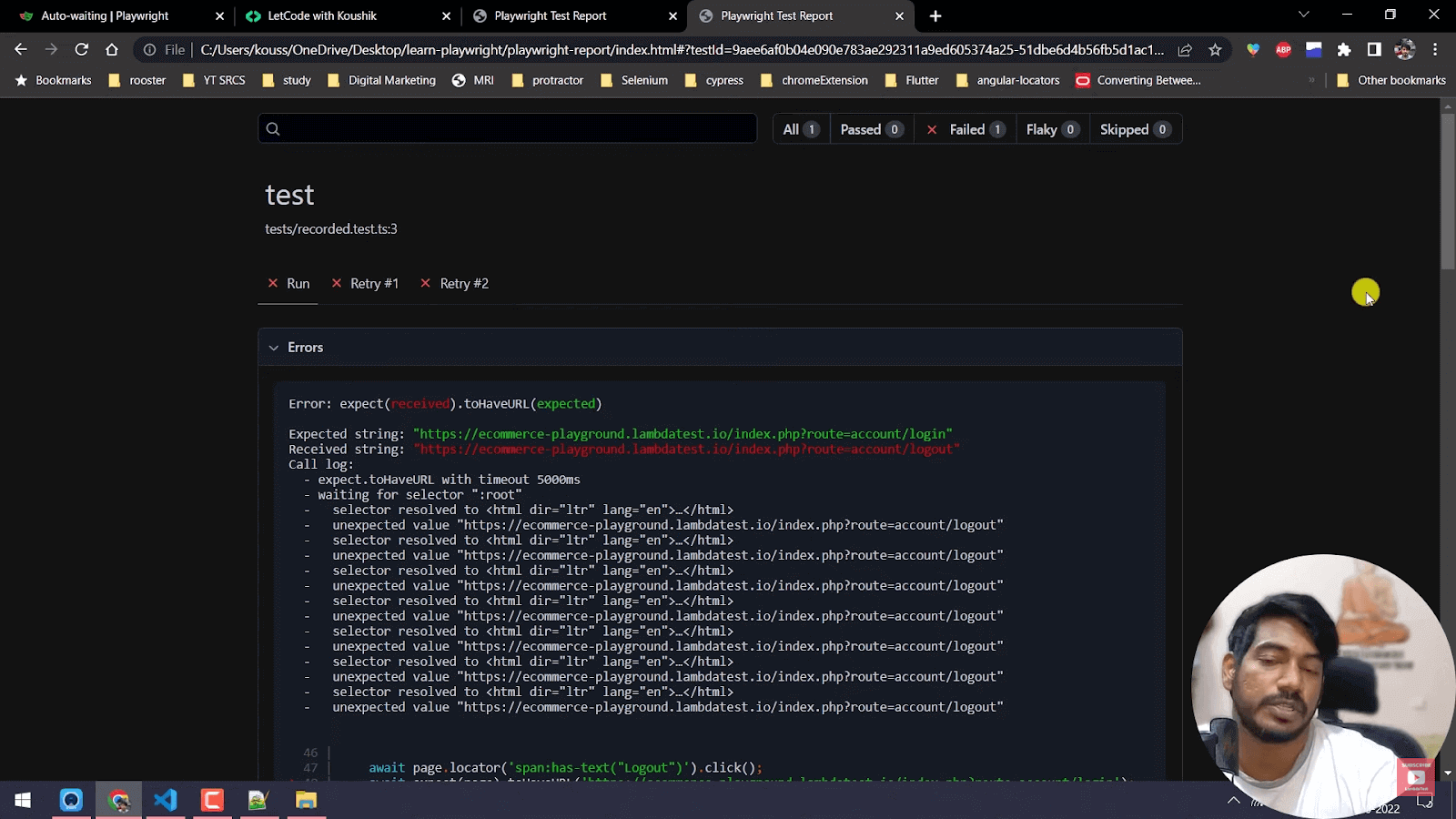
This Playwright feature is beneficial when a test fails, as you can retry and figure out where you went wrong. Hence, with multiple retries, we can avoid the failure of a test.
Playwright Auto-Waiting Mechanism
The auto-wait mechanism is a process that might seem lengthy but easy if you are familiar with JavaScript. There are a few conditions under which Playwright's actions will depend. The conditions are as follows:
- Attached
- Visible
- Stable
- Receives Events
- Enabled
Every action ensures they pass through these conditions or elements. It waits for all relevant checks to pass before performing the requested action. The combination of conditions and actions eliminates the need for artificial timeouts. Hence the auto-wait mechanism helps reduce flaky tests.
If you are a developer or a tester looking to validate your Playwright test automation skills, you can go for Playwright 101 certification from TestMu AI.
TestMu AI is a test execution and test orchestration platform on cloud with an automation testing grid of 3000+ browsers and operating systems to help you scale your Playwright test execution effortlessly. TestMu AI lets you:
- Integrate seamlessly with your CI/CD pipelines.
- Debug Playwright tests from a variety of logs such as network logs, command logs, and full video recordings.
- Execute Playwright tests 70% faster than any testing cloud by leveraging HyperExecute, the fastest end-to-end test orchestration cloud by LambdaTest.
- Run Playwright tests in parallel on multiple configurations and trim down your test execution by multiple folds.
- Organise your test analytics by creating custom dashboards and widgets.
TestMu AI’s automation testing cloud also supports Selenium, Cypress, Puppeteer, and even app automation frameworks such as Appium, Espresso, XCUITest etc.

Conclusion
Playwright makes automation quick, reliable, and simple. In this tutorial, we discussed the prominent features of Playwright such as test generator, generating screenshots and videos on test failures, retries, fixtures and auto-wait mechanism. In the upcoming tutorial, we will deep dive into understanding handling of inputs and buttons.
Here’s a glimpse of how you can perform Playwright browser testing on the TestMu AI cloud grid.
Subscribe to the TestMu AI YouTube Channel and stay updated with the latest Playwright topics.


Frequently asked questions
Did you find this page helpful?
More Related Hubs
TestMu AI forEnterprise
Get access to solutions built on Enterprise
grade security, privacy, & compliance
- Advanced access controls
- Advanced data retention rules
- Advanced Local Testing
- Premium Support options
- Early access to beta features
- Private Slack Channel
- Unlimited Manual Accessibility DevTools Tests