

Next-Gen App & Browser Testing Cloud
Trusted by 2 Mn+ QAs & Devs to accelerate their release cycles


- Home
- /
- Learning Hub
- /
- How to Handle Playwright iFrames
How to Handle Playwright iFrames: A Complete Tutorial [2026]
Learn how to handle iFrames in Playwright, including locating and managing nested iFrames, to build reliable and efficient browser automation tests.

Jaydeep Karale
March 4, 2026
Handling Playwright iFrames is a common challenge in web automation. Since iFrames load content separately from the main page, you can't interact with their elements directly.
You need to locate the specific frame and work within it using frame-handling methods that Playwright framework provides. Therefore, its important to have a clear understanding of how frames load and how to switch between them.
Overview
What Is an iFrame in Playwright
In Playwright, iFrames are HTML <iframe> elements that embed another web page inside the current page. Each iFrame has its own document and browsing context, meaning it can contain entirely separate content, scripts, and elements from the main page.
What Is Playwright page.frame() Method
The page.frame() method gives direct access to a specific frame on the page. It returns a frame object that matches a given condition such as its name or URL. You typically use this when the frame is already loaded and you want to interact with it right away.
What Is Playwright page.frame_locator() Method
The page.frame_locator() method is used for more dynamic cases. It creates a locator that automatically waits for the iFrame to appear before trying to access it. This makes it especially useful for pages with nested or late-loading frames. Once the frame is located, you can directly search and interact with elements inside it.
How to Handle iFrames in Playwright?
To interact with elements inside iFrames, you need to explicitly locate and target the correct frame. Playwright provides two reliable methods for this: page.frame() and page.frame_locator().
- Navigate to the Target Page: Use page.goto() or a similar method to open the webpage containing the required iFrame before starting any interaction or automation sequence.
- Identify the Correct iFrame: Use page.frame() for static frames identified by name or URL, or page.frame_locator() for dynamic, delayed, or nested frames automatically handled by Playwright.
- Chain Frame Locators for Nested Frames: When multiple frame layers exist, chain frame_locator() calls to access deeper iFrames and maintain precise, context-aware element targeting during testing or navigation.
- Locate and Interact With Elements: Once inside the correct frame, use locators like get_by_role(), get_by_text(), or fill() to perform actions within embedded page contexts.
- Validate and Assert Frame Elements: Use expect() assertions or equivalent utilities to confirm that targeted frame elements display the correct values, attributes, or visibility states during execution.
- Simulate User Input or Keyboard Actions: Use page.keyboard.press() or type() to emulate real user keystrokes inside the frame, ensuring interactive accuracy during automated testing flows.
- Finalize and Close the Session: After validations, close the page or browser context, record test outcomes, and release any allocated resources to maintain consistent and reliable testing environments.
What Are iFrames in Playwright
In Playwright, an iFrame (inline frame) is an HTML element that embeds another webpage inside the current one. Each iFrame runs its own isolated browsing context, means it has its own DOM and JavaScript environment, separate from the main page.
When you're automating with Playwright, you often need to interact with elements inside these iFrames. For example, a payment form or a third-party widget. So, Playwright provides APIs to handle these types of use cases.
What Are Different Methods to Handle Playwright iFrames
There are various methods to handle Playwright iFrames such as page.frame() that lets you access a specific frame in Playwright. Next is the page.frameLocator() that creates a locator that waits for the frame to load, making interactions with dynamic or nested frames more reliable.
page.frame()
This function returns a frame matching the specified criteria. To locate the frame using the frame() method, the name or URL of the frame must be supplied to this method. In the example below, you can locate the CodePen <iframe> name or the page URL.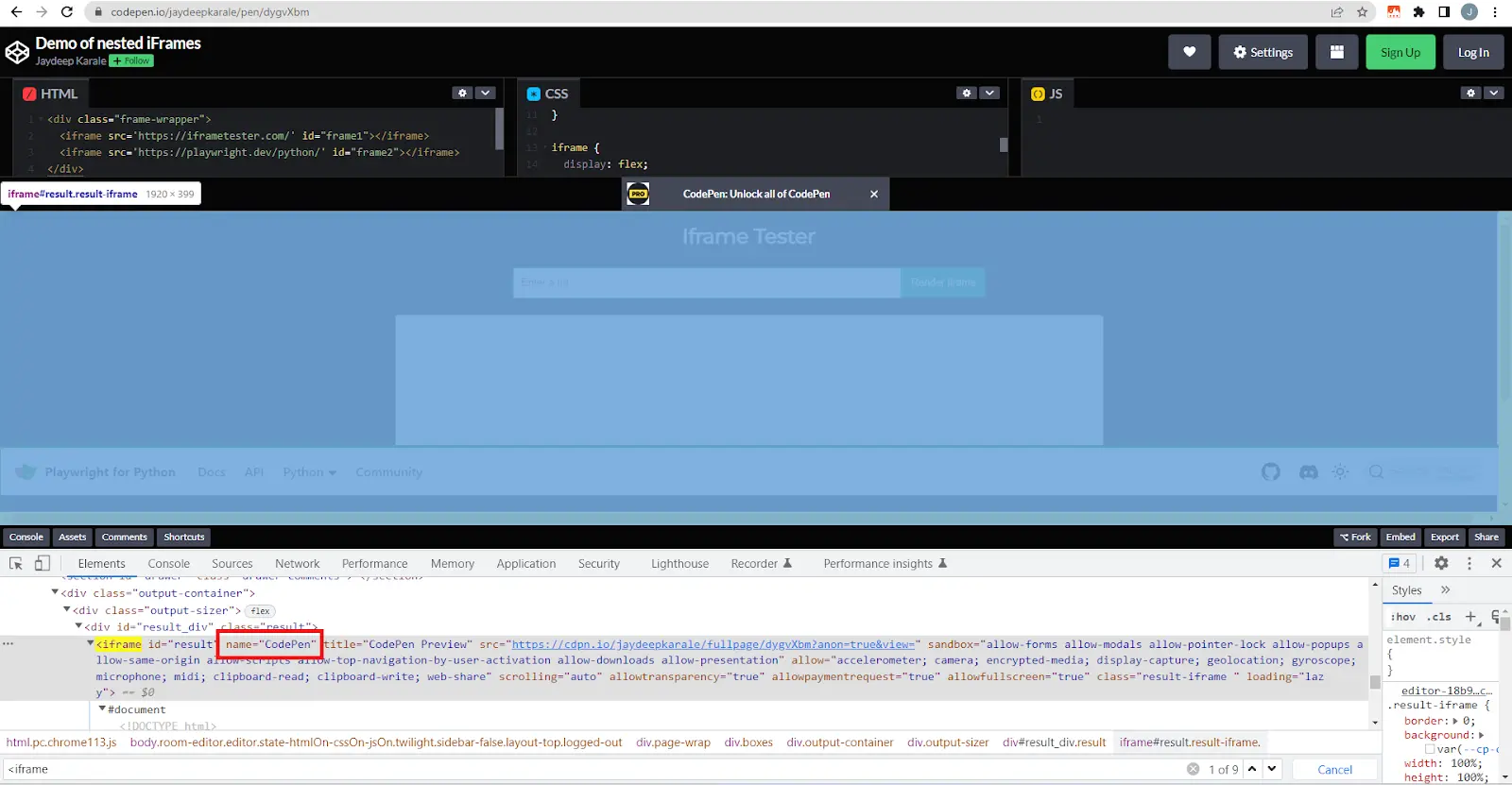
Example:
frame = page.frame(name='codepen')
frame = page.frame(url=r'.*https://codepen.io/jaydeepkarale/pen/dygvXbm')
page.frame_locator()
When working with iframes in Playwright, you can create a frame locator that will enter the iframe and allow selecting of elements in that iframe.
The below code snippet will select the frame with '#iframe-window' and search for the text element 'LAMBDATEST BLOG'.
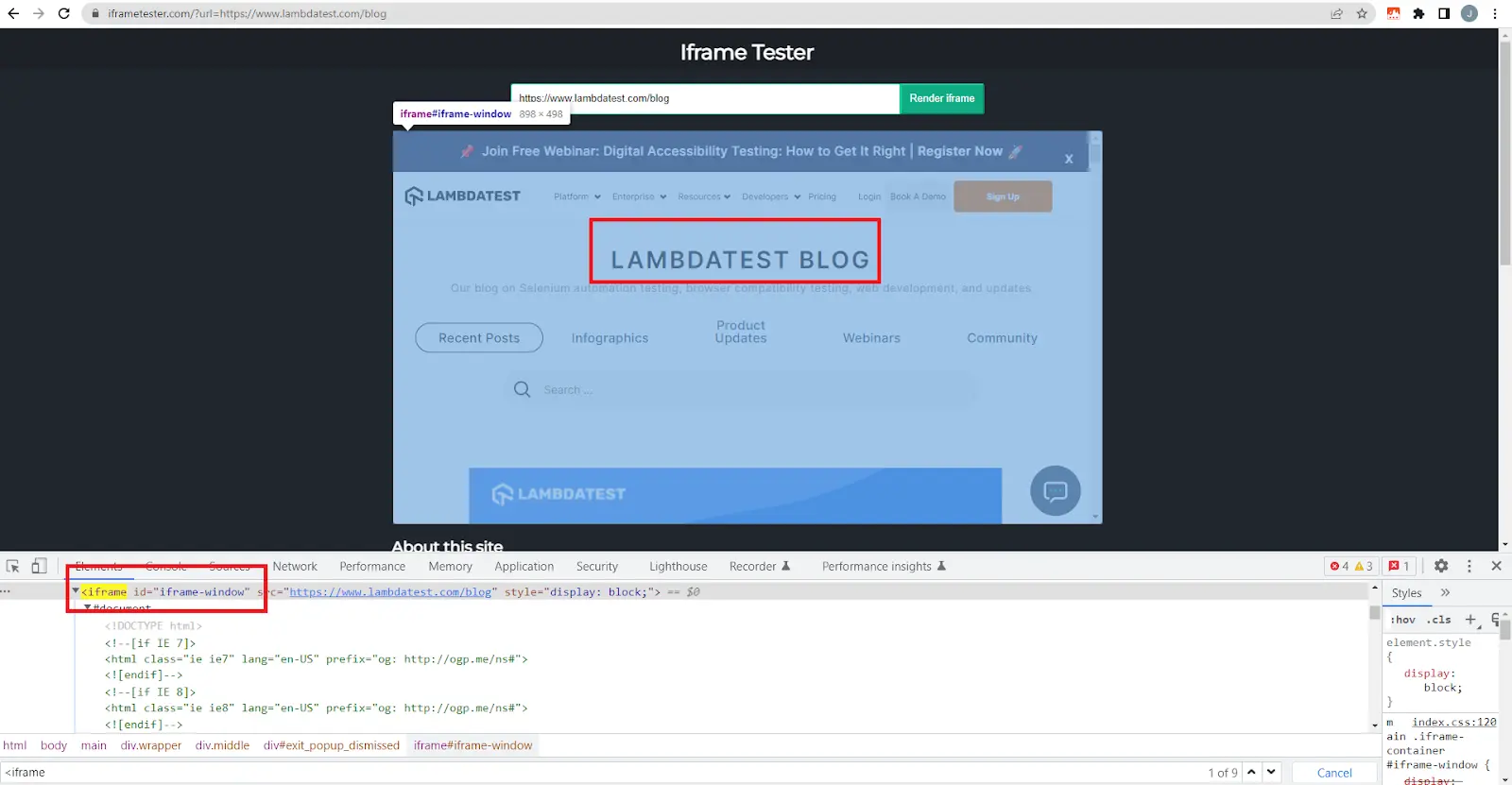
Example:
page.frame_locator('#iframe-window').get_by_text('LAMBDATEST BLOG')The page.frame() and page.frame_locator() methods are available in all language APIs, but their naming convention might differ slightly. For example, in TypeScript API, frame_locator() is called frameLocator() by the language naming convention. But the functionality and use case remains the same.

Note: Run Playwright tests across over 3000 real environments. Try TestMu AI Now!
How to Handle Playwright iFrames
iFrames can be tricky to work with because they load separate browsing contexts inside a web page. In Playwright, you can handle both single and nested iFrames using methods like frame_locator() and frame(). This lets you locate, interact, and assert elements within embedded frames just like you would in a regular page.
We will use the Python programming language to write Playwright tests. For more information, check out this Playwright Python tutorial.
Test Scenario:
In this example, we'll test how Playwright handles iFrames using a custom CodePen page. The scenario involves:
- Loading a CodePen that embeds another site using nested iFrames.
- Rendering the TestMu AI blog inside the embedded frame.
- Searching for a specific blog titled “How To Use Playwright For Web Scraping with Python.”
- Verifying that the correct blog link and author profile URL appear in the rendered page.
Implementation:
The test uses frame_locator() to navigate through multiple iFrame layers and locate elements within them.
Below is the complete test code:
from playwright.sync_api import expect, Keyboard
from utilities.utilities import set_test_status
import re

def test_nested_iframe_can_be_loaded_correctly(page):
    """
    Test nested iframes can be rendered correctly with the {BrandName} blog website.
    Search for blog 'How To Use Playwright For Web Scraping with Python' by author Jaydeep Karale.
    Verify that the blog exists and author profile link is correct.
    """
    try:
        # Step 1: Navigate to CodePen containing nested iFrames
        page.goto('https://codepen.io/jaydeepkarale/pen/dygvXbm')

        # Step 2: Access the base iframe using frame_locator
        base_frame_locator = page.frame_locator("iframe[name="CodePen"]").frame_locator("#frame1")

        # Step 3: Fill blog URL and render
        base_frame_locator.get_by_placeholder("Enter a url").fill("https://www.lambdatest.com/blog")
        base_frame_locator.get_by_role("button", name="Render iframe").click()

        # Step 4: Search for the blog within the nested iframe
        base_frame_locator.frame_locator('#iframe-window').get_by_placeholder("Search …").fill('How To Use Playwright For Web Scraping with Python')
        page.keyboard.press('Enter')

        # Step 5: Locate blog title and author links
        blog_link_locator = base_frame_locator.frame_locator('#iframe-window').get_by_role('link', name='How To Use Playwright For Web Scraping with Python').first
        blog_author_locator = base_frame_locator.frame_locator('#iframe-window').get_by_role('link', name='Jaydeep Karale').first

        # Step 6: Validate attributes
        expect(blog_link_locator).to_have_attribute('href', re.compile('/blog/playwright-for-web-scraping/'))
        expect(blog_author_locator).to_have_attribute('href', 'https://www.lambdatest.com/learning-hub/author/jaydkarale/')

        # Step 7: Set test status and clean up
        set_test_status(page, 'Passed', 'Blog exists')
        page.pause()
        page.close()
    except Exception as ex:
        set_test_status(page, 'Failed', str(ex))

Code Walkthrough:
- Navigation: The test begins by visiting the CodePen URL using page.goto(). This page contains multiple nested iFrames.
- Frame Locator: The first frame_locator() identifies the main frame with the name "CodePen", followed by another frame identified by #frame1. This becomes the base frame for all further interactions.
- Render Blog: Within the base frame, the test fills in the TestMu AI blog URL in the input box labeled Enter a URL and clicks the Render iframe button to load the blog site.
- Search Action: Inside the nested iFrame (#iframe-window), it finds the search input and enters the target blog title, then simulates pressing Enter using page.keyboard.press().
- Element Verification: Once the blog results appear, the test locates the blog title and author link using getbyrole().
- Assertions: The expect() assertions confirm that the blog and author URLs are correct.
- Status Update: After validations, the test calls set_test_status() to record the outcome.
When running locally, this function doesn't affect anything; when you later switch to the cloud grid, it automatically updates the test status in your TestMu AI Web Automation dashboard. Finally, the test pauses for debugging and then closes the page.
Test Execution:
To run the test, execute the command below in your terminal:
pytest -v test_iframe_handling.pyHow to Run Playwright iFrame Tests With TestMu AI
Once your iFrame test works locally, the next step is to run it on the cloud grid. You can leverage cloud testing platforms such as TestMu AI.
TestMu AI comes with Playwright automation cloud to help you scale your tests across multiple browsers, versions, and operating systems, something that’s challenging to do locally. It also improves reliability by running your tests in stable, isolated cloud environments, giving you consistent results without worrying about setting up local infrastructures.
To get started, check out this guide on Playwright testing with TestMu AI.
Step 1: Configure the Environment
Update your secrets.env file to include your TestMu AI credentials and set the run mode to cloud:
LT_USERNAME=your-lambdatest-username
LT_ACCESS_KEY=your-lambdatest-access-key
RUN_ON=cloud
BROWSER=Chrome
PLATFORM=Windows 11
Setting RUN_ON=cloud tells Playwright to connect to the TestMu AI grid instead of launching a local browser.
Step 2: Verify the Configuration
The utilities.py file already contains a capabilities dictionary that defines your test environment - browser, platform, and build details. It also uses your credentials from the environment file, so no code changes are needed.
You can also generate automation capabilities from the TestMu AI Capabilities Generator.
The conftest.py fixture handles the connection logic. When RUN_ON=cloud, it creates a secure WebSocket connection to TestMu AI using:
lt_cdp_url = 'wss://cdp.lambdatest.com/playwright?capabilities=' + urllib.parse.quote(json.dumps(capabilities))
browser = playwright.chromium.connect(lt_cdp_url)
This allows Playwright to run your tests remotely.
Step 3: Execute the Tests
Once configured, run the tests on TestMu AI with the same command you use locally:
pytest -v test_iframe_handling.pyTo view the test results, navigate to the TestMu AI Web Automation dashboard.

Conclusion
This tutorial showed how Playwright makes it easier to test iFrames using page.frame() and page.frame_locator() methods. You learned how to manage iFrames effectively and how to run those tests on local grid and at scale on cloud grid like TestMu AI.
The advantage of using a cloud grid for automation testing is that time and cost can be saved on setting up various cross platform and cross browser environments. All that is needed is a simple configuration setup, and the desired operating system and browser configuration are available for running the tests.
Citations
- Playwright Official Documentation: https://playwright.dev/docs/intro
- Playwright Frame: https://playwright.dev/docs/api/class-frame


Frequently asked questions
Did you find this page helpful?
More Related Hubs
TestMu AI forEnterprise
Get access to solutions built on Enterprise
grade security, privacy, & compliance
- Advanced access controls
- Advanced data retention rules
- Advanced Local Testing
- Premium Support options
- Early access to beta features
- Private Slack Channel
- Unlimited Manual Accessibility DevTools Tests