

Next-Gen App & Browser Testing Cloud
Trusted by 2 Mn+ QAs & Devs to accelerate their release cycles


- Home
- /
- Learning Hub
- /
- Gherkin Cucumber: A Definitive Guide for BDD‑Driven Testing
Gherkin Cucumber: A Definitive Guide for BDD‑Driven Testing
Learn Gherkin and Cucumber, write clear test scenarios, use the right keywords, set up files, run tests, and follow best practices.

Faisal Khatri
January 12, 2026
Automation testing using Gherkin and Cucumber helps you describe the behavior of a software application in a structured way that both technical and non-technical stakeholders can follow.
You can write test scenarios in Gherkin using natural language, focusing on how the software should behave rather than how it is implemented. Cucumber then maps those scenarios to your automated test scripts.
Overview
What Is Cucumber Framework?
Cucumber is a testing framework that supports Behavior-Driven Development. It allows teams to write clear, readable scenarios in plain text using Gherkin syntax, ensuring software behavior is verified against business requirements.
What Is Gherkin Language?
Gherkin is a structured, domain-specific language used in BDD to write test scenarios in plain text. Using keywords like Feature, Scenario, Given, When, Then, And, and But, it describes software behavior in a way that is understandable by both technical and non-technical stakeholders.
How to Use Gherkin With Cucumber?
Writing and executing tests with Gherkin and Cucumber involves defining features, creating scenarios, and linking them to executable code. The general workflow is:
- Create a Feature File: Write scenarios in Gherkin syntax inside a .feature file, describing features, user actions, and expected outcomes clearly.
- Generate Step Definitions: Implement step definitions in Java (or another language) to connect Gherkin steps with executable test code.
- Implement Step Logic: Use Selenium WebDriver or other automation tools to perform the actions described in the steps and assert expected results.
- Set Up Hooks: Apply @Before and @After hooks to initialize and clean up resources, such as opening and closing a browser before and after scenarios.
- Create a Test Runner: Use @CucumberOptions in a TestRunner class to specify locations of feature files and step definitions, and to execute tests using TestNG or JUnit.
- Run the Tests: Execute the TestRunner class to run all scenarios, with results, logs, and optionally screenshots or videos captured for review.
What Is Cucumber?
Cucumber is a testing framework that uses a Behavior-Driven Development (BDD) approach. By leveraging the plain-text Gherkin syntax, it transforms business requirements into executable specifications.
With Cucumber testing, software teams ensure that the entire team shares an understanding of what to build and validate it with automated tests that align with business objectives.
What Is Gherkin?
Gherkin is a domain-specific, structured language used in Behavior Driven Development to write test cases in plain text. You can use it to describe software behavior in a way that both technical and non-technical stakeholders can understand.
Its Given, When, Then syntax defines the initial context, the action taken, and the expected outcome. This structure in Gherkin testing turns requirements into precise, executable specifications and helps keep business intent, test coverage, and technical implementation aligned.
Which Keywords Are Used in Gherkin?
Gherkin uses keywords such as Feature for goals, Scenario for user flows, Given for setup, and When for actions. Then defines outcomes, while And or But extend steps clearly and keep scenarios readable.
- Feature: Defines the overall business goal or functionality of a software or its module, giving context and purpose to the test scenarios written under it.
Example:
Feature: Product Search- Scenario: Represents a specific, real-world user interaction that demonstrates how the feature should behave under defined conditions and expected outcomes.
Example:
Scenario: Successful product search from the home page- Given: Describes the initial context or preconditions required before the test scenario begins, ensuring the software is in a known and stable state.
Example:
Scenario: Successful product search from the home page- When: Specifies the exact user action or software event that triggers behavior, focusing on what happens rather than how it is implemented.
Example:
When I type "iPhone" into the search field- Then: States the expected result after the action occurs, validating software behavior through clear, testable results that confirm requirements are met.
Example:
Then the search results page should show products related to "iPhone".- And/But: Used to extend Given, When, or Then steps, improving readability and flow while avoiding repetition and keeping scenarios easy to understand.
Example:
When I type "iPhone" in the search field
And I click on the search button
Note: Run Cucumber tests on cloud Selenium Grid. Try TestMu AI Now!
How to Write Test Scenarios With Gherkin and Cucumber?
To write test scenarios with Gherkin and Cucumber, start by defining the feature you want to test. Then write scenarios using Given for setup, When for user actions, and Then for expected results.
The following test scenario will be demonstrated using Cucumber Java.
Test Scenario:
- Navigate to the Home Page of the TestMu AI eCommerce Playground website.
- Type a product name to search for using the Home Page
- Click on the Search button.
- Assert that the search page shows the product that was searched for.
However, with TestMu AI, we can run tests in parallel across multiple real browsers and devices, get detailed logs, screenshots, and videos for failures, and integrate with CI/CD pipelines.
It makes automation testing with Gherkin Cucumber faster, more reliable, and easier to manage without maintaining local infrastructure.
Implementation:
To implement the test scenario using Gherkin and Cucumber, we need to perform the following three steps:
- Create a feature file describing the test scenario.
- Create a step definition file implementing the test scenario as described in the Feature File.
- Create a test runner file.
Step 1: Create a Feature file
Let’s create a feature file that uses the Given, When, Then steps to explain the test scenarios:
Feature: Product Search
  As a website user
  I want to search for products
  So that I can quickly find the items I am looking for

  Scenario: Successful product search from the home page
    Given I am on the {BrandName} E-Commerce Playground home page
    When I type "iPhone" into the search field
    And I click the search button
    Then the search results page should show products related to "iPhone"
The feature file should be created inside the src/test/resources folder. After the feature file is created, Cucumber will show warnings indicating that the steps defined in the file are not implemented.
These warnings can be resolved by creating a step definition file that implements the code for running the steps specified in the feature file.
Step 2: Create a Step Definition file
A step definition file in Cucumber implements the automation code using the Gherkin steps written in feature files. It links the scenarios written in plain text to executable test logic.
The step definition file uses annotations such as @Given, @When, and @Then to define actions and assertions that drive the application under test. A step definition file should be created inside the src/test/java folder.
public class ProductSearchSteps {

   private RemoteWebDriver driver;
   private final By searchBox = By.cssSelector("#main-header input[name='search']");
   private static final String GRID_URL = "@hub.lambdatest.com/wd/hub";
   private static final String LT_ACCESS_KEY = System.getenv("LT_ACCESS_KEY");
   private static final String LT_USERNAME = System.getenv("LT_USERNAME");
   private String status = "failed";

   @Before
   public void setup() {
       try {
           this.driver = new RemoteWebDriver(new URL("https://" + LT_USERNAME + ":" + LT_ACCESS_KEY + GRID_URL),
               getChromeOptions());
       } catch (final MalformedURLException e) {
           System.out.println("Could not start the remote session on {BrandName} cloud grid");
       }
       this.driver.manage()
           .timeouts()
           .implicitlyWait(Duration.ofSeconds(20));
   }

   @Given("I am on the {BrandName} E-Commerce Playground home page")
   public void i_am_on_the_lambda_test_e_commerce_playground_home_page() {
       driver.get("https://ecommerce-playground.lambdatest.io/");
       WebElement searchField = driver.findElement(searchBox);
       assertTrue(searchField.isDisplayed());
   }

   @When("I type {string} into the search field")
   public void i_type_into_the_search_field(String productName) {
       WebElement searchField = driver.findElement(searchBox);
       searchField.sendKeys(productName);
   }

   @And("I click the search button")
   public void i_click_the_search_button() {
       WebElement searchButton = driver.findElement(By.cssSelector("#search button[type='submit']"));
       searchButton.click();
   }

   @Then("the search results page should show products related to {string}")
   public void the_search_results_page_should_show_products_related_to(String productName) {
       String headerText = driver.findElement(By.cssSelector("#product-search h1"))
           .getText();
       assertEquals(headerText, "Search - " + productName);
       this.status = "passed";
   }

   @After
   public void tearDown() {
       this.driver.executeScript("lambda-status=" + this.status);
       driver.quit();
   }

   public ChromeOptions getChromeOptions() {
       final var browserOptions = new ChromeOptions();
       browserOptions.setPlatformName("Windows 11");
       browserOptions.setBrowserVersion("latest");
       final HashMap<String, Object> ltOptions = new HashMap<String, Object>();
       ltOptions.put("project", "Cucumber Gherkin Demo");
       ltOptions.put("build", "{BrandName} E-Commerce Playground Demo");
       ltOptions.put("name", "Automation tests using Cucumber BDD");
       ltOptions.put("w3c", true);
       ltOptions.put("plugin", "java-testNG");
       browserOptions.setCapability("LT:Options", ltOptions);
       return browserOptions;
   }
}
Code Walkthrough:
- Setup RemoteWebDriver: The setup method initializes a RemoteWebDriver session using TestMu AI credentials, browser options, and cloud grid configuration before each scenario execution reliably remotely.
- Configure Browser Capabilities: Browser and platform capabilities are configured using ChromeOptions or the TestMu AI Capabilities Generator to ensure accurate, stable cloud-based execution environments consistently.
- Given Step: The Given step navigates to the TestMu AI eCommerce Playground website and verifies that the product search input field is visible to users.
- When Step: The When step enters the product name into the search box and, with the And step, clicks the Search button to begin product lookup.
- Then and Tear Down: The Then step validates search results, and tearDown runs after each scenario to clean resources and update TestMu AI execution status as completed.
Step 3: Create a Test Runner File
A TestRunner is the main class that starts and controls the Cucumber tests. Using @CucumberOptions, it specifies the locations of feature and step definition files.
@CucumberOptions(
   features = "src/test/resources/features",
   glue = {"io.github.mfaisalkhatri.lambdatestecommerce.stepdefinitions"},
   plugin = {"pretty"}
)
public class TestRunner extends AbstractTestNGCucumberTests {}
The AbstractTestNGCucumberTests class must be extended to the TestRunner class when using the TestNG framework as the TestRunner with Cucumber.
Test Execution:
To execute the tests, right-click on the TestRunner class and click on Run TestRunner. It should start executing the tests on the Chrome browser using the Windows 11 platform on TestMu AI.
The following screenshot indicates that the test was successfully run on the latest version of the Chrome browser on Windows 11 on the TestMu AI cloud grid. It provides additional details such as video recordings, step-by-step test execution, and log details.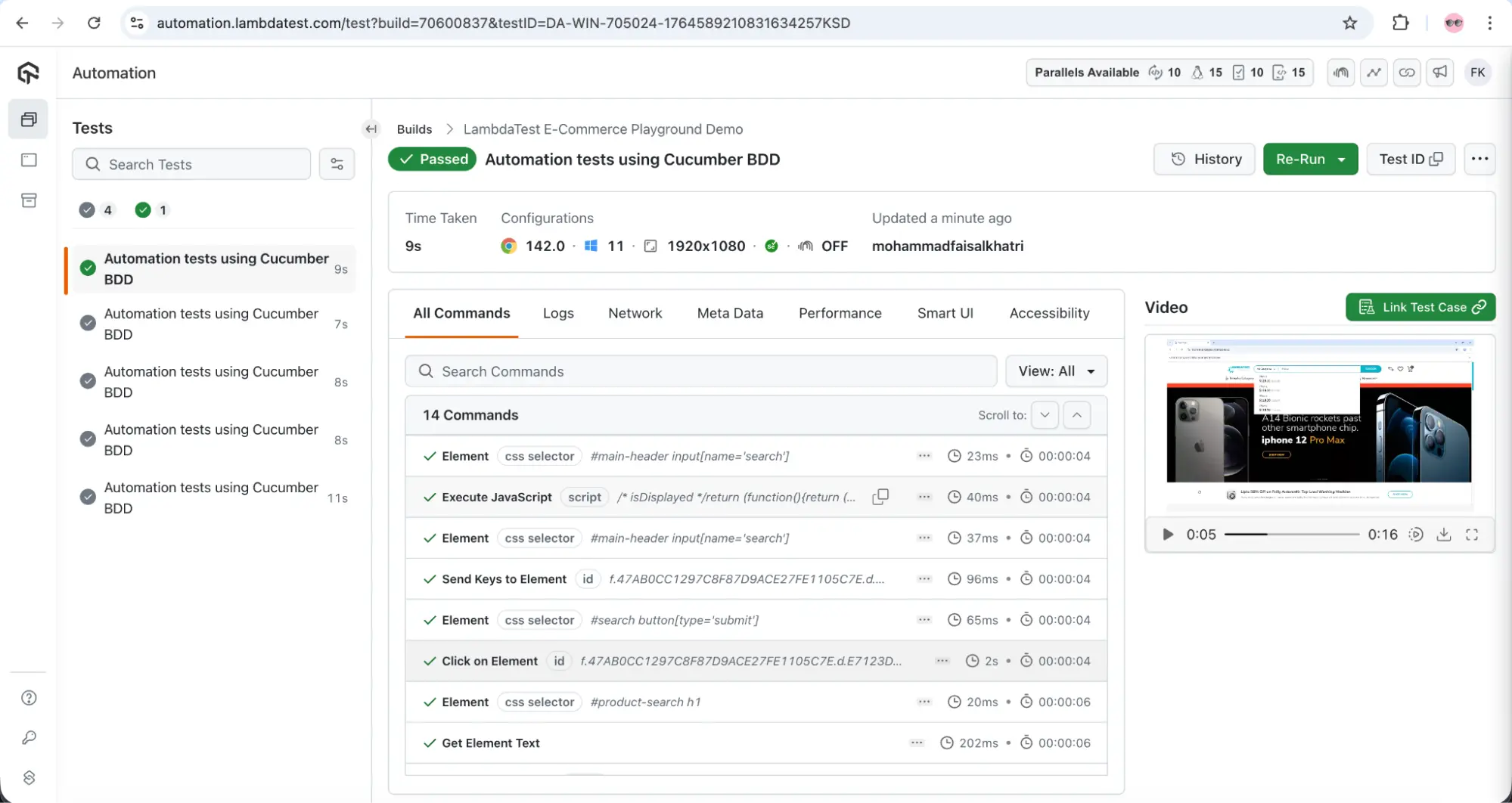
Best Practices for Using Gherkin With Cucumber
The following are the best practices that should be used for writing effective Gherkin test scenarios with Cucumber:
- Keep Scenarios Independent: Each scenario should be isolated and independent of other scenarios. The dependencies or data should not be shared across scenarios, as it can make them tightly coupled and make test failures difficult to diagnose.
- Name Scenarios Correctly: The test scenarios should be named correctly. Instead of writing the test scenario name as “Product Search Test”, it should be named correctly, like “User should be able to search for a product.”
- Write Behaviour, Not the Implementation: The features written using Gherkin in the feature file should focus on what the software does, not how it does it.
- Use Declarative Language: The test scenarios should be readable such that the non-technical team members can understand them without any issues.
Instead of writing the test scenario as:
Given I go the login page
When I enter "[email protected]" in the user field
And I enter "password" in the password field
And I click on the Login button
Then I should see the dashboard
The test scenario should be written as follows:
Given I am on the login page
When I login with valid credentials
Then I should see the dashboard- Use Scenario Outlines for Data-Driven Tests: A Scenario outline is used for executing the same scenario multiple times with different sets of data.
Scenario Outline: Invalid Login validation

Given I am on the login page
When I enter "<username>" and "<password>"
Then I should see "<message>"

Examples:
  | username | password | message               |
  |          | secret   | "Username is required"|
  | user     |          | "Password is required"|
| user | wrong | "Invalid credentials" |- Use Tags for Better Organization of Features: Tags should be used as labels to categorize and quickly find the test scenarios. This keeps the test suite organized and manageable.
- Follow Rule of Threes: The following rule of three should be followed: no more 3-5 steps per scenario, no more 3-5 scenarios per feature and backgrounds should be used for setup.
- Review With Stakeholders: Stakeholders, including the business analyst and product owners, should be involved to review the features written in Gherkin. Gherkin should be used as a communication language, and not just for test scripts.
Gherkin vs Cucumber: Key Differences
Gherkin and Cucumber are used for different purposes. Gherkin serves as a specification language, whereas Cucumber acts as an execution engine that interprets and validates these instructions.
Let’s understand the key differences between Cucumber and Gherkin based on different criteria as mentioned below:
| Criteria | Gherkin | Cucumber |
|---|---|---|
| Definition | A Domain-Specific Language (DSL). | A test automation tool/framework. |
| Purpose | To explain the business feature in plain text. | To execute the behaviour specified in the feature files as automated tests. |
| File Format | It uses the .feature file format that contains test scenarios. | It uses the .java, .rb, and .js files called step definition files. |
| Syntax | Feature, Given, When, Then, And/But, Scenario, Examples, etc | It uses programming language syntax. |
| Dependencies | None - Just uses plain text. | It depends on the programming language and testing frameworks. |
| Readability | It is human-readable and can be understood by any non-technical person. | It is code-based and requires technical knowledge for understanding the step definitions. |
| Who Writes It? | It is written collaboratively by business analysts, product owners, developers, and QAs. | Test automation engineers, SDETs, and developers write it. |
| Execution | It cannot be executed alone. | It executed the Gherkin test scenarios using the step definition files. |
| Learning Curve | Low learning curve, as it uses plain text with simple keywords. | The learning curve is high as implementing the step definition requires technical knowledge of programming language and test automation frameworks. |

Conclusion
To summarize, Cucumber and Gherkin play an important role in the Behaviour-Driven Development and test automation. Gherkin captures business requirements in plain text, and Cucumber transforms these specifications into executable validations, ensuring alignment between documentation and implementation.
Although Behaviour-Driven Development is popular among various software teams, it adds an extra layer of abstraction requiring the creation of a feature file and then mapping it to the step definition.
This extra abstraction layer can introduce complexity, especially in Cucumber and Gherkin, where natural language steps, reusable phrases, and underlying automation code must stay perfectly in sync. Managing feature files, step definitions, and multiple annotations across scenarios can make BDD feel harder to scale and maintain despite its readability benefits.
Citations
- Cucumber Documentation: https://cucumber.io/docs/installation/java/


Frequently asked questions
Did you find this page helpful?
More Related Hubs
TestMu AI forEnterprise
Get access to solutions built on Enterprise
grade security, privacy, & compliance
- Advanced access controls
- Advanced data retention rules
- Advanced Local Testing
- Premium Support options
- Early access to beta features
- Private Slack Channel
- Unlimited Manual Accessibility DevTools Tests