

Next-Gen App & Browser Testing Cloud
Trusted by 2 Mn+ QAs & Devs to accelerate their release cycles


- Home
- /
- Learning Hub
- /
- Automate Mobile Gestures With Appium
How to Automate Mobile Gestures With Appium
Learn how to automate mobile gestures with Appium using W3C Actions API, mobile commands, and Appium Inspector for Android and iOS testing.

Wasiq Bhamla
March 15, 2026
Mobile gestures in Appium are touch interactions such as tap, swipe, scroll, drag, long press, and pinch that simulate how a user interacts with a mobile application.
Appium executes these gestures using the W3C Actions API, which sends low-level touch input events to Android or iOS automation frameworks.
In practice, these gestures are used to automate real user behaviors like scrolling lists, swiping carousels, dragging elements, or zooming images inside mobile applications.
Overview
What Are the Basic Gesture Actions in Appium
Appium provides several core gesture actions that simulate real user touch interactions on mobile devices. These gestures form the foundation of mobile test automation:
- Tap or Double Tap: A touch interaction where a pointer presses down and lifts up at a specific coordinate, commonly used for button clicks and element selection.
- Long Press: Extends a tap by adding a controlled duration between pointer down and up events, triggering contextual actions in applications.
- Swipe: Moves a pressed pointer from one coordinate to another across the screen, used to scroll lists, navigate carousels, or reveal hidden elements.
- Drag and Drop: Simulates pressing an element, moving it to another location, and releasing it on a target coordinate for reordering or repositioning.
- Zoom In and Pinch: Multi-finger interactions moving two synchronized pointers apart or toward each other, used for scaling images, maps, or interactive content.
How to Implement Gestures With Appium
There are multiple approaches available for automating gestures in Appium, each with different levels of flexibility and platform support:
- W3C Actions API: Uses PointerInput and Sequence classes from Selenium WebDriver, providing a standardized, platform-independent approach for all gesture types.
- Mobile Gesture Commands: Platform-specific driver commands executed using the executeScript method, available separately for Android and iOS.
- Appium Gesture Plugin: A third-party plugin supporting swipe, drag and drop, double tap, and long press gestures on both platforms.
- UiSelector Strategy: An Android-only locator strategy that automatically scrolls to the target element using UiScrollable when the element is outside the viewport.
- Appium Inspector: A visual debugging tool for building, testing, and exporting custom gestures before writing automation scripts.
Basic Gesture Actions in Appium
Appium provides several core gesture actions that simulate real user touch interactions on mobile devices. Following are the basic gestures supported in Appium:
- Tap or Double Tap: Presses down and lifts up a pointer at a specific coordinate to interact with an element. A double-tap repeats the same action twice within a short interval.
- Long Press: Presses and holds a pointer on a coordinate for a controlled duration before releasing. Applications interpret the press length to trigger contextual actions.
- Swipe: Presses a pointer at one coordinate and moves it to another across the screen within a defined duration. It is commonly used to scroll lists, navigate carousels, or reveal hidden UI elements.
- Drag and Drop: Presses an element, moves it to another location, and releases it on a target coordinate for reordering or repositioning elements.
- Zoom In and Pinch (Zoom Out): Moves two synchronized pointers apart or toward each other using multi-finger interaction. These gestures are typically used for scaling images, maps, or interactive content.
If you haven't set up Appium yet, follow this Appium tutorial for complete installation and configuration steps.

Note: Run Appium tests across 10,000 real Android & iPhone devices. Try TestMu AI Now!
Setting Up Appium Inspector
Before automating gestures, you need a working Appium environment with Node.js, the Appium server, and platform drivers (UiAutomator2 for Android, XCUITest for iOS) installed.
If you need platform-specific setup instructions, refer to this detailed walkthrough on how to install Appium.
Appium Inspector lets you visually build, test, and debug gestures before writing automation code. Download the latest version from their GitHub release page.
Before opening Appium Inspector, start the Appium server by executing the following command on the terminal:
appium server --port 4723 --use-drivers uiautomator2Once the Appium server instance has started, open the Appium Inspector and create the capabilities using the following capabilities as an example:
{
  "platformName": "Android",
  "appium:deviceName": "Pixel 9 Pro",
  "appium:automationName": "UiAutomator2",
  "appium:avd": "Pixel_9_Pro",
  "appium:app": "/path/to/apps/android/wdio-demo.apk",
  "appium:appWaitActivity": "com.wdiodemoapp.MainActivity",
  "platformVersion": "15"
}
Following is the screenshot for the Appium Inspector capabilities builder page:
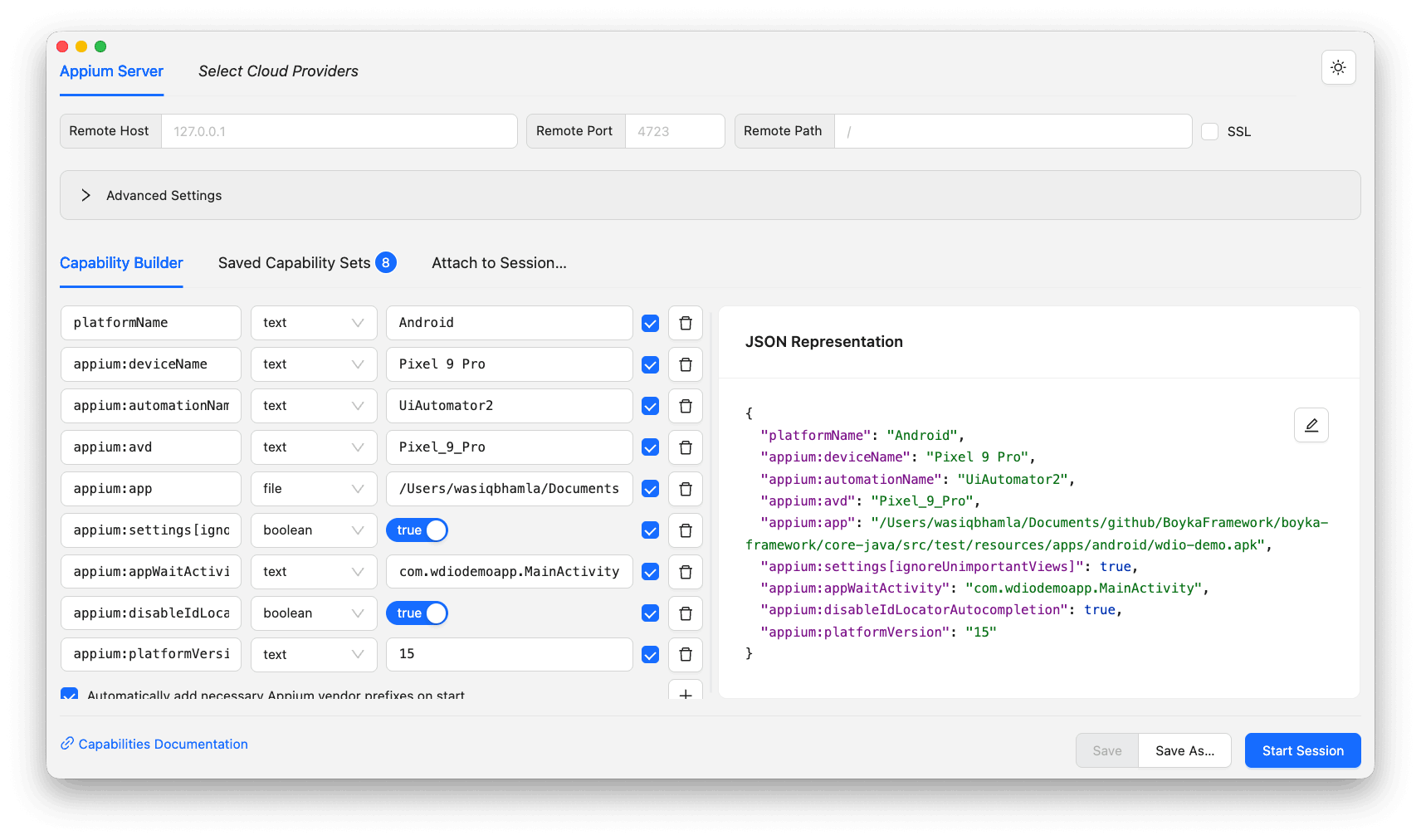
Click on the Start Session button to start the Appium Inspector session on the running Appium server. It will automatically open the Emulator if not already open.
How to Build Custom Gestures in Appium
To build custom gestures in Appium, open the Gestures tab in Appium Inspector after starting a session, then use the gesture builder to define tap, swipe, pinch, and drag actions visually.
You can create a new gesture just by clicking on the + button available towards the bottom of the screen.
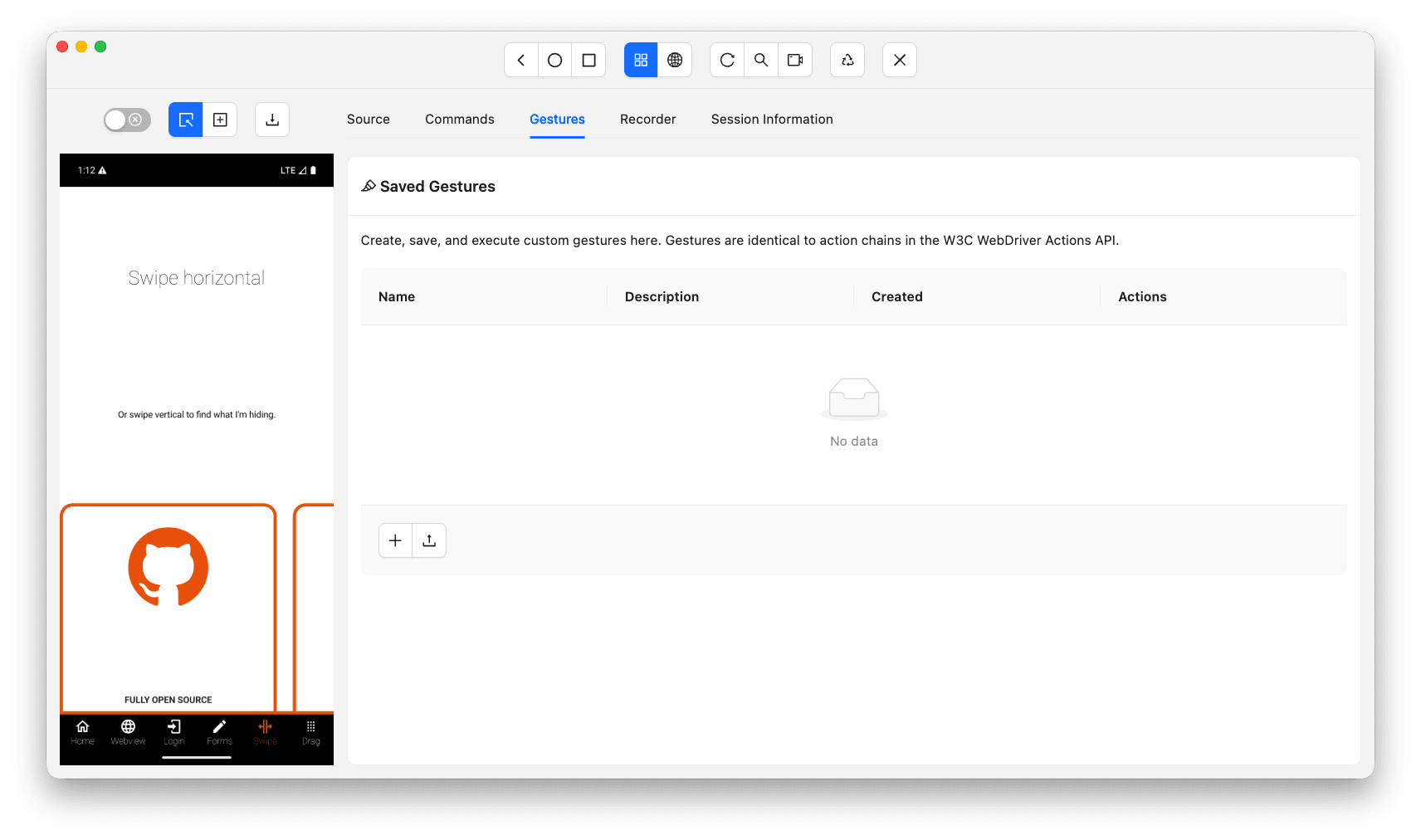
Swipe Up
Let's take an example on how to create a simple swipe up gesture. Take a look at the below screenshot where you can see the swipe up gesture:
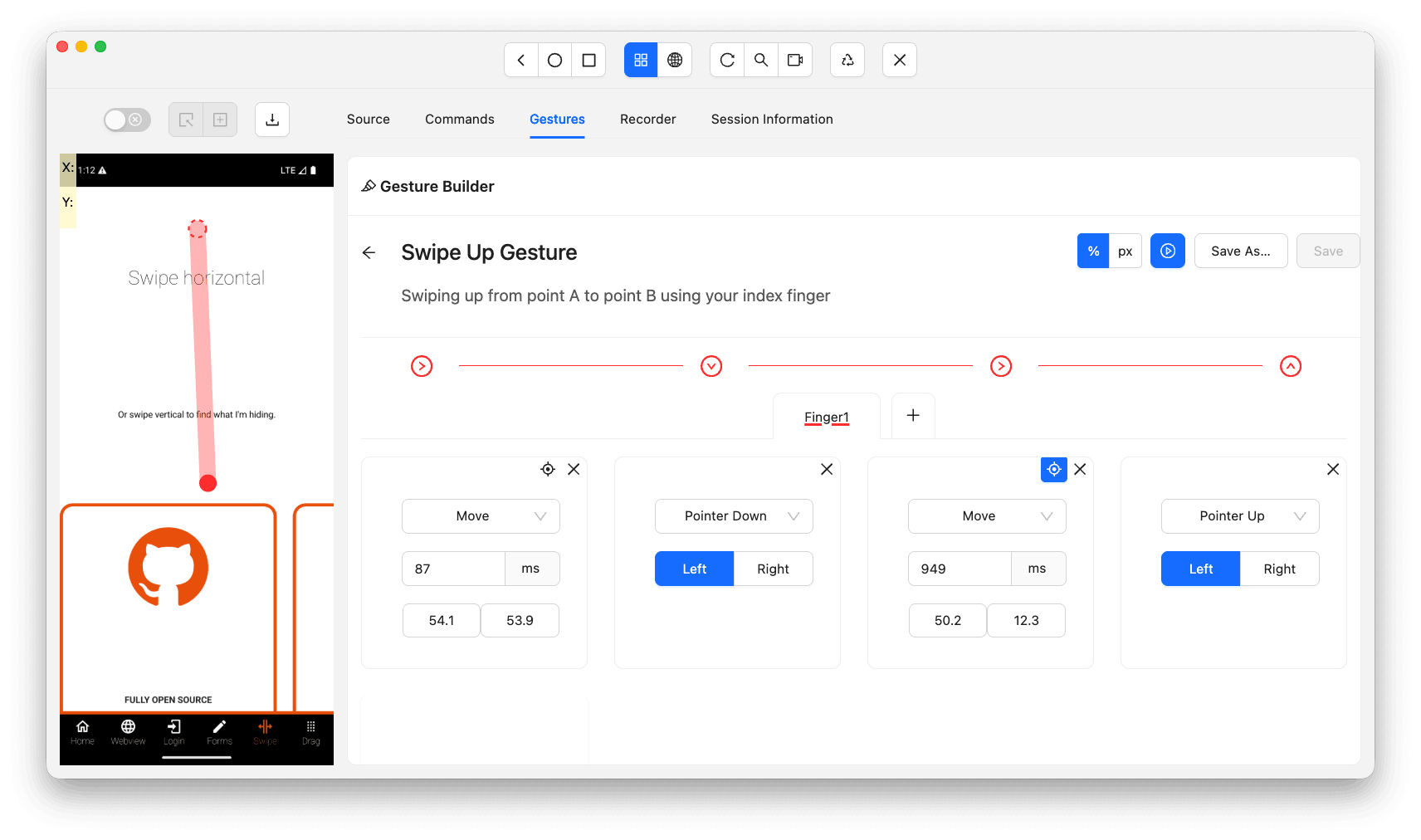
Let's break down the swipe up gesture created in this screenshot.
- Move the finger to a starting coordinate which is approximately in the center of the screen.
- Press down the finger on that coordinate using the Pointer Down event. Here your finger is equivalent to the Pointer left button.
- Move the finger to the end coordinate towards the top of the screen.
- Raise the finger up by using the Pointer Up event using the Pointer left button.
You can test the gesture by clicking on the play button available right before the save button. Once you click on it, the created gesture will get executed on the attached device, whether the real device or the Emulator.
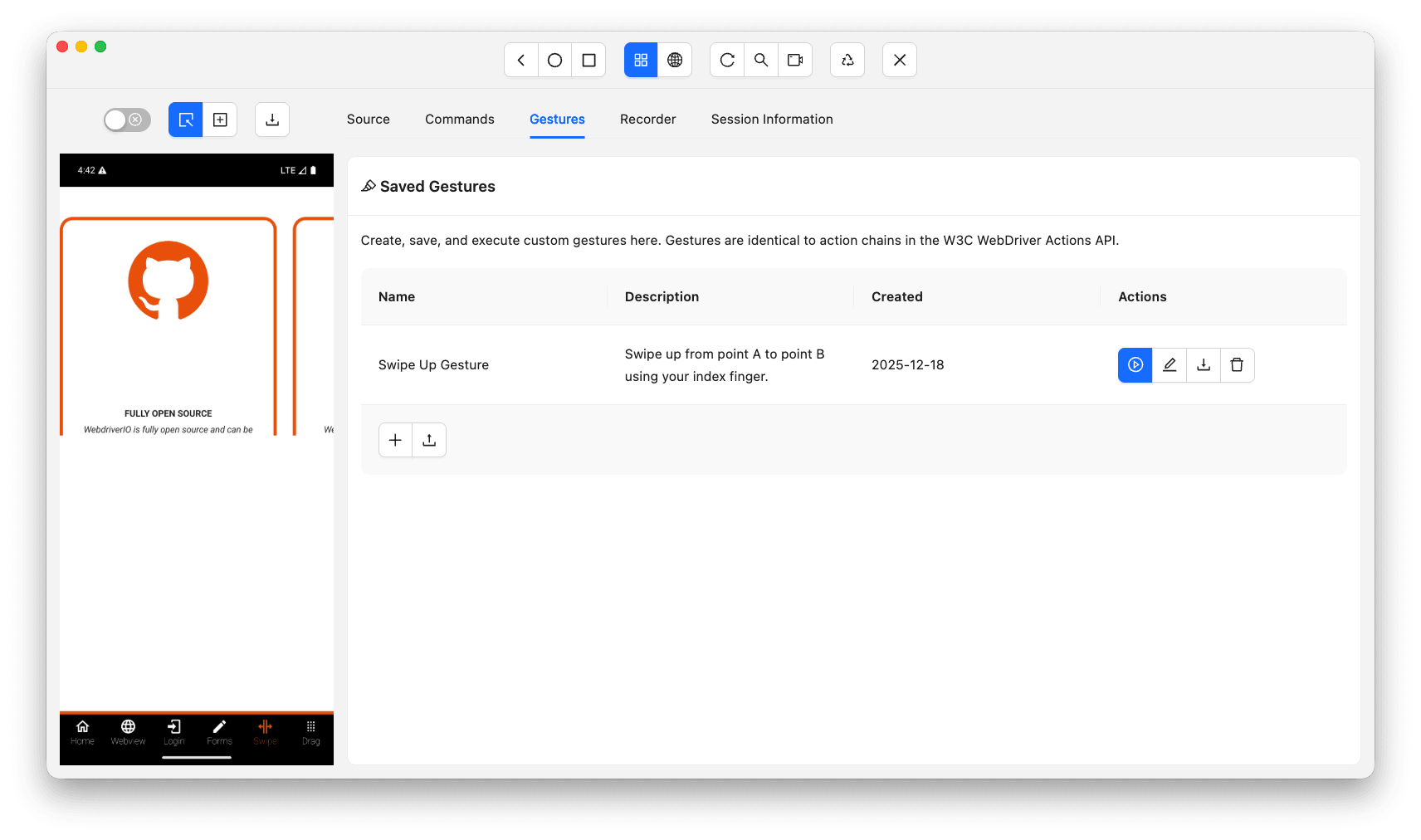
You can also save this gesture by first providing the gesture title and description and clicking on the Save As button. Once you save the gesture, you will see the saved item in a list as shown in the below screenshot:
Apart from gesture building, Appium Inspector also supports element hierarchy inspection, page source viewing, and action recording. All of these features are explored in depth under Appium Inspector for apps.
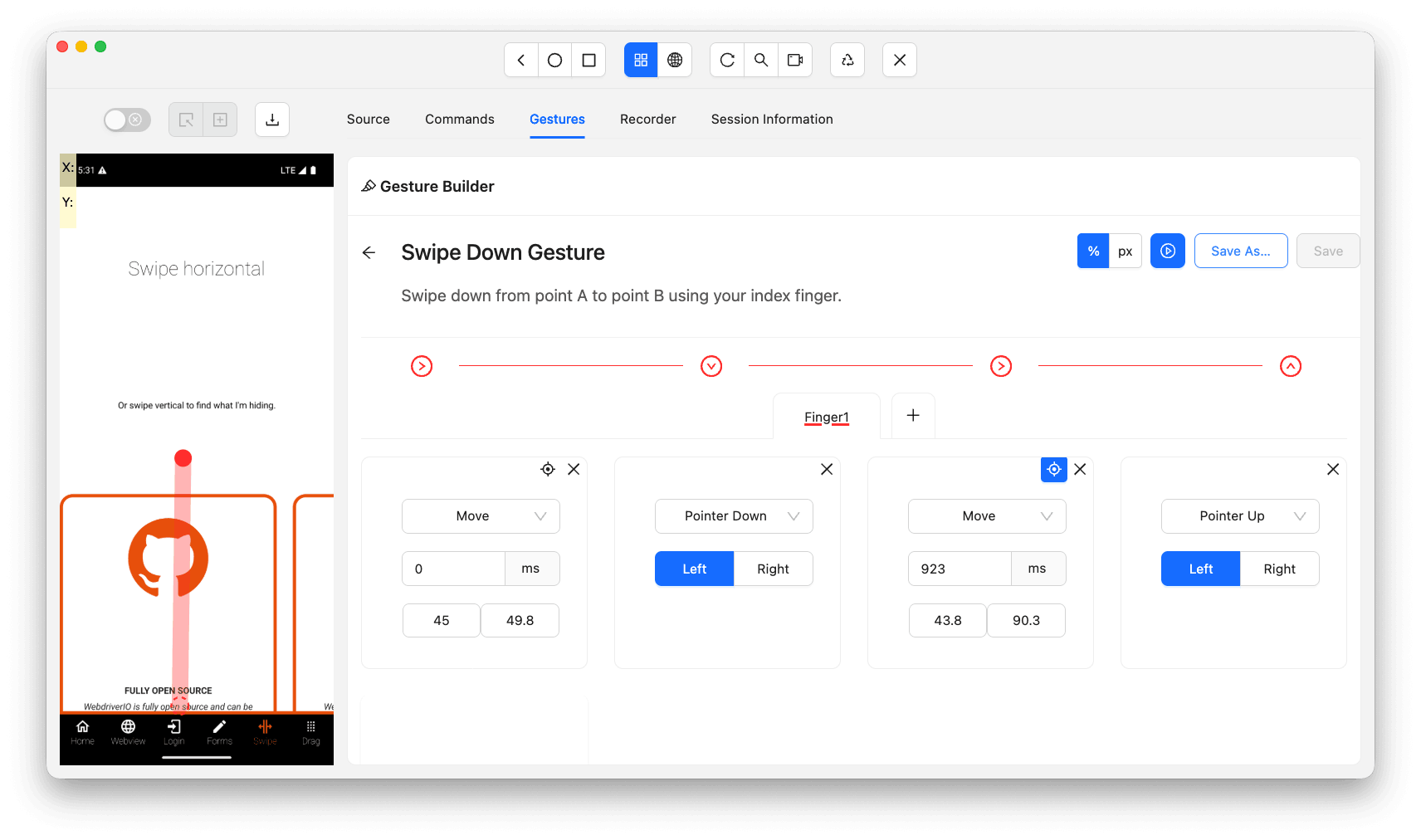
Swipe Down
The swipe down gesture follows the same Pointer Move → Pointer Down → Pointer Move → Pointer Up pattern as swipe up. The only difference is the second Pointer Move direction, which moves the end coordinate towards the bottom of the screen.
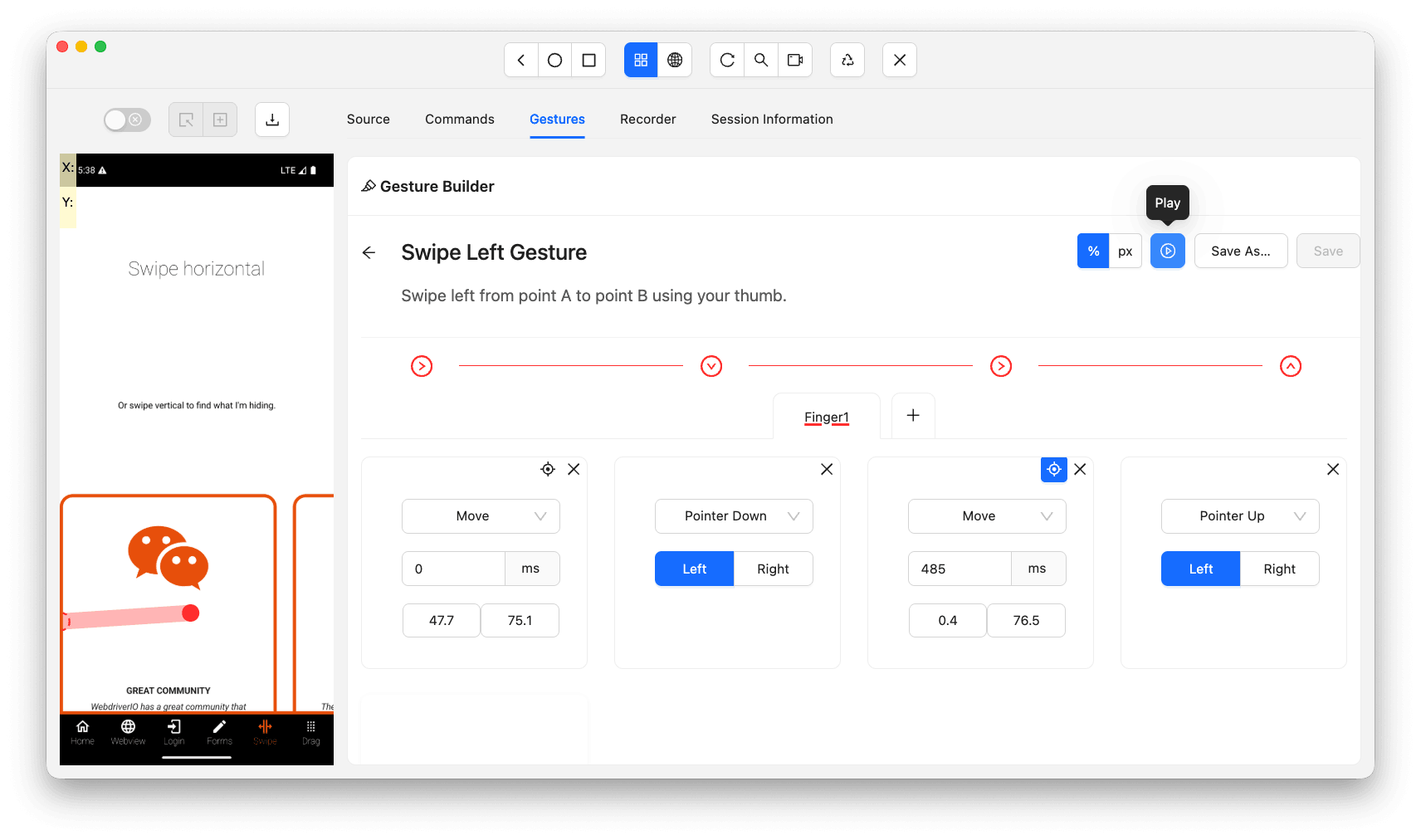
Swipe Left
The swipe left gesture uses the same pattern. The second Pointer Move changes the end coordinate towards the left of the screen by decreasing the X-axis value.
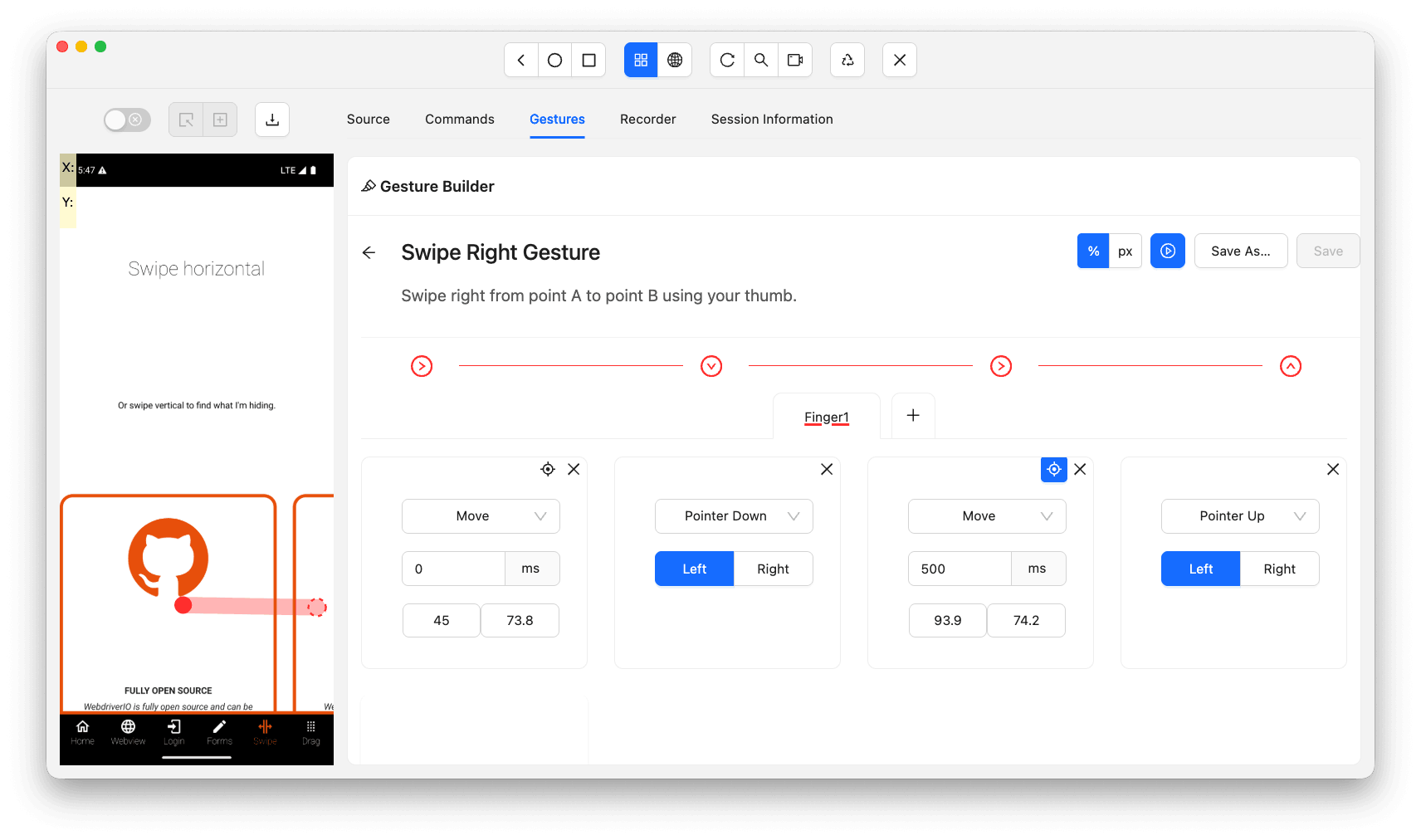
Swipe Right
The swipe right gesture is identical to swipe left except the second Pointer Move increases the X-axis coordinate, moving the end point towards the right of the screen.
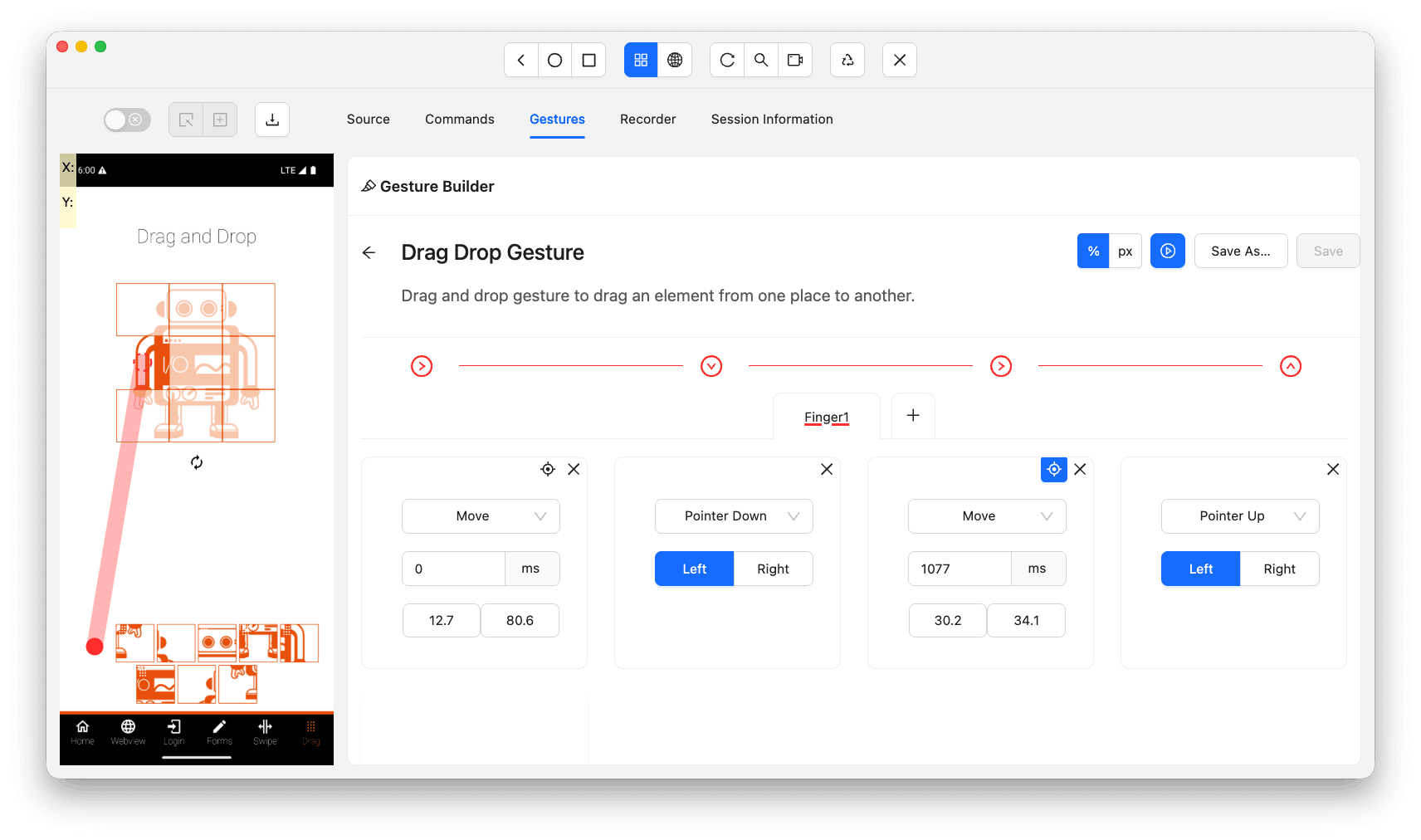
Drag and Drop
The drag and drop gesture uses the same pattern as swipe. The starting coordinate is the center of the drag element and the end coordinate is the center of the drop zone element.
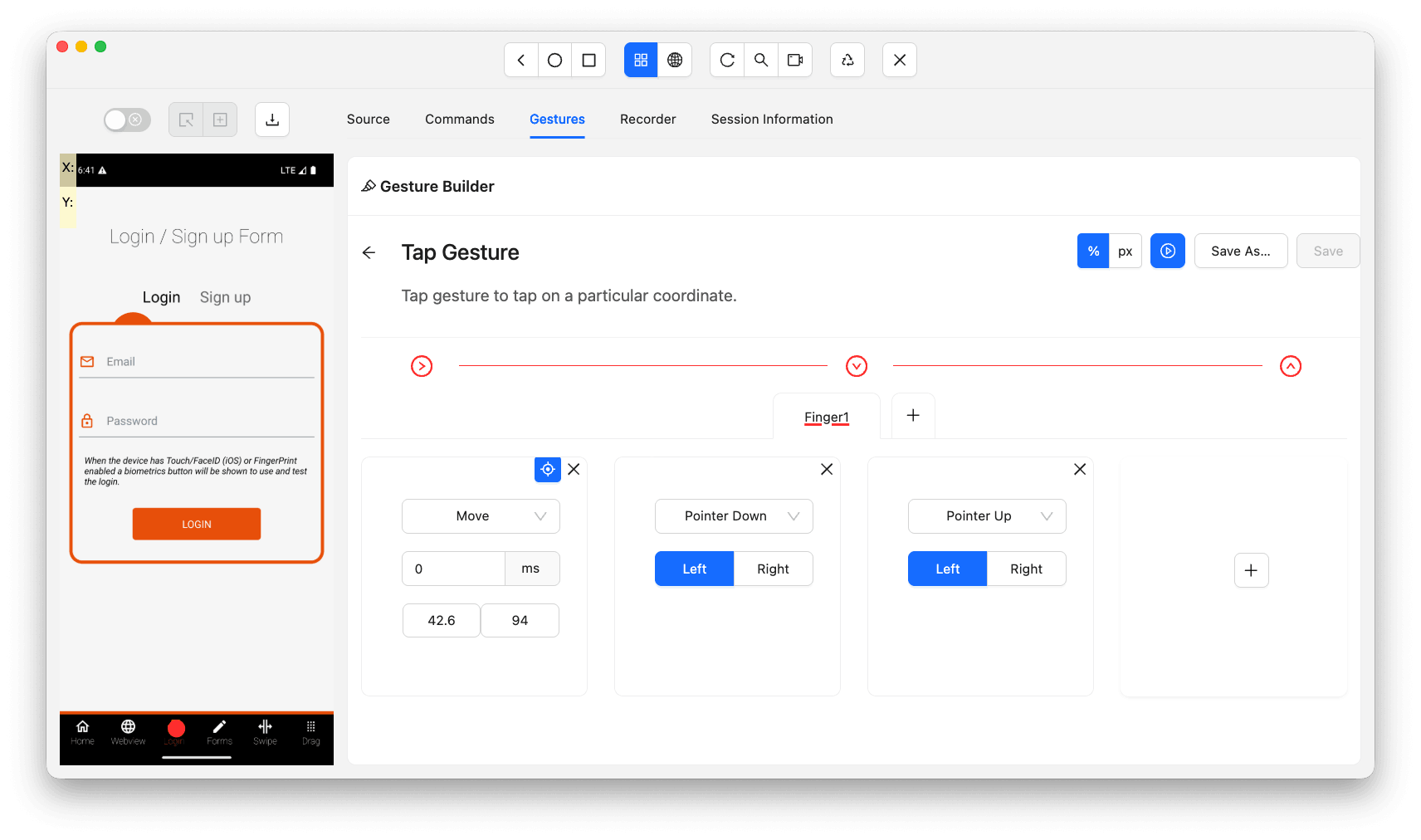
Tap
A tap gesture is simpler than swipe since it does not require a second Pointer Move. The sequence is Pointer Move to target → Pointer Down → Pointer Up. For double tap gestures, repeat the Pointer Down and Pointer Up steps again.
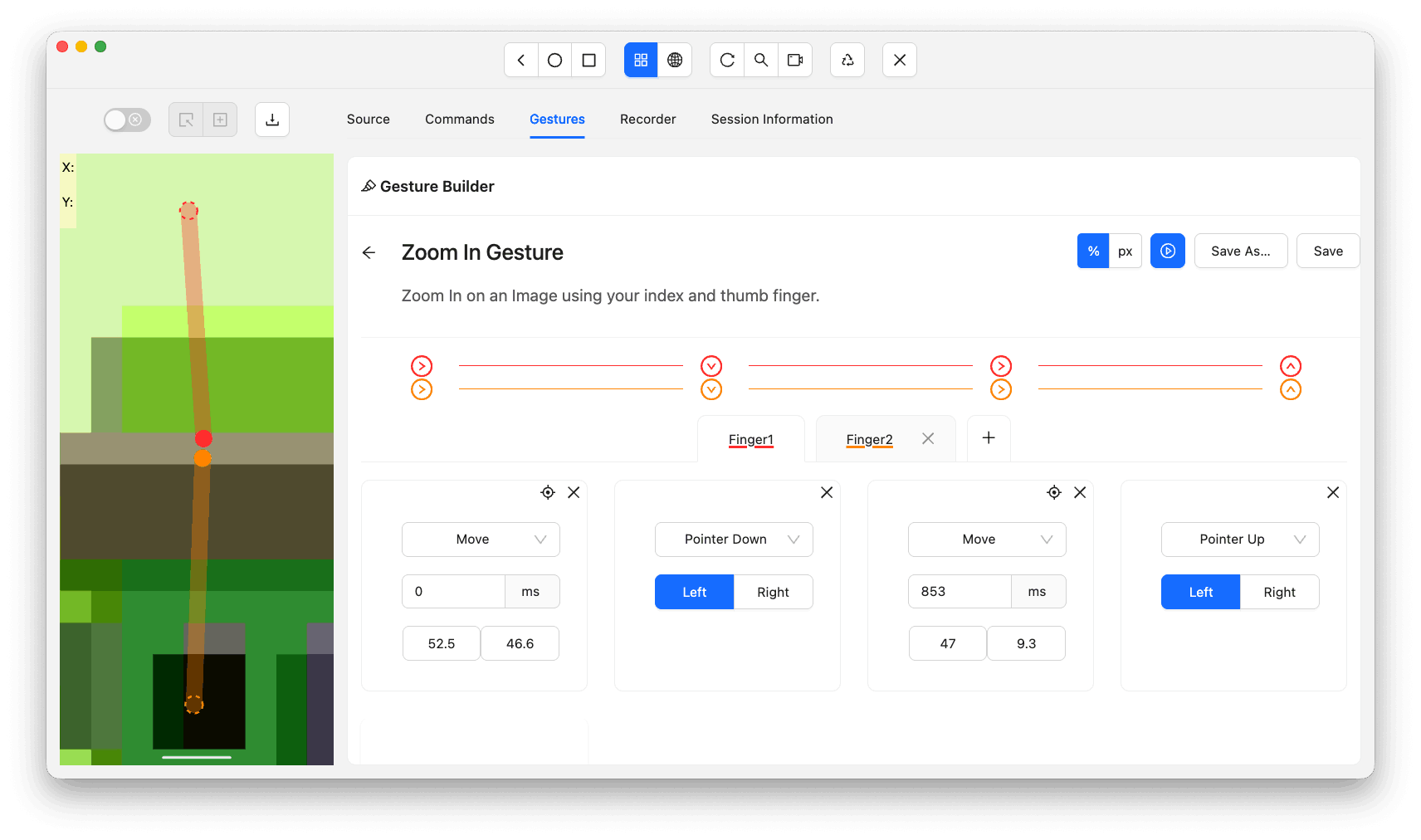
Zoom In
Zoom in requires two fingers working simultaneously. Both fingers start near the center of the screen. The index finger moves upward while the thumb moves downward, spreading apart.
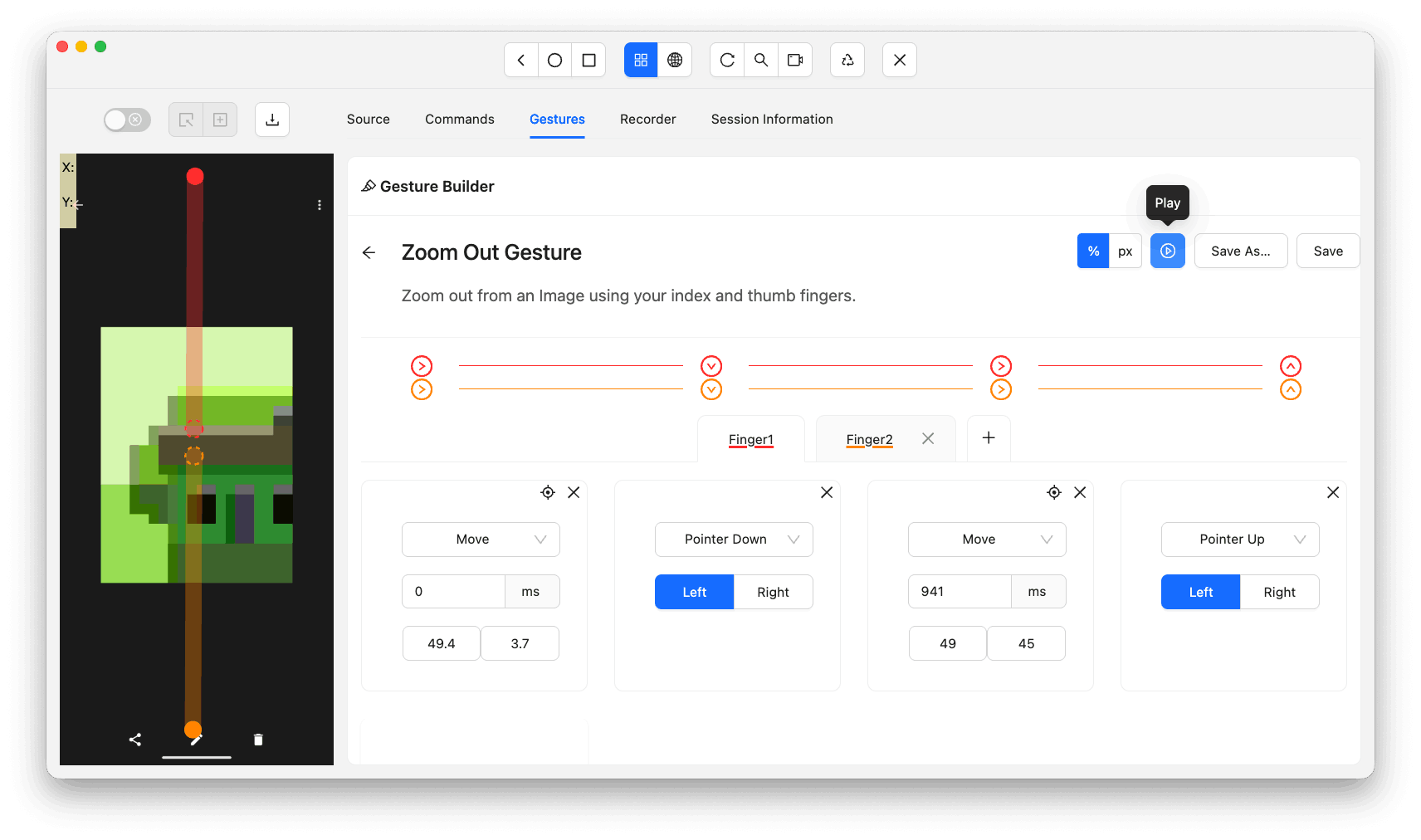
Zoom Out
For zoom out, the movement is reversed. Both fingers start apart and move towards the center of the screen, pinching inward.
JSON Gesture Files
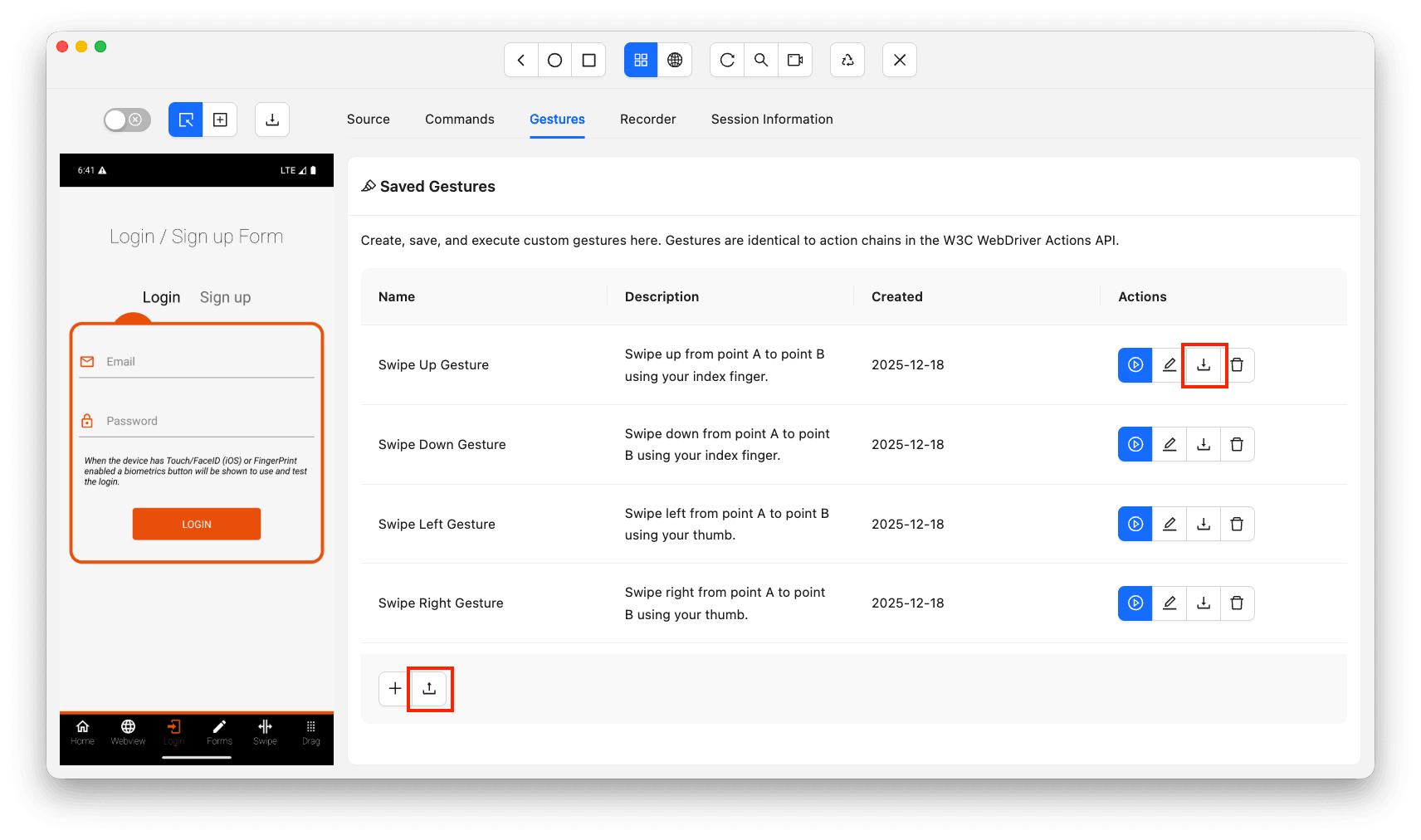
Once you save a gesture in the Appium Inspector, you have an option to export the gesture in a JSON file.
I typically export gesture files and share them with my team so they can simply import them on their machine and start using the gesture right away.
Check out the screenshot below where the import and export gesture button has been highlighted:
Let's check out the exported JSON file example:
{
  "name": "Drag Drop Gesture",
  "description": "Drag and drop gesture...",
  "actions": [{
    "name": "Finger1",
    "ticks": [
      { "id": "1.1", "type": "pointerMove", "x": 12.7, "y": 80.6, "duration": 0 },
      { "id": "1.2", "type": "pointerDown", "button": 0 },
      { "id": "1.3", "type": "pointerMove", "x": 30.2, "y": 34.1, "duration": 1077 },
      { "id": "1.4", "type": "pointerUp", "button": 0 }
    ],
    "color": "#FF3333", "id": "1"
  }],
  "id": "b79f9828-...", "date": 1766061332318
}
For a single gesture, there will be only one JSON file. You cannot add multiple gestures in the same file.
Let's understand the JSON format better, this will be helpful in case you want to create a custom gesture manually instead of exporting the gesture from the Appium Inspector.
- id: This field is a unique UUID which is unique for the gesture.
- date: This field contains the date when this gesture was created. It will be in a long numeric format.
- name: This field contains the name of the gesture.
- description: This field contains the description of the gesture.
- actions: This field is an array of finger actions, where each array object will contain all the actions performed by a single finger.
- name: This field will contain the name of the action.
- id: This will be the unique ID for the current action.
- ticks: This field contains the array of steps which will make up the complete action for the current action object.
- id: This will be the unique ID for the current step.
- type: This field will contain value from any one of the following values: pointerMove, pointerDown, pointerUp, pause.
- duration: This field contains the duration in milliseconds. This field will not be available for pointerDown and pointerUp.
- x / y: These two fields contain the X and Y coordinates and will only be available for pointerMove type.
- button: This field will contain the button's numeric ID. Which will be 0 for Left button and 1 for Right button.
- color: This field contains the color for the pointer which will be displayed on the Appium Inspector screen.
How to Implement Appium Gestures
Appium gestures are implemented using the W3C Actions API through PointerInput and Sequence classes, or via platform-specific mobile commands like mobile: clickGesture for Android and iOS.
Let's now implement all the above mentioned finger gestures practically using Appium.
Using W3C Actions API
W3C Actions API specifications are defined in the W3C WebDriver specification. This specification gives a standard approach for any platform like Android and iOS.
W3C Actions API is exposed in PointerInput and Sequence classes which is available with Selenium WebDriver. Selenium WebDriver is internally used by Appium.
These classes rely on the session capabilities to determine the target platform and device, so configuring the right Appium capabilities ensures your gesture tests run reliably. Let's check out how to create all the different actions using the W3C Actions API.
Tap
As we looked into the Tap gesture with Appium Inspector, I will now implement the same logic using Appium Java client. Following code snippet is the implemented logic for Tap gesture:
public void tap (final WebElement element) {
    final var center = getElementCenter (element);
    final var finger = new PointerInput (PointerInput.Kind.TOUCH, "Finger 1");
    final var sequence = new Sequence (finger, 0);
    sequence.addAction (finger.createPointerMove (Duration.ofMillis (500), PointerInput.Origin.viewport (), center.getX (), center.getY ()));
    sequence.addAction (finger.createPointerDown (PointerInput.MouseButton.LEFT.asArg ()));
    sequence.addAction (finger.createPointerUp (PointerInput.MouseButton.LEFT.asArg ()));
    this.driver.perform (Collections.singletonList (sequence));
}
The getElementCenter helper calculates the center using the element's location and size. It divides width and height by 2 and adds the element's X and Y coordinates.
Long Press
A long press gesture extends the tap by adding a pause between the pointer down and pointer up actions. The pause duration controls how long the finger holds before releasing. Here is the implementation:
public void longPress (final WebElement element, final Duration holdDuration) {
    final var center = getElementCenter (element);
    final var finger = new PointerInput (PointerInput.Kind.TOUCH, "Finger 1");
    final var sequence = new Sequence (finger, 0);
    sequence.addAction (finger.createPointerMove (Duration.ofMillis (500), PointerInput.Origin.viewport (), center.getX (), center.getY ()));
    sequence.addAction (finger.createPointerDown (PointerInput.MouseButton.LEFT.asArg ()));
    sequence.addAction (new Pause (finger, holdDuration));
    sequence.addAction (finger.createPointerUp (PointerInput.MouseButton.LEFT.asArg ()));
    this.driver.perform (Collections.singletonList (sequence));
}
The key difference from a tap is the Pause action between pointer down and pointer up. Pass the desired hold duration (e.g., Duration.ofSeconds(2)) to control how long the press is held before release.
Swipe Up
Now let's check out the implementation for swipe up gesture using the Java client:
public void swipeUp (final WebElement element, final int distance) {
    final var start = getSwipeStartPosition (element);
    final var end = getSwipeEndPosition (new Point (0, -1), element, distance);

    final var finger = new PointerInput (PointerInput.Kind.TOUCH, "Finger 1");
    final var sequence = new Sequence (finger, 0);
    sequence.addAction (finger.createPointerMove (Duration.ofMillis (500), PointerInput.Origin.viewport (), start.getX (), start.getY ()));
    sequence.addAction (finger.createPointerDown (PointerInput.MouseButton.LEFT.asArg ()));
    sequence.addAction (new Pause (finger, Duration.ofMillis (500)));
    sequence.addAction (finger.createPointerMove (Duration.ofMillis (300), PointerInput.Origin.viewport (), end.getX (), end.getY ()));
    sequence.addAction (finger.createPointerUp (PointerInput.MouseButton.LEFT.asArg ()));
    this.driver.perform (Collections.singletonList (sequence));
}
The direction point (0, -1) moves the finger upward on the Y-axis. The helper methods getSwipeStartPosition and getSwipeEndPosition calculate coordinates based on element center or screen center and a distance percentage (1-100).
Swipe Down
The swipe down implementation is mostly identical to the swipe up implementation we saw in the previous section. The only difference here is the direction point which is used in the swipe down. Let's see the main difference in the swipe down implementation:
final var direction = new Point (0, 1);The finger will be moving downwards when performing swipe down, this means that the Y-axis coordinates will increase to emulate the swipe down gesture.
Swipe Left
Now let's check out how the swipe left gesture is implemented.
final var direction = new Point (-1, 0);As you can see, the swipe direction point coordinate on the X-axis will be affected. The finger gesture will start at a particular point on the X-axis and will move towards the left by reducing the X-axis coordinate.
Hence the direction X value is set as -1.
Swipe Right
The swipe right gesture implementation is exactly identical to swipe left gesture, except for the direction point coordinate. Let's see what the exact differences in implementation are.
final var direction = new Point (1, 0);Since the gesture moves towards the right direction, this means that the finger gesture will start from a particular X-axis coordinate and move towards right by increasing the X-axis coordinate value, hence the direction X value is set as 1.
Drag and Drop
The drag and drop implementation is exactly the same as any swipe gesture. The only difference is that there are two elements, one which will be dragged and the other where the first element will be dropped.
public void dragDrop (final WebElement source, final WebElement target) {
    final var sourceCenter = getElementCenter (source);
    final var targetCenter = getElementCenter (target);
    final var finger = new PointerInput (PointerInput.Kind.TOUCH, "Finger 1");
    final var sequence = new Sequence (finger, 0);
    sequence.addAction (finger.createPointerMove (Duration.ofMillis (500), PointerInput.Origin.viewport (), sourceCenter.getX (), sourceCenter.getY ()));
    sequence.addAction (finger.createPointerDown (PointerInput.MouseButton.LEFT.asArg ()));
    sequence.addAction (new Pause (finger, Duration.ofMillis (500)));
    sequence.addAction (finger.createPointerMove (Duration.ofMillis (300), PointerInput.Origin.viewport (), targetCenter.getX (), targetCenter.getY ()));
    sequence.addAction (finger.createPointerUp (PointerInput.MouseButton.LEFT.asArg ()));
    this.driver.perform (Collections.singletonList (sequence));
}
The source element center is the starting coordinate and the target element center is the ending coordinate for the drag and drop gesture.
Zoom In
Zoom in gesture is a combined gesture of swipe up done by the index finger and swipe down is done by the thumb finger. Let's see the implementation for this gesture.
public void zoomIn (final WebElement element, final int distance) {
    final var thumbStart = getSwipeStartPosition (element);
    final var thumbEnd = getSwipeEndPosition (new Point (0, 1), element, distance);
    // Thumb finger: starts at center+5px, swipes downward
    final var thumbFinger = new PointerInput (PointerInput.Kind.TOUCH, "Thumb Finger");
    final var thumbSequence = buildSequence (thumbFinger, thumbStart.getY () + 5, thumbEnd);

    final var indexStart = getSwipeStartPosition (element);
    final var indexEnd = getSwipeEndPosition (new Point (0, -1), element, distance);
    // Index finger: starts at center-5px, swipes upward
    final var indexFinger = new PointerInput (PointerInput.Kind.TOUCH, "Index Finger");
    final var indexSequence = buildSequence (indexFinger, indexStart.getY () - 5, indexEnd);

    this.driver.perform (Arrays.asList (thumbSequence, indexSequence));
}
Both fingers start 5 pixels apart from the center and move in opposite directions simultaneously. The thumb swipes downward while the index finger swipes upward.
Zoom Out
Zoom out gesture implementation is completely inverse to Zoom In. The index finger will move downwards increasing the Y-axis coordinate and thumb finger will move upwards decreasing the Y-axis coordinate.
public void zoomOut (final WebElement element, final int distance) {
    // Inverse of zoomIn: start and end positions are swapped
    final var thumbEnd = getSwipeStartPosition (element);
    final var thumbStart = getSwipeEndPosition (new Point (0, -1), element, distance);
    final var thumbFinger = new PointerInput (PointerInput.Kind.TOUCH, "Thumb Finger");
    final var thumbSequence = buildSequence (thumbFinger, thumbStart.getY () + 5, thumbEnd);

    final var indexEnd = getSwipeStartPosition (element);
    final var indexStart = getSwipeEndPosition (new Point (0, 1), element, distance);
    final var indexFinger = new PointerInput (PointerInput.Kind.TOUCH, "Index Finger");
    final var indexSequence = buildSequence (indexFinger, indexStart.getY () - 5, indexEnd);

    this.driver.perform (Arrays.asList (thumbSequence, indexSequence));
}
The zoom out gesture is the inverse of zoom in. The start and end positions are swapped so both fingers move inward toward the center instead of apart.
Using Mobile Gestures Commands
Apart from W3C Actions gestures, there is another way of performing gestures, which is platform driver specific gesture commands that can be executed using the executeScript method.
Android:
Following are the supported gesture commands for the Android platform using the executeScript method. If you are new to Android automation, refer to this guide on how to automate Android apps using Appium.
- Tap: Uses the mobile: clickGesture command. It accepts the target elementId and taps on the element's center coordinates.
- Drag and Drop: Uses the mobile: dragGesture command. It takes start coordinates from the source element center and end coordinates from the target element center.
- Swipe: Uses the mobile: swipeGesture command. The direction parameter accepts up, down, left, or right. The percent parameter controls swipe area between 0 and 1.
- Zoom In and Zoom Out: Use mobile: pinchOpenGesture and mobile: pinchCloseGesture commands respectively. Both are flaky in behavior and may error out during execution.
Following are the code examples for each Android gesture command:
// Tap
public void tap (final WebElement element) {
    final var id = ((RemoteWebElement) element).getId ();
    this.driver.executeScript ("mobile: clickGesture", ImmutableMap.of ("elementId", id));
}

// Drag and Drop
public void dragDrop (final WebElement source, final WebElement target) {
    final var sourceCenter = getElementCenter (source);
    final var targetCenter = getElementCenter (target);
    this.driver.executeScript ("mobile: dragGesture", ImmutableMap.of (
        "startX", sourceCenter.getX (), "startY", sourceCenter.getY (),
        "endX", targetCenter.getX (), "endY", targetCenter.getY ()));
}

// Swipe
public void swipe (final WebElement element, final String direction, final int percentage) {
    final var params = ImmutableMap.<String, Object>builder ()
        .put ("direction", direction).put ("percent", percentage / 100.0);
    if (element != null) {
        params.put ("elementId", ((RemoteWebElement) element).getId ());
    }
    this.driver.executeScript ("mobile: swipeGesture", params.build ());
}iOS:
Following are the supported gesture commands for the iOS platform. Refer to this guide on how to automate iOS apps using Appium for the full iOS automation workflow.
- Tap: Uses the mobile: tap command with the target elementId as a parameter.
- Swipe: Uses the mobile: swipe command. The direction parameter accepts up, down, left, or right. The velocity parameter controls swipe speed in pixels per second.
- Drag and Drop: Uses the mobile: dragFromToWithVelocity command. It takes source and target element IDs along with pressDuration, holdDuration, and velocity parameters.
- Zoom In and Zoom Out: Both use the mobile: pinch command. For zoom in, set scale greater than 1. For zoom out, set scale less than 1. The zoom out command is flaky in behavior.
Following are the code examples for each iOS gesture command:
// Tap
public void tap (final WebElement element) {
    final var id = ((RemoteWebElement) element).getId ();
    this.driver.executeScript ("mobile: tap", ImmutableMap.of ("elementId", id));
}

// Swipe
public void swipe (final WebElement element, final String direction, final int speed) {
    final var params = ImmutableMap.<String, Object>builder ()
        .put ("direction", direction).put ("velocity", speed);
    if (!isNull (element)) {
        params.put ("elementId", ((RemoteWebElement) element).getId ());
    }
    this.driver.executeScript ("mobile: swipe", params.build ());
}

// Drag and Drop
public void dragDrop (final WebElement source, final WebElement target) {
    this.driver.executeScript ("mobile: dragFromToWithVelocity", ImmutableMap.of (
        "fromElementId", ((RemoteWebElement) source).getId (),
        "toElementId", ((RemoteWebElement) target).getId (),
        "pressDuration", 0.5, "holdDuration", 0.5, "velocity", 500));
}

// Zoom In
public void zoomIn (final WebElement element) {
    final var params = ImmutableMap.builder ()
        .put ("scale", 2.0).put ("velocity", 1.0);
    if (!isNull (element)) {
        params.put ("elementId", ((RemoteWebElement) element).getId ());
    }
    this.driver.executeScript ("mobile: pinch", params.build ());
}
Using Appium Gesture Plugin
The Appium Gesture Plugin is a third-party plugin that supports swipe, drag and drop, double tap, and long press gestures. However, when I tested it, the plugin was not actively maintained and its swipe commands were flaky. It is not recommended for production use.
Use the W3C Actions API or platform-specific mobile commands instead. With Appium 3 introducing improved plugin architecture, gesture support is expected to improve further. Learn more about Appium 3 features.
Sai Krishna, an Appium Contributor and Open Source Contributor with deep expertise in Appium, WebDriver, and framework design patterns, covers the key Appium 3 changes in the video below:
Using UiSelector Locator Strategy (Only for Android)
With the UiSelector locator strategy, there is a way that would automatically scroll to the target element while finding the element if that element is not visible in the viewport. This approach is only available for the Android platform. Refer to this guide on locators in Appium for all available locator strategies.
Following is an example of the locator strategy which you can use to find and scroll the target element into viewport:
private final By scrolledSelectorLogo = AppiumBy.androidUIAutomator (
    "new UiScrollable(new UiSelector().scrollable(true)" +
    ").setAsHorizontalList().setMaxSearchSwipes(5).scrollIntoView(new UiSelector().description(\"WebdriverIO logo\"))");
Let's break down the locator so it becomes easy to understand. First we will find the scrollable element container using UiScrollable which will have our target element somewhere where that element is not visible to us.
We can set the direction for horizontal scrolling by calling the method setAsHorizontalList and setAsVerticalList method for vertical scrolling.
I usually set the maximum scroll count by calling the method setMaxSearchSwipes with the max scroll count number as its parameter.
Then, in the scrollIntoView method, we will use UiSelector to find our target element.
When you try to find this element locator, Appium will automatically find the target element from that scrollable container and it will scroll to that element into the viewport.
How to Test Gestures With Appium Using TestMu AI Real Device Cloud
To test gestures with Appium on real devices, connect your Appium scripts to TestMu AI real device cloud, which provides access to real Android and iOS devices across multiple OS versions.
Gesture behavior varies across device manufacturers, screen sizes, and OS versions. Testing on emulators alone does not ensure that swipe distances, touch coordinates, or pinch gestures will behave identically on real hardware.
Platforms such as TestMu AI (Formerly LambdaTest) provide access to real Android and iOS devices in the cloud, allowing you to validate gesture accuracy across different screen resolutions and platform versions without maintaining a local device lab. You can test gestures with Appium on a real device cloud directly from your Appium scripts.
To get started, refer to Appium Java Testing With TestMu AI for the complete setup.

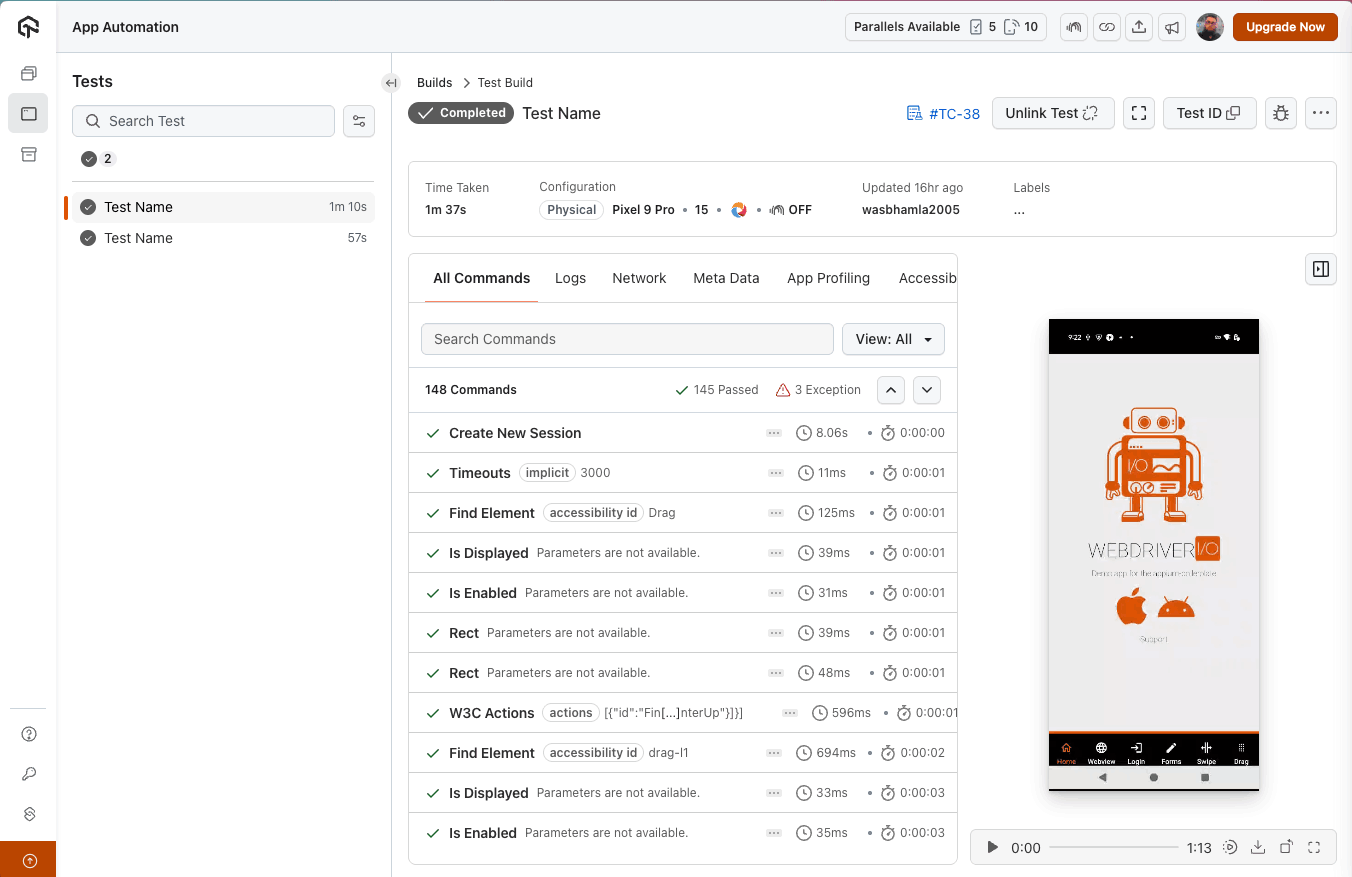
Step 1: Upload your APK (Android) or IPA (iOS) file to the TestMu AI server.
You can find the upload file option on the TestMu AI App Automation dashboard as shown in the screenshot below:
Step 2: Click the upload button and select your application file from the upload modal.
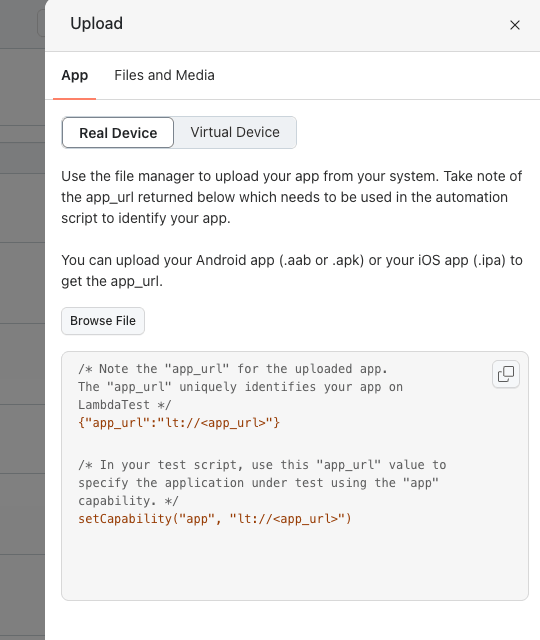
Once you select the target application file for the corresponding platform, you will see the app_url in the box below the upload button.
Step 3: Copy the returned app_url and use it in your capabilities. You can generate these capabilities using the TestMu AI Capabilities Generator.
private Capabilities buildCapabilities () {
    final Map<String, Object> ltOptions = new HashMap<> ();
    ltOptions.put ("w3c", true);
    ltOptions.put ("platformName", "android");
    ltOptions.put ("deviceName", "Pixel 9 Pro");
    ltOptions.put ("platformVersion", "15");
    ltOptions.put ("app", "AndroidApp");
    ltOptions.put ("isRealMobile", true);
    // ... additional options: visual, network, video, build, name, project

    final var options = new UiAutomator2Options ();
    options.setCapability ("lt:options", ltOptions);
    return options;
}
The app capability value AndroidApp is a custom ID assigned during upload. This ID persists across app version updates, so your test scripts do not need changes when you upload a newer build. If you are using TestNG as your test runner, this Appium with TestNG tutorial walks through the complete integration.
Step 4: Initialize the Appium driver using the capabilities and your TestMu AI credentials:
private static final String ACCESS_KEY = System.getenv ("LT_ACCESS_KEY");
private static final String SERVER_URL = "https://{0}:{1}@mobile-hub.lambdatest.com/wd/hub";
private static final String USERNAME = System.getenv ("LT_USERNAME");
. . .
final var capabilities = buildCapabilities ();
this.driver = new AndroidDriver (new URL (MessageFormat.format (SERVER_URL, USERNAME, ACCESS_KEY)),
    capabilities);
Your username and access key are available on the TestMu AI dashboard sidebar. Store them as environment variables instead of hardcoding in scripts. The session URL follows this format:
https://[username]:[access_key]@mobile-hub.lambdatest.com/wd/hubStep 5: Run your gesture tests. The TestMu AI App Automation dashboard captures each gesture step along with video recordings, Appium logs, device logs, and network logs for debugging failures on specific devices.
Best Practices for Appium Gesture Automation
With W3C Actions API support in Appium, you can ensure the consistency of the finger gestures across different platforms like Android and iOS mobile and tablet devices.
Following are the tips which you can implement in your automation to ensure cross platform consistency:
- Prefer W3C Actions API: Since the deprecated touch action classes and platform-specific commands are not common across platforms, use the PointerInput and Sequence classes to ensure gestures work the same on Android and iOS devices.
- Derive Precise Coordinates: I always derive coordinates from element bounds or screen dimensions. Hardcoding coordinates causes gestures to break across different screen sizes.
- Build Reusable Gesture Methods: Create shared utilities like tap, swipeUp, swipeDown, swipeLeft, zoomIn, and zoomOut that handle minor platform-specific variations internally.
- Confirm Element is Interactable: Before performing any gesture on an element, confirm the target element is visible in the viewport and interactable by using explicit waits.
- Add Wait Actions Properly: Adding pause actions in W3C action sequences helps emulate real user gesture speed and improves gesture recognition reliability.
While building these reusable gesture utilities, the Appium commands cheat sheet serves as a handy reference for method signatures and supported parameters.
Debugging Gesture Failures in Appium
Debugging gesture failures requires visualizing where the finger touches the screen. Following are the approaches I use to trace and debug gesture coordinates on Android and iOS devices:
- Android Touch Tracing: Enable Developer Options by tapping Build number seven times in Settings. Then turn on Show Taps and Pointer Locations to visualize touch points and gesture paths on emulators.
- iOS Touch Tracing: Use the simulatorTracePointer capability to trace touch pointers on iOS simulators during manual gestures. However, touch highlights are not visible during automation execution on iOS.
- Print Coordinates: Log the actual gesture coordinates during test execution in the console. This works for both Android and iOS and helps verify if the coordinates fall within screen bounds.
- Verify in Appium Inspector: Take the printed coordinates and recreate the gesture in Appium Inspector's gesture tab. This visually confirms whether the gesture path aligns with the intended screen area.
If gestures fail even with correct coordinates, the issue may lie in your Appium environment itself. Running Appium Doctor helps verify driver installations and system dependencies before you start debugging gesture logic.
Conclusion
This guide covered all the approaches which can be used to perform different finger gestures on Android and iOS devices using Appium. Some approaches are robust, flexible, and stable while others can be flaky and restrictive to use.
The W3C Actions API remains the most reliable and platform-independent way to implement gestures. Combined with TestMu AI real device cloud, you can validate gesture behavior across a wide range of Android and iOS devices without maintaining local infrastructure. Once your gesture tests are stable, scale execution by running Appium parallel tests across multiple devices simultaneously.
Citations
- W3C WebDriver Actions Specification: https://www.w3.org/TR/webdriver/#actions
- Appium Inspector GitHub: https://github.com/appium/appium-inspector


Frequently asked questions
Did you find this page helpful?
More Related Hubs
TestMu AI forEnterprise
Get access to solutions built on Enterprise
grade security, privacy, & compliance
- Advanced access controls
- Advanced data retention rules
- Advanced Local Testing
- Premium Support options
- Early access to beta features
- Private Slack Channel
- Unlimited Manual Accessibility DevTools Tests