

Next-Gen App & Browser Testing Cloud
Trusted by 2 Mn+ QAs & Devs to accelerate their release cycles


Web Development Using Python: Top Frameworks With Best Practices
Learn web development using Python with popular frameworks, libraries, and security features. Build fast, scalable, and robust web applications efficiently.

Risper Bevalyn
December 28, 2025
Python is widely recognized for its simplicity, flexibility, and extensive libraries, making it a top choice for web development using Python. Its beginner-friendly nature allows developers to build robust, scalable web applications efficiently, leveraging frameworks, tools, and examples tailored for web development using Python.
Overview
What Is Python Web Development?
Python web development focuses on building server-side applications that handle backend logic, database interactions, API endpoints, and integrate with frontend technologies to create dynamic, user-friendly web apps.
Why Choose Python for Web Development?
Python simplifies backend development with readable syntax, robust frameworks, and extensive libraries, enabling fast, secure, and scalable web applications.
- Easy to Learn: Python’s clear and intuitive syntax allows developers to quickly start projects and maintain them efficiently.
- Rapid Development: Frameworks like Django and Flask speed up application creation, minimizing repetitive coding and accelerating development cycles.
- Versatile Libraries: Python provides numerous tools for data handling, automation, web development, and analytics, supporting a variety of projects.
- Secure by Design: Frameworks include built-in authentication, session management, input validation, and protection mechanisms to ensure applications remain secure.
Frameworks for Python Web Development
Python web development relies on robust frameworks that simplify coding, streamline workflows, and accelerate application building.
Framworks:
- Django: A full-featured Python framework providing authentication, ORM, admin interface, and security features for building scalable applications efficiently.
- Flask: A lightweight Python microframework offering flexibility and simplicity for small to medium web applications with minimal overhead.
- Pyramid: A modular Python framework allowing developers to build complex applications with scalability, flexibility, and reusable components effectively.
- FastAPI: A modern, high-performance Python framework for building APIs with asynchronous support, type hints, and automatic documentation generation.
What Role Does Python Play in AI and Data-Driven Web Apps?
Python is the leading language for artificial intelligence and data analysis, which makes it perfect for building intelligent web applications. Developers can integrate machine learning models built with TensorFlow, PyTorch, or Scikit-learn directly into Python web frameworks such as Flask or FastAPI. This enables features like recommendation engines, chatbots, fraud detection systems, or predictive analytics. The seamless connection between web development and AI is one of Python’s strongest advantages.
What Is Python Web Development?
Python web development refers to building web applications and services with Python. When working on web development using Python, it is primarily used for backend/server-side logic, database operations, data processing, and API endpoints.
This also integrates with frontend technologies, which manage the visual and interactive elements users engage with. Together, the frontend and backend create dynamic, functional, and user-friendly web applications.
Why Use Python for Web Development?
One of the key decisions in web development is selecting the right programming language. Python is widely chosen for web development using Python due to several advantages:
- Easy to Learn: Python’s simple syntax and dynamic typing make it beginner-friendly. It allows developers to write code quickly and flexibly without unnecessary complexity.
- Fast Development: Python’s frameworks and libraries enable rapid prototyping and development. This helps developers bring projects to life much faster than many other languages.
- Extensive Libraries: Python offers libraries for data analysis, machine learning, web scraping, and more. These libraries provide ready-to-use tools that reduce effort and speed up workflows.
- Security: Python and frameworks like Django include built-in security features such as CSRF protection, input escaping, secure session handling, and authentication modules. Libraries and frameworks are also actively maintained with regular updates and security patches.
To get started with web development using Python, check out a beginner-friendly Python tutorial and start learning Python.

Note: Run your Python tests at scale across 3000+ browsers and OS combinations. Try TestMu AI Now!
Getting Started With Web Development Using Python
Learn the fundamentals of web development using Python, set up your development environment, understand core concepts, and start building interactive web applications efficiently.
To get hands-on experience, we’ll begin by creating a simple To-Do application using Django, covering project setup, app creation, and basic backend logic.
Creating a Simple To-Do Web Application with Django
Creating a simple To-Do web application is a hands-on way to learn web development using Python. Using Django, you can quickly build a functional app that handles tasks like adding, updating, and deleting items while understanding the basics of backend development.
Prerequisites:
- Python: Make sure you have Python installed on your machine. You can download the latest version from the official Python website.
- Code Editor: Use a preferred editor like Visual Studio Code, Sublime Text, or Atom (VS Code recommended).
- Web Framework: Choose a framework suitable for your application. Flask and Django are popular for beginners. For demonstration purposes will use Django.
Setting Up a Django Project:
- Virtual Environment: Install virtualenv using pip install virtualenv and create a new environment with virtualenv todo-project.
- Activate Environment: Activate the virtual environment.
- Linux/Mac: source todo-project/bin/activate
- Windows: todo-project\Scripts\activate
- Install Dependencies: Create a requirements.txt file containing Django>=5.0 and run pip install -r requirements.txt to install Django.
- Create Django Project: Initialize your project with django-admin startproject todo_project and navigate into it using cd todo_project.
- Create Django App: Generate a new app using python manage.py startapp todo_app.
- Register App: Add ‘todo_app’ to the INSTALLED_APPS list in todo_project/settings.py.
INSTALLED_APPS = [
   "django.contrib.admin",
   "django.contrib.auth",
   "django.contrib.contenttypes",
   "django.contrib.sessions",
   "django.contrib.messages",
   "django.contrib.staticfiles",
   "todo_app",
]
# Create your views here.
from django.shortcuts import redirect, render

# Very basic in-memory storage
TASKS = []


def todo_view(request):
   if request.method == "POST":
       task = request.POST.get("task")
       if task:
           TASKS.append(task)
       return redirect("/todo")  # Avoid form resubmission

   return render(request, "./todo_app/todo.html", {"tasks": TASKS})
from django.contrib import admin
from django.urls import include, path
# todo_project/urls.py

urlpatterns = [
   path("admin/", admin.site.urls),
   path("todo/", include("todo_app.urls")),
]
Now that your project is set up, let’s create a simple HTML template for the to-do list.
Code Implementation:
In your todo.html file, add the following HTML code:
<!DOCTYPE >
<html>
<head>
<title>To-Do List</title>
</head>
<body>
<h1>My To-Do List</h1>
<form method="post">
{% csrf_token %}
<input type="text" name="task" placeholder="Enter task" required>
<button type="submit">Add</button>
</form>
<ul>
{% for task in tasks %}
<li>{{ task }}</li>
{% empty %}
<li>No tasks yet!</li>
{% endfor %}
</ul>
</body>
Result:Run this command on your terminal:
Python manage.py runserver
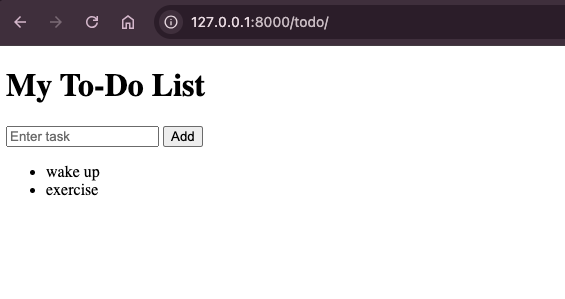
Running your Django To-Do app on your local machine is a crucial step to ensure all features work correctly. It helps identify issues early and guarantees smooth functionality before moving on to deployment or automated testing.
Running Your Web Development Project Using Python
Testing your Python web project locally allows you to confirm that all components operate as intended. This step helps catch errors early, ensures the application runs efficiently, and prepares it for scaling or integration with automated workflows.
Code Implementation:
Add the following test class to your test.py file. This code sets up a Selenium WebDriver, navigates to your To-Do application, adds new tasks, and then verifies they appear in the list.
import time

from django.contrib.staticfiles.testing import StaticLiveServerTestCase
from selenium import webdriver
from selenium.webdriver.chrome.service import Service
from selenium.webdriver.common.by import By
from selenium.webdriver.common.keys import Keys
from selenium.webdriver.support import expected_conditions as EC
from selenium.webdriver.support.ui import WebDriverWait
from webdriver_manager.chrome import ChromeDriverManager


class ToDoAppTest(StaticLiveServerTestCase):
   """Functional tests for the To-Do List app using Selenium"""

   def setUp(self):
       options = webdriver.ChromeOptions()
       # Comment this line out if you want to SEE the browser
       # options.add_argument("--headless=new")
       options.add_argument("--disable-gpu")
       options.add_argument("--no-sandbox")

       self.browser = webdriver.Chrome(
           service=Service(ChromeDriverManager().install()),
           options=options,
       )

   def tearDown(self):
       # Keep the browser open for 5 seconds before closing (for demo)
       time.sleep(5)
       self.browser.quit()

   def test_add_multiple_tasks(self):
       # 1. Open homepage (adjust URL if your form is not at "/todo/")
       self.browser.get(self.live_server_url + "/todo/")

       tasks_to_add = ["Buy milk", "Walk the dog"]

       for task in tasks_to_add:
           # Wait for the input box fresh on every loop iteration
           input_box = WebDriverWait(self.browser, 5).until(
               EC.presence_of_element_located((By.NAME, "task"))
           )
           input_box.clear()  # not strictly necessary, but safe
           input_box.send_keys(task)
           input_box.send_keys(Keys.RETURN)

           # Wait until the new task appears in the list
           WebDriverWait(self.browser, 5).until(
               EC.text_to_be_present_in_element((By.ID, "task-list"), task)
           )

       # Collect all tasks in the list
       task_list = self.browser.find_element(By.ID, "task-list")
       tasks = task_list.find_elements(By.TAG_NAME, "li")
       task_texts = [t.text for t in tasks]

       # Assert all tasks are present
       for task in tasks_to_add:
           self.assertIn(task, task_texts)

       # Pause so you can see the final state in the browser
       import time

       time.sleep(5)
Code Walkthrough:
- Class Inheritance: ToDoAppTest inherits from StaticLiveServerTestCase → runs a local Django test server at self.live_server_url.
- setUp (before each test): Configures Chrome browser options (–disable-gpu, –no-sandbox, optional headless), initializes Chrome browser with self.browser = webdriver.Chrome(…), and manages ChromeDriver automatically via ChromeDriverManager().install().
- tearDown (after each test): Closes the browser using self.browser.quit().
- Test_add_multiple_tasks: Opens the To-Do application in Chrome, adds tasks from a list by typing and submitting each, waits for tasks to appear and verifies all tasks are displayed, and pauses briefly for visual inspection.
Output:To execute the tests, run the following command:
$python manage.py test

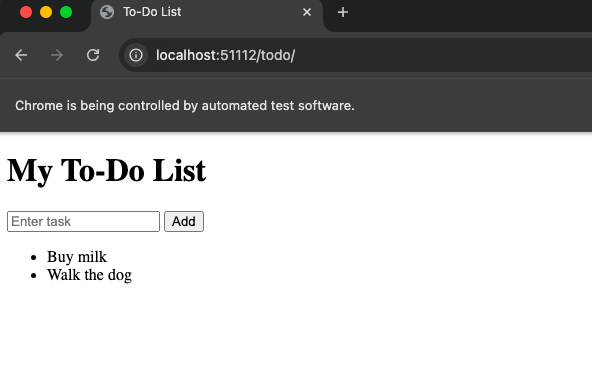
After confirming the app works locally, the next step is scaling it for a larger user base or production environment. This involves configuring the app for performance, security, and stability.
Running Web Development Project at Scale
Scaling your Django To-Do application ensures it can handle increased traffic and multiple users while maintaining performance and reliability.
Testing across multiple devices and browsers is essential to ensure a consistent user experience.
Cloud-based platforms like TestMu AI enable Python automation testing to run parallel tests without managing local setups, making scaling and cross-browser validation more efficient.
TestMu AI is a GenAI-native test execution platform that allows you to perform manual and automated tests at scale across 3000+ browsers and OS combinations.
To get started with running your test at scale on TestMu AI, please follow the steps.
- Download TestMu AI Tunnel (LT): Visit the TestMu AI tunnel downloads page and download the binary compatible with your operating system (Mac, Linux, or Windows).
- Make the Binary Executable (Mac/Linux): Open a terminal and navigate to the directory containing the binary using cd /path/to/directory and make the file executable using chmod +x LT.
- TestMu AI Credentials: Set your TestMu AI Username and Access Key as environment variables. To get your credentials, go to Accounts Settings > Password Security tab and copy your Username and Access Key.
- Run the Tunnel: Start the TestMu AI tunnel using your credentials.
$ ./LT --user <your-username> --key <your-access-key> --tunnelName django-tunnel
Code Implementation:
from django.contrib.staticfiles.testing import StaticLiveServerTestCase
from selenium import webdriver
from selenium.webdriver.common.by import By
from selenium.webdriver.common.keys import Keys
from selenium.webdriver.support import expected_conditions as EC
from selenium.webdriver.support.ui import WebDriverWait

class ToDoAppLambdaTestDevices(StaticLiveServerTestCase):
    """Run Django Selenium tests on LambdaTest across devices"""

    def run_test_on_device(self, lt_options):
        username = "YOUR_USERNAME"  # Replace with your LambdaTest username
        access_key = "YOUR_ACCESS_KEY"  # Replace with your LambdaTest access key

        options = webdriver.ChromeOptions()
        options.set_capability("LT:Options", lt_options)

        browser = webdriver.Remote(
            command_executor=f"https://{username}:{access_key}@hub.lambdatest.com/wd/hub",
            options=options,
        )

        try:
            # Open ToDo app
            browser.get(self.live_server_url + "/todo/")  # Update path if different

            tasks_to_add = ["Buy milk", "Walk the dog"]

            for task in tasks_to_add:
                # Wait for the input box and add task
                input_box = WebDriverWait(browser, 10).until(
                    EC.presence_of_element_located((By.NAME, "task"))
                )
                input_box.clear()
                input_box.send_keys(task)
                input_box.send_keys(Keys.RETURN)

                # Verify task appears in the task-list
                WebDriverWait(browser, 10).until(
                    EC.text_to_be_present_in_element((By.ID, "task-list"), task)
                )

            # Collect all tasks and assert they exist
            task_list = browser.find_element(By.ID, "task-list")
            tasks = task_list.find_elements(By.TAG_NAME, "li")
            task_texts = [t.text for t in tasks]

            for task in tasks_to_add:
                assert task in task_texts

        finally:
            browser.quit()

    def test_desktop_chrome(self):
        lt_options = {
            "build": "Django ToDo Cross-Device Tests",
            "name": "Desktop Chrome Test",
            "platformName": "Windows 11",
            "browserName": "Chrome",
            "browserVersion": "latest",
            "selenium_version": "4.19.0",
            "tunnel": True,
            "tunnelName": "django-tunnel",
        }
        self.run_test_on_device(lt_options)

    def test_mac_safari(self):
        lt_options = {
            "build": "Django ToDo Cross-Device Tests",
            "name": "Mac Safari Test",
            "platformName": "macOS Ventura",
            "browserName": "Safari",
            "browserVersion": "latest",
            "selenium_version": "4.19.0",
            "tunnel": True,
            "tunnelName": "django-tunnel",
        }
        self.run_test_on_device(lt_options)
Code Walkthrough:
- Class Inheritance: ToDoAppTestMu AIDevices inherits from StaticLiveServerTestCase and runs a local Django test server at self.live_server_url. Purpose: Runs Selenium tests on TestMu AI across multiple devices and browsers.
- run_test_on_device(self, lt_options): Connects to TestMu AI using username and access_key, configures Chrome options, sets capabilities via lt_options, opens the To-Do application, adds tasks, verifies tasks appear in <li> elements, and closes the browser.
- test_desktop_chrome(self): Runs the To-Do application on Windows 11 using Chrome, sets lt_options for platform, browser, version, and tunnel, then calls run_test_on_device(lt_options).
- test_mac_safari(self): Runs the To-Do application on macOS Ventura using Safari, sets lt_options for platform and browser, then calls run_test_on_device(lt_options).
Test Execution:Run the following command given below:
View results on TestMu AI by navigating to Automation > Web Automation.
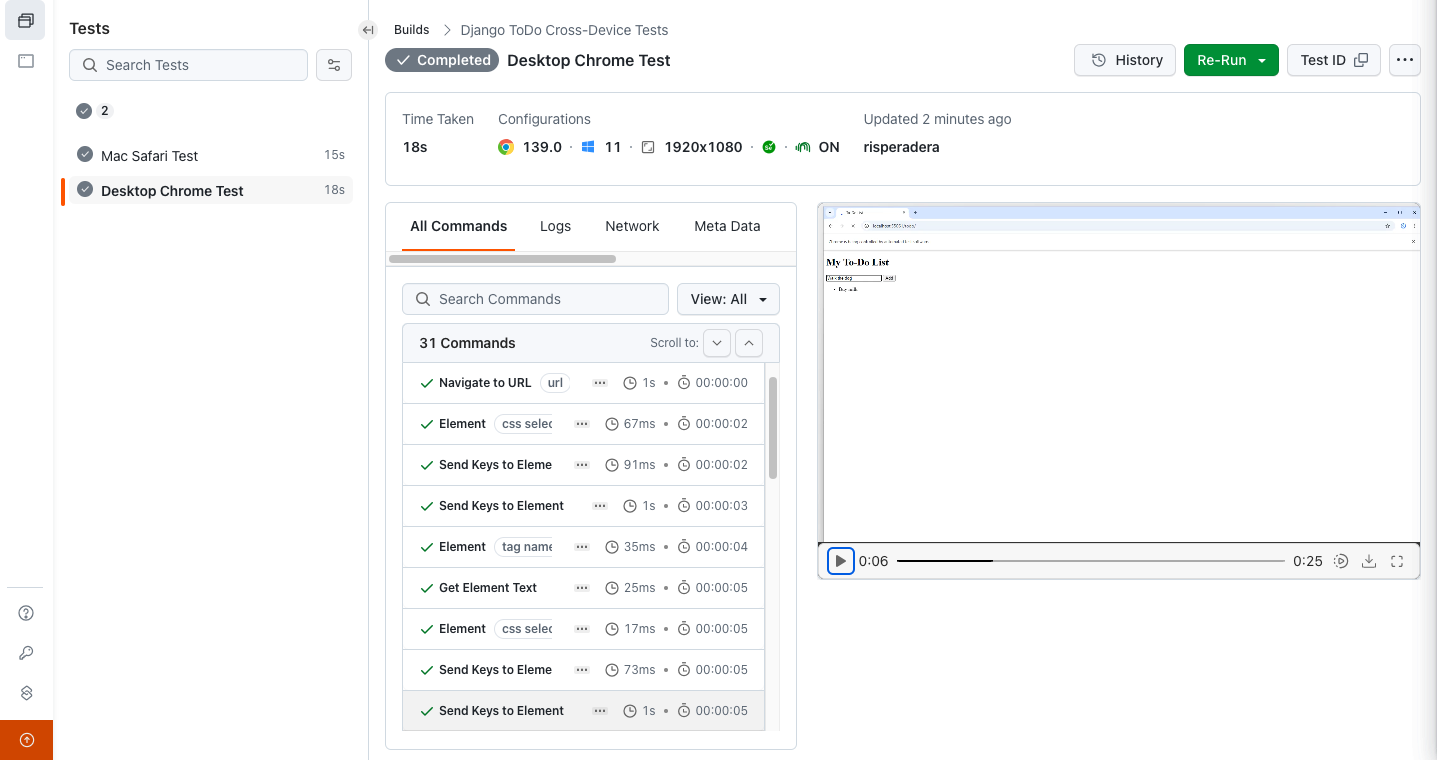
To get started, follow this support documentation on Python testing using Selenium.

Web Development Frameworks and Tools for Python
When working on web development using Python, choosing the right tools and web development frameworks is crucial. These frameworks simplify development, streamline workflows, and provide built-in functionalities to help you build robust applications efficiently. Below is a summary of popular frameworks and essential tools.
Frameworks
Deciding on the correct framework is essential when using Python for web development. A summary of the most widely used frameworks, together with their advantages and disadvantages, is provided below:
- Flask: Flask is a lightweight and flexible web framework, well-suited for developing small to medium-sized web applications. Its simplicity makes it ideal for quick prototyping, microservices, and projects where minimal structure and fast iteration are priorities.
- Django: Django is a full-featured framework that comes with built-in functionalities such as authentication, authorization, and an ORM. Its robust architecture allows it to handle large amounts of data and heavy traffic, making it ideal for developing scalable, production-ready web applications.
- Pyramid: Pyramid’s modular architecture makes it well-suited for developing and maintaining complex applications, offering the flexibility needed for enterprise-grade projects.
- FastAPI: FastAPI is designed to help developers build scalable and efficient web applications. With built-in support for asynchronous programming, it is ideal for developing high-performance APIs.
Tools
A variety of tools are available to make Python web development more efficient and manageable. These tools help with coding, debugging, database interactions, and handling HTTP requests effectively.
- Requests: Requests is designed to make HTTP requests easier to understand and more user-friendly. It supports all standard HTTP methods, including GET, POST, PUT, DELETE, and more.
- ORM (Object-Relational Mapping): An ORM makes it easier to interact with databases in Python, though it is not strictly necessary. It is essential for building web applications that require data storage. For example, Django includes a built-in ORM for managing database models, queries, and relationships. SQLAlchemy, on the other hand, is a widely used ORM for other frameworks or standalone Python applications, providing flexible and powerful database interactions.
- IDE (Integrated Development Environment): An IDE is where we write the code. It provides code editing, debugging, and extensions to ease the development process. One of the commonly used IDEs is Visual Studio Code.
Challenges and Solutions in Python Web Development
The following are some of the challenges that developers usually face when working with Python for web development:
- Challenge 1: Steep Learning Curve: Some Python frameworks, such as Django and Pyramid, are complex frameworks that offer numerous features and tools. New developers usually find it challenging to learn and master Django’s features.
- Challenge 2: Performance Optimisation: As your application grows, performance optimisation becomes critical. Common issues include slow database queries, increased load times, and inefficient rendering of data.
- Challenge 3: Security: Web applications are vulnerable to security threats, such as SQL injection and cross-site scripting (XSS). As a developer, you need to be aware of these threats and use best practices to secure your applications.
Solution: Start by learning the fundamentals of web development using Python with simpler frameworks such as Flask. Once you feel comfortable, you can gradually explore Django by building projects, reading the official Django documentation, and following tutorials.
Solution: Web developers working in web development using Python need to optimise database queries, use caching, and minimise HTTP requests to ensure fast and efficient performance.
Solution: To secure your application, avoid writing raw SQL queries; use Django’s ORM, which uses parameterised queries to prevent SQL injection. Use CSRF tokens in your forms, and make sure to properly authenticate and authorise your REST APIs.
Best Practices for Python Web Development
Following best practices is essential for efficient and secure web development using Python. Adhering to these guidelines helps you write clean, maintainable, and robust code for your web applications.
- Follow the Don’t Repeat Yourself (DRY) Principle: Python web development frameworks, such as Django’s framework, are designed to encourage reusable code, which is essential in web development using Python.
- Variable Names: It is imperative to use descriptive and consistent variable names to make your code easy to read and understand.
- Use Framework’s Built-in Features: For example, when using Django, make use of Django’s built-in authentication and authorisation. Django provides secure and easy-to-use features that simplify web development using Python.
- Test Your Code: Testing is essential to ensure that your code works as expected.
- Input Validation: Validate and sanitise all user inputs to prevent common attacks like SQL injection and cross-site scripting (XSS).
- Password Security: Store passwords securely using techniques like hashing and salting to protect user credentials.
Conclusion
Here you have learned the fundamentals of Python web development, including necessary tools, frameworks, and techniques. By following best practices, you’ll be well on your way to developing reliable and robust Python-powered web applications. Python web development is a broad area with many learning opportunities. Nevertheless, this tutorial will provide you with a solid basis for additional learning.
Citations
- Python’s Role in Accelerating Web Application Development with Django: https://www.researchgate.net/publication/381969758
- Python For Web Development: https://www.researchgate.net/publication/362517489


Frequently asked questions
Did you find this page helpful?
More Related Hubs
TestMu AI forEnterprise
Get access to solutions built on Enterprise
grade security, privacy, & compliance
- Advanced access controls
- Advanced data retention rules
- Advanced Local Testing
- Premium Support options
- Early access to beta features
- Private Slack Channel
- Unlimited Manual Accessibility DevTools Tests