

Next-Gen App & Browser Testing Cloud
Trusted by 2 Mn+ QAs & Devs to accelerate their release cycles


On This Page
- What Is Smooth Scrolling?
- How Smooth Scrolling Enhances User Experience
- What Is CSS Scroll-Behavior?
- How to Implement Smooth Scroll in CSS?
- Browser Compatibility of CSS scroll-behavior
- Smooth Scroll With jQuery
- Smooth Scroll With JavaScript
- Performance Considerations in Smooth Scrolling
- Advanced Smooth Scrolling Techniques
- Smooth Scrolling and Accessibility

How to Create a Smooth Scroll in CSS
With the scroll-behavior property, you can create a smooth scroll in CSS, enhancing user engagement on your website. Learn more!

Chosen Vincent
January 10, 2026
Smooth scrolling improves user experience by providing seamless transitions between sections on a webpage. This blog covers how to implement smooth scrolling using CSS and Jquery, explores advanced techniques like scroll snapping and easing, and offers tips on optimizing performance and accessibility. By following best practices, developers can create a smoother, more responsive navigation experience across devices.
Overview
Smooth scrolling is a technique that makes page transitions fluid instead of abrupt jumps. It improves navigation by guiding the user smoothly between sections, creating a polished and user-friendly browsing experience.
Key Features of Smooth Scrolling
- Creates fluid, visually appealing navigation.
- Can be implemented with simple CSS or custom JavaScript.
- Supports advanced effects through libraries (GSAP, Locomotive Scroll, Lenis).
- Requires performance optimization to avoid lag on large or mobile-heavy pages.
- Must consider accessibility, users sensitive to motion should have the option to disable it.
Techniques for Implementing Smooth Scrolling
- CSS scroll-behavior:
scroll-behavior: smooth;for quick, lightweight implementation (modern browser support only). - JavaScript scrollTo: Flexible approach with control over duration, offsets, and easing.
- Libraries: Lenis.js, GSAP ScrollTrigger, and Locomotive Scroll for inertia, animations, and parallax effects.
What Is Smooth Scrolling?
Smooth scrolling is a technique that allows web pages to scroll smoothly rather than jumping to a new section immediately. This feature creates a fluid transition between anchor links or navigational actions, making the experience less jarring for the user.
It is especially beneficial in single-page applications (SPAs) and websites that heavily rely on navigational flows.
How Smooth Scrolling Enhances User Experience
Smooth scrolling is more than just a design flourish. It directly impacts how users perceive and interact with your website. By creating seamless transitions and reducing abrupt jumps, it enhances readability, flow, and overall satisfaction. Here are some key ways it improves the experience:
- Creates a Natural Flow: Instead of jarring jumps between sections, smooth scrolling mimics real-world motion, making navigation feel intuitive and effortless.
- Improves Content Readability: Gradual movement allows users to better track their position on the page, which is especially helpful when reading long-form content or navigating between anchors.
- Boosts Engagement: A polished scrolling effect can make a website feel modern and responsive, encouraging visitors to explore further.
- Enhances Visual Storytelling: Smooth transitions work well in narrative-driven or interactive websites, guiding users through content in a controlled and engaging way.
- Supports Consistency Across Devices: With careful implementation, smooth scrolling ensures that users get a cohesive experience on desktops, tablets, and mobile devices.
- Contributes to Professional Branding: Small interaction details like smooth scrolling signal attention to quality, making your website feel more refined and trustworthy.
What Is CSS Scroll-Behavior?
The CSS scroll-behavior property controls the scrolling behavior of an element’s content. It allows developers to customize the speed and vertical movement of scrolling within a certain container.
This property takes in two main values, which are auto and smooth.
auto
This is the scroll-behavior property’s default value. When set to auto, the browser reverts to its default scrolling behavior. When a scroll event or an anchor link is triggered, this usually causes an abrupt and instant scroll to the specified section.
/* Using auto (default behavior) */
.element-auto {
  scroll-behavior: auto;
}
smooth
When the CSS scroll-behavior property is set to smooth, it enables a smooth scrolling action. Scrolling becomes animated and gradual. Instead of jumping directly to the target location, the browser slowly transitions the scroll, resulting in a smooth effect. This is especially important for giving users a more comfortable and refined scrolling experience.
.element-smooth {
    scroll-behavior: smooth;
}
We also have other global values, which include:
| Values | Description |
|---|---|
| inherit | Takes the scroll-behavior value from its parent element to ensure uniformity inside a nested structure. |
| initial | Sets the scroll-behavior property to its default value, usually equivalent to auto. In most browsers, auto indicates abrupt scrolling between elements. |
| revert | Resets the scroll-behavior property to the computed value, which considers all inherited styles and browser defaults. It is most useful when overriding multiple levels of inheritance. |
| unset | Removes the scroll-behavior property declaration altogether, falling back to inherited styles or browser defaults. |
With these additional values, you now have flexible options for customizing smooth scrolling behavior in CSS.
How to Implement Smooth Scroll in CSS?
In this section, we’ll see how to incorporate smooth scroll in CSS in a website. From creating the basic HTML structure to using the scroll-behavior property in CSS, each major step will be clearly explained for easy understanding.
To achieve this, you’ll need the following:
- Understand how to create a simple HTML document with tags such as < html >, < head >, < body >, and various content elements.
- Understanding CSS syntax, selectors, properties, and how to link a CSS file to an HTML document.
- Access to a text editor or an Integrated Development Environment (IDE). Visual Studio Code is preferable.
- A web browser for previewing and testing the smooth scrolling implementation.
We’ll look at two instances of implementing smooth scroll in CSS on a website.
Implementing Smooth Scroll on a Landing Page
First, we’ll see how smooth scrolling in CSS can enhance the user experience on a landing page. Landing pages play a key role in capturing leads and driving conversions. They typically present content in distinct sections, each focused on a specific topic or message. Smooth navigation between these sections can greatly improve user engagement.
You’ll need to create an HTML and a CSS file. The HTML template contains a simple landing page with three sections: automation, about, and testing. Each section has its navigation link that allows you to navigate between them.
Let’s add the scroll-behavior property with various values to test how the web page behaves when scrolling.
auto
Most browsers default to an auto value for the scroll-behavior property, resulting in sudden jumps when scrolling between elements.
html {
    scroll-behavior: auto;
}
/* Add your additional styling. */
You will see that the sections are stacked vertically. Clicking on the links in the navbar (provided they link to the appropriate section IDs) will instantly jump to the desired section. This can seem unsettling, especially if sections are long.
Output:
The page jumps straight to the desired section when a link is clicked, which is an average user experience. However, implementing smooth scroll in CSS can help eliminate the instant jump between sections.
Smooth scroll in CSS allows users to effortlessly navigate between sections, improving the flow of information and retaining focus.
value
We will add a smooth value to make the experience more seamless and engaging. In styles.css, remove the auto value and replace it with smooth to enable smooth scrolling.
html {
  scroll-behavior: smooth;
}

/* Add your additional styling. */
Now that we’ve changed the scroll-behavior value to smooth, let’s see the scroll experience.
Output:
The above output shows the smooth scroll effect achieved with just a single line of CSS code! This simple yet effective property can substantially improve the usability of your landing page and create a positive first impression for your visitors.
You can use this interactive example to see the difference between the smooth and auto values for yourself. It’s inspired by Rik Schennink’s CodePen work. This sample lets you play with both options and see how they affect scrolling behavior.
Implementing Smooth Scroll on a Blog Page
The second scenario we’ll look at is a blog page. Blogs are valuable sources of information, but accessing long content may be time-consuming, particularly on mobile devices.
Scrolling through vast amounts of content can be overwhelming and reduce user engagement. This is where smooth scroll in CSS comes in, providing a solution for improving the reading experience on blog pages.
The HTML code provides the structure for the blog post example on implementing smooth scrolling with CSS.
Let us break down the important elements in the entire HTML file:
- Navigation (nav): This section includes the website’s logo, menu bar, navigation links, and buttons.
- Main Content (main): This section contains the blog post’s primary content, such as the header, section list, and numerous content sections.
- Sections (section): Each section contains particular content relating to various topics inside the blog post, identifiable by unique IDs.
- List (ul): This list contains links to various portions of the blog post, letting viewers navigate straight to certain parts.
The CSS code styles various elements on the blog page while introducing the scroll-behavior property, whose value is smoothfor seamless scrolling.
Output:
Below is the HTML, CSS file to understand the blog page scroll in CSS.
For demonstration purposes, I used LT Browser to check the responsiveness of mobile layouts.
LT Browser is a mobile-friendly test tool that simplifies responsive testing across several screen sizes and resolutions, providing developers and testers with a seamless experience for previewing and debugging websites.
Responsive design is of the utmost importance. With an increasing number of different devices and screen sizes, ensuring that your website adapts seamlessly to different viewports is important for offering the best user experience.
We’ll use media queries for standard devices to apply different styles depending on screen width, ensuring responsiveness. For example, we can change text sizes, layout structures, and navigation menus to fit different screens while maintaining usability.
6. Media queries
— Ailín Tobin (@tobinthe2nd) December 7, 2022
Media queries allow you to apply different styles based on the characteristics of the user's device.
For example, you can use a media query to apply a different layout for users on a small screen, or to hide certain elements on a mobile device.
CSS code with a media query:
@media only screen and (min-width: 992px) {
  .menu-bar {
    display: none;
  }
  .nav-links {
    display: flex;
    justify-content: center;
    align-items: center;
    gap: 30px;
  }

  .nav-buttons {
    display: flex;
    gap: 30px;
  }
  .upgrade {
    padding: 10px 15px;
    border: 1px solid black;
    border-radius: 0.25rem;
    cursor: pointer;
    background-color: #fff;
    color: black;
  }
  .book-a-demo {
    padding: 12px 15px;
    border: none;
    border-radius: 0.25rem;
    cursor: pointer;
    color: #fff;
    background: linear-gradient(91.88deg, #2c57f3 0.88%, #a506d8 98.71%);
  }

  main {
    max-width: 65%;
    margin-left: 50px;
  }

  ul {
    position: fixed;
    right: 10px;
    top: 150px;
    max-width: 30%;
    max-height: 350px;
    overflow-y: auto;
  }

  ul li {
    margin-bottom: 15px;
  }
}

@media only screen and (min-width: 1500px) {
  nav {
    padding: 20px 50px;
  }
  main {
    max-width: 75%;
    margin-left: 50px;
  }
}
On larger displays, the navigation bar is fixed, and the list of section links is positioned to the right for quick access.
Output:
As can be seen from the above example, implementing a smooth scroll in CSS can help users navigate your content more effectively. This creates a more delightful and interesting reading experience, enabling users to navigate easily.
Browser Compatibility of CSS scroll-behavior
The scroll-behavior property is a reliable method to enable a smooth scroll in CSS. It is widely supported by modern browsers, which eliminates compatibility problems. However, it is still crucial to consider the browsing trends of your target audience and provide a consistent experience across multiple platforms.
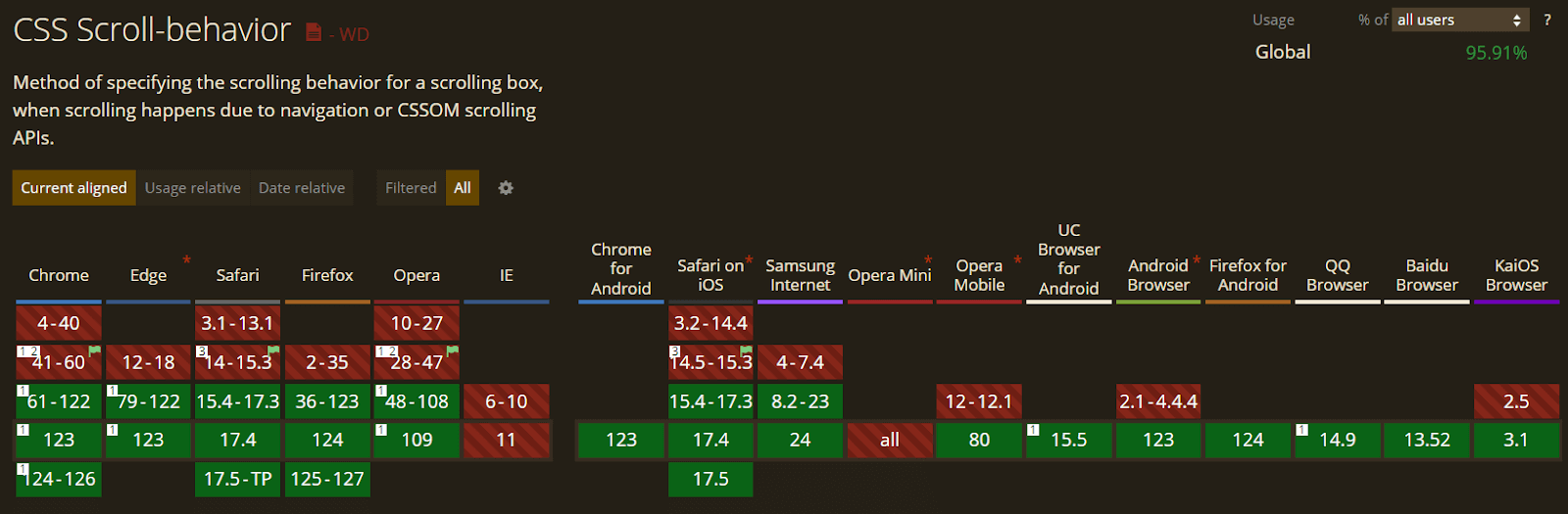
The image above shows that while the scroll-behavior property is widely supported, it may have limitations in specific older browsers. Try using alternate smooth scrolling technologies or JavaScript-based options to ensure maximum compatibility.
Also, to ensure browser compatibility of your scroll behavior, you can leverage cloud-based testing platforms like TestMu AI.
It is an AI-native test execution platform that lets you perform live-interactive browser testing on a remote test lab of different browsers, devices, and operating systems. With TestMu AI, you can test scroll behavior on the latest and legacy web browsers online. This includes testing on Chrome browser online, Firefox browser online, Microsoft Edge online, Internet Explorer online, and more.
Subscribe to the TestMu AI YouTube Channel. Get real-time updates on various tutorials around automation testing and more.
Smooth Scroll With jQuery
Let’s see how to achieve a smooth scroll effect using jQuery. We’ll use the same example from the TestMu AI blog page discussed earlier.
Adding jQuery to HTML
First, add jQuery to your HTML file before the closing < /body > tag. You can do this in two ways.
- Download the jQuery library and include it in your project using the < script > tag.
- Use the jQuery CDN.
Here’s how you include the CDN:
</main>
    <script src="https://ajax.googleapis.com/ajax/libs/jquery/3.7.1/jquery.min.js"></script>
    <script src="script.js"></script>
</body>
Your HTML file now has two < script > elements. The first loads jQuery from CDN, and the second loads your custom JavaScript (script.js).
Writing jQuery Code
Now, create a new JavaScript file and add the following jQuery code:
$(document).ready(function() {
    $('a[href^="#"]').on('click', function(event) {
        event.preventDefault();

        var target = this.hash;
        var $target = $(target);

        $('html, body').animate({
            scrollTop: $target.offset().top
        }, 800, function() {
            window.location.hash = target;
        });
    });
});
Let’s break down the jQuery code:
- $(document).ready(function() { … }); : Waits for the full HTML page (DOM) to load before running the script. Fully,
- $(‘a[href^=”#”]’) : Selects all anchor (< a >) tags where the href attribute starts with #. This links to sections within the same page.
- .on(‘click’, function(event) { … }); : Attaches a click event listener to those anchor links
- event.preventDefault(); : Prevents the default browser behavior.
- var target = this.hash; : Retrieves the hash value from the clicked link’s href, e.g., #overview.
- var $target = $(target); : Convert the hash into a jQuery object representing the corresponding section in the DOM.
- $(‘html, body’).animate({ scrollTop: $target.offset().top }, 800, function() { … });This is where the smooth scroll applies.
- $(‘html, body’): Targets both HTML and body elements for browser compatibility.
- .animate(…): A jQuery method to animate a CSS property scrollTop: The vertical position of the page
- $target.offset().top: Gets the vertical pixel position of the target element.
- 800: Duration of the scroll animation of the target element over 800ms.
- window.location.hash = target; : Updates the URL in the browser with the new hash after scrolling completes.
Output:
When a link is clicked, the page scrolls smoothly to the section with the corresponding ID.
Smooth Scroll With JavaScript
While scroll-behavior: smooth property can be used to add a basic smooth scroll in CSS, JavaScript allows more precise control and flexibility.
In this section, we’ll look at achieving smooth scrolling with JavaScript, continuing from the landing page example we explored earlier. We’ll look at the navigation links container within the navigation bar ( < nav >< /nav >).
HTML:
<div class="nav-links">
    <a href="#about">About</a>
    <a href="#browser-testing">Browser Testing</a>
    <a href="#real-device-testing">Real Device Testing</a>
</div>
Each anchor tag (< a >) contains a href element that specifies the ID of the linked section. For example, clicking the About link (< a href="#about">About< /a >) will smoothly scroll to the section with the ID about.
JavaScript:
Create a script.js file or place the JavaScript code within a < script > tag at the end of your HTML file, just before the closing < /body > tag.
const navLink = document.querySelectorAll('.nav-links a');

navLink.forEach(link => link.addEventListener('click', smoothScroll));

function smoothScroll(event){
  event.preventDefault();
  const targetId = event.currentTarget.getAttribute("href");
  window.scrollTo({
    top: document.querySelector(targetId).offsetTop,
    behavior: "smooth"
  })
}
Let’s break down the JavaScript code that enables smooth scrolling:
- const navLink = document.querySelectorAll(‘.nav-links a’); : This line selects all anchor tags (< a >) within the element with the class nav-links (presumably the navigation menu).
- navLink.forEach(link => link.addEventListener(‘click’, smoothScroll)); : This code iterates through each selected anchor tag and adds a click event listener. When a link is clicked, the smoothScroll function is triggered.
In the smoothScroll function:
- event.preventDefault(); : Prevents the default behavior of anchor tags, which is to abruptly jump to the linked section.
- const targetId = event.currentTarget.getAttribute(“href”); : Retrieves the ID of the target section from the clicked link’s href attribute.
- window.scrollTo({ … }) : This line is the core of the smooth scrolling functionality. It uses the window.scrollTo() method to scroll the page. The top: document.querySelector(targetId).offsetTop calculates the vertical distance (in pixels) from the top of the page to the target section’s top. behavior: “smooth” enables the smooth scrolling animation.
With this code in place, clicking on any navigation link will activate the smoothScroll function, resulting in a smooth transition to the corresponding section on the webpage.
Output:
A significant benefit of utilizing JavaScript over CSS is the ability to adjust the scroll speed to meet specific design needs. Let’s look at how we can leverage this flexibility and customize the scrolling behavior to our needs.
We’ll be working with the existing HTML code from our previous example. Only the JavaScript code will change. You can also view the complete code on CodePen.
const navLink = document.querySelectorAll('.nav-links a');

navLink.forEach(link => link.addEventListener('click', smoothScroll));

function smoothScroll(event) {
    event.preventDefault();
    const targetId = event.currentTarget.getAttribute("href");
    const targetElement = document.querySelector(targetId);

    const startingY = window.scrollY;
    const targetY = targetElement.offsetTop;
    const distance = targetY - startingY;

    let startTime = null;

    function animate(currentTime) {
        if (startTime === null) startTime = currentTime;
        const elapsedTime = currentTime - startTime;

        // Adjust the timing function and duration for speed control
        const ease = elapsedTime / 900; // Linear timing

        // Calculate newY considering both upward and downward scrolling
        const newY = startingY + ease * distance;

        window.scrollTo(0, newY);

        // Continue animation until targetY is reached
        if ((distance > 0 && newY < targetY) || (distance < 0 && newY > targetY)) {
            requestAnimationFrame(animate);
        }
    }

  requestAnimationFrame(animate);
}
The JavaScript code selects all navigation links inside .nav-links, and when any link is clicked, it prevents the default jump behavior and instead triggers a smooth scroll animation.
The animation is handled using requestAnimationFrame, which progressively scrolls the page toward the target element by calculating the distance and easing it over time. The use of window.scrollTo() updates the scroll position in each animation frame until the target is reached, ensuring a smooth visual transition.
Output:
The smooth scrolling animation in the example above appears to be slower because the ease value in the code is set to 900; a higher ease value results in a slower transition. You can change this value to set the appropriate animation speed.
In conclusion, a smooth scroll in CSS is an excellent choice for a quick and straightforward setup. However, JavaScript offers greater flexibility and control when tailoring the animation or targeting certain items.
Performance Considerations in Smooth Scrolling
When implementing smooth scrolling, performance should always be a priority. A smooth experience is only valuable if it doesn’t compromise your site’s speed, responsiveness, or accessibility. Here are some key points to consider:
- Optimizing Performance for Better User Experience: Smooth scrolling should not hinder your site’s performance. Overuse of animations and large background images can lead to slower rendering, especially on mobile devices. Optimizing images, deferring non-essential JavaScript, and ensuring that you’re using
requestAnimationFramefor animations can reduce the strain on the browser. - Minimizing Resource Consumption: Another performance consideration is the optimization of resource-heavy elements like videos and animations. Use lazy loading for images, defer offscreen content, and reduce the overall complexity of your page. This approach will help maintain the smooth scrolling experience even on resource-constrained devices.
- Test Across Devices and Browsers: Performance can vary greatly depending on the device and browser. Always test smooth scrolling on both low-end and high-end devices to ensure consistent results.
- Limit DOM Reflows and Repaints: Heavy DOM manipulation during scroll events can cause noticeable lag. Use throttling or debouncing techniques to minimize scroll-triggered calculations.
- Use Hardware Acceleration: Leveraging CSS properties like
transformandopacityinstead of manipulating layout-heavy properties (liketoporleft) can shift work to the GPU, resulting in smoother animations. - Monitor with Performance Tools: Utilize browser DevTools, Lighthouse, or Core Web Vitals to measure the impact of smooth scrolling and optimize accordingly.
Advanced Smooth Scrolling Techniques
Once the basics of smooth scrolling are in place, you can enhance user experience with advanced techniques. These methods give you greater control, create more polished interactions, and make your design feel intentional. Here are some useful approaches:
- Scroll Snapping: Scroll snapping is a technique where scrolling is controlled, and the user is “snapped” to specific sections. This is especially useful for image carousels, multi-section landing pages, or slideshows. With properties like
scroll-snap-typeandscroll-snap-align, you can create a grid or linear snapping effect.
.container {
    scroll-snap-type: y mandatory;
}
.section {
    scroll-snap-align: start;
}
prefers-reduced-motion media query). Advanced techniques should not come at the cost of usability.Smooth Scrolling and Accessibility
A smooth scroll in CSS can add a touch of polish to your website and improve the user experience. However, it is crucial to consider accessibility when integrating this functionality. Uncontrolled smooth scrolling can pose difficulties for people with impairments.
Users who are sensitive to motion or have vestibular disorders may experience nausea or dizziness due to abrupt or excessive scrolling animations. Fluid scrolling animations may be difficult for individuals who use keyboards to navigate. Excessive or rapid scrolling can impair their ability to focus on certain page components, making it difficult to navigate and retrieve content.
Furthermore, unexpected scrolling motions might break the flow of information for screen reader users, making it difficult to understand the web page layout.
To improve accessibility, scrolling animations should not interfere with the screen reader’s ability to interpret and communicate content properly.
Providing a consistent and predictable scrolling experience can significantly improve the accessibility of your website for all users. To ensure web accessibility, you can use the TestMu AI platform to perform accessibility testing at scale across 3000+ real environments. Plus, you can leverage the accessibility extension offered by TestMu AI, i.e., Accessibility DevTools Chrome extension, to run quick and hassle-free accessibility tests.
Conclusion
In this blog on adding a smooth scroll in CSS, we discovered a simple yet effective approach to improving the user experience on our web pages. A smooth scroll provides a touch of elegance, making CSS transitions between sections more visually appealing and user-friendly.
Remember that successful implementation is more than simply the code; it also requires careful design considerations. A smooth scrolling experience is made possible by semantic HTML, consistent section heights, and fine-tuned scroll behavior. We’ve also prioritized accessibility, progressive enhancement, and explanations to offer a complete and inclusive solution.
As technology advances and user expectations change, the art of seamless scrolling will continue to play an important part in designing future digital experiences.
Citations
- Smooth Scrolling: https://css-tricks.com/snippets/jquery/smooth-scrolling/
- Scroll Behavior: https://developer.mozilla.org/en-US/docs/Web/CSS/scroll-behavior
- Scrolling behaviour with single and multi-column layout:https://www.researchgate.net/publication/221023815


Frequently asked questions
Did you find this page helpful?
More Related Hubs
TestMu AI forEnterprise
Get access to solutions built on Enterprise
grade security, privacy, & compliance
- Advanced access controls
- Advanced data retention rules
- Advanced Local Testing
- Premium Support options
- Early access to beta features
- Private Slack Channel
- Unlimited Manual Accessibility DevTools Tests