

Next-Gen App & Browser Testing Cloud
Trusted by 2 Mn+ QAs & Devs to accelerate their release cycles


Use Selenium wait for page to load with Python [Tutorial]
Efficiently implement Selenium wait for page to load in Python with this tutorial. Enhance your web automation skills with precise waiting strategies.

Nishant Choudhary
February 20, 2026
One of the primary requisites to automate interactions with a WebElement in the DOM is that it should be visible and interactable. Like me, you would also come across several scenarios where your Selenium Python scripts threw an ElementNotVisibleException. The failure in the test automation script can be attributed to the presence of dynamic WebElements on the web page.
The WebElement under test might not have been loaded on the web page and your test is trying to perform some activity on that WebElement. It is known that dynamic content loading with AJAX is widely used across different web products (or websites). When interacting with dynamic WebElements using Selenium test automation, it is recommended to add Selenium wait for the page to load, so that the element is available for performing tests.
Selenium wait in Python gives additional time for loading of the WebElements in the DOM. In this article, we deep dive into the different types of wait in Selenium WebDriver along with the usage of Selenium wait for page to load in Python. If you’re looking to improve your Selenium interview skills, check out our curated list of Selenium interview questions and answers.
Overview
Why Use Selenium Wait for Page to Load?
Using Selenium wait for page to load ensures that dynamic elements on a page are fully loaded and available for interaction. This is crucial for avoiding errors like ElementNotVisibleException during automated tests, especially when dealing with dynamic content and AJAX calls.
- Handling Dynamic Content: Selenium wait helps automate interactions with elements that load dynamically (e.g., during file uploads or delayed confirmations).
- Prevents Errors: Avoids exceptions when elements are not ready for interaction, ensuring smoother automation tests.
- Improves Test Stability: Ensures elements are present and interactable, reducing test flakiness and improving reliability.
Types of Selenium Waits
Selenium provides different wait strategies to handle dynamic web elements and ensure page content is fully loaded before interacting with them:
- Explicit Wait: Waits for a specific condition to be met before continuing with the test (e.g., an element becomes clickable).
- Implicit Wait: Applies a default waiting time throughout the test, allowing Selenium to poll the DOM until the element is found.
- Fluent Wait: Similar to explicit wait but offers more control over polling frequency and the handling of exceptions.
How to Use Implicit Wait?
Implicit waits are set globally, allowing you to specify how long Selenium should wait for an element to appear in the DOM. This method is applied throughout the session, making it useful for tests where elements may take varying amounts of time to load:
- Usage: driver.implicitly_wait(10) waits up to 10 seconds for elements to appear before throwing a NoSuchElementException.
How to Use Explicit Wait?
Explicit waits allow you to pause the execution of your script until a certain condition is met (e.g., visibility of an element). The WebDriverWait class, combined with expected conditions, is used to implement this:
- Usage Example: WebDriverWait(driver, 10).until(EC.presence_of_element_located((By.ID, "element_id"))) waits for the element to be present for up to 10 seconds before proceeding.
How to Use Fluent Wait?
Fluent wait is an advanced version of explicit wait, providing more control over polling frequency and exception handling. It is useful when you need to wait for elements that might intermittently appear or change state:
- Usage: WebDriverWait(driver, 10, poll_frequency=2).until(EC.presence_of_element_located((By.ID, "element_id"))) waits for the element while checking every 2 seconds.
SmartWait in TestMu AI
SmartWait is a feature in TestMu AI that enhances the efficiency of Selenium wait strategies. It performs actionability checks on webpage elements before executing actions, ensuring that all conditions are met and minimizing errors in automated tests:
- Usage: Set the smartWait time limit in the configuration to ensure elements are ready before actions are performed.
Why use Selenium Wait For Page To load?
To answer this question, it is essential to understand the ‘where’ and ‘why’ of dynamic page loads. Some of the conditions mentioned below might be known to you or you might have already encountered them.
Case 1: Uploading files
I am sure you might have uploaded some file, image or video on some online platform. You might have noticed that once you select the file, it takes some time to upload the same. ON similar lines, when you try to upload files using Selenium test automation scripts, you will need to implement Selenium Wait in Python for realizing the successful uploading of the file. successfully. If you don’t use the Selenium wait for page to load after upload, you might witness some errors.
Case 2: Delayed confirmation message
Applications like Gmail allow the users to interact and work on a real-time basis. Even though you are able to interact with the application through the email sending usecase, you do not get an immediate confirmation of the delivery. The confirmation depends upon a number of factors like network availability, attached file size, etc.
As a QA engineer, we need to factor in such conditions when planning and performing usability and user acceptance tests. For Python, you will have to implement Selenium Wait for page to load in order to ensure that tests are performed with the necessary WebElements in the DOM.
Case 3: Conditional load of Page Elements
Certain websites have some components or elements hidden, or not visible at an initial stage. They can be interacted with only after some preset conditions are met. For example – On a movie ticketing website, the button for booking a seat becomes available only after some preset time. This is a classic case of conditional loading of page components. To handle such scenarios in test automation scripts, you will need to implement Selenium wait for page to load.
Selenium wait for ensuring the page to load is applicable in other scenarios like skipping the ad in YouTube, lazy loading of images in webpages, and more.
Start your free Python automation testing today.

Austin Siewert
CEO, Vercel
Discovered @TestMu AI yesterday. Best browser testing tool I've found for my use case. Great pricing model for the limited testing I do 👏
2M+ Devs and QAs rely on TestMu AI
Deliver immersive digital experiences with Next-Generation Mobile Apps and Cross Browser Testing Cloud

This certification is for professionals looking to develop advanced, hands-on expertise in Selenium automation testing with Python and take their career to the next level.
Here’s a short glimpse of the Selenium Python 101 certification from TestMu AI:
Different Types of Python Selenium Wait
In situations when you need to wait before interacting with target WebElements, Selenium WebDriver offers a “wait” package. The ‘Sleep’ function in Python can also be used to wait for a predetermined period of time, however that method is not advised!
There are three different ways to implement Selenium Wait in Python for page to load:
- Explicit Waits
- Implicit Waits
- Fluent Waits
Explicit Waits in Selenium Python
Explicit waits are introduced to temporarily freeze the execution of the Selenium test automation script. It makes use of the functions available in Selenium WebDriver’s wait package. The program halts the execution for a specified time or until a certain expected condition is fulfilled.
Explicit waits can be implemented using the WebDriverWait class of Selenium python bindings. Let’s take a look at the WebDriverWait class.
class selenium.webdriver.support.wait.WebDriverWait(driver, timeout, poll_frequency=0.5, ignored_exceptions=None)
As you can see, it accepts two mandatory parameters: driver, and timeout; and two optional parameters: poll_frequency, and ignored_exceptions
- driver – This is the instance of WebDriver you are using to perform your application testing. Example – Chrome, Remote, Firefox etc.,
- timeout – It refers to the number of seconds before this wait fails and throws an exception.
- poll_frequency – polling frequency (optional parameter) is the wait/sleep time interval before WebDriverWait calls to check the conditions again. By default, it is 500 milliseconds in Selenium. You can modify the value as per your requirements. If you pass poll_frequency as “0”, the WebDriverWait __init__ constructor sets it back to 0.5, which is the default wait time between two callbacks.
- ignored_exceptions – WebDriverWait __init__ constructor is implemented in a way that it by default ignores NoSuchElementException. If your Selenium test automation script requires you to ignore more exceptions then pass a list of exceptions to ignored_exceptions attribute. The WebDriverWait constructor function extends its list of exceptions to be ignored by iterating on the list you pass.
Besides __init__, WebDriverWait class also contains __repr__ object function which returns object representation in string format when repr() function is invoked on an object. In simpler terms, repr() function is used by other functions of WebDriverWait Selenium class to log useful information about the object on which it is invoked.
The two important functions of WebDriverWait Selenium class that are used to introduce conditions are until and until_not.
until(self, method, message=''): This accepts a method as an argument and an optional message. until calls this method repetitively after a fixed time span (i.e. poll_frequency [500ms default]). The calling of the specified method stops only when the return value doesn’t evaluate to “False” i.e, till the method returns Success.until_not(self, method, message=''): until_not works much like until. The only difference is until_not repetitively calls for the method at a fixed time interval [poll_frequency] if it evaluates to True. Usually, it’s used when you want to wait until an element disappears.
WebDriverWait Selenium raises TimeoutException if the method doesn’t return True for until, or False for until_not.
Example:
WebDriverWait(driver, 10).until(EC.presence_of_element_located((By.ID, "waitCreate")))
Expected Conditions in Selenium is a heavily used convenience class with the WebDriverWait class of Selenium. The most common EC include:
- alert_is_present
- element_to_be_clickable
- element_to_be_selected
- frame_to_be_available_and_switch_to_it
- new_window_is_opened
- number_of_windows_to_be
- presence_of_element_located
- text_to_be_present_in_element
- title_contains
- title_is
- url_changes
- url_contains
- url_matches
Watch this video to learn what are waits in Selenium and how to handle them using different methods like hard-coded pauses and by combining explicit waits with different design patterns.
Implicit Waits in Selenium Python
Implicit waits are implemented using implicitly_wait(time_to_wait) function. This sets a sticky timeout per session (i.e. time to wait for executing a command or finding an element in a session). There is a good amount of difference between implicit wait and explicit wait in Selenium.
Here, the WebDriver polls the DOM to find a WebElement for a specified duration before throwing an exception. The default time_to_wait argument value is set to “0”. Yes, that means it is disabled by default.
Example-
driver.implicitly_wait(10)
Fluent Waits in Selenium Python
Fluent waits are similar to Explicit Waits but they are still categorized as different wait types in the official Selenium documentation. Why has the docs listed them as two different types? For explicit waits, they avoided using non-mandatory function arguments like poll_frequency and ignored_exceptions (i.e, less specialized use, less control on the internal functionalities of WebDriverWait class).
In the docs, they demonstrated using these 2 arguments under Fluent waits to gain more control over which exceptions should be ignored and how often should the driver poll the DOM. To put in black & white, fluent wait is a more articulate use of explicit wait.
Example-
WebDriverWait(driver, 7, poll_frequency=5).until(EC.alert_is_present(), 'Timed out waiting for simple alert to appear')
Read – Explicit Wait and Fluent Wait in Selenium C# [Tutorial]
Demonstration: Selenium Wait For Page To Load
Now consider a simple example to demonstrate the usage of Selenium wait for ensuring the page to load. The below HTML script will be used for demonstration:
<!DOCTYPE html>
<html>
    <body>

        <p>Click the button to make a BUTTON element with text.</p>
        <p>The button element gets created after 3 seconds</p>

        <button onclick="setTimeout(myFunction, 3000);">Try it</button>

        <script>
            function myFunction() {
                var btn = document.createElement("BUTTON");
                btn.innerHTML = "CLICK ME";
                btn.id = "waitCreate";
                document.body.appendChild(btn);
                setTimeout(function () { alert("I am created after 2 seconds of button waitCreate!"); }, 2000);

            }
        </script>
    </body>
</html>
When executed, the page will show as:
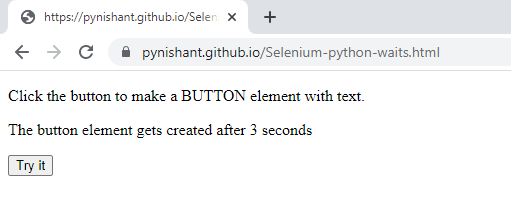
Now when you will try to click on the button Try it:
- A “CLICK ME” button gets created after 3 seconds of clicking a pre-existing button.
- An alert shows up after 2 seconds when the button is loaded.
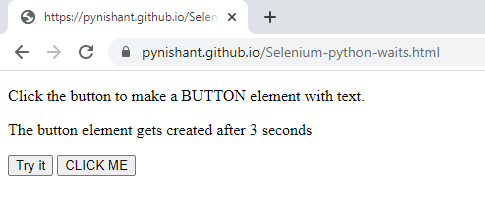
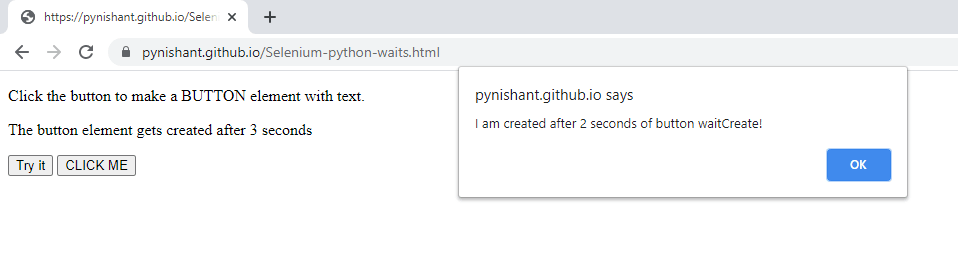
This was possible only with the help of Selenium wait. This caused the CLICK ME button to load, only after 3 seconds of when the Try it button is clicked, and the alert box to appear after its 2 seconds respectively.
In the upcoming section, we shall show how to wait when interacting with these WebElements (i.e. button and alert box by using Python Selenium Wait). And we’ll also show the time taken by respective methods for polling the DOM and executing the commands.

How To Use Implicit Wait?
Consider the below implementation that uses implicit Selenium wait for page to load. For brevity, we have only demonstrated waiting for the CLICK ME button using implicit wait in Selenium Python.
import unittest
from selenium import webdriver
from selenium.webdriver.common.by import By
from selenium.webdriver.support.ui import WebDriverWait
from selenium.webdriver.common.action_chains import ActionChains
from selenium.webdriver.support import expected_conditions as EC
import time
from datetime import datetime
from os import environ

class DragTest(unittest.TestCase):
    def setUp(self):
        # configuration to test in the cloud using lambdaTest
        username = environ.get('LT_USERNAME', None)
        accessToken = environ.get('LT_ACCESS_KEY', None)
        gridUrl = "hub.lambdatest.com/wd/hub"


        ch_options = webdriver.ChromeOptions()


        lt_options = {}
        lt_options["build"] = "Build: LambdaTest python selenium implicit wait testing automation"
        lt_options["project"] = "Project: LambdaTest python selenium implicit wait testing automation"
        lt_options["name"] = "Test: LambdaTest python selenium implicit wait testing automation"


        lt_options["browserName"] = "Chrome"
        lt_options["browserVersion"] = "latest"
        lt_options["platformName"] = "Windows 11"


        lt_options["console"] = "error"
        lt_options["w3c"] = True,
        lt_options["headless"] = False
        lt_options["network"] = True,
        lt_options["video"] = True,
        lt_options["visual"] = True


        ch_options.set_capability('LT:Options', lt_options)


        url = "https://"+username+":"+accessToken+"@"+gridUrl

        self.driver = webdriver.Remote(
            command_executor = url,
            options = ch_options
        )

    def test_selenium_implicit_wait(self):
        driver = self.driver
        driver.maximize_window()
        # defining condition for implicit waits - we have set 10 seconds
        driver.implicitly_wait(10)
        driver.get('https://pynishant.github.io/Selenium-python-waits.html')
        pageLoadedClock = datetime.now()
        current_time_after_page_loaded = pageLoadedClock.strftime("%H:%M:%S")
        print("Time after page load and before clicking the Try it button=", current_time_after_page_loaded)
        driver.find_element(By.XPATH, '//button[text()="Try it"]').click()
        # this won't FAIL with implicit time set
        try:
            # printing time to demonstrate waits
            pageLoadClock = datetime.now()
            current_time = pageLoadClock.strftime("%H:%M:%S")
            print("Time before starting polling for CLICK ME Button =", current_time)
            driver.find_element(By.XPATH, '//button[text()="CLICK ME"]').click()
            pageLoadClock = datetime.now()
            current_time = pageLoadClock.strftime("%H:%M:%S")
            print("Time after CLICK ME was found =", current_time)
        except Exception as e:
            print(e)

    def tearDown(self):
        # closes the driver
        self.driver.quit()

if __name__ == '__main__':
    unittest.main()
Output
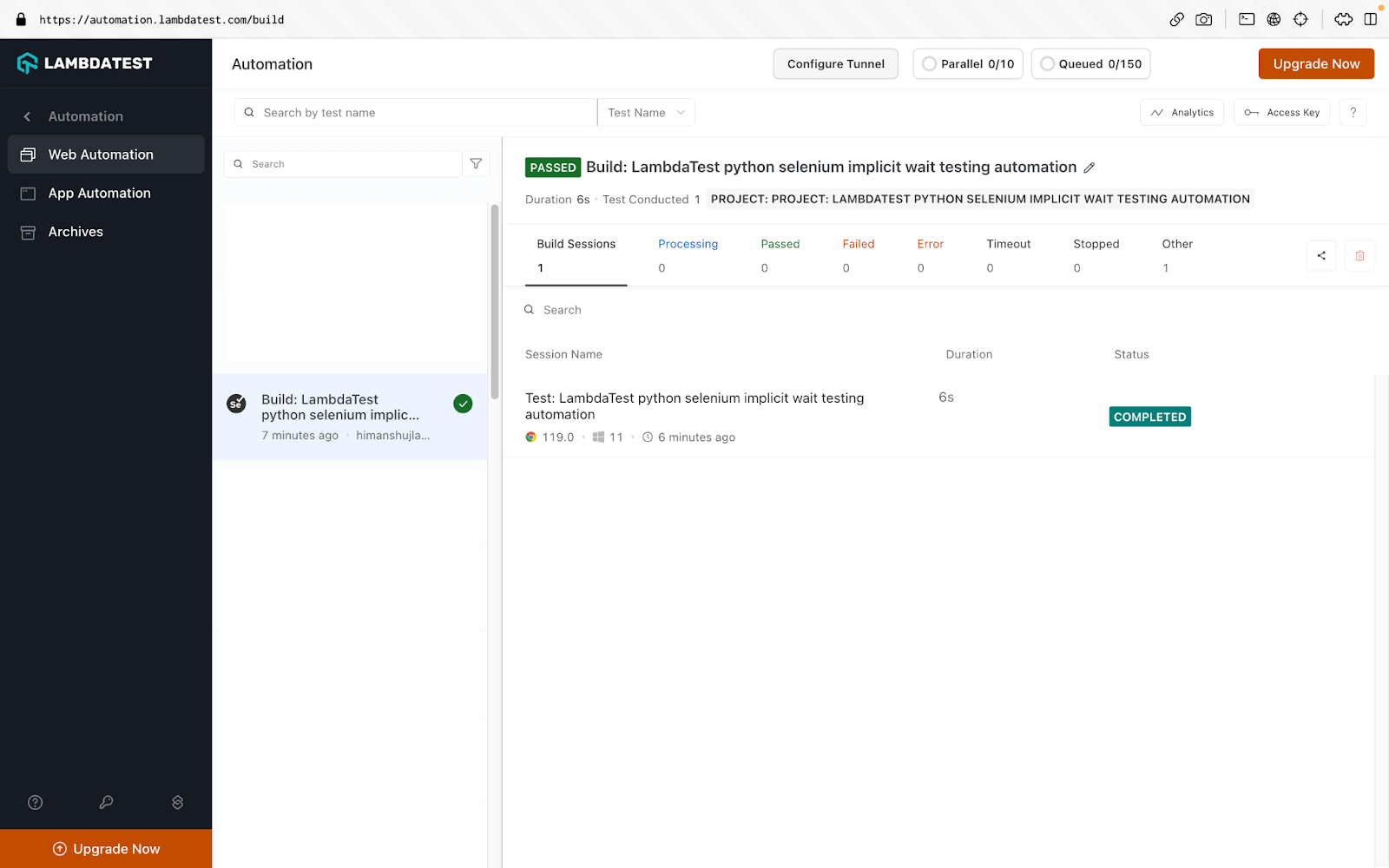
Here is the execution output when the Selenium test automation script is run on the cloud-based Selenium Grid by TestMu AI:

Let’s have a quick look at the execution of Implicit Waits on the TestMu AI platform.
How To Use Explicit Wait?
Now that we have looked into the essentials of explicit wait, let’s look at how to use the same for realizing waits in scenarios where content (e.g. images, etc.) is loaded dynamically on a document (or page).
import unittest
from selenium import webdriver
from selenium.webdriver.common.by import By
from selenium.webdriver.support.ui import WebDriverWait
from selenium.webdriver.common.action_chains import ActionChains
from selenium.webdriver.support import expected_conditions as EC
import time
from datetime import datetime
from os import environ

class DragTest(unittest.TestCase):
    def setUp(self):
        # configuration to test in the cloud using lambdaTest
        username = environ.get('LT_USERNAME', None)
        accessToken = environ.get('LT_ACCESS_KEY', None)
        gridUrl = "hub.lambdatest.com/wd/hub"


        ch_options = webdriver.ChromeOptions()


        lt_options = {}
        lt_options["build"] = "Build: LambdaTest python selenium explicit wait testing automation"
        lt_options["project"] = "Project: LambdaTest python selenium explicit wait testing automation"
        lt_options["name"] = "Test: LambdaTest python selenium explicit wait testing automation"


        lt_options["browserName"] = "Chrome"
        lt_options["browserVersion"] = "latest"
        lt_options["platformName"] = "Windows 11"


        lt_options["console"] = "error"
        lt_options["w3c"] = True,
        lt_options["headless"] = False
        lt_options["network"] = True,
        lt_options["video"] = True,
        lt_options["visual"] = True


        ch_options.set_capability('LT:Options', lt_options)


        url = "https://"+username+":"+accessToken+"@"+gridUrl

        self.driver = webdriver.Remote(
            command_executor = url,
            options = ch_options
        )

    def test_selenium_explicit_wait(self):
        driver = self.driver
        driver.maximize_window()


        # printing time to demonstrate waits
        pageLoadClock = datetime.now()
        current_time = pageLoadClock.strftime("%H:%M:%S")
        print("Time before starting page load =", current_time)
        driver.get('https://pynishant.github.io/Selenium-python-waits.html')
        pageLoadedClock = datetime.now()
        current_time_after_page_loaded = pageLoadedClock.strftime("%H:%M:%S")
        print("Time after page load and before clicking the Try it button=", current_time_after_page_loaded)
        driver.find_element(By.XPATH, '//button[text()="Try it"]').click()
        # this is scripted to FAIL
        try:
            driver.find_element(By.XPATH, '//button[text()="CLICK ME"]').click()
        except Exception as e:
            ExceptionClock = datetime.now()
            current_time_Click_me_failed = ExceptionClock.strftime("%H:%M:%S")
            print("
Time when click me was attempted to interact with but failed=", current_time_Click_me_failed)
            print("The below exception occurred because we didn't wait for the element 'button' to be available before interaction.")
            print(e)

        # Explicit Wait Demo
        try:
            WebDriverClock = datetime.now()
            current_time_webdriver = WebDriverClock.strftime("%H:%M:%S")
            print("
Time before waiting for CLICK ME button with webdriver=", current_time_webdriver)
            WebDriverWait(driver, 10).until(EC.presence_of_element_located((By.ID, "waitCreate")))
            ButtonFound = datetime.now()
            current_time_ButtonFound = ButtonFound.strftime("%H:%M:%S")
            print("Time when Button Found=", current_time_ButtonFound)
            print("This was interacting with Button using Explicit wait. Now we shall interact with alert using fluent wait.")
        except Exception as e:
            print(e)
            print("error in try block")

    def tearDown(self):
        # closes the driver
        self.driver.quit()

if __name__ == '__main__':
    unittest.main()
Output
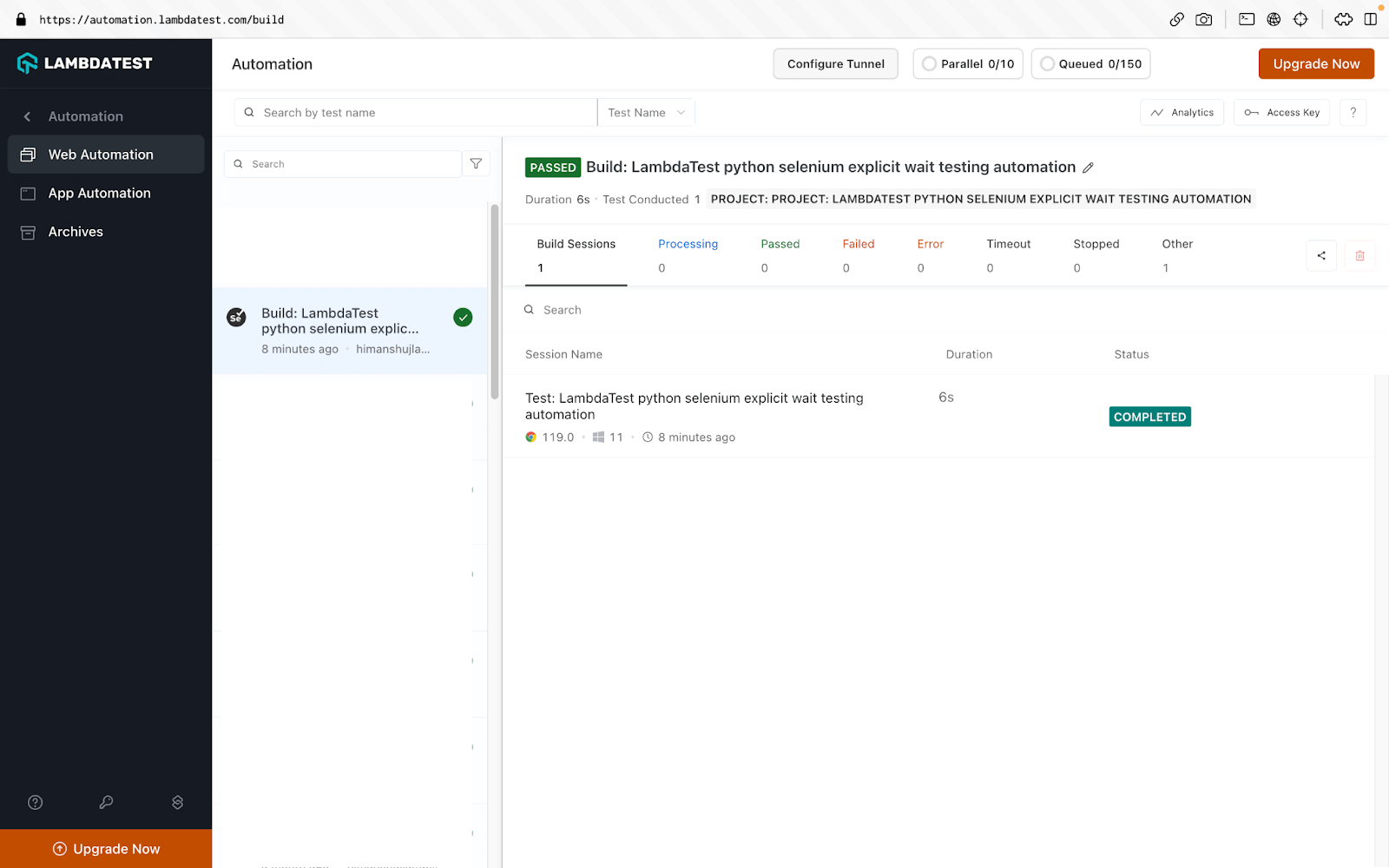
Here is the execution output when the Selenium test automation script is run on the cloud-based Selenium Grid by TestMu AI:

Let’s have a quick look at the execution on the TestMu AI platform which gives an indication that the waits are functioning as expected.
How To Use Fluent Wait?
The below code demonstrates how to use Fluent Wait for waiting for elements and handling alerts on a web page.
import unittest
from selenium import webdriver
from selenium.webdriver.common.by import By
from selenium.webdriver.support.ui import WebDriverWait
from selenium.webdriver.common.action_chains import ActionChains
from selenium.webdriver.support import expected_conditions as EC
import time
from datetime import datetime
from os import environ

class DragTest(unittest.TestCase):
    def setUp(self):
        # configuration to test in the cloud using lambdaTest
        username = environ.get('LT_USERNAME', None)
        accessToken = environ.get('LT_ACCESS_KEY', None)
        gridUrl = "hub.lambdatest.com/wd/hub"


        ch_options = webdriver.ChromeOptions()


        lt_options = {}
        lt_options["build"] = "Build: LambdaTest python selenium fluent wait testing automation"
        lt_options["project"] = "Project: LambdaTest python selenium fluent wait testing automation"
        lt_options["name"] = "Test: LambdaTest python selenium fluent wait testing automation"


        lt_options["browserName"] = "Chrome"
        lt_options["browserVersion"] = "latest"
        lt_options["platformName"] = "Windows 11"


        lt_options["console"] = "error"
        lt_options["w3c"] = True,
        lt_options["headless"] = False
        lt_options["network"] = True,
        lt_options["video"] = True,
        lt_options["visual"] = True


        ch_options.set_capability('LT:Options', lt_options)


        url = "https://"+username+":"+accessToken+"@"+gridUrl

        self.driver = webdriver.Remote(
            command_executor = url,
            options = ch_options
        )

    def test_selenium_fluent_wait(self):
        driver = self.driver
        driver.maximize_window()


        # printing time to demonstrate waits
        pageLoadClock = datetime.now()
        current_time = pageLoadClock.strftime("%H:%M:%S")
        print("Time before starting page load =", current_time)
        driver.get('https://pynishant.github.io/Selenium-python-waits.html')
        pageLoadedClock = datetime.now()
        current_time_after_page_loaded = pageLoadedClock.strftime("%H:%M:%S")
        print("Time after page load and before clicking the Try it button=", current_time_after_page_loaded)
        driver.find_element(By.XPATH, '//button[text()="Try it"]').click()
        # this is scripted to FAIL
        try:
            driver.find_element(By.XPATH, '//button[text()="CLICK ME"]').click()
        except Exception as e:
            ExceptionClock = datetime.now()
            current_time_Click_me_failed = ExceptionClock.strftime("%H:%M:%S")
            print("
Time when click me was attempted to interact with but failed=", current_time_Click_me_failed)
            print("The below exception occurred because we didn't wait for the element 'button' to be available before interaction.")
            print(e)

        try:
            alertClock = datetime.now()
            current_time_alertClock = alertClock.strftime("%H:%M:%S")
            print("
Time before waiting for alert with webdriver=", current_time_alertClock)
            WebDriverWait(driver, 7, poll_frequency=5).until(EC.alert_is_present(), 'Timed out waiting for simple alert to appear')
            alertFound = datetime.now()
            current_time_alertFound = alertFound.strftime("%H:%M:%S")
            print("Time when Button Found=", current_time_alertFound)
            alert = driver.switch_to.alert
            time.sleep(1)
            alert.accept()
        except Exception as e:
            print(e)

    def tearDown(self):
        # closes the driver
        self.driver.quit()

if __name__ == '__main__':
    unittest.main()
Output
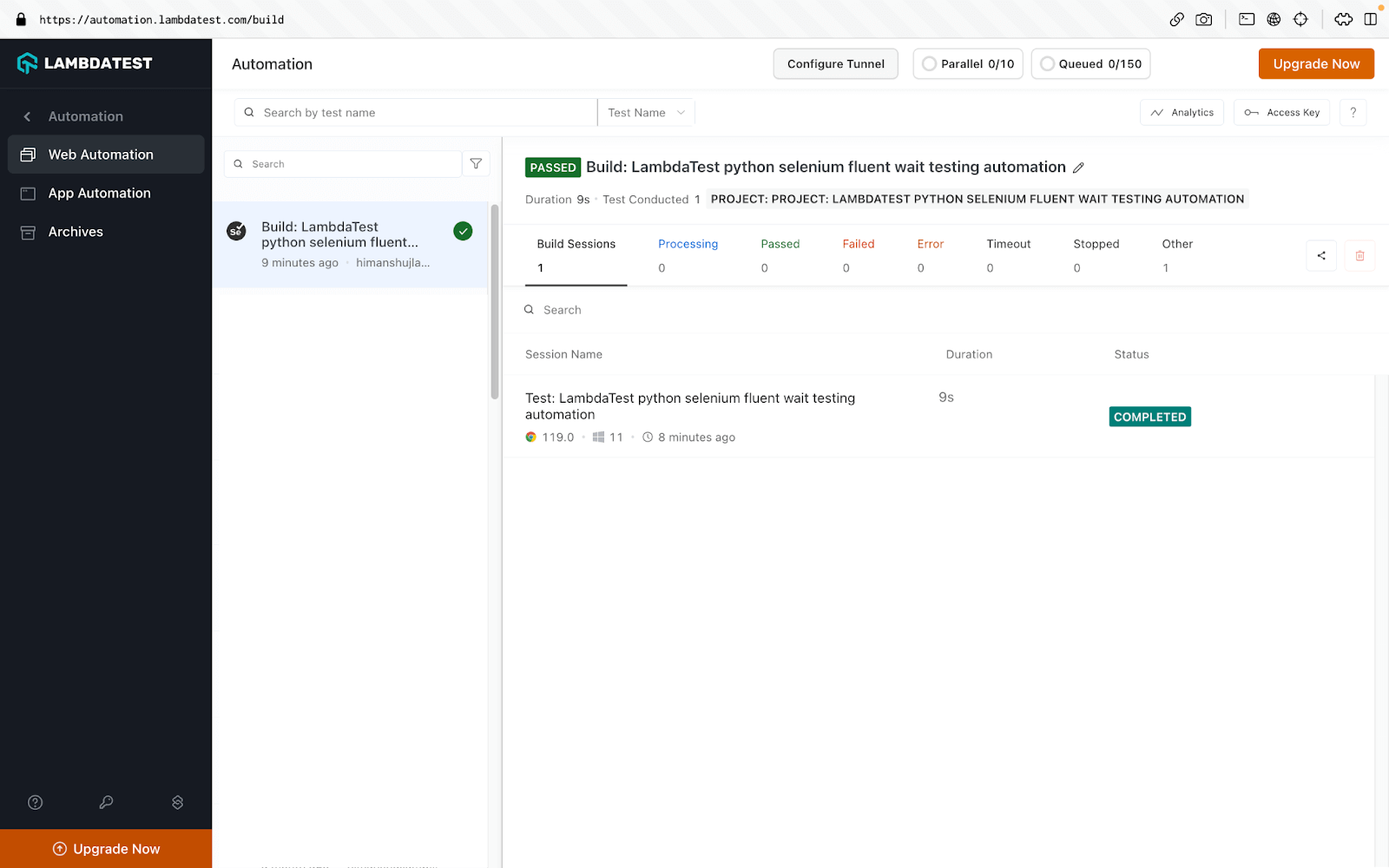
Here is the execution output when the Selenium test automation script is run on the cloud-based Selenium Grid by TestMu AI:

As seen earlier, the default poll frequency for explicit wait is 0.5 (or 500 ms) seconds. However, the polling frequency can be modified using fluent wait. As seen below, the polling frequency is changed to xxx seconds. You can choose a frequency based on the test scenario under execution.

Note: Increase efficiency & accuracy of automated test execution with Selenium Waits. Try TestMu AI Today!
Other Types Of Selenium Waits in Python
There are three more types of waits in Selenium Python :
- Wait time for executing async JS scripts – set_script_timeout(time_to_wait) is used to specify maximum wait time (in seconds) for execute_async_script() to complete execution of asynchronous JS scripts before throwing an error.
Syntax:
driver.set_script_timeout(30) - Wait time for page load time – set_page_load_timeout(self, time_to_wait) is used to specify the maximum wait time (in seconds) for a page to load completely in a selenium WebDriver controlled browser. This is useful when you are performing Selenium automation testing in a throttling network condition.
Syntax:
set_page_load_timeout(30) - Sleep(time_to_sleep) – This is a built-in Python function to halt the program for a specified number of seconds. However, the usage of sleep is not considered to be one of the best practices for Selenium automation testing.
Syntax:
Sleep(3000)
polling2 Library for Selenium Wait in Python
You can also use Python’s polling2 library to wait for elements in Selenium WebDriver. You will have to install polling2 library separately, using the below command:
pip install polling2
Example usage of polling2 library in Python
from selenium import webdriver

driver = webdriver.Chrome()
driver.get('http://www.lambdatest.com')

email_box = polling2.poll(lambda: driver.find_element_by_id(‘useremail’), step=0.5, timeout=7)
email_box.send_keys('[email protected]')
sleep(2)
driver.quit()
Using SmartWait for Efficient Test Automation
SmartWait is a feature in TestMu AI designed to enhance the efficiency and accuracy of automated test execution. It streamlines the process by conducting a series of actionability checks on webpage elements before any action is executed. It ensures that all checks pass successfully before performing an action. If the checks do not pass within the specified timeframe, SmartWait returns the relevant Selenium error message.
How to Use SmartWait?
To leverage the power of SmartWait in your test automation, follow these simple steps:
- Set SmartWait Time Limit: Determine the maximum amount of time you want your test script to wait for an element to become actionable. This time limit can be customized to match your specific test requirements.
LT:Options {
   ...
   "smartWait": 10 // It accepts integer values as seconds
   ...
}
Incorporating SmartWait into your test automation strategy can lead to more efficient, reliable, and easily maintainable test suites.

Conclusion
In this blog, we explored different waits of implementing Selenium wait for page to load in Python. Selenium waits will come handy when tests have to be run on WebElements that are loaded dynamically. Fluent wait in Selenium Python lets you control the polling frequency which is by default set to 250 ms in Explicit wait. Do let us know how you are using Selenium wait for page load in Python to tackle the dynamism of WebElements.
Happy Testing!


Frequently asked questions
Did you find this page helpful?
More Related Hubs
TestMu AI forEnterprise
Get access to solutions built on Enterprise
grade security, privacy, & compliance
- Advanced access controls
- Advanced data retention rules
- Advanced Local Testing
- Premium Support options
- Early access to beta features
- Private Slack Channel
- Unlimited Manual Accessibility DevTools Tests