

Next-Gen App & Browser Testing Cloud
Trusted by 2 Mn+ QAs & Devs to accelerate their release cycles


What Is Robot Class in Selenium: A Complete Tutorial
Learn how the Robot class in Selenium helps automate system-level tasks like file uploads, pop-ups, and keyboard events for more complete test coverage.

Saniya Gazala
December 29, 2025
Robot class in Selenium allows you to automate user interactions at the system level, beyond the browser. It is useful for handling operations like file upload dialogs, simulating keyboard inputs, capturing screenshots, and performing drag-and-drop actions.
By using the Robot class in Selenium, you can automate OS-level tasks that are otherwise outside Selenium’s scope to handle, enabling more complete and reliable test coverage.
Overview
Robot class lets you simulate real keyboard and mouse events at the OS level, helping you automate actions that Selenium alone can’t handle, like file dialogs or native popups.
Steps to Use Robot Class in Selenium
- Install Java and an IDE like Eclipse.
- Add Selenium WebDriver and TestNG to your project.
- Use Robot class for OS-level actions: key presses, mouse events, file upload/download, screenshots.
- Define test flow and parameters in testng.xml.
- For local run: execute via TestNG (requires an active desktop session).
- Run tests via TestNG.
- Update testng.xml with remote-chrome and cloud URLs. (for cloud execution)
- Add TestMu AI username, access key, and GRID URL.
- Set capabilities (OS, resolution, build name).
- Run tests via TestNG and monitor on the TestMu AI Dashboard.
Methods Used in the Robot Class
For keyboard interactions, below methods are used:
- keyPress()
- keyRelease()
What Is a Robot Class?
Robot class is a predefined class in the Java Abstract Window Toolkit (AWT) package. The main purpose of using the Robot class in Selenium projects is to automate input events such as keystrokes and mouse clicks.
It comes as a default class in Java. When used alongside Selenium, it helps overcome certain limitations, such as handling native pop-up windows, simulating special keyboard keys, and interacting with system-level UI elements.
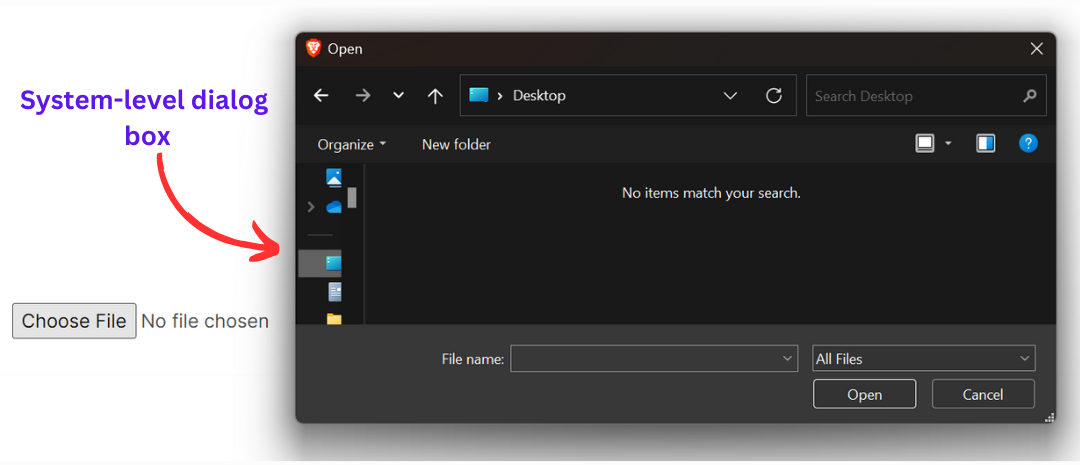
For instance, when testing an application that requires users to upload files, Selenium can interact with the upload button within the browser, but not with the native file picker dialog box that opens afterward. Since this dialog box exists outside the browser’s DOM, Selenium alone cannot control it.
At this point, the Robot class allows testers to simulate both keyboard shortcuts (like pressing CTRL + S) and mouse events, enabling complete automation even outside the browser context.
To use the Robot class, you need to import it using:
import java.awt.Robot;

Note: Run Selenium tests across 3000+ real browsers and OS. Try TestMu AI Now!
How to Use Robot Class in Selenium?
The Robot class in Selenium bridges the gap between browser automation and system-level control, making it possible to simulate real user actions outside the DOM.
To get started with the working of the Robot class in Selenium, you need to have the required prerequisites in place.
Prerequisites:
- Use any IDE to write the code; for this demonstration will use the Eclipse IDE.
- Ensure that Java is installed on your system.
- Download the Selenium WebDriver language bindings for Java; this is required only for local execution.
- Now you’ll need a TestNG configuration file to define the test suite and parameters. This TestNG configuration file includes the browser name, test parameters (like multiple URLs), and specific methods from the RobotLocalGrid class..
Test Scenario:
- Navigate to the Selenium Playground > Upload File Demo.
- Click on the Choose file button.
- Give the path of the file to be uploaded.
- Use the robot class to upload the file.
Implementation:
Learn how to implement the Robot class in Selenium to test web applications with OS-level interactions.
public class RobotLocalGrid extends BaseTest {
    private WebDriverWait webDriverWait;
    JavascriptExecutor jsExecutor;
    int ELEM_TIMEOUT_DUR = 10;

    Robot robot;
    int xcord;
    int ycord;

    @BeforeClass
    public void navigateToWebsite() throws AWTException, InterruptedException
    {
        WebDriver driver = getDriver();

        webDriverWait = new WebDriverWait(driver,
                Duration.ofSeconds(ELEM_TIMEOUT_DUR));
        jsExecutor = (JavascriptExecutor) driver;
        driver.manage().window().maximize();
        robot = new Robot();
        System.setProperty("java.awt.headless", "true");
    }
     @Test(priority =5, description = "Test 5: Uploading a File", enabled=true)
     @Parameters({"testurl4"})
     public void uploadFile(final String testurl4) throws AWTException{
         WebDriver driver = getDriver();
         driver.get(testurl4);
         robot.delay(2000);
        // Path of the file to be uploaded
            StringSelection file = new StringSelection("C:\Users\mohit\OneDrive\Desktop\demofile.png");

            // Copying the path to the clipboard
            Toolkit.getDefaultToolkit().getSystemClipboard().setContents(file,null);

            // Clicking on the Upload Button
            driver.findElement(By.id("file")).click();

            // Pressing the CTRL + V command
            robot.keyPress(KeyEvent.VK_CONTROL);
            robot.keyPress(KeyEvent.VK_V);

            // Releasing the CTRL + V command
            robot.keyRelease(KeyEvent.VK_CONTROL);
            robot.keyRelease(KeyEvent.VK_V);

            // Delaying for 2 seconds
            robot.delay(2000);

            // Hitting the enter key which will ultimately upload the file
            robot.keyPress(KeyEvent.VK_ENTER);
            robot.keyRelease(KeyEvent.VK_ENTER);

            robot.delay(2000);

//Alternate way of doing it without using the Robot Class
//uploadButton.sendKeys("C:\\Users\\mohit\\OneDrive\\Desktop\\demofile.jpg");
     }
 }

Code Walkthrough:
- RobotLocalGrid: This class extends BaseTest and uses the robot class for simulating keyboard and mouse actions.
- @BeforeClass: Initializes WebDriver, sets up wait, maximizes the browser, creates the Robot object, and enables headless mode.
- uploadFile(): Copies the file path, clicks the upload button, pastes the path using Ctrl+V, and presses Enter to upload.
Test Execution:
To execute the test, open the testng.xml file, right-click on it, and select Run As > TestNG Suite.
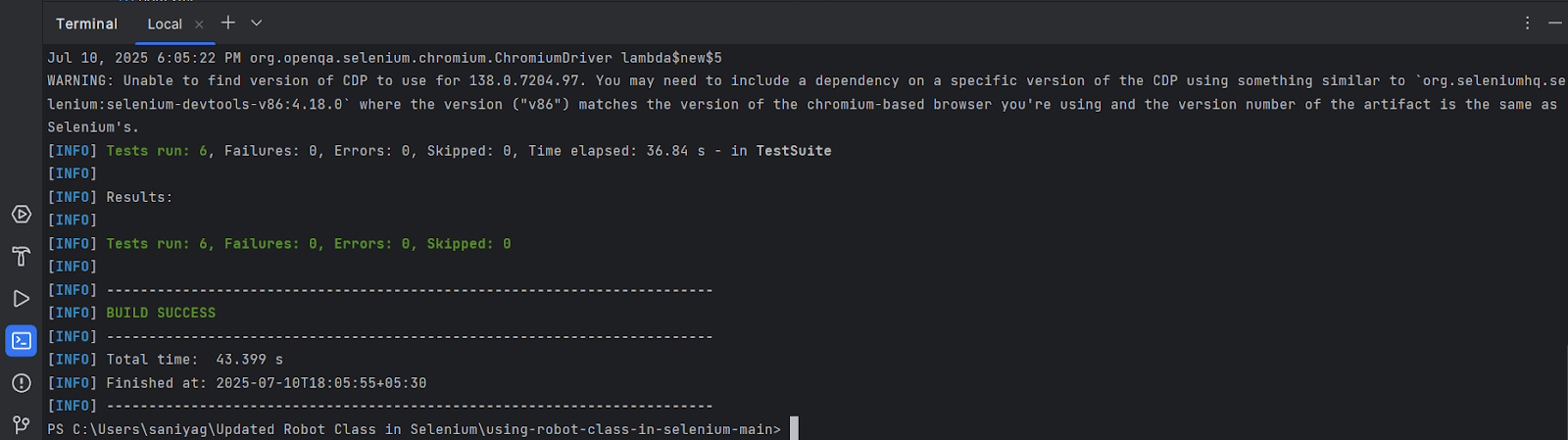
Now you’ve seen how to use the Robot class in Selenium for automating OS-level tasks locally. However, since the Robot class depends on the machine’s active UI session, running tests on local machines might fail if the system is locked, headless, or loses focus.
To overcome these limitations, running tests on a cloud-based grid can be highly effective.
How to Run Robot Class Tests on the Cloud?
Cloud-based platforms like TestMu AI offer a pre-configured test environment with active desktop sessions, enabling more stable execution of your test scripts.
TestMu AI, a GenAI-native test execution platform, allows you to run tests on an online Selenium Grid across 3000+ real environments.
To get started, refer to the documentation on Selenium testing with TestMu AI.

To run tests on TestMu AI, you would need to make a few required adjustments to your existing test scripts.
In your current local TestNG configuration file, add the following code snippet:
<!-- Cloud Grid Execution -->
<test name="Robot Class on LambdaTest Cloud Grid" enabled="true">
    <parameter name="browser" value="remote-chrome"/>
    <parameter name="testurl" value="https://the-internet.herokuapp.com/basic_auth"/>
    <classes>
        <class name="RobotCloudGrid">
            <methods>
                <include name="sign_in_demo"/>
            </methods>
        </class>
    </classes>
</test>
The above TestNG configuration file includes the browser name (“remote-chrome“), test parameters (like the test URL for basic auth), and a specific method from the RobotCloudGrid class, such as sign_in_demo. It is set to run on the TestMu AI Cloud Grid.
Now add your TestMu AI Username and Access Key to your code, and to connect your test script to the TestMu AI platform, update your test script with the following GRID_URL.
GRID_URL = "@hub.LambdaTest.com/wd/hub";
Now add the TestMu AI capabilities as shown below:
private static void setupRemoteChromeDriver ()
    {
        final ChromeOptions browserOptions = new ChromeOptions();
        final HashMap<String, Object> ltOptions = new HashMap<String, Object>();


        browserOptions.setPlatformName ("Windows 11");
        ltOptions.put("username", "");
        ltOptions.put("accessKey", "");
        /* ltOptions.put ("selenium_version", "3.141.0"); */
        ltOptions.put ("resolution", "2560x1440");
        ltOptions.put ("build", "[Build] Demo: Robot Class on LambdaTest Grid");
        ltOptions.put ("name", "Demo: Robot Class on LambdaTest Grid");
        ltOptions.put ("project", "[Project] Robot Class on LambdaTest Grid");
        ltOptions.put ("plugin", "java-testNG");
        ltOptions.put("ACCEPT_INSECURE_CERTS", false);
        ltOptions.put("ACCEPT_SSL_CERTS", false);
        ltOptions.put("tunnel", false);
        ltOptions.put ("w3c", true);
        ltOptions.put("autoHeal", false);


        browserOptions.setCapability ("LT:Options", ltOptions);
    }
You can generate these capabilities from the TestMu AI Automation Capabilities Generator.
Test Execution
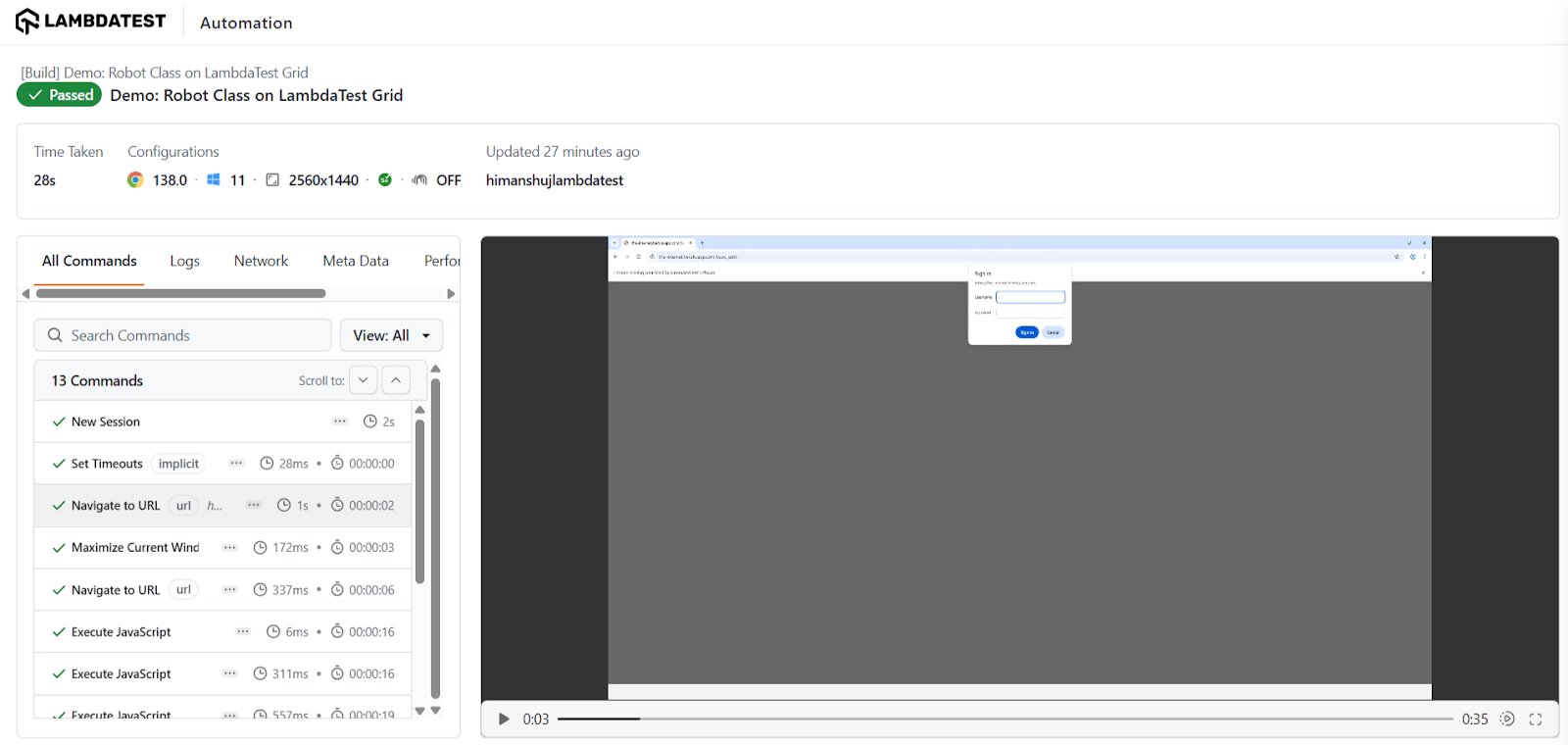
Follow the same steps to execute the test as you did for local execution. To see the test execution results, go to your TestMu AI Web Automation Dashboard.
Commonly Used Methods in the Robot Class
Throughout the implementation, the methods used help automate OS-level tasks using the Robot class in Selenium. These methods come from the AWT package and allow simulating real keyboard and mouse interactions beyond the browser’s control.
Below are the commonly used methods:
- Keyboard Methods: Allows you to simulate key presses and releases, enabling automated typing and navigation during test execution.
- keyPress(): It is used for pressing a keyboard key.
- keyRelease(): Used to release a key after it has been pressed, ensuring proper simulation of keyboard input.
The Robot class uses constants from Java’s KeyEvent class to simulate keyboard actions.
- Mouse Methods: Allows you to simulate mouse movements, clicks, and scroll actions on the screen during automation.
For the complete list of supported methods and usage details, refer to the Robot (Java Platform SE 8) documentation.
.keyPress(KeyEvent.{event});
.keyRelease(KeyEvent.{event});
Troubleshooting Tips When Using Robot Class
Despite its utility, the Robot class can sometimes behave unpredictably, especially when run in varied environments like CI pipelines or cloud-based grids.
If you encounter inconsistent behavior, delays, or actions not firing as expected, here are some common issues and how to address them:
- Robot actions not working in CI/CD or headless mode: Robot class requires an active GUI session. If your test runs in a headless environment (like CI pipelines, virtual machines, or cloud runners), Robot actions like mouse movements or keyboard presses might silently fail.
Fix: Use a cloud testing provider like TestMu AI that supports desktop-based execution with an active display session.
- File upload fails or clipboard content is not pasted: If the clipboard content isn’t correctly pasted during file uploads, it might be due to the clipboard not getting updated in time or key events being sent too early.
Fix: Add a short robot.delay(1000) after setting clipboard content to ensure it’s ready before simulating CTRL + V.
- Mouse clicks don’t work or click in the wrong place: Mouse actions rely heavily on screen coordinates, which may differ on various resolutions or if the browser window is not maximized.
Fix: Always call driver.manage().window().maximize() before calculating coordinates using .getLocation().
KeyPress/KeyRelease doesn’t behave as expected: If keyboard actions don’t trigger correctly, likely, keys were not released, or the browser/input box was not in focus.
Fix: Double-check focus is set (e.g., .click() or .sendKeys(“”) before Robot events), and always pair key presses with matching releases.
- Screenshots come out blank or distorted: This usually happens if the Robot tries to capture the screen when the display is not active (e.g., when running minimized or disconnected via RDP).
Fix: Ensure you’re running in a display environment. For cloud tests, use platforms like TestMu AI that simulate full desktops.
- Unexpected behavior across different OS platforms: Some key codes or UI elements may behave differently on Windows, macOS, and Linux.
Fix: Review OS-specific behavior and test locally on each platform before scaling tests.
- Robot class throws HeadlessException: This can occur if you’re capturing screenshots or performing GUI operations in a headless environment without a display context.
Fix: Ensure the system property java.awt.headless is set properly, or avoid running Robot-dependent tests in headless setups.
Best Practices for Using Robot Class in Selenium
When working with the Robot class in Selenium, here are a few best practices to ensure stability, consistency, and better test coverage:
- Use Robot Class only for OS-level tasks: Leverage the Robot class specifically when you need to automate interactions outside the browser DOM, like file upload dialogs, keyboard shortcuts, or native popups. Avoid using it for tasks that can be handled directly by Selenium or the Actions class.
- Avoid headless or locked environments: The Robot class requires an active desktop session. It may fail silently or behave unexpectedly in headless mode, locked screens, or minimized remote machines. Use platforms like TestMu AI that support active UI sessions for better execution.
- Prefer Selenium Actions Class for browser-level events: For interacting with browser elements like clicks, hovers, or keyboard inputs within the page, use the built-in Actions class. Only switch to the Robot class when you hit a limitation.
- Accurately calculate screen coordinates: Mouse-based events like mouseMove() depend on screen coordinates. Use getLocation() to fetch exact X and Y values from WebElements before passing them to Robot methods to avoid misclicks or unintended actions.
- Introduce delays only when necessary: Use the robot.delay() sparingly and only when system dialogs need time to appear. Avoid excessive or arbitrary waits, as they can increase test execution time.
- Clipboard operations must be paired with key events: If you’re using Toolkit.getDefaultToolkit().getSystemClipboard().setContents() to upload files, ensure the clipboard content is correctly pasted using key combinations like CTRL + V, simulated via the Robot class.
- Always release pressed keys or mouse buttons: After every keyPress() or mousePress(), make sure to follow it with the respective keyRelease() or mouseRelease() method to avoid stuck states in execution.
- Handle platform dependencies gracefully: Robot behavior can differ slightly across Windows, macOS, or Linux. Always validate execution in target environments before assuming cross-platform compatibility.
- Use screenshots for debugging UI issues: The createScreenCapture() method is especially useful when debugging UI glitches or validating visual states. Save screenshots conditionally during test failures for easier analysis.
Conclusion
The Robot class in Selenium helps bridge the gap between browser automation and system-level interactions.
Here, you explored essential Robot class methods such as keyPress() and KeyRelease() that helped you upload a file and these were implemented both in a local Selenium setup and on the TestMu AI cloud grid.
While local execution works, it poses limitations in headless mode or inactive UI sessions. Platforms like TestMu AI for Selenium automation offer a more stable environment for cross-browser testing and executing Robot class scripts reliably at scale.
Citations
- Selenium: https://www.selenium.dev/documentation/


Frequently asked questions
Did you find this page helpful?
More Related Hubs
TestMu AI forEnterprise
Get access to solutions built on Enterprise
grade security, privacy, & compliance
- Advanced access controls
- Advanced data retention rules
- Advanced Local Testing
- Premium Support options
- Early access to beta features
- Private Slack Channel
- Unlimited Manual Accessibility DevTools Tests