

Next-Gen App & Browser Testing Cloud
Trusted by 2 Mn+ QAs & Devs to accelerate their release cycles


On This Page

PyTest Tutorial – Python Selenium Test in Parallel
Save time spent on Selenium test automation by running tests in parallel. Read our PyTest Turorial with easy-to-do steps and elaborate examples. Learn more.

Himanshu Sheth
December 29, 2025
Selenium is one of the widely used test automation frameworks for automated browser testing. test automation is really helpful in testing websites or web apps on different combinations of browsers, operating systems, and devices. Giving better functional test coverage as the code is tested on a wide range of combinations.
Running these tests in sequence can be really time-consuming, as you’d wait for one test to complete before running other tests. You can save a lot of time by performing tests in parallel, thus improving the scalability of your Selenium test automation. Parallel testing helps in performing tests on browsers simultaneously, providing better test coverage in a shorter time.
Overview
Run Python Selenium Tests in Parallel with Pytest
Parallel testing in Python Selenium helps run multiple browser tests at once, reducing execution time and improving efficiency for large automation suites. You can achieve this easily using pytest-xdist or Selenium Grid for distributed test execution.
How to Run Pytest Selenium Tests in Parallel
Install dependencies:
pip install pytest pytest-xdist selenium
Write independent tests:
Each test must initialize and close its own WebDriver instance to avoid interference.
Run tests in parallel:
pytest -n auto
The -n flag automatically detects CPU cores and runs multiple tests simultaneously.
Example of a Parallel Selenium Test
import pytest
from selenium import webdriver
from selenium.webdriver.common.by import By

@pytest.fixture
def driver():
    driver = webdriver.Chrome()
    yield driver
    driver.quit()

def test_google(driver):
    driver.get("https://www.google.com")
    driver.find_element(By.NAME, "q").send_keys("pytest selenium parallel tests")
    assert "Google" in driver.title
Scale Tests with Selenium Grid or TestMu AI
For broader coverage and faster execution, use cloud-based testing:
- Selenium Grid: Run tests across browsers and OS combinations.
- : An AI-native cloud platform that runs Python Selenium tests in parallel across 3,000+ real browsers and 10,000+ devices, supports CI/CD integration, and enables smart debugging with zero setup.
Best Practices for Reliable Parallel Execution
- Keep tests independent, no shared sessions or data.
- Optimize driver setup and teardown.
- Use fixtures to manage resources efficiently.
- Integrate parallel runs with CI/CD for faster feedback.
In this Selenium Python tutorial, I’ll show. you how to run parallel tests with Selenium with Python and pytest using Selenium Grid. The Selenium Grid to run can either be local or cloud-based. For more information on setting up the local Selenium Grid, we recommend to have a look at our detailed blog on Setting up Selenium Grid for automation testing.
Check out this comprehensive pytest tutorial that can guide you in becoming an expert in the pytest framework and enable you to create efficient and impactful automation tests.
How To Run Selenium Tests In Parallel With Python Using pytest-xdist?
By default, PyTest does not support parallel testing which is extremely essential for scenarios such as automated browser testing. Parallel testing is a must-have to achieve continuous integration as tests can be executed at a rapid pace. To run Selenium tests in parallel with Python, you need to install the pytest-xdist plugin.
You can watch this video to learn how to write and run your first test in pytest using Selenium.
Features (or Execution Modes) of pytest-xdist
It is a PyTest distributed testing plugin that extends PyTest with some unique execution modes mentioned below in this Selenium Python tutorial :
- Multi-process load balancing – Multiple CPUs or hosts can be used for a combined test run. This aids in speeding up the development along with using special resources of machines.
- LooponFail – Tests can be executed repeatedly in a sub-process. After every test run, the pytest re-runs all the tests that have failed before. This process is repeated until all the tests pass. This is considered the end of the test.
- Multi-platform coverage – Different Python interpreters (e.g. PyTest, PyUnit, etc.) or platforms can be specified and tests can be performed parallelly on all of them.
Installation Of pytest-xdist To Run Selenium Tests In Parallel With Python
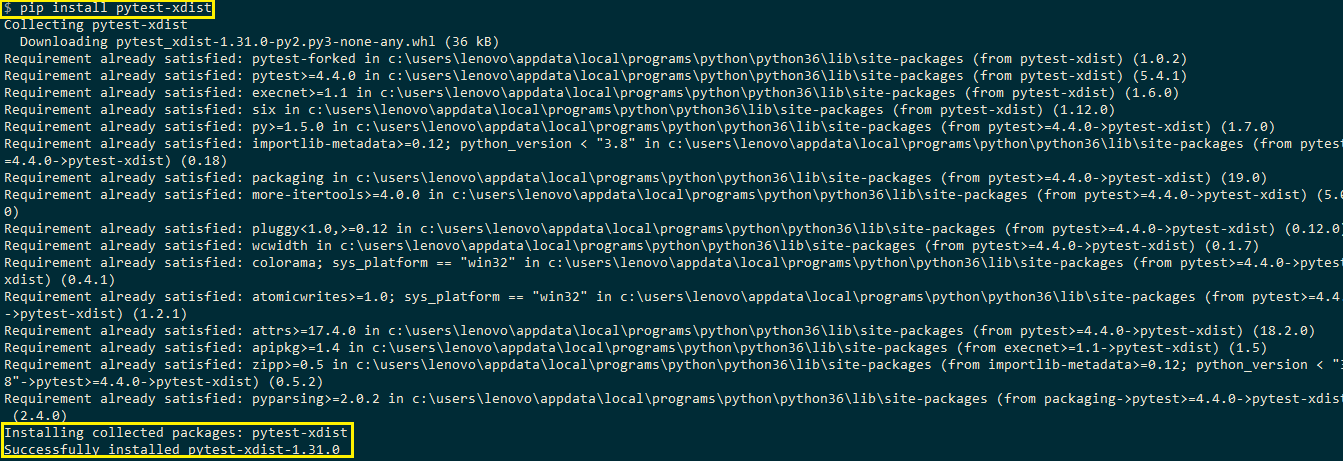
The xdist plugin can be installed by executing either of the following commands on the terminal:
pip install pytest-xdist
easy_install pytest-xdist
Shown below in this Selenium Python tutorial is the installation screenshot of xdist plugin to run Selenium tests in parallel with Python.
Command-line Options For Parallel Testing
The pytest-xdist plugin provides command-line options for sending tests to multiple CPUs. The number of CPUs is passed after the option –n.
pytest -n <num-of-cpus>
The option speeds up the parallel execution for lengthy tests, as well as, tests that have frequent I/O (Input/Output) operations in the implementation. pytest-xdist (or xdist-plugin) has many other options, details of the same are available in the xdist-plugin documentation.
This PyTest Tutorial for beginners and professionals will help you learn how to use PyTest framework with Selenium and Python for performing Selenium automation testing.
Run Selenium tests in Parallel With Python Using pytest-xdist plugin
To demonstrate the usage of pytest-xdist plugin to run Selenium tests in parallel with Python, I’ll take four test scenarios for this Selenium Python tutorial which I’ll execute on Chrome and Firefox web browsers. The four test scenarios are divided across two python files and the fixtures are shared via conftest.py. For more detailed information on PyTest fixtures and usage of conftest.py, you can refer to a previous Selenium Python tutorial on PyTest fixtures.
In this pytest Tutorial, learn how to use pytest fixtures with Selenium and how to set up your test using the pytest.fixture() decorator.
Test Scenario – 1 (Run Selenium tests in parallel with Python on Chrome Browser)
Test Case – 1
- Navigate to the URL https://lambdatest.github.io/sample-todo-app/
- Select the first two checkboxes
- Send ‘Happy Testing at TestMu AI’ to the textbox with id = sampletodotex
- Click the Add Button and verify whether the text has been added or not
Test Case – 2
- Navigate to the URL
- Compare the window title with the expected title
- Raise assert if titles do not match
In case you want to know more about assertions in pytest you can watch the video below.
Test Scenario – 2 ((Run Selenium tests in parallel with Python on Firefox Browser)
Test Case – 1
- Navigate to the URL https://www.google.com
- Search for “TestMu AI”
- Click on the first test result
- Raise an Assert if the Page Title does not match the expected title
Test Case – 2
- Navigate to the URL https://www.lambdatest.com/blog/
- Compare the window title with the expected title
- Raise assert if titles do not match
Implementation
Fixtures for invoking the Chrome and Firefox browser are added in Conftest.py. The file is placed in the root folder where the files that contain implementation for the test cases are also located.
Conftest.py
As different URLs are used for , the scope is set to class (instead of the session) and a new browser instance is loaded for each test.
#Run Selenium tests in parallel with Python for Selenium Python tutorial
import pytest
from selenium import webdriver
@pytest.fixture(scope="class")
def driver_init_1(request):
    web_driver = webdriver.Chrome()
    request.cls.driver = web_driver
    yield
    web_driver.close()

@pytest.fixture(scope="class")
def driver_init_2(request):
    web_driver = webdriver.Firefox()
    request.cls.driver = web_driver
    yield
    web_driver.close()
test_pytest_1.py
This file contains the implementation of Test Scenario – 1 (Run Selenium tests in parallel with Python on Chrome Browser). The @pytest.mark.usefixtures decorator is included for using the fixture driver_chrome_init().
It contains two test cases to run Selenium tests in parallel with Python:
- test_google_search() – The search box on Google homepage is located using find_element_by_xpath method of Selenium WebDriver. Once the element is located, search text (i.e. TestMu AI) is passed to the search box. After the search operation is performed, the first search result is located using its XPath. Click method of Selenium WebDriver is used to click on the first result, post which the window title is compared to check the success of the test.
- test_lambdatest_blog_load() – Test URL https://www.lambdatest.com/blog/ is loaded and the window title is compared with the expected title. Assert is raised if the titles do not match.
close() command in Selenium WebDriver is used to close the browser window once the test execution is completed.
import pytest
import pytest_html
from selenium import webdriver
from selenium.webdriver.chrome.options import Options
from selenium.webdriver.common.keys import Keys
import time
from time import sleep
import sys

@pytest.mark.usefixtures("driver_init_2")
class BasicTest:
    pass
class Test_URL_Firefox(BasicTest):
    def test_google_search(self):
        self.driver.get('https://www.google.com/')
        self.driver.maximize_window()
        title = "Google"
        assert title == self.driver.title

        search_text = "LambdaTest"
        search_box = self.driver.find_element_by_xpath("//input[@name='q']")
        search_box.send_keys(search_text)

        time.sleep(5)

        # Option 1 - To Submit the search
        # search_box.submit()

        # Option 2 - To Submit the search
        search_box.send_keys(Keys.ARROW_DOWN)
        search_box.send_keys(Keys.ARROW_UP)
        time.sleep(2)
        search_box.send_keys(Keys.RETURN)

        time.sleep(5)

        # Click on the LambdaTest HomePage Link
        title = "Cross Browser Testing Tools | Free Automated Website Testing | LambdaTest"
        lt_link = self.driver.find_element_by_xpath("//h3[.='LambdaTest: Cross Browser Testing Tools | Free Automated ...']")
        lt_link.click()

        time.sleep(10)
        assert title == self.driver.title
        time.sleep(2)

    def test_lambdatest_blog_load(self):
        self.driver.get('https://www.lambdatest.com/blog/')
        self.driver.maximize_window()

        expected_title = "LambdaTest | A Cross Browser Testing Blog"
        assert expected_title ==  self.driver.title
        time.sleep(5)
test_pytest_2.py
This file contains the implementation of Test Scenario – 2 (Execution on Firefox Browser). The @pytest.mark.usefixtures decorator is included for using the fixture driver_firefox_init(). It contains two test cases to run Selenium tests in parallel with Python:
- test_google_search() – The search box on Google homepage is located using find_element_by_xpath method of Selenium WebDriver. Once the element is located, search text (i.e. TestMu AI) is passed to the search box. After the search operation is performed, the first search result is located using its XPath. Click method of Selenium WebDriver is used to click on the first result, post which the window title is compared to check the success of the test.
- test_lambdatest_blog_load() – Test URL https://www.lambdatest.comm/blog is loaded and the window title is compared with the expected title. Assert is raised if the titles do not match. close() command in Selenium WebDriver is used to close the browser window once the test execution is completed.
import pytest
import pytest_html
from selenium import webdriver
from selenium.webdriver.chrome.options import Options
from selenium.webdriver.common.keys import Keys
import time
from time import sleep
import sys

@pytest.mark.usefixtures("driver_init_2")
class BasicTest:
    pass
class Test_URL_Firefox(BasicTest):
    def test_google_search(self):
        self.driver.get('https://www.google.com/')
        self.driver.maximize_window()
        title = "Google"
        assert title == self.driver.title

        search_text = "LambdaTest"
        search_box = self.driver.find_element_by_xpath("//input[@name='q']")
        search_box.send_keys(search_text)

        time.sleep(5)

        # Option 1 - To Submit the search
        # search_box.submit()

        # Option 2 - To Submit the search
        search_box.send_keys(Keys.ARROW_DOWN)
        search_box.send_keys(Keys.ARROW_UP)
        time.sleep(2)
        search_box.send_keys(Keys.RETURN)

        time.sleep(5)

        # Click on the LambdaTest HomePage Link
        title = "Cross Browser Testing Tools | Free Automated Website Testing | LambdaTest"
        lt_link = self.driver.find_element_by_xpath("//h3[.='LambdaTest: Cross Browser Testing Tools | Free Automated ...']")
        lt_link.click()

        time.sleep(10)
        assert title == self.driver.title
        time.sleep(2)

    def test_lambdatest_blog_load(self):
        self.driver.get('https://www.lambdatest.com/blog/')
        self.driver.maximize_window()

        expected_title = "LambdaTest | A Cross Browser Testing Blog"
        assert expected_title ==  self.driver.title
        time.sleep(5)
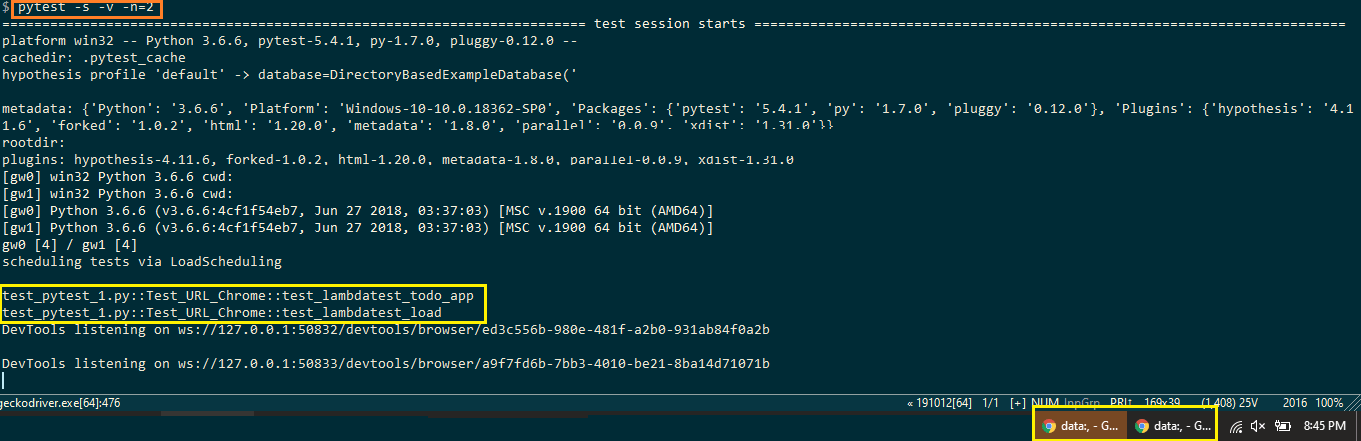
Two tests are performed in parallel. Hence, -n option (i.e. num_of_cpus) is set to 2. Execution is performed by invoking the following command on the terminal.
pytest -s -v -n=2
Here is the screenshot of the execution which indicates that two tests are performed simultaneously (i.e. in parallel).
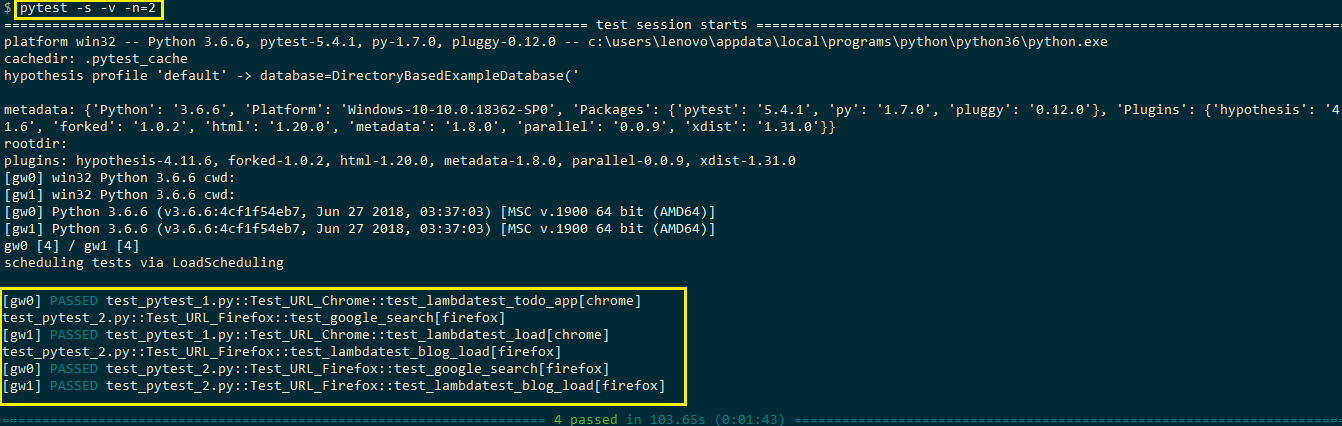
As seen below in this Selenium Python tutorial, all the four tests have passed to run Selenium tests in parallel with Python in pytest.

Austin Siewert
CEO, Vercel
Discovered @TestMu AI yesterday. Best browser testing tool I've found for my use case. Great pricing model for the limited testing I do 👏
2M+ Devs and QAs rely on TestMu AI
Deliver immersive digital experiences with Next-Generation Mobile Apps and Cross Browser Testing Cloud

Challenges With In-house Selenium Grid
There is a limitation when it comes to testing on a local machine as you can only load certain browsers (and their versions) on the local machine. For example, it is not feasible to keep different versions of a particular browser on the same machine. If you own a machine with Mac OS, you may find it difficult to perform automation browser testing on Internet Explorer or Edge browsers.
The ideal execution environment should be a network of different interconnected machines that have different browser environments so that tests can be executed in parallel. This is what Selenium Grid is built for. Selenium Grid was created as part of the Selenium Suite by Phillipe Hanrigou in 2008.
Time to Market (TTM) is particularly important for consumer-facing products. As a test manager, a conscious decision has to be taken on whether it is viable to set up an in-house testing infrastructure (or local Selenium Grids) with different VMs. Setting up the local infrastructure for rare (yet important) combinations such as cross browser testing with IE on Mac OS can turn out to be a big task.
Below in this Selenium Python tutorial are some of the major challenges that testers might face when performing cross browser testing on a local Selenium Grid:
- Scalability – With every new browser release, the local Selenium Grid also needs to be scaled up. Scaling up will require a significant investment from an infrastructure point of view and the ROI (Return on Investment) might not be very high.
- Limitations on cross browser testing – The focus of testing your product against different browser combinations should be on improving the product quality. With 2,000+ browsers to choose from, parallel test execution is almost limitless. Along with the latest browsers (and platform combinations), testing has to be performed on legacy browsers as well.
By shifting to an online Selenium grid, the test team can focus squarely on the task at hand, rather than being worried about the upkeep of the in-house test infrastructure.
- Reliability at a price – Development of a device lab, maintaining VMs & their licenses, and ensuring that they are functional (round the clock) can be a daunting & expensive task.
- Keeping up with latest Selenium releases – Online Selenium Grid is normally kept up to date with latest Selenium releases, including Selenium Alpha releases. For example, Selenium 4 has a host of new features that should be made available to the test automation at the earliest. With the local Selenium grid, it would be a challenging task to update the Selenium infrastructure with every new release (especially the Alpha, Beta releases.)
Irrespective of the size of infrastructure, you would still need an in-house team to look after the reliability & maintenance of the Selenium grid infrastructure. The actual costs incurred in setting up the infrastructure can turn out to be significantly higher than the ballpark estimates.
Shifting the cross browser testing activity to a fast and reliable online Selenium Grid such as TestMu AI helps in accelerating the automated browser testing process. It also leads to improving the team’s productivity as all activities related to Selenium automation testing are centralized in one place.

Getting started With Parallel Testing on a online Selenium Grid
TestMu AI offers a reliable & scalable online Selenium Grid infrastructure that allows you to test on 3000+ real browsers and operating systems online. The complete list of available browsers is available list of browsers.
The major advantage of using a reliable online Selenium Grid infrastructure like TestMu AI is there is no need to install any additional software (or plugin) on your machine. The browsers on VMs in TestMu AI have pre-installed versions of Adobe Flash, Adobe Shockwave, Adobe Reader, Microsoft Silverlight, etc. hence, making it easy to test RIA (Rich Internet Applications). More details about the TestMu AI platform are available on the FAQ Page.
To get started with cross browser testing on TestMu AI, perform the following steps:
- Create an account on TestMu AI by clicking here. The user-name and access key available in the profile section are required for accessing the Selenium Grid on TestMu AI.
- Depending on the test requirements, select the appropriate subscription plan. For starters, there is a Lite Plan which is free for lifetime and offers free 100 automation minutes for 15 days.
Once you have logged-in to the TestMu AI platform, use the Selenium Desired Capabilities Generator for configuring your Selenium tests on the TestMu AI Selenium Grid.
This certification is for professionals looking to develop advanced, hands-on expertise in Selenium automation testing with Python and take their career to the next level.
Here’s a short glimpse of the Selenium Python 101 certification from TestMu AI:
Porting PyTest Automation Tests To Online Selenium Grid
Before porting the existing implementation to TestMu AI’s Selenium Grid, we generate the required browser capabilities using a capabilities generator on TestMu AI. For the demonstration, we use the same examples that were demonstrated earlier.
Test Scenario – 1 (Browser: Chrome 80.0, Platform: Windows 10)
Test Case – 1
- Navigate to the URL https://lambdatest.github.io/sample-todo-app/
- Select the first two checkboxes
- Send ‘Happy Testing at TestMu AI’ to the textbox with id = sampletodotext
- Click the Add Button and verify whether the text has been added or not
Test Case – 2
- Navigate to the URL
- Compare the window title with the expected title
- Raise assert if titles do not match
Test Scenario – 2 (Browser: Safari 12.0, Platform: macOS Mojave)
Test Case – 1
- Navigate to the URL https://www.google.com
- Search for “TestMu AI”
- Click on the first test result
- Raise an Assert if the Page Title does not match the expected title
Test Case – 2
- Navigate to the URL https://lambdatest.com/blog/
- Compare the window title with the expected title
- Raise assert if titles do not match
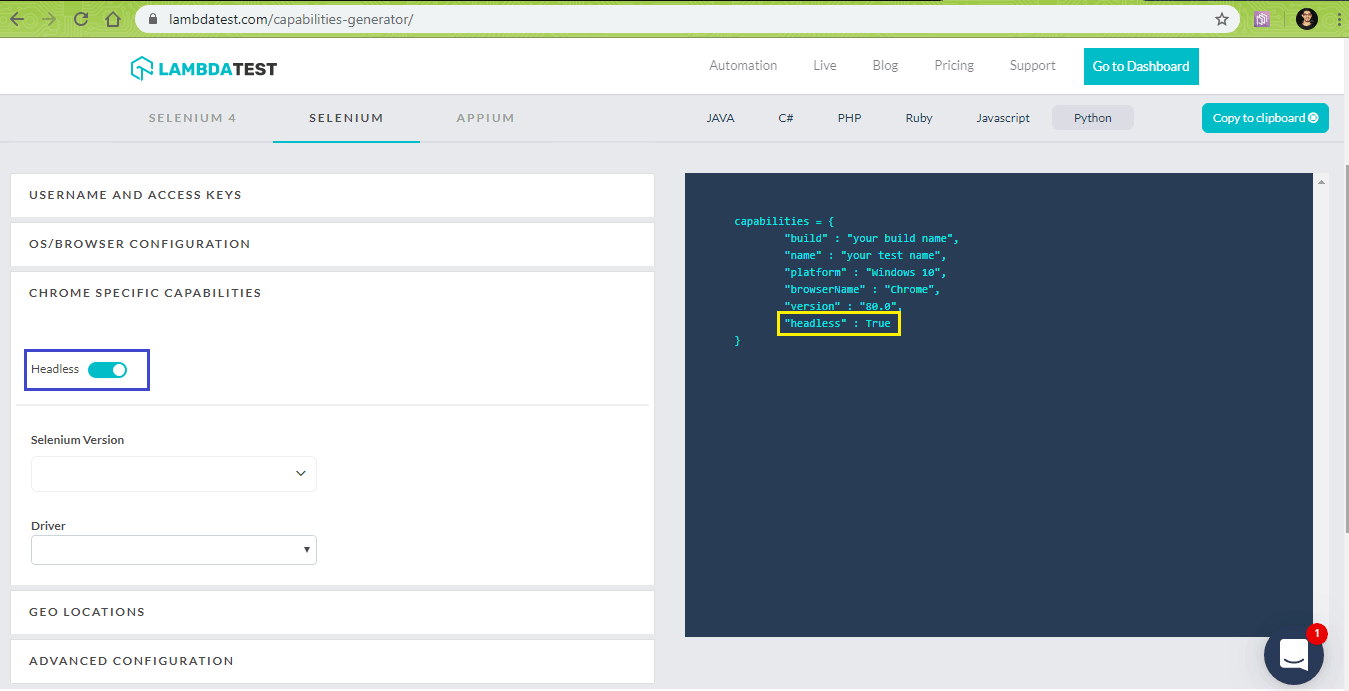
The Capabilities generator is used to generate capabilities for (browser + OS combinations). As the test framework being used is PyTest, we choose the language as Python.
Device Capabilities for Test Scenario – 1 (Browser: Chrome 80.0, Platform: Windows 10)
capabilities = {
        "build" : "Porting test to LambdaTest Selenium Grid (Chrome)",
        "name" : "Porting test to LambdaTest Selenium Grid (Chrome)",
        "platform" : "Windows 10",
        "browserName" : "Chrome",
        "version" : "80.0"
}
Device Capabilities for Test Scenario – 2 (Browser: Safari 12.0, Platform: macOS Mojave)
capabilities = {
        "build" : "Porting test to LambdaTest Selenium Grid",
        "name" : "Porting test to LambdaTest Selenium Grid",
        "platform" : "macOS Mojave",
        "browserName" : "Safari",
        "version" : "12.0"
}
The parameters supplied to the desired capabilities to run Selenium tests in parallel with Python are below in this Selenium Python tutorial:
You can also enable the headless option to perform automated browser testing on web browsers without the GUI (Graphical User Interface).
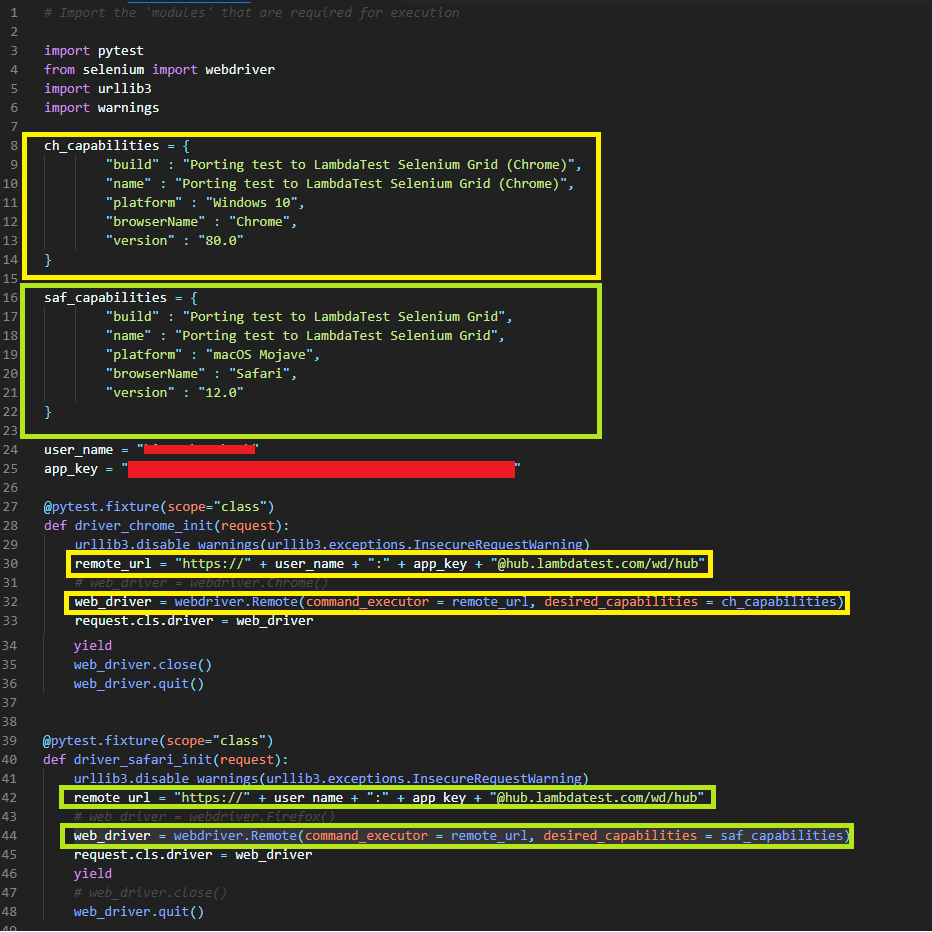
As the tests are executed on the online Selenium Grid on TestMu AI, credentials consisting of a combination of user-name & access token is used to access the TestMu AI Grid URL – @hub.lambdatest.com/wd/hub.
remote_url = "https://" + user_name + ":" + app_key + "@hub.lambdatest.com/wd/hub"
The remote WebDriver API uses the remote URL & browser capabilities (ch_capabilities/saf_capabilities) which was generated using the TestMu AI capabilities generator.
web_driver = webdriver.Remote(command_executor = remote_url, desired_capabilities = saf_capabilities)
conftest.py is used to share fixtures across files. Changes for porting from local Selenium Grid to TestMu AI’s Selenium Grid are only done in conftest.py. These are infrastructure changes to make the code work on the TestMu AI Grid.
Conftest.py
The changes are only related to porting the test to the online Selenium Grid on TestMu AI.
# Import the 'modules' that are required for execution to run Selenium tests in parallel with Python
import pytest
from selenium import webdriver
import urllib3
import warnings

ch_capabilities = {
        "build" : "Porting test to LambdaTest Selenium Grid (Chrome)",
        "name" : "Porting test to LambdaTest Selenium Grid (Chrome)",
        "platform" : "Windows 10",
        "browserName" : "Chrome",
        "version" : "80.0"
}

saf_capabilities = {
        "build" : "Porting test to LambdaTest Selenium Grid",
        "name" : "Porting test to LambdaTest Selenium Grid",
        "platform" : "macOS Mojave",
        "browserName" : "Safari",
        "version" : "12.0"
}

user_name = "user-name"
app_key = "app_key"
@pytest.fixture(scope="class")
def driver_init_1(request):
    urllib3.disable_warnings(urllib3.exceptions.InsecureRequestWarning)
    remote_url = "https://" + user_name + ":" + app_key + "@hub.lambdatest.com/wd/hub"
    # web_driver = webdriver.Chrome()
    web_driver = webdriver.Remote(command_executor = remote_url, desired_capabilities = ch_capabilities)
.........................
.........................
@pytest.fixture(scope="class")
def driver_init_2(request):
    urllib3.disable_warnings(urllib3.exceptions.InsecureRequestWarning)
    remote_url = "https://" + user_name + ":" + app_key + "@hub.lambdatest.com/wd/hub"
    # web_driver = webdriver.Firefox()
    web_driver = webdriver.Remote(command_executor = remote_url, desired_capabilities = saf_capabilities)
.........................
.........................
test_pytest_1.py & test_pytest_2.py
There are no changes required in the core implementation as the changes are only related to the infrastructure. Hence, implementation in test_pytest_1.py and test_pytest_2.py remains the same as the one used for cross browser testing on local Selenium Grid, even though we have used different browser & OS combinations for cross browser testing.
For executing the code on the online Selenium Grid on TestMu AI, we use the pytest-xdist plugin with a number of parallel tests set to 4. The reason for selecting 4 is because my current billing plan on TestMu AI enables the execution of 5 tests in parallel.
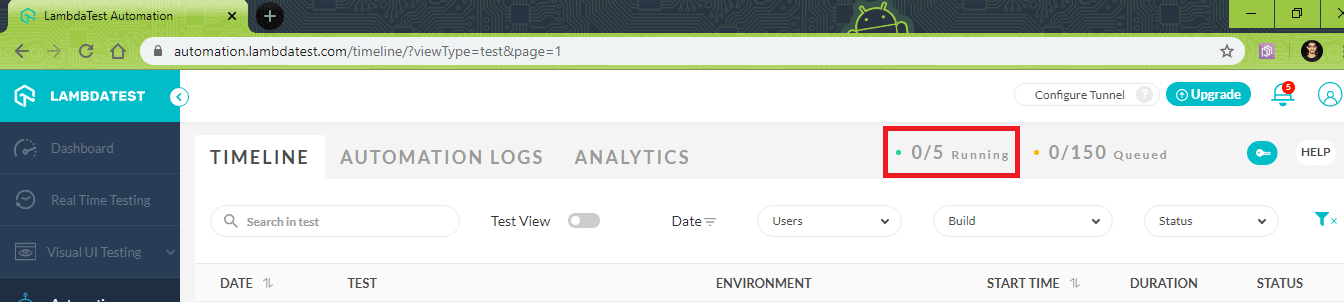
Execute the following command on the terminal to run Selenium tests in parallel with Python:
pytest -s -v -n=4
Here is the screenshot of the execution which indicates that four tests are running in parallel on the online Selenium Grid:
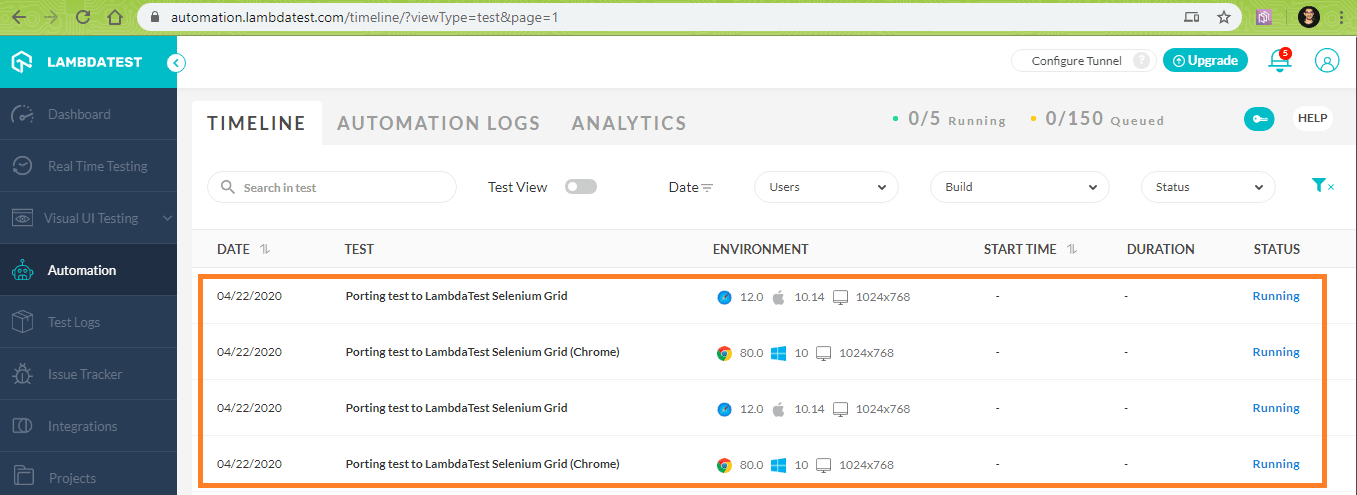
Here is the terminal execution screenshot indicating that all the four tests to run Selenium tests in parallel with Python have passed.
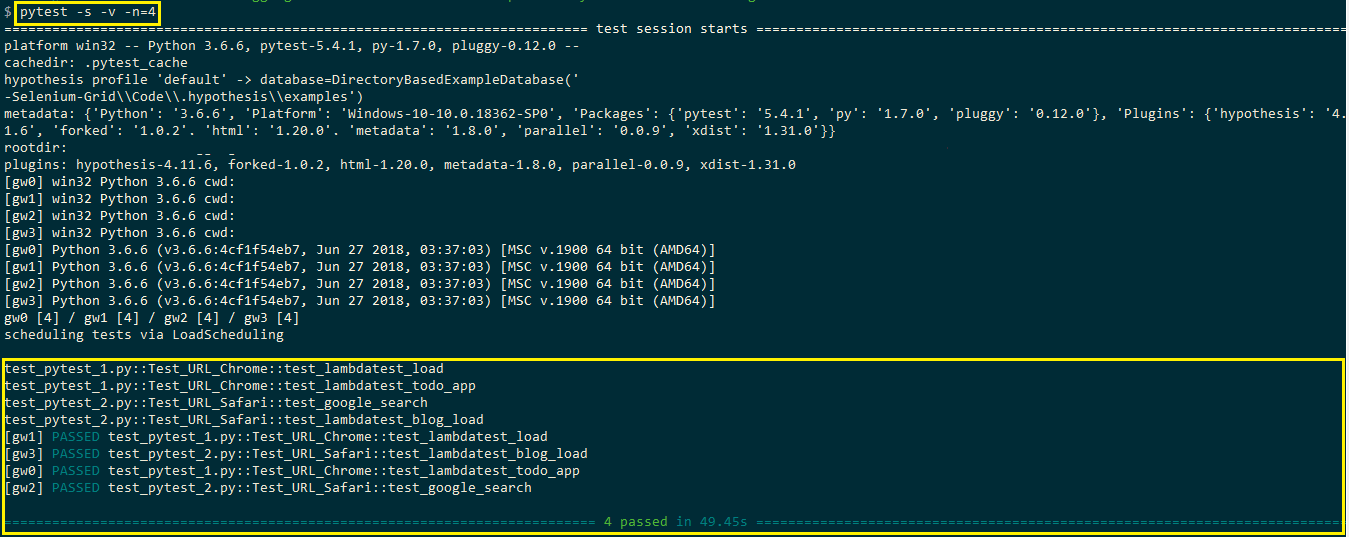
The status of automation tests can be accessed by visiting the Automation Timeline on TestMu AI. You can have a look at the overall execution of the tests by navigating to those tests.
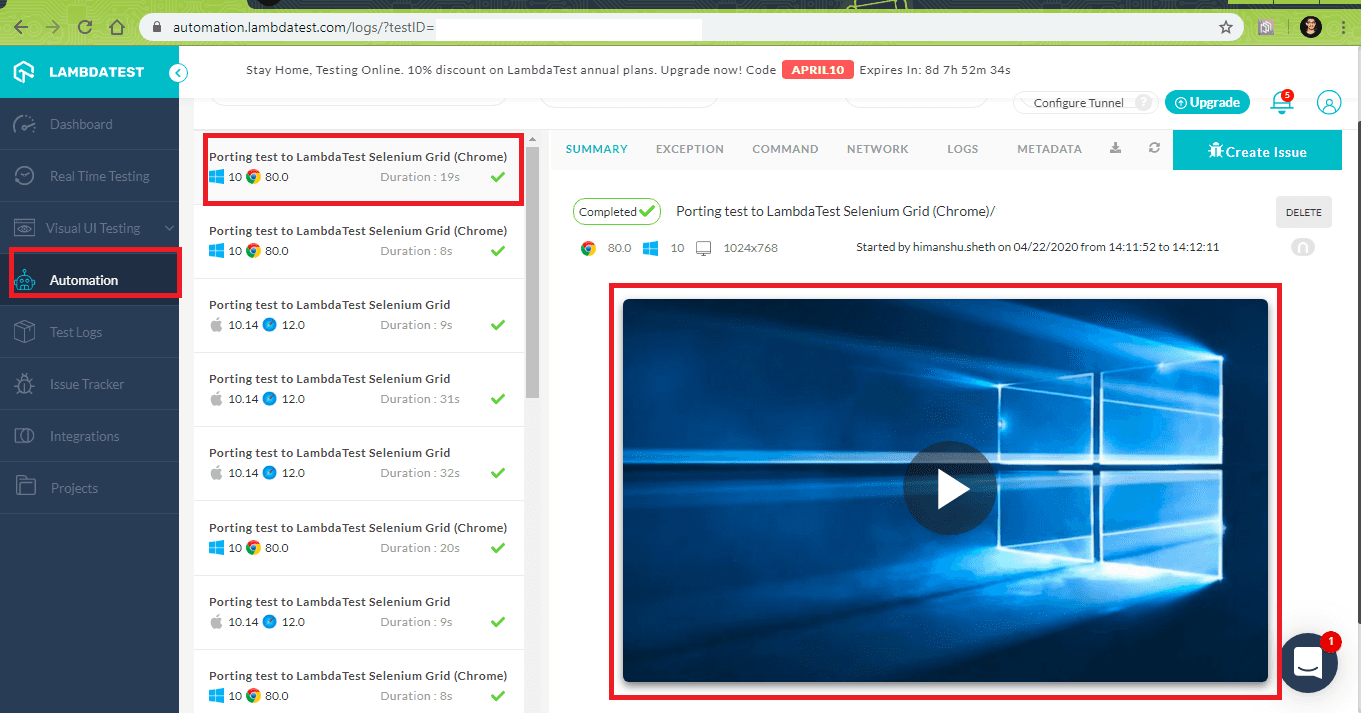
As seen below in this Selenium Python tutorial, the tests have executed successfully on the online Selenium Grid.
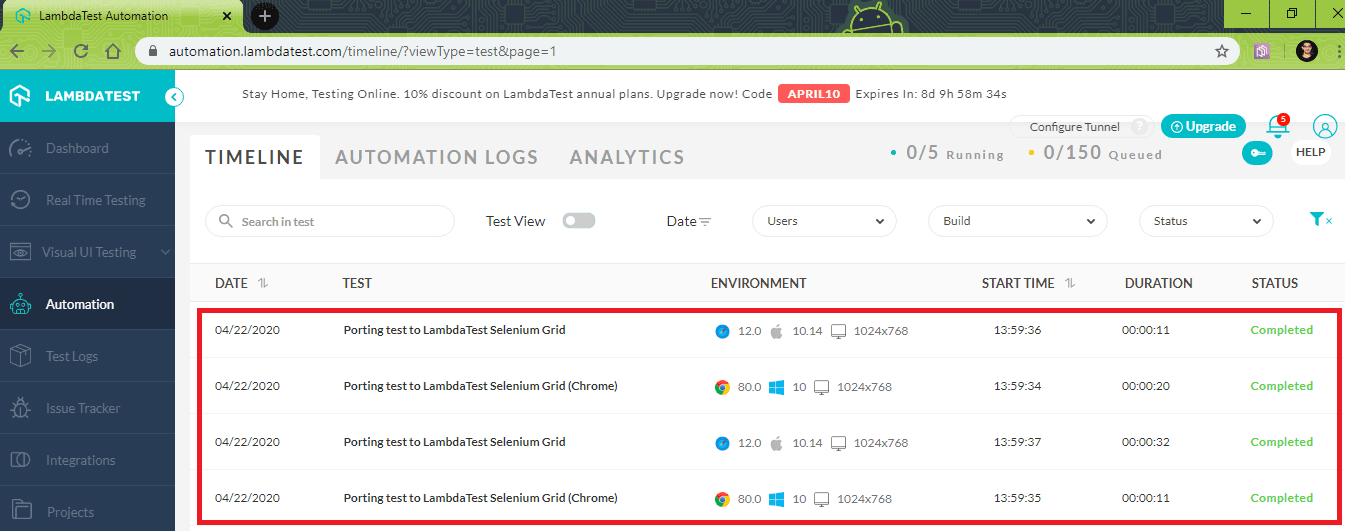
Also Read: Pytest Tutorial: Executing Multiple Test Cases From Single File.
You can watch this video to learn how to run multiple tests in pytest.
You can also explore 35 Commonly Asked Pytest Interview Questions in 2023. Perfect for interview prep or boosting your Pytest knowledge.
All In All
In this Selenium Python tutorial, I looked at using the PyTest framework for local and online Selenium Grid to run Selenium tests in parallel with Python. Automated browser testing using the local Selenium Grid can hit a roadblock at any point in time as it is not scalable and requires a significant investment on setting up & maintaining the overall infrastructure. An online Selenium Grid helps in speeding up the testing process as tests can be executed in parallel on a reliable Selenium Grid.
Testing on an online Selenium Grid also aids in improving the test coverage as testing can be performed on varied combinations of browsers, platforms, and devices. With minimal efforts (and code changes), existing test implementations can be ported to work with an online Selenium grid.
I hope you found this article informative and found it helpful. In case of any doubts, do reach out in the comment section down below. Also, I’d love it if you could share this Selenium Python tutorial with your peers and colleagues, this might help them if they’re facing any challenges to run Selenium tests in parallel with Python. That’s all for now! Happy Testing!!!?


Did you find this page helpful?
More Related Hubs
TestMu AI forEnterprise
Get access to solutions built on Enterprise
grade security, privacy, & compliance
- Advanced access controls
- Advanced data retention rules
- Advanced Local Testing
- Premium Support options
- Early access to beta features
- Private Slack Channel
- Unlimited Manual Accessibility DevTools Tests