

Next-Gen App & Browser Testing Cloud
Trusted by 2 Mn+ QAs & Devs to accelerate their release cycles


Page Object Model (POM) In Selenium Python
Page object model avoids code duplication and improves test maintenance. Read now and learn how to implement the POM design pattern in Selenium Python.

Himanshu Sheth
February 17, 2026
This article is a part of our Content Hub. For more in-depth resources, check out our content hub on Selenium Python Tutorial.
Automation Testing is an integral part of the testing process. The primary objective of any type of testing process (automation or manual) is to improve the product quality by reporting bugs & getting them fixed by the development team. Irrespective of the software development model being followed in the project, increasing test automation coverage can be considered an important Key Performance Indicator (KPI) to measure the test code’s effectiveness.
In this blog, we look at the Page Object Model (POM) in Selenium, a design pattern that helps create an object repository that stores all the web elements. POM reduces the maintenance effort by reducing the duplication of code. If you are preparing for an interview you can learn more through Selenium interview questions.
What Is Page Object Model?
Page Object Model (POM) is a design pattern in Selenium aimed at minimizing code duplication and streamlining code update and maintenance processes. Adopting POM allows you to create dedicated page classes for each webpage within your Automation Under Test (AUT).
By Louise J Gibbs
POM provides an efficient object repository to store and manage web elements, facilitating enhanced test case management and reducing overall development effort.
This makes the code more modular since locators/elements used by the test suites/test scenarios are stored in a separate class file & the test cases (that contain the core test logic) are in a different file. Hence, any change in the web UI elements will require minimal (or no changes) in the test scenarios since locators & test scripts are stored separately.
Implementation based on the Page Object Model (POM) contains the below crucial elements:
- Page Object Element (Page Class/Page Object) – The Page Class is an object repository for the WebElements/Web UI Elements of the web-pages under test. It also contains an implementation of the interfaces/methods to perform operations on these web elements. It is loosely based on the fundamentals of Object-Oriented Programming.
- Test Cases – As the name suggests, test cases contain the implementation of the actual test scenarios. It uses page methods/methods in the page class to interact with the page’s UI elements. If there is a change in the UI of the web page, only the Page Class needs to be updated, and the test code remains unchanged.
There might be several Page Classes containing methods of different web pages in some complex test scenarios. It is recommended to follow a uniform naming nomenclature when choosing appropriate names of Page methods.

Why Use Page Object Model (POM)?
As a software project progresses, the complexity of the development code and the test code increases. Hence, a proper project structure must be followed when developing automation test code; else, the code might become unmanageable.
A web product (or project) consists of different web pages that use various WebElements (e.g., menu items, text boxes, checkboxes, radio buttons, etc.). The test cases will interact with these elements, and the code complexity will increase manifold if Selenium locators are not managed in the right way.
Duplication of source code or duplicated locators’ usage can make the code less readable, resulting in increased overhead costs for code maintenance. For example, your team needs to test the login functionality of an e-commerce website. Using Automation testing with Selenium, the test code can interact with the web page’s underlying UI or locators. What happens if the UI is revamped or the path of the elements on that page change? The automation test scenarios will fail as the scenarios would no longer find those locators on the web page.
Suppose you follow the same test development approach for more web-pages. In that case, a considerable effort has to be spent on updating the locators that might be scattered (or duplicated) across different files. This approach is also error-prone as developers need to find & update the path of the locators. In such scenarios, the Page Object Model can be advantageous as it offers the following:
- Eases the job of code maintainability
- Increases the readability and reusability quotient
Advantages Of Page Object Model
Now that you are aware of the basics of the Page Object Model, let’s have a look at some of the core advantages of using that design pattern:
- Increased Reusability – The page object methods in different POM classes can be reused across different test cases/test suites. Hence, the overall code size will reduce by a good margin due to the increase in the page methods’ reusability factor.
- Improved Maintainability – As the test scenarios and locators are stored separately, it makes the code cleaner, and less effort is spent on maintaining the test code.
- Minimal impact due to UI changes – Even if there are frequent changes in the UI, changes might only be required in the Object Repository (that stores the locators). There is minimal to no impact on the implementation of the test scenarios.
- Integration with multiple test frameworks – As the test implementation is separated from the repository of page objects (or page classes), we can use the same repository with different test frameworks. For example, Test Case – 1 can use the Robot framework, Tese Case – 2 can use the pytest framework, etc. single test suite can contain test cases implemented using different test frameworks.

Austin Siewert
CEO, Vercel
Discovered @TestMu AI yesterday. Best browser testing tool I've found for my use case. Great pricing model for the limited testing I do 👏
2M+ Devs and QAs rely on TestMu AI
Deliver immersive digital experiences with Next-Generation Mobile Apps and Cross Browser Testing Cloud

Page Object Model In Selenium And Python
Developers and testers make extensive use of the Selenium Webdriver with programming languages like C#, Java, Python, JavaScript, PHP, and more. The advantage of using the Selenium Webdriver is developers can test their web-app or website on different types and versions of browsers, operating systems, and more.
Due to multi-platform support, Selenium is the most preferred framework as far as automation testing is concerned that’s why you should know What Is Selenium?
Page Object Model In Selenium And Python In Action (Example 1)
To demonstrate Page Object Model in Selenium and Python, we take the example of Google Search, where the search term is TestMu AI. We have used the PyCharm IDE (Community Edition), which can be downloaded from here for implementation. Below is the implementation with the unittest framework where the Selenium Webdriver instance is created to perform necessary interactions with the web browser.
import unittest
from selenium import webdriver
from selenium.webdriver.common.by import By
import time
from time import sleep
import warnings
import urllib3

class GoogleSeachTest(unittest.TestCase):
    def setUp(self):
        urllib3.disable_warnings(urllib3.exceptions.InsecureRequestWarning)

    def test_GoogleSearch(self):
        driver_chrome = webdriver.Chrome()
        self.driver = driver_chrome
        driver_chrome.maximize_window()
        driver_chrome.get('http://www.google.com')

        # Perform search operation
        elem = driver_chrome.find_element(By.NAME, "q")
        elem.send_keys("Lambdatest")
        elem.submit()

    def tearDown(self):
        # Close the browser.
        self.driver.close()
        self.driver.quit()

if __name__ == '__main__':
    unittest.main()
For porting this implementation to the Page Object Model in Selenium & Python, we follow a directory structure that can be used irrespective of the scale & complexity of the project. The choice of directory structure depends on test requirements, the tests’ complexity, and prior development & test team experience.
Shown below is the directory structure that we used for the demonstration of the Page Object Model in Selenium & Python:
Project-Directory
     |--------- Src
                    |--------- PageObject
                                       |--------- Pages
                                                    |--------- *Page.py (Implementation of methods that make use of the respective Locators declared in Locators.py)
                                       |--------- Locators.py
                    |--------- TestBase
                                       |--------- WebDriverSetup.py
     |--------- Test
                    |--------- Scripts
                                       |--------- test_*.py (Implementation of test code)(There should be 1:1 mapping of *Page.py and test_*.py as it helps in making the code more modular)
                    |--------- TestSuite
                                       |--------- TestRunner.py (contains TestSuite, which is a collection of test cases)
As shown in the above structure, the directory Project-Directory\PageObject contains Locators.py, where element locators are added depending on the requirements. Here is Locators.py for the Google search example:
FileName – Search\PageObject\Locators.py
class Locator(object):

    #Google Search Page
    search_text="//input[@name='q']"
    submit="//div[@class='FPdoLc tfB0Bf']//input[@name='btnK']"
    # //input[@name='Google Search']"
    logo="//*[@id='hplogo']"
Since the locators are added based on the web pages under test, any issue with the locators will require changes in the file that houses the locators (i.e., Locators.py) and no test code changes implementation. Below is the Page (HomePage.py) where the locators are used.
FileName – Search\PageObject\Pages\HomePage.py
import sys
sys.path.append(sys.path[0] + "/....")
# import os
# Uncomment if the above example gives you a relative path error
# sys.path.append(os.getcwd())

from selenium.webdriver.common.by import By
from Src.PageObject.Locators import Locator

class Home(object):
    def __init__(self, driver):
        self.driver = driver
        self.logo = driver.find_element(By.XPATH, Locator.logo)
        self.search_text = driver.find_element(By.XPATH, Locator.search_text)
        self.submit = driver.find_element(By.XPATH, Locator.submit)

    def getSearchText(self):
        return self.search_text

    def getSubmit(self):
        return self.submit

    def getWebPageLogo(self):
        return self.logo
Let’s do a code walkthrough:
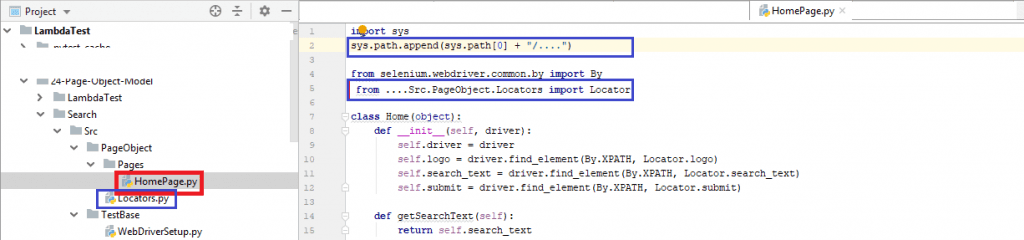
We use the relative path to import modules or classes which are located in a different directory. Hence, we first append the Python module path to the syspath using sys.path.append(sys. path[0] + “/….”).
Locators.py is in the directory Search\Src\PageObject and HomePage.py is in the directory Search\PageObject\Pages. To append the right path, you can use PyCharm IDE, where once you append the required levels (with respect to the directory structure), the class or module will get recognized. For example, below is the screenshot where an incorrect relative path is used for using the Locator class in HomePage.py.
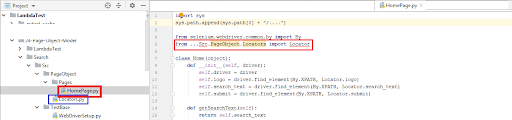
Since Locators.py is four levels up when we refer from HomePage.py 🡪 Src 🡪 PageObject 🡪 Pages, we append the same to syspath. The relative path changes at Line (5) are only for demonstration, and you can remove …. in the final implementation.
Initialization & setting up of the Selenium Webdriver is separated from the test suites and test scenarios for improving manageability and portability of the code. When you plan to perform using a remote web driver, change is only required in the WebDriver setup. The rest of the implementation remains unchanged! Shown below is the implementation of setup() & tearDown() methods of Selenium Webdriver.
FileName – Search\Src\TestBase\ WebDriverSetup.py
import unittest
from selenium import webdriver
import time
from time import sleep
import warnings
import urllib3

class WebDriverSetup(unittest.TestCase):
    def setUp(self):
        urllib3.disable_warnings(urllib3.exceptions.InsecureRequestWarning)
        self.driver = webdriver.Chrome()
        self.driver.implicitly_wait(10)
        self.driver.maximize_window()

    def tearDown(self):
        if (self.driver != None):
            print("Cleanup of test environment")
            self.driver.close()
            self.driver.quit()
The intent of using the Page Object Model (POM) is to minimize the percentage of repetitive code and to make the code more portable by separating the implementation into the following sections:
- Locators, Pages (based on the web page under test)
- Test scripts (based on the web page under test)
- Test suites (aggregation of the test cases)
Now that the WebDriver Setup and implementation of required Pages are ready, we implement the corresponding test cases.
Below is the Search functionality implementation, which uses the test infrastructure (Locators + Pages), which we have completed so far.
FileName – Search\Test\Scripts\ test_Home_Page.py
import sys
sys.path.append(sys.path[0] + "/...")

from Src.TestBase.WebDriverSetup import WebDriverSetup
from Src.PageObject.Pages.HomePage import Home
import unittest
from selenium import webdriver

class Google_HomePage(WebDriverSetup):

    def test_Home_Page(self):
        driver = self.driver
        self.driver.get("https://www.google.com/")
        self.driver.set_page_load_timeout(30)

        web_page_title = "Google"

        try:
            if driver.title == web_page_title:
                print("WebPage loaded successfully")
                self.assertEqual(driver.title,web_page_title)
        except Exception as error:
            print(error+"WebPage Failed to load")

        # Create an instance of the class so that you we can make use of the methods
        # in the class
        home_page = Home(driver)

if __name__ == '__main__':
    unittest.main()
FileName – Search\Test\Scripts\ test_Google_Search.py
import sys
sys.path.append(sys.path[0] + "/...")
# import os
# Uncomment if the above example gives you a relative path error
# sys.path.append(os.getcwd())

import unittest
from time import sleep
from Src.TestBase.WebDriverSetup import WebDriverSetup
from Src.PageObject.Pages.HomePage import Home

class Google_Search(WebDriverSetup):
    def test_GoogleSearch(self):

        driver = self.driver
        self.driver.get("https://www.google.com/")
        self.driver.set_page_load_timeout(30)

        # Create an instance of the class so that you we can make use of the methods
        # in the class
        home = Home(driver)
        home.search_text.send_keys("LambdaTest")
        sleep(5)
        home.search_text.submit()
        sleep(10)

if __name__ == '__main__':
    unittest.main()
To start with, an instance of the Home class is created so that the methods can be used in subsequent sections of the implementation. search_text.send_keys() and search_text.submit() methods are used to perform the search operation on the Google homepage. Here is the test suite implementation from where the respective tests are triggered:
FileName – Search\Test\TestSuite\TestRunner.py
import sys
import os
sys.path.append(sys.path[0] + "/...")
# Uncomment if the above example gives you a relative path error
sys.path.append(os.getcwd())

from unittest import TestLoader, TestSuite, TextTestRunner
from Test.Scripts.test_Home_Page import Google_HomePage
from Test.Scripts.test_Google_Search import Google_Search

import testtools as testtools

if __name__ == "__main__":

    test_loader = TestLoader()
    # Test Suite is used since there are multiple test cases
    test_suite = TestSuite((
        test_loader.loadTestsFromTestCase(Google_HomePage),
        test_loader.loadTestsFromTestCase(Google_Search),
        ))

    test_runner = TextTestRunner(verbosity=2)
    test_runner.run(test_suite)

    # Refer https://testtools.readthedocs.io/en/latest/api.html for more information
    parallel_suite = testtools.ConcurrentStreamTestSuite(lambda: ((case, None) for case in test_suite))
    parallel_suite.run(testtools.StreamResult())
        self.driver.set_page_load_timeout(30))
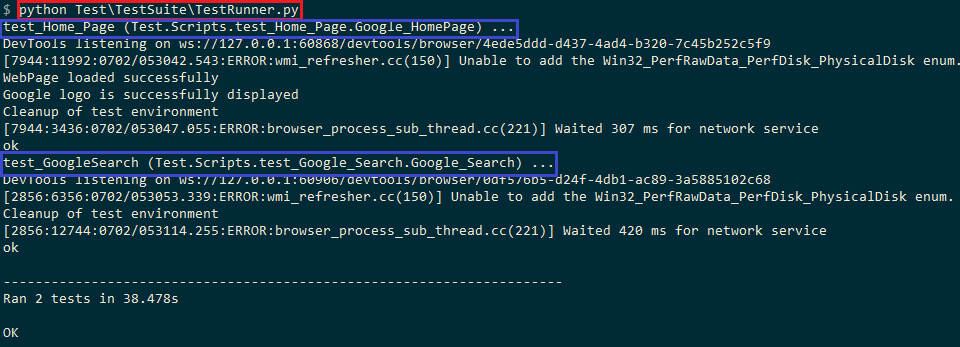
Below is the execution screenshot where the test suite is triggered from the terminal
Page Object Model In Selenium & Python In Action (Example 2)
We have a look at another example where the web page under test is TestMu AI. Below are the broad test requirements:
- Setup Selenium WebDriver for the Chrome web browser.
- Open the web page under test .
- Locate the Login Button on the page and log in using the registered credentials.
- Check whether the login operation is successful and the TestMu AI Automation Dashboard is available.
- Perform a clean-up operation before exiting the test.
The directory structure used for the Google search example explained earlier is used for this test as well. You can use the Inspect tool available in Chrome/Firefox browser to find the locator information.
In this pyest Tutorial learn how to implement the Page Object Model design pattern in pytest and how to apply it while performing test automation.
Read More– Get started with your easy Selenium Python tutorial!!!
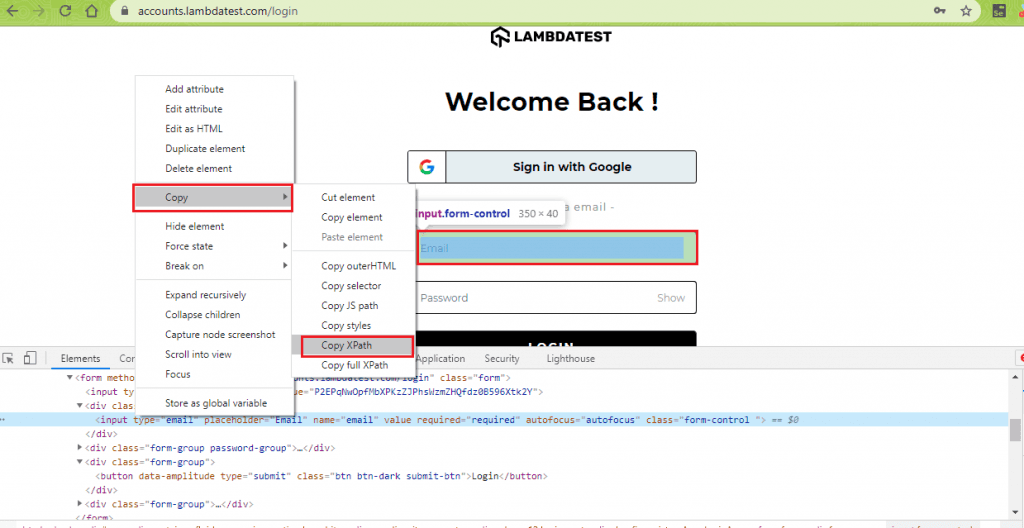
In the current test scenario, we need to find the locators for the TestMu AI homepage (https://www.lambdatest.com/) and the TestMu AI login page (https://accounts.lambdatest.com/login).
FileName – TestMu AI\PageObject\Locators.py
# The intent is to test login functionality on LambdaTest
# The user has already registered on LambdaTest
# Step 1 - Open https://www.lambdatest.com/
# Step 2 - Locate the Login Button and Sign-In using Credentials
# Step 3 - Check whether the page https://accounts.lambdatest.com/dashboard is displayed
#          and Welcome - Dashboard is shown as the Title of the web page

class LT_Locator(object):

#Locators for Lambdatest Home Page
    lt_logo = "//img[@alt='LambdaTest']"
    lt_signup = "//a[.='Start Free Testing']"
    lt_login = "//a[.='Log in']"
    lt_automation = "//ul[@class='navbar-nav']//a[.='Automation']"

#Locators for Login Page - https://accounts.lambdatest.com/login
    lt_login_user_name = "//input[@name='email']"
    lt_login_password = "//input[@id='userpassword']"
    lt_login_button = "//*[@id='app']/div/div/div/div/form/div[3]/button"
As there are two web pages to be tested, we create pages for HomePage and Login functionality. Below is the implementation of the LoginPage where necessary locators are used and required methods [e.g. get_LT_username(), get_LT_login_button(), etc.] to be used by the test case/test suites are implemented
FileName – TestMu AI\Src\PageObject\Pages\LT_LoginPage.py
import sys
sys.path.append(sys.path[0] + "/....")
# import os
# Uncomment if the above example gives you a relative path error
# sys.path.append(os.getcwd())

from selenium.webdriver.common.by import By
from Src.PageObject.Locators import LT_Locator

class LT_Login(object):
    def __init__(self, driver):

        self.driver = driver

        self.lt_login_user_name = driver.find_element(By.XPATH, LT_Locator.lt_login_user_name)
        self.lt_login_password = driver.find_element(By.XPATH, LT_Locator.lt_login_password)
        self.lt_login_button = driver.find_element(By.XPATH, LT_Locator.lt_login_button)

    def get_LT_username(self):
        return self.lt_login_user_name

    def get_LT_password(self):
        return self.lt_login_password

    def get_LT_login_button(self):
        return self.lt_login_button
Here is the implementation of the HomePage functionality:
FileName – TestMu AI\PageObject\Pages\LT_HomePage.py
import sys
sys.path.append(sys.path[0] + "/....")

from selenium.webdriver.common.by import By
from Src.PageObject.Locators import LT_Locator

class LT_Home(object):
    def __init__(self, driver):

        self.driver = driver
        self.lt_logo = driver.find_element(By.XPATH, LT_Locator.lt_logo)
        self.lt_signup = driver.find_element(By.XPATH, LT_Locator.lt_signup)
        self.lt_login = driver.find_element(By.XPATH, LT_Locator.lt_login)
        self.lt_automation = driver.find_element(By.XPATH, LT_Locator.lt_automation)

    def get_LT_logo(self):
        return self.lt_logo

    def get_LT_signup(self):
        return self.lt_signup

    def get_LT_login(self):
        return self.lt_login

    def get_LT_automation(self):
        return self.lt_automation
On similar lines, we have a Page for testing the Home functionality of the TestMu AI website; hence we create TestMu AI\PageObject\Pages\LT_HomePage.py. With the declaration of the required locators (in Locators.py) and implementation of the HomePage and Login pages, we implement the Test equivalent of these Pages (i.e., test_LT_HomePage.py and test_LT_LoginPage.py)
Shown below is the implementation of the test case used to verify the Home functionality:
FileName – TestMu AI\Test\Scripts\test_LT_HomePage.py
import sys
sys.path.append(sys.path[0] + "/...")

from Src.TestBase.WebDriverSetup import WebDriverSetup
from Src.PageObject.Pages.LT_HomePage import LT_Home
import unittest
from selenium import webdriver
from time import sleep

class test_LT_HomePage(WebDriverSetup):

    def test_Home_Page(self):
        driver = self.driver
        self.driver.get("https://www.lambdatest.com/")
        self.driver.set_page_load_timeout(30)

        web_page_title = "Free Cross Browser Testing Tool | Selenium Automation Testing Online"

        try:
            if driver.title == web_page_title:
                print("WebPage loaded successfully")
                self.assertEqual(driver.title,web_page_title)
        except Exception as error:
            print(error+"WebPage Failed to load")

        # Create an instance of the class so that you we can make use of the methods
        # in the class
        lt_home_page = LT_Home(driver)
        if lt_home_page.get_LT_logo().is_displayed():
            print(lt_home_page.get_LT_logo().get_attribute('alt')+" logo is successfully displayed")
        else:
            print("Lambdatest logo is not displayed")

        sleep(10)

if __name__ == '__main__':
    unittest.main()
Shown below is the implementation of the test case used to verify the Login functionality:
FileName – TestMu AI\Test\Scripts\test_LT_LoginPage.py
import sys
# import os
sys.path.append(sys.path[0] + "/...")
# Uncomment if the above example gives you a relative path error
# sys.path.append(os.getcwd())

import unittest
from time import sleep
from Src.TestBase.WebDriverSetup import WebDriverSetup
from Src.PageObject.Pages.LT_HomePage import LT_Home
from Src.PageObject.Pages.LT_LoginPage import LT_Login

from selenium.webdriver.common.by import By
from selenium.webdriver.support.ui import WebDriverWait
from selenium.webdriver.support import expected_conditions as EC

# Add your username and password
username = "[email protected]"
password = "password"

class test_LT_LoginPage(WebDriverSetup):
    def test_Login_Page(self):

        driver = self.driver
        self.driver.get("https://lambdatest.com/")
        self.driver.set_page_load_timeout(360)

        # Create an instance of the class so that you we can make use of the methods
        # in the class
        lt_home_page = LT_Home(driver)

        # Click the login button to go to the next page https://accounts.lambdatest.com/login
        lt_home_page.lt_login.click()

        sleep(5)

        # Re-verify whether the page is loaded successfully
        web_page_title = "Login - LambdaTest"

        try:
            if driver.title == web_page_title:
                print("Login Page loaded successfully")
                self.assertEqual(driver.title, web_page_title)
        except Exception as error:
            print(error + "WebPage Failed to load")

        # Create an object of the Login Class
        lt_login_obj = LT_Login(driver)

        sleep(5)

        lt_login_obj.lt_login_user_name.send_keys(username)
        lt_login_obj.lt_login_password.send_keys(password)

        sleep(5)

        # Click the login button to go to the dashboard
        lt_login_obj.lt_login_button.click()

        sleep(5)

        # See if the login is successful by checking the title, if successful than exit
        # else report an Error
        web_page_title = "Welcome - LambdaTest"

        try:
             if driver.title == web_page_title:
                 print("User Logged in successfully")
                 self.assertEqual(driver.title, web_page_title)
        except Exception as error:
             print(error + "WebPage Failed to load")

        sleep(10)

        # Click on the automation tab and than exit
        automation_element = WebDriverWait(driver, 10).until(
            EC.element_to_be_clickable((By.XPATH, '//a[.='Automation']
'))
        )
        automation_element.click()

        sleep(5)

        print("Login test completed successfully")

if __name__ == '__main__':
    unittest.main()
As seen from the implementation, initially, an instance of the Home class (LT_Home) is created. On successful creation, we make use of the lt_login.click() to navigate to the login screen.
Now that we are on a different web page i.e. https://accounts.lambdatest.com/login, an instance of the Login class (LT_Login) is created. Its corresponding methods lt_login_user_name() & lt_login_password() are used with send_keys() to populate the username & password fields on the page.
Verification of whether the login is successful is done by comparing the page title (of the page being displayed) with the intended page title. If the page titles match, the login is successful, and cleanup activities are performed. The two test cases are initiated from a test suite; implementation is shown below
FileName – TestMu AI\Test\TestSuite\TestRunner.py
import sys
# sys.path.append(sys.path[0] + "/...")
import os
sys.path.append(os.getcwd())

from unittest import TestLoader, TestSuite, TextTestRunner
from Test.Scripts.test_LT_HomePage import test_LT_HomePage
from Test.Scripts.test_LT_LoginPage import test_LT_LoginPage

import testtools as testtools

if __name__ == "__main__":

    test_loader = TestLoader()
    # Test Suite is used since there are multiple test cases
    test_suite = TestSuite((
        test_loader.loadTestsFromTestCase(test_LT_HomePage),
        test_loader.loadTestsFromTestCase(test_LT_LoginPage),
        ))

    test_runner = TextTestRunner(verbosity=2)
    test_runner.run(test_suite)
    # Refer https://testtools.readthedocs.io/en/latest/api.html for more information
    parallel_suite = testtools.ConcurrentStreamTestSuite(lambda: ((case, None) for case in test_suite))
    parallel_suite.run(testtools.StreamResult())
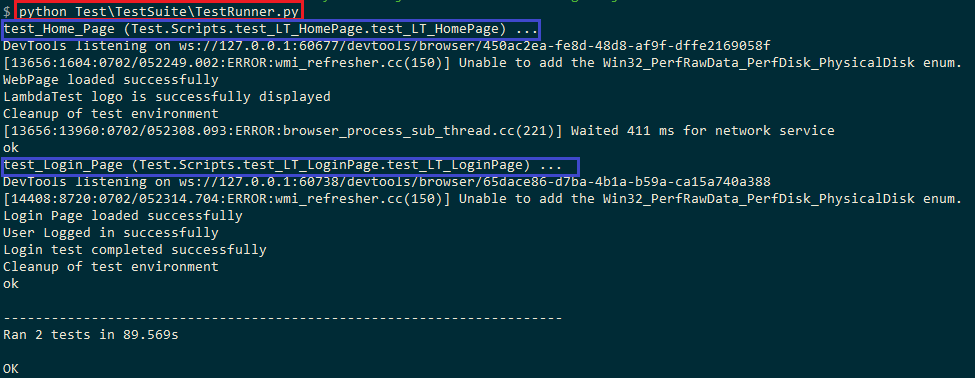
For more information about the test case and test suite implementation using the Unittest framework, please refer to our earlier blogs, where these topics are discussed in more detail. Shown below is the execution screenshot of the tests performed on the URL under test, i.e., TestMu AI.

Automated Cross Browser Testing Using Page Object Model
The Page Object Model is a very useful design pattern that helps you design & implement test code that is more maintainable with minimal/no code duplication. During the course of web app testing, there might be frequent changes in UI and separating locators in the test code from the core implementation improves the modularity of the test code.
However, verification on different versions/types of browsers, operating systems, and devices can be a daunting task if the testing is performed in a local environment. Having a local setup for cross browser testing is neither scalable nor maintainable.
Hence, you should migrate your tests to a cloud-based cross browser testing platform where you can perform tests on different combinations of browsers, operating systems, and devices without housing them locally. Automated cross browser testing platform like TestMu AI lets you perform automated and live Interactive cross browser testing on 3000+ real browsers and Operating Systems online. There are minimal changes required in porting the test code from Local Selenium Webdriver to Remote Selenium Webdriver setup. The platform also lets you perform Parallel testing, resulting in a significant reduction in terms of effort & time spent on the automated cross browser testing.
To get started, you need to make an account on TestMu AI. Once you log in, you can access the TestMu AI Automation Dashboard, which shows the cross browser tests you have performed on TestMu AI. You can also perform Visual UI testing, Real-Time Testing (which requires no test implementation), and raise bugs through one-click bug logging by integrating with Jira, Asana, Slack, Bitbucket, Teamwork, Microsoft teams, or other issue tracking products.
To see automated cross browser testing on TestMu AI in action, let’s port the TestMu AI login test code. Changes in the setUp() method (located in WebDriverSetup.py) are done to perform testing on the TestMu AI platform. Login on TestMu AI platform is done using the username and passkey, which can be obtained from https://accounts.lambdatest.com/profile. Desired browser capabilities are passed to the remote Selenium web driver interface to set up the browser environment. You can also generate the desired capabilities from the Desired Capability Generator. Shown below are the changes that we did for performing automated cross browser testing on TestMu AI.
FileName –
import unittest
from selenium import webdriver
import time
from time import sleep
import warnings
import urllib3

#Set capabilities for testing on Firefox
ff_caps = {
    "build" : "Page Object Model on Lambdatest using Unittest",
    "name" : "Page Object Model on Lambdatest using Unittest",
    "platform" : "Windows 10",
    "browserName" : "Firefox",
    "version" : "64.0",
}

user_name = " your-user-name "
app_key = " app-key-generated-during-account-creation"

# Obtain details from https://accounts.lambdatest.com/profile
# user_name = "your-user-name"
# app_key = "app-key-generated-during-account-creation"

class WebDriverSetup(unittest.TestCase):
    def setUp(self):
        global remote_url
        urllib3.disable_warnings(urllib3.exceptions.InsecureRequestWarning)
        remote_url = "https://" + user_name + ":" + app_key + "@hub.lambdatest.com/wd/hub"
        # self.driver = webdriver.Chrome()
        driver = webdriver.Remote(command_executor=remote_url, desired_capabilities=ff_caps)
        self.driver = driver
        self.driver.implicitly_wait(10)
        self.driver.maximize_window()
        # driver.get('http://www.google.com')

    def tearDown(self):
        if (self.driver != None):
            print("Cleanup of test environment")
            self.driver.close()
            self.driver.quit()
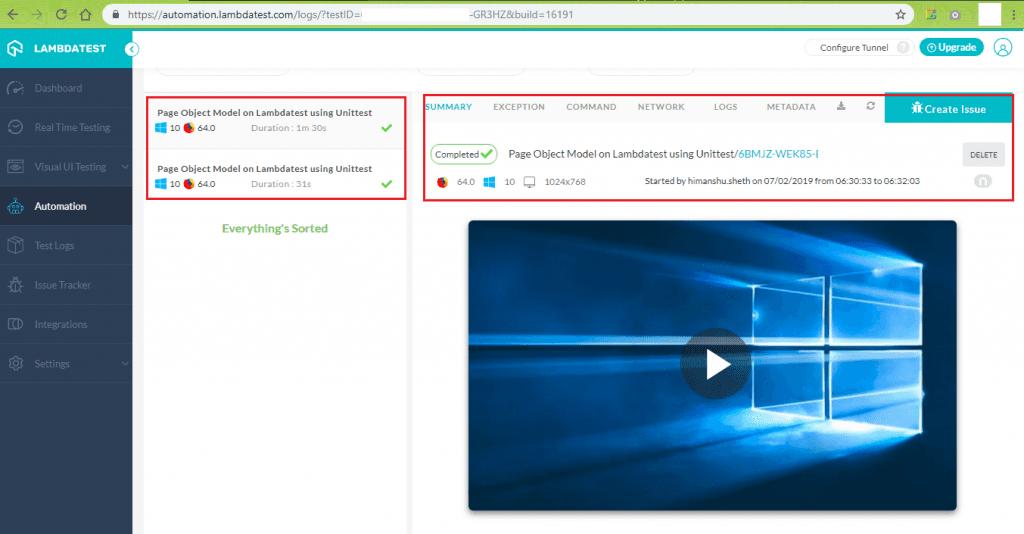
You should execute the test suite from the terminal as you did for the earlier tests. To check the test status, you need to visit the Automation tab located in the TestMu AI Dashboard and click on the test that matches the build name you mentioned in the setup, i.e., Page Object Model Lambdatest using Unittest in our case.
Hence, performing automated cross browser testing on a cloud-based platform like TestMu AI can be beneficial irrespective of the scale and complexity of the project/product.
Conclusion
Page Object Model can be used to make the test code more maintainable and minimize the amount of code duplication in your project/product. Though it helps make the code more modular, its overall impact can be more if used in conjunction with an automated cross browser testing platform.
The page object model in Selenium & Python is widely popular, and porting test code with local Selenium Webdriver to remote Selenium Webdriver requires minimal implementation changes. Hence, the Page Object Model framework on Automation testing with Selenium should be explored by the test & development team irrespective of whether there are frequent UI changes in the web app/website.


Frequently asked questions
Did you find this page helpful?
More Related Hubs
TestMu AI forEnterprise
Get access to solutions built on Enterprise
grade security, privacy, & compliance
- Advanced access controls
- Advanced data retention rules
- Advanced Local Testing
- Premium Support options
- Early access to beta features
- Private Slack Channel
- Unlimited Manual Accessibility DevTools Tests