

Next-Gen App & Browser Testing Cloud
Trusted by 2 Mn+ QAs & Devs to accelerate their release cycles


MSTest Tutorial: Parameterized Tests For Selenium Testing
Parameterized tests allows tester to run the same test a few times using different values. Find out how you can do this in MSTest with DataRow and DynamicData.

Himanshu Sheth
December 29, 2025
When it comes to , there are a couple of options for test frameworks like NUnit, xUnit.net, and MSTest. Each of these frameworks has their own share of advantages & shortcomings and NUnit & xUnit.net had a huge edge over MSTest. Though MSTest is the default test framework that comes with Visual Studio, it was not the preferred test automation framework until MSTest V2 was released.
MSTest V2 is an open-source version of the MSTest framework. The previous version of the MSTest framework i.e. MSTest V1 lacked a lot of features that were present in other test frameworks. However, MSTest V2 has support for parallel test execution & data-driven testing and is also extensible via custom test attributes & custom assets.
The framework also has cross-platform support and another important feature that was missing in MSTest V1. Parameterized tests with MSTest are possible with the V2 version of the framework. There are specific attributes/annotations in the MSTest framework that enable parameterization with the MSTest framework.
By the end of this MSTest tutorial on Parameterized tests, you would be in a comfortable position to handle MSTest parameterized tests.
Overview
Parameterized testing in MSTest V2 allows executing the same test with multiple input values. This improves test coverage, reduces repetitive code, and is especially useful in scalable automated browser testing with Selenium and cloud testing platforms like TestMu AI.
What Are Parameterized Tests in MSTest?
How MSTest handles multiple input values in a single test:
- [DataRow]: Provides simple, constant data directly to the test method.
- [DynamicData]: Supplies complex or dynamically generated data sets for flexible test inputs.
Key Benefits
Why parameterized testing is valuable for automation workflows:
- Reduces Code Duplication: One test method can validate multiple conditions without separate test classes or functions.
- Supports Scalable Cross-Browser Testing: Easily test across various browser and OS combinations.
- Improves CI/CD Performance: Enables efficient parallel execution to speed up automated pipelines.
- Enhances Test Coverage: Ensures broader validation across different input and environment configurations.
Limitations
Important considerations while using parameterized testing:
- Debug Complexity: Large input sets may make it harder to identify failing conditions.
- Requires Structured Data Planning: Ensures consistency across different environments during execution.
When to Use Parameterized Testing
Recommended scenarios for optimal efficiency:
- ✅ Ideal For: Cross-browser compatibility tests, regression testing at scale, and workflow validation across varied input conditions.
- ❌ Avoid For: Visual/UI-based layout comparisons that require pixel-level validation.
MSTest V2 parameterization features like DataRow and DynamicData simplify the process of scaling test execution. When combined with a cloud grid like TestMu AI, teams can accelerate testing, improve coverage, and maintain cleaner, more maintainable test code.
MSTest Parameterized Tests With DataRow
The DataRow attribute in MSTest allows setting the values of test parameters for Selenium test automation. More than one DataRow attribute can be present in the code. If you are intending to convert a non-parameterized test in MSTest parameterized tests one, all you need to do is replace the TestMethod attribute with the DataTestMethod attribute and pass the test combinations to the test method via DataRow for MSTest parameterized tests.
Demonstration – [DataRow] Attribute
To demonstrate the DataRow attribute in this MSTest tutorial, I’ll execute certain tests on an online Selenium grid present on the TestMu AI cross browser testing platform. Parallelization is enabled in the test to leverage parallel testing.
To get started, you need to create an account on TestMu AI. Make sure you have the user-name & access key handy to access TestMu AI’s Selenium grid. You can perform Selenium test automation with MSTest and can run scripts in parallel, giving us a faster test execution along with improved test coverage.
For all the tests, browser + OS combinations are generated using TestMu AI capabilities generator. The execution output is available in the Automation section on the TestMu AI dashboard.
Below are the test cases for this MSTest tutorial used to demonstrate MSTest parameterized tests on an online Selenium Grid.
Test Case 1 – LamdaTest To-Do App.
- Navigate to the to-do app https://lambdatest.github.io/sample-todo-app/ using the Firefox WebDriver.
- Mark the first two items as Done i.e. Check those two items.
- Add a new item – Adding item to the list.
- Click Add button to add that new item to the list.
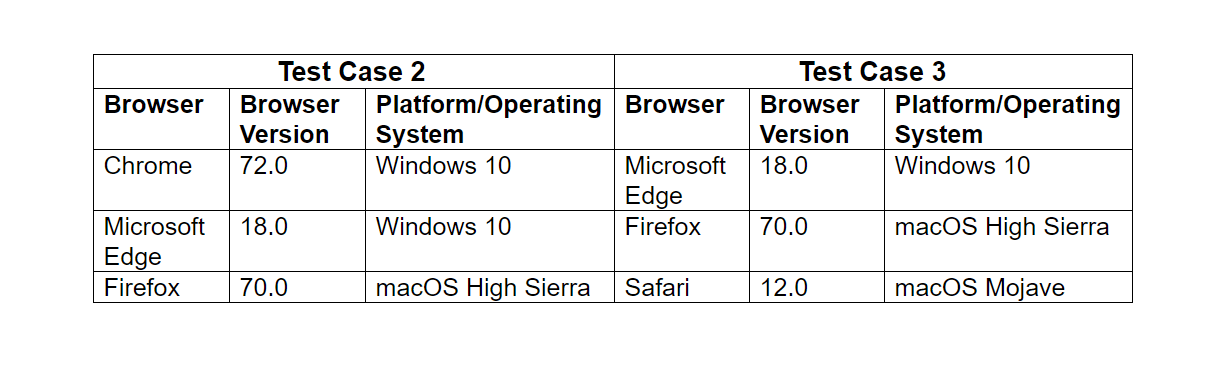
Browsers on which cross-browser testing is performed are:
Test Case 2 & 3 – Google Search for TestMu AI.
- Navigate to Google.com
- Search for TestMu AI
- Quit the browser window
Both the test cases in this MSTest tutorial are the same but the execution will be performed on different web browsers for MSTest parameterized tests.
Implementation
using Microsoft.VisualStudio.TestTools.UnitTesting;
using OpenQA.Selenium;
/* For using Remote Selenium WebDriver for MSTest parameterized tests*/
using OpenQA.Selenium.Remote;
using System;
using System.Threading;

[assembly: Parallelize(Workers = 5, Scope = ExecutionScope.MethodLevel)]

namespace ParallelLTSelenium
{
    [TestClass]
    public class ParallelLTTests
    {
        //ThreadLocal<IWebDriver> driver0 = new ThreadLocal<IWebDriver>();
        //ThreadLocal<IWebDriver> driver1 = new ThreadLocal<IWebDriver>();
        IWebDriver driver;

        String username = "user-name";
        String accesskey = "access-key";
        String gridURL = "@hub.lambdatest.com/wd/hub";

        DesiredCapabilities capabilities;

        [TestInitialize]
        public void setupInit()
        {
            capabilities = new DesiredCapabilities();

            capabilities.SetCapability("user", username);
            capabilities.SetCapability("accessKey", accesskey);
        }

        [DataTestMethod]
        [DataRow("chrome", "72.0", "Windows 10")]
        [DataRow("MicrosoftEdge", "18.0", "Windows 10")]
        [DataRow("Firefox", "70.0", "macOS High Sierra")]
        [DataRow("Safari", "12.0", "macOS Mojave")]

        [TestMethod]
        public void LT_ToDo_Test(String browser, String version, String os)
        {
            String itemName = "Yey, Let's add it to list";

            capabilities.SetCapability("browserName", browser);
            capabilities.SetCapability("version", version);
            capabilities.SetCapability("platform", os);
            capabilities.SetCapability("build", "LT ToDoApp using MsTest in Parallel on LambdaTest");
            capabilities.SetCapability("name", "LT ToDoApp using MsTest in Parallel on LambdaTest");

            driver = new RemoteWebDriver(new Uri("https://" + username + ":" + accesskey + gridURL), capabilities, TimeSpan.FromSeconds(2000));

            driver.Url = "https://lambdatest.github.io/sample-todo-app/";

            Assert.AreEqual("Sample page - lambdatest.com", driver.Title);
            // Click on First Check box
            IWebElement firstCheckBox = driver.FindElement(By.Name("li1"));
            firstCheckBox.Click();

            // Click on Second Check box
            IWebElement secondCheckBox = driver.FindElement(By.Name("li2"));
            secondCheckBox.Click();

            // Enter Item name
            IWebElement textfield = driver.FindElement(By.Id("sampletodotext"));
            textfield.SendKeys(itemName);

            // Click on Add button
            IWebElement addButton = driver.FindElement(By.Id("addbutton"));
            addButton.Click();

            // Verified Added Item name
            IWebElement itemtext = driver.FindElement(By.XPath("/html/body/div/div/div/ul/li[6]/span"));
            String getText = itemtext.Text;
            Assert.IsTrue(itemName.Contains(getText));

            /* Perform wait to check the output */
            System.Threading.Thread.Sleep(2000);

            Console.WriteLine("LT_ToDo_Test Passed");
        }

        [DataTestMethod]
        [DataRow("chrome", "72.0", "Windows 10")]
        [DataRow("MicrosoftEdge", "18.0", "Windows 10")]
        [DataRow("Firefox", "70.0", "macOS High Sierra")]

        [TestMethod]
        public void Google_Test_1(String browser, String version, String os)
        {
            capabilities.SetCapability("browserName", browser);
            capabilities.SetCapability("version", version);
            capabilities.SetCapability("platform", os);
            capabilities.SetCapability("build", "Google search (1) using MsTest in Parallel on LambdaTest");
            capabilities.SetCapability("name", "Google search (1) using MsTest in Parallel on LambdaTest");

            driver = new RemoteWebDriver(new Uri("https://" + username + ":" + accesskey + gridURL), capabilities, TimeSpan.FromSeconds(2000));

            //System.Threading.Thread.Sleep(2000);

            driver.Url = "https://www.google.com";

            IWebElement element = driver.FindElement(By.XPath("//*[@id='tsf']/div[2]/div[1]/div[1]/div/div[2]/input"));

            element.SendKeys("LambdaTest");

            /* Submit the Search */
            element.Submit();

            /* Perform wait to check the output  for Selenium test automation*/
            System.Threading.Thread.Sleep(2000);

            Console.WriteLine("Google_Test Passed");

        }

        [DataTestMethod]
        [DataRow("chrome", "72.0", "Windows 10")]
        [DataRow("MicrosoftEdge", "18.0", "Windows 10")]
        [DataRow("Firefox", "70.0", "macOS High Sierra")]
        [DataRow("Safari", "12.0", "macOS Mojave")]

        [TestMethod]
        public void Google_Test_2(String browser, String version, String os)
        {
            capabilities.SetCapability("browserName", browser);
            capabilities.SetCapability("version", version);
            capabilities.SetCapability("platform", os);
            capabilities.SetCapability("build", "Google Search (2) using MsTest in Parallel on LambdaTest");
            capabilities.SetCapability("name", "Google Search (2) using MsTest in Parallel on LambdaTest");

            driver = new RemoteWebDriver(new Uri("https://" + username + ":" + accesskey + gridURL), capabilities, TimeSpan.FromSeconds(2000));

            //System.Threading.Thread.Sleep(2000);

            driver.Url = "https://www.google.com";

            IWebElement element = driver.FindElement(By.XPath("//*[@id='tsf']/div[2]/div[1]/div[1]/div/div[2]/input"));

            element.SendKeys("LambdaTest");

            /* Submit the Search */
            element.Submit();

            /* Perform wait to check the output */
            System.Threading.Thread.Sleep(2000);

            Console.WriteLine("Google_Test Passed");

        }

        [TestCleanup]
        public void Cleanup()
        {
            if (driver != null)
                driver.Quit();
        }
    }
}

Code WalkThrough
Step 1 – Valid user-name and access-key are used for accessing the remote Selenium grid on TestMu AI.
String username = "user-name";
String accesskey = "access-key";
String gridURL = "@hub.lambdatest.com/wd/hub";
.......................................................................
Step 2– Browser + OS combinations on which Selenium test automation has to be performed are passed to the Remote WebDriver API.
DesiredCapabilities capabilities = new DesiredCapabilities();

capabilities.SetCapability("user", user-name);
capabilities.SetCapability("accessKey", access-key);
capabilities.SetCapability("build", "Google Search (2) using MsTest in Parallel on LambdaTest");
capabilities.SetCapability("name", "Google Search (2) using MsTest in Parallel on LambdaTest");
capabilities.SetCapability("platform", "Windows 10");
capabilities.SetCapability("browserName", "Firefox");
capabilities.SetCapability("version", "62.0");

.................................................................................
.................................................................................
.................................................................................

driver = new RemoteWebDriver(new Uri("https://user-name:[email protected]/wd/hub"), capabilities, TimeSpan.FromSeconds(600));
Step 3 – With our current plan on TestMu AI, five threads can be executed in parallel. Hence, Parallelism scope is set to MethodLevel with the number of worker threads running in parallel set to 5.
[assembly: Parallelize(Workers = 5, Scope = ExecutionScope.MethodLevel)]
Step 4 – The input combination of browser-name, browser-version, and the platform is passed to the DataRow attribute. These values are in turn used as input parameters for the respective test methods.
Tests with different test combinations (provided via the DataRow attribute) are executed in parallel until the completion of all the test cases for MSTest parameterized tests.
[DataTestMethod]
[DataRow("chrome", "72.0", "Windows 10")]
[DataRow("MicrosoftEdge", "18.0", "Windows 10")]
[DataRow("Firefox", "70.0", "macOS High Sierra")]
[DataRow("Safari", "12.0", "macOS Mojave")]

[TestMethod]
public void LT_ToDo_Test(String browser, String version, String os)
{
	String itemName = "Yey, Let's add it to list";

	capabilities.SetCapability("browserName", browser);
      capabilities.SetCapability("version", version);
      capabilities.SetCapability("platform", os);
      capabilities.SetCapability("build", "LT ToDoApp using MsTest in Parallel on LambdaTest");
      capabilities.SetCapability("name", "LT ToDoApp using MsTest in Parallel on LambdaTest");

      driver = new RemoteWebDriver(new Uri("https://" + username + ":" + accesskey + gridURL), capabilities, TimeSpan.FromSeconds(2000));

      driver.Url = "https://lambdatest.github.io/sample-todo-app/";
	...................................................
      ...................................................
      ...................................................
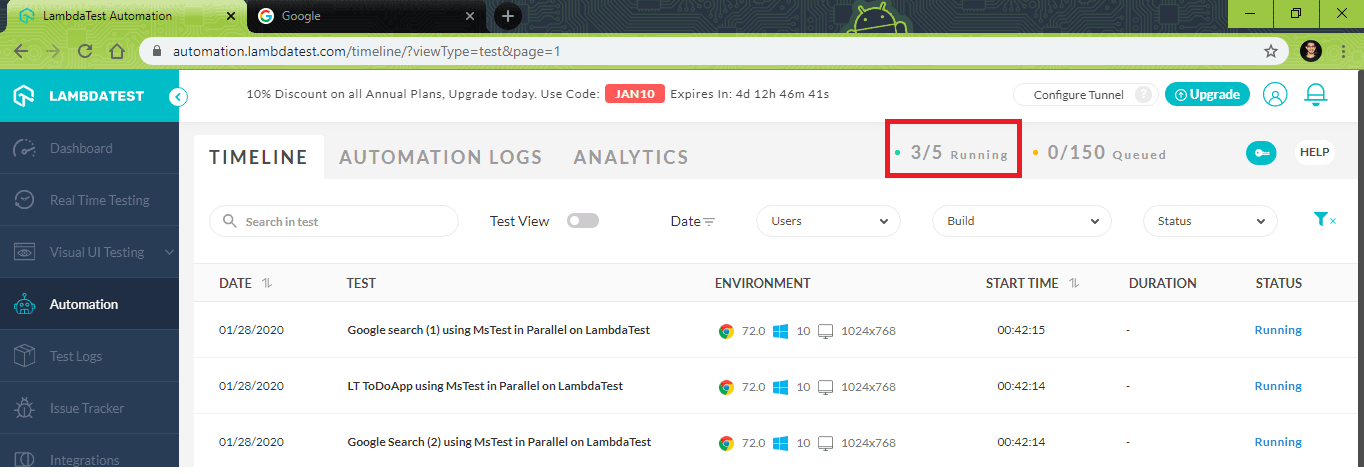
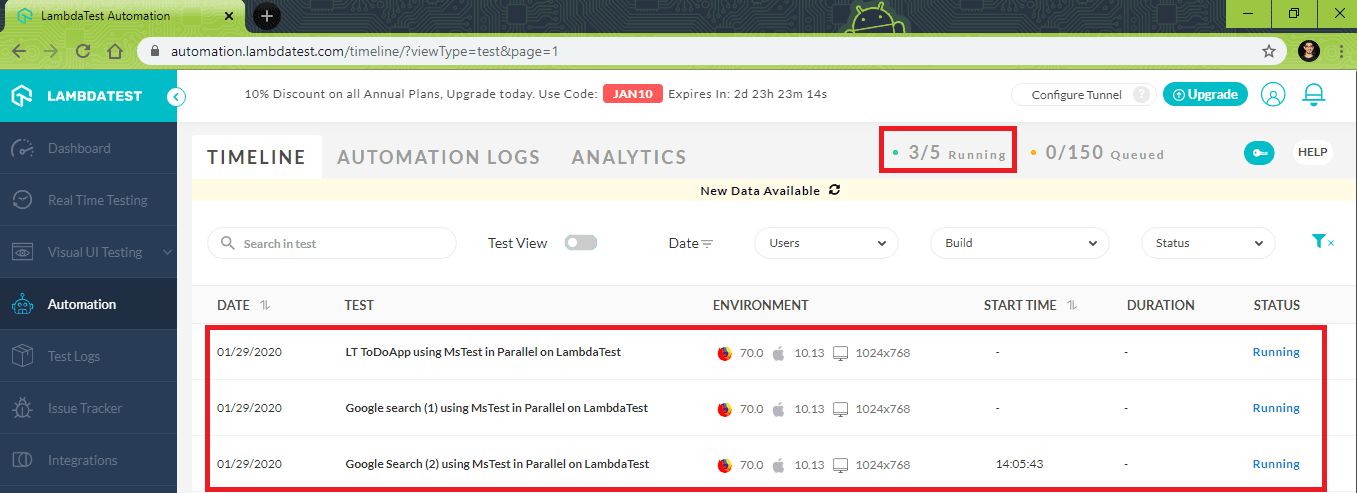
You can visit automation logs on TestMu AI to check the execution status of the test for the MSTest parameterized tests. As seen in the screenshot from TestMu AI automation in this MSTest tutorial, three tests were executed in Parallel.
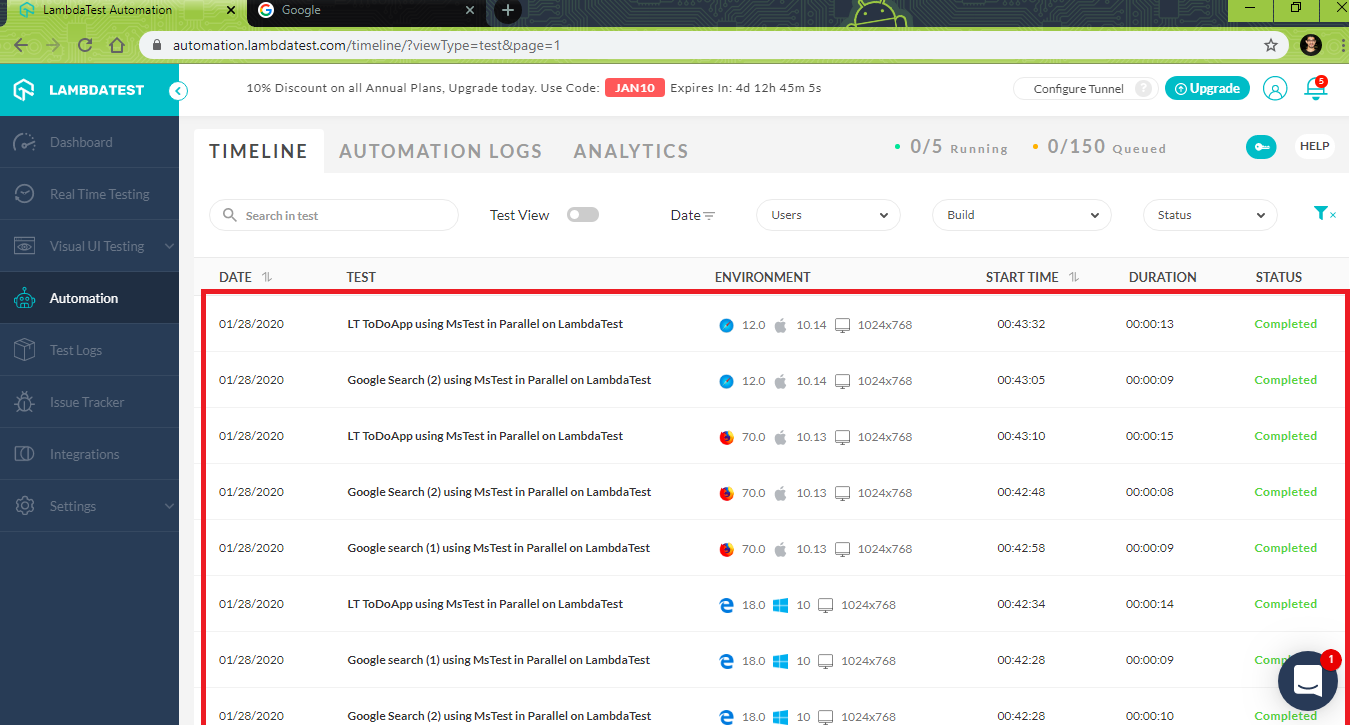
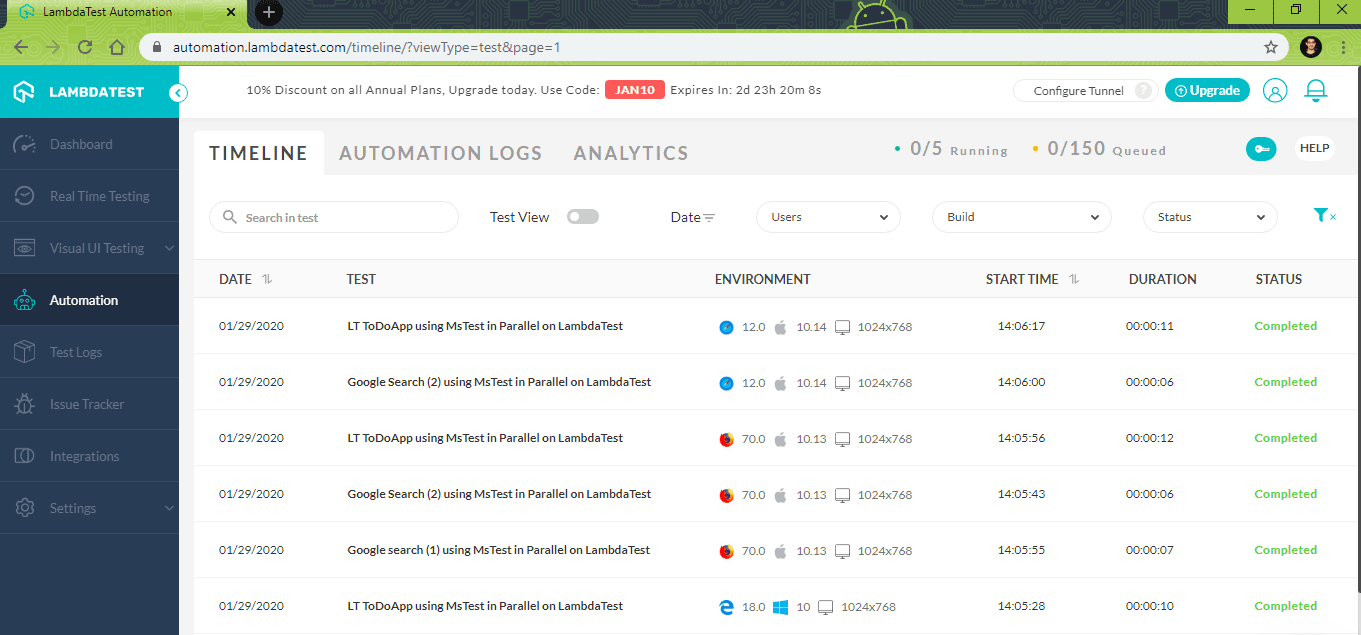
In the screenshot below for this MSTest tutorial you can see all the MSTest parameterized tests and their details such as start time, duration, status and also the environment on which you ran your MSTest parameterized tests:
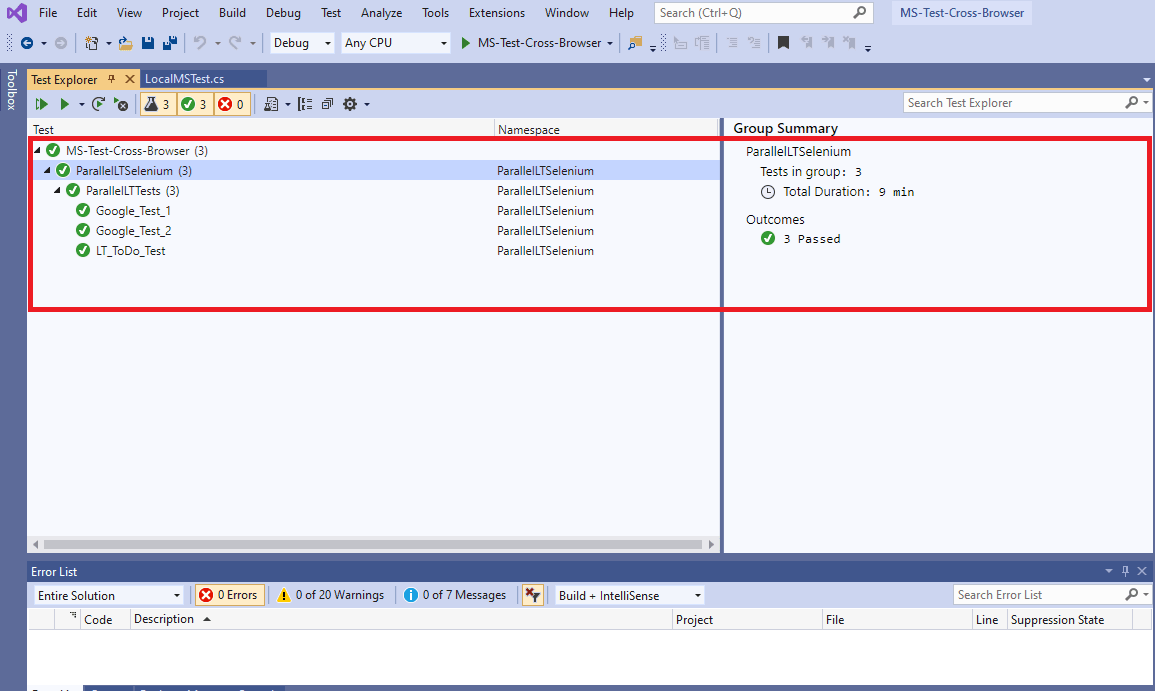
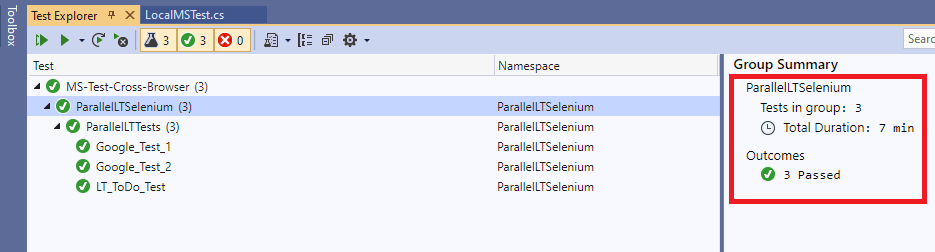
In the screenshot below for this MSTest tutorial you can see your Selenium test automation cases on visual studio as well:

Austin Siewert
CEO, Vercel
Discovered @TestMu AI yesterday. Best browser testing tool I've found for my use case. Great pricing model for the limited testing I do 👏
2M+ Devs and QAs rely on TestMu AI
Deliver immersive digital experiences with Next-Generation Mobile Apps and Cross Browser Testing Cloud

Take this certification to master the fundamentals of Selenium automation testing with C# and prove your credibility as a tester.
Here’s a short glimpse of the Selenium C# 101 certification from TestMu AI:
MSTest Parameterized Tests With DynamicData
The DynamicData attribute is used when non constant values or complex objects are to be passed as parameters. The values of the parameters can be obtained from a property or method. Every row corresponds to a value used for test purposes. The method or property being used should return IEnumerable< object[] >.
Demonstration – [DynamicData] Attribute
For a demonstration of the DynamicData attribute in this MSTest tutorial, I’ll perform the same Selenium test automation scenarios that were used for demonstrating the DataRow attribute. You can refer to the section titled Demonstration – [DataRow] Attribute for more information on the Selenium test automation scenarios.
Implementation
using Microsoft.VisualStudio.TestTools.UnitTesting;
using OpenQA.Selenium;
/* For using Remote Selenium WebDriver for MSTest parameterized tests in this MSTest tutorial */
using OpenQA.Selenium.Remote;
using System;
using System.Threading;
using System.Collections;
using System.Collections.Generic;

[assembly: Parallelize(Workers = 5, Scope = ExecutionScope.MethodLevel)]

namespace ParallelLTSelenium
{
    [TestClass]
    public class ParallelLTTests
    {
        //ThreadLocal<IWebDriver> driver0 = new ThreadLocal<IWebDriver>();
        //ThreadLocal<IWebDriver> driver1 = new ThreadLocal<IWebDriver>();
        IWebDriver driver;

        String username = "user-name";
        String accesskey = "access-key";
        String gridURL = "@hub.lambdatest.com/wd/hub";

        DesiredCapabilities capabilities;

        [TestInitialize]
        public void setupInit()
        {
            capabilities = new DesiredCapabilities();

            capabilities.SetCapability("user", username);
            capabilities.SetCapability("accessKey", accesskey);
        }

        public static IEnumerable<object[]> GetBrowserData_1()
        {
            yield return new object[] { "chrome", "72.0", "Windows 10" };
            yield return new object[] { "MicrosoftEdge", "18.0", "Windows 10" };
            yield return new object[] { "Firefox", "70.0", "macOS High Sierra" };
            yield return new object[] { "Safari", "12.0", "macOS Mojave" };
        }

        public static IEnumerable<object[]> GetBrowserData_2()
        {
            yield return new object[] { "chrome", "72.0", "Windows 10" };
            yield return new object[] { "MicrosoftEdge", "18.0", "Windows 10" };
            yield return new object[] { "Firefox", "70.0", "macOS High Sierra" };
        }

        public static IEnumerable<object[]> GetBrowserData_3()
        {
            yield return new object[] { "chrome", "72.0", "Windows 10" };
            yield return new object[] { "MicrosoftEdge", "18.0", "Windows 10" };
            yield return new object[] { "Firefox", "70.0", "macOS High Sierra" };
            yield return new object[] { "Safari", "12.0", "macOS Mojave" };
        }

        [DataTestMethod]
        [DynamicData(nameof(GetBrowserData_1), DynamicDataSourceType.Method)]
        public void LT_ToDo_Test(String browser, String version, String os)
        {
            String itemName = "Yey, Let's add it to list";

            capabilities.SetCapability("browserName", browser);
            capabilities.SetCapability("version", version);
            capabilities.SetCapability("platform", os);
            capabilities.SetCapability("build", "LT ToDoApp using MsTest in Parallel on LambdaTest");
            capabilities.SetCapability("name", "LT ToDoApp using MsTest in Parallel on LambdaTest");

            driver = new RemoteWebDriver(new Uri("https://" + username + ":" + accesskey + gridURL), capabilities, TimeSpan.FromSeconds(2000));

            driver.Url = "https://lambdatest.github.io/sample-todo-app/";

            	// Implementation same as in DataRow Attribute for MSTest parameterized tests
		...................
	      ...................


            Console.WriteLine("LT_ToDo_Test Passed");
        }

        [DataTestMethod]
        [DynamicData(nameof(GetBrowserData_2), DynamicDataSourceType.Method)]
        public void Google_Test_1(String browser, String version, String os)
        {
            capabilities.SetCapability("browserName", browser);
            capabilities.SetCapability("version", version);
            capabilities.SetCapability("platform", os);
            capabilities.SetCapability("build", "Google search (1) using MsTest in Parallel on LambdaTest");
            capabilities.SetCapability("name", "Google search (1) using MsTest in Parallel on LambdaTest");

            driver = new RemoteWebDriver(new Uri("https://" + username + ":" + accesskey + gridURL), capabilities, TimeSpan.FromSeconds(2000));

            //System.Threading.Thread.Sleep(2000);

            driver.Url = "https://www.google.com";

            // Implementation same as in DataRow Attribute for MSTest parameterized tests
		...................
	      ...................

            Console.WriteLine("Google_Test Passed");

        }

        [DataTestMethod]
        [DynamicData(nameof(GetBrowserData_3), DynamicDataSourceType.Method)]

        [TestMethod]
        public void Google_Test_2(String browser, String version, String os)
        {
            capabilities.SetCapability("browserName", browser);
            capabilities.SetCapability("version", version);
            capabilities.SetCapability("platform", os);
            capabilities.SetCapability("build", "Google Search (2) using MsTest in Parallel on LambdaTest");
            capabilities.SetCapability("name", "Google Search (2) using MsTest in Parallel on LambdaTest");

            	// Implementation same as in DataRow Attribute for MSTest parameterized tests forSelenium test automation
		...................
	      ...................

            Console.WriteLine("Google_Test Passed");

        }

        [TestCleanup]
        public void Cleanup()
        {
            if (driver != null)
                driver.Quit();
        }
    }
}
Code WalkThrough
Steps 1~3 remain the same as in the [DataRow] attribute.
Step 4 – Three separate methods i.e. GetBrowserData_1(), GetBrowserData_2(), and GetBrowserData_3() are defined. Each of these methods return an IEnumerable< object[] > that contains the browser + OS combinations used for testing.
public static IEnumerable<object[]> GetBrowserData_1()
{
    yield return new object[] { "chrome", "72.0", "Windows 10" };
    yield return new object[] { "MicrosoftEdge", "18.0", "Windows 10" };
    yield return new object[] { "Firefox", "70.0", "macOS High Sierra" };
    yield return new object[] { "Safari", "12.0", "macOS Mojave" };
}
The method name that contains the Selenium test automation combinations is passed as the first parameter to the DynamicData attribute. As the data is stored as a property, DynamicDataSourceType is set to Method.
Test Case 1
[DataTestMethod]
[DynamicData(nameof(GetBrowserData_1), DynamicDataSourceType.Method)]
public void LT_ToDo_Test(String browser, String version, String os)
{
	...................
	...................
}
The definition of the test methods and manner in which it is passed to the DynamicData attribute remains the same for MSTest parameterized tests.
Test Case 2
[DataTestMethod]
[DynamicData(nameof(GetBrowserData_2), DynamicDataSourceType.Method)]
public void Google_Test_1(String browser, String version, String os)
{
	...................
	...................
}
Test Case 3
[DataTestMethod]
[DynamicData(nameof(GetBrowserData_3), DynamicDataSourceType.Method)]
public void Google_Test_2(String browser, String version, String os)
{
	...................
	...................
}
Shown below is the execution output of the tests using the DynamicData attribute.
Below for this MSTest tutorial, you can see all the Selenium test automation cases and their details such as start time, duration, status, and also the environment on which you ran your tests:
Though there are other attributes like CustomDataSource, they are not so useful for cross browser testing or automated browser testing.

Note: Experience reliable automated testing with Selenium Testing Tool on a cloud grid of 3000+ browsers and operating systems.
This MSTest Tutorial for beginners and professionals will help you learn how to use MSTest framework with Selenium C# for performing Selenium automation testing.
All In All
Effective usage of attributes can be used for creating MSTest parameterized tests. Data tests are extensible which means that built-in attributes can be extended to create your own attributes. The DataRow and DynamicData attributes are extensively used for creation of MSTest parameterized tests.
Do share your views on this article with me and in case of any doubts feel free to ask in the comment section down below. Feel free to share this article with your friends looking to know more about parameterized tests in MSTest. You can do this easily by retweeting this article or sharing it on LinkedIn. That’s all for now. Happy Testing!!!?



Did you find this page helpful?
More Related Hubs
TestMu AI forEnterprise
Get access to solutions built on Enterprise
grade security, privacy, & compliance
- Advanced access controls
- Advanced data retention rules
- Advanced Local Testing
- Premium Support options
- Early access to beta features
- Private Slack Channel
- Unlimited Manual Accessibility DevTools Tests