

Next-Gen App & Browser Testing Cloud
Trusted by 2 Mn+ QAs & Devs to accelerate their release cycles


Making The Move With ID Locator In Selenium WebDriver
Locators are the foundation of building your Selenium Script. Here, we will learn how to use ID locator in Selenium WebDriver for automation testing.

Sadhvi Singh
January 31, 2026
If you are beginning with Selenium, you may be unsure about what to do and how to do it? In my opinion, I find locators to be the best step to start brushing or learning Selenium. Locators are the foundation of building your Selenium Script. With the use of locators, one can locate the element on the web page. Not just locating an element is important but making sure it’s fast and accurate is equally important. One such locator is the ID locator in Selenium WebDriver that does this business.
Check out what WebDriver is, its features, how it works, best practices, and more in this WebDriver tutorial.
When To Opt For ID Locator In Selenium WebDriver?
Using ID Locator in Selenium WebDriver is the fastest and the most reliable among all the locators. ID’s are supposed to be unique to each element, making the ID locator as a dependable choice. Since browsers do not make it mandatory for ID to be unique thereby making developers take leverage of it and may lead to ID’s either not present as part of an attribute or autogenerated, or not unique to a page. Due to the mentioned issues, it may require switching to other locators.
You can check out other articles around different CSS locator in Selenium that helps in locating elements through various ways:
If you are an advanced or medium Selenium practitioner, then you can chuck on dedicated articles mentioned above. And go for our complete guide to help you illustrate the practical demonstration of CSS locator in Selenium. If you’re looking to improve your Selenium interview skills, check out our curated list of Selenium interview questions and answers.
Check Out My Complete Guide For Every CSS Locator In Selenium WebDriver With Examples
Using ID Locator in Selenium WebDriver
Here I will be sighting an example of TestMu AI login page example for ‘Remember me’ functionality. Below is the screenshot of the same.
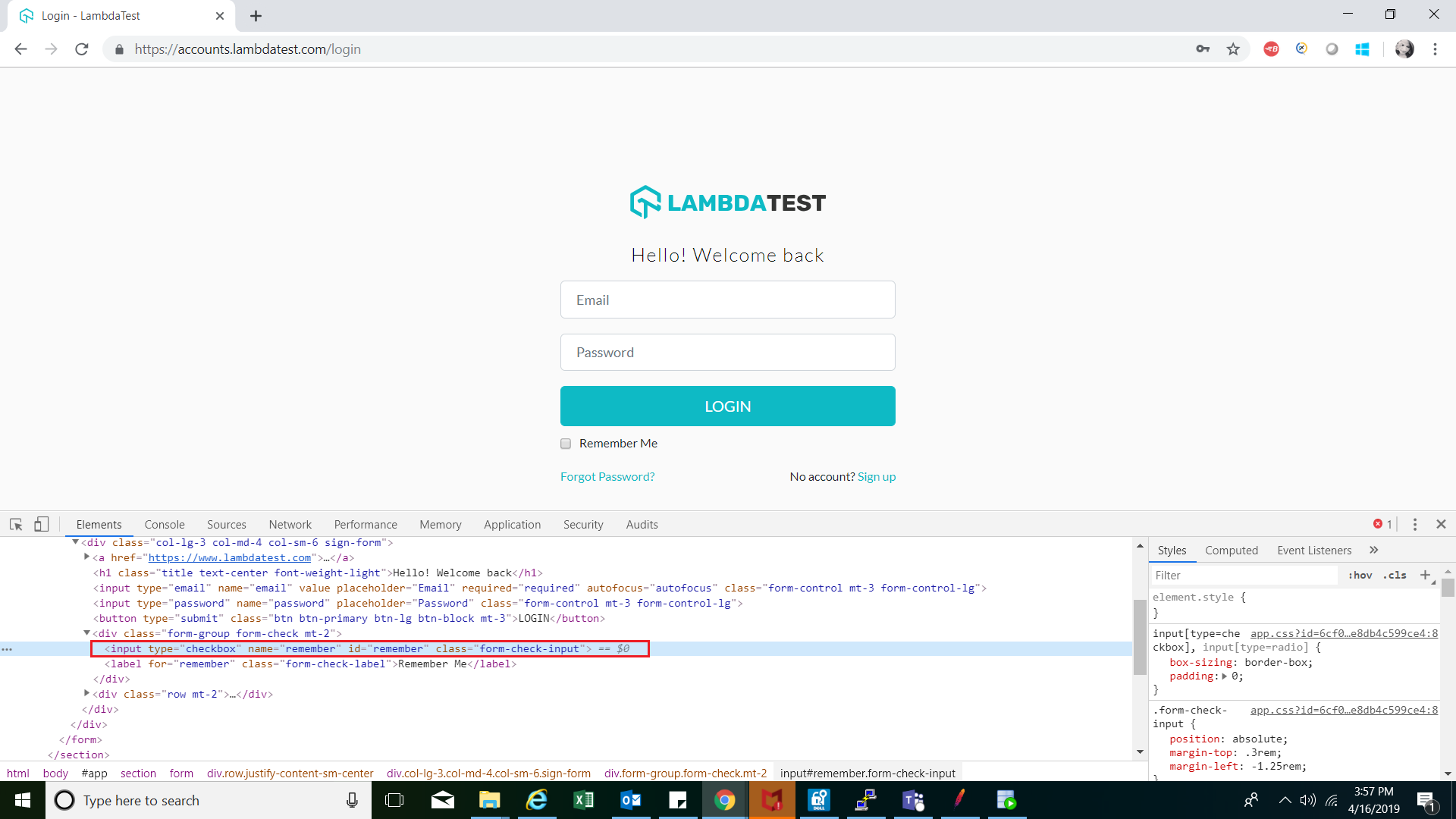
Referencing the below DOM structure for ‘Remember me’ element:
<input type="checkbox" name="remember" id="remember" class="form-check-input">
As you can see, the above tag has multiple attributes, one of which is the ID locator.

Austin Siewert
CEO, Vercel
Discovered @TestMu AI yesterday. Best browser testing tool I've found for my use case. Great pricing model for the limited testing I do 👏
2M+ Devs and QAs rely on TestMu AI
Deliver immersive digital experiences with Next-Generation Mobile Apps and Cross Browser Testing Cloud

This certification is for anyone who wants to stay ahead among professionals who are growing their career in Selenium automation testing.
Here’s a short glimpse of the Selenium 101 certification from TestMu AI:
Syntax For ID Locator In Selenium WebDriver
In order to use the ID Selenium locator to find an element via ID we use the below syntax:
driver.findElement(By.id("remember "));
Now, let’s try to incorporate this into a real-time example. In this example, I will be using the facebook login page, to login using ID locators for interacting with the WebElement object.
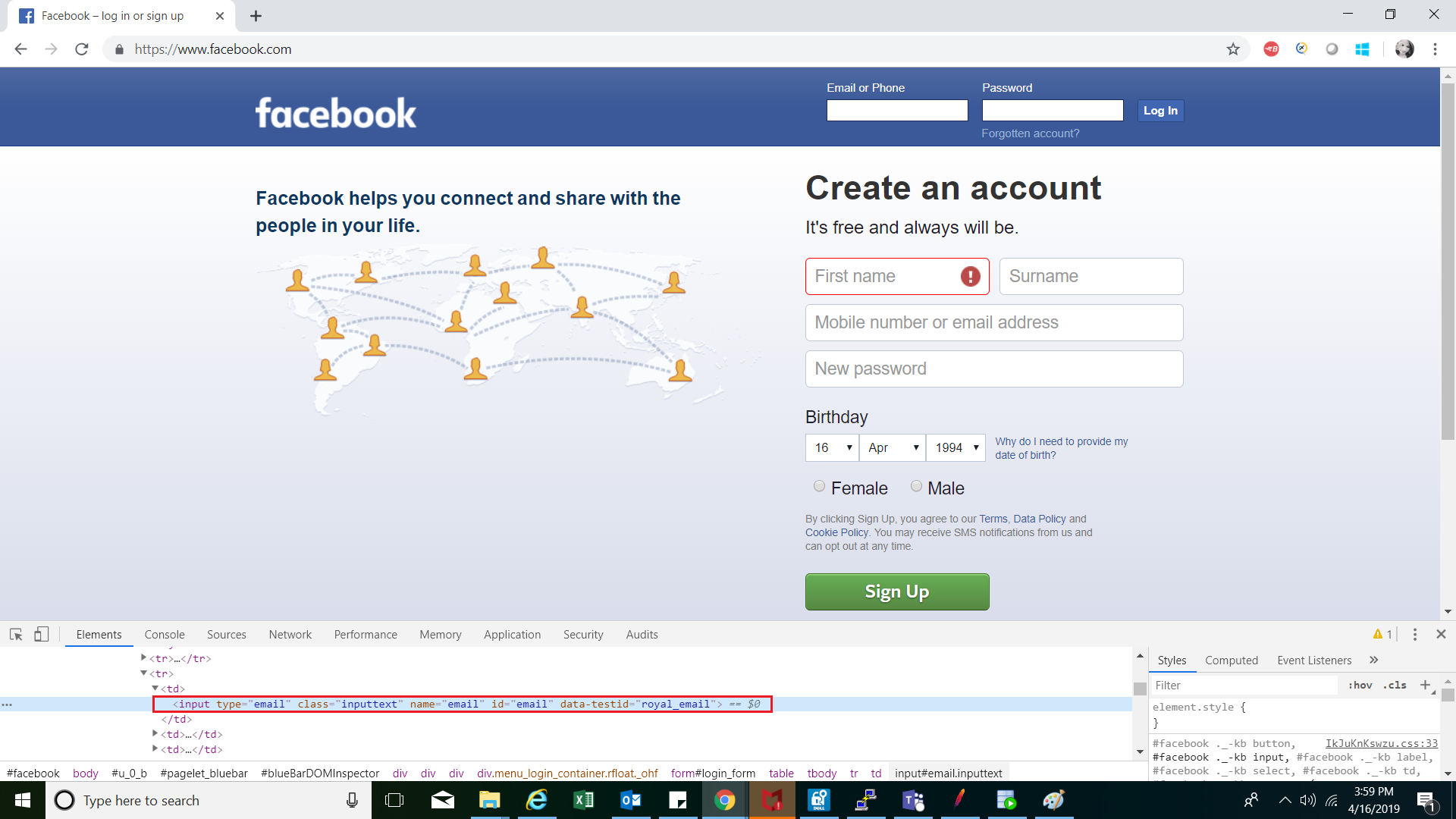
Below is the DOM structure for email, password and log in field of the facebook login page:
<input type="email" class="inputtext" name="email" id="email" value="[email protected]" data-testid="royal_email">
<input type="password" class="inputtext" name="pass" id="pass" data-testid="royal_pass">
<input value="Log In" aria-label="Log In" data-testid="royal_login_button" type="submit" id="u_0_8">
Referenced is the screenshot highlighting the same:
Delving Into Code For ID Locator In Selenium WebDriver
The below code will help you relate with the demonstration of ID locator in Selenium WebDriver in a better way. Let’s dig into it:
package Chromedriver;

import org.openqa.selenium.By;
import org.openqa.selenium.WebDriver;
import org.openqa.selenium.WebElement;
import org.openqa.selenium.chrome.ChromeDriver;

public class Locator_By_ID {

    public static void main(String[] args) {
        // TODO Auto-generated method stub

        //Setting up chrome using chromedriver by setting its property
        System.setProperty("webdriver.chrome.driver", "Pth of chrome driver");

        //Opening browser
        WebDriver driver= new ChromeDriver() ;

        //Opening window tab in maximize mode
        driver.manage().window().maximize();

        //Opening application
        driver.get("https://www.facebook.com");

        //Locating the email field element via ID tag and storing it in the webelement
        WebElement email_field=driver.findElement(By.id("email"));

        //Entering text into the email field
        email_field.sendKeys("[email protected]");

        //Locating the password field element via ID tag and storing it in the webelement
        WebElement password_field=driver.findElement(By.id("pass"));

        //Entering text into the password field
        password_field.sendKeys("xxxxxxxxx");

        //Locating the login button to login to the application
        WebElement login_button=driver.findElement(By.id("u_0_2"));

        //Clicking on the 'login' button
        login_button.click();


    }

}
Another Example For Demonstrating The ID Locator
Let’s cater to another similar example for ID where we are making a booking through Airbnb:
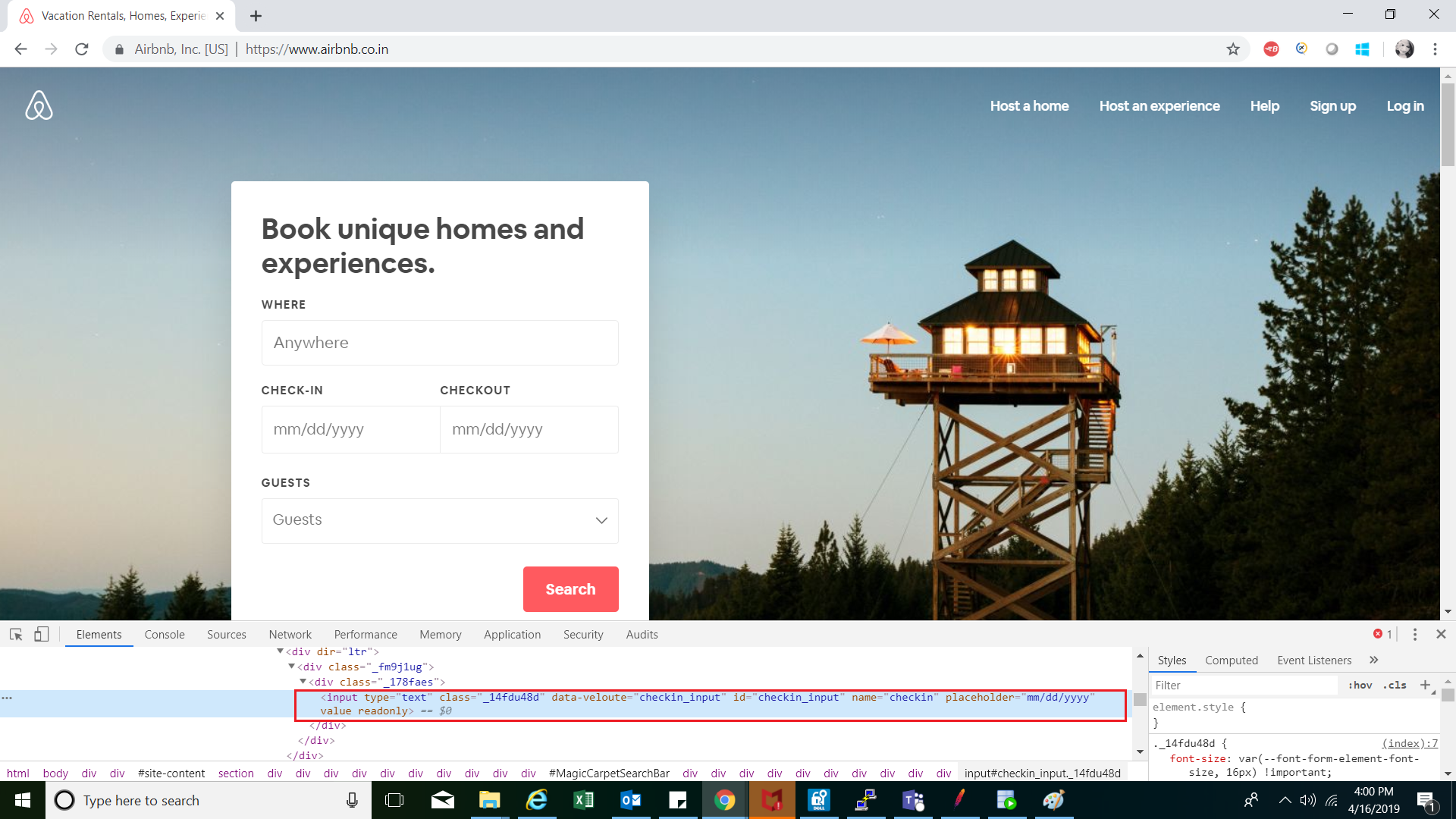
Below is the DOM structure for the same:
Location field:
<input type="text" class="_up0kwni" aria-autocomplete="list" aria-describedby="Koan-magic-carpet-koan-search-bar__description" aria-expanded="false" autocomplete="off" autocorrect="off" spellcheck="false" id="Koan-magic-carpet-koan-search-bar__input" name="query" placeholder="Anywhere" role="combobox" value="Delhi">
Check-in:
<input type="text" class="_14fdu48d" data-veloute="checkin_input" id="checkin_input" name="checkin" placeholder="dd-mm-yyyy" value="Wed, 10th Apr" readonly="" <="" pre="">

<b>Checkout:</b>


<pre> <input type="text" class="_14fdu48d" data-veloute="checkout_input" id="checkout_input" name="checkout" placeholder="dd-mm-yyyy" value="Sun, 14th Apr" readonly="">
Search Button:
<button type="submit" class="_z5x9aua" aria-busy="false"><span class="_ftj2sg4">Search</span></button>
Now let’s dig into the code snippet:
package Chromedriver;

import org.openqa.selenium.By;
import org.openqa.selenium.Keys;
import org.openqa.selenium.WebDriver;
import org.openqa.selenium.WebElement;
import org.openqa.selenium.chrome.ChromeDriver;

public class ID_Location {

    public static void main(String[] args) throws InterruptedException {
        // TODO Auto-generated method stub


        //Setting up chrome using chromedriver by setting its property
        System.setProperty("webdriver.chrome.driver", "path of chromedriver");

        //Opening browser
        WebDriver driver= new ChromeDriver() ;

        //Opening window tab in maximize mode
        driver.manage().window().maximize();

        //Opening application
        driver.get("https://www.airbnb.co.in/");

        //Locate element via ID for Location field and store it in Webelement
        WebElement Location= driver.findElement(By.id("Koan-magic-carpet-koan-search-bar__input"));

        //Input value in Location field
        Location.sendKeys("Delhi", Keys.ENTER);

        //Locate element via ID for Check-in field and store it in Webelement
                WebElement Check_in= driver.findElement(By.id("checkin_input"));

                //Click on Check_in field to select the date
                Check_in.click();

                //Select the desired date
                driver.findElement(By.xpath("//*[@id='MagicCarpetSearchBar']/div[2]/div/div/div/div[2]/div/div/div/div/div/div[2]/div[2]/div/div[2]/div/table/tbody/tr[2]/td[3]")).click();

              //Locate element via ID for Check-out field and store it in Webelement
                WebElement Check_out= driver.findElement(By.id("checkout_input"));

                //Click on Check_out field to select the date
                Check_out.click();

                //Wait for date selection
                Thread.sleep(3500);

                //Select the desired date
                driver.findElement(By.xpath("//*[@id='MagicCarpetSearchBar']/div[2]/div/div/div/div[3]/div/div/div/div/div/div[2]/div[2]/div/div[2]/div/table/tbody/tr[2]/td[4]")).click();

                //Locating the submit button and clicking on it
                driver.findElement(By.tagName("button")).click();

                //close the driver
                driver.close();


    }

}
It’s A Wrap!
ID’s are the most reliable and easiest way to locate an element owing to its uniqueness. So if you are starting with Selenium WebDriver, ID’s can be your best friend. But make sure you to hit on the right track while locating them, and be aware of duplicate IDs or auto-generated ones. Happy testing! 🙂



Did you find this page helpful?
More Related Hubs
TestMu AI forEnterprise
Get access to solutions built on Enterprise
grade security, privacy, & compliance
- Advanced access controls
- Advanced data retention rules
- Advanced Local Testing
- Premium Support options
- Early access to beta features
- Private Slack Channel
- Unlimited Manual Accessibility DevTools Tests