

Next-Gen App & Browser Testing Cloud
Trusted by 2 Mn+ QAs & Devs to accelerate their release cycles


Dynamic Web Table Handling in Selenium
Master dynamic web table handling in Selenium WebDriver. Expert tips for effective automation in our comprehensive guide

Himanshu Sheth
February 23, 2026
Web tables or data tables are often used in scenarios where you need to display the information in a tabular format. The data being displayed can either be static or dynamic in nature. You’d often see such examples in e-commerce portals, where product specifications are displayed in a web table. With its wide use, you’d often come across scenarios where you’ll need to handle them in your Selenium test automation scripts.
In this Selenium WebDriver tutorial, I’ll take a look at how to handle a web table in Selenium along with a few useful operations that can be performed on web tables. By the end of this tutorial, you’ll gain a thorough understanding of web tables in Selenium test automation along with methodologies used to access content in the web table. To know more about What is Selenium, you can refer to our detailed page on the topic.
Below are the sub-topics covered as a part of this Selenium WebDriver tutorial:
Overview
What Is a Web Table in Selenium?
In Selenium, a web table is a WebElement that displays data in rows and columns. Testers use WebDriver methods and locators like XPath to access specific rows, columns, or cells.
What Are the Types of Web Tables?
Web tables are categorized based on how their data behaves:
- Static Web Tables: Data remains fixed and unchanged.
- Dynamic Web Tables: Data updates based on user actions, sorting, filtering, or backend changes.
How Are Web Tables Handled in Selenium?
Web tables can be handled in Selenium using WebDriver methods to:
- Count rows and columns
- Print table data using nested loops
- Read data row-wise
- Read data column-wise
- Locate and search for specific elements within the table
What is a Web Table in Selenium?
In Selenium, a web table is treated as a WebElement, similar to common elements like text boxes, radio buttons, checkboxes, and drop-down menus. To interact with a web table and its content, you use WebElement functions along with Selenium locators to specify the target element (row/column) for the desired operation.
A table consists of rows and columns. The table created for a web page is called a web table. Below are some of the important tags associated with a web table:
- < table > – Defines an HTML table
- < th > – Contains header information in a table
- < tr > – Defines a row in a table
- < td > – Defines a column in a table

Types of Web Tables in Selenium
There are two broad categories of tables namely:
Static Web Table
As the name indicates, the information in the table is static in nature.
Dynamic Web Table
The information displayed in the table is dynamic. E.g. Detailed Product information on e-commerce websites, sales reports, etc.
For the demonstration to handle the table in Selenium, we make use of a table that is available in the w3school HTML table page. Though there are fewer cross browser testing issues when using tables, some of the old browser versions of Internet Explorer, Chrome, and other web browsers do no support HTML Table APIs.
Now that we’ve covered the basics, next in this Selenium WebDriver tutorial, I’ll take a look at some of the frequently used operations to handle tables in Selenium that would help in your Selenium test automation efforts.

Austin Siewert
CEO, Vercel
Discovered @TestMu AI yesterday. Best browser testing tool I've found for my use case. Great pricing model for the limited testing I do 👏
2M+ Devs and QAs rely on TestMu AI
Deliver immersive digital experiences with Next-Generation Mobile Apps and Cross Browser Testing Cloud

This certification is for anyone who wants to stay ahead among professionals who are growing their career in Selenium automation testing.
Here’s a short glimpse of the Selenium 101 certification from TestMu AI:
Handling Web Tables in Selenium
I’ll use the local Selenium WebDriver for performing browser actions to handle table in Selenium, present on w3schools html table page. The HTML code for the web table used for demonstration is available in the tryit adapter page.
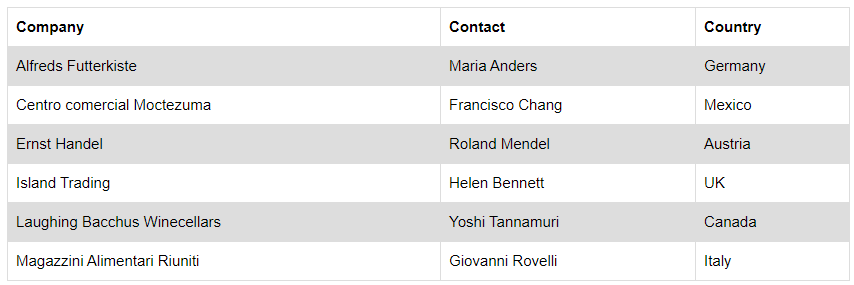
The Selenium WebDriver for popular browsers can be downloaded from the locations mentioned below:
Browser
Download location
Opera
Firefox
Chrome
Internet Explorer
Microsoft Edge
I’ll use the Python unittest framework to handle tables in Selenium WebDriver. The core logic for accessing elements in web tables still remains the same even if you are using other programming languages for Selenium test automation.
Note – Implementation in the setUp() and teardown() remains the same for all the scenarios. We would not repeat that section in every example being shown in the blog.

Handling Number Of Rows & Columns In Web Table
The < tr > tag in the table indicates the rows in the table and that tag is used to get information about the number of rows in it. Number of columns of the web table in Selenium are calculated using XPath (//*[@id=’customers’]/tbody/tr[2]/td). XPath of the rows and columns are obtained using the inspect tool in the browser to handle tables in Selenium for .
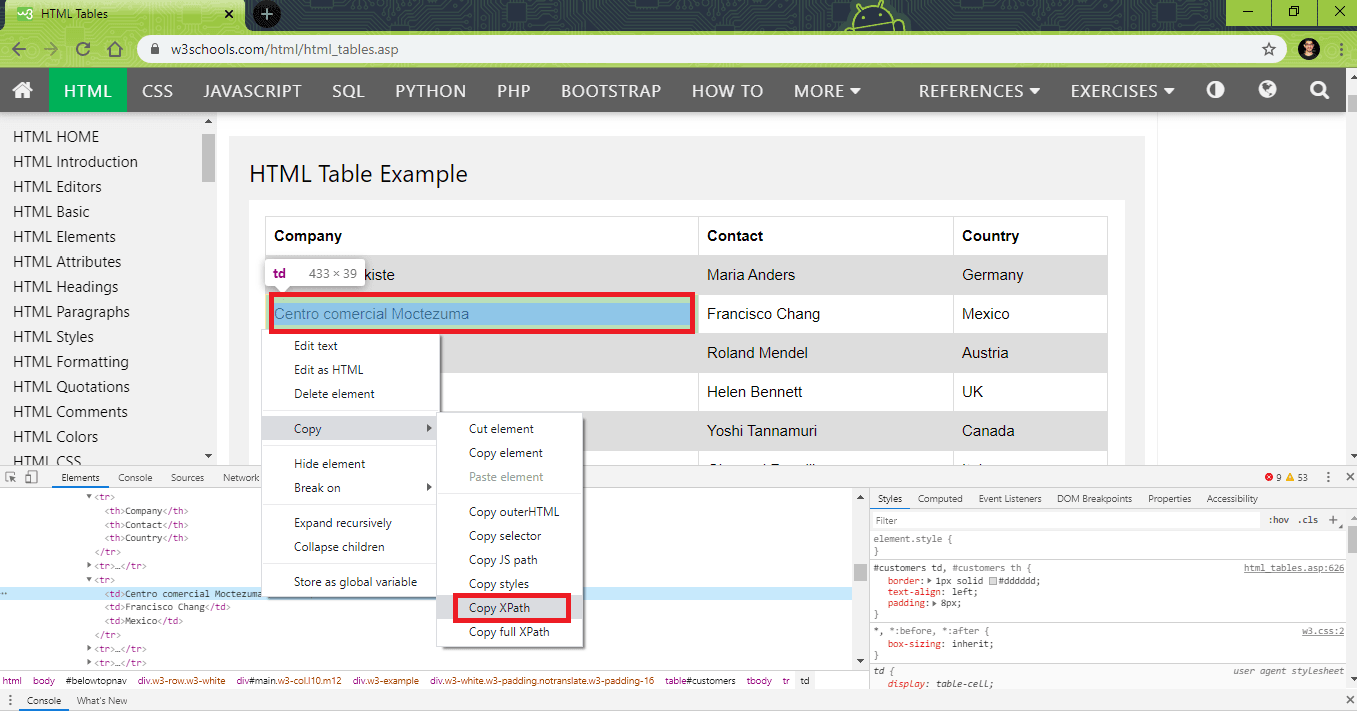
Source: W3School
Though the header in a web table does not the < td >, the < th > tag could still be used in the current example to calculate the number of columns. The XPath for computing the number of columns using < th > tag is //*[@id=’customers’]/tbody/tr/th
A WebDriverWait of 30 seconds is added to ensure that the loading of the Web Table (CLASS_NAME = w3-example) is complete before any operations are performed to handle the table in Selenium.
Get number of rows for a web table in Selenium
num_rows = len (driver.find_elements_by_xpath("//*[@id='customers']/tbody/tr"))
Get number of columns for a web table in Selenium
num_cols = len (driver.find_elements_by_xpath("//*[@id='customers']/tbody/tr[2]/td"))
Complete Implementation
import unittest
import time
from selenium import webdriver
from selenium.webdriver.support.select import Select
from selenium.webdriver.common.by import By
from selenium.webdriver.support.ui import WebDriverWait
from selenium.webdriver.support import expected_conditions as EC

test_url = "https://www.w3schools.com/html/html_tables.asp"

class WebTableTest(unittest.TestCase):

    def setUp(self):
        self.driver = webdriver.Chrome()
        self.driver.maximize_window()

    def test_1_get_num_rows_(self):
        driver = self.driver
        driver.get(test_url)

        WebDriverWait(driver, 60).until(EC.presence_of_element_located((By.CLASS_NAME, "w3-example")))

        num_rows = len (driver.find_elements_by_xpath("//*[@id='customers']/tbody/tr"))
        print("Rows in table are " + repr(num_rows))

    def test_2_get_num_cols_(self):
        driver = self.driver
        driver.get(test_url)

        WebDriverWait(driver, 60).until(EC.presence_of_element_located((By.CLASS_NAME, "w3-example")))
        # num_cols = len (driver.find_elements_by_xpath("//*[@id='customers']/tbody/tr/th"))
        num_cols = len (driver.find_elements_by_xpath("//*[@id='customers']/tbody/tr[2]/td"))
        print("Columns in table are " + repr(num_cols))

    def tearDown(self):
        self.driver.close()
        self.driver.quit()

if __name__ == "__main__":
    unittest.main()
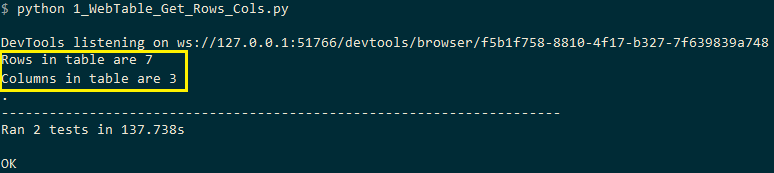
Below is the output snapshot
Print Content Of The Web Table In Selenium
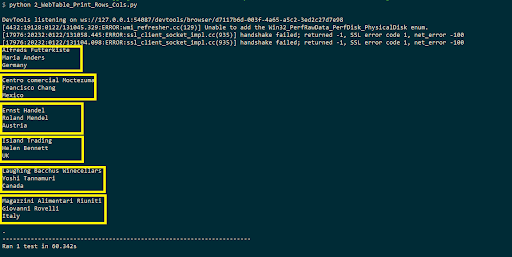
To access the content present in every row and column to handle the table in Selenium, we iterate each and every row (< tr >) in the web table. Once the details about the rows are obtained, we iterate the < td > tags under that row.
In this case for this Selenium WebDriver tutorial, both the rows (< tr >) and columns (< td >) would be variable. Hence, the row numbers and column numbers are computed dynamically. Shown below is the XPath for accessing information in specific rows and columns:
- XPath to access Row : 2, Column : 2 – //*[@id=”customers”]/tbody/tr[2]/td[1]
- XPath to access Row : 3, Column : 1 – //*[@id=”customers”]/tbody/tr[3]/td[1]
The table on which Selenium test automation is being performed has 7 rows and 3 columns. Hence, a nested for loop is executed with rows ranging from 2..7 and columns ranging from 1..4. The variables factors i.e. row number and column number are added to formulate the final XPath.
for t_row in range(2, (rows + 1)):
      for t_column in range(1, (columns + 1)):
          FinalXPath = before_XPath + str(t_row) + aftertd_XPath + str(t_column) + aftertr_XPath
          cell_text = driver.find_element_by_xpath(FinalXPath).text
Shown below in this Selenium WebDriver tutorial, is the complete implementation to get all the contents present to handle table in Selenium.
import unittest
import time
test_url = "https://www.w3schools.com/html/html_tables.asp"

before_XPath = "//*[@id='customers']/tbody/tr["
aftertd_XPath = "]/td["
aftertr_XPath = "]"

    def test_get_row_col_info_(self):
        driver = self.driver
        driver.get(test_url)

        # time.sleep(30)
        WebDriverWait(driver, 60).until(EC.presence_of_element_located((By.CLASS_NAME, "w3-example")))

        rows = len(driver.find_elements_by_xpath("//*[@id='customers']/tbody/tr"))
        # print (rows)
        columns = len(driver.find_elements_by_xpath("//*[@id='customers']/tbody/tr[2]/td"))
        # print(columns)

        # print("Company"+"               "+"Contact"+"               "+"Country")

        for t_row in range(2, (rows + 1)):
            for t_column in range(1, (columns + 1)):
                FinalXPath = before_XPath + str(t_row) + aftertd_XPath + str(t_column) + aftertr_XPath
                cell_text = driver.find_element_by_xpath(FinalXPath).text
                # print(cell_text, end = '               ')
                print(cell_text)
            print()
The output snapshot to print content to handle table in Selenium is below:

Read Data In Rows To Handle Table In Selenium
For accessing the content present in every row, to handle table in Selenium, the rows (< tr >) are variable whereas the columns (< td >) would remain constant. Hence, the rows are computed dynamically. Below in this Selenium WebDriver tutorial is the XPath for accessing information with rows being the variable factor and columns remaining constant for Selenium test automation.
- XPath to access Row : 1, Column : 1 – //*[@id=”customers”]/tbody/tr[1]/td[1]
- XPath to access Row : 2, Column : 2 – //*[@id=”customers”]/tbody/tr[2]/td[2]
- XPath to access Row : 3, Column : 2 – //*[@id=”customers”]/tbody/tr[3]/td[2]
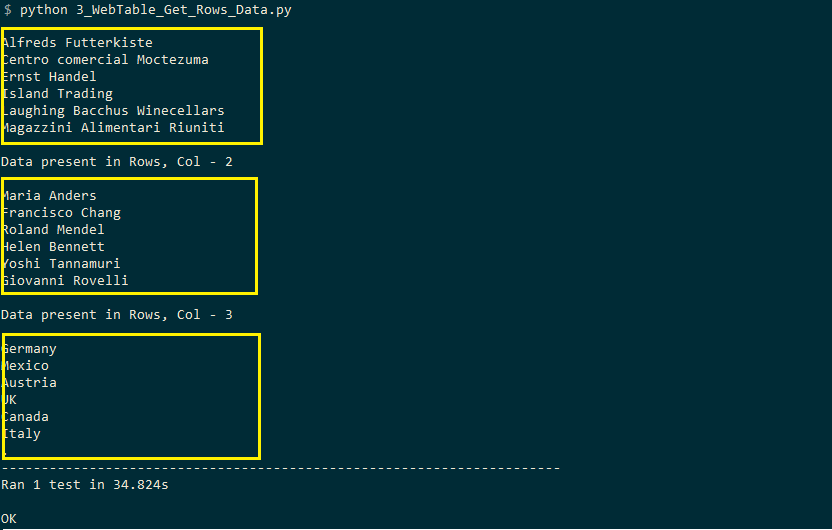
A for loop is executed with rows ranging from 2..7. The column values are appended to the XPath are td[1]/td[2]/td[3] depending on the row & column that has to be accessed to handle the table in Selenium.
before_XPath = "//*[@id='customers']/tbody/tr["
    aftertd_XPath_1 = "]/td[1]"
    aftertd_XPath_2 = "]/td[2]"
    aftertd_XPath_3 = "]/td[3]"

    for t_row in range(2, (rows + 1)):
        FinalXPath = before_XPath + str(t_row) + aftertd_XPath_1
        cell_text = driver.find_element_by_xpath(FinalXPath).text
        print(cell_text)
Complete Implementation
#Selenium webdriver tutorial  to handletable in Selenium for Selenium test automation
import unittest
import time
from selenium import webdriver
from selenium.webdriver.support.select import Select
from selenium.webdriver.common.by import By
from selenium.webdriver.support.ui import WebDriverWait
from selenium.webdriver.support import expected_conditions as EC

test_url = "https://www.w3schools.com/html/html_tables.asp"

before_XPath = "//*[@id='customers']/tbody/tr["
aftertd_XPath_1 = "]/td[1]"
aftertd_XPath_2 = "]/td[2]"
aftertd_XPath_3 = "]/td[3]"
#aftertr_XPath = "]"

    def test_get_row_col_info_(self):
        driver = self.driver
        driver.get(test_url)

        # time.sleep(30)
        WebDriverWait(driver, 60).until(EC.presence_of_element_located((By.CLASS_NAME, "w3-example")))

        rows = len(driver.find_elements_by_xpath("//*[@id='customers']/tbody/tr"))
        # print (rows)
        columns = len(driver.find_elements_by_xpath("//*[@id='customers']/tbody/tr[2]/td"))
        # print(columns)

        print("Data present in Rows, Col - 1")
        print()
        for t_row in range(2, (rows + 1)):
            FinalXPath = before_XPath + str(t_row) + aftertd_XPath_1
            cell_text = driver.find_element_by_xpath(FinalXPath).text
            print(cell_text)

        print()
        print("Data present in Rows, Col - 2")
        print()
        for t_row in range(2, (rows + 1)):
            FinalXPath = before_XPath + str(t_row) + aftertd_XPath_2
            cell_text = driver.find_element_by_xpath(FinalXPath).text
            print(cell_text)

        print()
        print("Data present in Rows, Col - 3")
        print()
        for t_row in range(2, (rows + 1)):
            FinalXPath = before_XPath + str(t_row) + aftertd_XPath_3
            cell_text = driver.find_element_by_xpath(FinalXPath).text
            print(cell_text)
The output snapshot to read data in rows to handle table in Selenium is below:

Read Data In Columns To Handle Table In Selenium
For column-wise access to handle table in Selenium, the rows remain constant whereas the column numbers are variable i.e. the columns are computed dynamically. Below in this Selenium WebDriver Tutorial is the XPath for accessing information where columns are variable and rows are constant.
- XPath to access Row : 2, Column : 2 – //*[@id=”customers”]/tbody/tr[2]/td[2]
- XPath to access Row : 2, Column : 3 – //*[@id=”customers”]/tbody/tr[2]/td[3]
- XPath to access Row : 2, Column : 4 – //*[@id=”customers”]/tbody/tr[2]/td[4]
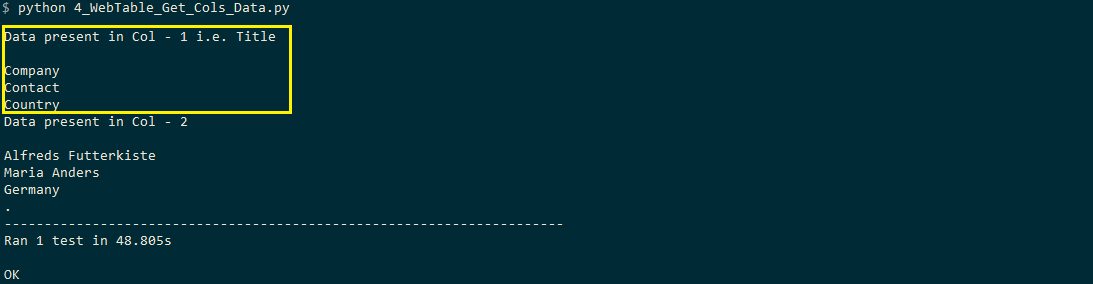
A for loop is executed with columns ranging from 1..4 The row values are appended to the XPath are tr[1]/tr[2]/tr[3] depending on the row & column that has to be accessed.
before_XPath_1 = "//*[@id='customers']/tbody/tr[1]/th["
    before_XPath_2 = "//*[@id='customers']/tbody/tr[2]/td["
    after_XPath = "]"

    for t_col in range(1, (num_columns + 1)):
       FinalXPath = before_XPath_1 + str(t_col) + after_XPath
       cell_text = driver.find_element_by_xpath(FinalXPath).text
       print(cell_text)
Complete Implementation
import unittest
import time
from selenium import webdriver
from selenium.webdriver.support.select import Select
from selenium.webdriver.common.by import By
from selenium.webdriver.support.ui import WebDriverWait
from selenium.webdriver.support import expected_conditions as EC

test_url = "https://www.w3schools.com/html/html_tables.asp"

before_XPath_1 = "//*[@id='customers']/tbody/tr[1]/th["
before_XPath_2 = "//*[@id='customers']/tbody/tr[2]/td["
after_XPath = "]"

def test_get_row_col_info_(self):
        driver = self.driver
        driver.get(test_url)

        # time.sleep(30)
        WebDriverWait(driver, 60).until(EC.presence_of_element_located((By.CLASS_NAME, "w3-example")))

        num_rows = len(driver.find_elements_by_xpath("//*[@id='customers']/tbody/tr"))
        # print (rows)
        num_columns = len(driver.find_elements_by_xpath("//*[@id='customers']/tbody/tr[2]/td"))
        # print(columns)

        print("Data present in Col - 1 i.e. Title")
        print()
        for t_col in range(1, (num_columns + 1)):
            FinalXPath = before_XPath_1 + str(t_col) + after_XPath
            cell_text = driver.find_element_by_xpath(FinalXPath).text
            print(cell_text)

        print("Data present in Col - 2")
        print()
        for t_col in range(1, (num_columns + 1)):
            FinalXPath = before_XPath_2 + str(t_col) + after_XPath
            cell_text = driver.find_element_by_xpath(FinalXPath).text
            print(cell_text)
As seen in the execution snapshot, the header column is also read to fetch the title of the columns.
Locating An Element To Handle Table In Selenium
The intention of this test for this Selenium WebDriver tutorial is to look for the presence of an element in the web table. For doing the same, content in each and every cell of the web table is read and compared with the search term. If the element is present, the corresponding row and element are printed to handle the table in Selenium.
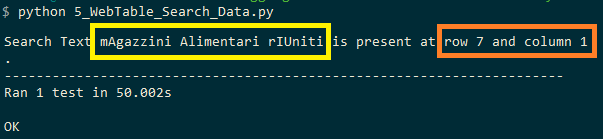
As it involves reading the data in every cell, we make use of the logic covered in the section titled Print content of the web table in Selenium. A case insensitive search is performed to validate the presence of the search term to handle table in Selenium.
for t_row in range(2, (num_rows + 1)):
      for t_column in range(1, (num_columns + 1)):
          FinalXPath = before_XPath + str(t_row) + aftertd_XPath + str(t_column) + aftertr_XPath
          cell_text = driver.find_element_by_xpath(FinalXPath).text
          if ((cell_text.casefold()) == (search_text.casefold())):
             print("Search Text "+ search_text +" is present at row " + str(t_row) + " and column " + str(t_column))
             elem_found = True
             break
Complete Implementation
import unittest
import time
from selenium import webdriver
from selenium.webdriver.support.select import Select
from selenium.webdriver.common.by import By
from selenium.webdriver.support.ui import WebDriverWait
from selenium.webdriver.support import expected_conditions as EC

test_url = "https://www.w3schools.com/html/html_tables.asp"

before_XPath_1 = "//*[@id='customers']/tbody/tr[1]/th["
before_XPath_2 = "//*[@id='customers']/tbody/tr[2]/td["
after_XPath = "]"

search_text = "mAgazzini Alimentari rIUniti"

    def test_get_row_col_info_(self):
        driver = self.driver
        driver.get(test_url)

        # time.sleep(30)
        WebDriverWait(driver, 60).until(EC.presence_of_element_located((By.CLASS_NAME, "w3-example")))

        num_rows = len(driver.find_elements_by_xpath("//*[@id='customers']/tbody/tr"))
        num_columns = len (driver.find_elements_by_xpath("//*[@id='customers']/tbody/tr[2]/td"))

        elem_found = False

        for t_row in range(2, (num_rows + 1)):
            for t_column in range(1, (num_columns + 1)):
                FinalXPath = before_XPath + str(t_row) + aftertd_XPath + str(t_column) + aftertr_XPath
                cell_text = driver.find_element_by_xpath(FinalXPath).text
                if ((cell_text.casefold()) == (search_text.casefold())):
                    print("Search Text "+ search_text +" is present at row " + str(t_row) + " and column " + str(t_column))
                    elem_found = True
                    break
        if (elem_found == False):
            print("Search Text "+ search_text +" not found")
As seen in the execution snapshot for this Selenium WebDriver tutorial, the search term was present at row-7 and column-1
Though there are many such operations can be carried out on web table in Selenium, we have covered the core aspects in this Selenium WebDriver tutorial.
Read More: How To Automate Calendar In Selenium WebDriver For Automation Testing?
All In All
Web tables are commonly used when information has to be displayed in tabular format. The information in the cells can be static or dynamic. Web tables in Selenium are tested using WebElement APIs along with usage of appropriate locators like XPath, CSS class name, CSS ID, etc.
I hope you liked this Selenium WebDriver tutorial to handle the table in Selenium. Do leave your thoughts on using web tables in Selenium test automation in the comments section down below. Feel free to share it with your peers. Till then. Happy Testing!!!?


Did you find this page helpful?
More Related Hubs
TestMu AI forEnterprise
Get access to solutions built on Enterprise
grade security, privacy, & compliance
- Advanced access controls
- Advanced data retention rules
- Advanced Local Testing
- Premium Support options
- Early access to beta features
- Private Slack Channel
- Unlimited Manual Accessibility DevTools Tests