

Next-Gen App & Browser Testing Cloud
Trusted by 2 Mn+ QAs & Devs to accelerate their release cycles


How To Handle iFrames In Cypress
This blog demonstrates how to handle iFrames in Cypress using the cy.iframe() command on the cloud grid.

Enrique
January 30, 2026
Cypress can’t directly access elements inside an iFrame, which causes commands to fail or return undefined results. This issue appears often in apps with embedded payment forms, widgets, or text editors. To fix it, you can use the cypress-iframe plugin or create a custom command to get the iFrame’s body, wait for it to load, and run actions on its elements reliably.
Overview
Cypress automates iFrames by accessing their internal document and body, enabling reliable interaction with embedded content during end-to-end testing.
Can Cypress Automate iFrames?
Yes, Cypress can automate iFrames, but it cannot access their content directly using standard commands. It requires accessing the iFrame’s document and body to run commands reliably.
How to Test iFrames With Cypress?
Testing iFrames in Cypress involves a structured approach to interact with embedded content without errors or flakiness during automation.
- Locate the iFrame: Identify the iFrame element within the DOM using a CSS or XPath selector, ensuring you target the correct embedded frame for subsequent commands.
- Access Content: Retrieve the iFrame’s contentDocument and body to expose internal elements, enabling Cypress to interact with elements inside the iFrame reliably.
- Run Cypress Commands: Execute commands such as click(), type(), or contains() on the iFrame’s body, waiting for content to load before each action to avoid flaky tests.
- Use Plugins: Implement the cypress-iframe plugin or custom commands to simplify repeated interactions, reduce boilerplate code, and ensure consistent, maintainable test scripts across projects.
What are iFrames?
An I-frame, short for “inline frame,” is an HTML element that allows you to embed content from another source directly within a web page. Unlike traditional web content, which loads as a full page, I-frames enable you to display external content, such as videos, maps, or documents, within a designated portion of your webpage. This modular approach enhances user interactions and content integration.
When we add an iFrame to a page, we look through a window from that page into another site, with full interactivity within that space. It is why Google Maps, YouTube, and others encourage users to embed their content using an iFrame element; rather than hosting any portion of the complex web app ourselves, our page views the web service through an integrated window.
iFrame usage was much more popular before the explosion of JavaScript on the web (Resuscitated with HTML5). However, it remains vital in today’s web world (Especially with React and Flutter webs). Therefore, if we use iFrames to display external content on our website, we must ensure they work correctly.
Why is it essential to test the iFrames on our web pages? The logical answer is to guarantee everything is working as desired. Therefore, we test iFrames during the functional testing phase. Also, we validate the E2E flows to determine if the entire application is working at the point where the end-user interacts with it.
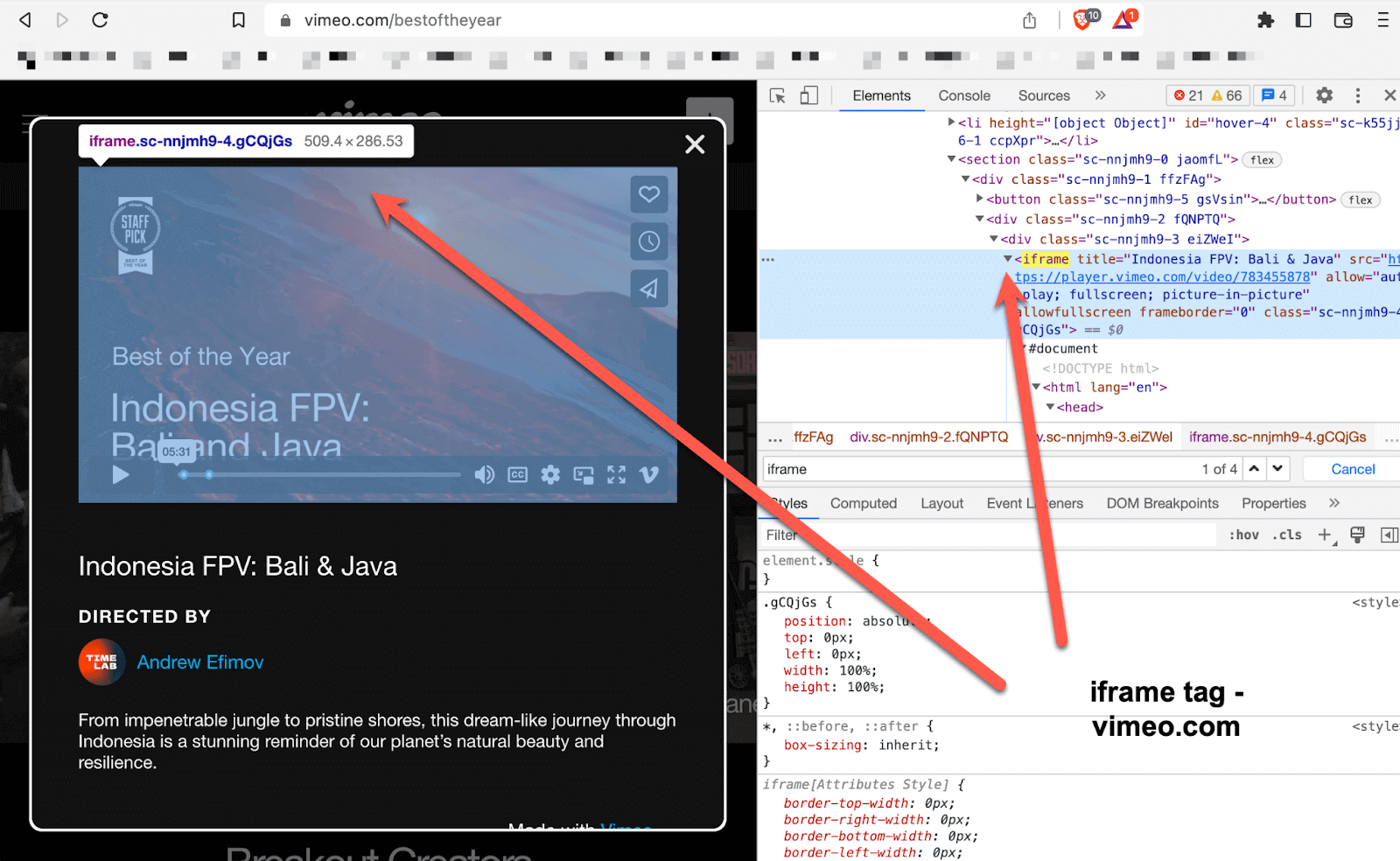
For a website, it means testing the website as it appears in a real browser. You’ll be loading up the website, serving accurate content, and then writing scripts to ensure you see what you expect. So let’s stop giving more context and start doing something worthwhile. Working with iFrames and Cypress.io is possible, and let’s demonstrate Cypress test automation with some functional code.

Is it possible to automate iFrames with Cypress?
Cypress has some difficulties working with iFrames primarily because for all built-in “cy” DOM traversal commands, there is an open Issue #136 about the iFrame support, saying that we can still use iFrames in Cypress. In this blog on how to handle iFrames in Cypress, we will share how to interact with DOM elements inside an iFrame.
For version purposes, we will use Cypress version 10.7; as a personal recommendation, always try stable versions before going directly to the latest version (Currently Cypress v12.5.1) as Cypress v11 has some changes related to Experimental features (cy.session errors), related Cypress v12, still evaluating the chrome web security configuration. Still using an older version of Cypress? or want to migrate to Cypress 10? Check out this blog on migrating your test automation suite to Cypress 10.
npm install [email protected]
Cypress v10.7 was released on 08/30/2022.
Features:
- The experimental feature of Cypress Studio has been brought back. It offers a visual method to create tests within Cypress by recording actions against the Application Under Test (AUT). This feature is only accessible for end-to-end tests and must be turned on through the e2e.experimentalStudio flag.
- Support for Svelte component testing has been introduced. This feature has been released as an Alpha version, indicating the possibility of changes that could cause breaking in future Cypress releases. The issue #23037 has been resolved with this feature.
- The “Latest Runs” and “Average Duration” columns in the specifications list now have hover-activated actions to help connect the project to the Cypress Dashboard. This resolves issue #22932.
- Instructions for connecting projects to the Cypress Dashboard and recording a first test run have been added as informational banners. Users who do not plan to use the Cypress Dashboard can dismiss the banners to avoid seeing them in the future, resolving issues #22933, #22934, #22798, and #22935.
- The “Create Spec from Component” feature, introduced in v10.5.0, is now available for Vue.js projects with a custom specification pattern configuration. This resolves issue #23071.
- Custom configuration for the Webpack dev server in Angular component testing projects can now be provided through the “projectConfig” key. This enables support for projects that do not follow Angular CLI conventions, addressing issue #23161.
- The setSystemTime function has been introduced, allowing the Cypress clock to be set to a new time. This resolves issue #15424.
Performance:
- The behavior of the cy.session() command has been improved such that it no longer clears the DOM after a validation function runs. As a result, the need for a cy.visit() command after running cy.session() when using a validation function has been eliminated, addressing issue #22368.
Now, let’s focus on the iFrame test part.
Step 1: First, we need to identify our iFrame inside the DOM and perform any action inside the iFrame.
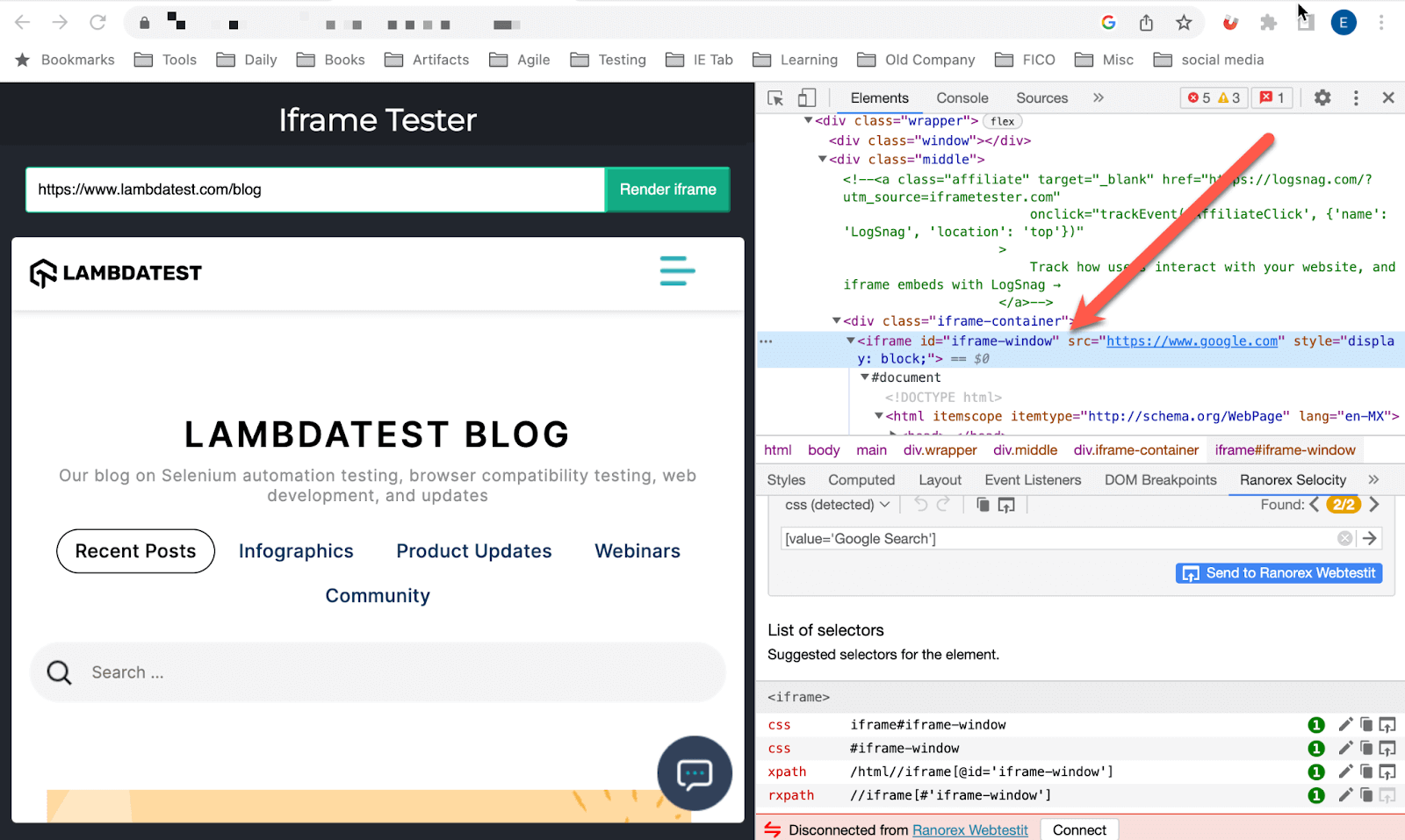
Step 2: Write spec file cypress/e2e/e2e_tests/test-iframe-cypress.cy.js that visit our web page and identifies the iFrame; we will use “iframetester.”
cy.visit('https://iframetester.com/?url=https://www.lambdatest.com/blog')
//let's test iframe
cy.get('#iframe-window')
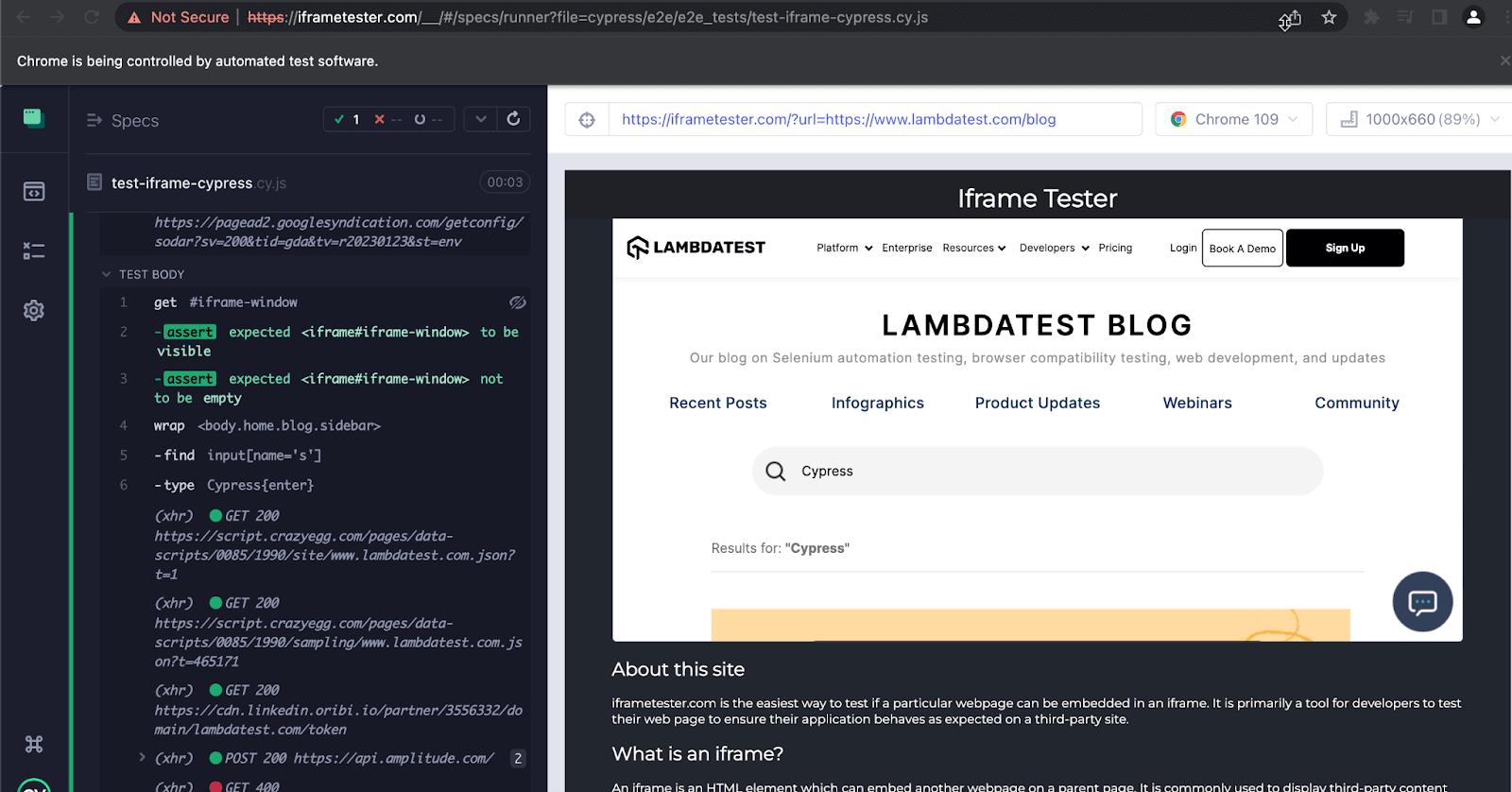
Our test looks good, and we can see the loaded iFrame.
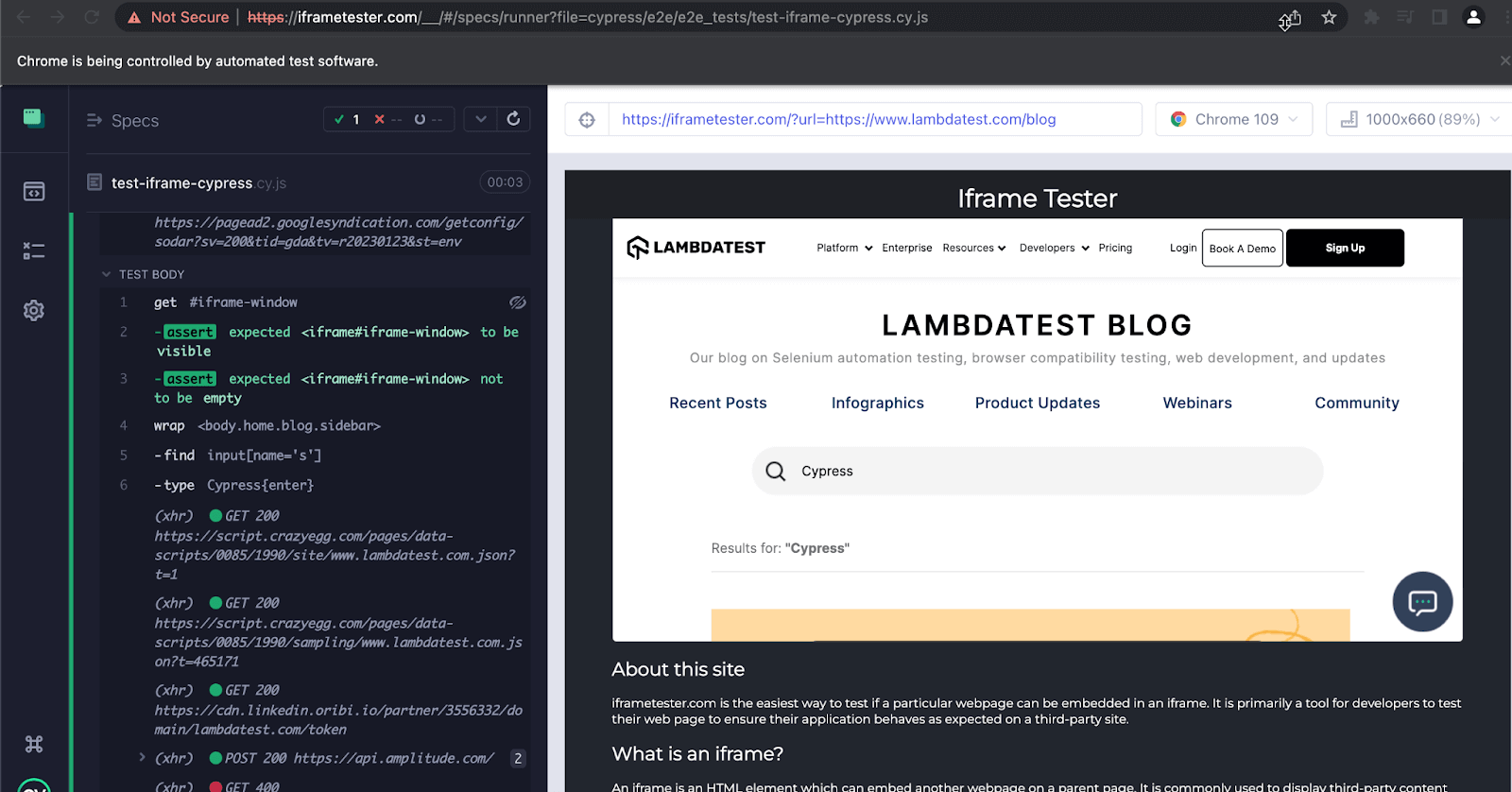
Step 3: Let’s update our spec file to type something and click on search input for the TestMu AI blog web page. Those elements are located inside the document’s body iFrame element.
cy.visit('https://iframetester.com/?url=https://www.lambdatest.com/blog')
       //let's test iframe
       cy.get('#iframe-window')
           .should('be.visible')
           .should('not.be.empty')
           .then(($iframe) => {
               const $body = $iframe.contents().find('body')

       cy.wrap($body)
           .find(`input[name='s']`)
           .type('Cypress{enter}')

       })
Unfortunately, the test fails; Browsers adhere to a strict same-origin policy. It means that browsers restrict access between < iframes > when their origin policies do not match.
Step 4: To enable cross-domain iFrame access, we must set the property chromeWebSecurity to false in the file cypress.config.js and re-run the test.
module.exports = defineConfig({
  chromeWebSecurity: false,
  e2e: {
    setupNodeEvents(on, config) {
      // implement node event listeners here
    },
  },
})
After that, our test looks ok!
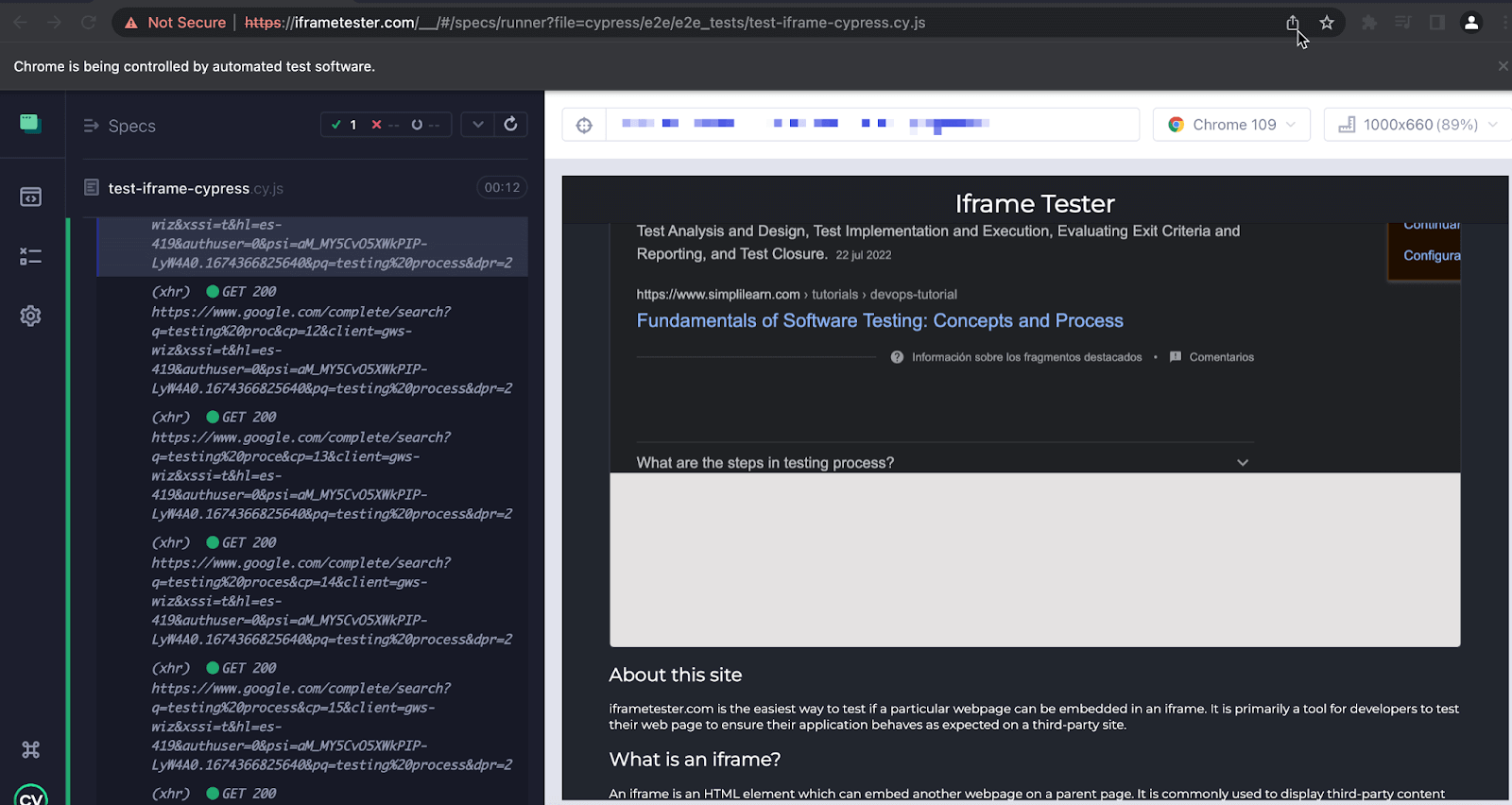
However, what about nested iFrames accessing an iFrame into an iFrame?
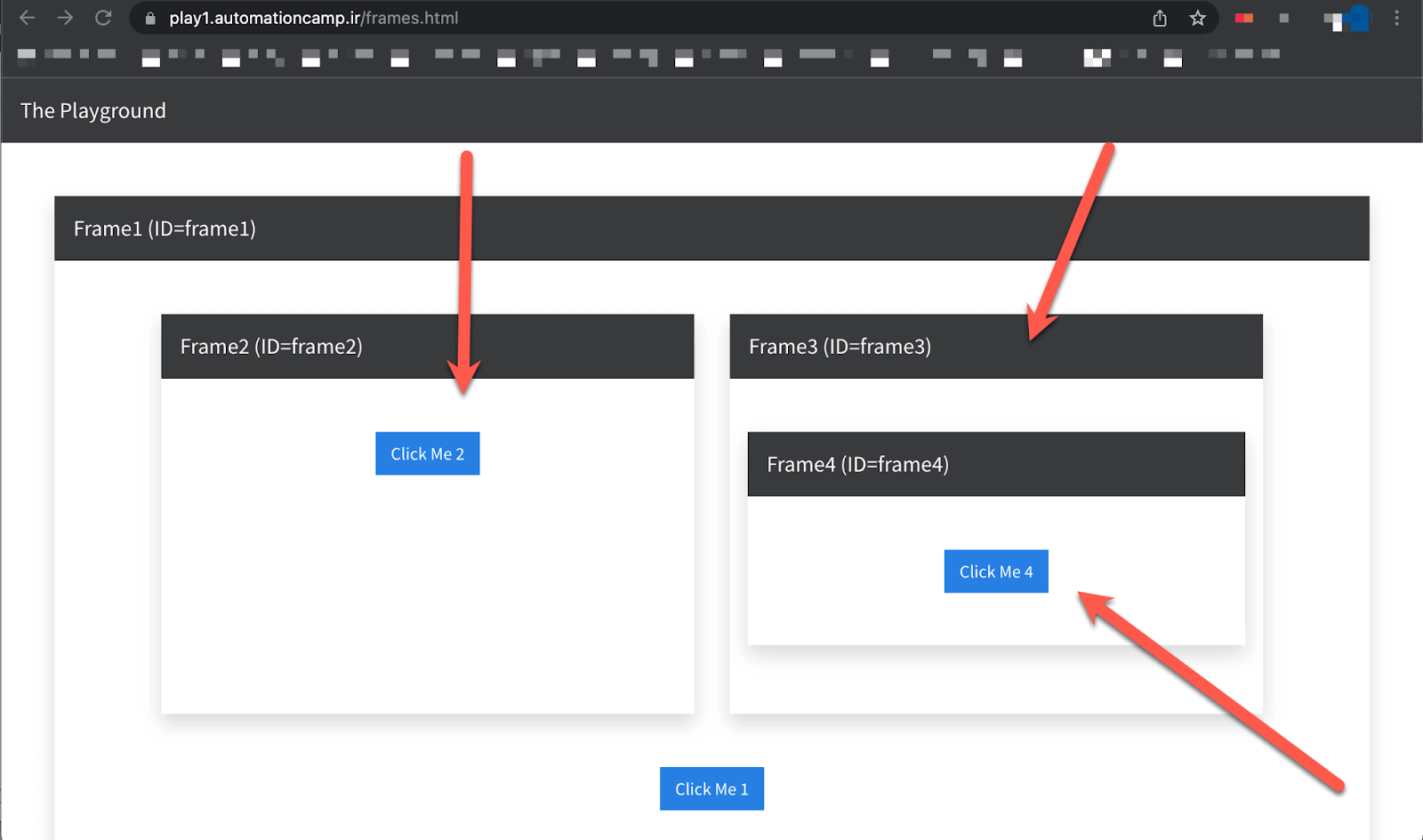
Step 5: We will use the iFrames web page for testing purposes. In this case, we will click the “iFrame 2” button, “Click Me 2.”
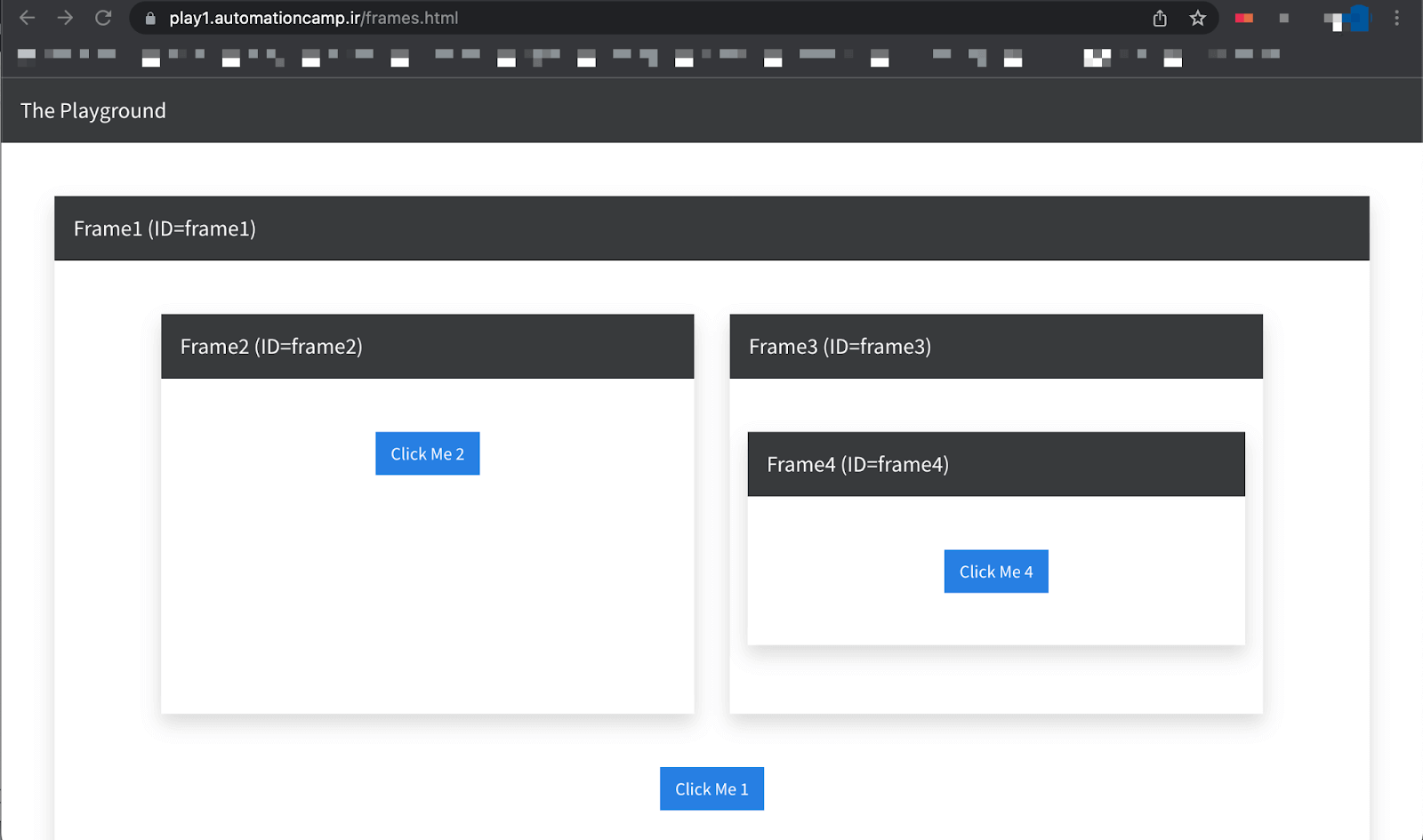
We will use the “contentDocument” property; if the iFrame and the iFrame’s parent document are the Same Origins. It returns a Document that is the active document in the inline Frame’s nested browsing context.
cy.get("#frame1")
           .its('0.contentDocument')
           .its('body')
           .find('#frame3')
           .its('0.contentDocument')
           .its('body')
           .find('#frame4')
           .its('0.contentDocument')
           .its('body')
           .find("#click_me_4").click()
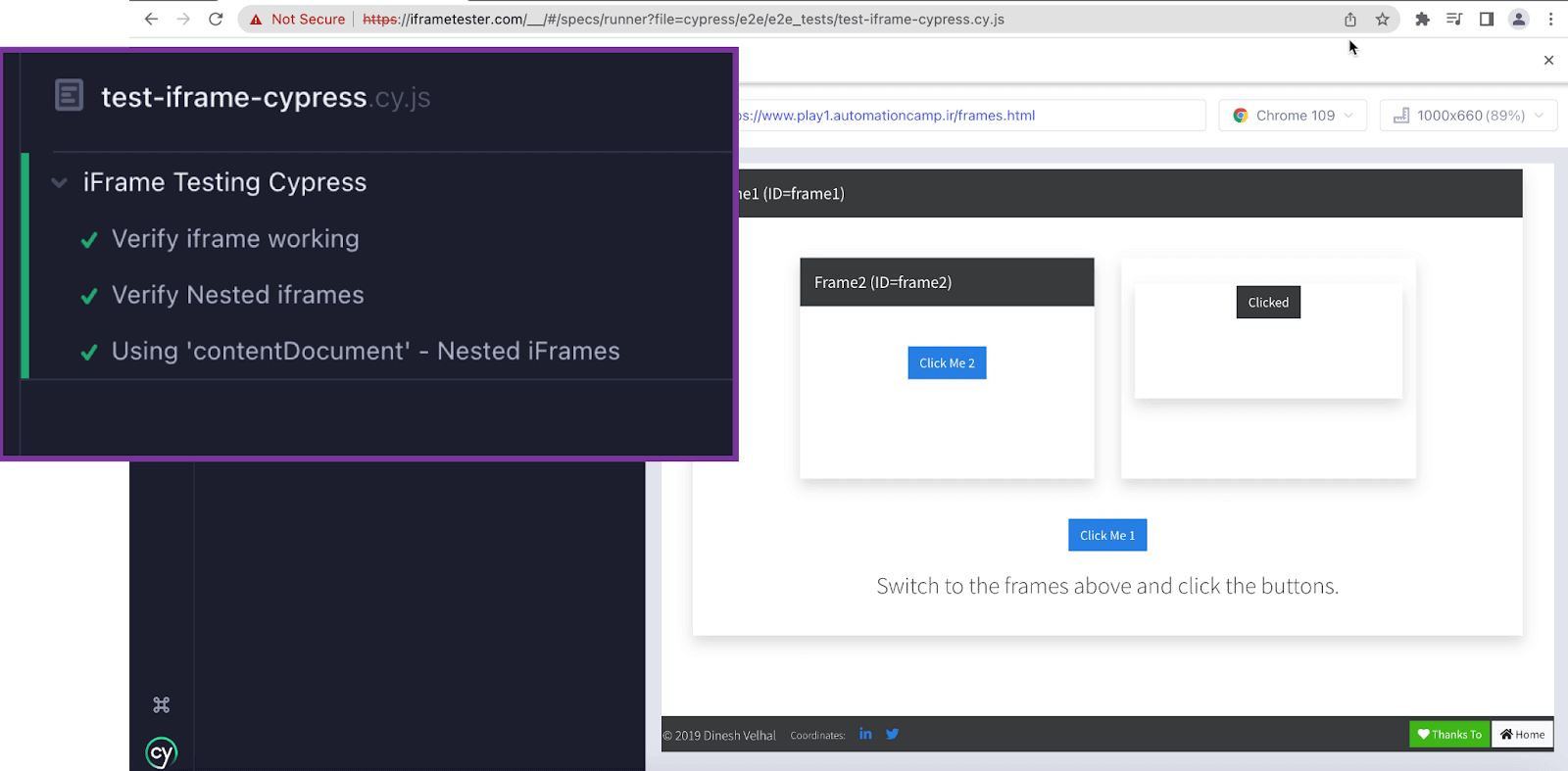
Let’s run our spec file and see if the button is clicked successfully.
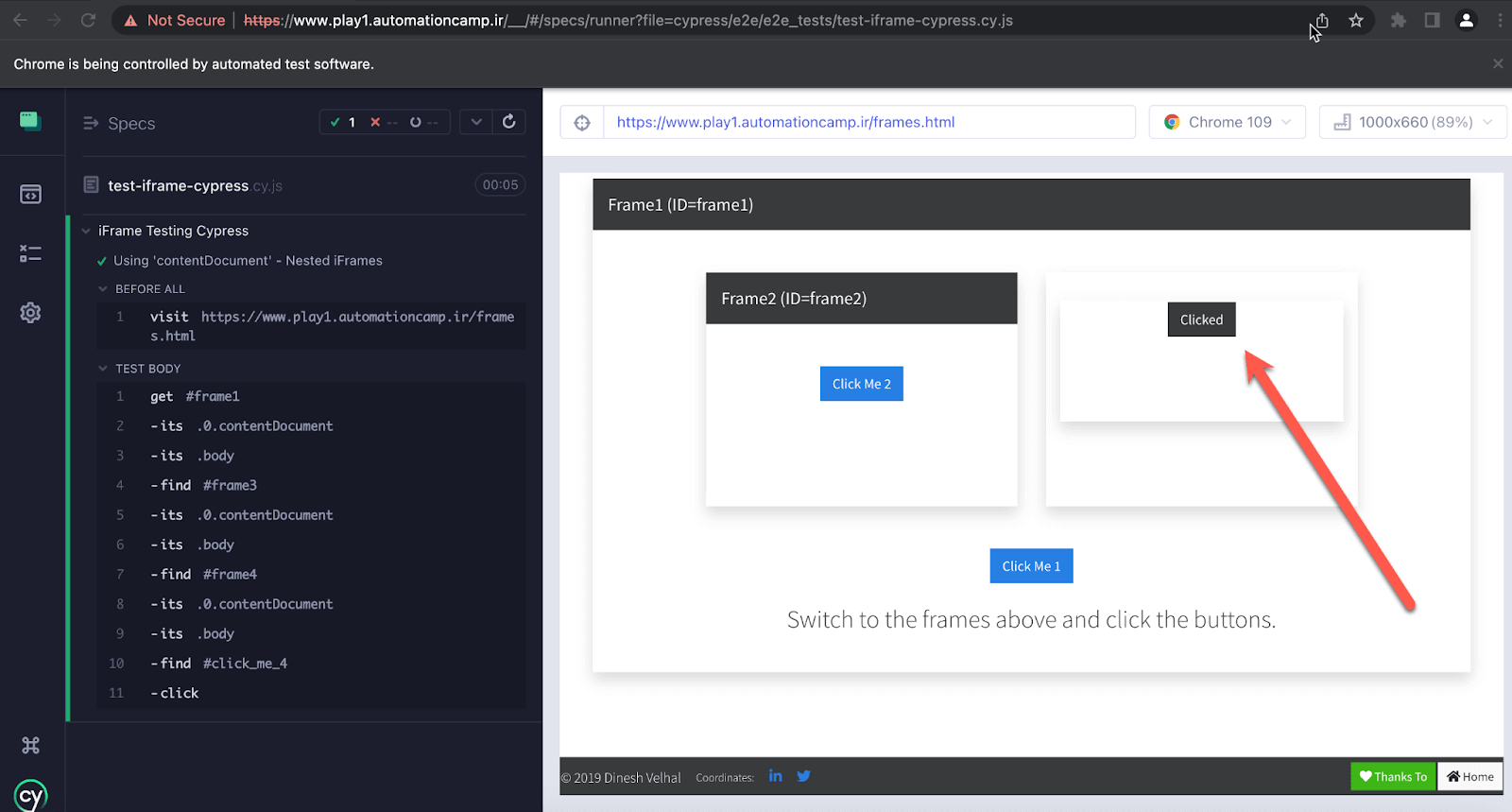
How to perform iFrames testing with Cypress?
Now, let’s focus on Cypress and iFrame and understand the code step by step. We are using Cypress v10.7 for testing iFrames with Cypress.
Subscribe to the TestMu AI YouTube channel for tutorials around Selenium testing, Playwright browser testing, Appium, and more.
Code Walkthrough:
import config from './config.json'
import MainPage from '../../page-objects/components/MainPage'

describe('iFrame Testing Cypress', () => {
   before(function(){
       cy.visit(`${config.URL3}`)
   })

   it('Verify iframe working', () =>{

       //let's test iframe
       MainPage.iframeInput("#iframe-window",`input[name='s']`)
   })

Let’s start defining our config.json file; here, we can include some data and URLs.
Next, we need to establish our structure. As demonstrated in the following line of code, import MainPage from ‘../../page-objects/components/MainPage’, we aim to separate our Cypress locators from our tests using the Page Object Model (POM) approach. This structure can be found within the “page-objects” folder.
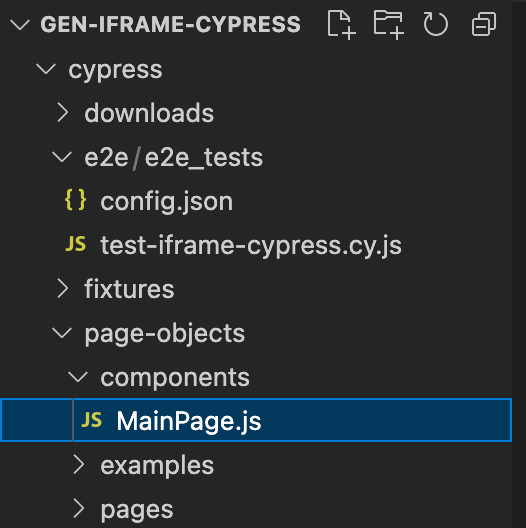
As mentioned above, our methods and locators can be found there; in our example, we try to search on Google using an iFrame webpage (embedded Google search).
describe('iFrame Testing Cypress', () => {
   before(function(){
       cy.visit(`${config.URL3}`)
   })
For this case, we are using a before() hook that will open up our page before all of our tests, and after that, we can test, keeping in mind if we need to switch URLs, we must use “cy.origin” as we will mention below.
it('Verify iframe working', () =>{

       //let's test iframe
       MainPage.iframeInput("#iframe-window",`input[name='s']`)
   })
export default class MainPage {

   static iframeInput(iframe_el,ele1){
       cy.get(iframe_el)
           .should('be.visible')
           .should('not.be.empty')
           .then(($iframe) => {
               const $body = $iframe.contents().find('body')
       //
       cy.wrap($body)
           .find(ele1)
           .type('Cypress{enter}')
       })
   }
}

Slow loading and empty iFrames validation
Let’s understand the code below; first it is vital to get the iFrame locator. Since, as we know, many iFrames are a bit slower to load, or sometimes iFrames are broken, for those cases, we must implement some assertions “be.visible” or “not.be.empty” can do the work. Second, assign an alias, and then we can navigate inside the elements of the iFrame.
Reusing our Code
We will probably access the iFrame’s elements in multiple tests; as we can see, we are using a static method and a class. The other approach is using Cypress custom commands inside the cypress/support/index.js. Not a big fan of using custom commands, but you can reuse the same code and create a custom command.
We can now see that after it went through all those steps, it was able to grab the body of the iFrame. So then we can wrap it with Cypress, using that .find() to navigate inside the iFrame body.
Cypress wrap command is used to yield objects placed in it and their resolved value, meaning that when you want to use Cypress commands like should, type, or click on an object or jQuery element, you should wrap.
Nested iFrames
What about dealing with nested iFrames? It could be a nightmare and happens very often on multiple web pages. In those cases, we can use the “contentDocument” approach, which is relevant when navigating with various iFrames, as we can see from the image.
it("Using 'contentDocument' - Nested iframes", () => {

       cy.origin(`${config.URL4}`, () => {
           cy.visit('/frames.html')
           cy.get("#frame1")
               .its('0.contentDocument')
               .its('body')
               .find('#frame3')
               .its('0.contentDocument')
               .its('body')
               .find('#frame4')
               .its('0.contentDocument')
               .its('body')
               .find("#click_me_4").click()
           //
       })
   })
Cross-origin E2E
One last part I would like to discuss is the “cy.origin”, as we are using version 10.7. This feature is not fully available if we don’t activate the experimental feature -> “experimentalSessionAndOrigin: true.” As you probably noticed, we used a new domain -> “https://www.play1.automationcamp.ir” but also we need to visit the specific web page.
cy.origin(`${config.URL4}`, () => {
           cy.visit('/frames.html')
Here is the test execution, which indicates that our Cypress iFrame testing approach is working:
In the next section of this tutorial on how to handle iFrames in Cypress, we will learn how to run our tests in the Cypress cloud grid.
How to handle iFrames in Cypress on the cloud grid?
We can utilize a Cypress cloud grid such as TestMu AI, which offers automated on over 40 browsers and operating systems, and Cypress parallel testing to speed up test execution and facilitate large-scale Cypress testing. This will result in enhanced overall test coverage, leading to a better quality product, as we can test various combinations using the same test scripts.
To get started with Cypress e2e testing, follow the below-mentioned steps:
- Install TestMu AI Cypress CLI on your machine. Trigger the following command to install the same:
npm install -g lambdatest-cypress-cli
lambdatest-cypress init
"lambdatest_auth": {
      "username": "<Your LambdaTest username>",
      "access_key": "<Your LambdaTest access key>"
{
  "lambdatest_auth": {
     "username": "",
     "access_key": ""
  },
  "browsers": [
     {
        "browser": "MicrosoftEdge",
        "platform": "Windows 10",
        "versions": [
           "latest"
        ]
     },
     {
        "browser": "Chrome",
        "platform": "Windows 11",
        "versions": [
           "latest"
        ]
     },
     {
        "browser": "Chrome",
        "platform": "MacOS Monterey",
        "versions": [
           "latest"
        ]
     }
  ],
"run_settings": {
     "cypress_config_file": "cypress.config.js",
     "build_name": "build-Cypress-iframes",
     "parallels": 5,
     "specs": "./cypress/e2e/e2e_tests/*.cy.js",
     "pluginsFile": true,
     "ignore_files": "",
     "npm_dependencies": {
        "cypress": "10.7.0"
     },
     "feature_file_suppport": true
  },
"tunnel_settings": {
    "tunnel": false,
    "tunnelName": null
}
lambdatest-cypress run
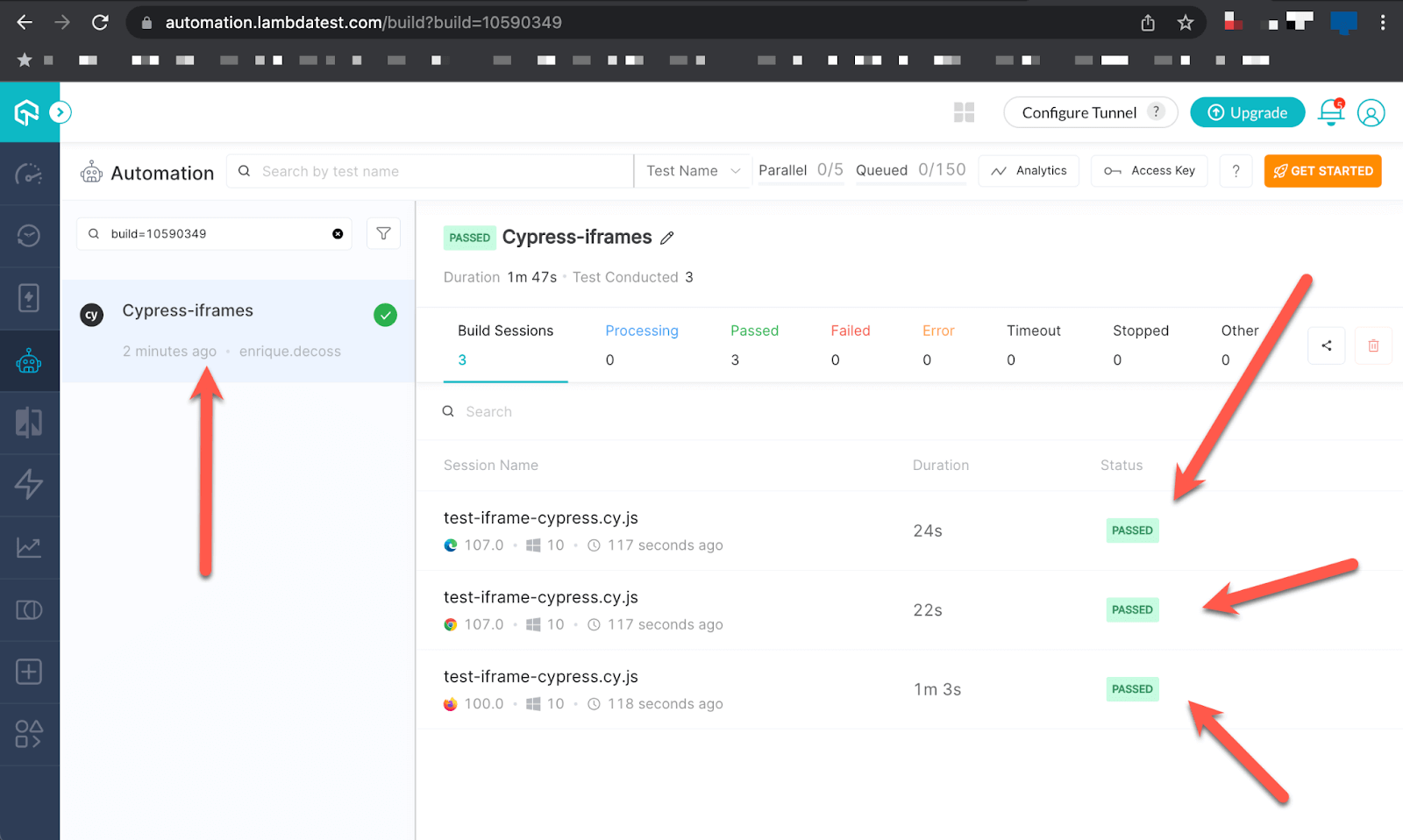
Shown below is the test execution status from the TestMu AI Automation Dashboard.
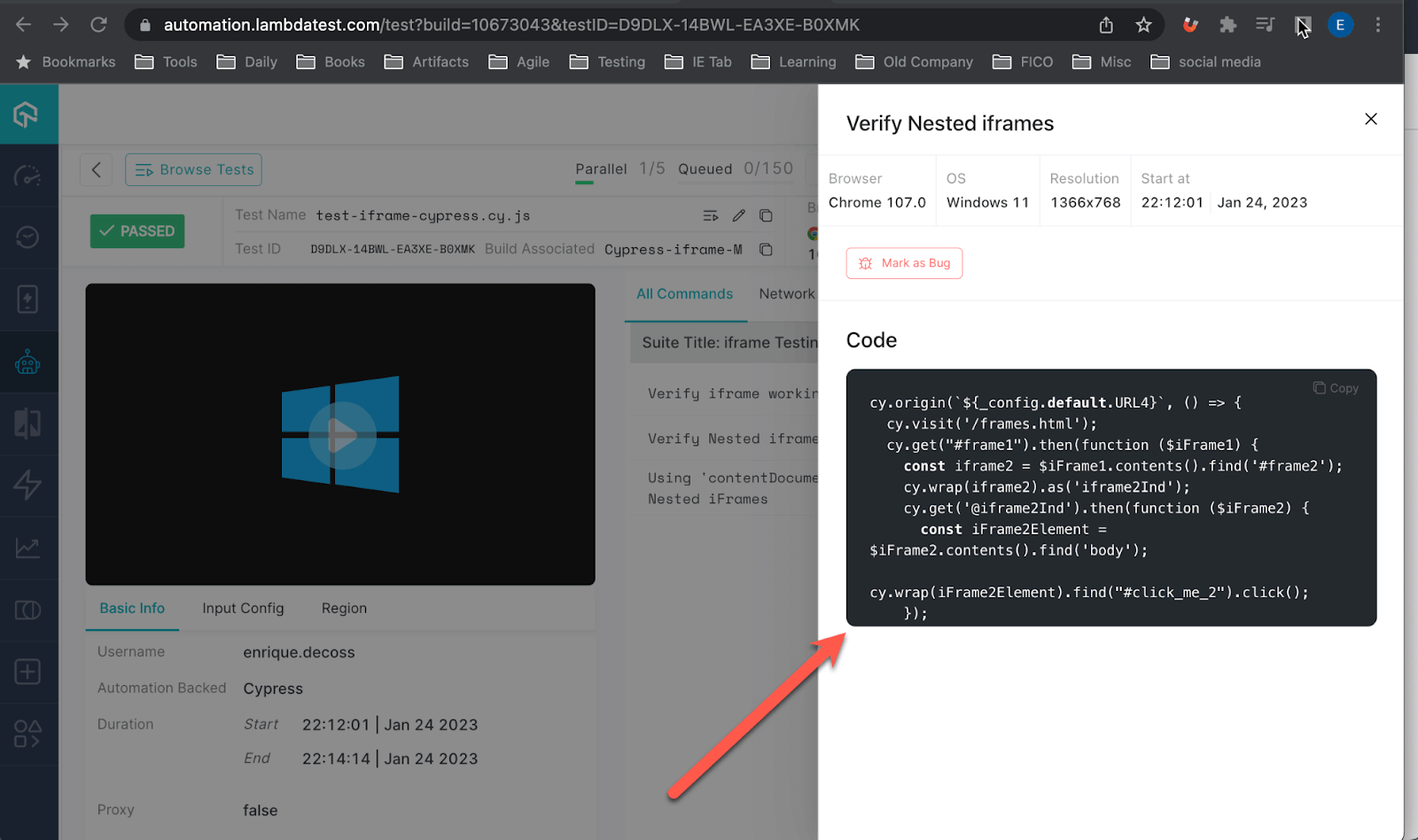
If we click on any of the tests, we can see the details of our Cypress test scripts video of the execution and the actual code executed in Cypress Grid; pretty neat.
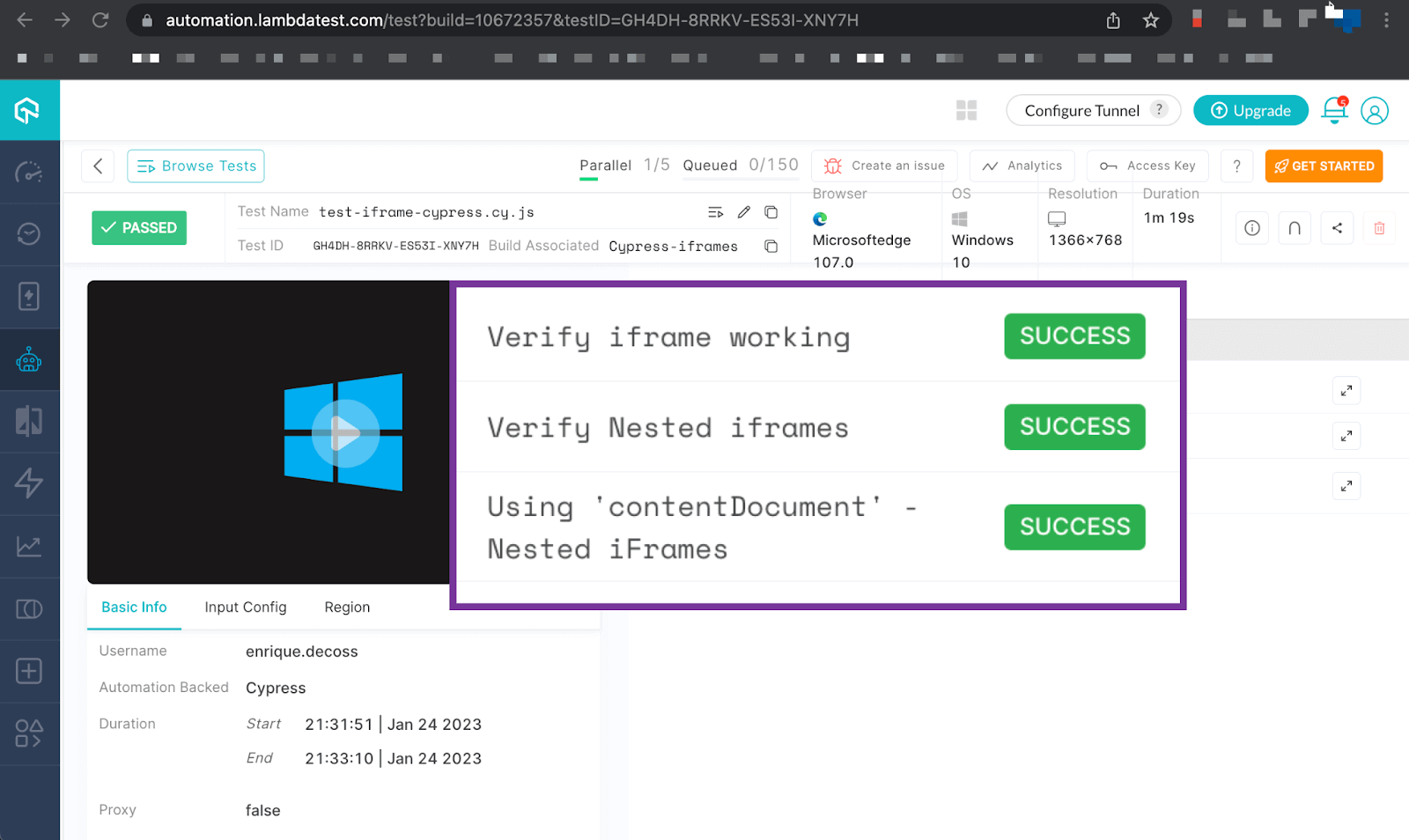
Now, let’s see more details about our test code, click on the button next to our test title. It will open a page, and we can explore our code or identify some issues in case of failure.
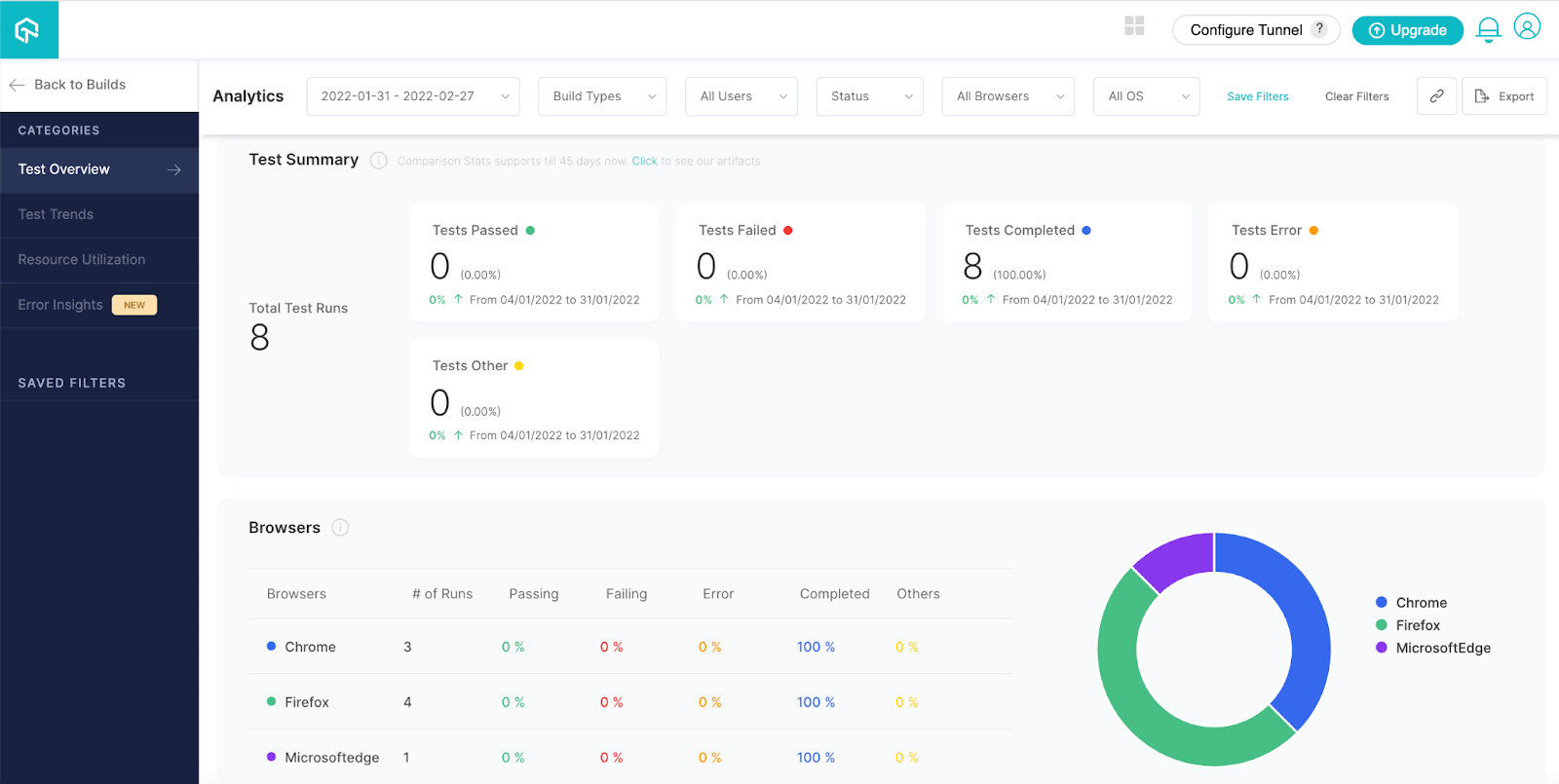
To view test performance metrics, go to the TestMu AI Analytics Dashboard. The Test Overview provides an overview of tests with stable behavior, while the Test Summary shows the total number of passed or failed tests and any completed or pending tests.
If you are a developer or a tester and have a basic understanding of Cypress and want to take your knowledge to the next level, then this Cypress 101 certification course is for you.

Wrapping Up
Working with iFrames could be a big deal with Cypress, but I hope this blog on how to handle iFrames in Cypress helps you overcome common issues I ran into with them. Even though Cypress has limitations with iFrames, there are ways to work around them.

I hope the Cypress team addresses the native way to use “switchToFrame” soon; in the meantime, let’s continue using the workarounds available. Feel free to leave any comments or suggestions.
Happy Bug Hunting!


Frequently asked questions
Did you find this page helpful?
More Related Hubs
TestMu AI forEnterprise
Get access to solutions built on Enterprise
grade security, privacy, & compliance
- Advanced access controls
- Advanced data retention rules
- Advanced Local Testing
- Premium Support options
- Early access to beta features
- Private Slack Channel
- Unlimited Manual Accessibility DevTools Tests