

Next-Gen App & Browser Testing Cloud
Trusted by 2 Mn+ QAs & Devs to accelerate their release cycles


How to Handle File Upload in Selenium
Learn how to handle file upload in Selenium. Explore techniques and examples to automate file uploads and streamline your testing processes.

Faisal Khatri
March 23, 2026
File upload testing seems simple until you try to automate it. When a user clicks "Choose File," the browser hands control to the operating system and since Selenium can't directly interact with OS-level dialogs, that becomes a major challenge.
In this guide, you'll learn four methods to handle file upload in Selenium with working code examples, plus how to run them reliably on a cloud grid across 3000+ real browsers.
Overview
How to Handle File Upload in Selenium ?
Selenium WebDriver provides robust methods to automate file uploads efficiently across web applications like job portals, eCommerce platforms, and plagiarism checkers, etc.
Why Use Selenium for Automating File Uploads?
Selenium is open-source, W3C compliant, and supports multiple browsers, operating systems, and programming languages. It enables file uploads without interacting with system dialogs.
What are the methods to handle file upload in Selenium?
- sendKeys() method
- Robot class
- AutoIt
Example: File Upload Using sendKeys()
WebElement addFile = driver.findElement(By.cssSelector("input[type='file']"));
addFile.sendKeys("/Users/Desktop/sample_file.jpeg");
How to Upload Files on a Cloud-Based Selenium Grid like TestMu AI?
Using a cloud Selenium Grid such as TestMu AI allows testers to upload files across real browsers and operating systems without managing local infrastructure, ensuring scalability, faster execution, and cross-browser compatibility for automated file upload testing.
- Create Account & Login: Sign up on TestMu AI or log in if you already have an account.
- Set Environment Variables: Store your TestMu AI username and access key in system environment variables.
- Fetch Desired Capabilities: Use the Capabilities Generator to select browser, version, OS, and platform for testing.
- Configure RemoteWebDriver: Initialize RemoteWebDriver with the grid URL and desired capabilities.
- Set File Detector: Call driver.setFileDetector(new LocalFileDetector()) to enable file uploads on the cloud grid.
- Navigate to File Upload Page: Open the website where file upload needs to be tested.
- Upload File Using sendKeys(): Locate the file input element and provide the file path with sendKeys().
- Wait for Upload Completion: Use explicit waits to ensure the file is completely uploaded before proceeding.
- Validate Upload: Assert that the uploaded file appears correctly, e.g., by checking the filename in the table.
- Tear Down: Close the browser using driver.quit() and optionally log the test status.
Why Selenium for Handling File Upload?
Selenium is an open-source collection of tools and libraries to automate interactions with web browsers. Being open-source and free, it has become a popular choice for automation testing in the global testing community. With the release of Selenium 4, Selenium has become W3C compliant. Selenium Manager has also been introduced, simplifying driver and browser management.
When handling file uploads, Selenium offers extensive browser support, robust automation capabilities, and flexibility for efficiently handling different file types and dynamic interactions. Instead of interacting with the file upload dialog, it provides a way to upload files without opening the dialog box.
Methods to Handle File Upload in Selenium
We have the following methods for file upload in Selenium WebDriver:
- sendKeys() Method: Directly uploads files to input fields with type='file', avoiding popups.
- Robot Class: Automates native OS dialogs by simulating keyboard inputs for file selection.
- AutoIt: Executes compiled scripts to handle file upload dialogs; useful if other methods fail.
File Upload in Selenium Using sendkeys()
It is always preferred to use the built-in features Selenium provides to upload files. The Selenium sendKeys() method is one such method in Selenium. It directly applies to input tags that have an attribute as type=’file’.
Here is an example of file upload in Selenium and Java using the sendKeys() method:
WebElement addFile = driver.findElement(By.cssSelector("input[type='file']"));
addFile.sendKeys("/Users/Desktop/sample_file.jpeg");
File Upload in Selenium Using Robot Class
Using the Robot class is another good option for uploading a file in Selenium. Robot class is an AWT class package in Java. This class helps automate windows based alerts, popups, or native screens. It is independent of the operating system.
Let’s take an example of the Filebin website that allows uploading and sharing files online. We will upload a file using the Robot class with Selenium on this website.
The following test script will allow us to file upload in Selenium using the Robot class:
@Test
public void testFileUpload () throws IOException, InterruptedException {

   driver.get ("https://filebin.net/");
   driver.findElement (By.id ("#fileField"))
       .click ();
   Thread.sleep (5000);
   Runtime.getRuntime ()
       .exec ("C:\Users\Faisal\AutoIt_script\uploadfile.exe");
   Thread.sleep (5000);
   WebElement tableRow = driver.findElement (By.cssSelector ("table > tbody > tr"));
   String fileNameText = tableRow.findElement (By.cssSelector ("td:nth-child(1) > a"))
       .getText ();
   assertEquals (fileNameText, "file_example_JPG_100kB.jpg");
}
This code will navigate to the FileBin website, locate the “Select files to upload” button, and perform a click operation on it. Next, the selectFile() method that accepts the file path as a String is called, and it will perform file selection actions using the Robot class.
public void selectFile(String path) throws AWTException {
   StringSelection strSelection = new StringSelection(path);
   Clipboard clipboard = Toolkit.getDefaultToolkit()
       .getSystemClipboard();
   clipboard.setContents(strSelection, null);

   Robot robot = new Robot();

   robot.delay(2000);
   robot.keyPress(KeyEvent.VK_CONTROL);
   robot.keyPress(KeyEvent.VK_V);
   robot.keyRelease(KeyEvent.VK_V);
   robot.keyRelease(KeyEvent.VK_CONTROL);
   robot.keyPress(KeyEvent.VK_ENTER);
   robot.delay(4000);
   robot.keyRelease(KeyEvent.VK_ENTER);
}
Using the Robot class, ideally, the path is pasted in the filename field of the file upload window, and the Enter key is pressed, which helps select the file for upload.
File Upload in Selenium Using AutoIt
AutoIt is an open-source test automation tool that automates native windows-related popups. However, AutoIt is not recommended for file upload. It can be used as an option if nothing works. We will upload a sample file using the FileBin website.
Here are the following steps to integrate AutoIt with Selenium tests to upload a file:
- Install AutoIt.
- Navigate to C:\Programs Files\AutoIt3\SciTE\ and run the SciTE.exe file. Add the following script to the editor:
ControlFocus("Open","","Edit1")
ControlSetText("Open","","Edit1",""C:UsersFaisalDownloadsSmallpdf.pdf"")
ControlClick("Open","","Button1")
Runtime.getRuntime().exec().
The following test script will allow file upload in Selenium using AutoIt.
@Test
public void testFileUpload () throws IOException, InterruptedException {

   driver.get ("https://filebin.net/");

   driver.findElement (By.id ("#fileField"))
       .click ();
   Thread.sleep (5000);

   Runtime.getRuntime ()
       .exec ("C:\Users\Faisal\AutoIt_script\uploadfile.exe");
   Thread.sleep (5000);

   WebElement tableRow = driver.findElement (By.cssSelector ("table > tbody > tr"));
   String fileNameText = tableRow.findElement (By.cssSelector ("td:nth-child(1) > a"))
       .getText ();
   assertEquals (fileNameText, "file_example_JPG_100kB.jpg");
}
The test will navigate the Filebin website and locate the “Select files to upload” button. Using the script Runtime.getRuntime().exec() method, the AutoIt upload script will be executed, and the upload action will be performed to select the file for upload.
Finally, an assertion will be performed to check that the filename is displayed in the table, ensuring the file was uploaded successfully.
In order to further enhance your Selenium automation testing, you can consider exploring AI testing agents like KaneAI.
KaneAI is a smart GenAI native test assistant for high-speed quality engineering teams. With its unique AI features for test authoring, management, and debugging, KaneAI allows teams to create and evolve complex tests using natural language.

Demo: Handling File Upload in Selenium
Let’s look at how to test file upload in Selenium. For this, we will use the cloud grid offered by TestMu AI to run tests. As a part of this blog, we will focus on leveraging the sendKeys() method to upload files and use the below test scenario for cloud grid execution.
TestMu AI is an AI-native test execution platform where you can test websites on various real browsers and operating systems. That way, you won’t have to worry about maintaining your Selenium Grid, as TestMu AI will provide you with an online Selenium Grid with zero downtime.
To get started with testing file uploads with Selenium, check out this guide on upload files using TestMu AI Selenium Grid.
Upload an Image
We will upload an image to verify the website successfully uploads a file and displays its name in the interface, confirming a successful upload.
Test Scenario:
- Navigate to the home page of the Filebin website.
- Select a sample file to upload and share.
- Assert file upload by verifying the filename displayed in the table after upload is complete.
Implementation:
To run the above test scenario, we will create a new test class in the same uploaddownloaddemo package and name it FileUploadTest.
Below is the test script used for demonstrating the file upload test scenario on the latest version of Chrome browser on the Windows 11 platform:
public class FileUploadTest {

   private RemoteWebDriver driver;
   private String status = "failed";

   @BeforeTest
   @Parameters ({ "browser", "browserVersion", "platform" })
   public void setup(String browser, String browserVersion, String platform) {
       final String userName = System.getenv("LT_USERNAME") == null ? "LT_USERNAME" : System.getenv("LT_USERNAME");
       final String accessKey = System.getenv("LT_ACCESS_KEY") == null ? "LT_ACCESS_KEY" : System.getenv("LT_ACCESS_KEY");
       final String gridUrl = "@hub.lambdatest.com/wd/hub";

       try {
           driver = new RemoteWebDriver(new URL ("http://" + userName + ":" + accessKey + gridUrl), getChromeOptions(browserVersion, platform));

       } catch (final MalformedURLException e) {
           throw new Error("Could not start the chrome browser on LambdaTest cloud grid");
       }
       driver.setFileDetector(new LocalFileDetector ());
       driver.manage()
           .timeouts()
           .implicitlyWait(Duration.ofSeconds(20));
   }

   @Test()
   public void testFileUpload() {
       driver.get ("https://filebin.net/");
       WebElement selectFileToUploadButton = driver.findElement (By.id ("fileField"));
       String fileName = "file_example_JPG_100kB.jpg";
       selectFileToUploadButton.sendKeys ("/Users/faisalkhatri/Blogs/file_upload_download/" + fileName);
       WebElement tableRow = driver.findElement (By.cssSelector ("table > tbody > tr"));
       String fileNameText = tableRow.findElement (By.cssSelector ("td:nth-child(1) > a")).getText ();
       assertEquals (fileNameText, fileName);
       this.status = "passed";
   }

   @Test
   public void testUploadFileForPlagiarismCheck() {
       driver.get ("https://smallseotools.com/plagiarism-checker/");
       WebElement attachFile = driver.findElement (By.cssSelector ("div #fileUpload"));
       attachFile.sendKeys ("/Users/faisalkhatri/Blogs/file_upload_download/samplepdf.pdf");

       WebDriverWait wait = new WebDriverWait (driver,Duration.ofSeconds (20));
       wait.until (ExpectedConditions.invisibilityOfElementLocated (By.cssSelector ("#loader_con11 p")));

       String wordsCount = driver.findElement (By.cssSelector ("span#count_")).getText ();
       assertTrue (Integer.parseInt (wordsCount) > 0);
       this.status = "passed";
   }

   private ChromeOptions getChromeOptions(String browserVersion, String platform) {
       var chromePrefs = new HashMap<String, Object> ();
       ChromeOptions chromeOptions = new ChromeOptions();
       chromeOptions.setExperimentalOption("prefs", chromePrefs);
       chromeOptions.setPlatformName(platform);
       chromeOptions.setBrowserVersion(browserVersion);
       chromeOptions.setCapability("LT:Options", getLtOptions());

       return chromeOptions;
   }

   private HashMap<String, Object> getLtOptions() {
       final var ltOptions = new HashMap<String, Object>();
       ltOptions.put("project", "LambdaTest File upload download demo");
       ltOptions.put("build", "File Upload Web Page");
       ltOptions.put("name", "File Upload using Chrome");
       ltOptions.put("w3c", true);
       ltOptions.put("visual", true);
       ltOptions.put("plugin", "java-testNG");
       return ltOptions;
   }

   @AfterTest
   public void tearDown() {
       this.driver.executeScript("lambda-status=" + this.status);
       driver.quit();
   }
}

Code Walkthrough:
The testFileUpload() method will perform all the file upload steps. It will first navigate to the homepage of the Filebin website, locate the “Select files to upload” button, and upload the file using the sendKeys() method.
@Test()
public void testFileUpload() {
   driver.get ("https://filebin.net/");
   WebElement selectFileToUploadButton = driver.findElement (By.id ("fileField"));
   String fileName = "file_example_JPG_100kB.jpg";
   selectFileToUploadButton.sendKeys ("/Users/faisalkhatri/Blogs/file_upload_download/" + fileName);
   WebElement tableRow = driver.findElement (By.cssSelector ("table > tbody > tr"));
   String fileNameText = tableRow.findElement (By.cssSelector ("td:nth-child(1) > a")).getText ();
   assertEquals (fileNameText, fileName);
   this.status = "passed";
}
After the file is uploaded, a table is displayed with the uploaded file details. We will be locating the name of the file in the table to perform an assertion with the filename.
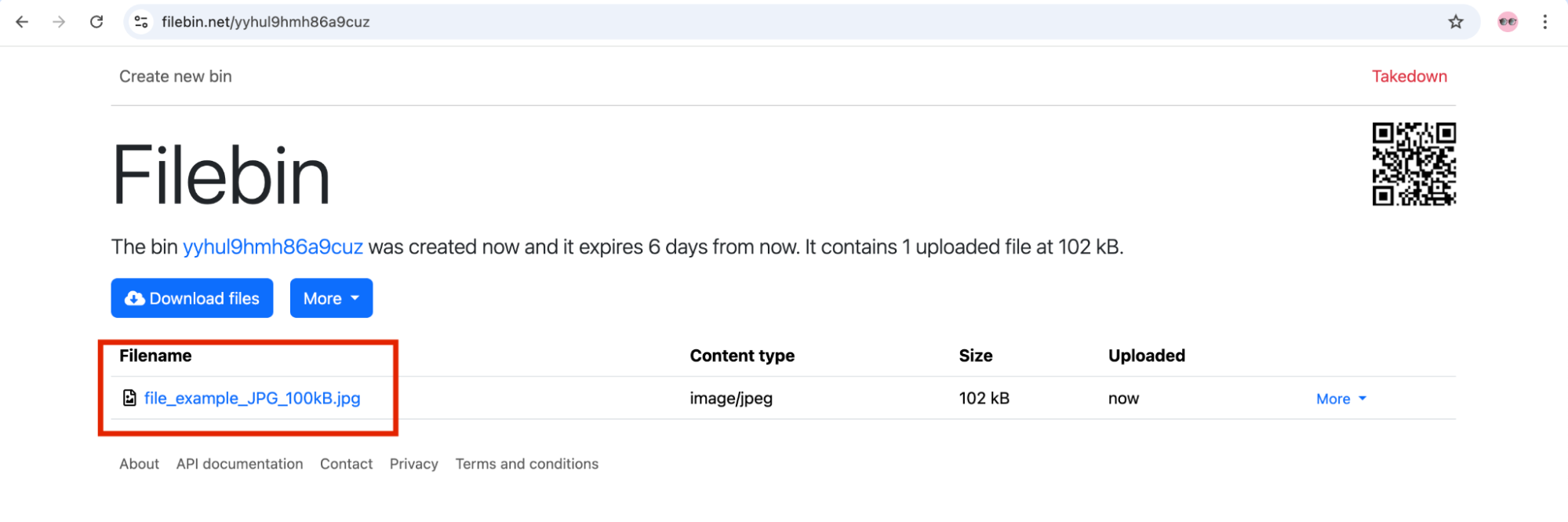
However, to run this test on the TestMu AI cloud grid, we will need to configure the platform, browser, and browser versions. It will also require other capabilities such as project name, build, and test name; these capabilities can be provided as browser options and finally used in the parameters while instantiating the RemoteWebDriver.
public class FileUploadTest {

   private RemoteWebDriver driver;
   private String status = "failed";

   @BeforeTest
   @Parameters ({ "browser", "browserVersion", "platform" })
   public void setup(String browser, String browserVersion, String platform) {
       final String userName = System.getenv("LT_USERNAME") == null ? "LT_USERNAME" : System.getenv("LT_USERNAME");
       final String accessKey = System.getenv("LT_ACCESS_KEY") == null ? "LT_ACCESS_KEY" : System.getenv("LT_ACCESS_KEY");
       final String gridUrl = "@hub.lambdatest.com/wd/hub";

       try {
           driver = new RemoteWebDriver(new URL ("http://" + userName + ":" + accessKey + gridUrl), getChromeOptions(browserVersion, platform));

       } catch (final MalformedURLException e) {
           throw new Error("Could not start the chrome browser on LambdaTest cloud grid");
       }
       driver.setFileDetector(new LocalFileDetector ());
       driver.manage()
           .timeouts()
           .implicitlyWait(Duration.ofSeconds(20));
   }
//…
}
TestMu AI Username, Access Key, and grid URL are mandatorily required to be set in the configuration to execute tests on the cloud grid.
Additionally, the setFileDetector() method of the RemoteWebDriver class needs to be called, as it will help upload files to the cloud grid.
{
//..

private ChromeOptions getChromeOptions(String browserVersion, String platform) {
   var chromePrefs = new HashMap<String, Object> ();
   ChromeOptions chromeOptions = new ChromeOptions();
   chromeOptions.setExperimentalOption("prefs", chromePrefs);
   chromeOptions.setPlatformName(platform);
   chromeOptions.setBrowserVersion(browserVersion);
   chromeOptions.setCapability("LT:Options", getLtOptions());

   return chromeOptions;
}

private HashMap<String, Object> getLtOptions() {
   final var ltOptions = new HashMap<String, Object>();
   ltOptions.put("project", "LambdaTest File upload download demo");
   ltOptions.put("build", "File Upload Web Page");
   ltOptions.put("name", "File Upload using Chrome");
   ltOptions.put("w3c", true);
   ltOptions.put("visual", true);
   ltOptions.put("plugin", "java-testNG");
   return ltOptions;
}

@AfterTest
public void tearDown() {
   driver.quit();
}
In the tearDown() method, there is an additional statement where the executeScript() method of the RemoteWebDriver class. It sets the test status, i.e., pass or fail, as per the test execution.
Test Execution:
Run your test for file upload in Selenium. After that, to view your test results, go to the TestMu AI Web Automation dashboard.
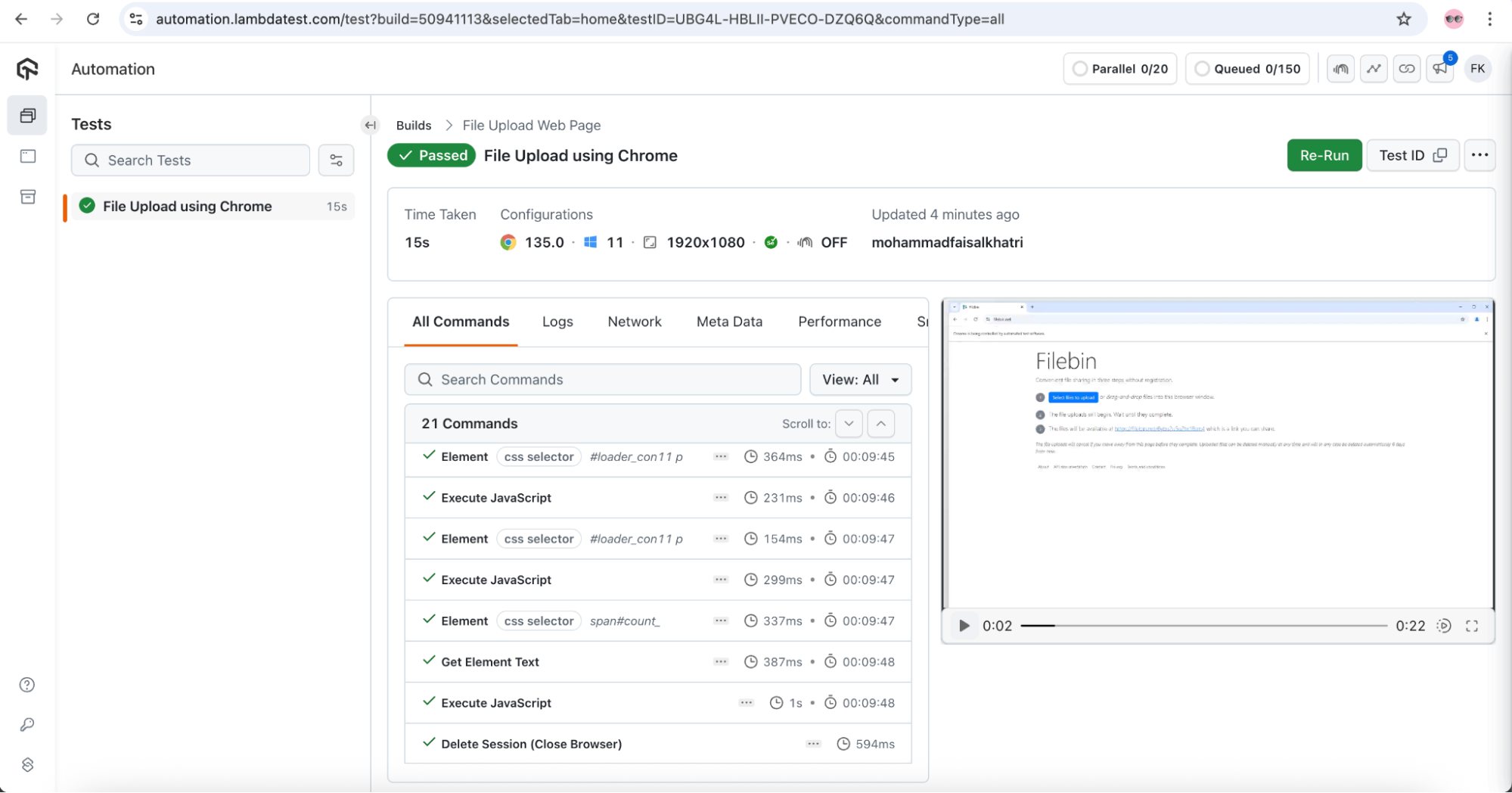
You can also watch this video to learn how to upload and download files in Selenium WebDriver using different techniques.
Subscribe to the TestMu AI YouTube Channel and stay updated with the latest tutorials.
Uploading a Document to Check Plagiarism
We will now upload a file from plagiarism checker website to check for plagiarized content.
Test Scenario:
- Navigate to the Plagiarism Checker website.
- Select a sample file to upload.
- Verify that the word count displayed after file upload should be greater than 0.
Let’s create a new test, testUploadFileForPlagiarismCheck(), in the same test class as we would be running this test on the TestMu AI cloud grid as well.
@Test
public void testUploadFileForPlagiarismCheck() {
   driver.get ("https://smallseotools.com/plagiarism-checker/");
   WebElement attachFile = driver.findElement (By.cssSelector ("div #fileUpload"));
   attachFile.sendKeys ("/Users/faisalkhatri/Blogs/file_upload_download/samplepdf.pdf");

   WebDriverWait wait = new WebDriverWait (driver,Duration.ofSeconds (20));
   wait.until (ExpectedConditions.invisibilityOfElementLocated (By.cssSelector ("#loader_con11 p")));

   String wordsCount = driver.findElement (By.cssSelector ("span#count_")).getText ();
   assertTrue (Integer.parseInt (wordsCount) > 0);
   this.status = "passed";
}
As we have added this test in the same class, there is no need for any configuration changes to run this test on the TestMu AI cloud grid. The previously set configuration is sufficient for this test to run as well.
We will locate the attach file icon and use the sendKeys() method will enter the file upload path.
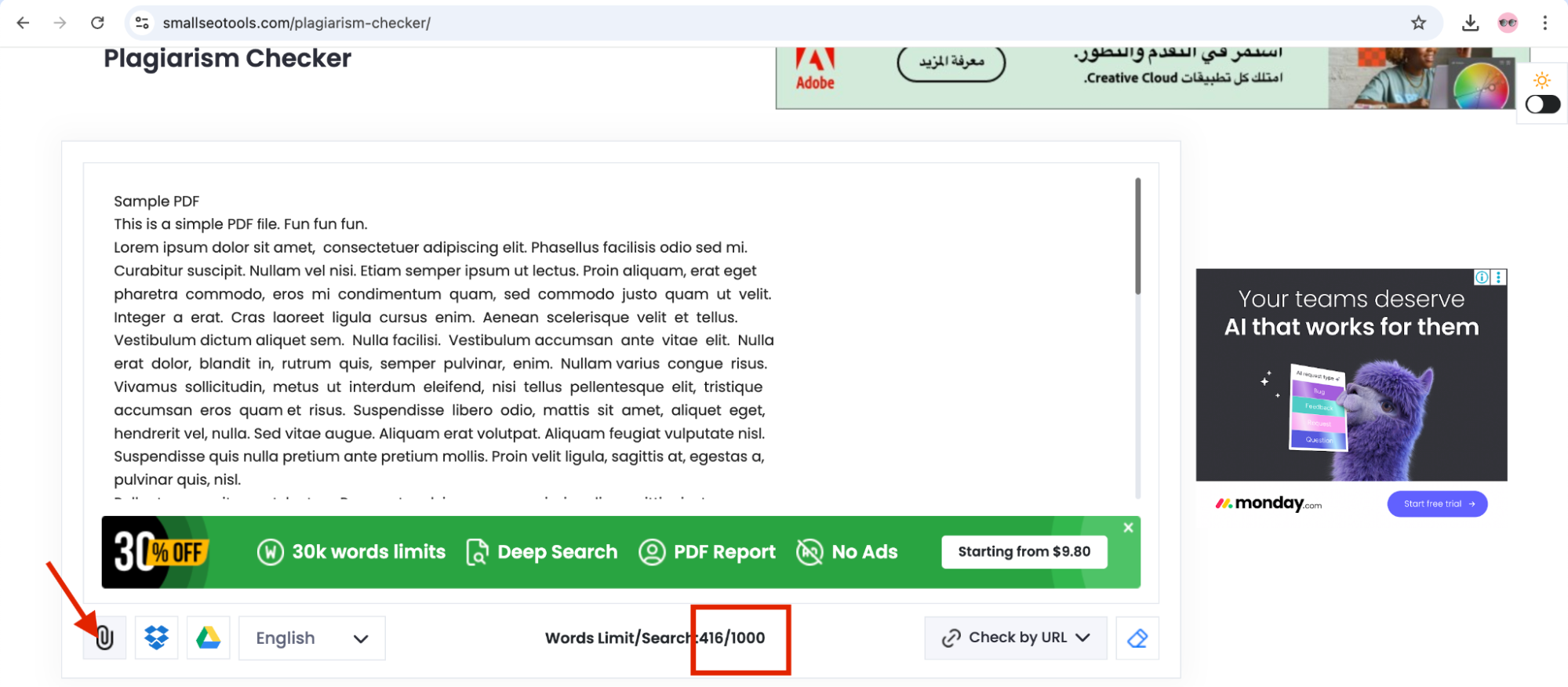
The file upload process takes some time, hence we are using the explicit wait condition to wait till the loader is invisible. This wait is essential to make the test wait till the time the loader disappears, and then the assertion statement would be executed.
We are using the assertTrue() method of TestNG to check that the wordsCount is greater than 0 after the file is uploaded successfully.
Test Execution:
The results of the test can be viewed on the TestMu AI Web Automation dashboard.
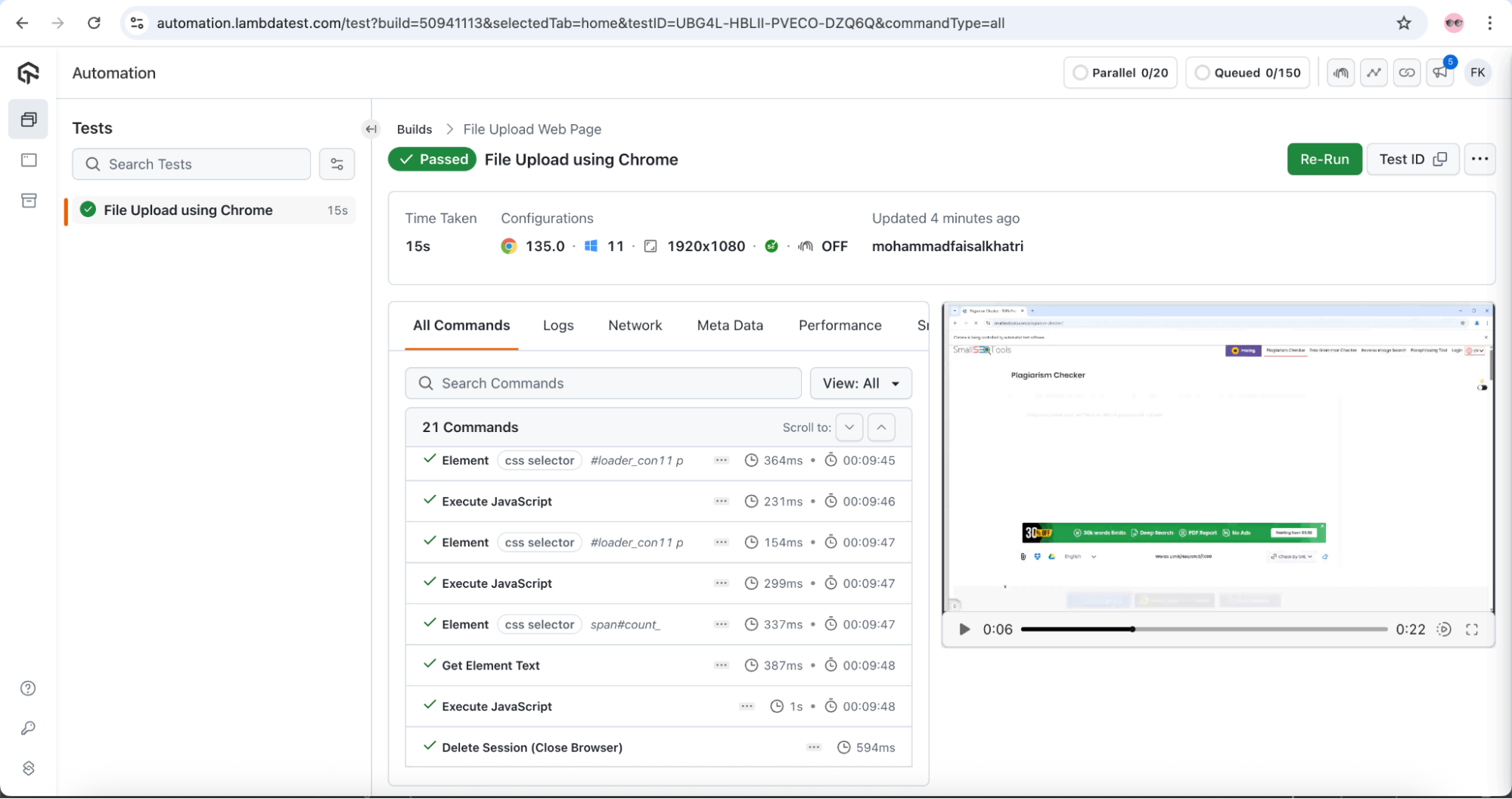

Note: Automate file upload testing across 5000+ real browsers. Try TestMu AI Now!
Best Practices to Upload Files in Selenium
When automating file uploads in Selenium, following best practices ensures reliable, maintainable, and efficient test scripts. Here are some key recommendations:
1. Use Absolute File Paths
Always use absolute paths for files to avoid path resolution issues across different environments. Store test files in a dedicated resources folder within your project.
2. Verify File Existence Before Upload
Check if the file exists before attempting to upload it to prevent test failures due to missing test data.
3. Handle Different File Types Appropriately
Test with various file types (images, documents, PDFs) and sizes to ensure your application handles different scenarios correctly.
4. Use Explicit Waits for Upload Completion
File uploads can take time. Use WebDriverWait with appropriate conditions to wait for upload completion rather than using Thread.sleep().
5. Validate Upload Success
Always verify that the file was uploaded successfully by checking for confirmation messages, file names in lists, or other success indicators.
6. Clean Up Test Files
Remove uploaded test files after tests complete to avoid cluttering test environments and ensure clean test runs.
7. Test on Multiple Browsers and Platforms
Use a cloud-based Selenium Grid like TestMu AI to test file uploads across different browser and OS combinations for comprehensive coverage.
8. Handle Security Restrictions
Be aware of browser security restrictions that may prevent certain file types or require user interaction for security reasons.
Wrapping Up
For a website that allows users to upload files, we need to ensure they work seamlessly across all browsers and platforms.
Selenium testing can easily automate the download & upload file functionality of the web application. Although Selenium can help you execute test cases in local infrastructure, it is always recommended to go for a cloud-based Selenium Grid to save time and resources.
Citations
- File Upload docs by Selenium: https://www.selenium.dev/documentation/webdriver/elements/file_upload/


Frequently asked questions
Did you find this page helpful?
More Related Hubs
TestMu AI forEnterprise
Get access to solutions built on Enterprise
grade security, privacy, & compliance
- Advanced access controls
- Advanced data retention rules
- Advanced Local Testing
- Premium Support options
- Early access to beta features
- Private Slack Channel
- Unlimited Manual Accessibility DevTools Tests