

Next-Gen App & Browser Testing Cloud
Trusted by 2 Mn+ QAs & Devs to accelerate their release cycles


How to Handle StaleElementReferenceException in Selenium
Learn how to handle StaleElementReferenceException in Selenium with effective strategies to ensure stable and reliable test automation.

Faisal Khatri
March 2, 2026
When performing Selenium automation testing, if you try to interact with a WebElement that’s no longer in the Document Object Model (DOM), Selenium will throw a StaleElementReferenceException.
This happens upon refreshing the page or updating the DOM. In such a scenario, the WebElement becomes stale.
To avoid StaleElementReferenceException in Selenium, always locate and interact with elements dynamically rather than storing their references. This means finding elements each time you need them instead of keeping them in variables.
What Is a StaleElementReferenceException?
The StaleElementReferenceException is a runtime error arising when an object’s state changes while your code is in the midst of using it.
This shift can result from a page refresh or user-triggered events altering your document’s structure. The reference to the modified object remains valid but no longer corresponds to your intended target. Attempting to use it will result in a StaleElementReferenceException.
When Does StaleElementReferenceException Occur?
Selenium throws a StaleElementReferenceException when the reference to the element we interact with is no longer attached to the actual DOM of the web page.
It throws a StaleElementReferenceException in one of the following two circumstances.
- The element has been removed from the DOM.
- The element is not attached to the page document.
When you perform automation testing, there is an edge case where Selenium WebDriver will return a StaleElementReferenceException if the element changes its type. Edge cases involve extreme situations at the minimum or maximum range of a possible condition.
Example of StaleElementReferenceException in Selenium
Let’s take an example of the TestMu AI Selenium Playground to demonstrate how the test throws a StaleElementReferenceException.
Test Scenario:
- Navigate to the TestMu AI Selenium Playground website.
- Click the Table Data Search link.
- Enter Status, “i.e., in progress” via Filter by Task / Assignee / Status field.
- Go back and then again click the Table Data Search link.
- Enter Status, “i.e., completed” via Filter by Task / Assignee / Status field.
The root of this StaleElementReferenceException is navigating to the previous page. Clicking the back button causes the Filter by Task / Assignee / Status field to be detached from the DOM. Therefore, our test script cannot enter a Status, although the field is visible after clicking the Table Data Search link.
Test Implementation:
Starting with the BaseTest class, the Selenium code sets up and tears down every test. The online Selenium Grid by TestMu AI has been used for demonstration.
TestMu AI is an AI-powered cloud testing platform that offers Selenium automation at scale. You can exponentially increase your browser coverage by running your Selenium scripts on a test automation cloud of 3000+ desktop and mobile environments, ensuring a seamless user experience across all browsers and OSes.

Code Walkthrough:
A new BaseTest class is created that will configure the RemoteWebDriver class to run the tests on the TestMu AI cloud grid.
public class BaseTest {

   RemoteWebDriver driver;
   //…
}
The following is the setup() method created inside the BaseTest class. It will create an instance of the RemoteWebDriver class, apply the implicit wait, and load the base URL to navigate to the Selenium Playground website.
For more information on RemoteWebDriver, refer to this blog on Selenium RemoteWebDriver.
@BeforeTest
public void setup() {

   String USERNAME = System.getenv("LT_USERNAME") == null ? "LT_USERNAME" : System.getenv("LT_USERNAME");
   String ACCESS_KEY = System.getenv("LT_ACCESS_KEY") == null ? "LT_ACCESS_KEY" : System.getenv("LT_ACCESS_KEY");
   String GRID_URL = "@hub.lambdatest.com/wd/hub";

   try {
       this.driver = new RemoteWebDriver(new URL("http://" + USERNAME + ":" + ACCESS_KEY + GRID_URL), getChromeOptions());
   } catch (final MalformedURLException e) {
       System.out.println("Could not start the remote session on LambdaTest cloud grid");
   }

   this.driver.manage().timeouts().implicitlyWait(Duration.ofSeconds(20));
   this.driver.get("https://www.lambdatest.com/selenium-playground/");
}
The LT_USERNAME, LT_ACCESS_KEY, and Grid_URL are required to run the web automation tests on the TestMu AI cloud grid. These values will be read on run time using the environment variables LT_USERNAME and LT_ACCESS_KEY.
While creating a new instance of the RemoteWebDriver class, the capabilities must also include details for the browser, browser version, platform, build name, test name, etc. These capabilities will be provided using the getChromeOptions() method. You can generate your custom desired capabilities using the Automation Capabilities Generator.
public ChromeOptions getChromeOptions() {
   final var browserOptions = new ChromeOptions();
   browserOptions.setPlatformName("Windows 10");
   browserOptions.setBrowserVersion("122.0");
   final HashMap<String, Object> ltOptions = new HashMap<String, Object>();
   ltOptions.put("project", "Stale Element Reference Exception Blog");
   ltOptions.put("build", "Selenium Playground - Table Data search");
   ltOptions.put("name", "Demo Stale Element Reference Exception");
   ltOptions.put("w3c", true);
   ltOptions.put("plugin", "java-testNG");

   browserOptions.setCapability("LT:Options", ltOptions);

   return browserOptions;

}
The getChromeOptions() method returns the object of the ChromeOptions class. Now, a new test class, TestExampleStaleElementReferenceException, extends the BaseTest class.
public class TestExampleStaleElementReferenceException extends BaseTest{

//..

}
The test createStaleElementReferenceException() method is created to demonstrate the StaleElementReferenceException in Selenium.
@Test
public void createStaleElementReferenceException() {
   WebElement pageLink = driver.findElement(By.linkText("Table Data Search"));
   pageLink.click();
   WebElement filterByField = driver.findElement(By.id("task-table-filter"));

   filterByField.sendKeys("in progress");
   driver.navigate().back();
   pageLink.click();
   filterByField.sendKeys("completed");
}

The navigation to the Selenium Playground website will be done using the BaseTest class. This method will click on the Table Data Search link on the homepage of the Selenium Playground website and will open the respective web page.
Next, it will locate the Filter by Task / Assignee / Status field and type in the word in progress, eventually fetching all the records with the respective status.
The test script will then perform browser back navigation to load the previous page, i.e., the home page of the website. On the home page, it will again click the Table Data Search link. While executing the next script to enter the value completed in the Filter by Task / Assignee / Status field it will throw the StaleElementReferenceException.
The screenshots below provide more information regarding the StaleElementReferenceException:


On a side note, you can further enhance your Selenium automation testing by leveraging AI testing agents like KaneAI.
KaneAI is a GenAI native smart AI test assistant for high-speed quality engineering teams. With its unique AI-driven features for test authoring, management, and debugging, KaneAI allows teams to create and evolve complex test cases using natural language.

How to Handle StaleElementReferenceException?
The StaleElementReferenceException can be handled in multiple ways depending on why the exception was thrown. Let’s see how to fix the StaleElementReferenceException by:
- Re-Initializing the WebElement
- Using Loops and Try-Catch Blocks
- Using ExpectedConditions
Re-initializing the WebElement
In the example code above, if we re-initialize the filterByField element before entering the completed status, then the StaleElementReferenceException will not be thrown.
There was no reference to filterByField because it was not attached to the page document once the page was reloaded. The code below displays how to re-initialize filterByField to avoid the exception.
@Test


    public void createStaleElementReferenceException() {


        WebElement pageLink = driver.findElement(By.linkText("Table Data Search"));


        pageLink.click();


        WebElement filterByField = driver.findElement(By.id("task-table-filter"));


        filterByField.sendKeys("in progress");


        driver.navigate().back();


        pageLink.click();


        filterByField = driver.findElement(By.id("task-table-filter"));


        filterByField.sendKeys("completed");
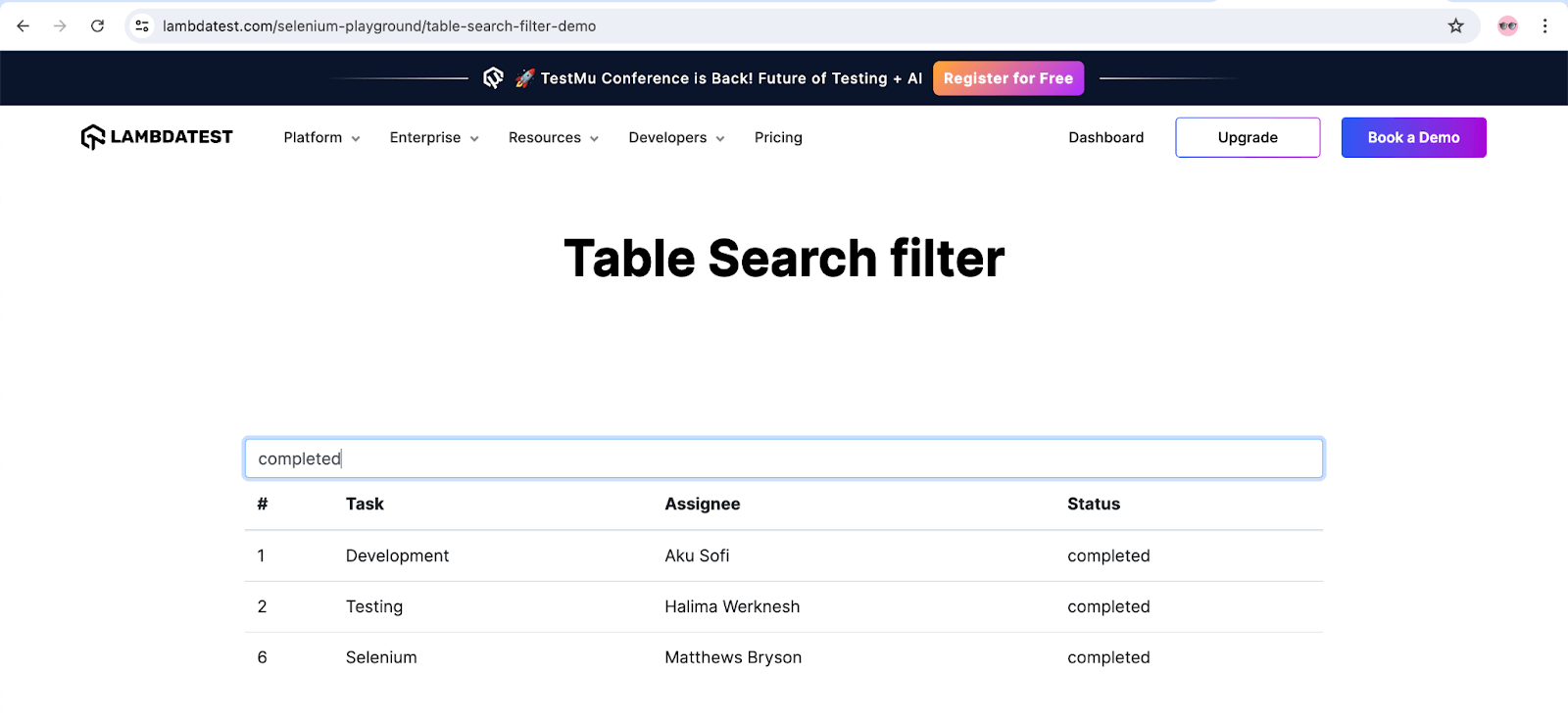
Notice the second last line in the above code; it finds the element before entering the completed status. As a result, the StaleElementReferenceException is not thrown, and the test script successfully searches for a completed status and returns the correct results.
The screenshot below shows how the completed status is searched and returned on the Table Search filter page.
Using Loops and Try-Catch Block
In some instances, the element is temporarily not reachable through the DOM. Hence, we can access the element multiple times in a loop until it becomes available.
Within our desired loop, we implement a try-catch block and attempt to make a connection with the element. For this, we will use while and for loops.
While Loop and Try-Catch Block
In the helper class, a method called retryUsingWhileLoop_TryCatch() is created to handle the StaleElementReferenceException. It receives a By locator and String value as the parameters. The boolean outcome variable is initialized to false, and the int repeat variable is set to 0 initially.
public static boolean retryUsingWhileLoop_TryCatch(By locator, String value) {


   boolean outcome = false;


   int repeat = 0;


   while (repeat <= 3) {


       try {


           driver.findElement(locator).sendKeys(value);


           outcome = true;


           break;


       } catch (StaleElementReferenceException exc) {


           exc.printStackTrace();


       }


       repeat++;


   }


   return outcome;


}
The while loop starts with a condition to repeat less than or equal to 3. Next is the try block, which tries to find the element and enter a status value. If the outcome is false, the code continues up to 3 times.
Usually, the second iteration finds the element and acts on the element. If the element is found, the outcome is true. The following code shows how a locator and value are passed.
@Test


    public void testRetryUsingWhileLoop_TryCatch() {


        WebElement pageLink = driver.findElement(By.linkText("Table Data Search"));


        pageLink.click();


        By filterByField = By.id("task-table-filter");


        retryUsingWhileLoop_TryCatch(filterByField, "in progress");


        driver.navigate().back();


        pageLink = driver.findElement(By.linkText("Table Data Search"));


        pageLink.click();


        retryUsingWhileLoop_TryCatch(filterByField, "completed");


    }
The test calls the retryUsingWhileLoop_TryCatch() method and sends two arguments: filterByField and a value. The method is called twice in the tests with the same filterByField locator but different values (in progress and completed).
Both calls were a success and did not return a StaleElementReferenceException.
- The in progress status returned 1 task.
- The completed status returned 3 tasks.
For Loop and Try-Catch Block
We can handle the StaleElementReferenceException using a for loop similar to a while loop. Each loop has a try-catch block and initializes the boolean variable, i.e., outcome to false.
The following is a code snippet displaying a try-catch block within a for loop:
public static boolean retryUsingForLoop_TryCatch(By locator, String value) {


   boolean outcome = false;


   for(int repeat=0; repeat<=3; repeat++) {


       try {


           driver.findElement(locator).sendKeys(value);


           outcome = true;


           break;


       } catch(StaleElementReferenceException exc) {


           exc.printStackTrace();


       }


   }


   return outcome;


}
The method begins with the for loop by initializing the repeat variable to 0, followed by the condition to cycle less than or equal to 3. Next, the repeat variable increments by 1 (repeat ++). Like the while loop, this for loop tries to find the element and enter a value.
If the element is found, the outcome is true, and the loop is terminated immediately with the break statement. The purpose of the catch block is to handle the StaleElementReferenceException.
Since the method retryUsingForLoop_TryCatch() returns a boolean value, the last statement returns the actual value using the outcome variable. The following screenshot shows how the retryUsingForLoop_TryCatch() method is used in the test.
@Test


    public void testRetryUsingForLoopToHandleStaleException() {


        WebElement pageLink = driver.findElement(By.linkText("Table Data Search"));


        pageLink.click();


        By filterByField = By.id("task-table-filter");


        retryUsingForLoop_TryCatch(filterByField, "in progress");


        driver.navigate().back();


        pageLink = driver.findElement(By.linkText("Table Data Search"));


        pageLink.click();


        retryUsingForLoop_TryCatch(filterByField, "completed");


    }
Like the while loop, the for loop calls a method from the helper class. The retryUsingForLoop_TryCatch() method is called first for setting the in progress status in the filterByField, and next, it is again called to set the completed status.
- The in progress status returns 1 task.
- The completed status returns 3 tasks.
Using ExpectedConditions
Sometimes, JavaScript automatically updates the web page between finding an element and performing an action on the element. Respectively, a timing issue can occur and generate a StaleElementReferenceException.
Thanks to Selenium, it can manage the StaleElementReferenceException by implementing methods from the ExpectedConditions class.
The following is an example code by chaining multiple methods using the ExpectedConditions in Selenium:
public static void chainMultipleExpectedConditions(By locator, String value) {


   WebDriverWait wait = new WebDriverWait(driver, Duration.ofSeconds(5));


   wait.until(ExpectedConditions.refreshed(


           ExpectedConditions.presenceOfElementLocated(locator)));


   driver.findElement(locator).sendKeys(value);


}
This code creates an instance of WebDriverWait with the wait as the object reference variable. The parameters are the driver (instance of WebDriver) and Duration.ofSeconds(5):
- The driver controls the Chrome browser.
- Duration.ofSeconds(5) will wait to find the element for up to 5 seconds.
WebDriverWait is a class that helps to develop an explicit dynamic wait statement. If the element is not found, then a TimeoutException shows up. The key to handling a StaleElementReferenceException is using the wait.until() method with the ExpectedConditions class.
The wait.until() provides access to the ExpectedConditions class, which has many methods. The following screenshot shows some methods, including refreshed() and presenceOfElementLocated().
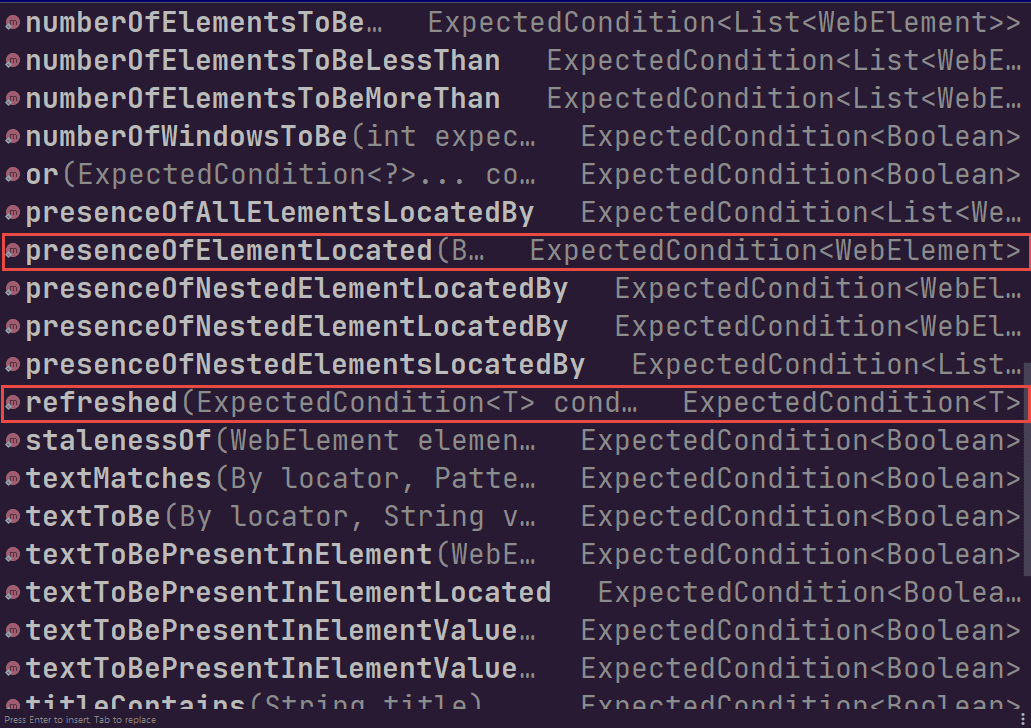
Handling StaleElementReferenceException uses multiple methods. It dynamically waits and checks if the element is refreshed for up to 5 seconds, then waits an additional five seconds for the element to be present.
In some cases, only one method, such as stalenessOf() from the ExpectedConditions class, is sufficient for overseeing a StaleElementReferenceException.
The following screenshot displays how the @Test annotation calls the chainMultipleExpectedCondtions() method.
@Test


    public void testChainExpectedConditionsToHandleStaleException() {


        WebElement pageLink = driver.findElement(By.linkText("Table Data Search"));


        pageLink.click();


        By filterByField = By.id("task-table-filter");


        chainMultipleExpectedConditions(filterByField, "in progress");


        driver.navigate().back();


        pageLink = driver.findElement(By.linkText("Table Data Search"));


        pageLink.click();


        chainMultipleExpectedConditions(filterByField, "completed");


    }


}
The chainMultipleExpectedConditions() method is in the helper class. With this solution, the method is called on two lines in the test. It is comparable to the other methods by sending two arguments: filterByField and Status.
- The first sends the value in progress in the filterByField, with 1 Task showing up in the results.
- When called the second time, it sends the completed value in the filterByField, with 3 tasks showing up in the results.

Note: Run your Selenium scripts across 3000+ browser environments. Try TestMu AI Now!
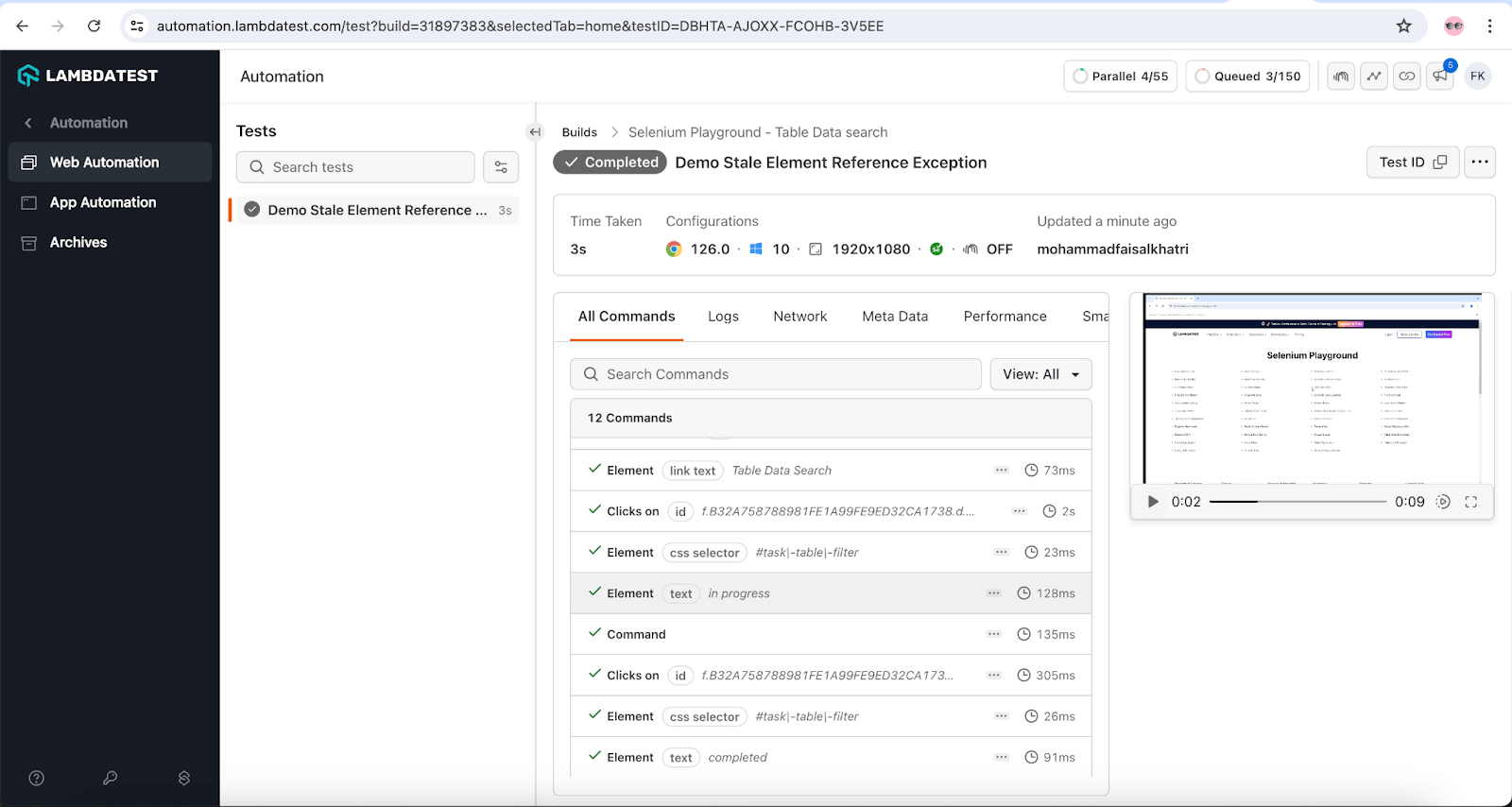
All the tests were executed successfully on the TestMu AI cloud grid. The build details window provides us with the granular details of the test execution. These details include screenshots, video logs, etc, that can be used further for analysis in case of test failures.
Moreover, you can also watch the below tutorial to learn how to handle StaleElementReferenceException in Selenium:
Subscribe to the TestMu AI YouTube Channel and stay updated with the latest tutorials. In addition, you can dive deep into handling other Selenium exceptions.
Conclusion
StaleElementReferenceException occurs when the WebElement has been removed from the DOM, or the element is not attached to the page. There are multiple ways, such as using explicit waits or reinitializing the WebElement.
However, in my experience, this exception can be avoided by implementing the correct test strategy for automation testing, such as checking if the WebElement is present or visible on the page before interacting with it. Another best practice is to use the stable locators to locate the WebElement.


Frequently asked questions
Did you find this page helpful?
More Related Hubs
TestMu AI forEnterprise
Get access to solutions built on Enterprise
grade security, privacy, & compliance
- Advanced access controls
- Advanced data retention rules
- Advanced Local Testing
- Premium Support options
- Early access to beta features
- Private Slack Channel
- Unlimited Manual Accessibility DevTools Tests