

Next-Gen App & Browser Testing Cloud
Trusted by 2 Mn+ QAs & Devs to accelerate their release cycles


On This Page
- Dropdown Types and How to Handle Them in Selenium
- What is Select Class in Selenium?
- Why Do We Use Select Class in Selenium To Handle Dropdowns?
- How To Use Select Class in Selenium To Handle Dropdowns
- Dropdown Selection Using Select Class Methods
- Handling Dropdowns With Multiple Select Options Enabled
- How To Handle Dropdowns in Selenium Without Select Class?
- How To Handle ElementNotInteractable Exception?
- Run Automated Test Using Selenium Cloud Grid
- Conclusion

Handle Dropdowns With Select Class In Selenium
Efficiently handle dropdowns in Selenium WebDriver using Python: Learn essential techniques with Select class in Selenium for seamless form interactions.

Hari Sapna Nair
February 23, 2026
Dropdowns are an integral part of modern websites, chosen by designers for their aesthetic appeal and efficient use of screen space. And like any other HTML element, the dropdown elements also need to be tested, especially when performing automated browser testing.
To ensure a seamless user experience across the application or website, test automation engineers are often required to thoroughly investigate any possible flaw with the dropdowns. The Selenium WebDriver provides a “Select“ class to handle the dropdown elements, which provides methods for single-select and multi-select dropdowns.
Dropdowns can be of various types, like dropdown navigation options, command options, attribute selection, dropdown options, and form-filling dropdown options. Depending on factors like index number, visibility, text, etc., various select class methods can select these dropdown elements.
In this article, we will delve into the details of the Select class in Selenium and understand how to handle the dropdown elements with the help of various Select class methods, along with examples.
Overview
What is the Select Class in Selenium?
The Select class in Selenium WebDriver interacts with HTML <select> dropdowns, allowing selection by index, value, or visible text.
Why Do We Use the Select Class in Selenium to Handle Dropdowns?
The Select class provides a structured and efficient way to automate dropdown interactions in Selenium. It offers:
- High-level abstraction for dropdown operations.
- Supports multiple selection strategies (index, value, visible text).
- Ensures consistent behavior across browsers.
- Supports keyboard-based interactions via ActionChains.
What Are the Different Types of Dropdowns in Selenium?
Web applications implement dropdowns in multiple ways, and Selenium can handle each accordingly:
- Dropdown Navigation Options: Used in navbars to redirect users to different pages.
- Dropdown Command Options: Trigger actions on the current page (e.g., menu bars).
- Attribute Selection Dropdowns: Used for filtering, theme selection, or language change.
- Form-Filling Dropdowns: Used in registration forms or booking workflows.
How Do You Use the Select Class in Selenium?
Using the Select class involves importing it, identifying the <select> element, and creating a Select object.
- Import
Selectfromselenium.webdriver.support.ui. - Locate the
<select>element using ID, name, XPath, etc. - Pass the web element into
Select(element). - Use built-in methods to select or deselect options.
Dropdown Types and How to Handle Them in Selenium
There can be many ways to implement dropdowns in our applications. Some are discussed below:
- Dropdown Navigation Options: These are usually encountered in the NavBar of a website with dropdown links to other web pages.
- Dropdown Command Options: Like navigation dropdown options, these are found at the top, but these are meant to perform some action on the active page itself. Example: Google Docs Menu Bar
- Attribute Selection Dropdown Options: These are commonly used to implement search filtering features and customization options like changing a website’s color template or language.
- Form Filling Dropdown Options: These dropdown options are used for registration or product/service booking forms.

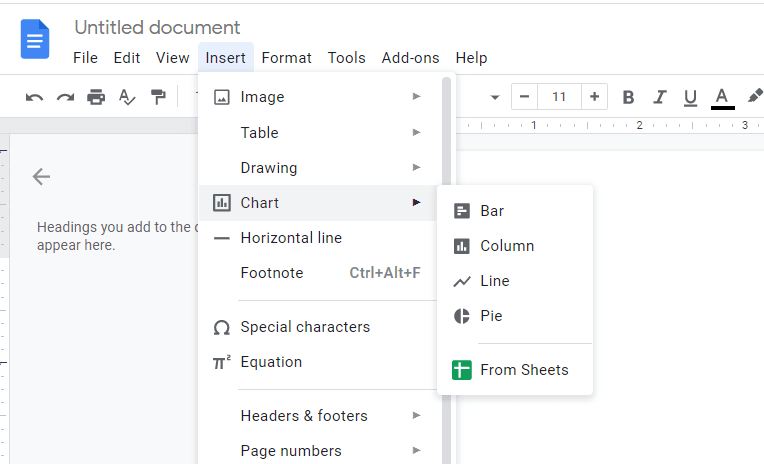
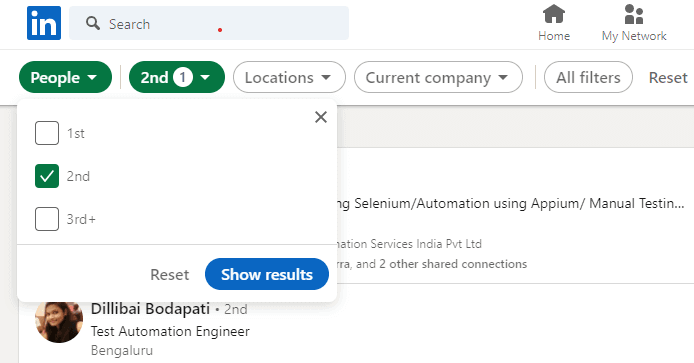
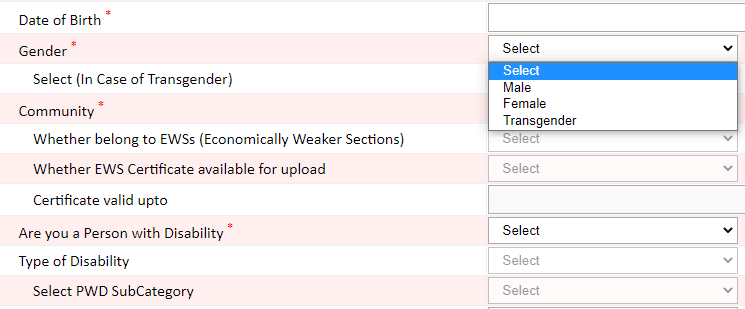
In Selenium, we’ve got two ways to deal with dropdowns – one using the Select class and the other without it. If you’re curious about handling dropdowns without the Select class, you can directly jump to the section How To Handle Dropdowns in Selenium Without Select Class?.
If we handle dropdown options using the Select class in Selenium, we can use the various methods irrespective of how the dropdown options are implemented. Let us now explore the Select class in Selenium in detail.
What is Select Class in Selenium?
The Select class in Selenium provides various methods to interact with the elements with the HTML < select > tag based on selectors like ID, class, etc, on a webpage. The Select class is present in org.openqa.selenium.support.ui package. It extends the Object class and implements the ISelect and WrapsElement interface.
It is particularly useful when dealing with dropdown menus in forms or navbar where users must select from a list of options. It simplifies the interaction with the dropdown elements and facilitates selection and deselection operations.
Why Do We Use Select Class in Selenium To Handle Dropdowns?
There are various compelling reasons for using the Select class in Selenium, each contributing to the efficiency and effectiveness of web automation scripts. Let’s discuss a few in detail:
- Abstraction for Dropdown Operations The Select class in Selenium provides a high-level API for various operations on dropdowns, such as selecting options, deselecting options, etc. This abstraction not only simplifies the code but also enhances its readability and maintainability. By providing a simple syntax and minimizing boilerplate code, the Select class enables developers and testers to interact with dropdown elements more intuitively, focusing on the essential aspects of their automation scripts.
- Different Selection Strategies The Select class in Selenium provides different strategies for selecting options like selecting by index, value, or visible text. This flexibility allows testers to choose the most suitable strategy based on the specific requirements of a given dropdown.
- Consistent Interaction Across Browsers The Select class contributes to the robustness and reliability of Selenium automation scripts in diverse browser environments. This helps in cross browser testing scenarios, where maintaining reliability and uniformity in script execution across browsers like Chrome, Firefox, Safari, and Edge is crucial. This not only simplifies the scripting process but also enhances the ease of maintenance and promotes efficient development, allowing testers and developers to focus on the logic of test scenarios without worrying about browser-specific intricacies.
- Support for Keyboard Actions The support for keyboard actions by the Select class through the Action class in Selenium facilitates a more accurate simulation of user interactions with dropdowns. Testers can use the Action class to emulate keyboard events like arrow keys or enter, providing a dynamic and realistic approach to interacting with dropdown elements. It ensures that automated tests more faithfully replicate user behavior, enhancing the reliability of the testing process.
NOTE: We will use Python to write all the test automation code.
How To Use Select Class in Selenium To Handle Dropdowns
The Select class in Selenium is part of the WebDriver support package. It provides methods to interact with dropdown elements in web pages based on their attributes, such as class name, ID, etc., within a webpage’s Document Object Model(DOM).
To use the methods of the Select class in Selenium, we have to import it into our code.
from selenium.webdriver.support.ui import Select
We have to create an object of the Select class by passing an element of the select tag within Select().
select = Select(element)
Under the hood, the Selenium Select class checks if the HTML web element we are using it with is a < select > tag or not. If not, Selenium WebDriver throws UnexpectedTagNameException. Hence, the Selenium Select class is only meant to be used with the elements with the HTML < select > tag.
Different Select Class Methods in Selenium To Handle Dropdowns
There are different methods in the Select Class that can be used to perform different operations in the dropdown element. It allows us to select the dropdown option based on various parameters like the text, index, value, etc.
Some of the important methods of the Select class in Selenium are as follows:
- options(self): This function finds all < options > tags within the target < select > tag.
- all_selected_options(self): This function loops over all the options and checks if selected using the is_selected() method and returns a list of selected “options.”
- first_selected_option(self): This function loops over all available options under the < select > tag but returns as soon as it finds the first is_selected() < option >. If no option is selected, then it throws a NoSuchElementException exception.
- select_by_value(self, value): This function uses the CSS selector to evaluate the value attributes of web elements. It returns all the < options > with values matching the value parameter passed. If no matching option is selected, then it throws a NoSuchElementException exception.
- select_by_index(self, index): This function evaluates the index of < option > tags by using get_attribute(“index”) and returns the matching option. Here, the Index values start from 0 and continue with an increment of +1. It means if there are three dropdown values, then they have the index 0,1, and 2. And if we want to select the 3rd value from the dropdown, then the index will be 2. If no matching option is selected, then it throws a NoSuchElementException exception.
- select_by_visible_text(self, text): This function is implemented using XPATH and multiple if-else. It selects the option elements that contain the string equal to the text attribute between opening and closing option tags.
For example, if the text is dummy_text, then it will select the option element which is in the form of < option > dummy_text_attribute < / option >. If no matching option is selected then it throws a NoSuchElementException exception.
- deselect_by_index(self, index): This function deselects the selected index that matches the passed index.
- deselect_by_value(self, value): This function deselects the value which matches the argument.
- deselect_all(self): This function clears all the selected options. If the selection doesn’t support multi-select, it will throw the ‘NotImplementedError’ exception.
- deselect_by_visible_text(self, text): This function deselects the text that matches the argument.
The two functions that are internally used by Selenium WebDriver’s Select class to implement the above functions for “selecting or deselecting” options are given below:
def _setSelected(self, option):
   if not option.is_selected():
      option.click()


def _unsetSelected(self, option):
   if option.is_selected():
     option.click()
Dropdown Selection Using Select Class Methods
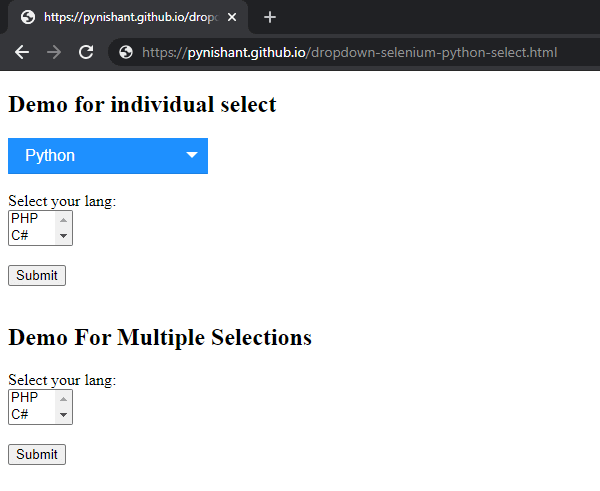
For all the below demonstrations, we shall be using a webpage with three different dropdown elements hosted on the demo page as shown below:
select_by_index Method
Like Javascript provides a DOM property to select < options > using the index, Selenium Python also provides the method select_by_index(self, index) to select an option from the dropdown list by passing an index value. Here, index values range from 0 to n – 1, where n is the number of options available.
Example:
In the “Demo for individual select” section on our test webpage, we can select PHP by passing an index of ‘0’.
from selenium import webdriver
from selenium.webdriver.support.ui import Select
from selenium.webdriver.common.by import By
import time


driver = webdriver.Chrome()


driver.get("https://pynishant.github.io/dropdown-selenium-python-select.html")
dropdown = Select(driver.find_element(By.ID,"lang"))
dropdown.select_by_index(0)
time.sleep(5000)
Output:
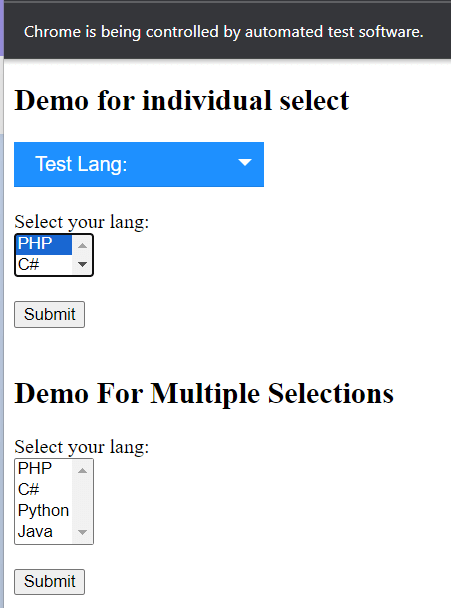
Here PHP is selected as it is in index ‘0’.
select_by_visible_text Method
To automate testing of < option > selection, based on the criteria of whether it matches a particular text string or not, we use the select_by_visible_text(self, text) method.
Example:
Under the “Demo for individual select” section, we have four options – “Python, Java, C#, PHP”. To select “Java” using string match, the following code has to be used.
dropdown = Select(driver.find_element(By.ID,"lang"))
dropdown.select_by_visible_text('Java')
select_by_value Method
Often, < select > and < options > tags, when used inside a form, are implemented by assigning a “value” attribute to options. The text between opening and closing < option > tags is visible to the users, but it is the value assigned to the “value” attribute sent to the server on form submit.
Example
On our demo page, the first “Select your lang:” section is a form element implemented using the select & option with the value attribute. To select the PHP option, the following code has to be used.
dropdown = Select(driver.find_element(By.ID,"lang"))
dropdown.select_by_value('php')
Selecting Multiple Dropdown Options
Once we know that multiple options can be selected in a dropdown, we can iterate over options and choose them using Selenium WebDriver’s “select” class methods. Alternatively, we can also use the “actionchains” class of Selenium WebDriver to select multiple choices. The strategy is first to get the < select > web element and then perform chained click actions with the “ctrl” key pressed.
Example:
We will demonstrate both approaches to select multiple options in Selenium Python for our demo test page.
For the “action chains” demo, we first evaluate if the < select > element with id “lang2” has a “multiple” attribute. If yes, we select web elements with “PHP” and “C#” options, respectively. Then, we can execute chained actions on it using the following code.
# Find the select element with id 'lang2'
select_element = driver.find_element(By.ID,'lang2')


# If the element has multiple attribute perform the chained actions
if select_element.get_attribute('multiple'):
    myOption1 = driver.find_element(By.XPATH,"//select[@multiple]/option[contains(text(), 'C#')]")
    myOption2 = driver.find_element(By.XPATH,"//select[@multiple]/option[contains(text(), 'PHP')]")
    ActionChains(driver).key_down(Keys.CONTROL).click(myOption1).key_up(Keys.CONTROL).perform()
    ActionChains(driver).key_down(Keys.CONTROL).click(myOption2).key_up(Keys.CONTROL).perform()
Note: Action chains and keys must be imported.
For the Selenium Select class demo, we first find the < select > element with id “lang2” having a “multiple” attribute. If yes, then we select options with “Java,” “PHP,” and “Python” using the Select class methods.
dropdown = Select(driver.find_element(By.ID,"lang2"))
dropdown.select_by_index(3)
dropdown.select_by_value('php')
dropdown.select_by_visible_text('Python')
Selecting all Dropdown Options
To choose all options, we can loop over all the available options and select them using the Selenium WebDrivers SELECT APIs.
Example:
In the demo, the following code is used to select all web element options with id “lang2”.
dropdown = Select(driver.find_element(By.ID,"lang2"))
for opt in dropdown.options:
    dropdown.select_by_visible_text(opt.get_attribute("innerText"))
Deselecting Dropdown Options
Similar to the selecting methods, we also have deselect methods like deselect_by_value(self, value), deselect_by_index(self, index), deselect_by_visible_text(self, text), deselect_all(self), etc.
Example:
In our example, we can deselect Python from multiple selected options using the following code.
dropdown = Select(driver.find_element(By.ID,"lang2"))
dropdown.deselect_by_visible_text('Python')
Handling Dropdowns With Multiple Select Options Enabled
Multiple option selection is enabled by adding an attribute named “multiple” to the < select > elements. To check if a < select > dropdown allows multiple selections, we can use xpath, get attribute, or both.
Internally, Selenium, in its __init__() constructor, uses the following approach to evaluate if the drop-down list allows multiple option selections.
self._el = webelement
multi = self._el.get_attribute("multiple")
self.is_multiple = multi and multi != "false"
We first identify a < select > web element using XPath or CSS selectors and then evaluate if it contains a “multiple” attribute using the get_attribute() method.
Example
dropdown = driver.find_element(By.TAG_NAME,"select")
if dropdown.get_attribute("multiple"):
    print("multiple select options can be chosen")
else:
    print("only one select option can be selected")
How To Handle Dropdowns in Selenium Without Select Class?
We can handle dropdowns in Selenium without using the Select Class by the following methods:-
- By storing all the options in a list and iterating through it In this approach, we locate the dropdown element and find all the options it contains. By storing these options in a list, we can iterate through them, and identify the desired option.
- By creating a Custom Locator and without iterating the List In this method, we create a custom locator using the find_element method with a tuple specifying the locator strategy like ID or XPath and the corresponding value. This allows for the unique identification of the dropdown element. Once located, we can perform various actions on the dropdown based on our requirements.
- By using JavaScriptExecutor class JavaScriptExecutor is an interface for executing JavaScript using Selenium WebDriver. Using the value property of the element, we can select an option from the dropdown using the executeScript method of the JavaScriptExecutor interface.
- By using sendKeys The sendKeys method allows the user to simulate the typing of characters into an element. In the case of dropdowns with text input, we can locate the dropdown element and use sendKeys to input the desired option’s value.
- By using Actions Class In this method after locating the dropdown element, ActionChains are used to create a sequence of actions. This involves hovering over the dropdown to trigger the display of options and then clicking on the desired option. The Actions class is beneficial when dealing with dropdowns that require hovering to reveal their options.
How To Handle ElementNotInteractable Exception?
When interacting with dropdowns in Selenium, it is crucial to ensure that the dropdown element is clickable, visible, and enabled for successful interaction. If the element is either not accessible (hindered by another element) or inactive, then the ‘ElementNotInteractable’ exception arises.
To enhance the robustness of the test script, we can implement the try-except-finally approach. Inside the try block, we can perform actions on the dropdown, such as selecting an option using the Select class. The except block catches exceptions like NoSuchElementException or ElementNotInteractableException, allowing us to handle errors gracefully, log them, and take corrective measures. The finally block ensures that essential actions, such as closing the browser to release resources, are executed regardless of whether an exception occurred, promoting a more resilient and reliable testing approach.
If your target element is AJAX rendered or depends on another event to turn clickable then the following approach might help :
from selenium.webdriver.common.by import By
from selenium import webdriver
from selenium.webdriver.support.ui import WebDriverWait
from selenium.webdriver.support import expected_conditions as EC


driver = webdriver.Chrome()
driver.maximize_window()


# some code...
element = WebDriverWait(driver, 10).until(EC.element_to_be_clickable((By.ID, "id_of_your_target_element")))
# some code...
Here, we have to explicitly wait for a duration before your target element becomes clickable.
We can also check if a target element is enabled or visible using the following approach.
element.is_enabled()
element.is_displayed()
Let’s demonstrate why checking an element’s visibility is important before interacting with it. This time we use a slightly different version of the above demo URL.
from selenium import webdriver
from selenium.webdriver.support.ui import Select
from selenium.webdriver.common.action_chains import ActionChains
from selenium.webdriver.common.keys import Keys
import time
from selenium.webdriver.common.by import By
from selenium.webdriver.support.ui import WebDriverWait
from selenium.webdriver.support import expected_conditions as EC


driver = webdriver.Chrome()
driver.maximize_window()
driver.get('pynishant.github.io/dropdown-visibility-demo.html')


try:
    # Try clicking invisible element
    langDropdown = driver.find_element(By.XPATH,'//select[@id="lang1"]')
    ActionChains(driver).click(langDropdown).perform()


except Exception as e:
    print(e)
    # Try clicking visible element
    langDropdown = driver.find_element(By.XPATH,'//select[@id="lang1"]/following-sibling::div[1]')
    ActionChains(driver).click(langDropdown).perform()


    # Try clicking an element with another element overflowing it
    myOption = driver.find_element(By.XPATH,'//select[@id="lang"]/option[@value="python"]')
    ActionChains(driver).click(myOption).perform()
    time.sleep(3)


    # Get the selected value of element under target and element hovering target
    selectedOption = Select(driver.find_element(By.XPATH,'//select[@id="lang"]'))
    selectedOption1 = Select(driver.find_element(By.XPATH,'//select[@id="lang1"]'))


    try:
        selected_option = selectedOption.first_selected_option.text
    except Exception as e:
        print(e)
        selected_option = "None"


    try:
        selected_option1 = driver.find_element(By.XPATH,'//select[@id="lang1"]/following-sibling::div[1]').text
    except Exception as e:
        print(e)
        selected_option1 = "None"


    print("Selection output for id='lang' element with lang1 expanded : " +str(selected_option))
    print("Selection output for id='lang1' element with lang1 expanded : " +str(selected_option1))
    time.sleep(3)


# Try clicking 'lang select' elements with car dropdown elements hovering over it. Notice Car elements are not clickable.
carDropdown = driver.find_element(By.XPATH,'//select[@id="cars"]')
ActionChains(driver).click(carDropdown).perform()
time.sleep(3)
myOption = driver.find_element_by_xpath('//select[@id="lang"]/option[@value="python"]')
ActionChains(driver).click(myOption).perform()


# Get selected value of target and car elements
selectedOption = Select(driver.find_element(By.XPATH,'//select[@id="lang"]'))
selectedOption2 = Select(driver.find_element(By.XPATH,'//select[@id="cars"]'))


try:
    selected_option = selectedOption.first_selected_option.text
except Exception as e:
    print(e)
    selected_option = "None"
try:
    selected_option2 = selectedOption2.first_selected_option.text
except Exception as e:
    print(e)
    selected_option2 = "None"


print("Selection output for id='cars' element with lang1 expanded : " +str(selected_option2))
print("Selection output for id='lang' element with car dropdown expanded : " +str(selected_option))
time.sleep(5)
driver.quit()
Output
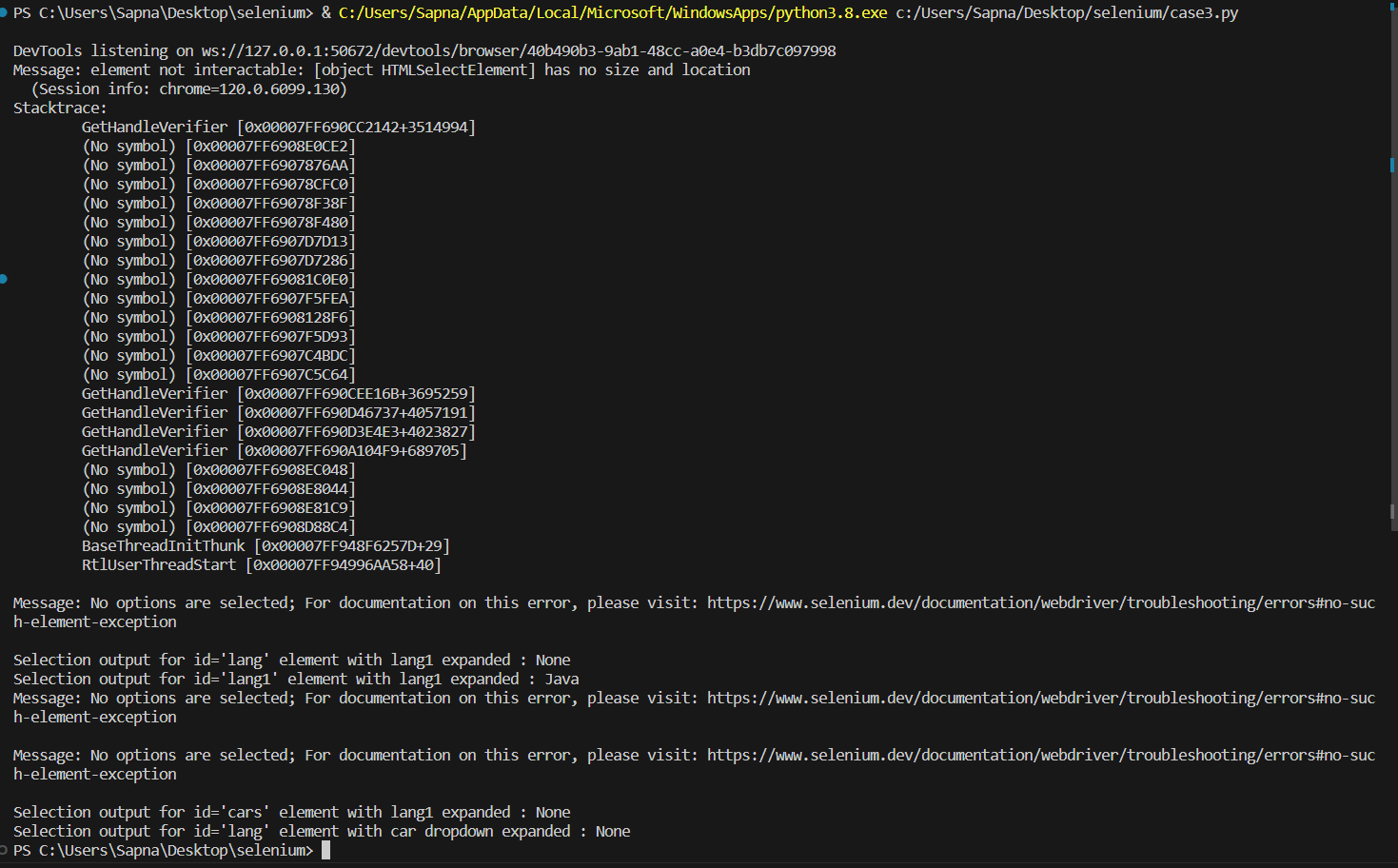
As apparent from the output, we instead end up selecting “Java,” an element from < select id=”lang1” >. This could lead to incorrect testing at times. So, do observe the behavior of elements.
You can also refer to the below video tutorial on How to handle Windows and Frames in Selenium.
You can also subscribe to the TestMu AI YouTube Channel and stay updated with the latest tutorials and updates on Web application testing, Selenium automation testing, Playwright testing, Cypress accessibility testing, and more.

Run Automated Test Using Selenium Cloud Grid
If a tester wants to test the script in various operating systems and browser versions, it will be very difficult and cumbersome. It is possible to resolve this issue using the LamdaTest platform. TestMu AI is an AI-powered test orchestration and execution platform that lets you run manual and automated tests at scale with over 3000+ real devices, browsers, and OS combinations.
Now, let’s run an automated test using TestMu AI’s Cloud Grid.
# Import the packages we would be using to automate this test
from selenium import webdriver
from selenium.webdriver.support.ui import Select
from selenium.webdriver.common.action_chains import ActionChains
from selenium.webdriver.common.keys import Keys
from selenium.webdriver import ChromeOptions
from selenium.webdriver.common.by import By
import time


# Username, Access Token and grid URL can be obtained through automation dashboard -
username = "enter_your_username"
accessToken = "enter_your_access_token"
gridUrl = "hub.lambdatest.com/wd/hub"


options = ChromeOptions()
options.browser_version = "121.0"
options.platform_name = "Windows 10"
lt_options = {};
lt_options["username"] = username;
lt_options["accessKey"] = accessToken;
lt_options["project"] = "Untitled";
lt_options["w3c"] = True;
lt_options["plugin"] = "python-python";
options.set_capability('LT:Options', lt_options);


url = "https://"+username+":"+accessToken+"@"+gridUrl
driver = webdriver.Remote(command_executor= url, options=options)


# Maximizing the browser window to fit the screen resolution
driver.maximize_window()


# Loading the passed url into browser
driver.get('https://pynishant.github.io/dropdown-selenium-python-select.html')


# Identifying select element with id="lang2" using selectors and checking if attribute "multiple" is present in it.
dropdown = driver.find_element("id",'lang2')
if dropdown.get_attribute("multiple"):
    # Xpath selector to find the element with text "C#" and "PHP" respectively
    myOption1 = driver.find_element(By.XPATH,"//select[@multiple]/option[contains(text(), 'C#')]")
    myOption2 = driver.find_element(By.XPATH,"//select[@multiple]/option[contains(text(), 'PHP')]")

 # Use actionchains to select multiple options   ActionChains(driver).key_down(Keys.CONTROL).click(myOption1).key_up(Keys.CONTROL).perform()

    # Pause program execution for few seconds
    time.sleep(2)
      ActionChains(driver).key_down(Keys.CONTROL).click(myOption2).key_up(Keys.CONTROL).perform()
    try:
        # Creating a selenium Select webelement of html <select> tag
        dropdown = Select(driver.find_element(By.ID,"lang2"))

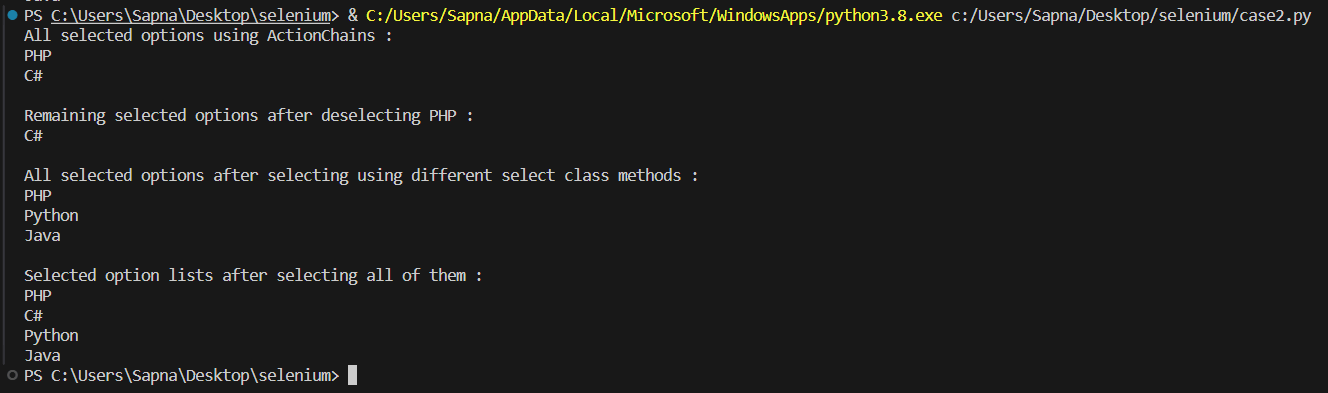
        # Using selenium webdriver's select class methods to find all selected options and printing it's text. Ideally, here output should be "PHP, C#"
        print("All selected options using ActionChains : ")

        for opt in dropdown.all_selected_options:
            print(opt.get_attribute('innerText'))

        # Clearing the php selection we performed in last step
        dropdown.deselect_by_visible_text('PHP')

        # Again printing the active selections, this time output should be only c#
        print("
Remaining selected options after deselecting PHP : ")

        for opt in dropdown.all_selected_options:
            print(opt.get_attribute('innerText'))

        time.sleep(2)

        # Using selenium select class method to deselect all options
        dropdown.deselect_all()
        time.sleep(2)

        # Using different select class methods, to select multiple options
        # Selecting by index - Java
        dropdown.select_by_index(3)
        time.sleep(2)

        # Selecting by value - php
        dropdown.select_by_value('php')
        time.sleep(2)

        # Selecting by text - python
        dropdown.select_by_visible_text('Python')

        # Printing active selections - output should include all three php, python, java
        print("
All selected options after selecting using different select class methods :")

        for opt in dropdown.all_selected_options:
            print(opt.get_attribute('innerText'))

        dropdown.deselect_all()

        # To select all possible options
        dropdown = Select(driver.find_element("id","lang2"))

        for opt in dropdown.options:
            dropdown.select_by_visible_text(opt.get_attribute("innerText"))

        # All four selected options should be output
        print("
Selected option lists after selecting all of them :")

        for opt in dropdown.all_selected_options:
            print(opt.get_attribute('innerText'))

        driver.quit()

    except Exception as e:
        print(e)
        print("error")
else:
    print("get_attribute didn't work!")
Output
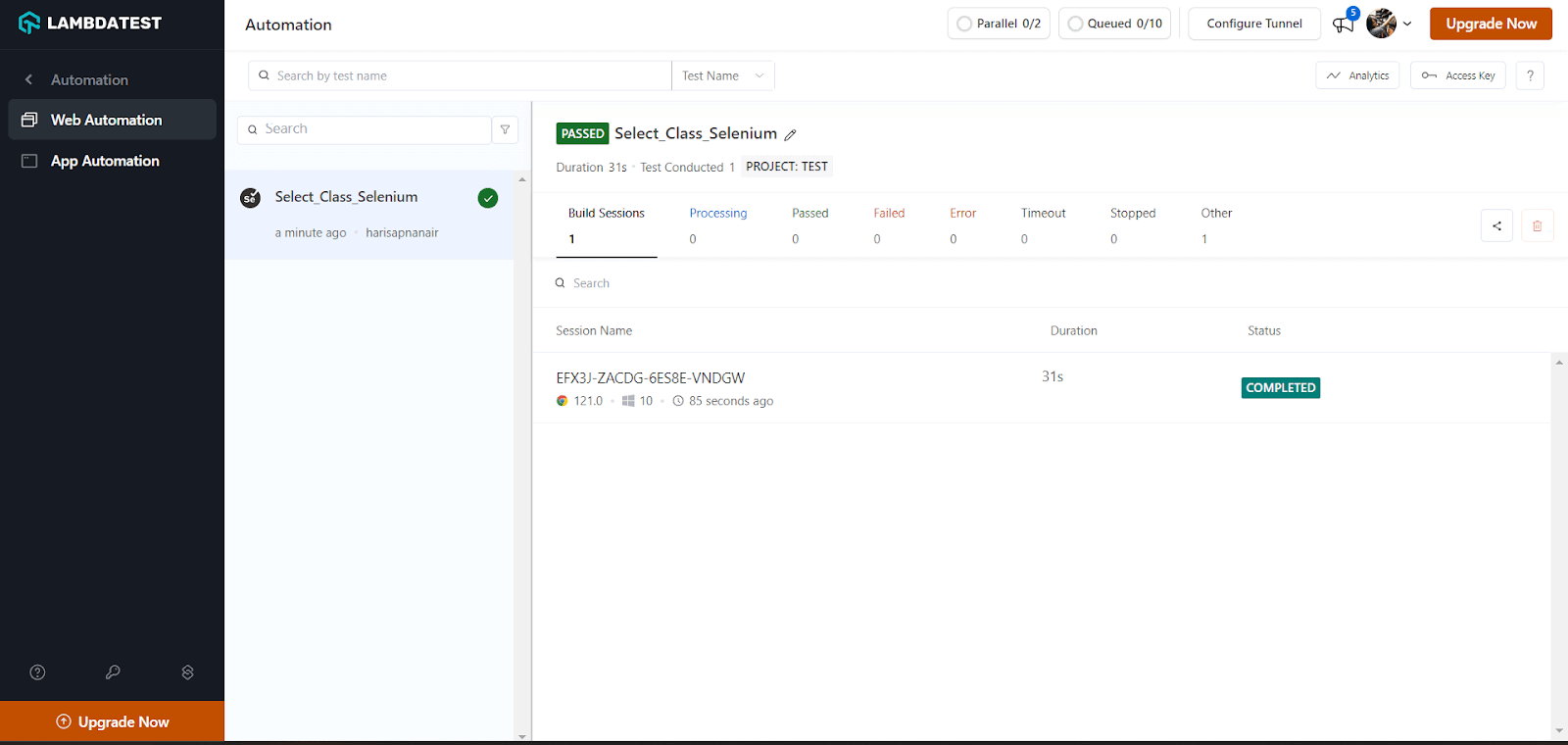
You can check the status of your successful test runs or builds on your TestMu AI Automation dashboard. For the above program, here is the dashboard’s screenshot:
Conclusion
This article delves into the various ways to select/deselect an option from a dropdown and provides insights on “checking if multiple selections are allowed and selecting multiple options if required.” The article also shares tips for automation testers to avoid ElementNotInteractable errors when automating interactions with dropdown elements. To meet the demands of scalable automation, it emphasizes the importance of adhering to best practices in test automation and suggests considering cloud-based testing to reduce expenses.
In conclusion, this Select Class in Selenium blog covers essential techniques for Selenium test automation.


Frequently asked questions
Did you find this page helpful?
More Related Hubs
TestMu AI forEnterprise
Get access to solutions built on Enterprise
grade security, privacy, & compliance
- Advanced access controls
- Advanced data retention rules
- Advanced Local Testing
- Premium Support options
- Early access to beta features
- Private Slack Channel
- Unlimited Manual Accessibility DevTools Tests