

Next-Gen App & Browser Testing Cloud
Trusted by 2 Mn+ QAs & Devs to accelerate their release cycles


On This Page
- False Positives & False Negatives(Flaky Tests)
- Waiting For Web Page With JavaScript To Load
- Not So Scalable Approach
- Handling Dynamic Content
- Explicit Wait For Handling Dynamic Content
- Implicit Wait For Handling Dynamic Content
- Handling Pop-up Windows
- Switching Browser Windows
- You Can’t Test For Mobile Devices
- You Can’t Automate Everything
- Generating Test Reports
- Conclusion

Challenges & Limitations In Selenium, How To Fix Them?
Selenium makes testing easy but there are a fair number of challenges faced in Selenium automation. Here we will address these challenges & their resolutions.

Himanshu Sheth
January 30, 2026
Selenium is one of the most popular test frameworks which is used to automate user actions on the product under test. Selenium is open source and the core component of the selenium framework is Selenium WebDriver. Selenium WebDriver allows you to execute test across different browsers like Chrome, Firefox, Internet Explorer, Microsoft Edge, etc. The primary advantage of using the Selenium WebDriver is that it supports different programming languages like .Net, Java, C#, PHP, Python, etc. You can refer to articles on selenium WebDriver architecture to know more about it.
Though Selenium makes a website or web-app testing simple, there are a fair number of challenges in Selenium automation that developers face while using the framework. Let’s have a look at some of the most common challenges faced In Selenium Automation, along with their resolution.
If you’re new to Selenium and wondering what it is then we recommend checking out our guide – What is Selenium? If you are preparing for an interview you can learn more through Selenium interview questions.
Overview
Selenium is a leading open-source automation framework used for web application testing across browsers and operating systems. While powerful and flexible, it comes with several challenges that testers frequently face during automation.
Common Challenges in Selenium Automation and Their Solutions
Below are the major challenges faced in Selenium testing along with their recommended solutions:
- Handling Dynamic Elements and Synchronization Issues: Use reliable locators (CSS or XPath), apply Explicit Waits (WebDriverWait) for condition-based waits, and use Implicit Waits as a fallback for general synchronization.
- Pop-up and Alert Handling: Use driver.switchTo().alert() for alerts to accept, dismiss, or retrieve text, and interact with modal dialogs as web elements using standard Selenium commands.
- Limited Reporting Capabilities: Integrate with TestNG, JUnit, or Pytest and use ExtentReports, Allure, or Cucumber Reports for detailed, visual test reports.
- Cross-Browser Testing and Scalability: Use Selenium Grid for parallel testing or cloud-based platforms like TestMu AI to test at scale across 3000+ browser–OS combinations.
- Test Script Maintenance and Flakiness: Follow the Page Object Model (POM) pattern for modular scripts, use strong locators, and improve synchronization to reduce flaky test behavior.
- Handling Iframes and Multiple Windows: Use driver.switchTo().frame() for iframes and driver.switchTo().window() with window handles to manage multiple tabs or windows.
- Limited Mobile Testing Support: Use Appium for mobile apps or TestMu AI’s Real Device Cloud for responsive and mobile browser testing.
- Incomplete Test Coverage: Combine manual testing with automation strategically and use AI-based visual validation tools for better coverage.
What limitations should testers be aware of when using Selenium?
Here are the major limitations testers face when using Selenium for automation:
- Restricted to Web Automation: Selenium works only for web-based testing, not for desktop or native mobile apps.
- No Native Reporting Features: Requires third-party tools to generate detailed reports and analytics.
- No Built-In Visual or Image Validation: Image-based verification must be done using external tools like Sikuli or Applitools.
- Complex Handling of Dynamic Elements: AJAX-heavy or frequently changing web elements need advanced synchronization.
- Steep Learning Curve: Demands programming knowledge and a solid grasp of web technologies.
- High Maintenance Effort: Frequent UI changes can break locators and increase test maintenance overhead.
- Community-Based Support: Depends on community forums instead of official technical support.
- Automation Gaps: Cannot automate CAPTCHAs, OTPs, or barcode validations effectively.
- Performance Limitations: Large test suites can slow down execution without parallel or cloud testing.
False Positives & False Negatives(Flaky Tests)
False positive is a scenario where your test result comes out to be successful, even though when it is not. Vice-versa, False negative is a scenario where the test results report an error with a script execution, even though everything is working as intended. False positives & False negatives have always posed a challenge for web automated testing, and Selenium is no different.

When you are running hundreds or thousands of test cases through your Selenium script then there may be a chance where you encounter such flaky tests which show false positives or false negatives. If left unhandled for long, flaky tests may end up leaving a tester with a deluded image of their automation test scripts or web application under test.
Flaky tests are certainly one of the most common challenges in Selenium automation. They could be tricky to manage, and I would love to elaborate some ways through which you can deal with test flakiness, but that would be a detailed discussion in itself. I will be covering an entire article around handling flaky tests soon. Stay tuned for that by hitting the notification bell.
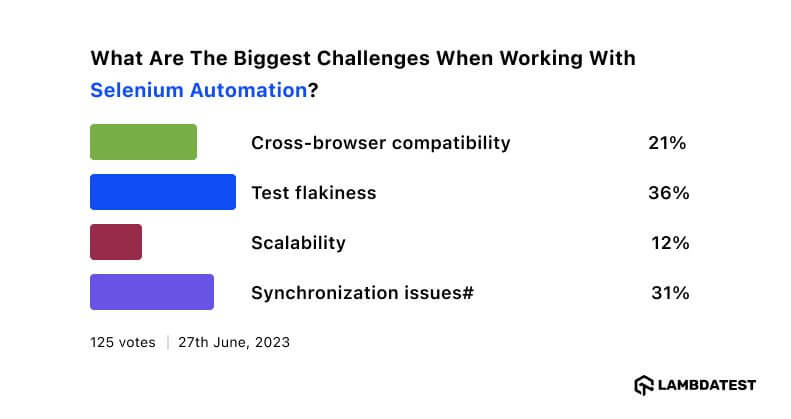
Meanwhile, consider the recent poll results, where I asked the community about the biggest challenges in Selenium Automation. Out of four options, cross-browser compatibility, scalability, synchronization issues, and test flakiness test flakiness emerged as the frontrunner with a significant 36% of the votes. It’s evident that many practitioners face this issue, and addressing it should be a key focus in testing.
Waiting For Web Page With JavaScript To Load
When your website contains dependent web element, such as drop-down lists based on the user selection then Selenium scripts at run-time may behave abruptly around these web elements. This may happen because your WebDriver didn’t process the time taken for the webpage to load entirely. To handle these common challenges in Selenium automation around page loading, you may need to make your WebDriver wait until the complete JavaScript for that page is loaded. Before you perform a test on any webpage, you should make sure that loading of the webpage (especially those with a lot of JavaScript code) is complete. You can make use of readyState property which describes the loading state of a document/webpage. document.readyState status as ‘complete’ indicates that the parsing of the page/document is complete & all the resources required for the page are downloaded.
''' Import the 'modules' that are required for execution '''
''' In this example, we make use of pytest framework along with Selenium '''
import pytest
from selenium import webdriver
from selenium.webdriver.chrome.options import Options
from selenium.webdriver.common.keys import Keys
from time import sleep
from contextlib import contextmanager
from selenium.webdriver.support.ui import WebDriverWait
from selenium.webdriver.support.expected_conditions import     staleness_of

@pytest.fixture(params=["chrome"],scope="class")
def driver_init(request):
    if request.param == "chrome":
        web_driver = webdriver.Chrome()
    request.cls.driver = web_driver
    yield
    web_driver.close()

@pytest.mark.usefixtures("driver_init")
class BasicTest:
    pass
class Test_URL(BasicTest):
        def test_open_url(self):
            self.driver.get("https://www.lambdatest.com/")
            print(self.driver.title)
            sleep(5)
  def wait_for_page_load(self, timeout=30):
            #Search for the div-id owl-example
            old_page = self.driver.find_element_by_id('owl-example')
            yield
            WebDriverWait(self.driver, timeout).until(
                staleness_of(old_page)
            )

        def test_click_operation(self):
            # Wait for a timeout duration of 10 seconds, after which we perform a CLICK operation
            with self.wait_for_page_load(timeout=10):
                self.driver.find_element_by_link_text('FREE SIGN UP').click()
                print(self.driver.execute_script("return document.readyState"))
Not So Scalable Approach
Selenium is a great automation testing tool, and being open-source it has helped make life easier for web testers around the world. However, one of the major challenges in Selenium automation is the inability to scale.
The ultimate goal of performing automation testing is to cover more test coverage in less time. Initially, you may have short test builds, however, your product is bound to expand with every sprint. This would mean you may need to cover a larger number of test cases. Using Selenium WebDriver, you could only perform testing in a sequential way and that won’t be as effective as you may want your automation process to be. Also, the speed at which tests will be executed would depend upon your computing speed.
Now, we know that is where a Selenium Grid comes to aid by empowering you to run test cases in parallel. But there is a downside to that as well. You cannot thoroughly test your website or web-app across multiple combinations of browsers + OS. Why? Because your Selenium Grid would only help to execute cross browser testing on the specific browsers that are installed in your local machine.
provides a cloud-based Selenium Grid to help you paddle faster through your release cycles. You can test your web-app or website on more than 3000 real browsers, browser versions and operating systems on the cloud.

Instead of linear testing, you can leverage the power of Parallel testing in Selenium, through which you can reduce overall project costs, accelerate product/feature delivery as the automation tests are executed in Parallel (i.e. concurrent sessions).
Handling Dynamic Content
A website or web application may consist of static content or content that is dynamic in nature. Testing a website or a web application that has static content poses a minimal number of challenges in Selenium automation. However, in today’s times, most of the websites contain content that that may vary from one visitor to another. That implies that the content is dynamic in nature (AJAX based apps).
For example, an e-commerce website can load different products based on the location from where the user has logged in or content may vary depending on what the user has selected from a particular drop-down menu. As the new content takes time to load, it is important to fire your test only when the loading is complete. Since elements on a web-page are loaded at different intervals, there might be issues if an element is not yet present in the DOM. This is why handling dynamic content has been one of the most common challenges in Selenium automation.
One easy solution to solve this problem is putting the thread to sleep for a couple of seconds which may give sufficient time to load the content. However, this is not considered a good practice, because, irrespective of whether the required event occurs or not, the thread would sleep for that much time duration.
# Not an efficient solution
from selenium import webdriver
import time
from time import sleep

driver = webdriver.Firefox()
driver.get("https://www.lambdatest.com")

# Sleep of 10 seconds irrespective of whether element is present or not
time.sleep(10)

# Free up the resources
driver.close()
A better approach to handle this challenge with Selenium WebDriver dynamic content would be to use Implicit Wait or Explicit Wait (depending on your requirement).

Explicit Wait For Handling Dynamic Content
Using an explicit wait, you can make the Selenium WebDriver halt the execution & wait till a certain condition is met. It can be applied along with thread.sleep() function if you wish to set a condition to wait until an exact time period. There is a number of ways in which explicit wait can be accomplished, WebDriver with ExpectedCondition is the most popular option.
from selenium import webdriver
from time import sleep
from selenium.common.exceptions import NoSuchElementException
from selenium.webdriver.support import expected_conditions as EC
from selenium.webdriver.common.by import By
from selenium.common.exceptions import TimeoutException
from selenium.webdriver.support.ui import WebDriverWait

driver = webdriver.Firefox()
driver.get("https://www.lambdatest.com")

try:
    myElem_1 = WebDriverWait(driver, 10).until(EC.presence_of_element_located((By.CLASS_NAME, 'home-btn')))
    #element = driver.find_element_by_partial_link_text("START TESTING")
    print("Element 1 found")
    myElem_2 = WebDriverWait(driver, 10).until(EC.element_to_be_clickable((By.CLASS_NAME, 'login')))
    print("Element 2 found")
    myElem_2.click()
    sleep(10)
#except NoSuchElementException:
except TimeoutException:
    print("No element found")

sleep(10)

driver.close()
In the example above, two searches are performed on the URL under test . The first search is for the element home-btn where an element is located via CLASS_NAME for a maximum duration of 10 seconds. Check out our blog, if you are not aware of how to use Locators in Selenium WebDriver.
The second search is for a clickable element login for a maximum duration of 10 seconds. If the clickable element is present, a click() action is performed. In both cases, WebDriverWait is used along with ExpectedCondition. 500 milliseconds is set as the default limit for which the ExpectedCondition gets triggered by the WebDriverWait, until a successful response is received.
Some of the common Expected Conditions are below:
- title_is
- title_contains
- presence_of_element_located
- visibility_of
- invisibility_of_element_located
- presence_of_all_elements_located
- text_to_be_present_in_element
- text_to_be_present_in_element_value
- frame_to_be_available_and_switch_to_it
- element_to_be_clickable
- staleness_of
- element_to_be_selected
- element_selection_state_to_be
- element_located_selection_state_to_be
- alert_is_present
- element_located_to_be_selected
Implicit Wait For Handling Dynamic Content
Implicit wait informs the WebDriver to poll the DOM for a certain time duration in order to get the presence of web element(s) on the page. The default timeout is 0 seconds. The Implicit Wait requires an effort of a one-time setup, when configured properly, it would be made available for the lifetime of the Selenium WebDriver object.
from selenium import webdriver
import time
from time import sleep
from selenium.common.exceptions import NoSuchElementException
from selenium.webdriver.support import expected_conditions as EC
from builtins import str

driver = webdriver.Firefox()
driver.get("https://www.lambdatest.com")
print("Scenario 1")
# Scenario 1 - Element is present on the WebPage
driver.implicitly_wait(60)
curr_time = time.time()
try:
    curr_element = driver.find_element_by_class_name("home-btn")
except:
    print("1 - Element is not present")
print("Time duration " + str(int(time.time()-curr_time))+'-secs')

print("Scenario 2")

driver.implicitly_wait(60)
curr_time = time.time()
try:
    curr_element = driver.find_element_by_class_name("home-btn-2")
except:
    print("2 - Element is not present")
print("Time duration " + str(int(time.time()-curr_time))+'-secs')

driver.close()
In the above example, the web element home-btn-2 is not present on the URL under test i.e. and search times out after timeout-value of 60 seconds. Below is the output of the test execution:

Handling Pop-up Windows
There could be scenarios where you need to automate interaction with pop-up windows, it is another one of the most common challenges in Selenium automation. There are different types of pop-up windows –
- Simple alert – something that displays some message.
- Confirmation alert – requests the user for confirmation of operation.
- Prompt Alert – informs the user to input something.
Though Windows-based alerts cannot be handled by Selenium WebDriver, it does have the capability to handle a web-based alert. The switch_to method is used to handle pop-ups. For demonstration, we create a simple HTML file which contains an Alert popup implementation.
<!DOCTYPE html>
<html>
<body>
<h2>
Demo for Alert</h3>

Clicking below button
<button onclick="create_alert_dialogue()" name ="submit">Alert Creation</button>
<script>
function create_alert_dialogue() {
 alert("Simple alert, please click OK to accept");
}
</script>
</body>
</html>
Below is the usage of switch_to method where we do
from selenium import webdriver
import time
from time import sleep
from selenium.webdriver.support.ui import WebDriverWait
from selenium.common.exceptions import NoSuchElementException
from selenium.common.exceptions import TimeoutException
from selenium.webdriver.support import expected_conditions as EC
from builtins import str

driver = webdriver.Firefox()
driver.get("file://<HTML File location>")

driver.find_element_by_name("submit").click()
sleep(5)

alert = driver.switch_to.alert
text_in_alert = alert.text
print ("The alert message is "+ text_in_alert)
sleep(10)

alert.accept()

print("Alert test is complete")

driver.close()
In case a page displays input alert, you can make use of send_keys() method to send text to the input box.
from selenium import webdriver
import time
from time import sleep
from selenium.webdriver.support.ui import WebDriverWait
from selenium.common.exceptions import NoSuchElementException
from selenium.common.exceptions import TimeoutException
from selenium.webdriver.support import expected_conditions as EC
from builtins import str

driver = webdriver.Firefox()
driver.get("< Web Page that contains input box and submit button")

driver.find_element_by_name("< field to be located").send_keys("text to be input")
sleep(5)

driver.find_element_by_name("submit").click()
sleep(5)

try:
    WebDriverWait(driver, 10).until(EC.alert_is_present(),
                'Timed out while showing the popup')

    alert = driver.switch_to.alert
    sleep(10)
    alert.accept()
    sleep(20)
except TimeoutException:
    print("no alert is available")

driver.close()
Switching Browser Windows
Multi-Tab testing is certainly one of the common challenges in Selenium automation. An ideal scenario is the one where the button click opens a pop-up window which becomes the child window. Once the activity on the activity on the child window is complete, the control should be handed over to the parent window. This can be achieved using switch_to.window() method where window_handle is passed as the input argument.
As shown in the example below, the parent window opens the link: http://www.quackit.com/html/codes/html_popup_window_code.cfm
Once the link is clicked, a new pop-window is opened which becomes a child window. switch_to.window method is used to switch back to the parent window. There is an option to use driver.switch_to.window(window-handle-id) or driver.switch_to.default_content() to switch to the parent window.
import unittest
from selenium import webdriver
from selenium.webdriver.common.keys import Keys
from selenium.webdriver.common.by import By
from time import sleep

''' Implement unit test to demonstrate switch_to API '''
class test_switch_windows(unittest.TestCase):

    def setUp(self):
        self.driver = webdriver.Firefox()

    def test_open_pop_up_window(self):
        driver = self.driver
        driver.get("http://www.quackit.com/html/codes/html_popup_window_code.cfm")
        title1 = driver.title
        print(title1)

        #Refer https://selenium-python.readthedocs.io/api.html for more information
        #Get the Window handle of the current window
        parent_window = driver.window_handles[0]
        print(parent_window)

        #Pop-up is an iframe
        driver.switch_to.frame(driver.find_element_by_name('result1'))
        driver.find_element_by_link_text('Open a popup window').click()

        #Get the handle of the Child Window
        child_window = driver.window_handles[1]

        #The Parent window will go in the background
        #Child window comes to Foreground
        driver.switch_to.window(child_window)
        title2 = driver.title
        print(title2)
        print(child_window)

        #assert that main window and child window title don't match
        self.assertNotEqual(parent_window , child_window)
        print('This window has a different title')

        sleep(5)

        #switch back to original window
        #driver.switch_to.window(parent_window)
        driver.switch_to.default_content()

        sleep(5)

    def tearDown(self):
        self.driver.close()

if __name__ == "__main__":
    unittest.main()
You Can’t Test For Mobile Devices
Though the Selenium framework is widely used for testing websites or web-apps across different combinations of browsers & operating systems, the testing is still limited to non-mobile devices. Thus, testing your website or web-app for mobile devices comes as one of the great challenges in Selenium automation
If you wish to perform test automation for mobile applications then the most renowned open-source framework would be Appium.
If you are looking to test your website on different mobile devices and screen resolutions then TestMu AI can help you do that manually, as of now. You can capture screenshot of the bug, highlight the bug with an in-built image editor, send it across to various third-party tools such as JIRA, asana, slack, Trello, & more. You could even record videos of your test session with in-built screen recorder facility available on TestMu AI.
After a successful launch of Selenium on our platform, We are now working on incorporating automation for testing on mobile devices using Appium which would very handy for accelerating your testing activity. Stay tuned & if you wish to enquire on updates around Appium then feel free to give our 24/7 customer chat support a shout. You could also mail us at [email protected].
You Can’t Automate Everything
100% automation is a myth. It is a known fact that not all the test scenarios can be automated since there would be some tests that would require manual intervention. You need to prioritize the amount of effort that your team should spend on automation testing vis-à-vis manual testing. Though Selenium framework has features through which you can take screenshots, record video (of the overall execution of the tests) and other aspects of visual testing, using those features with a scalable cloud-based cross browser testing platform like TestMu AI can be a big value-add to your overall testing.
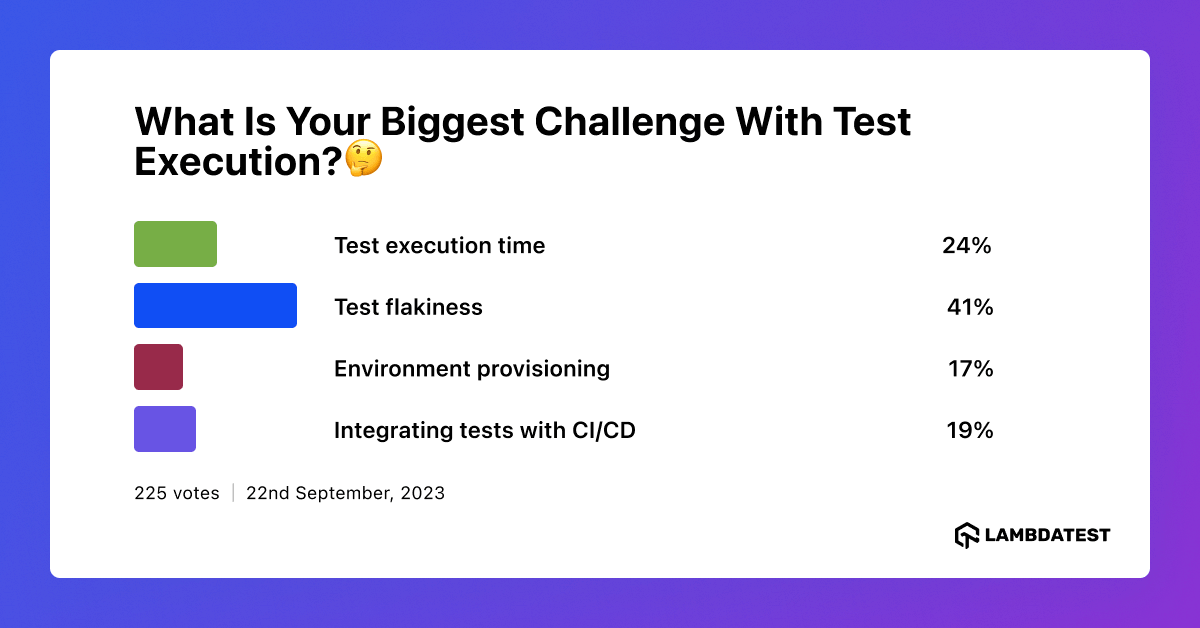
In our recent poll, we explored the challenges associated with test execution, and it’s interesting to note that test flakiness emerged as the most upvoted concern among participants. This underscores the pervasive nature of flaky tests and the impact they have on testing processes. The community’s insights are invaluable, and it’s clear that addressing test flakiness will be a priority in upcoming discussions.
Generating Test Reports
The primary intent of any testing activity is to locate bugs and improve the overall product. Reports can play a major role in keeping a track of the tests being executed, generated output, and results of the tests. Though there are modules like pytest_html (for Python) that can be used along with pytest and Selenium, the information in the test report may not be very exhaustive. There are similar types of modules/packages for different programming languages such as Java, C#, .Net, etc. that can be used with Selenium, but the same problem persists for these languages too. Gathering test reports is a one of the critical challenges in Selenium automation.
TestMu AI provides you with a scalable testing infrastructure to perform automated cross browser testing using the Selenium Grid hosted on our cloud servers. TestMu AI also launched API for Selenium Automation to help you extract meaningful test data of the execution of your script on TestMu AI platform to your preferred onsite instance of cloud storage. Using TestMu AI API you can do the following:
- Extract and manage test information
- Retrieve build information such as build test status, individual test status, test run time, errors, and test logs
- Get command by command screenshots
- Detailed information about the available browser environments on TestMu AI platform and more.
Conclusion
Mentioned above are some of the common challenges in Selenium automation, there are some limitations as far as Selenium is concerned. You can only use the Selenium framework to test web applications i.e. it cannot be used to test local windows based applications. There are some scenarios where you may want to by CAPTCHA or RECAPTCHA which is used to prevent any kind of bots submitting information in the page. Since CAPTCHA is for security purpose, you can never bypass that authentication.
In scenarios where you would like to use Selenium to test your web application across different browsers, operating systems, and devices in a more scalable manner, you can make use of LambdatTst. You can port your code which makes use of Local Selenium Web Driver to TestMu AI’s Remote WebDriver with minimal effort.
These were some of the most common challenges in Selenium automation in my opinion. What’s yours? If you have got any questions or experience around implementing Selenium automation, then feel free to let us know in the comment section below. Happy testing. 🙂



Did you find this page helpful?
More Related Hubs
TestMu AI forEnterprise
Get access to solutions built on Enterprise
grade security, privacy, & compliance
- Advanced access controls
- Advanced data retention rules
- Advanced Local Testing
- Premium Support options
- Early access to beta features
- Private Slack Channel
- Unlimited Manual Accessibility DevTools Tests