

Next-Gen App & Browser Testing Cloud
Trusted by 2 Mn+ QAs & Devs to accelerate their release cycles


- TestMu AI (Formerly LambdaTest)
- /
- Blog
- /
- Automated End-To-End Unity Game Testing Guide [2026]
Automated End-To-End Unity Game Testing Guide [2026]
Learn automated end-to-end Unity game testing with AltTester and the TestMu AI real device cloud. Instrument your Unity game, record tests, and run them on real devices.

Himanshu Sheth
June 8, 2026
Unity is one of the most-widely used games engines primarily for mobile and indie game development. Pokémon GO, Call of Duty (Mobile), Genshin Impact, and Among Us are some of the most popular games using the Unity engine.
As per reports, Unity commands close to 25.89 percent of the global game development market. As the gameplay becomes more complex, automated Unity game testing becomes imperative for validating game mechanics, UI behaviour, and overall performance.
AltTester is a popular automation framework specifically designed for testing Unity applications. AltTetster can automate interactions with Unity objects, validate UI elements, and simulate user actions directly within the game environment. When combined with cloud platforms like TestMu AI Cloud, automated unity tests can be executed across different real devices and environments in parallel.
What Is Automated Unity Game Testing?
Automated unity game testing is the process of using scripts, tools, and testing frameworks for validating the following aspects of a Unity game:
| Essentials of automated Unity game testing | |
|---|---|
| Game functionality | UI behaviour |
| Gameplay mechanics | Interactions and actions associated with game objects |
| Animations and visual elements | Scene loading and transitions |
| State changes and performance under varied conditions | Validating integration with backend services such as OAuth, leaderboard, etc. |
Although the Unity game loop executes synchronously, most player interactions, game events, and scene transitions often behave asynchronously. The majority of the actions also depend on external triggers.
Shown below is a screenshot from the TrashCat game developed by the AltTester team. As shown in the image, the cat can be navigated to the left or made to jump over the barrier.

Figure 1: Screenshot of the Trash Cat Unity game
All the game paths cannot be covered by manual testing. This is where automated end-to-end testing is instrumental in validating Unity games at scale. Tools like AltTester can help simulate player actions (e.g., clicking buttons, navigating menus, triggering game events, etc.) and validate the resulting gameplay outcomes.
With automated unity game testing, game developers can identify bugs, regressions, and performance issues during the development cycle. AltTester in conjunction with the TestMu AI Real Device Cloud helps game developers and testers validate game functionalities across a wide range of platforms and devices.

Challenges In Automating Unity Game Testing
Unlike traditional software, Unity games rely heavily on the Physics engine, which can lead to non-deterministic behaviour across runs. Here are some of the other challenges that can arise when running automated tests on Unity games:
Lack Of Native UI Elements
Traditional mobile applications expose UI elements through a native accessibility hierarchy, which can be inspected using the Appium Inspector. On the other hand, games built with Unity render UI using GameObjects within the engine.
Due to this conventional mobile testing frameworks (or tools) like Appium, XCUITest, etc. cannot be used for detecting and interacting with Unity game objects.
Real-Time Rendering And Physics
Shown below are two different screens where the main character (the cat) runs straight in the left image, whereas in the right image it can move right to collect fishes (or coins).
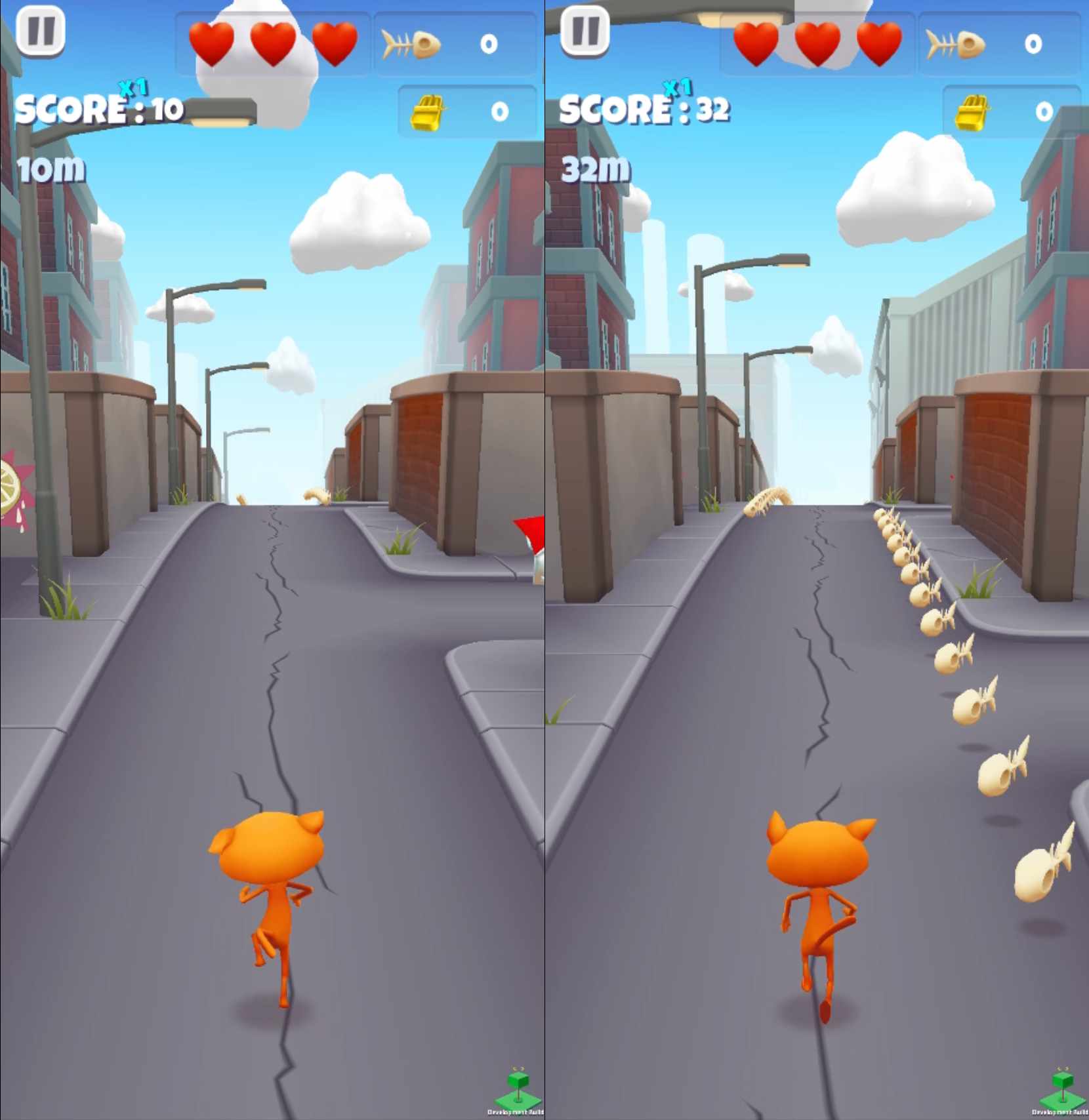
Figure 2: GamePlay from Thrash Cat Game
This variation is a result of real-time rendering and physics simulations, where user inputs, frame timing, and environmental interactions dynamically influence the gameplay.
Even slight differences in timing or input handling can lead to different movement paths and outcomes, highlighting the non-deterministic nature of Unity-based games.
Dynamic And Complex Game Objects
Let’s take the case of the Thrash Cat game itself. In any frame, you would come across multiple objects such as cat, coins, barriers, etc. Most of these objects appear and disappear dynamically or do state changes during the course of the gameplay.
As scenes, game objects, meshes, and textures are constantly changing from one frame to another, it becomes difficult to create stable locators and automation scripts.
Simulation Of Player Behaviour
Irrespective of the expertise and experience, every player is different, which also leads to variability in interactions, timings, and outcomes across different gameplay scenarios.
Simulating every player’s behaviour, gestures, and movement controls through automation scripts can be a daunting task. Covering all the game paths that aligns with every user’s experience can only be achieved by simulating user interactions and continuously refining test coverage.
Cross-Platform And Cross-Device Testing Complexities
Unity projects (or Unity games) can be deployed on popular platforms such as Windows, macOS, iOS, as well as Android. Akin to cross device testing, Unity games should be deployed on compatible platforms and devices to ensure consistent behaviour.
Considering the plethora of platforms and devices, ensuring consistent performance and user experience across all of them can become a significant challenge.
To summarize, performing end-to-end testing of Unity games due to the lack of traditional locators and game’s non-deterministic behaviour. This is where the combination of AltTester, an automation tool for Unity and Unreal engines, and TestMu AI real device cloud can help with scalable, real-world validation and object-level interactions.
What Is AltTester?
AltTester is a full automation solution for Unity (and Unreal) games. It lets game developers and testers interact with in-game objects for functional testing. Since Unity games do not have a traditional DOM, the AltTester tool helps in automating complex game flows by connecting directly to the game and exposing GameObjects as testable elements.
AltTester offers the AltTester Unity SDK, an open-source UI driven test automation tool that helps in finding the objects in the Unity app (or game). It lets game developers get their coordinates on the screen thereby helping them interact with them through Appium tests.
Tests can be implemented with popular programming languages and frameworks such as C#, Java, Python, and Robot framework.
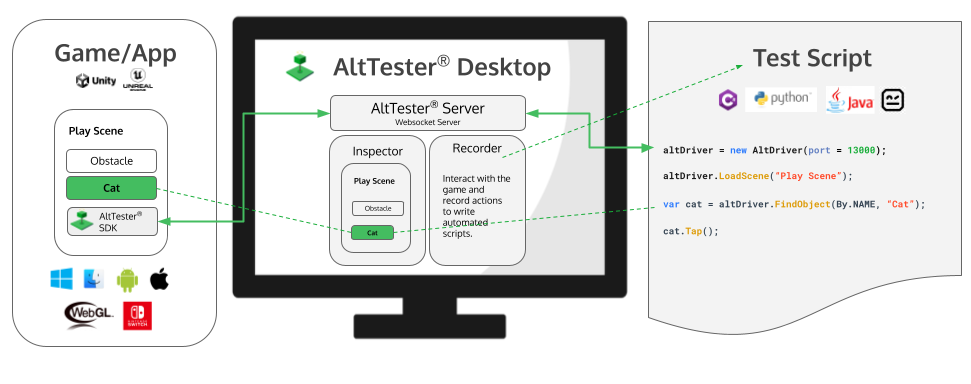
Figure 3: AltTester SDK and Desktop
The SDK opens up a connection via TCP sockets between the test framework and Unity game. In a nutshell, AltTester Unity SDK acts as the bridge between the Unity game and automation tests.
The AltTester Unity SDK provides object-level control owing to which you can reliably automate Unity games.
How To Install AltTester SDK In Unity project
The most important prerequisite of using AltTester for game testing is an AltTester-instrumented Unity game (or app). Before installing the AltTester SDK, ensure you have the following:
- Unity Editor (2021.3 LTS or later recommended)
- An existing Unity project
- Unity account with valid license (Personal, Pro, or Enterprise)
Now that the major prerequisite are fulfilled, perform the following steps for using AltTester SDK for instrumentation:
Step 1 - Download the AltTester Unity SDK
You would need the AltTester Unity SDK for instrumenting the Unity App with AltTester.
The latest AltTester Unity SDK package (.unitypackage file) can be downloaded from the official AltTester website or their official GitHub releases page. At the time of writing this blog, the latest version of AltTester Unity SDK package is 2.3.1.
Step 2 - Import the SDK into the Unity Project
In order to import the SDK in the project, open the Unity project in the Unity Editor. Once the project is opened, navigate to Assets → Import Package → Custom Package.
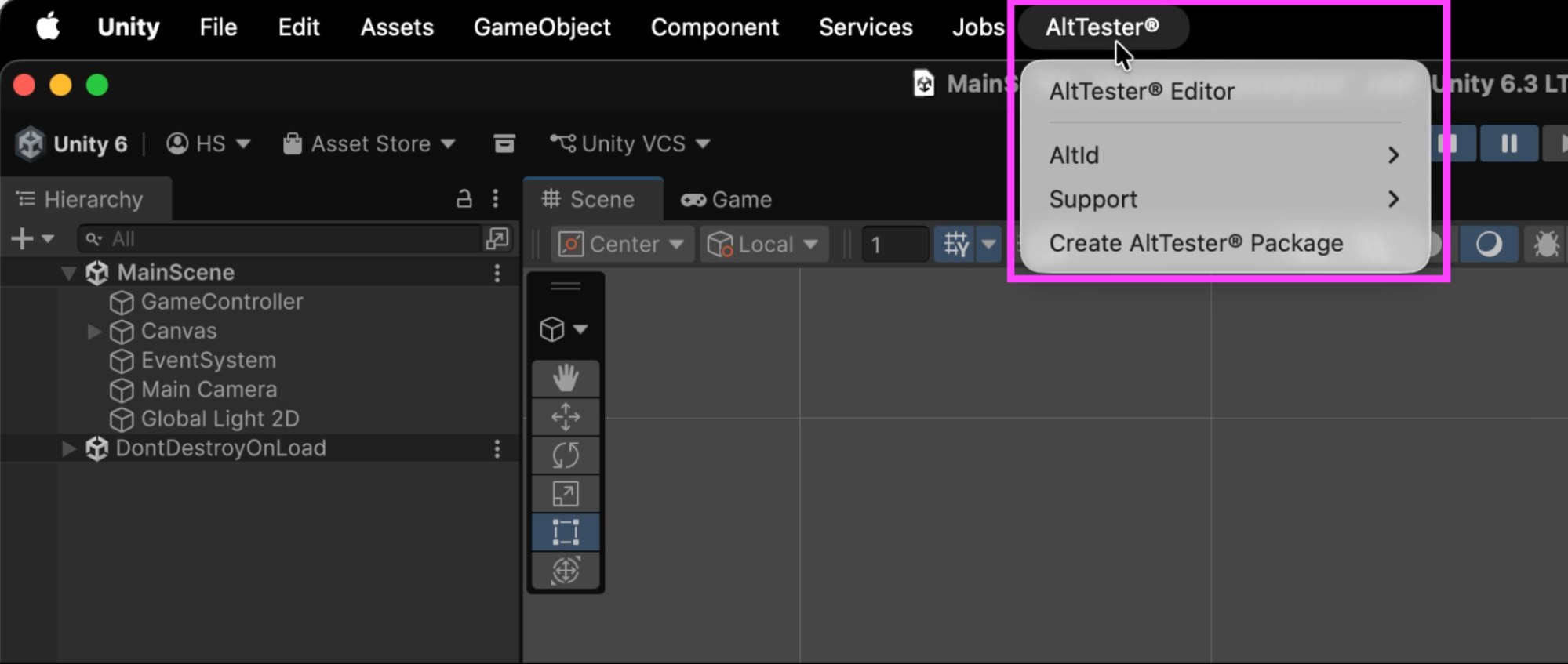
Figure 4: Importing AltTester Unity SDK
Locate the downloaded .unitypackage file and click Open. In the Import Unity Package dialog, ensure all assets are selected and imported.
Once imported, the AltTester folder appears under the Assets directory.
Step 3 - Add and Configure the AltTester Prefab
Navigate to AltTester → AltTester Editor and add AltTester in the scene that loads in the Unity game. Choose the respective platform (e.g., Android, iOS, WebGL, Standalone, etc.) for which you want to build the game.
You can set the AltTester Server Host to 127.0.0.1. Also, the AltTester Server Port to 13000.
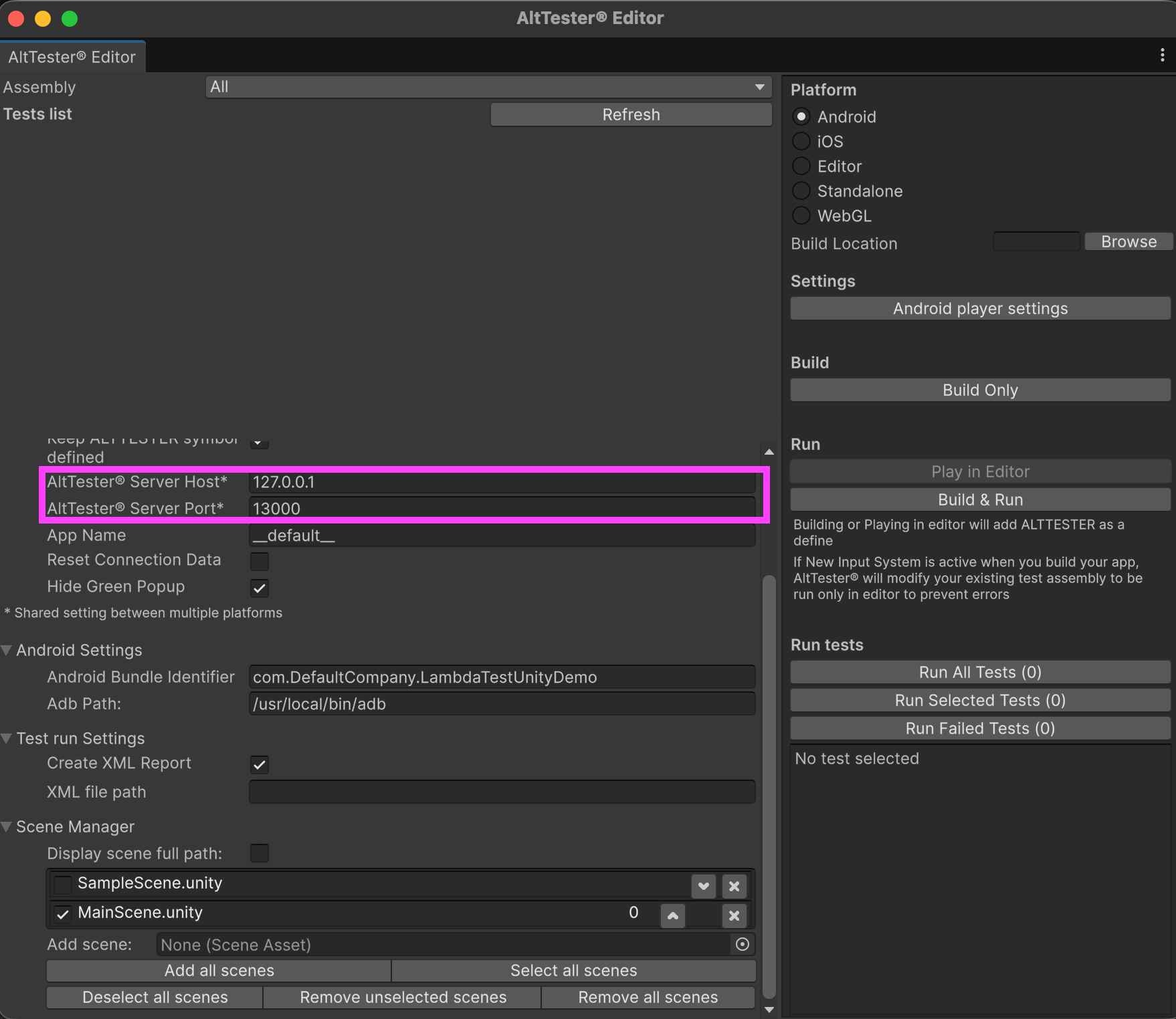
Figure 7: AltTester Server Configuration
Rest of the values in the AltTester Editor can be left in the default state.
Step 4 - Build the instrumented Unity application
Now that things are all set, build the AltTester-instrumented application to enable test automation. It is suggested to keep the Hide Green Popup enabled so that the overlay does not block UI elements or impact the accuracy of object identification during automation.
Even if the popup is visible, it automatically disappears once a connection is established between the AltTester SDK (running in the app) and the test client on the TestMu AI Grid. Click on Build Only to build the AltTester-instrumented app for Android.
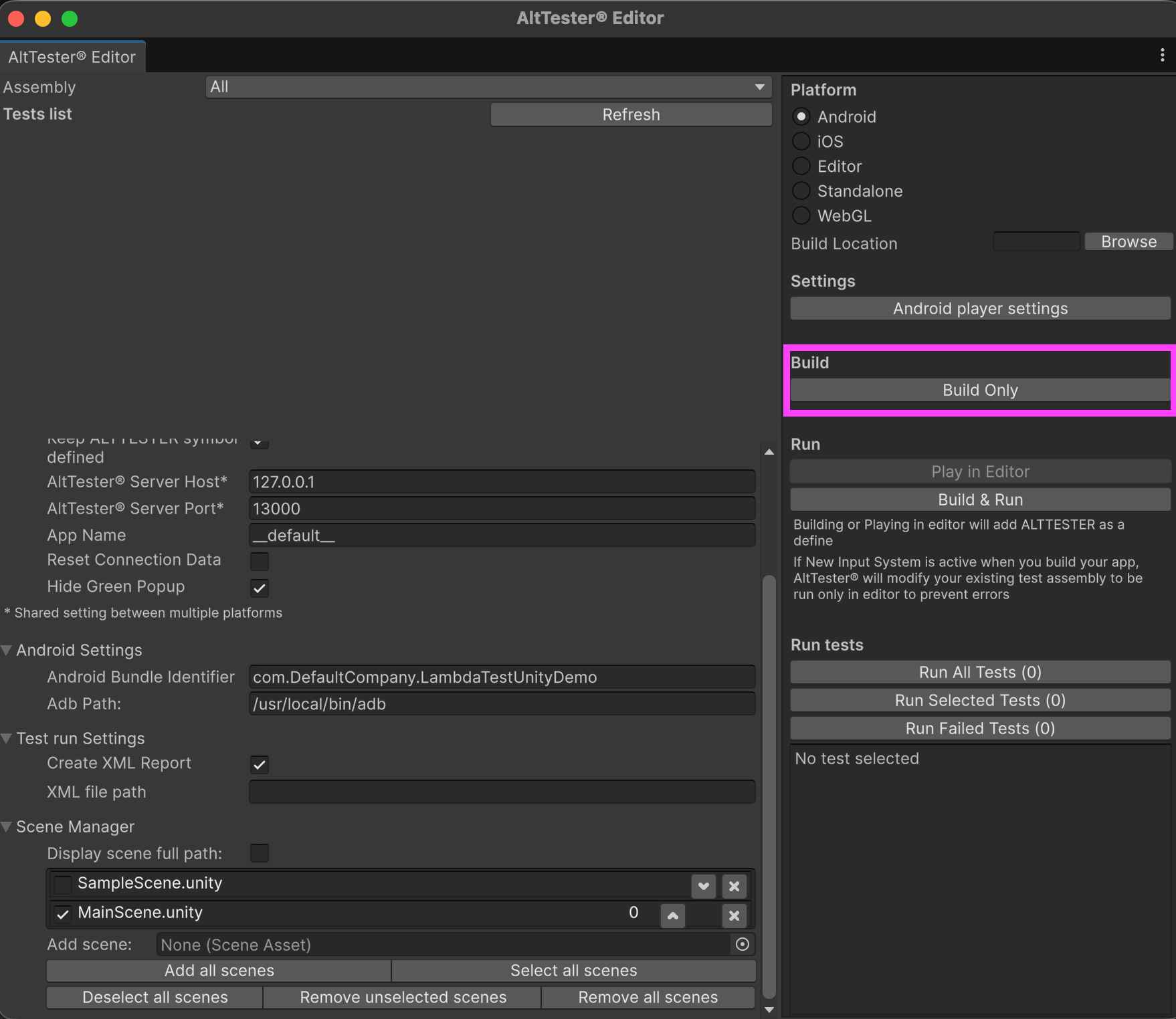
Figure 8: AltTester Build Process
The instrumented build is for testing purposes only. It is recommended to never ship an AltTester-instrumented build to production or publish it to the App Store/Google Play.
Now that the app is built, it is time to verify the connection and run the instrumented app on a device located on the TestMu AI cloud grid.

How To Record And Run Tests In AltTester Recorder
The AltTester Recorder, a nifty feature in the AltTester Desktop, is used for capturing user interactions inside a Unity Game (or application). It works alongside the AltTester Unity SDK.
The AltTester Recorder for Unity is loosely similar to the Appium Inspector for Appium, as both the tools help in identifying the respective elements and simplify the creation of automation scripts. The major difference between them is that AltTester Recorder is a workflow-oriented tool, whereas Appium Inspector is an inspection/debugging tool.
Though the end-to-end testing of the Unity application will be performed on the devices located in the TestMu AI cloud grid, it is recommended to use the AltTester Recorder with a local emulator/simulator. This is particularly useful in expediting the process of test creation and recording.
Here are some of the major reasons for using AltTester Recorder with a local emulator/simulator:
- Recording interactions locally is usually faster and more responsive
- Inspection of elements in the Unity app and gameplay interaction capture is faster at a lower latency
- Debugging the recorded steps is much simpler on a local setup
- Since recording the flow and exporting to the desired language/framework locally is faster on a local setup, the recorded tests can be later executed on a cloud grid like TestMu AI for large-scale or cross-device validation
Shown below are the steps for recording and running the tests in the AltTester Recorder:
1. Install Android SDK and the necessary Emulator(s). In my case, I have Pixel 7 Emulator installed on my macOS
2. Start the Emulator using the command emulator -avd Pixel_7_Android_34 -wipe-data. This command starts the AVD (Android Virtual Device) named Pixel_7_Android_34 in a clean state. The –wipe-data option deletes the emulator’s user data and starts it fresh, similar to a factory reset.
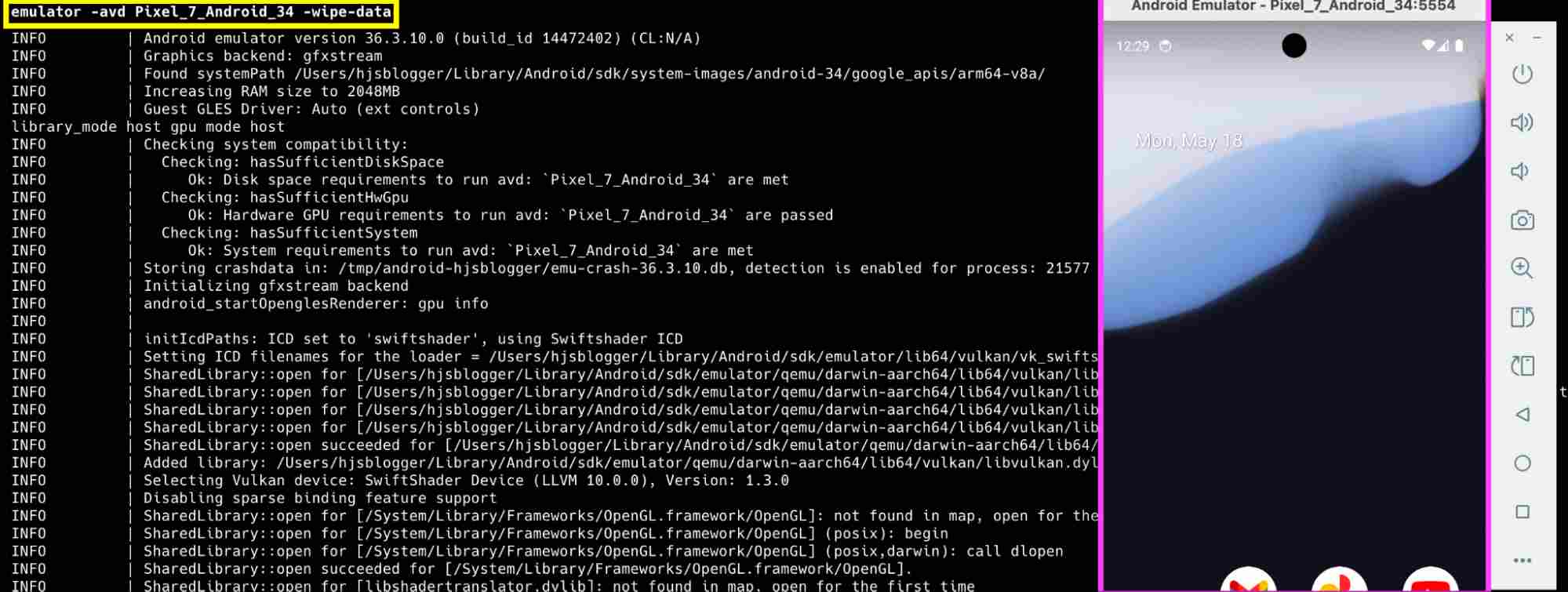
Figure 9: Starting up the emulator
3. Download the TrashCat apk on the host machine and install it to the Emulator using the command adb install TrashCat.apk
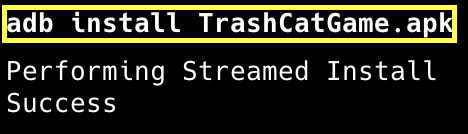
Figure 10: ADB install
4. Run the command adb reverse tcp:13000 tcp:13000 in the terminal. 13000 is the default port number on which AltTester Desktop listens for incoming requests. This command creates a reverse port tunnel from the Android emulator/device to the host machine.
5. Start the TrashCat app on the emulator. Post that, start the AltTester Desktop and you will see an app session mentioned in it.
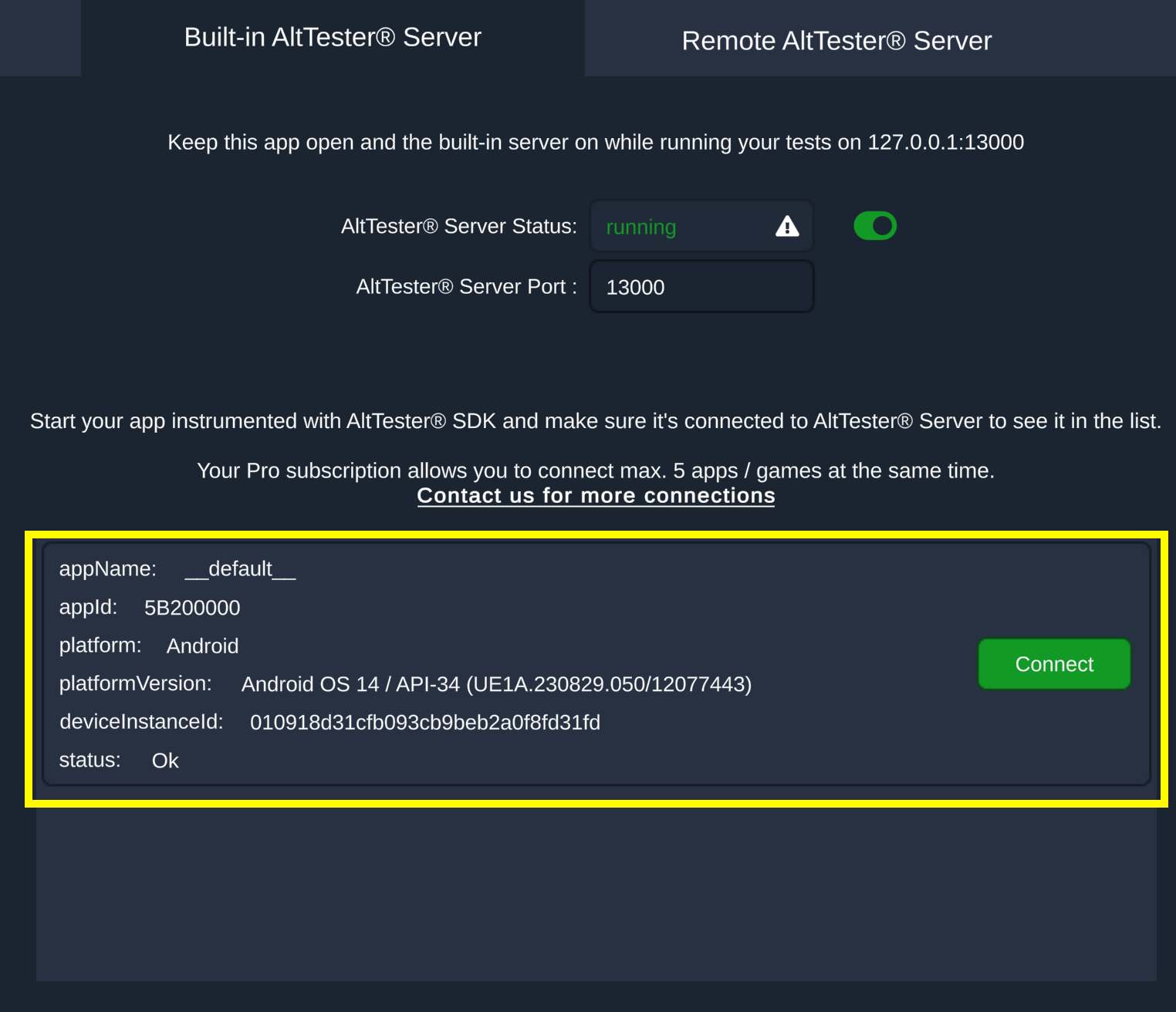
Figure 11: Starting AltTester Desktop
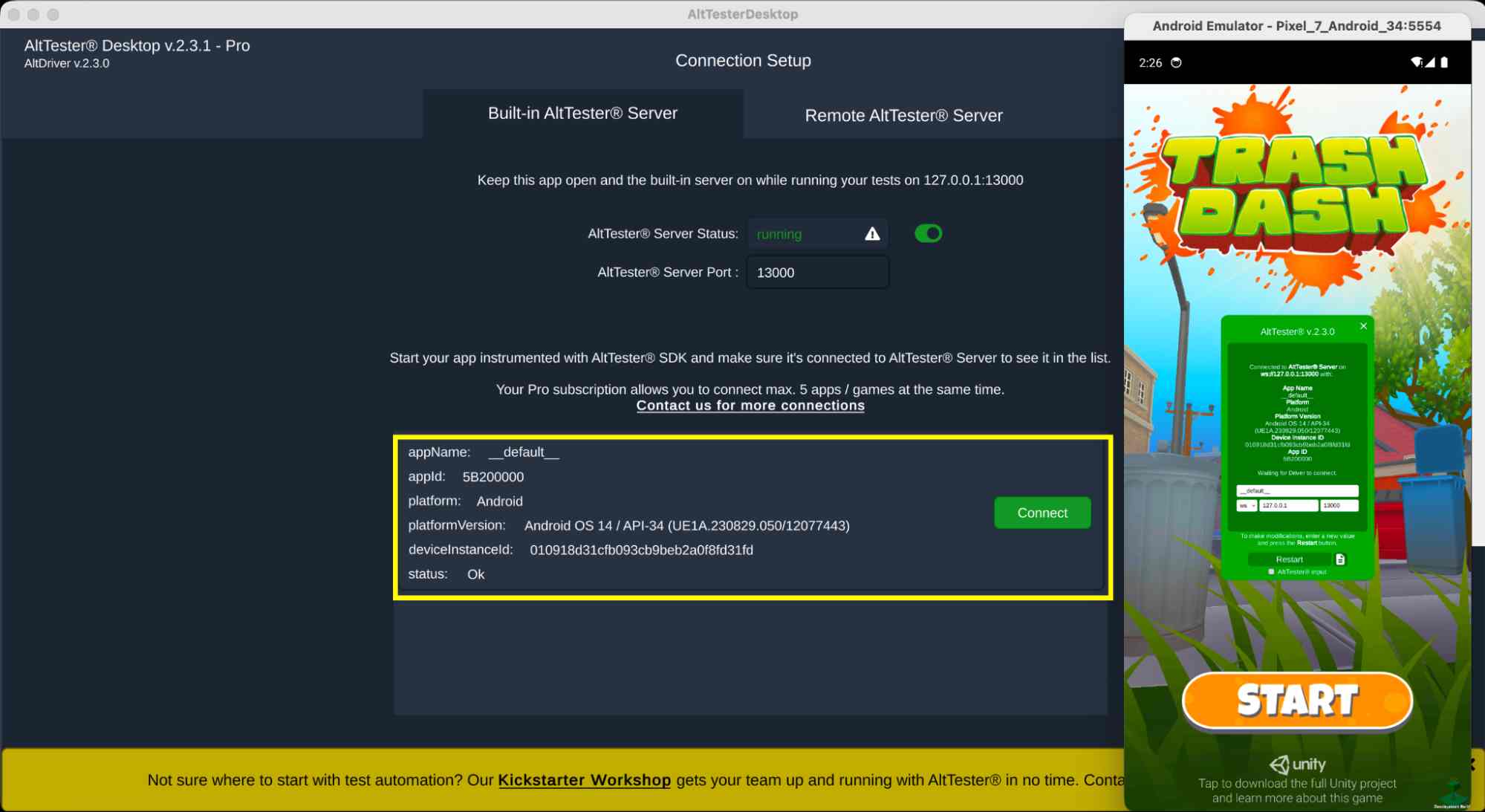
Figure 12: Connecting AltTester Desktop with Emulator
6. Click on the Connect button to establish a session. Next start the AltTester Recorder and click on Start Recording (in the Recorder tab) to record the steps.
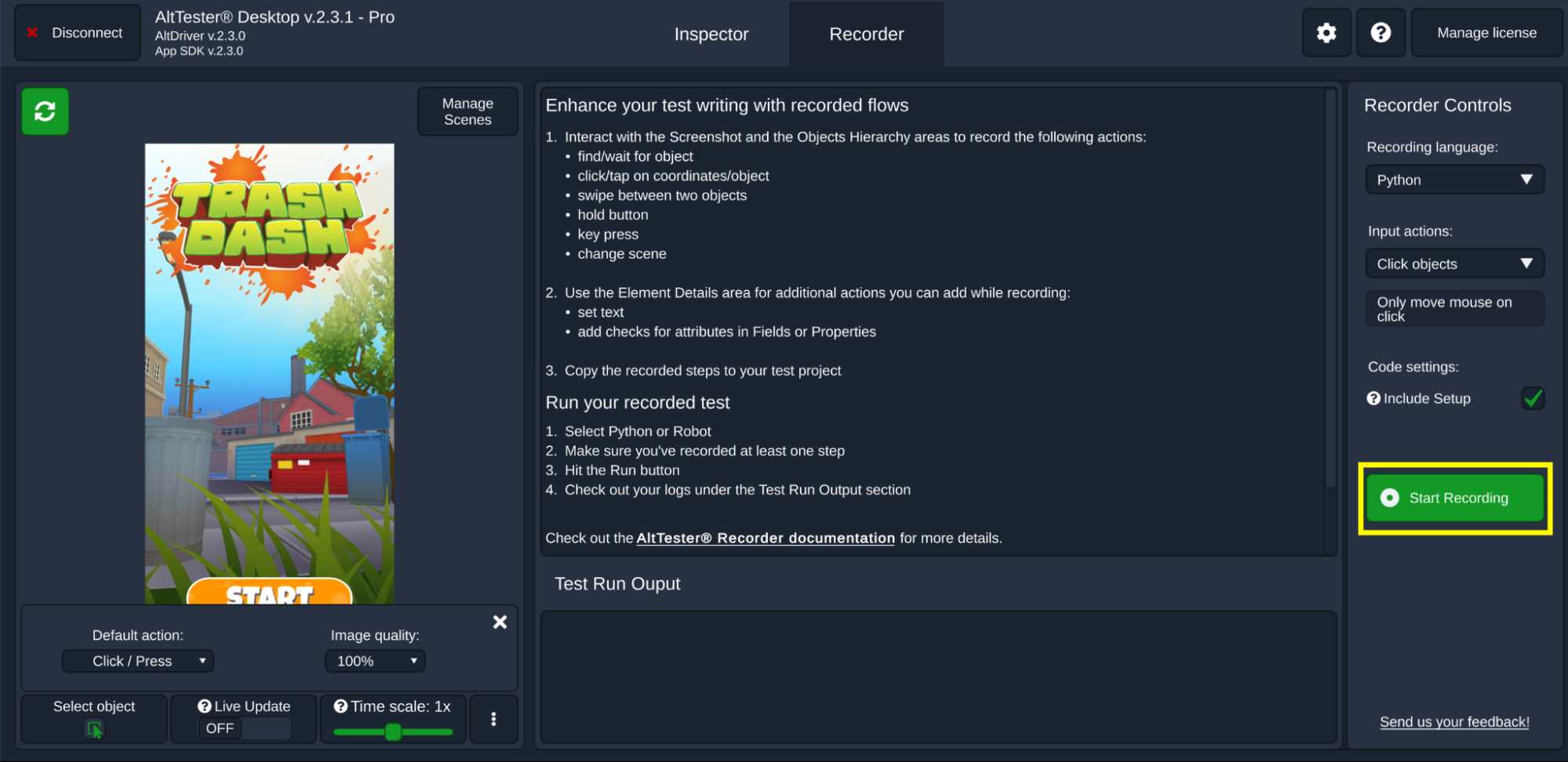
Figure 13: Connecting AltTester Desktop with Emulator
Here are some of the commands that can be recorded via the AltTester recorder:
| Commands supported by AltTester Recorder | |
|---|---|
| Record tests | Load scene |
| Wait for object | Click on object |
| Click on coordinates | Tap on object |
| Tap on coordinates | Swipe |
| Hold button | Press key |
| Set text | Add Assertion |
Covering every command is beyond the scope of this blog, it is recommended to refer How to record and run tests in Recorder official documentation for recording and running tests.
7. Once the steps are recorded, click on Recording, click to pause button to stop the recording.
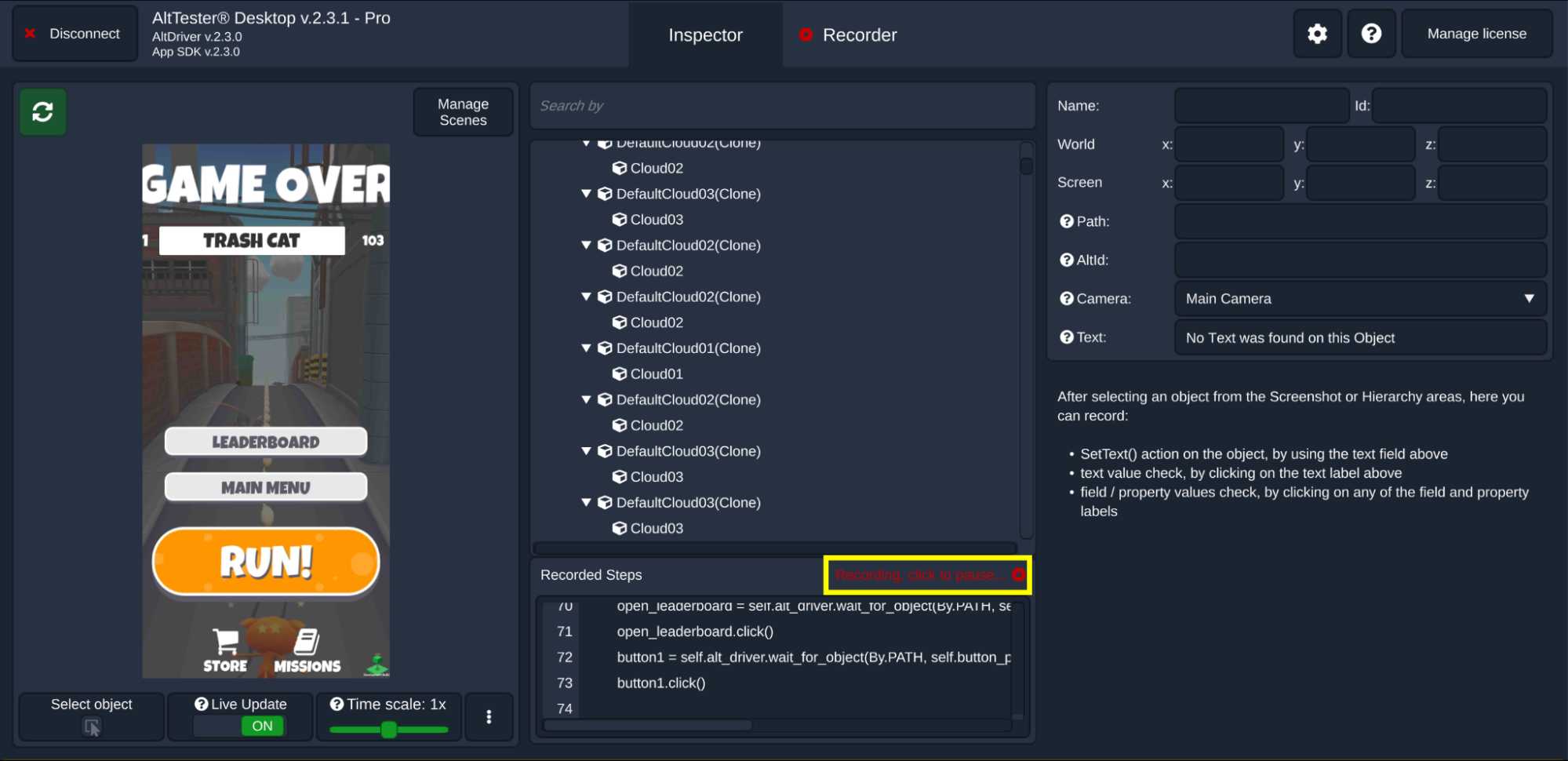
Figure 14: Recording steps on AltTester Desktop - 1
Post this, you can either Resume Recording or Run the recorded steps as shown in the screenshot below:
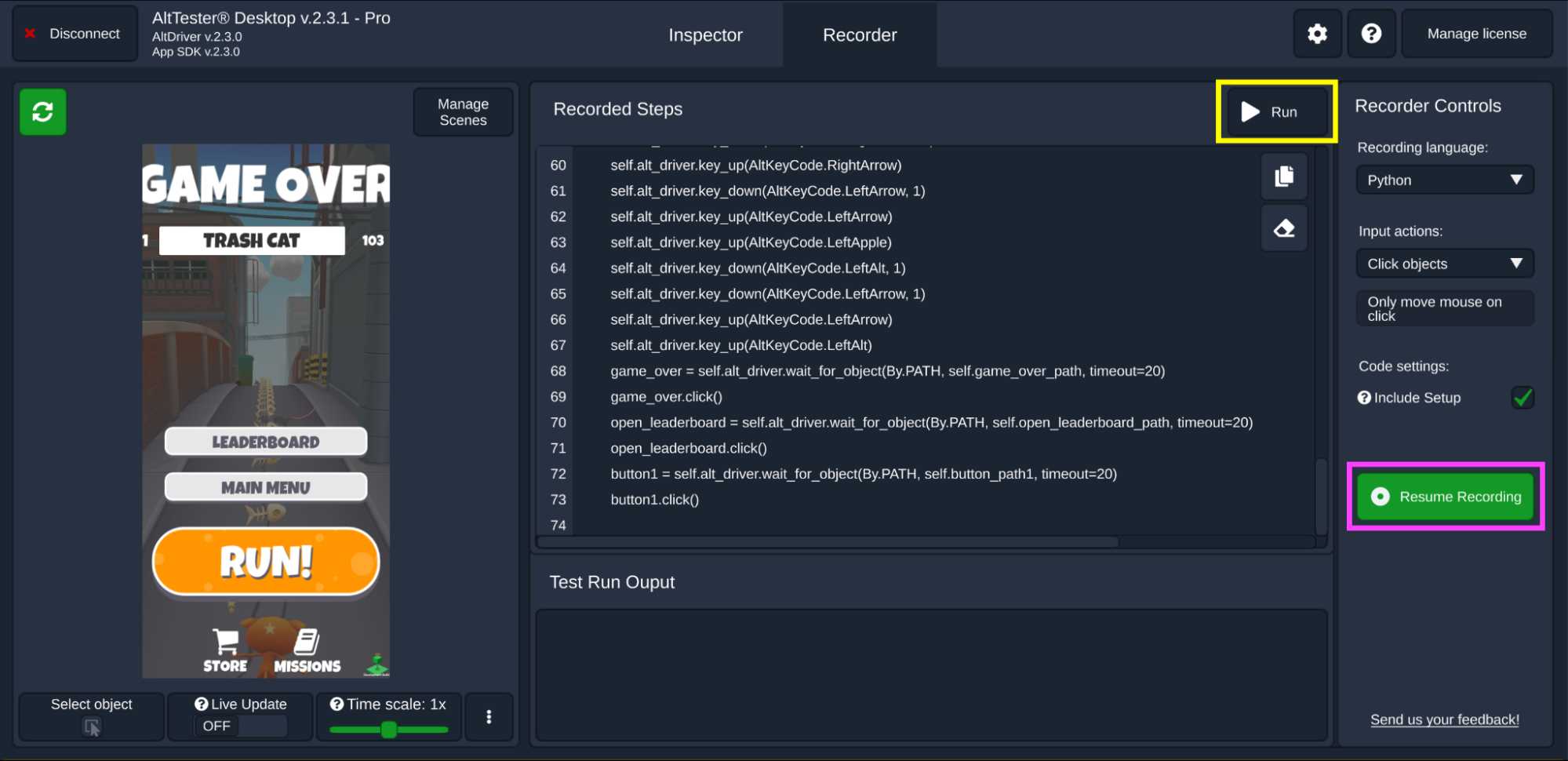
Figure 14: Recording steps on AltTester Desktop - 2
In order to run the recorded steps, first load the necessary scenes by clicking on the Manage Scenes button. In our case, we load the Main scene.
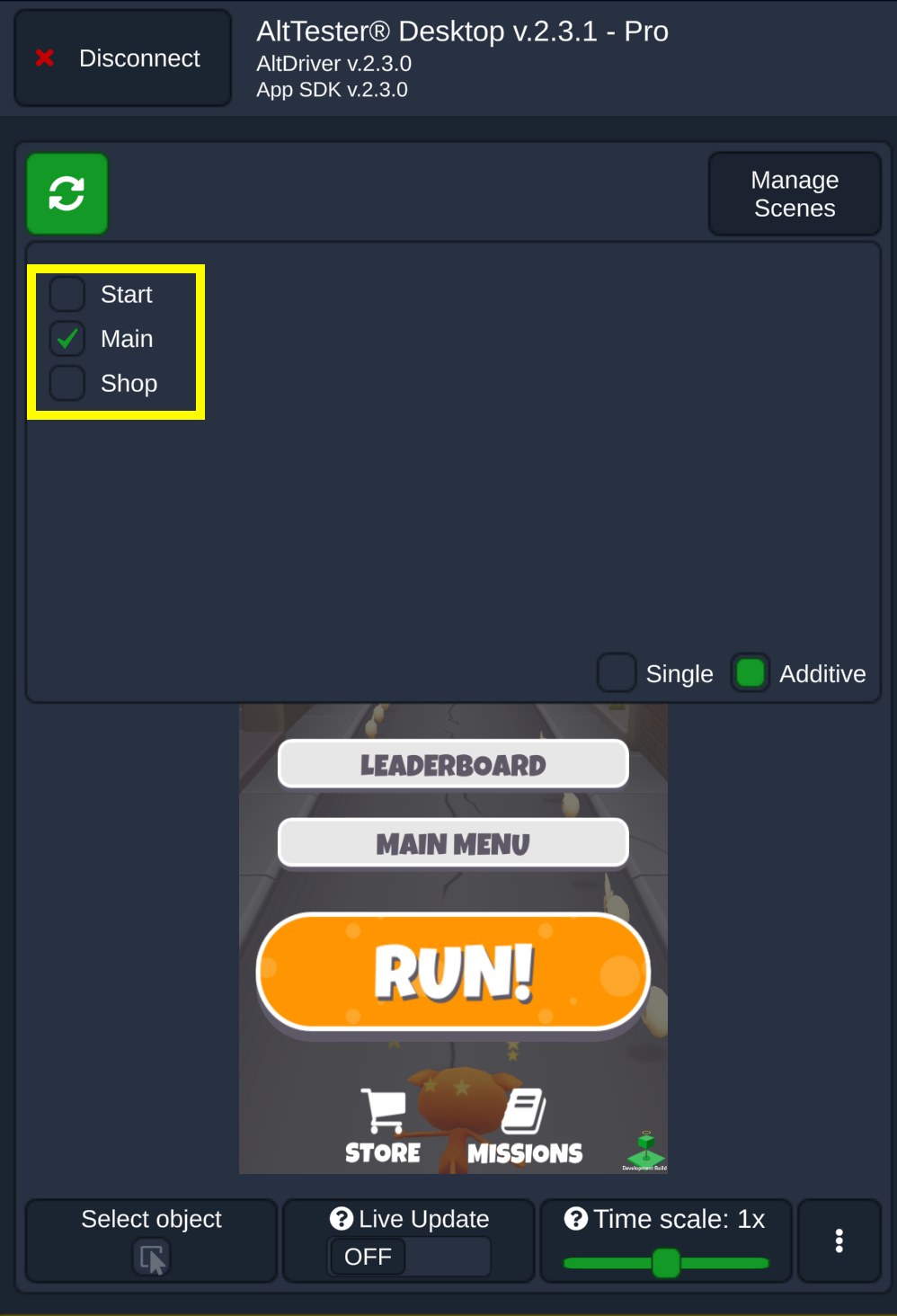
Figure 14: Loading scenes in AltTester Desktop
Now that the required scenes are loaded, click on the Run button to execute the recorded steps. As seen below, the recorded steps (or test) are executed successfully.
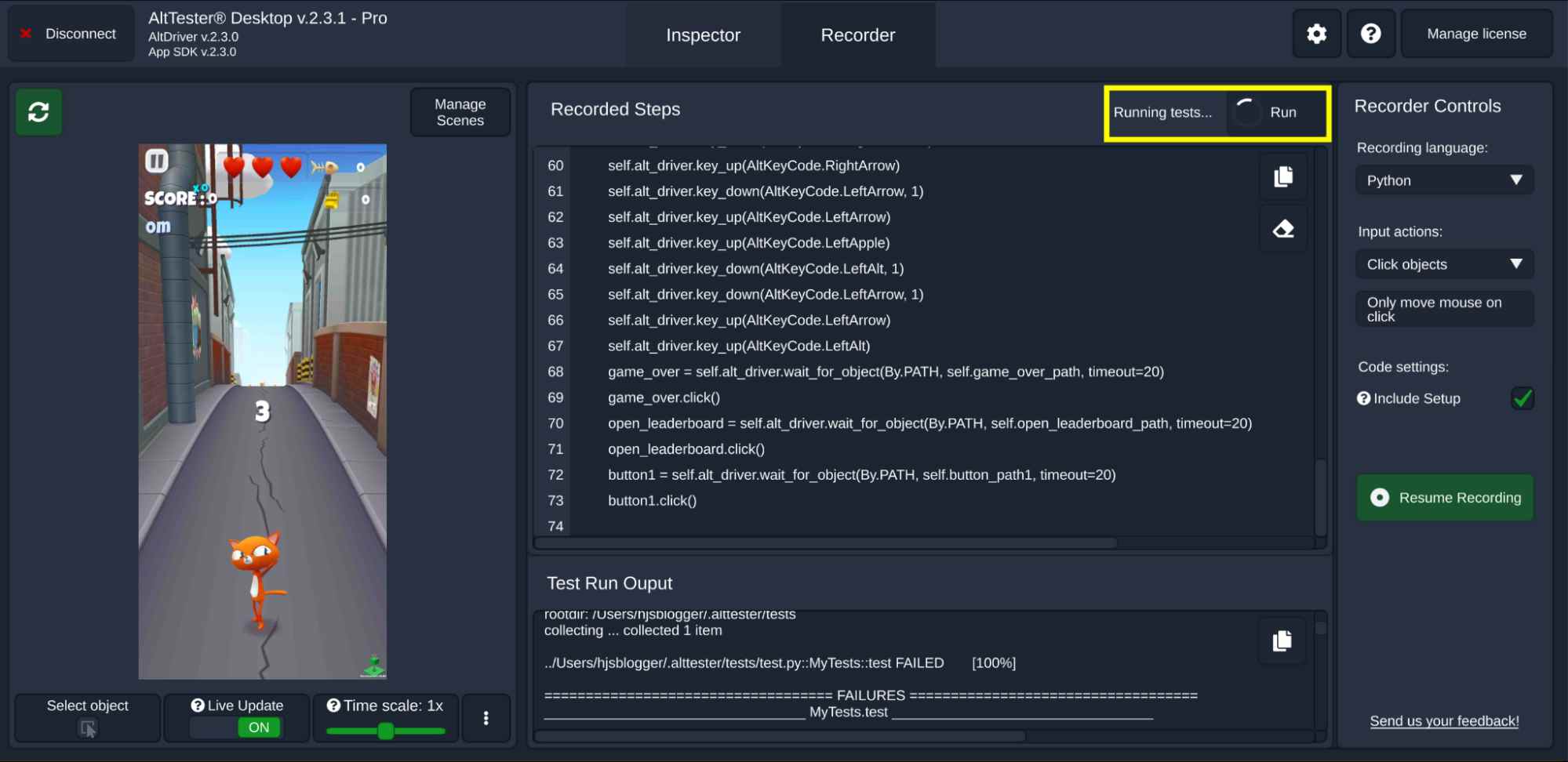
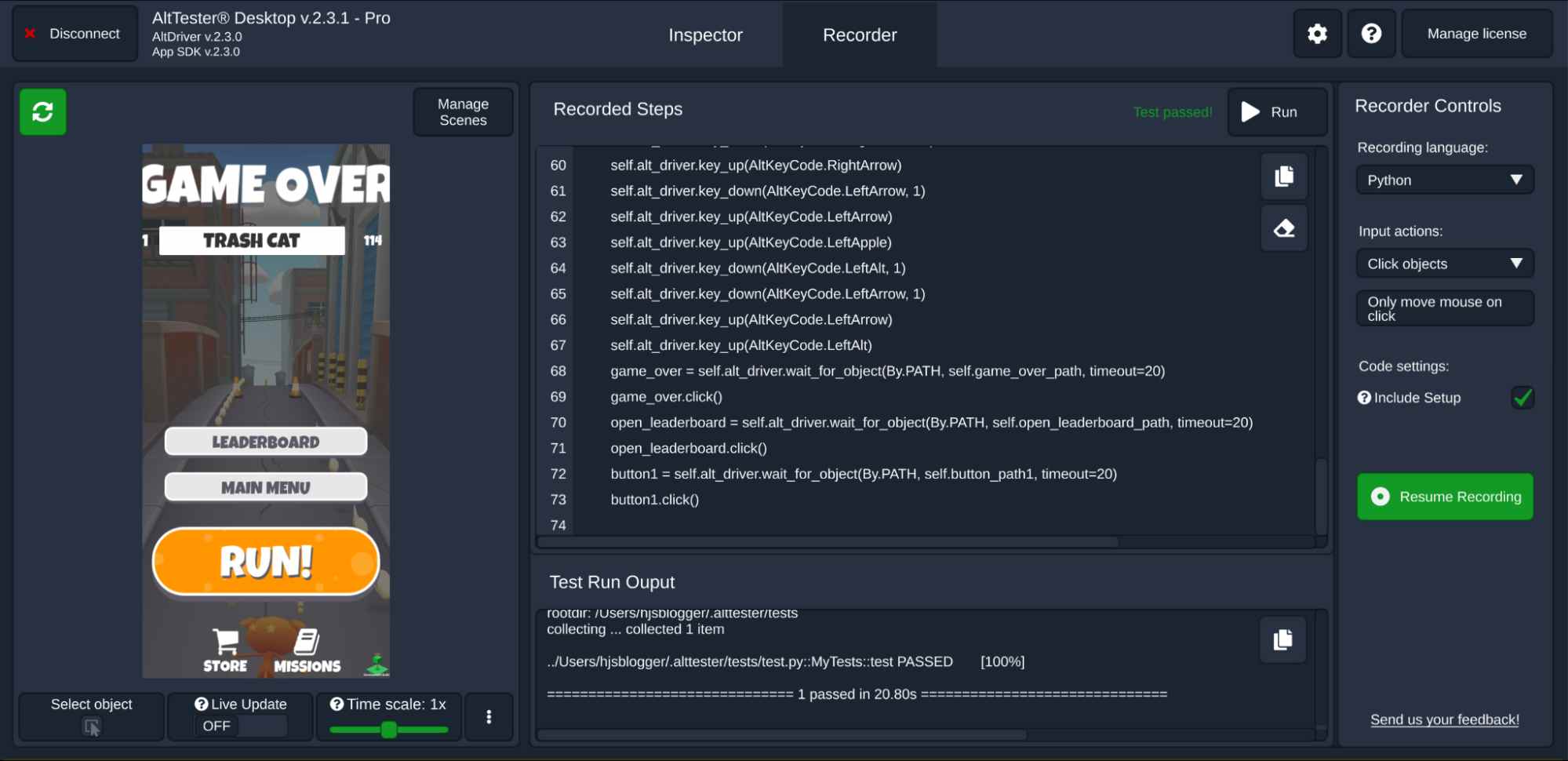
Figure 15: Running recorded steps in AltTester Desktop
8. Export the recorded steps/test in the programming language of your choice (i.e., C#, Java, Python, and Robot framework).
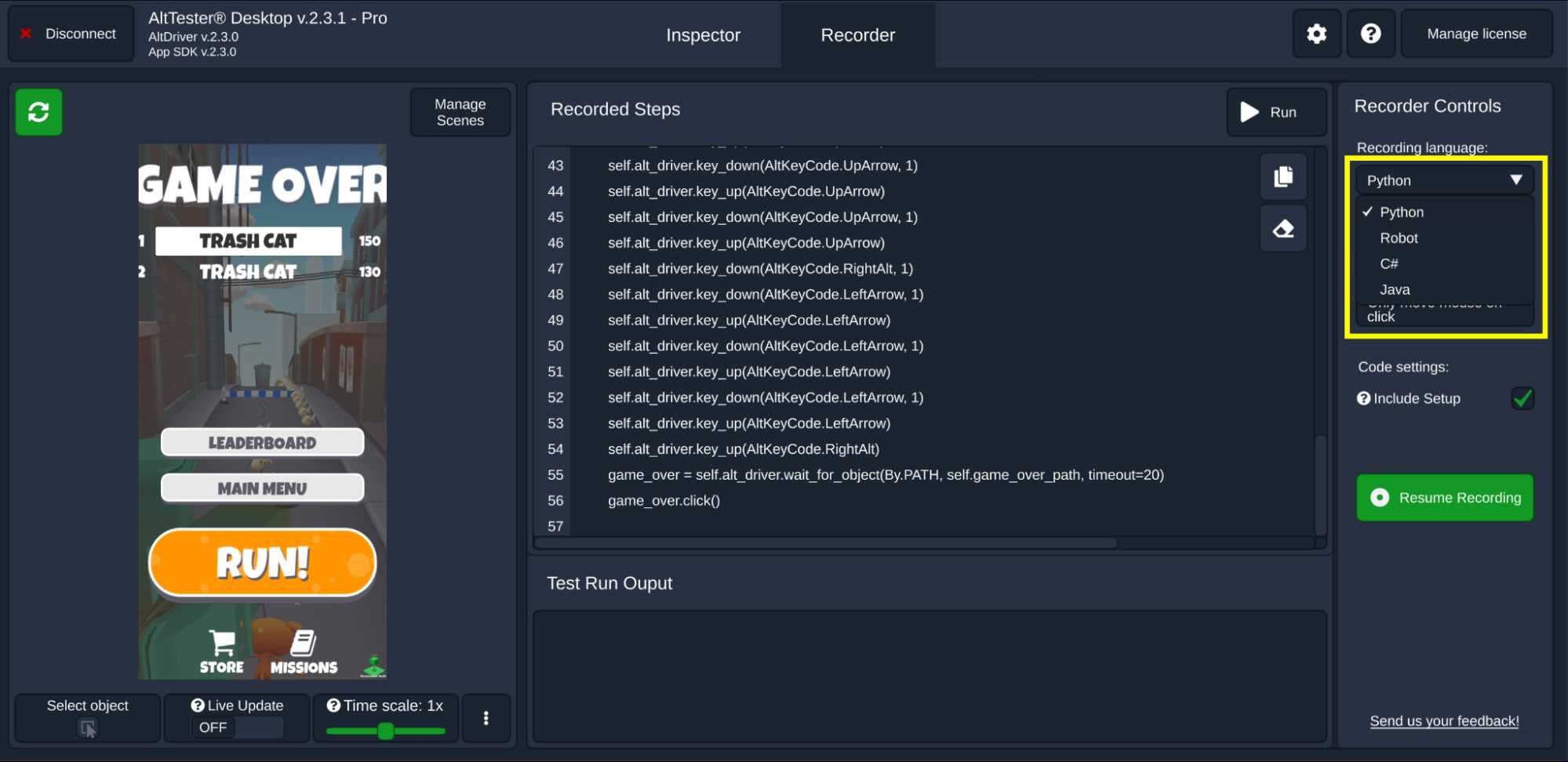
Figure 16: Exporting code of the recorded steps
The code can be easily integrated into an existing automation codebase with minimal changes and setup effort. It is important to note that AltTester Recorder is only available with AltTester Pro, details of which are available in the AltTester Pricing Page.
How To Connect AltTester With TestMu AI Cloud
To get started, you need to have a TestMu AI and AltTester account. Here are other prerequisites:
- Python 3.9+
- TestMu AI Tunnel binary installed on the host machine and available in PATH
- Sample app (i.e., .apk/.ipa) - TrashCat .apk (or .ipa) uploaded to TestMu AI App Automation
Follow the below steps to connect AltTester with TestMu AI real-device cloud:
Step 1 - Configure credentials as environment variables
The TestMu AI credentials are available in the TestMu AI accounts page. Now that we have the credentials, export the environment variables LT_USERNAME and LT_ACCESS_KEY by triggering the following commands on the terminal:
export LT_USERNAME=<LT_USERNAME>
export LT_ACCESS_KEY=<LT_ACCESS_KEY>
Step 2 - Upload the test application
In our case, we are using the TrashCat apk for demonstration purposes. With the credentials set, run the below mentioned cURL command for uploading the TrashCat application to the TestMu AI real device cloud.
curl -u "$LT_USERNAME:$LT_ACCESS_KEY" \
  -X POST "https://manual-api.lambdatest.com/app/upload/realDevice" \
  -F "[email protected]" \
  -F "name=TrashCat" \
  -F "type=android"
On successful app upload, you would see an App URL in the JSON response.

Alternatively, you can also navigate to the TestMu App Live dashboard to fetch the App URL.
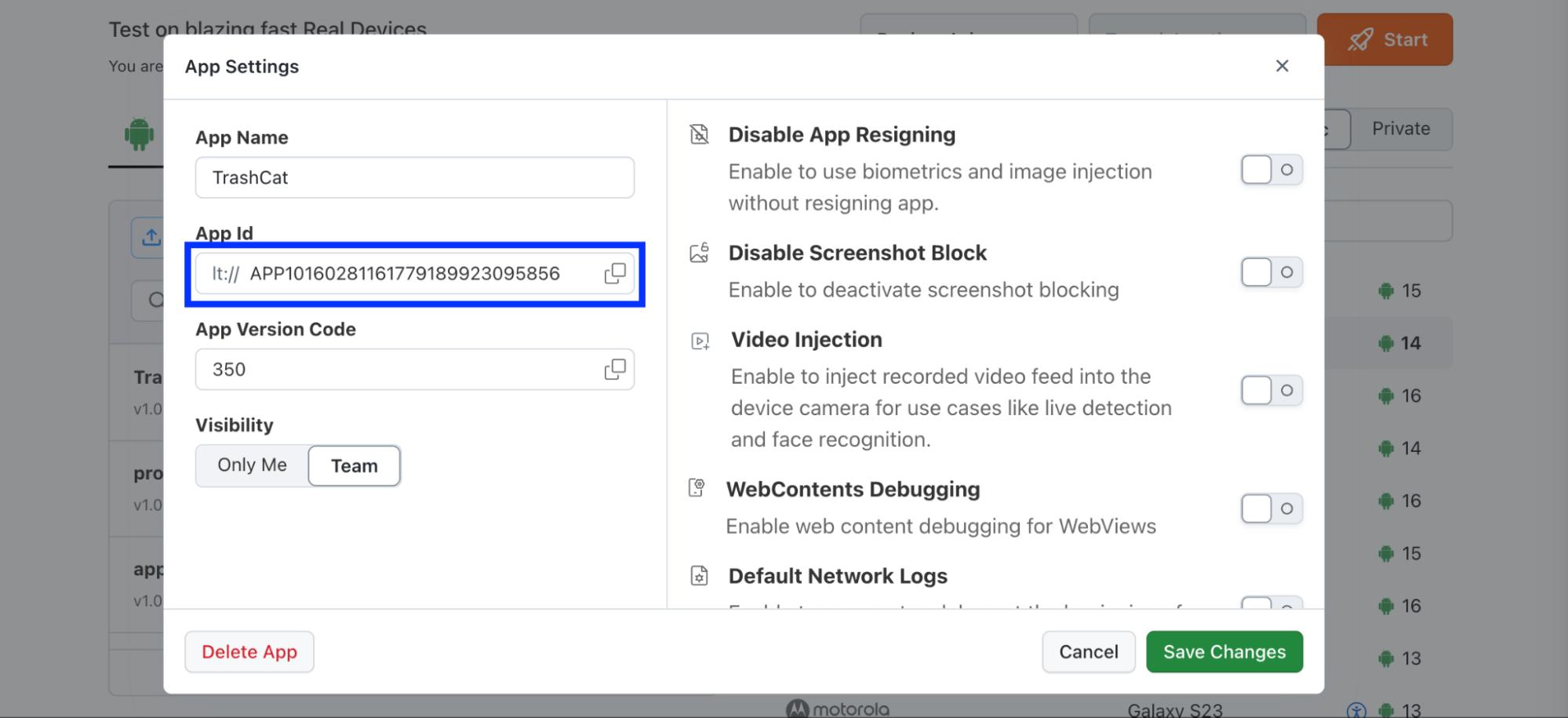
Figure 17: TestMu AI App Live dashboard
Step 3 - Start TestMu AI Tunnel
Download and install the TestMu AI Tunnel binary on the host machine. The TestMu AI (or LambdaTest) Tunnel is required for AltTester when running tests on TestMu AI cloud devices.
The AltTester Server runs on the local (or host) machine, while the real mobile device runs in the cloud. The tunnel creates a secure network bridge between them.
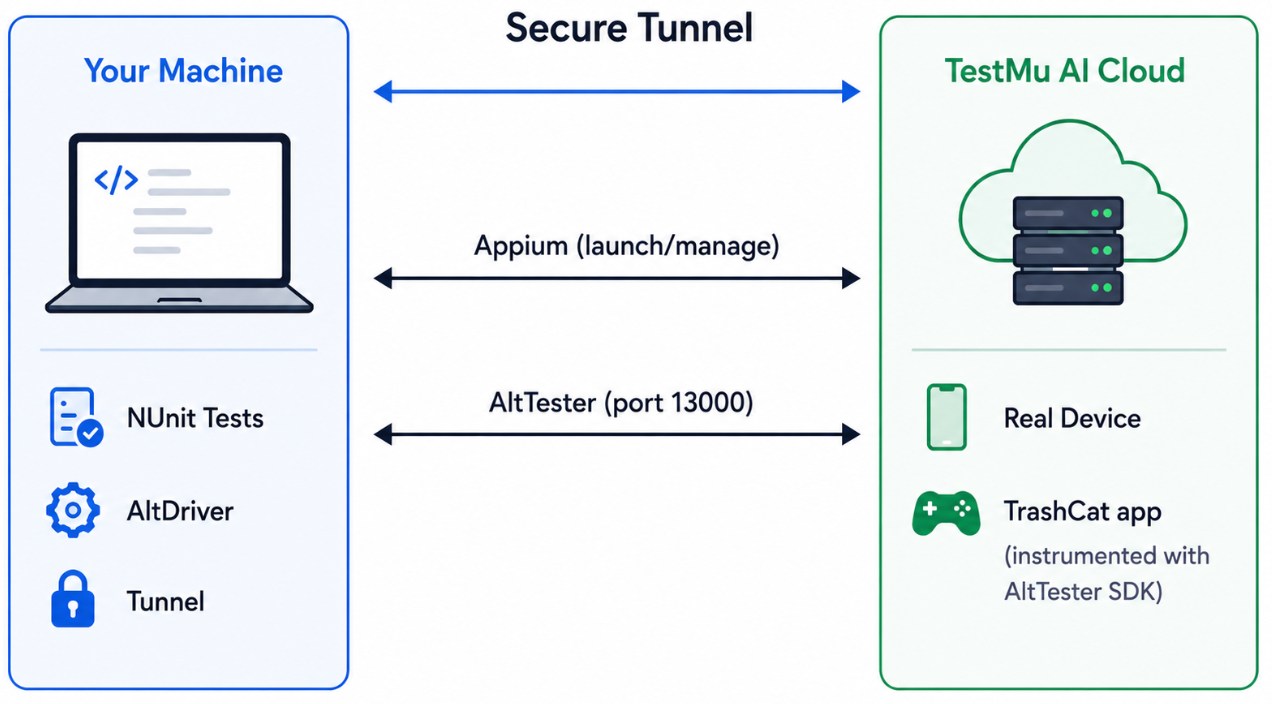
Figure 18: Connecting AltTester to TestMu AI Cloud
Start the tunnel by triggering the following command on the terminal:
./LT --user $LT_USERNAME --key $LT_ACCESS_KEY --verbose --tunnelName alttester-tunnel
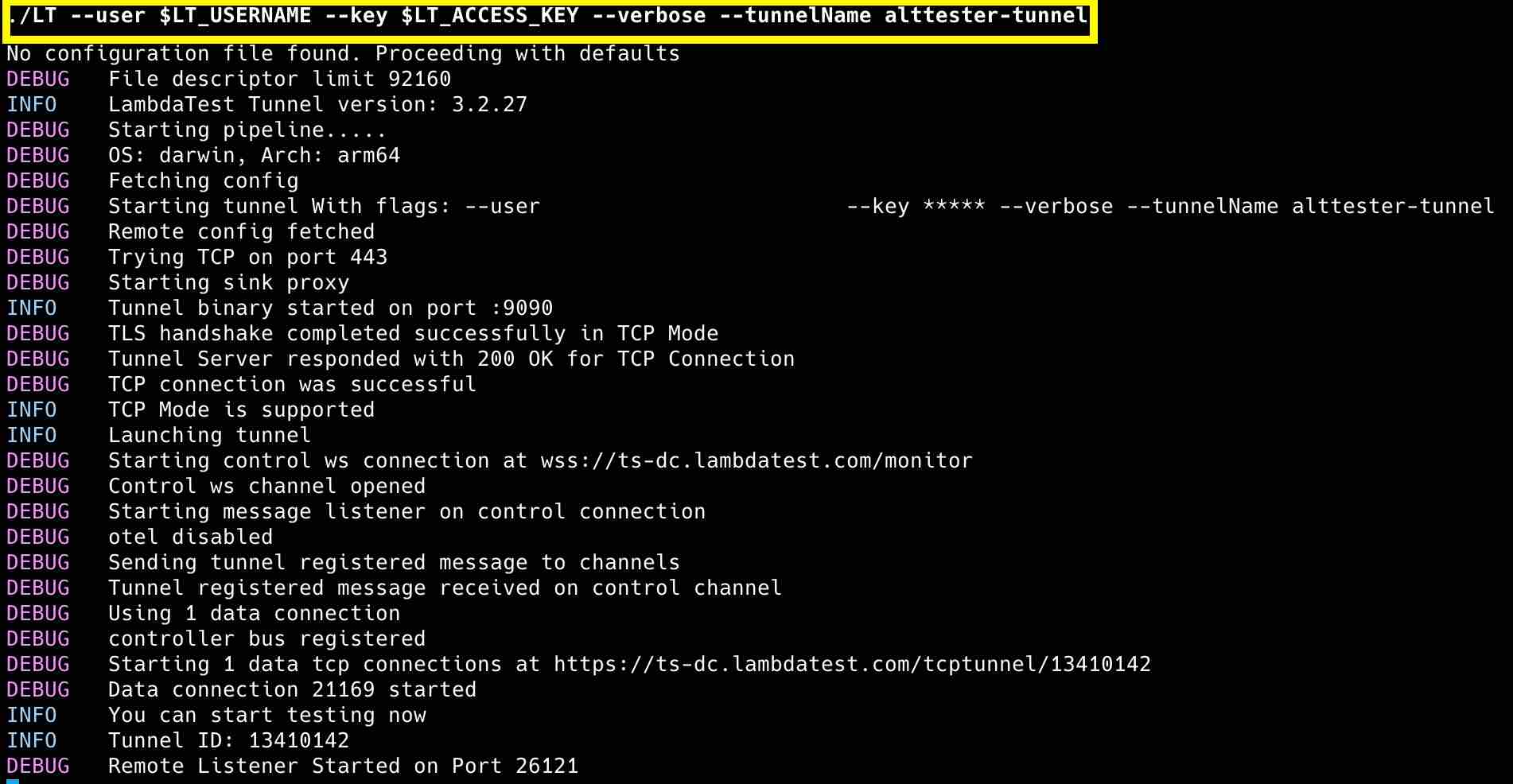
You can also visit the TestMu automation dashboard to check the status of the tunnel.
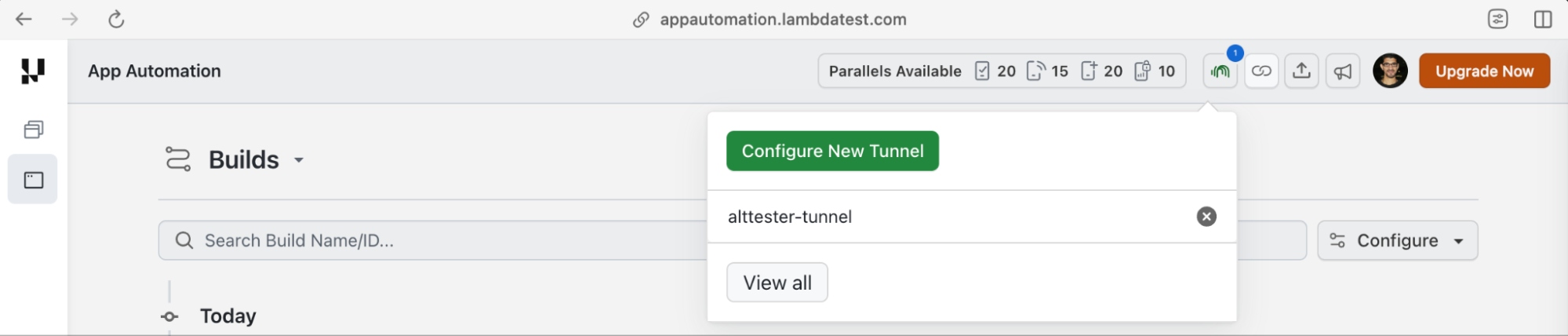
Figure 19: TestMu AI Tunnel Status

How To Test Unity Games with AltTester and TestMu AI Cloud
In this section, we combine AltTester’s game object interaction capabilities with TestMu AI cloud’s device infrastructure for testing Unity games on remote devices. By now, you would have already uploaded the AltTester instrumented application to the TestMu Grid.
If you already have test code that works with an AltTester-instrumented application, only minimal changes are required to run it on the TestMu AI grid. Here are the prerequisites:
- The .apk/.ipa is already AltTester-instrumented
- The AltTester Server starts automatically (at 127.0.0.1) inside the Unity application
- TestMu AI tunnel is running properly. In our example, the tunnel will be started and stopped from the test code
- The required AltTester port (i.e., 13000 by default) is accessible through the tunnel.
- Ensure the app is fully launched before instantiating AltDriver()
Repo Link - https://github.com/hjsblogger/testmuai-alttester-unity-game-automation
For demonstration purposes, we are using the pytest framework with AltTester and the TestMu AI Cloud. I have forked the original TestMu AI AltTester repository (branch - testmu-ai-python-example) and done some minor changes in it.
Here are the changes that need to be made in your tests for automating Unity game interactions with AltTester and Appium:
Step 1 - Configure Real Device Execution on TestMu AI
Instead of starting an Appium session on the local machine, start an Appium session on TestMu AI cloud. Set the environment variable LT_APP_URL to the App URL of the App uploaded to the TestMu AI cloud storage.
As a part of the setup() fixture, configure the TestMu capabilities. The fixture is defined under the @pytest.fixture decorator.
@pytest.fixture(scope="class")
def setup(request, lt_tunnel):
- scope="class" - fixture runs once per test class
- request - built-in pytest fixture providing test context
- lt_tunnel - TestMu AI tunnel that is kick-started from the code. It is another fixture dependency injected into setup. Hence, pytest will first execute the lt_tunnel fixture (session scope), complete its setup phase, and invoke the setup fixture.
@pytest.fixture(scope="session")
def lt_tunnel():
    """Session-scoped fixture: start/stop TestMu AI tunnel."""
    username = os.environ["LT_USERNAME"]
    access_key = os.environ["LT_ACCESS_KEY"]
    process = start_tunnel(username, access_key)
    yield process
    stop_tunnel(process)
The capabilities are generated using the TestMu AI capabilities generator.
username = os.environ["LT_USERNAME"]
access_key = os.environ["LT_ACCESS_KEY"]
app_url = os.environ["LT_APP_URL"]
TUNNEL_INFO_PORT = 8000
TUNNEL_NAME = "alttester-tunnel"

username = os.environ["LT_USERNAME"]
access_key = os.environ["LT_ACCESS_KEY"]

lt_options = {
    "user": username,
    "accessKey": access_key,
    "app": app_url,
    "deviceName": "Pixel.*",
    "platformVersion": "14",
    "platformName": "android",
    "build": "TrashCat",
    "name": f"tests - {datetime.now().strftime('%B %d - %H:%M')}",
    "isRealMobile": True,
    "idleTimeout": 300,
    "tunnel": True,
    "tunnelName": TUNNEL_NAME,
}

options = AppiumOptions()
options.set_capability("lt:options", lt_options)
options.set_capability("platformName", "android")

with warnings.catch_warnings():
    warnings.simplefilter("ignore", UserWarning)
    appium_driver = appium_webdriver.Remote(
        command_executor=f"https://{username}:{access_key}@mobile-hub.lambdatest.com/wd/hub",
        options=options)
- Tunnel named alttester-tunnel is started in the code with the verbosity mode on
- A dictionary named lt_options is created that contains the desired capabilities for executing tests on the TestMu AI cloud grid.
- The App URL of the Unity app (i.e., TrashCat.apk) is added to the desired capabilities. The platform name, device name, and other capabilities are generated using the TestMu capabilities generator.
- The isRealMobile capability is set to true since the tests will be executed on a real Android device.
- Create a new remote Appium session on the TestMu AI cloud grid using the Remote() method of Appium Driver
The dictionary would require only minor modifications, apart from uploading the .ipa application, when executing the tests on a real iOS device.
Step 2 - Configure AltTester Driver and Teardown
With the Appium Driver set in the previous step, we now initialize the AltTester driver to interact with the elements inside the Unity application.
alt_driver = AltDriver() creates an instance of the AltTester driver and opens a TCP/WebSocket connection (default: localhost:13000) to the AltTester server that was compiled into the Unity app build.
alt_driver = AltDriver()
annotate(appium_driver, "AltDriver connected")
print("AltDriver started")

# Wire up annotation callback for page objects
BasePage.annotate_callback = lambda msg, lvl="info": annotate(
    appium_driver, msg, lvl
)

request.cls.alt_driver = alt_driver
request.cls.appium_driver = appium_driver

yield alt_driver

# Teardown
try:
    appium_driver.execute_script("lambda-status=passed")
except Exception as e:
    print(f"Error reporting test status: {e}")

appium_driver.quit()
alt_driver.stop()
- request.cls.alt_driver = alt_driver and request.cls.appium_driver = appium_driver attach the AltTester driver and Appium driver instances to the current test class. alt_driver helps with subsequent UI interactions such as finding game objects, tapping, swiping, and more
- yield alt_driver pauses the fixture execution and control is handed over to the test execution phase
- Lastly, appium_driver.quit() and alt_driver.stop() which are a part of the teardown phase help clean up the resources held by the Appium driver and release the connection between the AltTester driver and AltTester server.
Step 3 - Implement the Unity Gameplay Test
Before implementing the Unity gameplay test, we have implemented the Page Object Model (POM) for organizing the game object interactions into reusable classes.
The overall structure represents different game screens and UI elements, thereby enabling better separation between test logic and Unity object identifiers. All Page Object Model (POM) implementations for the Unity game screens are maintained in the pages folder.
The game play tests are located in the tests folder. Before running any test method implemented in the tests, the fixture named setup is executed for setting up the TestMu real device capabilities and starting up the tunnel.
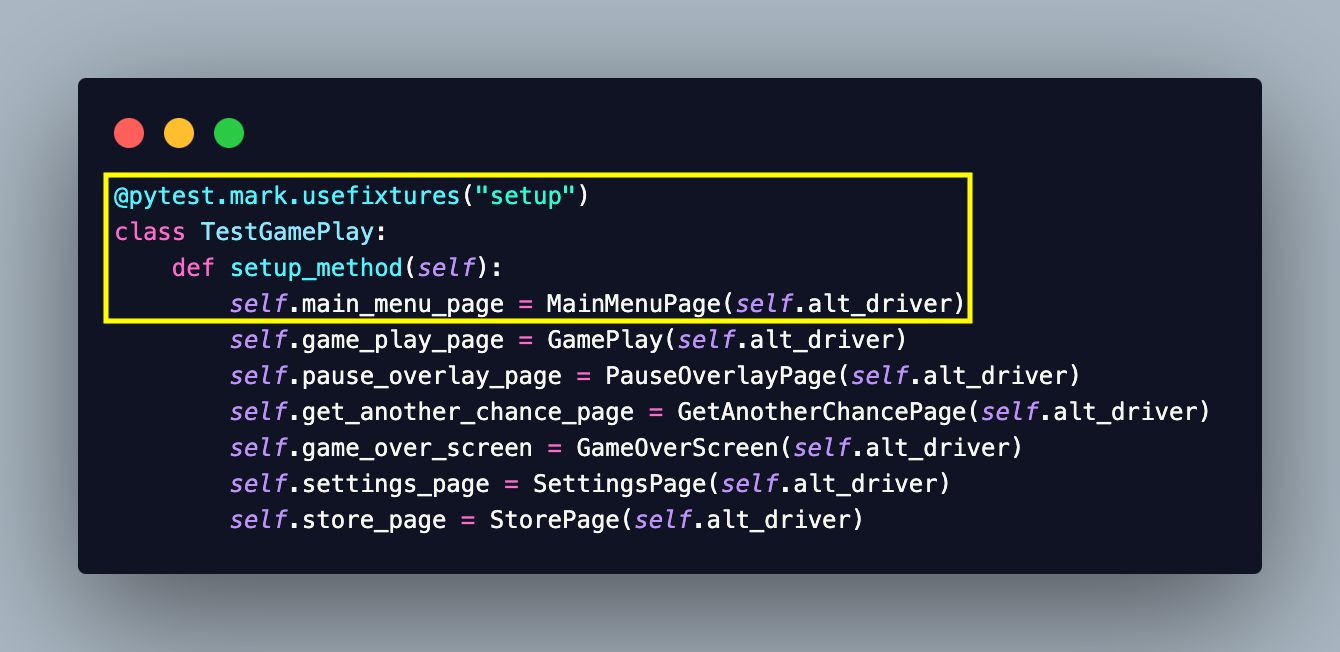
Figure 19: Fixtures and Tests - TestMu AI with AltTester
Here is the high-level flow that includes AltTester SDK, TestMu AI cloud, Tunnel, and more.
- AltTester SDK : Integrates into the Unity application and starts the AltTester Server at runtime
- AltDriver : Connects to the AltTester Server and automates Unity game objects
- Appium : Provisions and manages the remote device session on TestMu AI
- TestMu AI (or LT) Tunnel : Creates a secure WebSocket bridge between your machine and the cloud device
- Pytest : Provides the test runner with session, class, and function scoped fixtures
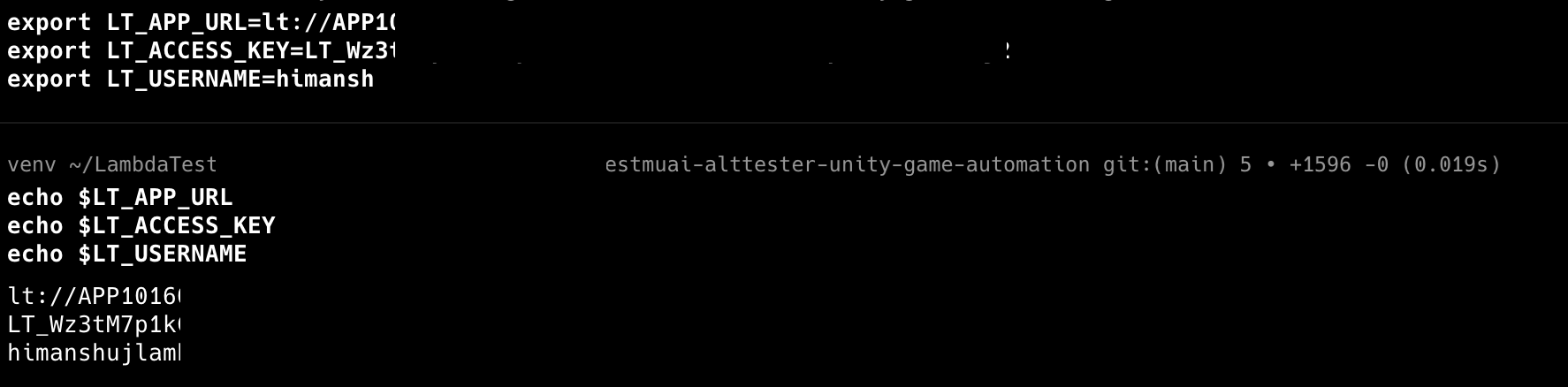
Start the AltTester Desktop, once you have exported the environment variables LT_USERNAME, LT_ACCESS_KEY, and LT_APP_URL.
Both the AltTester Desktop and TestMu AI tunnel should be running throughout the course of the execution. This is because the tunnel transparently forwards the WebSocket connection to port 13000 on the cloud device.
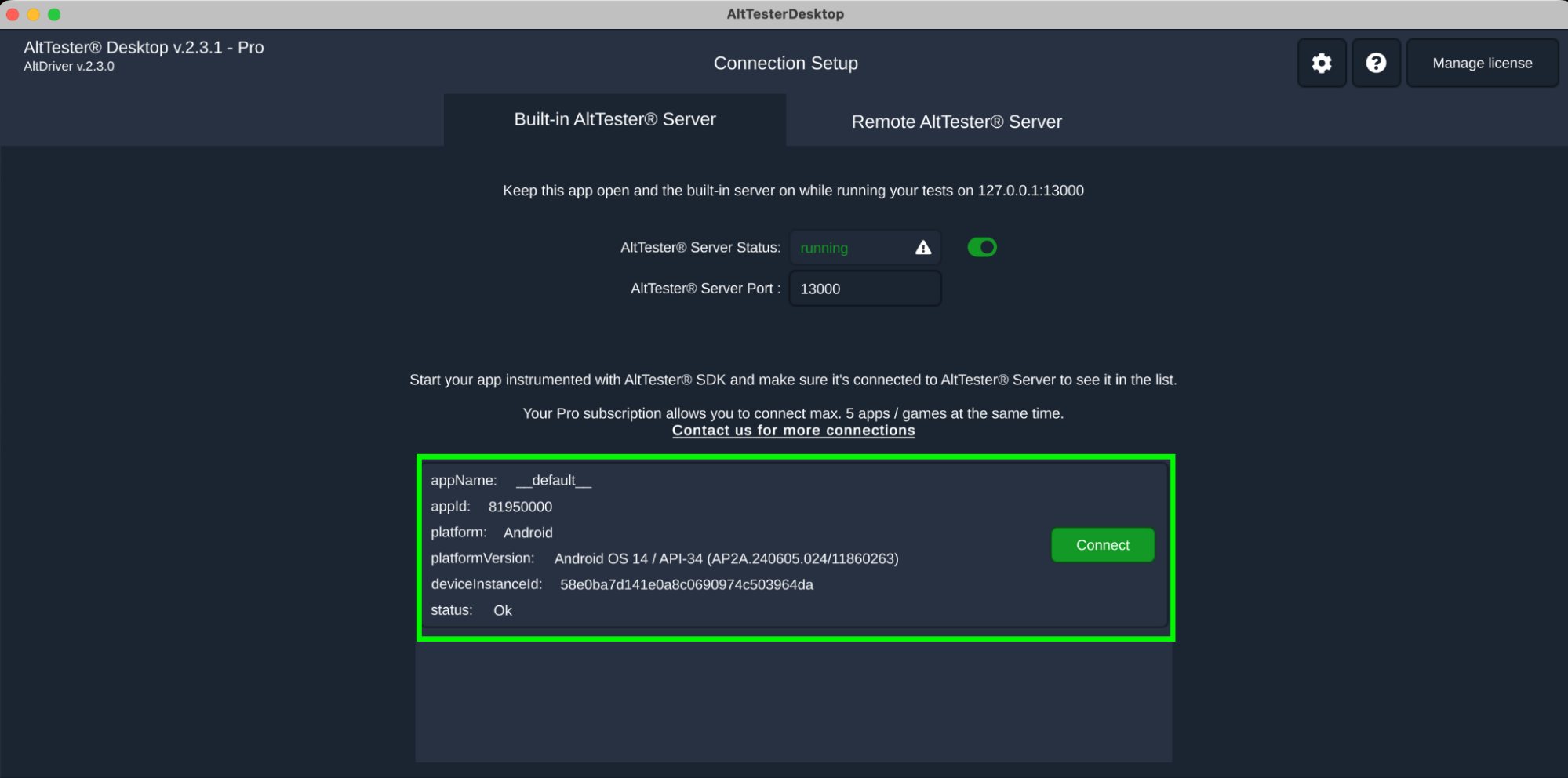
Figure 20: AltTester Desktop
In order to trigger all the tests, trigger the command pytest -s -v on the terminal. Shown below is the execution snapshot that showcases the progress of the test execution.
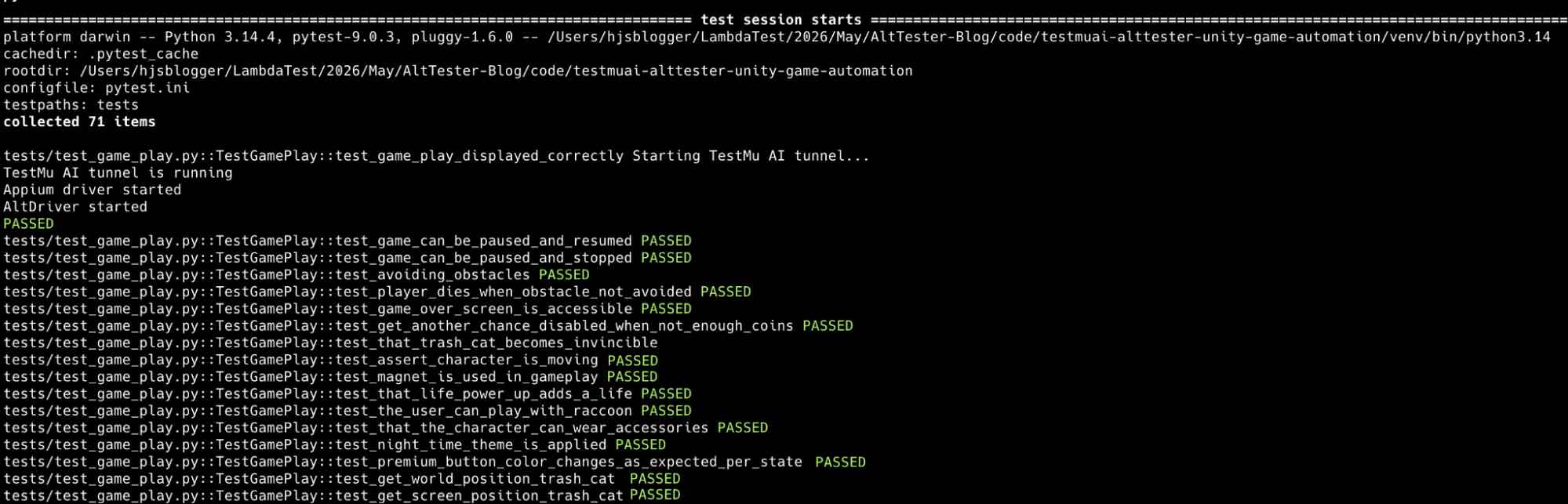
Figure 21: Test Execution
Navigate to TestMu AI automation dashboard to check the status of the test execution.
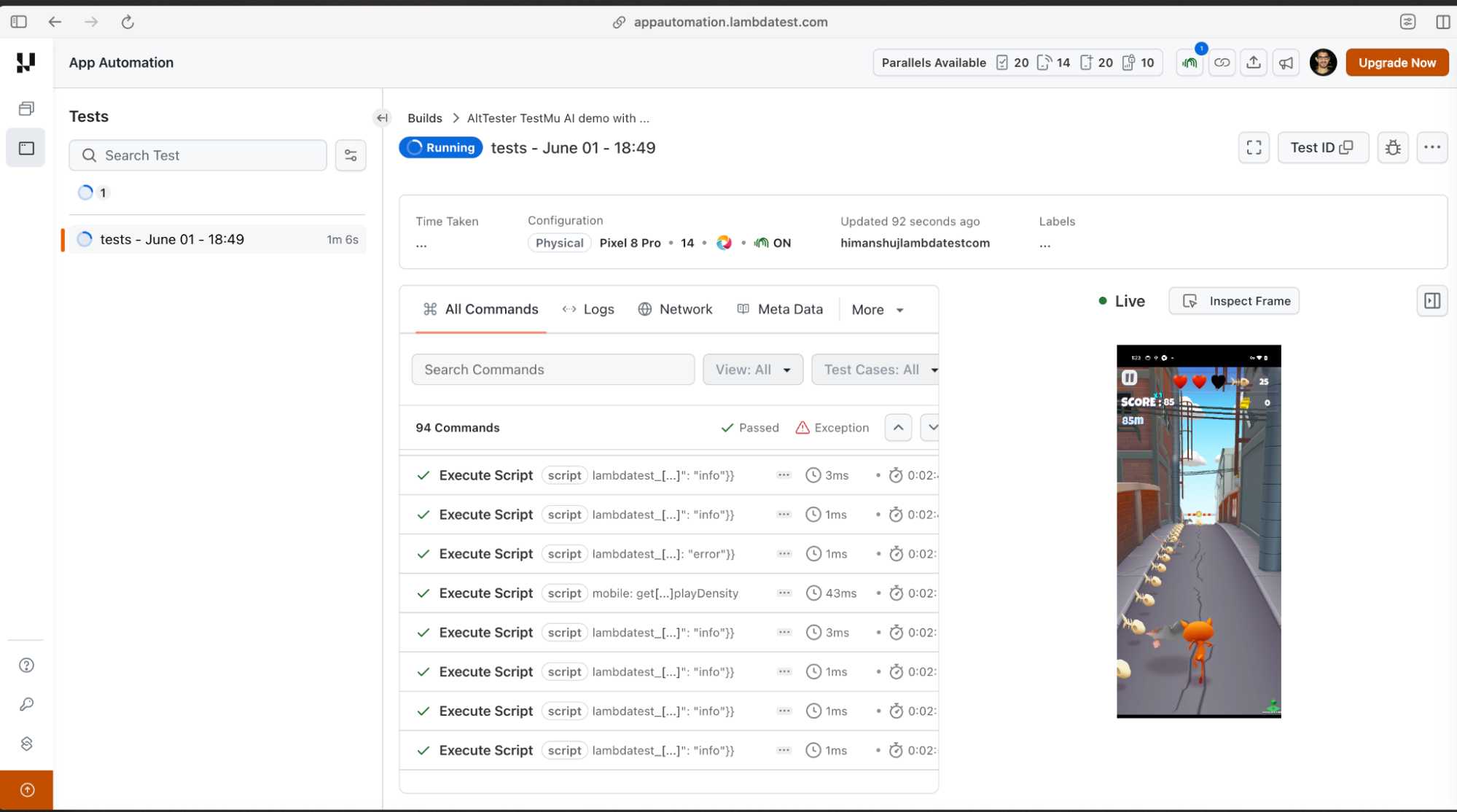
Figure 22: Test Execution
Alternatively, you can also trigger individual tests using the command pytest -s -v <file-name>::<test-class>::<test-name> on the terminal. Run the command pytest -v -s tests/test_main_menu.py::TestMainMenu::test_names_of_all_buttons_from_page to execute test_names_of_all_buttons_from_page() test from the TestMainMenu() class.
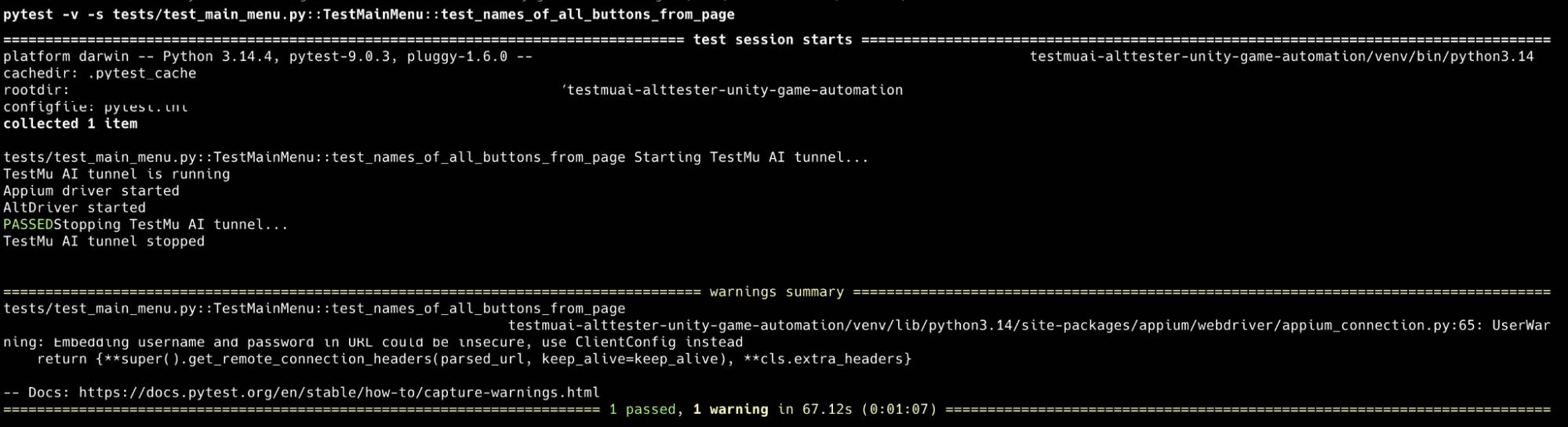
With this, we have successfully automated the sample Unity game using AltTester and AltDriver, Appium, and TestMu AI real device cloud.
Best Practices: Unity Game Automation with AltTester and TestMu AI
Here are some of the high-level best practices that can be followed when automating Unity games with AltTester and TestMu AI real device cloud:
Follow the Page Object Model (POM) Pattern
Implementing the POM pattern helps in organizing various game screens, menus, and gameplay components into reusable classes.
This approach enhances test maintainability by decoupling test logic from AltTester object locators, thereby simplifying updates whenever game UI modifications occur.
Use Stable and Unique Object Names
It is recommended to assign meaningful and descriptive names to Unity GameObjects that are intended for automation.
To ensure test stability, avoid relying on autogenerated names or object hierarchy positions, as these are prone to frequent changes during the development cycle. Leveraging stable identifiers is a best practice that results in significantly more reliable and maintainable automation scripts.
Prefer Explicit Waits Over Fixed Delays
Game scenes, animations, and asset loading durations exhibit variability across different hardware.
To mitigate test flakiness and optimize execution velocity, it is recommended to wait for specific GameObjects or game states to materialize rather than employing hard-coded delays.
Use AltTester Recorder to Accelerate Test Creation
Utilizing the AltTester Recorder can help in efficiently capturing gameplay interactions and bootstrap the automation scripts. This approach minimizes the manual effort involved in object identification and test step authoring.
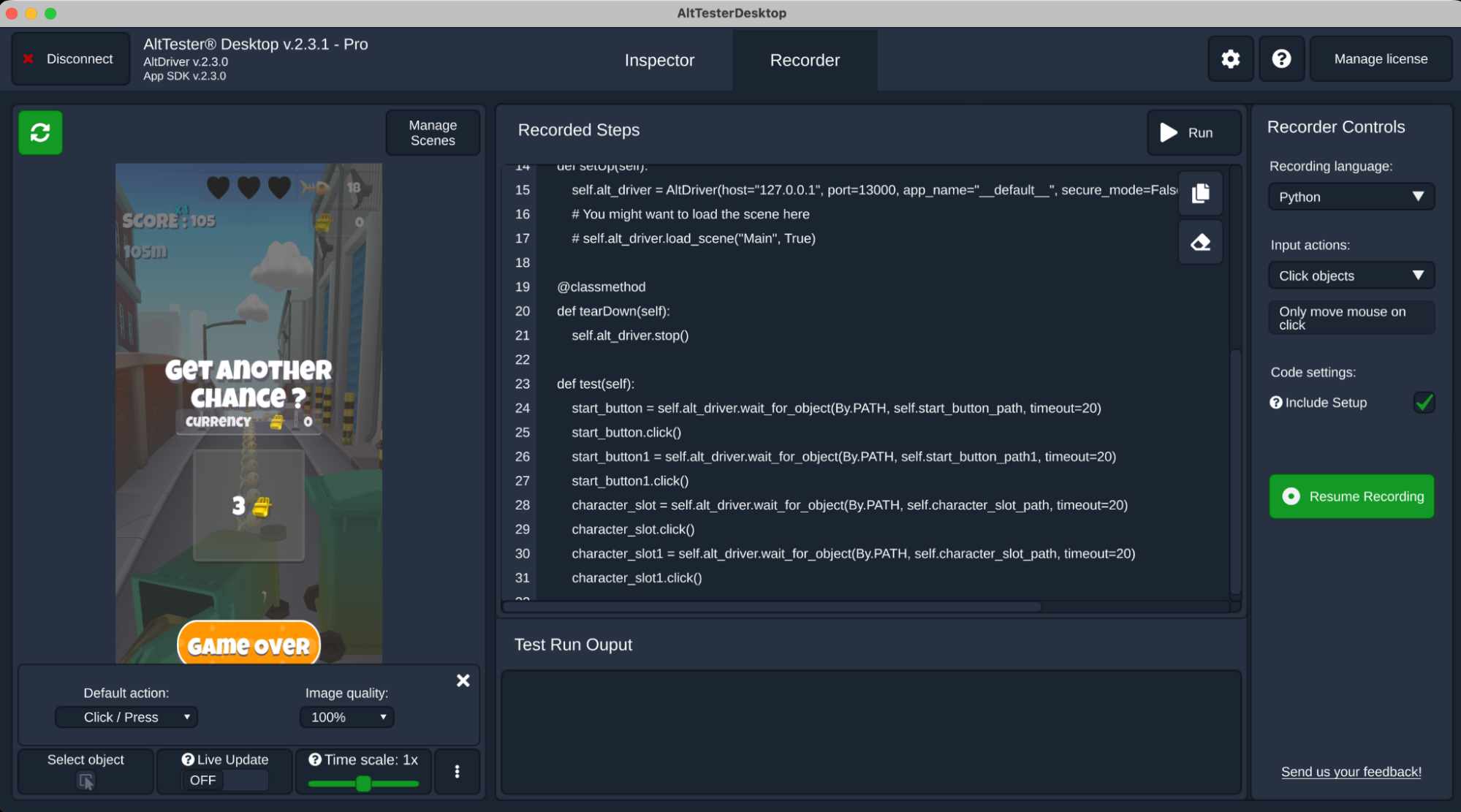
Figure 23: AltTester Recorder in action
To ensure long-term maintainability and scalability, it is recommended to refactor the recorded sequences into reusable Page Object Model (POM) classes.
Run Tests on Real Devices and Capture Artifacts
As stated earlier, use the Emulator/Simulator with AltTester recorder for recording the tests. Once the code is generated, execute automated tests across real Android and iOS devices to validate actual gameplay behavior in real-world environments.
TestMu AI real device cloud that offers session logs, screenshots, videos, and device logs to investigate failures can help in expediting the debugging process when tests deviate from expected outcomes.
Lastly, Integrate tests into CI/CD pipelines for continuous validation of game builds.
References
- https://docs.unity3d.com/Manual/class-GameObject.html
- https://github.com/alttester/EXAMPLES-CSharp-Cloud-Services-AltTrashCat/
- https://alttester.com/docs/unreal-sdk/v.1.1.0/pages/alttester-with-cloud.html
- https://alttester.com/docs/sdk/latest/pages/alttester-with-cloud.html
- https://github.com/alttester/AltTester-Unity-SDK




Automated Unity Game Testing FAQs
Did you find this page helpful?
More Related Hubs
TestMu AI forEnterprise
Get access to solutions built on Enterprise
grade security, privacy, & compliance
- Advanced access controls
- Advanced data retention rules
- Advanced Local Testing
- Premium Support options
- Early access to beta features
- Private Slack Channel
- Unlimited Manual Accessibility DevTools Tests