

Next-Gen App & Browser Testing Cloud
Trusted by 2 Mn+ QAs & Devs to accelerate their release cycles


- Home
- /
- Learning Hub
- /
- Selenium C# Tutorial: With Best Practices and Examples
Selenium C# Tutorial: With Best Practices and Examples
Learn Selenium with C# in this tutorial. Discover how to automate web testing, navigate pages, interact with elements, and validate results step by step.

Andreea
February 20, 2026
OVERVIEW
Selenium is one of the most preferred frameworks for web automation testing and supports languages like C#, Java, JavaScript, Python, Ruby, and PHP. Using Selenium C# for test automation offers two main benefits: seamless integration with development projects and better collaboration on improving the testing framework.
In this tutorial, we will look at how to perform automated testing using Selenium C#, covering best practices and real-world examples.
Overview
Why Use Selenium with C#?
Selenium with C# is a popular choice for web automation due to its seamless integration with .NET projects and the easy-to-read syntax C# offers. It enhances collaboration among development and testing teams, making it easier to automate web testing tasks.
- Seamless Integration: Works well with existing .NET-based projects.
- Collaboration: Simplifies team collaboration with easy-to-read code and efficient testing tools.
What is C# and Why Use It for Selenium Testing?
C# is an object-oriented language that works within the .NET framework. It simplifies writing and maintaining test scripts for Selenium, thanks to its structured syntax, wide support for libraries, and tools like NUnit for automated testing:
- Object-Oriented Structure: Makes code modular and easier to maintain.
- Rich Ecosystem: Supports a variety of testing tools, including NUnit and Selenium.
Creating a Project in Visual Studio
To start using Selenium with C#, Visual Studio is the recommended IDE. The tutorial covers steps to create a new NUnit project and run Selenium tests using Visual Studio, starting from setting up a test class to running the tests locally:
- Setup: Use Visual Studio to create a new NUnit Test Project.
- Execution: Run tests using Visual Studio’s Test Explorer and validate the results.
Running Selenium C# Tests on TestMu AI
For cross-platform and cross-browser testing, you can port your local Selenium tests to TestMu AI’s cloud-based Selenium Grid. This allows running tests on a large variety of browsers and operating systems without requiring local setup:
- Cloud Testing: Use TestMu AI’s Selenium Grid to execute tests across multiple environments.
- Minimal Effort: No extensive code changes are required to move from local testing to cloud execution.
Best Practices for Selenium C# Testing
Here are some best practices for effective Selenium testing with C#:
- Use Explicit Waits: Ensures tests wait for elements to load, preventing flaky tests.
- Pick the Right Locators: Use fast locators like ID to minimize execution time.
- Implement Page Object Model (POM): Organizes code, making it easier to manage as tests grow.
What Is C# and Why Use It for Selenium Testing?
C# ( or C-Sharp) is an object-oriented language that runs on the .NET framework. It works with the Common Language Runtime (CLR). In C#, software applications can be split into smaller components using functions. This makes C# a structured programming language.
It is chosen for Selenium testing because it's a modern, statically typed, object-oriented language with easy-to-read syntax, which simplifies writing and maintaining tests. It provides a wide array of features for automation and comes with a rich set of libraries and frameworks, such as NUnit. These resources support testing across different types of applications, including desktop, web, mobile, and games.
Subscribe to the TestMu AI YouTube Channel TestMu AI YouTube Channel for more such tutorials on Selenium C#.
Creating a Project in Visual Studio
Before you get started, you need to have a code editor installed on your machine. For this Selenium C# tutorial, let’s use Visual Studio. However, you can use any IDE of your choice.
You can also check out this blog to set up Selenium in Visual Studio.
Follow the below steps to create a new project in Selenium with C#:
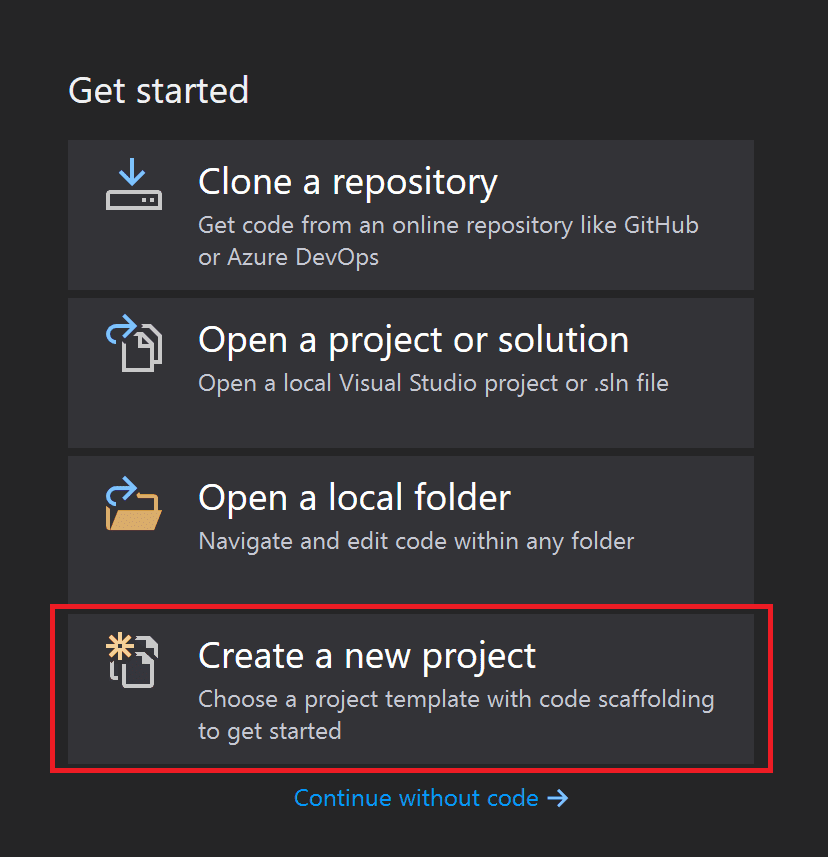
- Click Create a new project from the splash window.
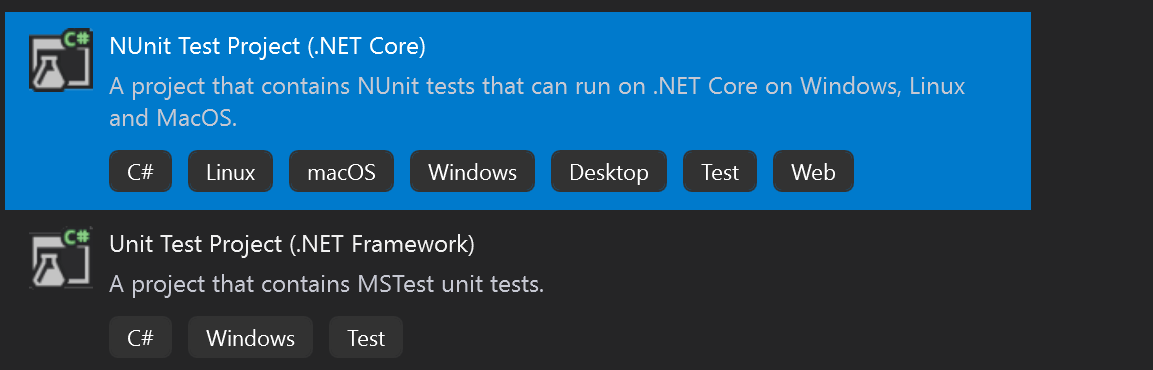
- Select the type of project you want to use. Here, we will use the NUnit framework to automate web testing, so let’s click NUnit Test Project (.NET Core).
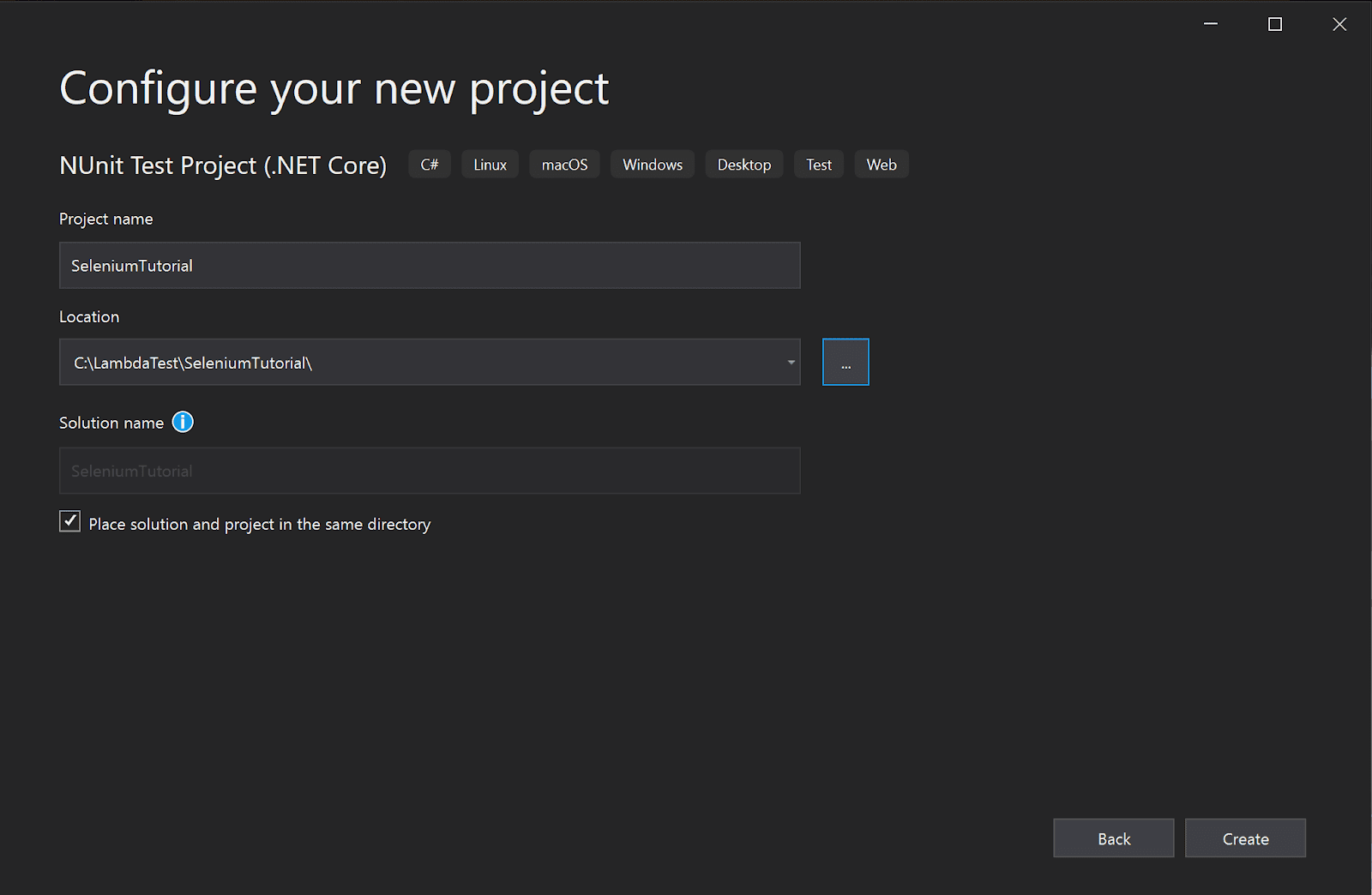
- Enter your project name and click Create. Visual Studio will automatically create a test class called UnitTest1.cs file:
If you want to see and run the tests in the Visual Studio, you need to follow the below steps:
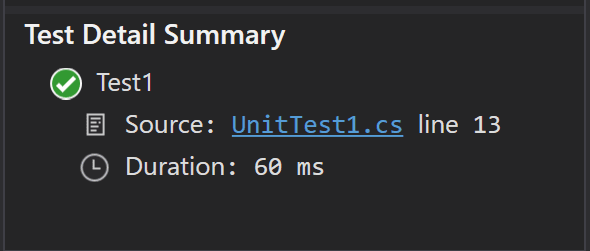
- Open the Test Explorer (if it’s not already opened). You can do that from the View menu → Test Explorer. In this panel, you can see all available tests grouped by project and test.
- Currently, we only have the one that Visual Studio Code has created for us, but we can right-click on it (or any tree in the node) and run it. We’ll see that it passes and the time it took for the test to run.

Note: Run C# automated tests with Selenium at scale. Try TestMu AI Now!
How to Run Selenium C# Tests?
The following are the prerequisites to run tests on the local grid:
- Add the Selenium.WebDriver NuGet package, which allows the test code to interact with the WebElements on the page using methods that are a part of the package.
- Right-click on the project name in the Solution Explorer → Select Manage NuGet packages. This will open the NuGet packages panel, where you can see the packages already installed on your project and add more.
- In the Browse tab, search for Selenium and select Selenium.WebDriver from the results. From the details panel on the right-hand side, choose an option from the Version drop-down, then click Install. I’ll be using Selenium version 4.22.0 for this Selenium C# tutorial.
To add a NuGet package to the project, please follow the below-mentioned steps:
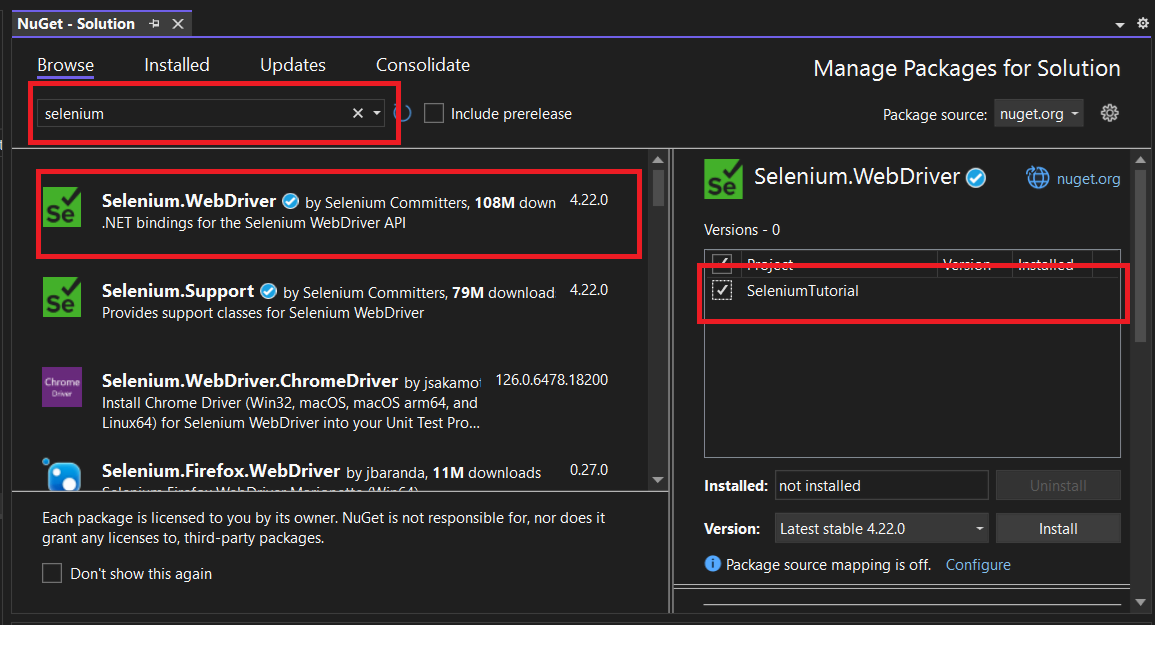
Alternatively, you can install NuGet packages from the command line by running this command in the project location:
dotnet add package Selenium.WebDriver --version 4.22.0One thing to make sure of here is to install the same driver version as the browser you have installed on your machine.
You can use the browser of your choice, and you can add the drivers the same way, for example, Selenium.WebDriver.MSEdgeDriver (for Microsoft Edge), Selenium.WebDriver.GeckoDriver (for Mozilla Firefox).
For the test scenario, let’s use the TestMu AI Selenium Playground.
Test Scenario:
|
Test Implementation:
Now, we should be ready to start our Selenium C# test. Let’s use the previously created class and rename it to SeleniumTests.
public class SeleniumTests
    {        private IWebDriver driver;
        [SetUp]
        public void Setup()
        {
            driver = new ChromeDriver();
        }
        [Test]
        public void ValidateTheMessageIsDisplayed()
        {
           driver.Navigate().GoToUrl("https://www.testmuai.com/selenium-playground/simple-form-demo");
            driver.FindElement(By.Id("user-message")).SendKeys("TestMu AI rules");
            driver.FindElement(By.Id("showInput")).Click();
            Assert.IsTrue(driver.FindElement(By.Id("message")).Text.Equals("TestMu AI rules"),
                          "The expected message was not displayed.");
        }
        [TearDown]
        public void TearDown()
        {
            driver.Quit();
        }
    }
}

Code Walkthrough:
Import packages at the beginning of the test class. Then, create a new instance of the IWebDriver.
As a precondition to the test, start the browser. For this tutorial, it is done using the [SetUp] method because it’s something that will be used in all future tests, so here is where the driver is instantiated.
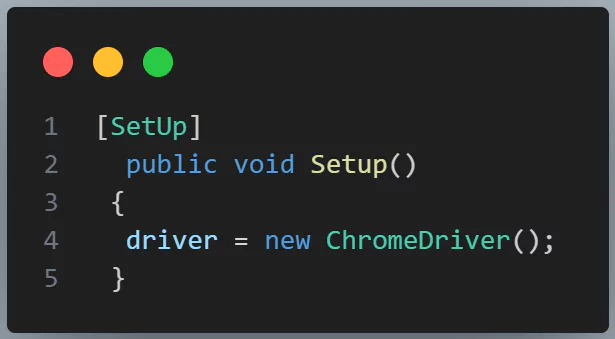
Next, there is our actual test, where the previously mentioned [Test] attribute from NUnit is used, and inside the test method, the test steps.
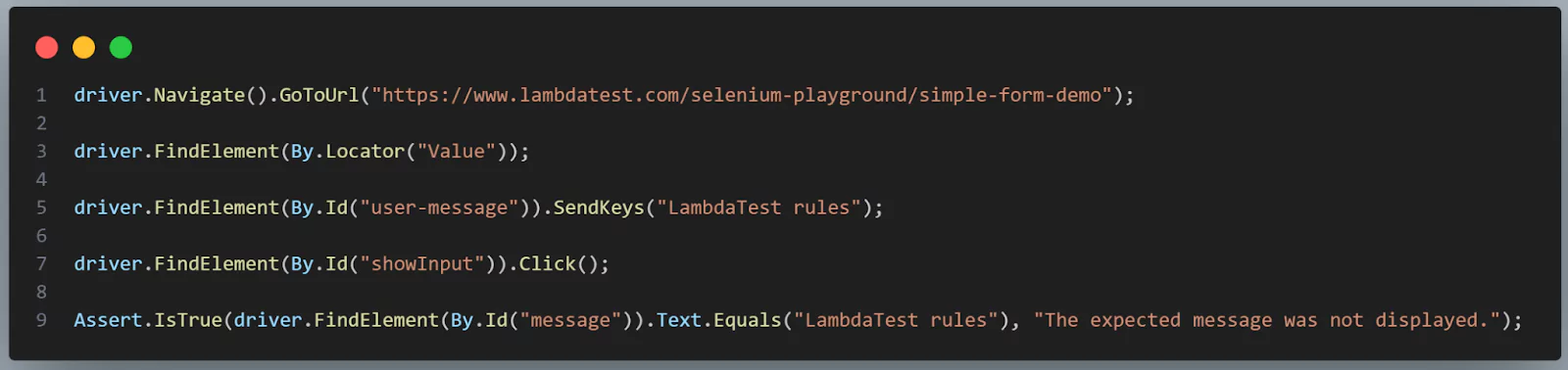
To navigate to a URL in Selenium with C#, use the Navigate().GoToUrl() method. When you need to interact with page elements, you can locate them using the FindElement() method, and it's best to go with the ID locator since it’s quicker.
After that, you can enter text using the SendKeys() method, click buttons using the Click() method, and check if everything worked as expected using Assert.IsTrue() method, adding a custom message for easier debugging if something goes wrong.
To close the browser at the end of the test, use the [TearDown] attribute and the quit() method.
Test Execution:
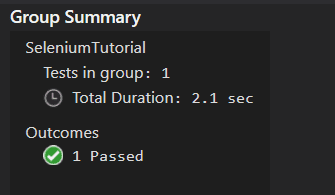
Now that the test is ready, you can build the project (right-click on the project name and select Build or use the Ctrl+B shortcut) and run the test locally. The test will be visible in the Test Explorer:
If everything goes well, the test will pass, and the browser window will close at the end.
How to Run Selenium C# Tests on TestMu AI?
What if you want to run the automated tests cross-platform or cross-browser? Or using a setup different from your own machine? These situations likely happen often because we want our web applications to work for all our users, and they will have various configurations set up on their computers.
The solution for this is porting the existing Selenium C# tests to a cloud-based Selenium Grid like TestMu AI. AI-driven unified test execution platforms like TestMu AI provide an online Selenium Grid of 3000+ browsers and operating systems to perform Selenium C# testing at scale.

The best part is that not much porting effort is involved in porting the existing tests from the local Selenium Grid to the TestMu AI cloud grid. To run our tests on the cloud, let’s use the same test scenario of the Simple Form Demo page of the Selenium Playground.
Test Implementation:
Here’s the version of the test script configured to run the tests on the TestMu AI cloud grid.
private static IWebDriver driver;
       public static string gridURL = "@hub.lambdatest.com/wd/hub";
       public static string LT_USERNAME = "LT_USERNAME"; // Add your TestMu AI username here
       public static string LT_ACCESS_KEY = "LT_ACCESS_KEY"; // Add your TestMu AI access key here
       [SetUp]
       public void Setup()
       {
            ChromeOptions capabilities = new ChromeOptions();
            capabilities.BrowserVersion = "126";
            Dictionary<string, object> ltOptions = new Dictionary<string, object>();
            ltOptions.Add("username", LT_USERNAME);
            ltOptions.Add("accessKey", LT_ACCESS_KEY);
            ltOptions.Add("platformName", "Windows 10");
            ltOptions.Add("project", "SeleniumTutorial");
            ltOptions.Add("build", "Selenium CSharp");
            ltOptions.Add("w3c", true);
            ltOptions.Add("plugin", "c#-nunit");
            capabilities.AddAdditionalOption("LT:Options", ltOptions);
            driver = new RemoteWebDriver(new Uri($"https://{LT_USERNAME}:{LT_ACCESS_KEY}{gridURL}"), capabilities);
       }
Code Walkthrough:
When using TestMu AI, you need to make sure you use your Username and Access Key. You can find them by going to your Account Settings > Password & Security.

A good idea is to store them as environment variables and read them from there. This way, in case any of the values change, you only need to update them in one place.
The biggest change, as you can see, is in the [Setup] method. ChromeOptions is a Selenium class used to configure browser attributes for cross browser testing using Chrome.
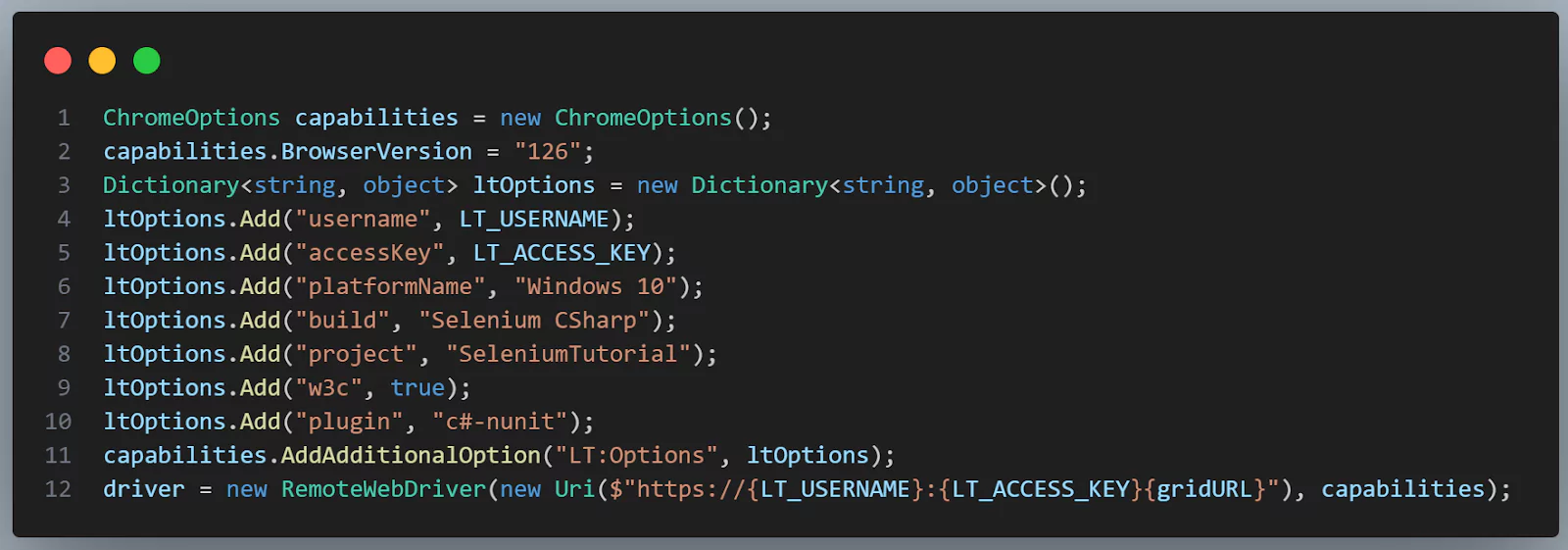
You can use the TestMu AI Automation Capabilities Generator to create your automation capabilities to run the tests.
The remaining test script will remain unchanged.
Test Execution:
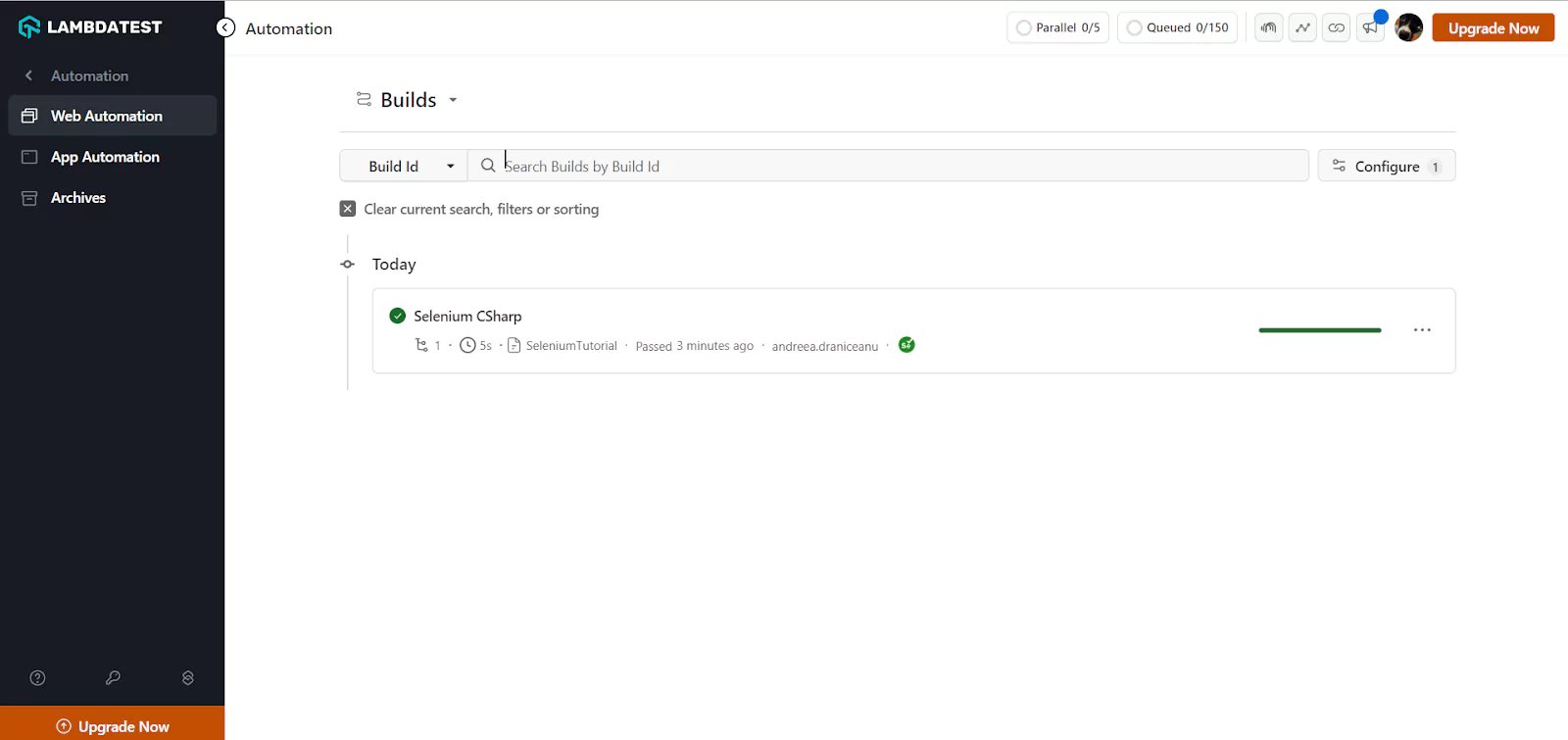
Now run the test, the same as before, from Visual Studio. This time, the browser will not open locally. Instead, you will see the test execution in the TestMu AI Web Automation Dashboard.
Best Practices for Selenium C# Testing
Here are some best practices for Selenium C# testing:
- Use Explicit Waits: Start by using explicit waits to control timing. It’s easier to manage and helps prevent flaky tests, which can be frustrating for beginners.
- Pick the Right Locators: Stick with ID locators since they are the fastest and easiest to use. It’s a good way to start with reliable locators.
- Implement the Page Object Model (POM): Even as a beginner, using the Page Object Model keeps your code organized. It helps you manage your tests better as they grow.
- Handle Exceptions Properly: Learning to use try-catch blocks will help you handle errors smoothly, making it easier to debug when things go wrong.
- Use Version Control: Get used to using Git or another version control system. It’s crucial for tracking changes and collaborating, even if you’re just starting.
Conclusion
Using Selenium with C# can be a great choice if you are just getting started with test automation. In this Selenium C# tutorial, we covered the main steps for getting started with a test automation project, from selecting the testing framework to identifying the WebElements, interacting with them, and adding validations.
If you are a developer or a tester and want to master the fundamentals of Selenium automation testing with C#, you can take the Selenium C# 101 certification by TestMu AI to prove your credibility as a tester.


Frequently asked questions
Did you find this page helpful?
More Related Hubs
TestMu AI forEnterprise
Get access to solutions built on Enterprise
grade security, privacy, & compliance
- Advanced access controls
- Advanced data retention rules
- Advanced Local Testing
- Premium Support options
- Early access to beta features
- Private Slack Channel
- Unlimited Manual Accessibility DevTools Tests