

Next-Gen App & Browser Testing Cloud
Trusted by 2 Mn+ QAs & Devs to accelerate their release cycles


- Home
- /
- Learning Hub
- /
- How to Handle Playwright Alerts and Dropdowns
How to Handle Playwright Alerts and Dropdowns
In this tutorial, learn how to handle Playwright alerts and dropdowns including prompt and modal alerts, plus single-select, multi-select, and more.

Mehul Gadhiya
March 15, 2026
When you work with Playwright, alerts and dropdowns often appear as part of normal web application flow. Knowing how to handle Playwright alerts and dropdowns allows you to keep your automated tests running without interruption.
By handling these elements the right way, you can avoid unexpected test failures, match real user actions more closely, and ensure your tests give consistent results.
Overview
How to Handle Playwright Alerts?
Playwright lets you work with browser dialogs like alerts, confirms, and prompts through thepage.on('dialog') event. You can listen for these dialogs, read their messages, and choose whether to accept or dismiss them.
- Open the Target Page: Load the page that triggers an alert by using page.goto() before handling any dialog events.
- Listen for Dialog Events: Attach a handler with page.on('dialog') to capture alerts, confirms, or prompts when they appear.
- Read the Dialog Message: Use the dialog object's message() method to inspect the alert text if needed for validation.
- Accept or Dismiss the Dialog: Call dialog.accept() or dialog.dismiss() depending on the expected behavior of the test.
- Handle Prompt Inputs: For prompt dialogs, pass an input string into dialog.accept() to simulate user entry.
- Assert Outcomes: Confirm that the page's response to the alert matches expected behavior using expect() checks.
- Finish the Test: Complete any remaining steps and close the context or browser to keep test runs stable and consistent.
How to Handle Playwright Dropdowns?
Dropdowns in Playwright can be managed by using select_option() or standard locators when working with custom UI components. These methods allow you to pick values by label, index, or value attributes.
- Navigate to the Target Page: Use page.goto() to reach the page where the dropdown is located before interacting with it.
- Identify the Dropdown Element: Locate the dropdown using selectors like get_by_role(), locator(), or CSS selectors for standard HTML select tags.
- Select Options by Value, Label, or Index: Use select_option() to choose items based on attributes that match your test’s needs.
- Work With Custom Dropdowns: For non-standard dropdown widgets, click to open the menu and target the option using get_by_text() or similar locators.
- Check Selected Values: Validate the selected option with expect() assertions to ensure the correct value was used.
- Simulate Keyboard Navigation: Use keyboard.press() when testing dropdowns that support arrow keys or search-based selection.
- Wrap Up the Test: Complete assertions, close the page or context, and maintain consistent cleanup across test runs.
What Are Playwright Alerts?
Playwright alerts are browser dialogs that appear during page execution to show messages or request user actions like confirmations and text input.
Here, you’ll rely heavily on good Playwright functions and selectors since alerts and dropdowns often appear only after user interaction, and these functions and selectors make targeting those elements much more reliable.

Note: Run Playwright tests across over 3000 real environments. Try TestMu AI Now!
How to Handle Alerts in Playwright?
Playwright allows handling prompt alerts and modal dialogs that interrupt normal page interaction. Prompt alerts can be handled using page.on("dialog") to provide input, and modal dialogs are handled via standard DOM interactions.
Prompt Alert
Prompt alerts request input from the user and pause interaction until a value is entered and OK or Cancel is clicked.
Test Scenario:
- Navigate to the Javascript Alert Box Demo page.
- Click the Click Me button under the Prompt box.
- Enter a value and accept the prompt.
Implementation:
The test script below listens for the prompt alert, enters a value, and verifies that the text appears in the output.
import { expect, test } from "@playwright/test";

test("Prompt alert", async ({ page }) => {
await page.goto("https://www.lambdatest.com/selenium-playground/javascript-alert-box-demo
");

page.on("dialog", async (alert) => {
console.log(alert.message());
await alert.accept("koushik");
});

await page.locator("button:has-text('Click Me')").nth(2).click();

await expect(page.locator("#prompt-demo")).toContainText("'koushik'");
});
Code Walkthrough:
- Imports and Test Setup: Imports expect and test from Playwright and defines a test named Prompt alert with a page object.
- Navigation: Navigates the browser to the JavaScript alert demo page using page.goto() method.
- Dialog Handling: Sets up a dialog event listener that logs the alert message and accepts it with the input koushik.
- Trigger Prompt: Clicks the third button with text Click Me to trigger the prompt dialog.
- Verification: Verifies that the element with ID #prompt-demo contains the text koushik.
Modal Alert
Modal alerts are page-based pop-ups that appear over the main content to capture attention. They are handled using standard DOM interactions rather than browser-level dialog methods.
Test Scenario:
- Navigate to the Bootstrap Modal page.
- Click the Launch Modal button.
- Click the Save Changes button inside the modal.
Implementation:
The test script below interacts with a Bootstrap modal by clicking the buttons using standard selectors.
import { test } from "@playwright/test";

test("Modal alert", async ({ page }) => {
await page.goto("https://www.lambdatest.com/selenium-playground/bootstrap-modal-demo
");

await page.click("//button[@data-target='#myModal']");
await page.click("(//button[text()='Save Changes'])[1]");
});
Code Walkthrough:
- Imports and Test Setup: Imports test from Playwright and defines a test named Modal alert with a page object.
- Navigation: Navigates the browser to the Bootstrap modal demo page using the page.goto() method.
- Modal Trigger: Clicks the button that launches the modal using the data-target='#myModal' XPath selector.
- Interaction: Clicks the Save Changes button inside the modal using its XPath selector.
Since modals rely on precise DOM clicks, understanding the Playwright click() method helps you handle edge cases like overlapping elements or delayed rendering.
Once an alert is handled, Playwright assertions help confirm the page updated as expected, whether that’s a message appearing or a field changing value.
Test Execution:
Now, let's run the test for Playwright alerts (prompt and modal) using the following command:
npx playwright test tests/alerts.test.ts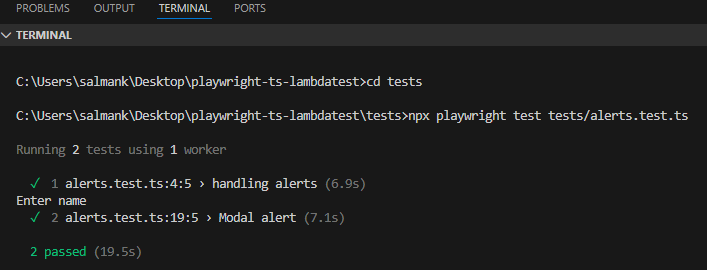
You can also check out this video on handling Playwright alerts by Vignesh Srinivasa Raghavan, a Senior SDET with 10+ years of expertise in software automation testing, specializing in web, mobile, API, and performance testing.
What Are Playwright Dropdowns?
Playwright dropdowns are HTML elements that let you select one or more options from a list, typically built with the <select> tag or custom UI controls.
Dropdowns can be single-select or multi-select, and interacting with them requires choosing the correct option by value, label, or index. If you also need to automate other form elements, check out the guide on handling inputs and buttons in Playwright.
How to Handle Dropdowns in Playwright?
Dropdowns allow you to select single or multiple options. Playwright provides selectOption() for standard HTML <select> elements, and standard DOM interactions for custom dropdowns like Bootstrap or jQuery-based dropdowns.
Note: The page.selectOption() method is discouraged by Playwright. Use the locator-based locator.selectOption() instead for more reliable and maintainable tests.
Single-Select Dropdown
Single-select dropdowns allow choosing only one option at a time.
Test Scenario:
- Navigate to the Select Dropdown Demo page.
- Select an option from the dropdown using index, label, or value.
Implementation:
The test script below selects an option from a single-select dropdown.
import { test } from "@playwright/test";

test("Single-select dropdown", async ({ page }) => {
  await page.goto("https://www.lambdatest.com/selenium-playground/select-dropdown-demo");

  await page.selectOption("#select-demo", {
    index: 5 // alternatively, use label: "Tuesday" or value: "Friday"
  });
});
Code Walkthrough:
- Imports and Test Setup: Imports test from Playwright and defines a test named Single-select dropdown with a page object.
- Navigation: Navigates the browser to the select dropdown demo page using the page.goto() method.
- Dropdown selection: Uses page.selectOption() on #select-demo to select the option at index: 5 (alternatively can use label or value).
Multi-Select Dropdown
Multi-select dropdowns allow selecting multiple options simultaneously.
Test Scenario:
- Navigate to the Select Dropdown Demo page.
- Select multiple options using a mix of index, label, and value.
Implementation:
import { test } from "@playwright/test";

test("Multi-select dropdown", async ({ page }) => {
  await page.goto("https://www.lambdatest.com/selenium-playground/select-dropdown-demo");

  await page.selectOption("#multi-select", [
    { label: "Texas" },
    { index: 2 },
    { value: "Washington" }
  ]);
});
Code Walkthrough:
- Imports and Test Setup: Imports test from Playwright and defines a test named Multi-select dropdown with a page object.
- Navigation: Navigates the browser to the select dropdown demo page using page.goto().
- Dropdown Selection: Uses page.selectOption() on #multi-select to select multiple options with label, index, and value.
Bootstrap / jQuery Dropdown
Custom dropdowns like Bootstrap or jQuery require opening the menu and selecting items using DOM locators. Choosing the right targeting strategy is critical here, so having a solid understanding of Playwright locators makes your dropdown tests more resilient to UI changes.
Test Scenario:
- Navigate to the jQuery Dropdown Search Demo page.
- Select multiple countries using the dropdown search functionality.
Implementation:
import { test } from "@playwright/test";

test("Bootstrap/jQuery dropdown", async ({ page }) => {
  await page.goto("https://www.lambdatest.com/selenium-playground/jquery-dropdown-search-demo");

  await selectCountry("India");
  await selectCountry("Denmark");
  await selectCountry("South Africa");

  async function selectCountry(countryName) {
    await page.click("#country+span");
    await page.locator("ul#select2-country-results")
      .locator("li", { hasText: countryName })
      .click();
  }
});
Code Walkthrough:
- Imports and Test Setup: Imports test from Playwright and defines a test named Bootstrap/jQuery dropdown with a page object.
- Navigation: Navigates the browser to the jQuery dropdown search demo page using page.goto().
- Country Selection: Calls selectCountry() for each country: "India", "Denmark", and "South Africa".
- Function Definition: Defines selectCountry(countryName) which clicks the dropdown #country+span, locates the results list ul#select2-country-results, finds the li containing the given country, and clicks it.
Test Execution:
Now, let's run the test for Playwright dropdowns using the following command:
npx playwright test tests/dropdown.test.ts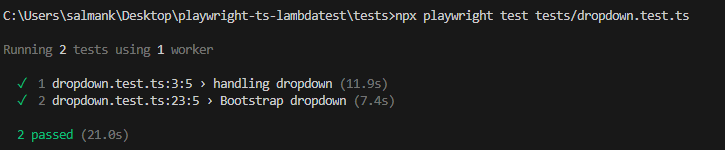
Scale Playwright Testing With TestMu AI (Formerly LambdaTest)
You can leverage the true capabilities of the Playwright test automation framework by running the test on cloud grids like TestMu AI.
Cloud testing platforms like TestMu AI offers Playwright cloud that allows you to run Playwright tests online on 50+ browsers and browser versions such as Chrome, Firefox, Opera, Edge, etc.
- Parallel Testing at Scale: Run Playwright test scripts across real browsers and OS combinations, including Chromium, WebKit, Edge, and Firefox. Supports Windows, Linux, and macOS.
- Playwright SDK for Faster Cloud Execution: Integrate the Playwright SDK for efficient workflows, granular control over test runs, and consistent cross-environment results.
- Auto Heal Capability: Locator recovery ensures test resilience even if the application UI changes, maintaining stable automation at scale.
- Visual Testing: AI-native SmartUI platform for visual testing across desktop and mobile environments, compatible with Playwright.
To get started, check out this documentation on Playwright testing with TestMu AI.

Conclusion
You now have a clear view of how Playwright handles alerts and dropdowns. You can detect, read, and control alerts, including prompts and modal dialogs, without interrupting your test flow.
You can also manage single-select, multi-select, and custom dropdowns with direct, reliable interactions. With these skills, you can create stable tests that handle real user scenarios and respond accurately to page behavior. To continue building on this, learn how to automate frames and windows in Playwright for multi-context test scenarios.
Citations
- Playwright Dialogs Documentation: https://playwright.dev/docs/dialogs
- Playwright selectOption Documentation: https://playwright.dev/docs/api/class-page#page-select-option


Frequently asked questions
Did you find this page helpful?
More Related Hubs
TestMu AI forEnterprise
Get access to solutions built on Enterprise
grade security, privacy, & compliance
- Advanced access controls
- Advanced data retention rules
- Advanced Local Testing
- Premium Support options
- Early access to beta features
- Private Slack Channel
- Unlimited Manual Accessibility DevTools Tests