

Next-Gen App & Browser Testing Cloud
Trusted by 2 Mn+ QAs & Devs to accelerate their release cycles


On This Page
- Overview
- Why is viewing a desktop site not good for businesses
- Use cases for viewing desktop site
- How to view a desktop site on Android
- Request a desktop site on Android using a mobile browser
- How to Enable Desktop View for All Sites on Chrome Mobile
- Request a desktop site on Android using TestMu AI real device cloud
- Frequently Asked Questions (FAQs)

- Home
- /
- Learning Hub
- /
- View Desktop Site On Android: A Comprehensive Guide With Examples
View Desktop Site On Android: A Comprehensive Guide With Examples
In this tutorial, we look at different methods on how to view desktop sites on Android devices.

Harish Rajora
January 27, 2026
OVERVIEW
Desktop browsers for Android devices bridge the gap between mobile and desktop browsing experiences, offering users a robust, feature-rich environment for navigating the web. These browsers are designed to replicate the desktop interface on Android devices, providing advanced functionalities and a comfortable browsing experience.
Let's understand with an example!
Consider a situation where you urgently need to book a train ticket while you are outside your home. In this case, you can only use an Android device for ticket booking.
Since this is an urgent requirement, you skip installing the mobile application (as it would involve extra time) and jump directly to the browser. You enter the URL, and the website asks for a username, password, and captcha code
After typing the username and password, you notice that one of the letters of the captcha is out of the viewport boundary. You try to scroll right, but nothing works. It seems like the production release has a few severe rescaling bugs, and there's no other way to proceed except to use a mobile app. When you download the app and check the ticket, the coach is already completely booked.
The scenario described above is not something rare to witness. As per the survey, if Google asked to push for a mobile-friendly website, only 17% of the websites were found mobile-friendly
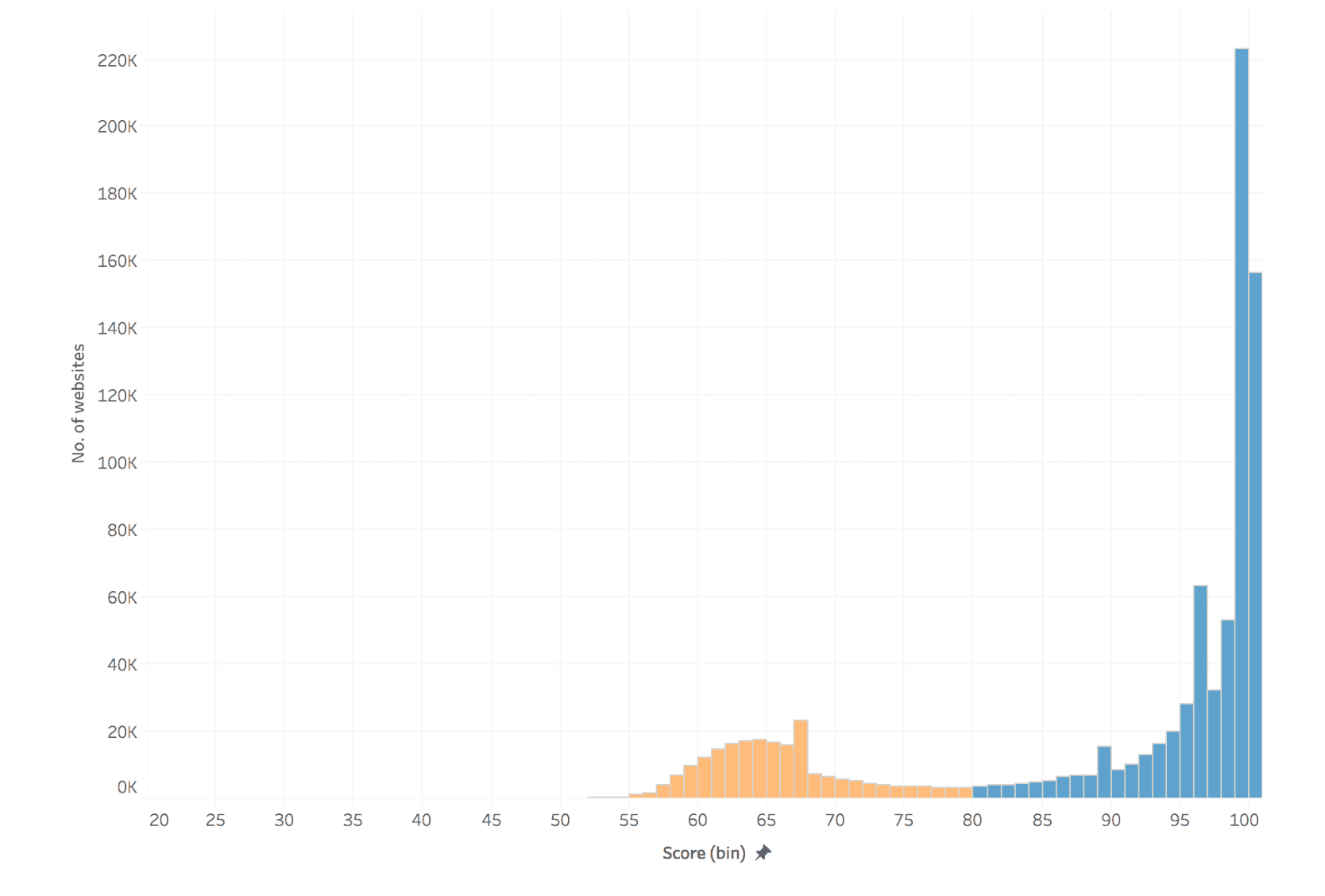
In such cases, a faster method can come in handy for you (as a user). As for testers, they should ensure that the user doesn’t have a terrible experience that can lead him away from the website forever
Considering the same idea, in this tutorial, we will look at the methods on how to view desktop sites on Android through which a user can open the desktop version of your website on their mobile device
Why is viewing a desktop site not good for businesses?
As a tester and a business owner, rendering a site as a desktop version feels like a feature the user can use. But practically, this is instead a bane than a boon.
Suppose a user is at a point where he is requesting the desktop version of your website. Consider that your mobile version has failed him in some way. It can be anything; no reason from this list can be ruled out. We can now consider that the user has had a bad experience with the website.
Here, we ignore intentional user requests. We will cover it in the next section
Secondly, requesting a desktop website does not provide a solution but rather a workaround to an end-user's problem.
To demonstrate, let’s open the desktop version of a Google search page and see the results.
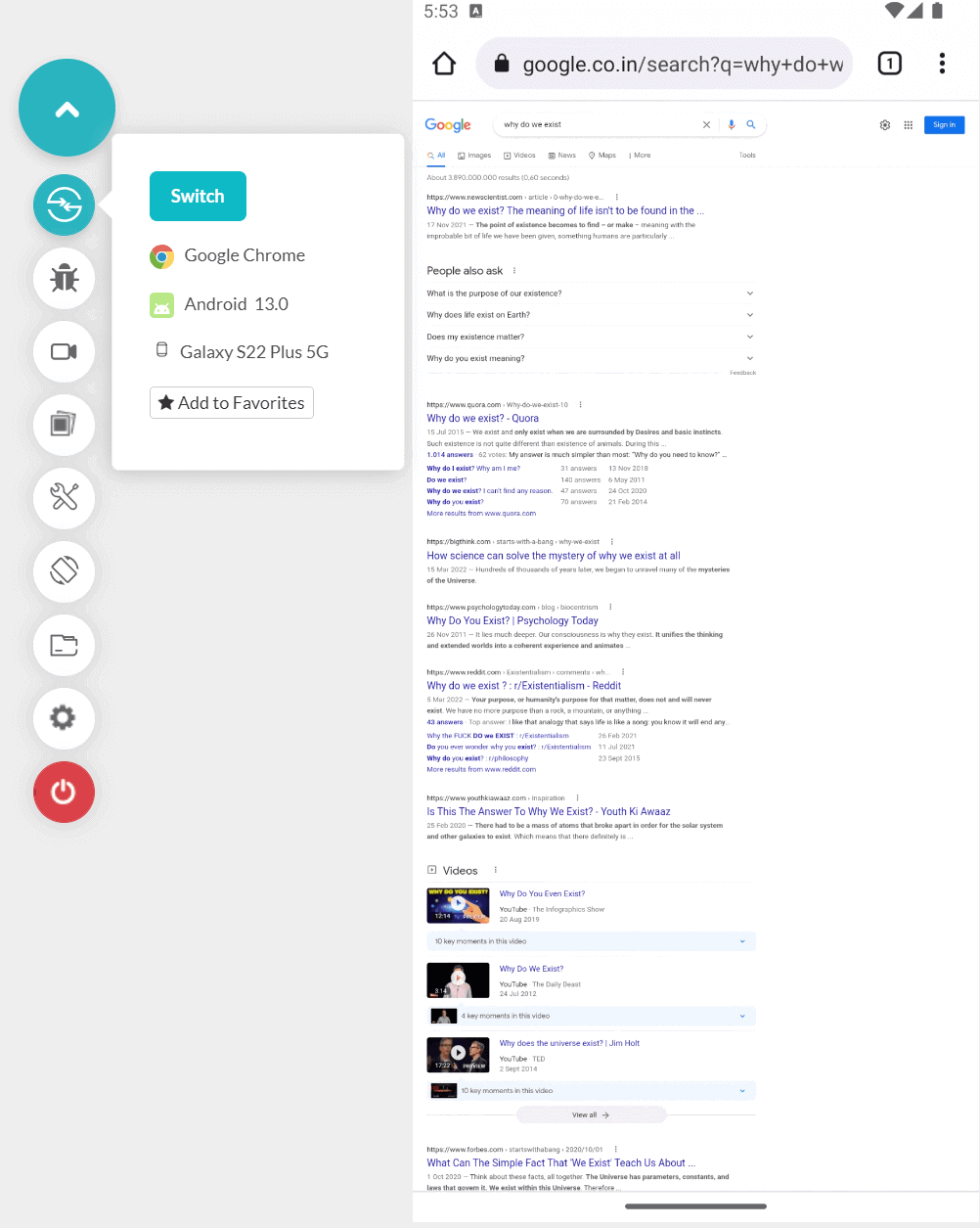
As you can observe, the desktop website has shrunk to fit the viewport (which it is expected to), and the text is barely visible on the device. Tap anywhere, and the website will magnify. However, the page is too large that you have to scroll back and forth horizontally repeatedly. This awful experience makes a user even more frustrated.
On the brighter side, the urgent work a user needs to do would be done. Even if it is bad for business, it is better than not having anything. However, this is just from the perspective of the business and the tester. As a user, it is always good to have access to the desktop version.
Use cases for viewing desktop site
Leaving aside the scenario where a user wants to view a desktop site on mobile but can't do so, we move on to another scenario where a user voluntarily intends to open the desktop website on the mobile device.
In the same scenario, you can consider the following use cases
- For a person working on a tablet, the desktop version of the web app may be more appropriate to work on than a mobile version. A mobile version may show larger text and buttons that might not be appealing. But since tablets also come in small to large sizes, the server can send the mobile version to them. So, you can expect a user in such a case to request a desktop site on Android tablets.
- The regular user might notice a bug in the mobile version and opt for the desktop version since the website used to work fine until a few days back. However, it is risky for new users who may think the website is built only that way.
- If a user migrates from your desktop to a mobile website, he is aware of the features you haven’t included on the mobile version. Therefore, he can opt for the desktop version to access those features. Similar to the last point, this might not apply to new users.
- Sometimes mobile version features overlap the browser features, which makes navigation a bit tough for the user. For instance, mobile version websites often have a hamburger menu that a user slides inwards to open (without approaching the menu to touch). This works similarly for native mobile applications. However, browsers like Google Chrome implements a slide-in feature to go to the previous page. Since these two features overlap, you will find yourself on the back page instead of opening the menu.
- If you have hosted your mobile website on a different server, there is a risk that there’ll be nothing to display to the user when it goes down. In some instances, users often redirect to the desktop website.
Now you know the benefits of viewing desktop website requests from a mobile device, let’s explore the methods to achieve the same.
How to view a desktop site on Android?
In this section on how to view desktop sites on Android, we will look at the methods to request a desktop site on an Android mobile device. There are two methods to achieve the same.
- Request a desktop site on Android using a mobile browser.
- Request a desktop site on Android using TestMu AI’s real device cloud.
Since Chrome is the most popular browser on Android devices, let’s pick Google Chrome for the demonstration. However, the steps remain the same for other browsers too.
Request a desktop site on Android using a mobile browser
The first method to view a desktop site on Android is by using the browser installed on your mobile device. Following are the steps to achieve the same
- Open your desired website in the browser and click on the kebab menu.
- Click the Desktop site to request the desktop version of the website.
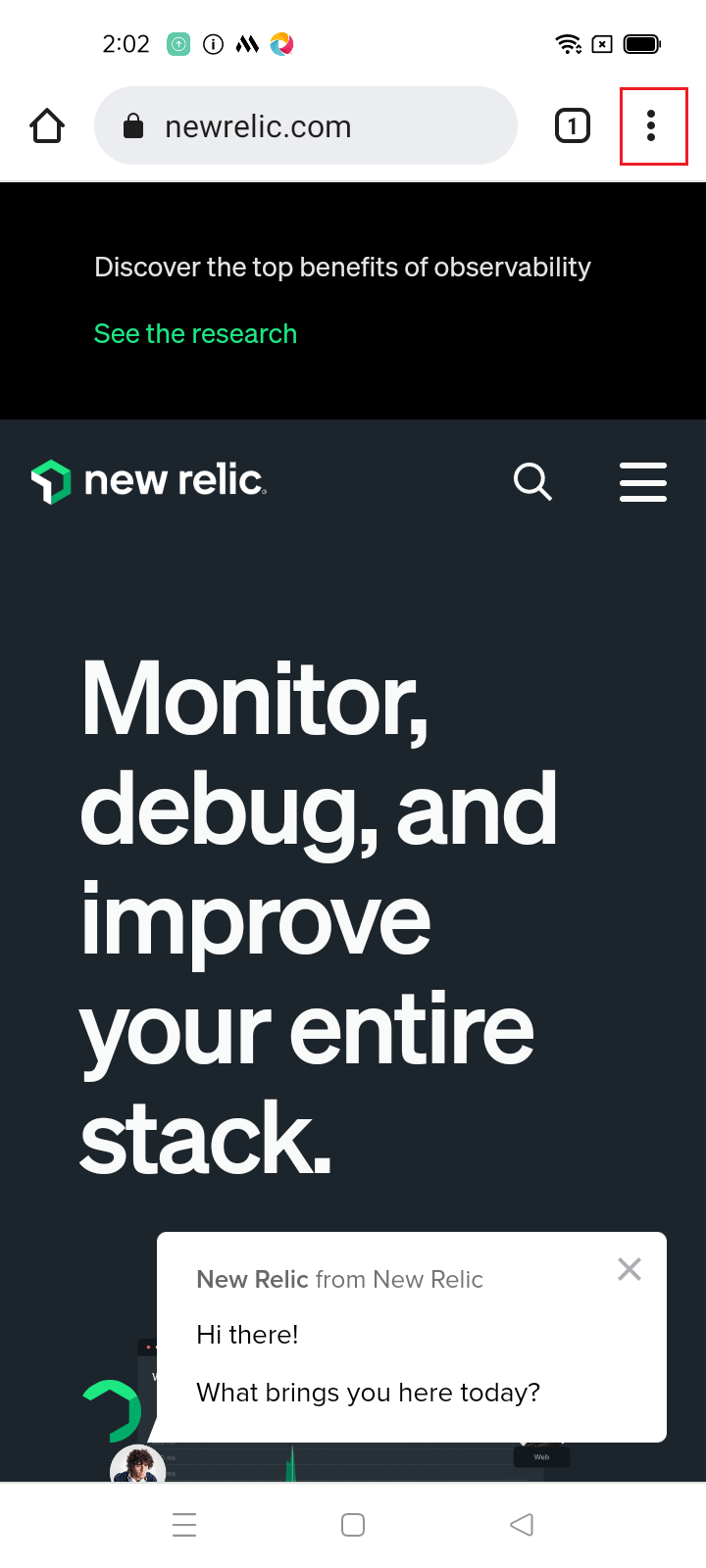
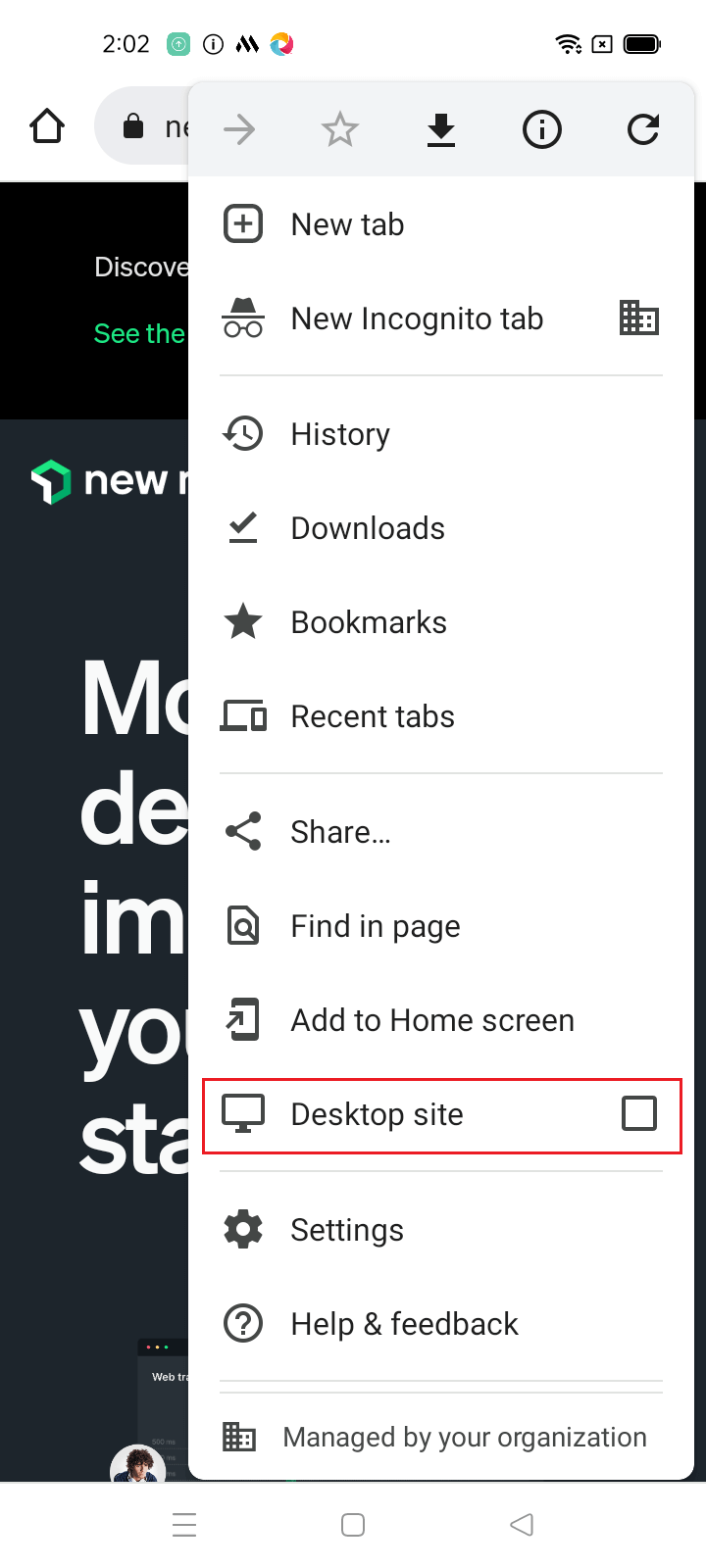
The particular mobile website will launch in its desktop version on your Android device
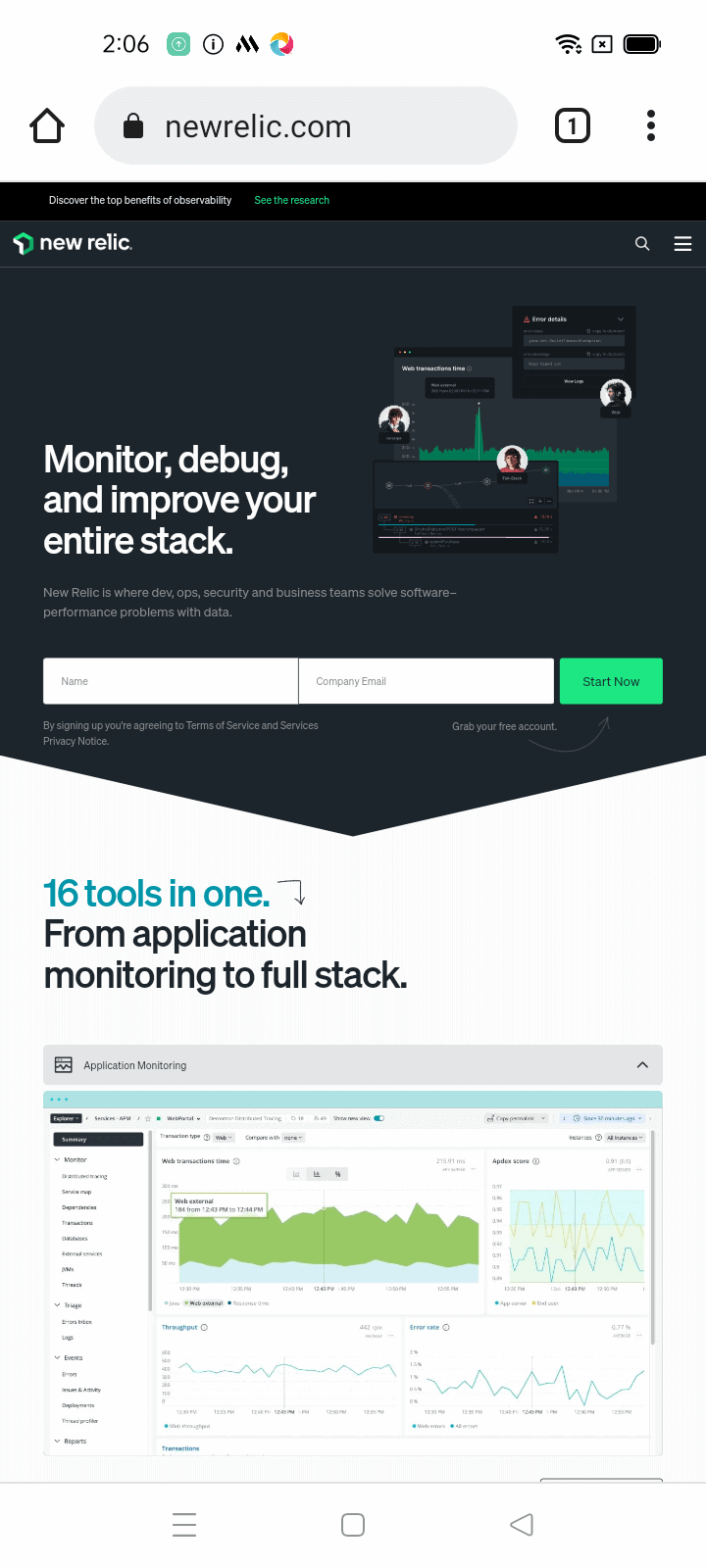
As a user, this method is good for you if you have a single self-owned Android device. But as a tester, there are a few challenges in this method - you need an actual device in your hand to test the functionality of requesting a desktop site on Android, which is not a practical approach concerning the project’s budget
In addition, a lot of time gets wasted if we start to do this on physical devices. A better feasible solution in such a scenario is to use real device cloud platforms like TestMu AI to view desktop sites on Android
How to Enable Desktop View for All Sites on Chrome Mobile
For all websites, set the desktop view as your default:
- On your phone, launch Chrome.
- In the top-right corner, press the three dots button.
- Click on Settings after scrolling down.
- Click on Site settings after scrolling down.
- Select Desktop site by scrolling all the way to the bottom of the menu options.
- All that's left to do is turn on the switch for the desktop site.
Request a desktop site on Android using TestMu AI’s real device cloud

TestMu AI is an online cross browser testing platform that enables developers and testers to perform manual and automation testing of web and mobile applications. It offers an online browser and device farm of 3000+ real devices and OS combinations for mobile and web testing. You need not set up expensive Android device labs; TestMu AI already takes care of the devices tied to a fast and robust test infrastructure accessible on the cloud. All you need to do is sign up for free, select configurations and start testing.
To view desktop sites on Android using TestMu AI’s real device cloud, please follow the below steps.
- Register for free and sign in to your TestMu AI account. Ensure you have real device cloud access. In case you don’t have one, contact sales.
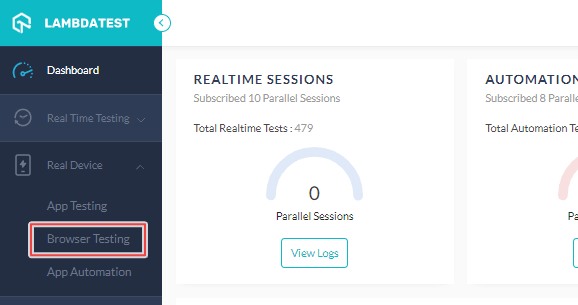
- From the user Dashboard, navigate to Real Device > Browser Testing.
- Enter the URL to test; choose BRAND, DEVICE/OS, and BROWSER. Then click START.
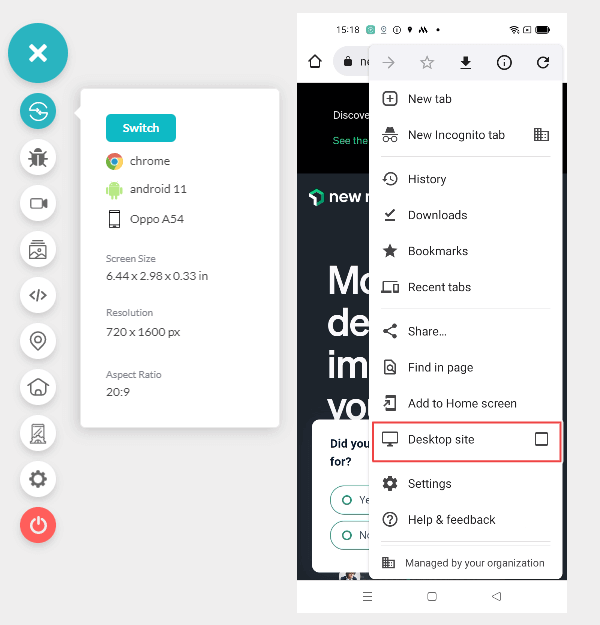
- Click on the kebab menu in the top-right corner and select Desktop site.
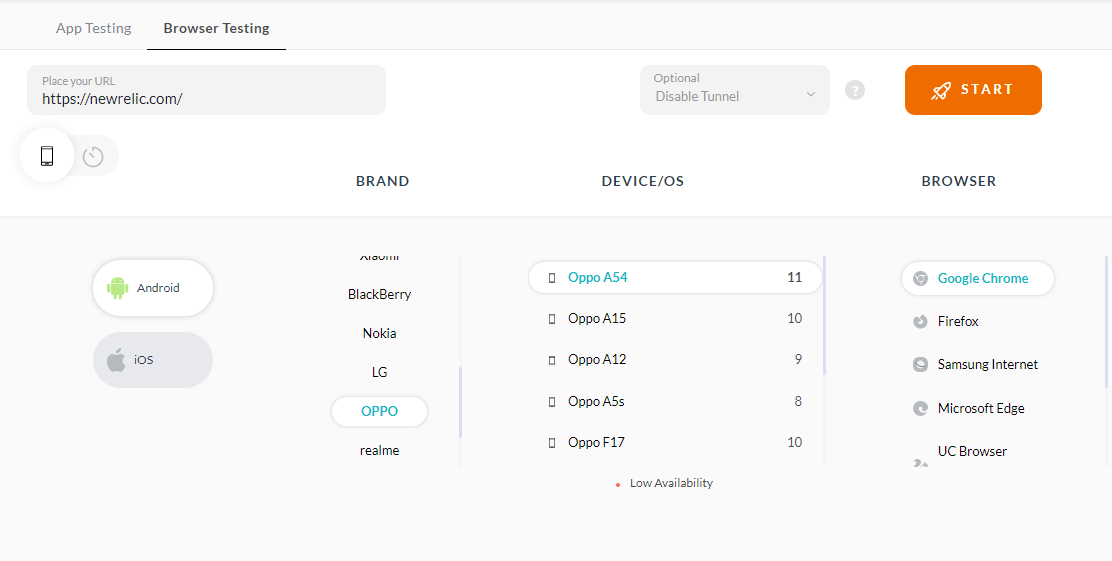
The particular website will be launched on the cloud-hosted real Android device.
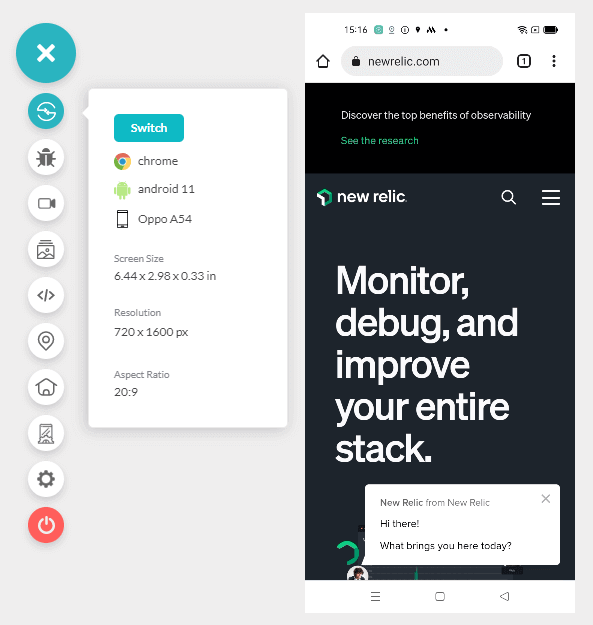
The particular mobile website will be loaded in its desktop version.
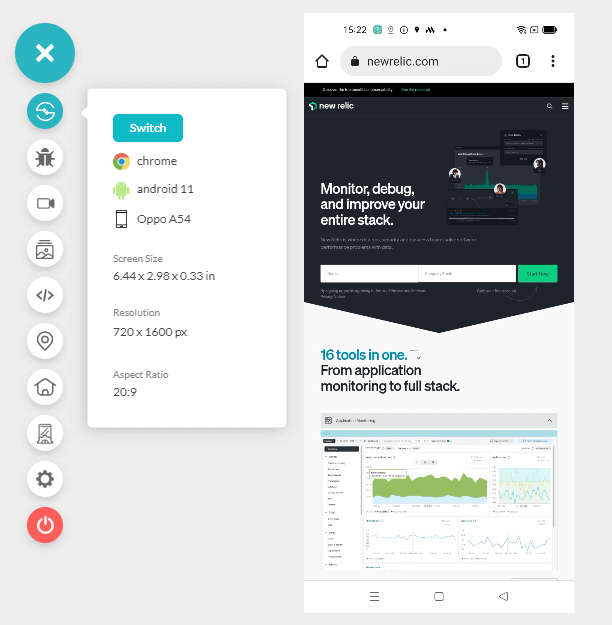
That’s it. It’s easy to reproduce the same steps within minutes without owning any mobile device. This method is more accessible, feasible, and recommended for developers and testers
Check out the TestMu AI tutorial below to get started with real device testing.
You can also subscribe to the TestMu AI YouTube Channel and stay updated with the latest tutorials around End-to-end (E2E) testing, Playwright testing, and much more.

Conclusion
Requesting a desktop website is not a rare scenario to witness. You never know what would prompt a user to request the desktop website on their mobile device. The only thing we can do is to be prepared every time so that whenever it is our turn, we never disappoint him.
This post is written for two types of people interacting with the web application - the end user and the tester. As a user, all you need is to know how to view desktop sites on Android. This can be achieved using the first method.
However, as a tester, you have the responsibility that no matter what Android device the user uses, the desktop website request is always entertained. For this, naturally, you would need a lot of devices, considering Android has a global market share of 43.43% - survey.
On top of it, since Android is open to use, you will find a lot of variety in Android devices from numerous manufacturers. Therefore, a better method to opt for here is through an online cloud testing platform like TestMu AI, which we discussed in the second method.
With this summary, I would like to wrap up this post that highlights the methods to use in requesting a desktop site on Android devices. For any suggestions and comments, let us know in the comment section.


Frequently asked questions
Did you find this page helpful?
More Related Hubs
TestMu AI forEnterprise
Get access to solutions built on Enterprise
grade security, privacy, & compliance
- Advanced access controls
- Advanced data retention rules
- Advanced Local Testing
- Premium Support options
- Early access to beta features
- Private Slack Channel
- Unlimited Manual Accessibility DevTools Tests