

Next-Gen App & Browser Testing Cloud
Trusted by 2 Mn+ QAs & Devs to accelerate their release cycles


- Home
- /
- Learning Hub
- /
- Appium Python: A Complete Tutorial for Mobile App Automation
Appium Python: A Complete Tutorial for Mobile App Automation
Learn how to use Appium with Python, run and scale tests on real devices, fix common issues, and follow best practices for mobile automation.

Faisal Khatri
March 8, 2026
Appium is a widely used open-source framework for automating mobile app testing across Android and iOS platforms. With Appium Python, you can efficiently automate tests for native, hybrid, and mobile web apps. Its integration with Python also enables writing readable, maintainable, and scalable test scripts.
Overview
Why Perform Appium Testing With Python?
Combining Appium with Python makes mobile automation easier, more flexible, and highly scalable for modern development teams. Here are the key reasons to use them together:
- Cross-Platform Testing: Write one set of Python scripts and use it to automate both Android and iOS applications with Appium.
- Easy to Learn and Use: Python’s clear and readable syntax lowers the learning curve for both testers and developers.
- Large Community Support: Extensive documentation and community contributions make troubleshooting and learning faster.
- Works on Real Devices and Emulators: Run your tests on simulators, physical devices, or cloud platforms without changing core logic.
- CI/CD Friendly: Easily integrate with Jenkins, GitHub Actions, and other pipelines for continuous testing.
- Reusable and Maintainable: Supports design patterns such as Page Object Model to keep scripts clean and scalable.
- Strong Reporting Capabilities: Rich logs and reports help teams track performance and debug failures.
How to Perform Appium Testing With Python?
Running Appium with Python involves setting up the right tools, configuring the Android driver, writing a simple test case, and executing it on an emulator or real device. Here is the step-by-step process:
- Install Required Tools: Set up Python, Android Studio, Node.js, and Appium to create the base environment for mobile automation testing.
- Verify Appium Installation: Run the appium -v command to confirm Appium is installed correctly on your system.
- Set Up UiAutomator2 Driver: Install the Android driver using appium driver install uiautomator2 and confirm it with appium driver list.
- Install Supporting Libraries: Install Appium-Python-Client and pytest using pip to enable test execution and framework support.
- Prepare the Test App: Use a sample app such as the TestMu AI Proverbial Android APK for writing and validating your test scenario.
- Create the Test Script: Write a test file that defines Appium capabilities, connects to the local server, and launches the application.
- Interact With App Elements: Use WebDriverWait and Appium locators to find elements like buttons and perform actions such as clicking.
- Validate App Behavior: Add assertions to confirm that expected elements, such as displayed text, appear correctly in the app.
- Start the Appium Server: Run appium --use-driver uiautomator2 to launch the server before executing tests.
- Run Tests: Start the Android emulator in Android Studio and use pytest to execute the test file.
Why Use Appium With Python?
Appium works with any programming language, but using Python makes mobile test automation simple and efficient due to its readable syntax, fast development, and strong ecosystem.
New to Appium? Check out this Appium tutorial.
Benefits:
- Easy to Learn and Use: Clean syntax of Python makes writing test scripts simple, reducing the amount of code needed compared to other programming languages like Java. This helps new testers get started quickly and boosts team productivity.
- Robust Library Support: Python has many testing libraries and frameworks, like pytest and unittest, that work seamlessly with Appium. These libraries make organizing, running, and reporting tests easier.
- Cross-Platform Automation: Appium lets you perform Android automation testing and iOS automation testing. Python communicates with the Appium server via the WebDriver protocol, allowing scripts to be reused across platforms. You can also automate touch interactions like tap, swipe, and scroll using Appium gestures with Python.
- CI/CD Integration: Python-based Appium tests can be integrated into CI/CD pipelines with tools like Jenkins or GitHub Actions, so tests run automatically as part of development.
- Active Community: Both Python and Appium have large, supportive communities, offering plenty of documentation, tutorials, and forums for help and guidance.

Note: Run Appium Python tests on real Android & iOS devices. Try TestMu AI Now!
How to Perform Appium Python Testing?
To perform Appium Python testing, set up Python, Android Studio, Node.js and Appium, then enable UiAutomator2. After that, use the Appium Python client with pytest to open your app and run your tests on an emulator or using real device cloud platforms like TestMu AI.
In this tutorial, we have used Appium 3. It also brings performance improvements, updated drivers and better stability. Check out this guide to know Appium 3 features.
Prerequisites
Let’s look at how to automate mobile app testing with the help of the Appium Python example:
- Download and install Python.
- Download and install Android Studio.
- Install Node.js, then install Appium server using the following command:
npm install -g appiumappium -v
appium driver install uiautomator2appium driver listIt should output as follows:
- [email protected] [installed (npm)]
pip3 install Appium-Python-Client
pip3 install -U pytestIf you are new to the pytest framework, check out this pytest tutorial.
Writing First Test
Now, we’ll look at how to automate Android apps with Appium. Let’s use the TestMu AI Proverbial app as a test URL for testing using Appium Python in Android.
Test Scenario:
- Open the Proverbial Android app.
- Click on the “Text” button.
- Verify that the text “Proverbial” is displayed on the screen.
Implementation:
Let’s create a proverbial_android_local_test.py file to implement the test scenario and write the first test with Appium.
import os.path
from appium import webdriver
from appium.webdriver.common.appiumby import AppiumBy
from appium.options.android import UiAutomator2Options
from selenium.webdriver.support.ui import WebDriverWait
from selenium.webdriver.support import expected_conditions as EC

apk_path = os.path.abspath('./src/test/resources/proverbial_android.apk')
options = UiAutomator2Options().load_capabilities({
   'platformName': 'Android',
   'automationName': 'uiautomator2',
   'deviceName': 'Pixel 6 API 34',
   'app': apk_path
})

appium_server_url = 'http://localhost:4723'

class TestProverbialApp:
   def setup_method(self):
       self.driver = webdriver.Remote(appium_server_url, options=options)

   def teardown_method(self):
       if self.driver:
           self.driver.quit()

   def test_proverbial_text(self):
       wait = WebDriverWait(self.driver, 20)
       text_button = wait.until(EC.presence_of_element_located((AppiumBy.ID, "com.lambdatest.proverbial:id/Text")))

       text_button.click()

       text = self.driver.find_element(AppiumBy.ID, "com.lambdatest.proverbial:id/Textbox")
       assert text.is_displayed(), "Proverbial"
The test is implemented by creating a TestProverbialApp class in the Python file. This class implements three primary methods: setup_method(self), teardown_method(self) and test_proverbial_text(self).
Code Walkthrough:
- Import Required Modules: Import Appium options for Android (UiAutomator2Options) and wait utilities (WebDriverWait and expected_conditions) to handle dynamic elements in the app.
- Configure Appium Options: Define the path to the APK file and set up UiAutomator2Options with capabilities such as platform name, automation engine, device name, and the app itself.
- Set Up the Test Class: A test TestProverbialApp class is defined with setup_method to initialize the Appium driver and teardown_method to quit the driver after tests.
- Wait for and Interact With Elements: Within test_proverbial_text, WebDriverWait is used to wait for the “Text” button to appear. Once visible, the button is clicked, demonstrating how to interact with app elements.
- Verify App Behavior: After clicking, the test script locates the text box element and asserts that it is displayed.
Running Tests
The test will be run on the Android Pixel emulator. To run the tests, follow the steps below:
- Open the terminal and run the following command to start the Appium server with the UiAutomator2 driver:
appium --use-driver uiautomator2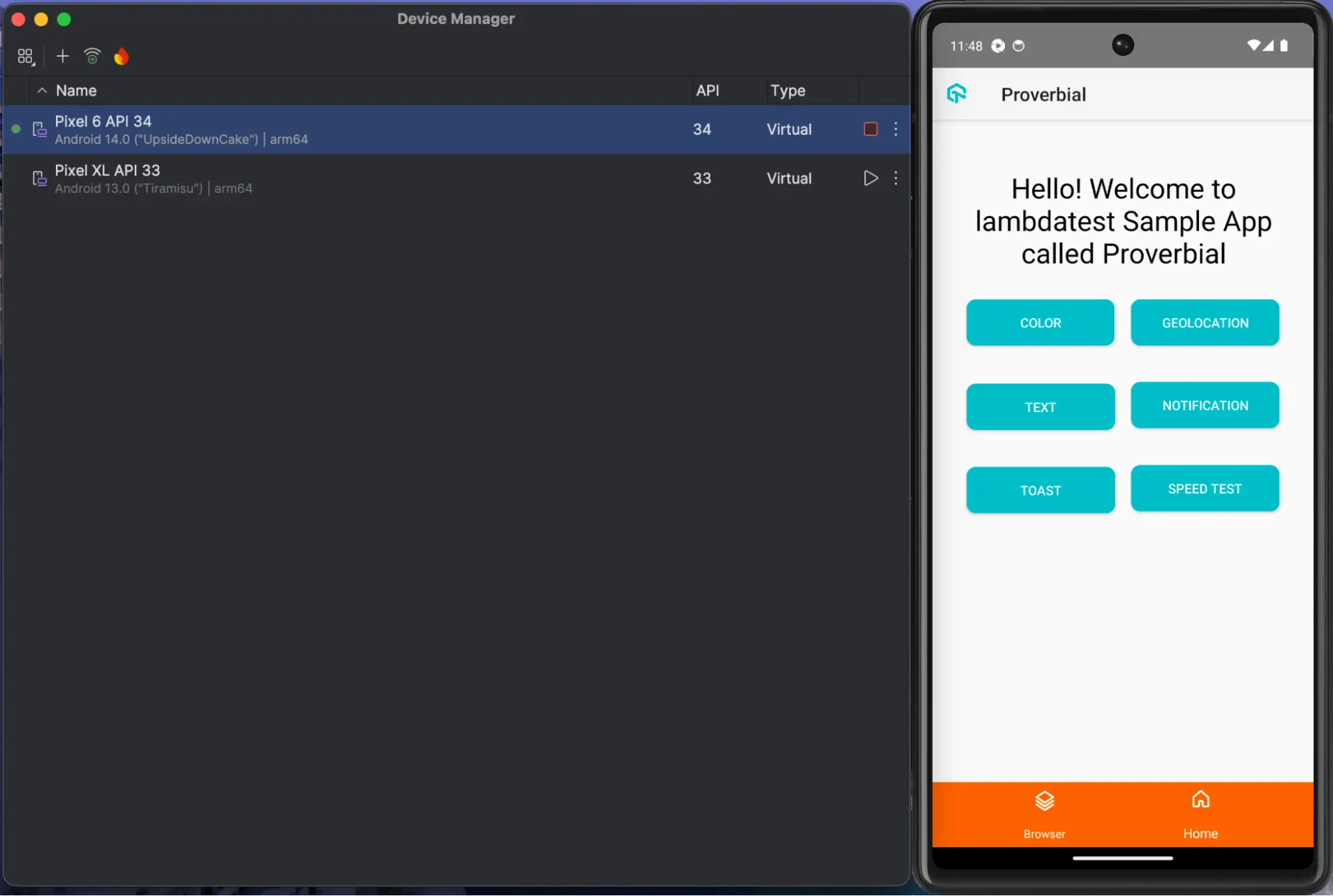
pytest ./src/test/proverbial_android_local_test.pyThe following screenshot from the terminal shows that the test was run successfully.
How to Run Appium Python Tests With TestMu AI Real Device Cloud?
Running tests locally can be tedious - starting Appium, launching emulators, and juggling device setups takes up time and resources. With a real device cloud offered by mobile app testing platforms such as TestMu AI, the same Appium Python tests run instantly on real Android and iOS devices without setting up an internal device lab.
To get started, check out this guide on Appium pytest testing with TestMu AI.
Now, to run the above test scenario on a real device cloud, follow these steps:
- TestMu AI Credentials: Configure your TestMu AI Username and Access Key as environment variables. You can find these credentials under Account Settings > Password & Security.
- TestMu AI Capabilities: The TestMu AI Capabilities Generator can be used to generate the desired capabilities for the test and execution on the cloud platform.
- TestMu AI Mobile Hub URL: The TestMu AI mobile Hub URL @mobile-hub.lambdatest.com/wd/hub endpoint should be used for running the tests on the cloud.
- Upload the Mobile App to TestMu AI Cloud: The mobile application can be uploaded to the TestMu AI cloud by navigating to the Automation > App Automation menu. Click on the Upload App icon to open the Upload app window.
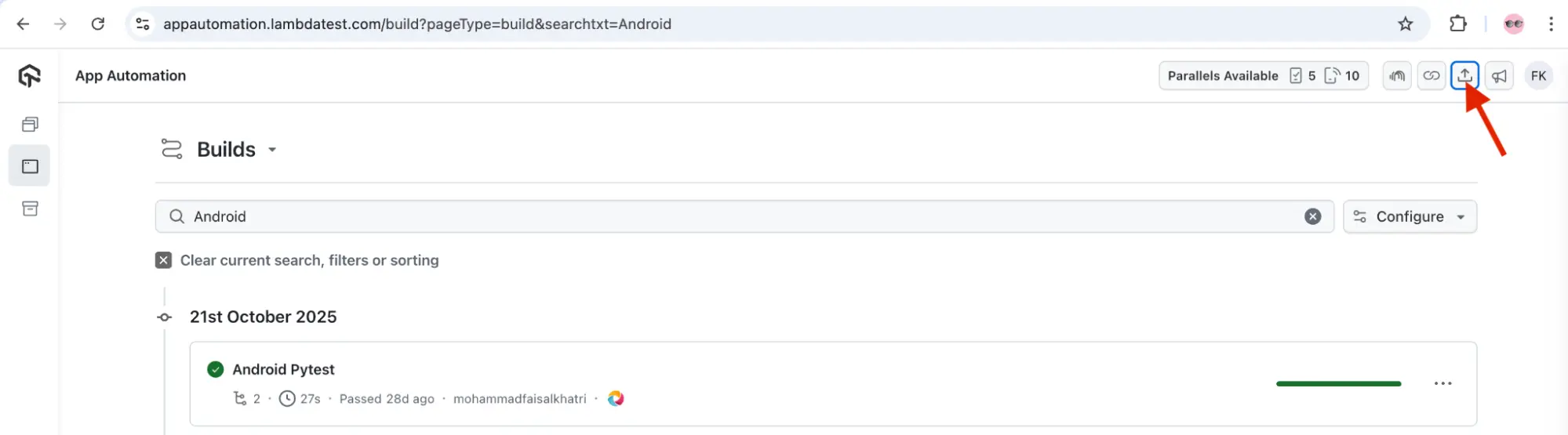
In the Upload window, select “Real Device” or “Virtual Device” based on your preference. Next, click on the “Browse File” button to upload the app.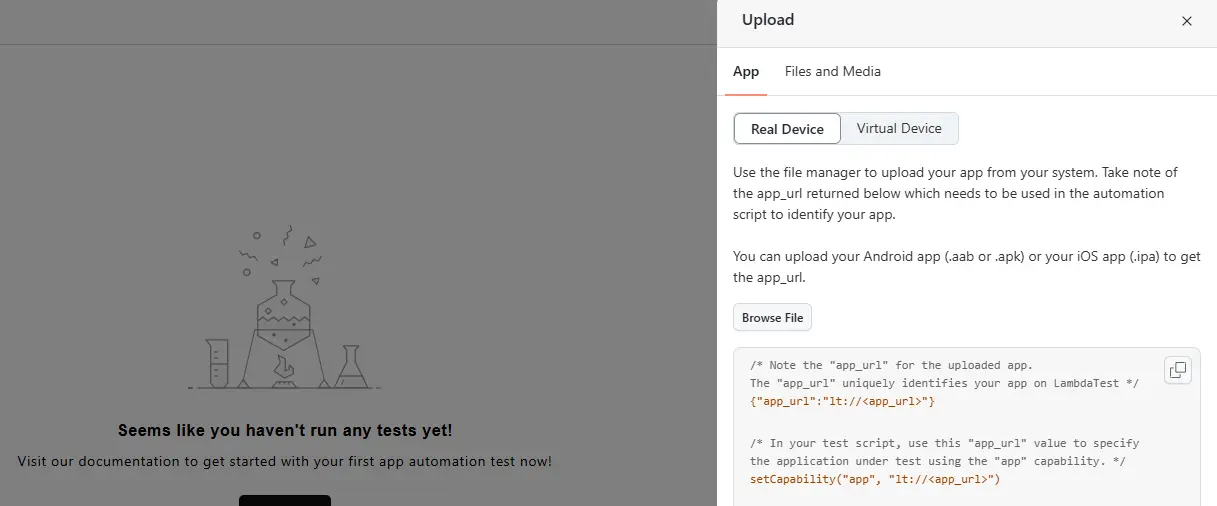
After the app is uploaded, the app_url will be generated, which you can copy and paste into your Appium script.
Implementation:
Let’s add a conftest.py file and add all the configuration-related code to it.
def finalize_driver(request, driver):
   def fin():
       if request.node.rep_call.failed:
           driver.execute_script('lambda-status=failed')
       else:
           driver.execute_script('lambda-status=passed')
       driver.quit()
   request.addfinalizer(fin)

@pytest.fixture(scope='function')
def test_setup_android(request):
   test_name = request.node.name

   caps = {
       "lt:options": {
           "w3c": True,
           "platformName": "Android",
           'deviceName': 'Galaxy S25',
           'platformVersion': '15',
           "isRealMobile": True,
           "app": "lt://APP3467364763476",
           "build": "Android Pytest",
           "name": test_name
       }
   }

   username = os.environ.get("LT_USERNAME")
   access_key = os.environ.get("LT_ACCESS_KEY")
   driver = webdriver.Remote("https://"+username+":"+access_key+"@mobile-hub.lambdatest.com/wd/hub",
                             options=UiAutomator2Options().load_capabilities(caps))
   request.cls.driver = driver
   yield driver
   finalize_driver(request, driver)

@pytest.hookimpl(tryfirst=True, hookwrapper=True)
def pytest_runtest_makereport(item,call):
   # this sets the result as a test attribute for {BrandName} reporting.
   # execute all other hooks to obtain the report object
   outcome = yield
   rep = outcome.get_result()

   # set an report attribute for each phase of a call, which can
   # be "setup", "call", "teardown"
   setattr(item, "rep_" + rep.when, rep)
Code Walkthrough:
- Set the Test Status on TestMu AI: finalize_driver checks if the test failed or passed and updates the status on TestMu AI using lambda-status, then safely closes the driver.
- Configure Cloud Capabilities: The test_setup_android fixture defines device details like Galaxy S25, Android 15, real device flag, and the app ID hosted on TestMu AI.
- Connect to TestMu AI Remotely: The driver connects using your TestMu AI username and access key from environment variables and launches the app on a real device in the cloud.
- Attach the Driver to the Test Class: request.cls.driver = driver makes the driver available for use inside test methods.
- Capture and Report Test Results: The pytest_runtest_makereport hook automatically tracks setup, execution, and teardown results for reporting in TestMu AI.
Let’s clean up the test file by removing the setup methods and leaving only the test in it.
@pytest.mark.usefixtures('test_setup_android')
class TestProverbialApp:
   driver: WebDriver

   def test_proverbial_text(self):
       wait = WebDriverWait(self.driver, 20)
       text_button = wait.until(EC.presence_of_element_located((AppiumBy.ID, "com.lambdatest.proverbial:id/Text")))
       text_button.click()

       text = self.driver.find_element(AppiumBy.ID, "com.lambdatest.proverbial:id/Textbox")
       assert text.is_displayed(), "Proverbial"
The @pytest.mark.usefixtures(“test_setup_android’) tells the test to use the fixture for setup. The driver instance is automatically assigned to self.driver by the fixture (via request.cls.driver = driver), making it available in all test methods of the class.
The test waits up to 20 seconds for a Text button to appear, clicks it, finds a Textbox element, and verifies it's displayed on the app screen.
Test Execution:
You can run the test using the following command:
pytest ./src/test/proverbial_android_cloud_test.pyThe following is a screenshot of the Appium Python test run on the TestMu AI real Android cloud platform, which shows details like the mobile device used, video recording of the test, steps performed in the test, and time taken to run the test.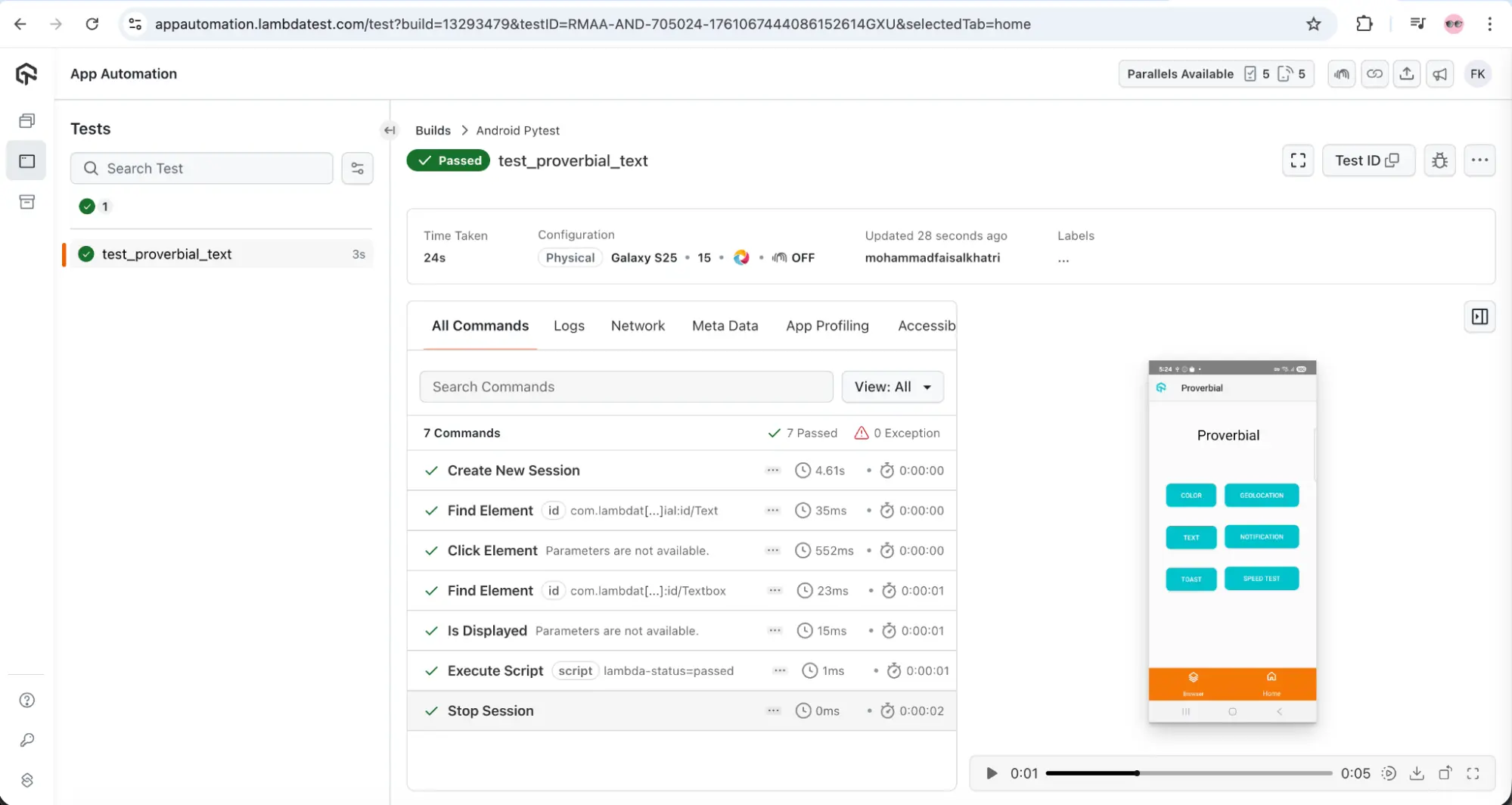
How to Run Appium Python Tests in Parallel With TestMu AI
Appium parallel testing is the way to execute multiple tests simultaneously, where tests can be run on multiple devices, platforms, and versions.
It provides multiple benefits, like reducing overall test execution time, providing faster feedback on builds, and achieving faster and more frequent releases to production.
Let’s look at the Python Appium example, where we’ll run the same test scenario in parallel on the following two real Android devices:
- Samsung Galaxy S25 - Android Version 15
- Google Pixel 8 - Android Version 14
- The pytest-xdist plugin allows parallel and distributed test execution across multiple machines or CPUs. Install it by running the following command:
pip3 install pytest-xdistANDROID_DEVICES = [
{
"deviceName": "Galaxy S25",
"platformVersion": "15"
},
{
"deviceName": "Pixel 8",
"platformVersion": "14"
}
]def pytest_generate_tests(metafunc):
if 'device_config' in metafunc.fixturenames:
metafunc.parametrize('device_config', ANDROID_DEVICES, ids=lambda d: d['deviceName'])This pytest hook automatically generates multiple test variations from the ANDROID_DEVICES list in the devices.py file. Using this fixture, pytest runs the test separately for each device configuration in the list, using the device name to identify each test run.
@pytest.fixture(scope='function')
def test_setup_android(request, device_config):
   test_name = request.node.name

   caps = {
       "lt:options": {
           "w3c": True,
           "platformName": "Android",
           "deviceName": device_config['deviceName'],
           "platformVersion": device_config['platformVersion'],
           "isRealMobile": True,
           "app": "lt://APP10160341071754500059009313",
           "build": "Android Pytest",
           "name": test_name
       }
   }

   username = os.environ.get("LT_USERNAME")
   access_key = os.environ.get("LT_ACCESS_KEY")
   driver = webdriver.Remote("https://"+username+":"+access_key+"@mobile-hub.lambdatest.com/wd/hub",
                             options=UiAutomator2Options().load_capabilities(caps))
   request.cls.driver = driver

   yield driver

   finalize_driver(request, driver)
Test Execution:
Run the tests in parallel using the following command:
pytest -n 2 -vThis command runs the Appium Python tests in parallel using 2 worker processes (via pytest-xdist plugin). The -v enables verbose output to show detailed test results and progress.
Here is the screenshot from the TestMu AI cloud platform showing the parallel test execution details: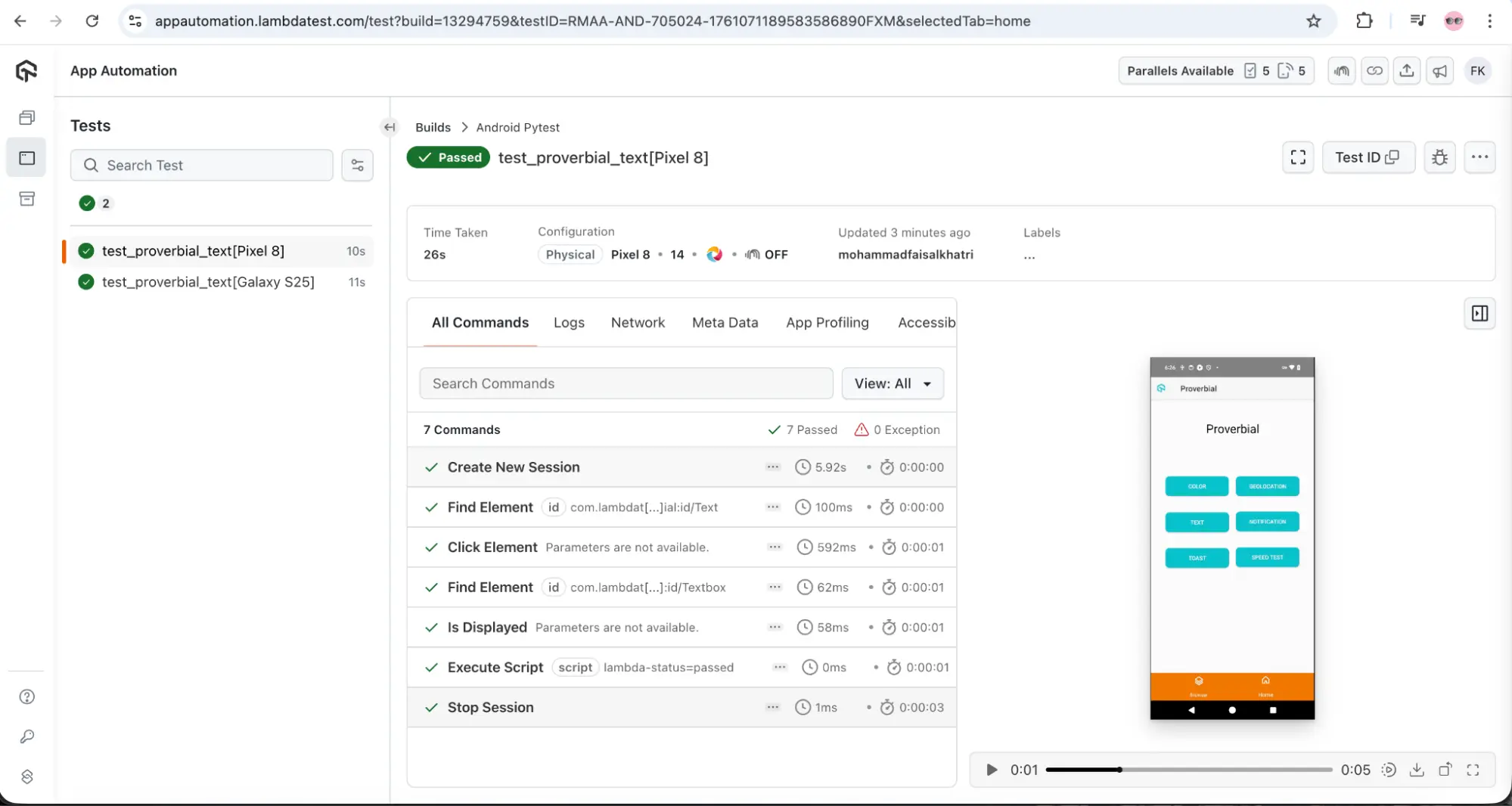
Troubleshooting Appium Python Issues
Below are common issues faced during Python Appium automation, along with their resolutions:
- Appium Server Connection Failures: When Appium will not connect locally, check the host, port, firewall rules, and network alignment everywhere for reliable access.
- Session or Driver Initialization Failures: If a session fails, confirm capabilities, app path, connected device, and compatible tool versions before running tests.
- Element Not Found Exceptions: Ensure the element is present, locators are correct, apply waits, and switch context if required for reliable interactions.
- Capability Configuration Errors: Verify all required fields, fix typos, validate formats, and meet platform-specific capability requirements before attempting session creation again.
- Device or Emulator Not Detected: Check connections, drivers, debugging, and confirm correct cloud device configuration for recognition during automated execution on platforms.
Best Practices for Appium Python Automation
Running mobile automation tests with Python and Appium works best with a clear strategy to build reliable and maintainable test suites.
Here are the following best practices for more efficient Appium mobile testing with Python:
- Use Explicit Waits and Avoid Hard Waits: Implement dynamic waiting mechanisms that respond to actual application state rather than fixed time delays, which improves test reliability and execution speed.
- Implement the Page Object Model (POM): The Page Object Model uses separate page logic from test logic to create a clear separation of concerns. It makes tests more maintainable and reusable while reducing code duplication.
- Choose Stable Locator Strategies: IDs, Accessibility IDs, and Android UI Automator should be prioritized for element identification. Avoid using XPath locators as they are slower to execute and prone to breaking with UI changes.
- Handle Exceptions With Clear Logging: Implement comprehensive error handling that captures messages in logs, enabling quick debugging and easier resolution of test failures.
- Use Configuration Files for Environment Settings: The configuration and device details should be stored in separate configuration files, allowing easy management of different test environments and device capabilities without modifying the codebase.

Check out this video by Sai Krishna, an Appium Contributer with 15+ years of experience in Agile testing, Selenium WebDriver and Appium. In this video, he covers everything about Appium migration, Appium 2 vs Appium 3 upgrade, and installing/updating drivers.
Conclusion
In this Appium with Python tutorial, we explored how Appium combines cross-platform coverage with the Python language, which is easy to read, write, and maintain. From basic execution to running tests on real devices and in parallel, the Appium framework supports both scale and stability.
With an understanding of troubleshooting and best practices, you can build reliable automation with Appium using Python that improves test coverage, speeds up releases, and maintains consistent app quality over time.
Citations
- Appium Write a Test (Python) Documentation: https://appium.io/docs/en/3.1/quickstart/test-py/
- Session Capabilities: https://appium.io/docs/en/3.1/guides/caps/


Frequently asked questions
Did you find this page helpful?
More Related Hubs
TestMu AI forEnterprise
Get access to solutions built on Enterprise
grade security, privacy, & compliance
- Advanced access controls
- Advanced data retention rules
- Advanced Local Testing
- Premium Support options
- Early access to beta features
- Private Slack Channel
- Unlimited Manual Accessibility DevTools Tests