

Next-Gen App & Browser Testing Cloud
Trusted by 2 Mn+ QAs & Devs to accelerate their release cycles


How to Perform React Native Testing
Learn about the React Native framework & how to perform React Native testing on Android & iOS apps using manual and automation testing approaches.

Faisal Khatri
March 6, 2026
With the technology emerging so fast, mobile apps have captured most of the industry market. Every organization is focused on creating a new app for their business platform, and the React Native framework is trending in developing mobile apps.
Performing React Native testing on apps like Facebook, Instagram, Discord, Flipkart, Oculus, and more apps built using the React Native framework can help ensure their functionality, usability, and performance across different devices and platforms. It helps identify and fix bugs early in the development cycle, which helps provide higher-quality apps with better user experiences.
Overview
React Native Testing is the process of validating the functionality, performance, and user experience of mobile apps built with the React Native framework across Android and iOS platforms.
Why Does React Native Testing Matter?
React Native apps power many of today’s most popular mobile platforms, such as Facebook and Instagram. Testing ensures these hybrid apps perform reliably and deliver consistent experiences across devices.
- Cross-Platform Validation: React Native testing verifies that app components behave consistently across Android and iOS without performance or UI degradation.
- Early Bug Detection: Automated tests identify issues early in the development cycle, reducing rework and improving delivery speed.
- Improved App Quality: Testing ensures smooth functionality, accurate rendering, and responsiveness across varying screen sizes and OS versions.
- Scalable Execution: Running tests on a cloud grid like TestMu AI enables parallel execution on real devices, accelerating test cycles and improving coverage.
- Enhanced User Experience: By validating interactions, geolocation, notifications, and performance, testers can ensure a flawless end-user experience.
What Are the Core Pillars of React Native Testing?
These pillars ensure React Native apps deliver consistent, high-performing, and bug-free experiences across platforms.
- Functional Testing: Validates core features like buttons, forms, navigation, and toast messages to ensure correct app behavior.
- Compatibility Testing: onfirms app functionality across multiple devices, OS versions, and screen resolutions.
- Performance Testing: Evaluates speed, responsiveness, and resource utilization under varying conditions.
- Automation Testing: Uses frameworks like Appium with TestNG and Maven for faster, reusable test execution.
- Cloud-Based Testing: Leverages TestMu AI’s real device cloud to test on thousands of Android and iOS devices simultaneously.
What Is React Native Framework?
React Native is a versatile open-source JavaScript framework created by Facebook for building applications across various platforms such as iOS, Android, and the web. It is an extension of React, bringing advantages to mobile app development.
This framework leverages JavaScript to render the app’s user interface using native-OS views. It allows developers to use OS-native languages like Swift and Objective-C for iOS and Java and Kotlin for Android to implement more complex features. This approach ensures high performance and a native look and feel for the apps built with React Native.
With 24.6k Forks and 122k Stars on GitHub, as well as the weekly download stats, you can gauge the popularity of the React Native framework.
Prerequisites for React Native Testing
To get started, make sure you have Java as the programming language, Appium Server version 2.5.1 with Appium Java Client 9.2.2, TestNG as the test runner, Maven as the build tool, and TestMu AI as the cloud platform.
- Install Appium.
- Install Appium Server with Appium Java Client.
- Download the Appium Inspector. Once the respective file is downloaded, double-click on it to run and follow the steps guided by the application. You should be able to install the Appium Inspector app successfully.
- Download the TestNG runner.
appium server
Note: Previously, using Appium Desktop, a GUI-based interface, the user could start the Appium Server. However, it is currently deprecated; hence, it is not recommended that the Appium Desktop be used.

Note: Run React native tests on real Android and iOS devices. Try TestMu AI Now!
Performing React Native Testing
We will use the following demo apps to perform React Native testing on Android and iOS on the TestMu AI cloud platform.
TestMu AI is an AI-native test execution platform that lets you run manual and automated tests at scale with over 10000+ real Android and iOS devices. It offers a cloud-based Appium grid for mobile app testing on the real device cloud.
Test Scenario
- Open the App and check the welcome message – “Hello! Welcome to lambdatest Sample App called Proverbial” is displayed correctly.
- Tap the TEXT button to check that the “Proverbial” text message is displayed.
- Tap the NOTIFICATION button to check that the notification is displayed on the top. Check that the notification appears correctly and click to close it.
- Tap the TOAST button to check that the toast message is displayed at the bottom of the screen, and verify its text: “Toast should be visible.”
- Tap the GEOLOCATION button to check that the app navigates successfully to the geolocation page. Once navigation to the geolocation page is successful, navigate back to the home page.
- Tap the SPEED TEST to check that the app navigates to the SPEEDTEST page, verifying the banner is displayed. After verification, navigate back to the home page.
- Tap on the Browser menu at the bottom of the screen. Once the app navigates to the browser page, enter the text “TestMu AI” and tap on the FIND button to check if the website loads on the screen.
Now that the test environment is defined, we will add dependencies or libraries to the pom.xml file. This file integrates all the required dependencies to perform React Native testing for mobile apps.
Implementation
As discussed earlier, this project has been created using Maven. TestNG is used as a test runner. Once the project is created, we must add the dependency for Appium and lombok in the pom.xml file.
<dependencies>
    <!-- https://mvnrepository.com/artifact/org.testng/testng -->
    <dependency>
        <groupId>org.testng</groupId>
        <artifactId>testng</artifactId>
        <version>${testng-version}</version>
        <scope>test</scope>
    </dependency>
    <!-- https://mvnrepository.com/artifact/io.Appium/java-client -->
    <dependency>
        <groupId>io.Appium</groupId>
        <artifactId>java-client</artifactId>
        <version>${Appium-java-client-version}</version>
    </dependency>
    <!-- https://mvnrepository.com/artifact/org.projectlombok/lombok -->
    <dependency>
        <groupId>org.projectlombok</groupId>
        <artifactId>lombok</artifactId>
        <version>${lombok-version}</version>
        <scope>provided</scope>
    </dependency>
</dependencies>
Versions of the dependencies are set in a separate properties block. It is done for maintainability, so if we need to update the versions, we can do it easily without searching throughout the pom.xml file.
<properties>
    <testng-version>9.2.2</testng-version>
    <Appium-java-client-version>7.9.0</Appium-java-client-version>
    <lombok-version>1.18.32</lombok-version>
</properties>
In the Page Object Model (POM), a class is created for every web page, and it contains all the related elements (such as buttons, text fields, etc.) of that page, as well as the relevant action methods (such as clicking a button, entering text, etc.). This separation of concerns helps keep the page objects separate from the test code, improving maintainability and readability.
We will be create four different classes for all four different pages, namely, HomePage, GeoLocationPage, SpeedTestPage, and BrowserPage where specific locators of their respective pages will be stored, and we would be calling these locators in the tests to check the application.
Below, we will create Android and iOS classes for each action point mentioned in the test scenario above. First, let’s locate the elements for the required components on Android and iOS, enabling us to execute the tests.
HomePage class for Android
public class HomePage {

   AndroidDriverManager driverManager;
   WebDriverWait wait;

   public HomePage (final AndroidDriverManager driverManager) {
       this.driverManager = driverManager;
       wait = new WebDriverWait (driverManager.getDriver (), Duration.ofSeconds (20));
   }

   public WebElement textBtn () {
       return driverManager.getDriver ()
           .findElement (AppiumBy.id ("Text"));
   }

   public String getText () {
       return driverManager.getDriver ()
           .findElement (AppiumBy.id ("Textbox"))
           .getText ();
   }

   public WebElement notificationBtn () {
       return driverManager.getDriver ()
           .findElement (AppiumBy.id ("notification"));
   }

   public WebElement notificationBar () {
       return driverManager.getDriver ()
           .findElement (AppiumBy.id ("action_bar"));
   }

   public WebElement toastBtn () {
       return driverManager.getDriver ()
           .findElement (AppiumBy.id ("toast"));
   }

   public String toastMessage () {
       return wait.until (ExpectedConditions.presenceOfElementLocated (AppiumBy.xpath ("//android.widget.Toast[1]")))
           .getText ();
   }

   public WebElement geoLocationBtn () {
       return driverManager.getDriver ()
           .findElement (AppiumBy.id ("geoLocation"));
   }

   public WebElement speedTestBtn () {
       return driverManager.getDriver ()
           .findElement (AppiumBy.id ("speedTest"));
   }

   public WebElement browserMenu () {
       return driverManager.getDriver ()
           .findElement (AppiumBy.accessibilityId ("Browser"));
   }

   public void openMenu () {
       driverManager.getDriver ().findElement (AppiumBy.accessibilityId ("drawer open")).click ();
   }

   public void clickPushNotificationMenu () {
       driverManager.getDriver ().findElement (AppiumBy.id ("pushNotification")).click ();
   }

}
HomePage class for iOS
public class HomePage {

   private final IOSDriverManager iosDriverManager;
   private final WebDriverWait wait;

   public HomePage (final IOSDriverManager iosDriverManager) {
       this.iosDriverManager = iosDriverManager;
       this.wait = new WebDriverWait (iosDriverManager.getDriver (), Duration.ofSeconds (20));
   }

   public WebElement textBtn () {
       return this.iosDriverManager.getDriver ()
           .findElement (AppiumBy.accessibilityId ("Text"));
   }

   public String getText () {
       return this.iosDriverManager.getDriver ()
           .findElement (AppiumBy.accessibilityId ("Textbox"))
           .getText ();
   }

   public WebElement notificationBtn () {
       return this.iosDriverManager.getDriver ()
           .findElement (AppiumBy.accessibilityId ("notification"));
   }

   public WebElement notificationBar () {
       return this.wait.until (
           ExpectedConditions.presenceOfElementLocated (AppiumBy.accessibilityId ("NotificationShortLookView")));
   }

   public WebElement toastBtn () {
       return this.iosDriverManager.getDriver ()
           .findElement (AppiumBy.accessibilityId ("toast"));
   }

   public String toastMessage () {
       return this.wait.until (ExpectedConditions.presenceOfElementLocated (
               AppiumBy.xpath ("//*[contains(@label, 'Toast should be visible')]")))
           .getText ();
   }

   public WebElement geoLocationBtn () {
       return this.iosDriverManager.getDriver ()
           .findElement (AppiumBy.accessibilityId ("geoLocation"));
   }

   public WebElement speedTestBtn () {
       return this.iosDriverManager.getDriver ()
           .findElement (AppiumBy.accessibilityId ("speedTest"));
   }

   public WebElement browserMenu () {
       return this.iosDriverManager.getDriver ()
           .findElement (AppiumBy.accessibilityId ("Browser"));
   }

}
From the code, it is clear that all the elements on the HomePage on Android were located using the ID locator strategy in most cases. In contrast, accessibilityId was used for the browser menu. On iOS, accessibilityId was used to locate all the elements.
Here, we will identify the Android and iOS mobile applications WebElements on the GeoLocationPage.
GeoLocationPage class for Android
public class GeoLocationPage {

   private final AndroidDriverManager driverManager;
   private final WebDriverWait wait;

   public GeoLocationPage (final AndroidDriverManager driverManager) {
       this.driverManager = driverManager;
       this.wait = new WebDriverWait (driverManager.getDriver (), Duration.ofSeconds (30));
   }

   public WebElement content () {
       return this.wait.until (ExpectedConditions.presenceOfElementLocated (AppiumBy.id ("android:id/content")));
   }

   public void navigateToHomePage () {
       this.driverManager.getDriver ()
           .navigate ()
           .back ();
   }

}
GeoLocationPage class for iOS
public class GeoLocationPage {

   private final IOSDriverManager iosDriverManager;
   private final WebDriverWait wait;

   public GeoLocationPage (final IOSDriverManager iosDriverManager) {
       this.iosDriverManager = iosDriverManager;
       this.wait = new WebDriverWait (iosDriverManager.getDriver (), Duration.ofSeconds (30));
   }

   public WebElement banner () {
       return this.wait.until (ExpectedConditions.presenceOfElementLocated (AppiumBy.accessibilityId ("banner")));
   }

   public WebElement backBtn () {
       return this.iosDriverManager.getDriver ()
           .findElement (AppiumBy.accessibilityId ("Back"));
   }

   public void navigateToHomePage () {
       clickOn (backBtn ());
   }

}
Similar to the approach on the HomePage, a locator for checking the content was found using the Id locator strategy for Android. For iOS, accessibilityId was used to locate the banner.
It’s important to note the navigateToHomePage() method, which was created to take the user back to the HomePage once the required actions are completed for the tests on Android. For iOS, a back button is available in the app, so it was located using accessibilityId, and a click was performed to navigate to the HomePage.
Here, we will identify the WebElements on the SpeedTestPage for Android and iOS.
SpeedTestPage class for Android
public class SpeedTestPage {

   private final AndroidDriverManager driverManager;

   public SpeedTestPage (final AndroidDriverManager driverManager) {
       this.driverManager = driverManager;
   }

   public WebElement headerText () {
       return this.driverManager.getDriver ()
           .findElement (AppiumBy.accessibilityId ("Speedtest"));
   }

   public void navigateToHomePage () {
       this.driverManager.getDriver ()
           .navigate ()
           .back ();
   }

}
SpeedTestPage class for iOS
public class SpeedTestPage {

   private final IOSDriverManager iosDriverManager;

   public SpeedTestPage (final IOSDriverManager iosDriverManager) {
       this.iosDriverManager = iosDriverManager;
   }

   public String headerText () {
       return this.iosDriverManager.getDriver ()
           .findElement (AppiumBy.iOSClassChain ("**/XCUIElementTypeImage[`label == "Speedtest"`]"))
           .getText ();
   }

   public void navigateToHomePage () {
       this.iosDriverManager.getDriver ()
           .navigate ()
           .back ();
   }
}
The code for the SpeedTestPage for Android is self-explanatory. The iOSClassChainlocator strategy was used to locate the Speedtest label for locating elements on iOS.
Here, we will identify the WebElements on the BrowserPage for Android and iOS mobile applications.
BrowserPage class for Android
public class BrowserPage {


   private AndroidDriverManager driverManager;


   public BrowserPage (final AndroidDriverManager driverManager) {
       this.driverManager = driverManager;
   }


   public WebElement searchBox () {
       return driverManager.getDriver ()
           .findElement (AppiumBy.id ("url"));
   }


   public void searchFor (String url) {
       searchBox ().sendKeys (url);
       clickOn (findBtn ());
       waitForsomeTime ();
   }


   public WebElement findBtn () {
       return driverManager.getDriver ()
           .findElement (AppiumBy.id ("find"));
   }


   public void navigateToHomePage () {
       driverManager.getDriver ()
           .navigate ()
           .back ();
   }


}
The WebElements for searchBox() and findBtn() on the BrowsePage on the Android app were located using the id locator. The searchFor() method is created to search for and navigate to the URL.
BrowserPage class for iOS
public class BrowserPage {


   private final IOSDriverManager iosDriverManager;


   public BrowserPage (final IOSDriverManager iosDriverManager) {
       this.iosDriverManager = iosDriverManager;
   }


   public WebElement searchBox () {
       return this.iosDriverManager.getDriver ()
           .findElement (AppiumBy.accessibilityId ("url"));
   }


   public void searchFor (String url) {
       searchBox ().sendKeys (url);
       clickOn (findBtn ());
       waitForsomeTime ();
   }


   public WebElement findBtn () {
       return this.iosDriverManager.getDriver ()
           .findElement (AppiumBy.accessibilityId ("Find"));
   }


   public void navigateToHomePage () {
       this.iosDriverManager.getDriver ()
           .navigate ()
           .back ();
   }


}
As we did for the Android app, the same thing is repeated in the iOS app class; the searchBox() and findBtn() buttons are located using the accessibilityId locator. The searchFor() method is created to navigate to a URL from the BrowserPage.
In this section, let’s define the BaseTest classes that can be extended in the actual tests to avoid repeating the same configuration. Two separate BaseTest classes are created to instantiate the Android and iOS drivers.
public class BaseTest {

   protected AndroidDriverManager androidDriverManager;

   @Parameters({"buildName", "testName", "app", "platformName", "platformVersion", "deviceName"})
   @BeforeClass
   public void setupTest(final String buildName, final String testName, @Optional("app") final String app, final String platformName, final String platformVersion,
                         final String deviceName) {

       this.androidDriverManager = AndroidDriverManager.builder()
               .buildName(buildName)
               .testName(testName)
               .app(app)
               .platformName(platformName)
               .platformVersion(platformVersion)
               .deviceName(deviceName)
               .build()
               .createAndroidDriver();
   }

   @AfterClass
   public void tearDown() {
       this.androidDriverManager.quitDriver();
   }
}
public class BaseTest {

   protected IOSDriverManager iosDriverManager;

   @Parameters({"buildName", "testName", "app", "platformName", "platformVersion", "deviceName"})
   @BeforeClass
   public void setupTest(final String buildName, final String testName, @Optional("app") final String app, final String platformName, final String platformVersion,
                         final String deviceName) {

       this.iosDriverManager = IOSDriverManager.builder()
               .buildName(buildName)
               .testName(testName)
               .app(app)
               .platformName(platformName)
               .platformVersion(platformVersion)
               .deviceName(deviceName)
               .build()
               .createIOSDriver();
   }

   @AfterClass
   public void tearDown() {
       this.iosDriverManager.quitDriver();
   }

}
As you can see, buildName, testName, app, platformName, version, and device are all captured as a part of @Parameters TestNG annotation, which will be set using the testng.xml file.
Next, the builder design pattern is used to build the instance for driverManager and pass the respective values accordingly so we can run tests on the desired configurations.
Let’s dive deep into the test automation strategy we defined earlier and start writing the tests.
Two packages were created for Android and iOS tests. Similarly, two packages are created for Android and iOS pages, as locators differ for both mobile applications.
With the page object classes and their respective locators set, we can now use those page classes to write tests and verify the scenarios discussed earlier as part of the test strategy.
In addition to automation testing on real devices, developers also use React Testing Libraries for unit and component-level testing to validate UI rendering before integrating mobile automation tests.
Android Tests
public class AndroidTests extends BaseTest {

   private HomePage homePage;
   private BrowserPage browserPage;
   private GeoLocationPage geoLocationPage;
   private SpeedTestPage speedTestPage;

   @BeforeClass
   public void setupTest() {
       this.homePage = new HomePage(this.androidDriverManager);
       this.browserPage = new BrowserPage(this.androidDriverManager);
       this.geoLocationPage = new GeoLocationPage(this.androidDriverManager);
       this.speedTestPage = new SpeedTestPage(this.androidDriverManager);

   }
}
iOS Tests
public class IOSTests extends BaseTest {

   private HomePage      homePage;
   private GeoLocationPage geoLocationPage;
   private BrowserPage     browserPage;
   private SpeedTestPage   speedTestPage;

   @BeforeClass
   public void setupTest () {
       this.homePage = new HomePage (this.iosDriverManager);
       this.geoLocationPage = new GeoLocationPage (this.iosDriverManager);
       this.browserPage = new BrowserPage (this.iosDriverManager);
       this.speedTestPage = new SpeedTestPage (this.iosDriverManager);
   }
}
Code Walkthrough
Open the App and check the welcome message – “Hello! Welcome to TestMu AI Sample App called Proverbial” is displayed correctly. Tap on the TEXT button and check that the text message “Proverbial” is displayed.
Now tap the NOTIFICATION button to check that the notification is on top. Also, check that the notification appears correctly and tap to close it. Tap the TOAST button to check that the toast message is displayed at the bottom of the screen and verify its text “Toast should be visible”.
After that, tap the GEOLOCATION button to check that the app navigates successfully to the geolocation page. Once navigation to the geolocation page is successful, navigate back to the home page.
Then, tap the SPEED TEST button to verify the displayed banner by verifying the app navigates to the speed test page. After verification, navigate back to the home page.
The assertTrue() in Java is used in the Android tests to check if the SPEEDTEST header is displayed. It is because no locator was found that returned the text to be asserted. On the other hand, in iOS, a locator was available to locate the header text; hence, the assertEquals() method is used to verify the header text.
Tap on the Browser menu at the screen’s bottom. Once the app navigates to the browser page, enter the text TestMu AI and click on the Find button to check if the website loads on the screen.
In this, both Android and iOS tests use the clickOn() function to tap on the browser menu element on the home page. Additionally, they use the searchFor() function on the browser page object to search for https://lambdatest.com.

Test Execution
The first and most important step is to set up the drivers so they can be used to run the test. Here, two separate classes, AndroidDriverManager and IOSDriverManager, have been created to manage the Android and iOS drivers, respectively.
Username, Access Key, and Grid URL are defined as constant(static final) values as these will not change anytime throughout the tests. You can get your Username and Access Key from your TestMu AI Account Settings > Password & Security.
The are dynamic values set in the getTestMu AIOptions() method, which changes according to Android and iOS automation testing requirements. With the breaking changes in Appium 2.0, the UiAutomation2Options class is used for Android capabilities, and the XCUITestOptions class is used for iOS capabilities.
You can generate the desired capabilities from the TestMu AI Automation Capabilities Generator.
To generate an app_url required for your test script from the TestMu AI platform, go to the App Automation dashboard and click on the Upload App icon.
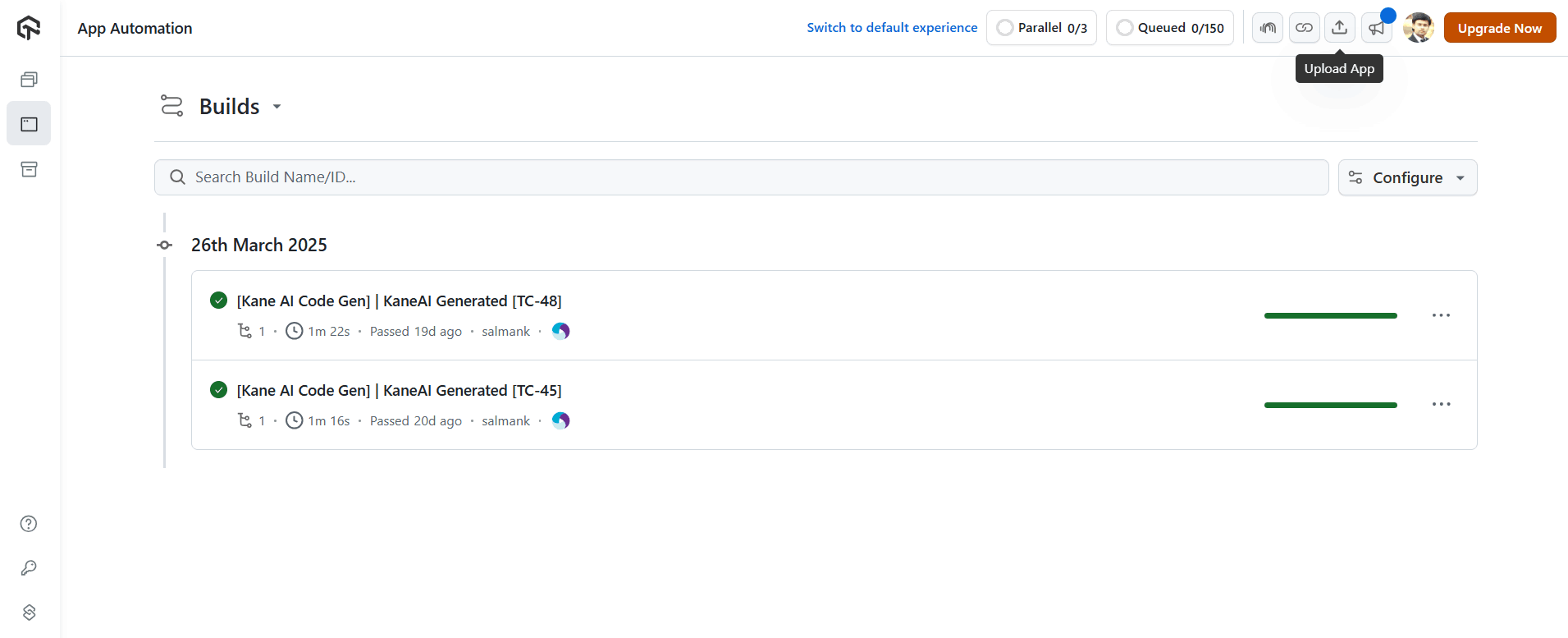
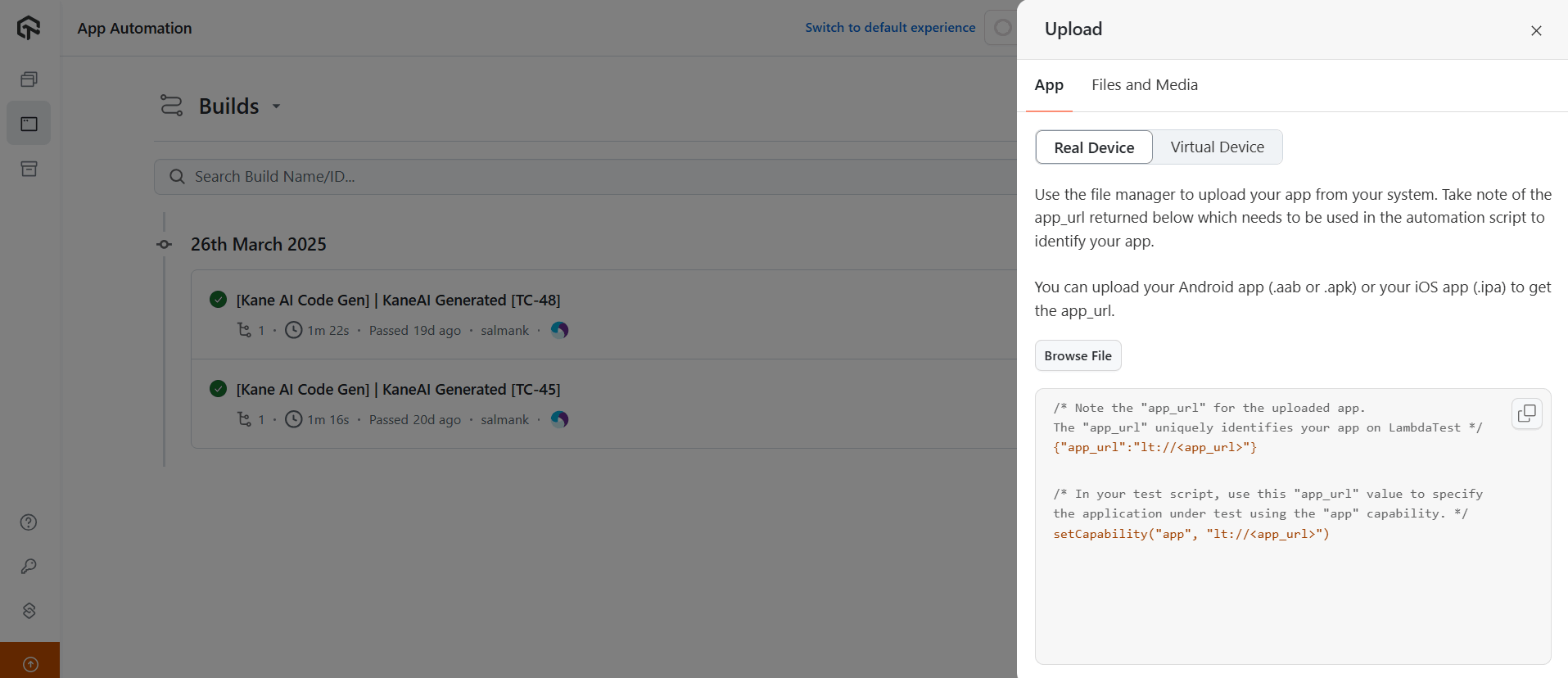
Now, upload your .apk or .ipa file to the TestMu AI platform to generate an app_url. This app_url is unique each time you upload your .apk or .ipa file. Click on Real Device under the App tab and browse the file.
Once the file is uploaded, you get the unique app_url and capabilities you must copy and add to your test script where you have defined the TestMu AI capabilities.
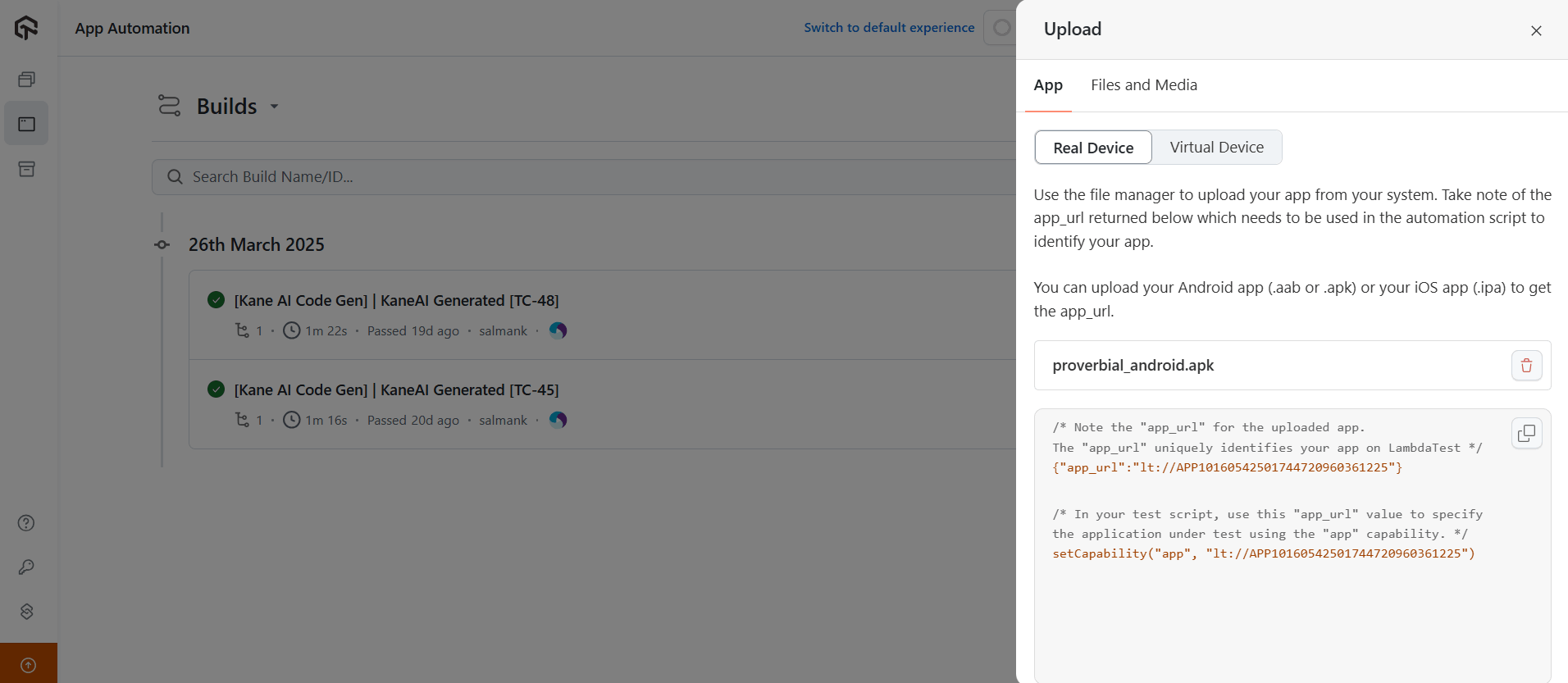
Now that we have obtained the Username, Access Key, and app_url from TestMu AI, copy these details and paste them into your test script.
Configuration (FileName – AndroidDriverManager)
@Builder
public class AndroidDriverManager {

   private static final ThreadLocal<AndroidDriver> DRIVER = new ThreadLocal<>();

   private String buildName;
   private String testName;
   private String platformName;
   private String platformVersion;
   private String deviceName;
   private String app;
   private static final String LT_USERNAME = System.getenv("LT_USERNAME");
   private static final String LT_ACCESS_KEY = System.getenv("LT_ACCESS_KEY");
   private static final String GRID_URL = "@mobile-hub.lambdatest.com/wd/hub";


   @SneakyThrows
   public AndroidDriverManager createAndroidDriver() {
       DRIVER.set(new AndroidDriver(new URL(format("https://{0}:{1}{2}", LT_USERNAME, LT_ACCESS_KEY, GRID_URL)),
               uiAutomator2Options()));
       setupDriverTimeouts();
       return this;
   }


   public AndroidDriver getDriver() {
       return DRIVER.get();
   }

   public void quitDriver() {
       if (null != DRIVER.get()) {
           getDriver().quit();
           DRIVER.remove();
       }
   }

   private void setupDriverTimeouts() {
       getDriver().manage()
               .timeouts()
               .implicitlyWait(Duration.ofSeconds(30));
   }


   private UiAutomator2Options uiAutomator2Options() {
       final UiAutomator2Options uiAutomator2Options = new UiAutomator2Options();
       uiAutomator2Options
               .setAutoGrantPermissions(true)
               .withBrowserName("Chrome")
               .setCapability("lt:Options", getLambdaTestOptions());

       return uiAutomator2Options;
   }


   private HashMap<String, Object> getLambdaTestOptions() {
       final HashMap<String, Object> ltOptions = new HashMap<>();
       ltOptions.put("w3c", true);
       ltOptions.put("platformName", this.platformName);
       ltOptions.put("platformVersion", this.platformVersion);
       ltOptions.put("deviceName", this.deviceName);
       ltOptions.put("app", this.app);
       ltOptions.put("build", this.buildName);
       ltOptions.put("name", this.testName);
       ltOptions.put("autoGrantPermissions", true);
       ltOptions.put("isRealMobile", true);
       ltOptions.put("visual", true);
       ltOptions.put("console", true);
       ltOptions.put("devicelog", true);
       ltOptions.put("plugin", "java-testNG");
       return ltOptions;
   }
Configuration (FileName – IOSDriverManager)
@Builder
public class IOSDriverManager {
   private static final ThreadLocal<IOSDriver> DRIVER = new ThreadLocal<>();
   private String buildName;
   private String testName;
   private String platformName;
   private String platformVersion;
   private String deviceName;
   private String app;
   private static final String LT_USERNAME = System.getenv("LT_USERNAME");
   private static final String LT_ACCESS_KEY = System.getenv("LT_ACCESS_KEY");
   private static final String GRID_URL = "@mobile-hub.lambdatest.com/wd/hub";


   @SneakyThrows
   public IOSDriverManager createIOSDriver() {
       DRIVER.set(new IOSDriver(new URL(format("https://{0}:{1}{2}", LT_USERNAME, LT_ACCESS_KEY, GRID_URL)),
               xcuiTestOptions()));
       setupDriverTimeouts();
       return this;
   }


   private XCUITestOptions xcuiTestOptions() {
       final XCUITestOptions xcuiTestOptions = new XCUITestOptions();
       xcuiTestOptions
               .setAutoAcceptAlerts(true)
               .setAutoDismissAlerts(true)
               .withBrowserName("chrome")
               .setCapability("lt:Options", getLambdaTestOptions());

       return xcuiTestOptions;
   }

   public IOSDriver getDriver() {
       return DRIVER.get();
   }


   public void quitDriver() {
       if (null != DRIVER.get()) {
           getDriver().quit();
           DRIVER.remove();
       }
   }

   private void setupDriverTimeouts() {
       getDriver().manage()
               .timeouts()
               .implicitlyWait(Duration.ofSeconds(30));
   }

   private HashMap<String, Object> getLambdaTestOptions() {
       final HashMap<String, Object> ltOptions = new HashMap<>();
       ltOptions.put("w3c", true);
       ltOptions.put("platformName", this.platformName);
       ltOptions.put("platformVersion", this.platformVersion);
       ltOptions.put("deviceName", this.deviceName);
       ltOptions.put("app", this.app);
       ltOptions.put("build", this.buildName);
       ltOptions.put("name", this.testName);
       ltOptions.put("autoAcceptAlerts", true);
       ltOptions.put("autoDismissAlerts", true);
       ltOptions.put("isRealMobile", true);
       ltOptions.put("visual", true);
       ltOptions.put("console", true);
       ltOptions.put("devicelog", true);
       ltOptions.put("plugin", "java-testNG");
       return ltOptions;
   }


}

The ThreadLocal class sets the drivers in the above code because it is thread-safe and works well when tests run in parallel. Using ThreadLocal ensures that two threads cannot see each other’s ThreadLocal variables, even if they set different values on the same ThreadLocal object.
An important note is that Lombok’s @Builder annotation is used in this class. This annotation allows us to build and obtain the desired capabilities details at runtime without passing the respective parameters in the method signature.
Note: Appium Server is not required to run locally if you want to locate the elements when using TestMu AI.
To run your test, you must add parameters for configurations like platform name, platform version, device name, app, build name, and test name can be set using the testng.xml file.
These tests will be run on the following real mobile devices on the TestMu AI platform.
One more thing to note is the efficient parallel testing feature. We run tests simultaneously on Android and iOS platforms by setting the values parallel =”tests” and thread-count =”2” inside the suite tag. It greatly accelerates the testing process.
<?xml version="1.0" encoding="UTF-8"?>
<!DOCTYPE suite SYSTEM "http://testng.org/testng-1.0.dtd">
<suite name="LambdaTest Mobile automation test suite" parallel="tests" thread-count="2" >
   <test name="Proverbial app - Android Mobile Automation">
       <parameter name="buildName" value="Android Build"/>
       <parameter name="testName" value="Proverbial app tests"/>
       <parameter name="app" value="lt://APP1016026231710500086926825"/>
       <parameter name="platformName" value="ANDROID"/>
       <parameter name="platformVersion" value="13"/>
       <parameter name="deviceName" value="Galaxy S23"/>
       <classes>
           <class name="io.github.mfaisalkhatri.mobileautomation.tests.android.AndroidTests">
               <methods>
                   <include name="textTests"/>
                   <include name="notificationTest"/>
                   <include name="toastMessageTest"/>
                   <include name="geoLocationTest"/>
                   <include name="speedTestPageTest"/>
                   <include name="browserTest"/>
               </methods>
           </class>
       </classes>
   </test> <!-- Test -->
   <test name="Proverbial app - iOS Mobile Automation">
       <parameter name="buildName" value="IOS Build"/>
       <parameter name="testName" value="Proverbial app tests"/>
       <parameter name="app" value="lt://APP1016026231710499882750475"/>
       <parameter name="platformName" value="IOS"/>
       <parameter name="platformVersion" value="16"/>
       <parameter name="deviceName" value="iPhone 14 Pro"/>
       <classes>
           <class name="io.github.mfaisalkhatri.mobileautomation.tests.ios.IOSTests">
               <methods>
                   <include name="textTests"/>
                   <include name="notificationTest"/>
                   <include name="toastMessageTest"/>
                   <include name="geoLocationTest"/>
                   <include name="speedTestPageTest"/>
                   <include name="browserTest"/>
               </methods>
           </class>
       </classes>
   </test> <!-- Test -->
</suite> <!-- Suite -->
Trigger the following command on the terminal to run the tests using Maven:
mvn clean install -DLT_USERNAME=<LambdaTest username> -DLT_ACCESS_KEY=<LambdaTest Access Key>
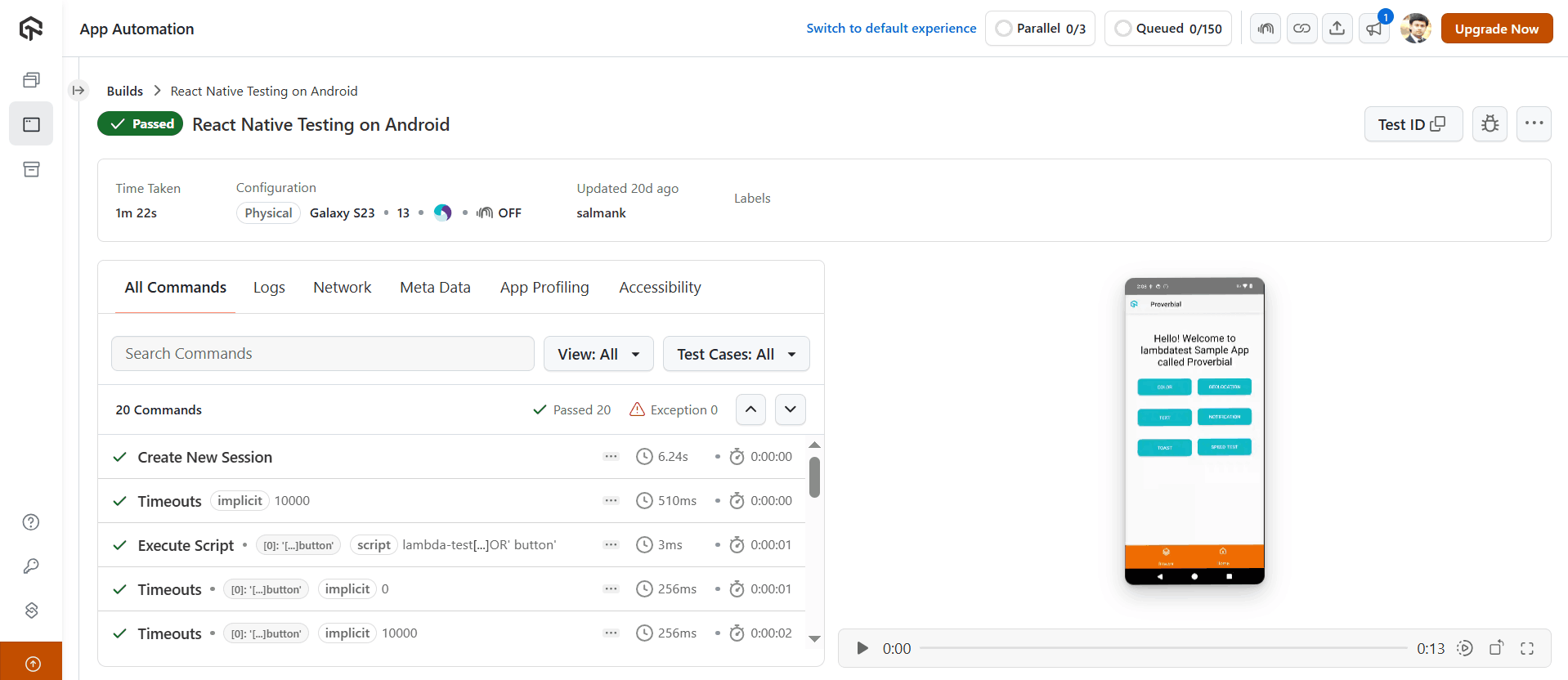
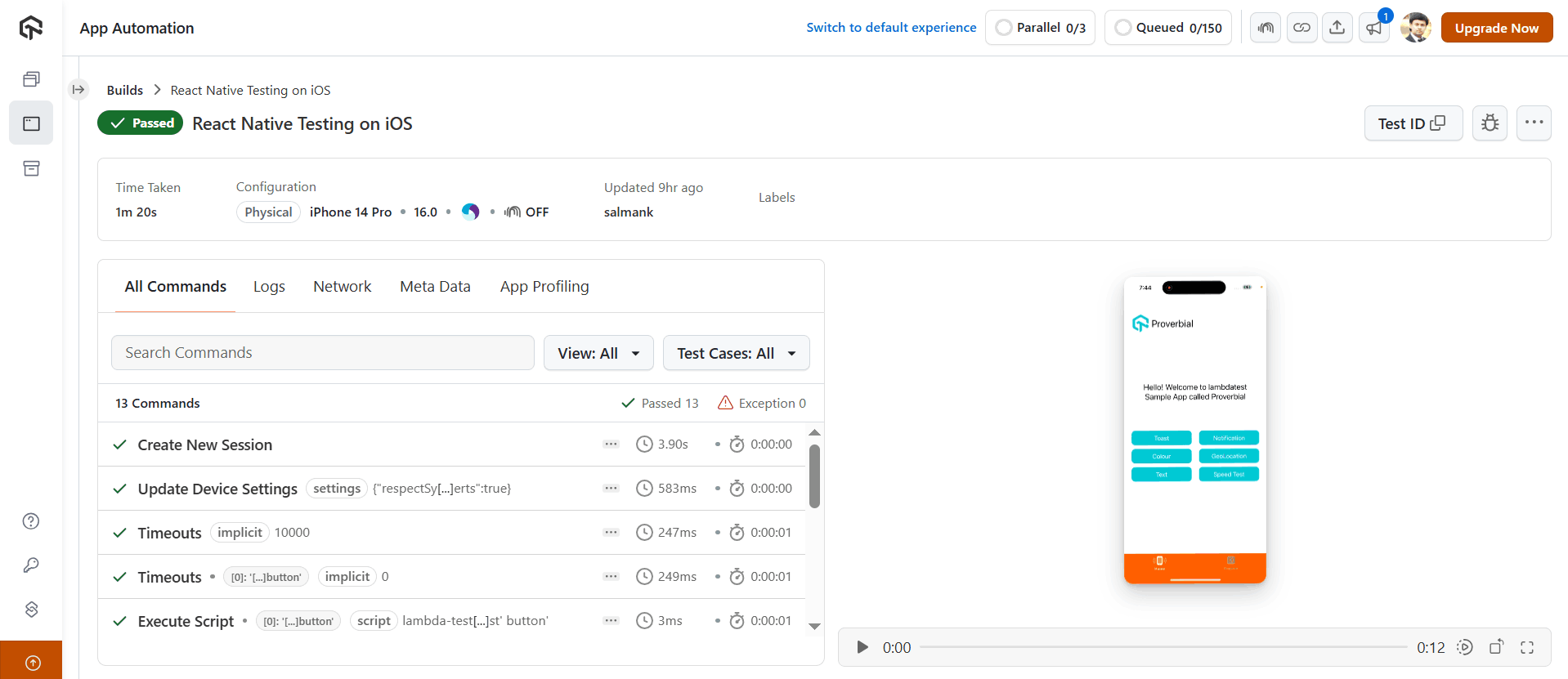
Once the tests are run successfully, we can check out the TestMu AI App Automation dashboard to view your test results.
Android:
iOS:
Conclusion
In this React Native testing tutorial, we learned how to perform tests on React Native apps for both Android and iOS. The test strategy was discussed, and the elements were used using Appium Inspector. Finally, we were able to write the code using Java with Appium for React Native apps to test on Android and iOS devices.
Finally, we ran the tests on the TestMu AI platform, which executed the tests fast and gave us good insights with video recordings, screenshots, and different logs about the tests.
You can also learn more about how to test with React through this blog on React end-to-end-testing.
Citations
- Testing React Native Mobile Apps: Pruning GUI Model Approach:


Frequently asked questions
Did you find this page helpful?
More Related Hubs
TestMu AI forEnterprise
Get access to solutions built on Enterprise
grade security, privacy, & compliance
- Advanced access controls
- Advanced data retention rules
- Advanced Local Testing
- Premium Support options
- Early access to beta features
- Private Slack Channel
- Unlimited Manual Accessibility DevTools Tests