

Next-Gen App & Browser Testing Cloud
Trusted by 2 Mn+ QAs & Devs to accelerate their release cycles


How To Test PDF Files Using Selenium Automation?
Efficient Selenium Testing for PDF Files: Learn how to validate PDFs with Selenium automation in this comprehensive tutorial on -selenium testing pdf files.

Shalini Baskaran
December 29, 2025
A compact, extremely secure file format is PDF. The majority of firms process their files using PDFs. The reason for this is that PDF files have the distinctive property of keeping format independent of the instrument used to retrieve them. It should come as no surprise that all of our bills, correspondence, contracts, airline passes, bank statements, etc. are typically in PDF format.
Even as developers, we come across scenarios when a PDF file needs to be verified or used to locate certain parts of data. You can either do this manually given that you have loads of time to spare or you opt for automation testing. When it comes to handling tricky components of such files using automation, it might seem a bit too tricky. But that’s not the case. Selenium test automation can make it really easy to test PDF file formats.
In this blog post, we will be exploring the knotty topic of Selenium testing PDF files and come up with different solutions to handle a PDF document using automation.
If you’re new to Selenium and wondering what it is then we recommend checking out our guide – What is Selenium?
What is Automation Testing for PDF?
Automation testing PDF refers to the innovative practice of utilizing automation tools and frameworks to conduct comprehensive testing of PDF documents. This technique empowers software testers to efficiently validate text, layout, graphics, and other elements within PDF files, ensuring their accuracy and functionality. By automating the testing process and generating detailed reports, automation testing PDF enhances the quality assurance process, accelerates testing cycles, and contributes to the seamless delivery of error-free PDF documents.
Want to know how to do PDF testing with SmartUI? Check out this detailed blog.
Why Is It Important To Test A PDF File?
In today’s world, PDF file format is used standardly for generating official letters, documents, contracts, and other important files. Primarily because PDF cannot be edited while a Word format can be. Hence storing confidential information in PDF format is considered a good security practice.
Such high-security documents must always be incorporated with accurate details and it has to be ensured that the information provided is verified. A PDF document needs to be generated in such a way that it is readable by humans but not by machines. Validating and verifying the documents could be easy when done manually but it poses a major time-related challenge.

That’s one of the complexities that automation testers face and this is where Selenium testing PDF files comes in. Let me give you a practical example where testing the PDF documents becomes a basic design requirement.
In banking systems, when we require our account statement for a specific period, the statement would be downloaded in PDF format. This document would contain the basic information of the user and the transactions for the period prescribed.
If this design wasn’t verified with high accuracy before going live, the end-user would face multiple discrepancies in their account statements. Hence the person responsible for testing this requirement has to make sure that all the details printed in the account statement exactly match the information or actions performed by the customer.
I hope this exemplifies the resourcefulness of Selenium testing PDF files. Let’s start this Selenium testing PDF files tutorial by showing you the different operations that can be performed for PDF testing using Selenium.
Read: Why Selenium Automation Testing In Production Is Pivotal For Your Next Release?
How To Handle PDF In Selenium Webdriver?
To handle a PDF document in Selenium test automation, we can use a java library called PDFBox. Apache PDFBox is an open-source library that exclusively helps in handling the PDF documents. We can use it to verify the text present in the document, extract a specific section of text or image in the documents, and so on. To use this in Selenium testing PDF files, we need to either add the maven dependency in the pom.xml file or add it as an external jar.
To add as a maven dependency:
- Navigate to the below URL
- Select the latest version and place in the pom.xml file. The maven dependency would look like below
<dependency>
    <groupId>org.apache.pdfbox</groupId>
    <artifactId>pdfbox</artifactId>
    <version>2.0.20</version>
</dependency>
To add as an external jar:
- Download the jar file in the below path
https://repo1.maven.org/maven2/org/apache/pdfbox/pdfbox/2.0.20/
- Go to your project and select configure Build Path and add the external jar file as below.
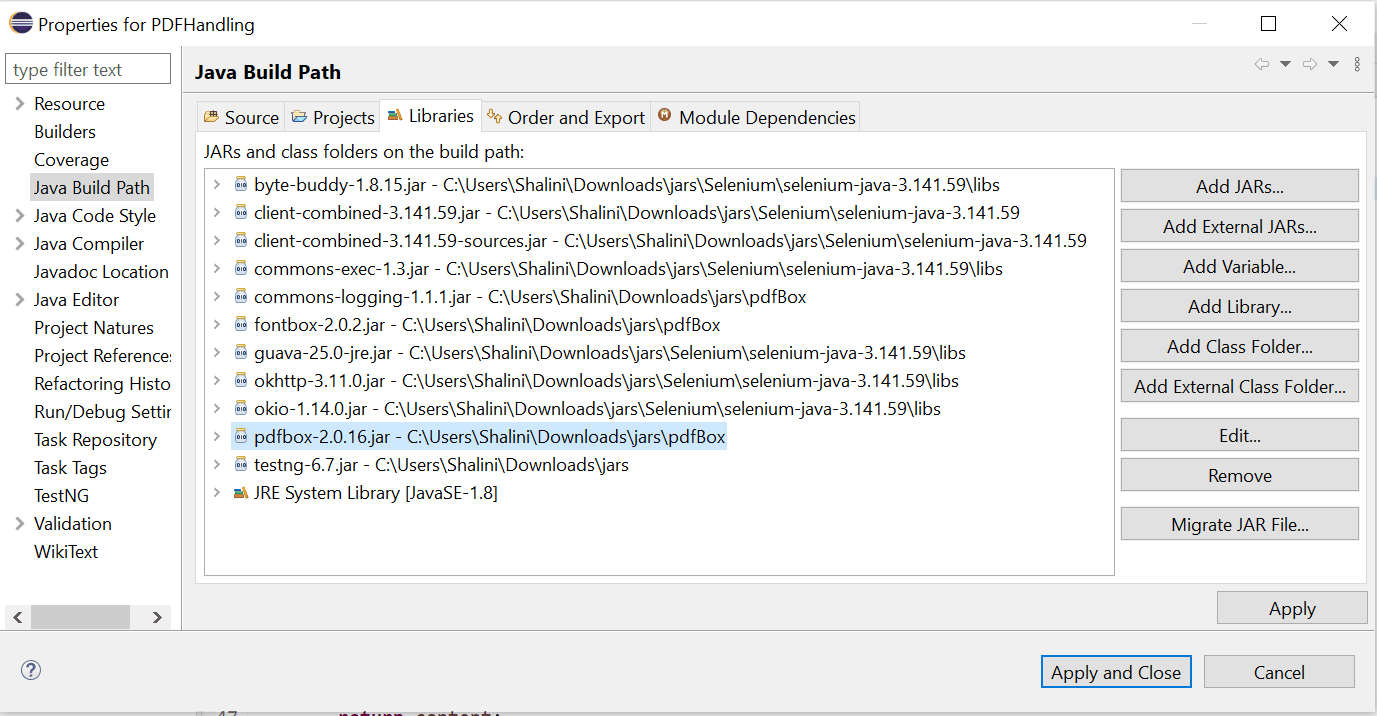
- Once you have added the dependency or jar in your project you are good to go with the coding part.
Verify The Content In The PDF
Next in this tutorial about Selenium testing PDF files, we find out how to verify the PDF’s content. To check if a specific text piece is present in a PDF document we use PDFTextStripper which can be imported from org.apache.pdfbox.util.PDFTextStripper.
This is the code we can use for PDF testing using Selenium and verify its content.
package Automation;

import java.io.BufferedInputStream;
import java.io.IOException;
import java.io.InputStream;
import java.net.MalformedURLException;
import java.net.URL;

import org.apache.pdfbox.pdmodel.PDDocument;
import org.apache.pdfbox.text.PDFTextStripper;
import org.openqa.selenium.WebDriver;
import org.openqa.selenium.chrome.ChromeDriver;
import org.testng.Assert;
import org.testng.annotations.AfterTest;
import org.testng.annotations.BeforeTest;
import org.testng.annotations.Test;

public class PdfHandling {

	WebDriver driver = null;

	@BeforeTest
	public void setUp() {
		//specify the location of the driver
		System.setProperty("webdriver.chrome.driver", "C:\Users\Shalini\Downloads\Driver\chromedriver.exe");

		//instantiate the driver
		driver = new ChromeDriver();
	}

	@Test
	public void verifyContentInPDf() {
		//specify the url of the pdf file
		String url ="http://www.pdf995.com/samples/pdf.pdf";
		driver.get(url);
		try {
			String pdfContent = readPdfContent(url);
			Assert.assertTrue(pdfContent.contains("The Pdf995 Suite offers the following features"));
		} catch (MalformedURLException e) {
			e.printStackTrace();
		} catch (IOException e) {
			e.printStackTrace();
		}
	}

	@AfterTest
	public void tearDown() {
		driver.quit();
	}


	public static  String readPdfContent(String url) throws IOException {

		URL pdfUrl = new URL(url);
		InputStream in = pdfUrl.openStream();
		BufferedInputStream bf = new BufferedInputStream(in);
		PDDocument doc = PDDocument.load(bf);
		int numberOfPages = getPageCount(doc);
		System.out.println("The total number of pages "+numberOfPages);
		String content = new PDFTextStripper().getText(doc);
		doc.close();

	return content;
}

	public static int getPageCount(PDDocument doc) {
		//get the total number of pages in the pdf document
		int pageCount = doc.getNumberOfPages();
		return pageCount;

	}

}
<?xml version="1.0" encoding="UTF-8"?>
<!DOCTYPE suite SYSTEM "http://testng.org/testng-1.0.dtd">
<suite name="PDF Handling">
  <test name="Verify Pdf content">
      <classes>
      <class name="Automation.PdfHandling"/>
      </classes>
  </test>
 </suite>
To run the test, click on the class -> Run As -> TestNG Test.
The output console would be showing the default test report indicating the success and failure cases.
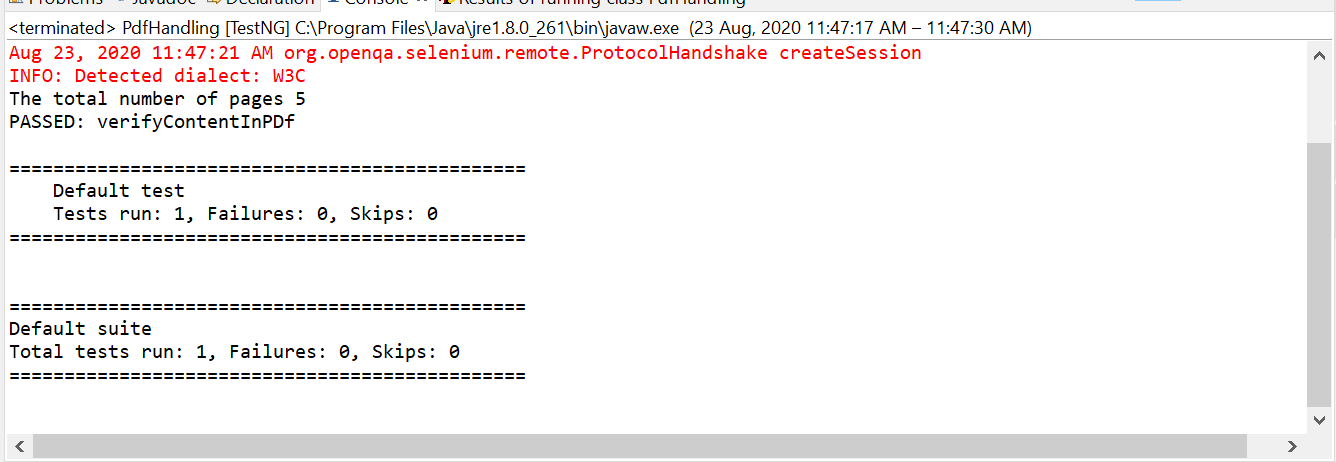
TestNG console
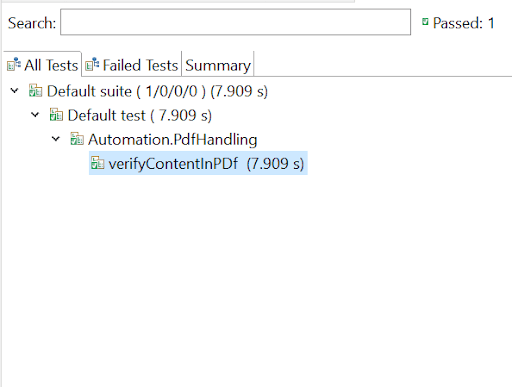
Do you know how to upload and download a file in Selenium? Watch this video to learn how to upload and download files in Selenium WebDriver using different techniques.
Download PDF file
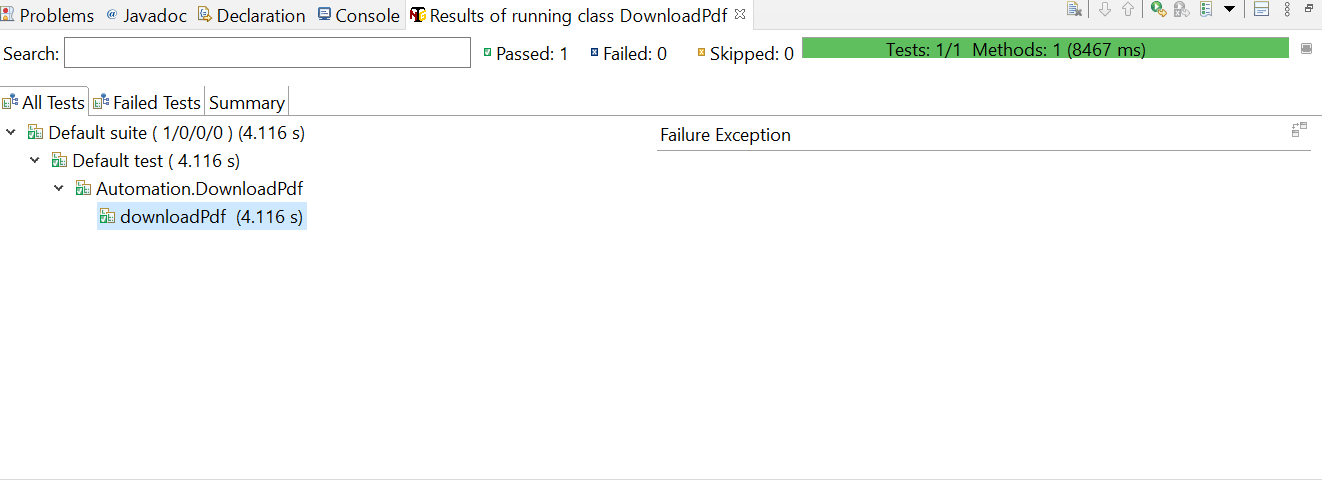
Sometimes before starting off with Selenium testing PDF files, we need to download them. To download the PDF file from a webpage, we need to specify the Selenium locator to identify the link to download. We also need to disable the popup window which asks us to specify the path in which the downloaded file has to be placed.
This is the code that can be used for downloading PDFs before we start Selenium testing PDF files.
package Automation;

import java.util.HashMap;
import java.util.Map;
import java.util.concurrent.TimeUnit;

import org.openqa.selenium.By;
import org.openqa.selenium.WebDriver;
import org.openqa.selenium.chrome.ChromeDriver;
import org.openqa.selenium.chrome.ChromeOptions;
import org.testng.annotations.AfterTest;
import org.testng.annotations.BeforeTest;
import org.testng.annotations.Test;

public class DownloadPdf {

	WebDriver driver = null;
	@BeforeTest
	public void setUp() {
		System.setProperty("webdriver.chrome.driver", "C:\Users\Shalini\Downloads\Driver\chromedriver.exe");

		ChromeOptions options = new ChromeOptions();
		Map<String, Object> prefs = new HashMap<String, Object>();
		prefs.put("download.prompt_for_download", false);
		options.setExperimentalOption("prefs", prefs);
		driver = new ChromeDriver(options);
	}


	@Test
	public void downloadPdf() {
	driver.manage().timeouts().implicitlyWait(30, TimeUnit.SECONDS);
	driver.manage().window().maximize();
	driver.get("https://www.learningcontainer.com/sample-pdf-files-for-testing");

	//locator to click the pdf download link
	driver.findElement(By.xpath("//*[@id="bfd-single-download-810"]/div/div[2]/a/p[1]/strong")).click();
	}

	@AfterTest
	public void tearDown() {
		driver.quit();

	}

}
Console output
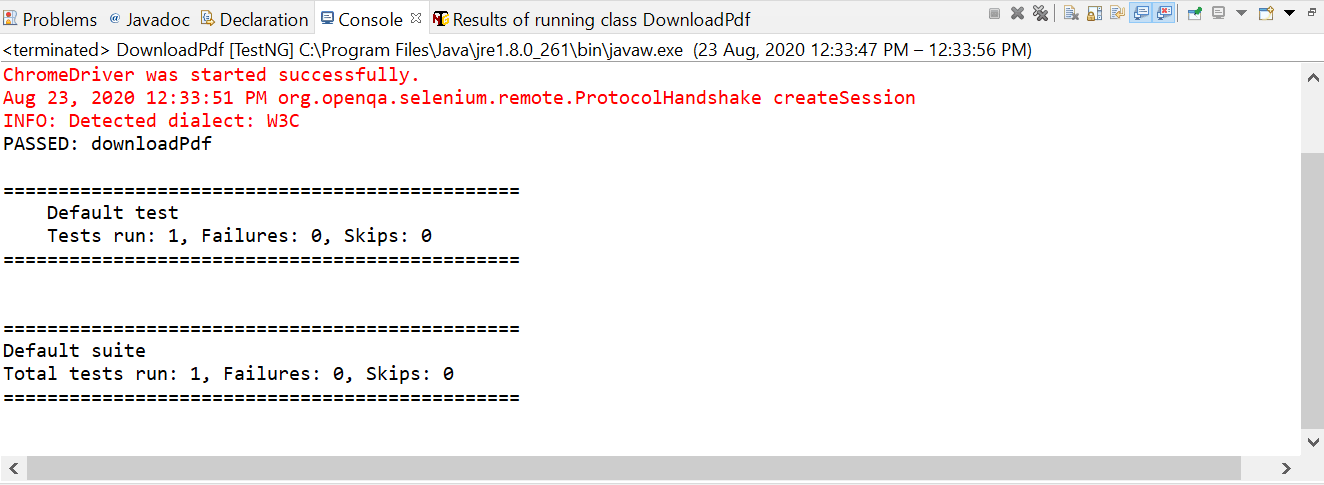
TestNG output console

Set The Start Of The PDF Document
Verifying a small PDF file would be an easy task with Selenium testing PDF files. But what will you do for larger sized files? The solution is simple. You can set the starting page of the PDF and proceed with your validation of PDF testing using Selenium.
If you look at the sample PDF link that I have mentioned in this article, it contains 5 pages and the introduction starts on page 2. If the startpage is set as 2 in the code and the text is printed, you may see the content which has been printed from the second page. As said earlier, if the file size is large, you may set the start of the document, extract the content, and just validate the content.
Below is the simple code to set the start of the document for Selenium testing PDF files.
package Automation;

import java.io.BufferedInputStream;
import java.io.IOException;
import java.io.InputStream;
import java.net.MalformedURLException;
import java.net.URL;

import org.apache.pdfbox.pdmodel.PDDocument;
import org.apache.pdfbox.text.PDFTextStripper;
import org.openqa.selenium.WebDriver;
import org.openqa.selenium.chrome.ChromeDriver;
import org.testng.Assert;
import org.testng.annotations.AfterTest;
import org.testng.annotations.BeforeTest;
import org.testng.annotations.Test;

public class ExtractContent {

	WebDriver driver = null;

	@BeforeTest
	public void setUp() {
		//specify the location of the driver
		System.setProperty("webdriver.chrome.driver", "C:\Users\Shalini\Downloads\Driver\chromedriver.exe");

		//instantiate the driver
		driver = new ChromeDriver();
	}

	@Test
	public void verifyContentInPDf() {
		//specify the url of the pdf file
		String url ="http://www.pdf995.com/samples/pdf.pdf";
		driver.get(url);
		try {
			String pdfContent = readPdfContent(url);
			System.out.println(pdfContent);
			Assert.assertTrue(pdfContent.contains("Introduction"));
		} catch (MalformedURLException e) {
			e.printStackTrace();
		} catch (IOException e) {
			e.printStackTrace();
		}
	}

	@AfterTest
	public void tearDown() {
		driver.quit();
	}


	public static  String readPdfContent(String url) throws IOException {

		URL pdfUrl = new URL(url);
		InputStream in = pdfUrl.openStream();
		BufferedInputStream bf = new BufferedInputStream(in);
		PDDocument doc = PDDocument.load(bf);
		PDFTextStripper pdfStrip = new PDFTextStripper();
		pdfStrip.setStartPage(2);
		String content = pdfStrip.getText(doc);
		doc.close();

	return content;
}

	public static int getPageCount(PDDocument doc) {
		//get the total number of pages in the pdf document
		int pageCount = doc.getNumberOfPages();
		return pageCount;

	}

}
Console output
The console shows the content starting from the second page.
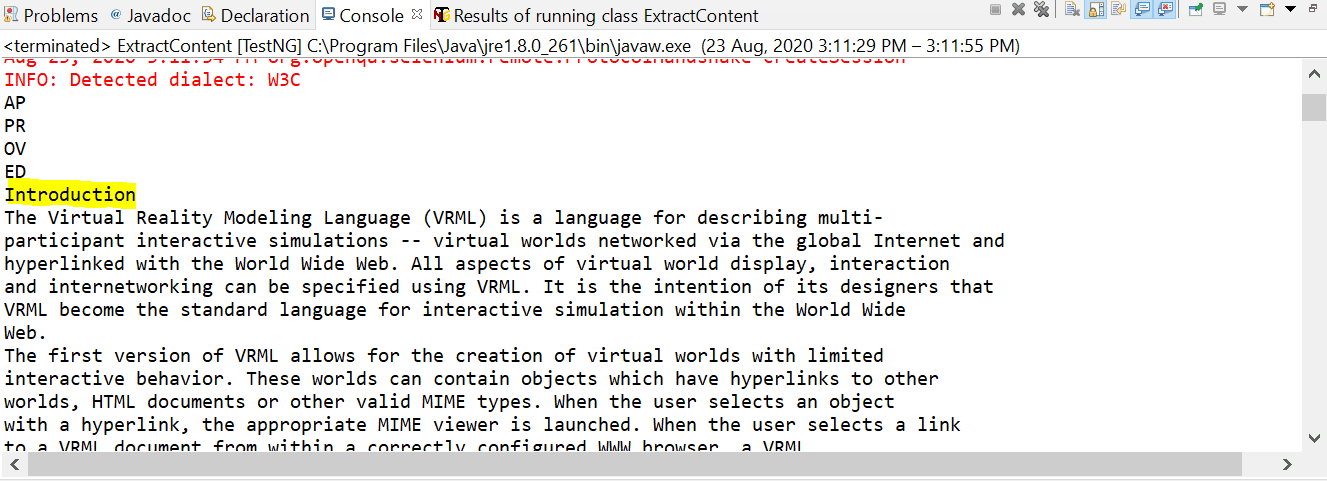
As we have discussed earlier in this tutorial for Selenium testing PDF files- When the file size is large, you can set the start page of the document and extract the content and proceed with your validation.
But what if you have to print the entire content of a specific page?
If we set only the start page and print the content, then all the contents starting from the specified page will be printed till the end of the document. In case if the file size is large that’s not a good option. Instead, we can set the end page of the document too!
Wouldn’t that make Selenium testing PDF files easier?
If we wish to print the contents starting from page 2 to page 3 we can set the below option in our code.
pdfStrip.setStartPage(2);
pdfStrip.setEndPage(3);
If we want to print the entire content of a single page, we can mention the same page number as the start as well as the end page.
pdfStrip.setStartPage(2);
pdfStrip.setEndPage(2);
In the next section of this Selenium testing PDF files tutorial, we will take a look at PDF testing using Selenium Grid on a cloud-based platform.
PDF Testing Using Selenium TestMu AI Grid
All the operations for PDF testing using Selenium that we performed above can also be executed on an online Selenium grid. TestMu AI grid provides a great option to automate the tests in the cloud. We can carry out tests in multiple environments or browsers which helps us to determine the behavior of the web pages.
Using TestMu AI, you can perform Selenium testing PDF files on 3000+ browsers, devices, and operating systems. Now in this Selenium testing PDF files tutorial, we will see how to implement the same PDF operations that were handled above in the TestMu AI grid.
To do Selenium testing PDF files in the TestMu AI grid, we need to create an account. You can sign up here for free.
Once signed in, you will be provided with a Username and an Access Key which can be viewed by clicking the key icon as highlighted below.
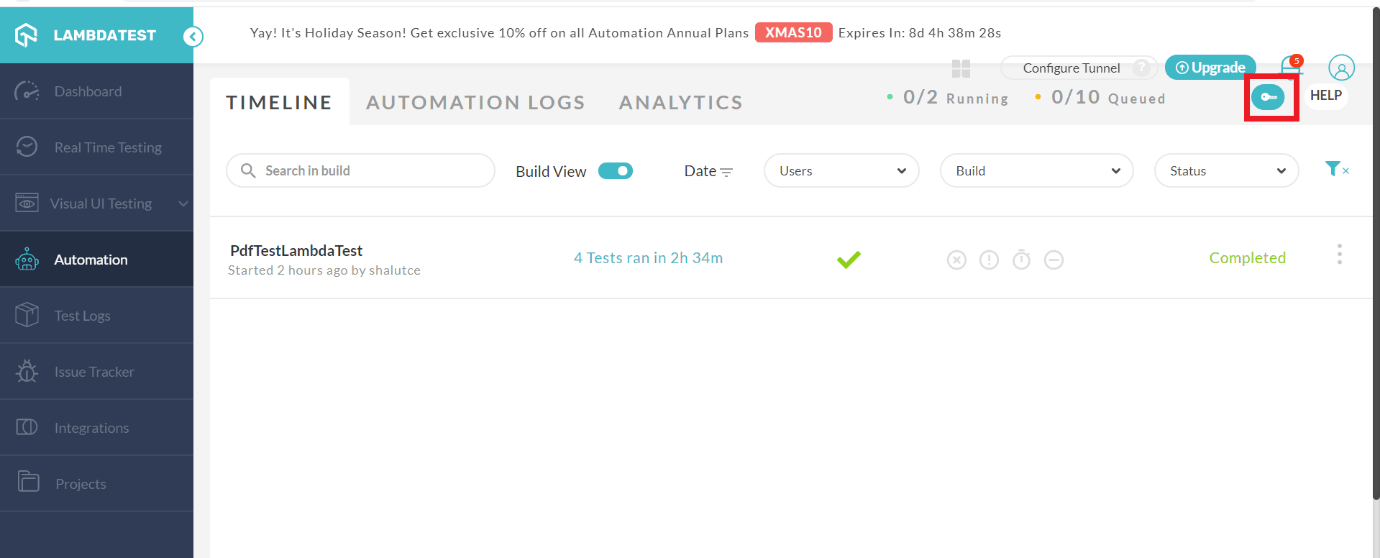
The Username and the Access Key has to be replaced in the code given below.
package Automation;

import java.io.BufferedInputStream;
import java.io.IOException;
import java.io.InputStream;
import java.net.MalformedURLException;
import java.net.URL;

import org.apache.pdfbox.pdmodel.PDDocument;
import org.apache.pdfbox.text.PDFTextStripper;
import org.openqa.selenium.remote.DesiredCapabilities;
import org.openqa.selenium.remote.RemoteWebDriver;
import org.testng.Assert;
import org.testng.annotations.AfterTest;
import org.testng.annotations.BeforeTest;
import org.testng.annotations.Test;

public class PdfHandlingInGrid {


    String username = "Your username";		//Enter your username
    String accesskey = "Your access Key";		//Enter your accesskey
    static RemoteWebDriver driver = null;
    String gridURL = "@hub.lambdatest.com/wd/hub";

    boolean status = false;

    @BeforeTest
	public void setUp()throws MalformedURLException
	{

        DesiredCapabilities capabilities = new DesiredCapabilities();
        capabilities.setCapability("browserName", "chrome"); 	  //To specify the browser
        capabilities.setCapability("version", "70.0");			  //To specify the browser version
        capabilities.setCapability("platform", "win10"); 		  // To specify the OS
        capabilities.setCapability("build", "PdfTestLambdaTest"); //To identify the test
        capabilities.setCapability("name", "PDFHandling");
        capabilities.setCapability("network", true); 		//To enable network logs
        capabilities.setCapability("visual", true);                   // To enable step by step screenshot
        capabilities.setCapability("video", true);			// To enable video recording
        capabilities.setCapability("console", true); 			// To capture console logs
        try {
            driver = new RemoteWebDriver(new URL("https://" + username + ":" + accesskey + gridURL), capabilities);
        } catch (MalformedURLException e) {
            System.out.println("Invalid grid URL");
        } catch (Exception e) {
            System.out.println(e.getMessage());
        }

}


        @Test
        public void pdfHandle() {
    		String url ="http://www.pdf995.com/samples/pdf.pdf";
    		driver.get(url);
    		try {
    			String pdfContent = readPdfContent(url);
    			System.out.println(pdfContent);
    			Assert.assertTrue(pdfContent.contains("Introduction"));
    		} catch (MalformedURLException e) {
    			e.printStackTrace();
    		} catch (IOException e) {
    			e.printStackTrace();
    		}
        }

     @AfterTest
     public void tearDown() {
    	driver.quit();
}

     public static  String readPdfContent(String url) throws IOException {

    	 URL pdfUrl = new URL(url);
 		InputStream in = pdfUrl.openStream();
 		BufferedInputStream bf = new BufferedInputStream(in);
 		PDDocument doc = PDDocument.load(bf);
 		PDFTextStripper pdfStrip = new PDFTextStripper();
 		pdfStrip.setStartPage(2);
 		pdfStrip.setEndPage(2);

 		String content = pdfStrip.getText(doc);
 		doc.close();
		return content;
	}

	public static int getPageCount(PDDocument doc) {
		int pageCount = doc.getNumberOfPages();
		return pageCount;

	}
}
TestNG.xml
<?xml version="1.0" encoding="UTF-8"?>
<!DOCTYPE suite SYSTEM "http://testng.org/testng-1.0.dtd">
<suite name="PDF Handling">
  <test name="Verify Pdf content">
      <classes>
      <class name="Automation.PdfHandlingInGrid"/>
      </classes>
  </test>
 </suite>
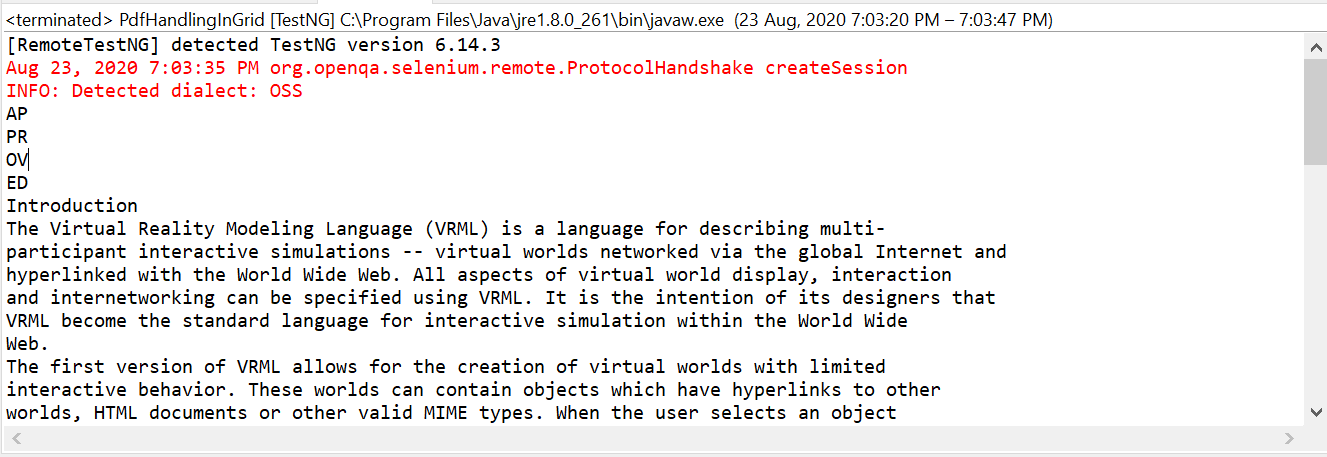
Console output
The console output shows the content of the PDF document only in the second page as both the start as well end page is given the same.
How To View Your Tests In TestMu AI Dashboard?
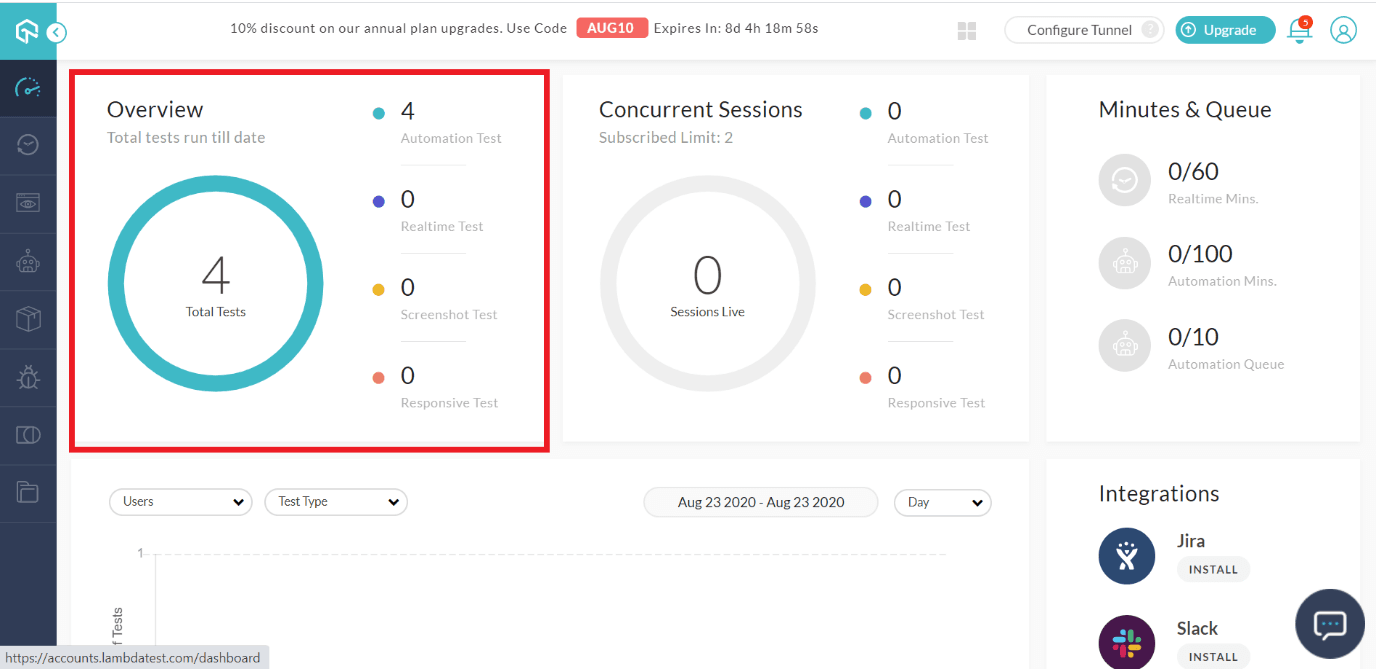
The next major step in Selenium testing PDF files is to view the test results and verify them. Once you’ve executed the test cases successfully, navigate to the TestMu AI dashboard page. This page shows a brief description on the tests that have been run.
To get detailed information about each and every test, navigate to the Automation tab.
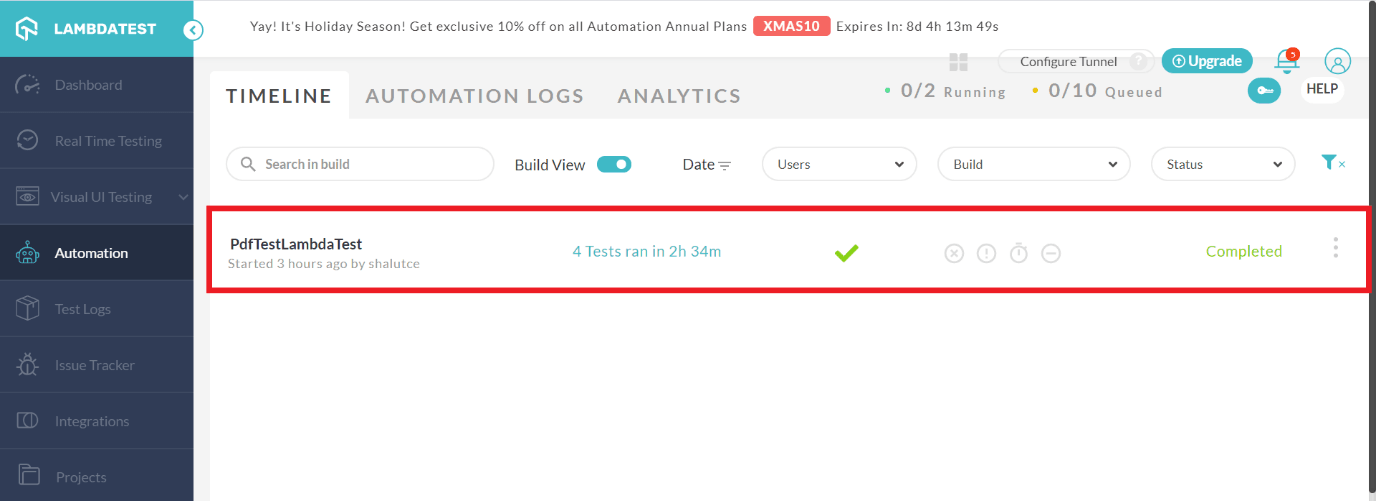
The tests that are run in the TestMu AI grid would be placed in a directory that was provided in the source code. In the code, we have set the path name as PdfTestTestMu AI which would help us locate our tests in the dashboard.
capabilities.setCapability("build", "PdfTestLambdaTest"); //To identify the test
TestMu AI also provides various filters to identify the tests run. The tests could be filtered based on the day of execution, build a name, and also the status of the build. By clicking the build we will be navigated to the detailed tests page where all the tests that were run in the specific build would be listed.
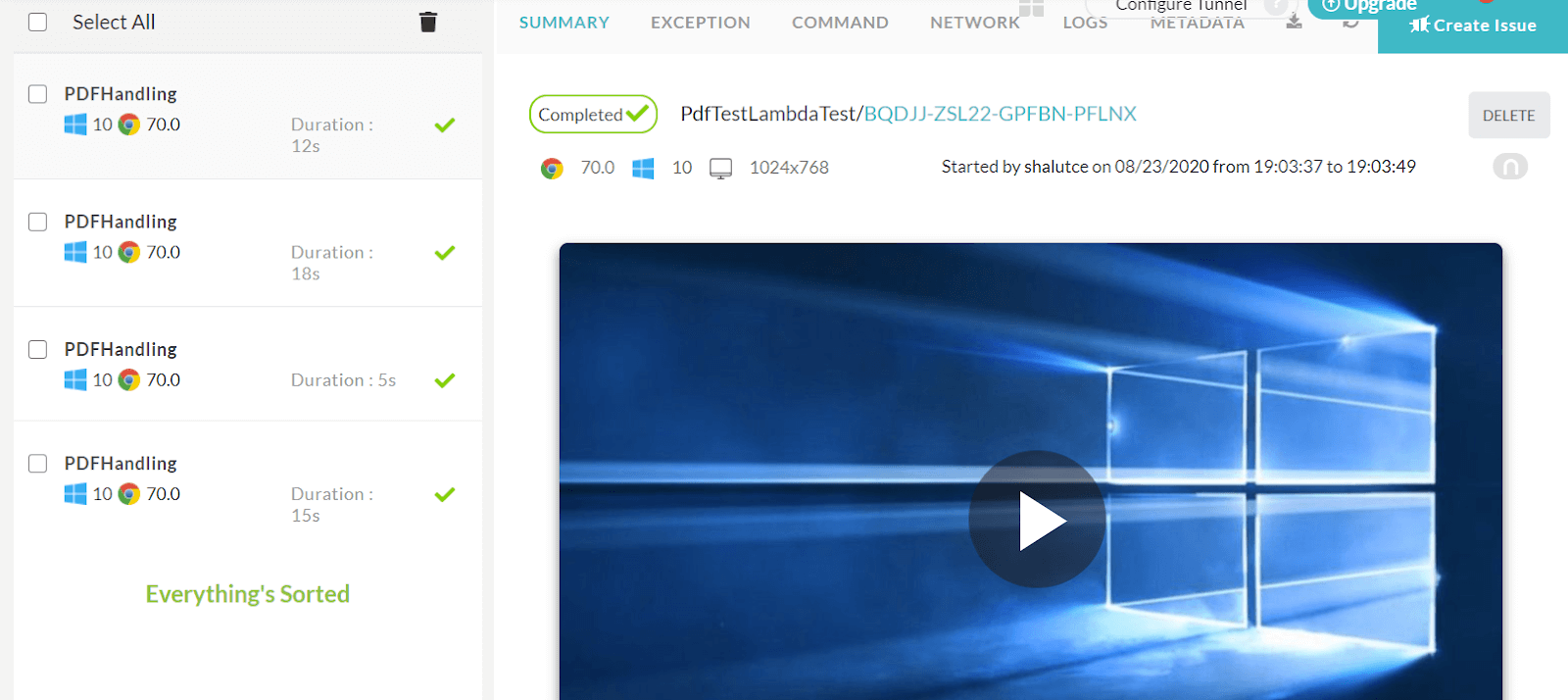
Information about the browser, its version, the status of the tests would be listed out and the tests are recorded while running in the grid and any failure during test execution could be easily tracked and fixed with help of the video recording feature. This takes Selenium testing PDF files to a whole another level.
Below is the screenshot of the test results that have been run in the TestMu AI grid.
Wrapping Up!
So far, I have explained the need for PDF testing using selenium. This post about Selenium testing PDF files explained everything about using Apache PDFBox, using PDFTextStripper, and using TestNG asserts. From extracting content from a specific page to validating its content, you can perform all those operations in TestMu AI.
Handling PDF and validating it in Selenium test automation could be quite tricky. I hope you all have got sound knowledge on Selenium testing PDF files. Share your experience below if you have faced any other challenges in handling a PDF file. We’d love to get feedback about this article on Selenium testing PDF files. Please do share this article with your peers and colleagues as it might be helpful to them. Stay tuned until then Happy testing..!!!



Frequently asked questions
Did you find this page helpful?
More Related Hubs
TestMu AI forEnterprise
Get access to solutions built on Enterprise
grade security, privacy, & compliance
- Advanced access controls
- Advanced data retention rules
- Advanced Local Testing
- Premium Support options
- Early access to beta features
- Private Slack Channel
- Unlimited Manual Accessibility DevTools Tests