

Next-Gen App & Browser Testing Cloud
Trusted by 2 Mn+ QAs & Devs to accelerate their release cycles


How to Scroll Down in Selenium C#
Learn to scroll down in Selenium C# using JavaScriptExecutor for precise scrolling and effective WebElement interaction.
December 24, 2025
Scrolling is an essential feature in web applications, allowing users to navigate through content that can’t fit within a single view. To ensure a smooth user experience, it’s important to implement effective scrolling techniques. Using Selenium WebDriver, testers can automate scrolling to interact with elements that are not immediately visible, and hence, automation becomes necessary when certain WebElements become accessible only after scrolling down, ensuring that all elements are properly tested and interactable.
Scroll down in Selenium C# can be managed using the JavaScriptExecutor interface, which allows the execution of JavaScript commands directly in the browser. This feature enables precise control over the scrolling behavior, ensuring that elements are accessible and tests cover all relevant scenarios.
Using JavaScriptExecutor to Scroll a Page
JavaScriptExecutor in Selenium allows you to perform page scrolling that Selenium’s standard methods might not handle effectively. The below commands scroll the page by 250 pixels up or down, respectively.
To scroll down the page:
IJavaScriptExecutor js = (IJavaScriptExecutor)driver;
js.ExecuteScript("window.scrollBy(0,250)", "");
To scroll up the page:
IJavaScriptExecutor js = (IJavaScriptExecutor)driver;
js.ExecuteScript("window.scrollBy(0,-250)", "");

Scrolling a Page Using Selenium C#
Before we look at some examples of how to scroll in Selenium C# to perform various actions, let’s set up a new test project.
Below are the few libraries that you need to get started with using scroll down in Selenium C#.
- Download and install Visual Studio.
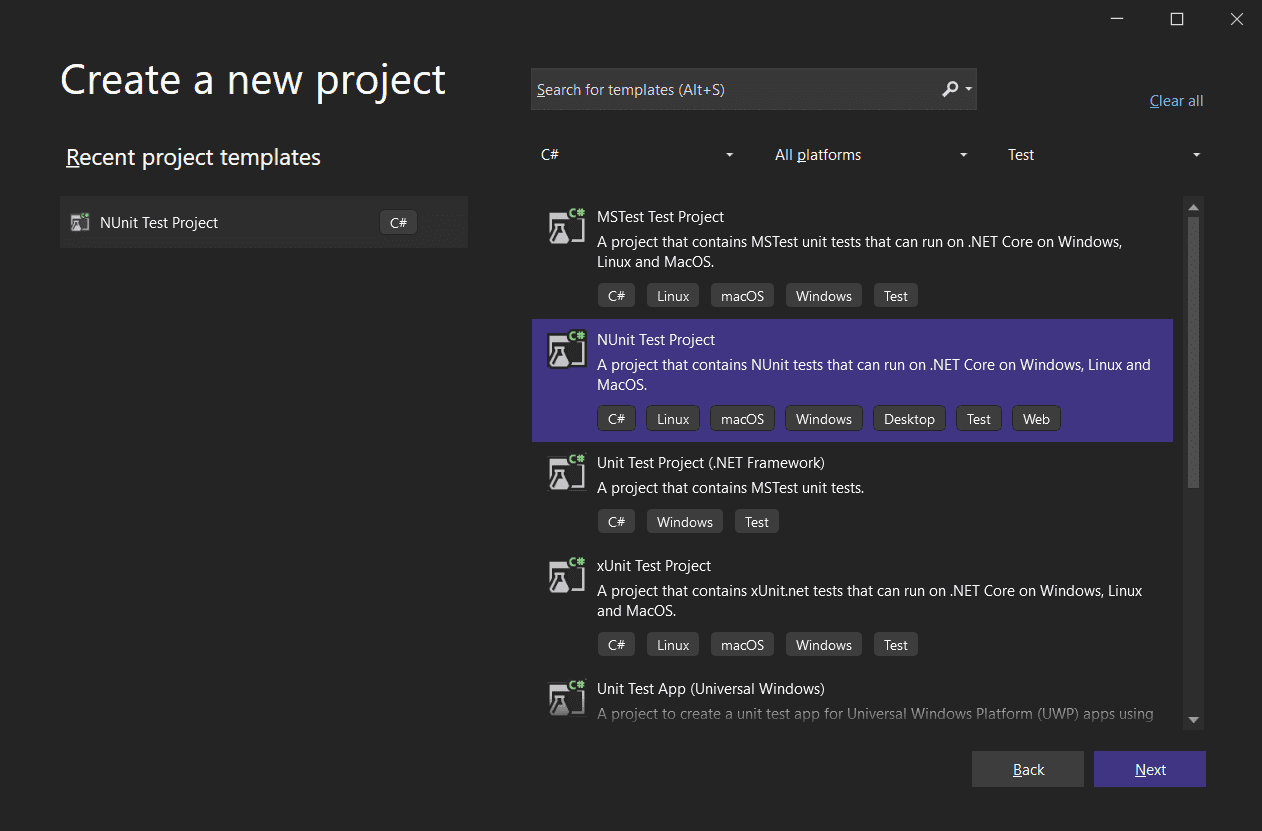
- Create a new Visual Studio (or Visual Code) project.
- For demonstration purposes, let’s use NUnit as the test framework, but feel free to choose a different one if you prefer.
- Next, add the Selenium WebDriver NuGet package – you can do this by right-clicking on the solution name in Solution Explorer → Manage NuGet Packages.
- You can also add the package from the console, in the Tools → NuGet Package Manager → Package Manager Console, by running the following command.
PM> NuGet\Install-Package Selenium.WebDriver -Version 4.22.0
Great, Once you have completed the necessary setup, you will run the tests on a cloud-based platform like TestMu AI. TestMu AI is an automation testing platform that lets you run manual and automated C# testing across 3000+ real devices, browsers, and OS combinations.
It allows you to use frameworks like Selenium, Cypress, Playwright, and more. Additionally, it helps accelerate test cycles by enabling parallel execution of automated C# tests, saving your local machine’s resources.
To learn more about how to perform automation on TestMu AI, watch the video below and get started with your automation tests.
To get started with this platform, you need to gather a few details that are necessary to perform the test.
- Create an account on the TestMu AI platform.
- Get your username and access key; these are needed to initiate the test.
- Use the TestMu AI Capabilities Generator to gather the necessary capabilities. These capabilities allow you to specify where to run your test, including the browser, browser version, and OS combination.
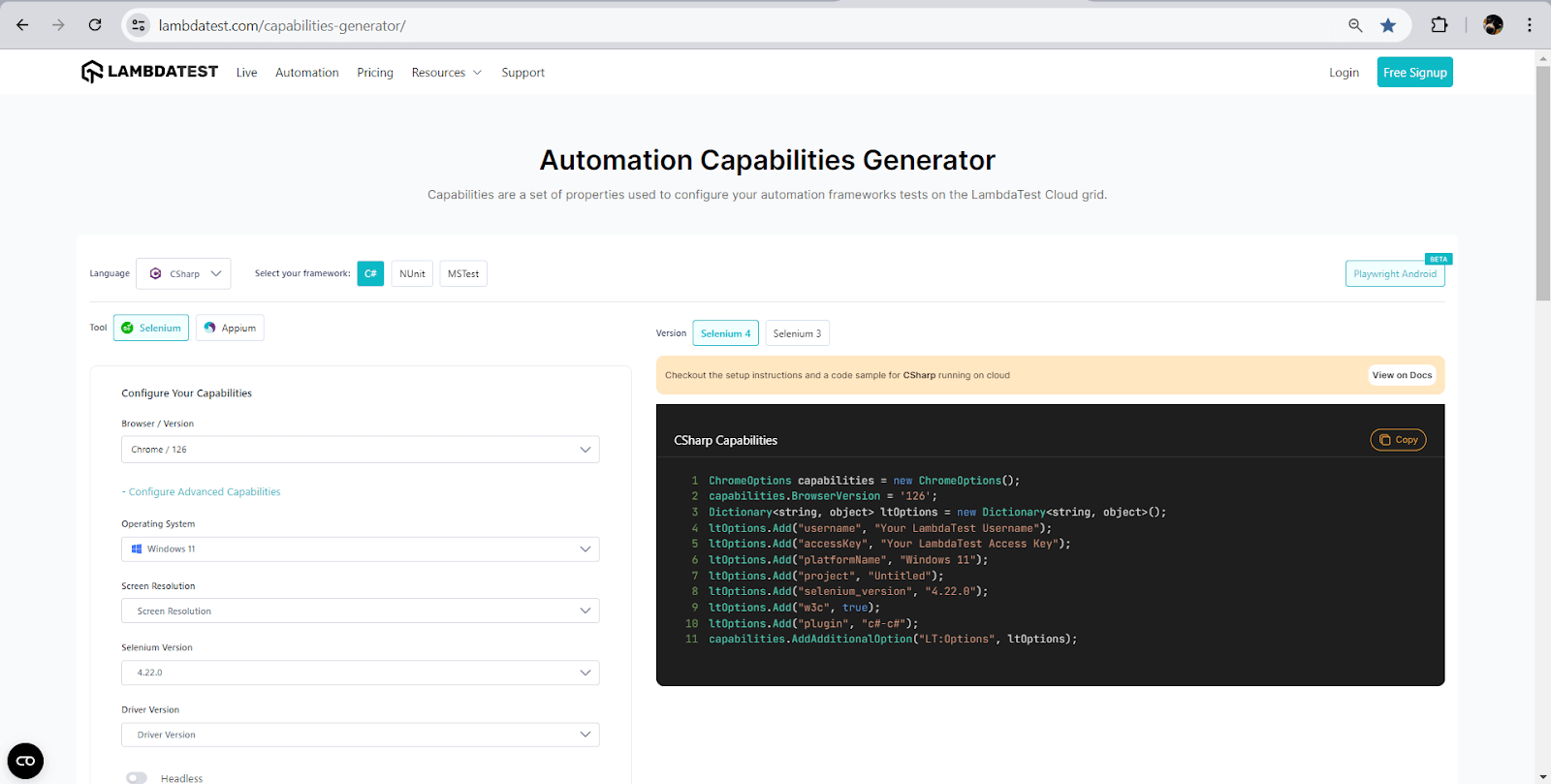
After generating the automation capabilities, you can copy it and add it to the test class as shown below:
using OpenQA.Selenium;
using OpenQA.Selenium.Chrome;
using OpenQA.Selenium.Remote;
namespace ScrollAction_SeleniumWebDriver
{
    public class ECommerceTests
    {
        private static IWebDriver driver;
        private static readonly string gridURL = "@hub.lambdatest.com/wd/hub";
        private static readonly string LT_USERNAME = Environment.GetEnvironmentVariable("LT_USERNAME");
        private static readonly string LT_ACCESS_KEY = Environment.GetEnvironmentVariable("LT_ACCESS_KEY");
        private static readonly string testUrl = "https://ecommerce-playground.lambdatest.io/";

        [SetUp]
        public void Setup()
        {
            ChromeOptions capabilities = new ChromeOptions();
            capabilities.BrowserVersion = "126.0";
            Dictionary<string, object> ltOptions = new Dictionary<string, object>();
            ltOptions.Add("username", LT_USERNAME);
            ltOptions.Add("accessKey", LT_ACCESS_KEY);
            ltOptions.Add("platformName", "Windows 11");
            ltOptions.Add("project", "Selenium Scroll");
            ltOptions.Add("w3c", true);
            ltOptions.Add("plugin", "c#-nunit");
            capabilities.AddAdditionalOption("LT:Options", ltOptions);
            driver = new RemoteWebDriver(new Uri($"https://{LT_USERNAME}:{LT_ACCESS_KEY}{gridURL}"), capabilities);
        }
    }
}

Code Walkthrough:
Below is the code walkthrough for the above setup to understand how capabilities work.
- The class begins with using statements to specify the packages required inside the class.
- Variables setup:
- For local testing: Define the driver (handles requests) and testUrl (stores the website URL).
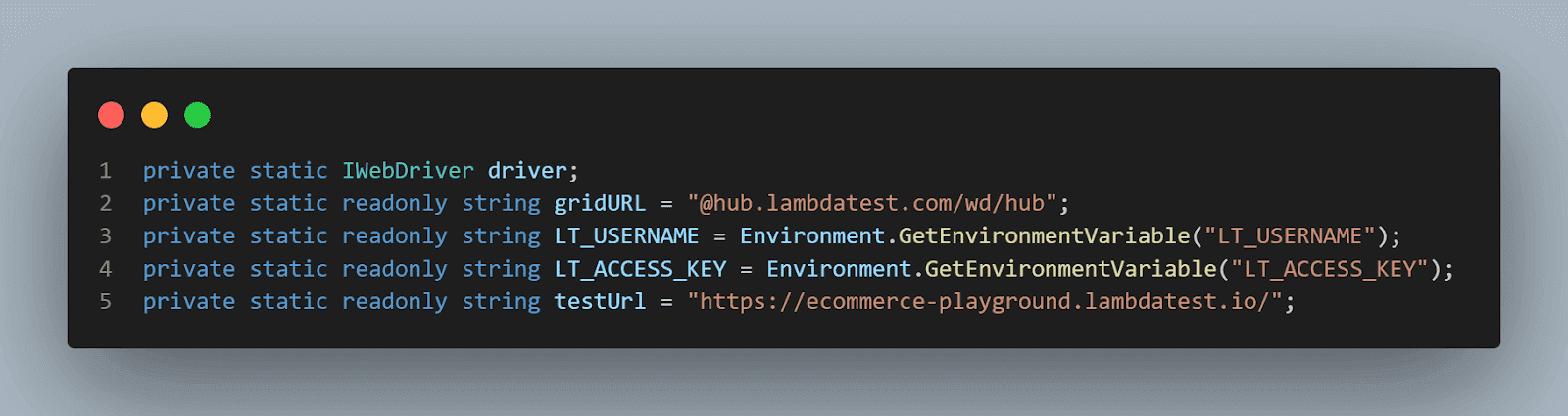
- For cloud grid testing: In addition to driver and testUrl, define gridURL, LT_USERNAME, and LT_ACCESS_KEY. These are stored as environment variables for security and easy updates.
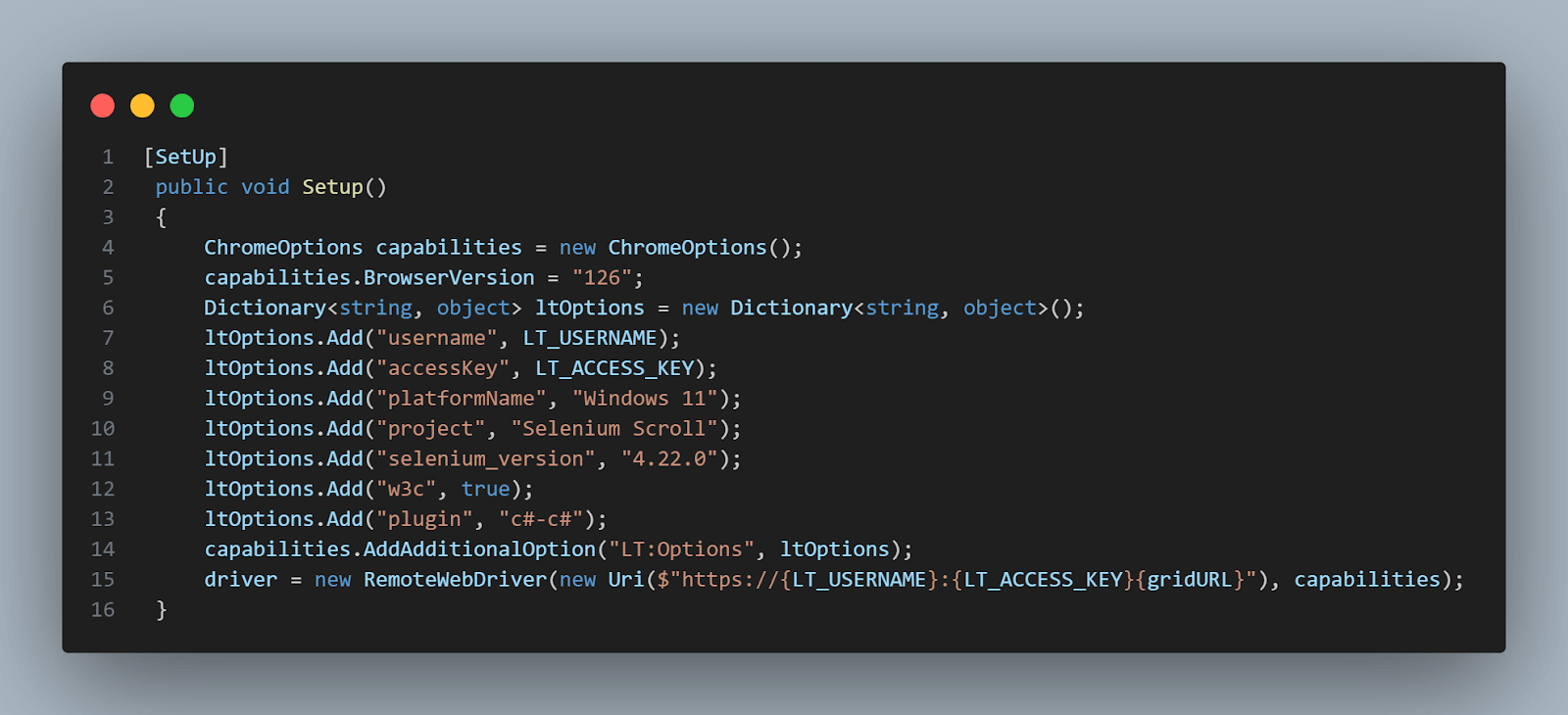
- The Setup() method, marked with the Setup annotation (NUnit), ensures it runs before each test. This applies to both grid and local tests.
- Use the capabilities defined through the Capabilities Generator. The driver is instantiated as a new remote driver using the URI created with username, access key, and gridURL.
Understanding and learning how to scroll in Selenium C# is essential for ensuring thorough test coverage across different scenarios. Below are various scrolling scenarios commonly encountered during testing in Selenium C#.
How to Scroll Down to the Bottom of the Web Page in Selenium C#?
To scroll down in Selenium C# to the bottom of the page, you can use JavaScriptExecutor. This allows you to perform scrolling actions, which is especially useful when testing pages with infinite scrolling or dynamically loaded content.
To better understand how to scroll down in Selenium C# to the bottom of a page, let’s look at an example. For this demonstration, we will use the TestMu AI eCommerce Playground website to perform the scroll actions.
Code Implementation:
Below is the test code responsible for performing the scroll down in Selenium C# to the bottom of a page. The test class will be structured as follows:
[Test]
public void ScrollToTheBottom()
{
    IJavaScriptExecutor js = (IJavaScriptExecutor)driver;
    driver.Navigate().GoToUrl(testUrl);
    js.ExecuteScript("window.scrollTo(0, document.body.scrollHeight)");
}


[TearDown]
public void TearDown()
{
    driver.Quit();
}
Code walkthrough:
Below is the detailed walkthrough for the above code.
- Test Annotation: The [Test] annotation from NUnit marks the method as a test method.
- JavaScriptExecutor Declaration: The first line inside the method declares a new variable of type IJavaScriptExecutor, which is cast from the driver.
- Open Test Site: The next step uses the Navigate().GoToUrl() Selenium command to open the test site specified by the testUrl variable.
- Scroll Down: The scrollTo() method within the js.ExecuteScript() performs the actual scroll action. The first parameter represents the horizontal scroll value (set to 0 to avoid horizontal scrolling), and the second parameter represents the vertical scroll value, set to document.body.scrollHeight to scroll to the bottom of the page.
- TearDown Method: Finally, a TearDown() method ensures that the browser does not remain open after the test completes.
The [TearDown] annotation in NUnit designates a method to run after each test, with the Quit() command closing all instances of the driver.
To learn more about various annotation methods in NUnit and how to use them, follow the blog on NUnit annotation for automation and understand why annotations are important in your test script.
Test Execution:
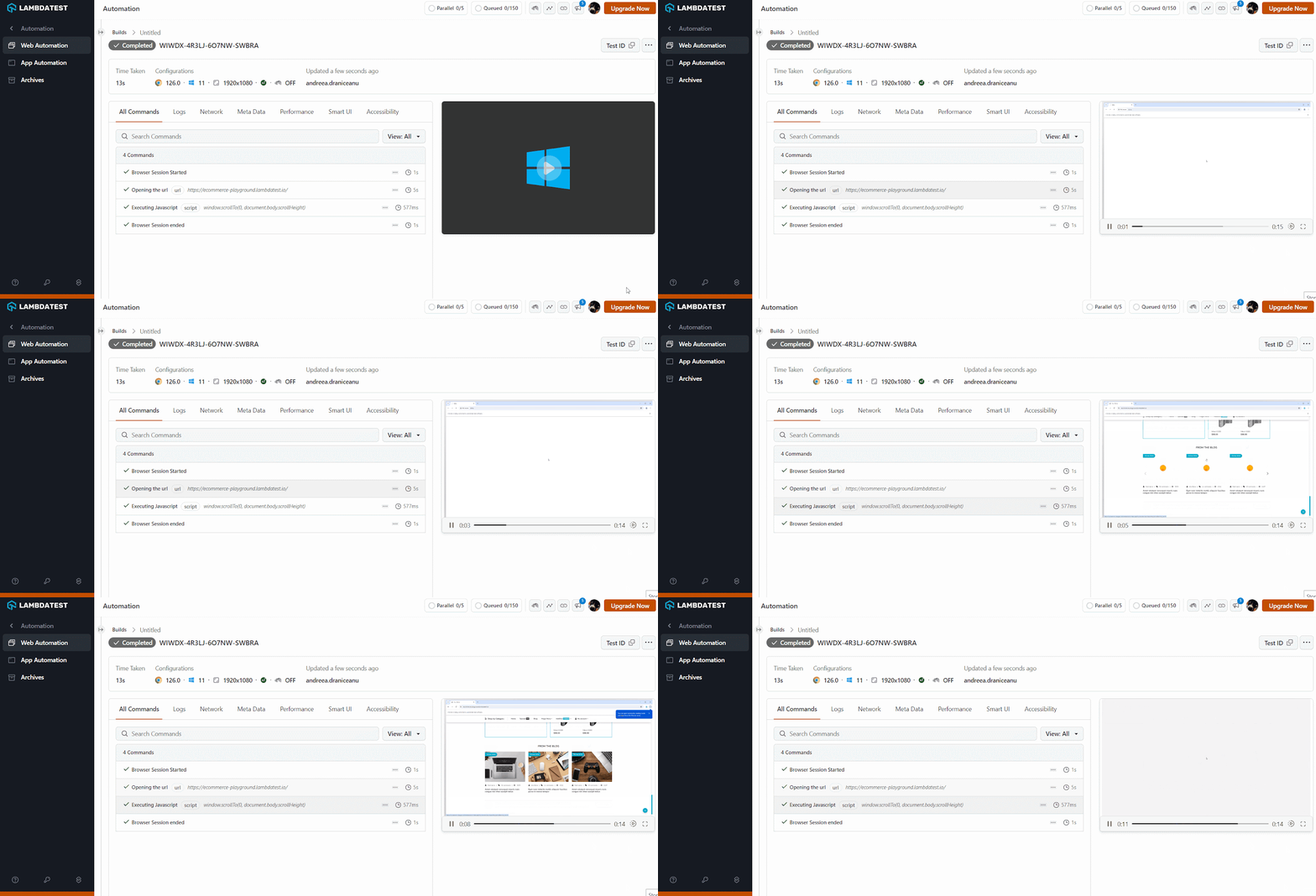
The execution of the above test code on the TestMu AI platform is recorded and can be seen below.
How to Scroll Down by Specifying a Pixel Value in Selenium C#?
If you need to scroll down to a specific position on a page, you can use a script to scroll by a precise number of pixels. This technique is useful when you want to scroll down in Selenium C# to a specific position.
Scrolling down to a specific WebElement is like navigating directly to that element. However, using a specific position allows you to scroll anywhere on the page by specifying the number of pixels to scroll.
To better understand how to scroll down in Selenium C# by a specific number of pixels, create a test that opens a web page and scrolls down by 500 pixels.
Code Implementation:
Below is the test code responsible for scrolling down by a specified number of pixels in Selenium C#:
The test class will be structured as follows:
[Test]
public void ScrollByAmount()
{
    IJavaScriptExecutor js = (IJavaScriptExecutor)driver;
    driver.Navigate().GoToUrl(testUrl);
    js.ExecuteScript("window.scrollBy(0,500)");
}
Code Walkthrough:
Below is the detailed code walkthrough for the above code.
- Test Annotation: The [Test] attribute marks the method as a test case for NUnit to execute.
- JavaScriptExecutor Declaration: A new variable of type IJavaScriptExecutor is declared and cast from the driver.
- Navigate to URL: The driver.Navigate().GoToUrl(testUrl) command opens the specified URL in the browser.
- Scroll by Pixels: The js.ExecuteScript(“window.scrollBy(0,500)”) method scrolls the page down by 500 pixels vertically, while the horizontal scroll position remains unchanged.
How to Scroll to the WebElement Until It Is Visible in Selenium C#?
To ensure a specific element is visible on the page, you need to scroll to that element. First, identify the element using Selenium locators.
Scrolling to a specific WebElement is a useful technique when performing a scroll down in Selenium C#. Instead of scrolling to the bottom of the entire page, you only scroll down to a specific element within the page.
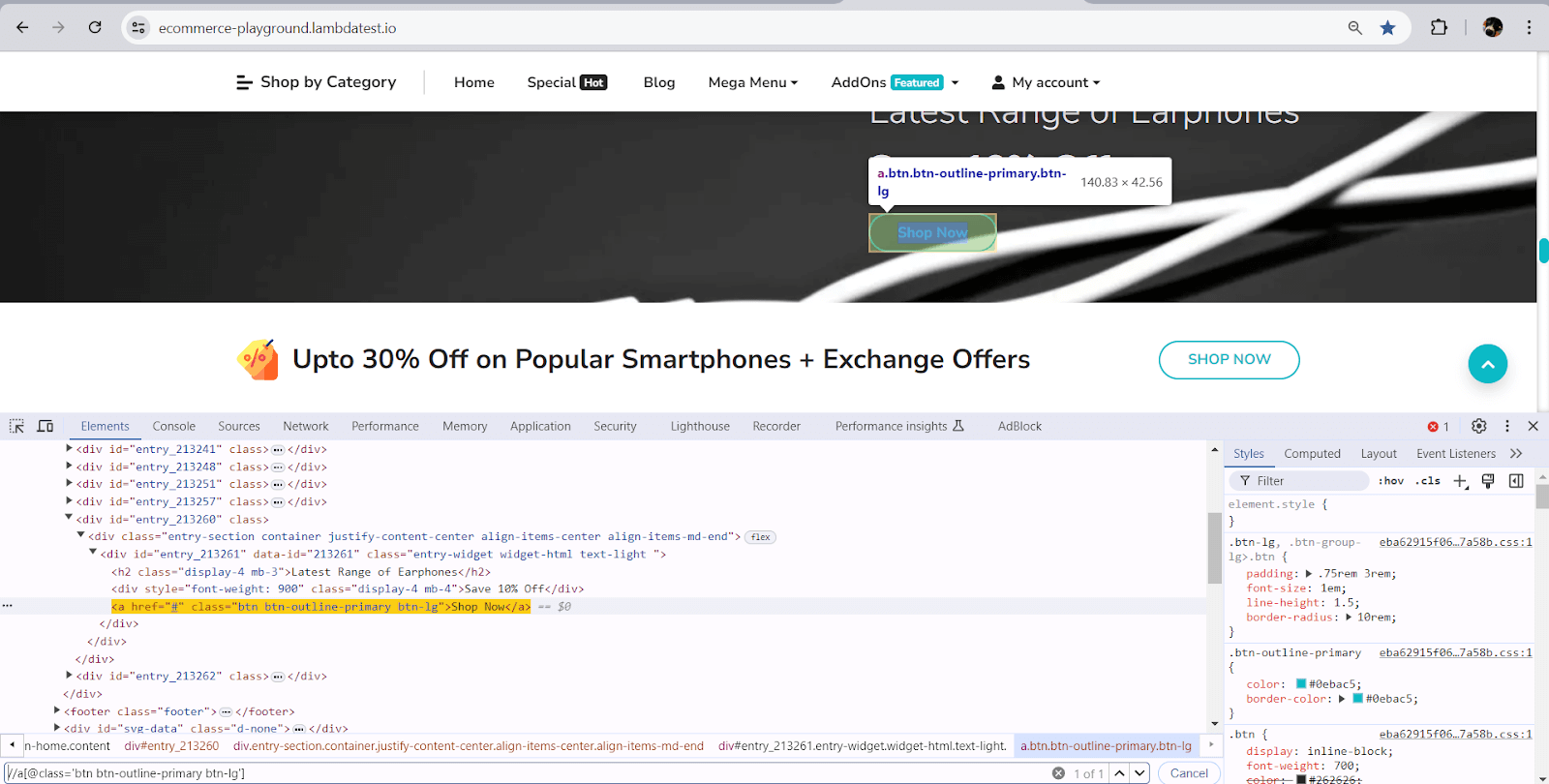
To better understand how to scroll to a specific WebElement in Selenium C#, we will use the same website and demonstrate scrolling to the “Shop Now” button.
To identify the element you want to scroll down to, you can use XPath with the SelectorsHub Chrome extension. Follow these steps:
- Right-click on the element and choose Inspect.
- Copy the relative XPath from SelectorsHub and use it in the test.
Code Implementation:
Below is the test code responsible to scroll down in Selenium C# to a specific WebElement:
The test class will be structured as follows:
[Test]
public void ScrollToElement()
{
    IJavaScriptExecutor js = (IJavaScriptExecutor)driver;
    driver.Navigate().GoToUrl(testUrl);
    var button = driver.FindElement(By.XPath("//a[@class='btn btn-outline-primary btn-lg']"));
    js.ExecuteScript("arguments[0].scrollIntoView();", button);
}
Code Walkthrough:
Below is the detailed code walkthrough for the above code.
- Test Annotation: The [Test] attribute marks the method as a test case to be executed by NUnit.
- Create JavaScriptExecutor Instance: The IJavaScriptExecutor interface is used to run JavaScript commands. The driver is cast to this interface to enable JavaScript execution.
- Navigate to Test URL: The Navigate().GoToUrl(testUrl) command opens the specified URL in the browser.
- Find the Element: The FindElement method locates the WebElement using the provided XPath.
- Scroll to the Element: The ExecuteScript(“arguments[0].scrollIntoView();”, button) method executes JavaScript to scroll the page so that the specified element is brought into view.
To learn more about interacting with WebElements and using various locators for automation testing, watch the video below.
Subscribe to the TestMu AI YouTube Channel to get more tutorial videos related to automation using various testing frameworks like Selenium, Playwright, Cypress, and more.
How to Scroll to the Top of the Web Page in Selenium C#?
By default, a page loads at the top, so simply executing a scroll-up script might not show any visible effect. To ensure both scroll actions are visible, you will modify the existing test to include scrolling up after performing the scroll down in Selenium C#. This way, both scrolling actions will be demonstrated during the test execution.
To better understand how to scroll up in Selenium C#, let’s look at an example. For this demonstration, we will use the TestMu AI eCommerce Playground website to perform the scroll actions.
Code Implementation:
Below is the test code responsible for performing the scroll up action in Selenium C#.
The test class will be structured as follows:
[Test]
public void ScrollToTheBottomAndBackToTheTop()
{
    IJavaScriptExecutor js = (IJavaScriptExecutor)driver;
    driver.Navigate().GoToUrl(testUrl);
    js.ExecuteScript("window.scrollTo(0, document.body.scrollHeight)");
    js.ExecuteScript("window.scrollTo(0, -document.body.scrollHeight)");
}
Code Walkthrough:
Below is the detailed code walkthrough for the above code.
- Test Annotation: The [Test] attribute marks the method as a test case that will be executed by NUnit.
- JavaScriptExecutor Declaration: A new variable of type IJavaScriptExecutor is declared and cast from the driver.
- Navigate to URL: The Navigate().GoToUrl(testUrl) command opens the specified URL in the browser.
- Scroll to the Bottom: The js.ExecuteScript(“window.scrollTo(0, document.body.scrollHeight)”) method scrolls the page to the bottom by setting the vertical scroll position to the height of the document.
- Scroll Back to the Top: The js.ExecuteScript(“window.scrollTo(0, -document.body.scrollHeight)”) method scrolls the page back to the top by setting the vertical scroll position to a negative value of the document height.
Test Execution:
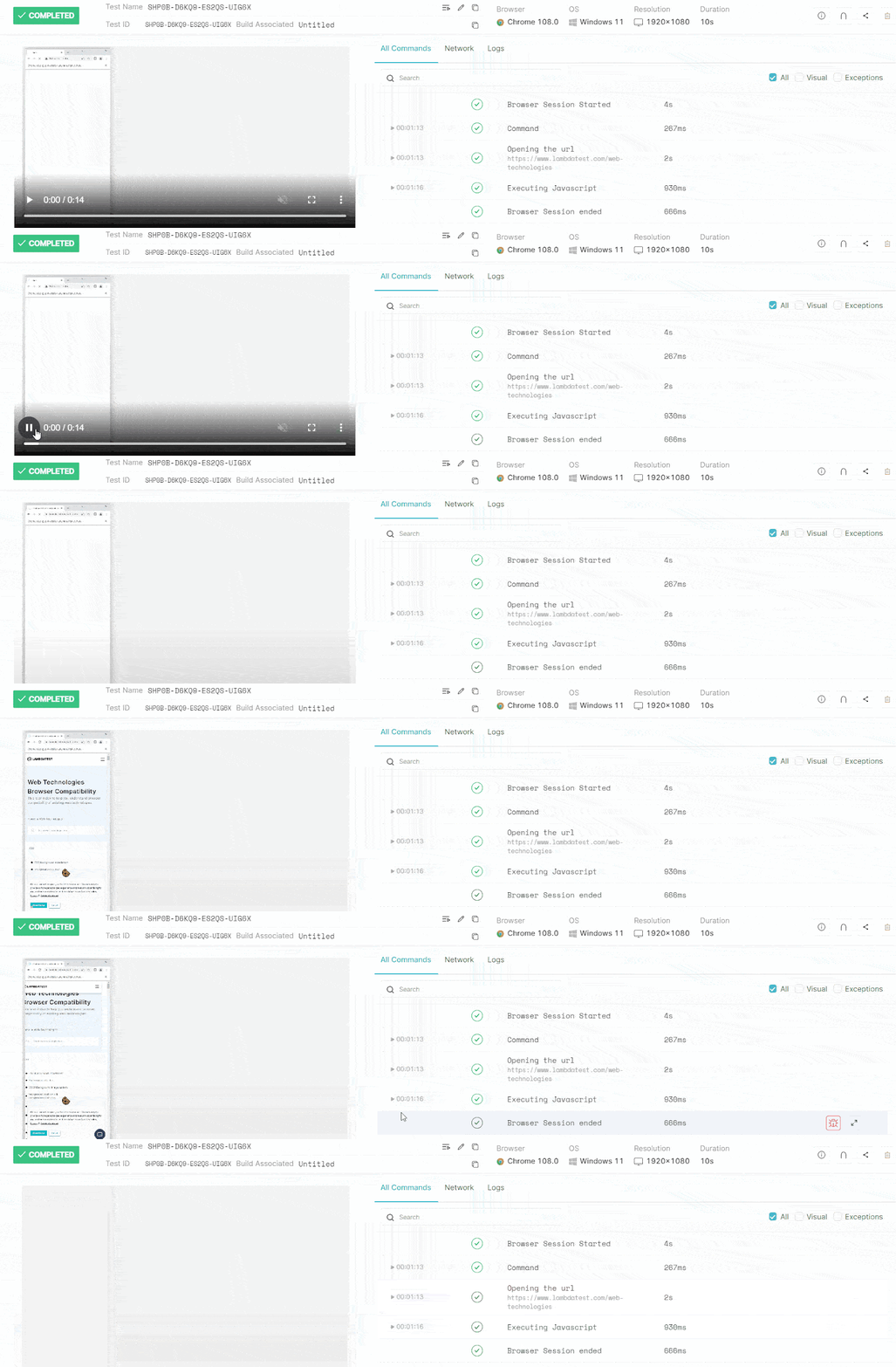
The execution of the above test script on the TestMu AI platform is recorded and can be seen below.

Note: Run tests across 3000+ browsers and OS combinations. Try TestMu AI Now!
How to Scroll Horizontally to the Web Page in Selenium C#?
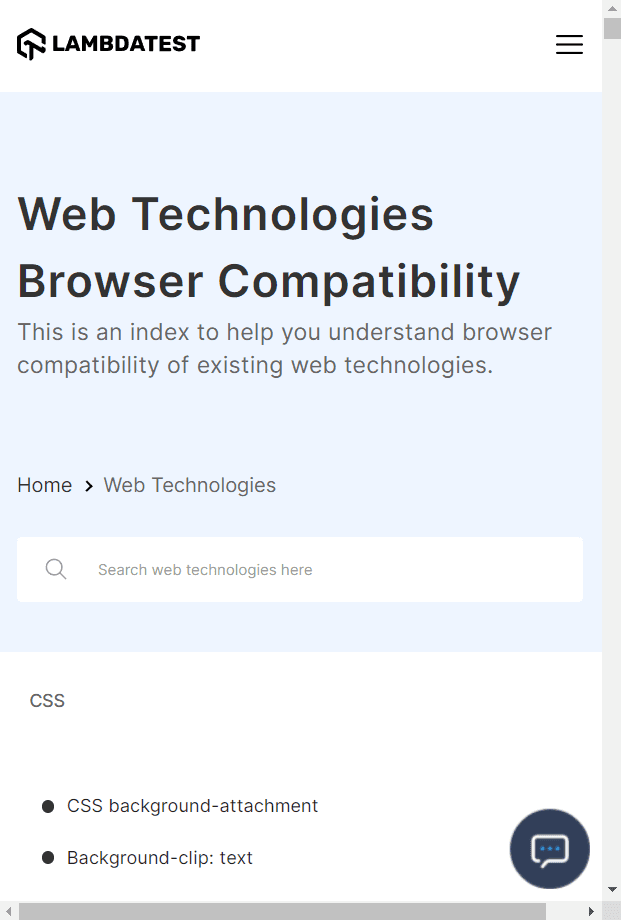
To scroll horizontally (left or right) on a page and interact with elements outside the visible area of the browser window, resizing the browser window might be necessary to make the horizontal scroll visible.
To better understand how to scroll horizontally in Selenium C#, let’s look at the example below.
Code Implementation:
Below is the test code responsible for performing horizontal scroll in Selenium C#:
The test class will be structured as follows:
[Test]
        public void ScrollHorizontally()
        {
            IJavaScriptExecutor js = (IJavaScriptExecutor)driver;
            driver.Manage().Window.Size = new Size(200, 1500);
            driver.Navigate().GoToUrl(testUrl);
            js.ExecuteScript("window.scrollBy(50,0)");
        }
Code Walkthrough:
Below is the detailed code walkthrough for the above code.
- Test Method Declaration: The method ScrollHorizontally() is annotated with the [Test] attribute, marking it as a test method in NUnit. This means it will be recognized and executed in the test suite.
- JavaScript Executor: Inside the method, a new variable js of type IJavaScriptExecutor is declared. This interface allows the execution of JavaScript code in the browser. The driver instance is cast to IJavaScriptExecutor to enable this capability.
- Window Resize: The driver.Manage().Window.Size command is used to resize the browser window. Here, the window’s size is set to 200 pixels wide and 1500 pixels high, ensuring that the horizontal scrollbar appears for scrolling.
- Navigate to URL: The driver.Navigate().GoToUrl(testUrl) command opens the test URL stored in the testUrl variable.
- Horizontal Scroll: The js.ExecuteScript(“window.scrollBy(50,0)”) line performs the horizontal scroll. It scrolls the page 50 pixels to the right (the first parameter), while the second parameter is set to 0, indicating no vertical scrolling.
Test Execution:
The execution of the above test script on the TestMu AI platform is recorded and can be seen below.
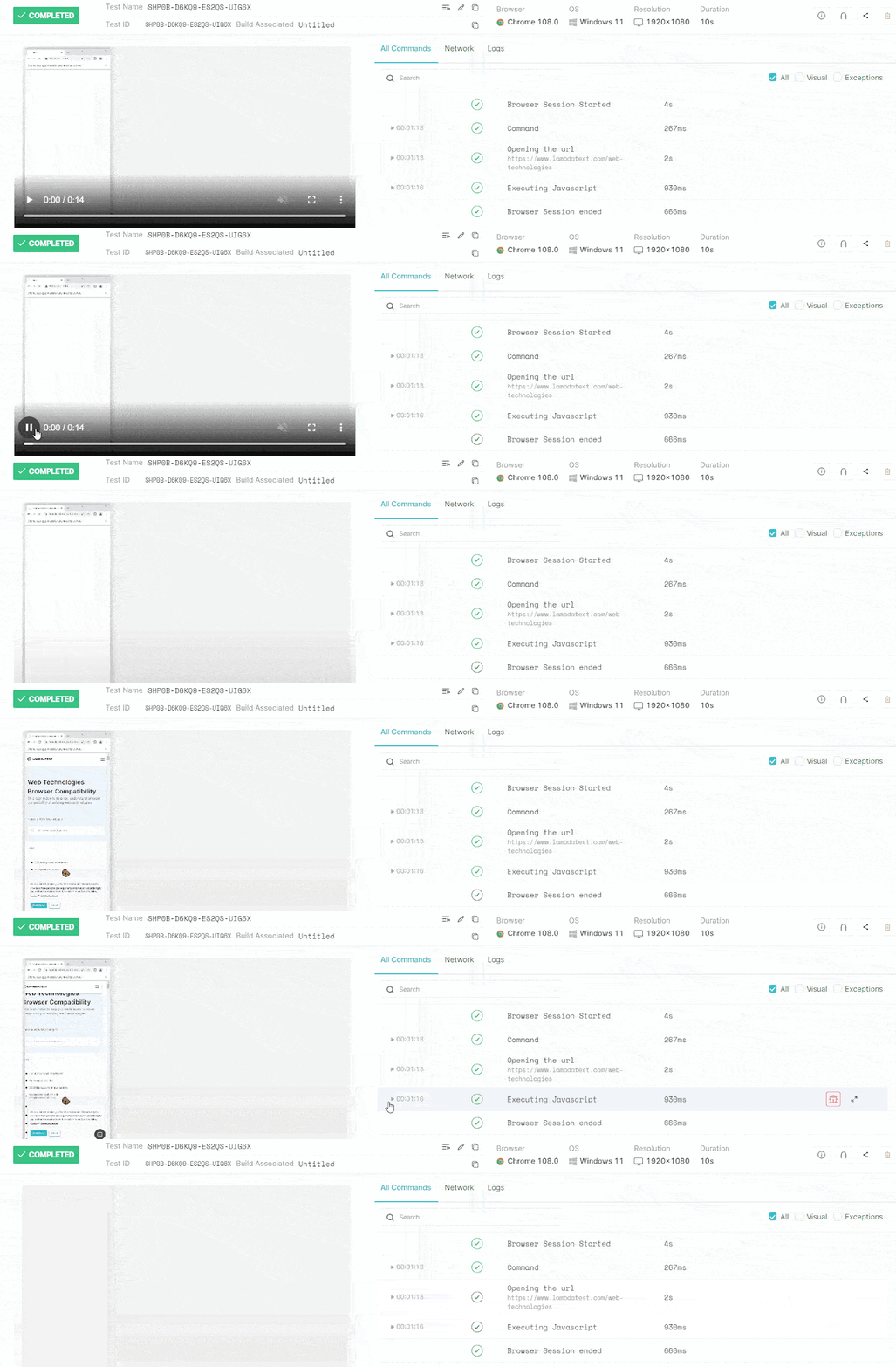
The above examples use Selenium C# to demonstrate scroll actions. These actions are similar across Selenium C#, Selenium Java, and Selenium Python, with differences in method implementation and syntax specific to each language.
To learn how to perform similar scroll operations in Selenium Java, follow this blog on how to scroll down in Selenium. It explains the different methods used to achieve the same scroll actions.
Summing Up
With this, you now know how to scroll down a page in Selenium C#. In web automation with Selenium, there are times when simple Selenium commands aren’t enough to achieve specific actions. For example, when dealing with web pages that require vertical or horizontal scrolling, or both.
Selenium’s native scrolling capabilities are limited to certain browsers. However, by using JavaScript commands in Selenium tests, you can overcome these limitations. The IJavaScriptExecutor interface provided by Selenium allows you to execute JavaScript commands directly in the browser, enabling you to scroll up, down, horizontally, or to a specific element on the page.
Author


Frequently asked questions
Did you find this page helpful?
More Related Hubs
TestMu AI forEnterprise
Get access to solutions built on Enterprise
grade security, privacy, & compliance
- Advanced access controls
- Advanced data retention rules
- Advanced Local Testing
- Premium Support options
- Early access to beta features
- Private Slack Channel
- Unlimited Manual Accessibility DevTools Tests