

Next-Gen App & Browser Testing Cloud
Trusted by 2 Mn+ QAs & Devs to accelerate their release cycles


On This Page
- Boosting Daily-Basis Productivity With Screenshot API
- Everything That You Can Do With Screenshot API!
- All Operating Systems + Browsers Combinations
- Get All Available Screen Resolutions
- Get Screenshots Of An Executed Test Session
- Start A Screenshot Test
- Stop A Screenshot Test
- No Need To Write Selenium Code For Full Page Automated Screenshot
- What To Do If You Want To Build User Facing Web Application?
- That Is All For Now, Stay Tuned For More!

TestMu AI Introduces Screenshot API For Faster Visual Automation Testing
With Screenshots API you can generate headless, full-page screenshots of your web application or locally hosted URL, and empower screenshot based test reporting

Harshit Paul
January 30, 2026
Howdy Testers! Today, we are out with one of the most demanded features by our customers. This product update brings you Screenshot API that will help you build powerful visual regression testing applications or screenshot based test reporting. You can also leverage the screenshot APIs for monitoring, reporting, or even version control. If you are an existing TestMu AI customer, then you may already be aware of Automated Screenshot Testing on TestMu AI. For the uninitiated, Screenshot testing is a feature at TestMu AI platform that allows you to capture full-page screenshots of your web-application on multiple different desktop and mobile browsers, with a single click. Not only does it help in visual regression and performing cross browser testing, but you can also use the feature to check the responsiveness of your webpages.
A typical Screenshot test session would involve the steps below.
- Open up https://app.lambdatest.com/console/screenshot
- Enter the URL for which you wish to perform cross browser testing.
- Hit the Capture button to start check screenshots on the selected browsers + OS combinations.
- If you encounter any UI anomaly then highlight it inside the screenshots before you share it to your project management tool(optional).
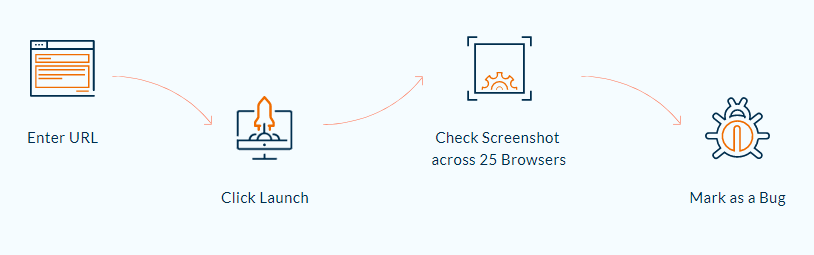
This process as you may notice requires a few manual efforts. For advanced users who wanted truly automate their reporting and visual regression pipelines, this was just not enough.
Until now that is.
If you’re new to Selenium and wondering what it is then we recommend checking out our guide – What is Selenium? If you are preparing for an interview you can learn more through Automation Testing Interview Questions.
TestMu AI Automated Screenshot API
Now you can leverage TestMu AI Automated Screenshots API and generate multiple screenshots for a URL of your choice, and that also across multiple desktop and mobile browsers. All with a single API call. Meaning you can avoid the UI entirely and you can embed TestMu AI full page screenshot feature in your testing or even product pipelines.
But that’s not all, in this post, we will look at how you can leverage TestMu AI Screenshot API for capturing full page screenshots of your desired testing URL, in bulk.
With this Screenshot Testing Tutorial, you will learn how to perform Automated Screenshot Testing on the TestMu AI platform.
Boosting Daily-Basis Productivity With Screenshot API
Delivering a cross browser compatibility testing tool, we understand the pressure involved in narrow release windows. Every minute may seem like an hour as a release window draws near, and this is when convenience comes as a comfort.
TestMu AI Screenshot API offers you the convenience of capturing headless screenshots in bulk on multiple (OS + browser) combinations, without even logging into the TestMu AI platform. Simply, generate a JSON file into your favorite API development environment, including the relevant configurations needed for running screenshot testing on TestMu AI, invoke the API and you are done!
You can also use our open Screenshot API document and execute your test cases directly from it.
Not only can you invoke the tests on TestMu AI but you can also download these bulk screenshots as a zip file. You can even define a particular screen resolution to perform cross browser testing. In case you wish to stop any screenshot test midway, you can do that too!
Perform automated screenshot testing for locally hosted web pages or web applications with basic authentication enabled. Invoke a callback URL and send the screenshots to a particular IP or URL, if you wish to share the test results with your colleagues.
TestMu AI Screenshot API would allow you to maintain a daily check on your web application & paddle faster through your release cycles by evaluating your code changes, prior to pushing them to production.
Everything That You Can Do With Screenshot API!
Now, we will look into everything you can perform by executing TestMu AI Screenshot API for generating headless, automated screenshots of your website in various browser & OS. Let us deep dive into parameters involved for invoking these Screenshot API. We will look into syntactical differences & what these differences would empower you with.
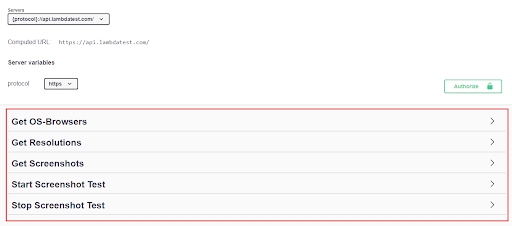
Visit our Screenshot API document from here.
Note: The computed URL for Screenshot API would be https://api.lambdatest.com/screenshots/v1
With that said, let us get to the action.
All Operating Systems + Browsers Combinations
To get a list of OS + Browser combinations available on TestMu AI, simply execute the below GET request.
Requested URL:
https://api.lambdatest.com/screenshots/v1/os-browsers
Client URL would be as followed:
curl -X GET "https://api.lambdatest.com/screenshots/v1/os-browsers"
-H "accept: application/json" -H "Authorization: Basic 123456789abcdefghijklmno="
As you execute, you will find the Server response presented below. You can extract the server response in a JSON file.
{
  "windows 10": {
    "chrome": [
      "74",
      "73"
    ],
    "firefox": [
      "66",
      "65"
    ],
    "opera": [
      "55",
      "54"
    ]
  },
  "macos mojave": {
    "chrome": [
      "74",
      "73"
    ],
    "firefox": [
      "66",
      "65"
    ],
    "opera": [
      "55",
      "54"
    ]
  }
}
See Also: 10 Must Try Features Of Automated Screenshot Testing On TestMu AI
Get All Available Screen Resolutions
To get a list of all the available screen resolutions provided by TestMu AI for you to perform cross browser testing, you would need to execute the below GET request.
Requested URL:
https://api.lambdatest.com/screenshots/v1/resolutions
Client URL would be as followed:
curl -X GET "https://api.lambdatest.com/screenshots/v1/resolutions"
-H "accept: application/json" -H "Authorization: Basic 123456789abcdefghijklmno="
As you execute, you will find the Server response presented below. You can extract the server response in a JSON file.
{
  "mac_res": [
    "1024x768",
    "1280x1024"
  ],
  "win_res": [
    "1024x768",
    "1280x1024"
  ]
}

Austin Siewert
CEO, Vercel
Discovered @TestMu AI yesterday. Best browser testing tool I've found for my use case. Great pricing model for the limited testing I do 👏
2M+ Devs and QAs rely on TestMu AI
Deliver immersive digital experiences with Next-Generation Mobile Apps and Cross Browser Testing Cloud

Get Screenshots Of An Executed Test Session
In case you wish to fetch all the details from an already executed screenshot test session. These details would comprise of basic test details under which you will have screenshot details for every screenshot captured in your test session.
Requested URL:
https://api.lambdatest.com/screenshots/v1/Test ID
Note: Test ID is a mandatory field for making use of this GET request. This would fetch details in JSON format for all bulk screenshots captured in a test session specified by you.
Client URL would be:
curl -X GET "https://api.lambdatest.com/screenshots/v1/TES11111111111111111111111111"
-H "accept: application/json" -H "Authorization: Basic 123456789abcdefghijklmno="
Example Value:
{
  "test_id": "TES11111111111111111111111111",
  "defer_time": 5,
  "test_status": "completed",
  "url": "https://www.lambdatest.com",
  "callback_url": "https://www.example.com",
  "screenshots": [
    {
      "os": "windows 10",
      "browser": "chrome",
      "browser_version": "74",
      "status": "completed",
      "screenshot_url": "https://s3.amazonaws.com/s3-screenshots/prod/ACT100968331562237283340194/screenshot/win-cr-74.0.png",
      "thumbnail_url": "https://s3.amazonaws.com/s3-screenshots/prod/ACT100968331562237283340194/screenshot/win-cr-74.0.png",
      "activity_id": "ACT100968331562237283340194",
      "resolution": "1024x768"
    }
  ]
}
With this Visual Testing Tutorial, you will learn how to perform Smart Visual UI Testing on the TestMu AI platform.
You can complete automated visual testing more quickly with Lambdatest. To guarantee deliveries without bugs, compare screenshots using automated visual testing.
Furthermore, by using its advanced options, our screenshot comparison tool makes it simple to compare the Baseline and Test Output.
Start A Screenshot Test
The bread & butter of a tester. Now, we are going to start a screenshot test through API. With TestMu AI Screenshot API, you can perform cross browser testing on your locally hosted web pages, web pages with basic authentication. You can even provide a Callback URL. We will be talking about each one of these but first, we kick off with a basic screenshot test session.
To start a screenshot test using the API, you would need to trigger the below POST request.
https://api.lambdatest.com/screenshots/v1
Client URL would be as followed:
curl -X POST "https://api.lambdatest.com/screenshots/v1" -H "accept: application/json"
-H "Authorization: Basic 123456789abcdefghijklmno=" -H "Content-Type: application/json" -d "
{"url":"https://www.lambdatest.com","defer_time":5,"email":true,"mac_res":"1024x768",
"win_res":"1366X768","configs":{"windows 10":{"chrome":["74"],"firefox":["66"],
"opera":["58"],"ie":["11"]},"macos mojave":{"chrome":["74"]}}}"
Example value:
{
  "url": "https://www.lambdatest.com",
  "defer_time": 5,
  "email": true,
  "mac_res": "1024x768",
  "win_res": "1366X768",
  "configs": {
    "windows 10": {
      "chrome": [
        "74"
      ],
      "firefox": [
        "66"
      ],
      "opera": [
        "58"
      ],
      "ie": [
        "11"
      ]
    },
    "macos mojave": {
      "chrome": [
        "74"
      ]
    }
  }
}
Screenshot Testing For Locally Hosted Web Applications
To perform a screenshot test on your locally hosted web applications, you would need to declare the below parameter in your request before specifying the configurations.
"tunnel": true,
Example Value:
{
  "url": "https://www.lambdatest.com",
  "defer_time": 5,
  "email": true,
  "tunnel": true,
  "mac_res": "1024x768",
  "win_res": "1366X768",
  "configs": {
    "windows 10": {
      "chrome": [
        "74",
        "73"
      ]
  }
}
}
Screenshot Test With Basic Authentication
Similarly, to perform a screenshot test on a web application with basic authentication, you would need to declare the below parameter in your request before specifying the configurations.
"url": "https://www.basic-auth.com",
"username": "username",
  "password": "password",
Example:
{
  "url": "https://www.basic-auth.com",
  "defer_time": 5,
  "email": true,
  "mac_res": "1024x768",
  "win_res": "1366X768",
  "username": "username",
  "password": "password",
  "configs": {
    "windows 10": {
      "chrome": [
        "74",
        "73"
      ]


  }
}
}
Route Test Details To Your Colleagues Through A Callback URL:
By specifying a Callback URL, you can route your test details to a specific IP, or a specific URL. This would help you to share your test results with your colleagues or to keep them on a specific URL, so you could come back and assess these results when you have time. To invoke a Callback URL, you would need to declare the below parameter in your request before specifying the configurations.
"callbackurl": "https://www.example.com",
Example Value:
{
  "url": "https://www.lambdatest.com",
  "defer_time": 5,
  "email": true,
  "mac_res": "1024x768",
  "win_res": "1366X768",
"callbackurl": "https://www.example.com",
  "configs": {
    "windows 10": {
      "chrome": [
        "74",
        "73"
      ]
  }
}
}
Stop A Screenshot Test
In case you wish to stop a screenshot test, you can do so with the help of a PUT request. Test ID is again mandatory over here as you need to convey which particular screenshot test would you want to be aborted.
Requested URL:
https://api.lambdatest.com/screenshots/v1/stop/TES11111111111111111111
Client URL: curl -X PUT "https://api.lambdatest.com/screenshots/v1/stop/TES100962431563281759448763"
-H "accept: application/json" -H "Authorization: Basic 123456789abcdefghijklmno="
Note: This will terminate only a running test session. Providing a TestID of an already completed test session will provide you with a 404 error as the server response.
You can also refer to the below video tutorial on How To Take Screenshots In Selenium testing.
No Need To Write Selenium Code For Full Page Automated Screenshot
Writing Selenium based scripts to take full page screenshots across multiple different browsers and browser versions is a really tough task. We know. Been there done that and we can attest that its challenge as hell. Some browsers support full page screenshots directly however for most Selenium by default takes screenshots of the viewport only. For these browsers to take full page screenshots, you have to automatically scroll the page, take pixel perfect screenshots of each viewport scroll, and then stitch the images for one single full page. Add in the complexity of making sure that you have the right Selenium versions, and you get yourself a proper Cross Browser Compatibility spaghetti mess.

Fortunately for you, now you won’t have to create such scripts. You can leverage our Automated Screenshot APIs. Our Screenshot feature works using Selenium in backend and we have created individual scripts for each and every browser, browser version and operating system environment. To iterate again, these are all full page screenshots taken on real browsers running on real operating systems.
What To Do If You Want To Build User Facing Web Application?
Not only can you use this for visual cross browser testing, but you can also build powerful end-user products using these APIs. But for that, it’s important to understand the concurrency limits.
The number of separate screenshot sessions that you can run at a time would be defined by your plan’s concurrency. For example, if you have 4 concurrencies you can use the screenshot APIs to run 4 screenshot test sessions with up to 25 different configurations in each session. If you start the 5th test before any of the above 4 sessions complete, your post request would be rejected.
If you are planning to build customer-facing applications using these APIs, do contact us. We would be happy to help you in choosing the right concurrency plans for your applications.
That Is All For Now, Stay Tuned For More!
TestMu AI Screenshot API has been awaited on our platform & having made it live, we look forward to hearing your feedback. Do give it a spin & share your invaluable suggestions to help us create a better cross browser testing environment for all of the testing community. You can provide your suggestions or queries to us by writing to [email protected] or by simply giving a shout to our 24×7 customer chat support. We are constantly working to bring more product updates on our platform with the aim of fulfilling all your testing needs under one roof. On a side note you can highlight visual changes to identify errors and deliver pixel-perfect websites through our Screenshot Comparison Tool. Stay tuned for our upcoming product updates. Happy testing & adios! 🙂



Did you find this page helpful?
More Related Hubs
TestMu AI forEnterprise
Get access to solutions built on Enterprise
grade security, privacy, & compliance
- Advanced access controls
- Advanced data retention rules
- Advanced Local Testing
- Premium Support options
- Early access to beta features
- Private Slack Channel
- Unlimited Manual Accessibility DevTools Tests