

Next-Gen App & Browser Testing Cloud
Trusted by 2 Mn+ QAs & Devs to accelerate their release cycles


How To Generate Code Coverage Report Using JaCoCo-Maven Plugin
Master reporting code coverage using Maven and JaCoCo plugin with our step-by-step tutorial. Learn to generate precise code coverage reports effortlessly.

Harshit Paul
December 30, 2025
Code coverage is a software quality metric commonly used during the development process that lets you determine the degree of code that has been tested (or executed). To achieve optimal code coverage, it is essential that the test implementation (or test suites) tests a majority percent of the implemented code.
There are a number of code coverage tools for languages like Java, C#, JavaScript, etc. Using the best-suited code coverage tool is important to understand the percentage of code tested and take appropriate actions to ensure that you achieve the ideal code coverage!
For optimal code testing, many companies use the JaCoCo-Maven plugin that helps generate detailed code coverage reports. JaCoCo-Maven plugin is a free code coverage library for Java projects. It is based on the study of existing integration libraries that were created by the EclEmma team. At a larger extent, code coverage does give a brief overview of the product quality as higher the coverage, lesser are the chances of untested code getting into the release cycle.
Overview
The JaCoCo-Maven Plugin is a widely used open-source Java library for measuring and reporting code coverage during automated testing.
What Is Code Coverage and Why Is It Important?
Code coverage measures how much of your source code executes while running test suites. It helps identify untested parts of code, detect dead code, and improve software quality. High coverage often indicates well-tested code, reducing the likelihood of defects entering production.
Key Benefits:
- Detects untested and dead code early.
- Improves maintainability and code quality.
- Speeds up development cycles and reduces time to market.
What Is the JaCoCo-Maven Plugin?
JaCoCo (Java Code Coverage) is an open-source code coverage tool that integrates seamlessly with Maven, IDEs like Eclipse, and CI/CD platforms such as Jenkins. It collects coverage data at runtime through the JaCoCo agent, which instruments the code and generates execution reports.
Why It’s Useful:
- Supports offline and runtime instrumentation.
- Generates HTML, XML, and CSV reports.
- Provides visual insights with line and branch coverage metrics.
- Easily integrates into build pipelines for continuous testing feedback.
How To Set Up the JaCoCo Plugin With Maven
Setting up JaCoCo in Maven involves adding the plugin to the project’s pom.xml file. You define goals like prepare-agent and report to configure when and how reports are generated.
Key Steps:
- Add the JaCoCo plugin dependency to
pom.xml. - Define execution goals
prepare-agent(records execution data) andreport(generates reports). - Specify configuration tags such as
destFileandoutputDirectory. - Run tests with
mvn testto automatically produce coverage reports intarget/site/jacoco/index.html.
How To Analyze JaCoCo Reports
Once the report is generated, JaCoCo provides metrics for line coverage, branch coverage, and cyclomatic complexity — helping developers assess test completeness.
Color Indicators:
- Green: Fully tested code.
- Yellow: Partially covered code.
- Red: Untested or missed code.
These insights guide developers to improve coverage by adding or refining test cases.
The JaCoCo-Maven Plugin offers an efficient and flexible solution for tracking and improving test coverage in Java projects. By integrating it into Maven builds, teams can ensure better code reliability, faster testing cycles, and higher-quality software releases.
What is Code Coverage?
Code Coverage is a metric used in software development to represent the extent to which an application’s source code is executed while a test suite is run. To see and evaluate the code coverage of a software application, a report is produced. Then, code quality may be ensured using this code coverage report.
The JaCoCo-Maven plugin is used to generate code coverage reports. Source code with high code coverage has more of its code executed during testing. For example, if the software you are testing contains 100 lines of code and the number of code lines validated in the software is 90, then the code coverage percentage of that software application will be 90%.

Benefits of Code Coverage
Code coverage is a very useful metric for developers, testers, and QA engineers. Here are some of the salient benefits of code coverage:
- Code coverage reports provide useful insights in detection and elimination of dead code. This can be avoided by following implementation best-practices which in turn results in improved code maintainability and better product quality.
- Quality assurance can help detect code that has not been covered using the test implementation.
- Developers can finish the software development process faster, increasing their productivity, scalability, and efficiency. This results in reduced Time to Market (TTM).
As we know, code coverage is very important for every software product. However, if you are a developer or a tester, you can cure your interest in code coverage via the article: Code Coverage vs Test Coverage, which one is better?
Now that we have done a quick recap about the integral aspects of code coverage, let’s deep dive into our core topic i.e. generating code coverage reports using Jacoco Maven plugin.
What is JaCoCo-Maven Plugin?
JaCoCo-Maven (abbreviation for Java Code Coverage) plugin is an open-source code coverage tool for Java. It creates code coverage reports and integrates well with IDEs(Integrated development environments) like Eclipse IDE.
It also integrates smoothly with CI/CD tools (e.g. Jenkins, Circle CI, etc.) and project management tools (e.g. SonarQube, etc.). It is a part of the Eclipse Foundation and has replaced the EclEmma code coverage tool in Eclipse.
How does JaCoCo-Maven Plugin work?
- The JaCoCo-Maven plugin runs the coverage by instrumenting Java code through a runtime agent. In simple terms, you attach this agent to a JVM (Java Virtual Machine) when it starts. This agent is termed as JaCoCo agent. The first execution start-agent starts this JaCoCo Runtime Agent.
- Whenever a class is loaded, JaCoCo can instrument the class so that it can view when the class is called and what lines (of code) are called during the testing process. By keeping this track, it builds up the code coverage statistics which is done on the fly during the second execution (i.e. generate-report).
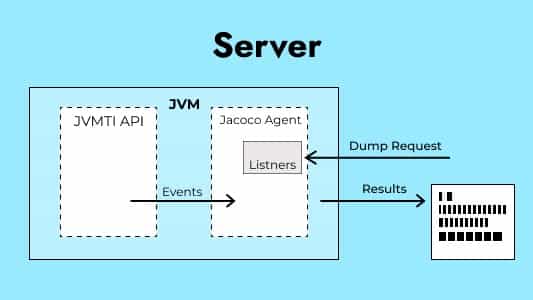
- By default, the file is created as soon as the JVM terminates but it is also possible to run the agent in server mode. This triggers a dump of the results and the report is created before the termination. Shown below are the internals of the JaCoCo plugin:
- You can define goals and rules in the configuration of the JaCoCo-Maven plugin. This offers you the flexibility to set limits and helps in checking the amount of code coverage.
- Maven-surefire plugin is the default Maven plugin. This runs the tests in JVM and provides coverage reports. While the JaCoCo plugin instruments the code already executed by a plugin (e.g. Surefire plugin). Thus, it is a good practice to check for the dependency of the maven-surefire plugin.
Why is Jacoco Maven Plugin good for code coverage?
The JaCoCo-Maven plugin is appropriate for code coverage because of the following reasons:
- While working on any project, developers mostly prefer IDEs because it simplifies the coding and testing experience. JaCoCo can be installed on Eclipse IDE in the name of EclEmma, by downloading EclEmma from its marketplace.
- It is easy to add the JaCoCo plugin to all types of builds, including ANT, Maven, and Gradle. It can also be integrated with CI/CD tools like Jenkins, Circle CI, etc. This makes it versatile for a lot of use cases.
- The code coverage report generated by JaCoCo is a simple and informative HTML file that can be viewed in any browser or IDE.
- JaCoCo also provides offline instrumentation (i.e., all the classes are instrumented before running any tests).
- Analysis of a report is also quite easy, as it is color-based and provides the exact percentage of code coverage.
How to set up JaCoCo Plugin with Maven?
To get code coverage reports in a Maven project, we first need to set up the JaCoCo Maven plugin for that project. By integrating the JaCoCo plugin, the results of the code coverage analysis can be reviewed as an HTML report. The current version of the JaCoCo-Maven plugin can be downloaded from the MVN Repository.
Here are the steps to integrate JaCoCo Maven plugin with a Maven project:
1. Every Maven project has a pom.xml file, used to declare all the dependencies and plugins. The JaCoCo-Maven plugin is declared in the same POM.xml file. The XML code for the same is :
org.jacoco
jacoco-maven-plugin
0.8.6
This is the basic XML code added under the build tag for specifying the JaCoCo plugin in a Maven-based project. We can enhance the functionality (like mentioning when a report should be generated, etc.) by specifying goals and rules in the execution tag.
2. After the version tag, we add the execution tag. This tag prepares the properties or execution to point to the JaCoCo agent and is passed as a VM (in this case, JVM) argument.
3. For running simple unit tests, two goals set in execution tags will work fine. The bare minimum is to set up a prepare-agent and report goals.
org.jacoco
jacoco-maven-plugin
0.8.6
    	prepare-agent
          		prepare-agent
          report
          test
report- Prepare-agent goal: The prepare-agent goal prepares the JaCoCo runtime agent to record the execution data. It records the number of lines executed, backtraced, etc. By default, the execution data is written to the file target/jacoco-ut.exec.
- Report goal: The report goal creates code coverage reports from the execution data recorded by the JaCoCo runtime agent. Since we have specified the phase property, the reports will be created after the compilation of the test phase. By default, the execution data is read from the file
target/jacoco-ut.exec, and the code coverage report is written to the directorytarget/site/jacoco/index.html.
4. For running simple unit tests, the above configuration works fine. However, we would need constraints to be put on the code coverage reports (e.g. specify the destination directory, etc). This can be done via a configuration tag.
  org.jacoco
  jacoco-maven-plugin
  0.8.6
      	prepare-agent
            		prepare-agent
${project.build.directory}/coverage-reports/jacoco-ut.exec
                surefireArgLine
            report
            test
               	report
${project.build.directory}/coverage-reports/jacoco-ut.exec
${project.reporting.outputDirectory}/jacoco-ut
Configuration of first execution :
As per the above code, you can see some tags like destFile, etc., are specified. Here is a brief description of the tags:
- destFile tag: The destFile tag is used for setting the path to the file containing the execution data.
- propertyName-surefireArgLine tag: This tag sets the name of the property that contains the settings for the JaCoCo runtime agent. This also sets the VM argument line when the unit tests are run.
Configuration of second execution :
As per the above code, you can see tags like dataFile, etc., are specified. Here is a brief description of the tags:
- dataFile tag: The dataFile tag is used to set the path to the file containing execution data.
- outputDirectory tag: This tag sets the output directory for the code coverage reports.
5. We can also add rules to our configuration tag to keep a check on the code coverage percentage. This can be done as shown below:
  org.jacoco
  jacoco-maven-plugin
  0.8.6
      	prepare-agent
            		prepare-agent
${project.build.directory}/coverage-reports/jacoco-ut.exec
                surefireArgLine
            report
            test
               	report
${project.build.directory}/coverage-reports/jacoco-ut.exec
${project.reporting.outputDirectory}/jacoco-ut
              jacoco-check
                check
                    	PACKAGE
                        		LINE
                        		COVEREDRATIO
                        		0.50
Configuration of third execution :
Here, a new goal check is defined. The jacoco:check goal is bound to verify the rule specified. Rule is given in the rule tag. You have the flexibility to specify more than one rule.
- Element tag: This tag specifies the element on which the rule has to be applied.
- Limit tag: Tags like counter, value, minimum, etc., are used to limit the code coverage percentage. A command like mvn clean verify can be used for ensuring whether the rule is followed or not.
6. There are multiple goals and rules which can be defined in the JaCoCo-Maven plugin configuration.
Code Coverage Reports Using Maven and JaCoCo Plugin
In this section, we would demonstrate the steps to generate code coverage report using the JaCoCo Maven plugin. The demonstration is done by taking a very simple test scenario. So, let’s get started.
Also, watch this in-depth tutorial to learn how to measure code coverage in Java using the JaCoCo plugin.
Pre-requisites:
- Maven 3.0 or higher: Maven is a project development management and comprehension tool. You can install the latest version from the official Apache Maven website.
- Java 1.5 or higher: You need to ensure that Java is installed on your machine. In case you do not have Java installed, please download the latest version of Java from the official Java website.
- Eclipse IDE for Java Developers: Though you can use the IDE of your choice, for this demo we have used the Eclipse IDE.
Steps to create a simple Maven Project:
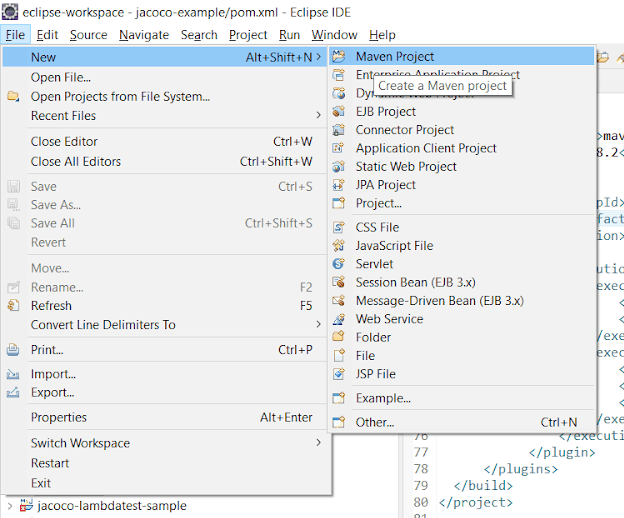
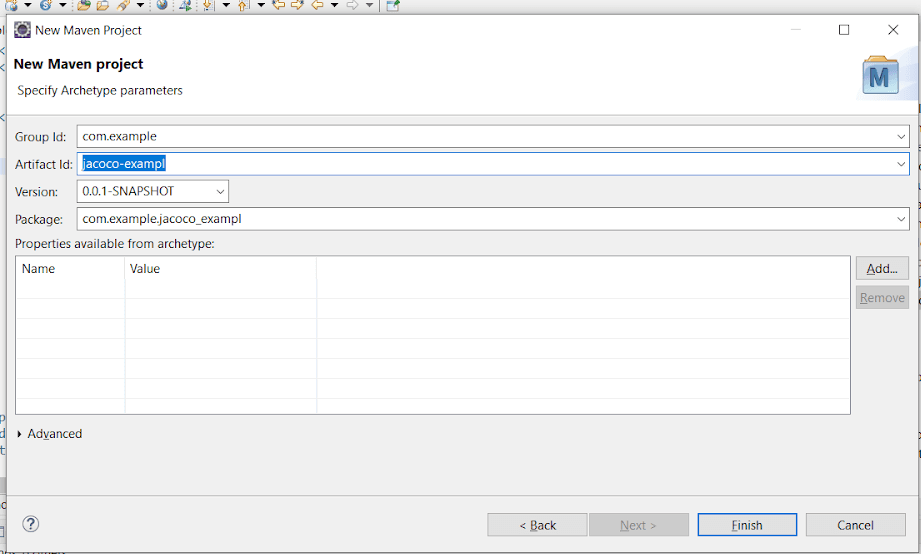
- In Eclipse IDE, Go to File>New>Maven Project.
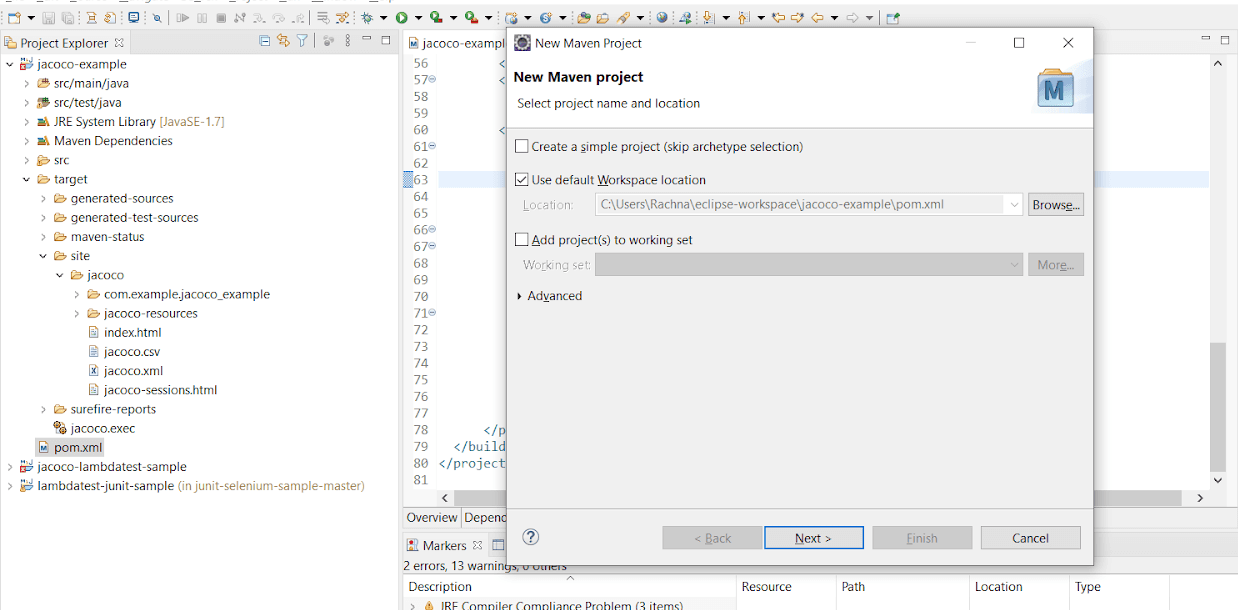
- A new dialog box appears. Make sure that the ‘Use default Workspace location’ checkbox is ticked. Click Next.
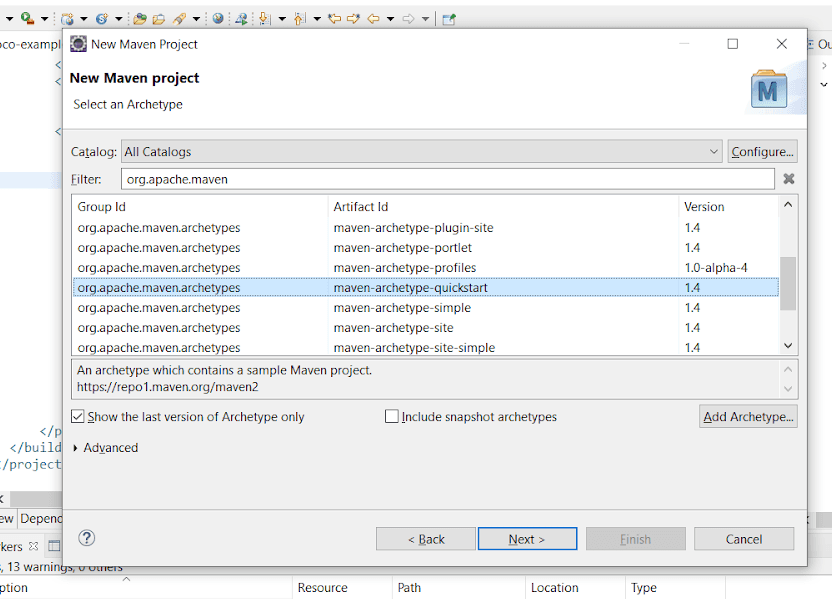
- For selecting Archetype in the project, type org.apache.maven in the textbox that is located next to the Filter. Select maven-archetype-quickstart and click Next.
- Now, specify the Group Id as com.example and Artifact Id as jacoco-example. The artifact Id is our project name. Finally, click on the Finish button.
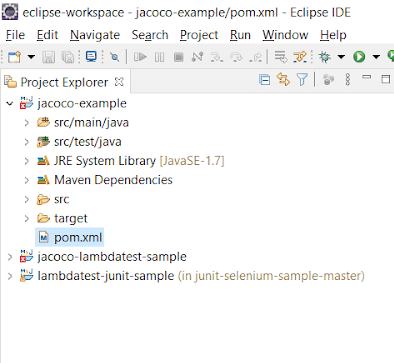
- You can see the project file and folder hierarchy in Project Explorer.
How to specify JaCoCo Maven plugin in POM.xml
- Open POM.xml, scroll to tag. We will specify the JaCoCo-Maven plugin in the section that lists the Maven plugins. Just copy the below code and paste it above the tag.
org.jacoco
jacoco-maven-plugin
0.8.6
   <!--first execution : for preparing JaCoCo runtime agent-->
    	prepare-agent
          		prepare-agent
   <!--second execution : for creating code coverage reports-->
          report
          test
             	report
<!--?xml version="1.0" encoding="UTF-8"?-->
  4.0.0
  com.example
  jacoco-example
  0.0.1-SNAPSHOT
 jacoco-example
    UTF-8
    1.7
    1.7
<!-- JUnit dependencies added to run test cases -->
      junit
      junit
      4.11
      test
        <!-- Maven plugin for Project Management -->
          maven-clean-plugin
          3.0.0
        <!-- see http://maven.apache.org/ref/current/maven-core/default-bindings.html#Plugin_bindings_for_jar_packaging -->

          maven-resources-plugin
          3.0.2
          maven-compiler-plugin
          3.7.0
          maven-surefire-plugin
          2.19.1
          maven-jar-plugin
          3.0.2
          maven-install-plugin
          2.5.2
          maven-deploy-plugin
          2.8.2
                org.jacoco
                jacoco-maven-plugin
                0.8.6
                        prepare-agent
                        prepare-agent
                        report
                        test
reportpackage com.example.Jacoco_lambdatest;
import java.net.MalformedURLException;
import java.net.URL;
import org.junit.Before;
import org.junit.Test;
import org.openqa.selenium.By;
import org.openqa.selenium.remote.DesiredCapabilities;
import org.openqa.selenium.remote.RemoteWebDriver;
public class LambdaTest {
public static String username = "";
public static String accessKey = "";
public static DesiredCapabilities setUp() throws Exception {
DesiredCapabilities capabilities = new DesiredCapabilities();
capabilities.setCapability("platform", "Windows 10");
capabilities.setCapability("browserName", "Chrome");
capabilities.setCapability("version", "87.0"); // If this cap isn't specified, it will just get the any available one
capabilities.setCapability("resolution","1024x768");
capabilities.setCapability("build", "First Test");
capabilities.setCapability("name", "Sample Test");
capabilities.setCapability("network", true); // To enable network logs
capabilities.setCapability("visual", true); // To enable step by step screenshot
capabilities.setCapability("video", true); // To enable video recording
capabilities.setCapability("console", true); // To capture console logs
return capabilities;
}
}Adding JUnit test Cases in the project:
- We will create a simple JUnit test case in AppTest.java. This is provided by default, in the src/test/java under the package name com.example.jacoco_lambdatest.
package com.example.Jacoco_lambdatest;
import java.net.MalformedURLException;
import java.net.URL;
import org.junit.Before;
import org.junit.Test;
import org.openqa.selenium.By;
import org.openqa.selenium.remote.DesiredCapabilities;
import org.openqa.selenium.remote.RemoteWebDriver;
import com.example.Jacoco_lambdatest.*;

public class AppTest {
	public static RemoteWebDriver driver;

	@Test
	public void testScript1() throws Exception {
		try {
	DesiredCapabilities capabilities = LambdaTest.setUp();
	String username =LambdaTest.username;
	String accessKey = LambdaTest.accessKey;
	RemoteWebDriver driver = new RemoteWebDriver(new URL("https://"+username+":"+accessKey+"@hub.lambdatest.com/wd/hub"),capabilities);       driver.get("https://lambdatest.github.io/sample-todo-app/");
     driver.findElement(By.name("li1")).click();
	driver.findElement(By.name("li2")).click();		      driver.findElement(By.id("sampletodotext")).clear();		driver.findElement(By.id("sampletodotext")).sendKeys("Yey, Let's add it to list");
	driver.findElement(By.id("addbutton")).click();
	driver.quit();
	} catch (Exception e) {
		System.out.println(e.getMessage());
		}
	}
}
Generating code coverage reports:
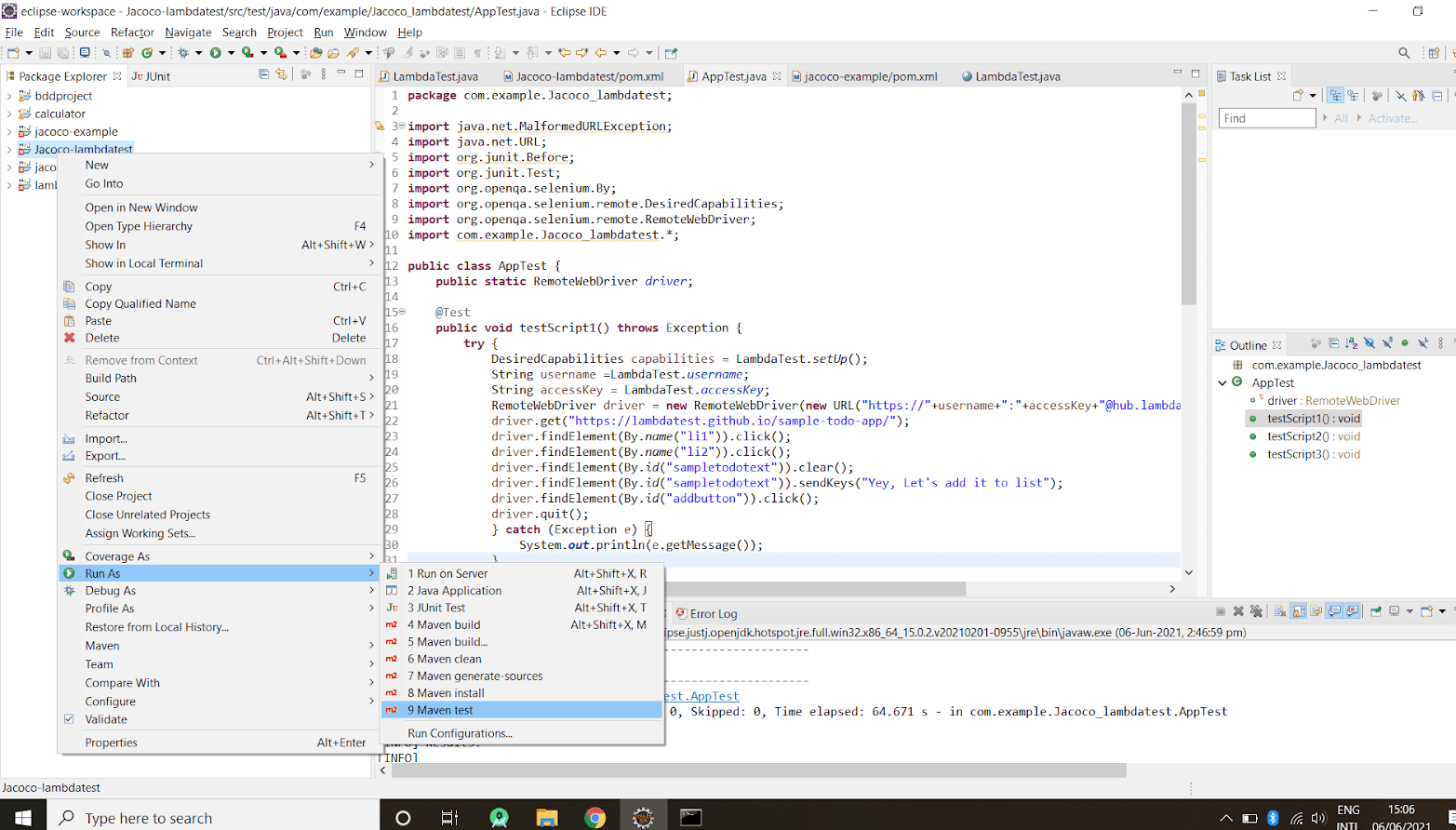
- Just click on the Run As button and set the configuration as Maven Test.
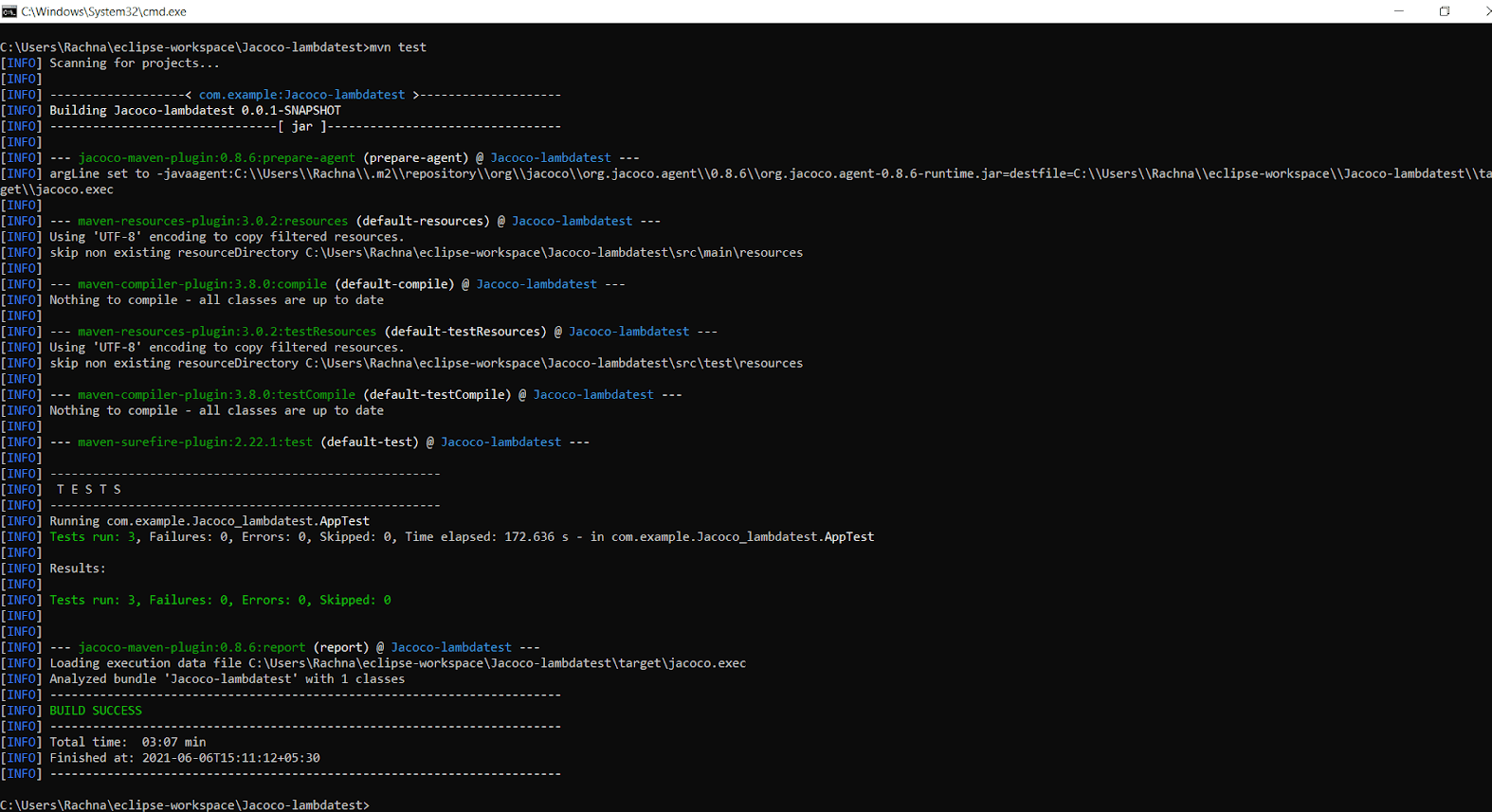
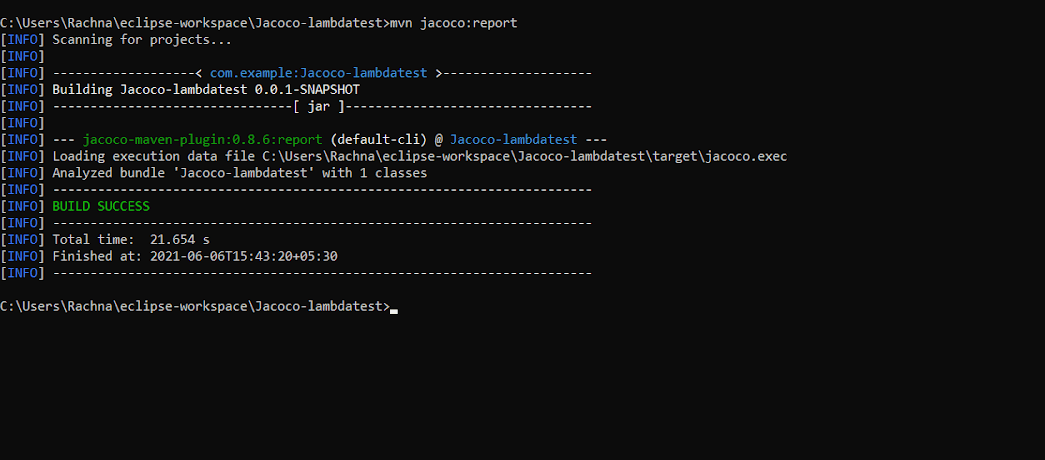
- Instead, you can open cmd(Command Line), traverse to the project folder, and run the maven command, “mvn test.”
- Running the JUnit tests will automatically set the JaCoCo agent in motion. It will create a report in binary format in the target directory, with path target/jacoco.exec. The output of jacoco.exec cannot be interpreted single-handedly but other tools like SonarQube and plugins can interpret it. As we have earlier specified the jacoco:report goal, it will generate readable code coverage reports in popular formats like HTML, CSV, and XML.
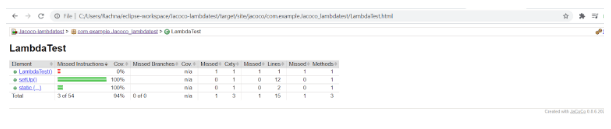
- As the build is successful, go to the target folder, then to the site>jacoco folder. The code coverage report (i.e. index.html) is located in target/site/jacoco/index.html. The report looks like this:
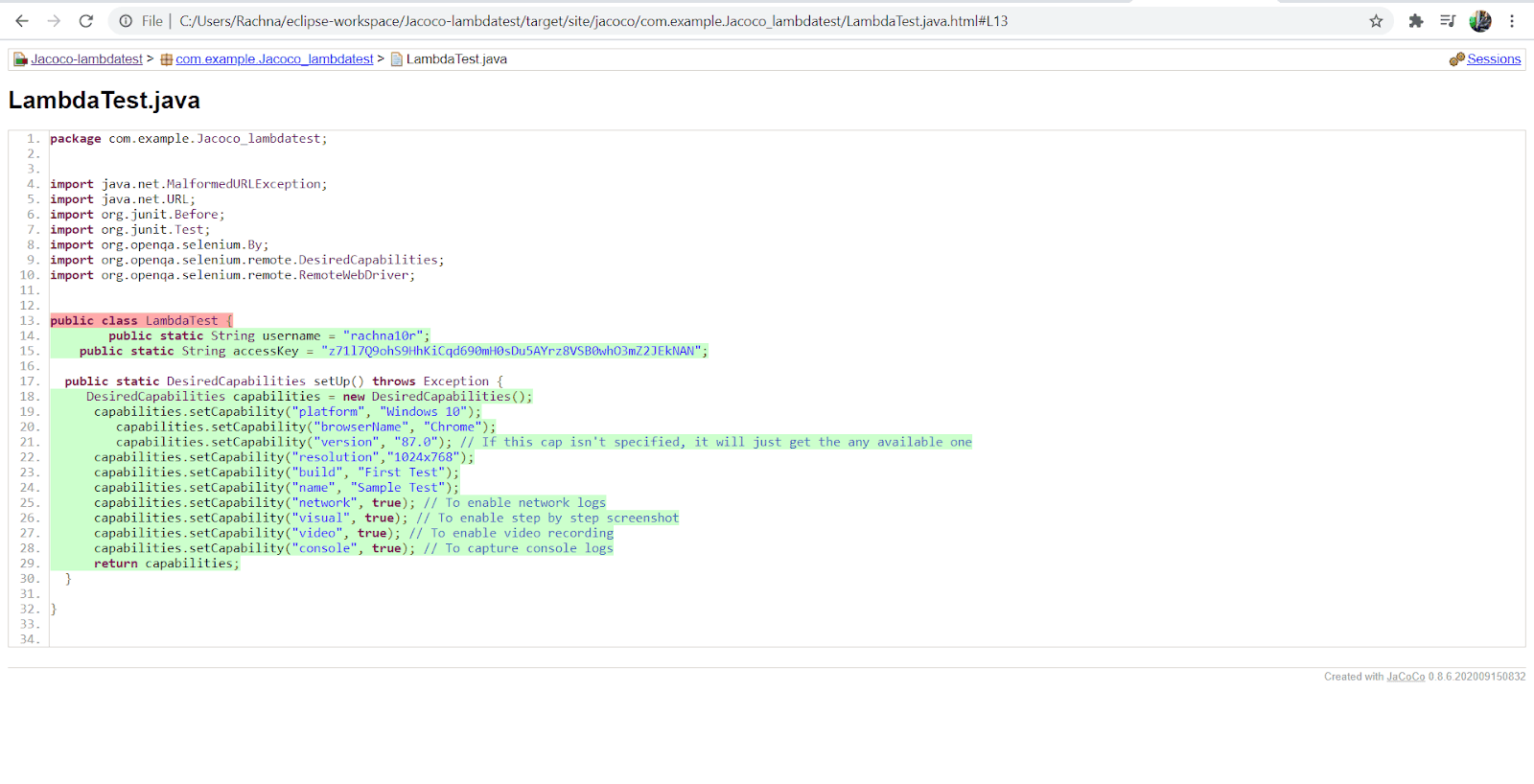
- You can drill down at a micro level by clicking on com.example.jacoco_lambdatest>TestMu AI in the report.
- By clicking on specific functions, you will have a more detailed view in TestMu AI.java.
- Here, you would see a lot of diamonds of different colors like green, yellow and red. These are the specifications used in the report to symbolize which line of code was executed and when it was executed. We will learn more about it in the next section of the report analysis. With this, you have successfully generated a code coverage report via the Jacoco Maven plugin.


Austin Siewert
CEO, Vercel
Discovered @TestMu AI yesterday. Best browser testing tool I've found for my use case. Great pricing model for the limited testing I do 👏
2M+ Devs and QAs rely on TestMu AI
Deliver immersive digital experiences with Next-Generation Mobile Apps and Cross Browser Testing Cloud

Analysis of the Code Coverage Report
Our code coverage report shows 94% instruction coverage, 100% branch coverage, which is a great code coverage score. Later, we will try to achieve a 100% code coverage score by adding more test cases.
The 38 instructions shown by JaCoCo in the report refer to the bytecode instructions instead of Java code instructions. The JaCoCo reports help you visually analyze code coverage by using diamonds with colors for branches and background highlight colors for lines. A brief explanation of the diamonds seen in the code coverage report is below:
- Red diamond indicates that no branches have been exercised during the testing phase
- Yellow diamond indicates that the code is partially covered (i.e. some branches are not exercised)
- Green diamond indicates that all branches are exercised during the test
The same color code applies to the background highlight color for the line coverage. The report mainly provides three crucial metrics :
- Line coverage: This reflects the amount of code exercised based on the number of Java byte code instructions called by the tests.
- Branch coverage: This shows the percentage of exercised branches in the source code. These are typical if/else or switch statements.
- Cyclomatic complexity: This reflects code complexity via the number of paths needed to cover all possible paths in a code. It also refers to the number of test cases needed to implement to cover the entire code. As there is no switch or statement in the code, the cyclomatic complexity will be 1; only one execution path is sufficient to cover the entire code.
Introducing more test cases for improving code coverage
- To achieve better code coverage, more tests need to be introduced that test the code that was not covered earlier via the test implementation.
- Go to AppTest.java in src/test/java to add more test cases.
- The new test cases added to AppTest.java will look as follows:
@Test
	public void testScript2() throws Exception {
	    try {
	    DesiredCapabilities capabilities = LambdaTest.setUp();
	    String username = LambdaTest.username;
	    String accessKey = LambdaTest.accessKey;
	    RemoteWebDriver driver = new RemoteWebDriver(new URL("https://"+username+":"+accessKey+"@hub.lambdatest.com/wd/hub"),capabilities);		 driver.get("https://lambdatest.github.io/sample-todo-app/");		    driver.findElement(By.name("li2")).click();
	    driver.findElement(By.name("li3")).click();
	   driver.findElement(By.id("sampletodotext")).clear();	driver.findElement(By.id("sampletodotext")).sendKeys("Yes, Let's add it to list");				driver.findElement(By.id("addbutton")).click();
					driver.quit();
		} catch (Exception e) {
				System.out.println(e.getMessage());
			    }
			}

	@Test
	public void testScript3() throws Exception {
		try {
	    DesiredCapabilities capabilities = LambdaTest.setUp();
	    String username = LambdaTest.username;
	    String accessKey = LambdaTest.accessKey;
	    RemoteWebDriver driver = new RemoteWebDriver(new URL("https://"+username+":"+accessKey+"@hub.lambdatest.com/wd/hub"),capabilities);			  driver.get("https://lambdatest.github.io/sample-todo-app/");		    driver.findElement(By.name("li4")).click();
	    driver.findElement(By.id("sampletodotext")).clear();	driver.findElement(By.id("sampletodotext")).sendKeys("Yes, Let's add  it!");
	  driver.findElement(By.id("addbutton")).click();
	  driver.quit();
	} catch (Exception e) {
		System.out.println(e.getMessage());
			}
			}
<!--Third execution : used to put a check on the entire package-->
    jacoco-check
        check
                PACKAGE
                        LINE
                        COVEREDRATIO
                        0.50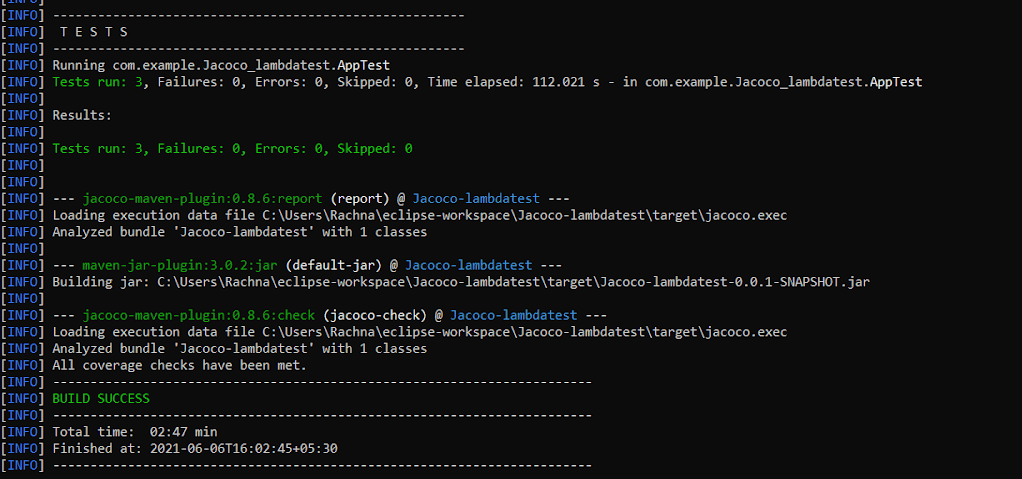
Automation Testing On TestMu AI Selenium Grid using Maven Project with Jacoco Plugin
Selenium testing on the cloud helps you attain better browser coverage, increased test coverage, and accelerated time to market. Parallel testing in Selenium helps you achieve the above mentioned requirements.
TestMu AI Cloud Selenium Grid is a cloud-based scalable Selenium testing platform that enables you to run your automation scripts on 2000+ different browsers and operating systems.
Pre-requisites:
To run the test script using JUnit with Selenium, first, we need to set up an environment. You would first need to create an account on TestMu AI. Do make a note of the username and access-key that is available in TestMu AI profile section.
We will use this sample project for Java Selenium testing.
Importing project to Eclipse IDE:
After downloading a zip file of the project: junit-selenium-sample from GitHub, we import it to Eclipse IDE by following the below mentioned steps:
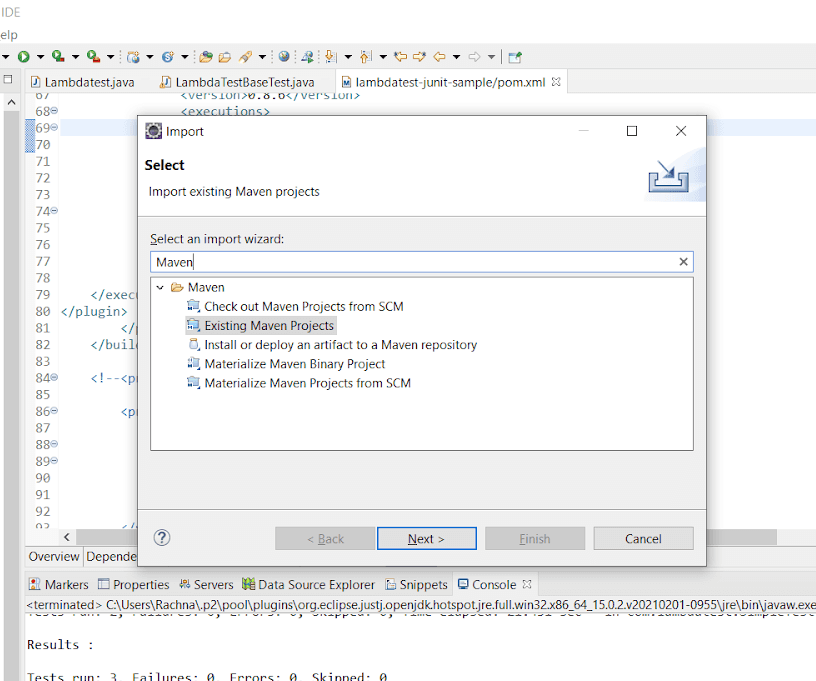
- Go to your Eclipse IDE, click on the File menu and select Import. A new dialog box appears.
- Type Maven in the textbox below and select Existing Maven Projects, and then click Next.
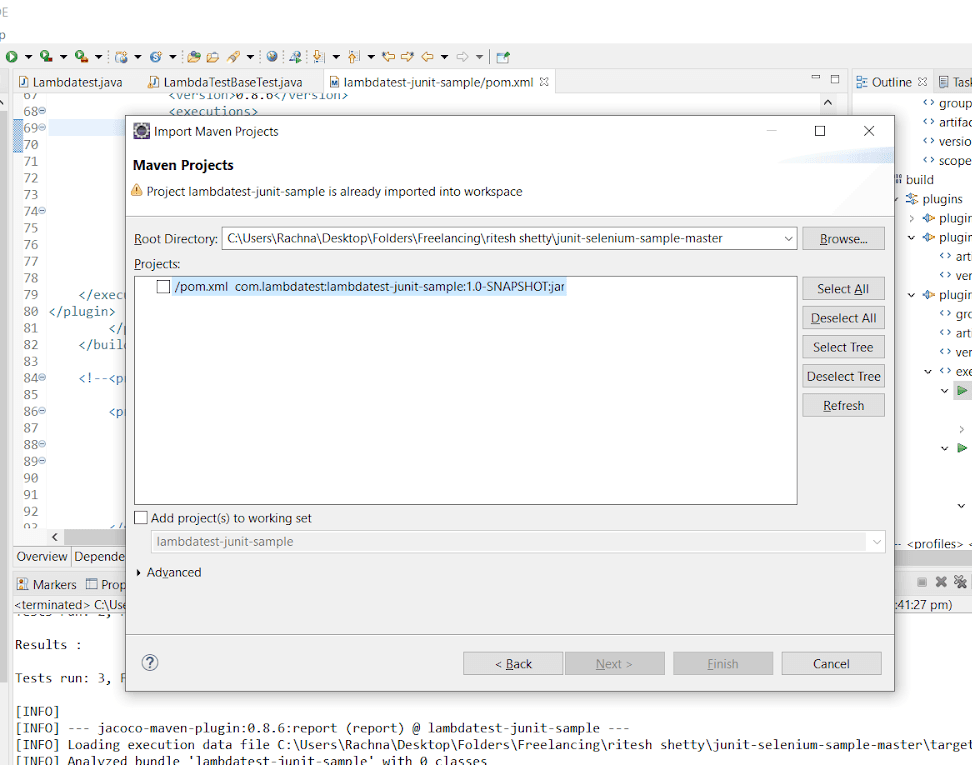
- In the next dialog box, click on Browse and traverse to the project folder. Also, tick the checkbox giving the path to the POM.xml file, and click Finish.
- Your project will be loaded in Eclipse IDE successfully.
Adding dependencies in the POM.xml file:
- Open the POM.xml, now add the dependencies of JUnit, Selenium, and JaCoCo Maven Plugin. After adding the dependencies to the code of POM.xml should look like this:
<!--?xml version="1.0" encoding="UTF-8"?-->
    4.0.0
    com.lambdatest
    lambdatest-junit-sample
    1.0-SNAPSHOT
     UTF-8
        2.19.1
        default
        <!--JUnit dependency-->
            junit
            junit
            4.12
            test
            commons-io
            commons-io
            1.3.2
            test
        <!--Selenium dependency-->
            org.seleniumhq.selenium
            selenium-java
            2.52.0
            test
            com.googlecode.json-simple
            json-simple
            1.1.1
            test
            <!--Apache Maven Plugins-->
                maven-compiler-plugin
                3.0
                    1.8
                    1.8
                maven-surefire-plugin
                2.19.1
            <!--JaCoCo Maven Plugin-->
                org.jacoco
                jacoco-maven-plugin
                0.8.6
                        prepare-agent
                      prepare-agent
                        report
                        test
report<em><a href="https://github.com/rachnaagrawal/junit-selenium-sample/blob/master/pom.xml" target="_blank" rel="nofollow noopener">Github</a></em>
Configuring the Desired Capabilities for JUnit Automation Testing:
- To connect to TestMu AI Selenium Automation Grid, the first thing done is invoking a remote webdriver. This remote driver requires some capabilities like browser, browser versions, operating system, etc., to build an environment. The code to it looks as follows:
WebDriver driver = new RemoteWebDriver(new URL("https://" + username + ":" + accesskey + "@hub.lambdatest.com/wd/hub"),
DesiredCapabilities.firefox()); //A class named DesiredCapabilities is used to create an environment as a Firefox browser.
| Fields | Selected Values |
|---|---|
| Operating Systems | Windows 10 |
| Browser | Chrome |
| Browser Version | 62.0 |
| Resolution | 1024×768 |
| Selenium Version | 3.13.0 |
Specifying TestMu AI Username and Access Key in required Java Class:
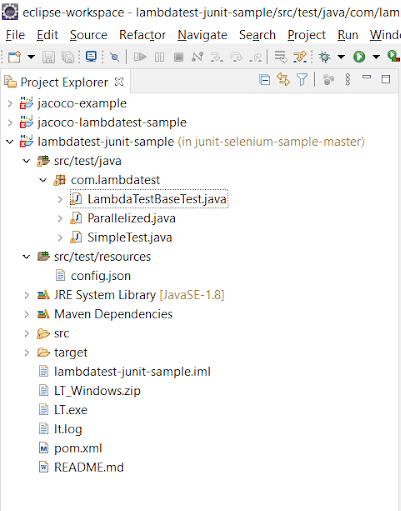
- In the Project Explorer, you would see 3 Java classes: TestMu AIBaseTest.java (contains the setup required for Java Selenium testing), Parallelized.java (contains Junit tests for parallel testing on TestMu AI Selenium grid), and SimpleTest.java (contains simple unit tests).
- TestMu AIBaseTest.java fetches the required data like desired capabilities, username, and access key from a config file. This is provided in src/test/resources as config.json.
- Specify the desired capabilities, Username, and Access key in config.json. This JSON file is used as you can provide multiple configurations in it for realizing parallel testing with Selenium. to specify multiple configurations in config.json and then fetch them later.
[ { "tunnelName":"LambdaTest tunnel",
"buildName":"running Java Selenium Tests",
"testName":"Jacoco JUnit Test",
"username": "user-name",
"access_key":"access-key",
 "operatingSystem" : "win10",
 "browserName" : "chrome",
 "browserVersion" : "62.0",
 "resolution" : "1024x768" }]
Unit Testing using JUnit with Selenium:
- SimpleTest.java is the Java class for specifying a single unit test case for testing and performing code coverage using the JaCoCo Maven plugin.
package com.lambdatest;

import com.lambdatest.LambdaTestBaseTest;
import org.junit.Test;
import org.openqa.selenium.By;
import static org.junit.Assert.assertEquals;

public class SimpleTest extends LambdaTestBaseTest {
    /**
     * Simple Test case annotation for JUnit Test
     * @throws Exception
     */

   @Test
    public void validateUser() throws Exception {
    	  driver.get("https://lambdatest.github.io/sample-todo-app/");
	  driver.findElement(By.name("li1")).click();
	  driver.findElement(By.name("li2")).click();
	  driver.findElement(By.id("sampletodotext")).clear();
	  driver.findElement(By.id("sampletodotext")).sendKeys("Yey, Let's add it to list");
	  driver.findElement(By.id("addbutton")).click();
    }

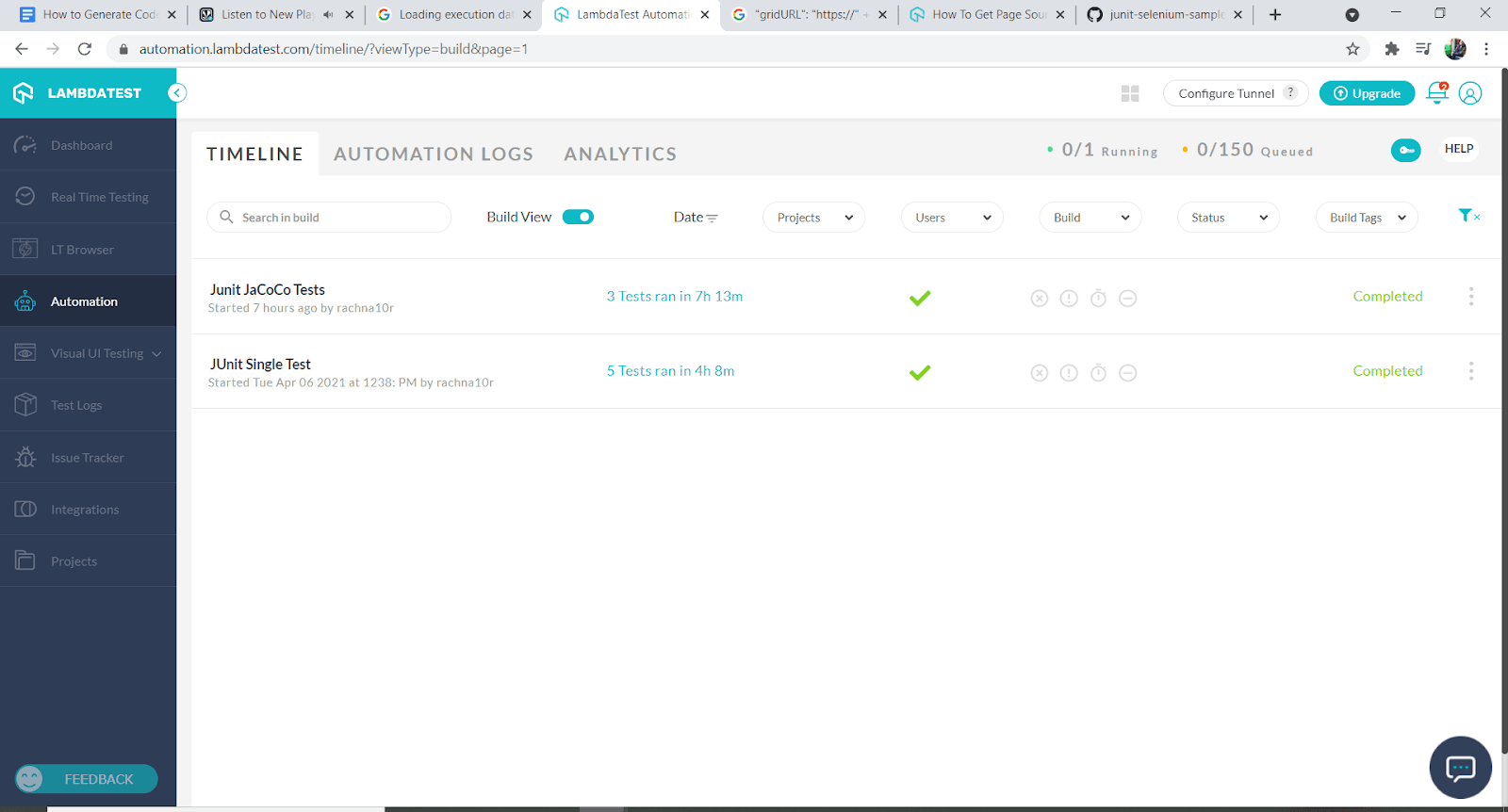
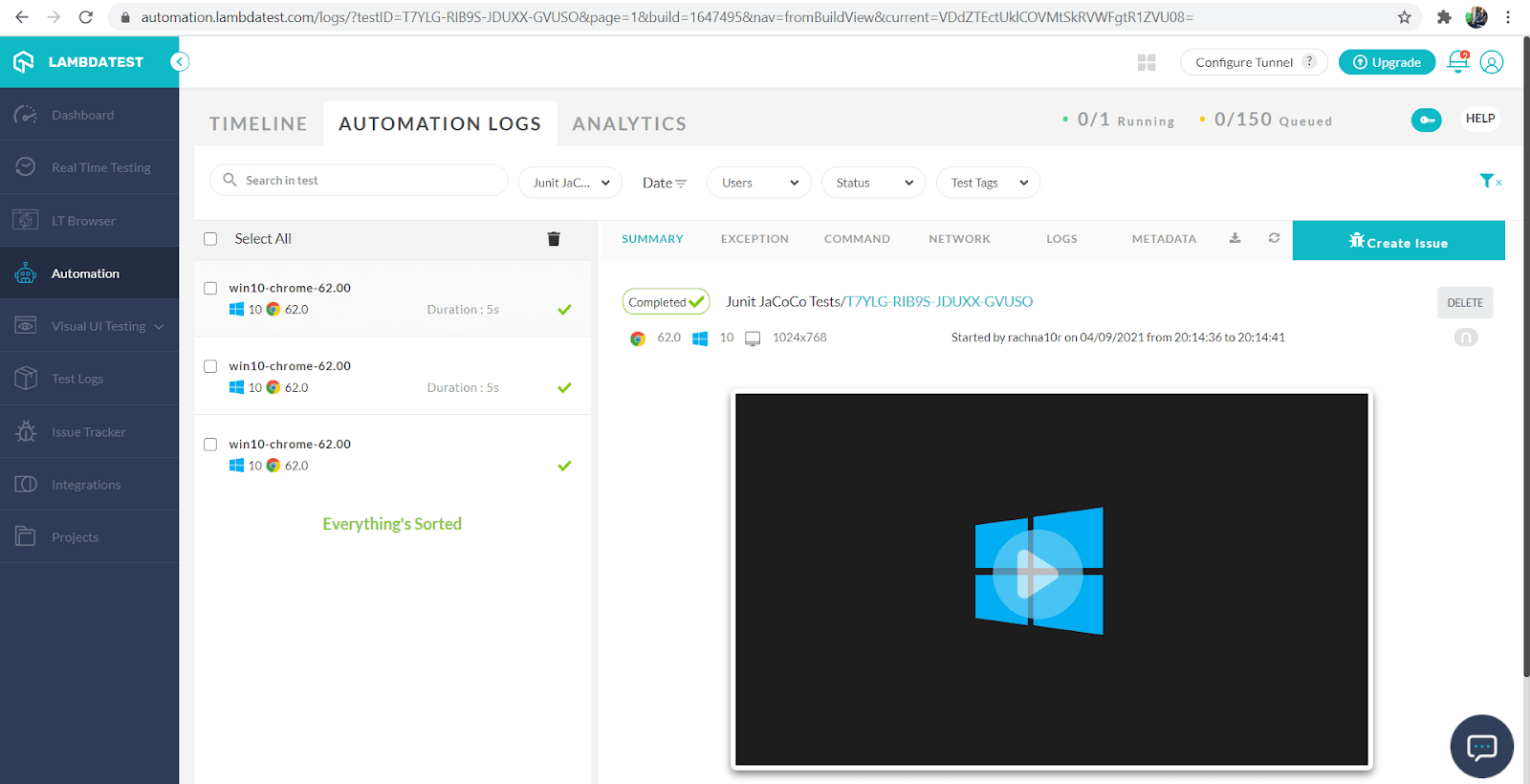
}- Mark the first two items as mark done.
- Add a new item to the list.
- Return the added item.
Generating Code Coverage Report via JaCoCo Maven Plugin:
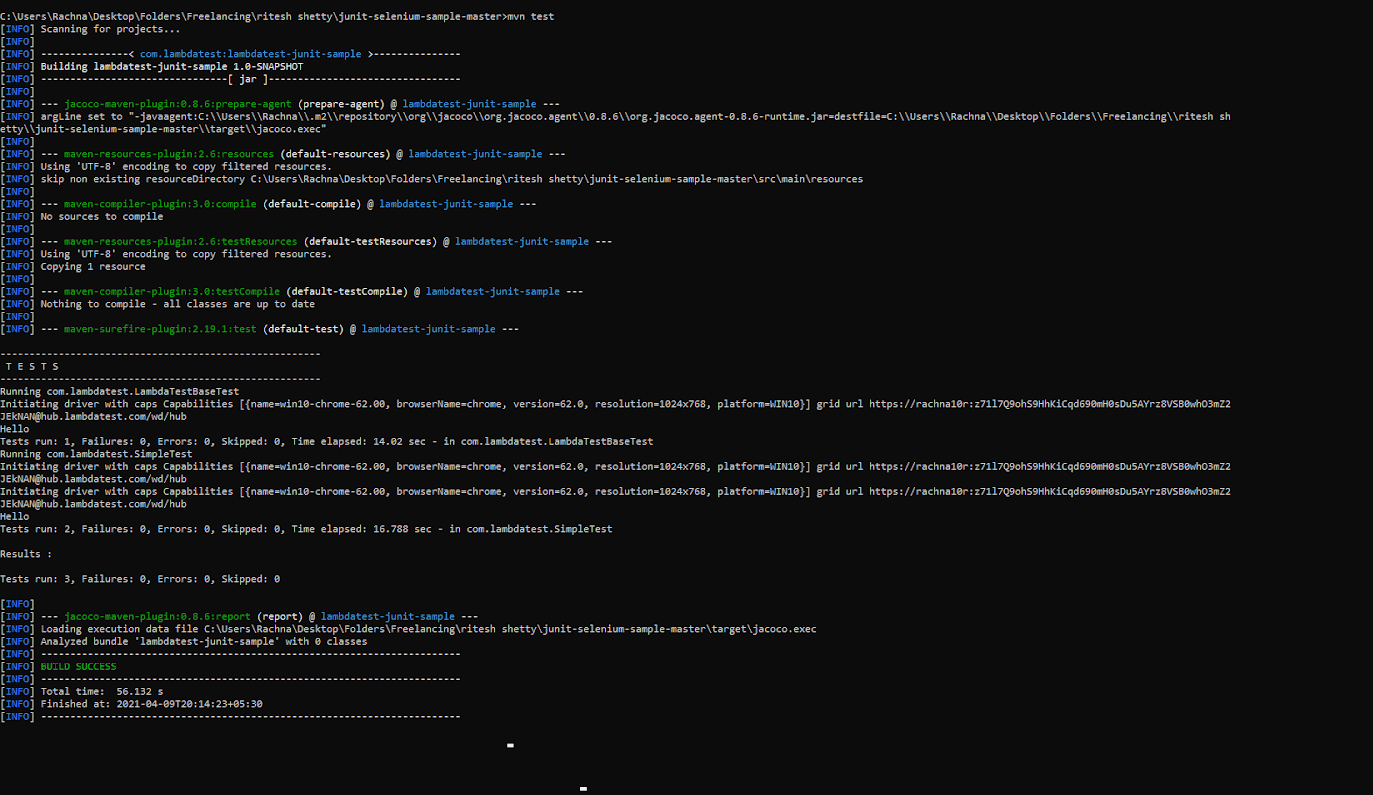
- Now, as we have run the JUnit test cases on TestMu AI Selenium Grid, the code coverage report should be generated via the JaCoCo Maven plugin.
- Just go to the target folder, you will find the binary format of the report as jacoco.exec.
- You can view the HTML, CSV, and XML form of the code coverage report in the target/site/jacoco folder as index.html, jacoco.csv, and jacoco.xml, respectively.
- Great! Now you can also try to improve the code coverage score and analyze the code coverage report generated.

Conclusion
In this article, we have seen how to use the JaCoCo-Maven plugin to generate code coverage reports for Java projects. We have also leveraged the agility and scalability of TestMu AI Selenium Grid cloud to automate the test processes. Remember, though, 100% code coverage is not responsible for reflecting effective testing, as it only shows the amount of code exercised during tests.
Yet, it helps to reduce the number of bugs and improves the software release quality. Also, it adds minimal overhead to the build process and allows it to keep a certain threshold as the development team adds edge cases or implements defensive programming.



Frequently asked questions
Did you find this page helpful?
More Related Hubs
TestMu AI forEnterprise
Get access to solutions built on Enterprise
grade security, privacy, & compliance
- Advanced access controls
- Advanced data retention rules
- Advanced Local Testing
- Premium Support options
- Early access to beta features
- Private Slack Channel
- Unlimited Manual Accessibility DevTools Tests